

Page 1

FOUR-PORT ADSL ROUTER
VX-VER170S ADSL Router
User Manual
Page 2

ADSL ROUTER USER MANUAL
NOTICE
This document contains proprietary information protected by copyright. This manual and
all the accompanying hardware, software and documentation are copyrighted. All rights
are reserved. No part of this document may be photocopied or reproduced
mechanically, electronically, or by other means.
The manufacturer does not warrant that the hardware will work properly in all
environments and applications, and makes no warranty or representation, either
expressed or implied, with respect to the quality, performance, merchantability, or
fitness for a particular purpose of the software or documentation. The manufacturer
reserves the right to make changes to the hardware, software and documentation
without notification of any individual or organization of the revision or change.
All brand and product names are the trademarks of their respective owners.
© Copyright 2013
All rights reserved.
Page 3

Content
1 OVERVIEW .................................................................................................................................... 1
1.1 FEATURES .................................................................................................................................. 1
1.2 PACKET CONTENTS .................................................................................................................... 3
1.3 SYSTEM REQUIREMENTS ........................................................................................................... 3
1.4 FACTORY DEFAULTS .................................................................................................................. 3
1.5 WARNINGS AND CAUTIONS ........................................................................................................ 3
2 HARDWARE DESCRIPTION ....................................................................................................... 5
3 HARDWARE INSTALLATION ..................................................................................................... 6
4 PC CONFIGURATION GUIDE ..................................................................................................... 7
4.1 LOCAL PC CONFIGURATION ...................................................................................................... 7
4.2 ACCESS THE PROGRAM .............................................................................................................. 8
4.3 QUICK SETUP .............................................................................................................................. 8
APPENDIX FREQUENTLY ASKED QUESTIONS ...................................................................... 19
Page 4

ADSL ROUTER USER MANUAL
1
1 Overview
Thank you for using this Asymmetric Digital Subscriber Line (ADSL) router. With the
asymmetric technology, this device runs over standard copper phone lines. In addition, ADSL
allows you to have both voice and data services in use simultaneously over a single phone
line. It is an ideal solution for the small and medium size business environment.
This ADSL router provides a 10/100BaseT interface for Ethernet connection. Computers can
connect to the router through its Ethernet port to share high-speed Internet access.
Connection to the port is simple, regardless of the operating system in use. This router
receives adaptive rates up to 24Mbps and transmits 1Mbps upstream.
1.1 Features
1.1.1 ADSL Compliance
ANSI T1.413 issue 2
VLAN tagging
Downstream: Up to 24Mbps.
Max upstream speed: 1Mbps.
Rate Adaptive at 32 Kbps steps
Interoperable with all major DSLAM equipment
TR-069 compliant with ACS
1.1.2 Standards & Protocols Conformance
ITU G.994.1 G.992.1(G.DMT) G.992.2(G.LITE)
ITU G.992.3(G.DMT.BIS)
ITU G.992.5
T1.413
PPPoE
PPPoA
IPoA
Page 5

ADSL ROUTER USER MANUAL
2
1.1.3 Operating System Support
WINDOWS 8
WINDOWS 7
WINDOWS 98
WINDOWS 98 SE
WINDOWS ME
WINDOWS 2000
WINDOWS XP
Macintosh
LINUX
1.1.4 ATM Capabilities
ATM Connection
VPI Range: 0-255
VCI Range: 32-65535
AESA (E.164, DCC, ICD)
PVC Support
UNI 3.0 & 3.1 Signaling
Support AAL 5
1.1.5 Management Support
Web Based GUI
Upgrade or update via FTP/HTTP
Command Line Interface via Telnet
Diagnostic Test
Firmware upgrade-able for future feature enhancement
1.1.6 Environmental
Operating humidity: 10%-90% non-condensing
Non-operating storage humidity: 5%-95% non-condensing
Page 6

ADSL ROUTER USER MANUAL
3
1.2 Packet Contents
The packet contents are as follows:
ADSL Router x 1
External Splitter x 1
Power Adapter x 1
Telephone Line x 1
Ethernet Cable x 1
1.3 System Requirements
Before utilizing this ADSL router, verify that the following requirements are met:
Subscription for ADSL service. Your ADSL service provider should provide
you with at least one valid IP address (static assignment or dynamic
assignment via dial-up connection).
One or more computers, each containing an Ethernet 10/100M Base-T
network interface card (NIC).
A hub or switch, if you are connecting the device to more than four
computers.
For system configuration using the supplied web-based program: A web
browser such as Internet Explorer v5.0 or later, or Netscape v4.7 or later.
1.4 Factory Defaults
The device is configured with the following factory defaults:
IP Address: 192.168.1.1
Subnet Mask: 255.255.255.0
Encapsulation: RFC 2516 LLC
VPI/VCI: According to local information
1.5 Warnings and Cautions
Never install telephone wiring during a storm. Avoid using a telephone
during an electrical storm. There may be a risk of electric shock from
lightening.
Do not install telephone jacks in wet locations and never use the product
near water.
To prevent dangerous overloading of the power circuit, be careful about the
designed maximum power load ratings. Not following the rating guideline
could result in a dangerous situation.
Page 7

ADSL ROUTER USER MANUAL
4
Please note that the telephone line on the ADSL router must adopt the
primary line that directly outputs from the junction box. Do not connect the
ADSL router to an extension phone. In addition, if your house developer
divides a telephone line to multiple sockets inside the wall of your home,
please only use the telephone that is connected with the splitter of the ADSL
router when you access the Internet. Under the above condition, if you also
install a telephone with an anti-cheat-dial device, please remove this type of
telephone, otherwise the ADSL router may frequently go off-line.
Page 8
ADSL ROUTER USER MANUAL
5
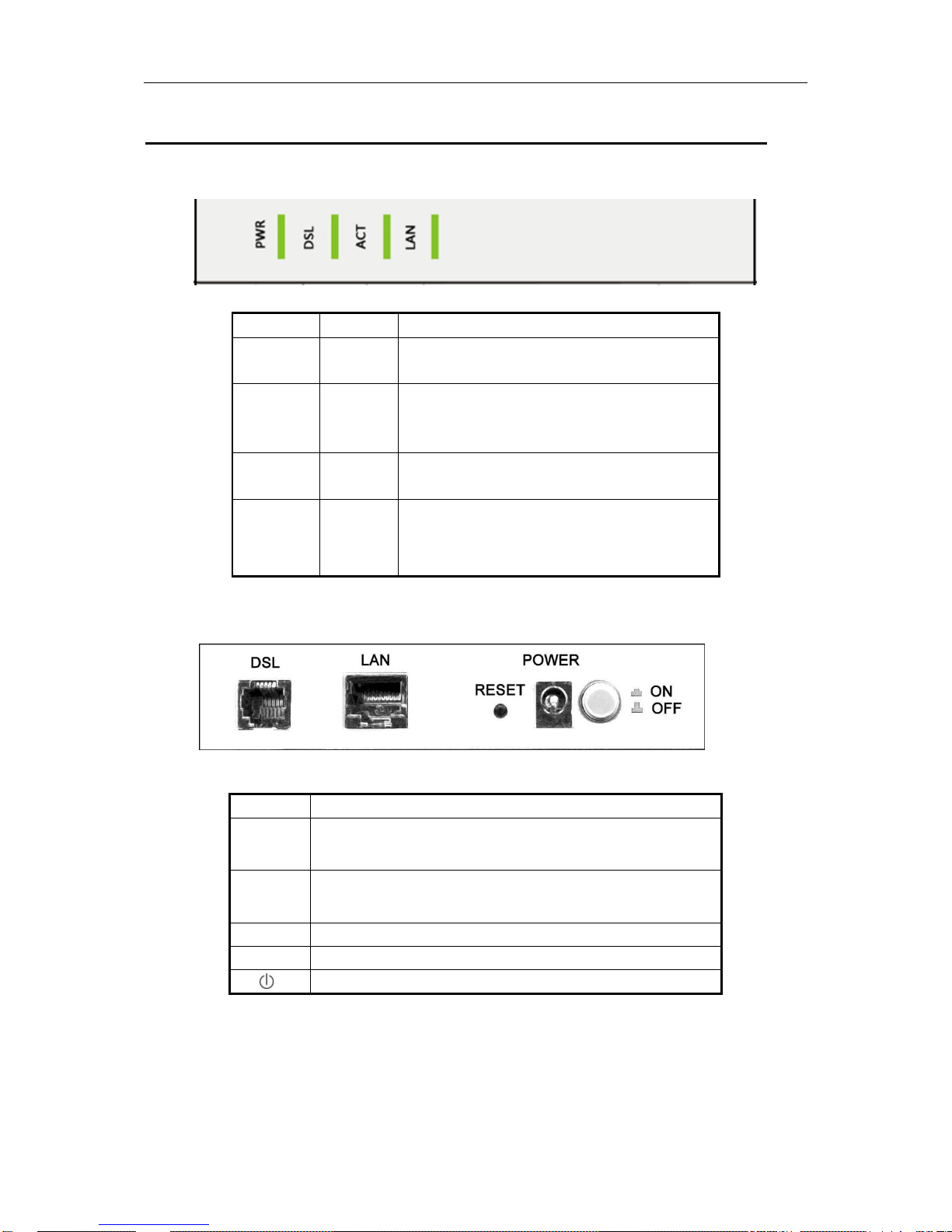
2 Hardware Description
Front Panel
Rear Panel
Port
Function
DSL
Connects the device to an ADSL telephone jack or splitter using a RJ-11
telephone cable
LAN
Connects the device to your PC's Ethernet port, or to the uplink port
on your hub/switch, using a RJ-45 cable
Reset
System reset or reset to factory defaults.
POWER
Connects to the supplied power adapter
Switches the unit on and off
LED
Color
Function
PWR
Green
On: Power
Off: No power or system boot failed
DSL
Green
On: ADSL link established and active
Blinking: ADSL is trying to establish a connection
Off: No ADSL link
ACT
Green
Blinking: ADSL data activity occurs.
Off: No ADSL data is being sent or received.
LAN
Green
On: LAN link established and active
Blinking: ADSL data activity occurs.
Off: No LAN link.
Page 9
ADSL ROUTER USER MANUAL
6
3 Hardware Installation
This Hardware Installation portion describes how to connect the ADSL router to your
computer, LAN and the Internet. This hardware installation portion assumes you have already
subscribed to an ISP for ADSL service and only covers the basic configurations to be applied
to residential or corporate networks.
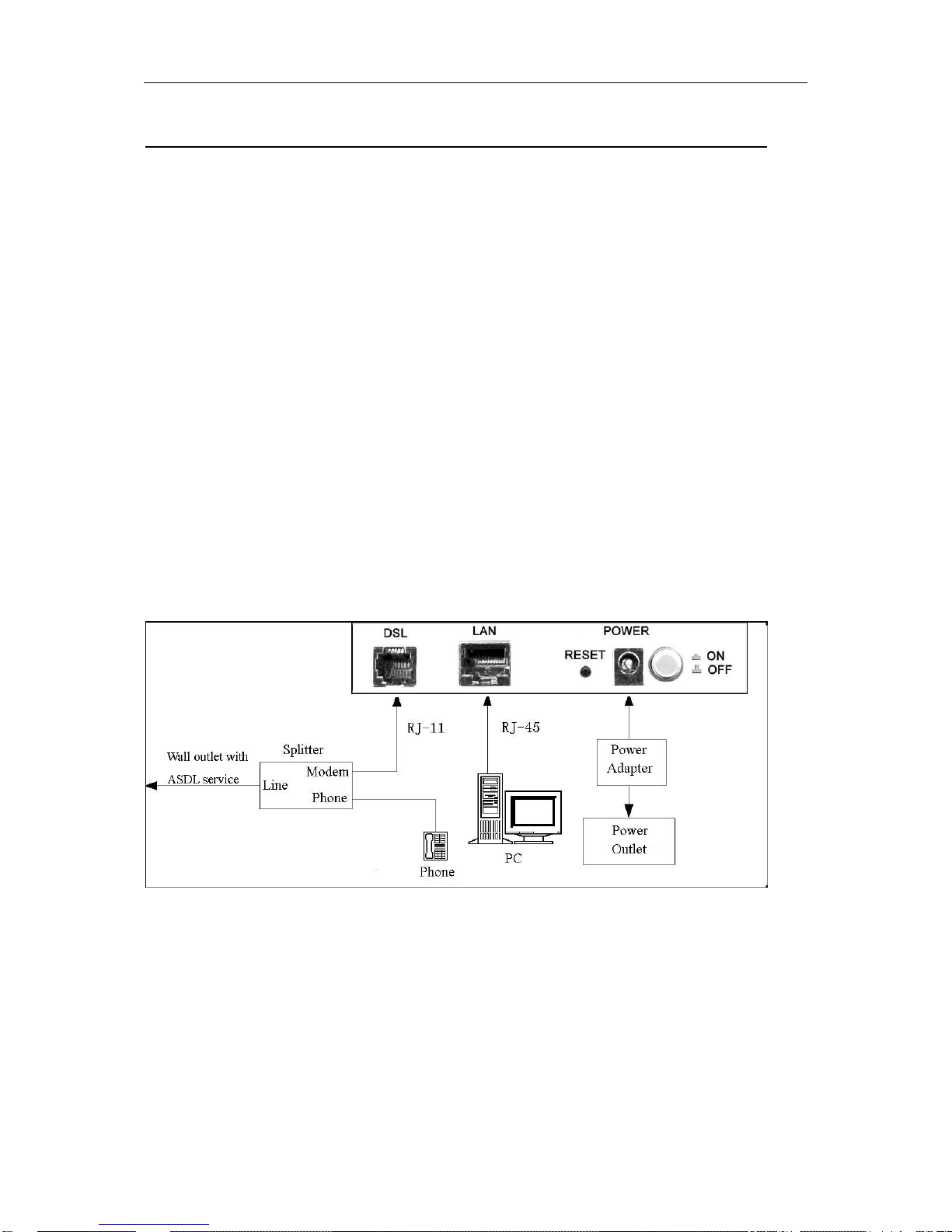
Hardware Connection
1. Use telephone line to connect the DSL port of the ADSL router to the MODEM port of
the splitter. Use a separate telephone line to connect your telephone to the PHONE
port of the splitter and then connect the wall phone jack to the LINE port of the splitter.
The splitter comes with three connectors as detailed below:
LINE: Connects to a wall phone jack (RJ-11 jack)
MODEM: Connects to the DSL jack of ADSL router
PHONE: Connects to a telephone set
2. Use an Ethernet Cable to connect the LAN port of the ADSL router to your LAN or PC
with the network card installed.
3. Connect the power cable to the PWR connector on the ADSL router and then plug in
the AC power adapter to the AC power outlet. Press the on-off button.
Note: Without the splitter, transient noise from the telephone can interfere with the
operation of the ADSL router. As a result, the ADSL router may introduce noise to the
telephone line. To prevent this from happening, a small external splitter must be
connected to each telephone.
Page 10

ADSL ROUTER USER MANUAL
7
4 PC Configuration Guide
4.1 Local PC Configuration
4.1.1 Windows 95, 98, ME, XP
1. In the Windows task bar, click the “Start” button, point to “Settings”, and then
click “Control Panel”.
2. Double-click the “Network” icon.
3. On the “Configuration” tab, select the TCP/IP network associated with your
network card and then click “Properties”.
4. In the “TCP/IP Properties” dialog box, click the “IP Address” tab. Set the IP
address as 192.168.1.x (x can be a decimal number from 2 to 254.) like
192.168.1.2, and the subnet mask as 255.255.255.0.
5. On the “Gateway” tab, set a new gateway as 192.168.1.1, and then click “Add”.
6. Configure the “DNS” tab if necessary. For information on the IP address of the
DNS server, please consult with your ISP.
7. Click “OK” twice to confirm and save your changes.
8. You will be prompted to restart Windows. Click “Yes”.
4.1.2 Windows 2000
1. In the Windows task bar, click the “Start” button, point to “Settings”, and then
click “Control Panel”.
2. Double-click the “Network and Dial-up Connections” icon.
3. In the “Network and Dial-up Connections” window, right-click the “Local Area
Connection” icon, and then select “Properties”.
4. Highlight “Internet Protocol (TCP/IP)”, and then click “Properties”.
5. In the “Internet Protocol (TCP/IP) Properties” dialog box, set the IP address as
192.168.1.x (x can be a decimal number from 2 to 254.), and the subnet mask
as 255.255.255.0 and the default gateway as 192.168.1.1. Then click “OK”.
6. Configure the “DNS” tab if necessary. For information on the IP address of the
DNS server, please consult with your ISP.
7. Click “OK” twice to confirm and save your changes.
Page 11
ADSL ROUTER USER MANUAL
8
4.2 Access the program
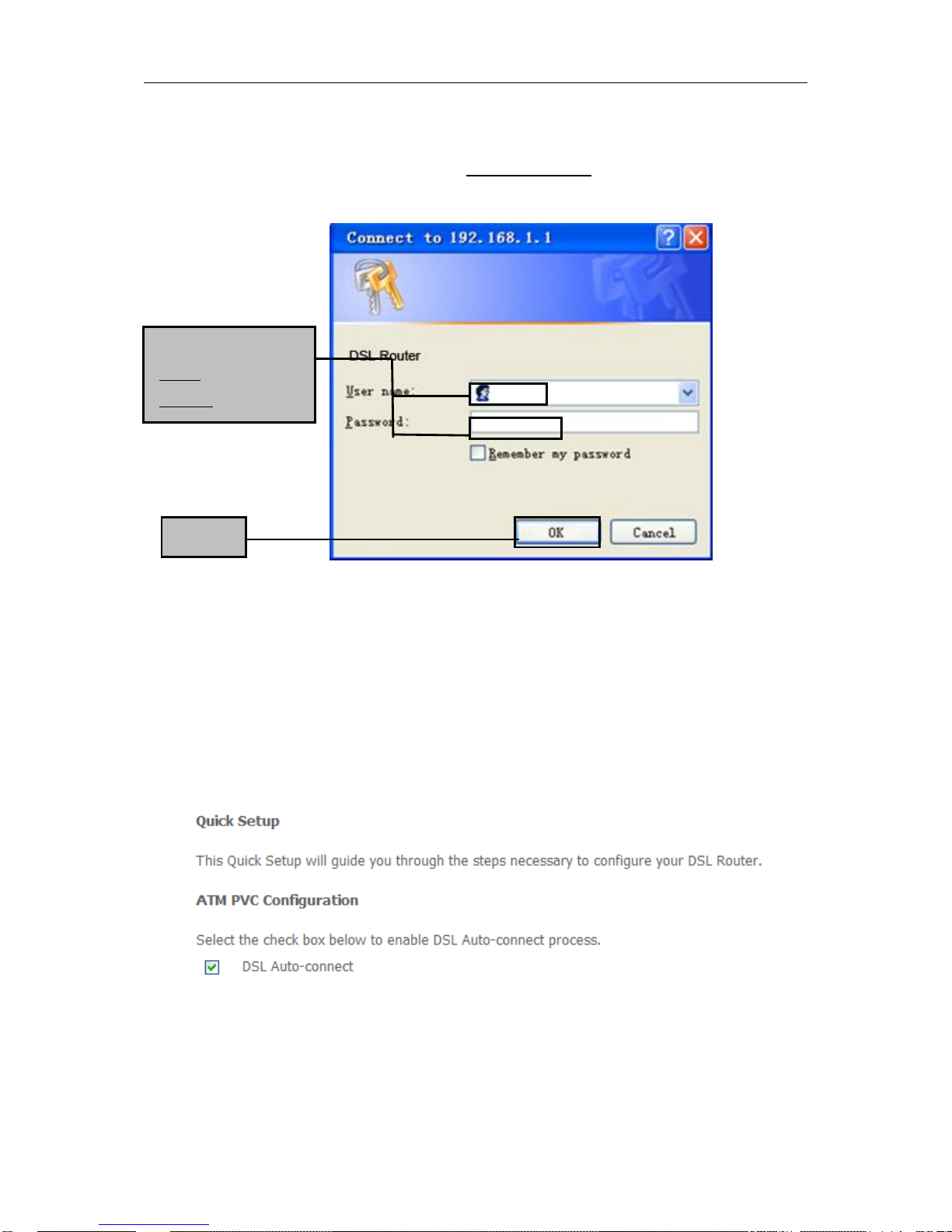
After configuring the IP Address of you computer, power on the ADSL Router, and launch a
web browser, such as Internet Explorer. Use http://192.168.1.1 to log on to the setting pages.
Attention: the username and password are both lowercase.
4.3 Quick setup
If there are no pre-configured PVCs in the router, you can find the Quick Setup option on the
left of router configuration page. The user can also delete the PVCs pre-configured to find the
option.
1. From home page, choose Quick Setup.
2. Deselect the check box to disable the DSL Auto-connect process. Set the VPI/VCI
value provided by your ISP.
Click OK
Enter username
‘admin’ and password
‘adslroot’
Page 12
ADSL ROUTER USER MANUAL
9
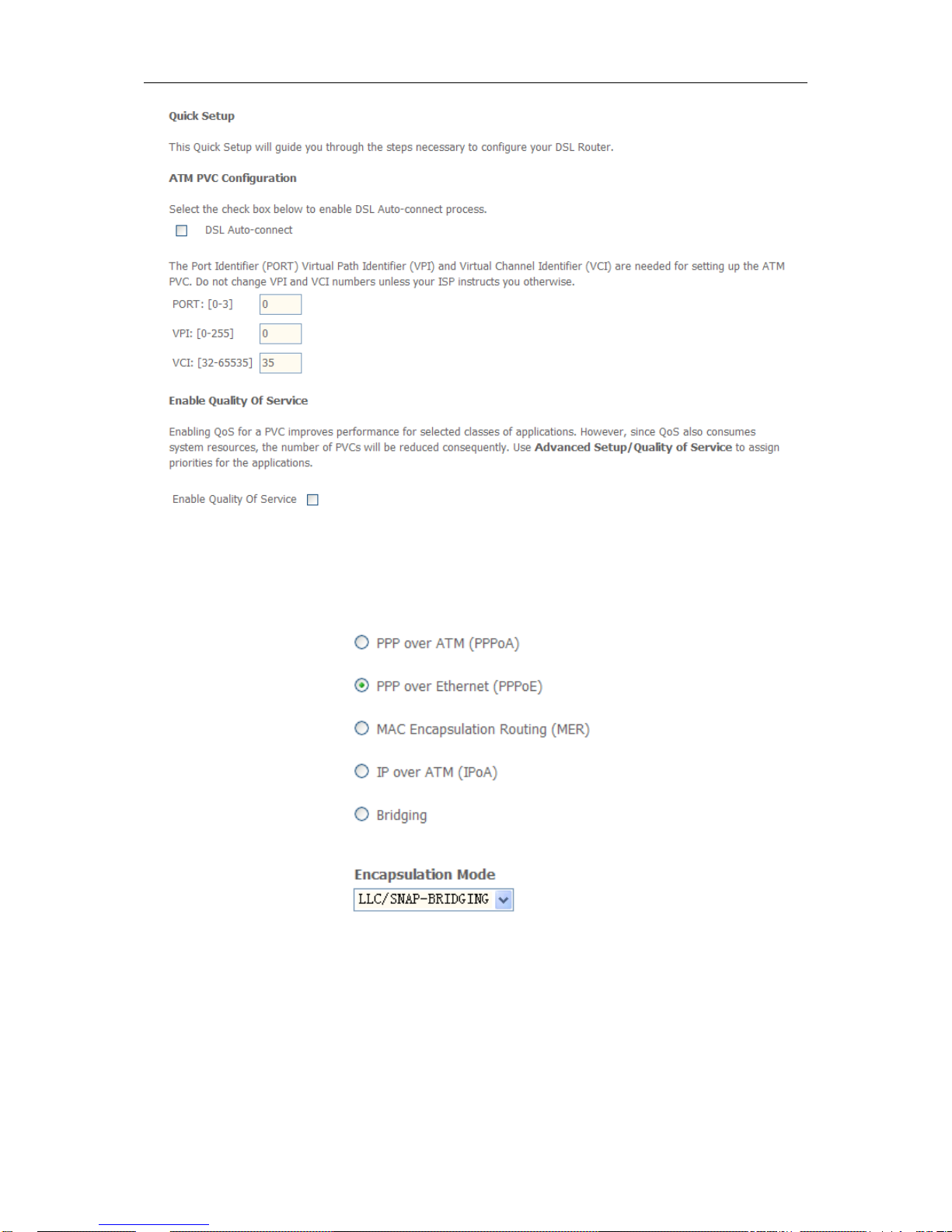
a. PPP over Ethernet (PPPoE)
1. Select PPP over Ethernet (PPPoE) as connection type, and select
LLC/SNAP-BRIDGING as encapsulation mode.
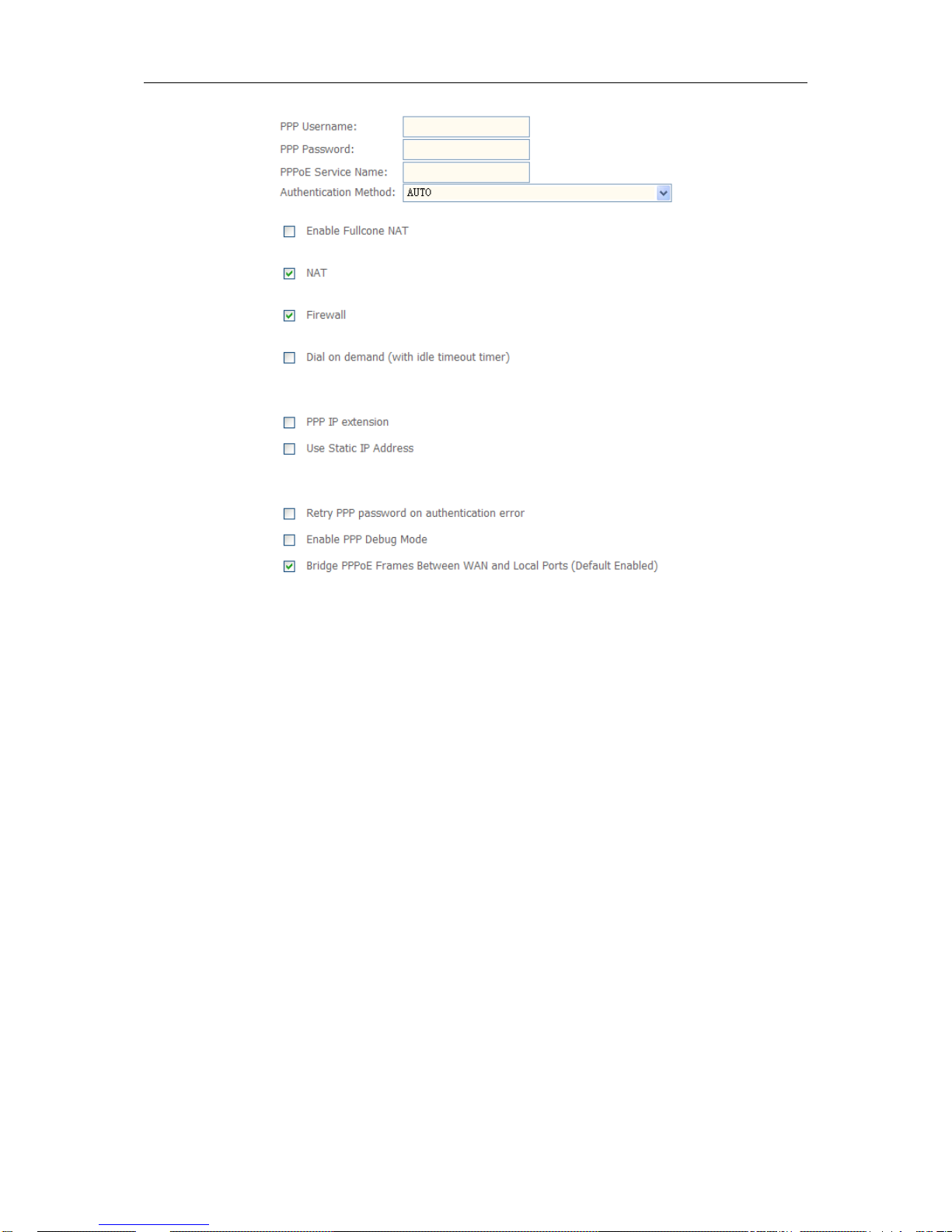
2. Input the PPP Username & PPP Password and then click Next. The user interface
allows a maximum of 256 characters in the user name and a maximum of 32 characters
in the password. Just remember to enable NAT and Firewall as shown below.
Page 13
ADSL ROUTER USER MANUAL
10
PPPoE service name can be blank unless your Internet Service Provider gives you a value
to enter.
Authentication method is default to Automatic. It is recommended that you leave the
Authentication method in Automatic, however, you may select PAP or CHAP if necessary.
The default value for MTU (Maximum Transmission Unit) is 1500 for PPPoA and 1492 for
PPPoE. Do not change these values unless your ISP asks you to.
The gateway can be configured to disconnect if there is no activity for a specific period of time
by selecting the Dial on demand check box and entering the Inactivity timeout. The entered
value must be between 1 minute and 4320 minutes.
The PPP IP Extension is a special feature deployed by some service providers. Unless your
service provider specifically requires this setup, do not select it. If you need to select it, the
PPP IP Extension supports the following conditions:
It allows only one computer on the LAN.
The public IP address assigned by the remote using the PPP/IPCP protocol is
actually not used on the WAN PPP interface. Instead, it is forwarded to the
computer's LAN interface through DHCP. Only one system on the LAN can be
Page 14
ADSL ROUTER USER MANUAL
11
connected to the remote, since the DHCP server within the ADSL gateway only
has a single IP address to assign to a LAN device.
NAPT and firewall are disabled when this option is selected.
The gateway becomes the default gateway and DNS server to the computer
through DHCP using the LAN interface IP address.
The gateway extends the IP subnet at the remote service provider to the LAN
computer. That is, the PC becomes a host belonging to the same IP subnet.
The ADSL gateway bridges the IP packets between WAN and LAN ports, unless
the packet is addressed to the gateway's LAN IP address.
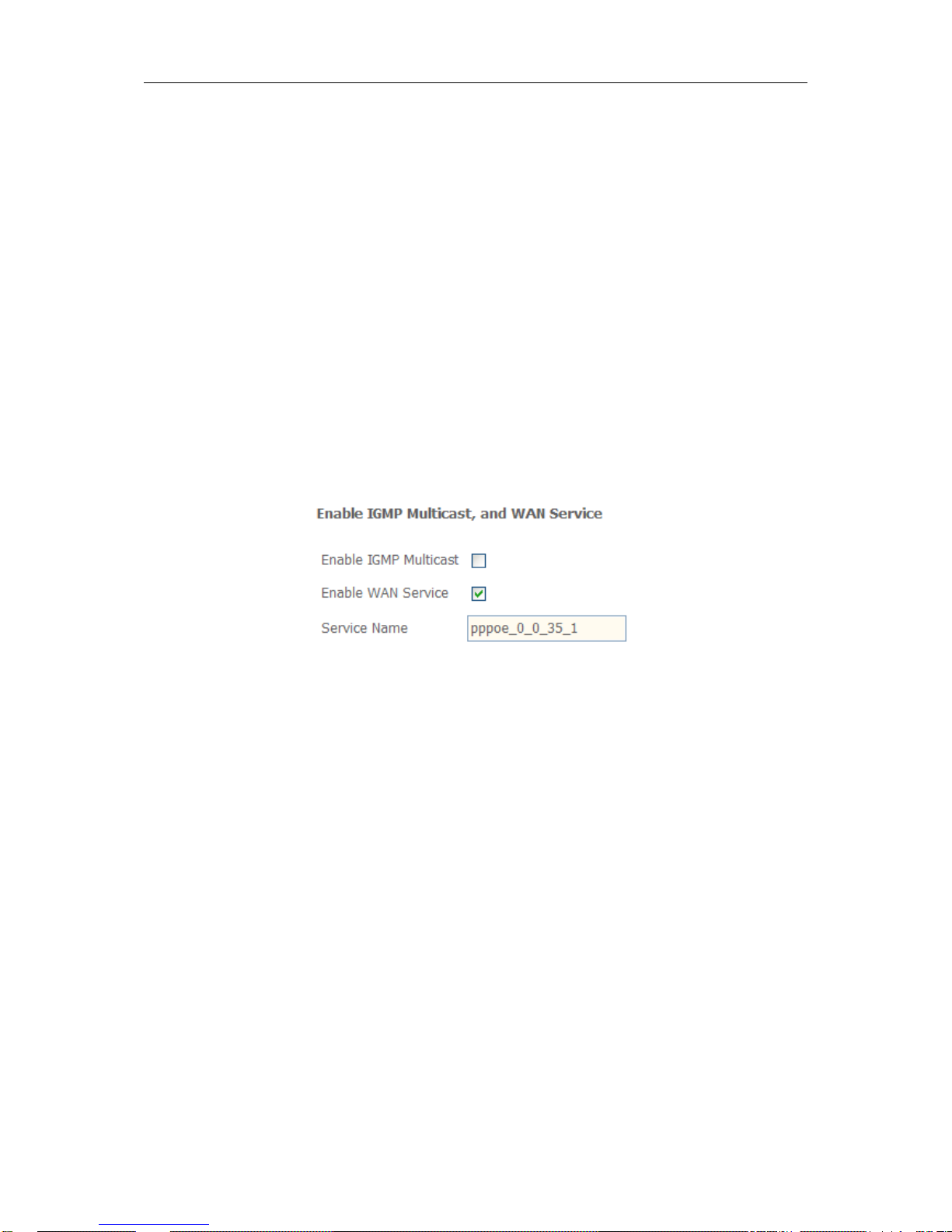
3. Deselect Enable IGMP Multicast, and select Enable WAN Service and then click
Next.
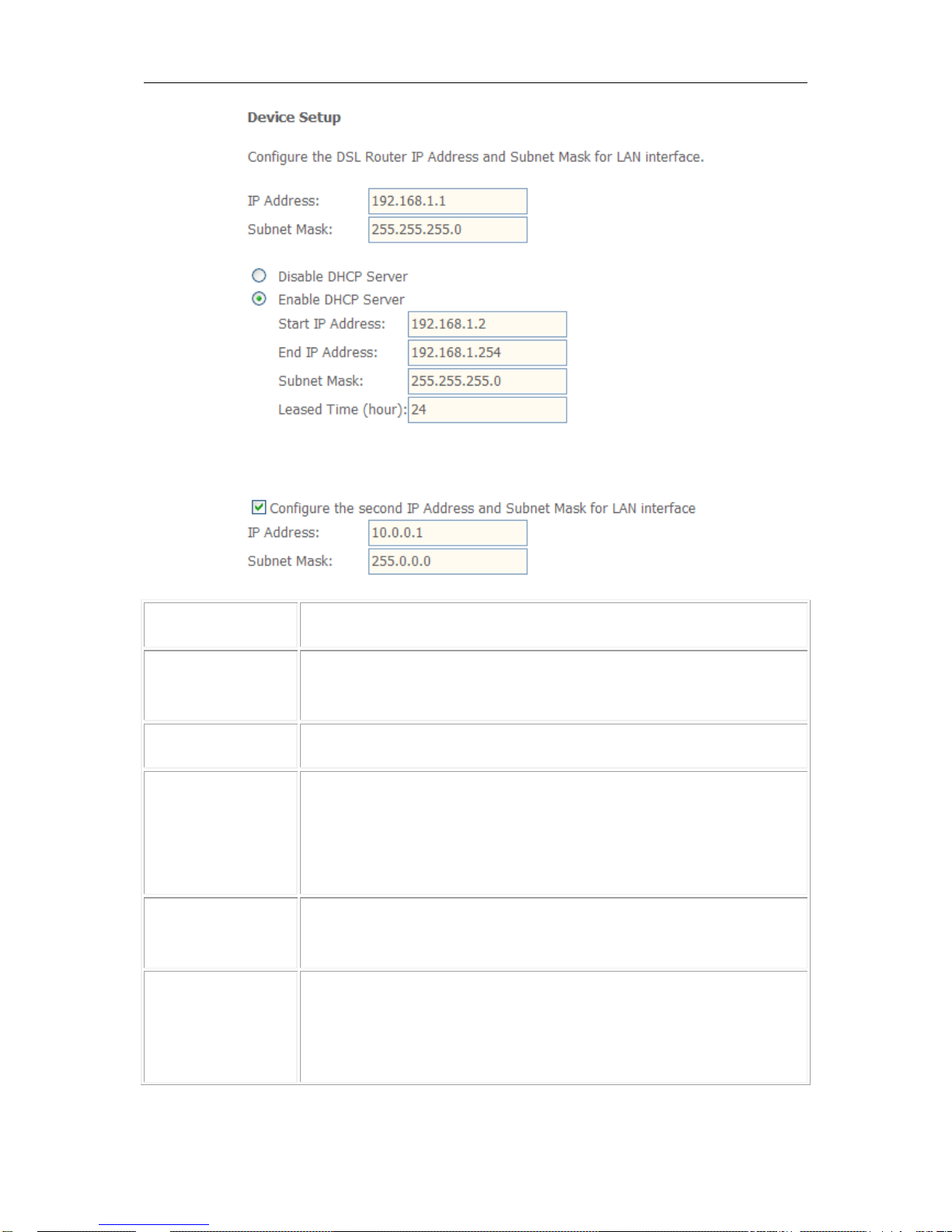
4. Configure the DSL Router’s IP Address and Subnet Mask for LAN interface. In this
page, you can use DHCP (Dynamic Host Configuration Protocol) to control the
assignment of IP addresses on your local network (LAN only).
Page 15
ADSL ROUTER USER MANUAL
12
Item
Description
IP address
This is the IP address that other devices on your local network will use
to connect to the modem.
Subnet mask
This defines the size of your network. The default is 255.255.255.0.
Disable / Enable
DHCP server
The DHCP server assigns an IP addresses from a pre-set pool of
addresses upon request from DHCP client (e.g. your computer). Do not
disable the DHCP server unless you wish to let another device handle
IP address issuance on the local network.
Start / end IP
address
This is the beginning and ending range for the DHCP server
addresses.
Lease time
The amount of time before the IP address is refreshed by the DHCP
server.
Page 16
ADSL ROUTER USER MANUAL
13
Configure the
second IP address
and...
Use this feature to create a public network on your local LAN, which is
accessible from the Internet. By assigning an address to this interface
and setting LAN clients to the same network, LAN clients are
accessible from the public network (e.g. FTP or HTTP servers).
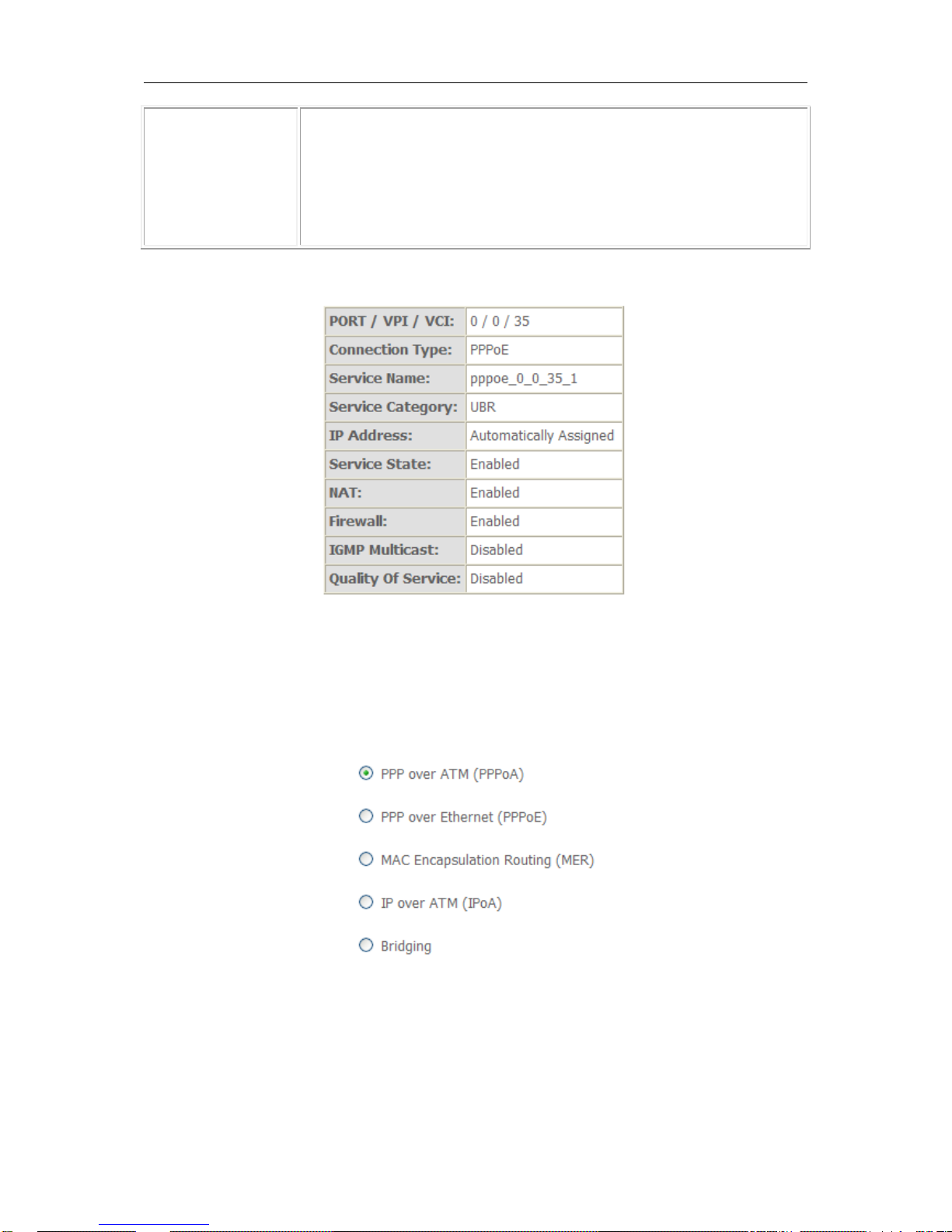
5. Make sure that the settings below match the settings provided by your ISP.
6. Click on the Save/Reboot button to save your configurations.
b. PPP over ATM (PPPoA)
1. Select PPP over ATM (PPPoA) as connection type, and select VC/MUX as
encapsulation mode.
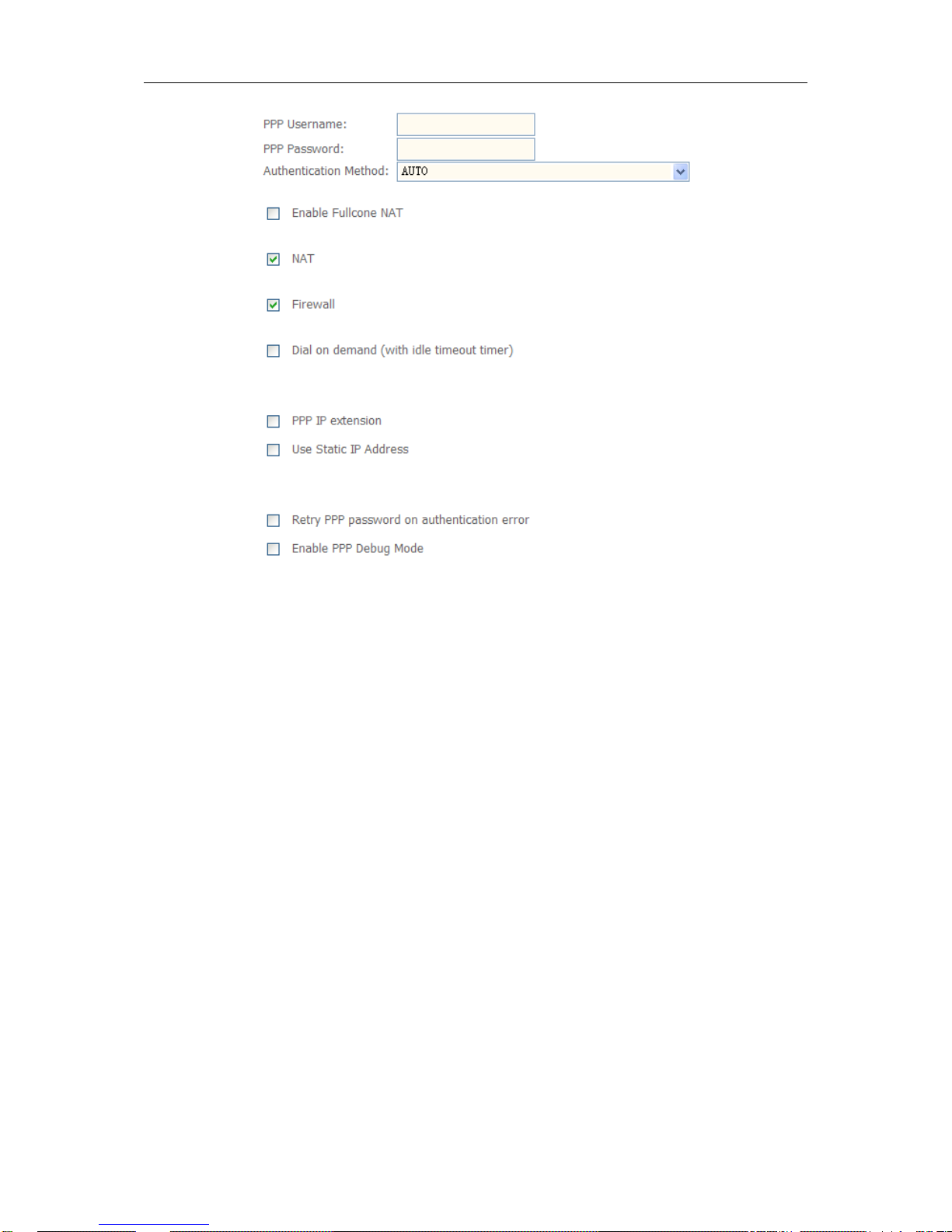
2. Input PPP Username & PPP Password and then click Next. The user interface
allows a maximum of 256 characters in the user name and a maximum of 32 characters
in the password. Just remember to enable NAT and Firewall as below.
Page 17
ADSL ROUTER USER MANUAL
14
PPPoA service name can be blank unless your Internet Service Provider gives you a value
to enter.
The Authentication method is default to the Automatic setting. It is recommended that you
leave the Authentication method in Automatic, however, you may select PAP or CHAP if
necessary. The default value for MTU (Maximum Transmission Unit) is 1500 for PPPoA and
1492 for PPPoE. Do not change these values unless your ISP requests you to.
The gateway can be configured to disconnect if there is no activity for a specific period of time
by selecting the Dial on demand check box and entering the Inactivity timeout. The entered
value must be between 1 minute and 4320 minutes.
The PPP IP Extension is a special feature deployed by some service providers. Unless your
service provider specifically requires this setup, do not select it. If you need to select it, the
PPP IP Extension supports the following conditions:
It allows only one computer on the LAN.
The public IP address assigned by the remote using the PPP/IPCP protocol is
actually not used on the WAN PPP interface. Instead, it is forwarded to the
computer's LAN interface through DHCP. Only one system on the LAN can be
connected to the remote, since the DHCP server within the ADSL gateway has
only a single IP address to assign to a LAN device.
Page 18
ADSL ROUTER USER MANUAL
15
NAPT and firewall are disabled when this option is selected.
The gateway becomes the default gateway and DNS server to the computer
through DHCP using the LAN interface IP address.
The gateway extends the IP subnet at the remote service provider to the LAN
computer. That is, the PC becomes a host belonging to the same IP subnet.
The ADSL gateway bridges the IP packets between WAN and LAN ports, unless
the packet is addressed to the gateway's LAN IP address.
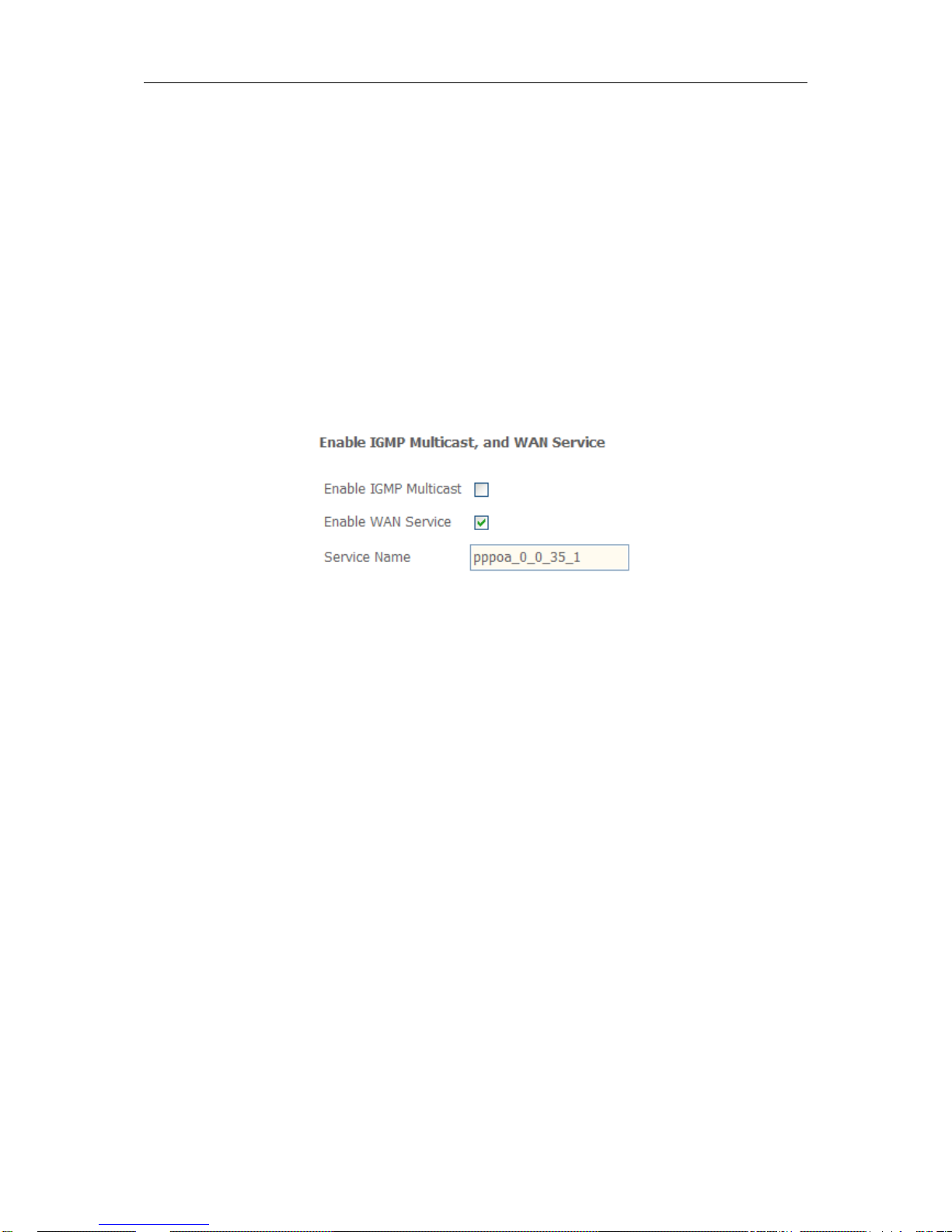
3. Unselect Enable IGMP Multicast, and select Enable WAN Service and then click
Next
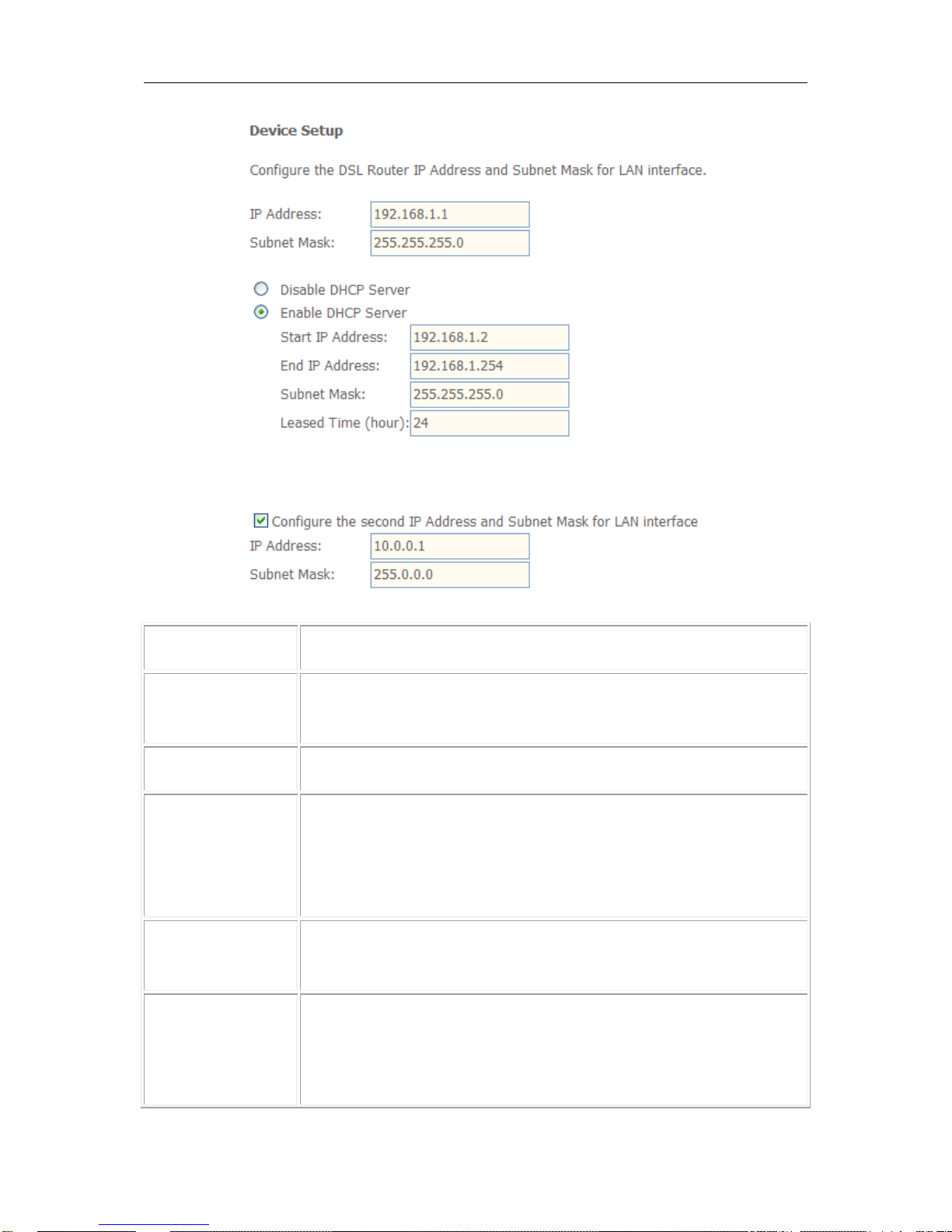
4. Configure the DSL Router’s IP Address and Subnet Mask for LAN interface.On this
page, you can use DHCP (Dynamic Host Configuration Protocol) to control the
assignment of IP addresses on your local network (LAN only).
Page 19
ADSL ROUTER USER MANUAL
16
Item
Description
IP address
This is the IP address that other devices on your local network will use
to connect to the modem.
Subnet mask
This defines the size of your network. The default is 255.255.255.0.
Disable / Enable
DHCP server
The DHCP server assigns an IP addresses from a pre-set pool of
addresses upon request from DHCP client (e.g. your computer). Do not
disable the DHCP server unless you wish to let another device handle
IP address issuance on the local network.
Start / end IP
address
This is the beginning and ending range for the DHCP server
addresses.
Lease time
The amount of time before the IP address is refreshed by the DHCP
server.
Page 20
ADSL ROUTER USER MANUAL
17
Configure the
second IP address
and...
Use this feature to create a public network on your local LAN,
accessible from the Internet. By assigning an address to this interface
and then statically setting your LAN clients to the same network, the
LAN clients are accessible from the public network (e.g. FTP or HTTP
servers).
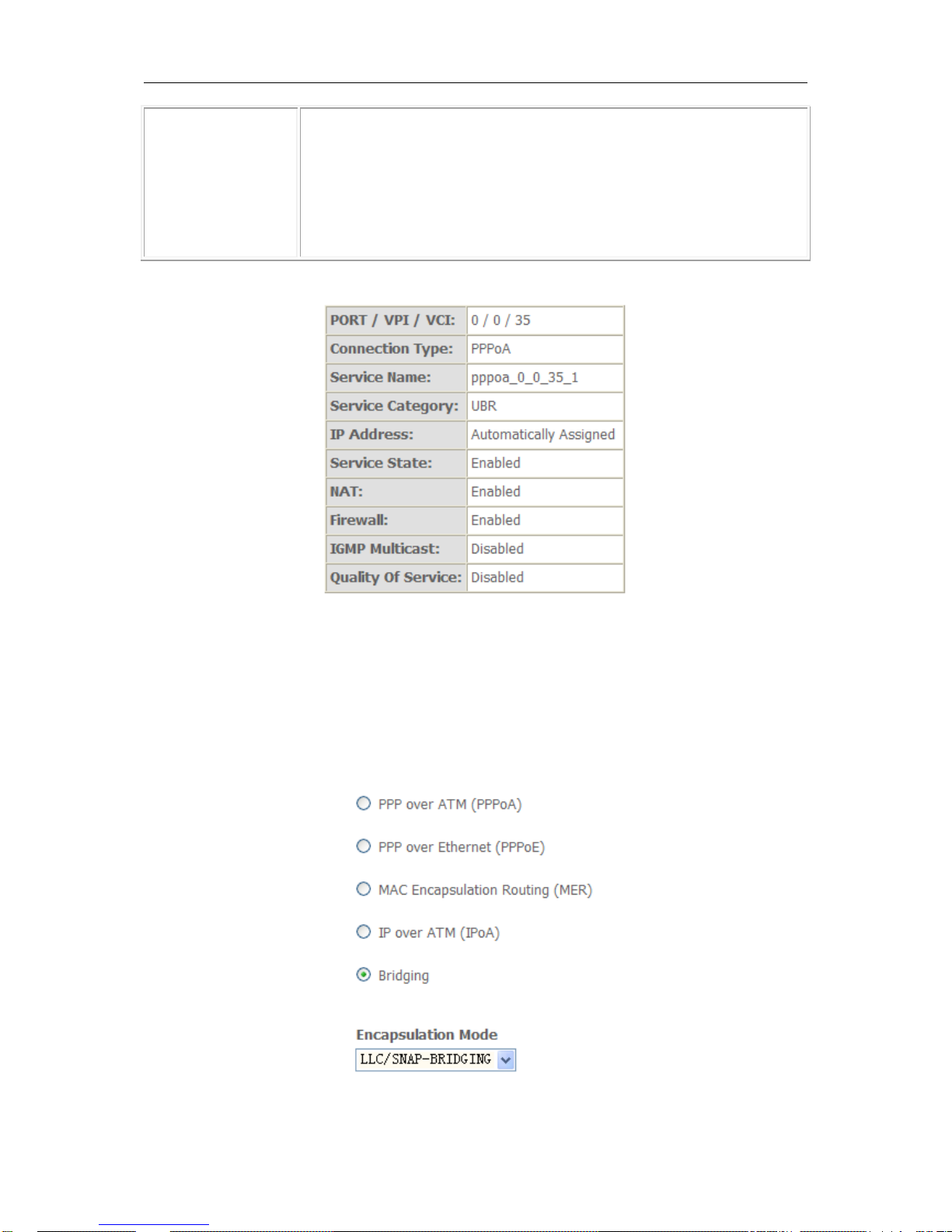
5. Make sure that the settings below match the settings provided by your ISP.
6. Click on the Save/Reboot button to save your configurations.
c. Bridging (RFC 2684)
Select the bridge operation mode at the suggestion of your ADSL service provider. To
configure the bridging option, instructions are as follows:
1. Select Bridging (RFC 2684) as the connection type.
Page 21
ADSL ROUTER USER MANUAL
18
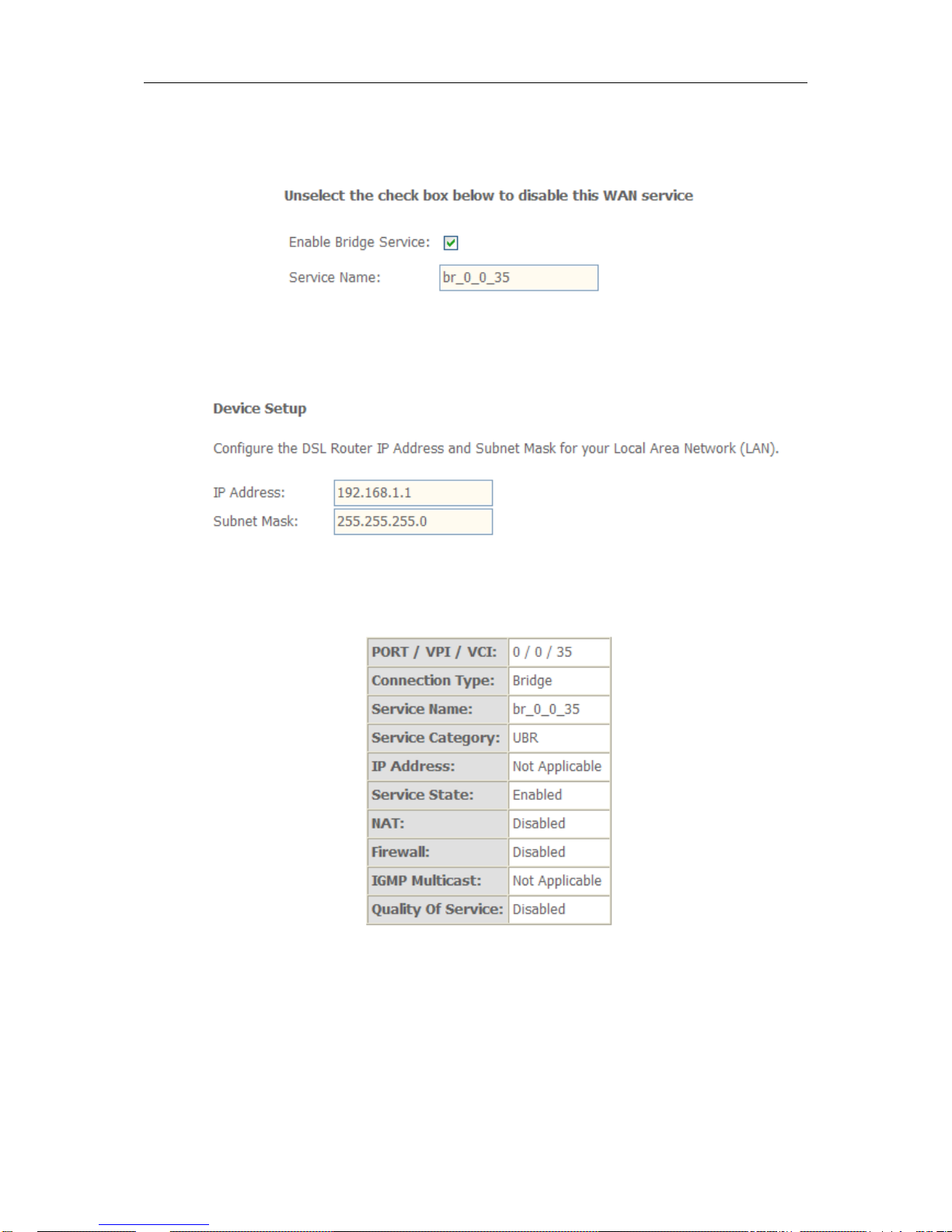
2. Select the appropriate Encapsulation mode and click Next. The following screen
appears:
3. Enable or disable bridge service and enter a bridge service name. Click Next and
configure your LAN.
4. The summary page presents the entire configuration summary. Click Save if the
settings are correct or Back to change any of the settings.
Note: If you would like to cancel all modification that you make on the router, please
select “ManagementSettingRestore Default Settings” to restore the router to its
factory default settings.
Page 22

ADSL ROUTER USER MANUAL
19
Appendix
Frequently Asked Questions
Q: Why are none of the LEDs on when I power on the ADSL router?
A: Please make sure device in use is the power adaptor included with the ADSL router
package. Check the connection between the AC power and ADSL router.
Q: The DSL LED does not turn on after it is connected to the telephone line.
A: Ensure that you are using a standard telephone line (included with the package), and
make sure the line is connected correctly. Determine whether there is poor contact at
each interface and wait for 30 seconds to allow the ADSL router to establish connection
with your ADSL operator.
Q: Why is the DSL LED flashing after it is connected to the telephone line?
A: This means the ADSL router has failed to establish a connection with Central Office.
Please check carefully and confirm whether the ADSL router has been installed correctly.
Q: The LAN LED does not turn on after it is connected to the Ethernet cable.
A: Check that the Ethernet cable is connected to the hub/PC and ADSL router correctly.
Then ensure that the PC/hub has been powered on.
Make sure you use the parallel network cable to connect the UpLink port of the hub, or
use the parallel network cable to connect to the PC. If you are connected through the
standard port of the hub (not the UpLink port), you must use a cross-cable. Please make
sure that your network cables meet the networking requirements above.
Q: My PC cannot access the Internet.
A: First determine whether the PC can ping the interface Ethernet IP address of this product
successfully (default value is 192.168.1.1) by using the ping application. If the ping
application fails, please check the connection of the Ethernet cable and check whether
the status of LEDs are in gear. If the PC uses a private IP address that is set manually
(non-registered legal IP address), please check:
1. Whether the IP address of the PC gateway is a legal IP address. Otherwise, please
use the right gateway or set the PC to obtain an IP address automatically.
2. Please confirm the validity of the DNS server appointed to the PC with an ADSL
operator. Otherwise please use the right DNS, or set the PC to obtain an IP address
automatically.
3. Please make sure you have set the NAT rules and have converted private IP
address to a legal IP address. The IP address range of the PC that you specify
should comply with the setting range of NAT rules. There may be an issue with
Central Office equipment.
Q: Why is my PC unable to browse an Internet web page?
A: Please make sure the DNS server appointed to the PC is correct. You can use the ping
application program to test whether the PC can connect to the DNS server of the ADSL
operator.
Page 23

ADSL ROUTER USER MANUAL
20
Q: The initialization of the PVC connection has failed.
A: Check that the cable is connected properly from the DSL port to the wall jack. The DSL
LED on the front panel of the ADSL router should be on. Check that your VPI, VCI,
encapsulation type and multiplexing setting matches what was collected from your
service provider, Reconfigure the ADSL router and reboot it. If you still cannot determine
the issue, you may need to verify these variables with your service provider.
If an issue is not addressed above, please contact your local service provider for support.
 Loading...