

Page 1
Start Here
Quick Installation
Guide
Windows 7
Logon
with ROBOFORM PASSWORD MANAGER
Verifi
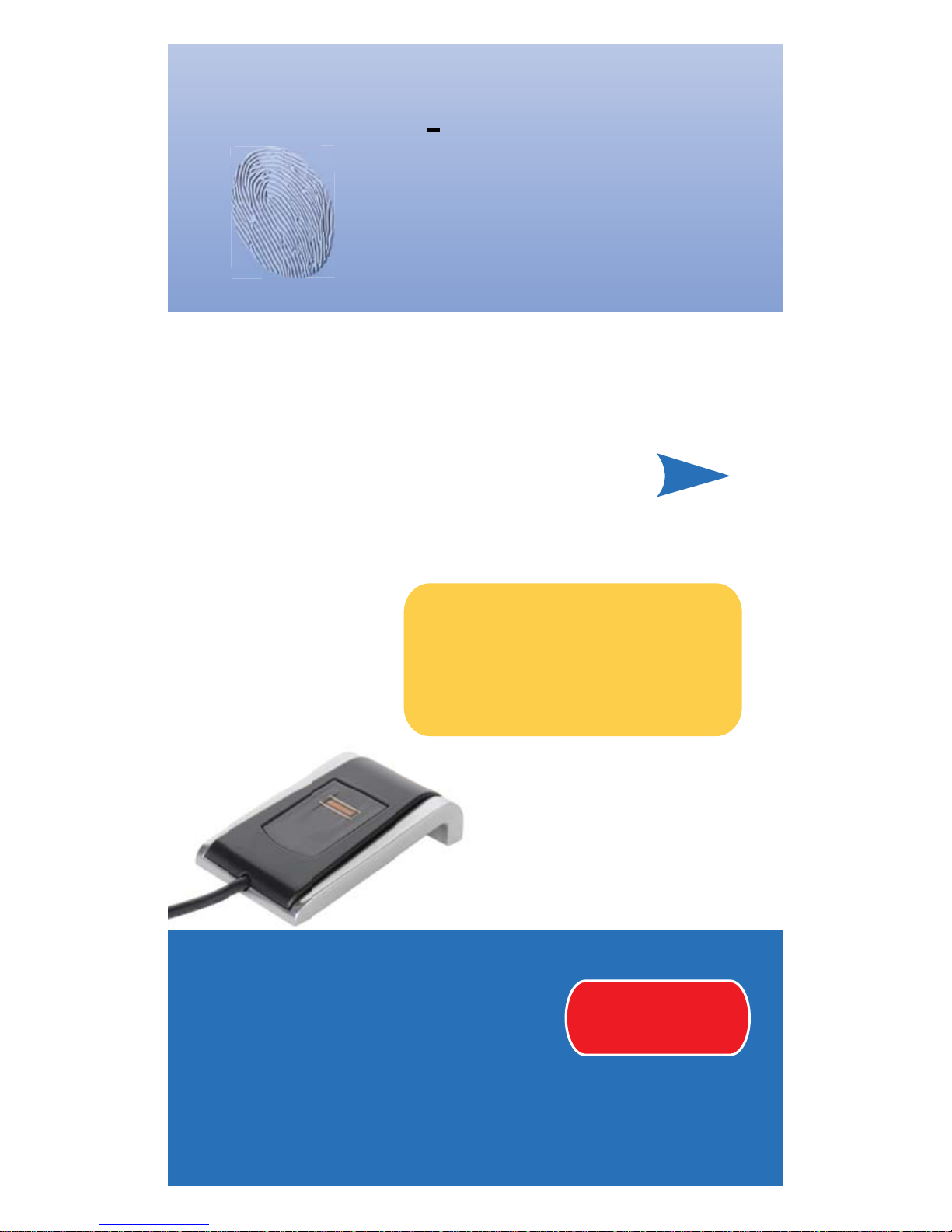
Fingerprint Reader
IMPORTANT.
This product must be used
with Windows 7.
Page 2
NOTE: Fingerprint verification performance is dependent upon
how well you enroll your fingerprint.
About the Reader | 1
Maintenance
While the sensor is very robust do not use excess cleaning
fluids. Use a wet damp cloth for cleaning if needed.
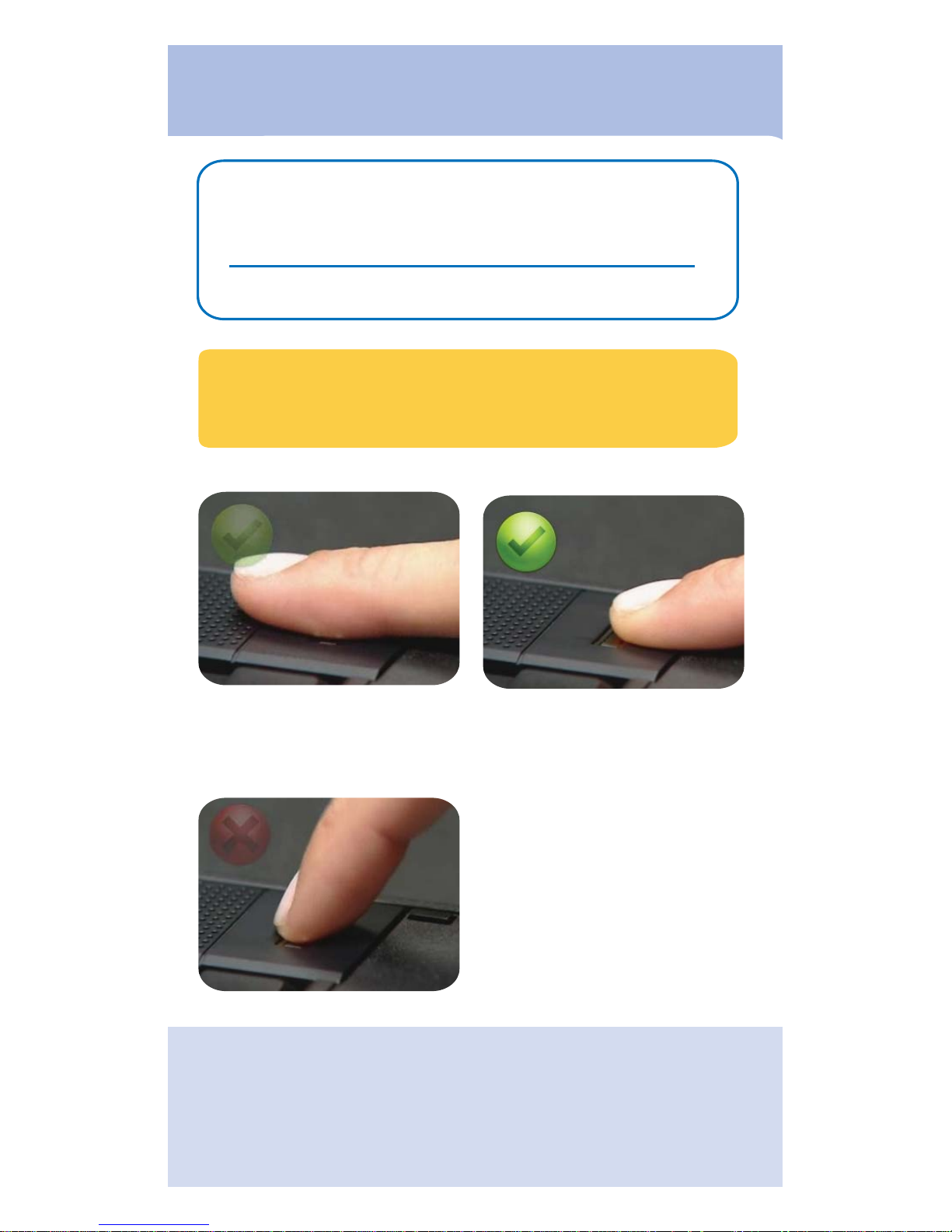
PROPER FINGER PLACEMENT
Finger is flat to surface and slid with uniform pressure and speed.
IMPROPER FINGER PLACEMENT
Finger is not flat to surface and /or
speed is inconsistent.
About the Reader
Proper Use of the Fingerprint Reader
START POSITION END POSITION
Page 3
Install Reader | 2
1.1
Make sure you are logged on to a Windows Account with
ADMINISTRATOR PRIVILEGES.
1.2
Shut down any programs that are running on your computer.
1.3
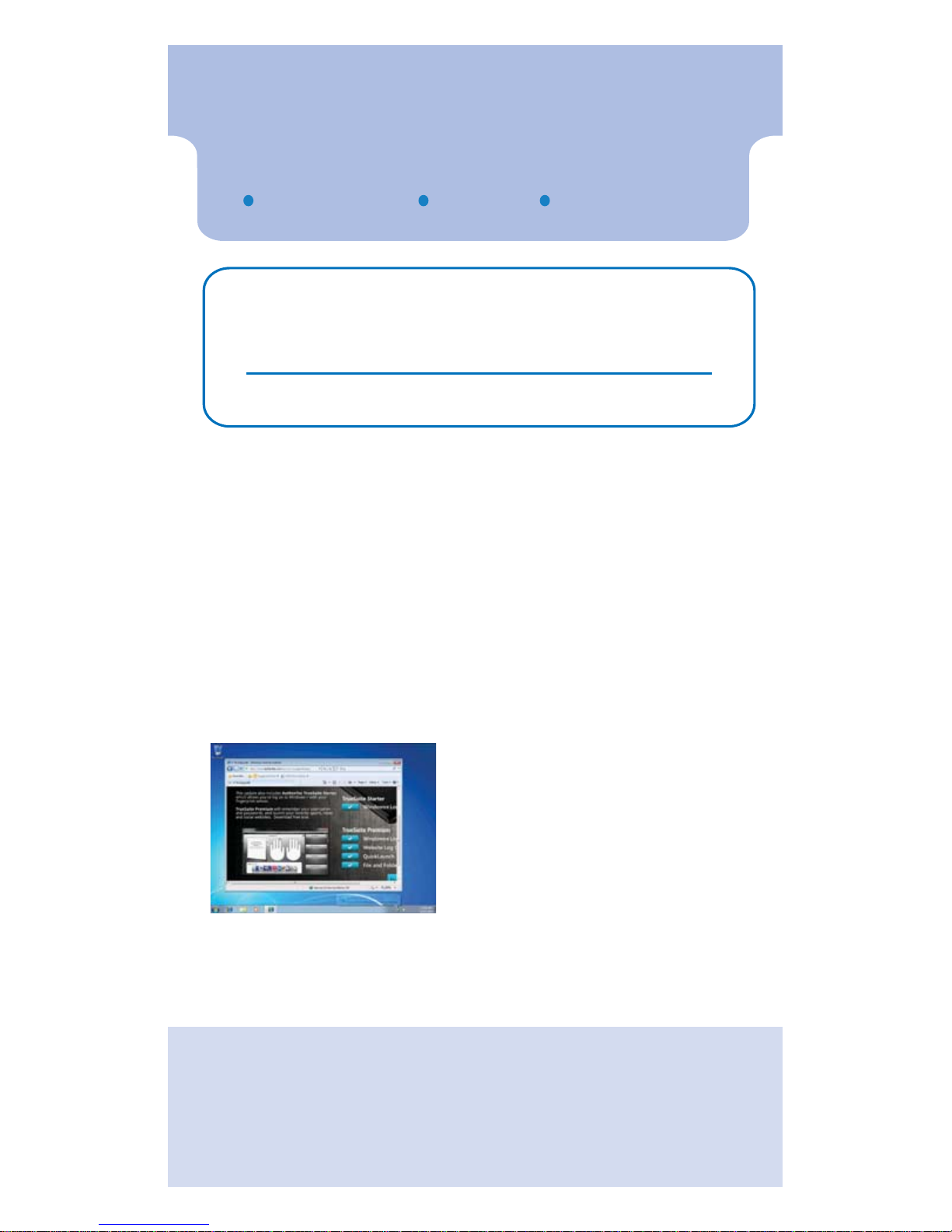
Plug in fingerprint reader and allow Windows to download drivers from
the internet. Note: This may take a while due to the size of the fingerprint
enrollment plug-in (Truesuite Starter).
1.4
The driver installs automatically.
No other action is required . Once
installed this driver is the only
software needed for Windows logon
operation.
1.5
If the Truesuite starter web page
launches please close.
1.
Install Reader
Install P2000 for Windows Logon
Make sure you have the following
:
Verifi P2000
Fingerprint Reade
r
Wind
ows
7
Downloade
d
Password Manage
r
Page 4
Enroll | 3
2.
Enroll
Fingerprint Enrollment
2.1
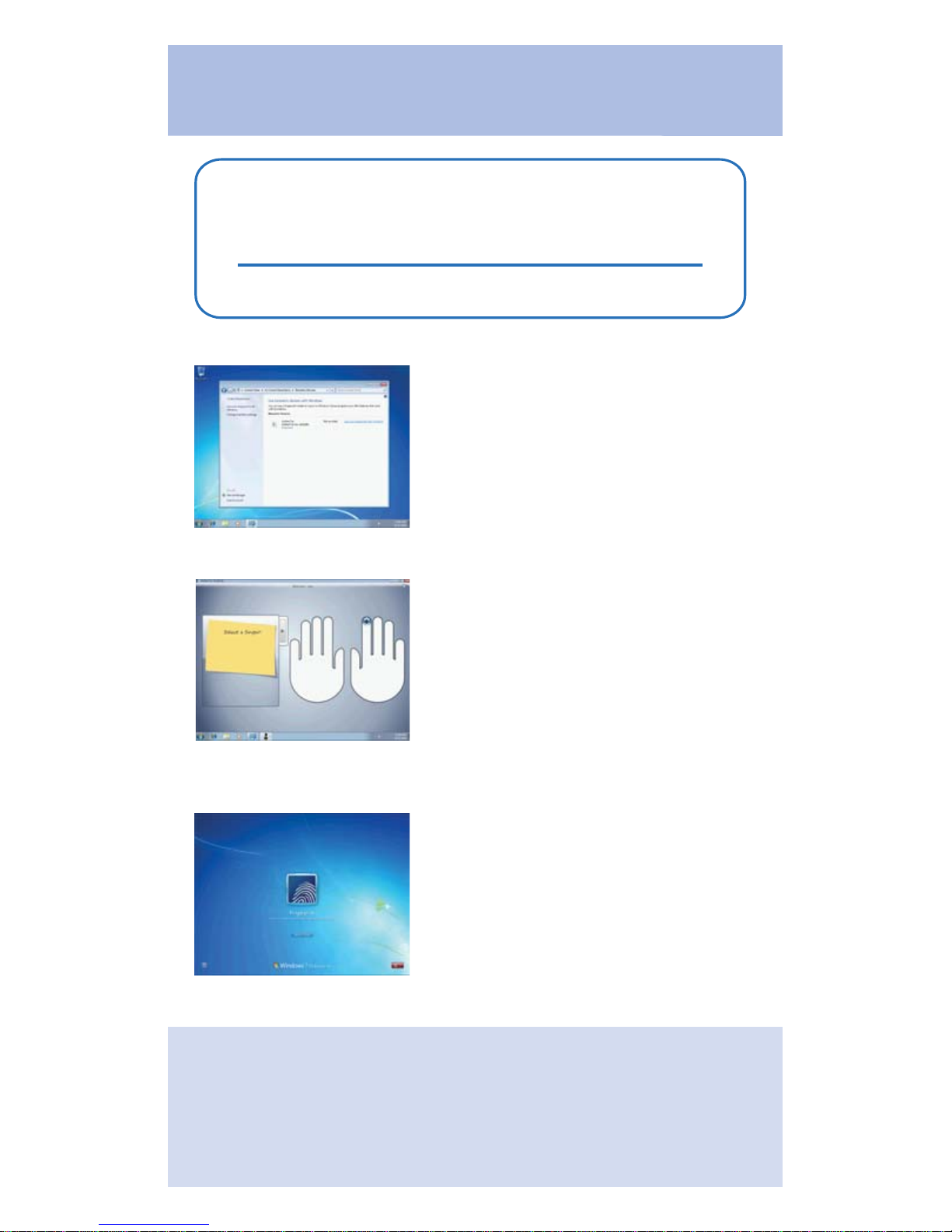
Go to Control Panel > Biometric Devices
and click Use your fingerprint with Windows
2.2
Select the Continue button in bottom
right corner.
2.3
Follow the step by step instructions for
enrolling your first fingerprint.
2.4
A second finger will now be prompted
for enrollment. This is not required but
recommended.
2.5
Your Windows 7 logon is now
functional and can be tested by performing
a logoff/logon.
2.6
If you do not see a new fingerprint
logon icon then select switch user.
2.7
Future logons can be performed by the
simple swipe of your finger.
Choosing different fingers
All fingers are available for enrollment but we
recommend the index fingers from each hand.
Page 5
3.1
If you haven’t already download roboform from the our website at
www.zvetcobiometrics.com/Support/downloads/roboform_downloads.jsp
3.2
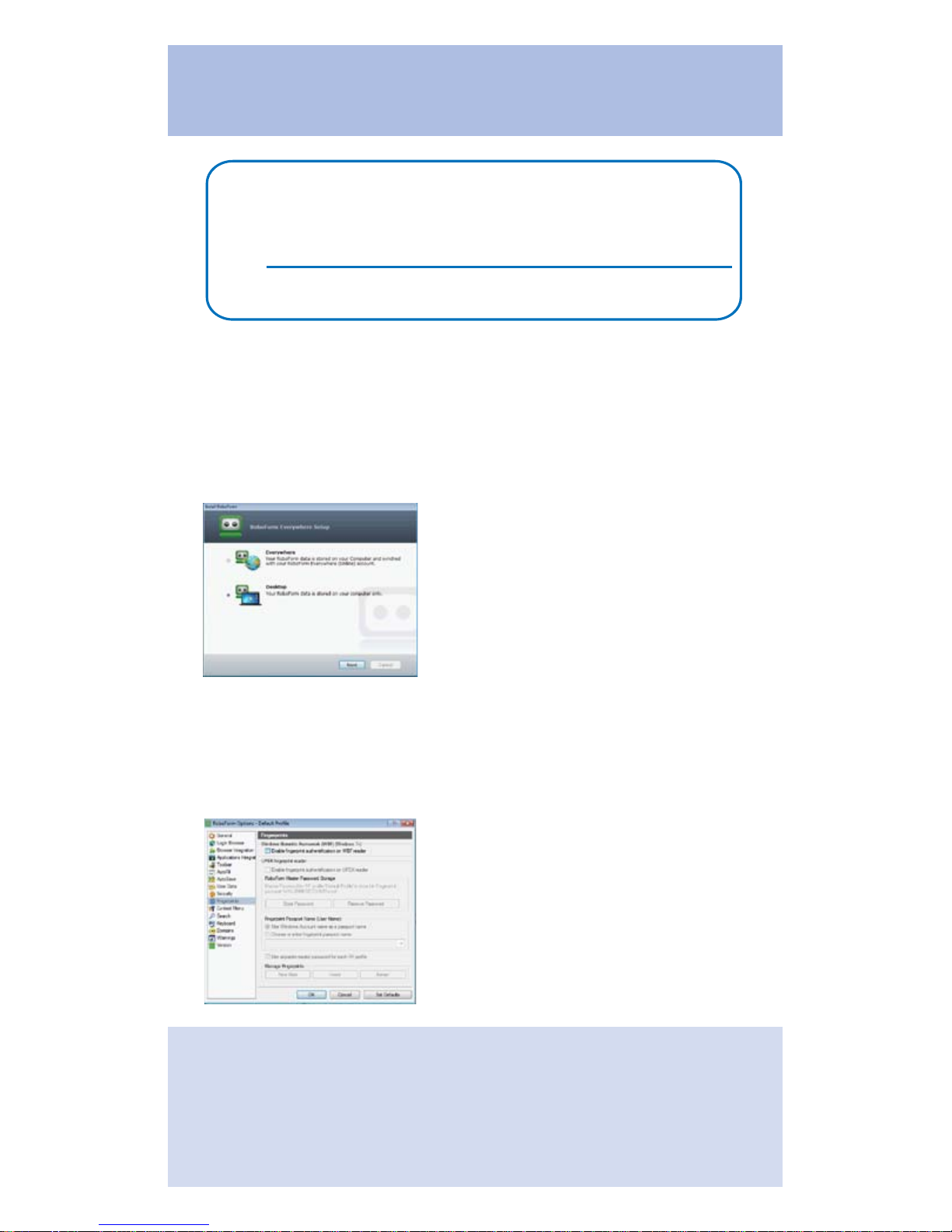
Install Roboform ensuring to select the desktop version for the
software install.
3.3
During installation you will be
prompted for a Master Password. This
password is used to encrypt all your
future passcards ( your individual
website login credentials) and is a
backup to your fingerprint reader. This is the LAST password you will
have to remember.
3.4
Now enable Roboform to use your
fingerprint reader as a Master Password
by going to Options > Fingerprints and
enabling the top check box “Enable
fingerprint authentication on WBF
reader”
Install Roboform | 4
3.
Install Roboform
Setting up Roboform Password Manager
Page 6
4.
Using Roboform
Using Fingerprint for Master Password
4.1
Roboform is a password manager that is designed to replace
all of your user names and passwords with a single password.
4.2
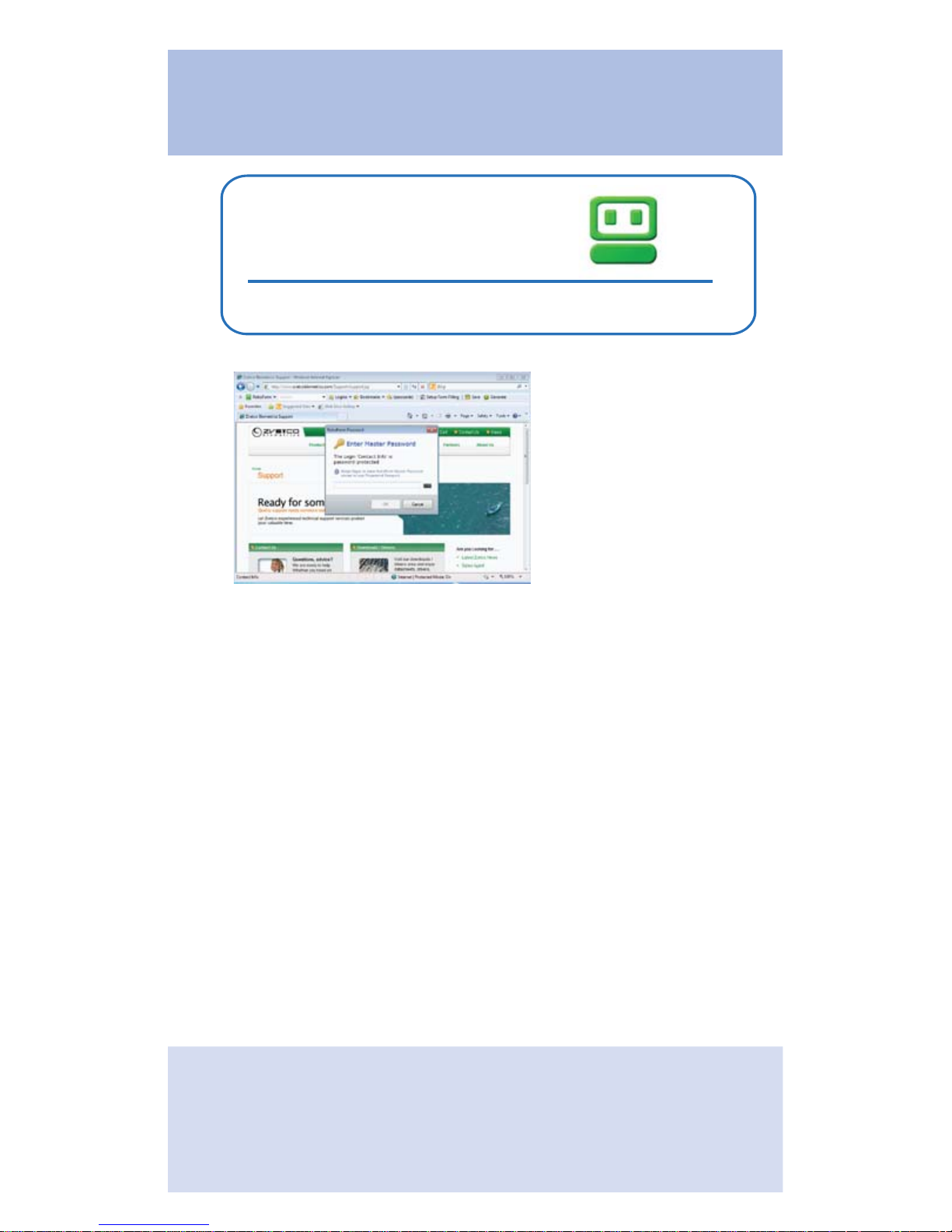
Now that you have installed and enrolled your P2000
fingerprint reader it can be used instead of your master password
with any “protected” passcards.
4.3
This effectively removes the need to use your Roboform
Master Password however you will always want to remember this
password in case of hardware failure, reinstallation, or
non-biometric use of Roboform.
Use | 5
Page 7

Begin Using !
Your new Fingerprint Reader is capable of performing Windows Logon, User Account Control (UAC) for
administrative credentials and with Roboform as a
Master Password.
To test, log off and then back on to your Windows
account using your fingerprint.
Now you can enjoy logging on to Windows, Web
sites, and programs with just a slide of your finger.
Start Using | 6
ATTENTION:
For help using Roboform go to
http://www.roboform.com/support/overview
The site includes manuals, tutorials, and online support.
Page 8

2011 Zvetco Biometrics. All rights reserved. All trademark names are registered trademarks of
respective manufacturers listed.
Zvetco Biometrics
489 State Rd 436, Suite 109
Casselberry, FL 32707
407-681-0111
QAS 099
5205-006190
www.zvetcobiometrics.com
ZVETCO Tech Support
For technical support and questions
please email or call:
[email protected]
407-567-7360
ZVETCO Sales
For further Sales
information please
call:
407-567-7358
with ROBOFORM PASSWORD MANAGER
Verifi
Fingerprint Reader
 Loading...