

Page 1

Quick Start Guide
Page 2

Congratulations On
Choosing The Ezlo PlugHub Energy
And welcome to Vera, the smarter home control solution
that makes your home safer and your life easier.
It’s easy to set up your PlugHub.
Here’s what you need to do.
Page 3
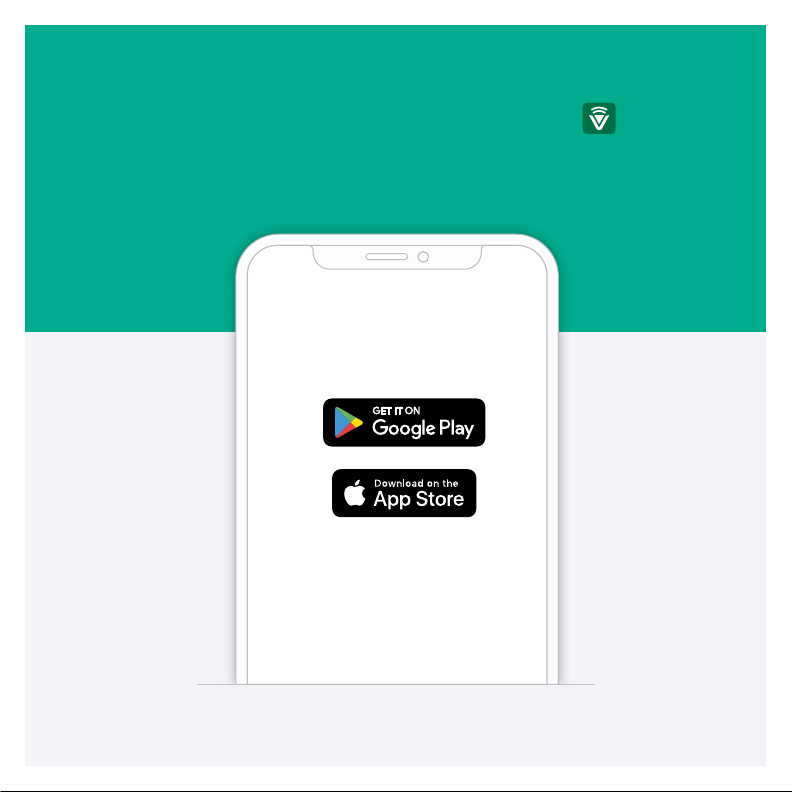
Step 1
Install the Vera app on your mobile device. Just look for the
App Store or on Google Play. If you already have the Vera app, just log in
and select Add New Controller.
in the iOS
Page 4
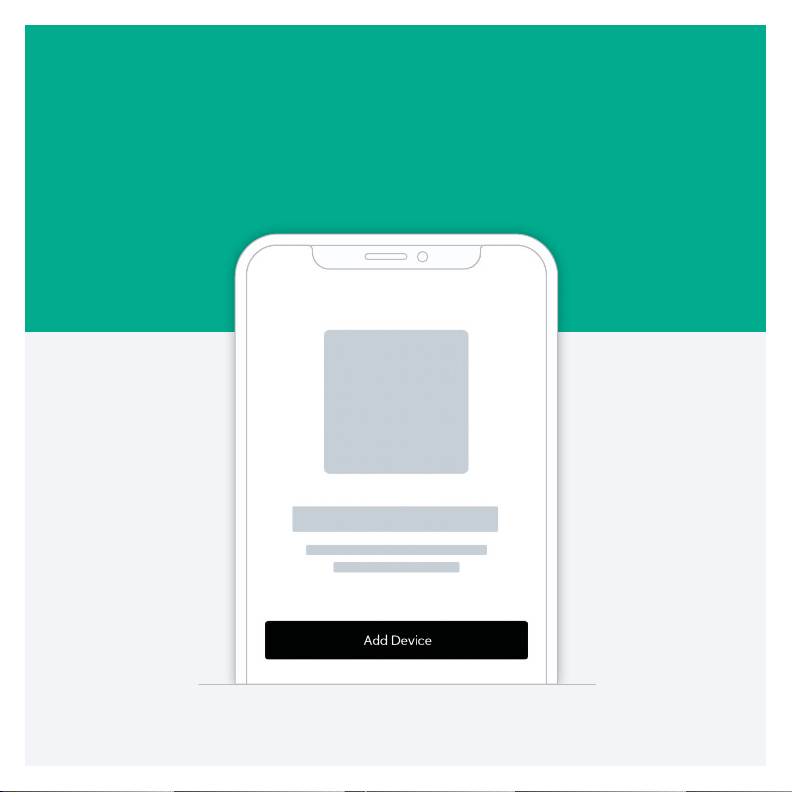
Step 2
Open your Vera app and select PlugHub from the controller list.
Page 5
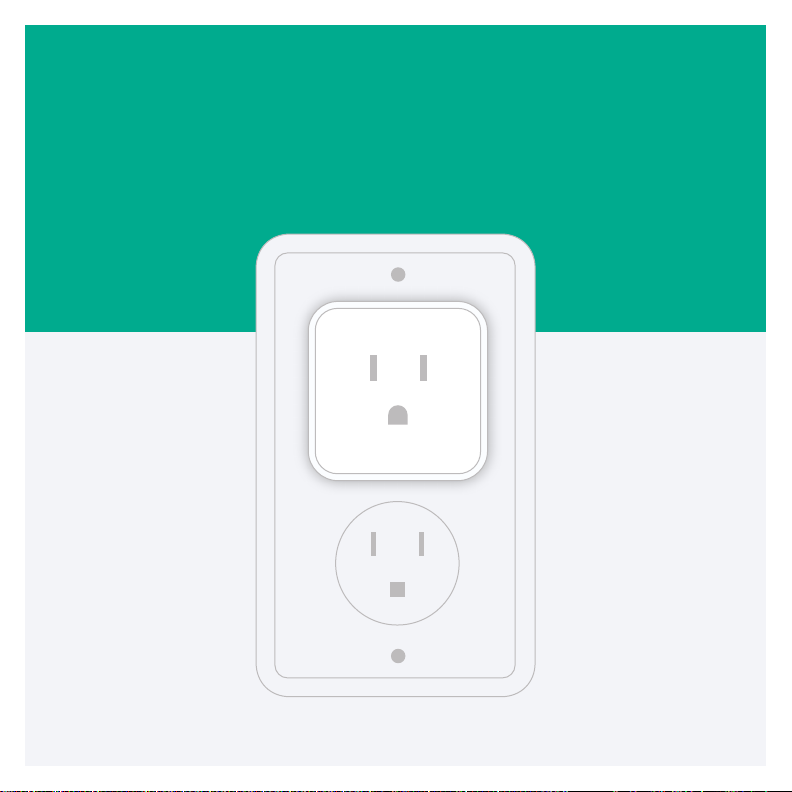
Step 3
Now put your PlugHub into an outlet. It will power on automatically and the
blue LED will blink about once per second.
Page 6
Step 4
The PlugHub will create a temporary Wi-Fi network called PlugHub_XXXX.
The Vera app will prompt you to go to the Settings menu on your mobile
device to connect to it.
If the temporary network is not visible, just tap Need Help in the app for
troubleshooting tips.
Page 7
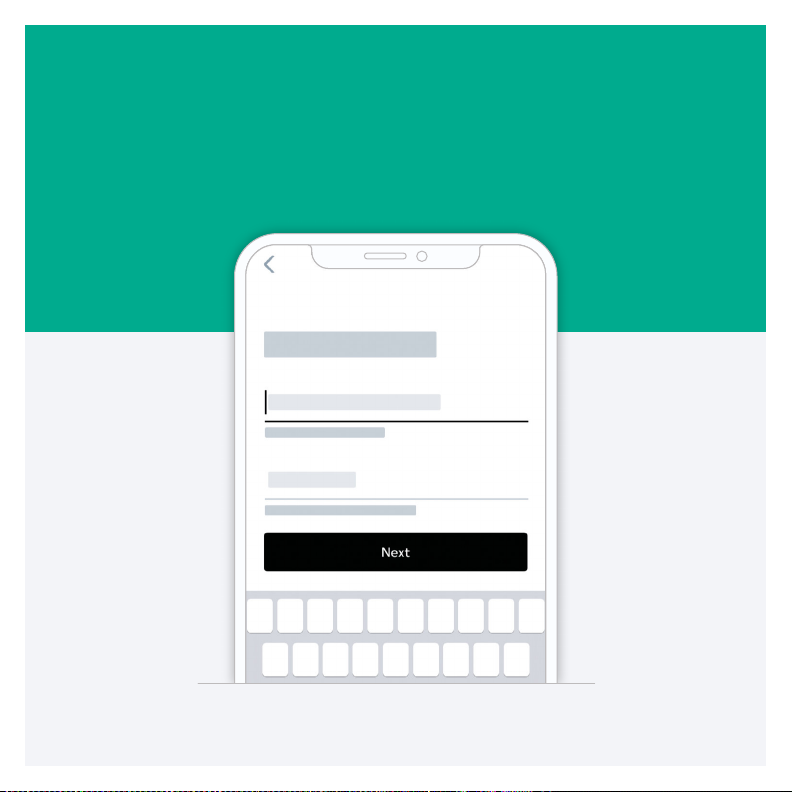
Step 5
Once you have selected the PlugHub network, return to the Vera app and
follow the prompts to complete the setup process. While your PlugHub
is connecting to your home Wi-Fi, it should blink once every three seconds.
Page 8
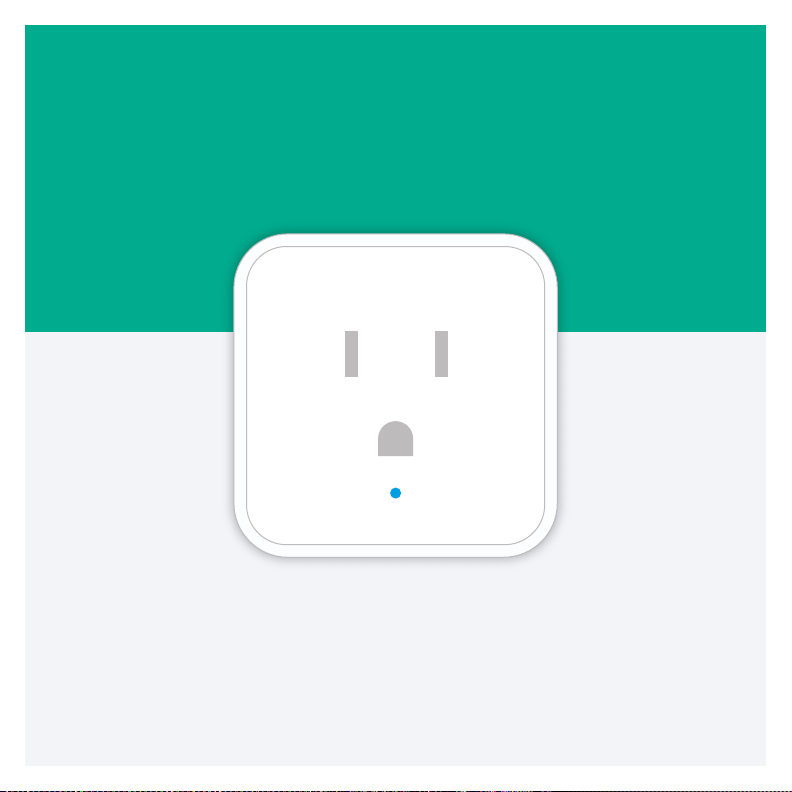
Step 6
Congratulations, your PlugHub has been set up successfully.
The LED will now remain a steady color.
Page 9
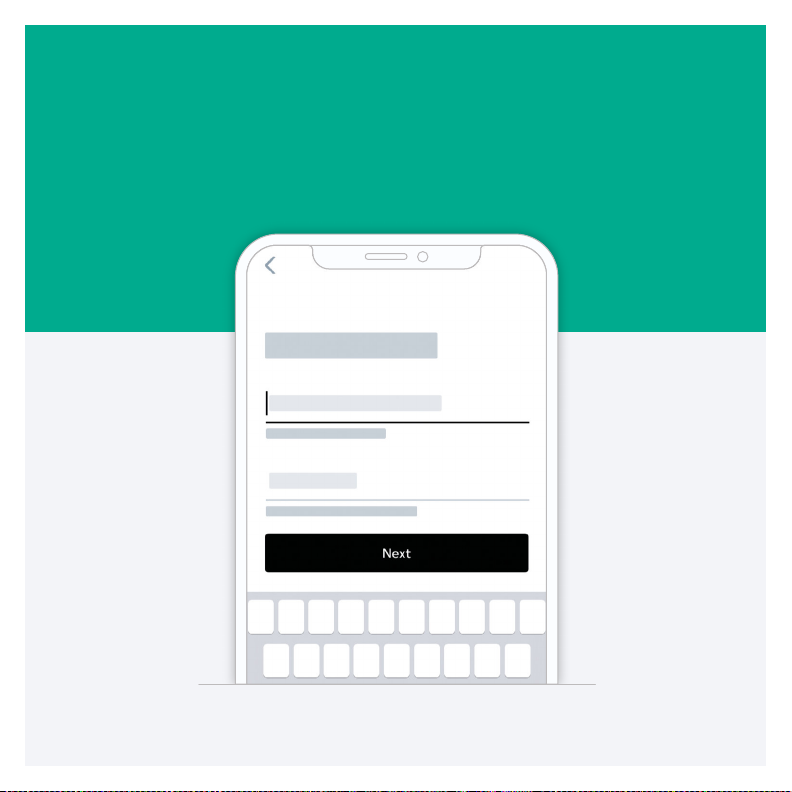
Step 7
Now it’s time to create your Vera account. The app will walk you through
it, and once you’re done, the account will automatically be linked to your
PlugHub.
Page 10
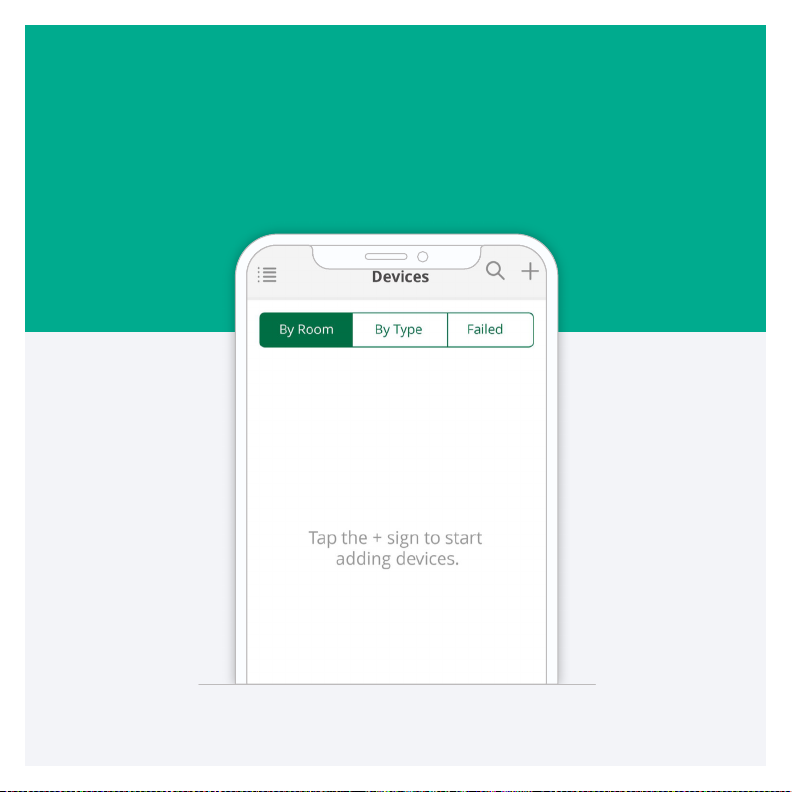
Step 8
To use PlugHub, you’ll want to plug in a lamp, or add other devices like sensors
or a thermostat to your Vera system. Just tap the menu icon in the top left
corner of the dashboard, select Devices, and then tap the + sign to launch the
Device Pairing Wizard.
Page 11

Make your home safer.
Make your life easier.
The PlugHub lets you control multiple devices from a single app. When you add
devices such as lights, thermostats, sensors, and door locks to your Vera system,
you’ll be able to enjoy greater comfort and peace of mind with just a touch.
Control your home from anywhere.
The Vera app offers some key features that help you simplify things at home and
help you keep an eye on things when you’re away.
Modes
Modes give you the ability to control all your devices with a single tap. There are
pre-set modes for Home, Away, Night, and Vacation.
Scenes
The true power of home automation is when your home can do things for you.
With Scenes you can schedule your lights to turn offwhen you leave for work in
the morning, or to fade up as day turns to night.
Notifications
Your Vera system can send an alert via text or email to let you— or other users
— know about what’s going on at home. Want to know when the front door
opens? Or if motion is detected outside? You can set alerts for just about anything.
Page 12

That’s it! You’re now ready to enjoy smarter home control.
You can reach our Customer Care team.
Phone support avaliable 6am - 10pm US Central Time at 866.966.2272
or [email protected]
You can also purchase our Vera Easy Start service and get one hour of
personalized setup assistance through a phone call with one of our most
experienced agents. Visit getvera.com/support to learn more.
 Loading...