

Page 1
QUICK START
GUIDE
Page 2

2
Congratulations,
You are the happy owner of the VEA
Buddy smartwatch.
Buddy is the faithful companion to
your smartphone (Android, iPhone and
Windows).
It vibrates and displays notifications that
you have set up. It can control remotely
your smartphone without taking it out
of your pocket. It will also give some fitness information through its sensors.
You are now free and always connected.
This quick start guide contains basic
information to familiarise yourself with
your Buddy.
Page 3

3
The detailed manual is available on our
website:
http://www.veabuddy.fr/manuel
Page 4
4
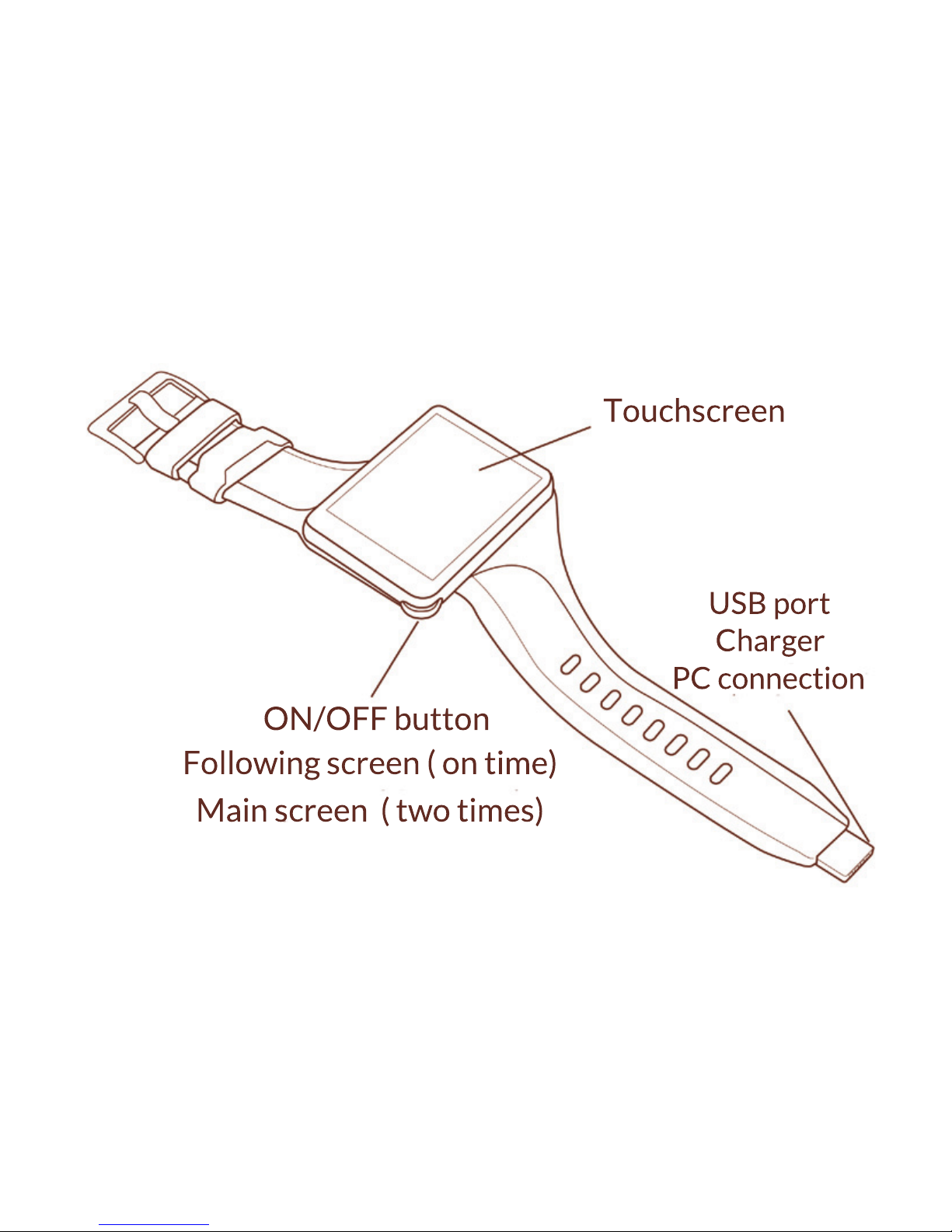
LET’S GET ACQUAINTED
Main screen ( two times)
Following screen ( on time)
ON/OFF button
PC connection
Charger
USB port
Touchscreen
Page 5

5
CHARGING THE BATTERY
Your Buddy features a USB connector
at the end of the band. The battery
charger is always with you.
Plug in your Buddy to the supplied USBto-mains cable or to any USB connector
on your laptop or PC. A cable extension
is also provided to allow you to charge
your Buddy while wearing it.
If you charge the battery while your
smartwatch is switched off, an animated
icon will be displayed. The animation
stops when the battery is full.
If your Buddy is already switched on,
you can control that the battery is
charging by pulling down the Settings
page from the main (favorites) page.
Page 6

6
SWITCHING ON YOUR BUDDY
Press the button for 2 seconds. The VEA
logo is displayed and your buddy is
ready to be connected.
SMARTPHONE APP
Please download the Buddy app from
the required store, depending on your
smartphone operating system.
Page 7

7
PAIRING YOUR BUDDY
SMARTPHONE MODE
Bluetooth pairing is initiated by the
Buddy app in your smartphone.
1. Switch on the buddy.
2. Tap on Connect in the Buddy app.
3. Follow the instructions
To check that your smartwatch is
properly paired, pull down the Settings
page. The Bluetooth signal strength is
indicated at the top, in green if the signal strength is good, in red if it is weak.
If the pairing failed the following icon
will be displayed instead
Page 8
8
SOLO MODE
In this mode your buddy will directly
manage the Bluetooth connection.
1. Switch on the Bluetooth device
you want to pair to your Buddy
2. Pull down the Settings page
3. Tap on Settings
4. Tap on Bluetooth
5. Tap on the magnifying glass icon
Page 9

9
6. Your Buddy starts looking for your
device
7. Tap on the required device in the
list
8. Follow the instructions
9. Once paired, the Buddy will automatically connect to the device
Page 10

10
THE VARIOUS PAGES OF YOUR
BUDDY
SMARTPHONE MODE
Your Buddy main page displays four
favorites icons and the current time.
To access more pages, slide your finger
to the right or to the left.
You can also use the button to access
the next pages. Pressing twice on the
button displays the Favourite page
again.
To access the Settings page, slide down
your finger.
Page 11

11
CONFIGURING THE FAVORITES ON THE
MAIN PAGE
From the main (Favorite) page, pull
down the Settings page. Select from the
list the four functions you will use the
most.
The corresponding icons are now displayed in the main page of your Buddy.
You can of course change these functions as often as you wish.
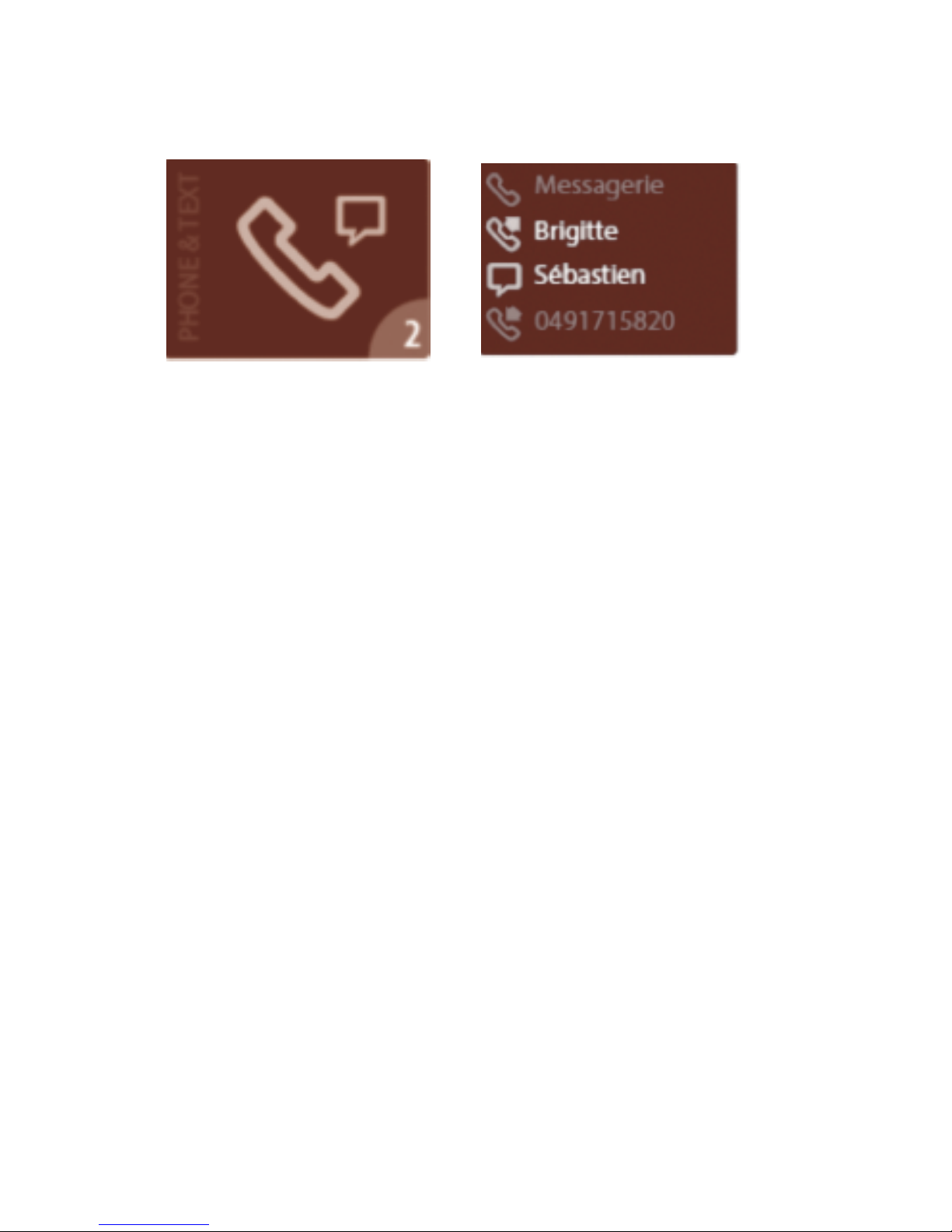
TEXT MESSAGES AND CALLS
Display the Phone & Text page by sliding your finger to the left or to the
right. The number of unread calls and
messages is indicated in the bottom left
corner.
Page 12
12
Tap the page to display a list of text
messages and calls. Tap on any call or
message for more information.
You can whenyou receive a call :
• Accept the call
• Reject the call
• Call back when you wish
AGENDA
Your Buddy reads the events in your
smartphone agenda.
Page 13

13
GPS
Buddy reads the itinerary requested
from your smartphone and guides you.
MUSIC
Your buddy controls remotely the music
in your smartphone. Music settings are
available by pulling down the Music
settings page.
Your music is played in the background
until you stop it.
PEDOMETER
The pedometer settings are displayed
by pulling up the page. There you can
indicate your weight, height and age.
Page 14

14
You can set up your goals by pulling
down the page:
• Duration
• Number of steps
• Calories to burn
• Distance
The pedometer will say active in the
background until you reach your goal.
A notification will be displayed when
you do and will let you chose to add a
new goal or to stop the pedometer.
SOCIAL NETWORKS
Your buddy will request the authorisation to read your Facebook or Twitter messages. The number of unread
Page 15

15
messages is displayed. To read a message, tap on it.
GALLERY
Your buddy can read the pictures from
your smartphone.
CAMERA REMOTE CONTROL
Buddy can remotely control your smartwatch camera.
SOLO MODE
When the Buddy is not paired with your
smartphone it operates in Solo mode.
You can also activate the Solo mode by
pulling down the Settings page from
Page 16

16
the Main page and tapping the Buddy
logo.
In solo mode, the following features are
available in your main page:
• Pedometer
• Music
• Pictures
• Alarm
The pedometer and alarm features
work in exactly the same way as when
in smartphone mode.
To use the music feature, you need to
first transfer your tunes into the Buddy
8 GB integrated memory. Your smartwatch acts like a USB key.
Page 17

17
Pictures need also to me transferred to
your smartwatch in the same way as
your music.
Thank you for reading this quick start
guide.
The full manual can be downloaded
from our website:
www.veabuddy.fr
Page 18

www.veabuddy.fr
 Loading...