

Page 1
Size: 170X120mm
IMP-001
Page 2
1
:
,
Page 3
2
12
2
11
4
5
6
3
HDMI
LAN
COAXIAL
DC IN 5V
1
10 9 8 7
1. :
2. :
3. Mini USB * OTG (On-The-Go):
USB
4,5,6. USB : USB
()
7. DC 5V: 5V
8. :
9. : 10/100M
10. HDMI :
11. AV : 480i 576i
12. : SD/MMC/MS
............................................................................ 2
................................................................................................ 3
................................................................................................... 4
................................................................................................... 4
1 Home ...................................................................................... 4
2 ........................................................................................4
3 ...............................................................................................6
4 ...............................................................................................6
5 .............................................................................................. 6
6 ........................................................................................7
7 ........................................................................................ 7
8 .............................................................................................. 7
................................................................................................... 8
Page 4
HOME
APP
SETTING
. / :
GHI
PQRS
VIDEO
MUSIC
BACK
GOTO
WEB
VOL-
ABC
DEF
JKL
MNO
TUV
WXYZ
PICTURE
MENU
DEL
VOL+
FILE
,
3
1
2
3
4
5
6
7
8
9
10
11
12
13
14
15
16
17
19
20
21
22
18
2 AAA
7 60 ( 30 )
1. :
2. : (
) ( Home
)
3. : (
) ( Home
)
4. : ,
5. : (
Home )
6. : (
)
7. :
8. :
9. / : /
//
10. :
11. :
12. :
5
13. : ( )
( Home )
14. : ( )
( Home )
15. : ( Home )
16. : ( Home )
17. Home: Home
18. OK:
19. : /
20. / : /
21. (+/-): + -
22. / : / /
Page 5
HDMI
LAN
COAXIAL
DC IN 5V
TV
Amplifier Digital
Coaxial Cable
Coaxial
Adapter
4
Net Cable
HDMI
AV Cable
(CVBS,Audio L/R)
SD/MS/MMC 3 in 1
HOME :
OK
2.
" " (APP) "Home" " "
():
1. HOME
2.1
: :
:
:
:
*( ,
)
: Google ( )
Page 6
5
RemoteIME2.0: Android (
)
:
: ,
a. Windows XP
1) SSDP Discovery Service: ---> --->
---> --->SSDP Discovery Service " "
3)
:
* IP
* " "
2) UPnP Wimdows Component: ---> --->
---> Windows Networking Services
Internet Gateway Device Discovery and Control Client
:
:
: Google
: Google
:
: G-mail
: Google
: ( )
* Enable and give the guest account a blank password (computer
management: users and groups), then gpedit.msc -> Computer
Configuration -> Windows Settings -> Security Settings -> Local Policies ->
Security Options -> Accounts: Guest account status: enabled
* Remove Guest account in gpedit.msc -> Computer Configuration ->
Windows Settings -> Local Policies -> User Rights Assignment -> Deny
access to this computer from the network
b, Share media on Windows 7
1) Share the folders which have music,pictures,movies,
2) Click the folder you want to share and drag it to the Public folder or Public
subfolder window you opened and drop the folder into it.
* If you haven't enabled access to the Public folders for users on your
network, Click the Control Panel -> Network and Sharing Center -> Change
advanced sharing settings. You can enable access to the Public folders here.
Look to the Public folder sharing section of the Settings window and
check the box next to Turn on sharing so anyone with network access can
read and write files in the Public folders. Click Save Changes and
people who access your network can now view the contents of anything you
add to your Public folders.
After above a or b step, you can launch the Network application to searching
the available PC sharing resources and playback it by this IP box.
If it's the first time you enter it or you switch from to , you will see a
searching menu,if you don't see the shared folders like below after search
timeout,you may need enter the IP adress,folder and Username,
Password manually.
Page 7
6
()
/
90 /180 /270
/
: / /
(
"OK" IP)
3.
"Home "" " (Music)
" " "Meun"
5.
"Home "" " (Video)
""
"Meun"
: "Back"
4.
"Home "" " (Picture)
""
"Meun"
2.2 (Apps)
1. "Home "" " " "
( .akp )
2. Google Play
: ,
2.3
"Home "" " " " "
"" "" "
Page 8
7
: / ////
/
: ///
: / /
Home
6.
"Home "" " (File)
7.
* "Home "" "
* "Home "" " " "
* (WEB) ( Home )
"OK"
"Menu"
:
a. :
b. : / /
c. ( ): /
d. :
e. :
f. (/ ////
)
* (Set Browser Type):
Android - flash , I-pad - HTML5
8.
8.1 : Wi-Fi
8.2 :
8.3 :
8.4 : ,
Page 9
8
Specification
Key Features
Input/Output
Connectivities
Built-in
Decoders
Software
CPU
Operation System
System Memory
Flash Capacity
HDMI 1.3
CVBS,Audio L/R
Coaxial Audio
USB Host
Mini USB OTG
Card Reader
Integrated WiFi
10/100M Ethernet
interface
Video
Audio
Image
Preloaded
Applications
ARM CORTEX A9, 800MHz
Android 2.3
DDR2 4Gbits
4GBytes inside,extendable by
external USB,SD,HDD
x1, up to 1080P
x1
x1
x3
x1
SD/MS/MMC 3 in 1
802.11 b/g/n
RJ45
MKV(H.264 HP), AVI, RM/RMVB, FLV,
MPEG-1/2/4,DAT,MPEG,MPE,MPG,
MP4, M2V, M4V,ISO,TS, VOB, MOV,
3GP, 3GPP, FLC, MTS, M2TS, M3TS,
M4TS, M5TS.
MP3,WMA,APE,AAC,OGG,AC3,WAV,
OGA,FLAC,ALAC,M4A,RM.
JPEG,BMP,GIF ,PNG
Google Browser,Support Flash Player,
Photo Browser,Video Player,Audio
Player, App Installer for application
installation
*This specifications are subject to change without further notice.
8.5 : ( / )
8.6 : Google
8.7 :
8.8 :
8.9 :
8.10
8.11 : , ,
8.12
Page 10
Size: 170X120mm
Please read this User Manual carefully to ensure proper use of this product and keep this manual for
future reference.
User Manual
of Internet Media Player
IMP-001
Page 11
Please read and keep this Instructions
To reduce the risk of electric shock, do not remove the
cover or back. There are no user-serviceable parts inside. Refer
servicing to qualified personnel.
To prevent fire or electric shock hazard, do not expose the
unit to rain or moisture.
Do not expose to water (dripping or splashing) and no objects
filled with liquids, such as vases, should be placed on the unit.
Keep the product away from direct sunlight and heat source
such as radiators or stoves.
Do not block the ventilation openings. Slots and openings on
the unit are provided for ventilation. The openings should never
be blocked by placing your product on a cushion, sofa or other
similar surface.
Do not place the product on unstable cart, stand, tripod,
bracket or table. The unit may fall, resulting in possible damage
or injury.
Only use the AC adapter included with product. Using any
other adapter will void your warranty.
Unplug the power from the outlet when the unit is not in use.
Attention should be drawn to the environmental aspects of
battery disposal.
WARNNING: The battery (battery or batteries or battery pack)
shall not be exposed to excessive heat such as sunshine, fire or
the like.
WARNNING: Excessive sound pressure from earphones or
headphones can cause hearing loss.
WARNNING: Only use attachments/accessories specified
provided by the manufacturer, the product is supplied by AC
adapter, the AC adapter is used as disconnect device, the
disconnect device shall remain readily operable.
Important Safety Instructions
This marking indicates that this product should not be
disposed with other household wastes throughout the EU.
To prevent possible harm to the environment or human
health from uncontrolled waste disposal, recycle it
responsibly to promote the sustainable reuse of material
resources. To return your used device, please use the
return and collection systems or contact the retailer where
the product was purchased. They can take this product for
environmental safe recycling.
1
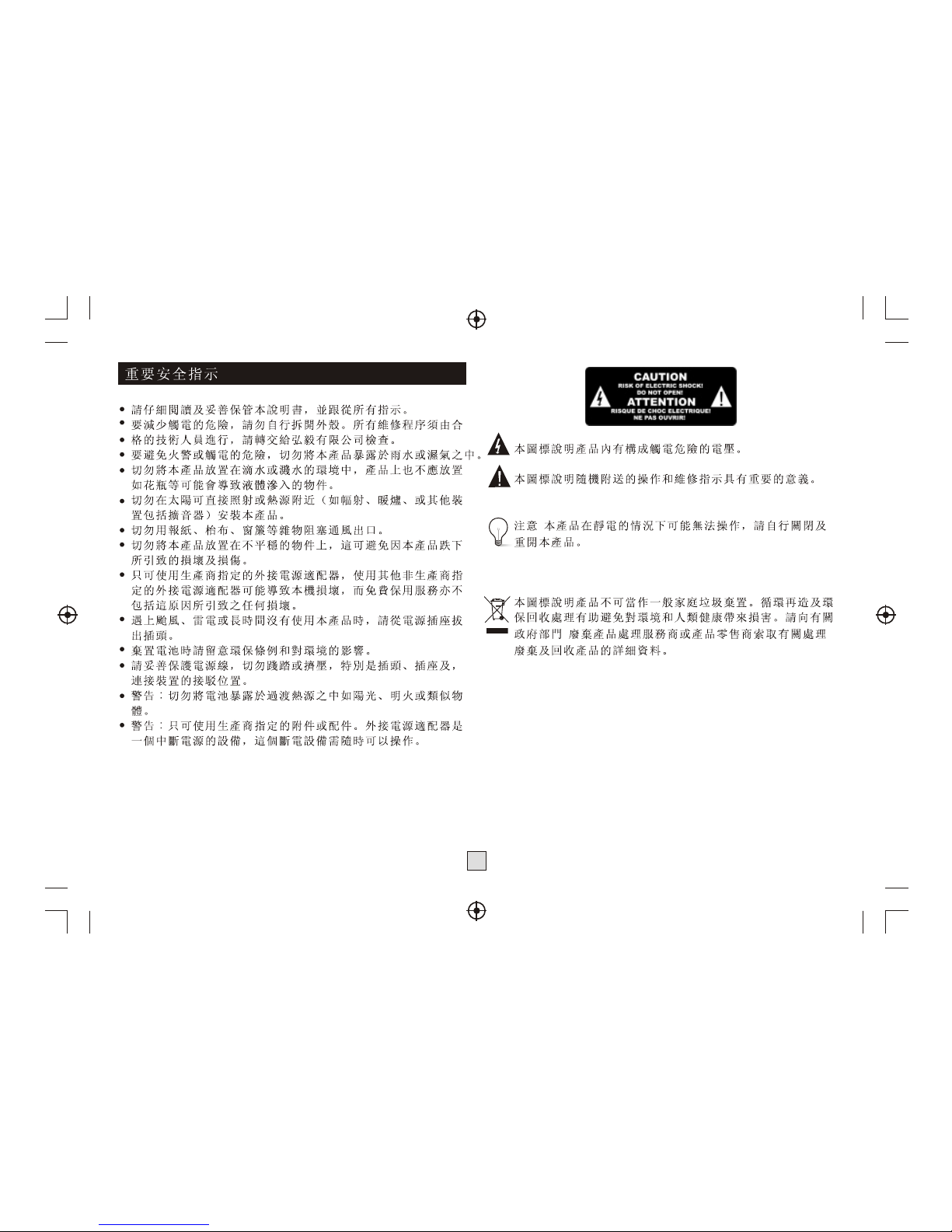
The symbol indicates that dangerous voltages constituting a risk of
electric shock are present within this unit.
The symbol indicates that there are important operating and
maintenance instructions in the literature accompanying this unit.
CAUTION:
When the apparatus was in electrostatic circumstance, it may be
malfunction and need to reset by user.
The USB memory stick should be plug in the unit directly.
USB extension cable should not be used to avoid failing of data
transferring and interference caused.
Page 12
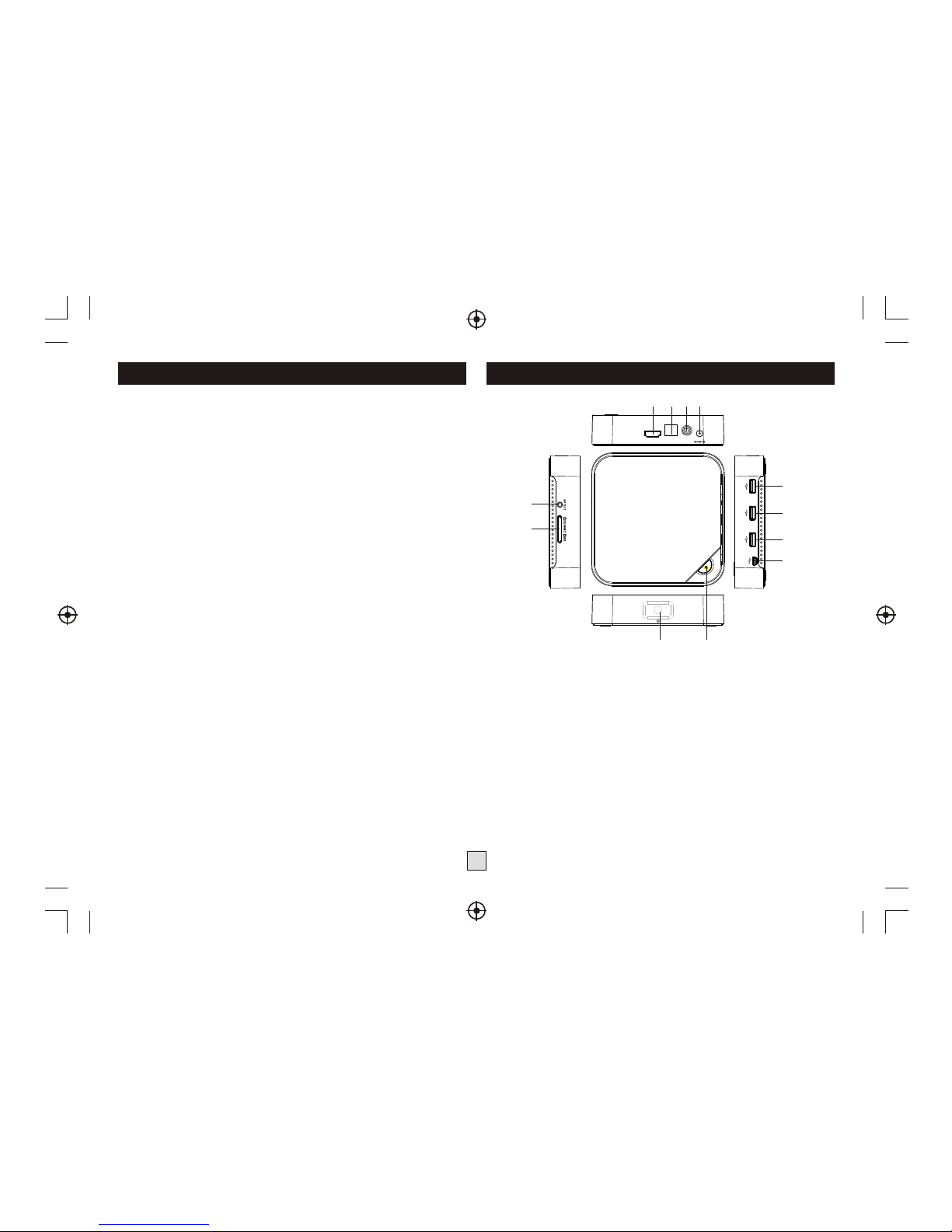
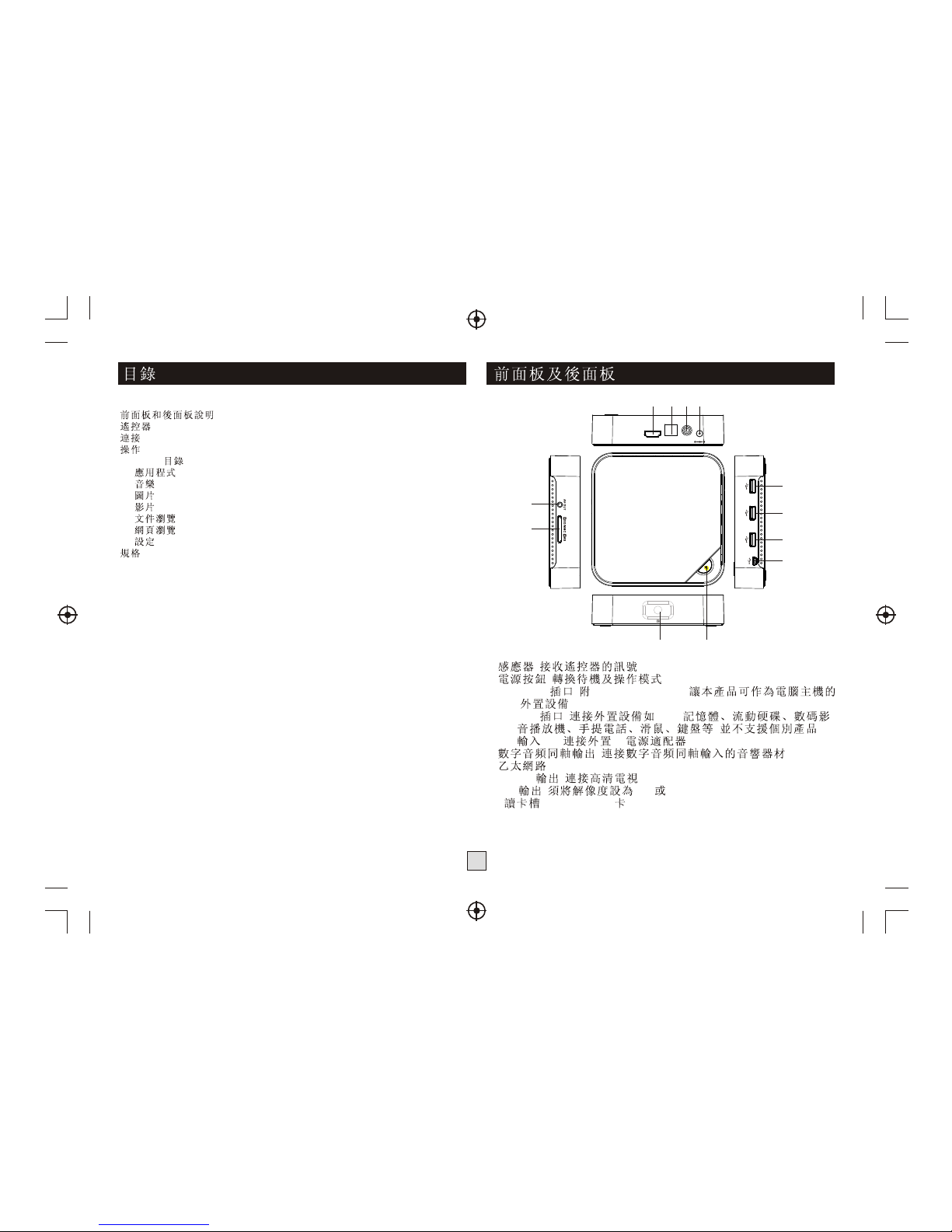
1. REMOTE CONTROL Sensor: Used to receive the signal from the remote
controller.
2. STANDBY button: Switch between standby and operation mode.
3. Mini USB Jack with OTG (On-The-Go): allows this box act as a peripheral
USB device of a computer.
4,5,6 USB Jack: Connects to external USB devices such as USB flash drive,
mobile HDD digital audio/video players,mobile phone,mouse,keyboard etc.
7. DC IN 5V: Connects to external +5V power supply adapter.
8. COAXIAL: Connects to a coaxial socket on your surround sound system.
9. Ethernet LAN RJ45: 10/100M Ethernet interface for local network
connection.
10. HDMI Output: Connects to HDTV for HD video intput.
11. AV Output: Outputs composite video signal(CVBS) and analog audio
L/R signal, you must set to 480i or 576i in Setting->Display->Output mode.
12. CARD READER Slot: SD/MMC/MS 3 in 1 card slot.
Table of Contents
Front and Rear Panel
2
12
2
11
4
5
6
3
HDMI
LAN
COAXIAL
DC IN 5V
1
10 9 8 7
Front and Rear Panel........................................................................... 2
Remote Control................................................................................... 3
Connections....................................................................................... 4
User Operations.................................................................................. 4
1. HOME menu................................................................................4
2. Application..................................................................................4
3. Music..........................................................................................6
4. Picture........................................................................................ 6
5. Video.......................................................................................... 6
6. File Brower.................................................................................. 7
7. Web Browser ...............................................................................7
8. Setting ........................................................................................7
Specification........................................................................................8
Page 13
HOME
APP
SETTING
. / :
GHI
PQRS
VIDEO
MUSIC
BACK
GOTO
WEB
VOL-
ABC
DEF
JKL
MNO
TUV
WXYZ
PICTURE
MENU
DEL
VOL+
FILE
Remote Control
Installing the Batteries
Remove the battery cover from the Remote Control and put
2xAAA size batteries inside the compartment.
The diagram inside the Battery Compartment shows the correct
way to install the batteries.
1.Open the cover 2.Install batteries 3.Close the cover
Using the Remote Control
To use the Remote Control, point it towards the front of the Digital IMP
Box. The Remote Control has a range of up to 7 metres from the Set IMP
Box at an angle of up to 60 degrees.
The Remote Control will not operate if its path is blocked.
Sunlight or very bright light will decrease the sensitivity of the Remote
Control.
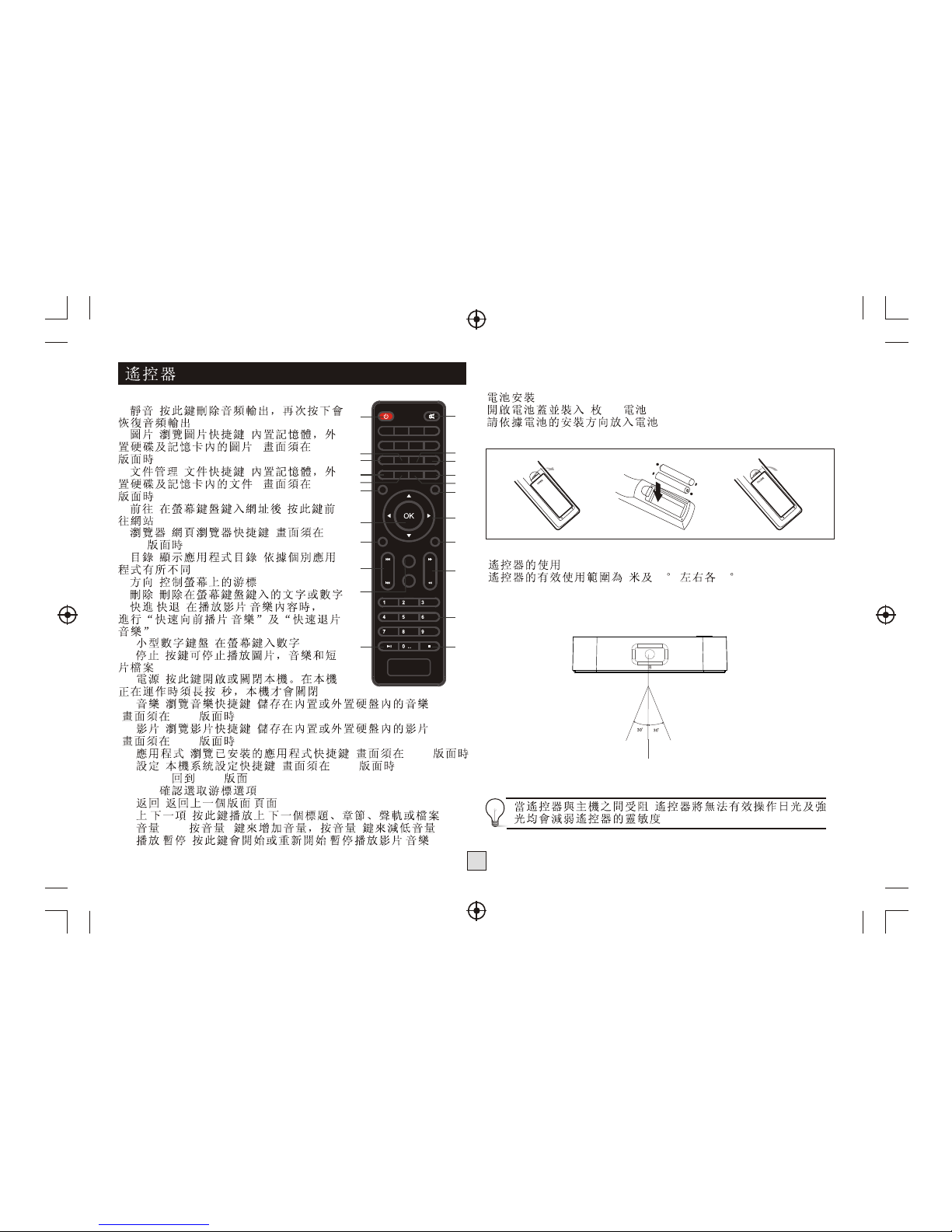
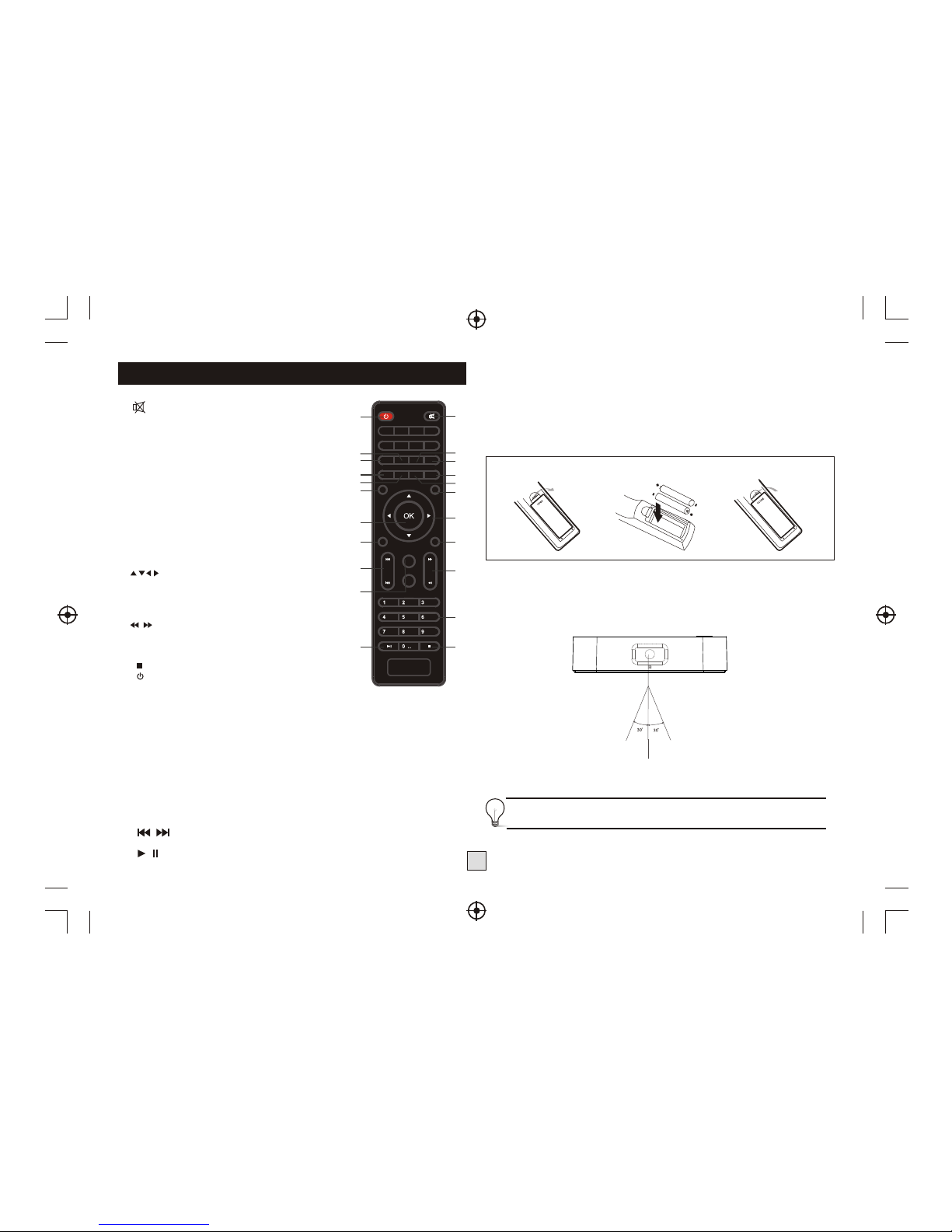
1. : Turn the sound off, press again to
restore the sound.
2. PICTURE: Shortcut to the picture browser
to browser the pictures store d in the internal/
externail storage device.
* only available in home page.
3.FILE: Shortcut to the file browser to browser
the files stored in the internal/externail storage
device. * only available in home page.
4. GOTO: Enter the specified webpage directly
after finished the typing by soft keyboard.
5. WEB: Shortcut to t he search engine page.
* only available in home page.
6. MENU: Display on-screen menu depends on
the applications, or switch the focus item in the
Search Engine tool bar.
7. : Move cursors in on-screen menu.
* Also referred to Up/Down/Right/Left
throughout the manual.
8. DEL: Del the words or number on the soft
keyboard.
9. : Fast backward or forward during a
playback.
10. 0-9: Enter value in on-screen menu.
Or for smart typing in built-in T9 input method.
11. : Stop the current playbak.
12. : Switch between standby and operation
mode. The box will go to standby forcedly if you
keep hold of this button in operation mode for
more than 5 seconds.
13. MUSIC: Shortcut to the music player to
enjoy music. * only available in home page.
14. VIDEO: Shortcut to the video player to enjoy movies stored in the
internal/externail storage device. * only available in home page.
15. APP: Shortcut to the applications installed inside the box.
* only available in home page.
16. SETTING: Enter the menu in which user can configure the system
settings. * only available in home page.
17. HOME: Enter the home page.
18. OK: Activate the highlighted menu item.
19. BACK: Returns to previous menu screen.
20 : Go to previous/next playback.
21. Vol+/Vol-: Increase/decrease volume.
22. / : Pause the current playbak,press again to resume normal play.
3
1
2
3
4
5
6
7
8
9
10
11
12
13
14
15
16
17
19
20
21
22
18
Page 14
HDMI
LAN
COAXIAL
DC IN 5V
TV
Amplifier Digital
Coaxial Cable
Coaxial
Adapter
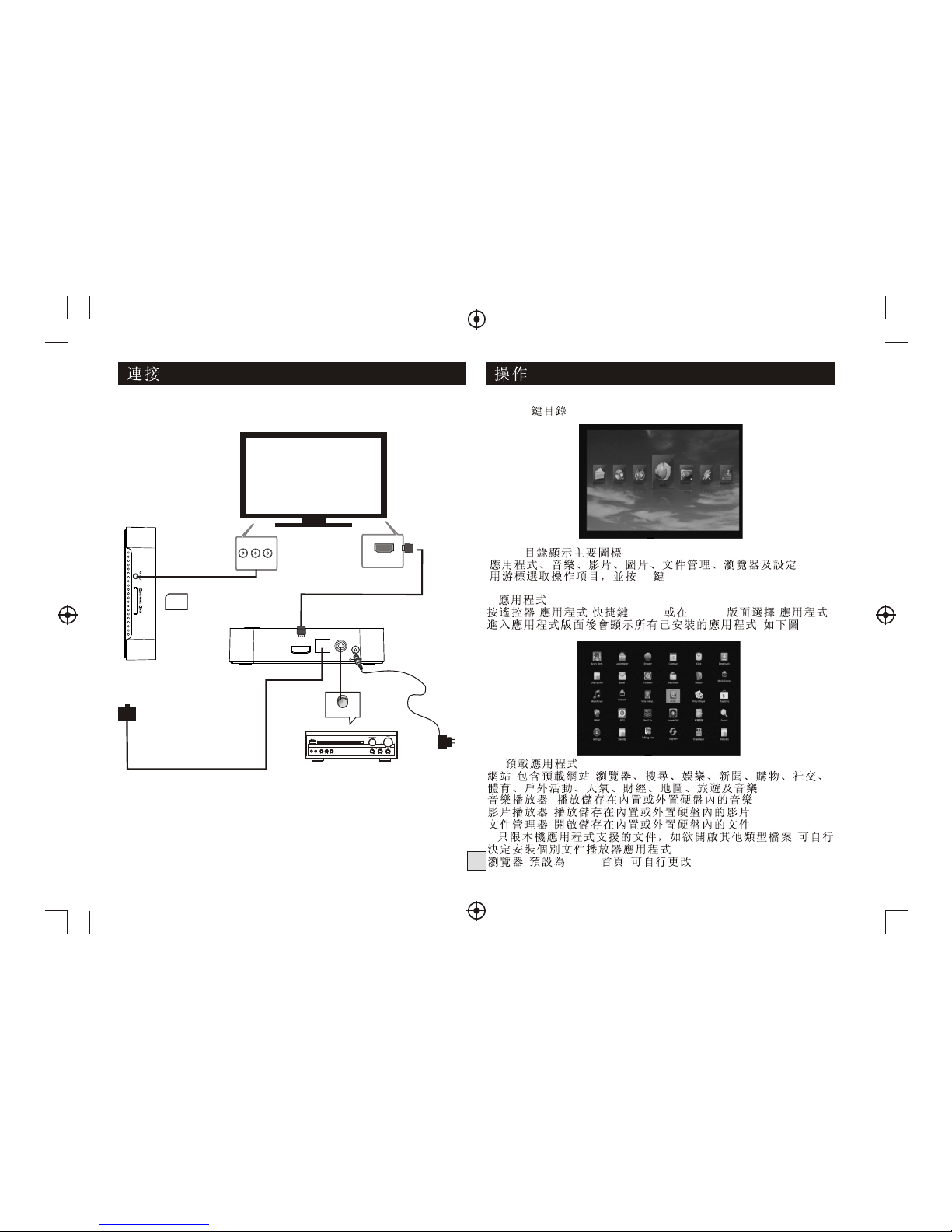
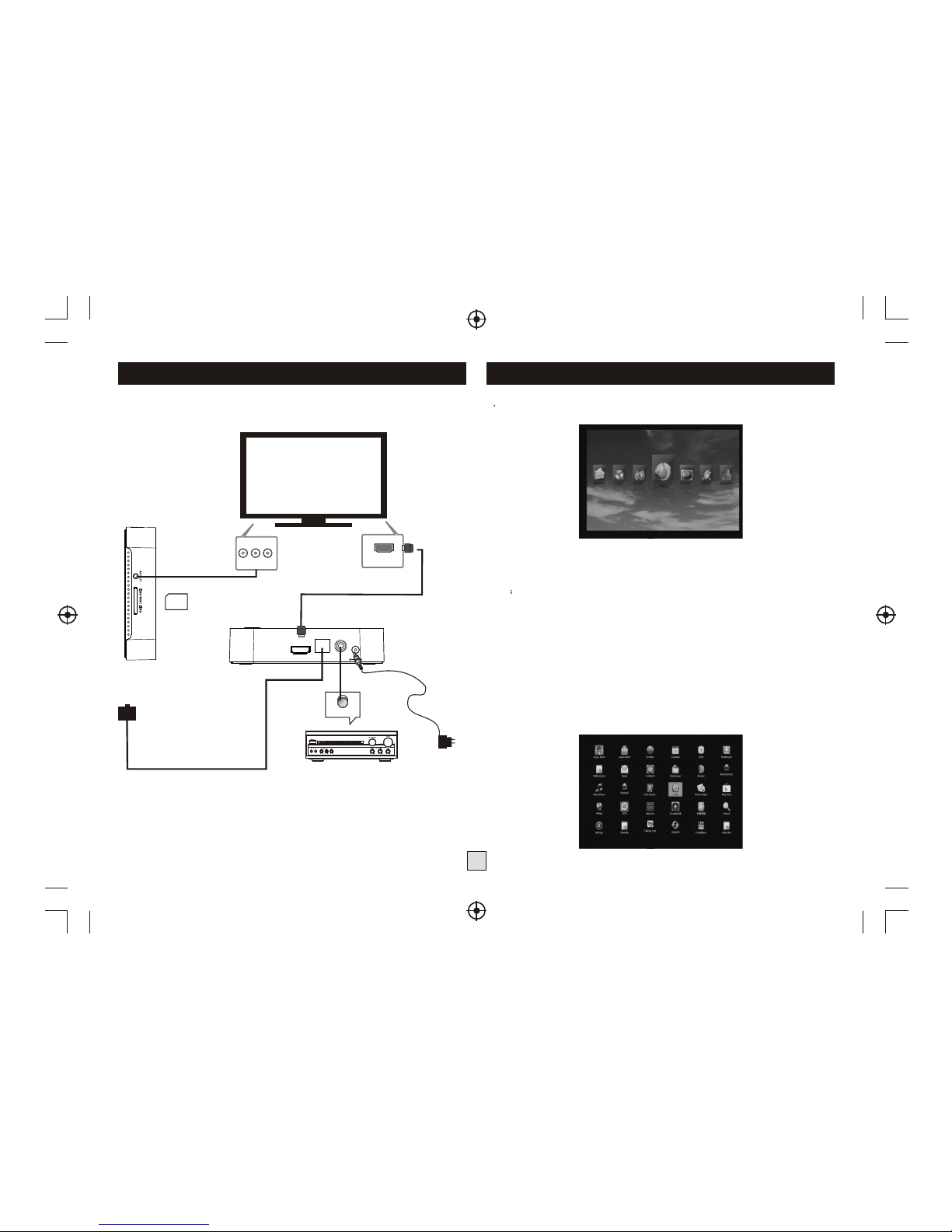
Connnections
4
1 HOME menu
User Operations
Net Cable
HDMI
This menu displays all the common items inside the box:
Application,Music,Picture,Movie,FileBrowser,Web Browser,Setting.
Note The user can select applications by cursor buttons and open it by
OK button, the user also can pressed below hotkeys in home page:
* Enter Web Browser by pressing WEB hotkey,
* Enter Applications interface by pressing APP hotkey,
* Enter the system Setting menu by pressing SETTING hotkey,
* Enter Video player by pressing VIDEO hotkey,
* Enter Music player by pressing MUSIC hotkey
* Enter Picture browser by pressing PICUTURE hotkey,
* Enter File Browser by pressing FILE hotkey,
2. Application
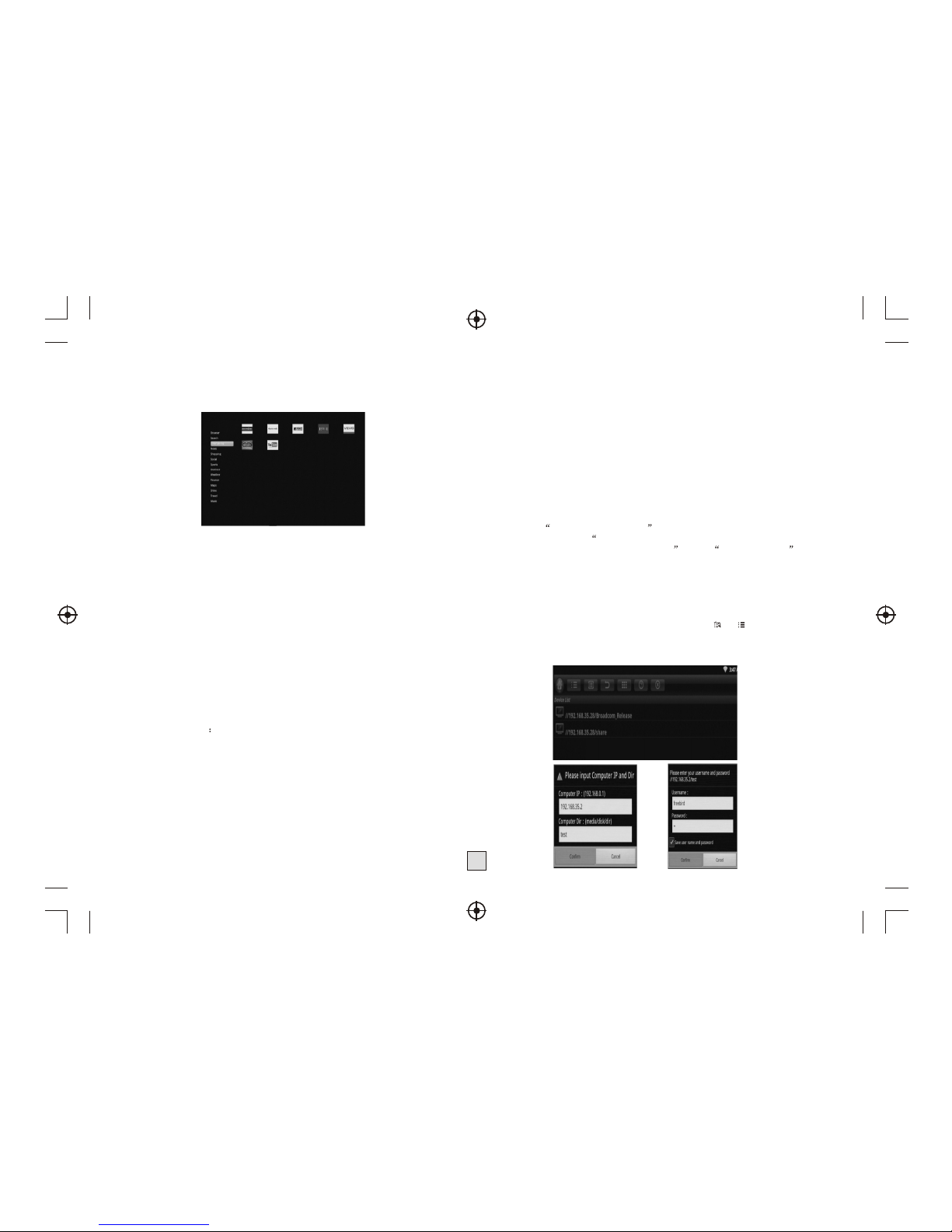
Press APP hotkey or select App item in home page to enter the APP menu.
The user will see all the applications installed inside the box like below:
AV Cable
(CVBS,Audio L/R)
SD/MS/MMC 3 in 1
Page 15
5
2.1 System built-in Applications
These applications including, but not limited to the following:
Websites: it collected the websites include: Browser, Search, Entertaining,
News, Shopping, Social, Sports, Weather, Maps, Music and so on.
MusicPlayer : for music playback
PicturePlayer : for picture browser
VideoPlayer : for movie playback
FileBrowser : for file browser
Browser : Google browser
Setting : System settings
AppInstaller : external application installation
Calendar : Google calendar
Clock : Google clock
Downloads : Google download management
Email : Email client
Search : Google quick search engine
Upgrade : System upgrade through the external storage device
RemoteIME2.0 (Optional): application which support using Android mobile
phone to remote control this IP box. But you need install the same
RemoteIME application on your mobile phone.
Network (Optional) make this IP box play the digital media which shared
by PC, the precondition is both PC an IP box are connected to a wired or
wireless home network.
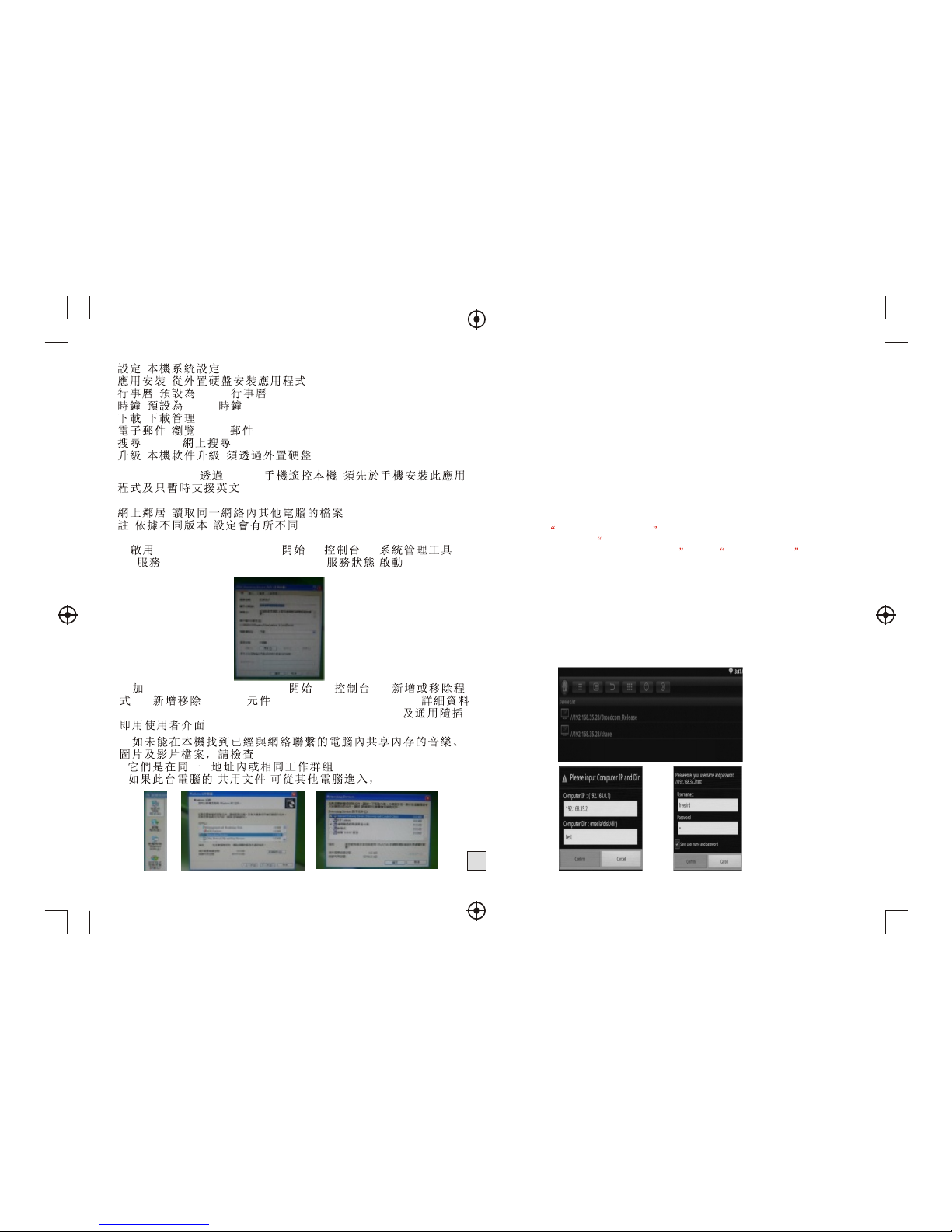
a, Share media on Windows XP
1) Enable SSDP Discovery Service: Start -> Control Plane ->
Administrative Tools-> Service -> SSDP Discovery Service
2) Add UPnP Windows Component: Start -> Control Plane -> Add
or Remove Program -> Add/Remove Windows Component -> Network
Service -> UPnP User Interface + Internet Gateway Discovery
3) Share the folders which have music,pictures,movies, if your IP box don't
find the available PCs in the network,please check:
* They are in the same IP adress segment, or the same workgroup,
* If you can access the PC shared folder by another couputer,
* Enable and give the guest account a blank password (computer
management: users and groups), then gpedit.msc -> Computer
Configuration -> Windows Settings -> Security Settings -> Local Policies ->
Security Options -> Accounts: Guest account status: enabled
* Remove Guest account in gpedit.msc -> Computer Configuration ->
Windows Settings -> Local Policies -> User Rights Assignment -> Deny
access to this computer from the network
b, Share media on Windows 7
1) Share the folders which have music,pictures,movies,
2) Click the folder you want to share and drag it to the Public folder or Public
subfolder window you opened and drop the folder into it.
* If you haven't enabled access to the Public folders for users on your
network, Click the Control Panel -> Network and Sharing Center -> Change
advanced sharing settings. You can enable access to the Public folders here.
Look to the Public folder sharing section of the Settings window and
check the box next to Turn on sharing so anyone with network access can
read and write files in the Public folders. Click Save Changes and
people who access your network can now view the contents of anything you
add to your Public folders.
After above a or b step, you can launch the Network application to searching
the available PC sharing resources and playback it by this IP box.
If it's the first time you enter it or you switch from to , you will see a
searching menu,if you don't see the shared folders like below after search
timeout,you may need enter the IP adress,folder and Username,
Password manually.
Page 16
6
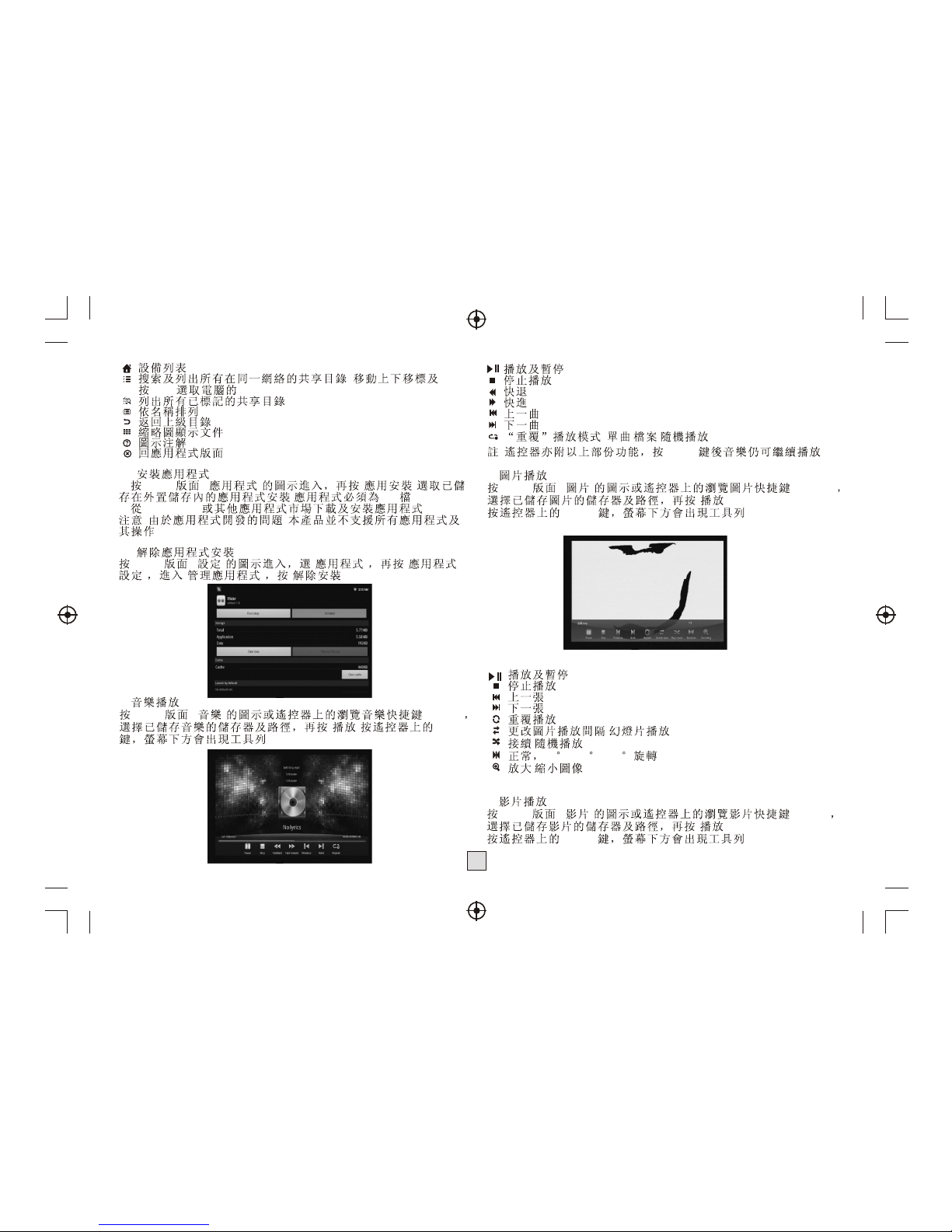
/ : Start or pause the current picture
: Stop the playback
: Goto the previous picture
: Goto the next picture
: Repeat the playback
:Change the slide show interval
: Sequence / random playback
: Normal , 90/180/270 degree rotation
: Zoom in/out the picture
: Return to Device List
: Search and list all the shared folders in network neighbors
: List the selected folders with check mark only
: Sort by file name
: Back to parent directory
: View by thumbnail or list
: Help for all the icons
: Return to App page
2.2 Install Applications
(1) Install the apk file in external mass storage device by AppInstaller.
(2) Download and install various applications in Android maket or local app
market.
Note: Not all the apps are supported by IMP Box
2.3 Uninstall Applications
Enter Settings application,select Applications-> Manage applicaions ->
The application you want to uninstall -> Uninstall in turn.
3. Music
Highlight the Music item in home page or press MUSIC hotkey to enter
music player, choose the storage device and path which has music files,
then start to playback the file.
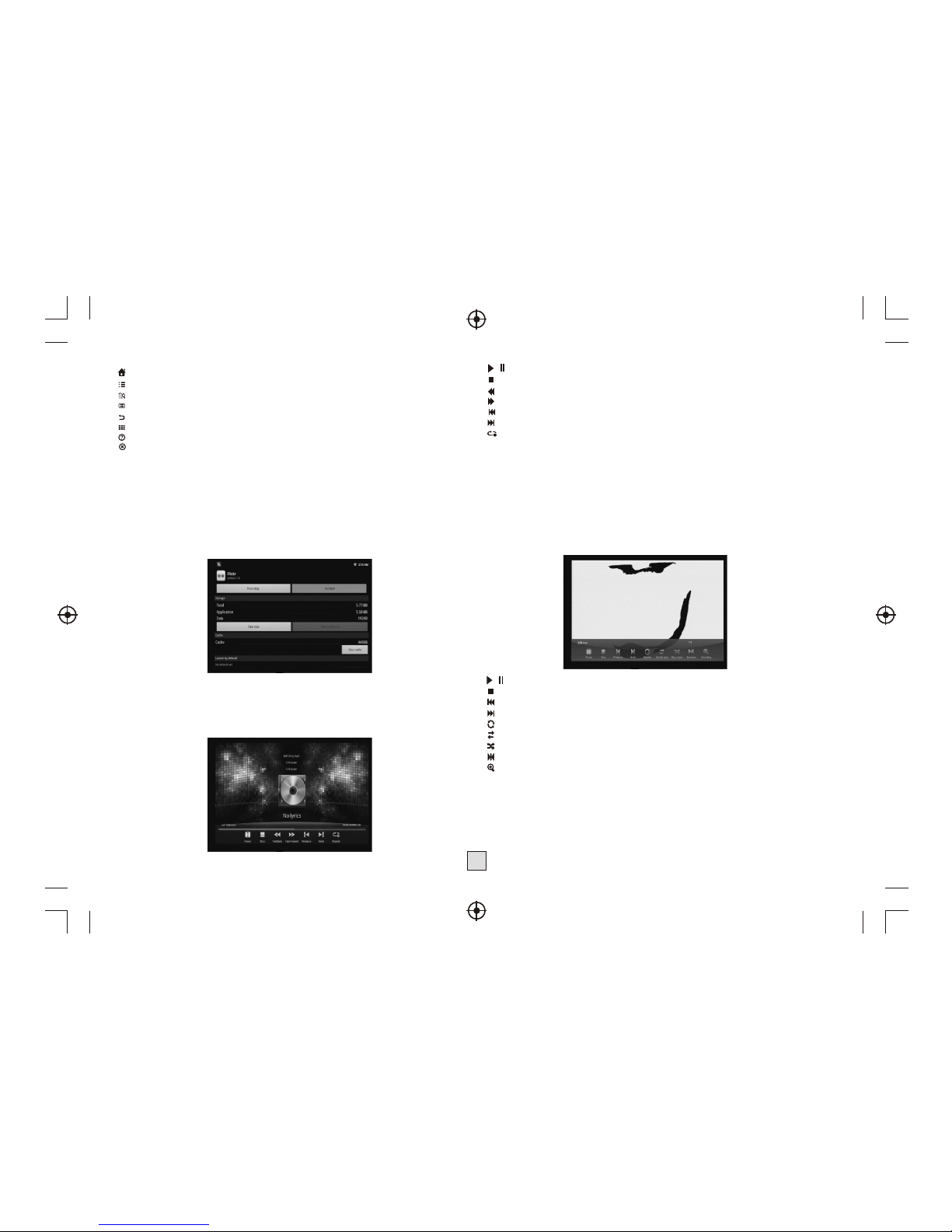
Press MENU hotkey you will see a tool bar at the bottom of the screen,
it allows the users to do the operations as listed below:
/ : Start or pause the playback.
: Stop the playbck,
: Fast backwards,
: Fast forwards,
: Goto the previous audio track,
: Goto the next audio track,
: Single/folder/random repeat playback,
Note: Part of the above operations also can be done by pressing the relevant
hotkeys on the remote controller, user can also exit the current menu by
pressing BACK button.
4. Picture
Highlight the Picture item in home page or press PICTURE hotkey to enter
picture browser, choose the storage device and path which has picture files,
then start to slide show the picture.
Press MENU hotkey you will see a tool bar at the bottom of the screen,
it allows the users to do the operations as listed below:
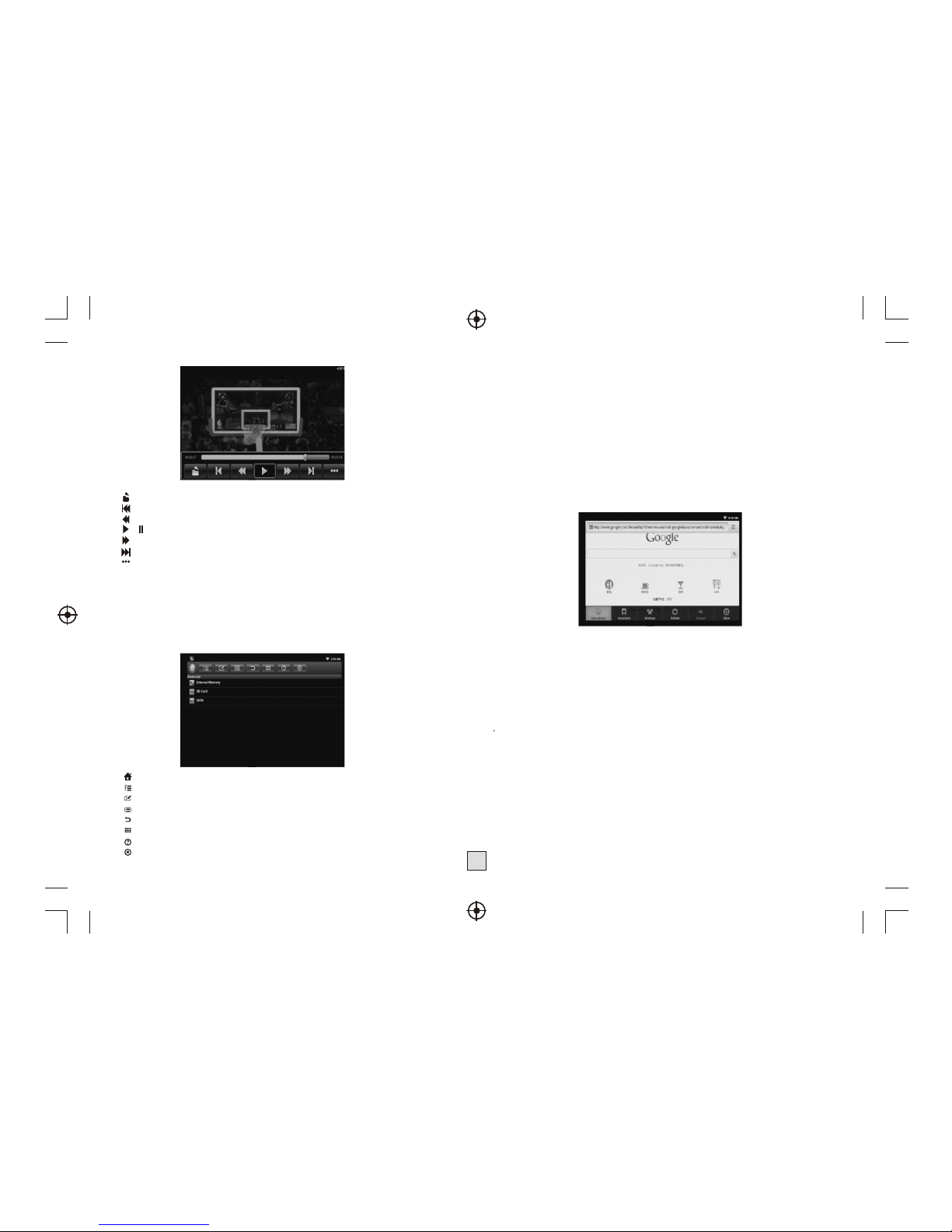
5. Video
Highlight the Video item in home page or press VIDEO hotkey to enter movie
player, choose the storage device and path which has movie files, then start
to playback the movie.
Press MENU hotkey you will see a tool bar at the bottom of the screen,
it allows the users to do the operations as listed below:
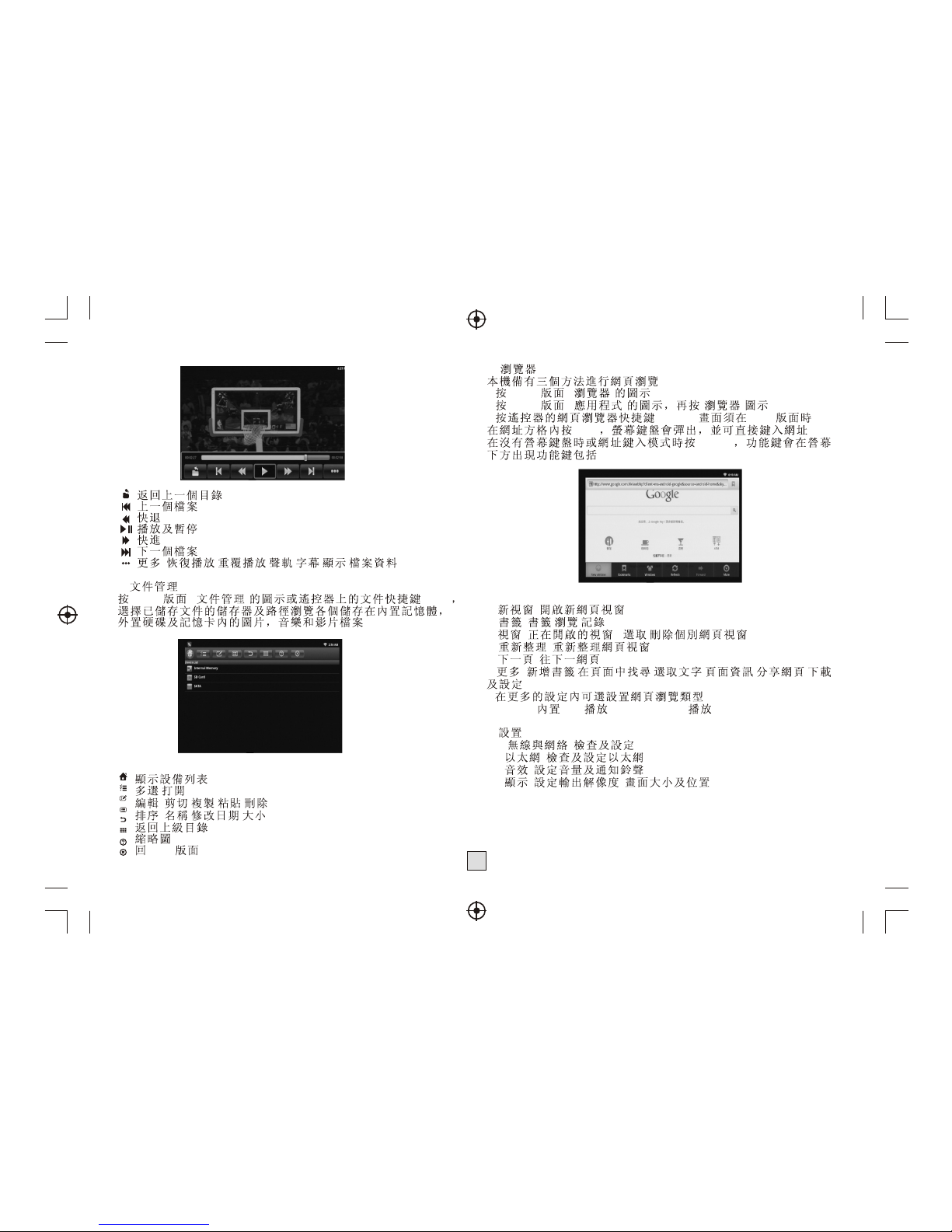
Page 17
7
: Back to the folder mode,
: Goto the previous video file,
: Fast backwards,
/ : Play/pause the current playback,
: Fast forwards,
: Goto the next video file,
: More options: Resume,Repeat,Audio
Track,Subtitle, Display Mode,File information.
6. Browser
Browser item in home page or press FILE hotkey to enter file
browser, browser the files in the certain storage device and path.
User can browser the picture and playback the music/movie, or edit the
certain file.
: Show Device List
: Select/open mode
: Edit mode: Cut/Copy/Paste/Delete
: Sort mode: Name/Date/Size
: Back to parent directory
: View by thumbnail
: Help
: Close
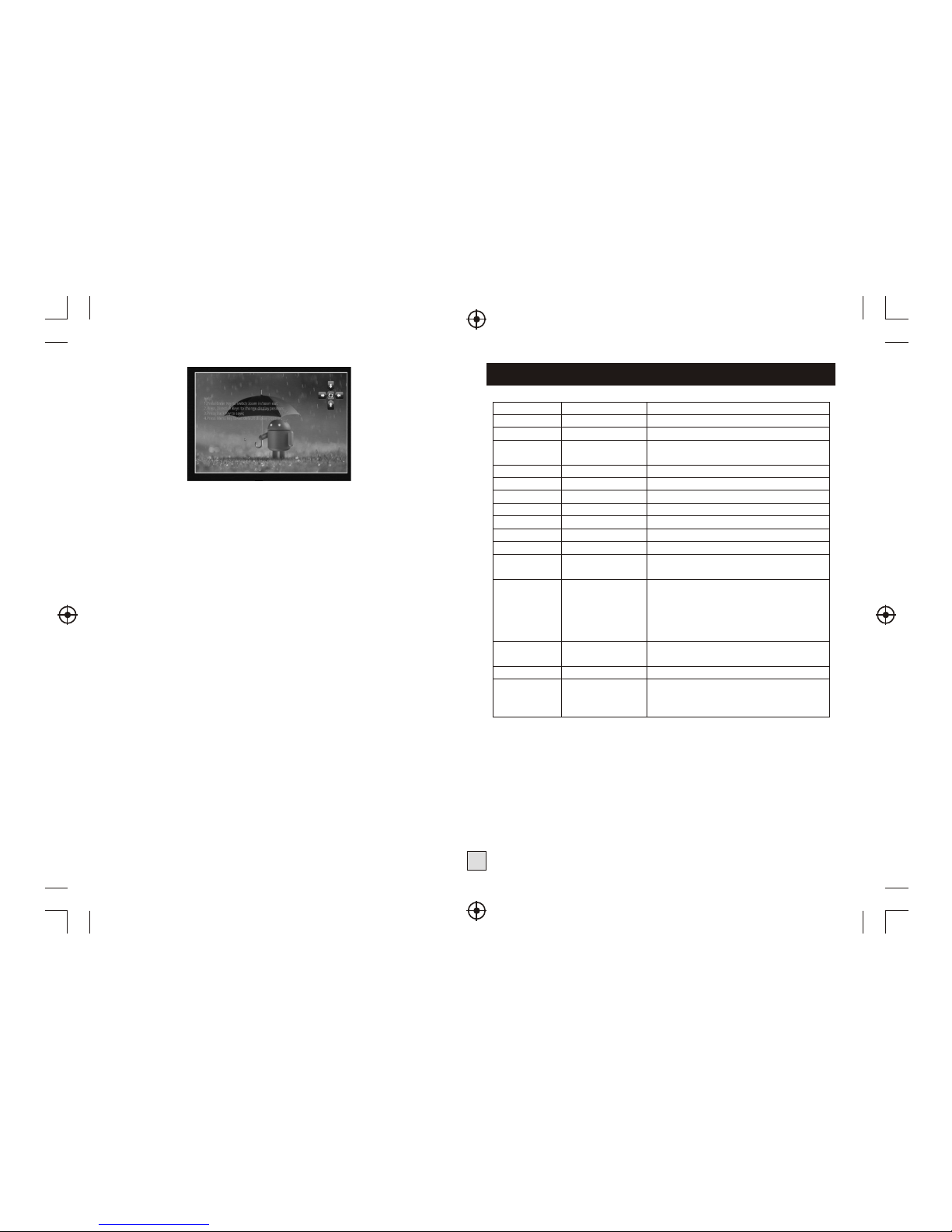
7. Web Browser
There are 3 ways to web browser:
* Highlight the Web item in home page then press OK button.
* Highlight the App item in home page then press OK button, then choose
Google browser in App menu.
* Press WEB hotkey in home page to enter system built-in web browser directly ,
It will show the soft keyboard if user pressed OK button in the web browser
address column, then user can typing websites to start surfing.
If the user pressed MENU hotkey when there is no soft keyboard and not in
adress typing mode, he will see a tool bar at the bottom of the screen,
it allows the users to do the operations as listed below
New window: create a new web page,
Bookmarks: Bookmarks/Most visited//History
Windows: delete a web page
Refresh: refresh the current web page
Forward: goto the next web page
More: various settings such as Text size/Clear cache/Set browser type...
Set browser type: choose built-in flash player, Android - website will send
flash video to client, ipad - website will send html5 video to client.
8 Setting
8.1 Wireless & networks: check mark Wi-Fi option,then choose available
Network in Wi-Fi settings, then input the correct password.
8.2 Ethernet: check mark Ethernet option,choose the network type(DHCP
and Static IP) in Ethernet settings, user need manual input the IP address/
Net mask/DNS address/Default gateway if it's Static IP, the save it.
8.3 Sound: adjust the volume,
8.4 Display:
8.4.1 Supported output type:
Support HMDI :480i,480p,576i,576p,720p,1080i,1080p
Support CVBS : 480i , 576i
Note: user can fast switch between HDMI and CVBS output witout system
reboot.
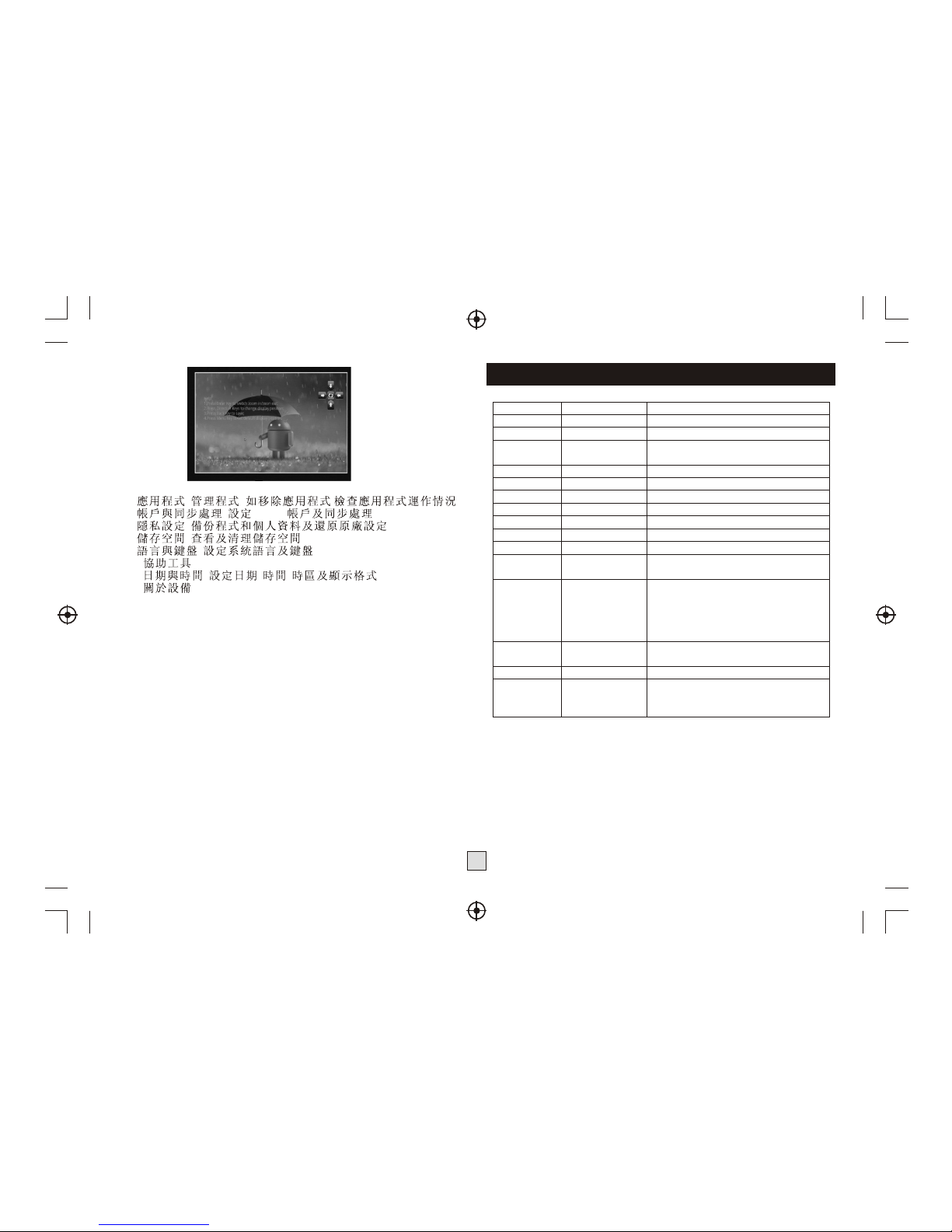
8.4.2 adjust the screen position manually to make sure the box can well
disply in various TV sets.
Page 18
8
8.5 Application: Uninstall the application, check the program running status,
debug the USB device,
8.6 Accounts & sync: sync the Google account,
8.7 Privacy: backup the data and do factory restore,
8.8 Storage: check the space information of Sd card and Nand flash,
8.9 Language & keyboard: setup the system language and keyboard input,
8.10 Accessibility: system accessibility tesing
8.11 Date & time: set the date/time/time zone/time format etc.
8.12 About Device: the version of the current system.
Specification
Key Features
Input/Output
Connectivities
Built-in
Decoders
Software
CPU
Operation System
System Memory
Flash Capacity
HDMI 1.3
CVBS,Audio L/R
Coaxial Audio
USB Host
Mini USB OTG
Card Reader
Integrated WiFi
10/100M Ethernet
interface
Video
Audio
Image
Preloaded
Applications
ARM CORTEX A9, 800MHz
Android 2.3
DDR2 4Gbits
4GBytes inside,extendable by
external USB,SD,HDD
x1, up to 1080P
x1
x1
x3
x1
SD/MS/MMC 3 in 1
802.11 b/g/n
RJ45
MKV(H.264 HP), AVI, RM/RMVB, FLV,
MPEG-1/2/4,DAT,MPEG,MPE,MPG,
MP4, M2V, M4V,ISO,TS, VOB, MOV,
3GP, 3GPP, FLC, MTS, M2TS, M3TS,
M4TS, M5TS.
MP3,WMA,APE,AAC,OGG,AC3,WAV,
OGA,FLAC,ALAC,M4A,RM.
JPEG,BMP,GIF ,PNG
Google Browser,Support Flash Player,
Photo Browser,Video Player,Audio
Player, App Installer for application
installation
*This specifications are subject to change without further notice.
 Loading...