

Page 1

W
iFi HiFi
·
WiFi Multi-Room HiFi Audio System
Instruction for users
Thanks for choosing WiFi-HiFi system!
Before operating this unit, please read these instructions completely and save them for future use.
Visit our website WWW.VASTINT.COM for more information.
Rev 1.8
Page 2

- 1 –
VAST INTERNATIONAL | VAST ELECTRONICS
INDEX
Product Outline……………………………………….…………..………………………3
Product Features……………………………………………….…………………………..3
Typical Applications…………………………………………………..……………………5
General Specification………………………………………………….…………………5
Packing and accessory………………………………………………………………5
Essential Parameter……...................................................................................……..5
Explanation for hardware……………………………………………………...………..7
Definition for hardware interface……………………………………………………….7
Interface definition and explanation.......................................................................7
Antenna Parameter…………………………………………………………………..……8
Explanation for software………………………………………………………..……….8
Introduction for WiFi-HiFi software……………………………………………….….9
Introduction for AirPlay..…………………………………………………………………..9
AirPlay application on PC…………………………………………………………..….10
AirPlay on iOS devices……………………………………………………………………11
Introduction for DLNA:………………………………………………………………....12
DLNA application on Android device……………………………………………....12
WiFi mode…………………………………………………………………………….…..14
AP Client mode……………………………………………………………………….…..14
Set up for WEB server…………………………………………………………..……..15
Log in WEB server…………………………………………………………………..…..15
WiFi setting up page……………………………………………………………………16
Advanced Setting page……………………………………………………….……….18
System page……………………………………………………………………………….18
Language setting……………………………………………………….……………….18
Page 3

- 2 –
VAST INTERNATIONAL | VAST ELECTRONICS
Restore factory setting…………………………………………………………………19
Firmware Updating…………………………………………………………………...….20
Local update……………………………………………………………….…………….20
On-line updating…………………………………………………………………….…..22
Network Page……………………………………………………………………..………26
Password setting…………………………………………………………………….……26
Change device name………………………………………………………………..27
Appendix………………………………………………………………………………….28
Page 4

- 3 –
VAST INTERNATIONAL | VAST ELECTRONICS
Product Outline
WiFi-HiFi system is developed by VAST Electronics., It is a Multi-Room Music
system based on WiFi wireless transmission. This WiFi-HiFi system supports
802.11b/g/n WLAN Standard, and can work under wireless AP/AP client/ STA
mode. This audio is compatible with AirPlay from The United States Apple Inc,
the DLNA standard and the Qplay from QQ music. It can display the music
stored in your iPhone/iPad/iPod touch through AirPlay function. It can also
play the music in your PC or Andriod device via the other player which meet
DLNA standard protocol.
Transferred via standard WiFi protocol, WiFi-HiFi system realize to display
what on your mobile, computer, iPad, iPhone, and also can be controlled.
This product is compatible with DLNA and Airplay protocol, digital WiFi
network, without compression, with HiFi high fidelity digital quality!
VAST-WiFi audio technology makes HiFi music transported to your home
like air (kitchen, bathroom, bedroom, study, living room, garage, patio,
porch ...), Music with you everywhere.
No matter you are using Mobile, Ipad, Notebook, Tablet or PC, it will work if
there has WiFi!!
There will be no data traffic while listening to the music stored in your
mobile!. Your cell phone can also surf the internet while listening to music!
After the initial configuration, it will automatically connected and
permanently online. It can be switched and controlled between several
mobiles and PCs.
Product Features
Support 802.11 B/G/N standards; this product has the WiFi relay,
broadening the coverage router, to eliminate the dead angle from WiFi
signal.
Wireless frequency 2.412GHz-2.484GHz.
When iPhone, iPad, PC connected to the system, it will not influence
surfing the internet/chat while listening to music.
Support online audio streaming media protocols: AirPlay, DLNA, Qplay
Protocols, support for all built-in music player software for this Protocol.
Page 5

- 4 –
VAST INTERNATIONAL | VAST ELECTRONICS
For example QQ music, iTunes Player and so on.
Support MP3/WMA/AAC/AAC+/ALAC/FLAC/APE/WAV…
Support TCP/IP/UDP/HTTP/UPNP networking protocol.
Support to set up the system via built-in WEB page server.
Support WiFi UART, the user can extend the control, for example (lighting,
curtains, switches, sockets, and so on) .
Support remote configuration of the system from outside network.
12-20V DC power supply.
TI digital d-class audio amplifier, Hi-Fi high efficiency, can drive any 4Ω,
6Ω, 8Ω speaker.
Under STA/AP/AP Client mode, WiFi supporting to achieve one-to-one
connection with mobile phones, PC and this product or coexist in router
network.
Support UART, USB, GPIO and Ethernet...expansion interface (Optional)
Using professional DAC decoder chip to decode, pursuing HiFi quality to
satisfy your picky ears.
When using mobile phones or PC, you do not need to install any drivers,
without connecting any transmitter. You can use WiFi to send digital
music to the system's receiver decoder playback.
User can adjust the volume/pause/previous/next via the player on your
PC or mobile. It will not change the users’ habits.
This WiFi-HiFi system has been tested with mobile/ computer/ ipad from
different famous brands such as Apple/ Samsung/ Huawei/ HTC/ LG/
SONY.
No matter you are user for an Android/ Windows/ iOS/iPhone/iPad and
iMac systems intelligent terminal device, as long as there is WiFi, it will be
compatible.
Up to 150mbps transmission bandwidth and advanced audio decoding
technology to make sure there is lossless audio for uncompromised
quality sound during HiFi music transfer.
Aluminum waterproof shell, good heat dissipation, to guarantee
product stability, premium quality.
Page 6
- 5 –
VAST INTERNATIONAL | VAST ELECTRONICS
Typical Applications
Family, Apartment, Villa(Kitchen, Bathroom, Bedroom, Saloon, Study,
Sauna room, Balcony, Garden…)
Supermarket, shopping mall.
Motor home, Coach, sleeper carriage from high-speed rail, sleeper
carriage of train, car, ATV, Yacht, cruise ship.
Guest room in tourist areas(Mongolian Yurt, apartment).
Massage, Coffee, Relaxation Area.
More other areas to be explored.
General Specification
1. Packing and accessory
1PC WiFi-HiFi system.
1PC powder adapter ( AC100-245V / DC19V4.74A.).
2. Essential Parameter
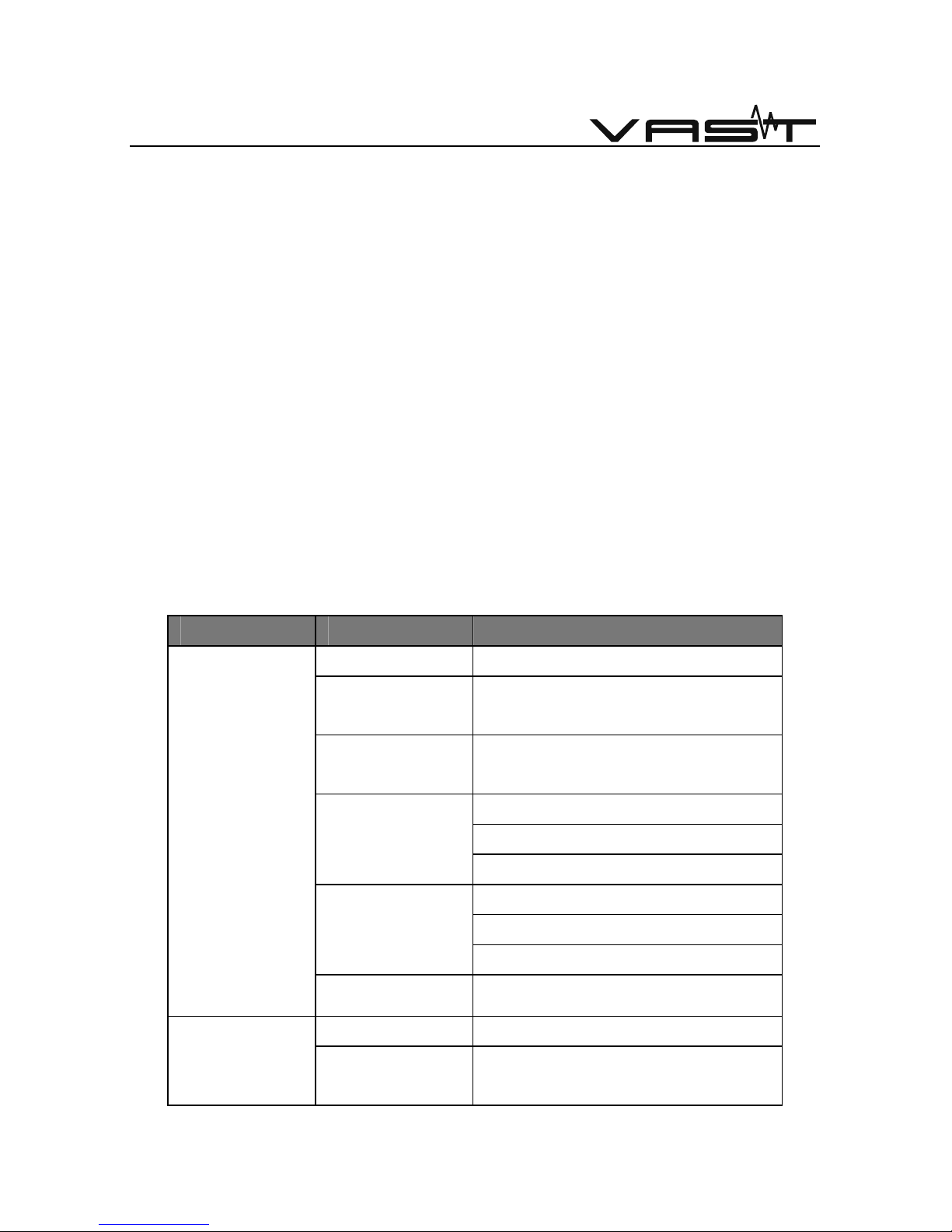
Item Indicators
Certificates FCC/CE
Standard for
WLAN
802.11 b/g/n, 1T1R
Frequency
Range
2.412GHz-2.484GHz
802.11b: +20dBm (Max.)
802.11g: +18dBm (Max.)
Transmitting
Power
802.11n: +15dBm (Max.)
802.11b: -89dBm
802.11g: -81dBm
Receive
sensitivity
802.11n: -71dBm
Parameters
for wireless
Antenna External: SMA-F connectors
Power supply DC12-20V, >5A Parameters
for Hardware
Standby
current
200mA
Page 7
- 6 –
VAST INTERNATIONAL | VAST ELECTRONICS
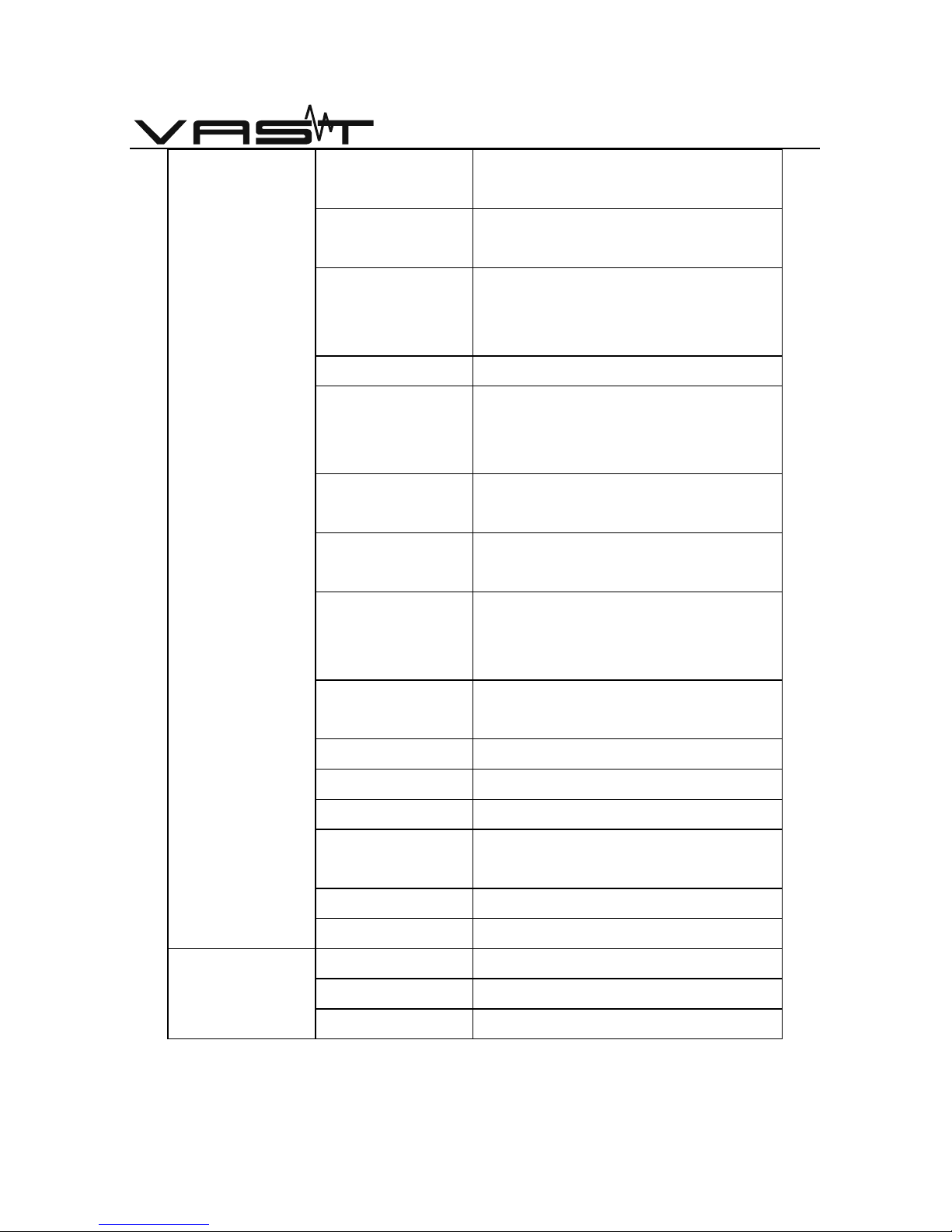
Working
Temperature
0℃ - 60℃
Storage
temperature
-25℃ - 60℃
Status
Indicator
Lamp
power
DAC SNR 96 dB
WiFi
transmission
distance
Around 110 Meters(in open
space)
Expansion
interface
Ethernet, USB, UART, GPIO
(Optional)
Audio output
powder
2CH*45W(RMS)
Speaker
output
interface
Gold-plated pure copper
standard speaker terminal
speaker
impedance
4Ω, 6Ω, 8Ω
Size 148*103.6*24mm (L*W*H)
Type of WLAN
AP Client mode
Security WEP/WPA-PSK/WPA2-PSK/WAPI
Encryption
type
WEP64/WEP128/TKIP/AES
Setting up Web server
User updating
Web server
Update on line
support
APP iOS, Android, Windows 7/8
Parameters
For Software
Audio Protocol
AirPlay, DLNA, QPlay
WiFi-HiFi system hardware and software parameters
Page 8
- 7 –
VAST INTERNATIONAL | VAST ELECTRONICS
Explanation for hardware
1. Definition for hardware interface
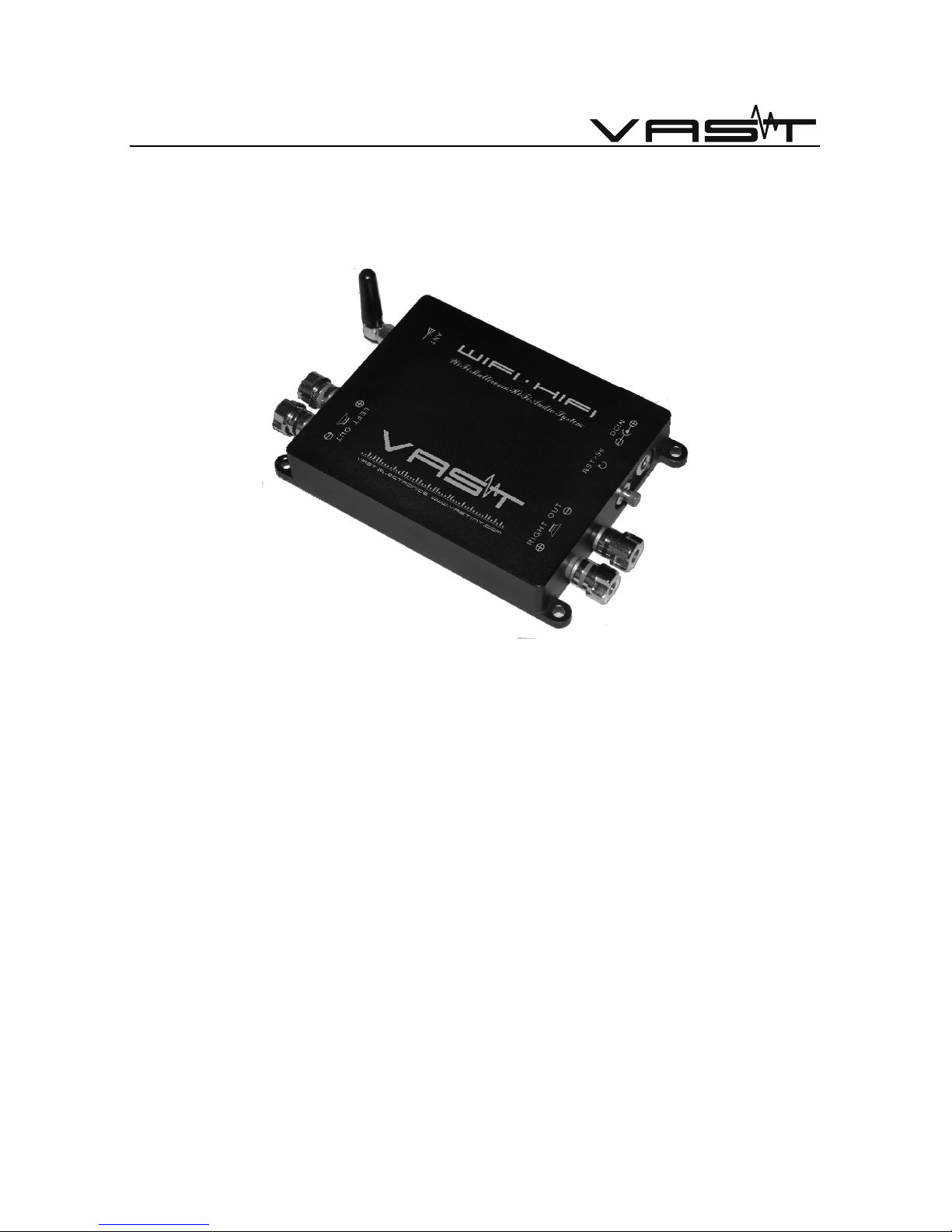
Definition and explanation for WiFi-HiFi system interface
Size:148*103.6*24mm (L*W*H)
Interface definition and explanation:
1. Power input: DC19V, 4.74A.
2. RST key: press more than 5 seconds and restored to factory setting.
3. Antenna interface: SMA-F, standard WiFi antenna connector.
4. Left channel speaker output: Black terminal-Negative○- , red terminalPositive⊕.
5. Right channel speaker output: Black terminal-Negative○-, red terminalPositive⊕.
2. Antenna Parameter
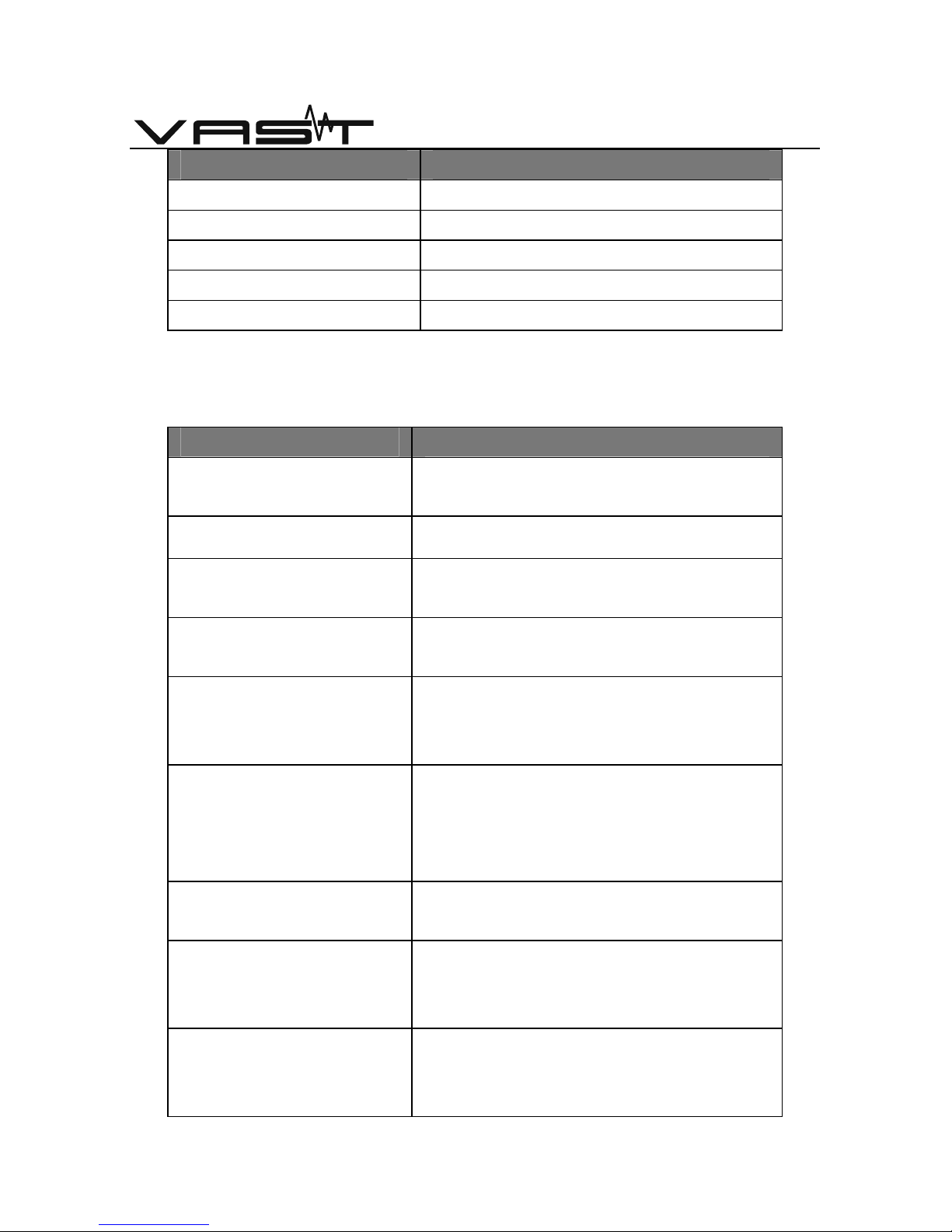
An external antenna, WiFi-HiFi system 2.4GHz antenna need to be
connected to 802.11b/g/n. Specific parameters of the antenna requirements
shown in the table below:
Page 9
- 8 –
VAST INTERNATIONAL | VAST ELECTRONICS
Items Data
Frequency Range 2.4~2.5GHz
Impedance 50 Ohm
VSWR 2 (Max)
Return loss -10dB (Max)
Type of connector SMA-M
Antenna parameter for WiFi-HiFi system
Explanation for software
WiFi-HiFi system support Airplay, standard DLNA and QQ Music Qplay.
Items Specification
iOS version
iOS 4.2 and above
iPhone, iPad, iPod Touch, iPad Mini
Android version
Android 2.3 and above
iTunes version
iTunes 10.2 and above
PC, iMac
Network setting
Working under the wireless access
point client mode (AP Client)
Support Airplay
operating
Play, pause, fast backward,
fast forward, volume control,
Previous, next
Support Airplay program
Apple music (local)
QQ music and so on
iTunes
Any third party audio program
Support DLNA operating
Play, pause, fast backward, fast
forward, volume control, Previous, next
Support DLNA program
compatible for any third-party player
certified by DLNA such as:
Skifta, BubbleUPnP, QQ music
Audio format
MP3, WMA, WAV, Apple Lossless
(ALAC), AAC-LC, AAC, AAC+, APE,
FLAC etc.
Page 10

- 9 –
VAST INTERNATIONAL | VAST ELECTRONICS
Support browser
PC: IE9/10, Chrome, Firefox
iOS/MAC OS: Safari
Language for Web
server
English, Chinese
Web server operation
Set up WiFi-HiFi network
Name the device and add password
protection
Update WiFi-HiFi hardware and back to
factory setting
Update on-line
Set up the device network
Introduction for WiFi-HiFi system software
Introduction for Airplay:
AirPlay is a playing technique, which was added on Apple iOS4.2 and OS x
include Mountain Lion. You can transfer the music from your iPhone, iPod
touch, iPad and Mac(requires OS x Mountain Lion) to audio device that
supports airplay to play. Use Airplay iOS4.2 equipment or Mac version
iTunes10.1 or higher on your computer.
When the user's device (Mac, PC, iPod touch, iPhone, iPad) is on the same
wireless LAN(WiFi) with the speaker box which supported by the Airplay,
opening iTunes on the Mac or PC version 10 or higher, will be next to the
iTunes bar (iTunes 10 in the lower right corner of the window) to see an Airplay
button. Click on the Airplay button, and then select the equipment needs to
be synchronized, you can choose to play music WiFi sync to devices. IPod
touch, iPhone and iPad users can find the Airplay button in the corresponding
“music” interface.The same procedure as Mac and PC.
AirPlay button
Page 11
- 10 –
VAST INTERNATIONAL | VAST ELECTRONICS
AirPlay application on PC
1. When want to use the Airplay on your PC, you need to install iTunes Player
software
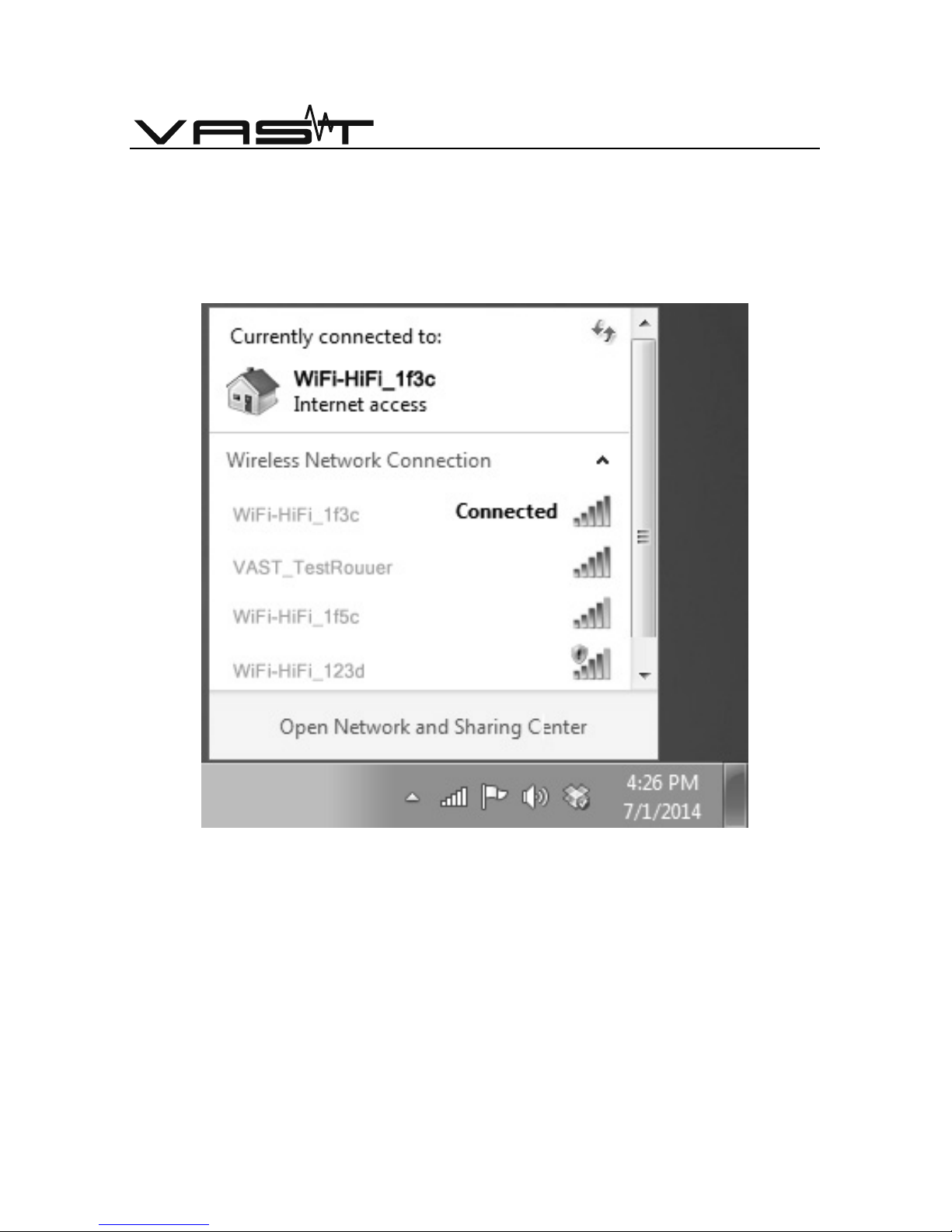
2. As shown in the following figure to connect the PC WiFi to WiFi-HiFi system or
log on the PC and WiFi-HiFi system with the same wireless WLAN.
Connect the PC WiFi to WiFi-HiFi system
Page 12
- 11 –
VAST INTERNATIONAL | VAST ELECTRONICS
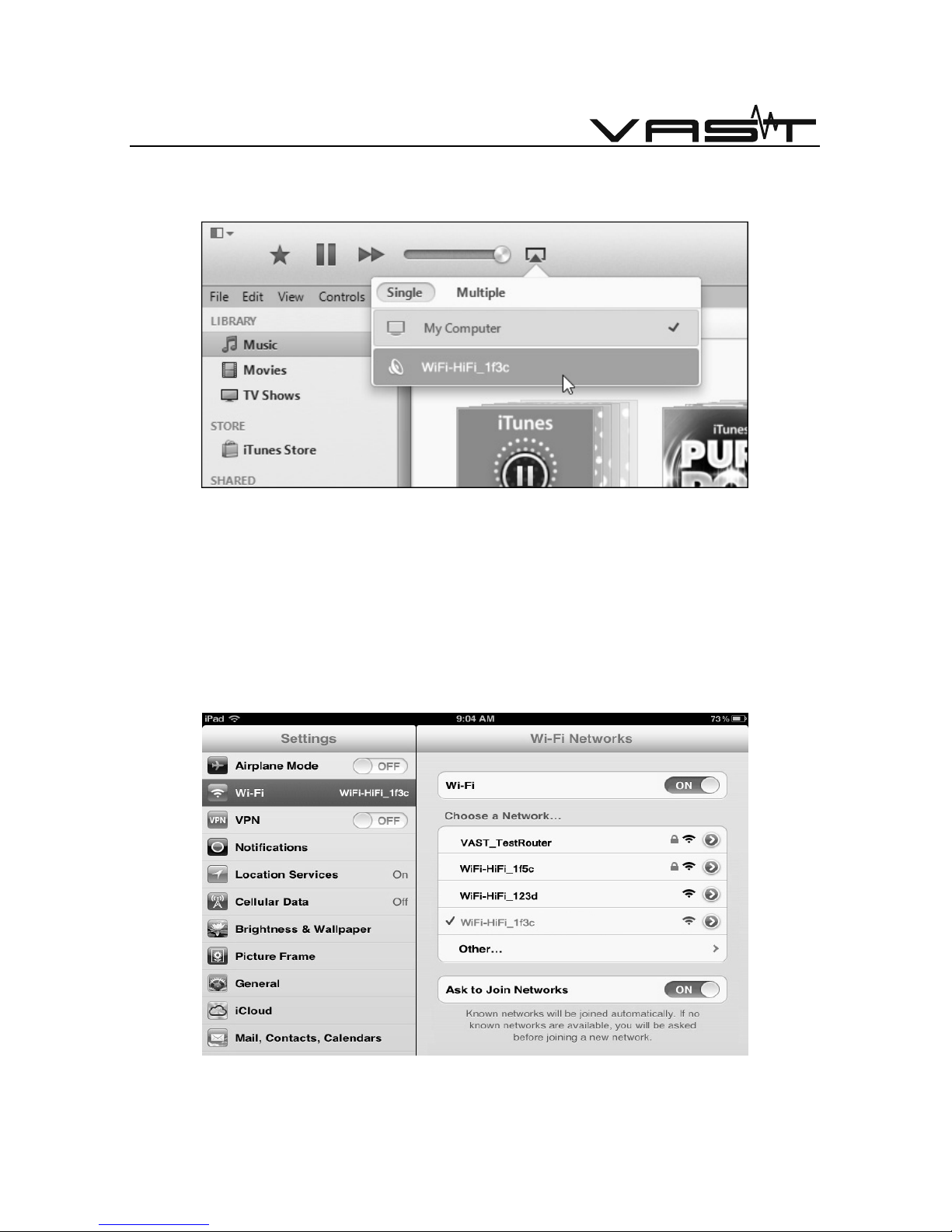
3. Choose WiFi-HiFi play in iTunes software interface device as a playback
device.
iTunes displayed to WiFi-HiFi system
AirPlay on iOS devices
iOS device need to support AirPlay.
1. As shown in the following figure on the iOS device's WiFi login to WiFi-HiFi
system. Or to log on iOS devices and WiFi-HiFi system to the same wireless LAN.
Connect the iOS to WiFi-HiFi system
Page 13
- 12 –
VAST INTERNATIONAL | VAST ELECTRONICS
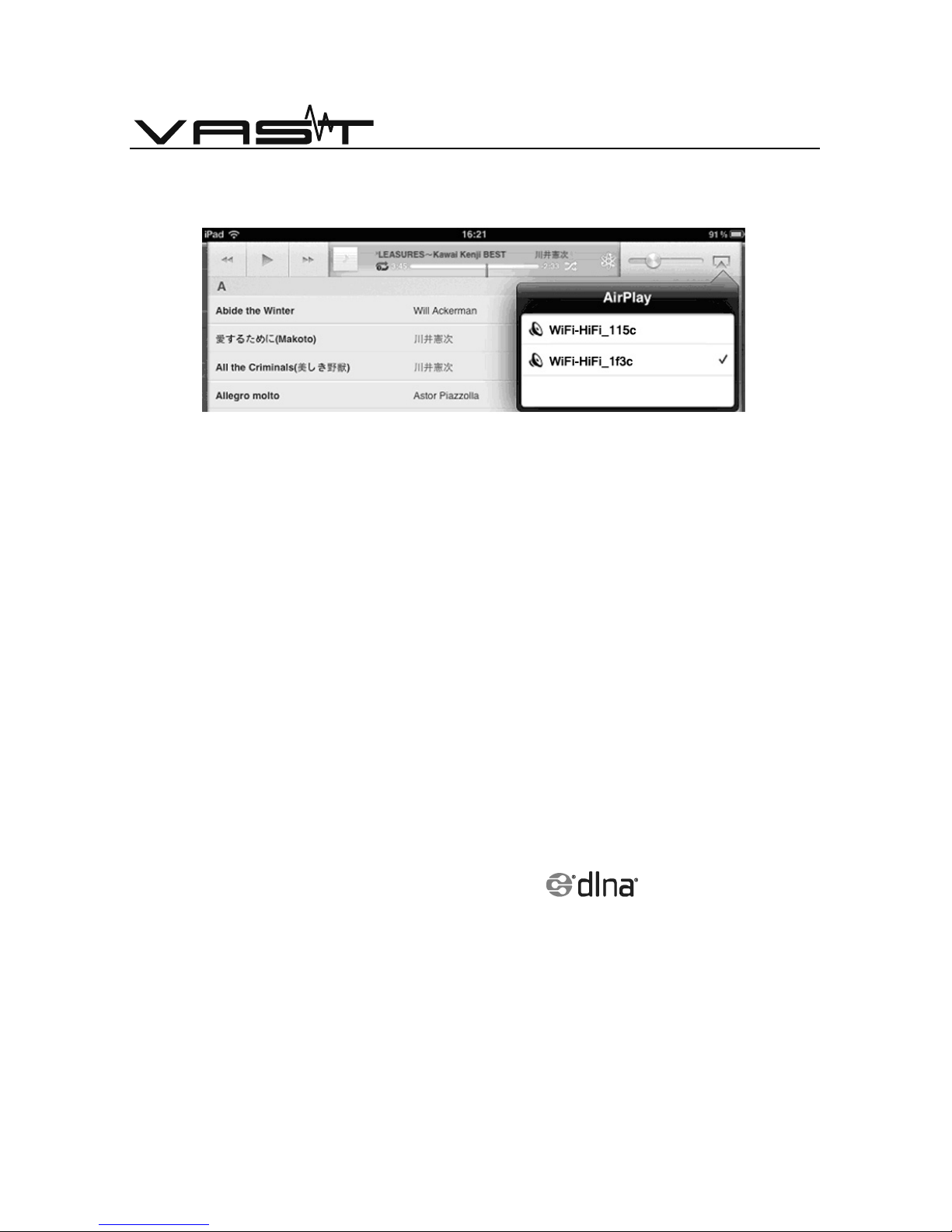
2. Open the music application, select WiFi-HiFi play interface device as a
playback device.
iOS device displayed to WiFi-HiFi system
After this setting, WiFi-HiFi system support for third-party music players play
through the AirPlay to this device.
Introduction for DLNA:
DLNA, (Digital Living Network Alliance) is an organization made up of
consumer electronics, mobile phones, and computer manufacturers Alliance.
The organization's goal is to create an industry standards enabling the
manufacturer's product are interconnected, mutually adapted, thus
contributing to consumers ' digital lives. DLNA provisions be applied in its
entirety into 5 functional components. From bottom to top as follows:
Internetworking, network protocols, media delivery, device discovery control
and management, and media formats.
In brief, DLNA is not to create technology, but to find out a solution which
everybody can comply with specification, then all the devices can be
connected conveniently after pass the DLNA approve.
DLNA application on Android device
There are a large number of Third-party supported DLNA standard players.
Here we take the Android player(LG mobile phone) for example.
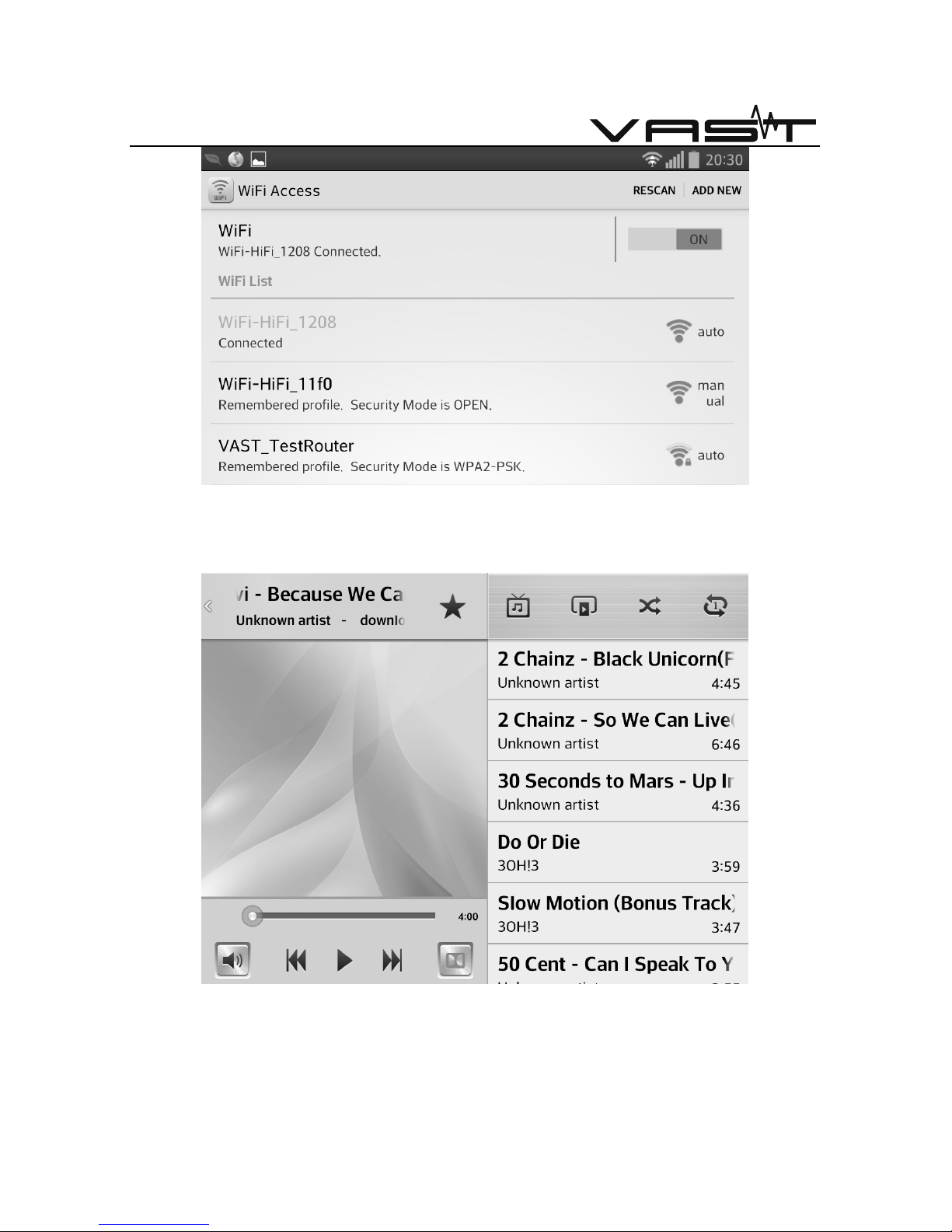
1. As shown in the following figure, connect the Android device’s WiFi to WiFi-
HiFi on the device, Or connect Android devices and WiFi-HiFi system to the
same wireless LAN.
Page 14
- 13 –
VAST INTERNATIONAL | VAST ELECTRONICS
Android device connected to WiFi-HiFi system
2. Open Android music application, choose to play songs.
Player page
Page 15
- 14 –
VAST INTERNATIONAL | VAST ELECTRONICS
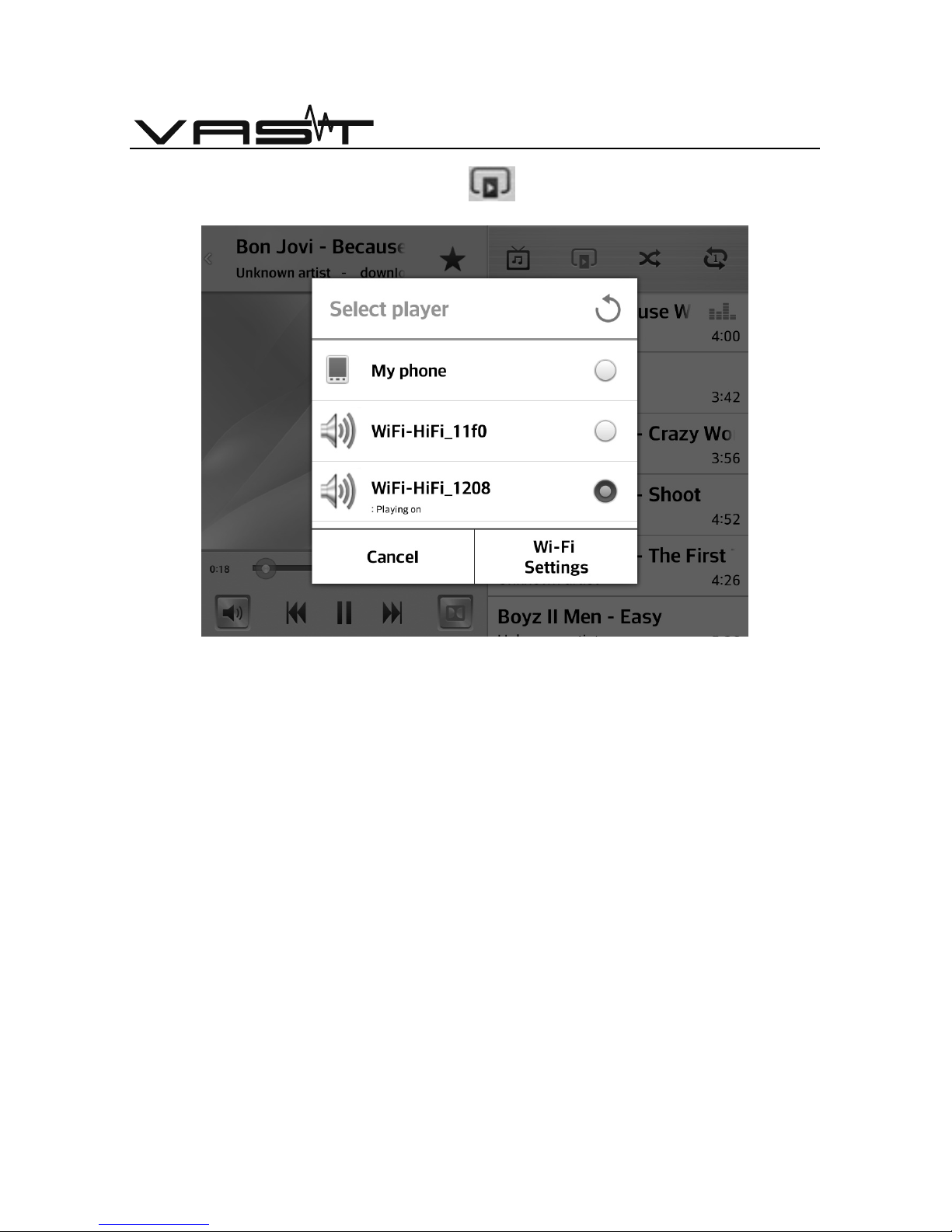
3. Clicking the button on Player page .
Select player page
4. Select the WiFi-HiFi system as output, WiFi-HiFi system to start playing.
To operate the other players which supported by DLNA is the same.
WiFi mode
Working under the WiFi AP Client mode, please refer to WiFi setup page.
AP Client mode
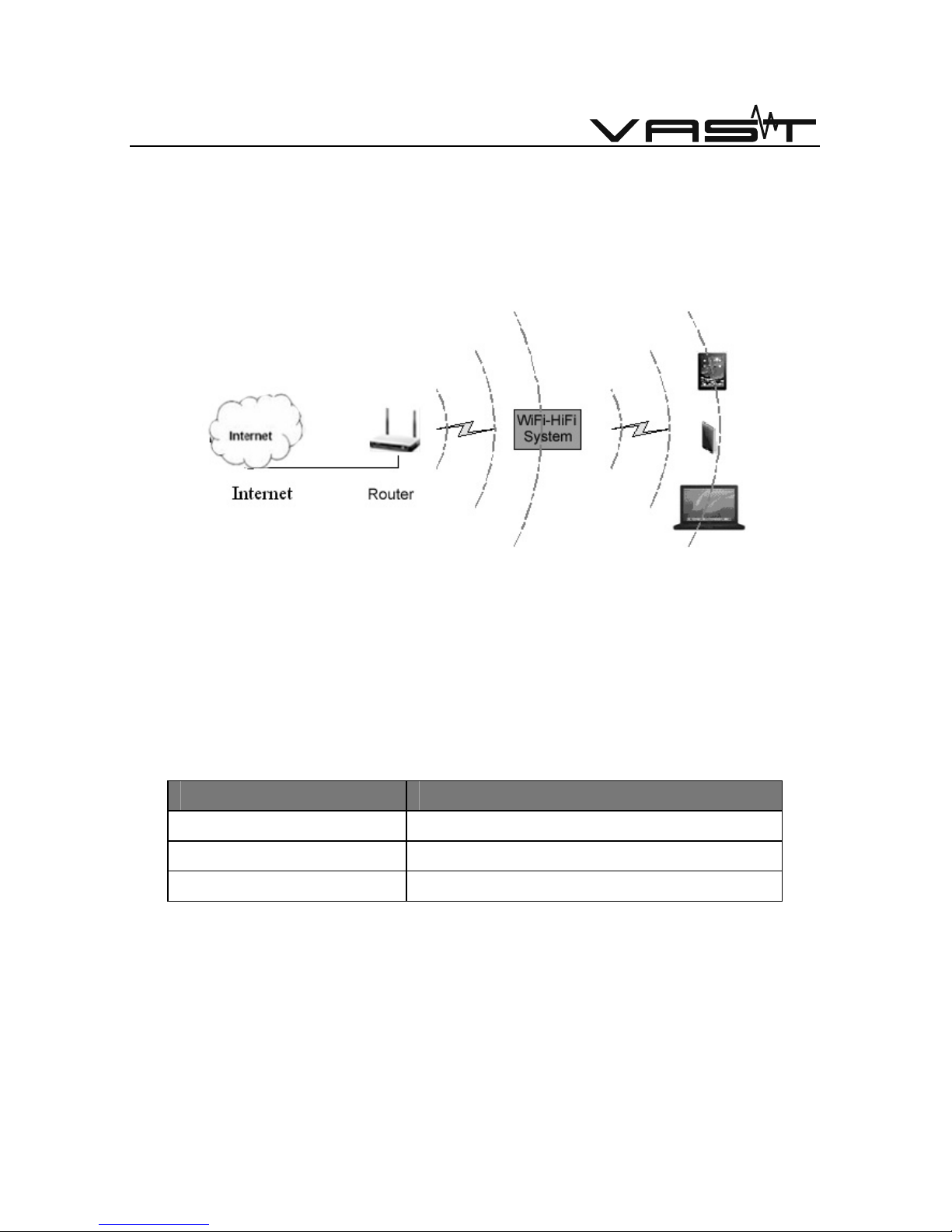
Client-wireless AP Client mode, also commonly known as the "master-slave
mode". Itself as an AP, you can build a wireless LAN support on the other
wireless devices to log on to the wireless local area network. Meanwhile, as a
client, it can also log on to a wireless router. AP Client are the main AP as a
wireless client is, their status and the wireless adapter is equivalent. WiFi-HiFi
system under AP Client mode, log on to WiFi-HiFi system on the user's device,
Page 16
- 15 –
VAST INTERNATIONAL | VAST ELECTRONICS
you can play audio via AirPlay on WiFi-HiFi system. WiFi-HiFi system can also
log on to the wireless router at the same time, if the primary wireless routers
have the ability to access the Internet, connect to the WiFi-HiFi system on the
user's device can access the Internet.
WiFi-HiFi system AP client mode
Set up for WEB server
WiFi-HiFi system has the function to act as server, it support the user to set
up via brower.
In the factory-default, Device name WiFi-HiFi system AP interface as WiFi-
HiFi xxxx, where xxxx is the 4-digit.
Items Default setting
Device Name WiFi-HiFi _xxxx
IP address 10.10.10.254
Subnet mask 255.255.255.0
WiFi-HiFi system AP default setting
Connect the PC to WiFi-HiFi system AP interface set up the page
configuration.
Log in WEB server
When the user equipment and the WiFi-HiFi system in the same wireless LAN,
users can use the IE browser to access the "10.10.10.254", you can enter the
Page 17
- 16 –
VAST INTERNATIONAL | VAST ELECTRONICS
Web services page. Web Server page language, it supports Chinese and
English. Here we take English language as an example. If the WiFi-HiFi system
has not set up the wireless router, and Web services page, first go to the WiFi
setting menu, if the device is already configured your wireless router, Use Web
service page to enter the Setup menu.
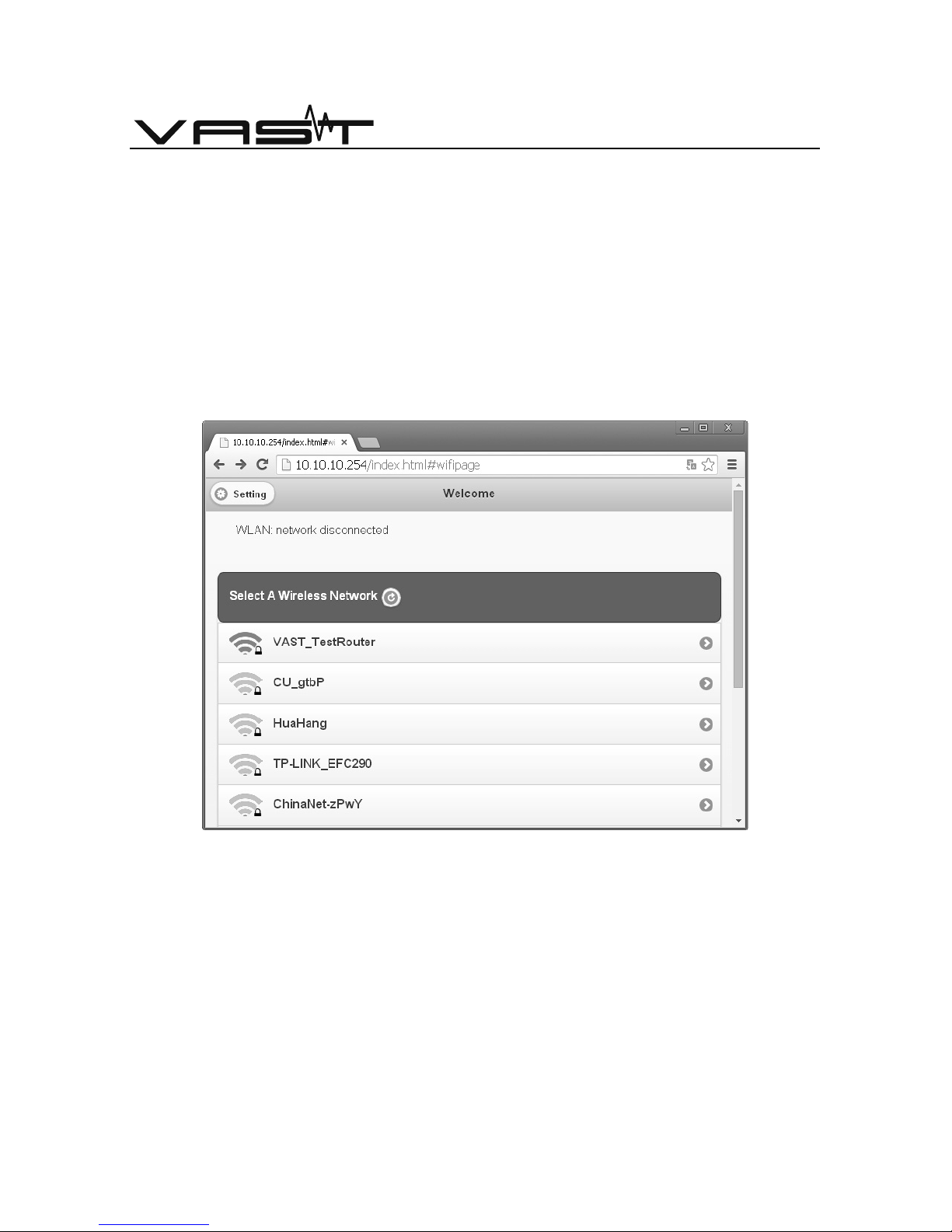
WiFi setting up page
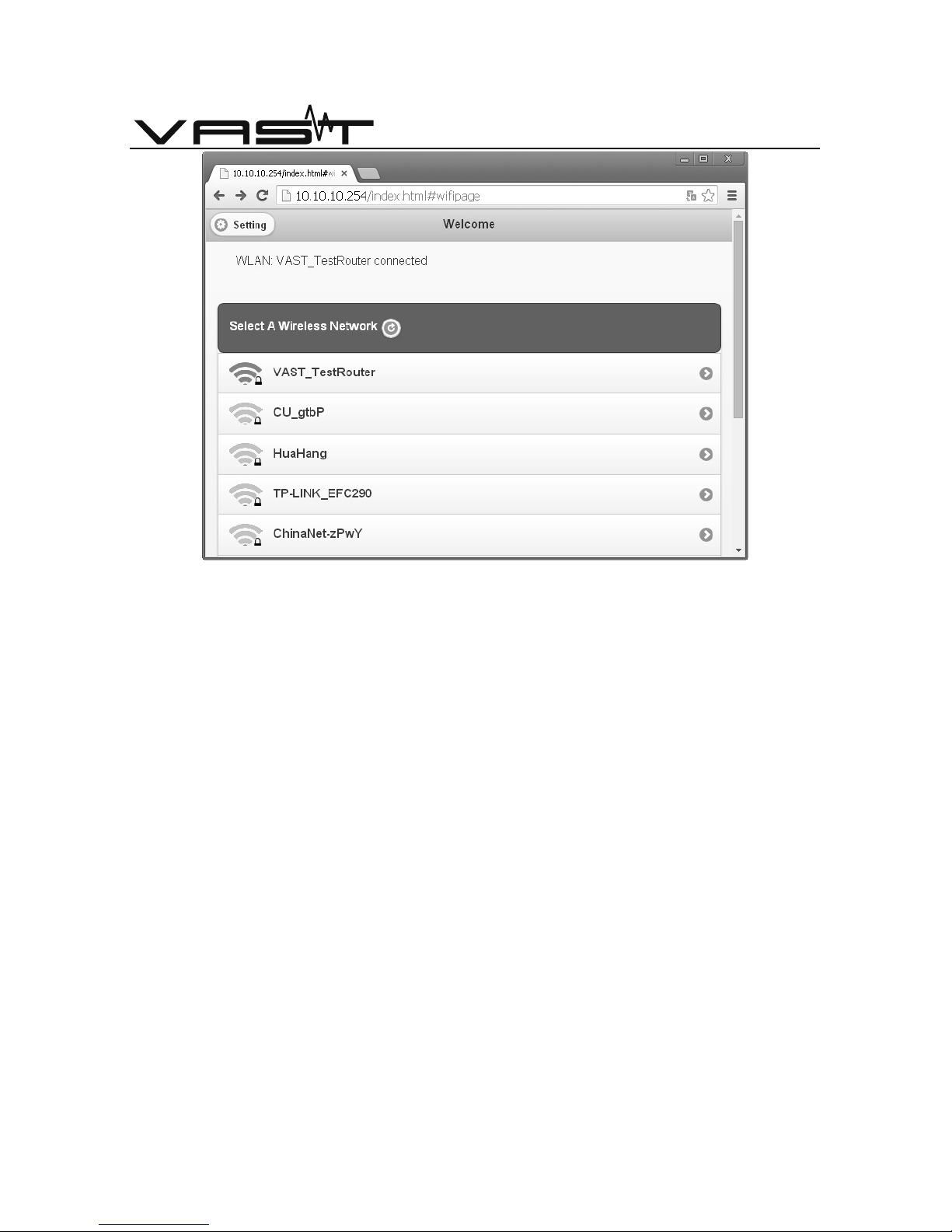
This page displays the current wireless network and list of wireless routers
device searched for.
WiFi setting page
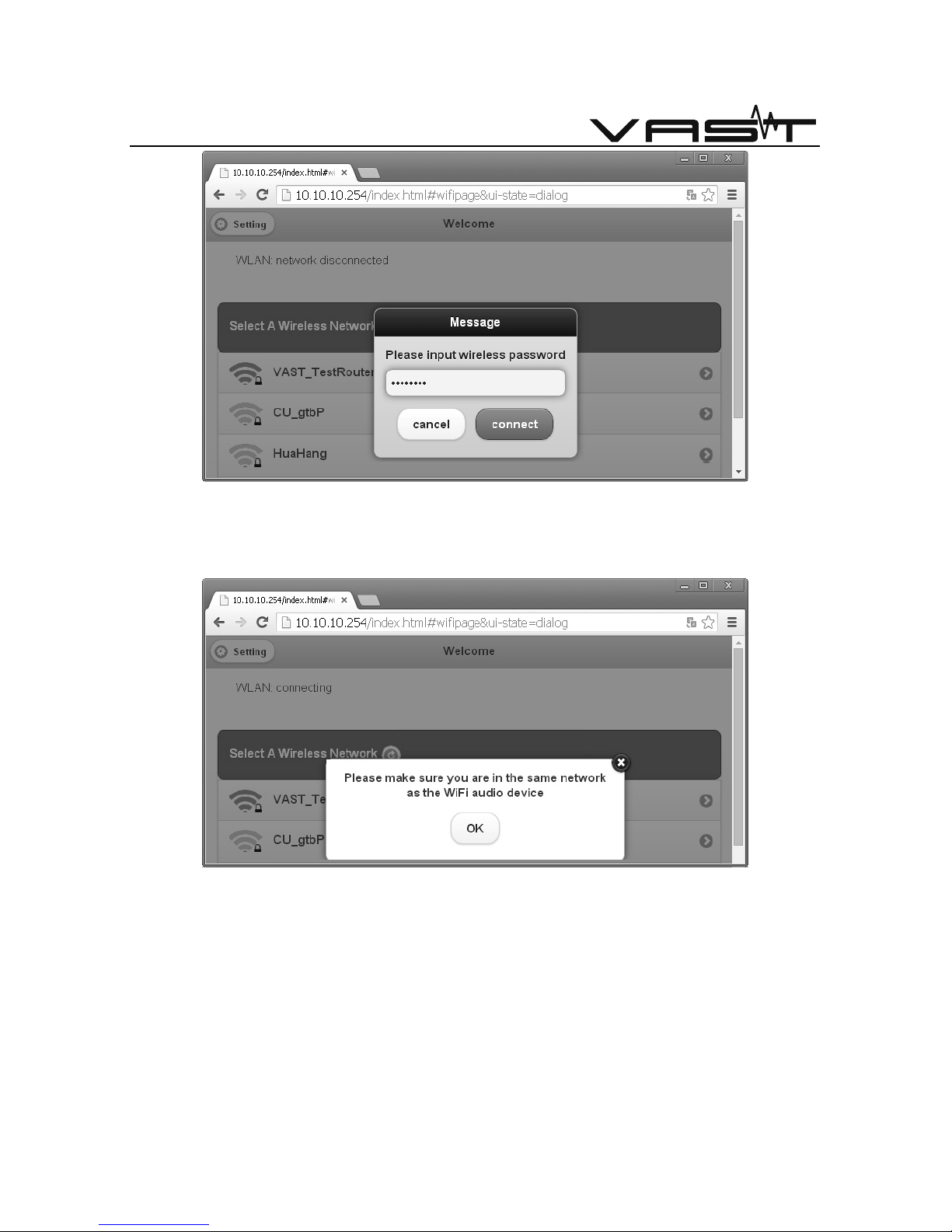
Click the router from list you wish to connect to , enter the router access
password when the password dialog box appears.
Page 18
- 17 –
VAST INTERNATIONAL | VAST ELECTRONICS
WiFi password setting page
During the process of connecting to a wireless router, because of
changes in wireless network, you might need to reconnect the device.
Prompt page
Click on the exit button on prompt page, if the page back to the WiFi
setting page, means the router is connected.
Page 19
- 18 –
VAST INTERNATIONAL | VAST ELECTRONICS
WiFi setting page
Advanced Setting page
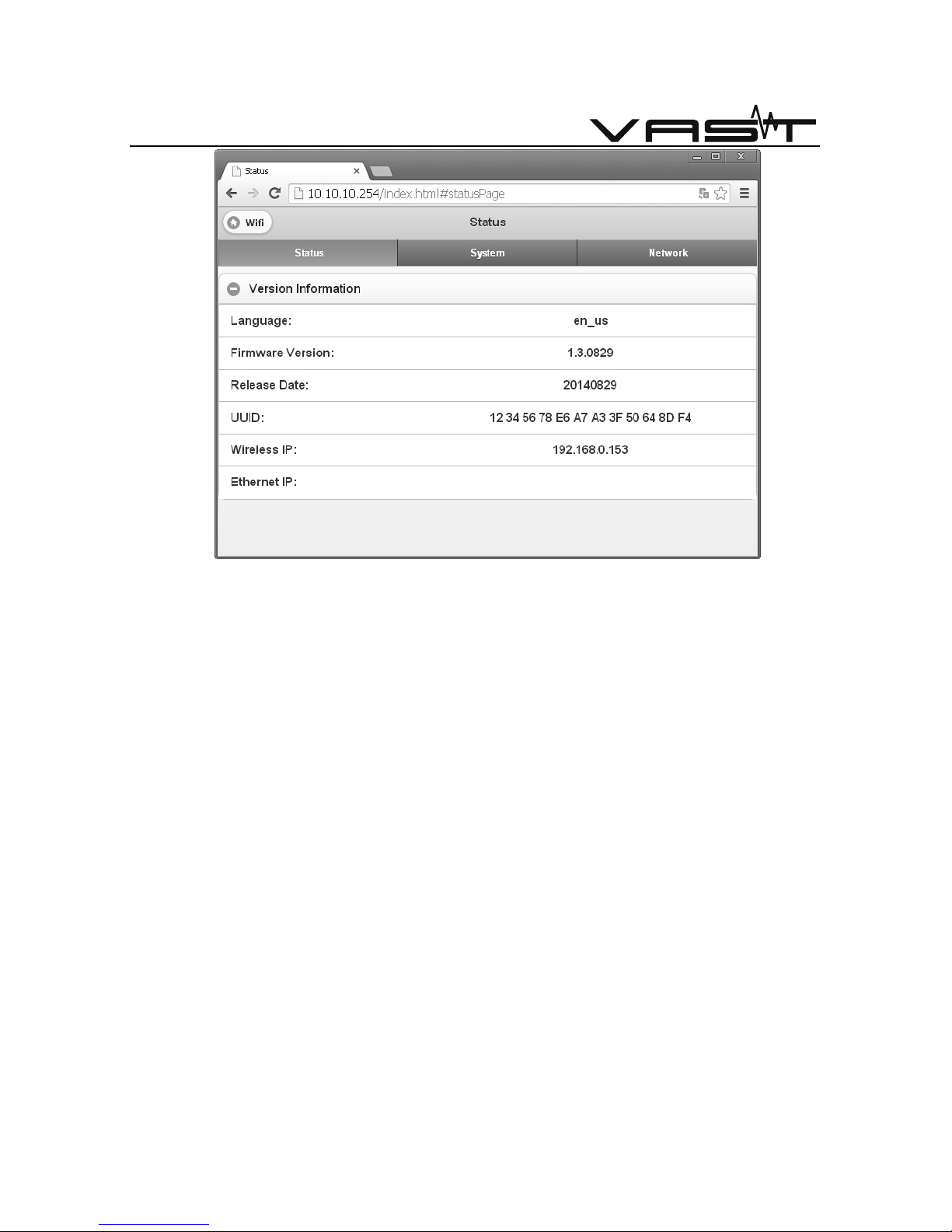
On "WiFi setting page" click on the upper left corner of the "Setting"
button, go to "Advanced Setting Page". The page has three configuration
items, named "Status", "System", "Network ".
Page 20
- 19 –
VAST INTERNATIONAL | VAST ELECTRONICS
Status page
System page
This system page is for users to upgrade, restore factory setting, as well as
setting the language.
Language setting
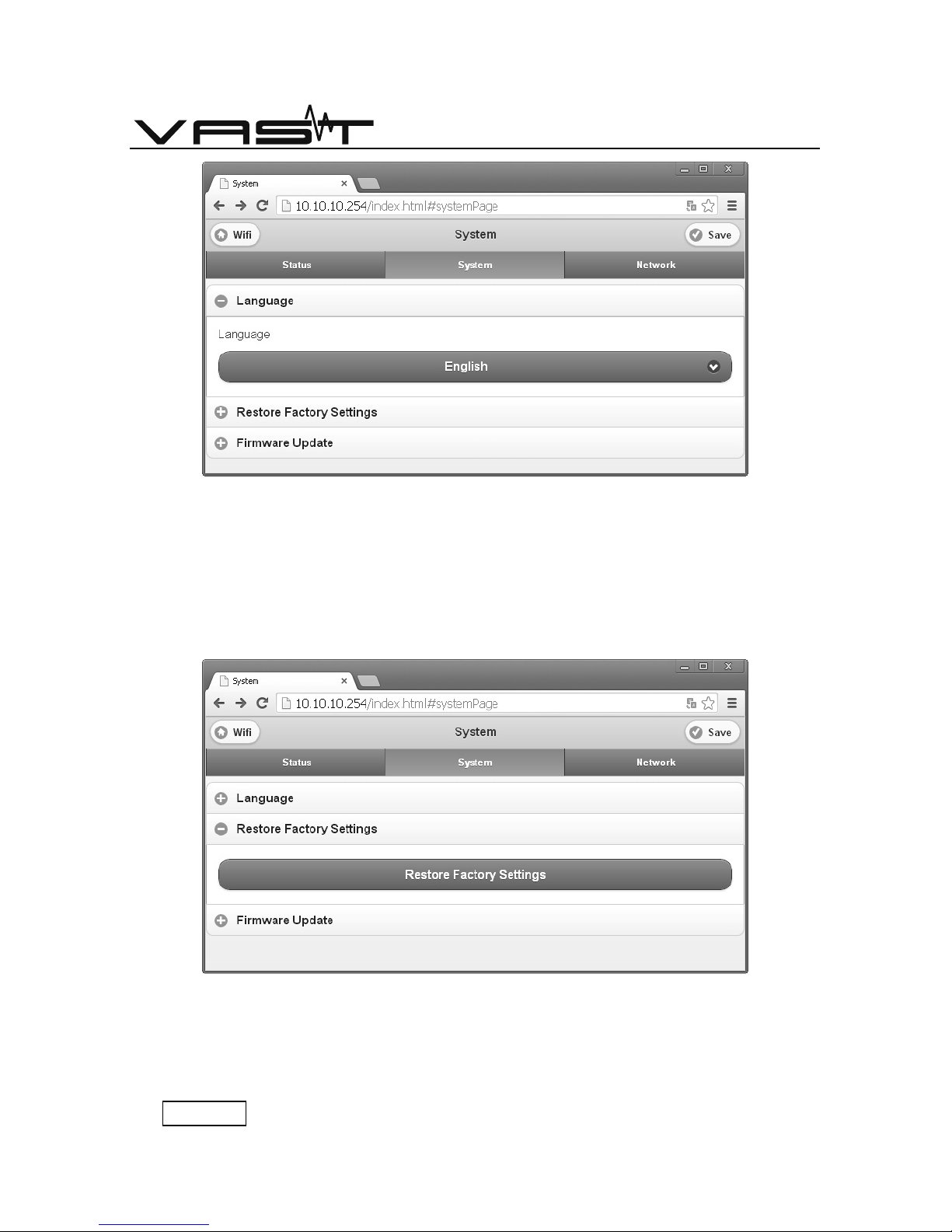
In the "language" section bar, you can set the language of the Web page,
currently supports Chinese and English.
To select the desired language, press the "Save" button on the upper right
corner of the page the button to save it.
Page 21
- 20 –
VAST INTERNATIONAL | VAST ELECTRONICS
Language setting page
Restore factory setting
In the "Restore Factory Settings " bar and clicked on "Restore Factory
Settings" to discard the user's previous setting and restore the device to
factory State.
Restore factory settings page
Firmware Updating
Warning: Firmware updating is a critical operation. Please be careful.
Page 22
- 21 –
VAST INTERNATIONAL | VAST ELECTRONICS
Please do not play music or do other operation. Please make sure not to cut
off the power before the operation is finished or restarted.
When the device leave factory, we already upgrade the firmware of the
WiFi-HiFi system to the latest version. If has special needs, when you need to
update the firmware to other version, please upgrade the firmware manually.
(Please do not download other unknown firmware; otherwise it will cause
permanent damage)
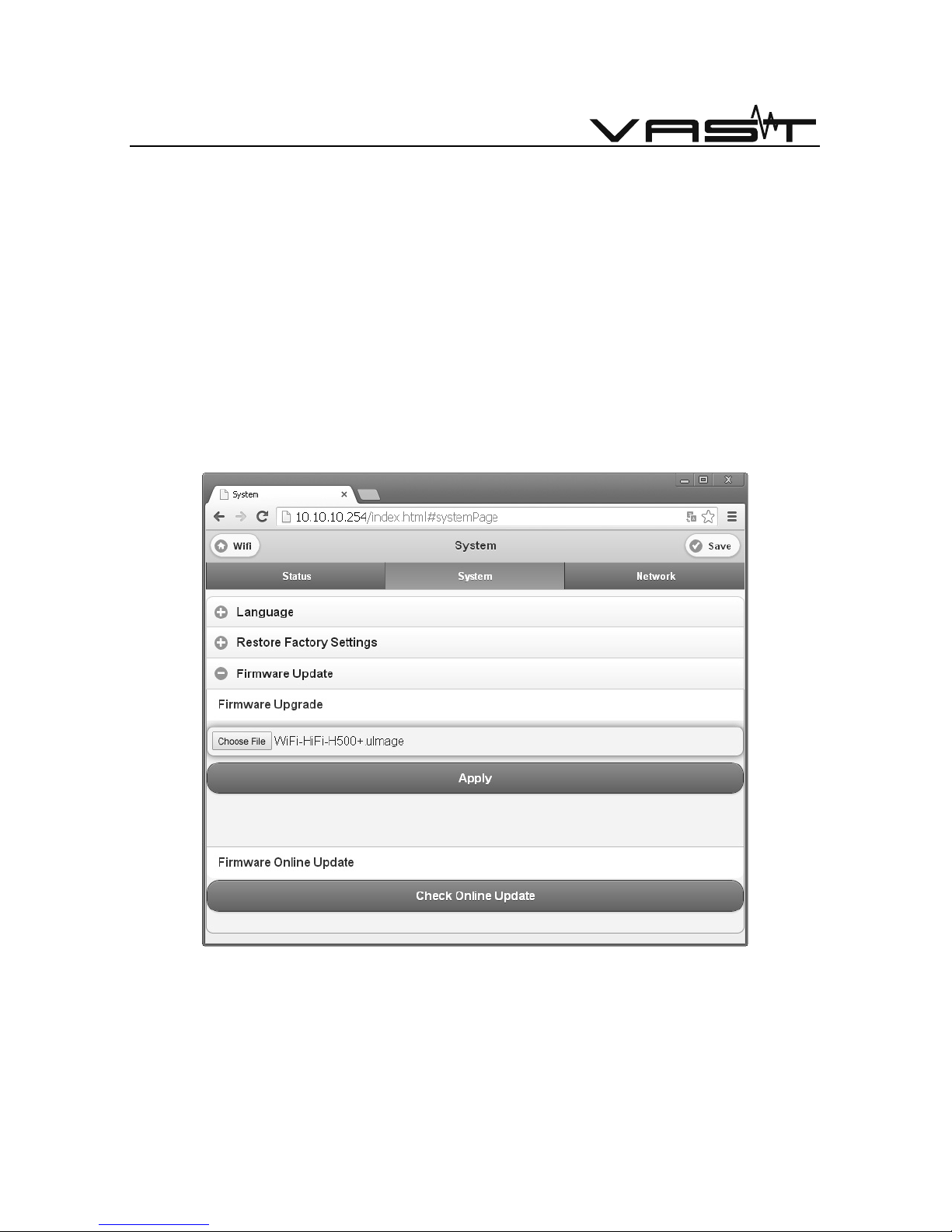
Local update
In the "Firmware Upgrade" Browser to enter the local location of the
update package.
Firmware upgrade page
Click on the "Apply" button to begin the upgrade.
Page 23
- 22 –
VAST INTERNATIONAL | VAST ELECTRONICS
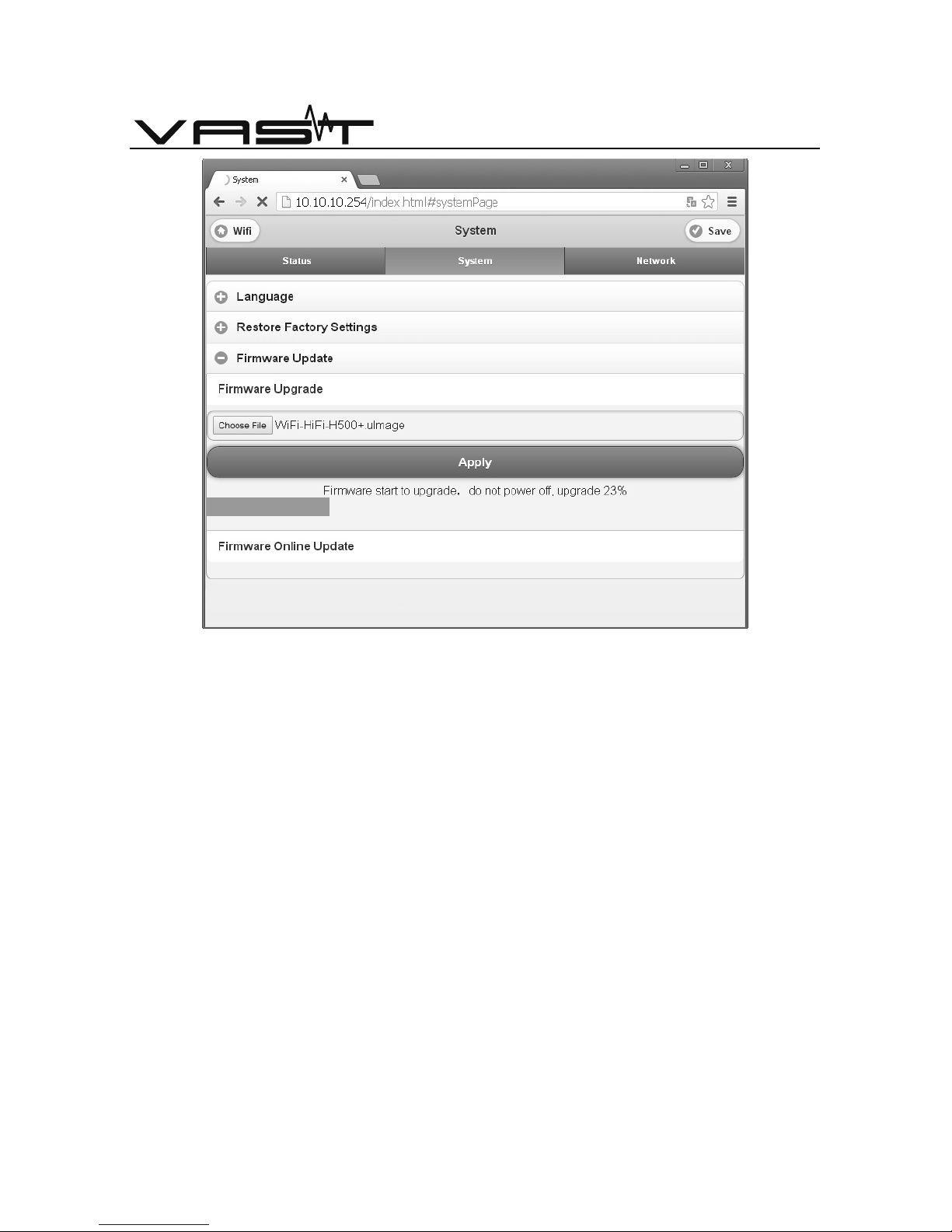
Updating page
Warning: Please make sure not to cut off the power before the
operation is finished, till listened restart sound.
Page 24
- 23 –
VAST INTERNATIONAL | VAST ELECTRONICS
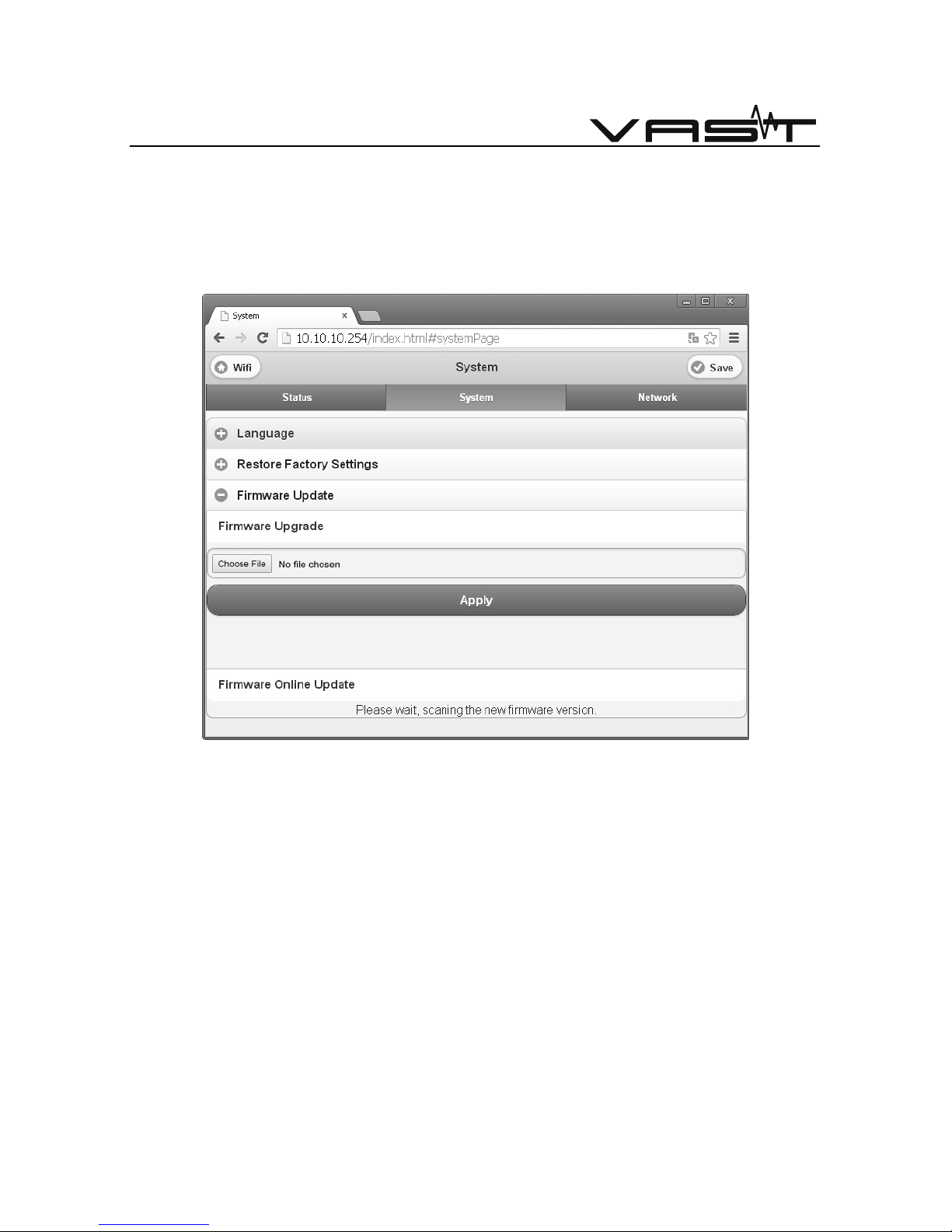
On-line updating:
Make sure the device is already connected to the internet on the wireless
router, click on the "Check Online Update" button; distal end of the device
checks the update server for content, to check the update software for this
device.
On-line updating page
Page 25
- 24 –
VAST INTERNATIONAL | VAST ELECTRONICS
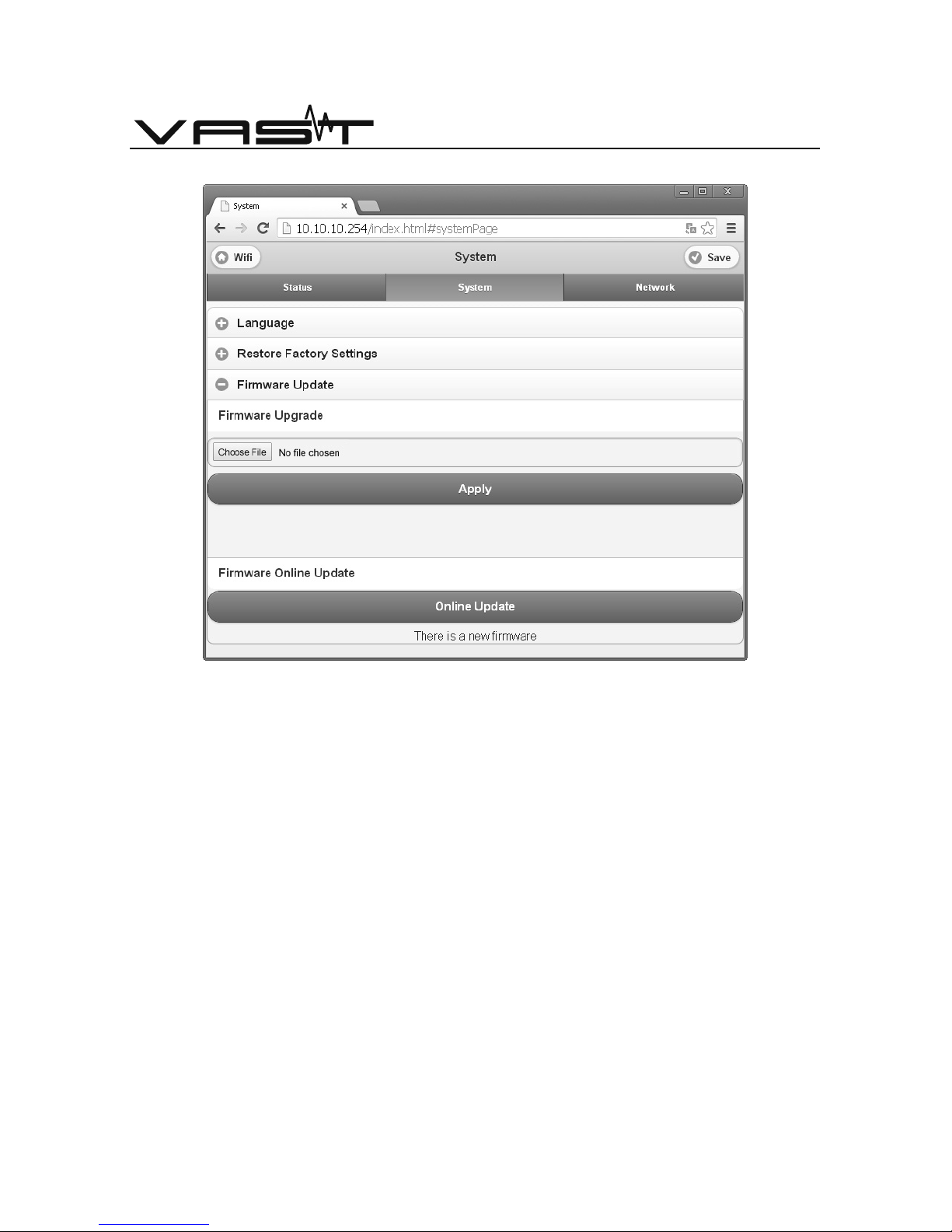
Device display update package is found.
Update new version online page
Page 26
- 25 –
VAST INTERNATIONAL | VAST ELECTRONICS
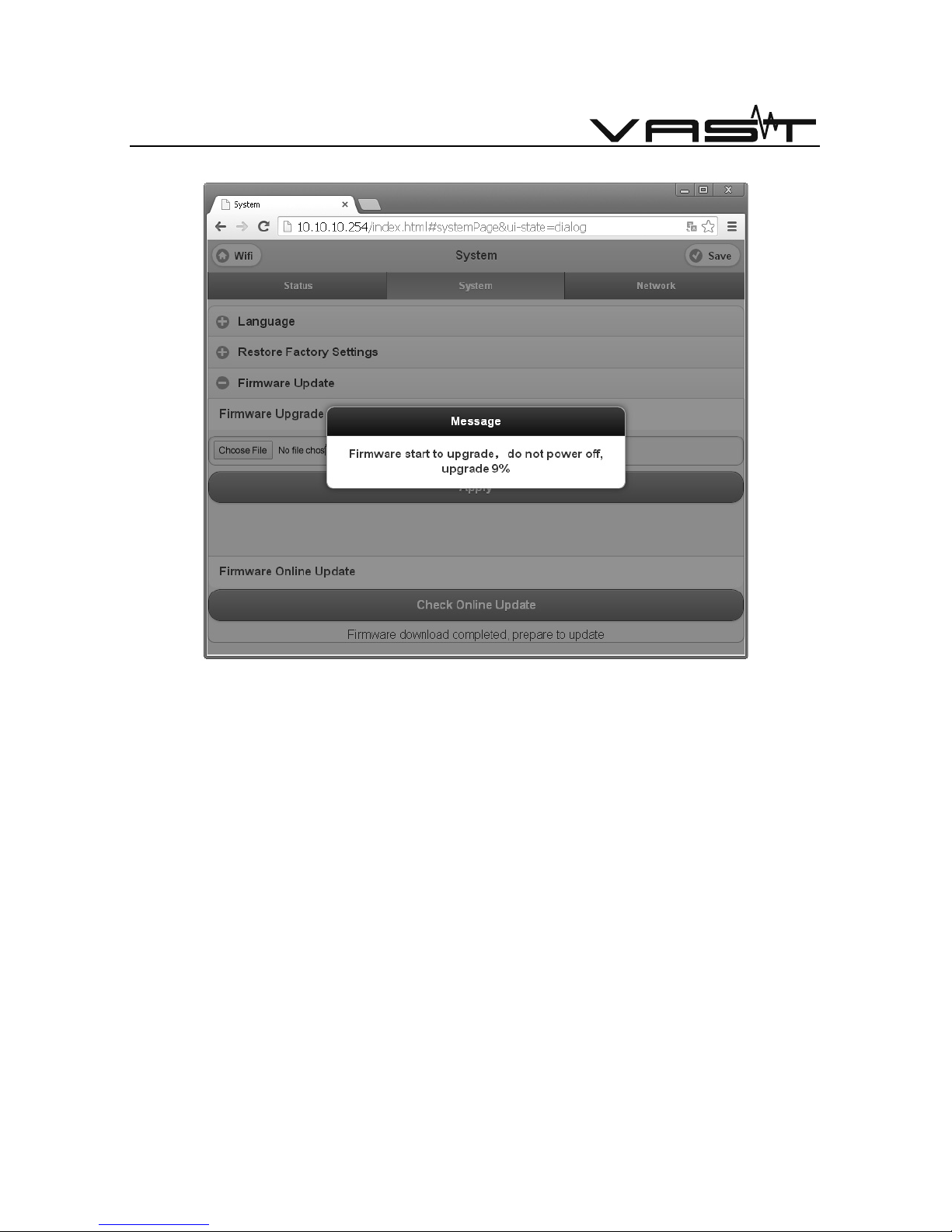
Click the "Update" button to start the upgrade.
Writing firmware page
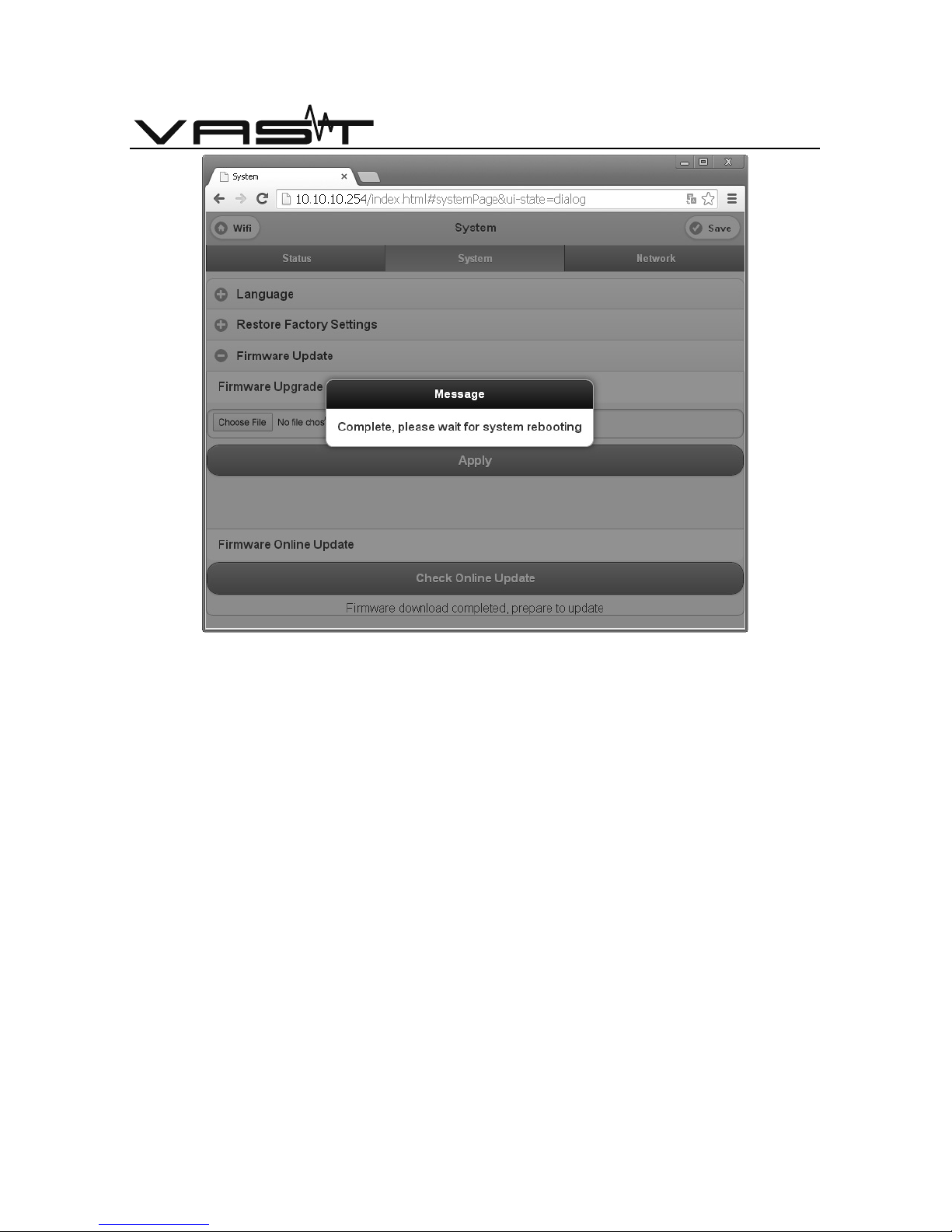
When the updating finish, the equipment will restart.
Warning: Please make sure not to cut off the power before the operation
is finished or restarted.
Page 27
- 26 –
VAST INTERNATIONAL | VAST ELECTRONICS
Writing firmware Updating page
Page 28
- 27 –
VAST INTERNATIONAL | VAST ELECTRONICS
Network Page
Networks page allows you to change the device name, and set the
device access password.
Password setting
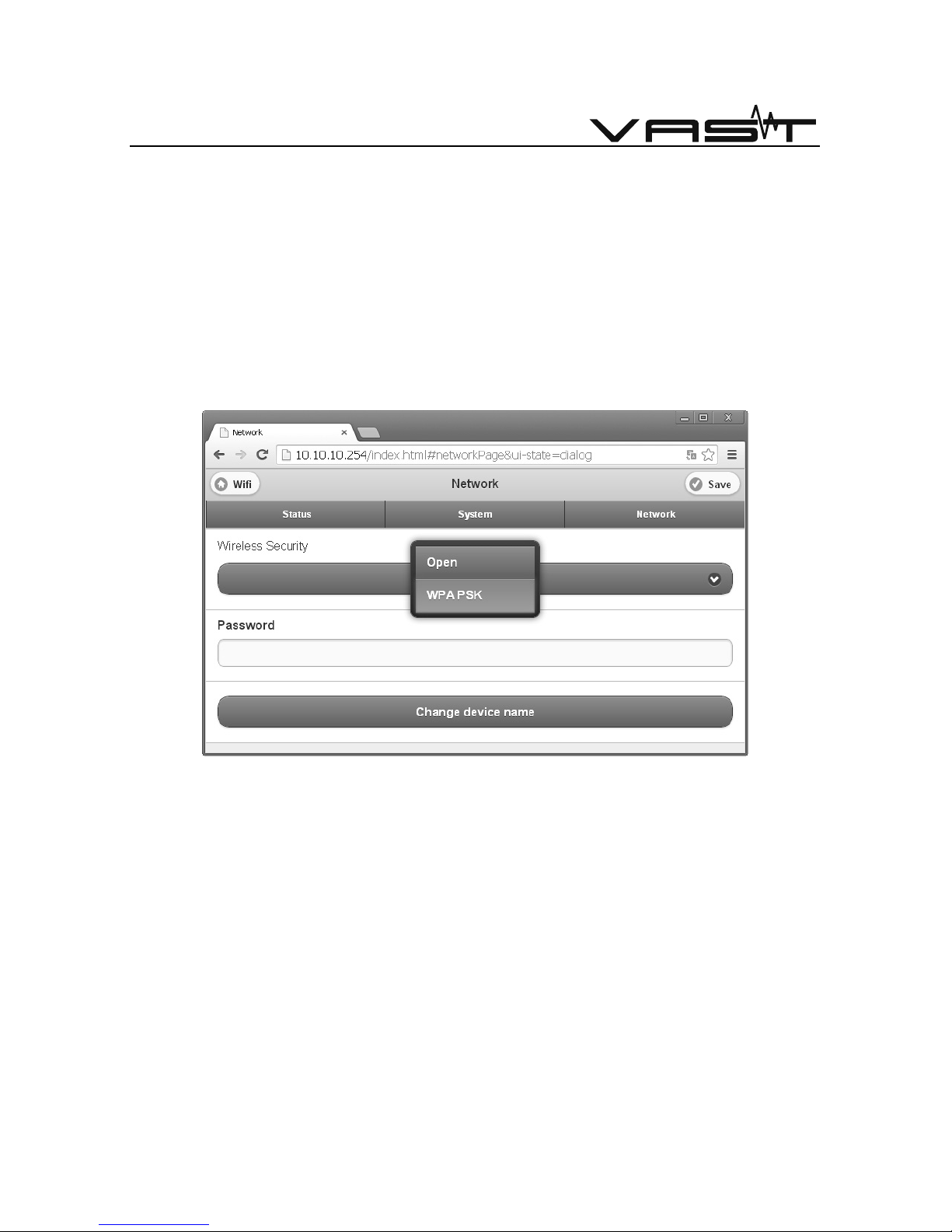
Click the "Wireless Security" column of buttons, select the encryption
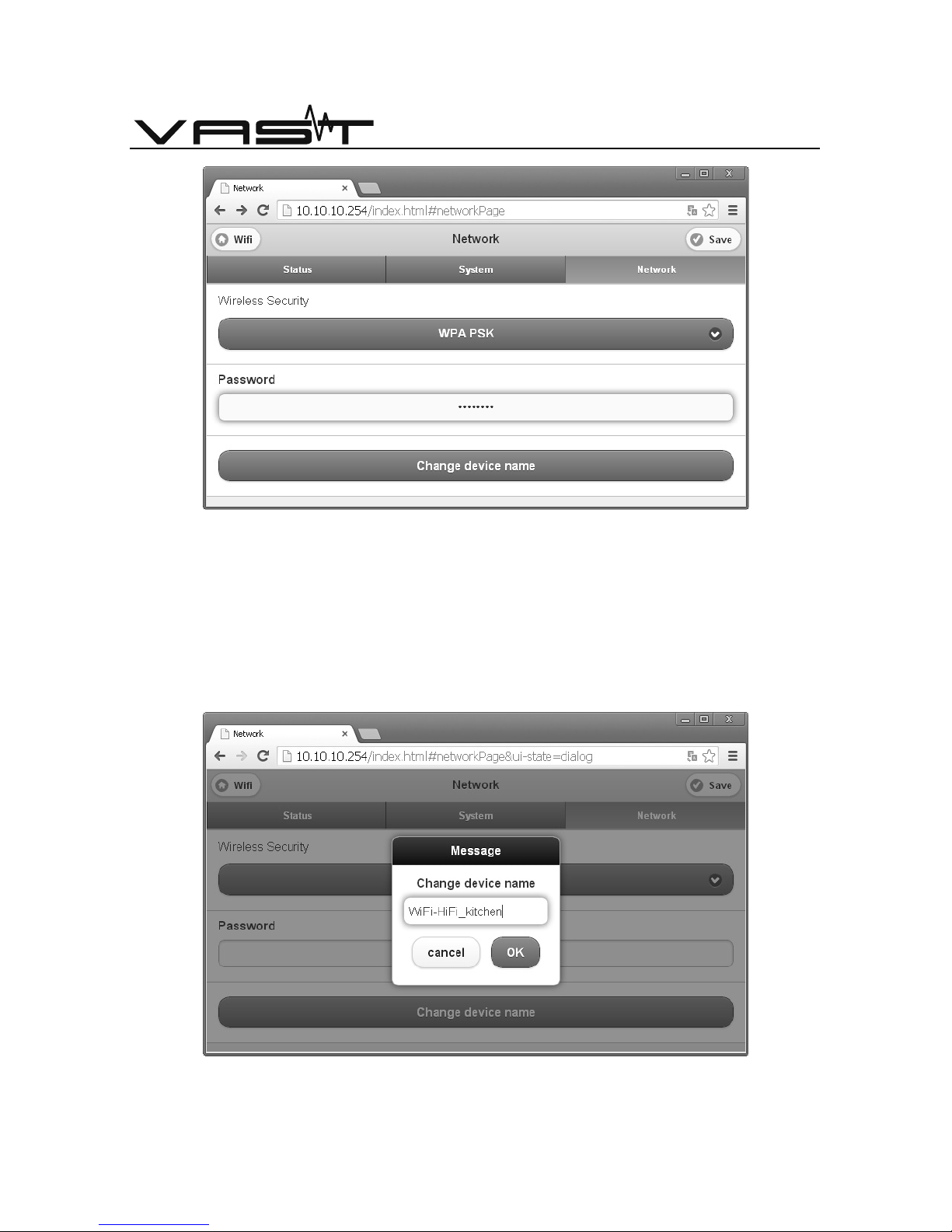
method, the "Open" password is not set, the "WPAPSK" set a password. In the
"Password" box fill in the password, and click on the upper right corner of the
page the "Save" button to save it.
Wireless security page
Page 29
- 28 –
VAST INTERNATIONAL | VAST ELECTRONICS
Password setting page
Change Device Name
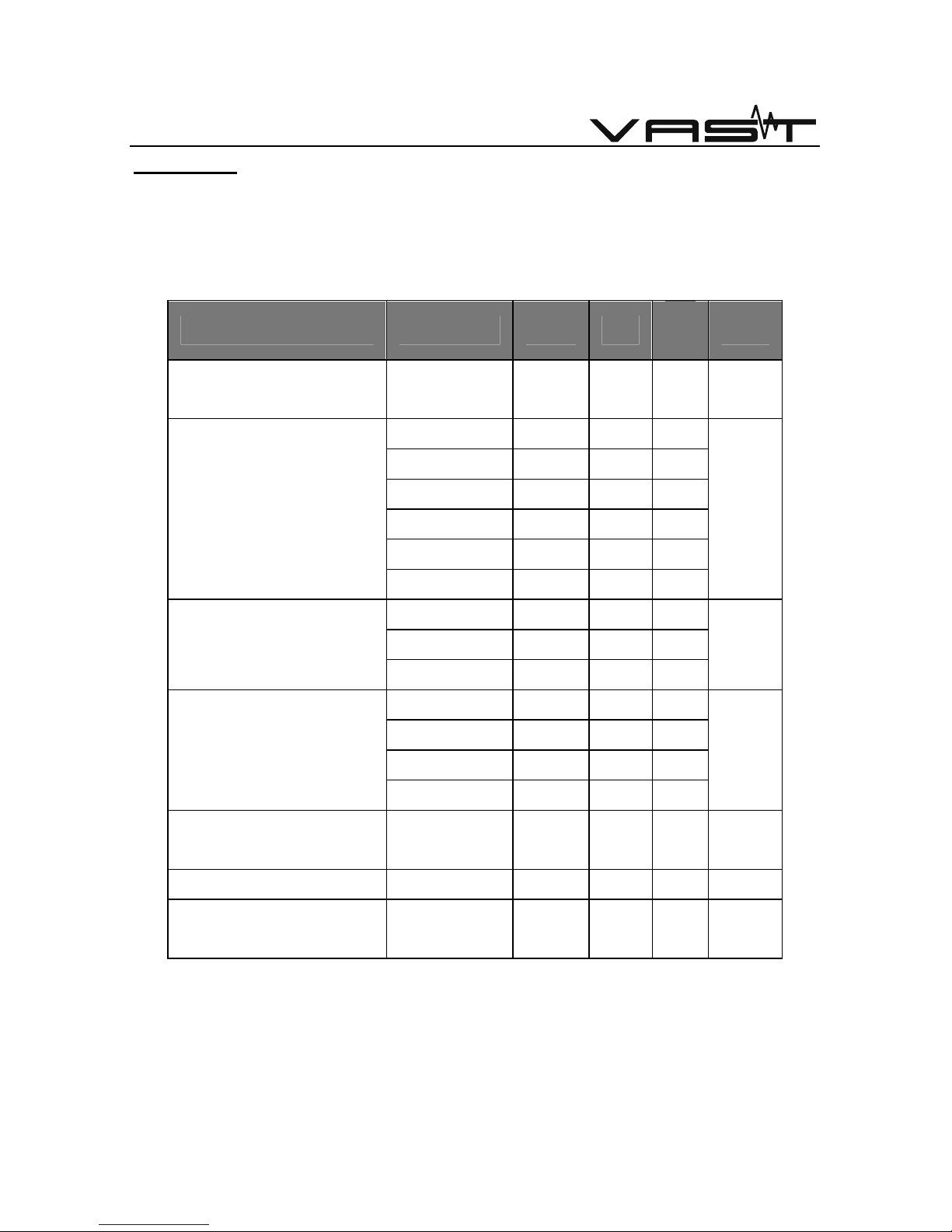
Click the "Change device name" button allows you to change the
device's name In the pop-up dialog box, enter the desired device name.
Page for changing device name
Page 30
- 29 –
VAST INTERNATIONAL | VAST ELECTRONICS
Appendix
WiFi function
The WiFi Performance has been tested and adjusted before leaving
factory, and their indicators are:
Parameters Conditions
Min Typ
Ma
x
Unit
RF Frequency Range
2400
250
0
MHz
CCK1M -93
CCK11M -88
FDM6M -90
OFDM54M
-75
HT20,MCS7
-72
RX Sensitivity
HT40,MCS7
-68
dBm
OFDM6M 34
OFDM54M
22
Adjacent Channel
Rejection
CCK 37
dB
CCK 1M +17
OFDM 6M
+15
OFDM 54M
+15
Output Power
(Measured at
antenna port)
HT40,MCS7
+13
dBm
LO Leakage
Pout=+18d
Bm
-50 dBm
Carrier Suppression 25 dBc
Single-Sideband
Suppression
33 40 dBc
WiFi-HiFi system WiFi indicator
Page 31

- 30 –
VAST INTERNATIONAL | VAST ELECTRONICS
Page 32

- 31 –
VAST INTERNATIONAL | VAST ELECTRONICS
Page 33

- 32 –
VAST INTERNATIONAL | VAST ELECTRONICS
Page 34

VAST INTERNATIONAL (HONGKONG) LIMITED
VAST ELECTRONIC TECHNOLOGY (ZHUHAI) CO.,LTD.
Address: No. 2161, 6 floor of Doumen Building, Mid. Yuehai road of Gongbei, Zhuhai City,
Guangdong province, China.
www.vastint.com
All trademarks (Logo) show in the articles, It belong to the trademarks holders.
Printed in China
 Loading...