

Page 1
JSC “PNB Banka”
DP270 User’s Guide
DigiPass 270 User’s Guide
INIT PIN input and user PIN change (Initialization)
Identification Code
Signature
Modification of Your PIN
Unlocking e DigiPass
Storage and use of device
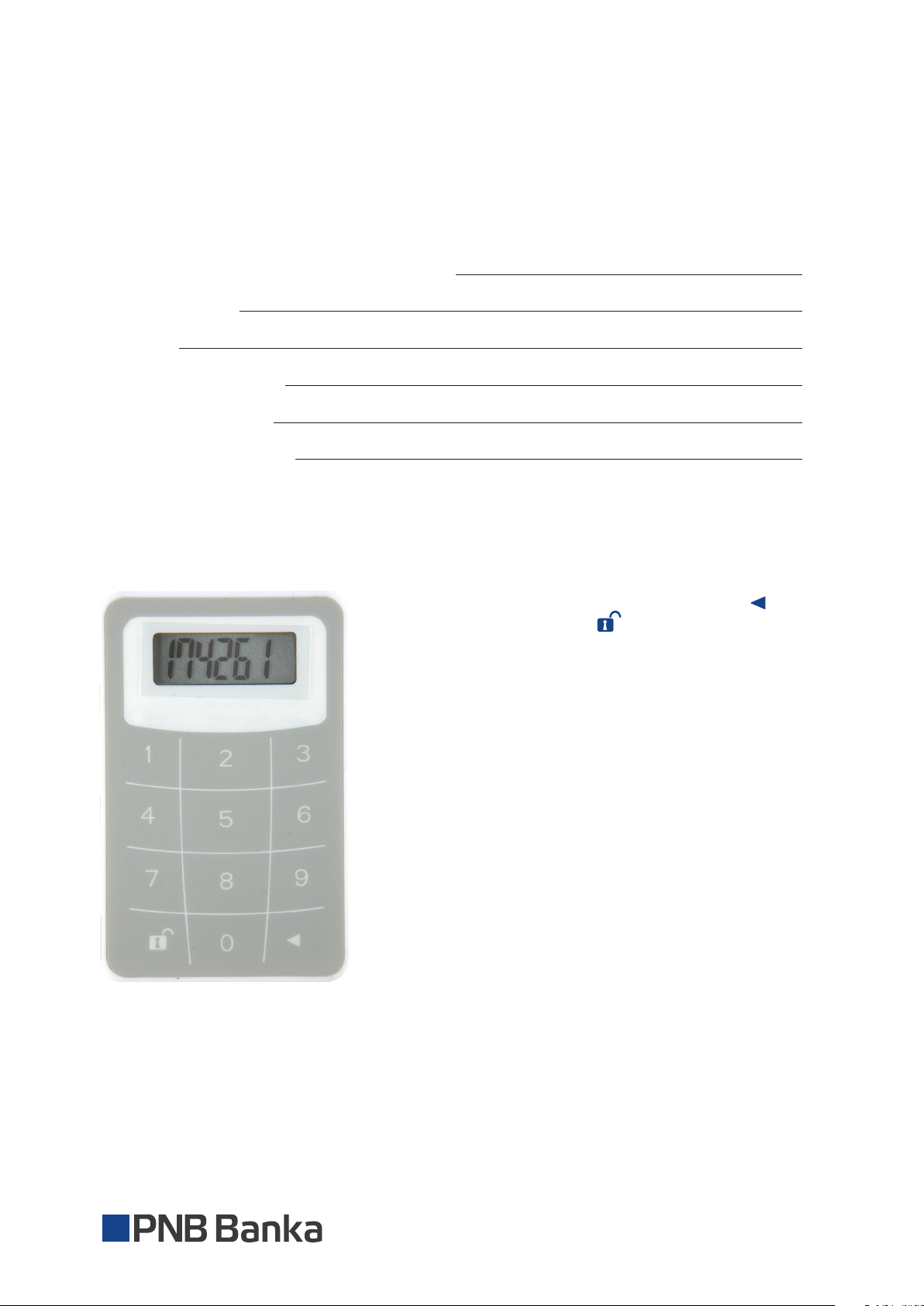
■ e Digipass can be turned on by pressing the button
and holding it press, the button.
■ If you press the same sequence once again the Digipass
will be turned off.
2
3
4
5
6
6
■ e device is going to shut down automatically if inactive
for about 30-40 seconds.
■ e access to all the Digipass functions is gained after
you input your five digit PIN code.
■ e initial PIN code of the Digipass is 00000. It must be
changed by you personally when turning on the Digipass
for the first time.
■ If Your Digipass has come to the wrong hands, it will be
blocked after three wrong PIN input attempts.
1
Page 2

JSC “PNB Banka”
DP270 User’s Guide
INIT PIN input and user PIN change (Initialization)
e Digipass can be used to sign documents only after the INIT PIN is changed to the user-defined PIN.
Before you start the procedure, please think of Your PIN (five digits).
To change INIT PIN you have to do the following:
CommentsDisplayAction№
1 PIN e device prompts You to input initial
Press the button
and holding it press,
the button.
Input Your INIT PIN2 XXXXX -
PIN (INIT PIN).
If INIT PIN is correct:3 NEW PIN e device prompts You for PIN, which is
going to available only to You.
Input Your PIN4 XXXXX -
PIN CONF e device prompts You to repeat the input.
Repeat the input of
5
Your PIN
If new PIN entered
6 NEW PIN CONF e Digipass initial PIN change was
correctly;
XXXXX e message FAIL appears, when repeated
PIN does not matches first entered PIN.
You will be offered to input a new PIN
again (p.4).
successful.
2
Page 3

JSC “PNB Banka”
DP270 User’s Guide
Identification Code
To get the identification code you have to do the following:
CommentsDisplayAction№
1 PIN e device prompts You for PIN.
Press the button
and holding it press,
the button.
Input Your PIN2 XXXXX -
If PIN is correct:3 APPLI -
For identification code
4 APPLI 1
acquiring input code 1.
Device will display
5 XXXXXX When working in the PNB Internetbank, the
6–digit identification code
Press button .
6 XXXX When working in the PNB Internetbank, the
Device will display
4-digit ‘return code’.
e device prompts to enter operation code:
1 – identification;
2 – signature.
-
identification code must be entered in the
appropriate form of PNB Internetbank, in to
the field:
PASSWORD of identification table or CODE
of Digipass device
return code should match the one on the
screen of PNB Internetbank. If codes are
identical, You are working with genuine
PNB Internetbank.
3
Page 4
JSC “PNB Banka”
DP270 User’s Guide
Signature
In the PNB Internetbank account management system you can either save the payment for later signing
or sign it right away. e payment will be saved in the Documents menu. e documents that are ready
for signing can be gathered in groups. is can be done by marking the corresponding payments in
the appropriate form in the Indicators column.
Attention! A group can contain no more than 10 payments. When a group is formed, click on the
Sign button on the bottom of the screen. A form for group signature will appear on the screen of your
computer display.
To get the electronic signature you have to do the following:
CommentsDisplayAction№
1 PIN e device prompts You for PIN.
Press the button
and holding it press,
the button.
Input Your PIN2 XXXXX -
If PIN is correct:3 APPLI - e device prompts to enter operation code:
1 – identification;
2 – signature.
For electronic signature
4 APPLI 2 -
acquiring input code 2.
5
Input the 10-digits
6 XXXXXXXXXX -
signature parameter
Digipass will display
7 XXXXXXXX e eight digit combination is Your
8-digit electronic signature
e device prompts to enter 10-digits
signature parameter code generated by
PNB Internetbank into Digipass.
electronic signature. You have to input it
into the appropriate form offered by
PNB Internetbank and afterwards click
the button Sign.
4
Page 5
JSC “PNB Banka”
DP270 User’s Guide
Modification of Your PIN
Before you start the procedure, please think of your new PIN (five digits).
To change PIN you have to do the following:
CommentsDisplayAction№
1
Press the button
and holding it press,
the button.
Input Your PIN2 -
If PIN is correct:3 APPLI - -
4
and hold it within few
seconds
6 PIN CONF
Your PIN
-7 XXXXX
PIN e device prompts You for PIN.
NEW PIN
e device prompts You for NEW PIN.Press the button
-Enter Your NEW PIN code5 XXXXX
e device prompts You to repeat the input.Repeat the input of
e message FAIL appears, when repeated
PIN does not matches first entered PIN.
You will be offered to input a new PIN
again (p.5).
If new PIN has been
8
entered correct
NEW PIN CONF
e Digipass initial PIN change was
successful.
5
Page 6

JSC “PNB Banka”
DP270 User’s Guide
Unlocking e DigiPass
CommentsDisplayAction№
1 LOCK PIN
Press the button
and holding it press,
the button.
Enter2 LOCK PIN e device offers you to enter the unlock
After you entered the
3 NEW PIN e device prompts you to enter the PIN
correct PUK:
Enter the PIN code
4
created by you.
Re-enter the PIN code
5
created by you.
-6
If the new PIN twice
7 NEW PIN CONF
entered correctly:
CodE 1
XXXXX
PIN CONF e device prompts you to enter the PIN
XXXXX
e device reports that it is blocked. To
unlock PUK1 code is required.
(Respectively for message CodE 2 –
requires a PUK2 code)
code received from the Bank (PUK1 or PUK2).
code created by you.
-
code created by you again.
Message FAIL occurs when a re-entered
PIN code does not match your own PIN.
You will be asked to enter the new PIN
code again (see p.4).
e PIN change was successful.
Remember the new PIN for use later.
Storage and use of device
DigiPass is an electronic device with liquid crystal display. It is not recommended to store DigiPass at
temperatures below -10 °C. It is not allowed to use DigiPass at temperatures below 0 °C.
6
 Loading...