

Page 1

Dual/Quad Chip 4-Port Dedicated
5Gbps USB 3.0 PCIe Host Card
User Manual
Model: UGT-PCE430-2C/4C
All brand names and trademarks are properties of their respective
owners.
www.vantecusa.com
Page 2

UGT-PCE430-2C/4C Page 2
Contents:
Contents: ............................................................. 2
Chapter 1: Introduction ........................................ 3
1.1 Features .............................................................. 3
1.2 System Requirements ......................................... 4
1.3 Package Contents ................................................ 4
Chapter 2: Getting Started .................................... 5
2.1 Hardware Installation .......................................... 5
2.2 Driver Installation................................................ 6
2.3 To verify the Hardware device ............................ 8
2.4 To Uninstall Drivers ............................................. 9
Chapter 3: Troubleshooting Tips ......................... 10
Page 3

UGT-PCE430-2C/4C Page 3
Chapter 1: Introduction
1.1 Features
Support PCI-Express 2.0 specifications using x4
Connection.
Provides four Super Speed USB 3.0 Type-A ports to
support 5Gbps each for a total transfer bandwidth up
to 10Gb/s for Dual Bus or 20Gb/s for Quad Bus
Provides 2/4 Chip for Dedicated bandwidth for Very
High Speed Connection
Support USB Battery Charging Specification Revision
1.2
Compliant with Intel’s eXtensible Host Controller
Interface (xHCI) Specification Revision 1.0
Supports simultaneous operation of multiple USB 3.0,
USB 2.0 and USB 1.1 devices
Supports data rates from 1.5Mbps to 5Gbps.
Supports 4 downstream ports for all speeds
Flexible LP4 or SATA power connector for receiving
extra power from system power supply
Page 4

UGT-PCE430-2C/4C Page 4
Hot-swapping feature allows you to
connect/disconnect devices without powering down
the system
Support UASP Devices on all 4 ports to further
enhance performance
Support Windows XP,7,8,8.1, Server 2012, 2008 R2,
2003, and Linux Kernel 2.6.31 or later
Included Standard and Low Profile bracket for easy
installation into standard or small form factor system
1.2 System Requirements
Windows XP, Vista, 7, 8, 8.1 (32/64 bit), Server 2003, 2008
R2, 2012, Linux 2.6.31 or later
PCI Express x4, x8 or x16 slots
1.3 Package Contents
1 x Dual/Quad Chip 4-Port Dedicated 5Gbps USB 3.0 PCIe
Host Card.
1 x Driver CD
Page 5

UGT-PCE430-2C/4C Page 5
1 x Installation Guide
1 x Low Profile Bracket
Chapter 2: Getting Started
2.1 Hardware Installation
1. Verify the package contents to make sure you have
everything that you need to install this card.
2. This card comes standard with the full height bracket
installed, if you are using a low profile system (Slim Line
system), please replace the bracket with the provided low
profile bracket by first removing the two screws holding the
full height bracket, replace the bracket with the low profile
bracket and secure the screws back on the card.
3. Turn off the power to your computer, unplug the power
cord and remove the cover of the computer system.
4. Remove the slot bracket from an available PCI-Express x4
(x8, x16) slot.
5. To install the card, carefully align the card’s bus connector
with the selected PCIe slot on the motherboard. Push the
Page 6

UGT-PCE430-2C/4C Page 6
board down firmly.
6. Replace the slot bracket’s holding screw to secure the card.
7. Connect the SATA power OR Molex power from the
computer system power supply to this expansion card.
8. Secure the computer cover; reconnect the power cord and
power ON the system.
9. Once the computer is powered ON, proceed with the
installing the necessary drivers.
NOTE: If you are using Windows 8 or 8.1, your system will
automatically detect the device and install the necessary
drivers for you. You do not have to use the CD to start the
manual installation process.
2.2 Driver Installation
1. Insert the provided CD into your disk drive. Browse to the
folder “UGT-PCE430-2C_4C” for the setup program.
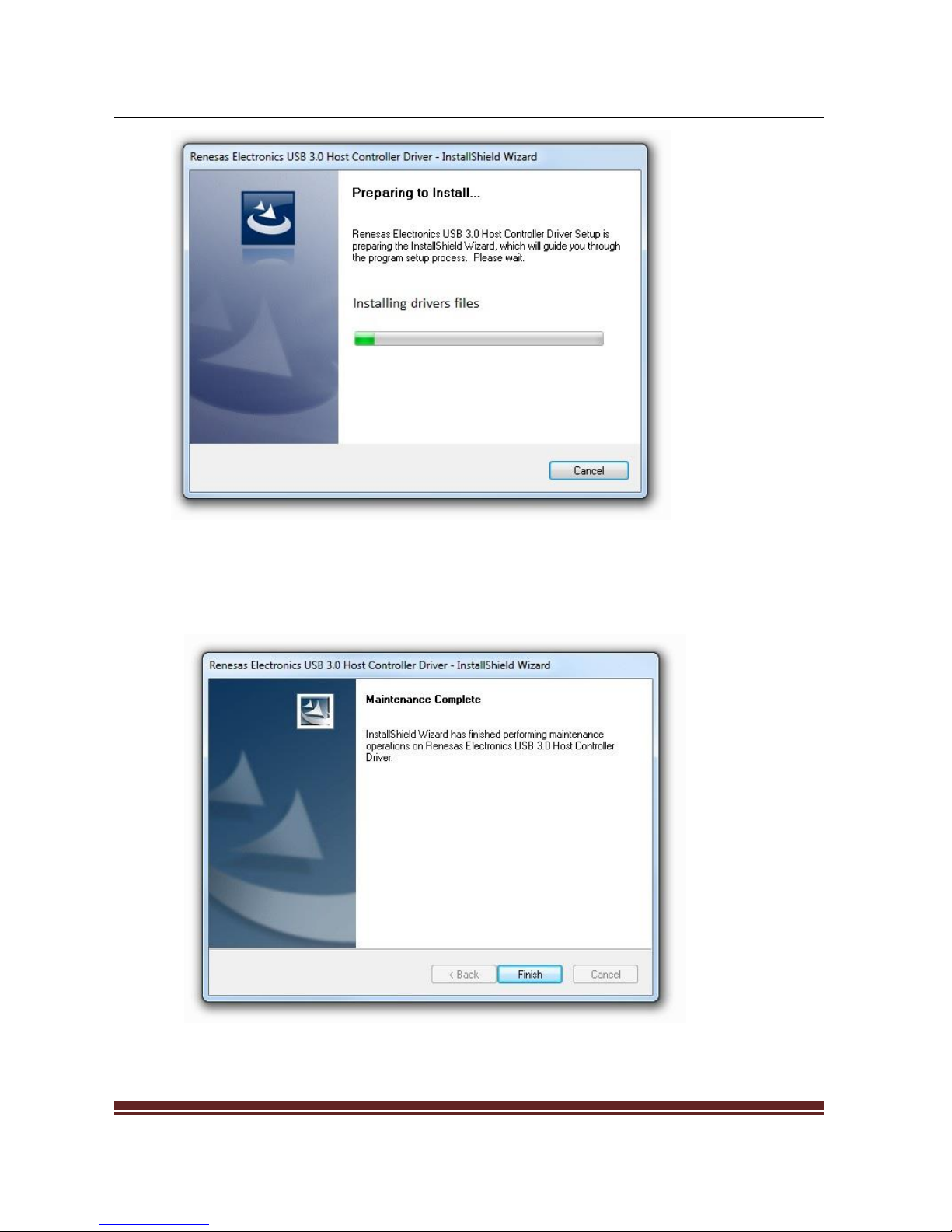
2. Run the Setup.exe program to start the installation program.
Page 7
UGT-PCE430-2C/4C Page 7
*Note: Actual image may varies
3. When the installation is done, select “Finish”.
4. Your device is now ready for use.
Page 8
UGT-PCE430-2C/4C Page 8
2.3 To verify the Hardware device
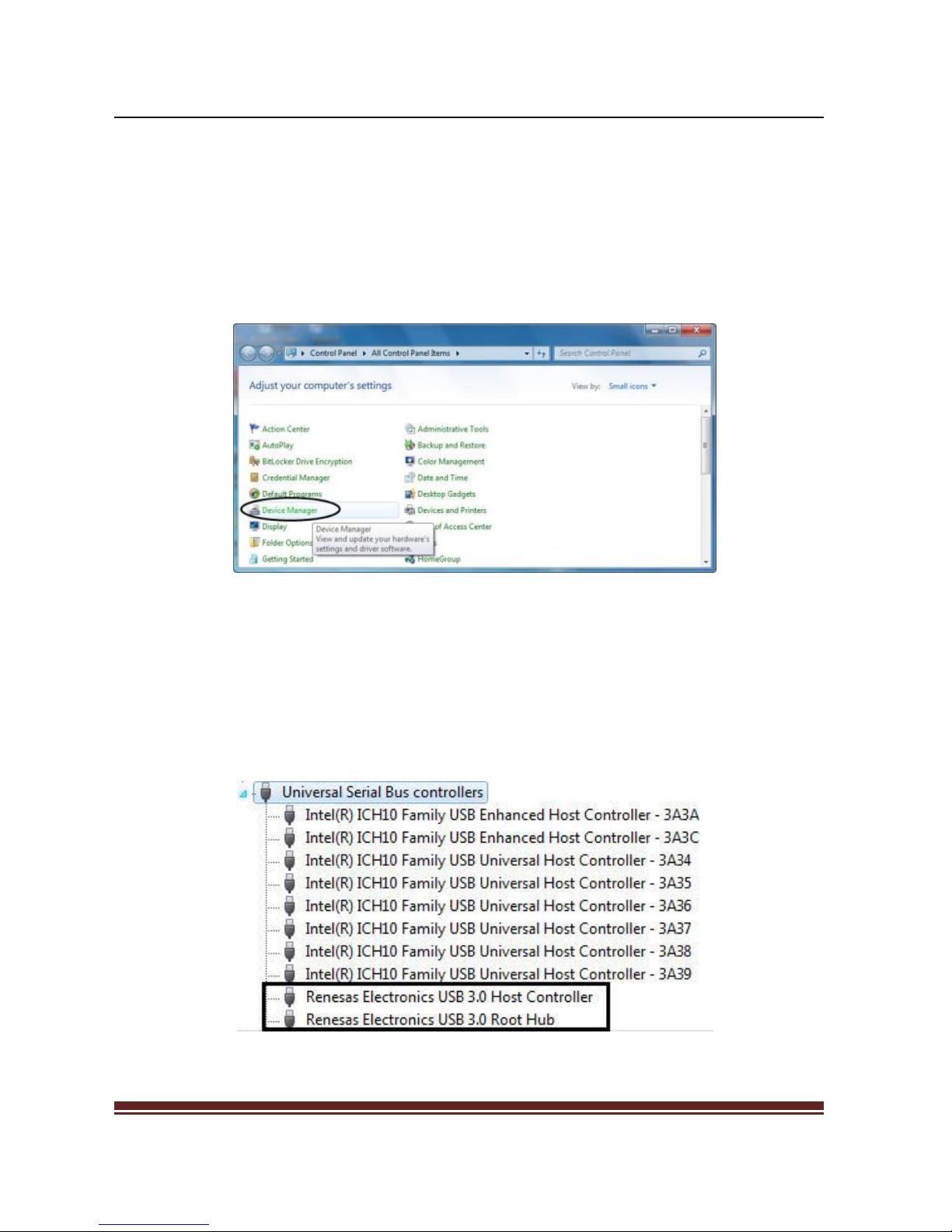
1. Click on the “Device Manager” tab in the Windows Control
Panel.
Start > Control Panel > Device Manager
2. Double click on the “Universal Serial Bus controllers”
device and it will expand the subset showing “Renesas
Electronics USB 3.0 Host Controller” and “Renesas
Electronics USB 3.0 Root Hub” in the Device Manager.
Page 9
UGT-PCE430-2C/4C Page 9
2.4 To Uninstall Drivers
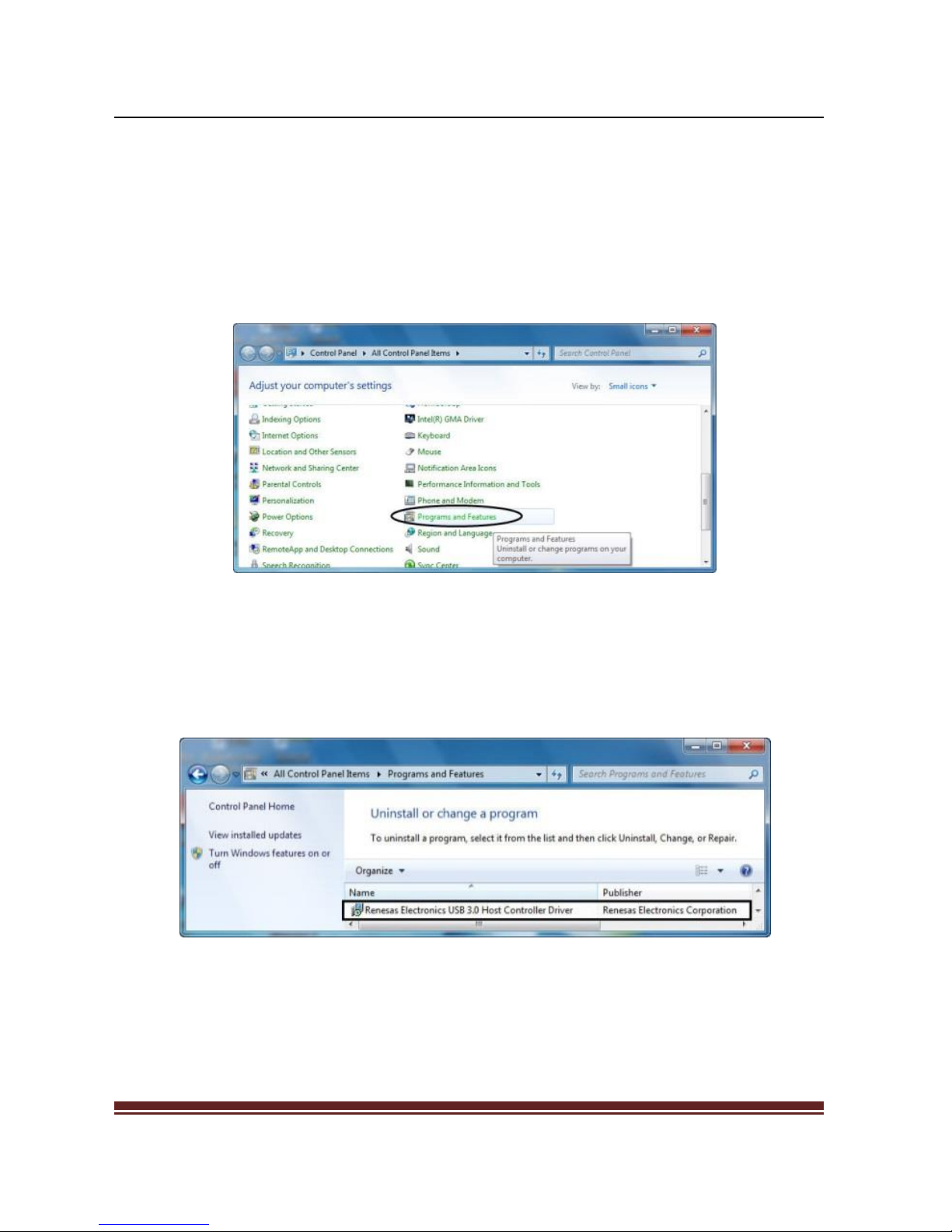
1. Click on the “Programs and Features” tab in the Windows
Control Panel.
Start > Control Panel > Programs and Features
2. Entry “Uninstall or change a program” page, and double
click “Renesas Electronics USB 3.0 Host Controller Driver”
to process driver uninstallation procedure.
Page 10
UGT-PCE430-2C/4C Page 10
Chapter 3: Troubleshooting Tips
If card and devices connected to the computer do not seem
to be working properly, please perform below basic
troubleshooting steps:
1. Check that all cables are correct and securely connected.
2. Make sure USB device’s power is turned on.
3. Make sure the devices are getting enough power.
4. Make sure there is no problem with the card installation.
Computer failed to start after inserting the USB 3.0 PCI
Express card.
Turn off the computer, remove the USB 3.0 PCI Express Card,
and try to restart the computer. If the computer starts
successfully, it means that the card has not been inserted
into the PCI Express slot correctly. Please clean slot contact
with a dry cloth and try another PCIe x4 slot. This PCIe x4
card will also fit into the PCIe x8 or x16 slot.
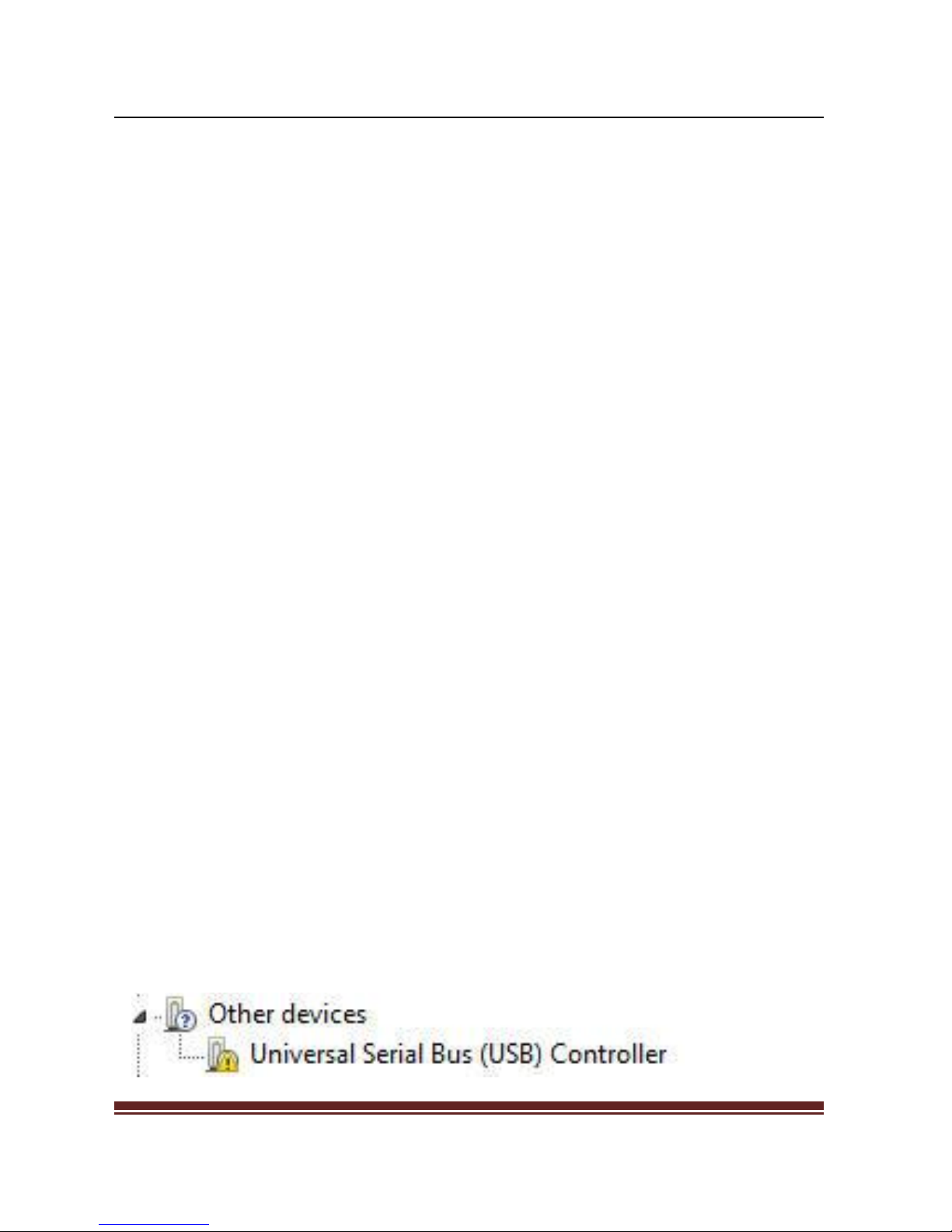
Getting a yellow exclamation point on controller
Page 11

UGT-PCE430-2C/4C Page 11
1. Please shutdown your computer and move the card to
another available slot then re-install USB 3.0 driver.
2. Select the device then right-click on the mouse.
Selecting “Update Driver” to update with the latest USB
driver.
3. This exclamation point usually means there is a resource
conflict between this card and another card in your system.
Please move the card to another available slot. Restart your
computer. Windows will re-configure itself and re-assign
resources. Check your device manager again.
A message is displayed stating that not enough power can
be given to the connected device.
Make sure to plug 4-pin power cable on board to provide
enough power to USB devices.
Is it possible to connect current USB 1.1 or 2.0 devices to
the USB 3.0 PCI Express card?
Yes it will work. Device will not be running at USB 3.0 speed,
but at USB 2.0/1.1 speed.
 Loading...