

Page 1

1 V○aluePad VP111/VP112 Manual
V
○
a
luePad TABLET PC
USER MANUAL
VP111B / VP112
2013
Valuechain, LLC
Page 2

2 V○aluePad VP111/VP112 Manual
Thank you for purchasing V○aluePad tablets.
This user manual has been specially designed to guide you through the
functions and features of your device.
• Please read this manual carefully before using your device to ensure
safe and correct use.
• The descriptions in this manual are based on the default settings of
your device.
• Please keep this manual for future reference.
Page 3

3 V○aluePad VP111/VP112 Manual
Content
1 Overview
1.1 Buttons
1.2 Sleep and Unlock the Screen
1.3 Homepage Information
1.4 Text Input
1.5 Reset to Factory Default
1.6 USB Connections
1.7 Accessories
2 Internet
2.1
Browser
3 Applications
3.1
Camera
3.2
Photo Gallery
3.3
Video / Movie Playback
3.4
Music
3.5
Calendar
3.6
Calculator
3.7
File Explorer
3.8
Application (APK) Installer
3.9
E-mail
3.10
Downloads
3.11
Sound recorder
3.12
Clock
4 System settings
4.1
Wireless networks setting
4.2
Sound setting
4.3
Display setting
4.4
Application setting
4.5
Date & Time setting
4.6
Language and input setting
5 Tablet Buying Guide
6 FAQs
7 Handling Precautions
8 Specifications
Page 4
4 V○aluePad VP111/VP112 Manual
1 Overview
1.1 Buttons
Power button:
Long press the power button 3 - 5 seconds to turn on or off the tablet. When the
tablet is on, short press this button to toggle between standby and normal mode.
Please keep in mind that the tablet consumes power when it’s in standby mode.
Volume button:
Press Volume +/- to adjust volume. If your tablet does not have a volume button, use
the on-screen volume switches at the bottom to adjust volume.
1.2 Sleep and Unlock the Screen
Sleep
You can set the sleep time in the system of display
The tablet will go to standby mode (sleep) automatically and lock the screen if
without any activity and the preset sleep time is met. Sleep time can be set under
Settings -> Display -> Sleep.
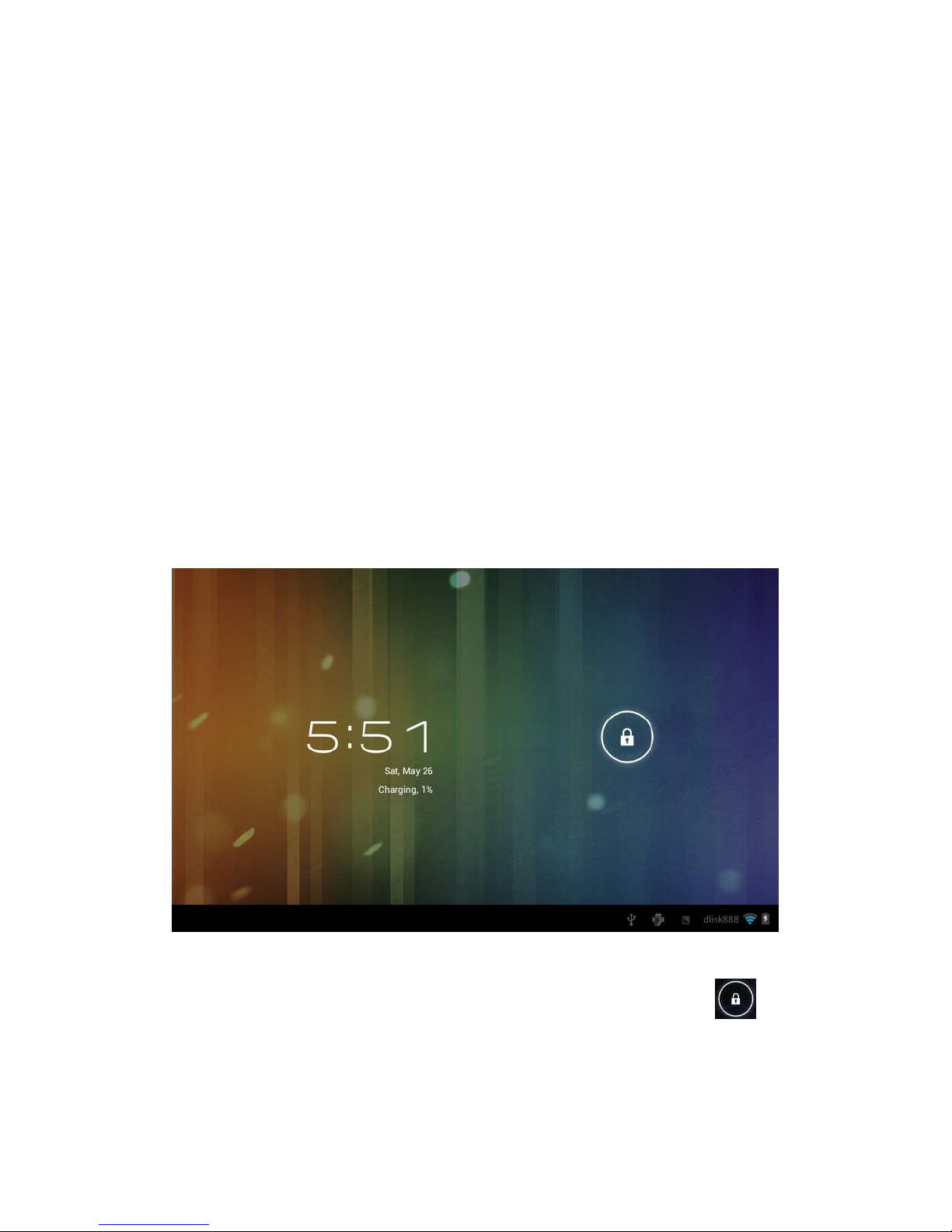
Unlock the Screen
Short press the power button to bring on the screen. Then drag the sign to
the right to unlock the screen.
Page 5
5 V○aluePad VP111/VP112 Manual
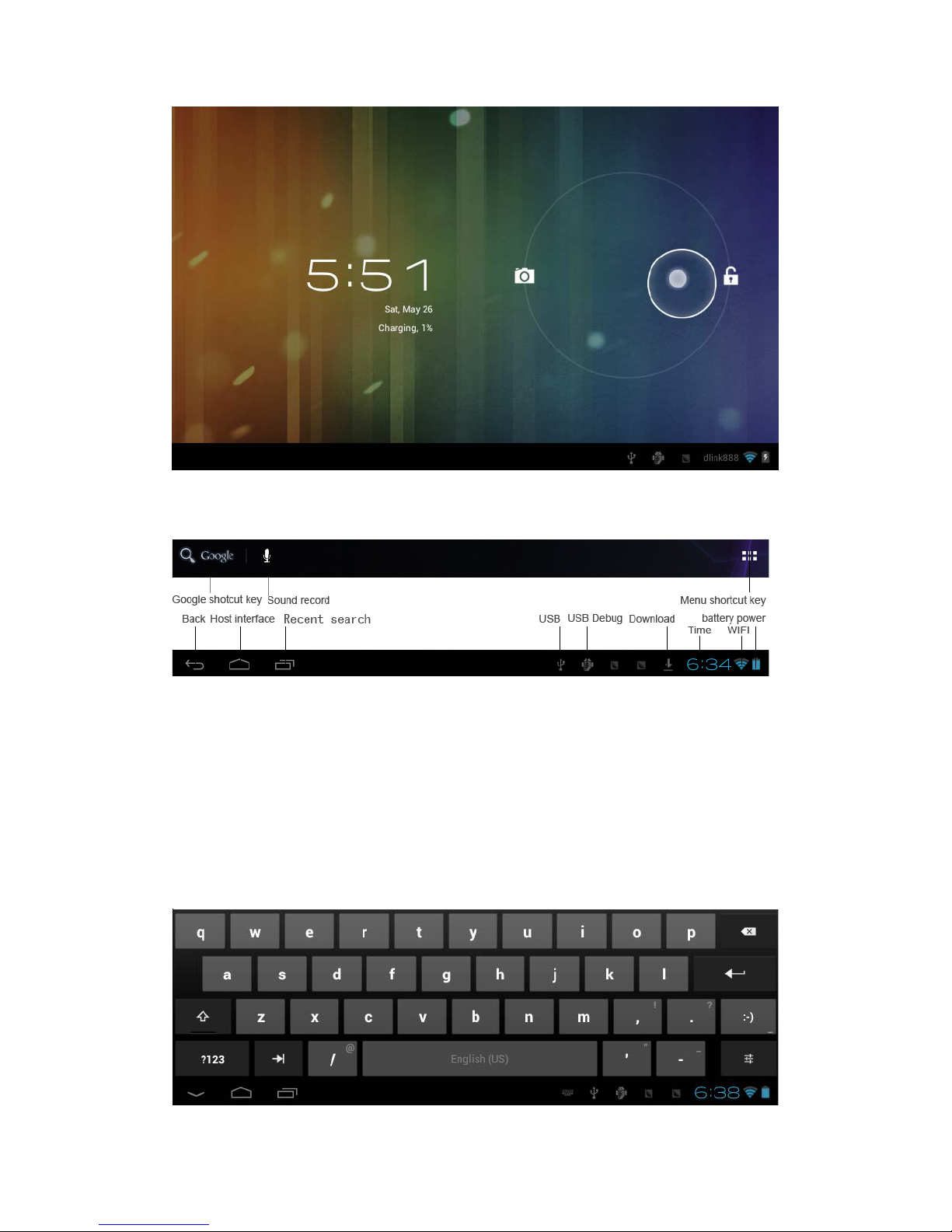
1.3 Homepage Information
1.4 Text Input
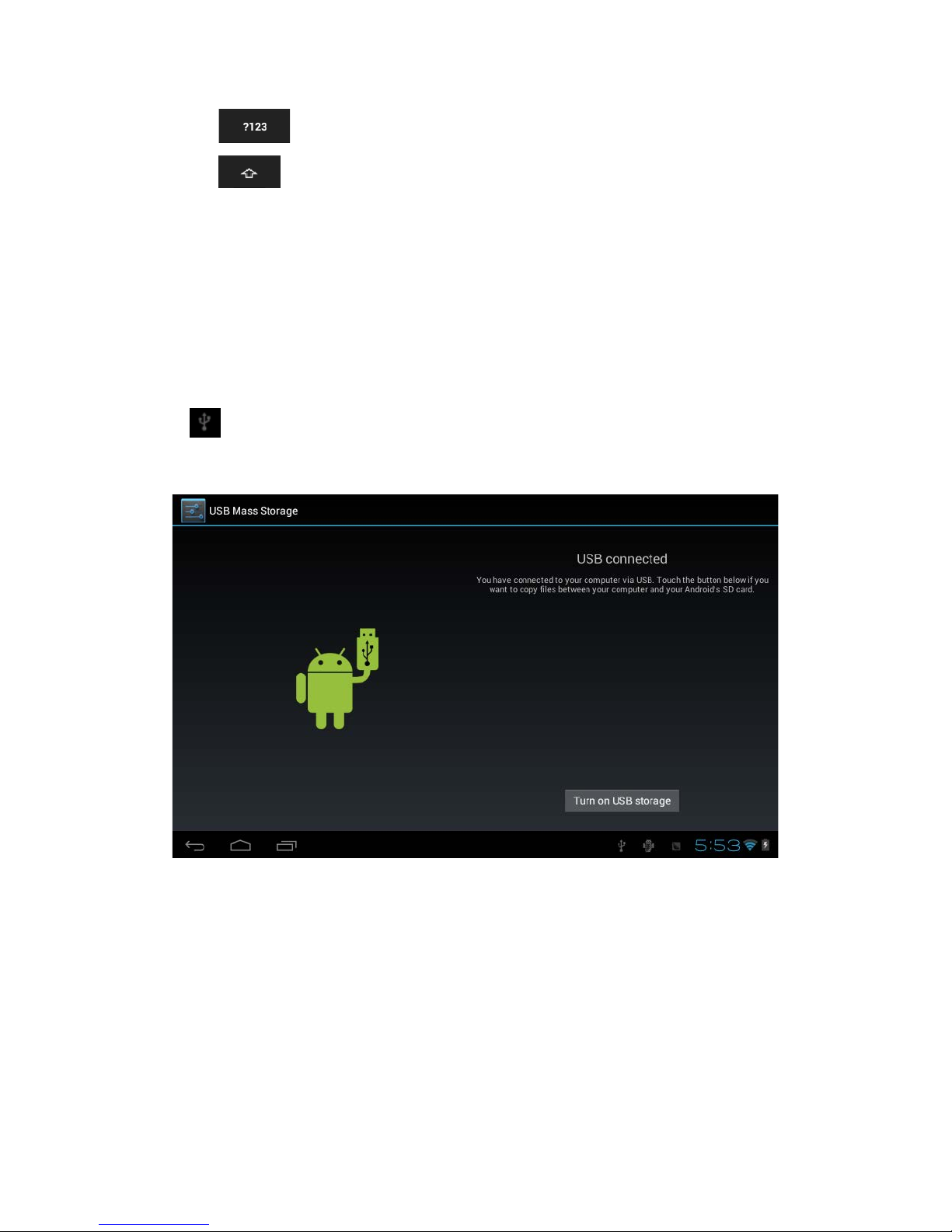
When in typing mode, the virtual keyboard will show up so you can enter text,
numbers and symbols directly by touching the screen. Input methods can be set up
under Settings -> Language & input -> Keyboard & Input Methods.
Page 6
6 V○aluePad VP111/VP112 Manual
Press to toggle between numbers and letters.
Press to type letters in capital.
1.5 Reset to Factory Default
Press the reset button on the right side of the device to reset all settings to factory
default.
1.6 USB Connections
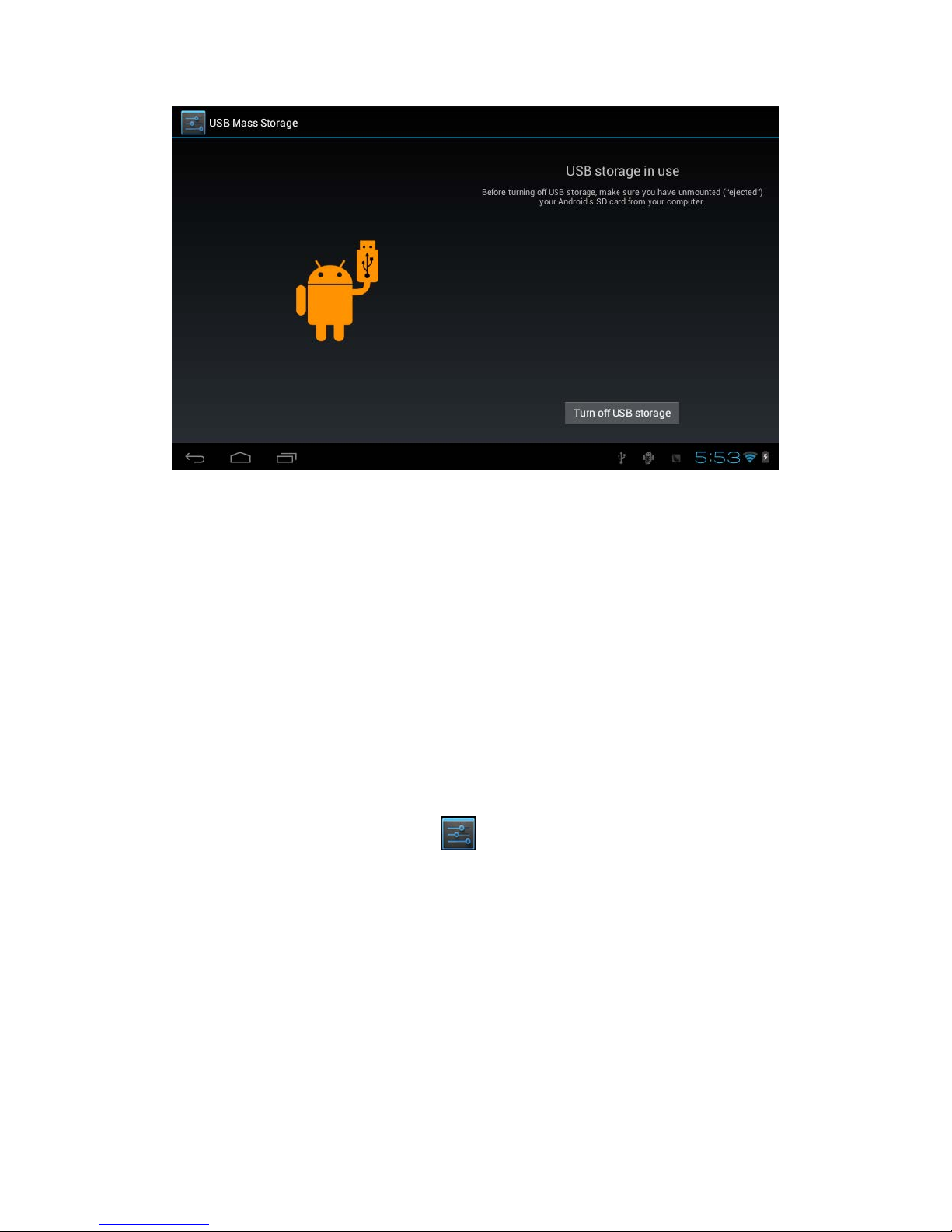
Please connect the tablet to a PC computer using the included USB cable. You will see
a sign at the bottom of the screen. Click this sign and turn on USB storage to
connect your device. If the tablet doesn’t show up on PC, uncheck “USB debugging”
in Settings -> Developer options.
Turn off USB storage to disconnect your tablet.
Page 7
7 V○aluePad VP111/VP112 Manual
1.7 Accessories
Power Adapter
USB Cable
USB extension cable (also known as On-The-Go / OTG cable)
User manual
2 Internet
2.1 Browser
Internet access is required to use a web browser. Please contact your system
administrator or internet service provider (ISP) if you have network issues.
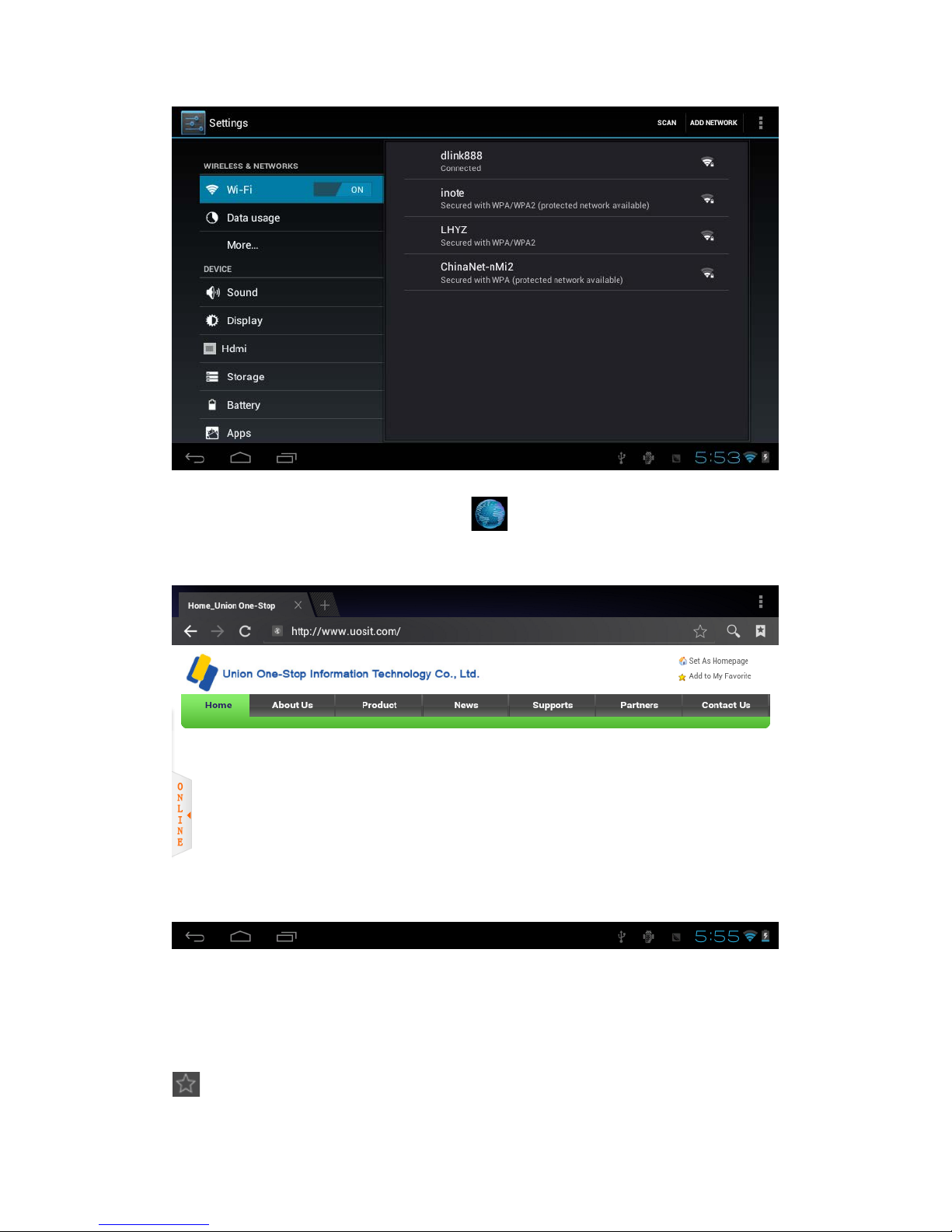
Enter network settings by pressing button to set up WIFI as shown in the
following picture:
Page 8
8 V○aluePad VP111/VP112 Manual
Web browser can be opened using the icon in the applications list. Default
opening page is the most recently viewed web pages.
You can enter a new URL by touching the web address area to activate the soft
keyboard.
Some function keys:
add current address as a new bookmark.
Page 9
9 V○aluePad VP111/VP112 Manual
choose from existing bookmarks.
search on the internet.
add a new tab in current browser.
close the browser
3 Applications
3.1 Camera
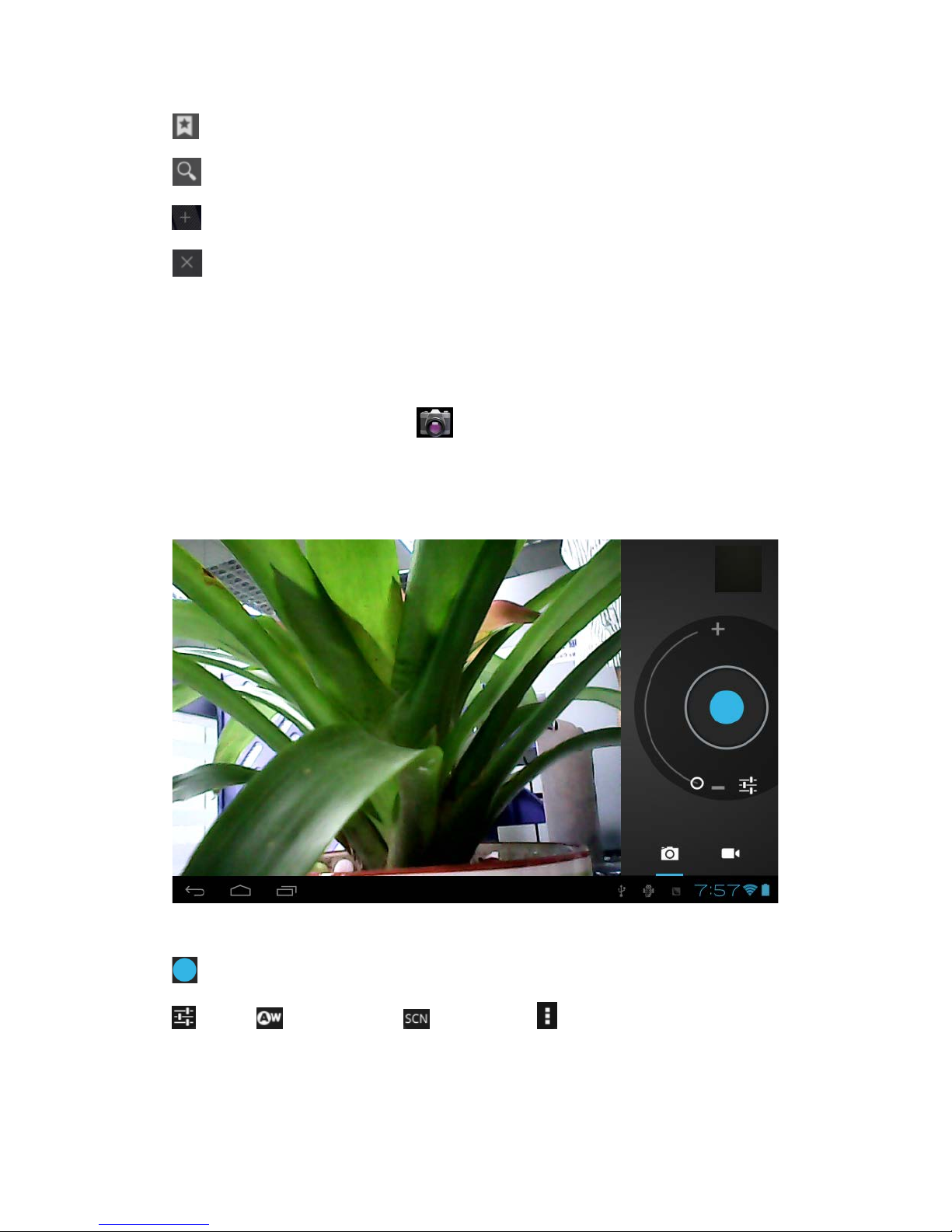
Cameras can be accessed via the icon in the applications list. ValuePad VP111
and VP112 tablets are equipped with a 0.3 MP rear facing camera for web chatting
and a powerful 2 MP front facing camera for everyday use. Please keep in mind that
adequate light and steady hands are both required to get good picture quality.
Camera controls:
take a snap shot
set up white balance, scene mode, save
Videos:
Page 10

10 V○aluePad VP111/VP112 Manual
activate video mode
set up white balance, time lapse interval, save
3.2 Photo Gallery
Click in the applications list to activate photo gallery.
Page 11

11 V○aluePad VP111/VP112 Manual
select pictures by time and location.
enter camera mode.
choose the album to edit or delete
enter slide show mode
3.3 Video / Movie Playback
Page 12

12 V○aluePad VP111/VP112 Manual
Touch in the applications list to open the universal video player. There are
some self-explaining controls at the bottom of the screen.
3.4 Music
Touch to open the music player. Music can be sorted by artists or albums.
Page 13

13 V○aluePad VP111/VP112 Manual
list
random play
repeat
lyrics
3.5 Calendar
Touch enter calendar. If it’s the first time the calendar is opened, you will be
asked to add a Google account, which facilitates more calendar options. By default
the first calendar page shows the months.
Date view: long press on an event to rebuilt, view, edit, and delete. Click in blank area
can set up new events.
Week view: Long press an event to rebuilt, view, edit, and delete events. Long press a
blank area to rebuilt events or choose to display or not to display the lunar weeks
view.
Month view: Long press a date to build new calendar items or choose to display or
not to display the lunar month view
In any views, when you switch to another date, week or month, you can go back to
today, this week or month by touching the “today” button.
Page 14

14 V○aluePad VP111/VP112 Manual
3.6 Calculator
Touch the calculator icon in the applications list to open the calculator
3.7 File Explorer
In the file explorer , you can move or copy files between SD Card, internal
Page 15

15 V○aluePad VP111/VP112 Manual
memory and USB storages.
Use to select multiple files.
Use to cut, copy, paste or delete files.
For example, to copy files, in the files list, long press the file to activate multi
selection mode, click Copy and then to choose the destination folder. Use
to paste in the destination folder.
3.8 Application (APK) Installer
Use in the applications list to open APK Installer which can install or unload
APK files. It searches for APK files from SD Card and Internal Memory when opened.
Page 16

16 V○aluePad VP111/VP112 Manual
Install Applications
Click Install to install applications from Internal Memory and SD card.
Manage Applications
Use Manage in the APK Installer to launch, export or uninstall applications.
3.9 E-mail
Add an account
If it is the first time to use email, follow the instructions to set up an account.
If you want to add more mailboxes, click Settings at the top of the page to add more
mailboxes, and then select Add account.
Page 17

17 V○aluePad VP111/VP112 Manual
Write new e-mails
On inbox page, you can click on the top right corner to start writing emails.
Page 18

18 V○aluePad VP111/VP112 Manual
3.10 Downloads
Click in the applications list to review pending or finished downloads.
You can stop current downloading or delete downloaded files.
3.11 Sound Recorder
Page 19

19 V○aluePad VP111/VP112 Manual
Click in the applications list to record sounds / messages.
Tap to start recording
Tap
to stop recording
Tap
to play
3.12 Clock
Click in the applications list to access the clock.
Page 20

20 V○aluePad VP111/VP112 Manual
Tap “Set alarm” to set up scheduled alarms.
4 System settings
Click to enter the system settings interface.
Page 21

21 V○aluePad VP111/VP112 Manual
4.1 Internet settings
This setting module includes wireless and network Settings.
Wireless Settings
When the wireless is switched on, the system will scan available wireless networks
automatically and display them on the right side.
Among them, networks with the sign are encrypted and password protected.
Those marked do not need a password and can be connected directly.
You can also choose to manually add a wireless network that doesn’t broadcast its
SSID.
4.2 Sound settings
In Sound settings, you can set volume and type of sound for notices, media and
alarms.
4.3 Display settings
Brightness, wallpapers, automatic rotating, dormancy time and font size can be set
in the display settings.
4.4 Application settings
In the application settings, you can manage active services and access rights
management and advanced development (for developers only).
Application management
In this section, you can manage or delete some installed applications.
Running services
In this section, you can choose to stop some running programs.
4.5 Date & Time settings
In this section, you can set up automatic time updating, time zone, system time, and
display format.
4.6 Language and Input Settings
In this section, you can choose language and input methods.
Page 22

22 V○aluePad VP111/VP112 Manual
5 Tablet Buying Guide
October 16, 2013, about 108,000,000 results returned when we did a Google search
for "7 inch tablet". We understand the difficulties and efforts involved in making a
good purchase of tablets for any member of the family. Here are some tips of
selecting the right tablet for you.
First of all, you will want to avoid tablets using single core CPUs in most cases. Just
like single core CPU computers, these tablets cannot handle sophisticated jobs
efficiently. For example, if you would like to read a book while the Google Chrome is
loading a website, the single core CPU can be overloaded and the tablet could freeze
on you, at least for a few seconds. It can be very frustrating if this happens every
now and then. Please keep in mind that not all dual cores or quad cores are made
the same. We have included some reviews on various dual core solutions towards
the end of this buying guide.
Next, think about how you would use your tablet. A combination of fast CPU and
GPU is what you need if you spend most of the time watching 1080P movies and / or
playing 3D games. You would also need a big storage and an extra MicroSD card if
you would like to take the movies with you. So this tablet needs to have a MicroSD
slot. Either ValuePad VP112 (7”) or VP1011 (10”) is the perfect choice for these users.
VP112 is equipped with a CPU that consumes least power and generates least
amount of heat. So the end result is an excellent tablet with light weight (saved on
battery), adequate run time and cool bottom.
On the other hand, you may only need a tablet like VP111 with enough storage and
the flexibility to expand storage using MicroSD cards if you are not a movie fans or
you don’t have tons of files to transfer. 4G storage alone is enough for news, ebooks,
online chatting, non-3D game playing and most daily activities.
All ValuePad tablets have an On-The-Go (OTG) port. With an OTG cable, you will be
able to connect the tablet to other equipment, such as selected keyboards, Ethernet
RJ-45 cable (using an adapter) and USB flash drives. This makes ValuePad tablets
perfect choices for travelers and anyone who likes light weight tablets. Please keep
in mind that not all keyboards work with ValuePad tablets due to variations in
circuits.
ValuePad tablets are equipped with dual cameras for your convenience. The front
facing camera is high definition with 200 mega pixels which is great to capture happy
moments in your life. The 0.3 mega pixels rear facing camera is placed on the same
side as the display and is widely used for online chatting.
Other features like HDMI, USB and 2G/3G communications are added benefits if the
Page 23

23 V○aluePad VP111/VP112 Manual
tablets support them. Because SoC systems (explained in the following section) are
integrated circuits with fixed features, you will need to check if that feature you
would like to have is in the specification list of the tablet you want to buy. Typically
the feature is not supported if it is not listed. You can always contact us for more
information.
How different can dual core solutions be?
The two most important components in a tablet contributing to performance are
CPU and GPU. They are typically integrated on the mainboard together with memory
modules. These integrated systems are called SoC (System on Chip) integrated
circuits. There are more than a dozen tablet SoC brands on the market, such as Tegra,
Rockchip, Allwinner, etc. ValuePad VP111 and VP112 use Rockchip dual core CPUs
and powerful GPUs.
An excellent SoC from Rockchip, RK3168 (in VP112) adopts 28nm technology. Of all
dual core CPUs on the market, it consumes least power and generates least amount
of heat. Also thanks to its 28nm technology and GPU PowerVR SGX540, the same as
the GPU in IPADs, Antutu score of VP112 is around between 10000 and 12000.
New comer RK3026 (in VP111) is another excellent dual core SoC that scores 10000
or higher in Antutu X 4.03. Its performance in CF-Bench is equivalent to NVIDIA’s
Tegra 250 in Iconia Tab A500. In Nenamark2, it averages 51.5fps.
Following table compares some popular dual core SoC systems that you may find on
the market. (All information is from open sources. ValueChain, LLC didn’t test each system and is
not responsible for accuracy of the information.)
SoC Systems Rockchip
Rk3168
Rockchip
RK3026
Allwinner
A20
ATM7021 IMAP X15
CPU
Frequency
1.2GHz 1.0 GHz 1GHz 1.3GHz 1GHz
CPU
Technology
Cortex A9 Cortex A9 Cortex A7 Cortex A5 Cortex A5
GPU
PowerVR
SGX540
Mali400MP2
dual core
Mali400
dual core
PowerVR
SGX540
Mali400 single
core
Process
Technology
28nm 55nm 55nm 55nm 55nm
Cost Highest Low Low Lowest Low
Power
Consumption
/ Heat
Generation
Lowest
(28nm <
55nm)
Medium Medium Low Low
Performance
Highest
(A9>A7>A5)
Highest
(A9>A7>A5)
Medium Medium Low
Page 24

24 V○aluePad VP111/VP112 Manual
6 FAQs
How to use an external Ethernet adapter with an Android tablet?
Uncheck wifi in tablet's network settings. Connect the included OTG cable to the usb
port on the tablet. Then connect the Ethernet adapter to the other end of the OTG
cable. If DHCP on your router is not enabled, go to setup -> Ethernet setup -> IP
setup and set gateway and a static IP.
The ValuePad VP112 I bought is supposed to have a RK3168 CPU with Cortex A9
technology. However, it was shown as Cortex A8 in the Antutu software. What
happened?
RK3168 is a relatively new system that some software does not recognize. Antutu,
and some other software may report it as a Cortex A8 because this is the closest in
their database. Antutu should also show that this is a dual core CPU. Cortex A8 is
specifically designed for single core CPUs. So rest assured that the CPU in VP112 is
RK3168, a dual core CPU based on the newest Cortex A9 technology.
The drive representing my tablet cannot be seen or opened when connected to a
computer. How to fix it?
Connect the tablet to a computer using original USB cable. Uncheck “USB
debugging” in Settings -> Developer options. A USB symbol will show up at the lower
right corner. Hold that symbol and lift up. Choose "connect USB devices".
Why is the USB keyboard not responding when connected to the tablet?
The USB keyboard needs to be connected to the tablet before turning on the tablet.
My tablet has an 8GB drive. Why can I only see 6GB or less usable capacity?
By default, hard drive manufacturers consider 1000MB as 1GB while computer
manufacturers think 1024MB is 1GB. So an 8GB drive would be 7.4G in a computer.
In addition, Android systems would consume up to 1GB space and system backup
could be another 800MB. So the usable capacity on an 8GB drive could be between
5.5GB and 6GB.
Does this tablet have a built-in microphone?
Yes, all ValuePad tablets have built-in microphones for online chatting.
Can I charge the tablet by connecting it to a computer using a USB cable?
Yes, you can. However it is not the best charging method in terms of battery life.
Furthermore, computer USB ports typically provide much lower amperage than wall
plugs so that charging time would be significantly longer.
Why is my tablet running slower and slower? And it freezes up more frequently.
The tablet achieves best performance when its drive has enough space. It is
Page 25

25 V○aluePad VP111/VP112 Manual
recommended to use a MicroSD (also known as TF) card and install apps on it
whenever possible. Installed apps can be moved to SD card by following these steps:
Settings -> Applications -> Manage Applications -> select an app -> Move to SD Card.
Some software can move apps in Android systems as well.
Why does my tablet get warm sometimes?
ValuePad tablets use fast CPUs that typically run at 1GHz or faster. These CPUs
generate some heat, especially when you play 3D games or HD (720P +) movies.
Surface temperature could be as high as 110˚F. This is normal. We recommend you
let the tablet take a break whenever you do.
Page 26

26 V○aluePad VP111/VP112 Manual
7 Handling Precautions
1 Do not keep or use the tablet in hot, moist or dusty environment. The tablet is not
waterproof.
2 Avoid falling or violent collision. Do not violently shake the touch screen to avoid
damages to the display.
3 Charge the tablet regularly if it has not been used for a long time to avoid damages
to the battery.
4 Do not disassemble the tablet.
5 Do not use alcohol, thinner or aromatic solvents to clean the tablet.
6 Do not use the tablet when driving or walking.
7 Set the volume to an appropriate level before using earphones to prevent ear
damage.
8 Bottom of the tablet can get warm, especially after hours playing of 3D games or
high-definition videos.
Page 27

27 V○aluePad VP111/VP112 Manual
8 Specifications
Model VP111 VP112
Operating System Android 4.2 Android 4.2
Display
Type 7" Multitouch Capacitive 7" Multitouch Capacitive
Resolution 800*480 HD 1024*600
Processor
s
CPU
Rockchip RK3026 A9 Dual Core,
up to 1.0 GHz
Rockchip RK3168 A9 Dual Core,
up to 1.2 GHz
GPU Mali-400MP2 Dual Core PowerVR SGX540 @ 600 MHz
RAM 512M 1G
Storage 4G Flash 8G Flash
Cameras
Front 0.3 Mega Pixels 0.3 Mega Pixels
Rear 0.3 Mega Pixels 2.0 Mega Pixels
Expandable Storage
MicroSD (also known as TF) up
to 32GB
MicroSD (also known as TF) up to
32GB
USB Port Micro USB Micro USB
HDMI out
Type C mini
Wifi, b/g or b/g/n b/g/n b/g/n
Earphone Socket 3.5mm 3.5mm
Ethernet
Support external Ethernet
adapter through OTG cable
Support external Ethernet
adapter through OTG cable
Battery 2800 mAh 2500 mAh
G-sensor 360˚ 360˚
Supported Video
Format
Mpeg-4, H.263, H.264, Windows
Media
Mpeg-4, H.263, H.264, Windows
Media
Supported Audio
Format
MP3, AAC, AAC+, AMR-WB/+,
EAAC+, Windows Media
MP3, AAC, AAC+, AMR-WB/+,
EAAC+, Windows Media
Accessories
USB Cable, OTG cable, User
Manual, Power Adapter
USB Cable, OTG cable, User
Manual, Power Adapter
Customer service: cs@valuechainusa.com
V○
a
luePad logo is trademark of ValueChain, LLC. Information in this document is subject to
change without notice.
Copyright 2013 ValueChain, LLC. All Rights Reserved.
 Loading...