

Page 1
Quick guide
for accordionists
V3SOUND
DESKTOP
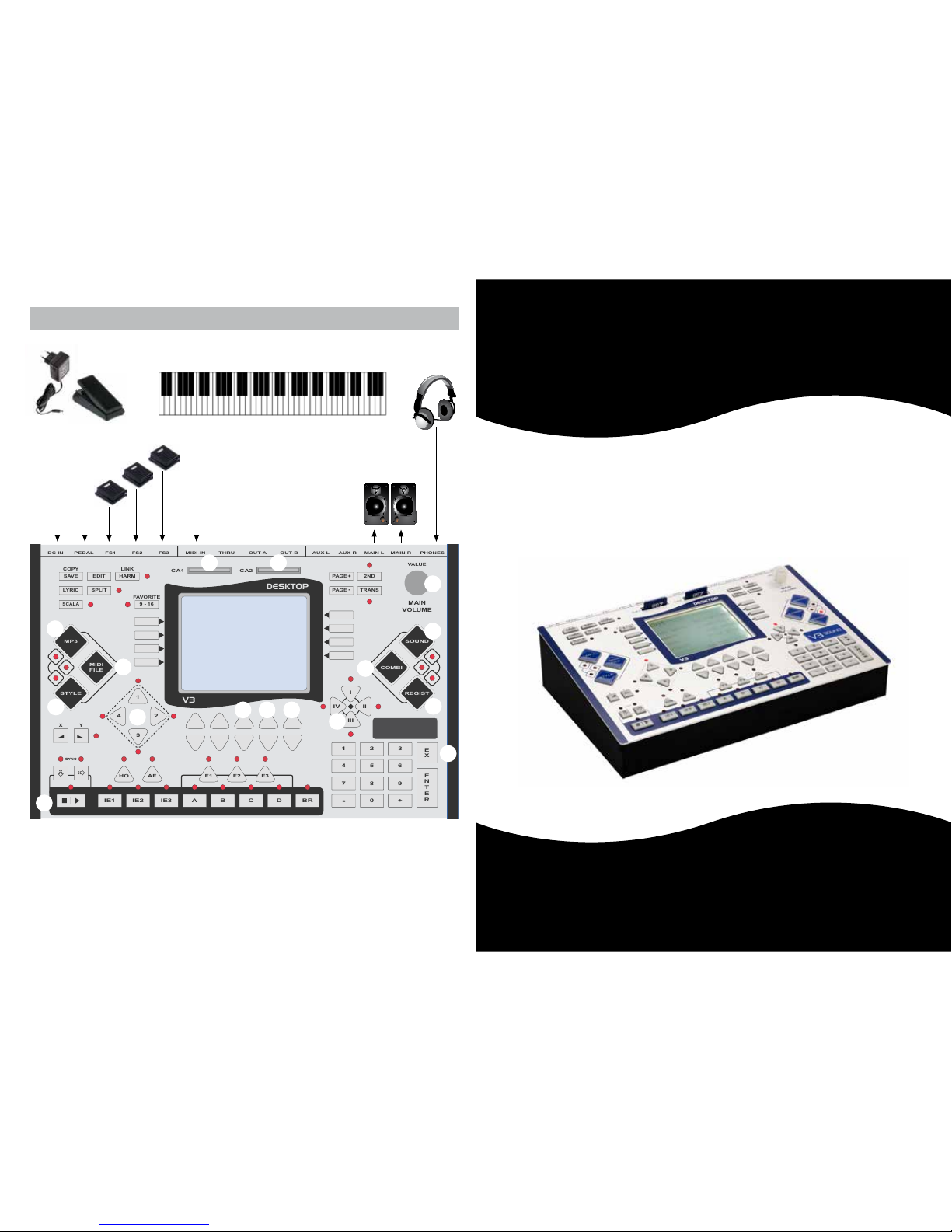
1 Memory card slots
2 Power on/off
3 Main volume / Data value
4
Sound mode
5
Combi mode
6 Registrations mode
7 Live scenes
8
Exit
9 MP3 player
10 MIDI file player
11 Style mode
12 Style scenes
13 Volume of LIVE sounds
14 Volume of PLAYBACK sounds
15
Tempo
16 Start/stop
9 - 16
+0
321
654
987
-
PAGE+
REGIST
MP3
STYLE
COMBI
MIDI
FILE
2ND
TRANS
E
N
T
E
R
E
X
HO AF
BAIE1 IE2 IE3 C D BR
1
2
3
4
PAGE
-
SAVE EDIT HARM
SPLITLYRIC
SCALA
SOUND
LIMEX
THRU OUT-A OUT-B AUX L AUX R MAIN L MAIN R PHONESMIDI-IN
CA1
COPY
X Y
LINK
FAVORITE
CA2
PEDAL
VALUE
MAIN
VOLUME
DC IN FS1 FS2 FS3
F1 F2 F3
I
II
III
IV
DESKTOP
V3
1 1
2
3
4
5
6
7
9
10
11
16
12
EXPRESSION PEDAL (100k)
15 14 13
MIDI-OUT
AUDIO OUT 3
AUDIO OUT 4
USER INTERFACE AND PORTS
8
V3SOUND
Page 2
2 15
SET UP - AUDIO CONNECTION
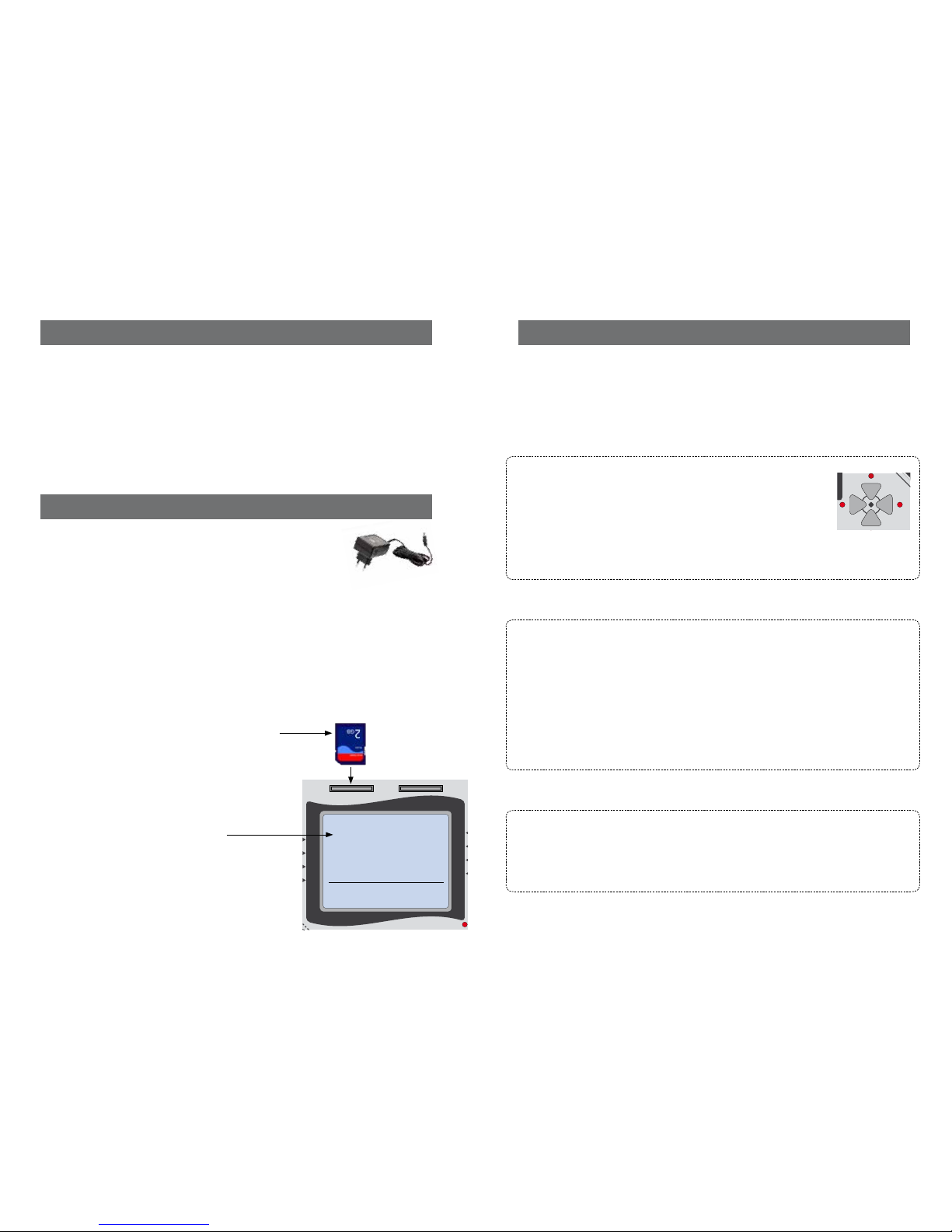
Plug the power adapter that came with the device
into the DC port on the back of the unit.
Plug the other end of the power adapter into a power outlet.
To avoid possible damage to the loud speakers or other connected
electronic devices, always turn down the Master volume of your amplifier
or active loudspeakers before connecting units.
Connect the audio outputs of the DESKTOP to an amplifier.
Alternatively, you can plug in headphones to the PHONES jack.
Insert the SD memory card into the CA1 slot.
Turn on your DESKTOP by pressing the
power [ON] switch on the back of the unit.
After two seconds, this home screen
shows that the unit is ready to play.
SAFETY INSTRUCTIONS
Do not allow any liquid to come in contact with the device. Do not place anything
on the device. Do not use or store the device where it is exposed to dampness or
wetness.
Power supply 9VDC / 1.3A
Operating temperature 10 to 40 degrees Celsius
Humidity max. 80%, non-condensing
PAGE+
REGIST
COMBI
2ND
TRANS
PAGE
-
SOUND
THRU OUT-A OUT-B AUX L AUX R MAIN L MAIN R PHONESMIDI-IN
CA1
CA2
VALUE
MAIN
VOLUME
I
II
IV
DESKTOP
V3
01 Ballad8 70 075 075
TMP TRAC K LIVE
REG 00/001 Ballad8
001 GrandPia
OVERVIEW - START UP FOLDER
The START UP folder quickly shows you different ways to use the DESKTOP.
After POWER ON, the first REGISTRATION [REG 00/001 Ballad 8] is always ready.
Then press + (beside the ENTER button) to scroll through the START UP Registrations.
REGISTRATION 001-016 with STYLE ready
001 Ballad8 Easy ballad style
A Grand Piano sounds
press SCENE button II and get a ORGAN.
press SCENE button III and get E-Piano and Bells
press SCENE button IV and you have no SOUND
SCENE IV is set to play just the original accordion reeds.
REGISTRATION 017 - 032 MANUAL BASS, CHORD AND DRUMS
The REGISTRATIONS marked with a # sign are prepared to play live on the accordion.
These have different sound settings, some with manual drums on bass and chord. Some
have more than 10 active sounds. This shows how powerful the REGISTRATIONS of
the DESKTOP are. You can change any sound and adjust all you like.
Remember, the SCENE I II III IV buttons allow sound changes on the fly with just one
step on the foot switch.
REGISTRATION 033 - 048 AUTOMATIC DRUMS
Registrations marked with (d) symbol are prepared to play live on the accordion.
Here you can start the automatic drums using the START/STOP button on the panel or
by using FS3, which has been pre-programmed as a START/STOP foot switch.
PAGE+
REGIST
COMBI
2ND
TRANS
PAGE
-
SOUND
VALUE
MAIN
VOLUME
I
II
III
IV
Page 3
14
3
TEST AUDIO CONNECTION
To check your connections
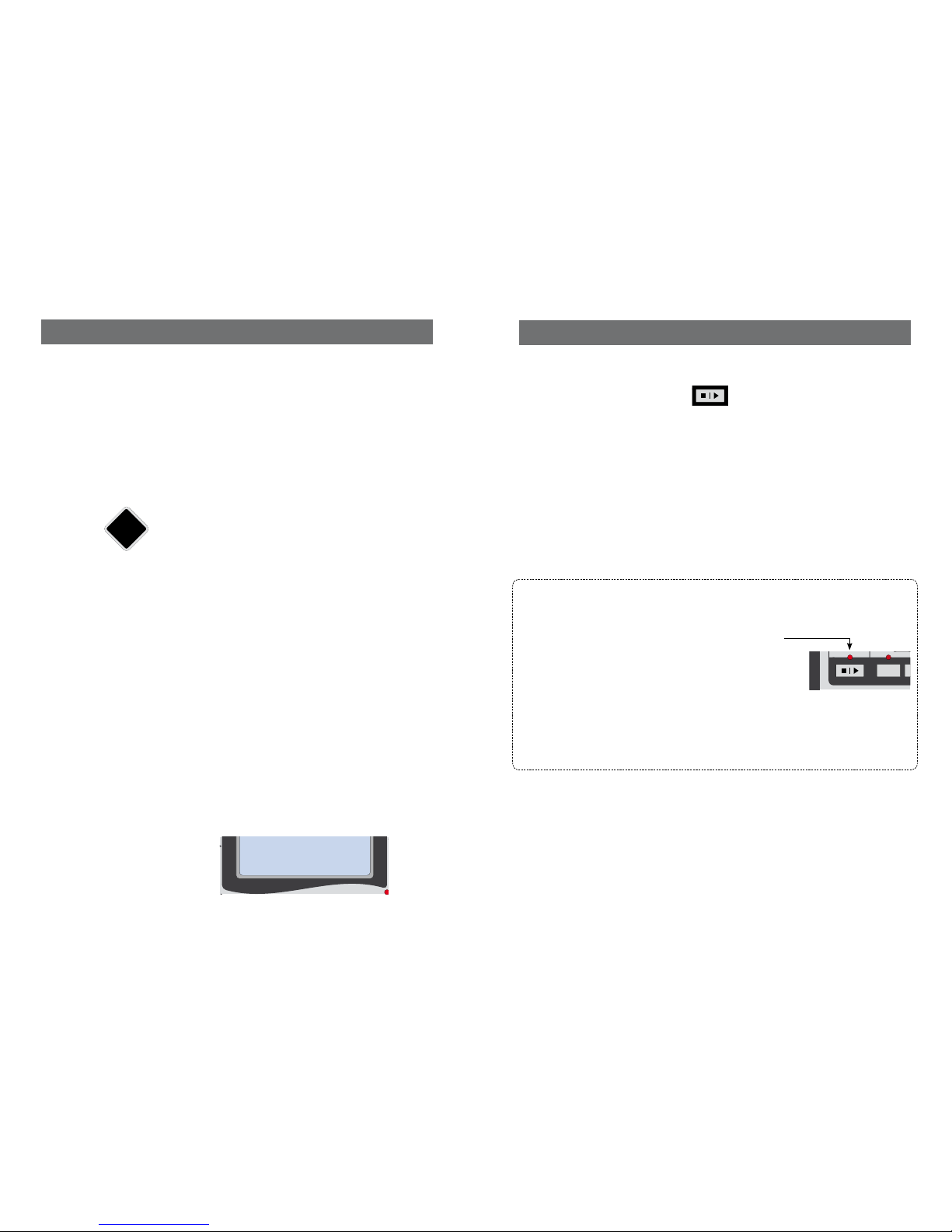
press the START/STOP button on the lower left of the DESKTOP.
Slowly turn up the MAIN volume on your amplifier
You should hear the accompaniment playing the BALLAD 8 style.
If you don’t hear anything, please
check that the LED is flashing when you press the START/STOP button.
Connect a headphone to the unit
When you hear the rhythm in headphones, the device is working properly.
If there is still no sound, then check the cables and connections as well as the
settings on the amplifier.
9 - 16
+0
321
654
987
-
PAGE+
REGIST
MP3
STYLE
COMBI
MIDI
FILE
2ND
TRANS
E
N
T
E
R
E
X
HO AF
BAIE1 IE2 IE3 C D BR
1
2
3
4
PAGE
-
SAVE EDIT HARM
SPLITLYRIC
SCALA
SOUND
LIMEX
THRU OUT-A OUT-B AUX L AUX R MAIN L MAIN R PHONESMIDI-IN
CA1
COPY
X Y
LINK
FAVORITE
CA2
PEDAL
VALUE
MAIN
VOLUME
F1 F2 F3
I
II
III
IV
DESKTOP
V3
9 - 16
+0
321
654
987
-
PAGE+
REGIST
MP3
STYLE
COMBI
MIDI
FILE
2ND
TRANS
E
N
T
E
R
E
X
HO AF
BA
IE1
IE2 IE3 C D BR
1
2
3
4
PAGE
-
SAVE EDIT HARM
SPLITLYRIC
SCALA
SOUND
LIMEX
THRU OUT-A OUT-B AUX L AUX R MAIN L MAIN R PHONESMIDI-IN
CA1
COPY
X Y
LINK
FAVORITE
CA2
PEDAL
VALUE
MAIN
VOLUME
DC IN FS1 FS2 FS3
F1 F2 F3
I
II
III
IV
DESKTOP
V3
CALL UP A STYLE
What is a STYLE?
A style is an automatic arrangement of a music genre as rock, samba, waltz, swing, etc.
Press the [STYLE] button on the left side of the DESKTOP V3‘s panel.
The screen displays the first seven categories of the music styles available.
Press the [PAGE +] button to scroll through the categories.
Press the [PAGE-] to scroll back to the previous categories.
Press the button parallel to the category 05Latin.
Now the Latin styles available are shown.
Press the button parallel to the style 04 BossaSlw.
The style is now highlighted and you can hear it by pressing the [START/STOP] button.
Press the [START/STOP] button again to stop the preview.
Press the button parallel to the style 04 BossaSlw already highlighted to
load it.
The screen now displays the settings for this style at the bottom left of the screen
(style number, name, tempo/TMP).
REGIST
MP3
STYLE
COMBI
MIDI
FILE
SOUND
I
II
III
IV
PAGE+
REGIST
COMBI
2ND
TRANS
PAGE
-
SOUND
THRU OUT-A OUT-B AUX L AUX R MAIN L MAIN R PHONESMIDI-IN
CA1
CA2
VALUE
MAIN
VOLUME
I
DESKTOP
V3
04 BossaSlw 70 075 075
TMP TRAC K LIVE
Page 4
4
13
SET UP - MIDI CONNECTION
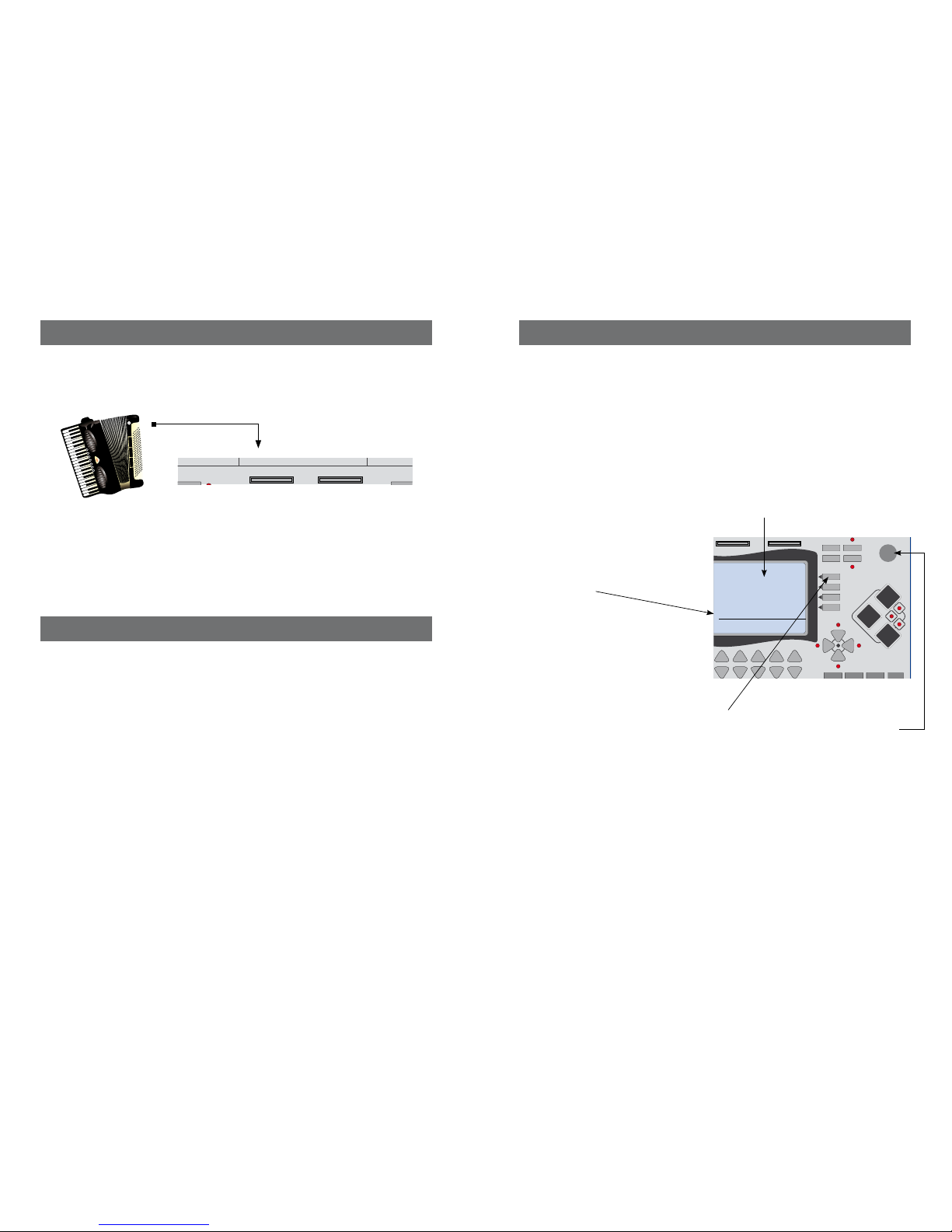
Connect a MIDI cable from MIDI-OUT of your MIDI-System or MIDI accordion
to the MIDI-IN on the Desktop.
MIDI CHANNELS
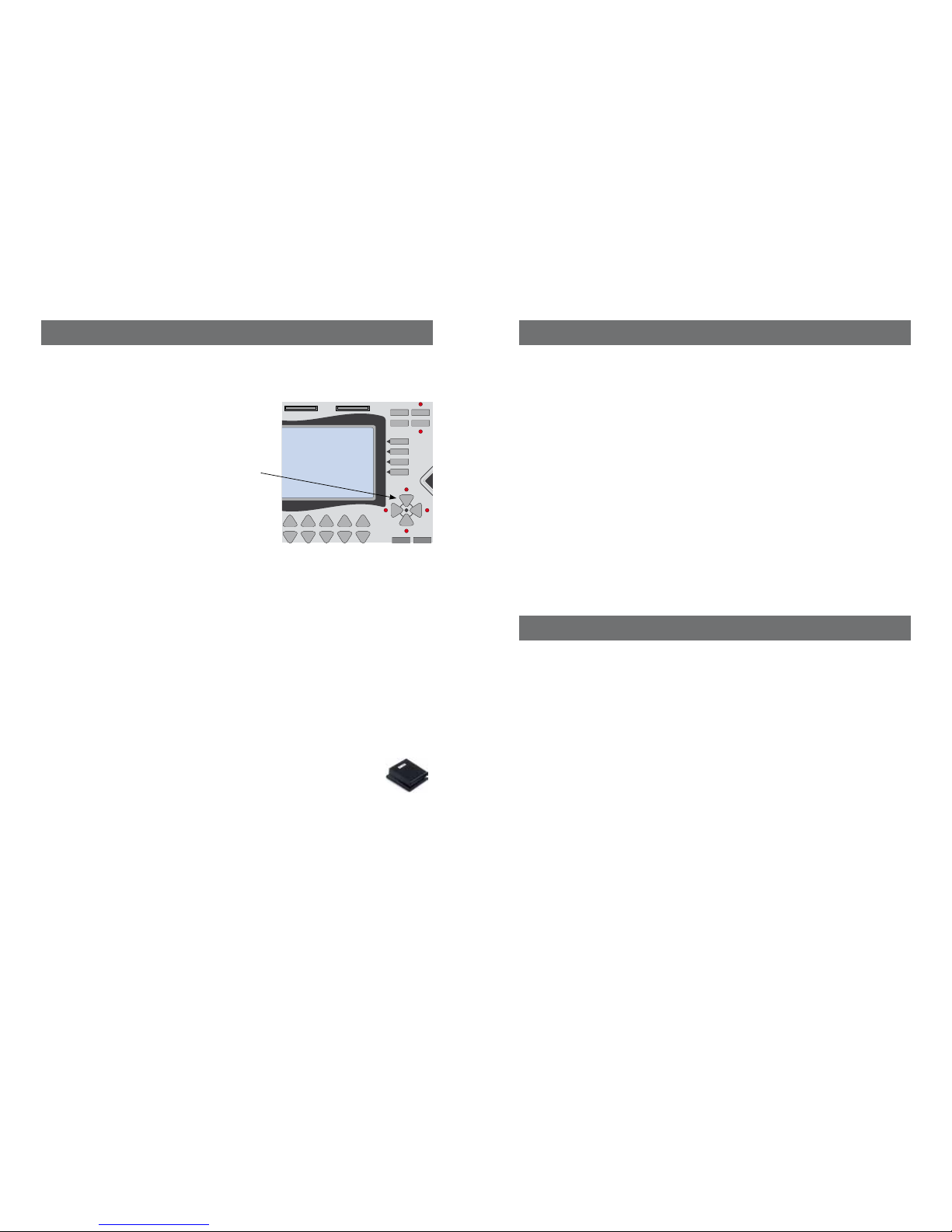
The MIDI channels of your MIDI-Accordion and the MIDI-channels from the
DESKTOP must have the same setting.
Our factory setting use the international standard for MIDI-accordions
(1)
:
CHANNEL 1 = TREBLE SIDE
CHANNEL 2 = CHORDS
CHANNEL 3 = BASS
(1)
The MIDI channels can be changed on the DE SKTOP as described in the user’s ma nual.
THRU OUT-A OUT-B AUX L
AUX R MAIN L MAIN R PHONES
MIDI-IN
CA1
LINK
CA2
VALUE
FS2 FS3
PAGE+
REGIST
COMBI
2ND
TRANS
PAGE
-
SOUND
LIMEX
THRU OUT-A OUT-B AUX L AUX R MAIN L MAIN R PHONESMIDI-IN
CA2
VALUE
MAIN
VOLUME
I
II
III
IV
DESKTOP
REG 00/001 Ballad8
V100 R6 0
V100 R6 0
CHANGE VOLUME OF A SINGLE SOUND
With the DESKTOP it´s possible to play the sounds one by one or two or more together,
e.g. piano and violin.
If you layer sounds, you need a way to adjust the volume of one to the others.
Press the [PAGE +] button twice to enter the sound edit page for VOLUME.
To change the VOLUME:
at the top right of the screen the value “V100” (volume = 100) is shown.
Note: In this area of the display
you will find the description of
each parameter in EDIT mode
Press the button parallel to this parameter which will flash, then change its value
using the “Value” dial located at the upper right of the DESKTOP V3’s panel.
To change the REVERB: at the top right of the screen the value “R060”
(reverb = 60) is shown.
Press the button parallel to this parameter again.
It will flash; then change its value using the “Value” dial located at the upper
right of the DESKTOP V3’s panel.
It is possible to play while you change all parameters.
Make all your adjustments while playing the style. Be aware that in the moment you change values, a small interruption may occur. This only happens
while you are editing, not when you are playing a saved registration.
VOLUME REVERB
Page 5
12
5
TEST MIDI CONNECTION
Press a key on the treble side of your instrument and
you should hear a Piano sound.
If the audio connection test on page 3 was successful, but you get no sound
when you press a key on the treble side:
try another MIDI-cable
power off/on the DESKTOP, and try it again.
SUPPORT FOR ALL MIDI SYS TEMS
There are many different MIDI-accordion systems on the market.
If you are still unable to hear anything from your MIDI accordion
feel free to contact us for more help. Please send an email to:
CHANGE SOUNDS WHILE PL AYING WITH ONE TOUCH
The first REGISTRATION of the START UP folder is 00/001 Ballad 8.
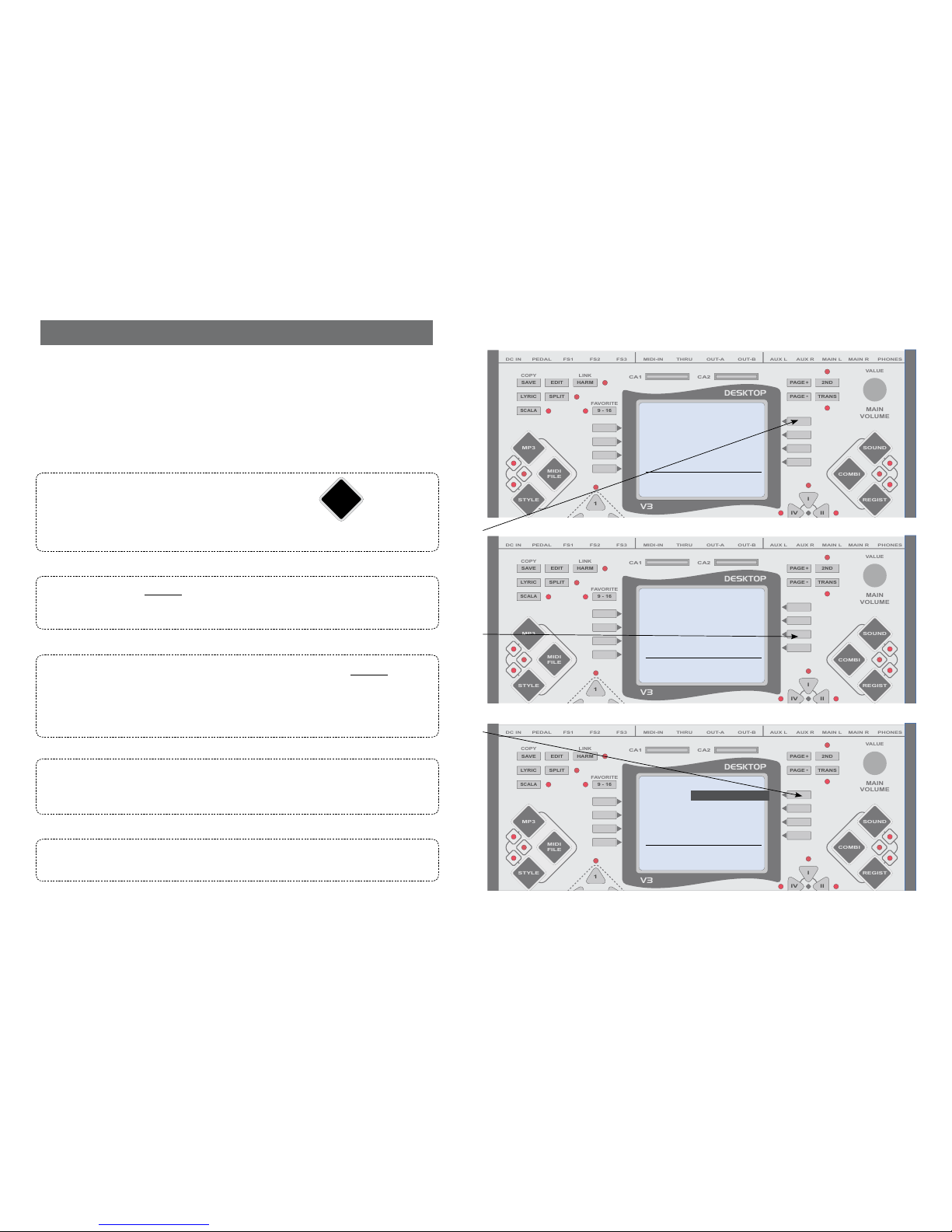
As shown in the display, you get a grand
piano sound if you press a key on the
treble side of your MIDI-accordion.
Press the button [II] on the right side of the
screen, the display changes, and an organ
sound is now available.
Press the [III] to listen to other preset sounds.
Press [IV] and you get NO SOUND.
Select this option if you want the original
accordion reeds and no other sound on the treble side.
Any REGISTRATION offers 4 sound scenes I - II - III - IV
The sound scenes within each factory REGISTRATION allow you to change the
instrumentation during different sections of the music.
A scene can hold one, or up to eight sounds. Change the scenes using the buttons
on the DESKTOP, a foot pedal or a control device on your MIDI instrument.
FOOT SWITCH
If you connect a standard foot switch, such as a BESPECO VM20 to the FS1 jack on
the backside of the DESKTOP, you can change the sounds with one tap of your foot.
FACTORY COPY AND BACKUP
If you want to keep the original REGISTRATIONS and save you changes to use at
a later time, we suggest you store your changes in a different memory location.
Please read page 49 of the English user manual.
You will find all REGISTRATIONS on our homepage as a free download.
Feel free to test and change all the registrations. You can always reload all the original registrations again via download, then copy them onto your SD card.
PAGE+
REGIST
COMBI
2ND
TRANS
PAGE
-
SOUND
LIMEX
THRU OUT-A OUT-B AUX L AUX R MAIN L MAIN R PHONESMIDI-IN
CA2
VALUE
MAIN
VOLUME
I
II
III
IV
DESKTOP
REG 00/001 Ballad8
001 GrandPia
Page 6
6 11
9 - 16
PAGE+
REGIST
MP3
STYLE
COMBI
MIDI
FILE
2ND
TRANS
1
PAGE
-
SAVE EDIT HARM
SPLITLYRIC
SCALA
SOUND
THRU OUT-A OUT-B AUX L AUX R MAIN L MAIN R PHONESMIDI-IN
CA1
COPY
LINK
FAVORITE
CA2
PEDAL
VALUE
MAIN
VOLUME
DC IN FS1 FS2 FS3
I
II
IV
DESKTOP
V3
9 - 16
PAGE+
REGIST
MP3
STYLE
COMBI
MIDI
FILE
2ND
TRANS
1
PAGE
-
SAVE EDIT HARM
SPLITLYRIC
SCALA
SOUND
THRU OUT-A OUT-B AUX L AUX R MAIN L MAIN R PHONESMIDI-IN
CA1
COPY
LINK
FAVORITE
CA2
PEDAL
VALUE
MAIN
VOLUME
DC IN FS1 FS2 FS3
I
II
IV
DESKTOP
V3
9 - 16
PAGE+
REGIST
MP3
STYLE
COMBI
MIDI
FILE
2ND
TRANS
1
PAGE
-
SAVE EDIT HARM
SPLITLYRIC
SCALA
SOUND
THRU OUT-A OUT-B AUX L AUX R MAIN L MAIN R PHONESMIDI-IN
CA1
COPY
LINK
FAVORITE
CA2
PEDAL
VALUE
MAIN
VOLUME
DC IN FS1 FS2 FS3
I
II
IV
DESKTOP
V3
01 Ballad8 70 075 075
TMP TRAC K LIVE
01 Ballad8 70 075 075
TMP TRAC K LIVE
01 Ballad8 70 075 075
TMP TRAC K LIVE
REG 00/001 Ballad8
001 GrandPia
SOUND
Piano
Tuned Keys
Accordion
Bass
SOUND
022 Accordion
024 AccTango
023 Melodica
001 French 88
CALL UP A REGISTRATION
What is a REGISTRATION?
A REGISTRATION contains all the settings required for a song.
Recalling a REGISTRATION on your DESKTOP V3 will load all these settings
to play a song: sounds; style, MIDI file or MP3; volumes; tempo; etc.
REGIST
SOUND
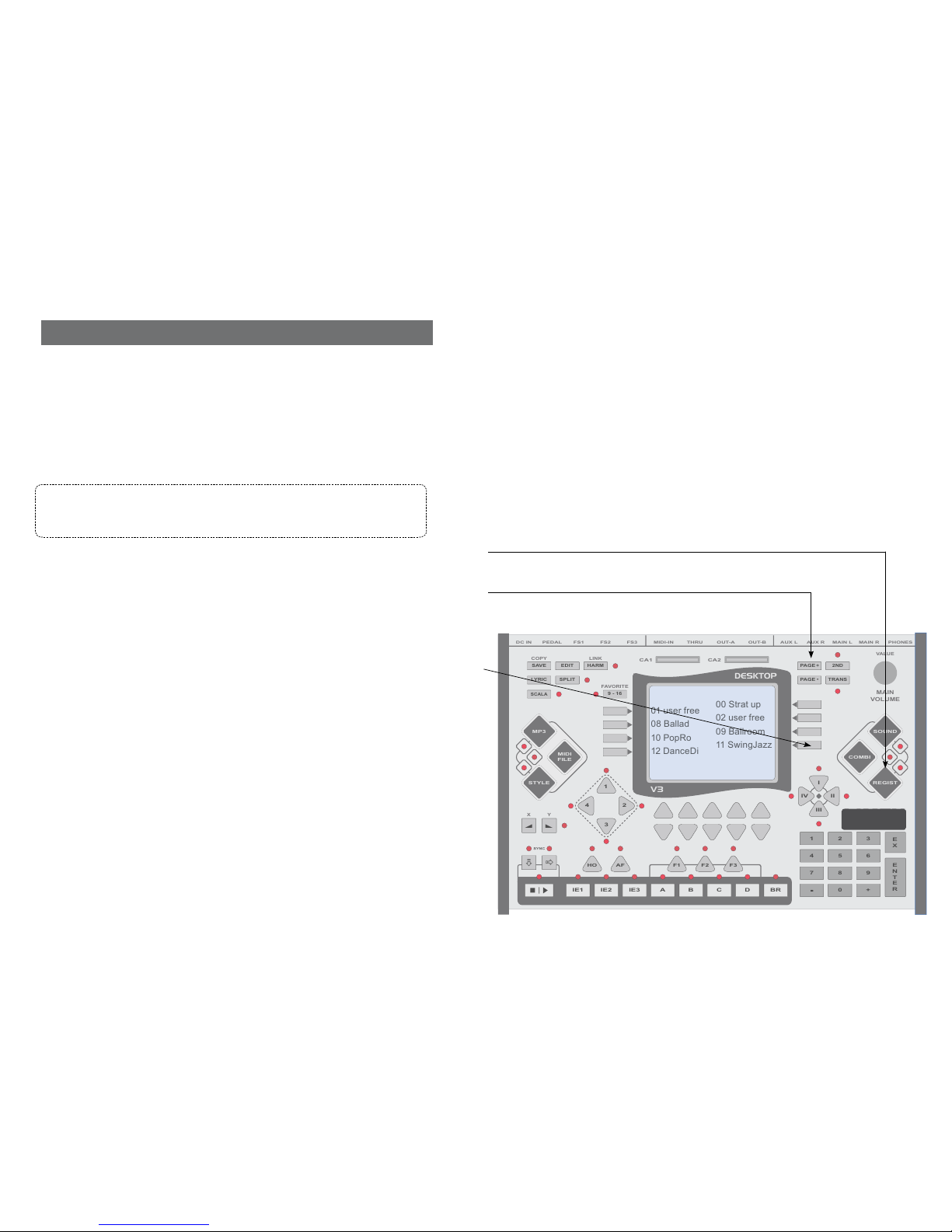
Press the big blue button at the right side
of the V3 DESKTOP‘s panel named [REGIST].
The display shows the first eight categories.
Press the [PAGE +] button to scroll through the categories.
Press the [PAGE -] to scroll back to the previous categories.
Press the button parallel to the category „11 SwingJazz.“
This category contains dozens of titles of this musical genre.
Press the [PAGE +/-] button to scroll through the titles.
Preselect the title „001 JAZZTRIO“ by pressing the button parallel to it.
The title is now highlighted.
Press the [START/STOP] button to listen to the automatic arrangement and
play on the right side of your instrument to listen to the preset sounds.
Press the [START/STOP] button to stop the preview of the arrangement.
Press the button parallel to the highlighted title “001 JAZZTRIO” to fully
load it.
The screen now displays the settings of this REGISTRATION.
Press the START button and play a few chords on the left side of your instrument.
The arrangement will perform harmonies according to your chord changes.
Page 7
10 7
9 - 16
+0
321
654
987
-
PAGE+
REGIST
MP3
STYLE
COMBI
MIDI
FILE
2ND
TRANS
E
N
T
E
R
E
X
HO AF
BAIE1 IE2 IE3 C D BR
1
2
3
4
PAGE
-
SAVE EDIT HARM
SPLITLYRIC
SCALA
SOUND
LIMEX
THRU OUT-A OUT-B AUX L AUX R MAIN L MAIN R PHONESMIDI-IN
CA1
COPY
X Y
LINK
FAVORITE
CA2
PEDAL
VALUE
MAIN
VOLUME
DC IN FS1 FS2 FS3
F1 F2 F3
I
II
III
IV
DESKTOP
V3
70 075 075
TMP TRAC K LIVE
00 Strat up
02 user free
09 Ballroom
11 SwingJazz
11 SwingJazz
01 user free
08 Ballad
10 PopRo
12 DanceDi
V3SOUND
CALL UP A SOUND
What is a SOUND?
Sound is a digital reproduction of the timbre of a musical instrument,
e.g. piano, accordion, guitar, trumpet, organ, etc. With the DESKTOP it’s possible to
play the sounds one by one or two or more together, e.g. piano and violin.
This QUICK GUIDE shows you how to use SOUNDS inside a REGISTRATION.
We recommend you load the basic REGISTRATION „00/001 Ballad 8“
by following this quick path:
press the [REGIST] button / type 00001 on the numeric keypad /press the [ENTER] button.
Press the button parallel to the sound “001 GrandPia”.
The screen displays the first eight categories of sounds available (piano, e-piano, organ).
Press the [PAGE +] button to scroll through the categories.
Press the [PAGE -] to scroll back to the previous categories.
Press the button parallel to the category “Accordion”.
The screen displays the first eight sounds in this category.
Press the [PAGE +/-] button to scroll through the sounds
.
Press the button parallel to the sound „022 Accordion“.
The sound is now highlighted and you can hear it playing on the treble side of your
MIDI-accordion.
Just press the parallel button to test other sounds.
Use the [Page +/-] button to scroll up and down.
Confirm the preselection by pressing the button parallel to the sound 022
again.
The display returns to the home screen, but now instead of the sound „001 GrandPia“
you have the sound of the Accordion „022“.
To quickly save the changes made to the REGISTRATION so far, double
press the [SAVE] button twice. It is in the DESKTOP V3’s upper left panel.
Page 8
8 9
BELLOW DYNAMIC ON/OFF
Using a Bellow dynamic with the V3 DESKTOP
Bellow dynamic is the most important point on any MIDI-system.
The more forcefully you move the bellow, the louder the sound.
We support the international MIDI-Standard using MIDI controller 11 (Expression).
What you MUST know:
Does your accordion have a bellow sensor?
If so, how do you switch the bellow sensor ON/OFF
IMPORTANT:
If you have a bellow sensor then your MIDI accordion will sound quieter.
This means when you play with styles, the styles will be louder than your MIDI
accordion.
We recommend changing the LIVE volume to a value of 100 if using a bellow sensor.
Just press this button several times. Or, when you see the value flashing use the
large rotary dial MAIN VOLUME to quickly change values.
SAVE THE ADJUSTMENT
Press the SAVE button twice on the upper left corner of the DESKTOP, and your
adjustments are saved.
If you make changes to the Registrations stored on the SD card, it is always possible to download the original files from our homepage.
SOME BASICS
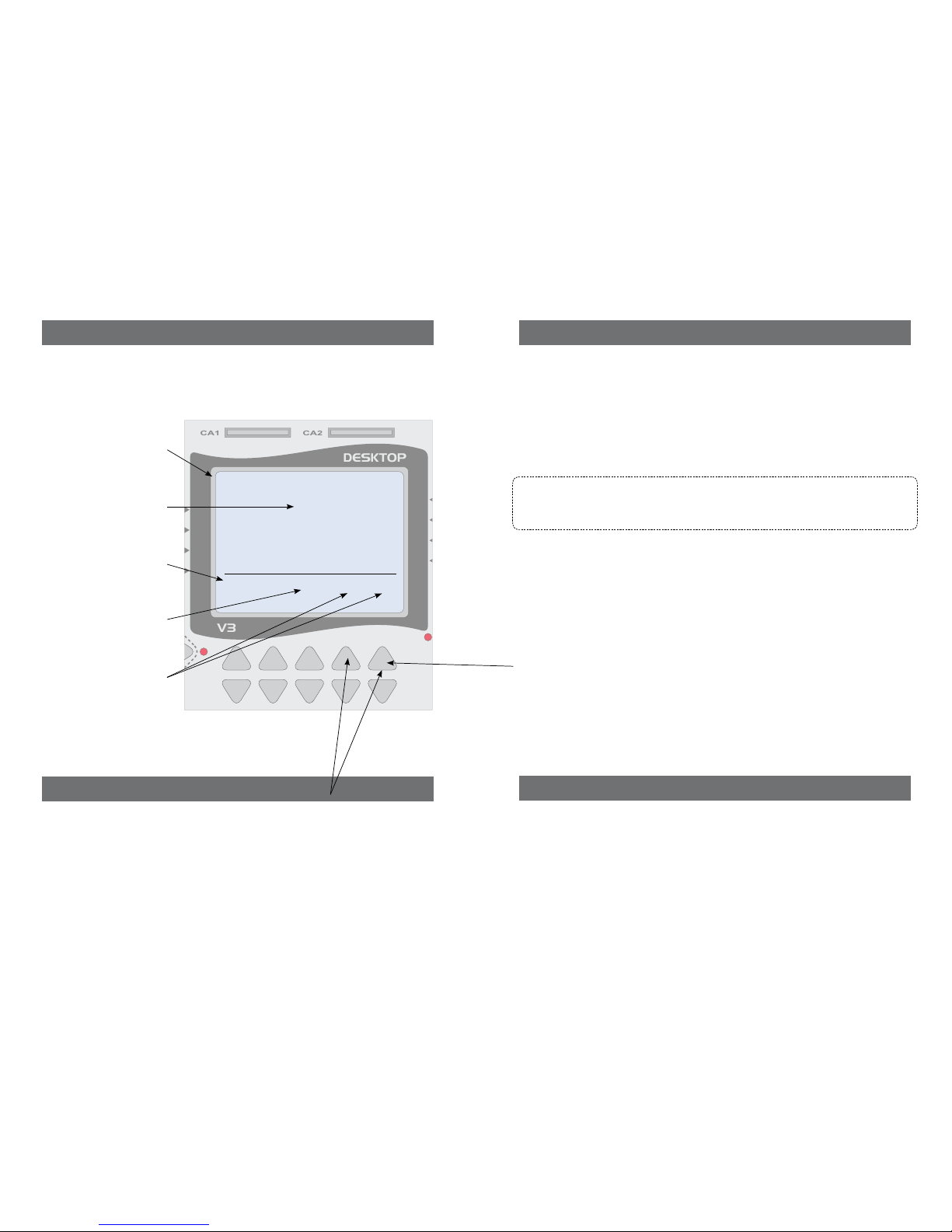
The V3 DESKTOP‘s main screen shows the settings for:
REGISTRATION
SOUNDS
STYLE
TEMPO
VOLUMES
ADJUST VOLUMES & TEMPO
Use the up/down arrow keys directly under the display to adjust
the volume and the tempo.
TMP tempo of the MIDI les or styles
TRACK volume of the active player: MP3, MIDI file or style
LIVE volume of all live sounds
321
PAGE+
REGIST
COMBI
2ND
TRANS
E
PAGE
-
SOUND
LIMEX
THRU OUT-A OUT-B AUX L AUX R MAIN L MAIN R PHONESMIDI-IN
CA1
CA2
VALUE
MAIN
VOLUME
I
II
III
IV
DESKTOP
V3
01 Ballad8 70 075 075
TMP TRACK LIV E
REG 00/001 Ballad8
001 GrandPia
 Loading...