

Page 1

1 / 8
User Manual
Model: DZ09,DZ10,K01,K02,K07,SW1,U8,S1,S2,S3
Please read the manual before use
Page 2
2 / 8
1. Notice
The watch should be charging 2 hours at least before use.
The original code is 1122, This code can prevent your watch in use by
others without your permission. Please change the original code to insure
your permission information safe.
If we have updates, this manual will be subject to change without notice.
Our company reserves the right of final interpretation.
2. Operation
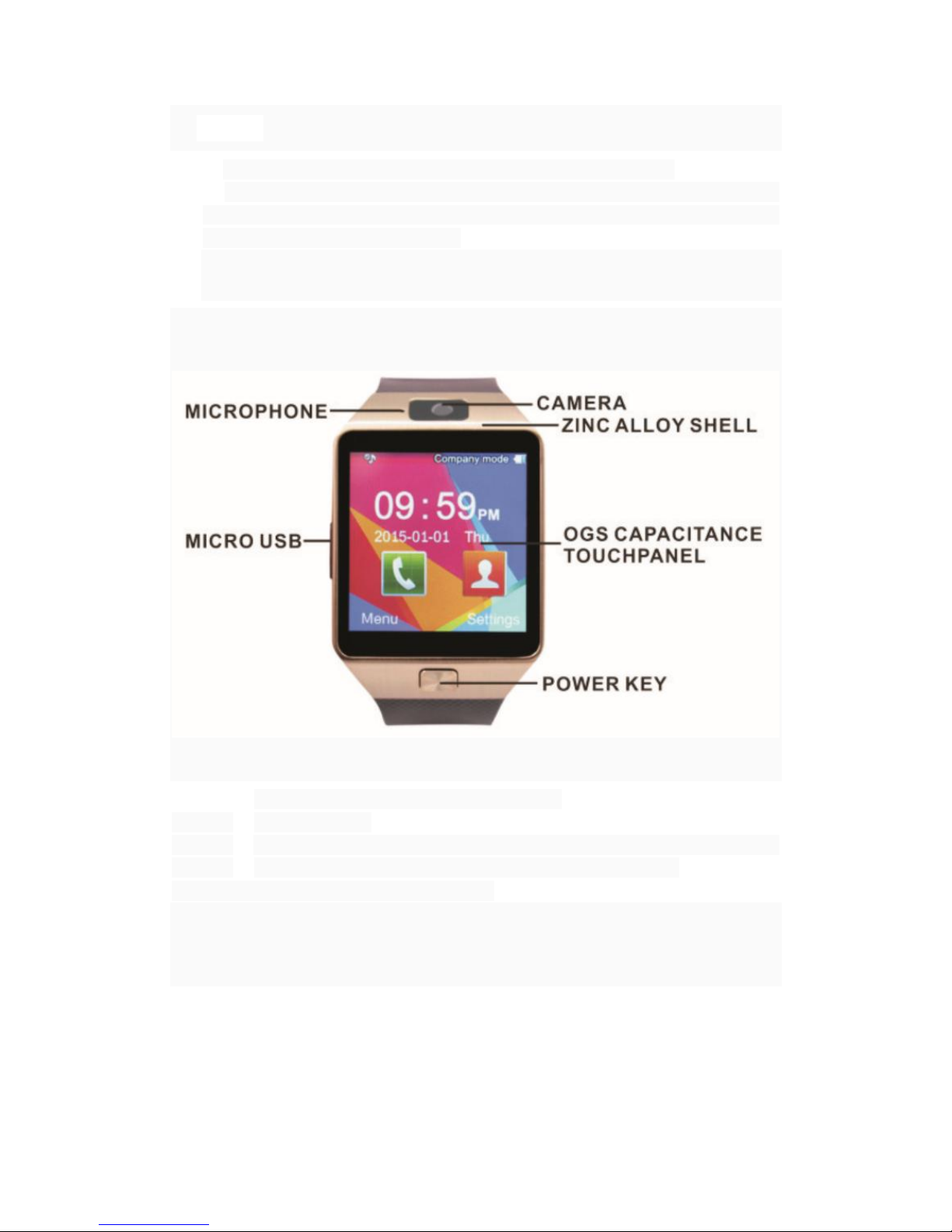
2.1 Buttons
Long by the home button: turn on or off.
Short by: back.
By clicking and paddling screen to enter the main menu and settings
Press the home button to restart, If the screen freezed.
2.2 The main menu display and operation
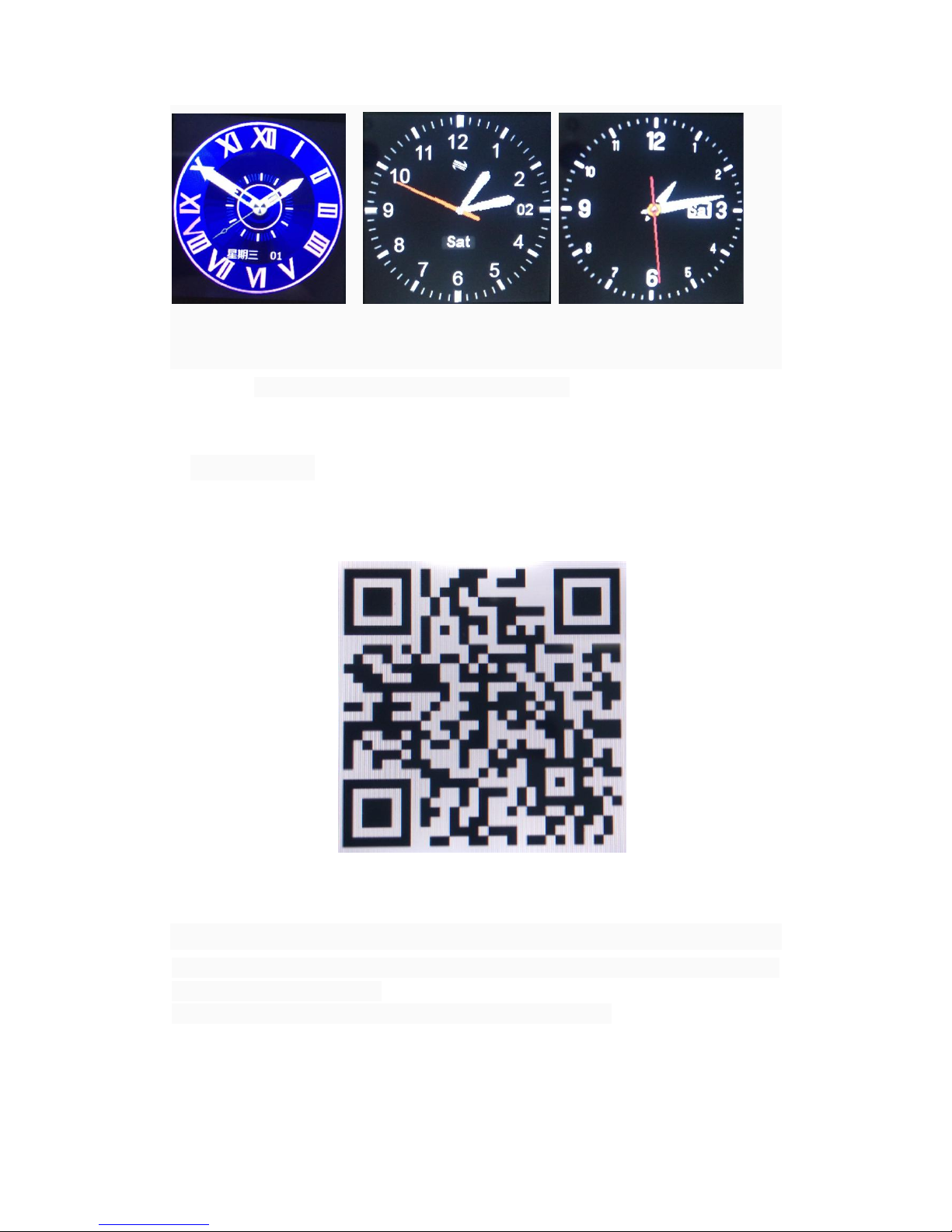
Power on,when the phone in clock mode,please click Middle
screen and set different clock interfaces in your like
Clock Display:
Page 3
3 / 8
The main menu to enter the main menu option to set flip effect,
move the menu position
Paddling screen to enter the next menus
Touch screen: each function( main menu)will be shown and
displayed on Capacitive touch screen.
3. Bluetooth
3.1 Download and install “BTNotification “APK on smartphones to sync
successfully.(Android phones can scan Two-dimensional code on the menu, to
install directly,)
3.2 Click on the install package, install the APP, then icon appears after
the completion of the phone desktop;
3.3 Ensure the Bluetooth connection of the smart phone and watch.
3.4 Click on the APK icon into the Bluetooth notification Settings interface;
3.5 Click on the "auxiliary function Settings" to active "notice" Bluetooth
(Bluetooth notice: enabled)
3.6 Choose the application that needs to be noticed.
After the above operation is completed, we will be able to support the
following:
Bluetooth dial, sync contacts, call records, Bluetooth MP3, Bluetooth
Page 4

4 / 8
remote control camera.
Notice: SMS, WeChat、 Facebook、WhatsApp, etc.
Compatible with all Android smartphones on the market
4. Bluetooth settings
First turn on Bluetooth and make your device can be searched
The default name: DZ09 (can be modified)
Turn on your smartphone Bluetooth to Search this Smart watch
Click to connect, then they will match, when you see the phone notice about
matching, choose “yes” please.
5. Messaging
5.1 messaging:Receive, store and manage all the messages state,
when there is an unread text message, the icon appears in the notification
bar. Can reply, delete, forward, copy, move, and so on. after when
Bluetooth devices is linked,it will have information synchronization
5.2 service message:PUSH message,SIM card data network support
required.
6. Call logs
Allow you to keep records of your contacts, search and change to stored
entry, Assign speed dial and settings of groups, check memory status, and
allow you to delete an entry.
7. Settings
7.1 Profiles
7.2 Phone settings: you can set time and date, time switch, language,
input, the standby screen, the main menu display, handwritten and brightness,
etc.
7.3 Security Settings: You can set SIM card PIN code, phone lock and
change the password of the machine.
7.4 Calls settings:Setting talk mode, circuit switching, and other
settings.
7.5 Restore settings:This function is used to restore certain phone
settings to factory defaults. Pass words: 1122
8. Multimedia
8.1 Camera: You can take pictures, adjusting the focus, go to
"Options" menu, camera, camera sound, storage location, etc., to set
the white balance and other operations.
8.2 Audio player:the player can be set to play or pause playback;
adjust the volume; press down and up icon to switch song; drag the
Page 5

5 / 8
playback progress bar to fast forward and rewind; when enter the
"Options" menu, you can play the current ringing tones and add it to
the library, and update playlists or input setting.
8.3 Sound Recorder : The mobile phone supports WAV, AMR
recording formats. You can record conversations, which may be saved to the
Audio folder. If there is a record, press left soft you can do: Play, Append (only
for amr), Rename, Delete, Delete All files, Use As and Send.
8.4 Image Viewer:The Image viewer provides you with a quick view
of the picture functions. Please refer to the Photos operations of the
Camera for more details.
9. Others
Pedometer: It can be adopted as a tool to avoid insufficient or
excessive by measuring calories consumption based on collected date, such
as number of steps\distance\speed\time, etc. to control exercise.
Sleep monitor: Show your sleep quality base on your sleep time.
Sedentary remind: You can set a time to remind you up to do some
exercise, we suggest you this time could be one hour.
Quick response: It can download sync software when scan the
quick response.
Smart search: Search information about watch.
Calendar:With the Calendar feature, you can consult the calendar
by day, week, or month, create events, and set an alarm to act as a reminder, if
necessary.
Alarm:The mobile phone provides 5 alarms and you can set them as
your need. If you have configured an alarm, an icon indicated that you have
configured the alarm will appear. No icon will show if you don’t set an alarm.
Select “Edit” to set the current alarm.
File Manager:You can use the function to manage all types of files
saved in the Phone or Memory card.
Calculator:The calculator can add, subtract, multiply and divide, to
use the calculator.
10. Care & Maintenance
Use only manufacturer-approved accessories. Use general accessories may shorten
the life of your device or cause device to malfunction.
Keep your device dry. Humidity and all types of liquids may damage device parts or
electronic circuits.
Do not use or store the device in dusty, dirty areas.
Do not store the device in hot or cold areas.
Page 6

6 / 8
Do not store your device near magnetic fields.
Do not store your device with such metal objects as coins, keys and necklace.
Do not drop your device or cause impacts to your device.
Page 7

7 / 8
FCC Warning
This device complies with part 15 of the FCC Rules. Operation is subject to the
condition that this device does not cause harmful interference.
Any Changes or modifications not expressly approved by the party responsible for
compliance could void the user's authority to operate the equipment.
Note: This equipment has been tested and found to comply with the limits for a Class
B digital device, pursuant to part 15 of the FCC Rules. These limits are designed to
provide reasonable protection against harmful interference in a residential installation.
This equipment generates uses and can radiate radio frequency energy and, if not
installed and used in accordance with the instructions, may cause harmful interference
to radio communications. However, there is no guarantee that interference will not
occur in a particular installation. If this equipment does cause harmful interference to
radio or television reception, which can be determined by turning the equipment off
and on, the user is encouraged to try to correct the interference by one or more of the
following measures:
-Reorient or relocate the receiving antenna.
-Increase the separation between the equipment and receiver.
-Connect the equipment into an outlet on a circuit different from that to which the
receiver is connected.
-Consult the dealer or an experienced radio/TV technician for help.
Specific Absorption Rate (SAR) information:
This Smart watch meets the government's requirements for exposure to radio waves.
The guidelines are based on standards that were developed by independent scientific
organizations through periodic and thorough evaluation of scientific studies. The
standards include a substantial safety margin designed to assure the safety of all
persons regardless of age or health.
Page 8

8 / 8
FCC RF Exposure Information and Statement
The SAR limit of USA (FCC) is 1.6W/kg and 4W/kg and averaged over one gram of
tissue. Device types: Smart watch (FCC ID: 2ALAS-M0227) has also been tested
against this SAR limit. The highest SAR value reported under this standard during
product certification for use at the Front to mouth:0.398 W/kg and when properly worn
on the Wrist:0.645 W/kg. This device was tested for typical body-worn operations with
the back of the handset kept 10mm and 0mm from the body. To maintain compliance
with FCC RF exposure requirements, use accessories that maintain a 10mm and 0mm
separation distance between the user's body and the back of the handset. The use of
belt clips, holsters and similar accessories should not contain metallic components in
its assembly. The use of accessories that do not satisfy these requirements may not
comply with FCC RF exposure requirements, and should be avoided.
Body-worn Operation
This device was tested for typical body-worn operations. To comply with RF exposure
requirements, a minimum separation distance of 10mm and 0mm must be maintained
between the user’s body and the handset, including the antenna. Third-party belt-clips,
holsters, and similar accessories used by this device should not contain any metallic
components. Body-worn accessories that do not meet these requirements may not
comply with RF exposure requirements and should be avoided. Use only the supplied
or an approved antenna.
 Loading...