

Page 1
Page 1 of 1 1
2 T o 1 Auto Printer
USB 2.0 SHARING SWITCH
User Manual
Model #SW-102A -A
Page 2
Page 2 of 1 1
PRODUCTS OVERVIEW
INTRODUCTION
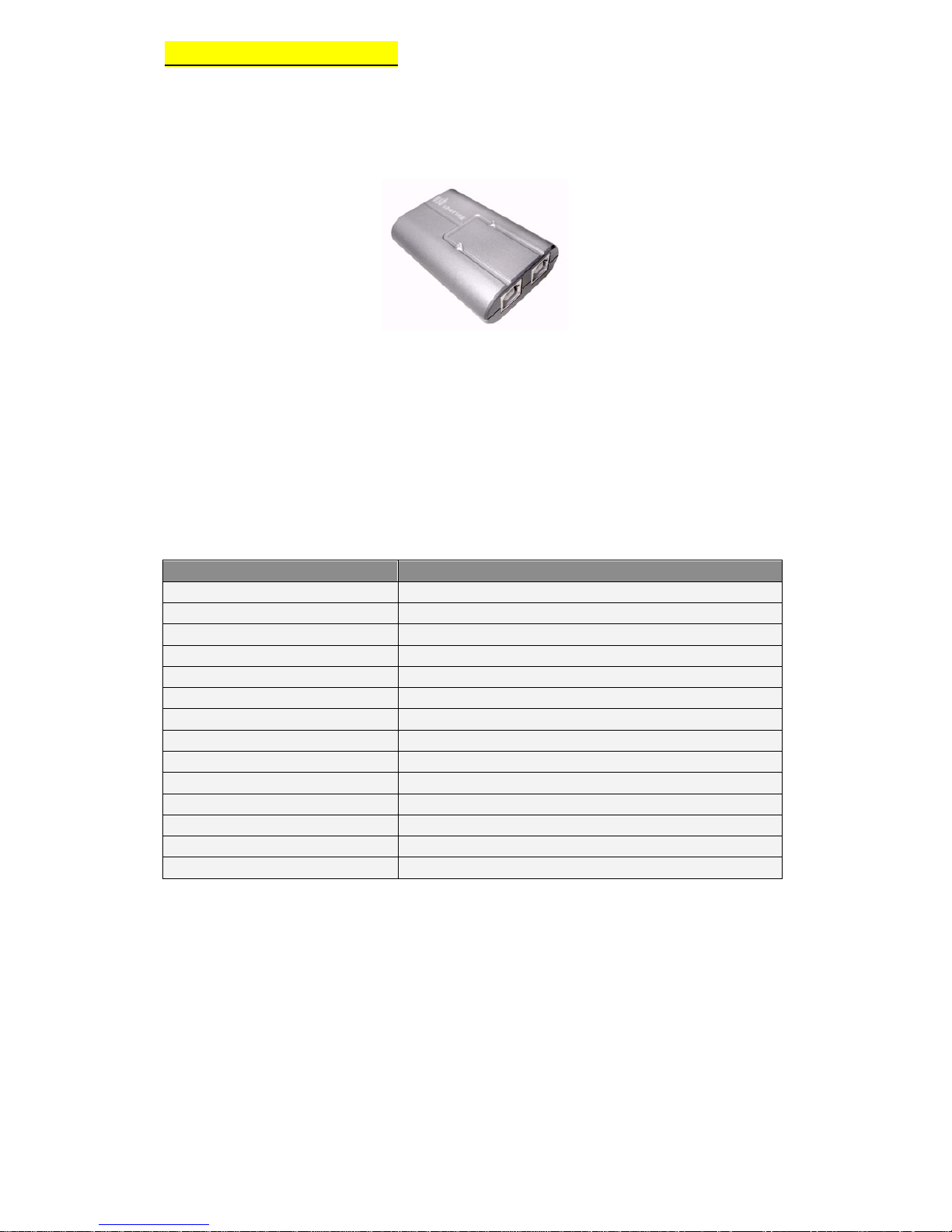
USB Share Switch allows multiple PCs to share one USB devices. It provides you a
great solution to share USB devices between two PCs to save the limited budgets on
USB devices and the effort on doing hot-plug process. Easy Software Switching Via a
Small Tool Bar Icon
FEATURES
Compatible USB 1.1/2.0 Specifications
Supports both UHCI and OHCI USB interface
USB B-Type corresponds to computer and USB A-Type connects to USB device.
No extra power required.
The Application Software makes switch between multiple computer easier
The Icon displays on the task bar as device status monitors
SPECIFICATION
Function
Specification
Model No.
SW-102A-A
PC Port
USB B-Type x 2
USB Device Port
U S B A -Type x 1
Port Selection
Auto Printer Detection
LED
2 LED to show used PC
Operating System
Windows 2000 / XP / Vista and Mac OS X 10.3 up
Compatible USB Device
USB 1.1 / 2.0
USB Power
Bus Power
Power Adapter
No
Module Weight
36g
Module Dimension (L x W x H)
L70 x H19 x W43 mm
Operation Temperature
0~40℃
Storage Temperature
0~60℃
Power Consumption
5V / 100mA(Maximum)
Page 3
Page 3 of 1 1
Hardware Installation
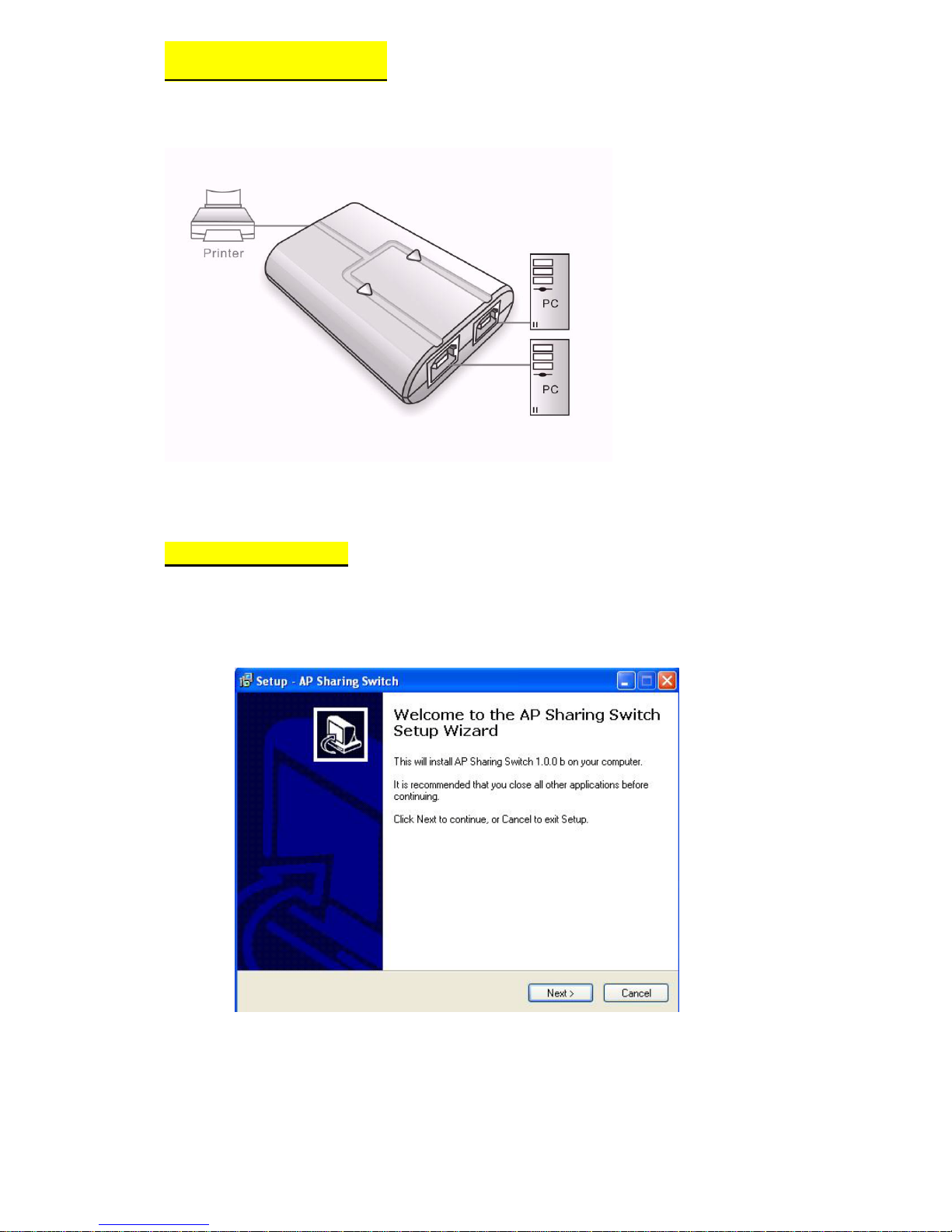
Connect USB device(s) to the USB device port of Intelligent AP Sharing Switch.
Software Installation
1. Please insert the CD into your computer’s CD-ROM or DVD drive.
2. The Installation Wizard window of the docking station will pop up. Click “Next” to
proceed.
Page 4
Page 4 of 1 1
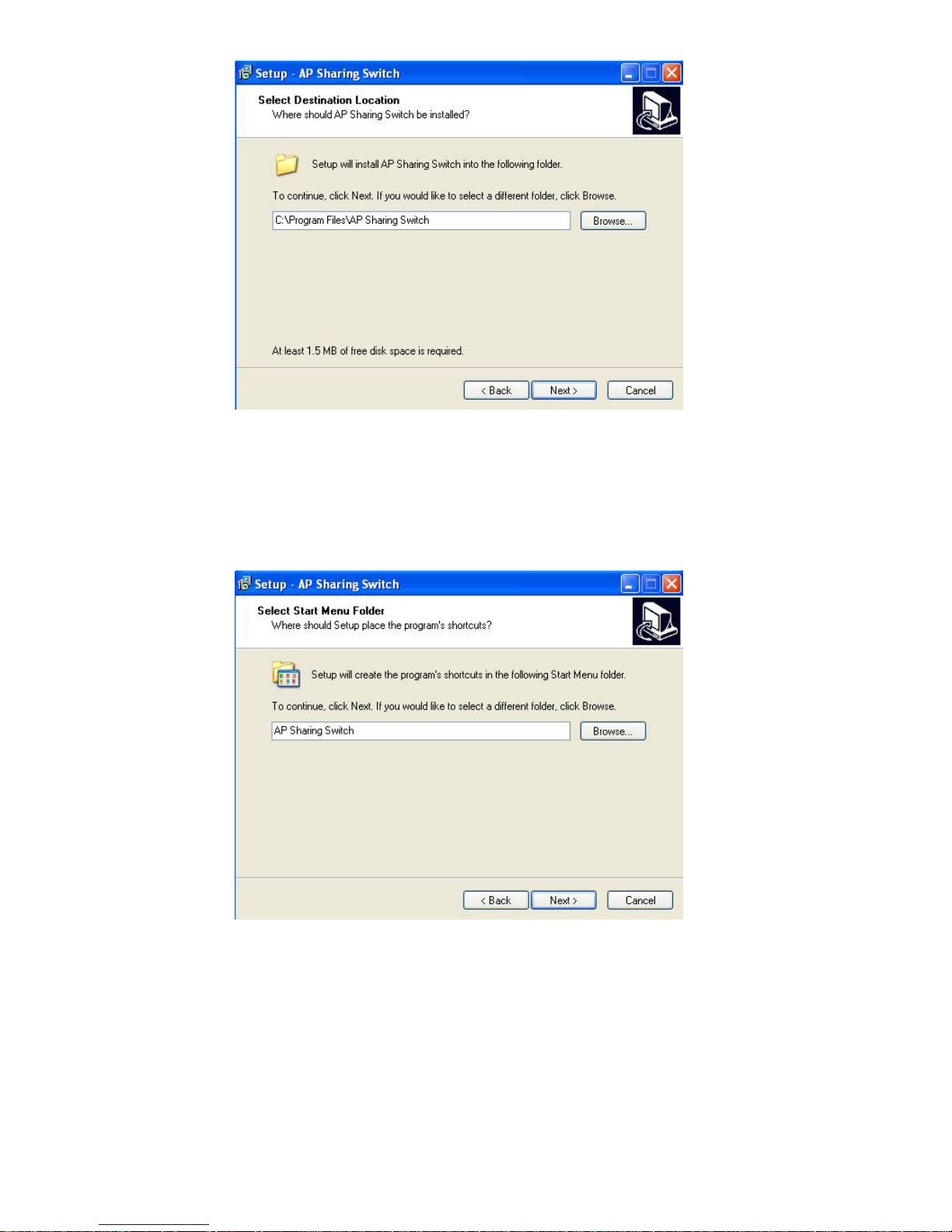
3. Click “Next” to proceed.
4. Click “Next” to proceed.
Page 5
Page 5 of 1 1
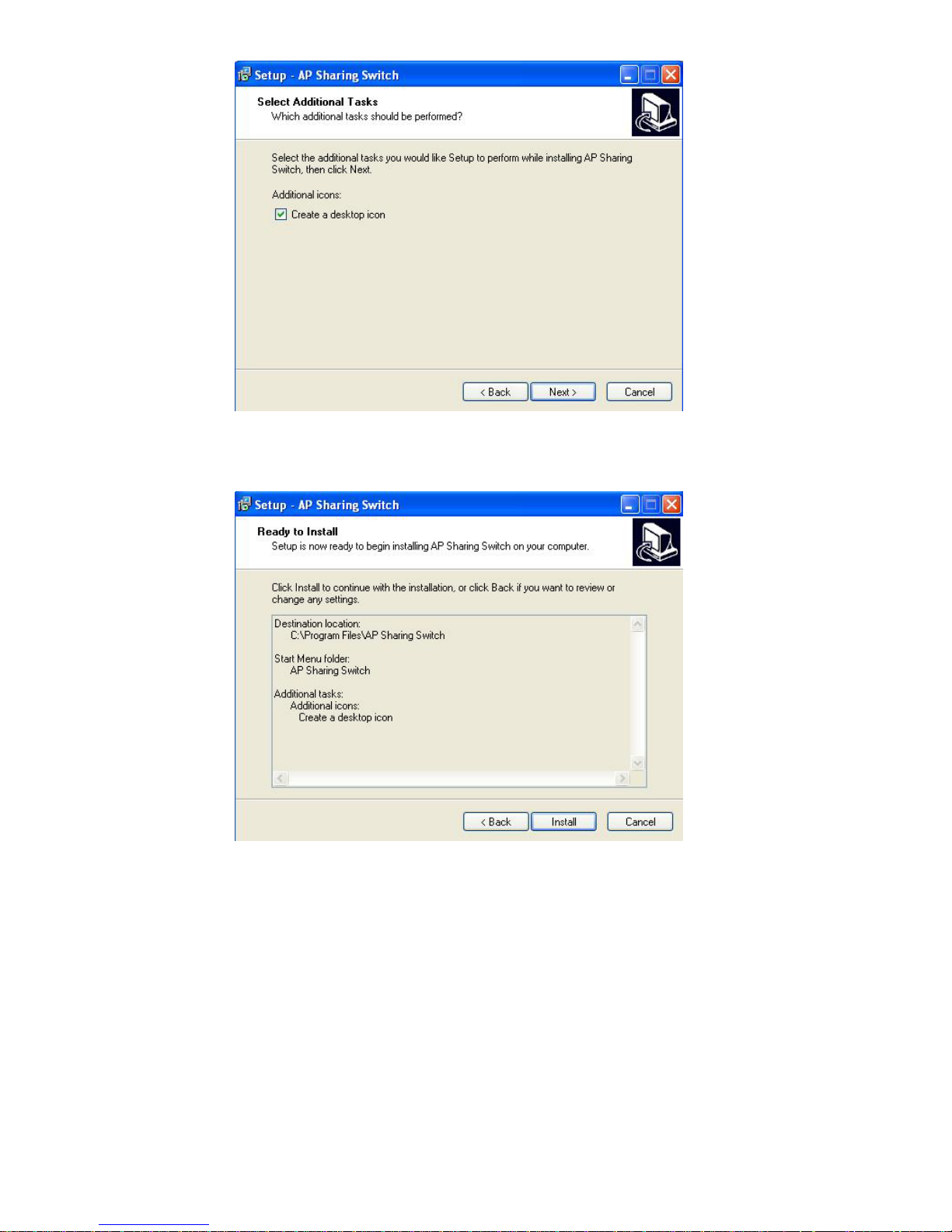
5. Click “Next” to proceed.
6. Click “Install” to proceed.
Page 6
Page 6 of 1 1
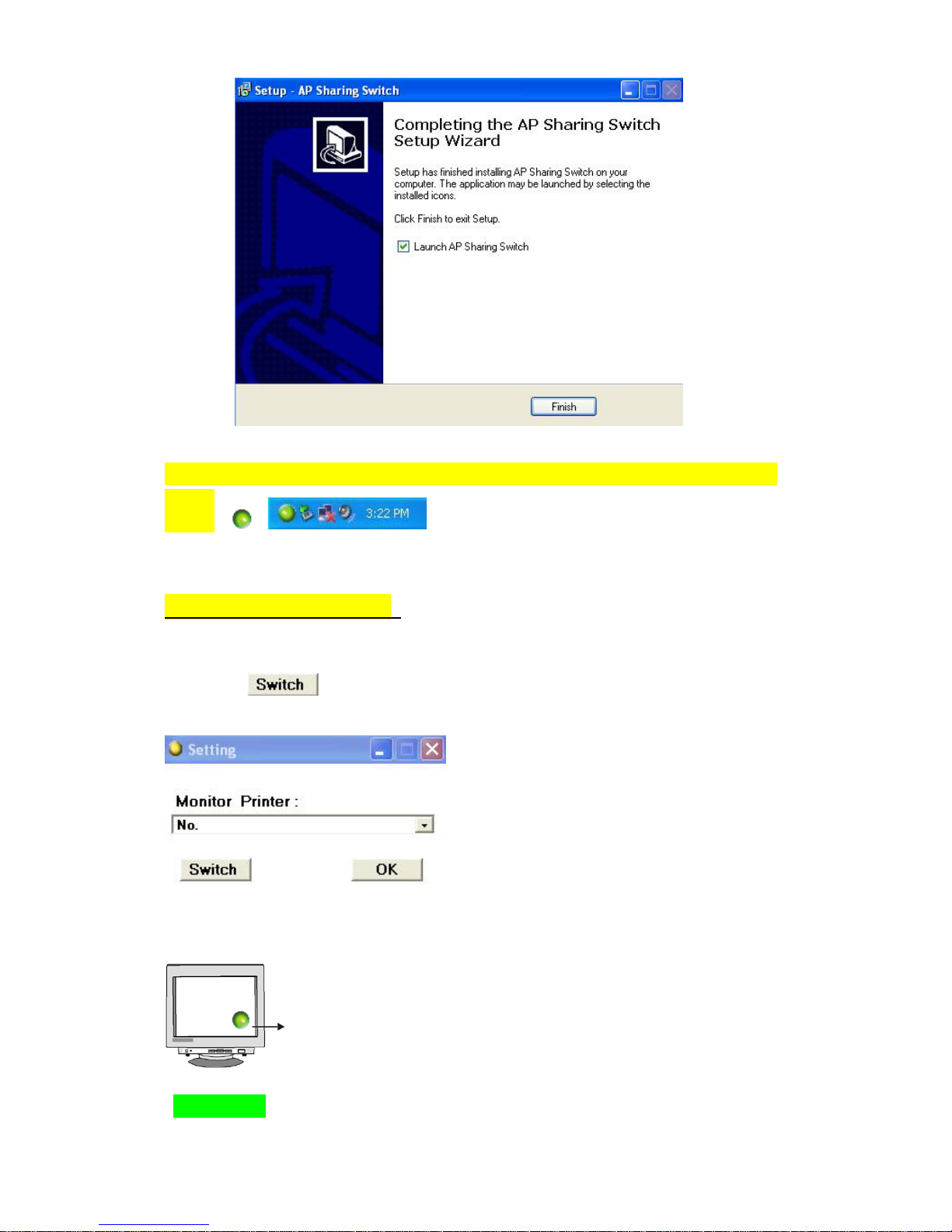
7. Click “Finish”.
NOTE: When you Installation Finish, Setup will create icon on your desktop of task bar
shows --
Accessing the USB Device
1. This USB 2.0 Automatic switch, it is First come first serve.
2. click “ “is make enforce switch and stop current printer job.
Please note:
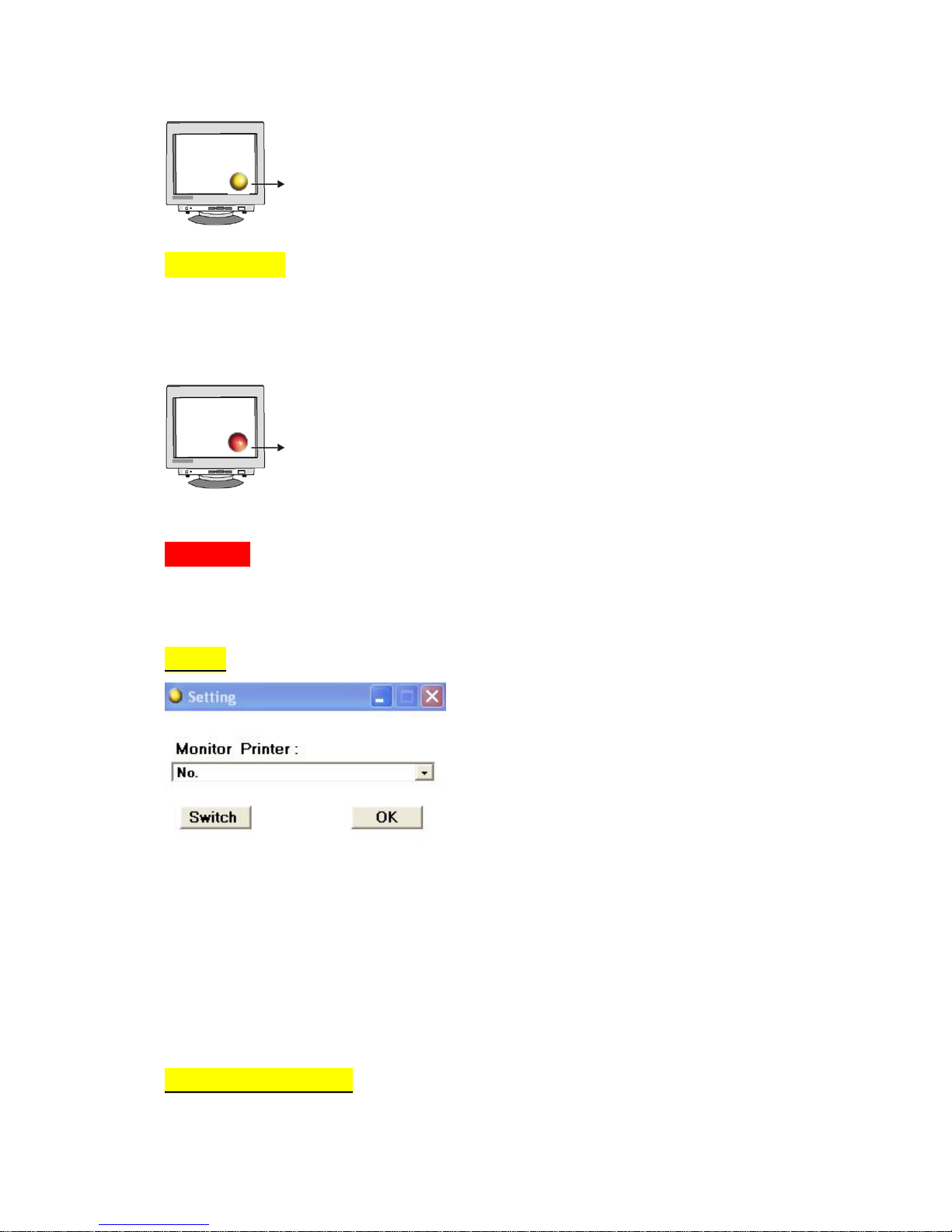
Green light : Computer shows “green” icon, is connected to device, ready to us
Page 7
Page 7 of 1 1
device or computer on printing mode
Yellow light: Computer shows “Yellow” icon , is other computer active
To ready use device .
Red light : Computer shows” Red” icon , Is other computer on printing mode .
Setting
Monitor Printer: 1. Select the desired printer to be connected.
2. Mouse cursor click “OK”
.
Switch: 1. Mouse cursor click “Switch”, for controlling to switch between PC’s
3. No switching allow, when “red” icon is showing.
Operation—Example
Page 8
Page 8 of 1 1
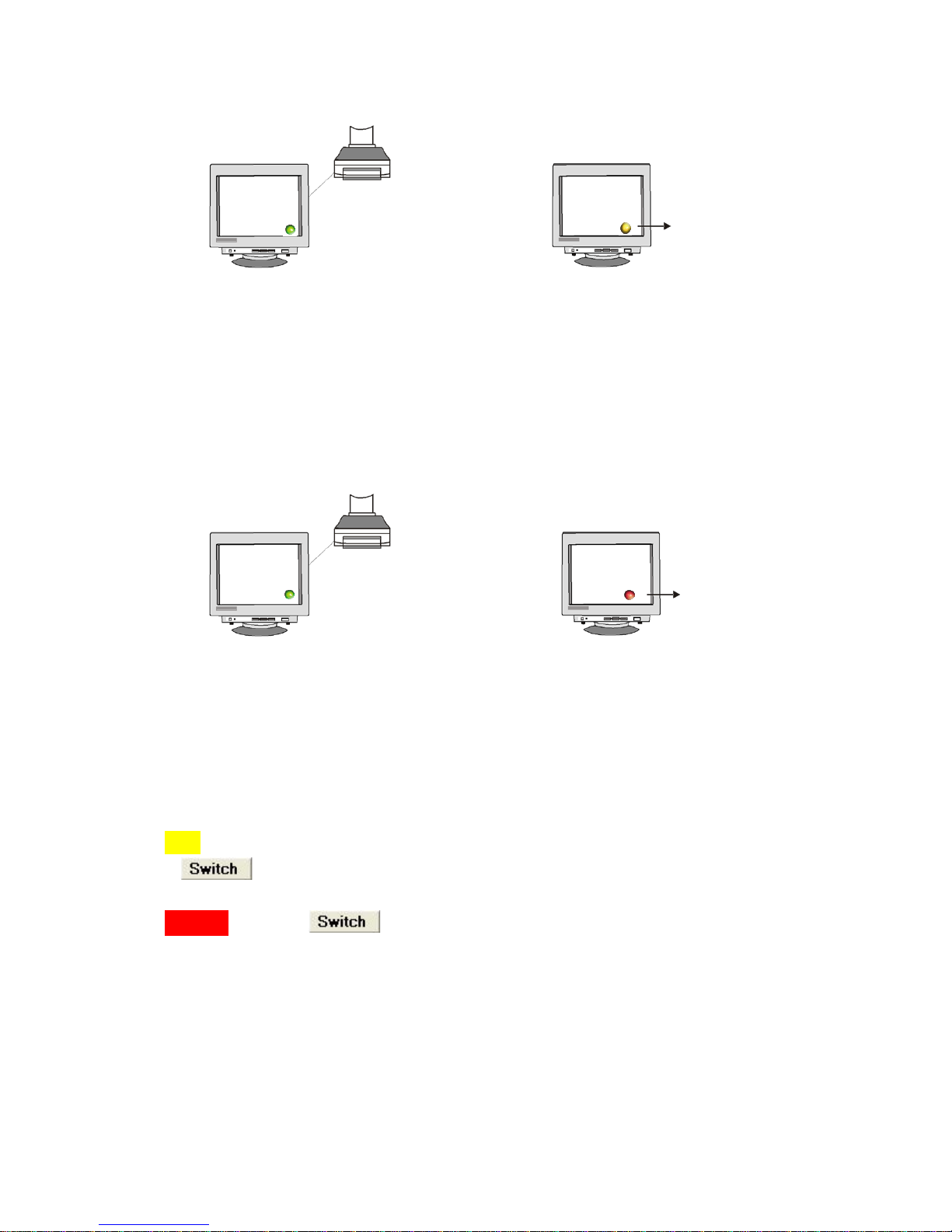
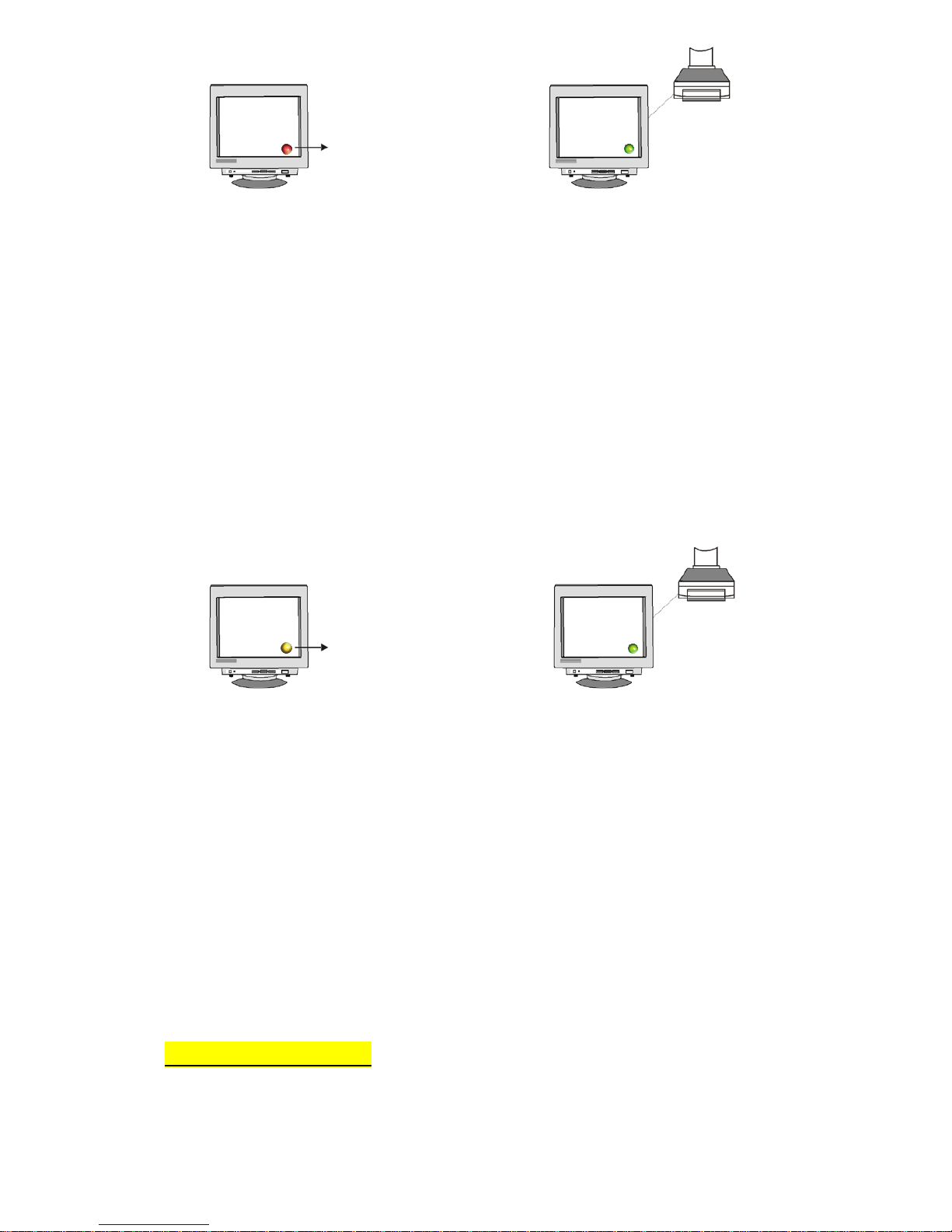
1. Computer A Computer B
Green Yellow
Computer A, shows “green” icon, Computer B, shows “yellow” icon.
is connected to device, ready to us device.
2. Computer A Computer B
Green Red
While Computer A is on printing mode, will show “green” icon. , Computer B
shows “red” icon.
When Computer B is ready to be on printing mode, press “print”, “AP Sharing
Switch” will follow to print accordingly.
Note: If want to make printer job for priority, please mouse cursor to click
“ “, when “red” icon is showing.
W a r n i n g : If click “ “is make enforce switch and stop current printer
job.
3. Computer A Computer B
Page 9
Page 9 of 1 1
Red Green
While Computer B is on printing mode, will show “green” icon, Computer A
shows “red” icon.
When Computer A is ready to be on printing mode, press “print”, “A P Sharing
Switch” will follow to print accordingly
4. Computer A Computer B
Yellow Green
Computer A, shows “yellow” icon. Computer B, shows “green” icon,
is connected to device, ready to use
device.
Software Uninstallation
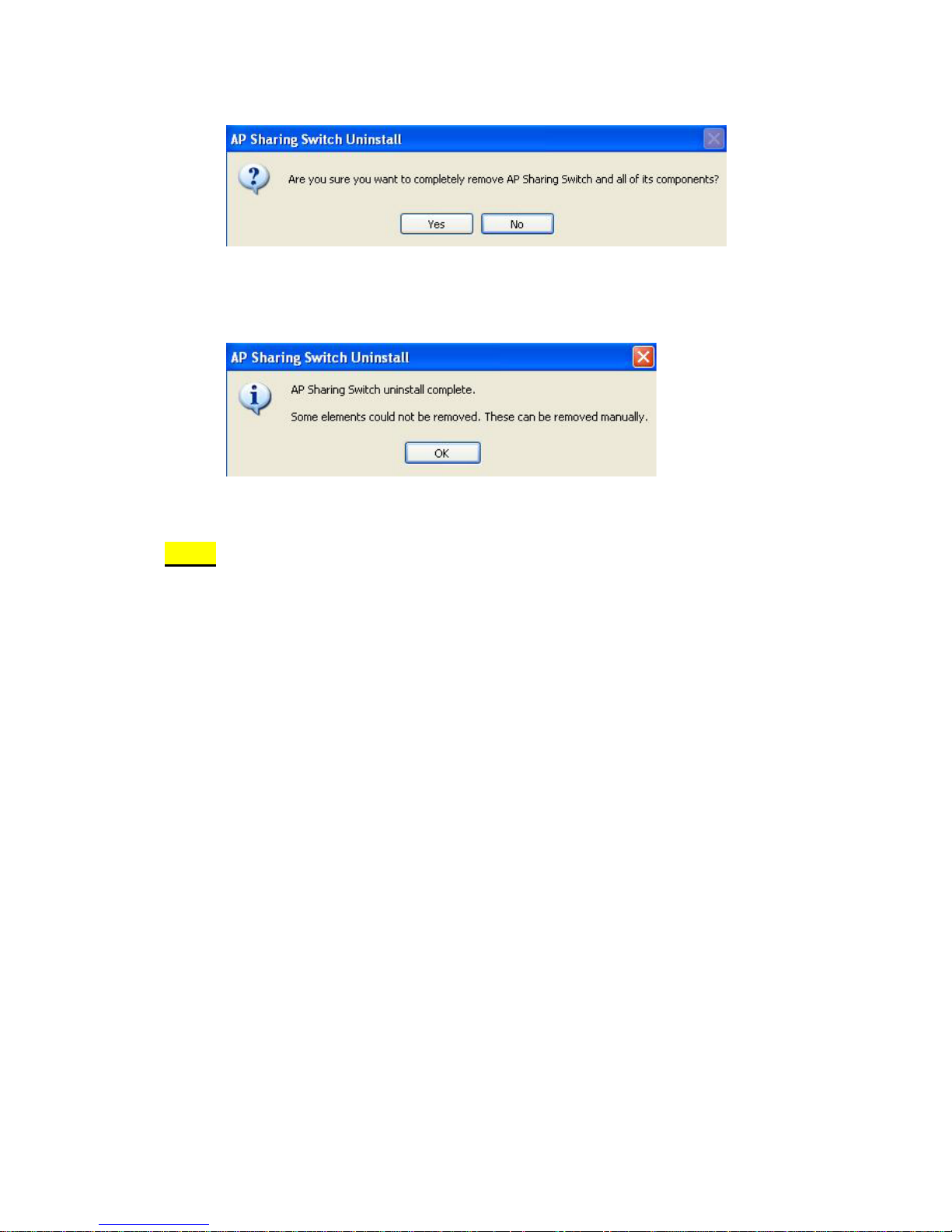
1. Click “start”→ ”All Programs”→“AP Sharing Switch” →“Uninstallation AP
Sharing Switch”.
Page 10
Page 10 of 1 1
2. The Installation Wizard window of the docking station will pop up. Click “Yes” to
proceed.
3. Click “OK”
FAQs
Q: Does the Switch support USB 1.1 devices?
A:Yes, The USB sharing switch work and comply USB 1.0/1,1/2.0.
Q: Does the Switch support automatic printer sharing?
A : No, The Switch will not support automatic printer sharing.
As for the automatic printer sharing use the ACTION STAR
Part # SW-102A-A for First COME FIRST SERVE.
Q: Does the Switch need power supply?
A : No, The Switch is design for Non power switch , It’s share with
computer
Power when you connect to computer.
Q: What operating systems will the switch work with?
A: The switch will support Windows 2000, XP, VISTA , and Mac. OS 10.3
Up.
Q: What is the maximum distance from the switch that a computer can be
Connected?
A: USB standard maximum as 15 feet .
Page 11

Page 1 1 of 1 1
TROUBLESHOOTING
1. The switch does not detect to my computer.
• Check that the cable between the switch and the computer is
completely connected.
• Try connecting the computer to a different port.
2. USB device is not detected by the switch software.
• Make sure the drivers are installed and that the USB device
supports the operating system.
• Make sure the connected computer and USB device is not further
than 15feet away.
3. If USB device is not working properly.
• Please removed the AP software and driver from “Add or remove
programs” it under control panel and unplug USB sharing switch
An d device ,than reconnect and install driver again.
4. If USB device can’t switch to another computer.
• Please unplug from USB sharing switch to host computer of USB
port than plug again.
 Loading...