

Page 1
M series
MotorCity
Vintage Cinema
TDM and Native Plug-Ins Version 1.0
EQ Bundle
Seven Band
Seven Band
User’s Guide
EQ
EQ
www.ursplugins.com
Page 2

Copyright
Copyright 2007 Unique Recording Software, Inc.
All trademarks are property o
URS is a trademark of Unique Recording Software, Inc.
Unique Recording Software
21218
Boca Raton, FL 33433
United States
Web site: www.ursplugins.com
Credits
Product Development Team: Robert Nathan
G
UI and Programming: Cool Stuff Labs, Inc.
Graphics:
Documentation: Bobby Nathan
Catalog Number
URS
URS
St. Andrews Blvd.
Bobby Nathan
MEQ
TDM
MEQ
NAT
f their respective owners.
Inc.
Page 3

Table of Contents
Chapter 1: Introduction 5
Chapter 2: Installation, Registration and Authorization 6
Installing 6
Registering 6
Authorizing 7
Chapter 3: URS M series MotorCity and Vintage Cinema EQ 8
About the URS M series MotorCity and Vintage Cinema EQ 8
Adjusting Gain 8
Bypassing 9
Inverting Phase 9
Adjusting Input Level 10
Adjusting Output Level 10
The In Button 10
Chapter 5: Operational Tips 11
ProControl, Control|24, and Other Control Surfaces 11
Operational Tips 1
URS
M series MotorCity and Vintage Cinema EQ 3
Page 4

4
URS
M series MotorCity
and Vintage Cinema EQ
Page 5
Chapter 1: Introduction
Welcome to the M series MotorCity and Vintage Cinema Seven Band Equalizers from Unique Recording
Software, Inc (URS). These plug-ins provide classic EQ processing for Pro Tools HD and LE systems,
Native Audio Units and VST systems filling a void in available EQ mix plug-ins with their unique warmth,
musicality and character.
T
he URS
The URS M series MotorCity and Vintage Cinema EQ plug-ins for TDM and Native bring the fidelity and
sonic character of the highly sought-after hardware EQ unit into the high sample rate world of Pro Tools
and digital recording.
The URS M series MotorCity and Vintage Cinema EQ plug-ins are easy to use thanks to the engineers at
Unique Recording Software (URS) who developed a unique (!) software interface making the plug-in
simple to learn and operate.
Most importantly, the URS M series MotorCity and Vintage Cinema EQ plug-ins sounds great and
provides faithful sonic emulations of the most unique and uniquely musical equalizers ever developed.
M series MotorCity
EQ
URS M series MotorCity Program EQ
The TDM and Native versions
The URS M series MotorCity and Vintage Cinema EQ plug-ins supports Pro Tools HD, LE and Native AU
and VST systems.
The TDM bundle includes TDM, RTAS, and Audio Units and VST versions. All versions support
up to 192 kHz sample rates.
The Native bundle includes RTAS and Audio Units and VST versions. The Native RTAS and
Audio Units and VST versions support up to 192 kHz samples.
The URS M series MotorCity and Vintage Cinema EQ supports Stereo, Mono and Multi-mono formats.
System Requirements
Version 1.0 of the URS M series MotorCity and Vintage Cinema EQ plug-in supports Macintosh
OSX and WinXp. (Check the URS Web site for the most current support news.)
The URS M series MotorCity and Vintage Cinema EQ plug-in supports any Pro Tools TDM or
LE system capable of running Pro Tools software version 6.x.x or higher and Native systems with
Audio Units and VST support..
The URS M series MotorCity and Vintage Cinema EQ plug-in requires an iLok Smart key for
authorization. If you do not have an iLok, consult the Digidesign web site for information on
acquiring one for your Pro Tools software.
D
SP and TDM Systems
The table below provides the theoretical maximum number of mono instances of each URS M series
MotorCity EQ plug-in supported on TDM systems.
Pro Tools TDM System:
sample rates (kHz): 44.1
Plug-In
MotorCity EQ
Vintage Cinema
EQ
HD Accel
/ 48
9 5 2 5 2 1 2
88.2
/ 96
186.4
/ 192
44.1
/ 48
HD
88.2
/ 96
186.4
/ 192
MIX
44.1 /48
URS
M series MotorCity and Vintage Cinema EQ 5
Page 6

Chapter 2: Installation, Registration and Authorization
Installing the URS M series MotorCity and Vintage Cinema EQ plug-in involves the following three steps:
1. Installing the plug-in.
2. Registering with Unique Recording Software.
3. Authorizing your plug-in using the authorization code generated by your registration with URS.
Follow the instructions below to complete the installation, registration and authorization process.
Installing
To install the
1. Download the installer for your Pro Tools system, computer platform and operating system from the
Unique Recording Software web site (www.ursplugins.com). Or you can insert the URS M series
MotorCity and Vintage Cinema EQ Installer disc into your CD-ROM drive.
2. Double-click the installer for the URS plug-in or bundle you purchased. TDM users should install the
TDM plug in or bundle. LE users should install the Native plug in or bundle.
3. Follow the instructions onscreen to install the plug-ins. When you are finished, remove the URS disc
from your CD-ROM drive.
Registering is required in order to initiate the plug-in authorization process. Registering your plug-ins also
entitles you to periodic updates as they become available.
URS
M series MotorCity and Vintage Cinema EQ
plug-in
:
Registering
Register your purchase online at the URS web site. Registering is the best way to protect your investment
and to get the most out of your URS software purchase.
To register:
1. Browse to the URS web site at www.ursplugins.com
2. Complete the registration by supplying all required information including your email address. The
online invoice # or dealer license number is required depending on whether you purchased online or
through a dealer.
If you purchased your URS software from the URS Online Store, provide your invoice number
and date of purchase.
If you purchased URS software from a dealer, provide the dealer’s name, their license number (on
the URS Registration Card included with your package) and the date of purchase.
3. Upon registration, an email is sent by URS to the email address you provided. This email includes your
URS User ID and a temporary password.
4. Upon receipt of the notification email, return to www.ursplugins.com
UserID and temporary password.
5. Follow the instructions onscreen to create a permanent password for yourself. Upon completion of
entering your permanent password you will be taken to the URS Welcome page.
6. From the URS Welcome page follow the Download links to get to the download page. On the
downloads page you will find all currently available versions of URS plug-ins, Pace Interlok software
extensions (with an installer), user manuals and demos (when available).
If necessary, download the software appropriate for your computer platform, operating system and Pro
Tools hardware as well as any Pace extensions required.
and follow links to Register.
and log in using the provided
6
URS
M series MotorCity
and Vintage Cinema EQ
Page 7

Authorizing
After completing the registration process, use iLok.com to update your iLok Smart Key with URS assets
(URS transfers assets or authorizations to the iLok.com web site when you register your purchase with
URS).
Authorizing your software involves the following three steps:
The following section explains each of these steps.
Before you begin:
1. If you have not already done so, browse to www.ursplugins.com
onscreen to register as a URS customer (see Registering on page 6). URS generates authorization iLok
assets for your purchased software upon completion of the registration process.
2. Make sure your iLok Smart key is inserted into an active USB port on your computer.
To tran
sfer your assets to your own iLok:
1. Browse to www.iLok.com.
2. Log in, or if you’re new to iLok copy protection, sign up and create an account. (See your Pro Tools
plug-in guides for more information about iLok and www.iLok.com.)
3. Follow the onscreen instructions to transfer your URS M series MotorCity EQ assets to your iLok
Smart Key.
Register as a URS Customer to generate your iLok assets.
Transfer your iLok assets to update your iLok Smart Key from the iLok.com web site.
Authorize the installed URS plug-ins with your updated Smart Key.
and follow the links and instructions
To authorize your plug-ins:
1. Make sure you have installed the plug-ins, registered with URS and that your iLok assets have been
transferred your iLok assets as described in the previous steps.
2. Launch Pro Tools.
3. If prompted, insert your iLok Smart Key into an available USB port and follow any onscreen
instructions to complete the authorization.
Customer Support
Technical support is available online. Please email URS at:
Include your Online Store Invoice number or your URS License number and your telephone number.
Downloads of the latest versions of URS software, manuals and other resources are also available at the
URS web site (www.ursplugins.com).
URS
M series MotorCity and Vintage Cinema EQ 7
Page 8
Chapter 3: URS
Using the URS M series MotorCity and Vintage Cinema EQ in sessions involves inserting the plug-in on a
track then adjusting EQ parameters as needed.
The URS M series MotorCity and Vintage Cinema EQ plug-in supports all TDM sample rates up to 192
kHz and can be used on mono and stereo audio tracks, aux inputs and master faders.
The URS M series MotorCity and Vintage Cinema EQ plug-in supports all Native RTAS, AU and VST
formats supported by your host application
To insert a URS plug-in on a track:
1. Create an audio track, aux input or master fader.
2. Choose URS M series MotorCity EQ from the track Insert selector (see your Pro Tools guides for
more information if you are unfamiliar with inserting plug-ins).
3. To adjust the plug-in see the following sections.
Using the AudioSuite version involves selecting the material to process, adjusting the AudioSuite URS M
series MotorCity EQ then processing. See your Pro Tools documentation for AudioSuite instructions.
About the URS
The
URS M series MotorCity and Vintage Cinema EQ
Sound. The
solving. Input and output line level trims
The Numeric display windows show you
seven peaking bands
URS
M series MotorCity and Vintage Cinema
M series EQ
are fixed at unique frequencies
adjust the
the
Bundle
provides the engineer with the premium Mix
gain staging.
current settings for Gain and Input and Outpu
for track s
Program EQ
weetening or specific problem
s
t levels.
F
eatures
:
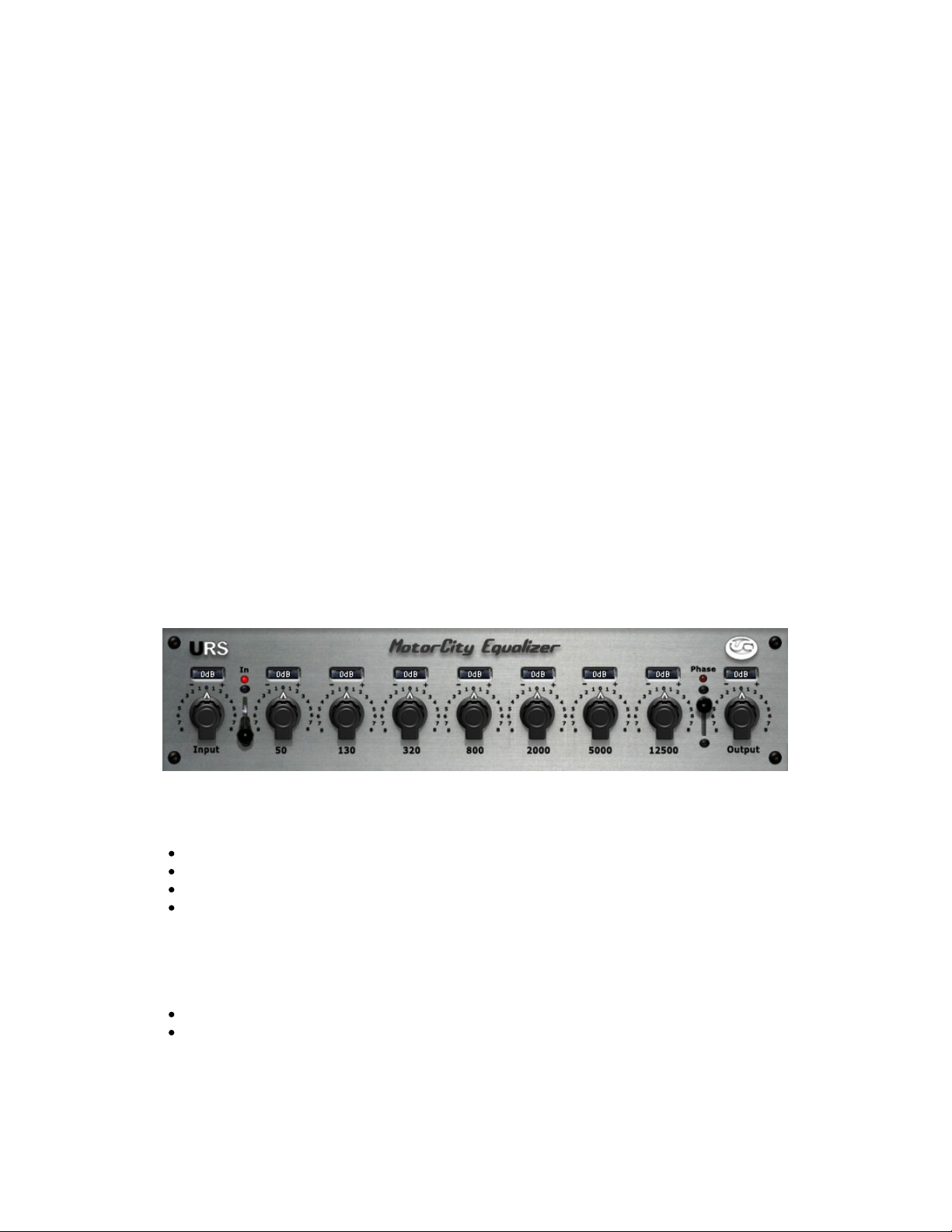
Input and output line level trims 7 bands of peak equalization with boost and attenuation
Numeric Entry/Display Windows for each band and Input/Output trim gains
Phase reverse switch
In/Out (Bypass) switch
Filter Frequency Centers:
MotorCity Peak band frequency centers: 50hz, 130hz, 320hz, 800hz, 2khz, 5khz and 12.5khz
Vintage Cinema Peak band frequency centers: 80hz, 200hz, 500hz, 1250hz, 2khz, 8khz and 16khz
8
URS M series MotorCity Program EQ
URS
M series MotorCity
and Vintage Cinema EQ
Page 9
Adjusting Gain
To adjust
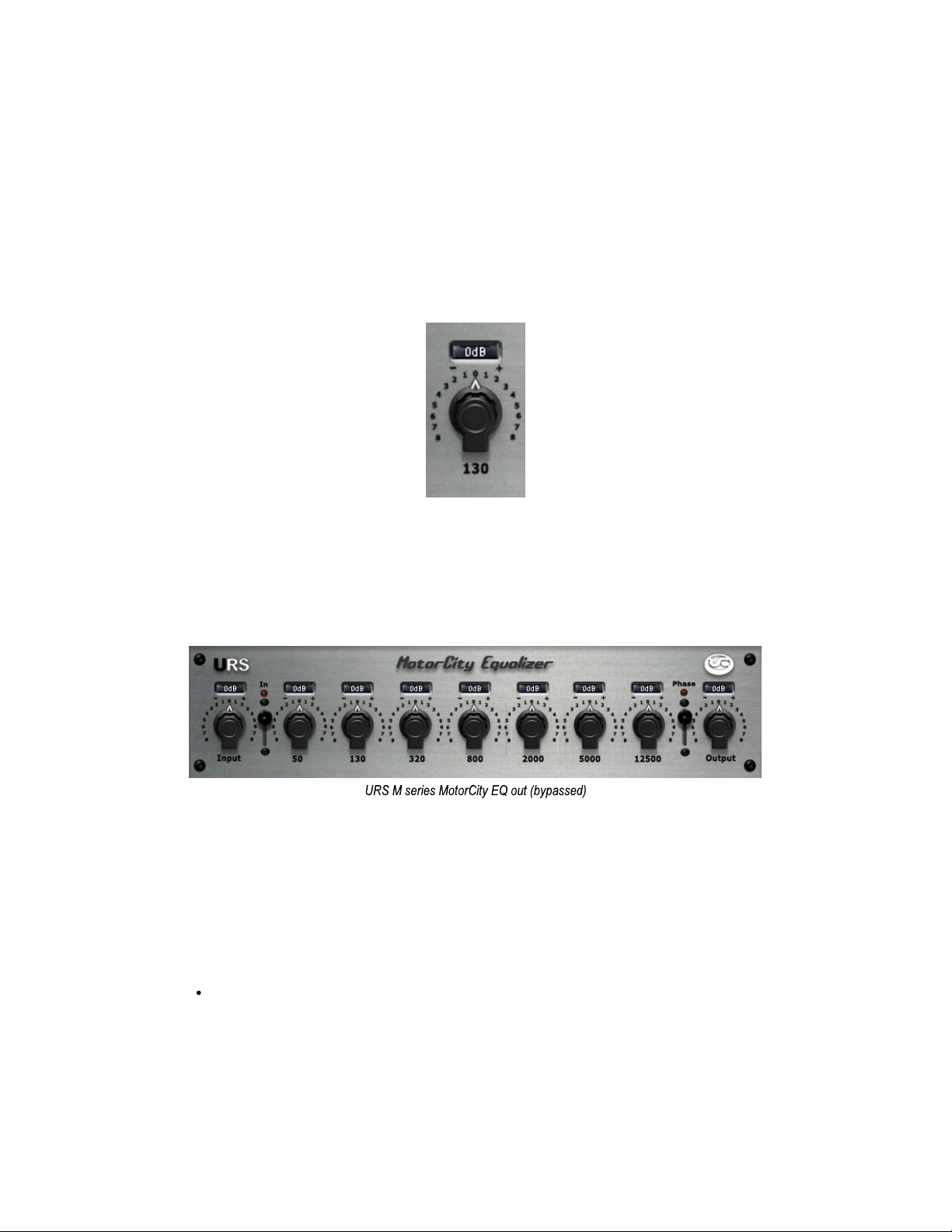
1. Click and drag on the desired band’s knob as needed to raise or lower frequency gain. Click on the Numeric
2. Click on the numeric values on the face plate to adjust gain in + or - 1 db increments. The original EQ unit
Bypassing
To bypass
1. Click its IN button to toggle bypass state. When toggle is down (processing) the IN button is lit. When
Gain
Window and use the QWERTY keyboards up and down arrow keys or enter the value from the keyboard.
allowed gain to be adjusted in 1db increments.
a plug-in:
is up (bypassed) the IN LED is dark and the plug-in Bypass switch lights.
for each Band
for
each
band:
Adjusting Gain
To bypass a single EQ
2. Click on the Frequency Silk below that band’s knob to toggle bypass state. Example – Click on the 50.
When bypassed the silk is grayed out.
Inverting Phase
To flip phase:
URS
M series MotorCity and Vintage Cinema EQ 9
Click to toggle the Phase (ø) switch.
Band
Page 10
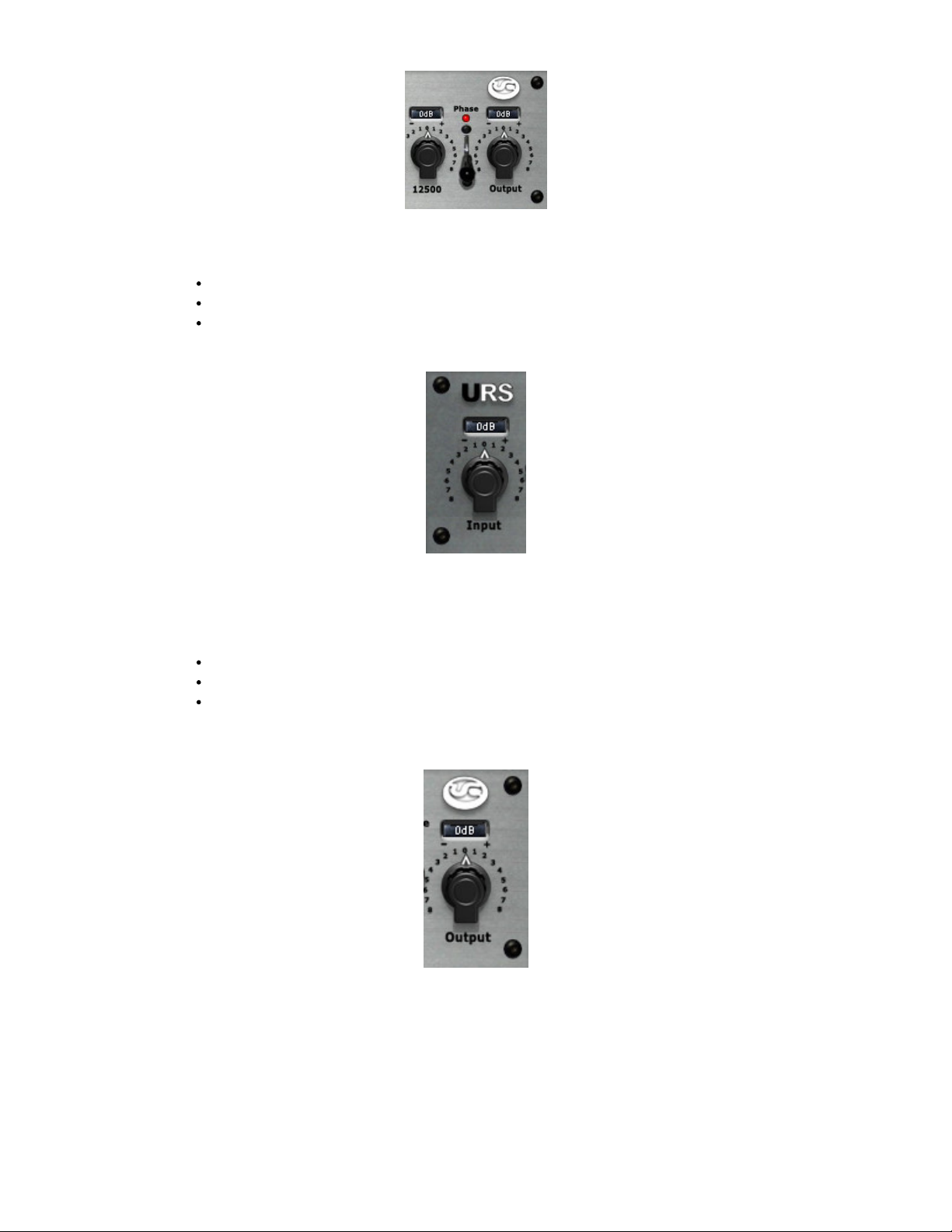
Adjusting Input Level
To adjust inp
A
djusting Output Level
To adjust output level:
ut level:
Click and drag the IN knob (URS M series MotorCity EQ).
Click on the Numeric Window and use the QWERTY keyboards up and down arrow keys
Click on the Numeric Window and enter the value from the keyboard.
Click and drag the IN knob (URS M series MotorCity EQ).
Click on the Numeric Window and use the QWERTY keyboards up and down arrow keys
Click on the Numeric Window and enter the value from the keyboard.
10
URS
M series MotorCity
and Vintage Cinema EQ
Page 11

Chapter 5: Operational Tips
This chapter provides additional information for the URS M series MotorCity EQ plug-in including control
surface support and operational tips to help you get the most out of the URS M series MotorCity EQ.
ProControl, Control|24, and Other Control Surface
The URS M series MotorCity EQ fully supports Digidesign ProControl and Control|24 and other supported
control surfaces. For example, the URS plug-in on ProControl supports the EQ and DYN functions for
selecting EQ and dynamics inserts on tracks.
In addition, ProControl maps each plug-in toggle switch to the BYPASS/IN/ø switch (in the DSP
Edit/Assign area).
The following tables show the control surface labels used to indicate each EQ parameter. Use the
associated knob or fader (if your controller supports plug-in Flip mode) to adjust each parameter.
URS
M series MotorCity and Vinatge Cinema EQ Control Surface Abbreviations
Control Surface URS M series
MotorCity control
Input Input Gain
50 Hz 50hz Gain
130 Hz 130hz Gain
320 Hz 320hz Gain
800 Hz 800hz Gain
2k Hz 2khz Gain
5k Hz 5khz Gain
12k5 12.5kz Gain
Output Output Gain
In-Out In/Out toggle
Phase Phase toggle
s
To flip phase from ProControl, press BYPASS IN/ø next to LFf (Low Filter Frequency).
To toggle the Low Filter between Peak and Shelving from ProControl, press BYPASS IN/ø next
to LFg (Low Filter Gain).
To toggle the High Filter between Peak and Shelving from ProControl, press BYPASS IN/ø next
to HFf (High Filter Frequency).
On other control surfaces use equivalent toggle switches to adjust phase and Low/High Filter type.
Tip: Using Flip Mode
If your control surface supports plug-in Flip mode try it out with the URS M series MotorCity EQ! You
might find that you prefer the fixed and finite top-to-bottom mapping of frequency and gain settings along
the fader path to the less-intuitive “roll-over” behavior of most control surface rotary knobs that don’t have
a fixed range. Flip mode is also convenient for the URS M series MotorCity EQ when rotary knobs are
velocity-senstive. Note that you cannot adjust toggle switches in plug-in Flip mode. (See your control
surface manual for details on how to use Flip mode).
Operational Tips
URS
M series MotorCity and Vintage Cinema EQ
11
Page 12

TDM or RTAS
The TDM License includes both TDM and RTAS.
You can use our products as either TDM or RTAS..
When mixing we recommend using our plug-ins as RTAS if you need more TDM memory for reverbs and
other TDM-only plug-ins.
For Live tracking we Do Not recommend using our plug-ins as RTAS due to the nature of RTAS latency.
Using Multi-Mono Mode for TDM or RTAS
If you want to EQ a stereo track, master fader or 5.1 Master fader with one set of EQ controls for both Left
and Right or more :
1. Select the insert point on your Stereo fader, Master fader or 5.1 Master fader.
2. From the plug-ins window open the Multi-Mono Mode plug-ins list.
3. Select the URS M series MotorCity EQ.
(Multichannel tracks greater than stereo (LCR to 7.1) require Pro Tools HD or MIX.)
Use the Link controls for ganged control of all channels (see your Pro Tools manuals for plug-in linking).
.
Unique Recording Software
www.ursplugins.com
12
URS
M series MotorCity
and Vintage Cinema EQ
 Loading...