

Page 1
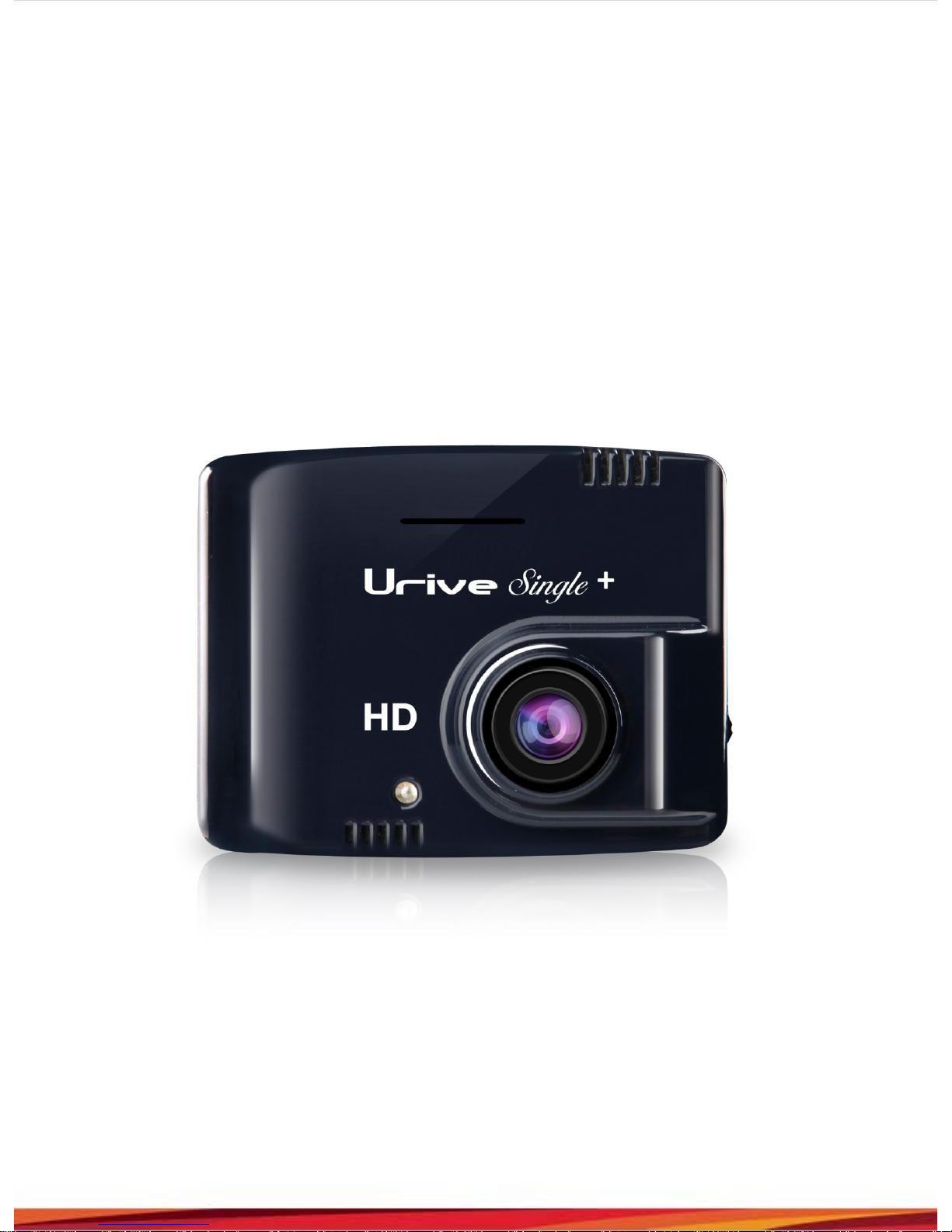
URIVE SINGLE +
User manual
Manufacturer/seller : MiDong Electronics & Telecommunication co., ltd.
Page 2

URIVE SINGLE PLUS
BLACK BOX
This is an auxiliary product for safe driving.
The Company is not held responsible for liability arising from any car accident. Use the
product in accordance with the intended use.
0. Key Features & Functions
- 2.0 mega pixels(HD)
- Optimized Viewing angle (Diagonal 110°)
- Extraordinary booting spee d(l es s th an 5 Sec.)
- Dedicated viewer for PC
- Auto formatting with one touch button(SD card)
- Self-diagnosis (SD card, diagnostics at all times)
- Video out cable for real-time checking the recorded files on a navigation
- Parking monitoring
1. Caution in Use of the Product
- Users should check the recording quality & recording functions before using this device.
- Do not store other files in the Urive single HD SD card.
- Don’t remove the SD card forcibly during recording.
- If users remove the SD card before the device completely turn off (blue LED off), the latest file
may not be recorded. Please remember it.
- The SD Memory card should be formatted at least twice a month to ensure normal operation of
the product.
2. Caution in Use of SD Memory Card
- The micro SD card has its service life (6 months). If the card has been used for an excessively
long time, some defective files might be created in the card. in this case, the manufacturer
recommend to purchase new micro SD card. Manufacturer is not liable for any data loss
caused by use of overdue warranty SD card.
- Use only recommended SD cards for Urive Single HD. If users use uncertified SD card, the
manufacturer is not liable for any loss of recording data and failures. In addition, uncertified
SD card is bring on malfunction and performance degradation.
3. Users can maintain the device’s best performance through firmware upgrade
periodically. (please ask the new firmware to the manufacturer by e-mail [email protected])
Page 3
BLACK BOX
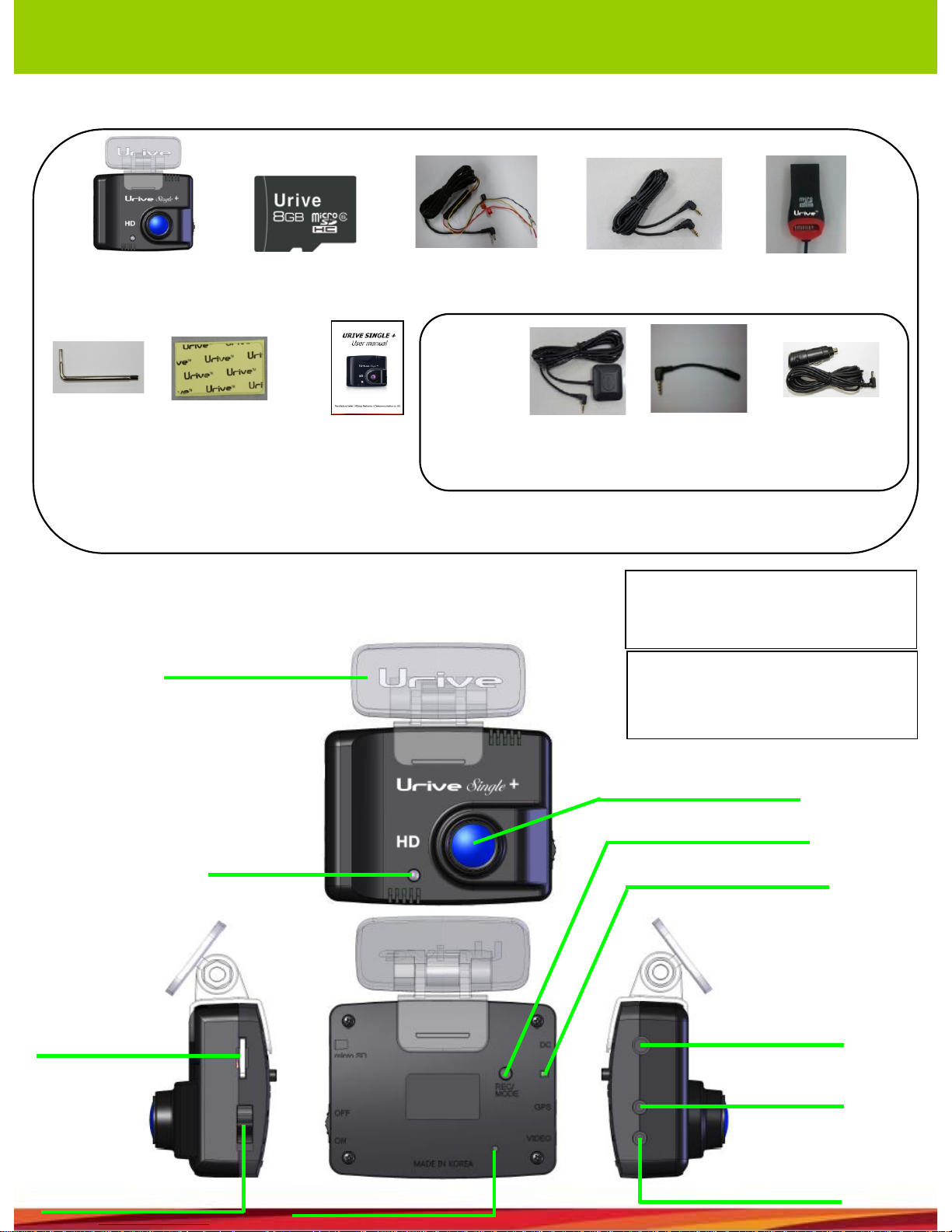
4. Components
5. Part names and functions
URIVE SINGLE PLUS
Cigar cable
Main body
& holder
Urive micro
SD card
SD
reader
Cigar cable
Video out cable
(standard 3pole)
Double-
side tape
Six-angle
wrench
Quick
Manual
GPS
module
Option
3pole-4pole
conversion cable
• If there is any damaged & fault products in the component, please ask the shop you
bought.
BLUE LED – Operat in g status chec ki n g
RED LED – Power ON
GREEN LED – GPS ON
REC/MODE buttons –
Emergency rec o r din g / V o i c e rec o r din g
on, off / Micro SD format
REC/MODE button
RED/GREEN LED
BLUE LED
Camera: 2.0Mega pixels
transparent
holder
Video out cable
GPS Module
Power cable
Power switch
Built-in MIC
Micro SD card
Page 4

BLACK BOX
6. How to Install
1) Install the Urive single HD SD card to the main device.
2) Select a location for attaching the main device.
3) Clean the area on the windshield where the product is to be installed.
4) Remove the cover sheet from the adhesive tape on the holder.
5) Affix the Urive single HD at the desired position.
6) Connect the main power cable(cigar cable) to the DC port.
7) Connect the cigar cable to the car cigar socket.
8) The LED will be turned on after the power switch is “ON” and then the device is started
with buzzer sound.(Before finishing, please check the front/rear views are normally
recorded and stored)
9) After booting, the RED LED will be turned on and start a video recording.
10) The camera's shooting angle can be adjusted on the screen when the Video cable is
connected to navigation AV-IN or CAM terminal.
11) After adjusting the camera's shooting angle, please fastened the device on the holder.
12) If users install the GPS, please make sure the power off before installing.
※ Caution
- Before placing the cables in the groove, please check the video images are normally stored
in the memory card.
- After installing the camera, remove the protective plastic film from the camera lens.
- In case of No. 8~ 9), they are relevant in driving mode.
URIVE SINGLE PLUS
Page 5
BLACK BOX
URIVE SINGLE PLUS
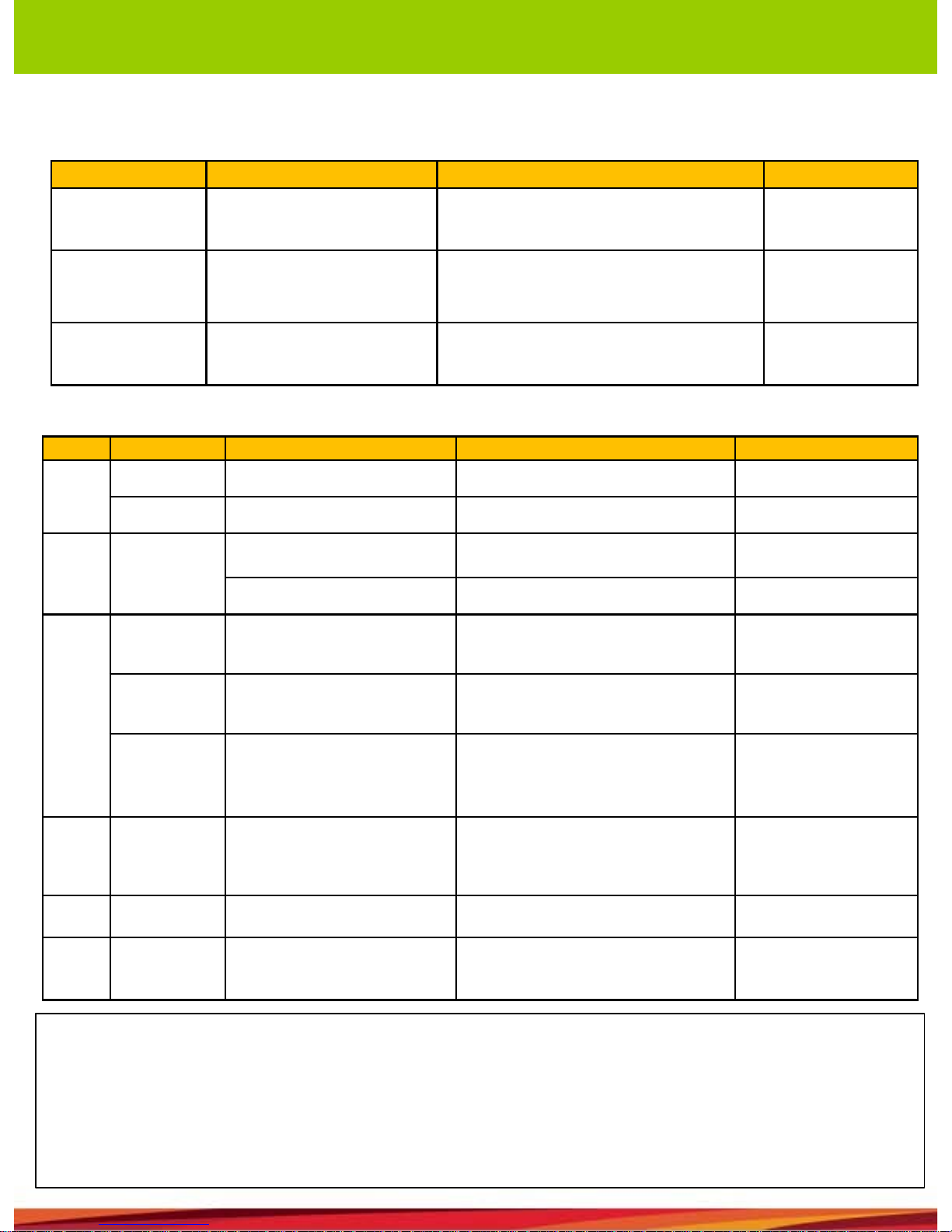
Work Condition LED sign Sound
Power on After booting
BLUE LED is turned on during the
booting and the RED LED is turned on
after the booting
One long beep
Update
Update through the micro SD
Card
RED & GREEN LED flicke rs during the
update and then the device restarts
automatically.
Short tow beeps
during start & end
No power cable or
power switch OFF
The final image saved by
using the backup bat te ry a nd
then the device is power off.
All LEDs are off -
Operation
Button
Button control Condition LED sign Sound
Power
button
ON Power ON - -
OFF Power OFF All LED off -
- Power ON
After booting RED, BLUE LED flickers every 1sec. Long beep
GPS working GREEN, BLUE LED flicker -
REC
button
Push for 1sec. Manual recording RED, BLUE LED flicker quickly -
Push for 3sec.
Voice recording On/Off
(Mute Off/On)
LED flickers slowly -
Push the
button for a
long time
(over 10 sec.)
Format the micro SD card
GREEN, BLUE LED flicker and then
restart automatically.
Start a format : one
long beep
End a format: one
short beep
- Update
Update through the micro SD
Card
RED and GREEN LED are turned on
in them order. After the update, the
device restart automatically.
When its beginning &
end, there are shot two
beeps
- GPS installed GPS working GREEN, BLUE LED flicker -
-
Remove the
power cable
The final image saved by
using the backup bat te ry a nd
then the device is power off.
All LEDs are off -
※ Reference
- No SD card : five beeps (Repetition)
- Recording failure : five beeps(Repetition)
- When the Voice recording On/Off is set by REC button, the device is restarted automatically
to apply the set functions. (it needs 5second to restart.)
7. Product operation & button
Page 6
BLACK BOX
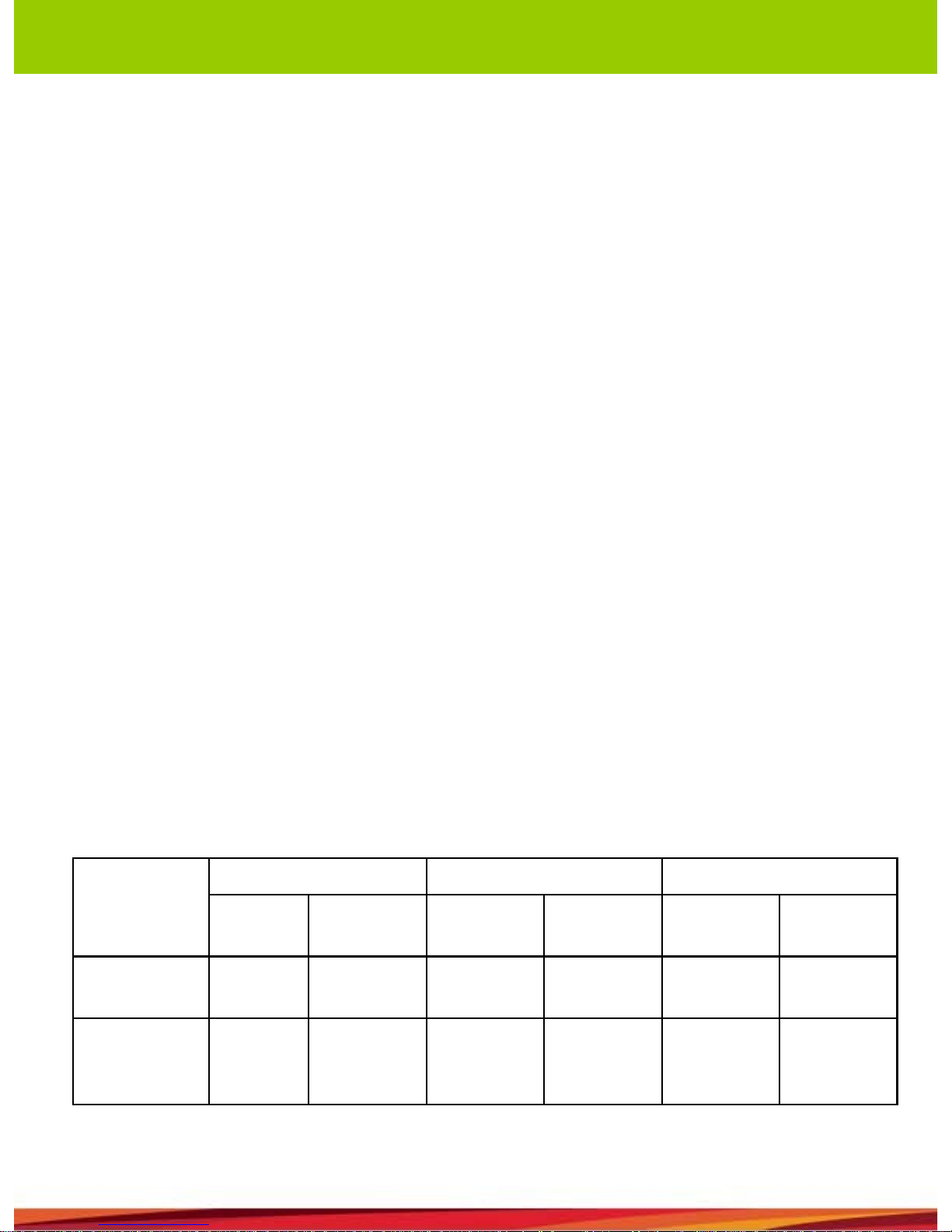
8. Folder description in the memory card
1) Constant recording files : it comprises a constant recording file during d r i v i ng . (1min. / file)
ex) MDR_0001.avi : ex) MDR_0001.avi : the files are saved from No. 0001 to 9999 during driving.
2) Event files:
ex) EDR_0002.avi : the files are event files while driving. The files are saved d ep end i ng o n t he SD
capacity & managed separately.(8GB = 20ea / 16GB = 50ea / 32GB = 70ea)
3) Parking monitoring file : the files are created when the car is parked.
ex) PDR_0001.AVI : the files are saved from No. 0001 to 9999 during car parked.
4) parking monitoring event file : the files are created when the car detects an event during parked.
The files are saved depending on the SD capacity & managed separately.
ex) ADR_0001.AVI
5) Setting file(config.dat) : the configuration data set in the viewer is stored as a file.
6) Time setting files(Date.txt) : the file is created when users set the time or time zone in the viewer. If
they set the time on the device, the file is deleted automatically.
7) Spare space : If there are only 300MB spare spaces remainder in the SD card, the new files are
created by deleting the oldest files one by one for st able storage and management of the recording
files. (Standard: 8GB)
(Reference : 16GB = 500MB / 32GB = 700MB)
URIVE SINGLE PLUS
class
8GB 16GB 32GB
parking
25%
parking
50%
parking
25%
parking
50%
parking
25%
parking
50%
driving
(event)
20ea 10ea 30ea 20ea 40ea 30ea
parking
(parking
event)
5ea 10ea 10ea 20ea 20ea 40ea
Page 7

* The constant recording files will be stored in the remainder except event files capacity & spare spaces capacity.
* The file volume depending on the image quality
- Im age quality “High” : about 90MB (1min.), parking(event)file (about 30MB(20Sec.) )
- Im age quality “low” : about 70MB (1min. ), par king(e vent)fi le(a bout 25MB(20Se c.) )
(Reference : The maximum capacity according to the image quality of a file can vary depending on the
environment.)
9. Firmware upgrade (User manual – refer to the upgrade)
1) Auto upgrade : At the SingleHD PC viewer upgrade
2) Manual upgrade : The firmware download in the homepage
ㅇ If you know about the URIVE SINGLE +, Please download and refer to the URIVE SINGLE + full Manual
in the homepage.
BLACK BOX
URIVE SINGLE PLUS
Page 8
BLACK BOX
URIVE SINGLE PLUS
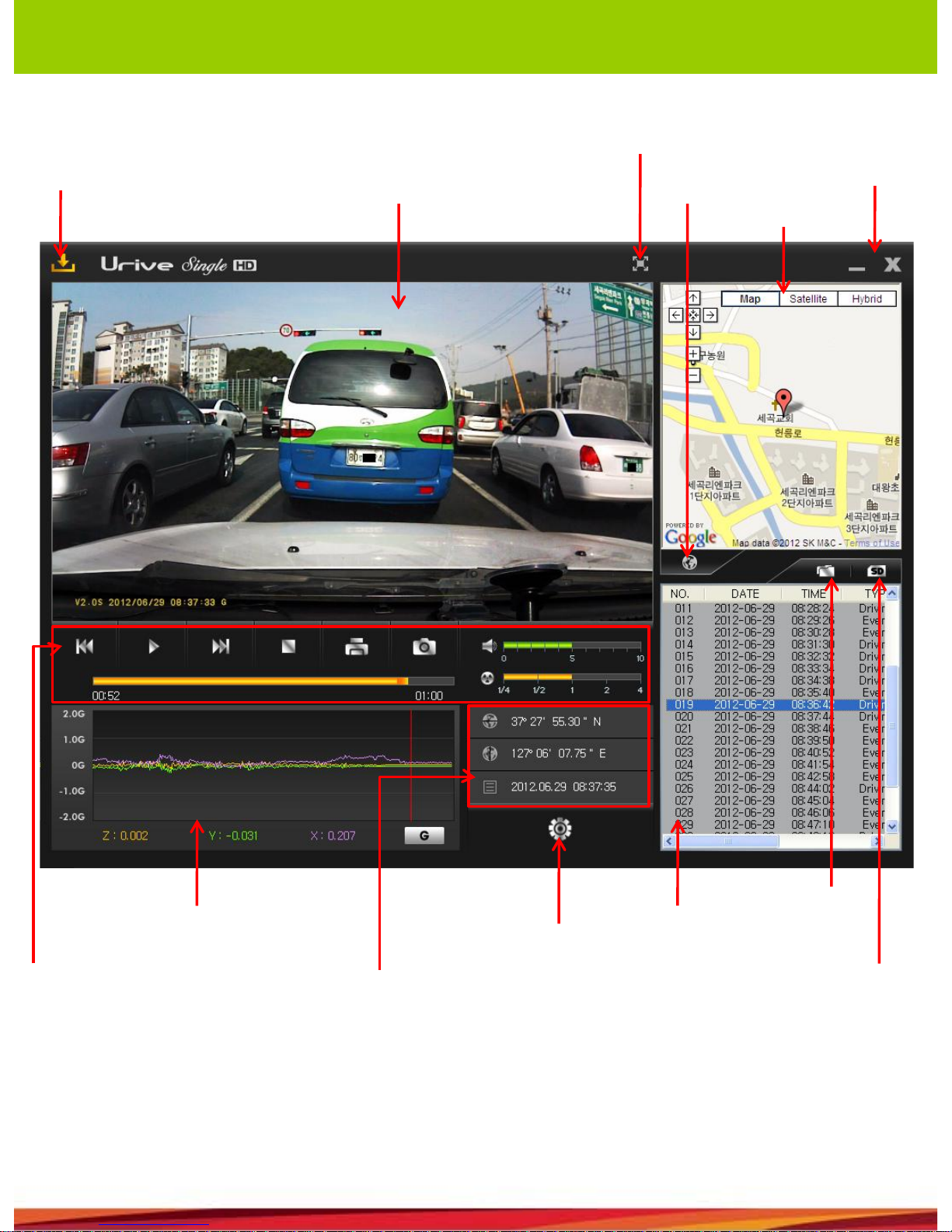
10. Viewer description
PC Viewer automatic
upgrade
Minimize
the screen
& Exit
Map view
Front view
Map display &
hide
playback
controller
Speed /
acceleration
graph
Latitude/longitude/t
ime
Blackbox
configuration
List of files
File open
Bring the files list
from the SD/SD
format & checking
• Latitude, longitude, speed and map information are available only when the external GPS
Module (optional) is connected.
• When a video is recorded and played in Mute mode , “M ” i s displ ayed on the bottom-right of
the front view image.
• If GPS module operates normall y, “G” is displayed on the bottom of the Front View window.
Full screen
Page 9
BLACK BOX
12. Download the firmware, viewer, user manual
ㅇAll of the programs & documents can be downloaded in the homepage (www.urive.co.kr)
at [Download center - Reference room – Urive Single HD]
ㅇ firmware upgrade file(1ea) : MD3900P.bin
ㅇ Viewer download : URIVE SINGLE PLUS
ㅇ User manual : URIVE SINGLE PLUS User manual
URIVE SINGLE PLUS
11. Product specification
Item Standard Item Standard
Model name Urive Single HD Frame No. Max. 30 fps
Size 65 x 51 x 31.3 mm Audio ADPCM
Memory card Micro SD card
Acceleration
sensor
3G
Recording type Constant, Event, Manual Power supply DC 12V/24V
Video quality
2 steps (Up and down can be
selected)
Consumption Max. 2W
Camera 2.0Mega pixels Temperature -20℃~ 70
℃
Angle of view Diagonal 110
°
Storage
temperature
-40℃~ 85
℃
Video HD 1280x720, MJPEG PC viewer Minimum Windows XP
ㅇ Manufacturer/Seller : MIDONG Electronics & Telecommunication co. , ltd.
ㅇ A/S center : 1
st
floor, 339-2, Yangjae-dong, Seoch-gu, Seoul, K orea .
 Loading...