

Page 1
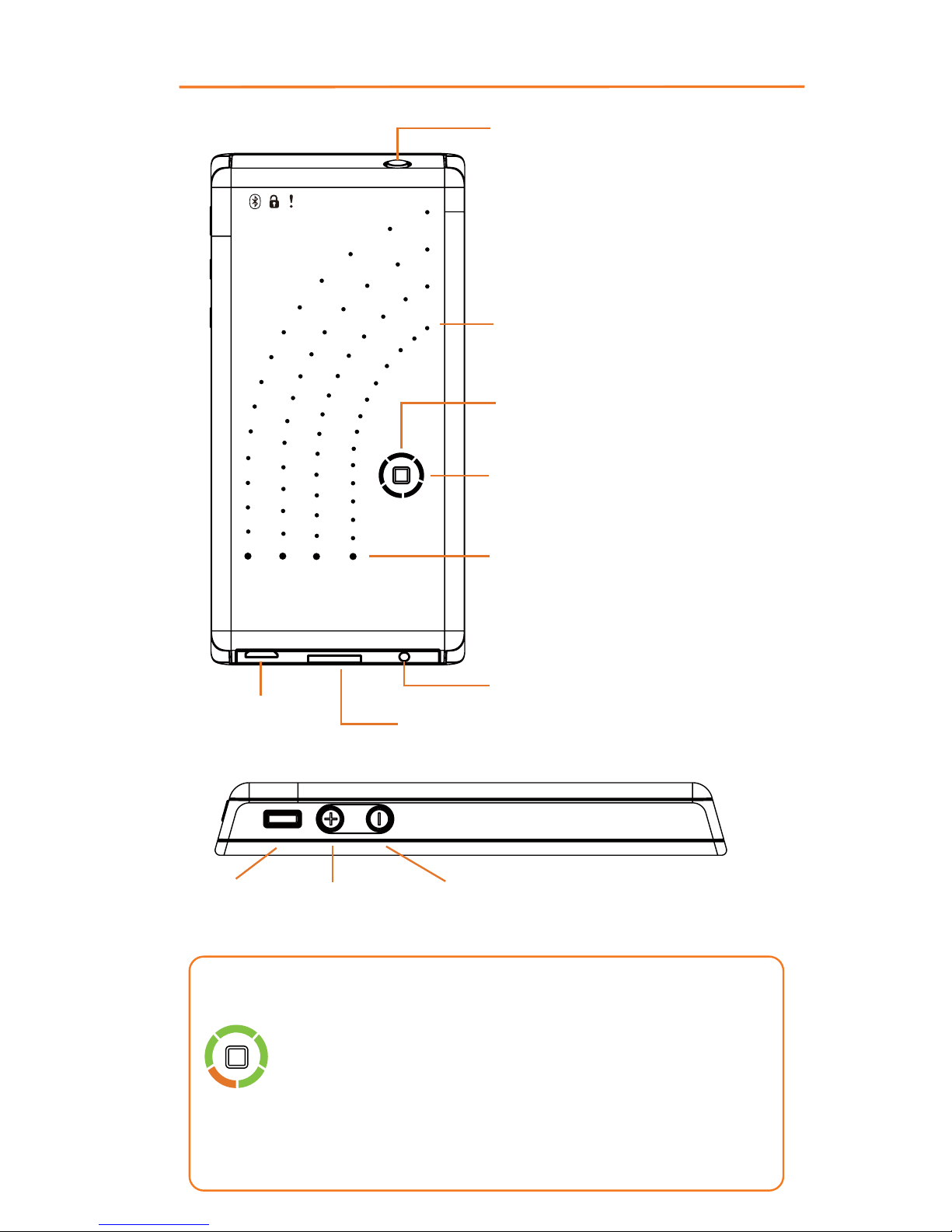
M4 M3 M2 M1
Power button
Pause
button
Increase
intensity
Decrease
intensity
micro USB
charging port
Program select button
Electrode cord jack
Battery life LED display
Massage intensity display
Massage mode indicator
Including: M1, M2, M3, M4
Altogether you have 4
soothing and unique modes
to choose from.
The USB port also allows U-GYM to be
used as an external battery
- The LED light is in green when battery life is over 20%;
it will require charging when LED blinkis orange light,
Device will turn off by itself when battery life isbelow 5%.
- 5LEDs will light when device is fully charged.
- All functions will shut off while device is charging.
- Embedded lithium battery can be used up to 8hrs with
one charge.
Quick Guide
Page 2
1
2
3
4
5
Operation Instruction
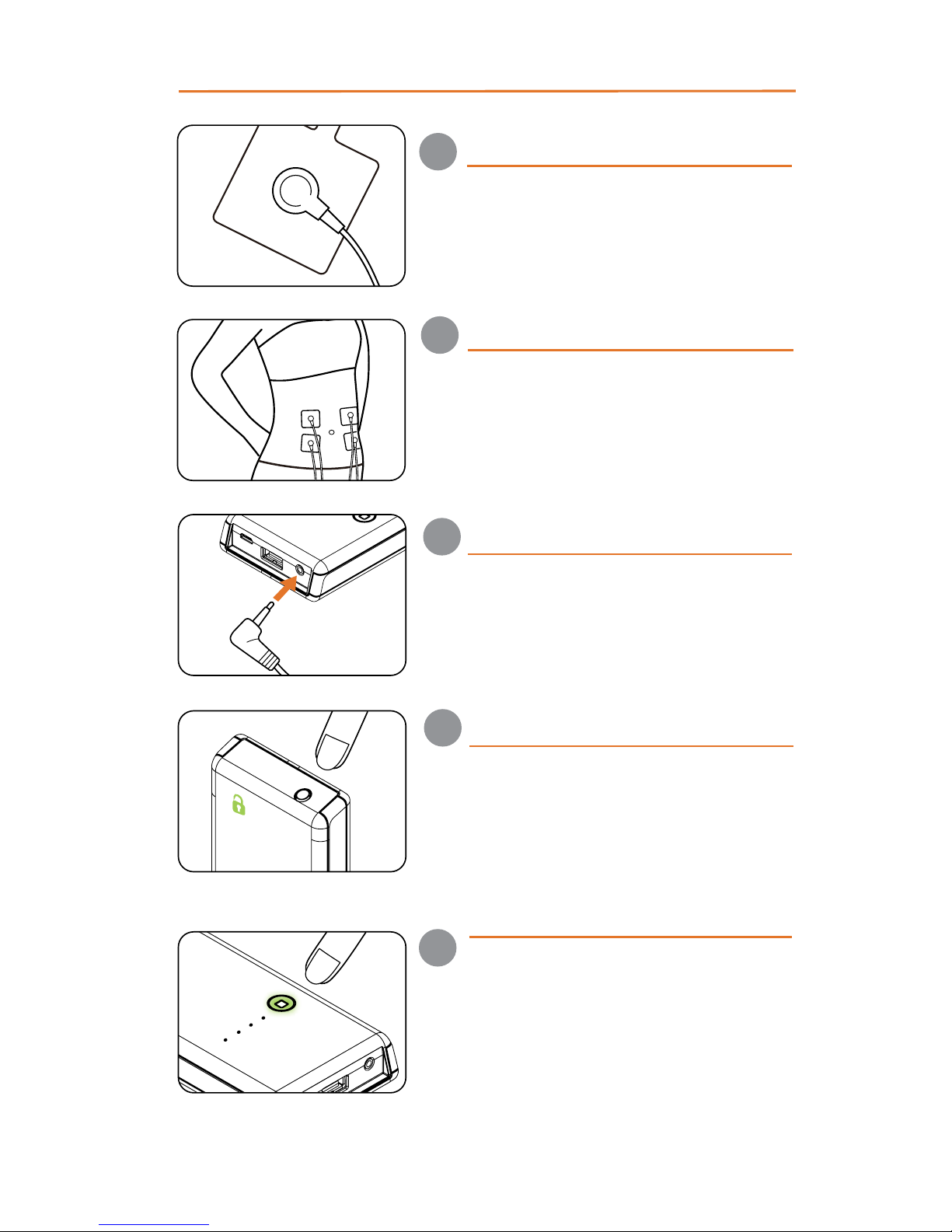
Snap the cord lead to the
electrode clip button, make sure
the lead is firmly attached to the
center of pad.
Place the electrodes on the
muscles based on your personal
preference. Note that always apply
the electrodes on skin before
activating the device.
Insert the cord connector into the
jack on the bottom of the device.
Make sure it is fully inserted in to
the jack.
Press and hold down the power
button for 0.3 second (located on
the upper right of the device)
UGYM Pro will vibrate once and the
LED display will illuminate. Now
Press the mode button (there is a
square mark on the button)on the
front of the device to cycle through 4
modes (M1 to M4). Other than the
original 4 massage modes, we are
constantly researching and developing new modes which are available
for download through our UGYM
Smart Massage app.
Set up and get started
Applyingelectrodes on skin
Connecting cord to device
Powering on
Selecting massage mode
Page 3
7
6
Operation Instruction
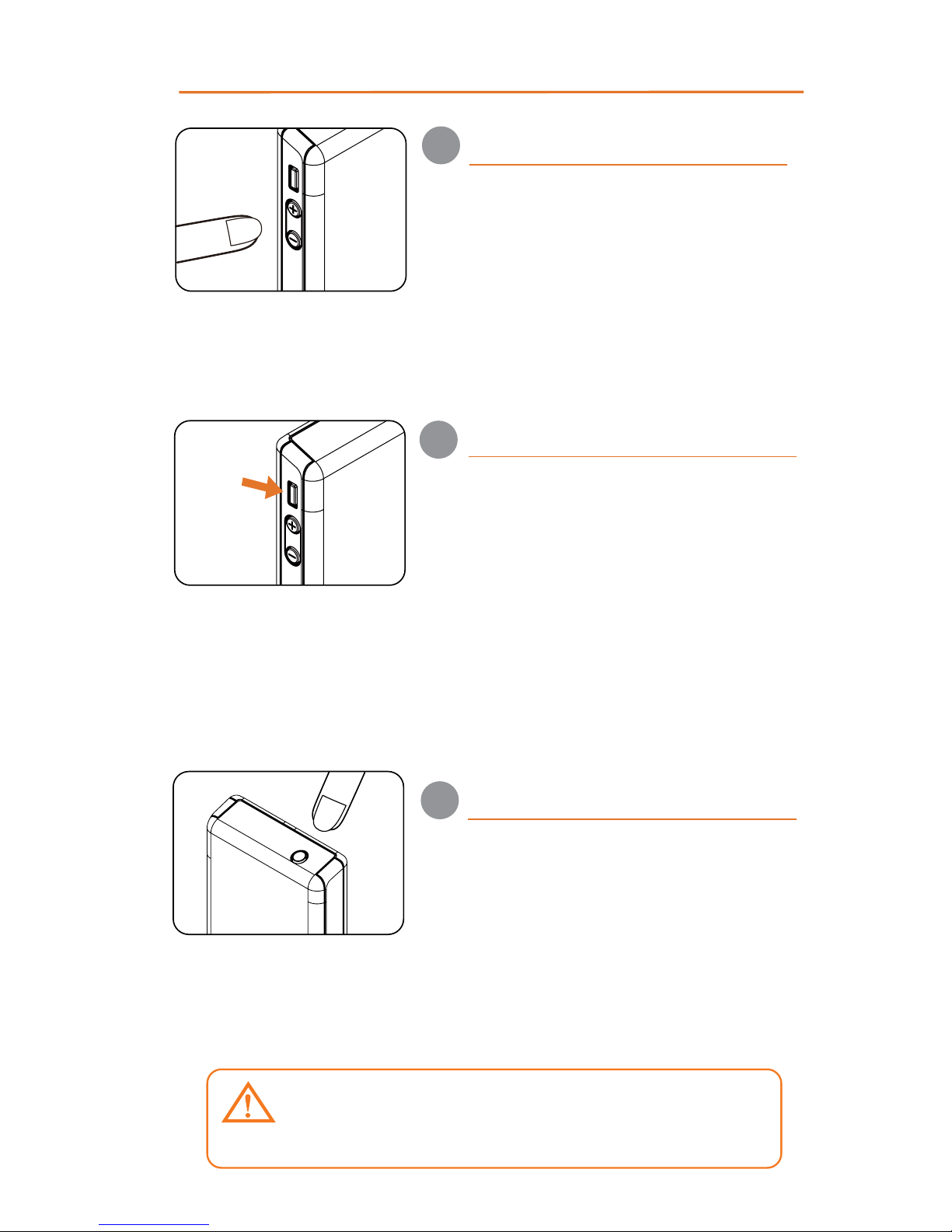
The two buttons on the left side of
the device marked +/– allow you to
control the intensity of your
massage. In total there are 26
levels of intensity marked by the
array of LED lights. One LED light
indicates two levels of intensity
change.
During massage session you can
press the pause button (right
above the + button in square
shape) to pause stop the device.
This will start a new massage
session, which means your
massage timer and selected
intensity will start over from
beginning. If you leave device idle
for 60 seconds, it will automatically
turn off.
Changing massage intensity
Pausing during massage
8
To power off your device simply hold
the power button for 2 seconds. There
will be two vibrations and the LED
display will fully diminish to indicate
the device shut off process. When
finish massage session, kindly put the
electrodes on clear plastic sheet and
store it in cool and dry place to insure
the maximum amount of uses.
Powering off
Electrodes and lead cords are consumables
with limited life expectancy and no warranty
provided.
Page 4
ugym
How to download app
U-GYM Supports iOS & Android
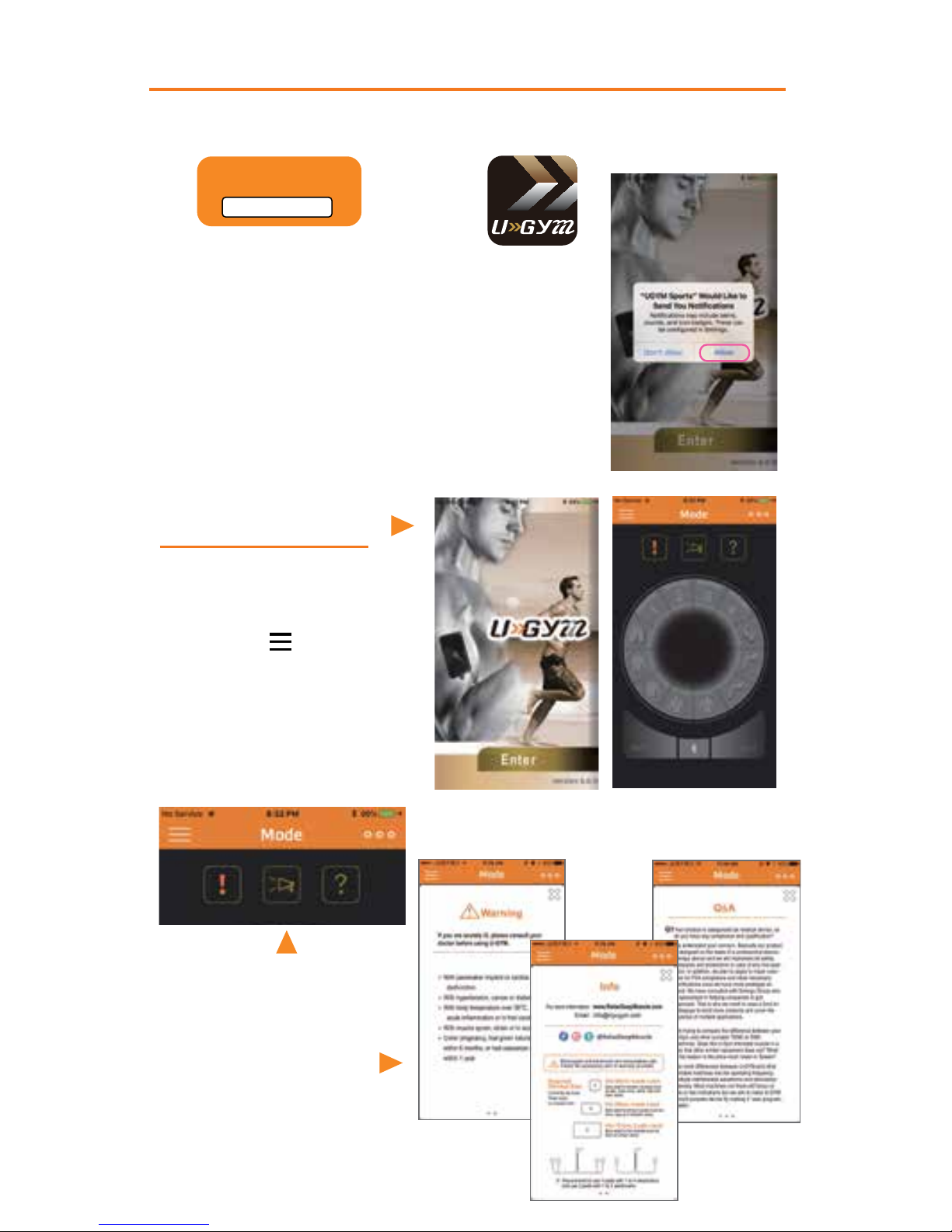
Just search the keyword “UGYM” either in
App Store or Google Play and you can find
UGYM logo. Click to download and install
on your smartphone. Open the app and
you will see the welcome page below.
Use U-GYM Sport Massage app
1. Download and install app
2. Activate app
Click “Enter” to the
main page. Click
upper left “MENU”
to choose different
function.
To Find Notice, Product
and Q&A Information.
Click above logo to
see Warning, Info and
Q&A
Page 5
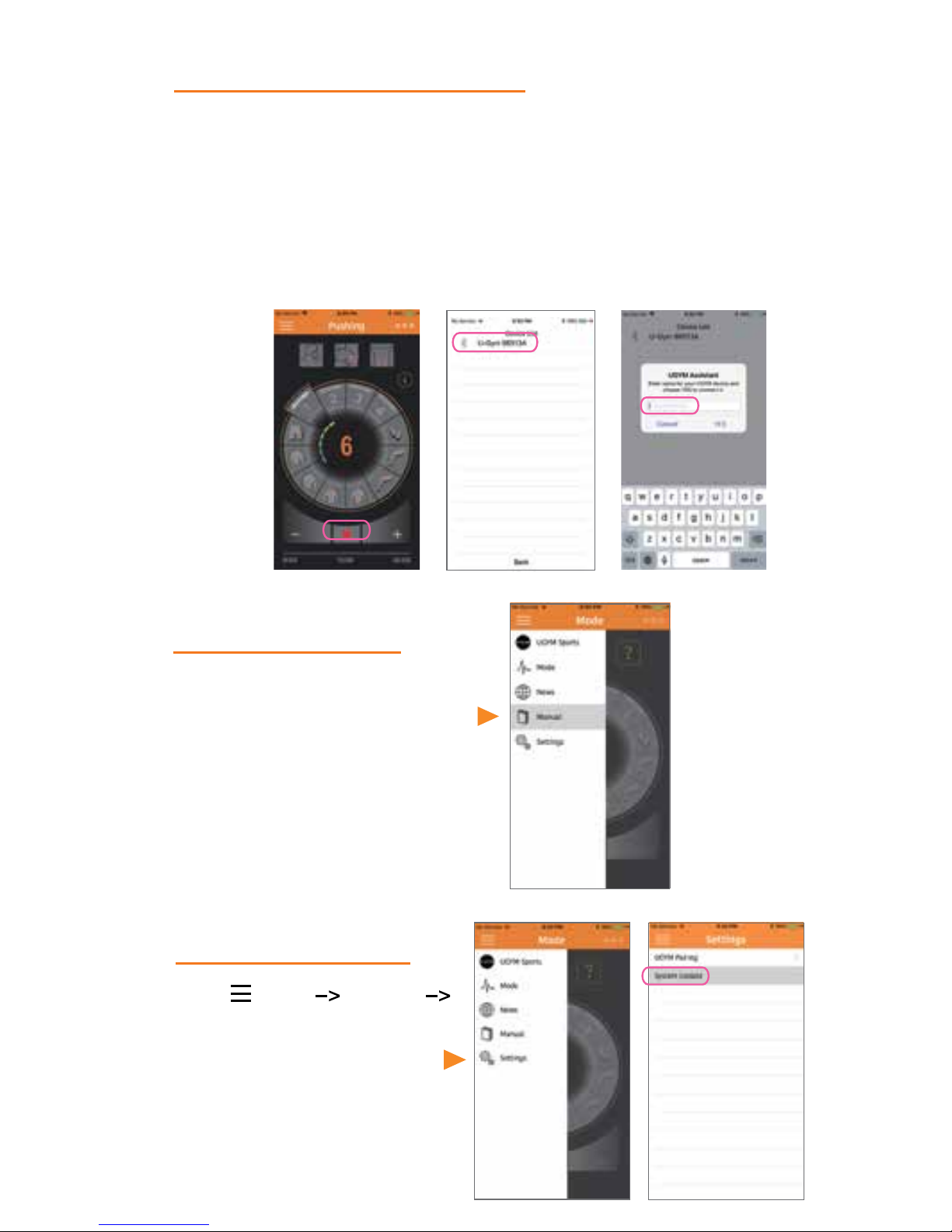
4. User’s Manual
5. System Update
Click on upper left corner
and select “Manual” to find
the information. Slide left
and right to scroll to different pages.
Click Menu settings
system update to see if
there’s new firmwave to
update. Note that the device
needs to be connected first.
3. Pair Device and Control
In the main mode page, click on bluetooth icon to connect
with device. You will see device name “U-Gym XXXXXX”
shows up in the search. Click the device name and choose a
nickname for your device for easy recognition and now the
device is paired with your smartphone. You can click upper
left corner and choose “Setting” -> “System Update” -> “Yes”
to see if there’s any newer firmware available to update the
device.
Page 6
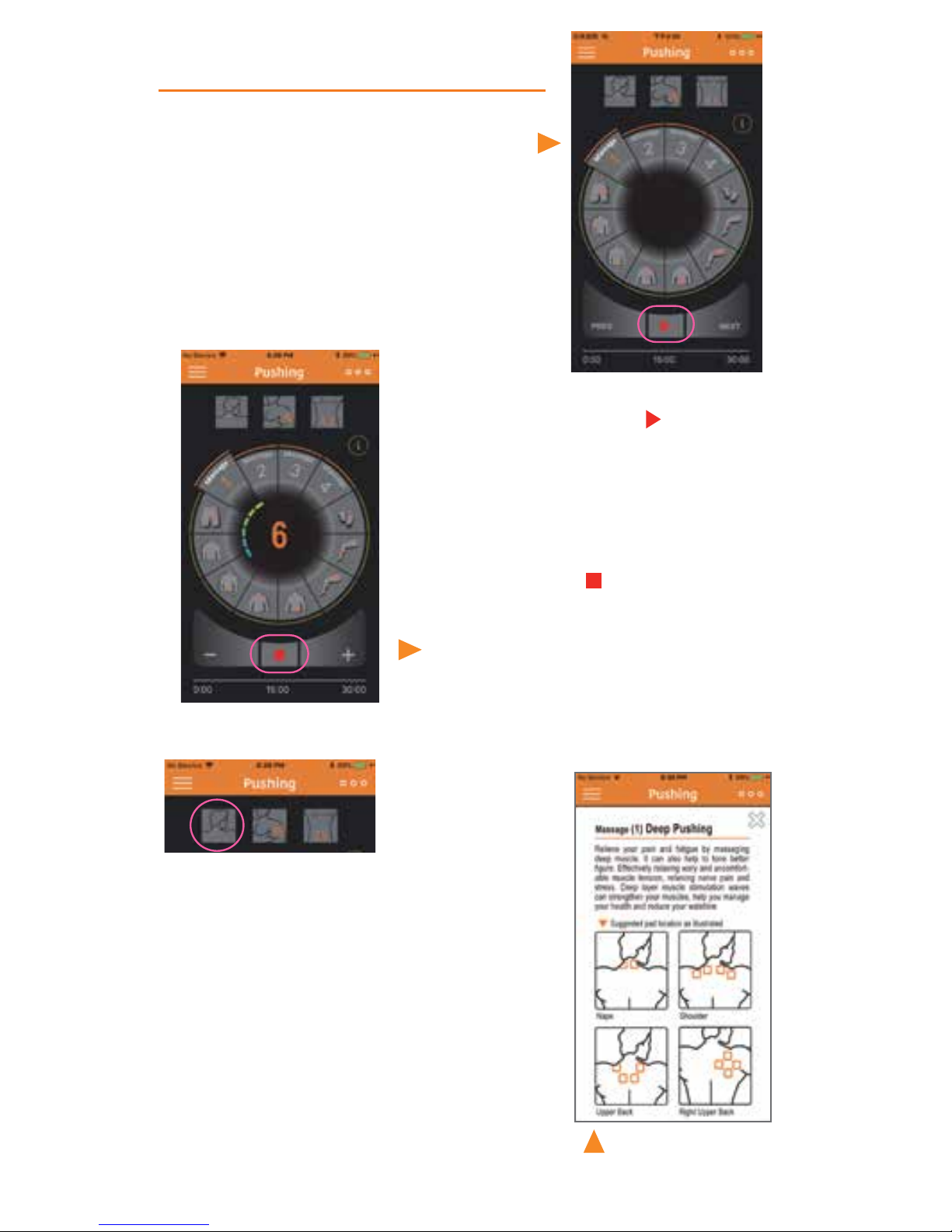
When device is paired, the mode
will preset at “Massage 1”. Press
“NEXT” to go to Massage 2” and
press “PREV” to go to previous
mode. There are total of 12
modes to choose from.
You can click
on the three
icons above
the big circle for detail explanation and
recommended pad area for each
massage mode. U-GYM has developed different Russian Wave stimulation for various of muscle groups
specifically for enhanced muscle
training especially in foot, calf, quads,
waist, back, abs, upper arm and hip
areas for mode 5 to 12.
Press the PLAY icon to activate
the massage, then press “+” to
increase massage intensity and
press “-“ to lower massage intensity. To stop the massage, press
the STOP icon Note that please
keep the intensity to the comfortable level and do not increase the
intensity too much to avoid any
muscle tear or injury.
6. Use Smarphone to Control
Massage Mode
As illustrated: Click on icons to show different reference pad areas
Page 7
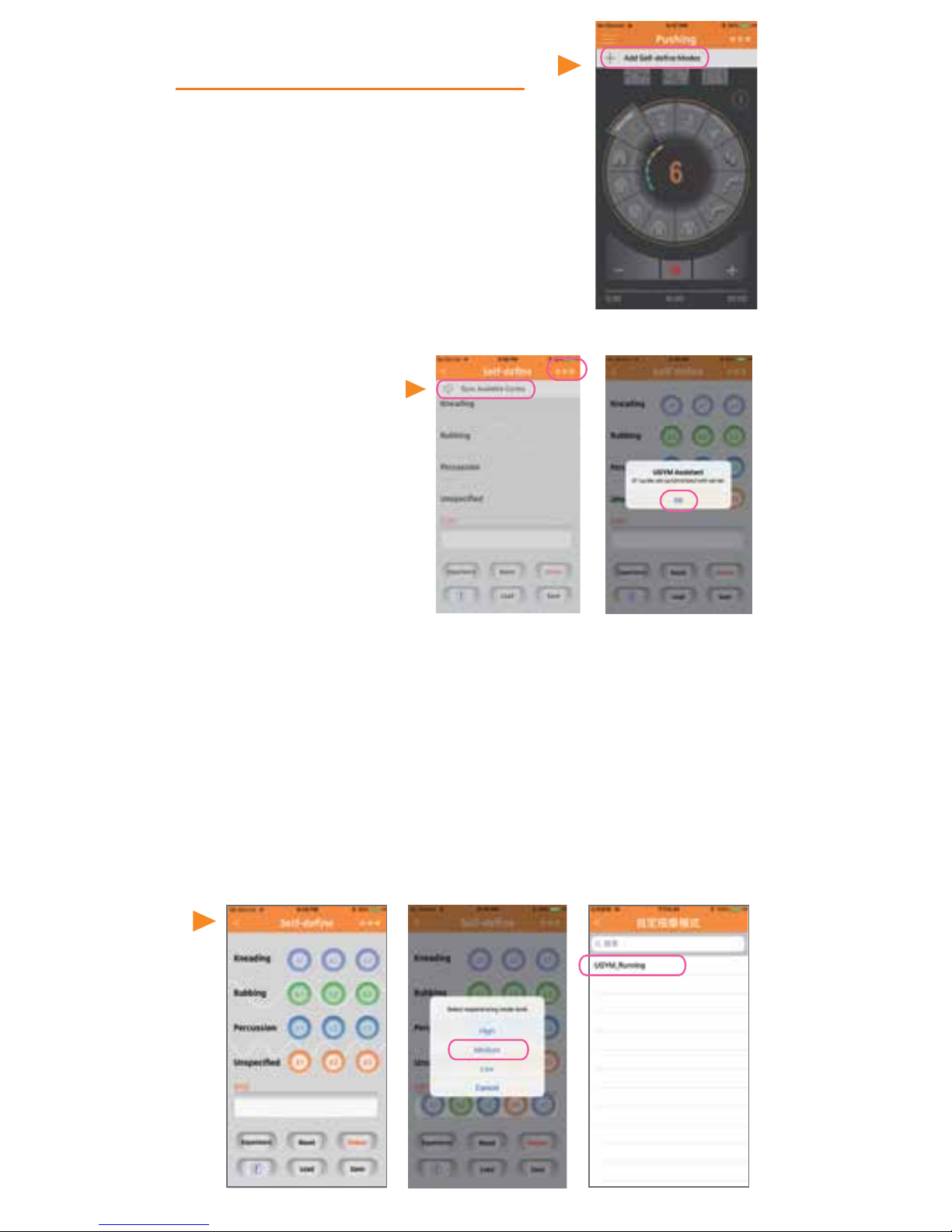
To enter self-design mode, make
sure you are at the main page
(click upper left menu and select
“Mode”). Then click upper right and
select “Add Self-design Modes”.
Click on any circular cycle module, it will show up in a row
by the order you click. Press ”Delete” to remove the last one
added and press “Reset” to start over. Press “Experience”
and select intensity level to try out your design. (Make sure
electrodes are properly setup on your body and cord is plug
in to the device) If you like the design you made, press
“Save” and enter the name for your design to save it. (A
warning message will popup if the name are duplicate)
If there’s no module showing in the
screen, press upper right corner and
select “Sync
Available Cycles”.
7. How to Add Self-design
Modes
Page 8
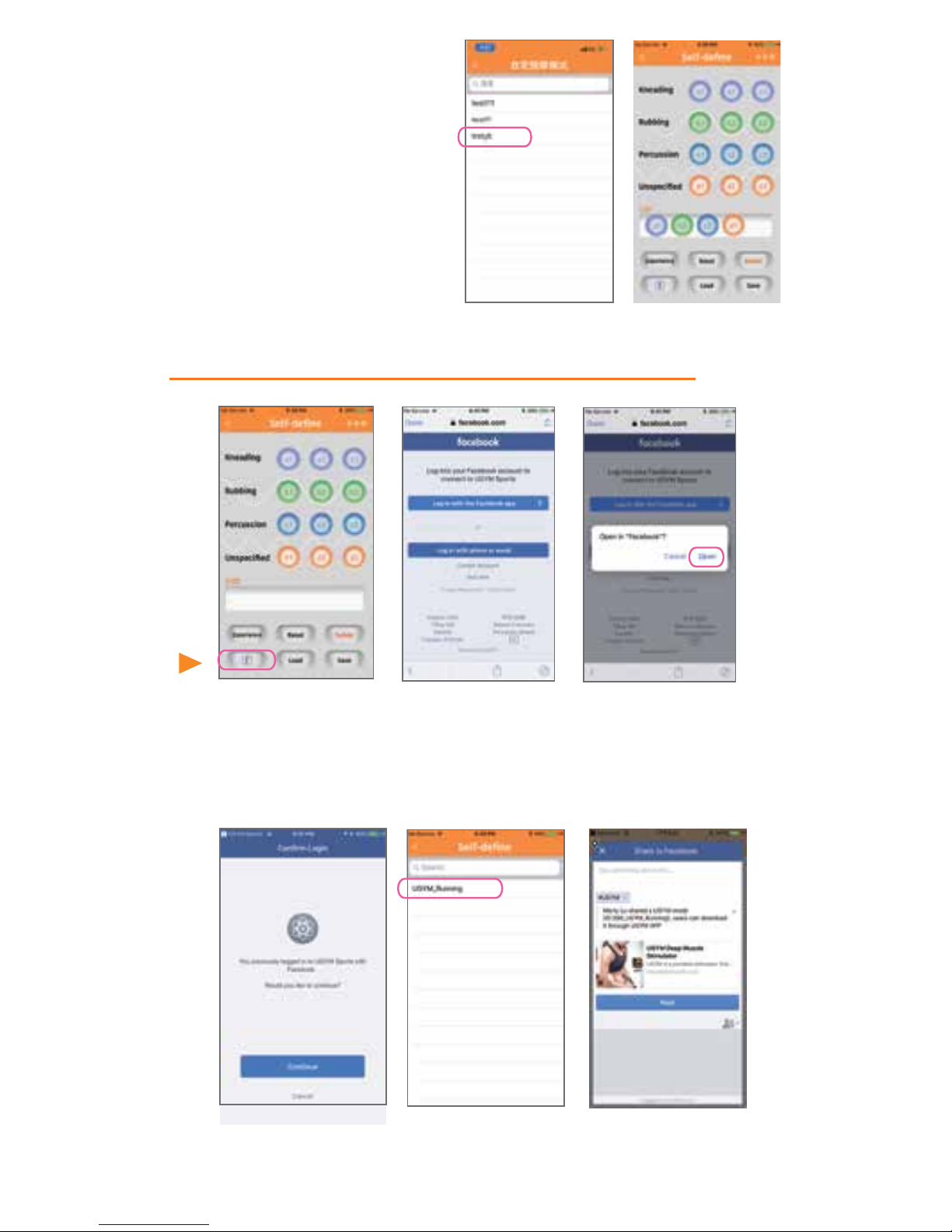
If you’d like to reload
previous cedited modes,
press “Load” and select
the name of massage
mode to recall the edit
screen for re-edit.
8. Share Self-define Mode on Facebook
Click the lower left “F” button to share the massage mode.
Facebook login notice will popup for further authorization.
(You can skip this step if already log in)
Once you are logged in, just choose the mode to share
and it will post the massage name in FB post.
 Loading...