

UDP Technology IPC4100A-23, IPC4500A-25D, IPC4100A-25D, IPC4500A-23, IPC4501A-25D Operation Manual
...Page 1

On Screen Menu
Operation Manual
of IPC PTZ Type Camera
Page 2

On Screen Menu Operation Manual
Table of Contents
1. INTRODUCTION .............................................................................................................. 3
2. PROGRAM & OPERATION .............................................................................................. 4
2.1. Getting Started .......................................................................................................... 4
2.2. Joystick Controller Unit & Control Panel on Webpage ............................................ 4
2.3. Selecting Dome Camera ............................................................................................ 5
2.4. Accessing On-Screen Menu Utility .......................................................................... 5
2.4.1. How to control On-Screen Menu Utility ............................................................ 5
2.4.2. Main Menu of the Cyber Scan Pre-Pack Dome Camera .................................... 7
2.5. HOME ......................................................................................................................... 8
2.6. SYS INFO ................................................................................................................... 8
2.7. DISPLAY .................................................................................................................... 9
2.7.1. AREA TITLE ....................................................................................................... 9
2.7.2. PRIVACY ZONE ................................................................................................ 10
2.7.3. OSD DISPLAY ................................................................................................... 12
2.7.4. VIEW ANGLE .................................................................................................... 13
2.7.5. POSITION .......................................................................................................... 13
2.8. DOME SET UP ......................................................................................................... 14
2.8.1. HOME/PRESET ................................................................................................. 14
2.8.2. AUTO SCAN ...................................................................................................... 15
2.8.3. TOUR ................................................................................................................. 17
2.8.4. PATTERN .......................................................................................................... 20
2.9. ALARM ................................................................................................................. 21
2.10. CAMERA ............................................................................................................. 22
2.10.1. FOCUS ............................................................................................................. 22
2.10.2. WB CONTROL (White Balance) ...................................................................... 22
2.10.3. AE CONTROL(Automatic Exposure) .............................................................. 23
2.10.4. LINE LOCK ...................................................................................................... 23
2.10.5. SCREEN SET UP ............................................................................................ 24
2.10.6. DIGITAL EFFECT ........................................................................................... 24
2.10.7. DAY&NIGHT ................................................................................................... 25
2.11. CONFIG .................................................................................................................. 25
2.11.1.INIT DATA ....................................................................................................... 25
2.11.2. DOME RESET .................................................................................................. 26
2.11.3. GENERAL ........................................................................................................ 26
2.12. LANGUAGE ........................................................................................................... 27
2.13. EXIT ....................................................................................................................... 27
APPENDIX A - The List of GLB(Short) Key .................................................................... 28
Revision history ................................................................................................................. 30
C UDP Co., Ltd. 2
Page 3

On Screen Menu Operation Manual
1. INTRODUCTION
This manual is for operating OSM(On Screen Menu). The following IPC camera supports OSM.
IPC4100 : IPC4100A-25D, IPC4100A-23
IPC4500 : IPC4500A-25D, IPC4500A-23, IPC4501A-25D, IPC4501A-23
C UDP Co., Ltd. 3
Page 4
On Screen Menu Operation Manual
C UDP Co., Ltd. 4
2. PROGRAM & OPERATION
2.1. Getting Started
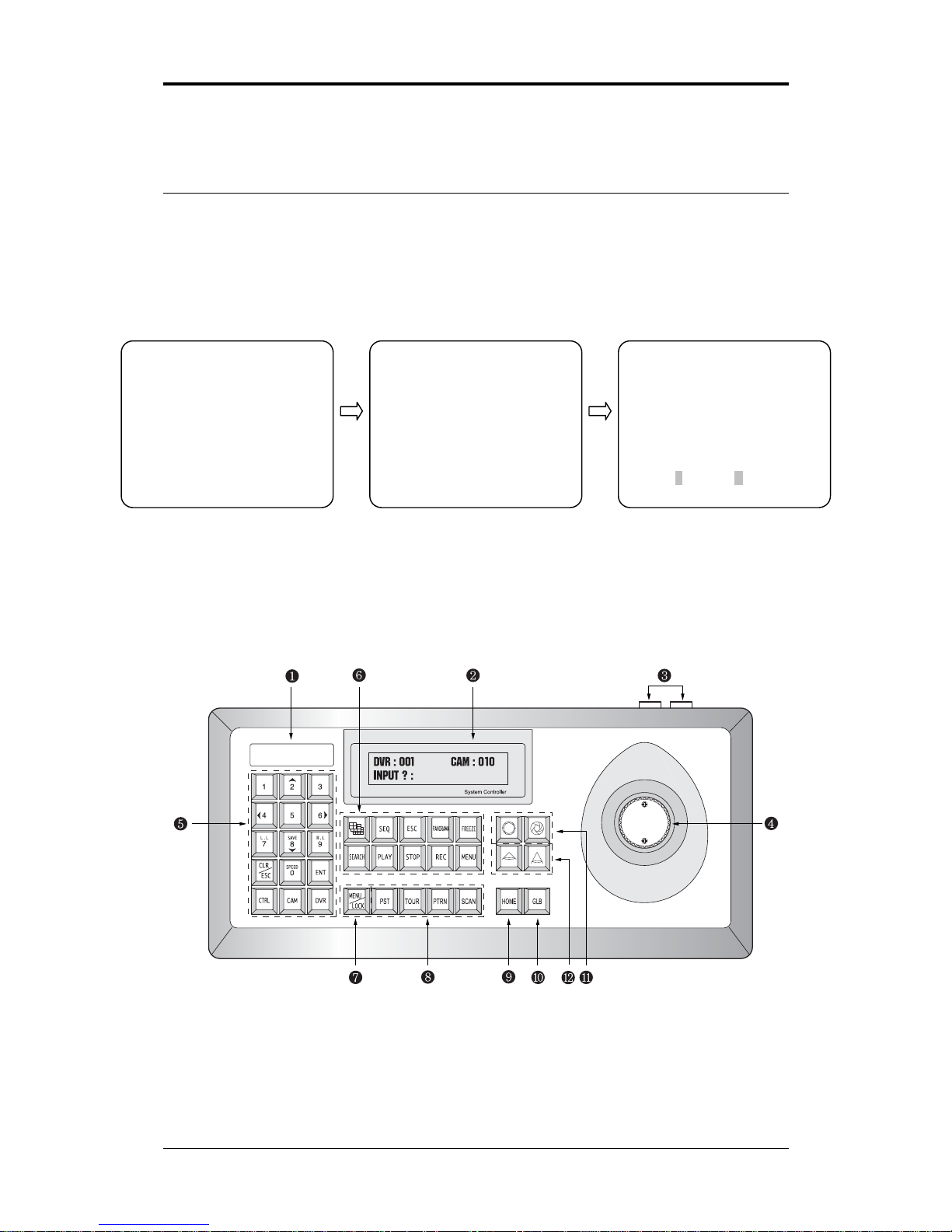
Once installed apply power to the dome camera. The dome camera will start a configuration
sequence. When configuration is done, the following information is displayed.
* This screen shows the system info of
current dome setting
2.2. Joystick Controller Unit & Control Panel on Webpage
---- CYBERSCAN DOME ----S/N
DOME ID : 0001
CAMERA TYPE : 25XDN/NTSC
S/W VERSION : V1.94DE3QE
PROTOCOL : CYBERSCAN I
COMM MODE : RS-485/09600
BAUD RATE : 9600
---- CYBERSCAN DOME ----S/N
DOME ID : 0001
CAMERA TYPE : 25XDN/NTSC
S/W VERSION : V1.43
INIT.PAN [OK]
INIT.TILT… [OK]
INIT.CAMERA [OK]
v01 2m Z001 ID : 0001
F N 000.00, 000.00
Page 5
On Screen Menu Operation Manual
⑤④
⑦
⑧
⑨
⑩
⑬
⑫
⑪
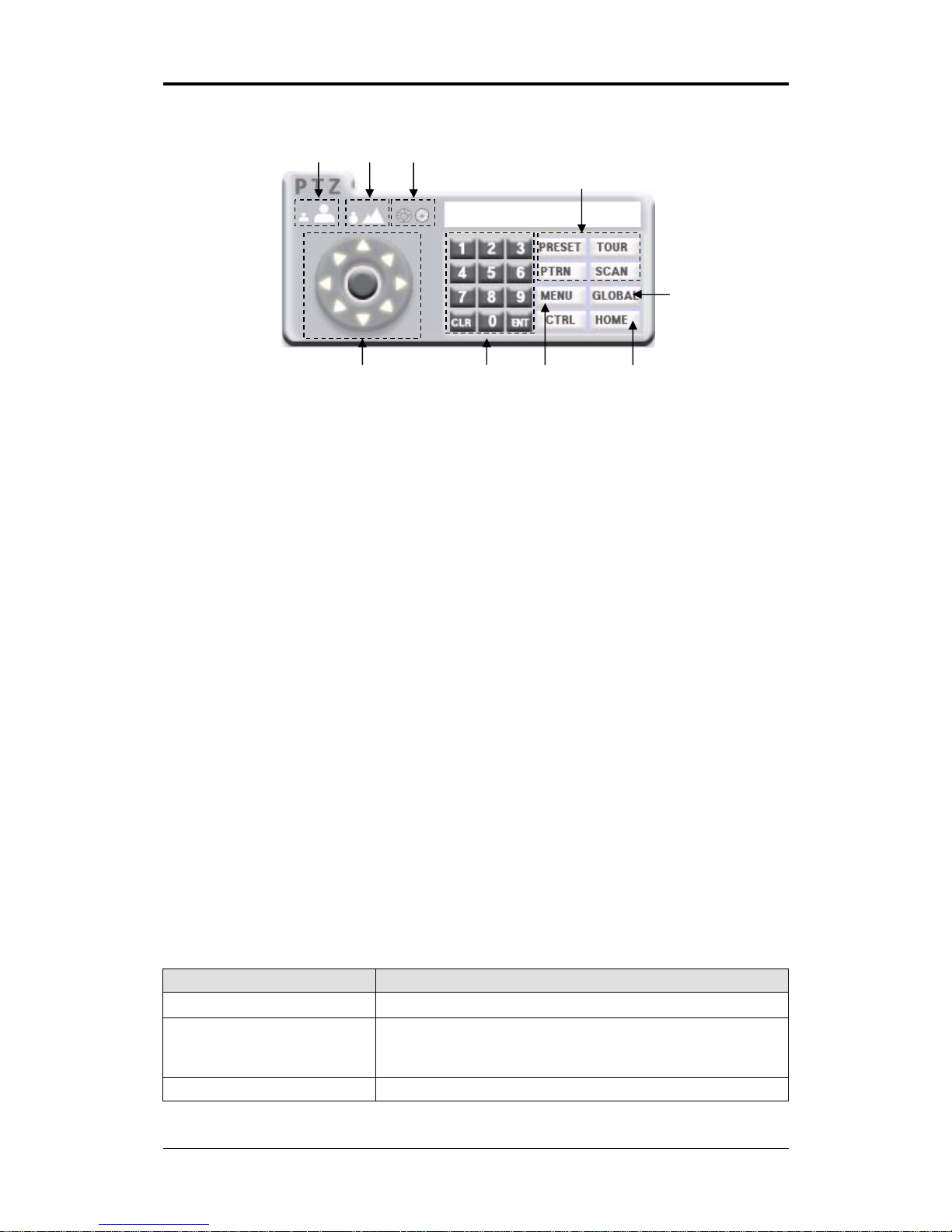
Figure 1. Joy Stick Controller
① Brand Logo
② LCD Window
③ RJ-45 Jack
④ Joy Stick / Direction Button
⑤
NUMERIC Button
⑥ DVR Control Keypad
⑦
MENU/ LOCK Button
⑧
PRESET/TOUR/PATTERN/SCAN Button
⑨
HOME Button
⑩
GLOBAL Button
⑪
IRIS Open/Close
⑫
Focus Near/Far
⑬
Zoom In/Out
Twist the joystick clockwise : TELE (Zoom In)
counter clockwise : WIDE (Zoom Out)
2.3. Selecting Dome Camera
Before you program or operate a dome camera, you must select the dome camera by pressing
the dome camera NO (
NUMERIC Button) + CAM
Example: Pressing
1, 0 and CAM sequentially will select the dome camera 10. The selected
dome camera ID will be displayed on the LCD window of the joystick controller.
2.4. Accessing On-Screen Menu Utility
You can call up the On-Screen menu utility on your monitor by pressing MENU/LOCK on the
joystick controller, the following On-Screen utility will appear.
2.4.1. How to control On-Screen Menu Utility
Action Function
NUMERIC Button
Call on On-Screen Menu Utility or Exit(Escape).
Joystick left or right a. Go into the sub-menu items.
b. Execute the command (exit).
c. Navigate through the menu items.
Joystick up or down Navigate through the menu items.
C UDP Co., Ltd. 5
Page 6

On Screen Menu Operation Manual
Zoom Handle twist
Or
TELE / WIDE
Change value.
CTRL + Joystick
Change value of angle/Zoom ratio.
CLR/ESC
Move to the previous mode.
ENT
Save & Exit.
C UDP Co., Ltd. 6
Page 7
On Screen Menu Operation Manual
C UDP Co., Ltd. 7
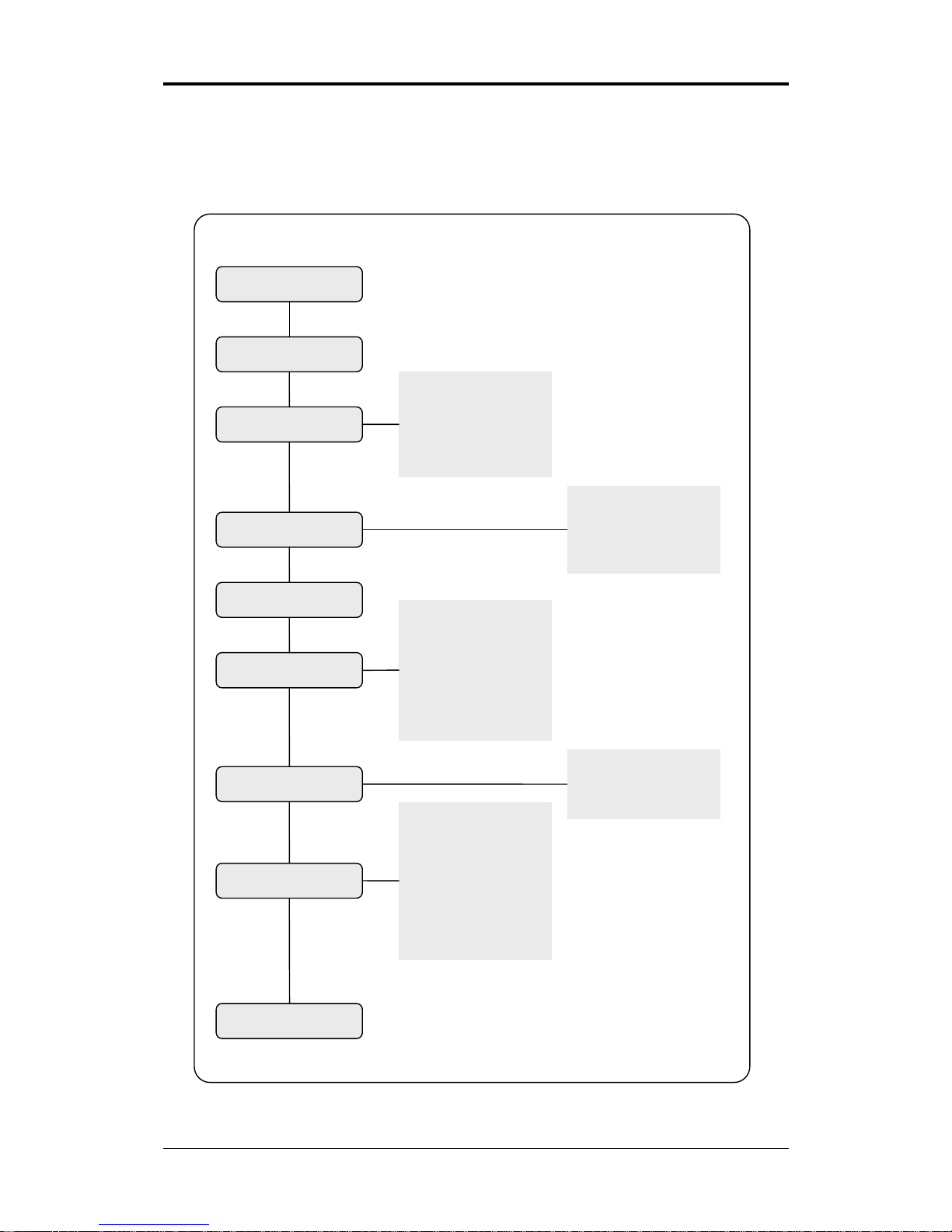
2.4.2. Main Menu of the Cyber Scan Pre-Pack Dome Camera
HOME
CAMERA
SYS INFO
DISPLAY
DOME SETUP
ALARAMS
CONFIG
LANGUAGE
EXIT
AREA TITLE
PRIVACY ZON
OSD DISPLAY
VIEW ANGLE
POSITION
HOME/PRESET
AUTOSCAN
TOUR
PATTERN
FOCUS
WB CONTROL
AE CONTROL
LINE LOCK
SCREEN SETUP
DIGITAL EFFECT
DAY & NIGHT
INIT DATA
DOME RESET
GENERAL
ENGLISH
PYCCKNN
DEUTSCH
ALLEMAND
ESPANOL
ITALIANO
POLSKI
PORTUGUES
Page 8
On Screen Menu Operation Manual
2.5. HOME
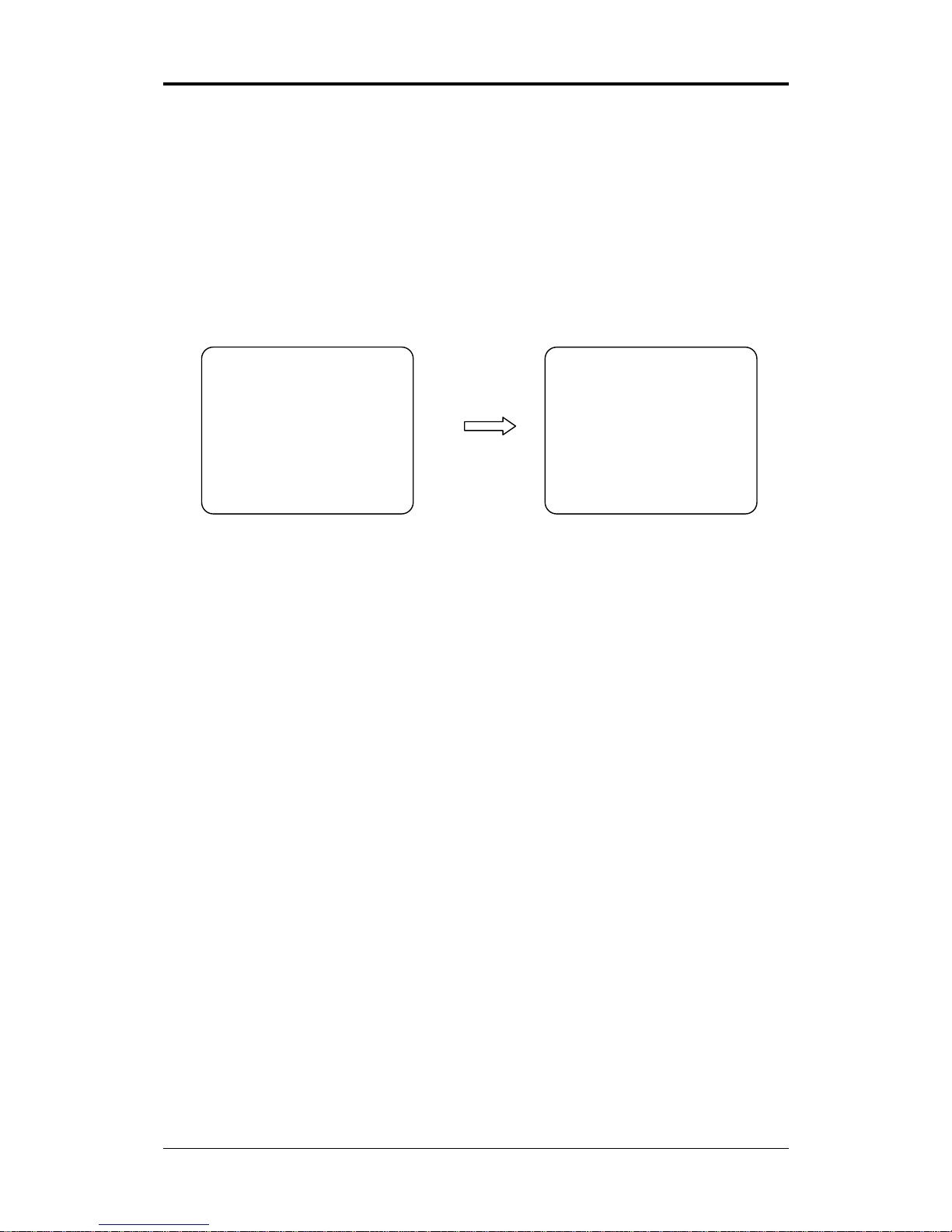
Press MENU/LOCK to display the main menu on the monitor.
Note : If you want to go previous menu, please press
CLR/ESC. To exit main menu without
saving, please press
MENU/LOCK. To exit after saving, please press ENT. (Cyber Scan
protocol only)
◄◄HOME FUNCTION SETUP►►
-----------------------------------------HOME FUNCTION : HOME
FUNCTION NUMBER :
FUNTION TIME(SEC) : 120
FUNTION MODE : AUTO
------------------------------------------ SAVE EXIT
----- CYBER SCAN DOME -----
HOME
SYSINFO
DISPLAY Z
DOME SETUP Z
ALARMS
CAMERA Z
CONFIG Z
LANGUAGE Z
EXIT
Press ENT or Push the
joystick to the right
The HOME function can be set so that the camera automatically goes to Preset, Tour or Pattern,
after the joystick controller has been idle for amount of time. For example, if the joystick
controller is idle for 120 seconds (Function Time), the camera goes to previous mode in Auto
Mode.
Follow these steps to program the Home Function:
1. Select the Home Function by pressing
PST, TOUR, PTRN, SCAN or twisting joystick to
scroll through the Home, Preset, Tour and Pattern functions. (You can setup only saved Preset,
Tour, Pattern and Auto Scan)
2. After selecting the Function Number, move the Function Number. Each function has
maximum numbers. For example, you can have 319 Presets, 8 Tours, 4 Patterns and 8 Auto
Scan options. (You can call only saved items)
3. Select Function Time by twisting the joystick. Select the time by twisting the joystick
clockwise or counterclockwise to select from 10 to 240 seconds.
When the Home is activated, you can see T.TIME on the top of the right screen.
4. Auto Mode: If user does not give a command to the camera for 120 sec (Function Time), the
camera automatically carries out Home Function.
Manual Mode: User need to press
HOME to make Home Function work.
2.6. SYS INFO
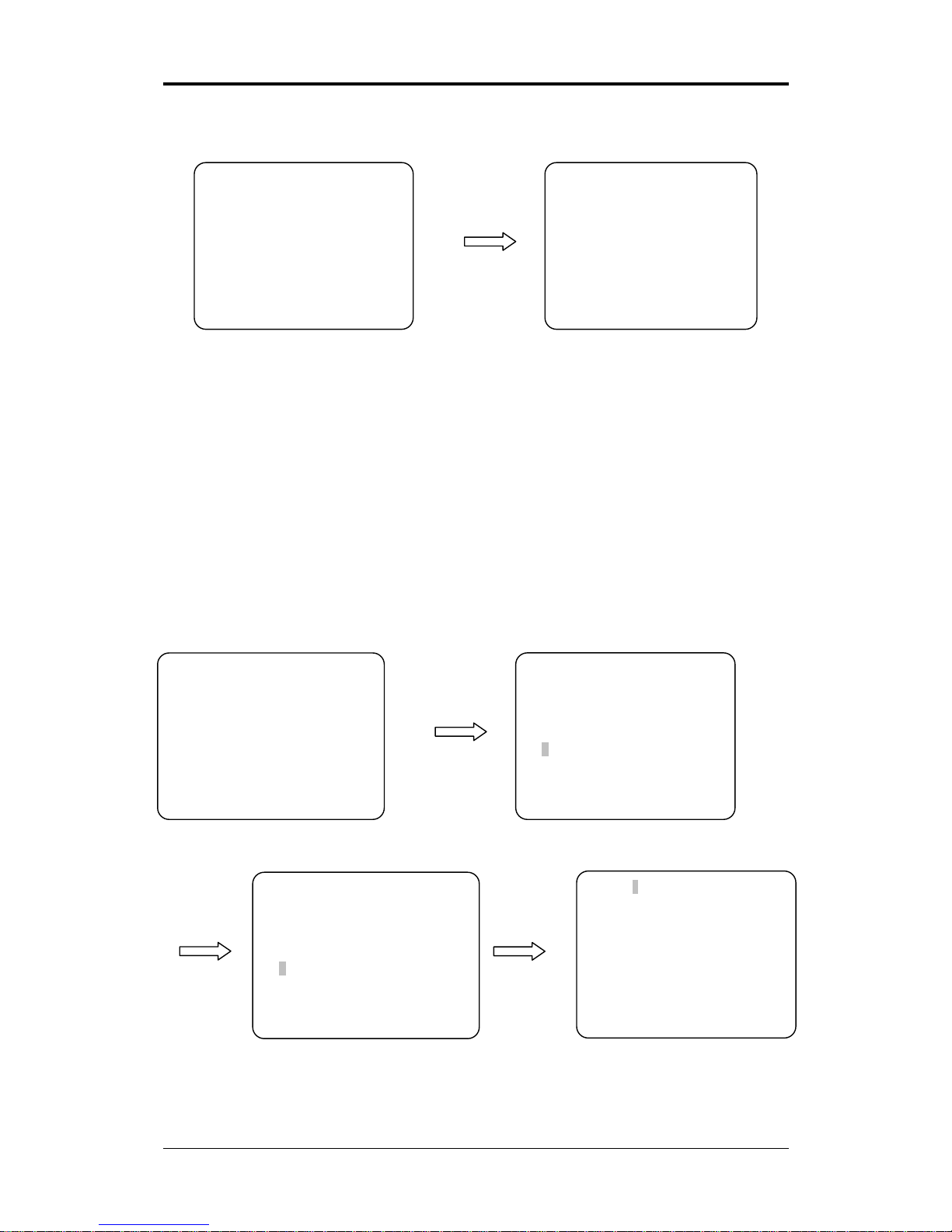
A Camera’s Set Up menu provides essential information about the dome camera. When you see
the screen, you can determine the camera type, software version.
Press
MENU/LOCK to display the main menu on the monitor.
C UDP Co., Ltd. 8
Page 9
On Screen Menu Operation Manual
◄◄SYS INFORMATION►►
------------------------------------------
S/N
DOME ID : 0001
CAMERA TYPE : 25XDN/NTSC
S/W VERSION : V1.43
PROTOCOL : CYBERSCNA I
COMM.MODE : RS485/0900
------------------------------------------ EXIT : [CLR/ESC][F.FAR]KEY
---- CYBER SCAN DOME ----
HOME
SYSINFO
DISPLAY Z
DOME SETUP Z
ALARMS
CAMERA Z
CONFIG Z
LANGUAGE Z
EXIT
Press ENT or Push the
joystick to the right.
2.7. DISPLAY
Note : If you want to go previous menu, please press CLR/ESC. To exit main menu without
saving, please press
MENU/LOCK. To exit after saving, please press ENT. (Cyber Scan
protocol only)
2.7.1. AREA TITLE
If this option is enabled, the nearest area title will be displayed when the camera is moving
whether by manual operation, Auto Scan or Pattern. Select ON/OFF by twisting the joystick or
press
TELE / WIDE. The dome camera’s [OSD DISPLAY/AREA TITLE] will override this
function (Camera’s [OSD DISPLAY/AREA TITLE] must be ON.)
◄◄AREA TITLE SETUP►►
------------------------------------------------NO.001 :
START(PTZ) : 000.00
END (PTZ) : 000.00
12345679
00=======
------------------------------------------------ SAVE EXIT
PRESS[TELE] KEY TO SETUP
PRESS[WIDE] KEY TO CLEAR
Press ENT or Push the
joystick to the right
CYBERSCAN PRE PACK
HOME
SYSINFO AREA TITLE
DISPLAY X PRIVACY ZONE
DOME SETUP Z OSD DISPLAY
ALARMS VIEW ANGLE
CAMERA Z POSITION
CONFIG
LANGUAGE
EXIT
TITLE : _
ABCDEFGJIJKLMNOP
QRSTUVWXYZabcdefg
hijklmnopqrstuvwx
②
Title
Press IRIS Open,
IRIS Close, or
Push the joystick to
the ri
ght
◄◄AREA TITLE SETUP►►
------------------------------------------------NO.001 :
START(PTZ) : 000.00
END (PTZ) : 000.00
12345679
00●======
------------------------------------------------ SAVE EXIT
PRESS[TELE] KEY TO SETUP
PRESS[WIDE] KEY TO CLEAR
Press Zoom Out or
Twist the joystick
clockwise(TELE)
①
Select No.
yz0123456789-+()=
SELECT CHARACTER : MOVE
TITLE POSITION : [CTRL] + MOVE
SET CHARACTER : CLOCKWISE
CLEAR:COUNTER CLOCKWISE
SAVE : [HOME][ENT][F.NEAR]KEY
EXIT:[CLR/ESC][F.FAR]KEY
C UDP Co., Ltd. 9
Page 10

On Screen Menu Operation Manual
C UDP Co., Ltd. 10
2.7.2. PRIVACY ZONE
Hide up to 8 unwanted views.
③ Mode : Disable/Block/Video Off
* DISABLE : Not active
* BLOCK : Blue Block (Day & Night OFF)
White Block (Day & Night ON)
* VIDEO OFF : No picture (Blue Block)
◄◄AREA TITLE SETUP►►
------------------------------------------------NO.001 :
START(PTZ) : 353.82
END (PTZ) : 079.17
12345679
00●======
------------------------------------------------ SAVE EXIT
PRESS[CTRL]KEY + MOVE
Press CTRL
and Push the joystick
to the up/down, left/right
◄◄AREA TITLE SETUP►►
-------------------------------------------------
NO.001 :
START(PTZ) : 000.00
END (PTZ) : 000.00
12345679
00●======
------------------------------------------------ SAVE EXIT
PRESS[CTRL]KEY + MOVE
③
Start/End
◄◄PRIVACY ZONE SETUP►►
------------------------------------------------NO.001 :
MODE : DISABLE
12345679
00●======
------------------------------------------------ SAVE EXIT
PRESS[TELE] KEY TO SETUP
PRESS[WIDE] KEY TO CLEAR
Press HOME
or ENT
_ _
PRESS[CTRL]KEY+MOVE
SAVE : [HOME][ENT][F.NEAR]KEY
EXIT:[CLR/ESC][F.FAR]KEY
_ _
Twist the joystick
clockwise(TELE)
② Title
◄◄PRIVACY ZONE SETUP►►
------------------------------------------------NO.001 :
MODE : DISABLE
12345679
00=======
------------------------------------------------ SAVE EXIT
PRESS[TELE] KEY TO SETUP
PRESS[WIDE] KEY TO CLEAR
Press ENT or Push the
joystick to the
right
---- CYBER SCAN DOME ---HOME
SYSINFO AREA TITLE
DISPLAY X PRIVACY ZONE
DOME SETUP Z OSD DISPLAY
ALARMS VIEW ANGLE
CAMERA Z POSITION
CONFIG
LANGUAGE
EXIT
① Select No.
Page 11

On Screen Menu Operation Manual
◄◄PRIVACY ZONE SETUP►►
------------------------------------------------NO.001 :
MODE : BLOCK
12345679
00●======
------------------------------------------------ SAVE EXIT
PRESS[TELE] KEY TO SETUP
PRESS[WIDE] KEY TO CLEAR
TITLE : _
ABCDEFGJIJKLMNOP
QRSTUVWXYZabcdefg
hijklmnopqrstuvwx
yz0123456789-+()=
SELECT CHARACTER : MOVE
TITLE POSITION : [CTRL] + MOVE
SET CHARACTER : CLOCKWISE
CLEAR:COUNTER CLOCKWISE
SAVE : [HOME][ENT][F.NEAR]KEY
EXIT:[CLR/ESC][F.FAR]KEY
Press IRIS Open,
IRIS Close, or
Push the joystick
to the ri
ght
Press ENT
◄◄PRIVACY ZONE SETUP►►
-------------------------------------------------
NO.001 :
MODE : VIDEO OFF
12345679
00●======
------------------------------------------------ SAVE EXIT
PRESS[TELE] KEY TO SETUP
PRESS[WIDE] KEY TO CLEAR
Twist the joystick
clockwise/counter
clockwise
Press HOME
or
ENT
v01.0m Z001 ID : 0001
P
F ÅW 259.38, 047.42
③ Mode : Disable/Block/Video Off
* DISABLE : Not active
* BLOCK : Blue Block (Day & Night OFF)
White Block (Day & Night ON)
* VIDEO OFF : No picture (Blue Block)
C UDP Co., Ltd. 11
Page 12

On Screen Menu Operation Manual
C UDP Co., Ltd. 12
2.7.3. OSD DISPLAY
All display or title will be disappeared when you set all flags OFF.
① Area/P-Zone Title : You can see the area title. But the privacy zone title is a priority than
area title.
② Time Display: D.Time/T.Time/A.Time (Dwell/Task/Alarm Time)
③ Operation Title: Preset, Auto Scan And Pattern title.
④ Dome Mode: T1(Tour1) 001(Preset 001)
⑤ Flag Display: “P”/”F” (Privacy/Flip on)
⑥ Zoom Ratio: When the camera is digital zoom, you can see “D” signal.
⑦ Pan/Tilt Angle: This will show you the position of camera.
⑧ Dome ID(Address) : Standard is 999.
⑨ Cooler/Heater Display:”C” / ”H” (Cooler/Heater On)
⑩ Temperature: Displays current temperature of the dome.
⑪ CELSIUS/FAHRENHEIT Display
⑫ Distance to the object.
⑬ East/West/South/North. Indicates current pan direction.
◄◄OSD DISPLAY SETUP►►
ZOOM RATIO : ON
PAN/TILT ANGLE : ON
DOME ID(ADDRESS) : ON
DOME MODE : ON
AREA/P-ZONE TITLE : OFF
OPERATION TITLE : OFF
FLAG DISPLAY : ON
TIME DISPLAY : ON
TEMPERATURE : OFF
SAVE EXIT
CYBER SCAN DOME
HOME
SYSINFO AREA TITLE
DISPLAY X PRIVACY ZONE
DOME SETUP Z OSD DISPLAY
ALARMS VIEW ANGLE
CAMERA Z POSITION
CONFIG
LANGUAGE
EXIT
Press ENT or Push the
joystick to the
right
AREA
OPERATION D.TIME:005
C H +34.0C 10.0m D Z0501ID:0001
T1001 P F ÅW 259.38,047.42
①
②③
⑩
⑨
④
⑤
⑫⑬ ⑦
⑧
⑥
⑪
Page 13

On Screen Menu Operation Manual
C UDP Co., Ltd. 13
2.7.4. VIEW ANGLE
When the dome camera is installed near wall, panning range could be programmed by user.
① Flip
Allow the dome camera to automatically turn 180 degrees when the camera tilts to its lower
position. When camera reaches floor alone moving object, it will stop. Just hold the joystick
handle (up or down direction) down to run the flip function. When Flip function is turned on,
“F” flag is displayed at the bottom line.
② PAN Limit(ON/OFF) : OFF
When the dome camera is installed near the wall, PAN LIMIT could be programmed by user.
* In case of FLIP Off, PAN LIMIT is available.
③ MIRROR/REVERSE
OFF : Normal image
H - MIRROR : Left-right reversal of the image
V - MIRROR : Upside down image
REVERSE : Left-right reversal and Upside down
2.7.5. POSITION
If the Cyber Scan OSD is overwritten on the other equipment like DVR, you can move the OSD
horizontally and/or vertically.
① To move the OSD horizontally, twist the joystick clockwise or counterclockwise or click
TELE or WIDE.
② To move the OSD vertically, twist the joystick clockwise or counterclockwise or click
TELE or WIDE..
◄◄VIEW ANGLE SETUP►►
----------------------------------------------FLIP [ON/OFF] : ON
OVERTILT[ON/OFF] :
PAN LIMIT[ON/OFF] :
PAN RIGHT LIMIT :
PAN LEFT LIMIT :
MIRROR/REVERSE : OFF
---------------------------------------------- SAVE EXIT
CYBER SCAN DOME
HOME
SYSINFO AREA TITLE
DISPLAY X PRIVACY ZONE
DOME SETUP Z OSD DISPLAY
ALARMS VIEW ANGLE
CAMERA Z POSITION
CONFIG
LANGUAGE
EXIT
Press ENT or Push the
joystick to the
right
◄◄OSD POSITION SETUP►►
-----------------------------------------------
HORIZONTAL POSITION : 27
VERTICAL POSITION : 04
---------------------------------------------- SAVE EXIT
CYBER SCAN DOME
HOME
SYSINFO AREA TITLE
DISPLAY X PRIVACY ZONE
DOME SETUP Z OSD DISPLAY
ALARMS VIEW ANGLE
CAMERA Z POSITION
CONFIG
LANGUAGE
EXIT
Press ENT or Push the
joy
stick to the righ
t
Page 14

On Screen Menu Operation Manual
C UDP Co., Ltd. 14
2.8. DOME SET UP
Note : If you want to go previous menu, please press CLR/ESC. To exit main menu without
saving, please press
MENU/LOCK. To exit after saving, please press ENT. (Cyber Scan
protocol only)
2.8.1. HOME/PRESET
If you need to view specific places routinely, you should program presets. A preset is a
programmed video scene with automatic Pan, Tilt, Zoom and Focus and Iris settings. Once
programmed, pressing
PST on your controller automatically calls up the preset. In addition,
presets may be assigned to alarm actions or as the
HOME position for the dome camera. Max.
320 presets (HOME included), can be programmed.
There are four pages of preset menu, each page can hold 80 presets. Pages can be scrolled by
pushing the joystick to the Left or Right on the first or last No. of Preset.
IRIS OPEN or IRIS
CLOSE can be used for Page Up & Down functions.
Note : Press
PST(PRESET) to go directly to the preset menu without going through the main
menu.
③ Focus & Iris : Auto/Manual
④ Dwell Time : 02~240 sec
⑤ Pan/Tilt/Zoom
◄◄HOME/PRESET SETUP►►
NO.000 : HOME
FOCUS : AUTO P:000.00
IRIS :AUTO T:000.00
DWELL[SEC] : 005 Z:001
1234567890 1234567890
00●========= 01==========
02========== 03==========
04========== 05==========
06========== 07==========
SAVE EXIT
CYBERSCAN PRE PACK
HOME
SYSINFO
DISPLAY Z HOME/PRESET
DOME SETUP X AUTO SCAN
ALARMS TOUR
CAMERA Z PATTERN
CONFIG Z
LANGUAGE Z
EXIT
Press ENT or Push the
joy
stick to the righ
t
①
Select No
◄◄HOME/PRESET SETUP►►
NO.001 :
FOCUS : AUTO P:000.00
IRIS :AUTO T:000.00
DWELL[SEC] : 005 Z:001
1234567890 1234567890
00●●======== 01==========
02========== 03==========
04========== 05==========
06========== 07==========
SAVE EXIT
TITLE : _
ABCDEFGJIJKLMNOP
QRSTUVWXYZabcdefg
hijklmnopqrstuvwx
yz0123456789-+()=
SELECT CHARACTER : MOVE
TITLE POSITION : [CTRL] + MOVE
SET CHARACTER : CLOCKWISE
CLEAR:COUNTER CLOCKWISE
SAVE : [HOME][ENT][F.NEAR]KEY
EXIT:[CLR/ESC][F.FAR]KEY
②
Title
Push the joystick to the
right and twist the
joystick clockwise
Press. IRIS OPEN /
IRIS CLOSE or push
the joystick to the right
Page 15

On Screen Menu Operation Manual
C UDP Co., Ltd. 15
⑥ Preset Call : Input the Preset No.(1~319) and then press
PST to call the preset.
⑦ Preset Erase : Input the Preset No.(1~319) and then press
CTRL + PST at one time to erase
the preset. Move the preset No. (0~319) and then press Zoom out at one time to
Note : When you create the preset, move the preset No. (0~319) and press the Zoom in to create
the preset.
⑧ Quick Preset Setup
You can setup the preset without accessing the main menu.
Move the camera to the desired position and then press NO +
HOME
Note : If you press NO.+
CTRL + HOME, the new preset will be programmed automatically
without reminding whether to rewrite or not.
⑨ Caution
If you use quick preset set up, it will overwrite the previous preset. So be careful.
2.8.2. AUTO SCAN
This Auto Scan supports up to 8 programmed angles at user-programmable speeds. Follow these
steps to program Auto Scan.
◄◄HOME/PRESET SETUP
NO.001 : HOME
FOCUS : AUTO P:000.00
IRIS :AUTO T:000.00
DWELL[SEC] : 005 Z:001
1234567890 1234567890
00●●======== 01==========
02========== 03==========
04========== 05==========
06========== 07==========
SAVE EXIT
◄◄HOME/PRESET SETUP►►
NO.001 : HOME
FOCUS : AUTO P:033.39
IRIS :AUTO T:050.81
DWELL[SEC] : 005 Z:001
1234567890 1234567890
00●●======== 01==========
02========== 03==========
04========== 05==========
06========== 07==========
SAVE EXIT
Press CTRL and push
the joystick to the
up/down, left/right
v01 2m Z001 ID : 0001
F N 000.00, 000.00
WRITING
OK
v01 2m Z001 ID : 0001
F N 000.00, 000.00
Push the joystick to the
up/down, left/right and twist
the joystick clockwise
/counterclockwise and
NO+HOME
v01 2m Z001 ID : 0001
F N 000.00, 000.00
OVERWRITE?
YES : ENT/TELE
NO : CLR/WIDE
WRITING
OK
Page 16

On Screen Menu Operation Manual
C UDP Co., Ltd. 16
Note : Press
SCAN to go directly to the Auto Scan menu without going through the main menu.
a. ENDLESS(LEFT) : 360 degree endless scan from the left.
.
imit(Vector Scan).
Speed : 9 different levels.
est.
Fastest.
b. ENDLESS(RIGHT) : 360 degree endless scan from the right
c. COMING & GOING : Auto Scan between left limit and right l
ou can use only START(PTZ) for the ENDLESS(LEFT/RIGHT), not END(PTZ). Y
④
- LEVEL 1: 1.1deg/sec. Slow
- LEVEL 2: 1.2deg/sec.
- LEVEL 3: 1.4deg/sec.
- LEVEL 4: 1.7deg/sec.
- LEVEL 5: 2deg/sec.
- LEVEL 6: 2.5deg/sec.
- LEVEL 7: 3.3deg/sec.
- LEVEL 8: 5deg/sec.
- LEVEL 9: 10deg/sec.
◄◄AUTO SCAN SETUP►►
NO. 001
MODE : ENDLESS(LEFT)
SPEED(PTZ) : 1
START(PTZ) :
END (PTZ) :
DWELL(SEC : 005
FOCUS/IRIS : AUTO
12345678
00========
SAVE EXIT
CYBERSCAN PRE PACK
HOME
SYSINFO
DISPLAY Z HOME/PRESET
DOME SETUP X AUTO SCAN
ALARMS TOUR
CAMERA Z PATTERN
CONFIG Z
LANGUAGE Z
EXIT
Press ENT or Push the
joy
stick to the righ
t
AUTO SCAN SETUP
NO. 001
MODE : ENDLESS(LEFT)
SPEED(PTZ) : 1
START(PTZ) :
END (PTZ) :
DWELL(SEC : 005
FOCUS/IRIS : AUTO
12345678
00========
SAVE EXIT
TITLE : _
ABCDEFGJIJKLMNOP
QRSTUVWXYZabcdefg
hijklmnopqrstuvwx
yz0123456789-+()=
SELECT CHARACTER : MOVE
TITLE POSITION : [CTRL] + MOVE
SET CHARACTER : CLOCKWISE
CLEAR:COUNTER CLOCKWISE
SAVE : [HOME][ENT][F.NEAR]KEY
EXIT:[CLR/ESC][F.FAR]KEY
Twist the joystick
clockwise
Press IRIS Open /
IRIS Close or Push the
joystick to the right
②
Title
AUTO SCAN SETUP
NO. 001
MODE : ENDLESS(LEFT)
SPEED(PTZ) : 1
START(PTZ) :
END (PTZ) :
DWELL(SEC : 005
FOCUS/IRIS : AUTO
12345678
00●=======
SAVE EXIT
AUTO SCAN SETUP
NO. 001
MODE : COMING & GOING
SPEED(PTZ) : 1
START(PTZ) :
END (PTZ) :
DWELL(SEC : 005
FOCUS/IRIS : AUTO
12345678
00●=======
SAVE EXIT
Twist the joystick
clockwise
③
Mode
①
Select No
Page 17

On Screen Menu Operation Manual
C UDP Co., Ltd. 17
⑤ Start/End (P,T,Z)
40sec
CTRL to increase / decrease dwell time by 10 sec.
uto Scan No.(1~8) and then press
SCAN to call the Auto Scan.
ote : Create the SCAN : Press the Zoom out.
Each TOUR can harmonize 42 different mode among Preset(1~319), Auto Scan(1~8),
Note : Press
TOUR to go directly to Tour Menu without going through the main menu.
③ Speed : Fast : Full Speed (See MENU/CONFIG/GENERAL)
Freeze : On/Off
f a still image while the camera is performing preset operations.
Mode & No.
erent mode and No. (Preset, Auto Scan, Tour and Pattern)
⑥ Dwell Time : 02~2
Twist joystick while pressing
⑦ Focus/Iris : Auto/Manual
⑧ Auto Scan Call : Input the A
⑨ Auto Scan Stop : Move the joystick anywhere to stop this function.
N
Erase the SCAN : Press the Zoom in.
2.8.3. TOUR
Pattern(1~4) and only Tour 1 can obtain Tour 2~8 additionally.
Normal : Half Speed
Slow : Quarter Speed
④
Allows for the output o
For example, the camera will output a still image before it finishes pan/tilt operation.
⑤
To select the 4 diff
CYBERSCAN PRE PACK
HOME
SYSINFO
DISPLAY Z HOME/PRESET
DOME SETUP Z AUTO SCAN
ALARMS TOUR
CAMERA Z PATTERN
CONFIG Z
LANGUAGE Z
EXIT
◄◄TOUR SETUP►►
NO. 001 :
SPEED : FAST
FREEZE : OFF
=== === === === === === ===
=== === === === === === ===
=== === === === === === ===
=== === === === === === ===
=== === === === === === ===
=== === === === === === ===
SAVE EXIT
Press ENT or Push the
joy
stick to the righ
t
① Select No.
②
Title
Press IRIS
Open/IRIS Close
Press IRIS Open/IRIS
Close or Push the
joystick to the right
TITLE : _
ABCDEFGJIJKLMNOP
QRSTUVWXYZabcdefg
hijklmnopqrstuvwx
yz0123456789-+()=
SELECT CHARACTER : MOVE
TITLE POSITION : [CTRL] + MOVE
SET CHARACTER : CLOCKWISE
CLEAR:COUNTER CLOCKWISE
SAVE : [HOME][ENT][F.NEAR]KEY
EXIT:[CLR/ESC][F.FAR]KEY
◄◄TOUR SETUP►►
NO. 002 :
SPEED : FAST
FREEZE : OFF
=== === === === === === ===
=== === === === === === ===
=== === === === === === ===
=== === === === === === ===
=== === === === === === ===
=== === === === === === ===
SAVE EXIT
Page 18

On Screen Menu Operation Manual
C UDP Co., Ltd. 18
Each TOUR can harmonize 42 different mode among Preset (1~319), Auto Scan(1~8),
our 2~8 additionally.
”.
ote : If there is no memorized Preset, Auto Scan, Tour or Pattern, you can not set up this
Tour Call : Input the Tour NO.(1~8) and press “TOUR” to call the Tour.
Pattern(1~4) and Tour.
Only Tour 1 can obtain T
If you want clear the 4 mode, just press “HOME
N
function.
⑥
⑦ Tour Stop : Move the joystick anywhere to stop the function.
◄◄TOUR SETUP►►
NO. 002 :TOUR
SPEED : FAST
FREEZE : OFF
=== === === === === === ===
=== === === === === === ===
=== === === === === === ===
=== === === === === === ===
=== === === === === === ===
=== === === === === === ===
SAVE EXIT
◄◄TOUR SETUP►►
NO. 002 :TOUR
SPEED : FAST
FREEZE : OFF
SC2 === === === === === ===
=== === === === === === ===
=== === === === === === ===
=== === === === === === ===
=== === === === === === ===
=== === === === === === ===
SAVE EXIT
Press SCAN and twist
the joystick clockwise
/counter clockwise
Page 19

On Screen Menu Operation Manual
C UDP Co., Ltd. 19
* Example
PRESS 1 + TOUR
TOUR1
PRESET1
TOUR1
PRESET319
TOUR2
PRESET2
TOUR2
SCAN4 START
TOUR8
PATTERN2 START
PRESET1
DWELL TIME 5 SEC
(
Default:5SEC
)
PRESET319
DWELL TIME 5 SEC
(
Default:5SEC
)
PRESET2
DWELL TIME 5 SEC
(
Default:5SEC
)
TOUR8
PATTERN2 END
SCAN4
DWELL TIME 5SEC
(
Default:5SEC)
TOUR8
DWELL TIME 5SEC
(
Default:5SEC)
TOUR2
SCAN4 END
Quinch Move
Dwell Time
Programmed Speed
◄◄TOUR SETUP►►
NO. 002 :TOUR1
SPEED : FAST
FREEZE : OFF
001 319 TR2 TR8 === === ===
=== === === === === === ===
=== === === === === === ===
=== === === === === === ===
=== === === === === === ===
=== === === === === === ===
SAVE EXIT
◄◄TOUR SETUP►►
NO. 002 :TOUR2
SPEED : FAST
FREEZE : OFF
002 SC4 === === === === ===
=== === === === === === ===
=== === === === === === ===
=== === === === === === ===
=== === === === === === ===
=== === === === === === ===
SAVE EXIT
◄◄TOUR SETUP►►
NO. 002 :TOUR8
SPEED : FAST
FREEZE : OFF
PT2 === === === === === ===
=== === === === === === ===
=== === === === === === ===
=== === === === === === ===
=== === === === === === ===
=== === === === === === ===
SAVE EXIT
Page 20

On Screen Menu Operation Manual
C UDP Co., Ltd. 20
2.8.4. PATTERN
The Pattern features record user control of the selected dome camera for up to 240 seconds.
Up to 4 patterns can be stored and played back by pressing No. +
PTRN subsequently.
Note : Press
PTRN to go directly to the Pattern menu without going through the main
menu.
④ Pattern Call : Input the Pattern NO.(1~4) and press “PTRN” to call the Pattern.
⑤ Pattern Stop : Move the joystick anywhere to stop the function.
CYBERSCAN PRE PACK
HOME
SYSINFO
DISPLAY Z HOME/PRESET
DOME SETUP Z AUTO SCAN
ALARMS TOUR
CAMERA Z PATTERN
CONFIG Z
LANGUAGE Z
EXIT
◄◄PATTERN SETUP►►
NO. TITLE TIME
01 _________________ 000
02 000
03 000
04 000
SAVE EXIT
TITLE EDIT : [RIGHT] KEY
TITLE CLEAR : [LEFT]KEY
PRESS[WIDE]KEY TO CLEAR
PRESS[TELE]KEY TO LEARN
Press ENT or Push the
joystick to the right
① Select No.
②
Title
Twist the joystick
clockwise/counter
clockwise
Press PTRN and
twist the joystick
clockwise/counter
clockwise
◄◄PATTERN SETUP►►
NO. TITLE TIME
01 000
02 _________________ 000
03 000
04 000
SAVE EXIT
TITLE EDIT : [RIGHT] KEY
TITLE CLEAR : [LEFT]KEY
PRESS[WIDE]KEY TO CLEAR
PRESS[TELE]KEY TO LEARN
TITLE : _
ABCDEFGJIJKLMNOP
QRSTUVWXYZabcdefg
hijklmnopqrstuvwx
yz0123456789-+()=
SELECT CHARACTER : MOVE
TITLE POSITION : [CTRL] + MOVE
SET CHARACTER : CLOCKWISE
CLEAR:COUNTER CLOCKWISE
SAVE : [HOME][ENT][F.NEAR]KEY
EXIT:[CLR/ESC][F.FAR]KEY
◄◄PATTERN SETUP►►
NO. TITLE TIME
01 000
02 ____PATTERN____ 000
03 000
04 000
SAVE EXIT
TITLE EDIT : [RIGHT] KEY
TITLE CLEAR : [LEFT]KEY
PRESS[WIDE]KEY TO CLEAR
PRESS[TELE]KEY TO LEARN
P.TI ME : 1
PRESS:[CTRL]KEY+MOVE
SAVE:[HOME][ENT][F.NEAR]KEY
EXIT:[CLR/ESC][F.FAR]KEY
③
Learn
Press PTRN or
twist the joystick
clockwise
Page 21

On Screen Menu Operation Manual
C UDP Co., Ltd. 21
2.9. ALARM
Note : If you want to go previous menu, please press CLR/ESC. To exit main menu without
saving, please press
MENU/LOCK. To exit after saving, please press ENT. (Cyber Scan
protocol only)
Note : If there is no memorized Preset, Auto Scan, Tour or Pattern, you can not set up this
function.
④ In : OFF(No activation)
NC(Normally Closed, Active Open)
NO(Normally Open, Active Closed)
⑤ Out : 1~4 (Relay Out 1, 2, 3, 4), Off(No Output)
⑥ Time : Alarm will be held for programmed time(02 to 99 seconds)
Caution : This PTZ will not be operated during the period of Alarm On(Dwell Time).
After alarm off, you can control the PTZ as usual.
Note : When the Alarm is activated, you can see A.TIME on the top of the right screen.
◄◄ALARM SETUP►►
NO. PRI MODE IN OUT TIME
01 1 === OFF OFF 05
02 1 === OFF OFF 05
03 1 === OFF OFF 05
04 1 === OFF OFF 05
05 1 === OFF OFF 05
06 1 === OFF OFF 05
07 1 === OFF OFF 05
08 1 === OFF OFF 05
SAVE EXIT
◄◄ALARM SETUP►►
NO. PRI MODE IN OUT TIME
01 1 PT2 OFF OFF 05
02 1 === OFF OFF 05
03 1 === OFF OFF 05
04 1 === OFF OFF 05
05 1 === OFF OFF 05
06 1 === OFF OFF 05
07 1 === OFF OFF 05
08 1 === OFF OFF 05
SAVE EXIT
②
PRI(Priority)
③ Mode
Stored Preset, Tour, Auto Scan and Pattern
Twist the joystick
clockwise/counter
clockwise
Press PTRN and
twist the joystick
clockwise/counter
clockwise
Page 22

On Screen Menu Operation Manual
C UDP Co., Ltd. 22
2.10. CAMERA
Note : If you want to go previous menu, please press CLR/ESC. To exit main menu without
saving, please press
MENU/LOCK. To exit after saving, please press ENT. (Cyber Scan
protocol only)
2.10.1. FOCUS
MODE : MANUAL/ AUTO
Use Manual mode in normal use. To select the Auto mode, move the cursor to the mode and
then twist the joystick clockwise or counterclockwise.
2.10.2. WB CONTROL (White Balance)
MODE : ATW/INDOOR/OUTDOOR/MWB/AWC
* ATW (Auto Trace White balance) :
Auto-controls the white balance according to the change of a light source with 2000~10000K of
color temperature. When you have various change of the circumstance with light source, you
can set this mode and you don’t have to lock the white balance setting every time.
* INDOOR :
Color Temperature fix to 3200K
* OUTDOOR :
Color Temperature fix to 5400K
* AWC(Auto White balance Control) :
This mode is used when the lighting condition do not vary to any significant extent. This mode
enable photographing by setting the lighting condition that light up a subject and controlling as
CYBERSCAN PRE PACK
HOME
SYSINFO
DISPLAY Z FOCUS
DOME SETUP Z WB CONTROL
ALARMS AE CONTROL
CAMERA Z LINE LOCK
CONFIG Z SCREEN SET UP
LANGUAGE Z DIGITAL EFFECT
EXIT DAY & NIGHT
◄◄FOCUS SETUP►►
-------------------------------------------------MODE : MANUAL
------------------------------------------------- SAVE EXIT
Press ENT or
Push the
joy
stick to the righ
t
CYBERSCAN PRE PACK
HOME
SYSINFO
DISPLAY Z FOCUS
DOME SETUP Z WB CONTROL
ALARMS AE CONTROL
CAMERA Z LINE LOCK
CONFIG Z SCREEN SET UP
LANGUAGE Z DIGITAL EFFECT
EXIT DAY & NIGHT
◄◄WB SETUP►►
-------------------------------------------------MODE : ATW
MWB RED :
MWB BLUE :
AWC MODE :
------------------------------------------------- SAVE EXIT
Press ENT or
Push the
joy
stick to the righ
t
Page 23

On Screen Menu Operation Manual
C UDP Co., Ltd. 23
the white color forcibly. Twist and hold the joystick, then LOCK mode becomes PUSH mode
and white balance acts automatically. Release the joystick, push mode becomes LOCK mode
and white balance is locked as manual mode.
* MWB(Manual White Balance) :
mperature manually. Adjust Red and Blue to perform a
-20 ~ 20, BLUE level Range : -20 ~ 20
WB BLUE. Press
CTRL and twist
the
.10.3. AE CONTROL(Automatic Exposure)
MODE : FULL AUTO / MANUAL
1.6/AUTO
1/120),…,1/6000, 1/10,000
se of Manual Mode.
.10.4. LINE LOCK
MODE : INTERNAL / EXTERNAL
It is used to adjust to desired color te
desired MWB.
RED level Range :
Twist the joystick to change the value of MWB RED or M
joystick clockwise/counterclockwise to change its value by 10 steps.
2
IRIS : CLOSE /F22 /F19 /… /F2.4/F
GAIN : OFF/ 8dB /10dB/… /36dB/38dB
SHUTTER SPEED : 1/60(50, PAL), 1/100(
SLOW SHUTTER : OFF/002/004/…/126/128
* IRIS, GAIN, SHUTTER SPEED is available in ca
2
PHASE : 0 ~ 255(EXTERNAL ONLY)
FACTORY MODE : INTERNAL
CYBERSCAN PRE PACK
HOME
SYSINFO
DISPLAY Z FOCUS
DOME SETUP Z WB CONTROL
ALARMS AE CONTROL
CAMERA Z LINE LOCK
CONFIG Z SCREEN SET UP
LANGUAGE Z DIGITAL EFFECT
EXIT DAY & NIGHT
◄◄AE SETUP►►
-------------------------------------------------MODE : FULL AUTOL
IRIS :
GAIN(AGC) :
SHUTTER SPEED :
SLOW SHUTTER : 008
------------------------------------------------- SAVE EXIT
Press ENT or Push the
joy
stick to the righ
t
CYBERSCAN PRE PACK
HOME
SYSINFO
DISPLAY Z FOCUS
DOME SETUP Z WB CONTROL
ALARMS AE CONTROL
CAMERA Z LINE LOCK
CONFIG Z SCREEN SET UP
LANGUAGE Z DIGITAL EFFECT
EXIT DAY & NIGHT
◄◄LINE LOCK SETUP►►
-------------------------------------------------MODE : INTERNAL
PHASE :
------------------------------------------------- SAVE EXIT
Press ENT or Push the
joy
stick to the righ
t
Page 24

On Screen Menu Operation Manual
C UDP Co., Ltd. 24
2.10.5. SCREEN SET UP
BRIGHTNESS : 0~15
SHARPNESS : 0~15
BACK LIGHT : ON/OFF/AUTO
BMB LEVEL : 1~7 /89*
BMB(Black Mask BLC)MODE : ON/OFF
BMB is different to backlight compensation. BMB masks the excessive light so that objects
look clearly.
To adjust camera Value or Back Light On/Off/Auto, twist the joystick clockwise or
counterclockwise.
2.10.6. DIGITAL EFFECT
DIGITAL ZOOM
Off : Zoom range is limited to the optical range
On : 2X/3X/…/9X/10X
The factory default value is 4X.
FLICKERLESS : On/Off
If the screen appears to pulsate, flicker and/or even roll, you may use Flickerless control. The
main purpose of Flickerless control is to overcome this effect which is the harmonic power
frequency difference between the cycle of 50Hz fluorescent lighting and the vertical
synchronization of the camera which causes the “Flicker” on a monitor. The 50Hz power cycle
of a fluorescent light causes a “pulsating” image which is overcome by the Flickerless control
On.
CYBERSCAN PRE PACK
HOME
SYSINFO
DISPLAY Z FOCUS
DOME SETUP Z WB CONTROL
ALARMS AE CONTROL
CAMERA Z LINE LOCK
CONFIG Z SCREEN SET UP
LANGUAGE Z DIGITAL EFFECT
EXIT DAY & NIGHT
◄◄SCREEN SETUP►►
-------------------------------------------------BRIGHTNESS : 08
SHARPNESS : 08
BACKLIGHT : AUTO
BMB MODE : OFF
BMB LEVEL : 7
------------------------------------------------- SAVE EXIT
Press ENT or Push the
joy
stick to the righ
t
CYBERSCAN PRE PACK
HOME
SYSINFO
DISPLAY Z FOCUS
DOME SETUP Z WB CONTROL
ALARMS AE CONTROL
CAMERA Z LINE LOCK
CONFIG Z SCREEN SET UP
LANGUAGE Z DIGITAL EFFECT
EXIT DAY & NIGHT
◄◄DIGITAL EFFECT SETUP►►
-------------------------------------------------DIGITAL ZOOM : 4X
FLICKERLESS : 0FF
------------------------------------------------- SAVE EXIT
Press ENT or Push the
joy
stick to the righ
t
Page 25

On Screen Menu Operation Manual
C UDP Co., Ltd. 25
2.10.7. DAY&NIGHT
MODE
AUTO : Camera goes in to B&W mode at low light.
ON/OFF : It will enable and disable DAY & NIGHT mode of an individual camera.
2.11. CONFIG
Note : If you want to go previous menu, please press CLR/ESC. To exit main menu without
saving, please press
MENU/LOCK. To exit after saving, please press ENT. (Cyber Scan
protocol only)
2.11.1.INIT DATA
Note : Be careful to select this mode since you can not revert the current data forever.
CYBERSCAN PRE PACK
HOME
SYSINFO
DISPLAY Z FOCUS
DOME SETUP Z WB CONTROL
ALARMS AE CONTROL
CAMERA Z LINE LOCK
CONFIG Z SCREEN SET UP
LANGUAGE Z DIGITAL EFFECT
EXIT DAY & NIGHT
◄◄DAY & NIGHT►►
-------------------------------------------------MODE : AUTO
------------------------------------------------- SAVE EXIT
Press ENT or Push the
joy
stick to the righ
t
CYBERSCAN PRE PACK
HOME
SYSINFO
DISPLAY Z
DOME SETUP Z
ALARMS
CAMERA Z INITDATA
CONFIG Z DOME RESET
LANGUAGE Z GENERAL
EXIT
Press ENT or Push the
joy
stick to the righ
t
◄◄INITIALIZATION SETUP►►
-------------------------------------------------INIT.ALL[FACTORY] : OFF
INIT.CAMERA : OFF
INIT.AREATITLE : OFF
INIT.PRIVACY ZONE : OFF
INIT.PRESET : OFF
INIT.TOUR : OFF
INIT.PATTERN : OFF
INIT.SCAN : OFF
SAVE EXIT
①
ON/OFF
◄◄INITIALIZATION SETUP►►
--------------------------------------------------
INIT.ALL[FACTORY] : ON
INIT.CAMERA : OFF
INIT.AREATITLE : OFF
INIT.PRIVACY ZONE : OFF
INIT.PRESET : OFF
INIT.TOUR : OFF
INIT.PATTERN : OFF
INIT.SCAN : OFF
SAVE EXIT
CONTINUE?
YES : ENT/TELE
NO : CLR/WIDE
Twist
the joystick
clockwise/counter
clockwise
Press ENT
Page 26

On Screen Menu Operation Manual
C UDP Co., Ltd. 26
INIT . ALL
Erase all stored data from the Flash-Rom of the selected dome camera (FACTORY DEFAULT).
You will be asked to enter Yes or No. If you intend to erase all data then press the
ENT or
HOME, otherwise press CLR/ESC to exit without erasing. The erased data includes all stored
data (Titles, Presets, and Tours).
2.11.2. DOME RESET
The main power of the camera will be turned off and then ON again.
2.11.3. GENERAL
2008. GLOBAL FUNCTION : ON/OFF (Factory Mode : OFF)
This feature is used to enable or disable the GLOBAL Key function.
For detail information, refer to Page 29.
② PAN OFFSET : Pan offset angle. In the screen (original pan angle + offset angle) is
displayed.
③ PRESET SPD(DEG/SEC) : Maximum master preset speed.
360/430/500 degree/sec selectable.
④ ARPC : ON/OFF (Factory Mode : ON)
of positioning comAutomatic recognition pensation. The dome recognize pan/tilt angle
INITIALIZATION DATA…
Press ENT
CYBERSCAN PRE PACK
HOME
SYSINFO
DISPLAY Z
DOME SETUP Z
ALARMS
CAMERA Z INITDATA
CONFIG Z DOME RESET
LANGUAGE Z GENERAL
EXIT
RESET:[HOME][ENT][F.NEAR]KEY
EXIT :[CLR/ESC][F.FAR]KEY
Press ENT or Push the
j
oystick to the right
---- CYBER SCAN DOME ---HOME
SYSINFO
DISPLAY Z
DOME SETUP Z
ALARMS
CAMERA Z INITDATA
CONFIG Z DOME RESET
LANGUAGE Z GENERAL
EXIT
◄◄GENERAL CONFIG SETUP►►
-------------------------------------------------GLOBAL FUNCTION : OFF
PAN OFFSET : 000.00
PRESET SPD(DEG/SEC) : 360
ARPC : ON
UNIVERSAL D.TIME : OFF
------------------------------------------------- SAVE EXIT
Press ENT or Push the
j
oystick to the right
Page 27

On Screen Menu Operation Manual
C UDP Co., Ltd. 27
corruption.
If the angle is within error range, it calibrates itself.
ode : OFF)
is applied to Auto Scan or
2~239), universal dwell time is applied to preset, Auto Scan or Tour.
2.12. LANGUAGE
2.13. EXIT
joystick to the
⑤ UNIVERSAL D.TIME : OFF, 02~239 (Factory M
If universal dwell time is off, the dwell time of Preset/Auto Scan
Tour.
If not(
You can select multi language, by pushing the joystick to the right.
2008. To exit the main menu, press
CLR/ESC or MENU/LOCK.
② To exit the main menu using the joystick, select the EXIT mode and push
right.
---- CYBER SCAN DOME ---HOME
SYSINFO
DISPLAY Z
DOME SETUP Z
ALARMS
Z CAMERA
CONFIG Z
LANGUAGE Z
EXIT
--- CYBER SCAN DOME ----
HOME
O English SYSINF
DISPLAY Z PYCCKИИ
D
S
DOME SETUP Z DEUTSCH
ALARMS ALLEMAN
CAMERA Z ESPAÑOL
CONFIG Z ITALIANO
LANGUAGE Z POLSKI
UÊEXIT PORTUG
Page 28

On Screen Menu Operation Manual
APPENDIX A - The List of GLB(Short) Key
If you use Cyber Scan Pre-Pack dome camera and Joystick controller, you can use the following
GLB short cut key for the easy operations without accessing the main menu of the dome
unit.(Cyber Scan protocol only)
Note : Press
GLB, after press the numeric button. This function is available subject to Global
mode on, in the main menu (Refer to Page40)
GLB Key Function ON/Off RMK
1. Camera Funtions
11
12
Privacy Zone
Off
On
13
14
Over Tilt
Off
On
20
21
22
Day/Night
Auto
Off
On
23
24
Digitla Zoom
Off
On
25
26
Back Light
Off
On
27
28
29
WB(White Balace)
AT W
Indoor
Outdoor
31
32
Flickerless
Off
On
33
34
Auto Focus
Auto
Manual
35
36
BMB(Black Mask BLC) Mode
Off
On
180
181-194
195
Zoom Speed
Minimum
1~14 step
Maximum
Press Number + CTRL
+GLB
2. Display Function (OSD)
71
72
All display
Off
On
73 Zoom Magnitude On/Off Toggle
74 Dome ID On/Off Toggle
75 Dome Mode On/Off Toggle
76 Pan/Tilt Angle On/Off Toggle
77 Area Title On/Off Toggle
78 Operation Title On/Off Toggle
79 Flag Display On/Off Toggle
80 Time Display On/Off Toggle
C UDP Co., Ltd. 28
Page 29

On Screen Menu Operation Manual
GLB Key Function ON/Off RMK
3. Dome Operations Functions
81
82
Flip
Off
On
83
84
Mirror/Reverse
Off
Reverse
91
92
93
Cooler
Auto
Off
On
94
95
96
Heater
Auto
Off
On
C UDP Co., Ltd. 29
Page 30

On Screen Menu Operation Manual
C UDP Co., Ltd. 30
Revision history
Rev. Date Description
A 2007-03-29 Created.
B 2008-02-22 Modified.
C 2008-12-24 WB CONTROL (White Balance) is corrected.
 Loading...