

Page 1
mFi Power Adapter with
Wi-Fi Connectivity
Model: mPower mini
Page 2

Page 3
1
Introduction
Introduction
Thank you for purchasing the Ubiquiti mFi™ mPower™ mini.
The mPower mini is a power adapter with Wi-Fi capability
that is designed for use with the Ubiquiti mFi platform.
Once connected, you can use the mFi Controller software
to monitor the energy usage of the attached device and
define automation rules using your web browser. Rules
detail what actions occur when trigger conditions are met.
This Quick Start Guide is designed to guide you through
the installation and also includes the Warranty terms.
Package Contents
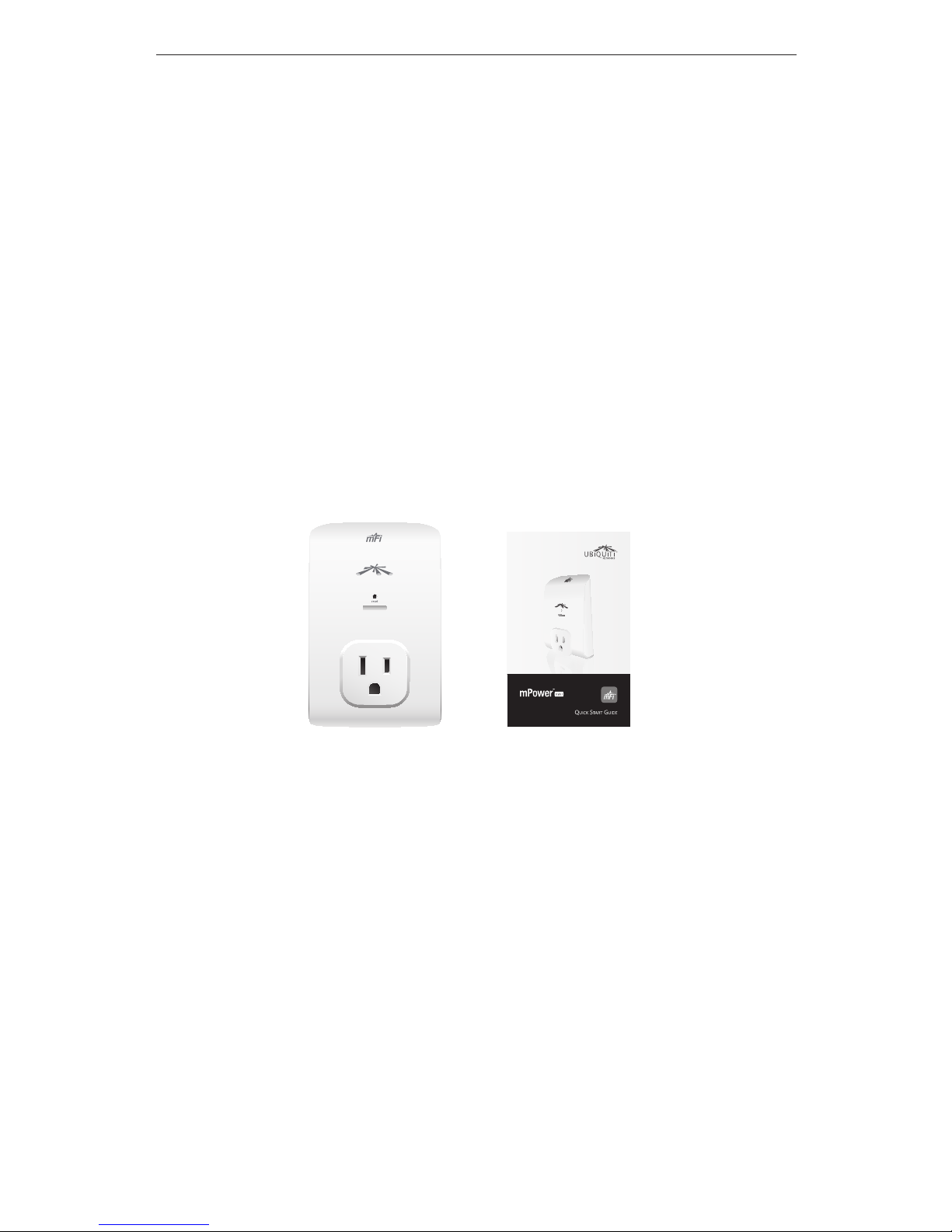
mFi Power Adapter with
Wi-Fi Connectivity
Model: mPower Mini
mPower mini Quick Start Guide
System Requirements
• Wi-Fi Network
Cloud Support
The mFi Controller software can be installed on a local
system or run from the cloud at mfi.ubnt.com. Using the
cloud allows you access from anywhere with an Internet
connection.
Page 4
2
mPower™ mini Quick Start Guide
Hardware Overview
Front
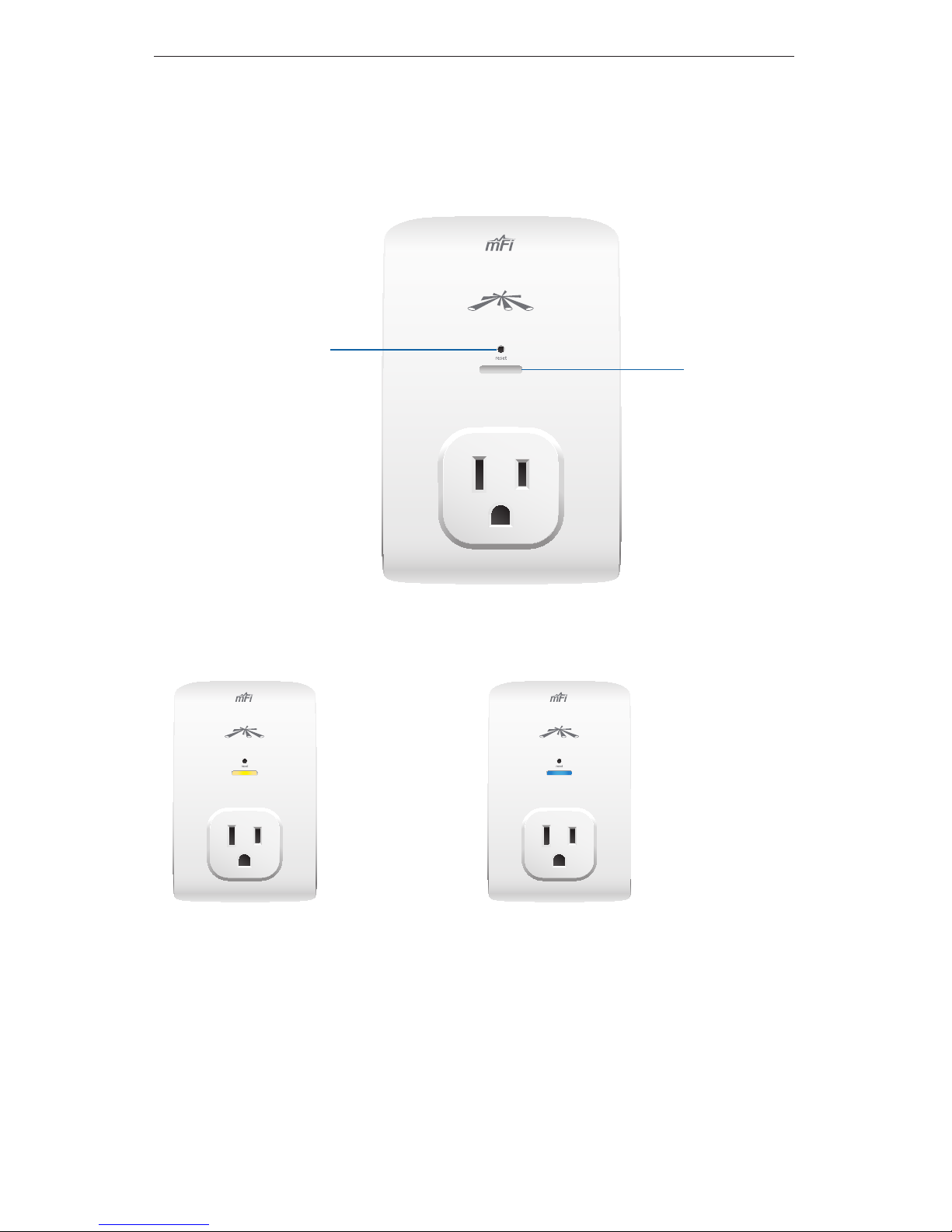
Status
LED
Device Reset
Button
Status LED The Status LED has four primary states:
• Solid yellow When first
powered on in factory
default mode.
• Flashing yellow
Connecting to a Wi-Fi
network.
• Solid blue Successfully
connected to mFi Cloud
or Controller.
• Flashing blue
Connecting to mFi Cloud
or Controller.
Page 5
3
Hardware Installation
Device Reset Button The Device Reset button serves two
functions:
• Restart Restarts the device when you press and release
it quickly.
• Restore Factory Defaults Press and hold until the LED
alternates colors to restore the device to the factory
default settings.
Hardware Installation
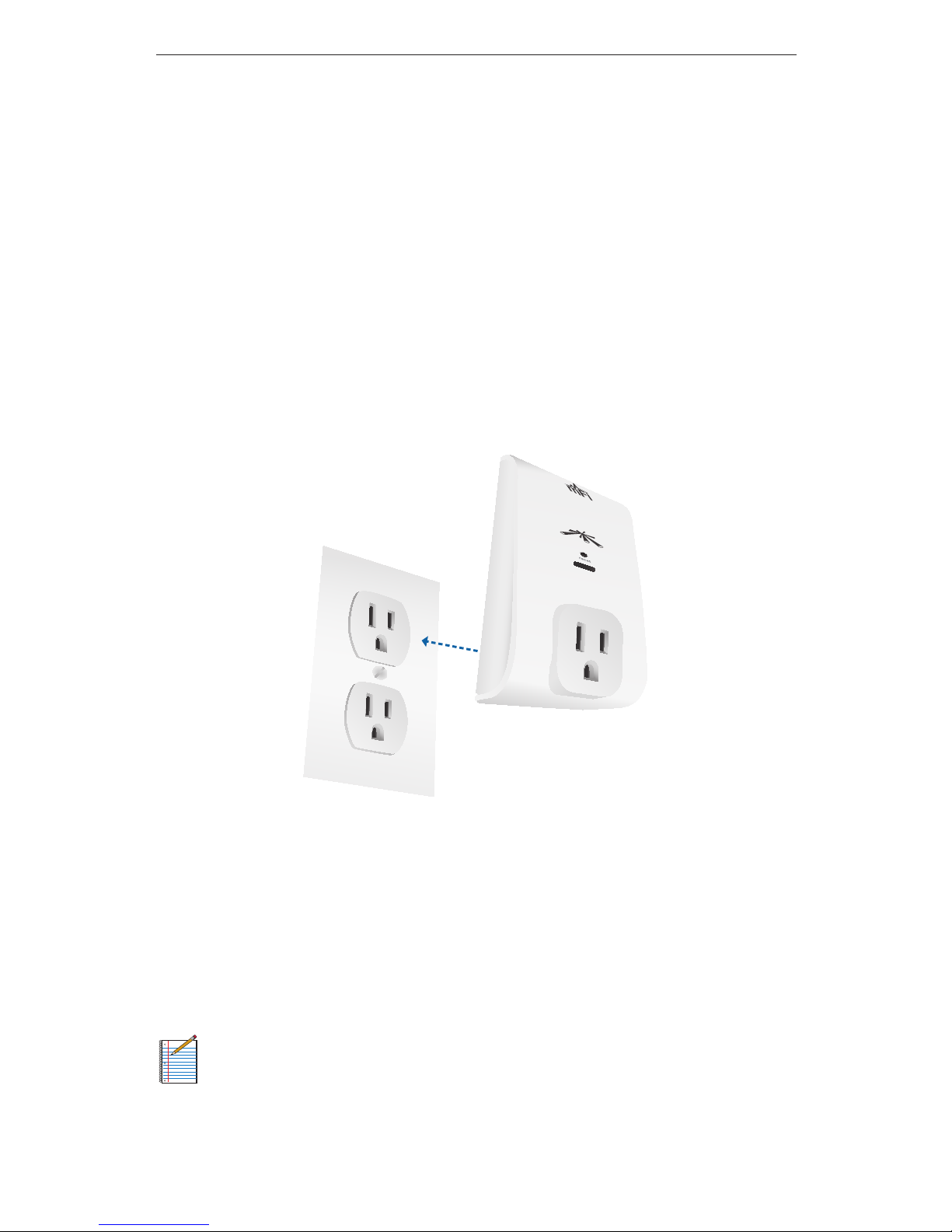
The mPower mini plugs into a standard power outlet.
Software Download and Installation
For local mFi Controller installations, the mFi Controller
software is installed just once when you initially create a
mFi network. It is not necessary to go through the software
installation process every time you add another mFi device.
Note: If you are using the cloud, there is no need to
install the mFi Controller software on a local system.
Skip to Configuring the mPower mini via Wi-Fi
on page 11.
Page 6
4
mPower™ mini Quick Start Guide
The mFi Controller software can be downloaded from the
Ubiquiti Networks website.
1. Go to downloads.ubnt.com/mfi
2. Mac users should download mFi.dmg and Windows
users should download mFi-installer.exe.
3. Follow the instructions for your computer type.
Mac Users
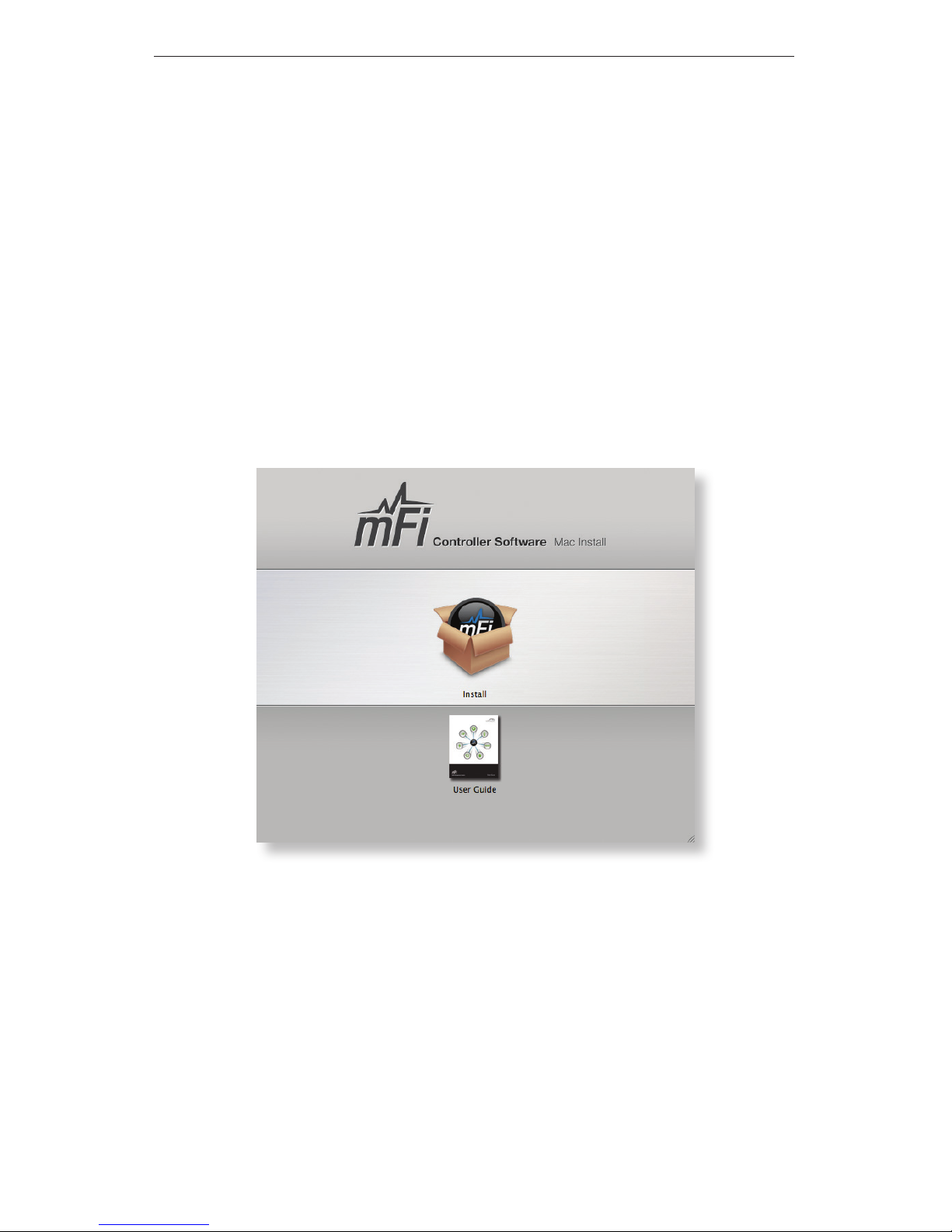
1. Open the mFi.dmg file.
2. Click the Install icon.
Page 7
5
Software Download and Installation
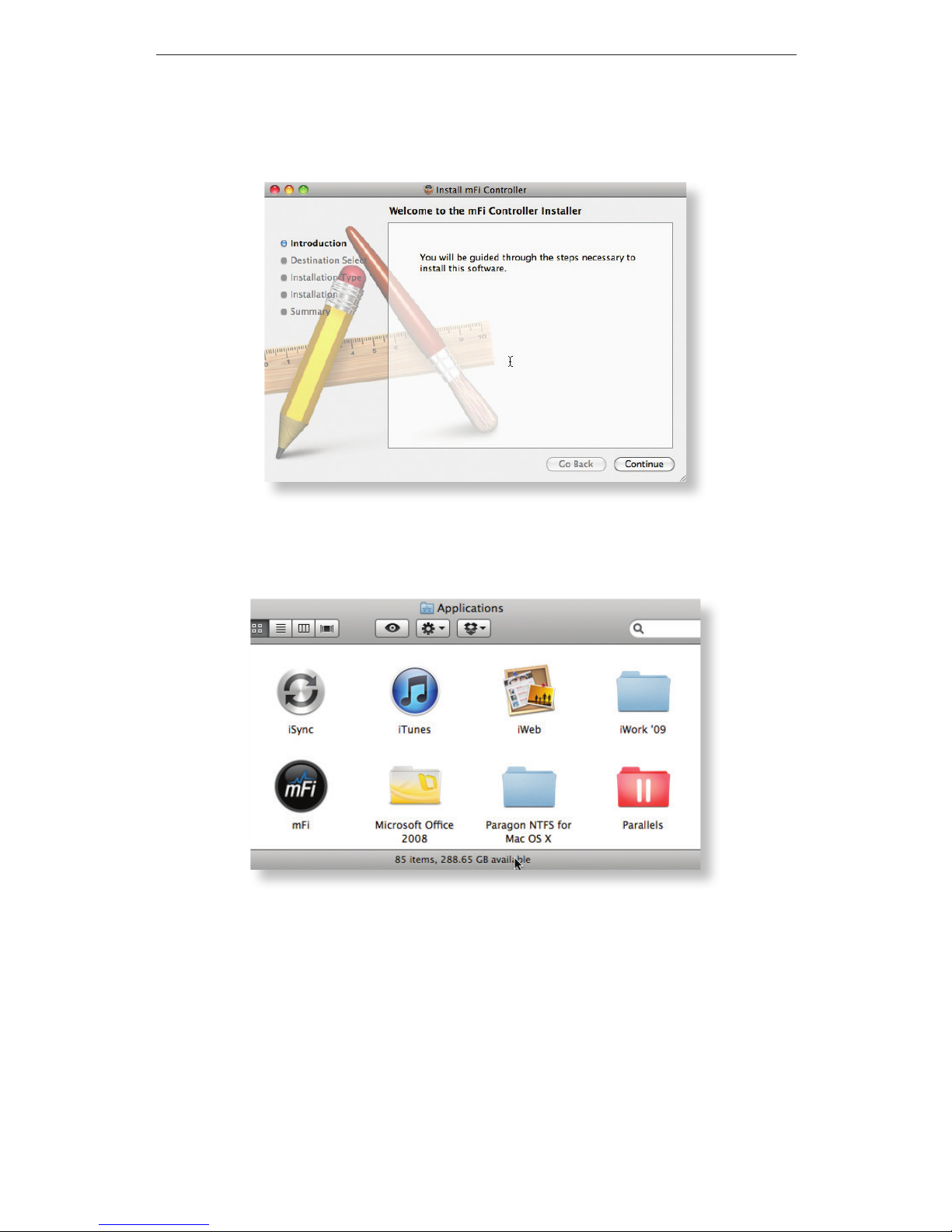
3. Click Continue and follow the on-screen instructions
to install the software.
4. Go to Go > Applications and double-click the mFi
icon.
Proceed to Configuring the mFi Controller Software on page 8.
Page 8
6
mPower™ mini Quick Start Guide
PC Users
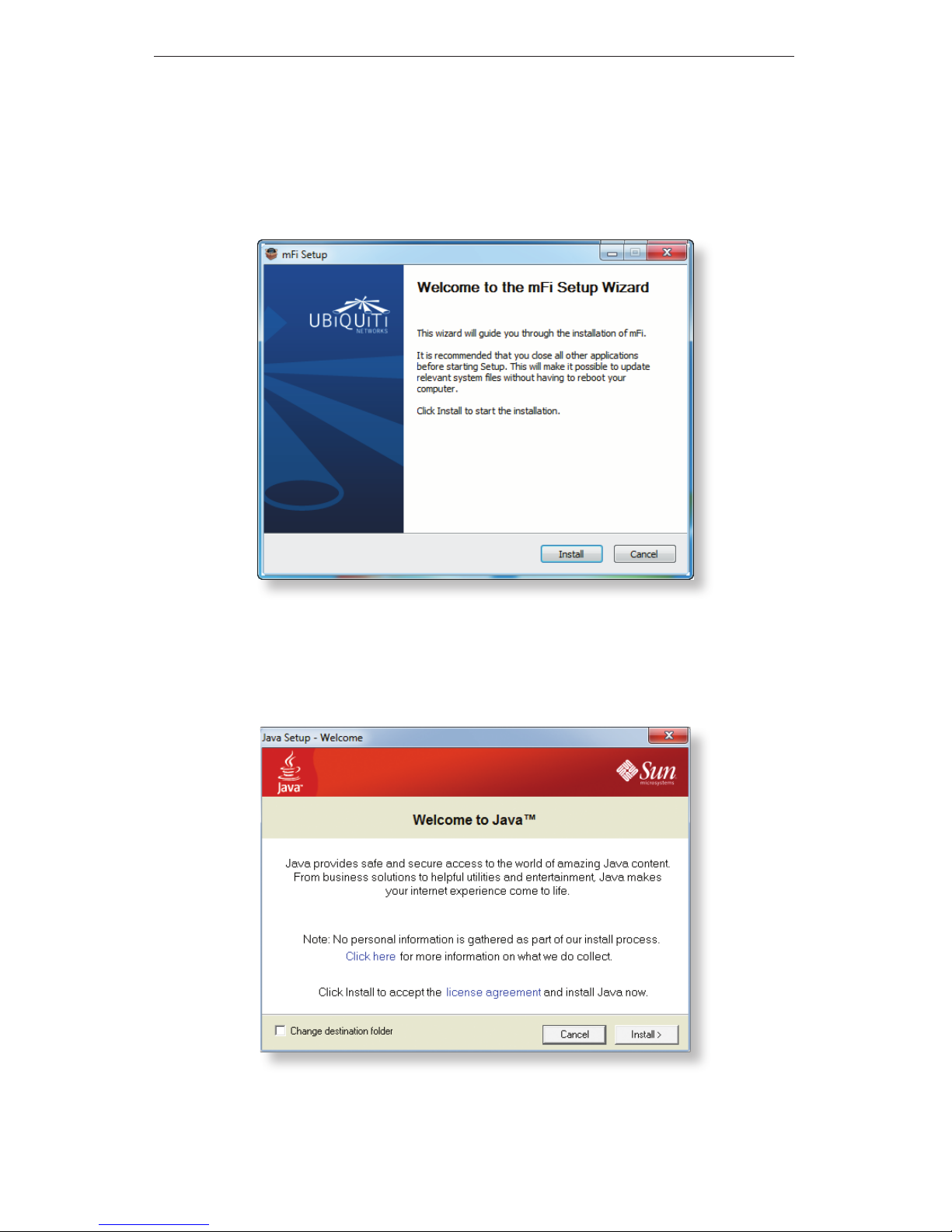
1. Launch mFi-installer.exe.
2. Click Install.
3. If your computer doesn’t have Java 1.6 or above
installed, you will be prompted to install it. Click Install
to continue.
Page 9
7
Software Download and Installation
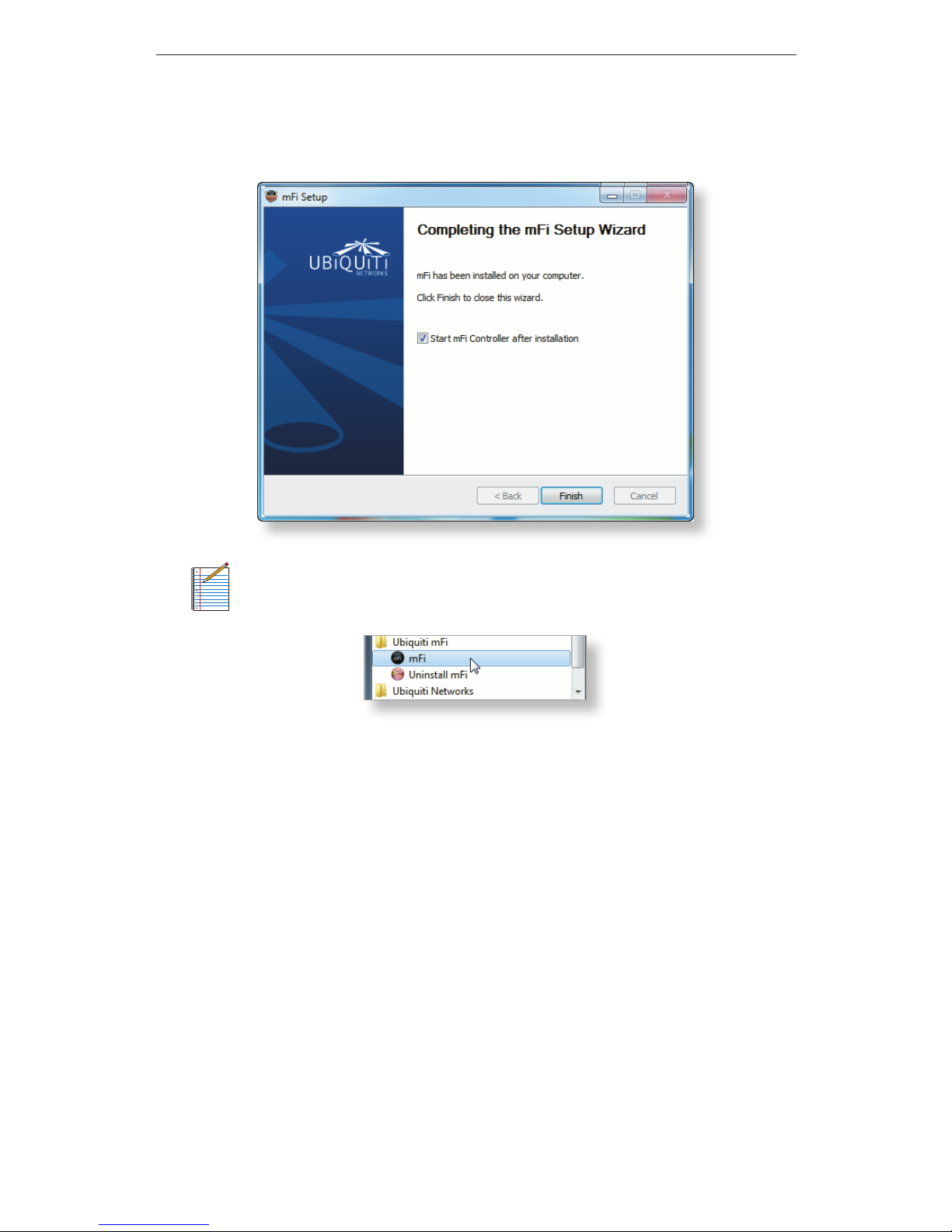
4. Ensure the Start mFi Controller after installation option
is checked and click Finish.
Note: The mFi Controller software can also be
launched from Start > All Programs.
Page 10
8
mPower™ mini Quick Start Guide
Configuring the mFi Controller Software
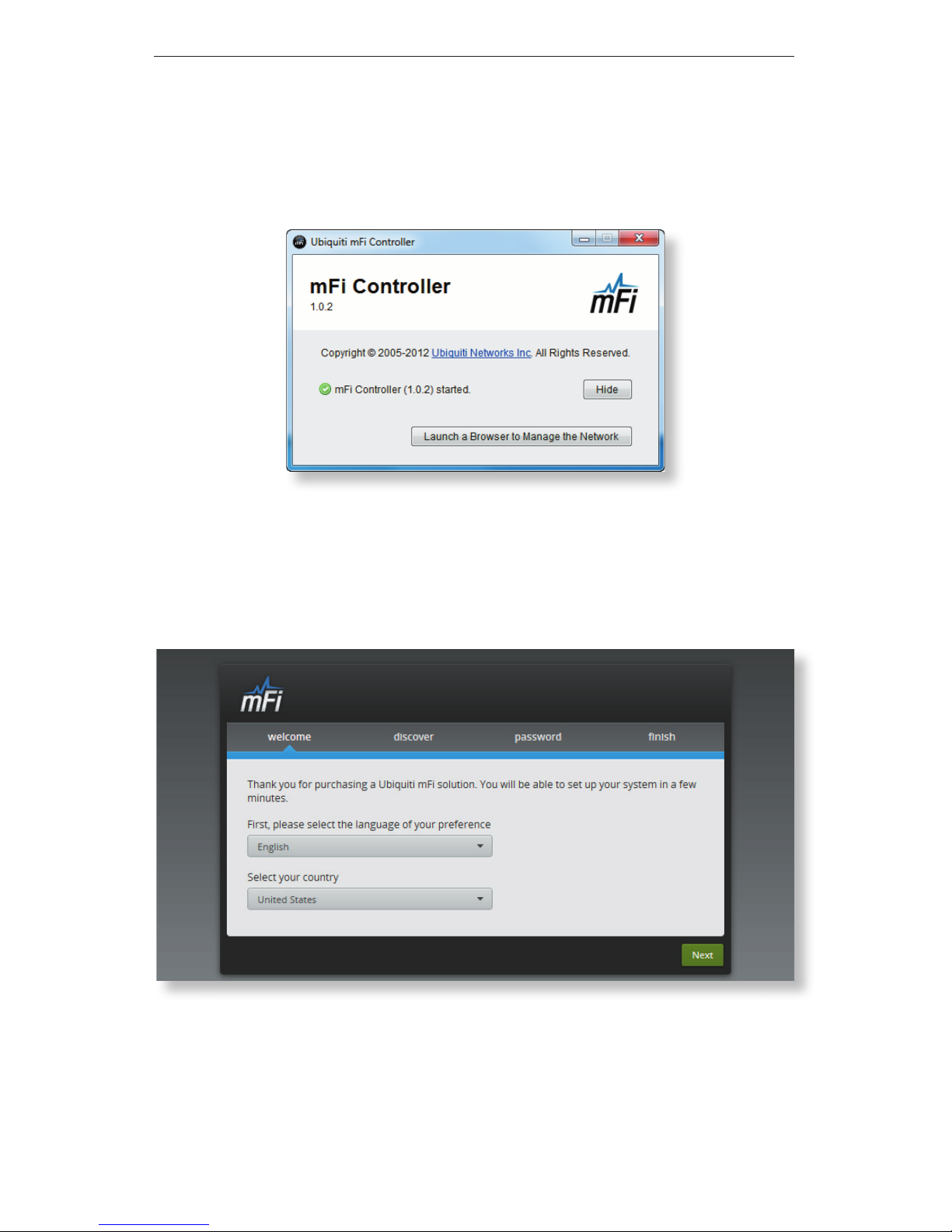
1. The mFi Controller software startup will begin. Click
Launch a Browser to Manage the Network.
2. The mFi Configuration Wizard will appear the first
time you launch the mFi Controller software. On the
Welcome screen, select your language and country.
Click Next.
Page 11
9
Software Download and Installation
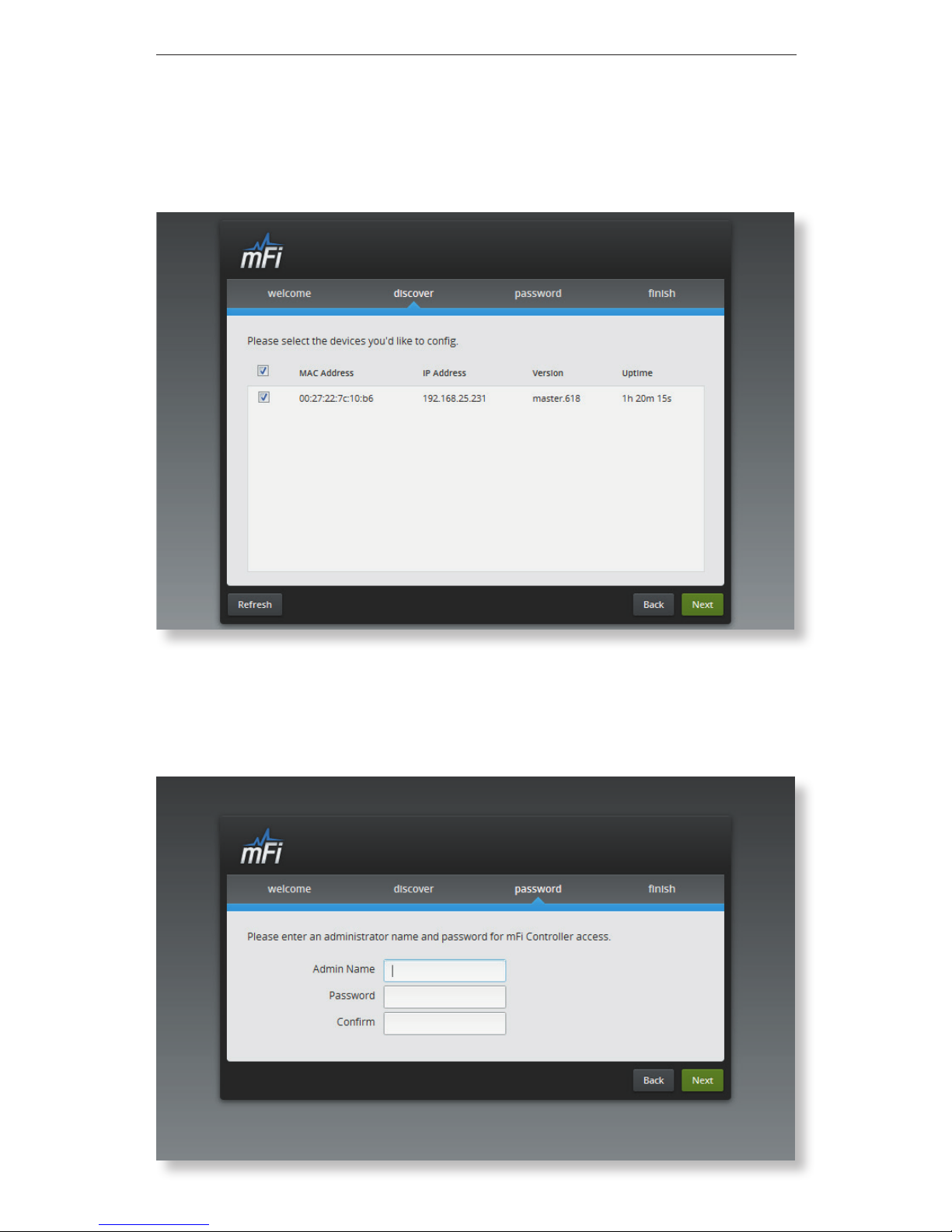
3. Select the device(s) that you want to configure.
The Refresh button can be used to refresh the list of
devices. Click Next to continue.
4. Enter an administrator name in the Admin Name field.
Enter a password in the Password and Confirm fields.
Click Next.
Page 12
10
mPower™ mini Quick Start Guide
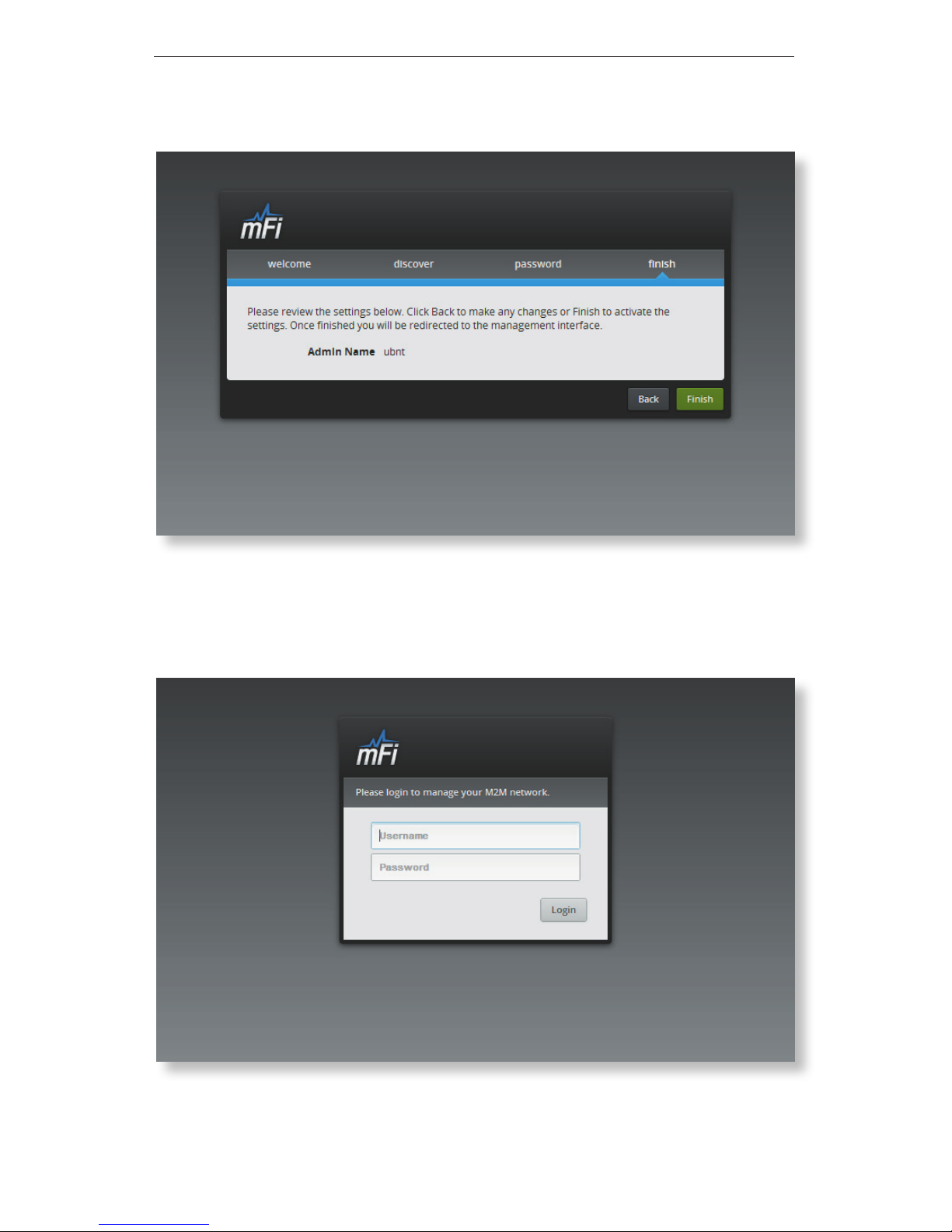
5. Click Finish to confirm your settings.
6. A login screen will appear for the mFi Controller
management interface. Enter the Admin Name and
Password that you created and click Login.
Page 13
11
Configuring the mPower mini via Wi-Fi
Configuring the mPower mini via Wi-Fi
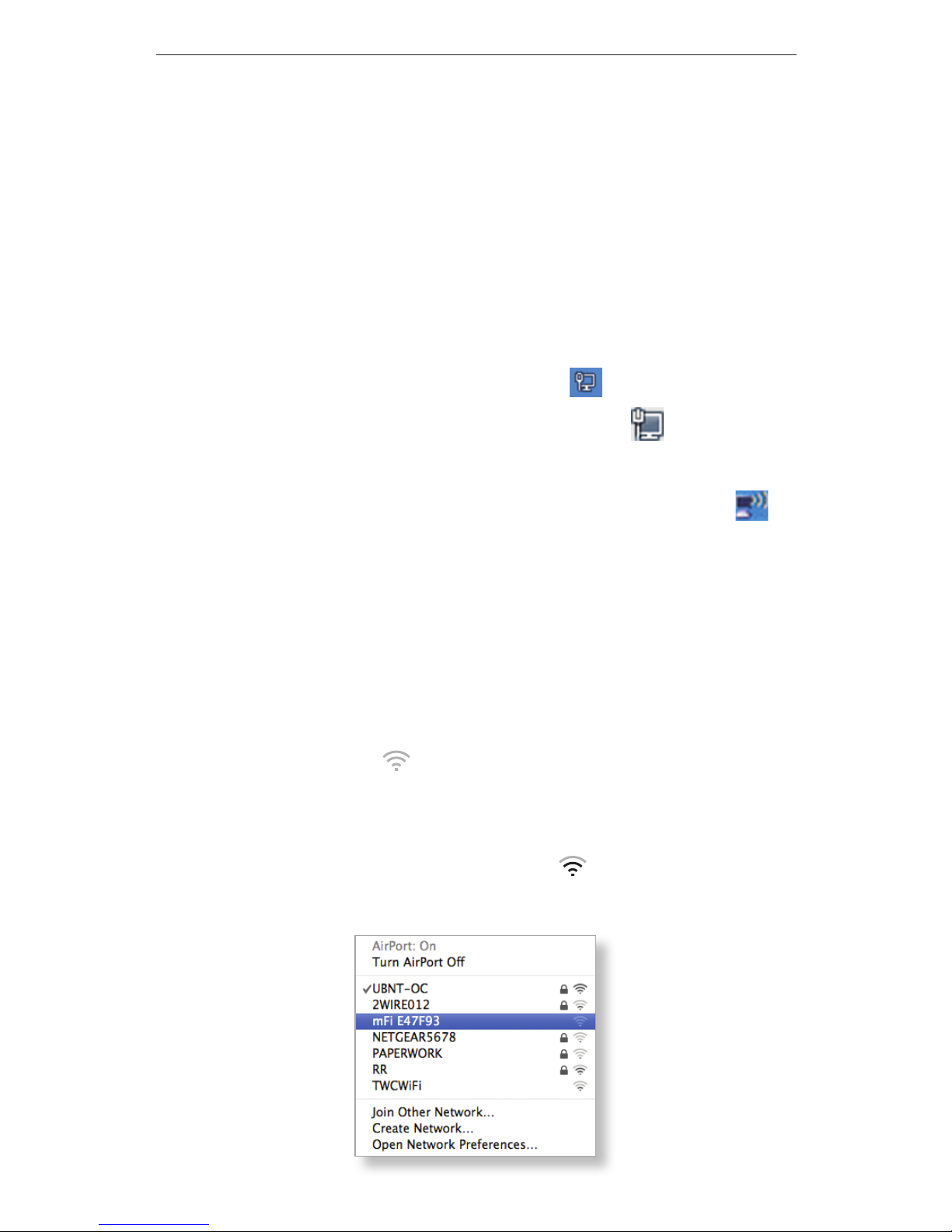
To configure the mPower mini, you must access it via Wi-Fi
from a computer. The mPower mini has a default SSID
(wireless network name) labeled mFi followed by the last
six characters of the MAC address.
Windows
1. Go to Connect to Network.
- Windows 8 Click the Network icon.
- Windows 7 Right-click the Network icon.
- Windows Vista Go to Start > Connect To.
- Windows XP Right-click the Wireless Network
icon in the System Tray (lower right corner of the
screen). Click View Available Wireless Networks.
2. Select the wireless network (SSID) that begins with
mFi and then click Connect. Go to Accessing the
Configuration Portal on page 12.
Mac
1. Click the AirPort icon in the menu bar (top right
side of the screen).
2. Select the wireless network (SSID) that begins with
mFi. Once connected, the AirPort icon will change
from gray to solid black.
Page 14
12
mPower™ mini Quick Start Guide
Accessing the Configuration Portal
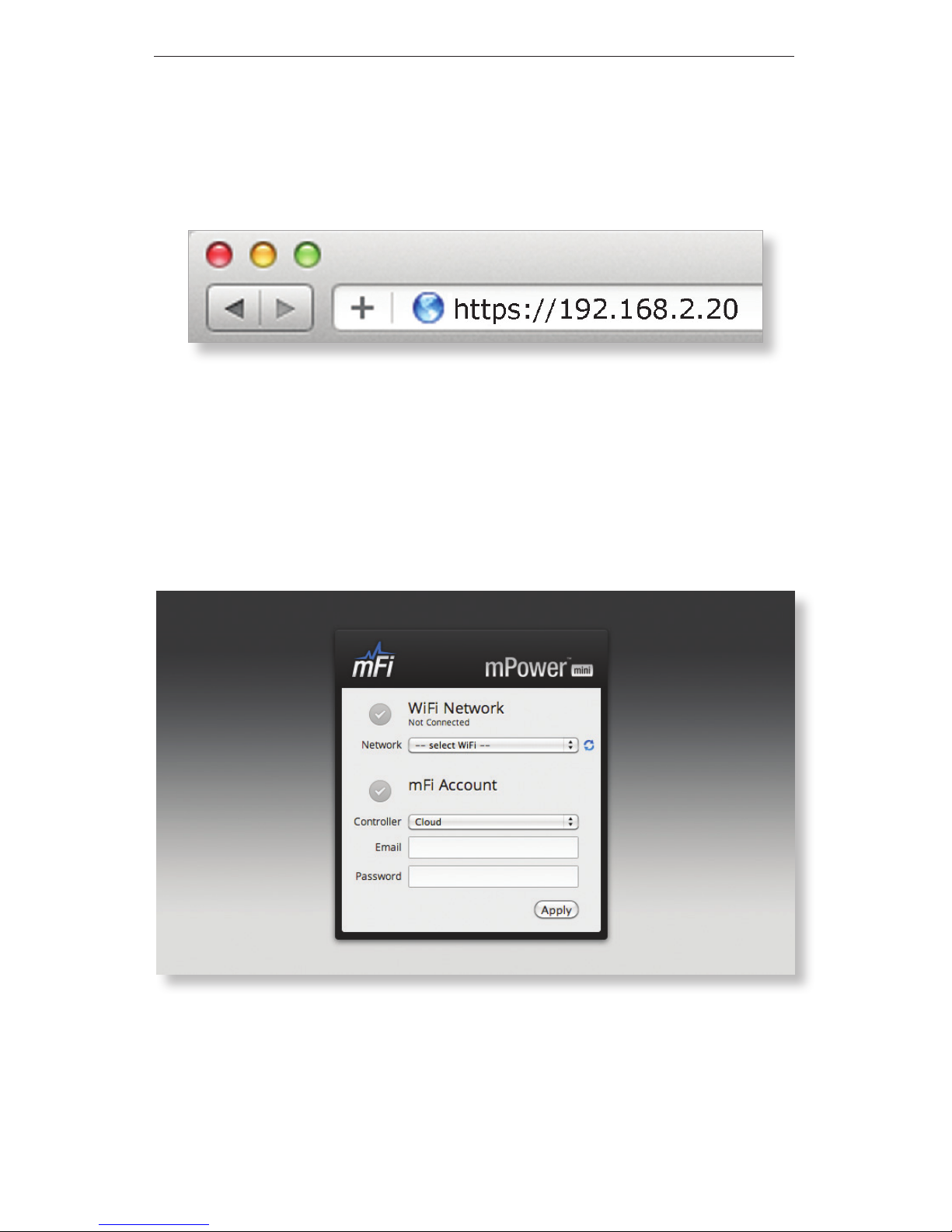
1. Launch your web browser. Type https://192.168.2.20
in the address field. Press enter (PC) or return (Mac).
2. You may receive a security certificate warning. Click
Proceed Anyway.
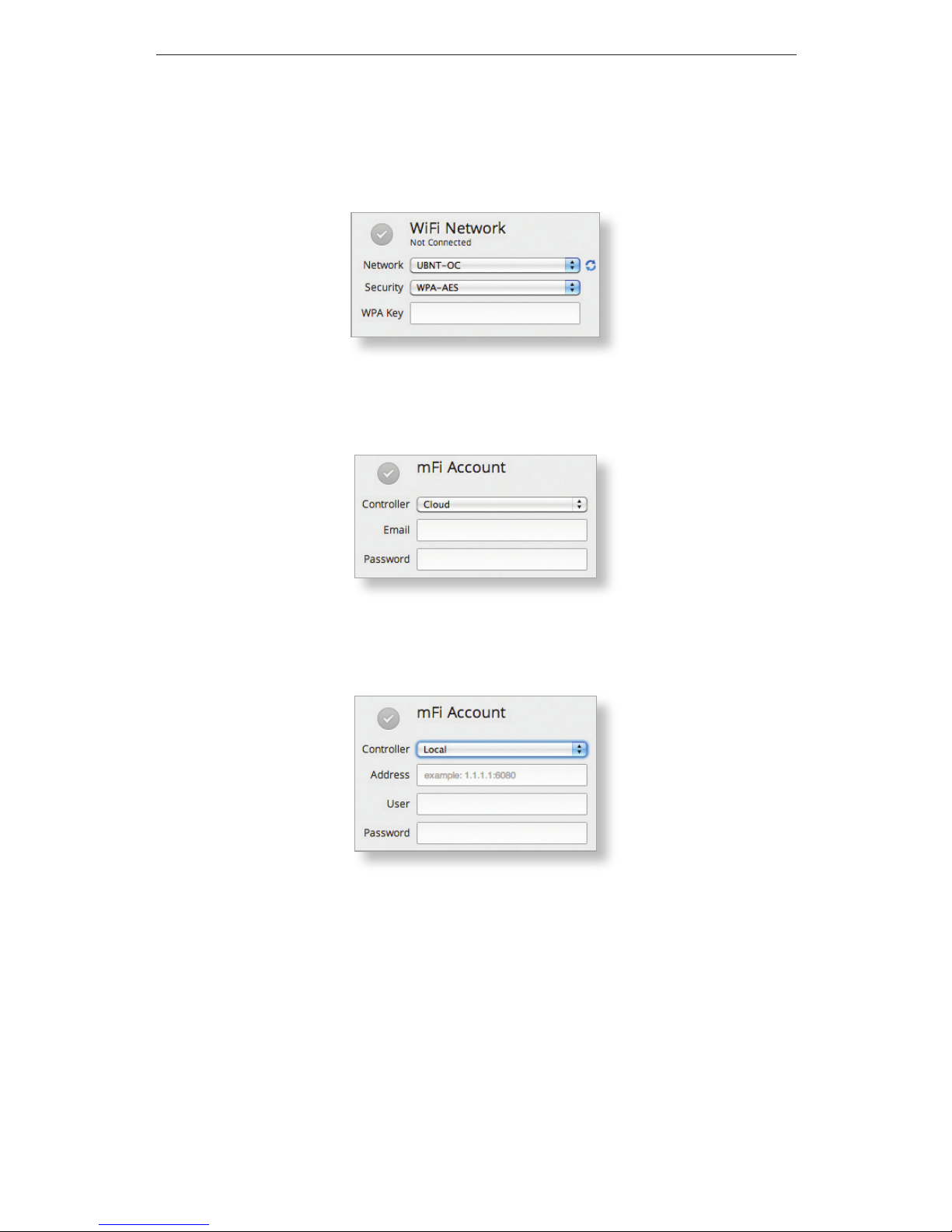
3. The Configuration Portal will appear. Select the wireless
network name (SSID) of your existing wireless network
from the drop-down list. To refresh the list, click the
blue arrows on the right.
Page 15
13
Configuring the mPower mini via Wi-Fi
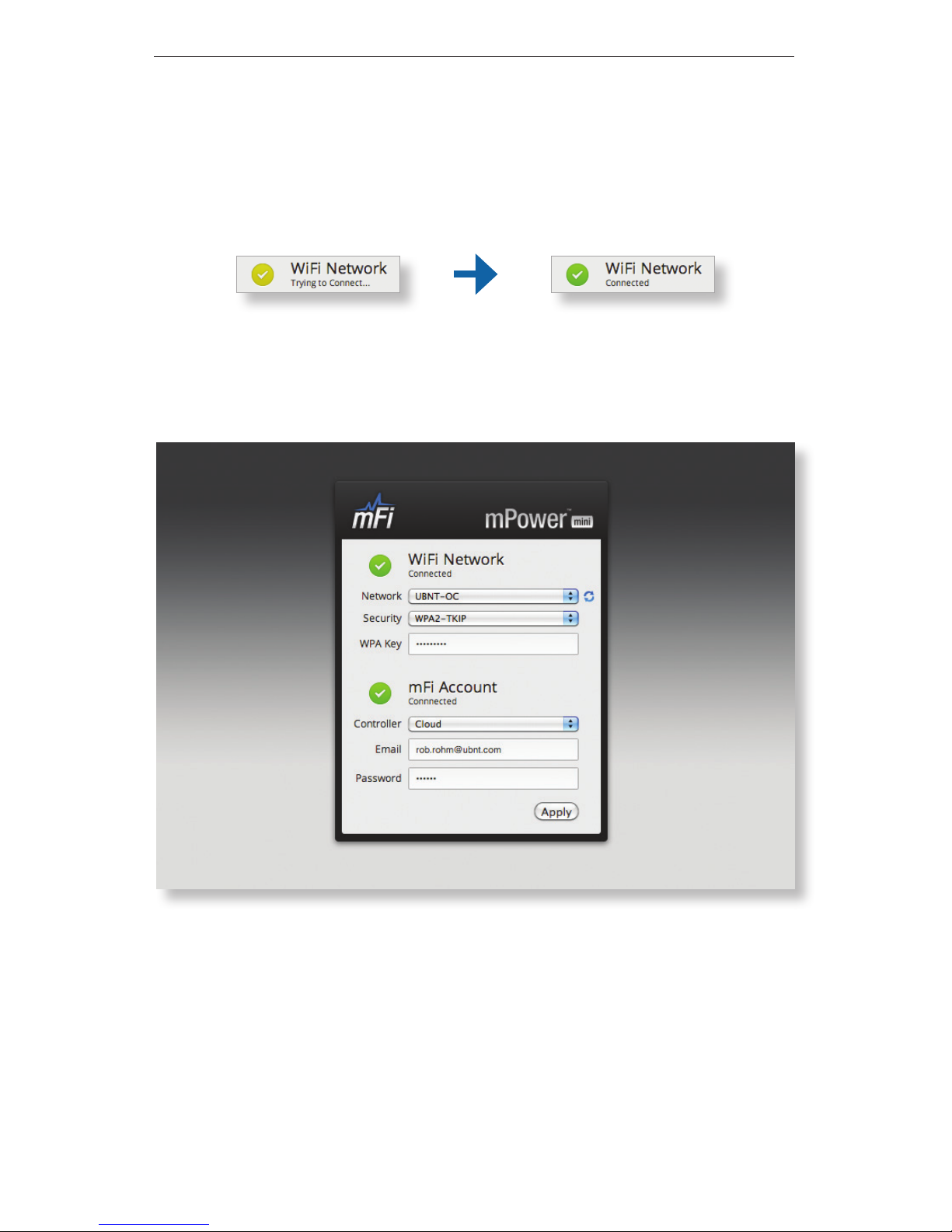
4. Enter your Wi-Fi security credentials. The options that
appear are based on the encryption method used on
your Wi-Fi network.
5. Select either the Cloud or Local mFi Controller and
enter the account settings:
- Cloud Enter the email and password used to
register at mfi.ubnt.com.
- Local Enter the following settings:
• Address The IP address and http port used by
the Controller. (The port is usually 6080, for
example: 1.1.1.1:6080 or mfi.acme.com:6080).
• User The user name defined during the mFi
Configuration Wizard.
• Password The password defined during the
mFi Configuration Wizard.
Page 16
14
mPower™ mini Quick Start Guide
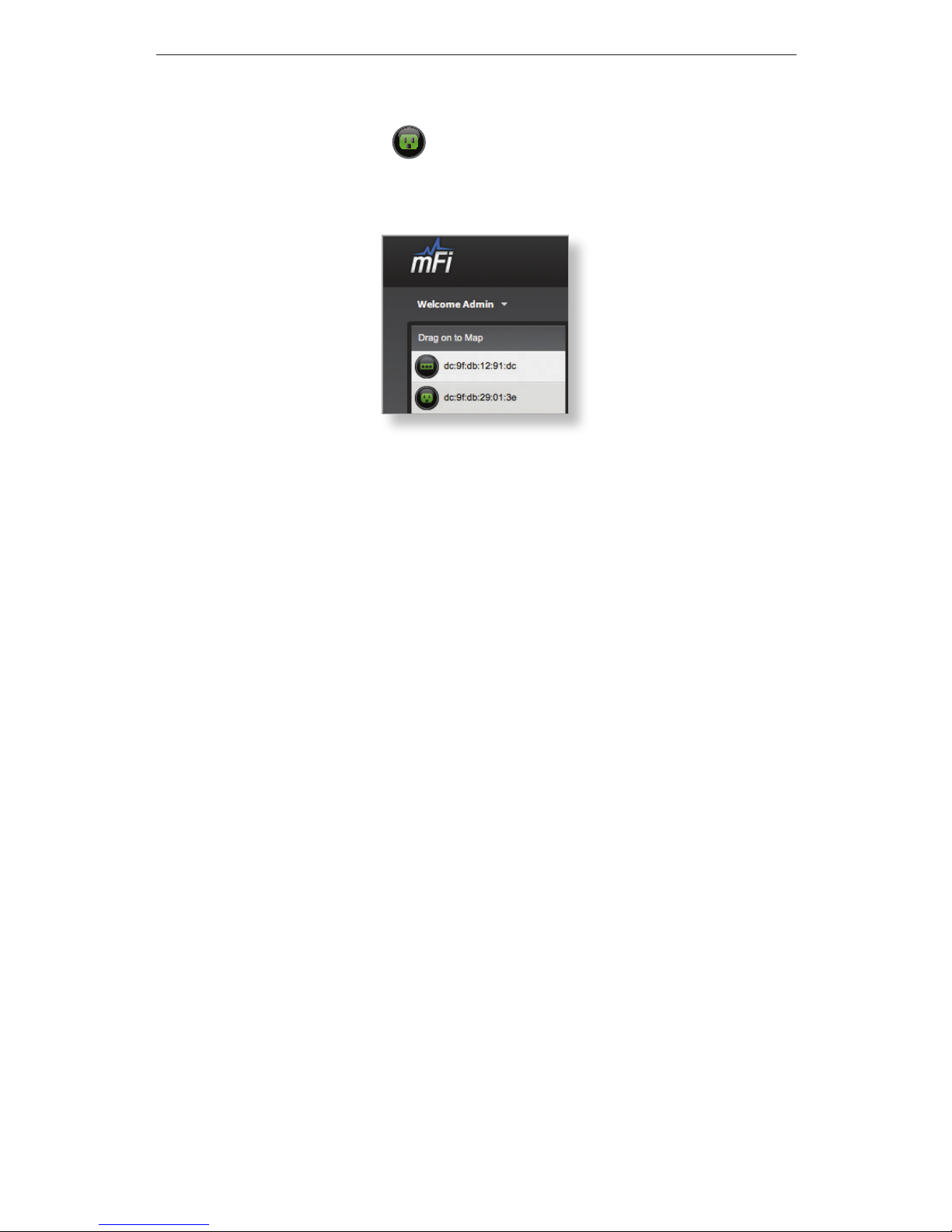
6. Click Apply.
7. A flashing yellow checkmark will appear while
attempting to connect to the Wi-Fi network. It will
appear green once the mPower mini is connected.
8. A flashing yellow checkmark will appear while
attempting to connect to the Controller. It will appear
green once the mPower mini is connected.
9. Reconnect your computer to your wireless network by
selecting the SSID from your wireless network utility.
Page 17
15
Configuring the mPower mini via Wi-Fi
10. Access your Controller, and the mPower mini appears
with the mPower icon in the left panel under the
Drag on to Map heading. You can position the mPower
mini in the appropriate location.
For additional details on the mFi Controller software, please
refer to the mFi User Guide available on our website at:
documentation.ubnt.com/mfi
Page 18
16
mPower™ mini Quick Start Guide
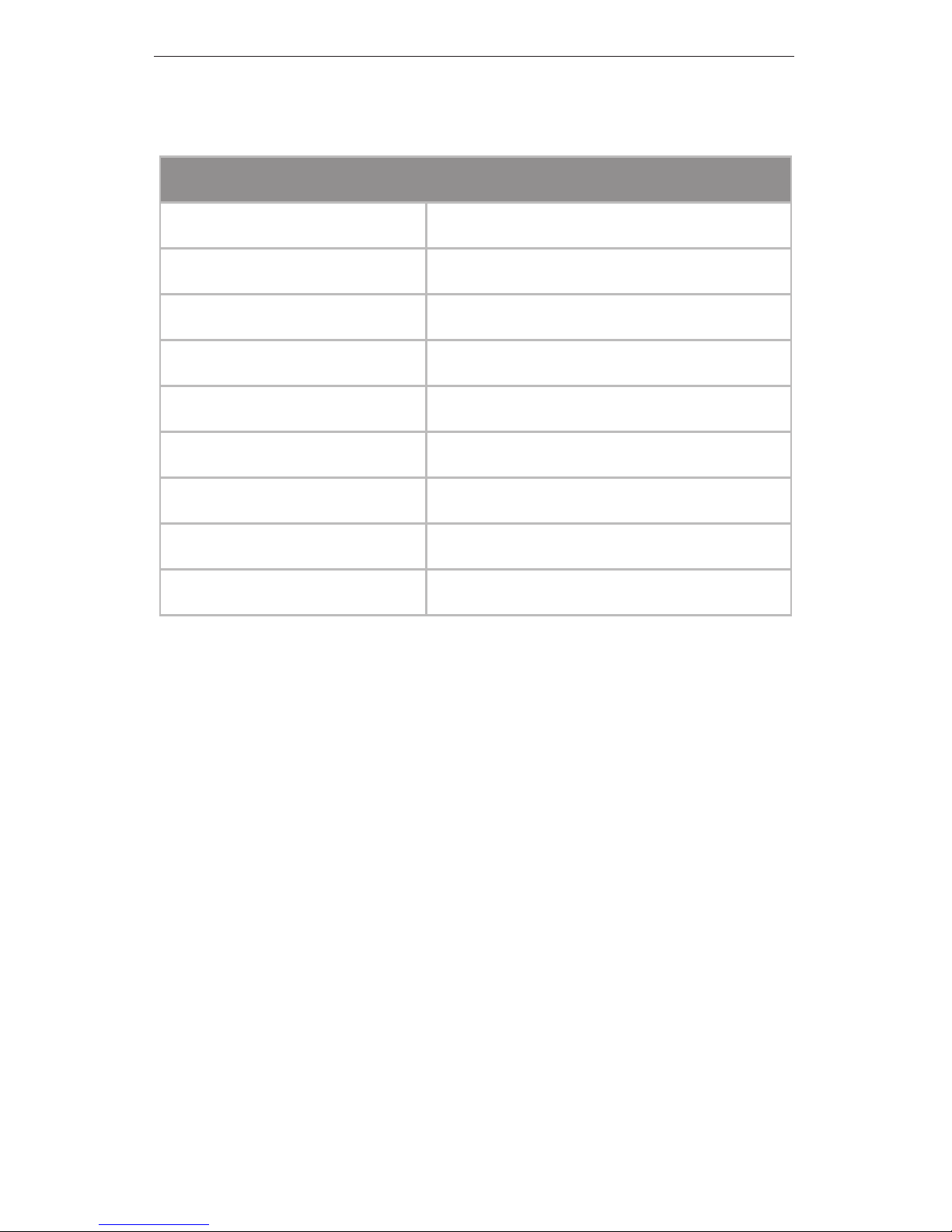
Specifications
mPower mini
Dimensions 110.8 x 71 x 67.7 mm
Weight 150 g
Power 110-125VAC, 50-60 Hz, 15 A
Outlets 1
Memory 16 MB RAM, 8 MB Flash
Wi-Fi Standards 802.11b/g/n
LEDs 1 LED (Status)
Operating Temperature 0 to 45° C
Humidity 10-95%, Noncondensing
Page 19
17
Safety Notices
Safety Notices
1. Read, follow, and keep these instructions.
2. Heed all warnings.
3. Only use attachments/accessories specified by the
manufacturer.
WARNING: Use only in a dry location.
WARNING: Do not plug in to another relocatable
power tap.
WARNING: To reduce the risk of electric shock, use
only indoors.
Page 20

18
mPower™ mini Quick Start Guide
Limited Warranty
UBIQUITI NETWORKS, Inc (“UBIQUITI NETWORKS”) warrants
that the product(s) furnished hereunder (the “Product(s)”)
shall be free from defects in material and workmanship
for a period of one (1) year from the date of shipment by
UBIQUITI NETWORKS under normal use and operation.
UBIQUITI NETWORKS’ sole and exclusive obligation
and liability under the foregoing warranty shall be for
UBIQUITI NETWORKS, at its discretion, to repair or replace
any Product that fails to conform to the above warranty
during the above warranty period. The expense of removal
and reinstallation of any Product is not included in this
warranty. The warranty period of any repaired or replaced
Product shall not extend beyond its original term.
Warranty Conditions
The above warranty does not apply if the Product:
(I) has been modified and/or altered, or an addition
made thereto, except by Ubiquiti Networks, or Ubiquiti
Networks’ authorized representatives, or as approved
by Ubiquiti Networks in writing;
(II) has been painted, rebranded or physically modified
in any way;
(III) has been damaged due to errors or defects in cabling;
(IV) has been subjected to misuse, abuse, negligence,
abnormal physical, electromagnetic or electrical stress,
including lightning strikes, or accident;
(V) has been damaged or impaired as a result of using
third party firmware; or
(VI) has no original Ubiquiti MAC label, or is missing any
other original Ubiquiti label(s).
Page 21

19
Limited Warranty
In addition, the above warranty shall apply only if: the
product has been properly installed and used at all times in
accordance, and in all material respects, with the applicable
Product documentation; all Ethernet cabling runs use CAT5
(or above), and for outdoor installations, shielded Ethernet
cabling is used, and for indoor installations, indoor cabling
requirements are followed.
Returns
No Products will be accepted for replacement or repair
without obtaining a Return Materials Authorization (RMA)
number from UBIQUITI NETWORKS during the warranty
period, and the Products being received at UBIQUITI
NETWORKS’ facility freight prepaid in accordance with the
RMA process of UBIQUITI NETWORKS. Products returned
without an RMA number will not be processed and will be
returned freight collect or subject to disposal. Information
on the RMA process and obtaining an RMA number can be
found at: www.ubnt.com/support/warranty.
Disclaimer
EXCEPT FOR ANY EXPRESS WARRANTIES PROVIDED
HEREIN, UBIQUITI NETWORKS, ITS AFFILIATES, AND ITS
AND THEIR THIRD PARTY DATA, SERVICE, SOFTWARE AND
HARDWARE PROVIDERS HEREBY DISCLAIM AND MAKE
NO OTHER REPRESENTATION OR WARRANTY OF ANY
KIND, EXPRESS, IMPLIED OR STATUTORY, INCLUDING,
BUT NOT LIMITED TO, REPRESENTATIONS, GUARANTEES,
OR WARRANTIES OF MERCHANTABILITY, ACCURACY,
QUALITY OF SERVICE OR RESULTS, AVAILABILITY,
SATISFACTORY QUALITY, LACK OF VIRUSES, QUIET
ENJOYMENT, FITNESS FOR A PARTICULAR PURPOSE AND
NON-INFRINGEMENT AND ANY WARRANTIES ARISING
FROM ANY COURSE OF DEALING, USAGE OR TRADE
PRACTICE IN CONNECTION WITH SUCH PRODUCTS
Page 22

20
mPower™ mini Quick Start Guide
AND SERVICES. BUYER ACKNOWLEDGES THAT NEITHER
UBIQUITI NETWORKS NOR ITS THIRD PARTY PROVIDERS
CONTROL BUYER’S EQUIPMENT OR THE TRANSFER OF
DATA OVER COMMUNICATIONS FACILITIES, INCLUDING THE
INTERNET, AND THAT THE PRODUCTS AND SERVICES MAY
BE SUBJECT TO LIMITATIONS, INTERRUPTIONS, DELAYS,
CANCELLATIONS AND OTHER PROBLEMS INHERENT IN
THE USE OF COMMUNICATIONS FACILITIES. UBIQUITI
NETWORKS, ITS AFFILIATES AND ITS AND THEIR THIRD
PARTY PROVIDERS ARE NOT RESPONSIBLE FOR ANY
INTERRUPTIONS, DELAYS, CANCELLATIONS, DELIVERY
FAILURES, DATA LOSS, CONTENT CORRUPTION, PACKET
LOSS, OR OTHER DAMAGE RESULTING FROM ANY OF THE
FOREGOING. In addition, UBIQUITI NETWORKS does not
warrant that the operation of the Products will be errorfree or that operation will be uninterrupted. In no event
shall UBIQUITI NETWORKS be responsible for damages
or claims of any nature or description relating to system
performance, including coverage, buyer’s selection of
products (including the Products) for buyer’s application
and/or failure of products (including the Products) to meet
government or regulatory requirements.
Limitation of Liability
EXCEPT TO THE EXTENT PROHIBITED BY LOCAL LAW, IN NO
EVENT WILL UBIQUITI OR ITS SUBSIDIARIES, AFFILIATES OR
SUPPLIERS BE LIABLE FOR DIRECT, SPECIAL, INCIDENTAL,
CONSEQUENTIAL OR OTHER DAMAGES (INCLUDING LOST
PROFIT, LOST DATA, OR DOWNTIME COSTS), ARISING
OUT OF THE USE, INABILITY TO USE, OR THE RESULTS OF
USE OF THE PRODUCT, WHETHER BASED IN WARRANTY,
CONTRACT, TORT OR OTHER LEGAL THEORY, AND
WHETHER OR NOT ADVISED OF THE POSSIBILITY OF SUCH
DAMAGES.
Page 23

21
Compliance
Note
Some countries, states and provinces do not allow
exclusions of implied warranties or conditions, so the
above exclusion may not apply to you. You may have
other rights that vary from country to country, state to
state, or province to province. Some countries, states
and provinces do not allow the exclusion or limitation of
liability for incidental or consequential damages, so the
above limitation may not apply to you. EXCEPT TO THE
EXTENT ALLOWED BY LOCAL LAW, THESE WARRANTY
TERMS DO NOT EXCLUDE, RESTRICT OR MODIFY, AND
ARE IN ADDITION TO, THE MANDATORY STATUTORY
RIGHTS APPLICABLE TO THE LICENSE OF ANY SOFTWARE
(EMBEDDED IN THE PRODUCT) TO YOU. The United
Nations Convention on Contracts for the International Sale
of Goods shall not apply to any transactions regarding the
sale of the Products.
Compliance
FCC
Changes or modifications not expressly approved by the
party responsible for compliance could void the user’s
authority to operate the equipment.
This device complies with Part 15 of the FCC Rules.
Operation is subject to the following two conditions:
1. this device may not cause harmful interference, and
2. this device must accept any interference received,
including interference that may cause undesired
operation.
NOTE: This equipment has been tested and found to
comply with the limits for a Class B digital device, pursuant
to part 15 of the FCC Rules. These limits are designed to
Page 24

22
mPower™ mini Quick Start Guide
provide reasonable protection against harmful interference
in a residential installation. This equipment generates, uses
and can radiate radio frequency energy and, if not installed
and used in accordance with the instructions, may cause
harmful interference to radio communications. However,
there is no guarantee that interference will not occur in a
particular installation. If this equipment does cause harmful
interference to radio or television reception, which can be
determined by turning the equipment off and on, the user
is encouraged to try to correct the interference by one or
more of the following measures:
• Reorient or relocate the receiving antenna.
• Increase the separation between the equipment and
receiver.
• Connect the equipment into an outlet on a circuit
different from that to which the receiver is connected.
• Consult the dealer or an experienced radio/TV technician
for help.
Industry Canada
This Class B digital apparatus complies with Canadian
ICES-003.
To reduce potential radio interference to other users, the
antenna type and its gain should be so chosen that the
equivalent isotropically radiated power (EIRP) is not more
than that permitted for successful communication.
This device complies with Industry Canada licence-exempt
RSS standard(s). Operation is subject to the following two
conditions:
1. This device may not cause interference, and
2. This device must accept any interference, including
interference that may cause undesired operation of
the device.
Page 25

23
Compliance
Cet appareil numérique de la classe B est conforme à la
norme NMB-003 du Canada.
Pour réduire le risque d’interférence aux autres utilisateurs,
le type d’antenne et son gain doivent être choisies de
façon que la puissance isotrope rayonnée équivalente
(PIRE) ne dépasse pas ce qui est nécessaire pour une
communication réussie.
Cet appareil est conforme à la norme RSS Industrie Canada
exempts de licence norme(s). Son fonctionnement est
soumis aux deux conditions suivantes:
1. cet appareil ne peut pas provoquer d’interférences et
2. cet appareil doit accepter toute interférence, y compris
les interférences qui peuvent causer un mauvais
fonctionnement du dispositif.
RF Exposure Warning
The transceiver described here emits radio frequency
energy. Although the power level is low, the concentrated
energy from a directional antenna may pose a health
hazard. Do not allow people to come closer than 20 cm to
the antenna when the transmitter is operating.
Additional information on RF exposure is available on the
Internet at www.fcc.gov/oet/info/documents/bulletins
L’émetteur-récepteur décrit ici émet de l’énergie de
fréquence radio. Bien que le niveau de puissance est faible,
l’énergie concentrée à partir d’une antenne directionnelle
peut présenter un danger pour la santé. Ne pas permettre
aux gens de se rapprocher de 20 cm à l’antenne lorsque
l’émetteur est en marche.
Des renseignements supplémentaires sur l’exposition aux
RF est disponible sur Internet à
www.fcc.gov/oet/info documents/bulletins
Page 26
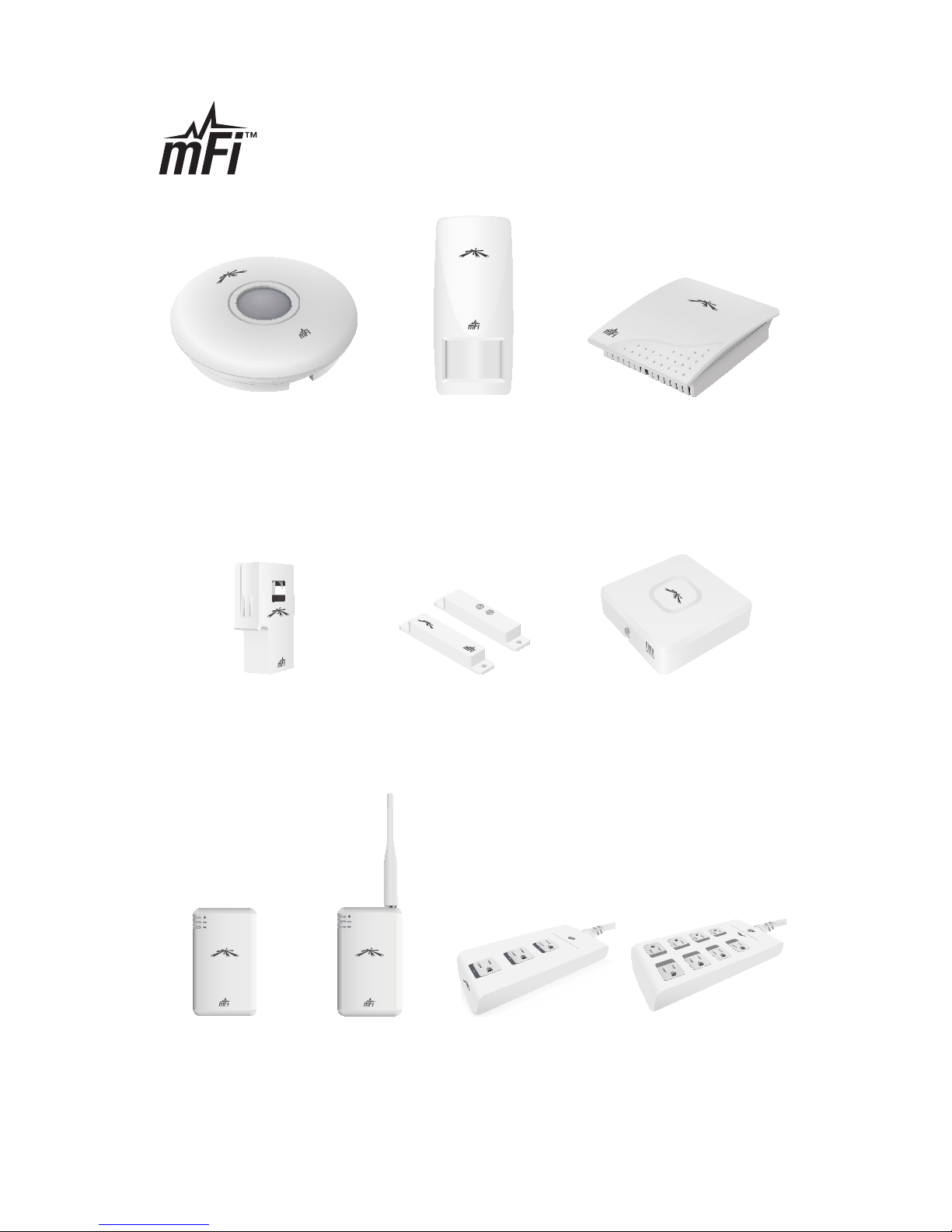
Ubiquiti Networks offers a variety of products
for the mFi platform. For additional details, visit
www.ubnt.com/mfi
Ceiling Mount
Motion Sensor
mFI-MSC
Wall Mount
Motion Sensor
mFi-MSW
Temperature
Sensor
mFi-THS
Current Sensor
mFi-CS
Door Sensor
mFi-DS
Thermostat
Coming Soon!
1
2
3
4
5
6
7
8
mPort
mPort
mPort Serial
mPort-S
Power Strip
mPower
Power Strip
mPower Pro
R032713—720-00009-01
Page 27

Page 28

Support support.ubnt.com
Wiki Page wiki.ubnt.com
Support Forum forum.ubnt.com
Downloads downloads.ubnt.com
www.ubnt.com
© 2012-2013 Ubiquiti Networks, Inc. All rights reserved.
 Loading...