

Page 1
1
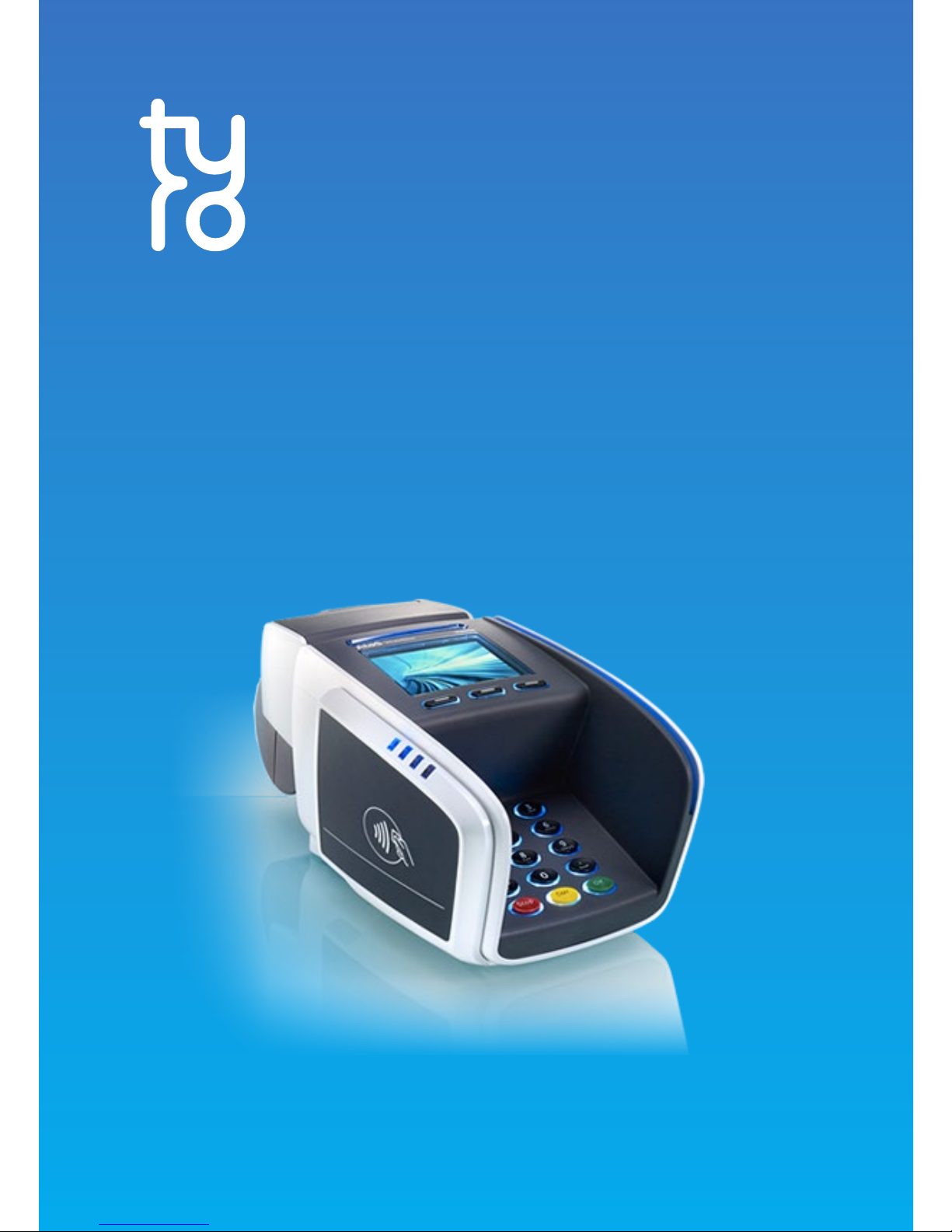
Yomani EFTPOS
Countertop Terminal
User Guide
Page 2

2
For further information go to
Tyro Smart Help
help.tyro.com
To activate your terminal
call Customer Support
1300 966 639
Australian-based Customer Support
available 24/7, 365 days a year
Page 3

3
Thanks for
choosing Tyro.
For easy install and setup of
your EFTPOS terminal, please
follow this handy guide.
What’s in the box?
• Tyro EFTPOS terminal
• Power adapter
• Ethernet cable
If any of the above items are missing,
please contact Tyro Customer Support.
Page 4

4
Quick guide
Get set-up in minutes.
Page 5

5
Let’s get started.
STEP 1
Before we ship your terminal/s, we:
• create a merchant account at Tyro
• assign you a Tyro merchant ID number (MID)
• send you an email on how to access the
Tyro Merchant Portal
If you have not received the email by the time your
terminal arrives, check your spam folder or call Tyro
Customer Support to conrm your email address.
Network settings
Your new Tyro terminal provides both 3G and Ethernet
network connectivity options. These options can be
selected through the terminals conguration menu
on your terminal. To change connectivity Press Menu
> (Network and Diagnostics) Network Connection >
3G/Ethernet.
To connect via Ethernet ensure you connect the
terminal to your network by plugging one end of
the Ethernet cable into the available socket on the
terminal base and the other end to a spare port on
your modem, router or switch. If the terminal does
not detect the network, check that the Ethernet cable
is correctly plugged in. Also, check if there is activity/
power on the connection at the router/modem/hub.
Page 6

6
Activate
Once your terminal is connected to a working power
source, call Tyro Customer Support to activate. Quote
your business trading name and the serial number
located on the bottom of the termial. The serial number
is a 7 digit alphanumeric code ex. AAA2222.
When you turn on your terminal, a set up wizard will
assist you with conguration and allow you to:
• congure network settings
• administer passwords
• enable refunds, MOTO, and cash out settings
You can change the settings at any time.
Passwords
No default admin password has been assigned to the
terminal. You will have to choose a secure numeric
password. No sequences or repetitions are accepted.
The admin password is used to:
• modify terminal settings
• set/change passwords for tipping, refunds/voids, etc.
You can change your passwords by going to Menu>
Change Passwords.
The terminal will automatically enforce a temporary lockout after three or more unsuccessful password attempts.
Activating your terminal
STEP 2
Page 7

7
Activating Integrated EFTPOS
To process Integrated EFTPOS and/or Easyclaim, your
terminal must be paired with your POS/PMS.
To set up integration on your POS/PMS call your POS/
PMS software provider.
To pair the terminal, go to Menu> Conguration>
Pair with POS. Your merchant ID and terminal ID will
be displayed on the terminal screen. You can use this
information to input into the POS/PMS software. Once
successfully paired, the POS/PMS name will appear on
the terminal screen. If the terminal does not react to a
POS/PMS initiated transaction, follow the instructions
that appear on your POS/PMS display, or call Tyro
Customer Support.
Merchant Portal
Access your Tyro Merchant Portal (merchant.tyro.
com) to view: Costs, Fees, Invoices, Statements, All
Transactions, Surcharging, Validate your information,
Change settlement times, Business forms and more.
Page 8

8
Contactless payments (Tap&Go)
Transactions below $100 may not require a PIN.
For transactions over $100, a PIN is required.
MOTO transactions
Mail order/telephone order (MOTO) transactions are
payments made on the terminal when the cardholder
is not physically present at the time of payment. MOTO
transactions are not available to everyone by default and
must be activated by request. To avoid fraud:
• never use MOTO if the cardholder is present
• if goods are collected following MOTO orders, we
recommend you request and validate identication
MOTO transactions have a higher chance of chargeback and
are conducted at your own risk.
Refunds
Once enabled, to process a refund the cardholder must be
present. Go to Menu> Transactions > Refund.
• enter the refund password, press OK
• enter the amount of the refund and press OK
• then swipe, tap or insert the card as per normal
Give the holder a copy of the receipt and retain the merchant
receipt as proof of transaction.
Start Transacting
STEP 3
Page 9

9
Reporting
Transaction and daily reconciliation reports are available on:
• the Tyro’s Merchant Portal (merchant.tyro.com)
• the Tyro terminal via Menu> Settlement/Reports>
Reconciliation Report
Terminal paper
To order paper rolls, go to tyro.com/customers, enter your
Merchant ID and terminal serial number (fees may apply).
Delivery takes 5-7 business days. Place roll in terminal
paper bay, blank side up. Close lid and ensure the paper
ows freely.
Terminal damage
If a terminal is damaged or lost, Tyro will replace it
and standard repair rates will apply. To nd out more
information about these rates go to tyro.com/guides.
PCI compliance
If you process face-to-face credit and debit card transactions
exclusively using Tyro’s payment solution and you follow
Tyro’s MOTO transaction guidelines (tyro.com/fraud-
prevention), you’ll be PCI-DSS compliant.
Maintenance and Security
Page 10

For the following decline codes call Tyro Customer Support
immediately on 1300 966 639
For the following decline codes, call the card issuer
immediately – the contact number is on the back of the card
13 Invalid amount or refund without
matching purchase
69 MOTO not allowed
01 Refer to card issuer
02 Refer to card issuer
03 Invalid Merchant ID
04 Call issuer
05 Refer to card issuer
06 Error. Refer to card issuer
07 Card reported lost or stolen
12 Invalid transaction format
14 Invalid card number
15 Invalid card issuer
19 Error - Retry
21 Call issuer. No action taken
22 Issuer can’t be contacted
25 Unable to locate record on le
30 Unrecognisable transaction details
31 Card not accepted
33 Expired card
34 Call issuer. Suspected fraud
36 Call issuer
37 Transaction declined
38 PIN retries exceeded
39 Not credit account
40 Function not supported
41 Call issuer. Card reported lost
42 Incorrect account type
43 Card reported stolen
44 Incorrect account type
51 Insucient funds
52 No cheque account
53 No savings account
54 Expired card
55 Incorrect PIN
56 Non existent card number
57 Function not permitted to
cardholder
58 Function not permitted to
terminal
59 Card appears to be fraudulent
60 Exceed refund limit
61 Exceed withdrawal limit
62 Card has some restrictions
63 Call issuer
64 Original transaction amount error
65 Exceeded withdrawal frequency
66 Transaction declined
67 Call issuer. Suspected fraud.
75 PIN retries exceeded
76 Invalid account
77 Invalid account
78 Invalid account
82 CVV invalid
86 Can not verify PIN
90 Cuto in progress
91 Card issuer unavailable
92 Unable to route transaction
to issuer
93 Call issuer
94 Duplicate transmission
96 System error
N7 CVV invalid
Y1,Y2,Y3 Chip approved transaction
Z1,Z2,Z3 Chip declined transaction
83 Contactless not allowed
87 Cash out not allowed
Page 11

110817
Disclaimer
The EFTPOS terminal you have been supplied by Tyro is fully tested to comply
with all relevant Australian safety standards for electrical equipment. As part of
Tyro’s obligations as a supplier of electrical equipment, we have axed a label to
the power supply of your EFTPOS terminal with the regulatory compliance mark.
It is important that the label not be removed or obscured in any way. If the label
is removed or obscured it may constitute a breach of our terms and conditions.
If you have any questions regarding the label, or the power supply unit itself,
please contact: Customer Support on 1300 966 639.
Tyro Payments Limited ACN 103 575 042 AFSL 471951 is the issuer of its own
nancial products.
We do not take into account your personal circumstances. Before deciding on any
products please consider if they are suitable for you. You can contact Tyro on
02 8907 1700 or tyro.com and access Tyro’s dispute resolution process at
tyro.com/contact/feedback
© Tyro Payments Limited. All rights reserved.
Page 12

12
Thanks for
choosing Tyro.
 Loading...