

Page 1
TWIG Asset Locator
Quick Guide
The compact and water-proof
device can be thrown in or clicked
on, quickly as the situation arises.
Up to 10 months of uninterrupted
watch can be kept, thanks to a
powerful 2600 mAh rechargeable
battery and selectable operating
modes.
The TWIG Asset Locator is a
GPS/GPRS tracking and
monitoring device designed to
protect and locate mobile assets
such as vehicles, trailers, machines
and boats. It is not intended for
personal use to be carried or worn
by people.
When situation on ground requires
close monitoring, get GPS position
update to central station every few
seconds and listen in to audio.
Fully remotely configurable and controllable, the TWIG Asset
Locator is fast to deploy and flexible to operate. It is also
programmable by USB cable, including batch processing with precompiled configuration file.
TWIG Integrator Kit resources enable integrating TWIG devices
with central station systems. Optionally the TWIG WebFinder SP
software provides a turn-key solution for testing or deplo yment. Or
simply locate TWIG device by selecting on a smart phone a SMS
web link, opening up Google maps view.
Manufacturer:
Twig Com Oy,
24101 SALO, Finland
web: www.twigworld.com
Publication number: YZ3308-01
All rights reserved.
© Twig Com Oy
Twig Com Oy declares that this mobile device, type TGP81EU, is in
compliance with the essent ial requirements and other re levant provisions
of Directive 1999/5/.
Information in this Quick Guide is subject to change without notice.
Twig Com reserves the right to change or improve their products
and to make changes in the content without obligation to notify any
person or organization of such changes or improvements. Twig
Com is not responsible for any loss of data, income or any
consequential damage whatsoever caused.
Some of the features described in this guide are optional and
intended to be purchased separately. For more information, please
contact your dealer.
For more information, details and descriptions, including device
configuration and assortment of chargers and accessories, visit the
web site: www.twigworld.com.
WHAT TO DO FIRST
DOWNLOAD PC CONFIGURATION SOFTWARE,
INSTRUCTIONS AND USB DRIVERS FROM
ftp://support.twigworld.com/public/
If possible turn off the PIN request from the SIM card. If not,
change the PIN code to 9999 or change the PIN code that is
programmed to Protector to same that is used in SIM card
before starting the phone. Changing the PIN code that un it
automatically uses, please refer to configurat ion guide and
PC Configure program.
INSERTING THE SIM CARD
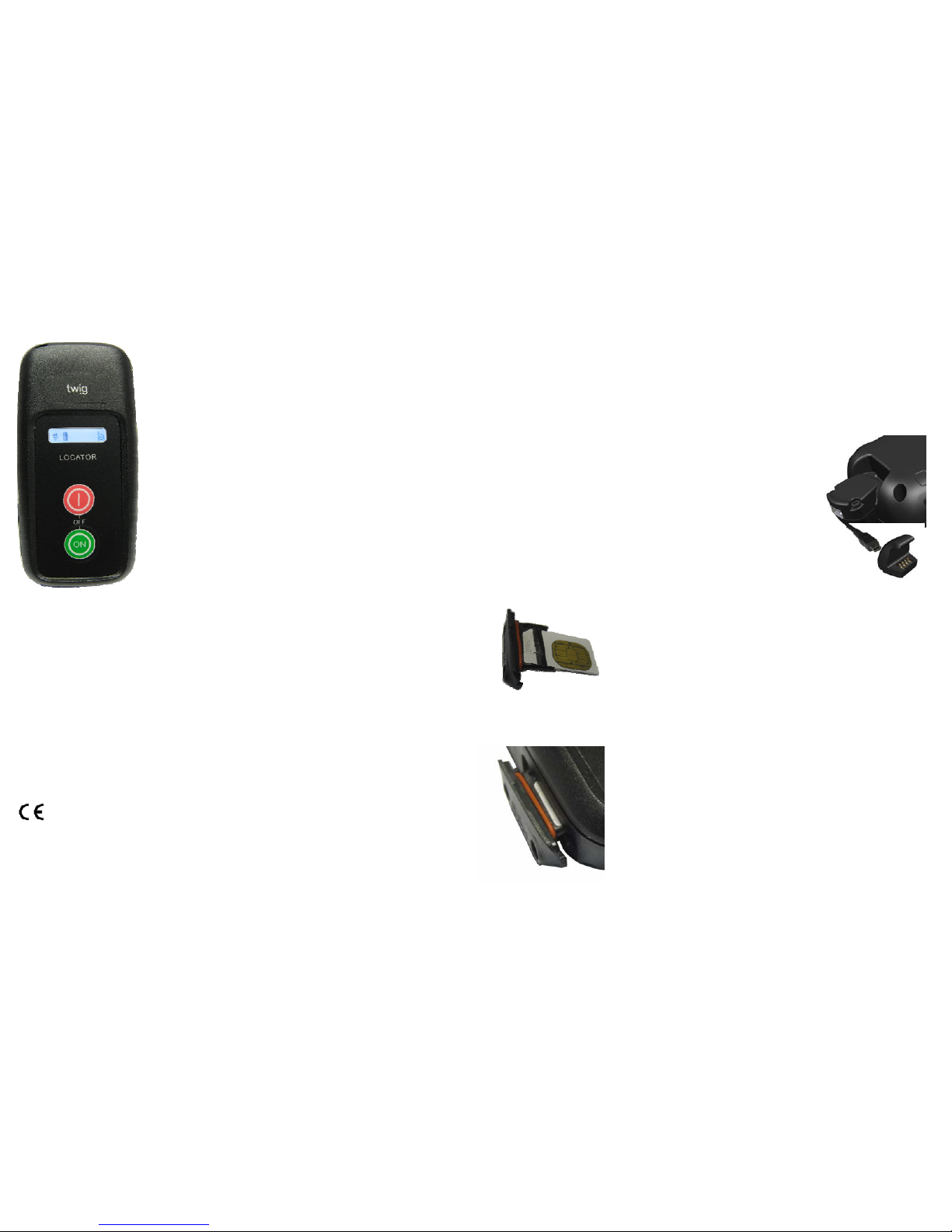
1. Slide the SIM card to the holder.
Check that the silicon seal is
undamaged and clean. If
necessary it may be slightly
moistened e.g. with water or
grease suitable for –ring silicone
seals. Do not use chemicals not
indented to silicone..
2. Push the SIM card with the holder all the way in from the hole
on the side of the unit carefully. Do not use force as the SIM
will go to its place easily.
3. Use the 2 screws to close
the SIM holder door.
Do not push with sharp or
metal tools or objects if
SIM is not coming out when
replacing!
The device is dust and
water proof. The protection
category for the device is
IP67 To meet the
requirements, the SIM plug
with the silicone sealmust
be inserted in place correctly. If the seal or plug is
damaged it must be changed immediately to maintain
tightness and warranty.
INITIALIZING THE DEVICE
When you start using the device for the first time, you should charge
the battery first. Please note that the battery will reach its full capacity
only after two or three charging times.
POWER SUPPLY
•Mains charger with the charger adapter or charging cradle
•Standard Li-Ion battery integrated to the unit is 2600mAh Li-ion
polymer battery. The battery type and capacity may vary depending on
the market area and model of the u n it in the sales package.
MAINS CHARGER
The mains charger should only be used
indoors. Make sure that the voltage in the
country where you are staying
corresponds to the voltage marked on the
charger. When charging, connect the mini
USB connector to mini USB socket in
charging adapter. Twist the Charging
adapter to the bottom of the phone from
keyboard side down, all the way until it
clicks on its place on back cover.
CHARGING
The device controls the charging
status, the battery temperature and power supply during the charging
operation. The ideal temperature range for charging is +10°...+30°C. If
charging the battery above or below these temperatures the life of a
battery may be shortened. Also, the battery may not reach full
capacity. Battery charg ing is not allowed below +0°C or ab o v e +50 ° C
When charging the Lithium polymer batteries with the USB charger,
about 70% of the battery capacity will be charged quickly, but charging
the remaining 30% takes relatively more time. Also note that humidity,
temperature, age of the battery and currently used features (e.g. the
GPS) affect the time spent on charging.
Standard CE-approved USB car charger (5VDC, 500mA) may be u sed
for charging.
BATTERY CARE, MAINTENANCE AND DISP OSAL
The continuous operating time is less when using an old battery than a
new battery. When storing unit for a long time, it should be kept cool
and with fully charged battery in a dry place. Lithium polymer batteries
do not contain heavy metals which can damage the environment.
Lithium polymer batteries should be disposed of according to the
country-specific regulations.
Page 2

ENVIRONMENTAL EFFECTS IN USAGE
SIGHT
The device must have an unobstructed view to satellites at any time. In
marginal conditions (e.g. when staying in surroundings with heavy tree
cover or in a shadow area in between base stations) GPS positioning
may not work properly.
The device can be used like a standard GSM phone with the limited
feature set. In some cases, the device can be built in clothes or special
vests. If the device is mounted somehow, it must be attached to the
surface so that the back of the device is facing out[?]up and the top of
the device upwards. To ensure proper functioning of the GPS and
GSM, the unit can be covered with thin low loss material such as
plastic, fibre glass or clot hes, but not with metal.
GPS position availability can be also improved by using AGPS
(assisted GPS). Please ask your distributor or monitoring service
provider about availability of AGPS service for your TWIG device. In
TWIG WebFinder SP the AGPS is a user sele ct a ble feature.
TEMPERATURE RANGES
•Usage: -20°C to +55°C, at temperatures below -20°C, or above
+55°C, the battery will not supply power and the device will shut down
to prevent damage. Upon warming up/cooling down, the device will
function properly again
•Charging: Battery must not be charged below °0. Like wise, charging
above +50 °C is prevented.
OPERATING MODES
Asset Locator can be operational for up to several months depending
on its operating mode and configuration.
The basic operation mode is determined in the TWIG Configurator
program in the Power saving mode (or controlled remotely by the
monitoring central station).
Power Saving Mode controls how the device sleeps and wakes up.
This substantially affects the device oper at i ng ti m e.
Note that if Power Saving Mode selection is other than Normal then
the GPS_ON functions are disabled.
Normal: Device does not enter “deep sleep” at all. Device use s timers
(such as GPS max search time, GPS sleep time, GPRS reconnect
interval) to control operation and current consumption. Operation time
varies depending on what processes are running.
Medium/Sensor: Device wakes up a fter GPRS Re connect interv al has
elapsed, or whenever it moves (detected movement is greater than
GPS_motion_on Sensitivity (mG) ). As long as device is awake it is
controlled normally by GPS max search time, GPS sleep time and
GPRS reconnect interval. If tracking is activated, tracking update
messages are sent only when device is moving and awake. Whenever
movement stops (detected movement is below GPS_motion_on
Sensitivity (mG) ), device goes to sleep after 5 minutes.
Heavy/Timer: The device wakes up only to the Power On key,
or after GPRS Reconnect interval or active tracking inter val has
elapsed.
Once the unit is ON based on mode determined in the Power
Saving Mode, it resumes any active tracking programmed to it.
It also responds to position request.
EXAMPLES
Power Saving mode is set to Medium / Motion Sensor
Unit turns on when timer expires or movement is detected. If
Reconnect Interval Timer is set to 30 minutes (1800
seconds) which is the minimum to enter to sleep, unit wakes
up every 30 minutes and checks for messages from central
station. Battery life is expected to be 3-4 months with no
motion present.
If unit is used with 24 hours (86400seconds) Reconnect
Interval, expected battery life is 8 months unless it wakes up
based on movement.
Power Saving mode is set to Heavy / Timer
Unit turns on whe n timer expires. Differe nt timers to wake
up are; GPS sleep interval, Reconnect interval and active
Tracking interval. Unit will use for wake up the timer that
expires first.
If Reconnect Interval Timer is set to 30 minutes which is the
minimum to enter to sleep, unit wakes ever y 30 minutes an d
checks for messages from central station. Battery life is
expected to be 5-6 Months.
If unit is used with 24 hours (86400seconds) Reconnect
Interval, expected battery life is 8 months or more.
If only automatic position reports (tracking report) is des ired
on interval you should set GPS and reconnect interval
longer that the Tracking. GPS may also be set totally off to
save the battery. Then unit will only turn on at interval and
send report. Other timers may run in parallel to e.g. refresh
position or check GeoFence.
All Tracking is activated OTA with MPTP commands.
Note, that the more unit has parameters to wake, the short er
the operation time.
Typical operating times
Battery performance in Motion Sensor operating mode is
greatly affected by whether the unit is waking up due to
detected movement. While ON any tracking that is activated will
be resumed on programmed interval until movemen t no longer
is detected.
Typical operating times in +20 Celsius with GPRS reporting:
9 months (1 GPS report / day)
8 months (motion watch, 1 reconn ec t / day)*
15 days (1 GPS report / hr)
8 days (1 GPS report / 10 min)
55 hours (1 GPS report / min)
17 hours (1 GPS report / 5 sec)
Up to 50 days (GSM standby only)
Operating times vary substantially if temperature is lower than
+10 or higher than +40 Celsius or depending on e.g. network
conditions and GPS visibility.
Page 3
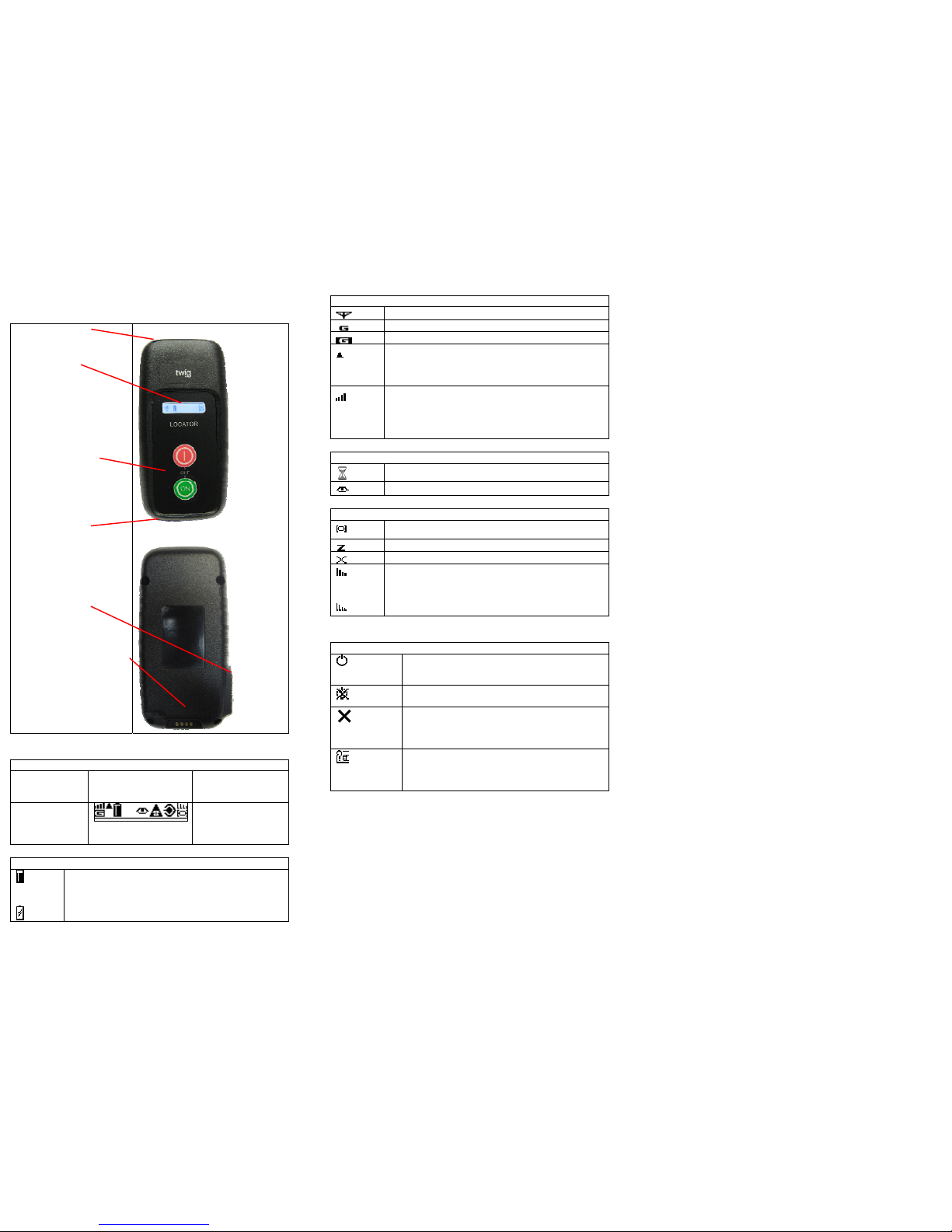
USER INTERFACE
STRAP HOLE
DISPLAY
•GSM status
•GPS status
•Battery status
POWER ON/OFF
•Power on
•Power off press both
buttons
MICROPHONE
SIM HOLDER
SYSTEM CONNECTOR
For connecting
charger or data cable
to the device.
DISPLAY INDICATORS
DEVICE IN STAND-BY MODE
BATTERY
INDICATOR
TELEMATICS
FEATURES
INDICATORS
GSM
NETWORK
INDICATORS
GPS POSITIONING
INDICATORS
BATTERY STATUS
The water level indicates charge left in the battery.
The higher the level, the more charge is left.
During charging, the battery icon is changed to
indicate this event.
GSM / GPRS NETWORK STATUS
GSM is on
GPRS is used for telematics
GPRS is active for telematics
.GSM is roaming. Phone is using other than home
network. Call and position transmissions are charged
according to roaming agreements. Position
transmissions may have been blocked automatically.
Bars on top of the network stat us icon indicate the
strength of the GSM network. The more bars and the
taller the bars, the better the GSM network.
- Four bars - high network strength
- No bars - no network
GENERAL STAUS ICONS
Processing. An operation is in progress, please wait
Tracking is active to one or more destinations
GPS POSITIONING STATUS
GPS is active
GPS is sleeping
GPS is not available
Bars on top of the network stat us icon indicate the
accuracy of the last GPS position. The more bars
and the taller the bars, the better the accuracy. If the
position is older than 1 – minute the signal bars are
shown as wireframes
DISPLAY / TONE NOTIFICATIONS
GENERAL NOTIFICATIONS
Powering Off icon will be shown when power off
button press has been initiated. Keep pressing
to power off.
Power off has been disabled and unit can not be
turned off.
General failure. Shown when an operation fails.
E.g. if you try to make a call when there is no
number pre-configured in the device.
Simultaneously, the
Failure tone is played.
SIM failure. Shown when there is no SIM card
inserted in the device, or if the PIN code was
rejected. Simultaneously, the
Failure tone is
played.
BASIC KEY FUNCTIONS
TURNING THE DEVICE ON
1. Press ON button and hold it down for a few seconds.
2. The logo is shown.
TURNING THE DEVICE OFF
1. Press both buttons simultaneously and hold it down for a few
seconds.
2. The Power off icon is shown.
Note, powering off may be prevented by configuration and icon will
indicate in the statusbar.
INCOMING/OUTGOING MPTP MESSAGES
The device may send or receive some MPTP messages. In most
cases messages are either remote configuration/activation messages,
some notifications, emergency reports or various types of position
messages and they work autonomously according to configuration. In
most cases there are no display notifications.
Page 4

CARE AND MAINTENANCE
NOTE: The instructions below apply to the device, its accessories,
batteries in use as well as batteries t ak e n out of us e.
• Dust and dirt may damage the moving parts of the device. Do not
use or keep the device in dusty or dirty surroundings.
• Do not open the device or battery by y ours e lf or pi er ce holes in it.
• Rough handling may break the circuitry inside the device. Do not
drop, knock, twist or shake the device or its battery.
• Keep the device dry. Liquids contain minerals which could corrode
electronic circuits. If the device gets wet, turn it off and dry the device
and the battery immediately. Put the device into an upright position
and let it dry. It is recommended that a dealer or service personnel
check that the device functions properly.
• Even though the device is waterproof, do not wet the device
unnecessarily or immerse it in water.
• Protect the device from heat. High temperatures may shorten the life
of the electronical devices, melt or warp plastics and damage
batteries. Do not warm up the device or battery or use it near fire.
• Do not short-circuit the battery or battery contacts. Exposing the
metal strips of the battery to a close contact with a metallic object,
such as a coin, a clip or a set of keys can cause accidental shortcircuiting and damage the batt e ry.
• Charge and recharge the battery only with the charger specified in
the Operating instructions/Quick Guide. Use the battery only for the
purpose it is intended.
• Clean the device with a soft cloth, dampened slightly with mild soapy
water. Do not clean the device with harsh chemicals, solvents or other
corrosive substances.
• Only allow service personnel authorised by the dealer to service the
device.
SAFETY AND PRECAUTIONS
TELEMATICS PROTOCOL
MPTP (Mobile Phone Telematic Protocol) allows, among other things,
tracking of the device over SMS or GPRS communication.
Automatically sent telematics messages are only allowed to authorised
numbers configured in the device. Such numbers can be, e.g.
emergency and service center numbers. Position of the device is
retrieved by the GPS, or by the network parameters -the latter is a
network-dependent service.
The carrier for telematics messages is a SMS-message or GPRS
connection. Deliveries of all messages is fully handled by and in the
responsibility of the GSM network operator and services can vary
substantially. The cost of a protocol message depends on service
provider contract.
GPS
The Global Positioning System (GPS) is operated by the government
of the United States, which is solely responsible for its accuracy and
maintenance. The system is subject to changes that could affect the
accuracy and performance of all GPS equipment.
GENERAL
• Traffic: Strictly adhere to all eventual European and national
legislation and also honour other eventual safety recommendations
when using the device while driving a vehicle. Place the device
in its holder, do not leave it on the passenger seat or some
other place where it can brea k loose in a collision or a sudden
stop. When receiving a call in an awkward driving situation, you
must always put safety before other priorities and courtesy. If
you feel uncomfortable about using a device while driving, you
should not use it.
• Vehicles with air bags: An air bag in flates with great force. Do
not place objects, including either installed or portable wireless
devices, in the area over the air bag or in the air bag
deployment area.
• External alert: The use of the alert device to operate a
vehicle´s lights or horn on public roads is not permitted.
• Children: Keep the device and its accessories away from
small children to avoid causing injury to themselves or others.
Damage to the device or its accessories is also thus avoided.
• Po wer supply: This equipment is intended for use with the
specified power supplies listed in the Quick Guide/Operating
Instructions. Any other usage will invalidate any approval given
to this apparatus and may be dangerous.
• Other accessories: Any other acce sso rie s used should also be
approved by the device manufacturer. Check the compa tibility
of new power supply units and other accessories a t the dealer
or manufacturer.
• Connections: All installations, connections and service
regarding the device, its power supply and accessories should
be approved by the device manufacturer. Use of any
unauthorized accessories, modifications or attachments may be
dangerous and voids the device warranty if said accessories
cause damage or a defect to the devi c e.
• Magnetic fields: The device may contain magnetic
components. Even though the magnetic fields of the
components are weak, they might damage magnetic cards,
such as bank and credit cards. We recommend that you would
keep the device away from magnetic cards.
• Storing positions: Position information is stored correctly in the
device when the GPS is turned off (from the GPS menu) or
powered off (by pressing the topmost side key). To prevent the
memory from becoming corrupted, never power off the device
by removing the battery.
RADIO FREQUENCY (RF) ENERGY
• Aircrafts: Turn your device off before boarding any air craft and
do not use the device while in the air. Besides being illegal, the
use of a device in an aircraft may endanger the operation of the
aircraft or disrupt the mobile network. Failure to comply with this
instruction may lead to suspension or denial of mobile phone
services, and possibly even le gal action.
• Hospitals: Turn your device off before entering hospitals o r
other health care facilities where medical electronic equipment
may be in use. Such devices can be extremely sensitive to
radio frequency interference. Only use the device with
permission and under the instru cti o n of hospital staff.
• Medical devices: Remember that any personal medical
devices (such as hearing aids or pacemakers) may be affected
by RF energy if they are not adequately shielded. Consult the
manufacturer or vendor of the equipment to determine the proper
shielding.
• Posted facilities and country-specific regulations: Power off the
device in any facility where posted notices require to turn off mobile
phones. Also follow all the country-specific regulations applicable to
where the device is used.
• Potentially explosive atmospheres: Turn off the device at refuelling
points, e.g. gas stations. Also observe restrictions on the use of radio
equipment in fuel depots, chemical plants or where blasting operations
are in progress because remote control RF devices are often used to
set off explosives. Do not store or carry flammable liquids, gases or
explosive materials in the same compartment as the device, its parts
or accessories.
• Other electronical equipment: Using the device may cause
interference with a vehicle's electronic equipment if it is no t adequatel y
shielded. Consult the manufacturer or the vehicle se ller to determine
the proper shielding.
• Computers: Remember that using the device close to a computer
may cause interference. When using your device near su ch equipment
keep a distance of about one meter.
• Body parts: When the device is in operation do not touch the antenna
with eyes, mouth or ba re skin to guarantee pr o per functi o n .
WARRANTY
Twig Com Ltd. warrants to the original purchaser (“Company”) that this
Twig Com device and all accessories originally provided by T wig Com
in the sales package (“Product”) are free from defects in materials,
design and workmanship under normal use in accordance with the
operating instructions and pursuant to warranty terms and conditions.
Warranty periods are deter mi n e d in the purchase agreement.
Individual warranty terms and conditions are available from T wig Com
or from local distributor.
The warranty is void if the unit is opened or the wa rranty sea ls on
screws are broken.
 Loading...