

Page 1

BROADBAND
TV
PHONE
USER GUIDE
Page 2

GETTING STARTED
CONTENTS
INTRODUCTION
Welcome . . . . . . . . . . . . . . . . . . . . . . . . . . . . . . . . . . . . . .1
Technical Support . . . . . . . . . . . . . . . . . . . . . . . . . . . . . .1
Equipment . . . . . . . . . . . . . . . . . . . . . . . . . . . . . . . . . . . .1
TV . . . . . . . . . . . . . . . . . . . . . . . . . . . . . . . . . . . . . . . . . . 1
Set-top Box . . . . . . . . . . . . . . . . . . . . . . . . . . . . . . . . . . 2
Remote Control . . . . . . . . . . . . . . . . . . . . . . . . . . . . . . . 2
System Features . . . . . . . . . . . . . . . . . . . . . . . . . . . . . . .3
Digital Television (DTV) Guide . . . . . . . . . . . . . . . . . . . . 4
Music . . . . . . . . . . . . . . . . . . . . . . . . . . . . . . . . . . . . . . . 4
Account . . . . . . . . . . . . . . . . . . . . . . . . . . . . . . . . . . . . . 5
Settings . . . . . . . . . . . . . . . . . . . . . . . . . . . . . . . . . . . . . 5
GETTING STARTED
Service Basics . . . . . . . . . . . . . . . . . . . . . . . . . . . . . . . . . . 6
Quick Start . . . . . . . . . . . . . . . . . . . . . . . . . . . . . . . . . . . .6
Personal Identification Number . . . . . . . . . . . . . . . . . . .6
Remote Control . . . . . . . . . . . . . . . . . . . . . . . . . . . . . . . 7
On-screen Menu and Feature Buttons . . . . . . . . . . . . . 7
Settings . . . . . . . . . . . . . . . . . . . . . . . . . . . . . . . . . . . . . .8
PINS . . . . . . . . . . . . . . . . . . . . . . . . . . . . . . . . . . . . . . . . 8
System PIN . . . . . . . . . . . . . . . . . . . . . . . . . . . . . . . . . . . 9
Purchase PIN . . . . . . . . . . . . . . . . . . . . . . . . . . . . . . . . 10
Favorites . . . . . . . . . . . . . . . . . . . . . . . . . . . . . . . . . . . . 11
Parental Controls . . . . . . . . . . . . . . . . . . . . . . . . . . . . . 14
Account History . . . . . . . . . . . . . . . . . . . . . . . . . . . . . . 16
System Settings . . . . . . . . . . . . . . . . . . . . . . . . . . . . . . 17
BROADBAND
BROADBAND
TV
TV
PHONE
PHONE
Page 3

GETTING STARTED
CONTENTS
DIGITAL TELEVISION (DTV)
Overview . . . . . . . . . . . . . . . . . . . . . . . . . . . . . . . . . . . .20
Channel Selection . . . . . . . . . . . . . . . . . . . . . . . . . . . . .20
DTV Guide . . . . . . . . . . . . . . . . . . . . . . . . . . . . . . . . . . .21
Pay-per-View . . . . . . . . . . . . . . . . . . . . . . . . . . . . . . . . 23
Autotune/Reminders . . . . . . . . . . . . . . . . . . . . . . . . . . 24
Parental Controls (DTV) . . . . . . . . . . . . . . . . . . . . . . . .25
Emergency Alert System (EAS) . . . . . . . . . . . . . . . . . . 26
MUSIC
Overview . . . . . . . . . . . . . . . . . . . . . . . . . . . . . . . . . . . .27
Audio Channels . . . . . . . . . . . . . . . . . . . . . . . . . . . . . . . 27
APPENDIX A: THE REMOTE
Remote Control Features . . . . . . . . . . . . . . . . . . . . . . .29
APPENDIX B: THE SET-TOP BOX
Overview . . . . . . . . . . . . . . . . . . . . . . . . . . . . . . . . . . . . 31
Front Panel . . . . . . . . . . . . . . . . . . . . . . . . . . . . . . . . . . . 31
Back Panel . . . . . . . . . . . . . . . . . . . . . . . . . . . . . . . . . . .32
PHONE
BROADBAND
BROADBAND
TV
TV
PHONE
Page 4

GETTING STARTED
INTRODUCTION
WELCOME
TDS TV delivers a host of entertainment choices to your
home: 100% Digital Television (DTV), DVD-quality video
rentals, music channels, and more. Your new TDS TV system
can be personalized; parental controls allow you to “build”
an entertainment system to meet your needs. A convenient
universal remote is included.
TDS TV transforms your television into an entertainment system. Rent and view videos, watch television programs, and
listen to music. Interactive, on demand, and at home—TDS
TV delivers.
TECHNICAL SUPPORT
If you experience difficulties with the system and need
technical support, please contact TDS Telecom Service at
615-75-TDSTV (615-758-3788).
1
EQUIPMENT
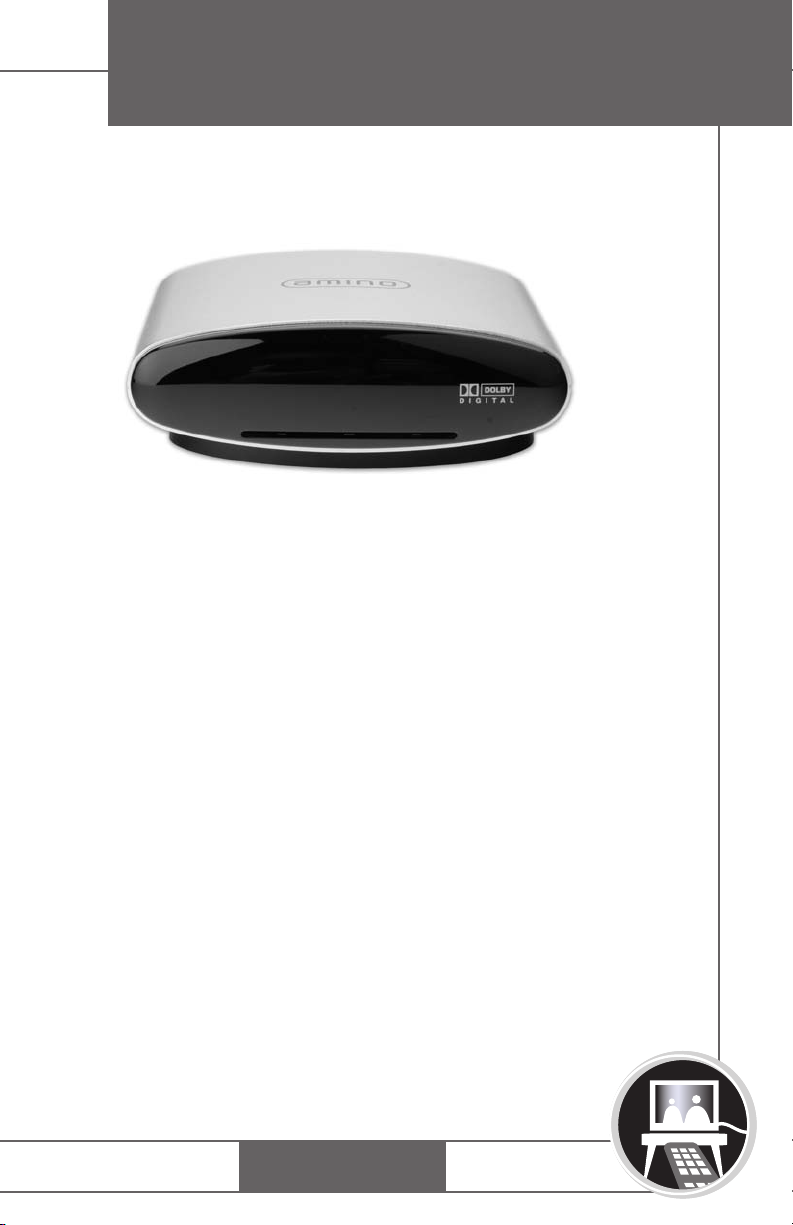
This interactive system is transmitted through a set-top box,
and displays on your TV set. Access system services using
the remote control provided during installation.
TV
The system is accessed through your television. Volume
control and input selection are adjusted with the remote.
PHONE
BROADBAND
BROADBAND
TV
TV
PHONE
Page 5
GETTING STARTED
INTRODUCTION
SET-TOP BOX
The set-top box (STB) receives signals from the remote
to manage services on your account. For details on
connections to the set top box see Appendix B (page 32).
2
REMOTE CONTROL
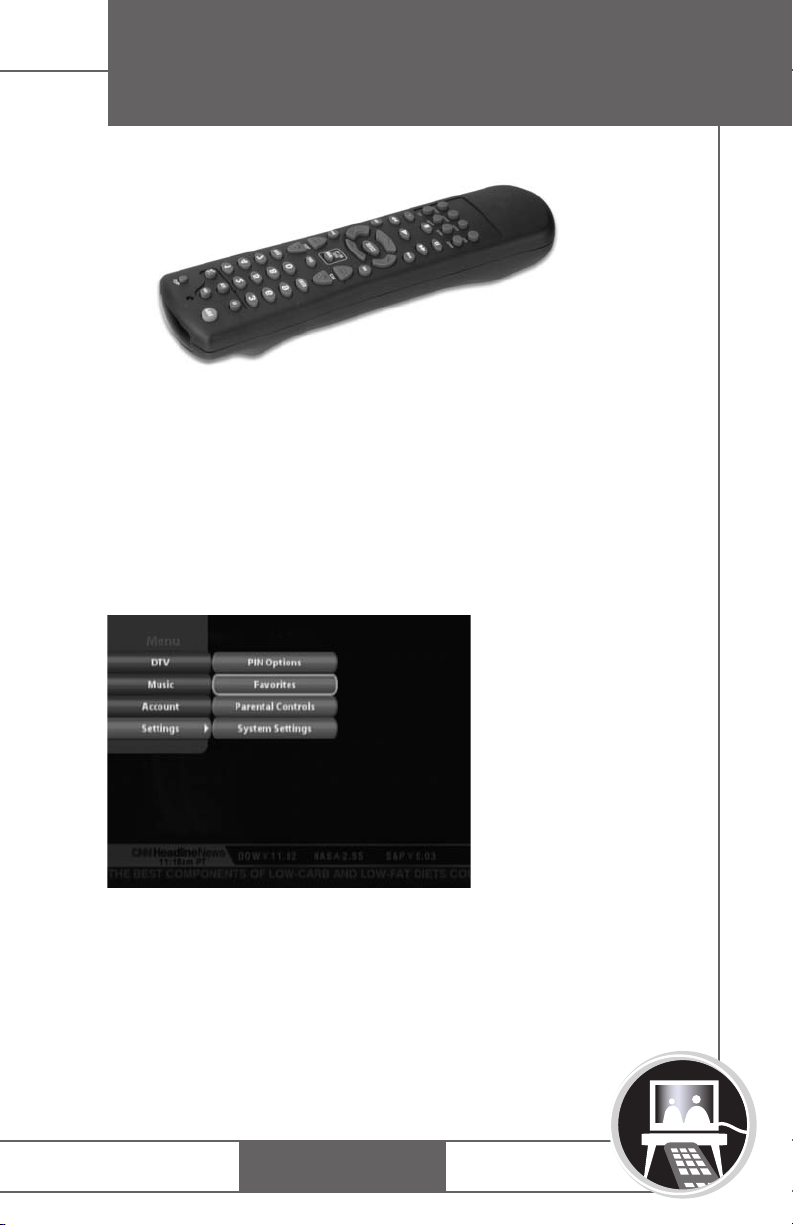
Directed at the set-top box, the universal remote sends
signals activating the system. The remote includes the
following keys:
• Device Controls: PWR
• Numeric Keypad
• System Controls: volume and channel
• Navigation Keys: up, down, left, right, and SELECT
• Movie Controls: play, stop, pause, fast-forward, and rewind
PHONE
BROADBAND
BROADBAND
TV
TV
PHONE
Page 6
INTRODUCTION
See “Remote Control Features” on page 29
for additional information on remote functionality. Refer
to the remote’s user guide for information on adjusting
television settings.
SYSTEM FEATURES
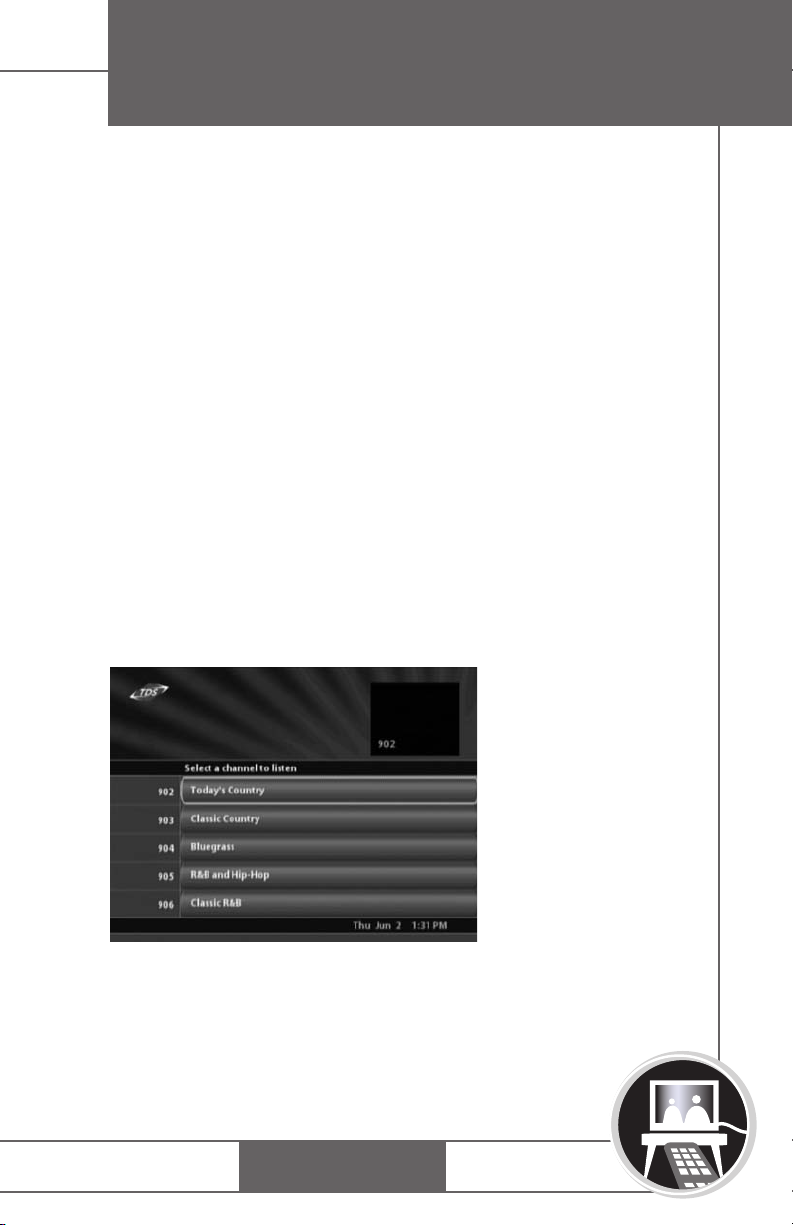
Access to entertainment options is simple: use the onscreen Menu to access system features such as Digital TV,
Guide, Movies, Music, and Settings.
3
BROADBAND
TV
PHONE
Page 7
INTRODUCTION
DIGITAL TELEVISION (DTV) GUIDE
TDS TV provides local and premium television channels.
The DTV Guide contains detailed information for current
and future listings and a search function for locating favorite
programs. Parents can set rating and system controls for
television content.
Pressing
for the selected entertainment feature (DTV, Music, etc). The
last channel viewed appears on a smaller screen (screen-inscreen) while navigating the Guide. Access to the various
Guides is optional; contact TDS Telecom to subscribe.
NOTE: Press Help on the remote for hints on navigating
TDS TV system features, answers to frequently asked
questions and information about legal and privacy issues.
GUIDE on the remote accesses detailed information
MUSIC
4
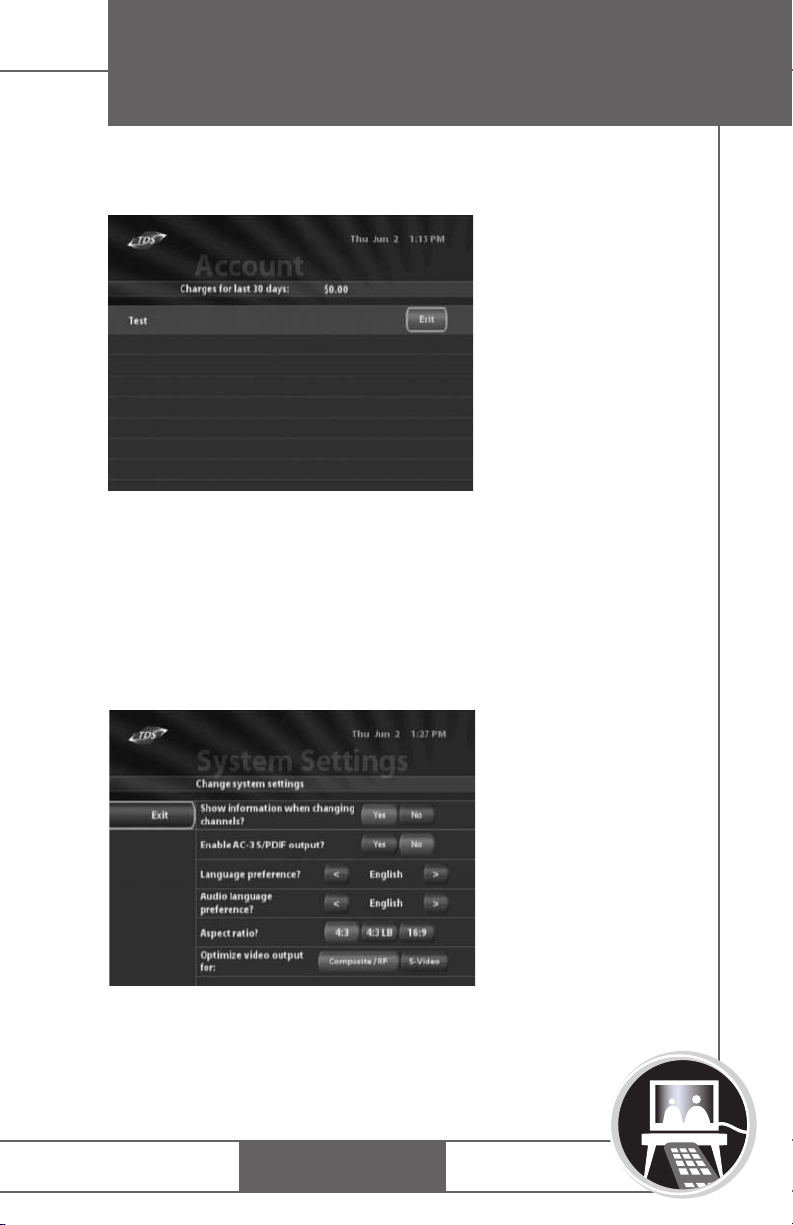
The Music feature provides a “virtual stereo” with numerous
music categories. The Music Guide provides an on-screen
list of available music channels by group. Access basic
program information about music selections with the
touch of a remote button.
BROADBAND
TV
PHONE
Page 8
INTRODUCTION
ACCOUNT
The Account screen displays a detailed record of your
movie rentals and costs. This information is for explanatory
purposes only; your bill from TDS Telecom will contain a
complete list of charges.
5
SETTINGS
Change your system Personal Identification Number (PIN),
manage Favorites, maintain Parental Controls, and adjust
System Settings all in one location. Alter and use the
Purchase and System PINs as necessary.
BROADBAND
TV
PHONE
Page 9

GETTING STARTED
SERVICE BASICS
The following items are needed to use your TDS TV system:
• Equipment: TV, set-top box, remote, channel line-up guide.
• Personal Identification Number (PIN).
After installation, use the remote to access services on the TV.
QUICK START
After TDS TV is installed, use your PIN and universal remote
to access the system.
Turning on the System
• Press TV, and then PWR on the remote to turn on
the television.
6
The TDS TV system begins loading and DTV appears.
Control volume and picture quality with the remote.
PERSONAL IDENTIFICATION NUMBER
TDS Telecom provides a 4-digit personal identification
number (PIN) for your system. Your PIN is used to rent
movies, and set parental controls for TV programs and movie
ratings. When required, an onscreen message requests
entering the PIN using the remote. As a security measure,
asterisks appear as numbers are entered. If the wrong PIN
is entered, a message prompts re-entry
BROADBAND
TV
PHONE
Page 10

GETTING STARTED
REMOTE CONTROL
Use the remote arrow keys to navigate TDS TV. While
navigating on-screen (Guide options, buttons, icons, and
links) a highlight appears around selected items.
Navigating with the Remote
1. Use the remote arrow keys to move the on-screen
highlight. The selected option is highlighted.
2. Press SELECT on the remote.
An action occurs and the screen changes.
ON-SCREEN MENU AND FEATURE BUTTONS
Navigate TDS TV two ways: the on-screen Menu or the
remote Feature buttons. The Menu displays a list of main
features (DTV, Movies, Music, etc.) available on the system,
contains options for controlling how and if the system displays
certain information (Parental Controls, Favorites, System
Settings, Change PIN), and provides an account history.
Feature buttons (DTV, Movies, etc.) jump directly to a
particular service.
Using the Menu
1. Press MENU on the remote.
2. Use the arrow keys and SELECT to choose a Menu
option. The system jumps to the selected feature.
7
BROADBAND
TV
PHONE
Page 11

GETTING STARTED
SETTINGS
The Settings feature allows authorized users to define parental
controls, view account history, and change the system PIN.
TDS Telecom issued your initial PIN necessary to establish
fundamental settings.
PINS
There are two PINs used in your TDS TV system:
• System PIN––The System PIN allows you to set parental
controls, set your system display language and audio
language, and view your account history. TDS provided
the initial System PIN, but using the Settings menu you
can change your System PIN, or inactivate the need for
a System PIN.
Purchase PIN––The Purchase PIN allows you to purchase
•
PPV movies, and other items purchased per use. Your
service provider provides the initial Purchase PIN, but
using the Settings menu you can change your Purchase
PIN, or inactivate the need for a Purchase PIN.
8
BROADBAND
TV
PHONE
Page 12
GETTING STARTED
SYSTEM PIN
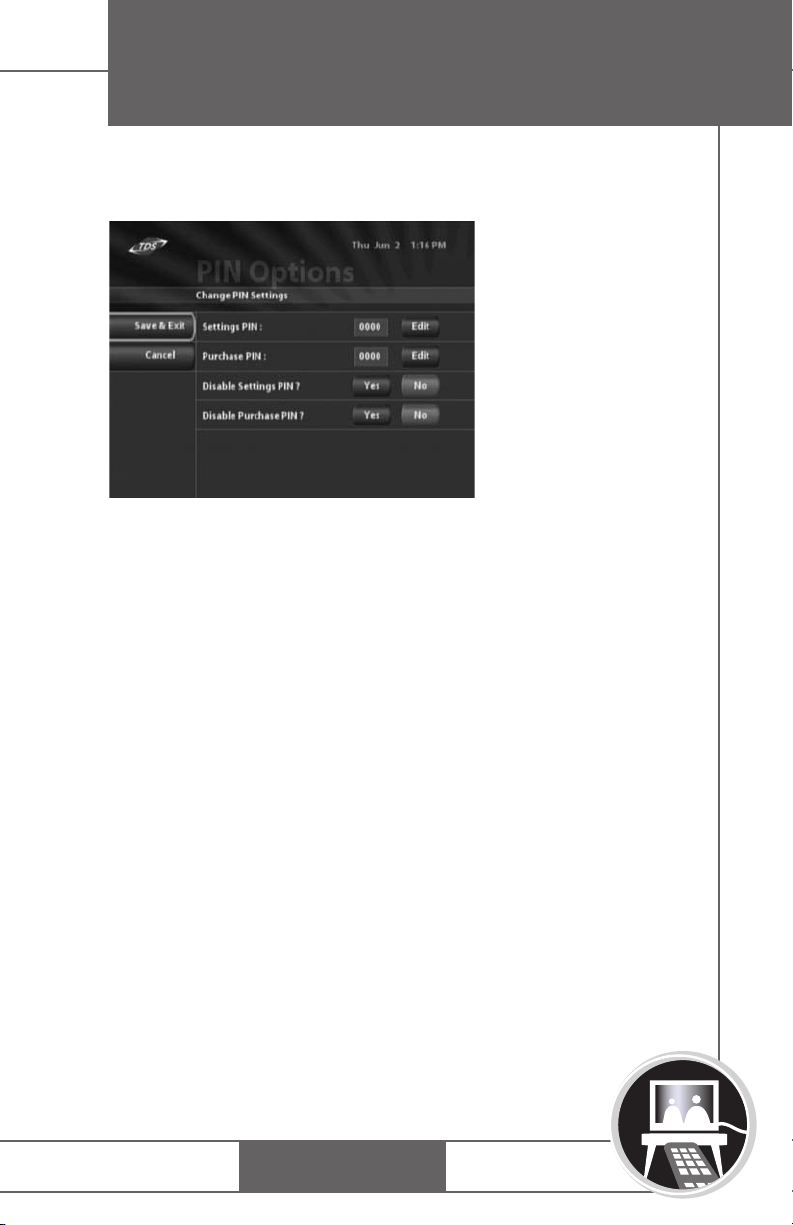
Changing the System PIN
Create and Modify the PIN for System Settings.
1. Press MENU on the remote.
2. Select Settings, and then select PIN Options.
3. Select Edit to change the Settings PIN.
4. Enter numbers using the remote, press g when finished.
(default PIN is – øøøø)
5. Click Save and Exit to complete the PIN modification
and return to the Menu. A confirmation message
appears; after a few seconds, the system returns to
the Menu.
9
Enable/Disable Settings PIN
Select to enable or disable the Settings PIN; you will no
longer be prompted for your PIN while accessing System
Settings or making a purchase in the system.
BROADBAND
TV
PHONE
Page 13

GETTING STARTED
1. Press MENU on the remote.
2. Select Settings, and then PIN Options.
3. Select to Enable or Disable the Settings PIN; press Y
for Yes and N for No.
4. Click Save and Exit to complete the PIN modification
and return to the Menu. A confirmation message
appears; after a few seconds, the system returns to
the Menu.
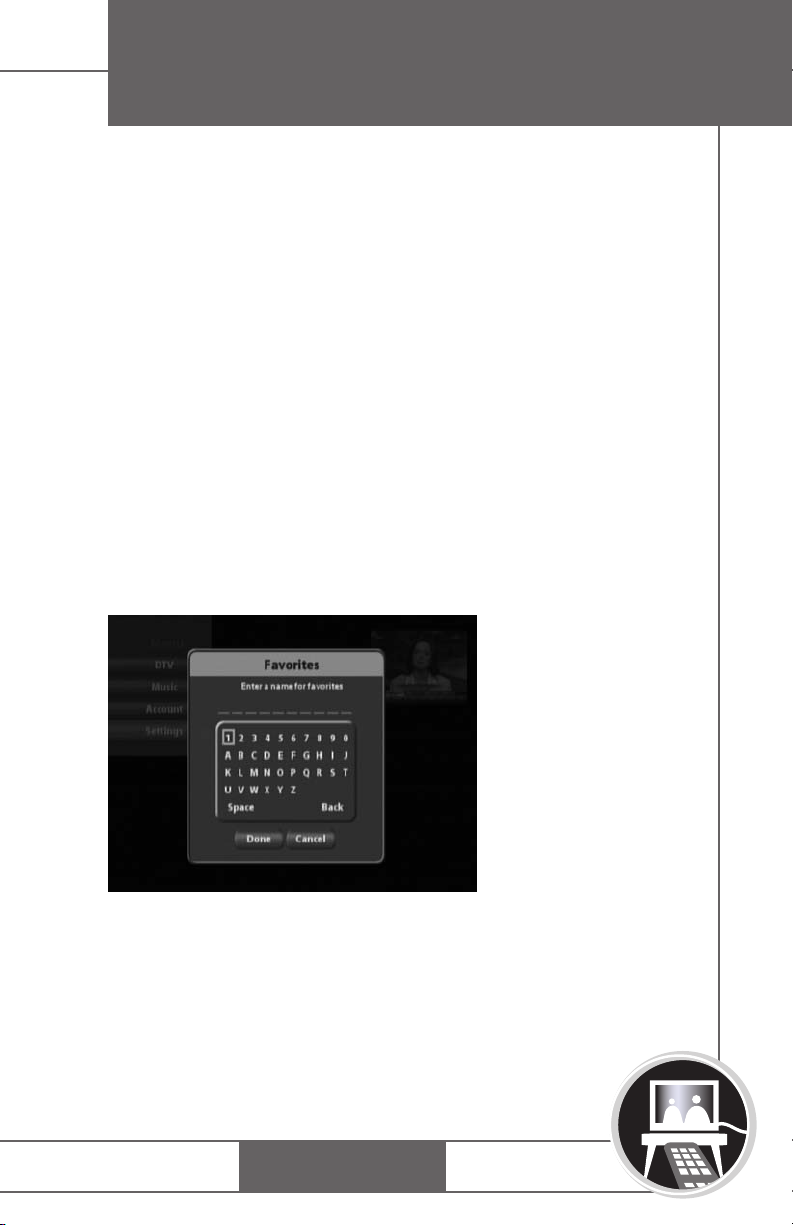
PURCHASE PIN
Changing the Purchase PIN
Create and Modify the PIN for purchasing items in
the system.
1. Press MENU on the remote.
2. Select Settings, and then select PIN Options.
3. Select Edit to change the Purchase PIN.
4. Enter numbers using the remote, press g when finished.
(default PIN is – øøøø)
5. Click Save and Exit to complete the PIN modification
and return to the Menu. A confirmation message
appears; after a few seconds, the system returns to the
Menu.
10
Enable/Disable Purchase PIN
Select to enable or disable the Purchase PIN; you will no
longer be prompted for your PIN when making a purchase
in the system.
BROADBAND
TV
PHONE
Page 14
GETTING STARTED
1. Press MENU on the remote.
2. Select Settings, and then PIN Options.
3. Select to Enable or Disable the Purchase PIN; press Y
for Yes and N for No.
4. Click Save and Exit to complete the PIN modification
and return to the Menu. A confirmation message
appears; after a few seconds, the system returns to
the Menu.
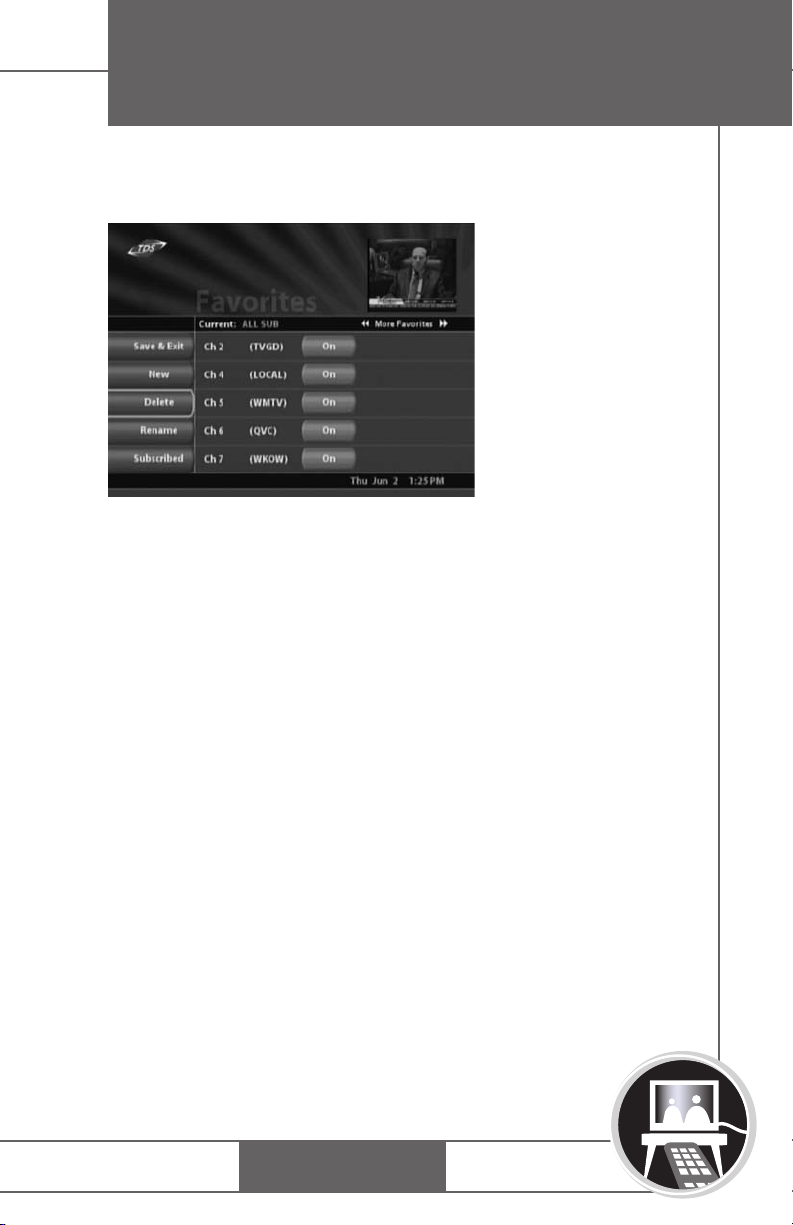
FAVORITES
With access to hundreds of channels you can create, edit, and
delete a list of your most frequently viewed and favorite channels. Use the default favorites lists (All or Subscribed) or create
your own (up to 5 unique lists.)
11
BROADBAND
TV
PHONE
Page 15
GETTING STARTED
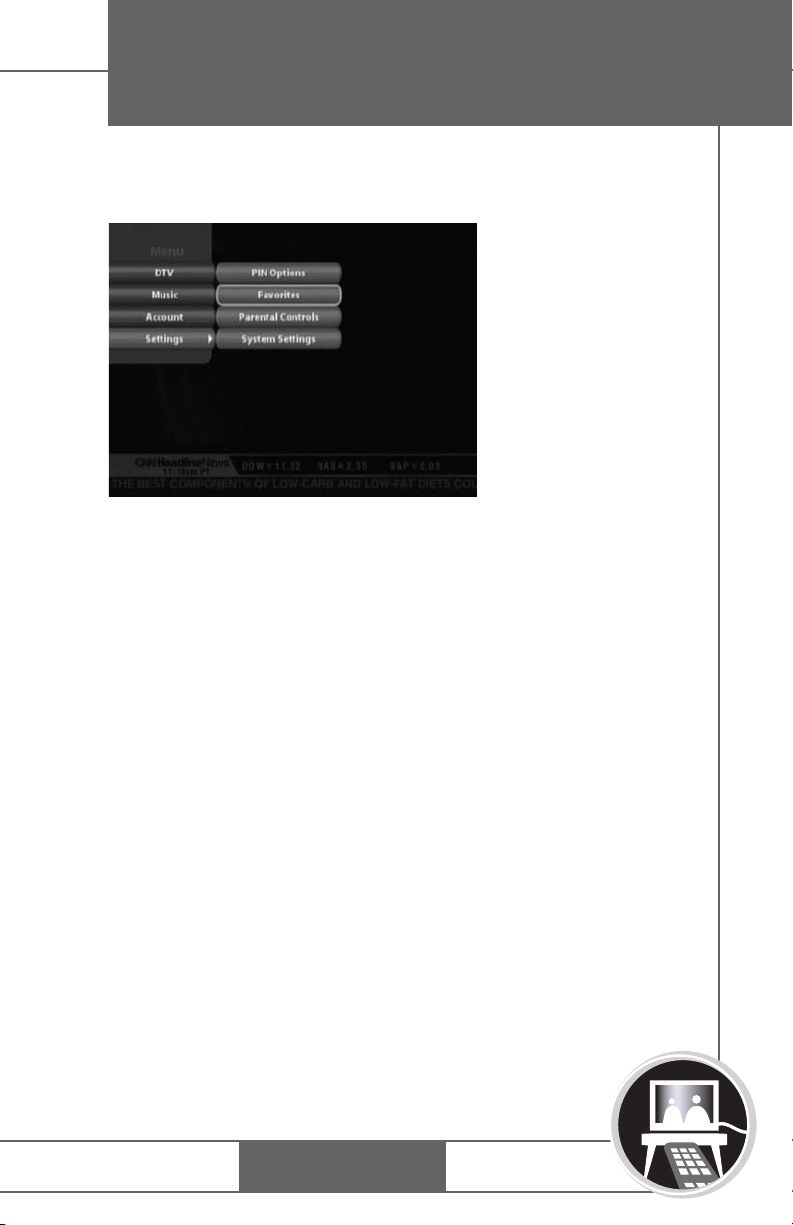
Displaying Favorites Lists
1. Press MENU on the remote. The Main menu displays.
2. Select
3. Select New. Peruse the list of channels to either select or
deselect each channel. The selected Favorites list appears
at the top of the screen and the displayed channels are
arranged according to the Favorites list in the Program
Guide.
4. Select Save & Exit.
Settings, then Favorites.
12
Note: Pressing the GUIDE button will scroll through the
names of your favorites lists.
BROADBAND
TV
PHONE
Page 16
GETTING STARTED
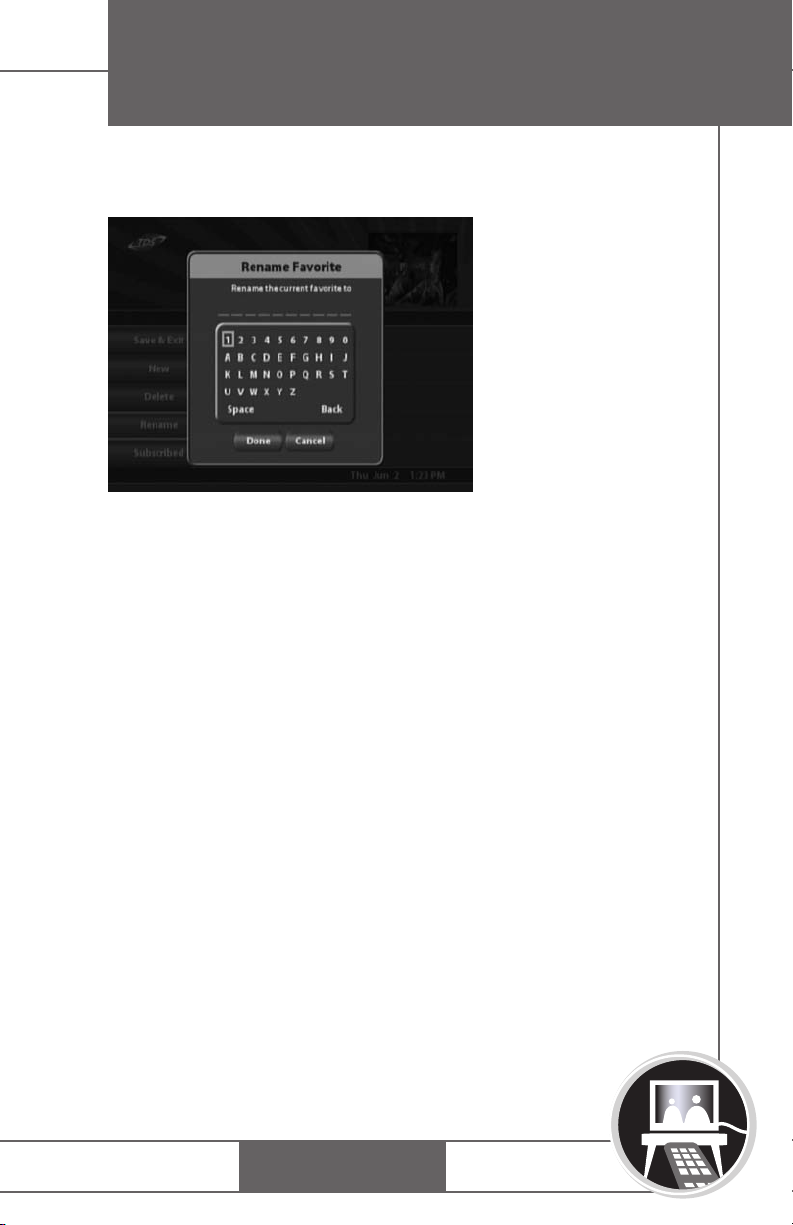
Renaming Favorites
1. Press MENU on the remote. The Main menu displays.
2. Select Settings, and then Favorites.
3. Choose the list to rename by using the << or >> keys to
select the Favorites list to edit. Peruse the list of channels
to either select or deselect each channel.
4. Select the
appears, revealing the on-screen keyboard.
5. Use the on-screen keyboard to change the name (from 1
to 10 characters).
6. Select Done. The Rename dialog box closes. The Edit
Favorites screen is updated and reflects the new name.
7. Select
Rename button. The Rename dialog box
Exit.
13
BROADBAND
TV
PHONE
Page 17
GETTING STARTED
Deleting Favorites
1. Press MENU on the remote. The Main menu displays.
2. Select Settings, and then Favorites.
3. Choose Delete. The Confirm Deleting dialog box
appears.
4. Select Yes. The Delete Favorites screen is updated and
reflects the removed Favorite.
5. Select Exit.
14
PARENTAL CONTROLS
Setting Parental Controls
Use Parental Controls to set maximum viewable ratings for
movies and TV programs, as well as prevent unrated TV
shows from displaying. A valid PIN is required to alter
Parental Controls. TDS TV uses TV Parental Guidelines and
MPAA ratings for movies. These ratings give parents more
information about content and age appropriateness of
TV shows.
[NOTE: Not all TV programs and movies are rated. To prevent unrated
programs from being accessed, set Parental Controls accordingly.]
BROADBAND
TV
PHONE
Page 18
GETTING STARTED
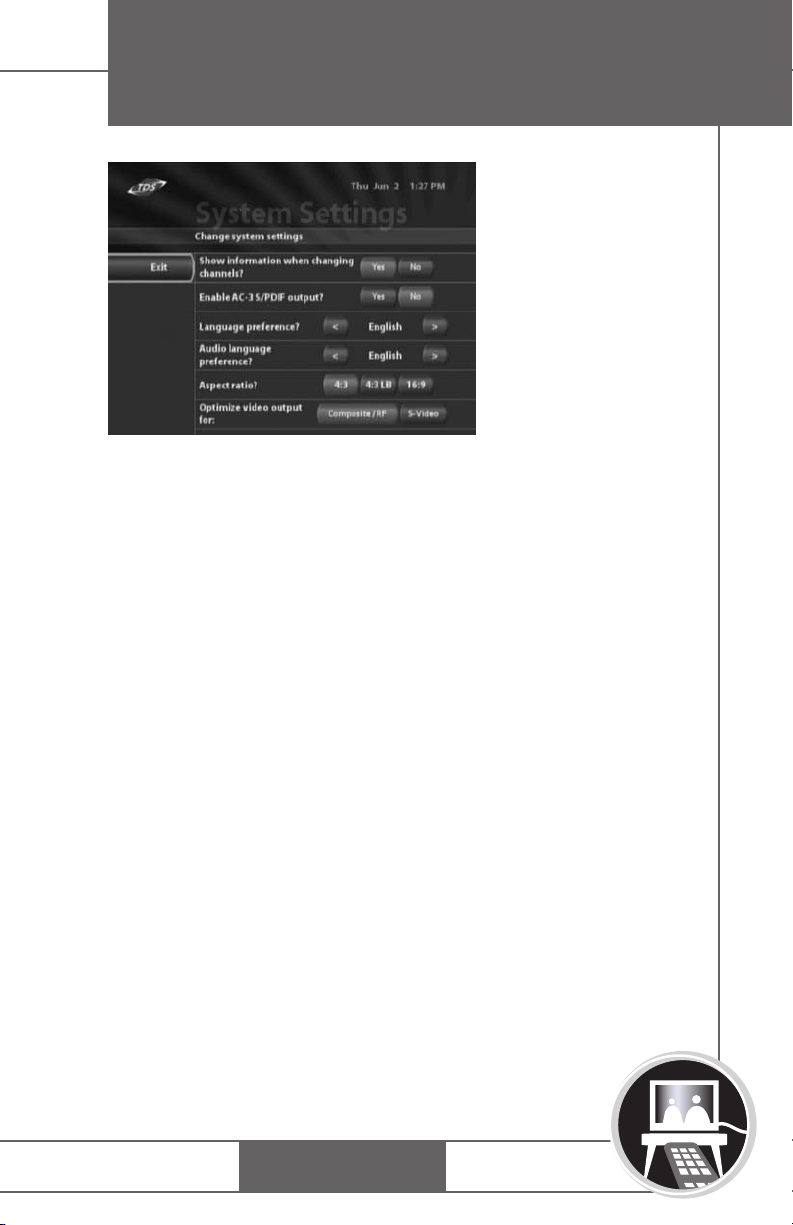
1. Press MENU on the remote.
2. Select Settings, and then Parental Controls. The Enter
PIN dialog box appears.
3. Enter your PIN
4. Select options for the following:
• Enable Parental Controls-–Select Yes or No to
activate Parental Control features throughout
the system.
• MPAA Ratings––Control viewing of programs below
the selected MPAA ratings level (PG 13 etc.).
VCHIP Ratings––Control viewing of programs below
•
the selected VCHIP rating level (TV-14 etc.).
Lock Unrated Shows ––Select Yes or No to restrict
•
viewing of shows that are not assigned a rating.
Show Titles––Select Yes or No to Display titles
•
exceeding parental control levels.
•
Hide Channels––Select Yes or No to remove channels
from the system.
5. Enter preferences using the remote keys and
6. Select
[NOTE: See “Overriding Parental Controls” on page 26 for additional
information.]
Exit.
SELECT.
15
BROADBAND
TV
PHONE
Page 19
GETTING STARTED
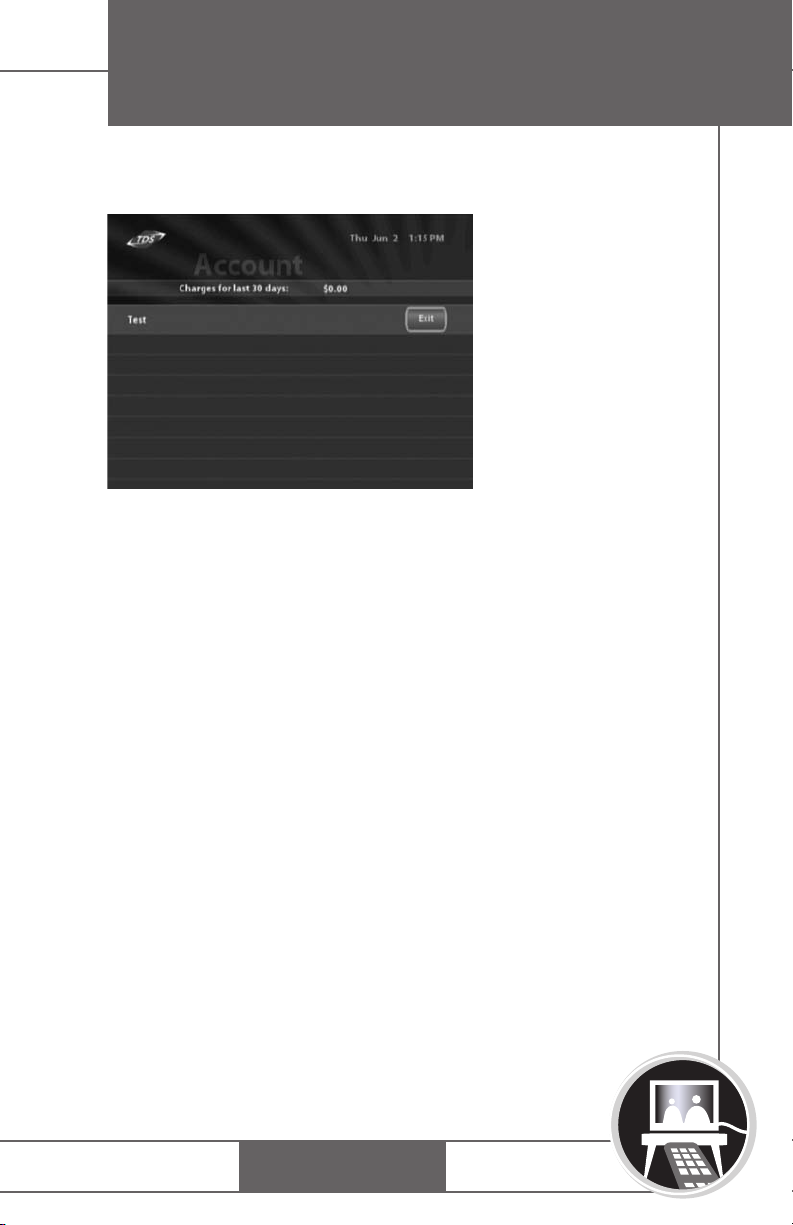
ACCOUNT HISTORY
Viewing Account History
1. Press MENU on the remote.
2. Select Account. The Enter PIN dialog box appears.
3. Enter your System PIN.
4. The Account History screen appears. View transactions
and account information.
16
BROADBAND
TV
PHONE
Page 20
GETTING STARTED
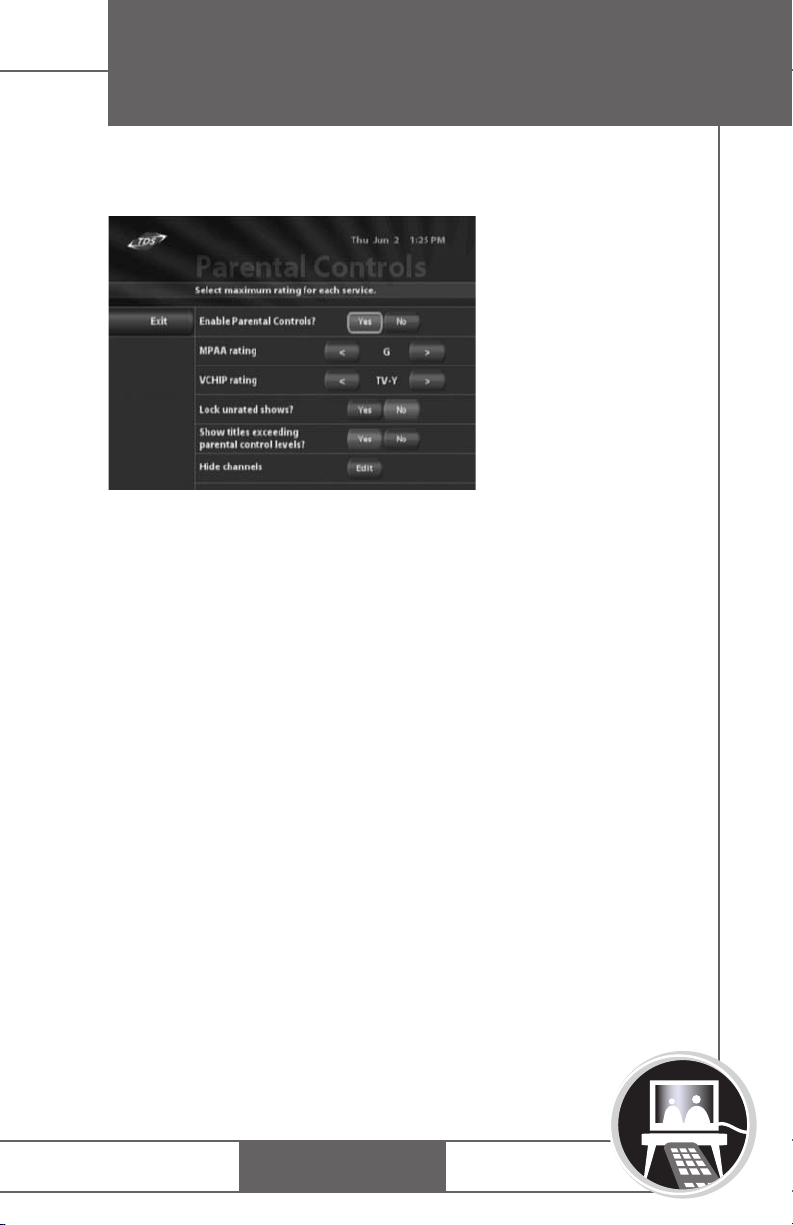
SYSTEM SETTINGS
Program Information Overlay
Basic program information appears on-screen as channels
are changed; to enable/disable this feature:
17
1. Press MENU on the remote.
2. Select Settings, and then System Settings. Enter the
system PIN.
3. Use the remote arrow keys and SELECT and verify Yes or
No to Show Information when Changing Channels.
4. Select Exit.
Connecting Audio
Verify the audio connection from the set-top box to the TV.
The set-top box may be connected using either analog or
digital audio. The STB default setting is analog audio.
BROADBAND
TV
PHONE
Page 21

GETTING STARTED
1. Press MENU on the remote.
2. Select Settings, and then System Settings. Enter the
system PIN.
3. Use the remote arrow keys and SELECT to change the
output setting of your cabling if necessary and verify Yes
or No to Enable AC-3 S/PDIF output.
4. Select Exit.
Optimize Video
Select to optimize video output based on the video cable
setup. Not all set-top boxes contain this option.
1. Press MENU on the remote.
2. Select Settings, and then System Settings.
3. Enter the system PIN.
If the set-top box is connected with any system video cable,
and an inconsistent option button is selected on the
Settings screen, the video image may appear distorted. To
revert back to previous video settings (the default is no
option selected), press Promos four times, then DTV once.
To restore optimum video performance, return to the
System Settings screen and select the proper video setting
(setting should match video output cable choice).
4. Use the remote arrow keys and
optimize the appropriate video output used. Choose
from Composite, SVideo, or Modulator (RF or coax).
5. Select
Exit.
SELECT to verify and
18
BROADBAND
TV
PHONE
Page 22

GETTING STARTED
TV Display Format
You can set your TV format to enable the most optimal
image for your display; select the appropriate option for
your TV to preserve the complete image. Select 16:9 for
16:9 format televisions; select 4:3 or 4:30 letter box for 4:3
televisions. Options include:
• 4:3—Crops the left and right sides of the image and dis-
plays a 4:3 image.
• 4:3 Letter box—Shrinks the image vertically to preserve its
aspect ratio on a 4:3 display and puts black bars at the
top and bottom of the image.
• 16:9—The image is not manipulated, so it displays in the
original format.
1. Press MENU on the remote. The Main menu displays.
2. Select System Settings, and then next to the Video
Aspect Ratio option, select the arrows to choose your
display format (4:3, 4:3 Letter box, or 16:9).
3. Select Save & Exit.Overview
19
BROADBAND
TV
PHONE
Page 23

DIGITAL TELEVISION
(DTV)
OVERVIEW
Digital Television (DTV) from TDS Telecom allows you to
access local and premium television channels. The DTV
Guide provides the ability to access and search program
listings. Use the remote to navigate DTV channels and
guide. Pressing GUIDE on the remote is the only way to
access the guide.
Access a week of programming information with the DTV
Guide. The Guide provides on-screen information for all
subscriber channels and programs. The “picture in guide”
function allows you to scan the Guide while watching
a program.
CHANNEL SELECTION
VIEWING TDS TV
[NOTE: If the remote does not function properly, ensure it is accurately programmed
for compatibility with your brand of television.]
1. Press MENU on the remote.
2. Select
lineup appears.
3. To view a channel or change channels:
TV from the Menu. The first channel in the
• Enter the channel number (e.g. 04 or 812) and press
ENTER using the numeric keypad on the remote.
• Press CH +/-.
• Press
• Use the up/down navigational arrows and
• Press
GUIDE and use the navigation arrows and
SELECT on the DTV Guide.
SELECT
to browse listings.
LAST to return to previous channel.
20
BROADBAND
TV
PHONE
Page 24

DTV
Program information (channel, network, title, duration, airtime, and description) appears briefly as channels change.
This information appears depending on system settings.
DTV GUIDE
TDS TV Guide provides the most up to date program information in an easy to use and intuitive format. Use visual
cues on the Guide to view, browse, and search program listings, as well as purchase pay-per-view programs.
Color Coding
[NOTE: Pressing GUIDE on remote is the only way to access the guide.]
The Guide contains a color coded system, to differentiate at
first glance the type of programs available. Colors include:
Table 1 Color Coding
Color
Light Green/Blue
Dark Green
Dark Gray
Dark Blue System
Red
Light Green
Light Blue
Purple
Meaning
Normal Programming
No Information Available
Unsubscribed
Movies, Promos, Search
Sports
News
Children's
Movies
Searching the Guide
1. Press DTV on remote, then press GUIDE.
21
BROADBAND
TV
PHONE
Page 25

DTV
2. Using the arrow keys on remote, scroll up to the
SEARCH line item (looks like a channel in the guide),
3. Press
4. Use the navigational arrow keys to navigate letters and
5. Press DONE.
The Search feature queries both titles and descriptions of
the item.
Viewing Program Information
1. Press MENU on the remote, and then press GUIDE to
2. Highlight a program.
3. Press
4. Use the arrow keys and SELECT to browse other
SELECT. The on-screen keyboard displays,
numbers to spell search term/word,
access the DTV Guide).
• Use the navigational arrow keys to browse programs.
The Guide advances in 30 minute increments displaying future programming; a highlight appears around a
selected channel.
• Use fast-forward or rewind (>> or <<) to display
program listings for the next day.
• Use CH +/- to preview channels in the upper right
corner from the DTV Guide.
SELECT to change to the channel or press INFO to
display program information. Press
information and return to the guide.
channels in the Guide.
INFO again to clear
22
BROADBAND
TV
PHONE
Page 26

DTV
PAY-PER-VIEW
Renting a PPV Movie
1. Press DTV on the remote, then press GUIDE. Navigate
using remote arrow keys to a PPV channel.
2. Press SELECT on the remote. If the movie is in progress,
a warning box is presented that states “Selected
Program already showing. Continue?” Options are
YES or NO. Selecting YES allows you to continue
renting movie.
3. The rental screen displays and contains description of
movie, rating, actors, runtime and cost to rent.
4. Enter your PIN to rent the move, or press CANCEL on
this screen.
• CANCEL on-screen takes you back to DTV channel.
Entering PIN adds an icon on the rental screen that
says ACCEPT CHARGES?
• CANCEL Button is also present. Accepting charges
rents the movie. Cancel returns you to DTV.
23
BROADBAND
TV
PHONE
Page 27
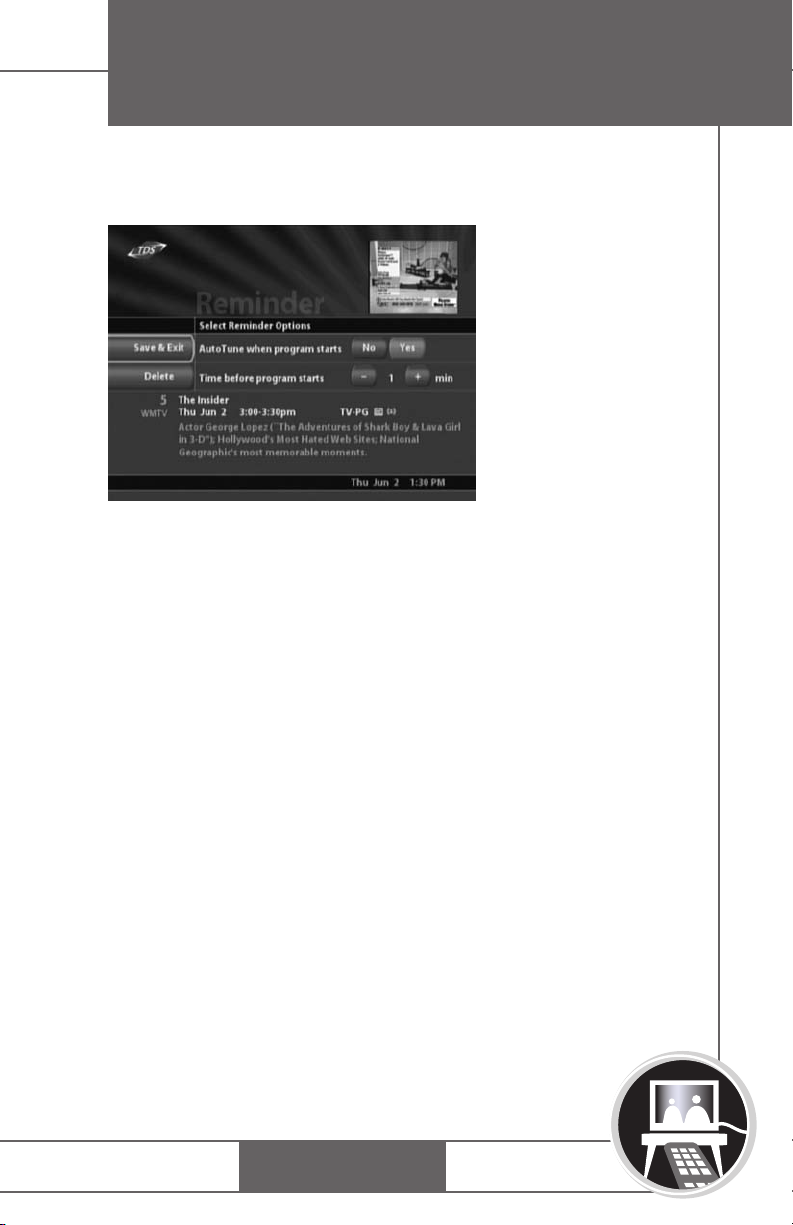
AUTOTUNE/REMINDERS
DTV
Setting Autotune/Reminders
1. Press DTV on the remote, and then press GUIDE to
access the DTV Guide.
• Use the navigational arrow keys to browse programs.
The Guide advances in 30 minute increments
displaying future programming; a highlight appears
around a selected channel.
• Use fast-forward or rewind (>> or <<) to display
program listings for the next day.
CH +/- to preview channels in the upper right
• Use
corner from the DTV Guide.
2. Highlight a future program and SELECT.
3. The Autotune/Reminder page appears. Select either an
Autotune or a Reminder event. Select the preferred
event time by using the +/- buttons to select a time
period from 1 to 99 minutes.
4. Select
Save & Exit to return to the DTV Guide.
24
BROADBAND
TV
PHONE
Page 28

DTV
Confirming a Reminder
When watching DTV, an Autotune reminder changes the
station for you.
• Click OK to accept.
• Click DISMISS to ignore.
PARENTAL CONTROLS (DTV)
Parental Control ratings determine accessible DTV programs. The TDS TV system blocks restricted programs from
being viewed and/or displayed in the DTV Guide, according to preset parental control settings.
Parental Guidelines for television programs contain two
parts: an age-based rating indicating the age group for
which a particular program is designed, and a contentbased rating indicating program material. Some key letters
and definitions found in TV ratings include:
• V = Violence
• S = Sexual Conditions
• L = Coarse or crude indecent language
• D = Suggestive dialog
• FV = Fantasy violence
25
BROADBAND
TV
PHONE
Page 29

Table 2 TV Ratings and Meaning
DTV
Rating
TV-Y
TV-Y7
TV-G
TV-PG
TV-14
TV-MA
Meaning
All Children
Directed to Older Children
General Audience
Parental Guidance Suggested
Parents Strongly Cautioned
Mature Audience Only
Overriding Parental Controls
When a restricted program is accessed, a Parental Control
Override screen appears. The override feature allows a valid
PIN to temporarily extend the parental control rating. An
override applies only to the current show and continues for
the duration of the television program.
EMERGENCY ALERT SYSTEM (EAS)
Your set-top box may be interrupted for Emergency Alert
System (EAS) updates when the system is in DTV, PPV, or
Guide mode. The system will automatically change to the
EAS alert channel when an EAS event occurs. The DTV
guide is disabled during an EAS event. EAS events do not
effect viewing of VOD, Music, and Web surfing.
26
BROADBAND
TV
PHONE
Page 30
MUSIC
OVERVIEW
The Music feature provides a “virtual stereo” with numerous
music categories. Access a comprehensive Music Guide or
basic program information for individual music selections with
the touch of a remote button.
27
AUDIO CHANNELS
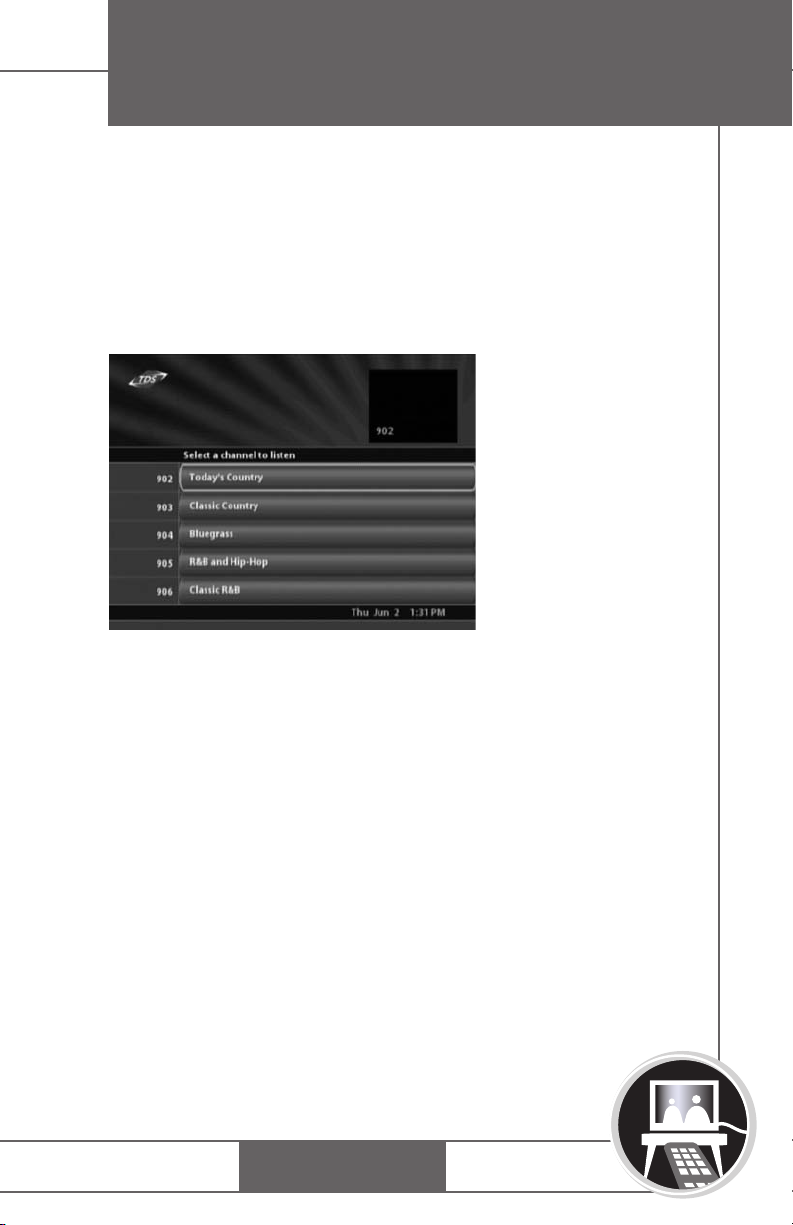
The Music Guide provides a list of the available audio/music
channels. The Music Guide highlights and plays the most
recently accessed music channel.
Access Music Guide
1. Press MENU on the remote..
2. Select
on the remote.
The last audio channel begins playing. Channel information
displays.
3. Press
4. Use remote arrow keys and
BROADBAND
MUSIC from the Menu or press the Music button
GUIDE to list available music channels.
SELECT to browse music.
TV
PHONE
Page 31

MUSIC
Changing Audio Channels
Change audio channels with one of the following:
• Press CH +/-.
• Use Music Guide and navigation keys.
• Use the numeric keypad to type audio channel
and ENTER.
• Press LAST to return to the previous audio channel.
Viewing Audio information
TDS TV displays basic program information for an individual
audio selection as channels are changed. The system also displays title, track, and artist information and can be accessed
by pressing the INFO button on the remote.
28
BROADBAND
TV
PHONE
Page 32
APPENDIX A:
THE REMOTE
REMOTE CONTROL FEATURES
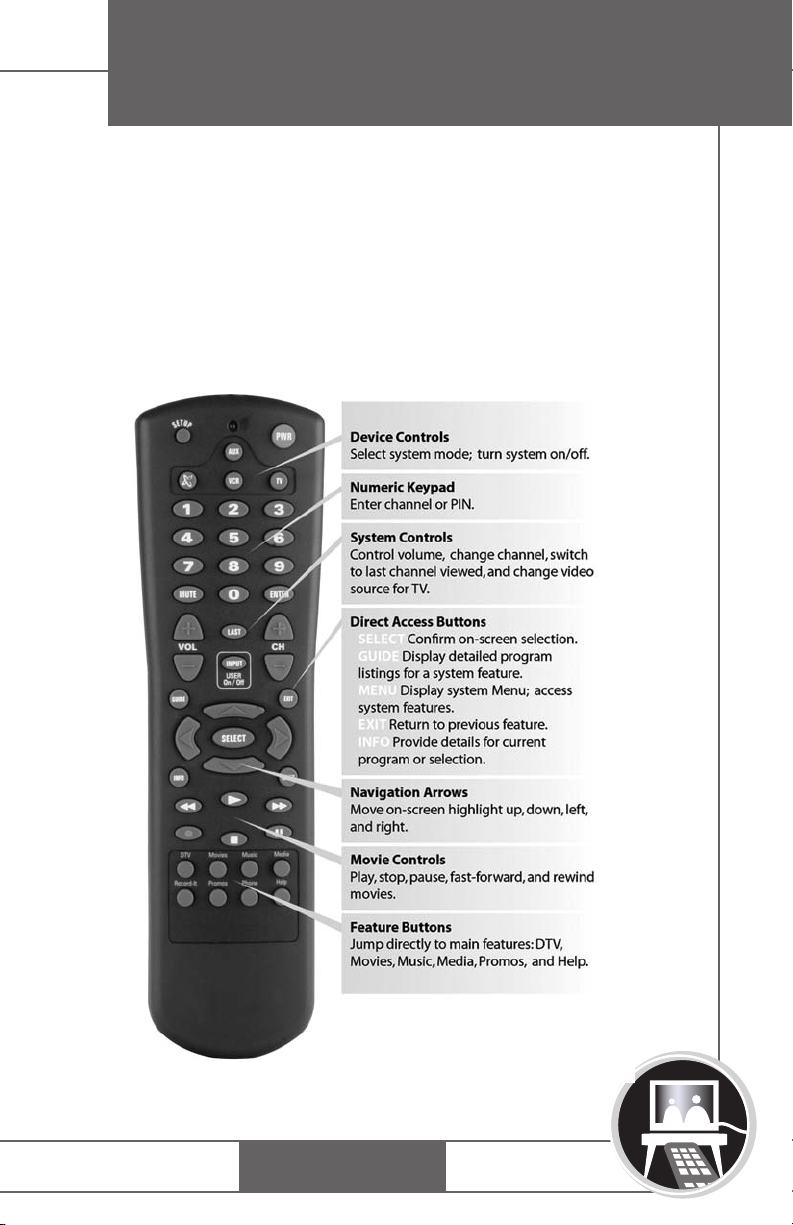
The TDS TV universal remote control sends infrared signals
to the TV and set-top box. The remote control uses
navigation keys (left, right, up, and down arrows) to move
highlights on-screen; selections are confirmed by pressing
SELECT or ENTER.
29
BROADBAND
TV
PHONE
Page 33
APPENDIX A:
THE REMOTE
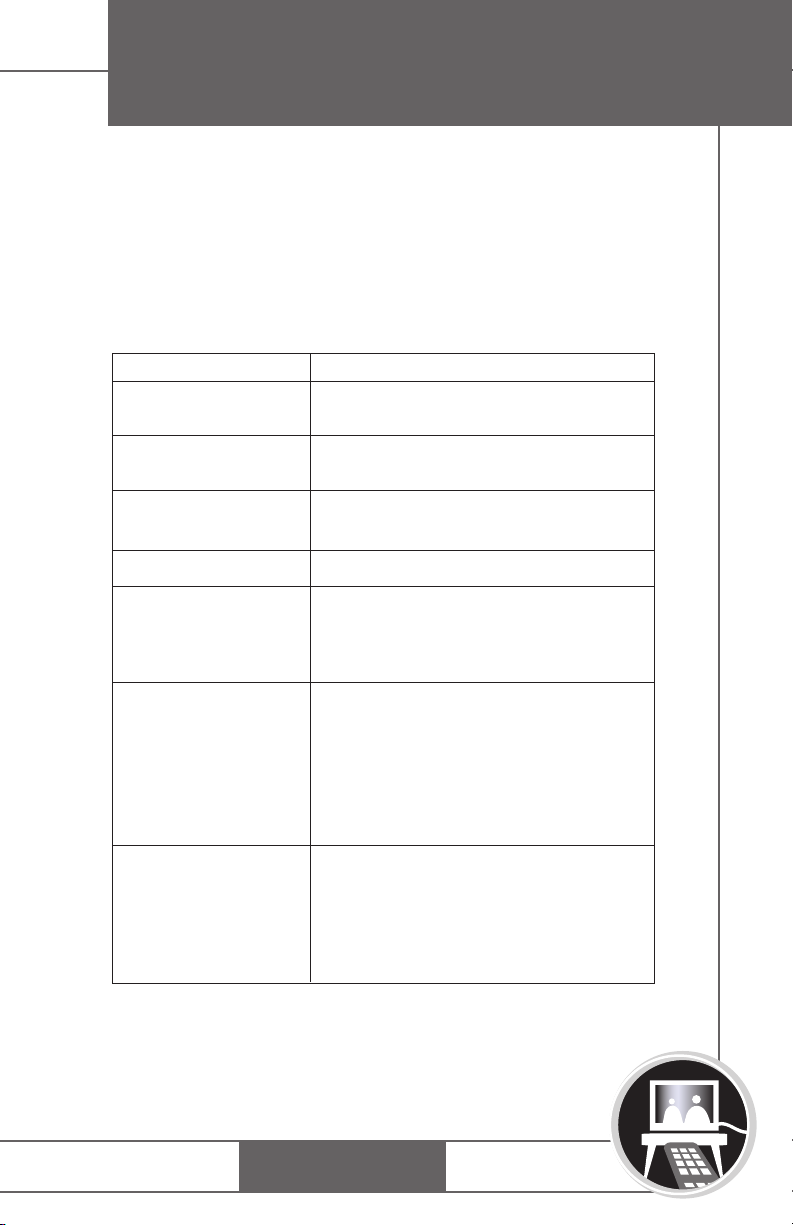
Common uses for remote keys are noted in the step-by-step
procedures throughout this guide. The following table details
functions of various keys.
Table 3: Remote Control Features
Key
SETUP
Device controls
Numeric keypad
(0-9)
SELECT, ENTER
System controls
Direct Access
buttons
Navigation arrows
Function
Use for all programming
sequences.
PWR, Control system mode; turns
other services on/off.
Enter specific channel numbers
and PINs.
Confirm selection.
+/- Control volume
VOL
CH +/- Change channels.
LAST Return to last channel viewed.
INPUT Change input mode for TV.
GUIDE Display detailed program
feature listings.
EXIT Return to previous screen.
INFO Display basic details for select-
ed program.
MENU Display system Menu; access
system features.
Move the on-screen highlight,
up/down, left, and right. Use
SELECT to confirm selection.
Forward and backward day
arrows are active when browsing
for available movies.
30
BROADBAND
TV
PHONE
Page 34
APPENDIX B:
THE SET-TOP BOX
OVERVIEW
The following provides details about the set-top box and is
for informational purposes only. Do not change or alter any of
the equipment installed by TDS Telecom.
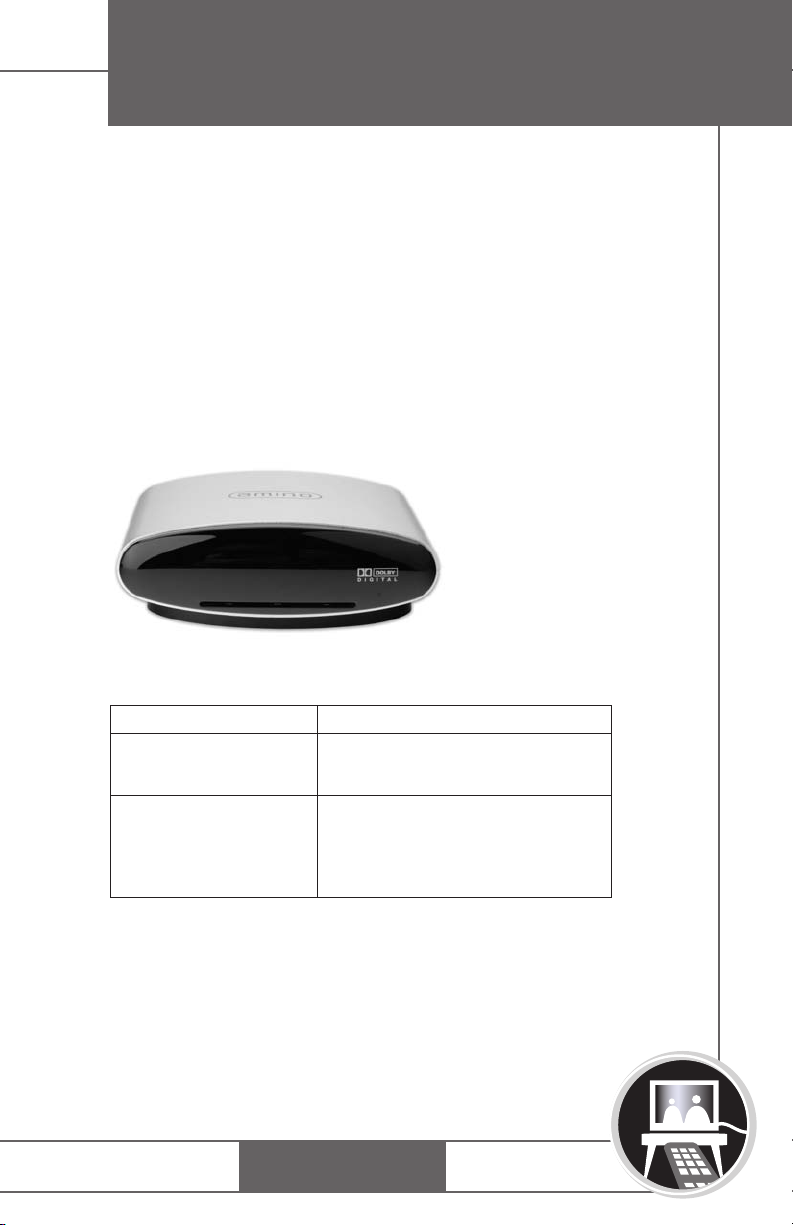
FRONT PANEL
Below is a representation of the front panel of the
set-top box.
31
Table 4: Front Panel of the Set-top Box
Component
Infrared (IR)
Receiver
Indicator LEDs
BROADBAND
Function
Translates infrared signals from
the remote.
Light emitting diodes (LED)
lights when unit power is on
dark when unit use unplugged
or in power stand by mode.
TV
PHONE
Page 35
APPENDIX B:
THE SET-TOP BOX
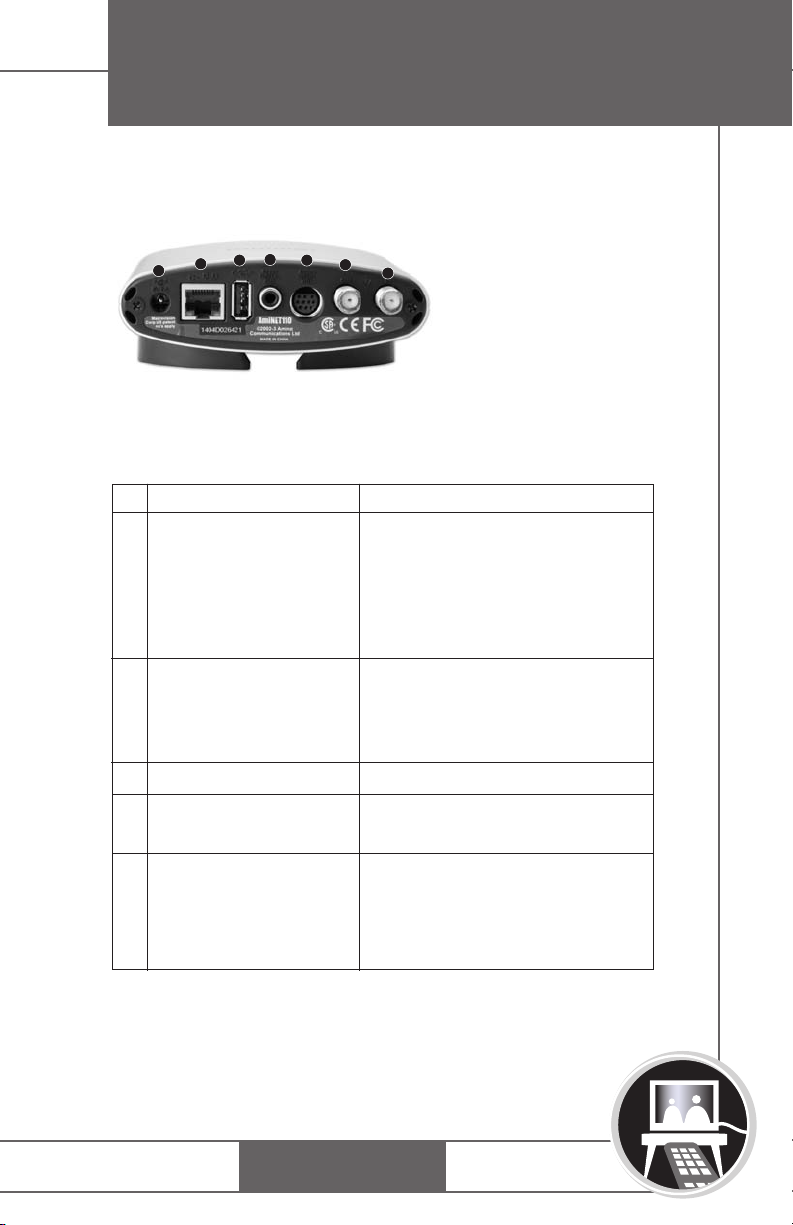
BACK PANEL
4
3
2
1
Table 5: Back Panel of the Set-top Box
5
6
7
Component
#
1
Power connector
Ethernet RJ-45
2
USB Connector
3
4
SP-DIF Digital
Output
5
AV Output Mini-DIN
Function
Attaches AC cord to power
unit. It is important the set-top
box and the TV are plugged
into the same electrical circuit
(same wall plate or surge protector outlet strip).
Ethernet Connects the
Network Interface Card (NIC)
in the unit to an RJ-45
terminated CAT5 cable.
Not Used
Black RCA jack. Digital audio
output line feed, S/PDIF.
Connects the set-top box
to TV monitor via a special
cable (provided). Cable
includes S-video and
audio/visual connections.
able continues on page 33...
T
32
BROADBAND
TV
PHONE
Page 36
APPENDIX B:
THE SET-TOP BOX
6
OUT to TV (RF)
7
TV Ant In (RF)
This connection requires a
coaxial cable terminated with F
connectors. If the TV is connected with a coaxial cable,
make sure it is set to channel 3.
Note: Only one of the video outputs (Out to TV,
Composite video, or S-video) should be cabled to
TV. If multiple outputs are cabled to TV, video degradation may be observed.
Allows RF modulated (UHF or
VHF) video signals from an
antenna input, cable box, or
VCR to pass through the settop box to the TV monitor.
Reverting Video Settings
If the set-top box is connected with any system video cable,
and an inconsistent option button is selected on the
Settings screen, the video image may appear distorted. To
revert back to previous video settings on the remote (the
default is no option selected), press the Promos button four
times, then the DTV button once. To restore optimum video
performance, return to the System Settings screen and
select the proper video setting (setting should match
video output cable choice).
33
BROADBAND
TV
PHONE
Page 37

25841/8-05/1789
BROADBAND TV PHONE
615-75-TDSTV tv.tdstelecom.com
 Loading...