

Page 1
User’s Guide
©2008 tvCompass Inc.
THE
Page 2

Page 3

ESPN THE ULTIMATE REMOTE User’s Guide 1
Table of Contents
CHAPTER 1 Smart Remote Tour 1
Prepare for Use 2
Check Package Contents 2
Charge the Battery 2
Reset the Smart Remote 3
Tour the Smart Remote 4
System Controls (Keys and Joystick) 5
Device Control Keys 7
Alphanumeric Keypad 8
Display 9
Use the Alphanumeric Keypad 13
Enter Text 13
Navigation Tips 16
Navigate in a Screen 16
Navigate in an Options Menu 16
Control Entertainment Devices 17
Select a Device 17
Play an Activity 18
Turn All Power Off 18
CHAPTER 2 Prepare for Operation 19
Collect WiFi Network and TV Provider Information 20
Prepare the Smart Remote for Operation 21
A: Connect to the WiFi Network 21
B: Select a Provider 23
C: Add a Device 23
Register the Smart Remote 26
CHAPTER 3 TV Listings 29
View Lineups 30
View Show Information 31
View Show Details 32
Search for More Details 33
Set and Cancel Reminders 34
Set and Cancel Favorite Shows 35
Page 4

Table of Contents
2 ESPN THE ULTIMATE REMOTE User’s Guide
Customize Your TV Lineups 37
Access Lineup Options 37
Create a New Channel Lineup 38
Edit a Channel Lineup 40
Manage Providers 43
Add a Provider 43
Change Providers 43
Edit a Provider 44
Delete a Provider 44
CHAPTER 4 Configure Control of Devices 45
Add and Manage Devices 46
Add a New Device 46
Modify/Edit a Device 50
Learn Remote Command Codes 55
Learn Command Codes 55
Learn Missing Commands 57
Create and Manage Activities 59
Types of Activities 59
Create an Activity 60
Create a Watch or Listen Activity 61
Create a Custom Activity 62
Modify/Edit an Activity 66
Change the Playback Mode 68
CHAPTER 5 Internet Applications 69
Mobile Web Sites 71
Open a Mobile Web Site 71
Navigate a Mobile Web Site 71
Enter Text 71
Browser Options 72
Use Favorites 73
ESPN Mobile 74
Search 75
Use Search 75
View Search Results 76
Search Options 76
Page 5

ESPN THE ULTIMATE REMOTE User’s Guide 3
Table of Contents
Weather 77
Messaging 78
Your email Address 78
Manage Contacts 79
Create and Send a Message 80
Receive a Message 81
Manage Messages 82
Change Messaging Settings 82
Use Predictive Text 84
CHAPTER 6 Tools 87
Manage the WiFi Network Connection 88
Connect to a WiFi Network 88
Rescan Networks 89
Add a Network 90
Change Networks 91
Edit Network Settings 92
Delete a Network 93
Change Smart Remote Settings 94
Update Firmware 95
Access About 96
Access Help 97
Topics 97
Page 6

Page 7

ESPN THE ULTIMATE REMOTE User’s Guide 1
CHAPTER 1
Smart Remote Tour
ESPN The Ultimate Remote is a two-way interactive, WiFi-based, universal
programmable remote control. This smart remote features a large color
display along with easy to operate joystick and keys to setup, navigate, and
operate multiple home entertainment devices. With WiFi connectivity
through your home Internet connection, the smart remote is your window to
up-to-date TV program listings and details, Internet browsing and search
capabilities, text messaging, and other interactive activities at the same
time you are operating your home entertainment devices.
This chapter introduces the ESPN The Ultimate Remote. It provides a tour
of the controls and display screens used to navigate the smart remote and
operate your devices, and includes:
• Prepare for use
• Tour the smart remote
• Use the alphanumeric keypad
• Navigation tips
• Control entertainment devices
THE
Page 8
Prepare for Use Chapter 1 | Smart Remote Tour
2 ESPN THE ULTIMATE REMOTE User’s Guide
Prepare for Use
Check Package Contents
Remove the smart remote from the package. Make sure you have these
components:
• ESPN The Ultimate Remote
• Charging cradle
• Power adaptor
• Quick Start guide
Charge the Battery
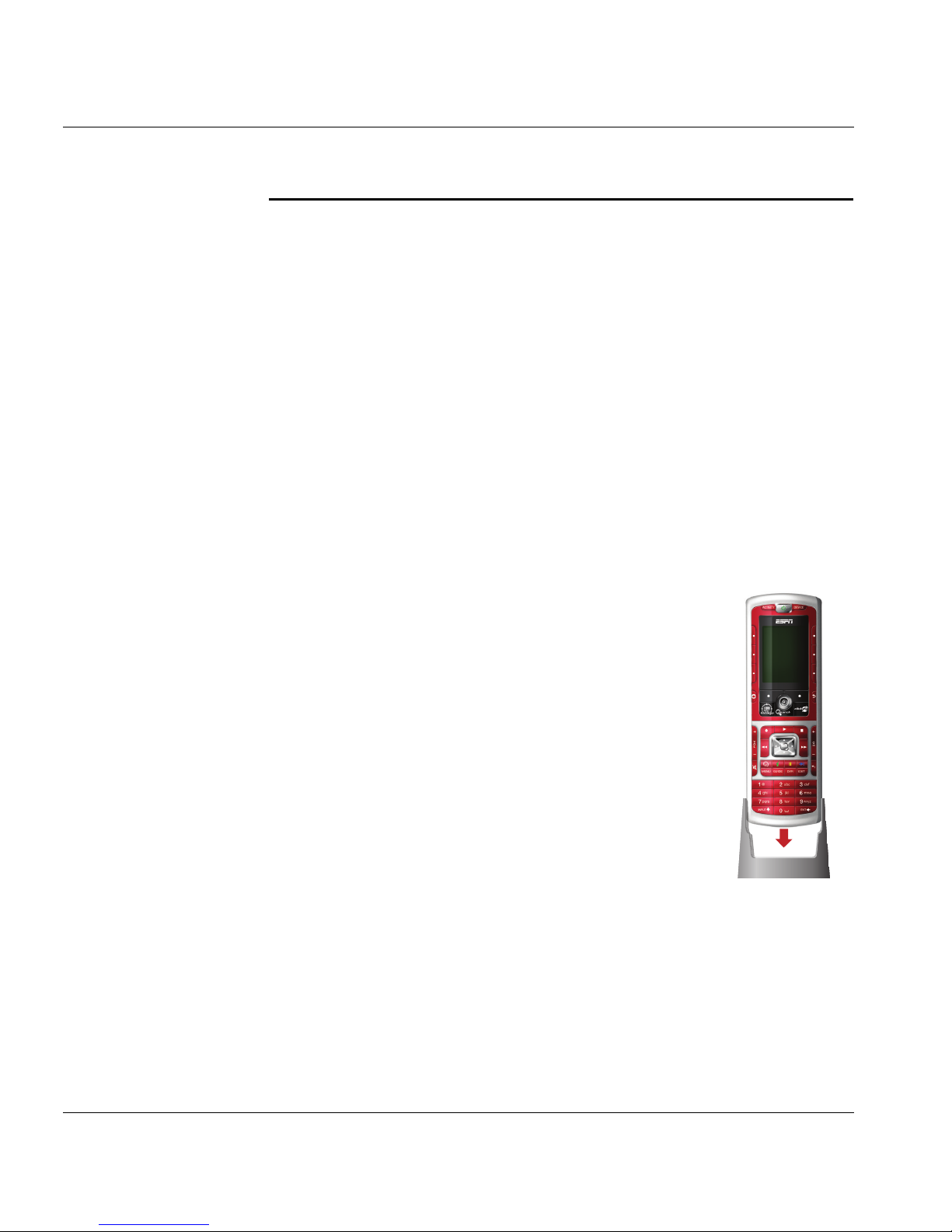
1. Plug the cable from the charger cradle into an
outlet. A surge protector is recommended.
2. Place the remote in the cradle. Allow at least
4 hours for the remote to charge the first time.
Note: While the remote is charging, become familiar
with your new smart remote. See The Smart
Remote Tour in this chapter. Then gather the
information you will need to set up the smart
remote. See Chapter 2.
3.
Return the smart remote to the cradle when not in
use or when it needs to be recharged.
Page 9
ESPN THE ULTIMATE REMOTE User’s Guide 3
Chapter 1 | Smart Remote Tour Prepare for Use
Low Battery Warning
When the battery needs to be recharged, you will hear a warning
beep and a flashing Battery Low icon will display at the top of the
screen under the device indicator icon.
To recharge the battery:
• Place the smart remote in the cradle, or
• Plug the power supply directly into the smart remote.
It is a good practice to place the smart remote in the cradle when not in use.
Sleep Mode
After a few minutes of non-use, the smart remote display will dim and go
dark to conserve the battery. Press the Backlight/Wake Up Remote button,
located on the right side of the smart remote, to remove the smart remote
from sleep mode.
Reset the Smart Remote
If the smart remote does not work, the battery may not have a sufficient
charge. Place the smart remote in the charging cradle or connect the power
charger directly. Allow time for the battery to recharge.
If the smart remote does not work after charging the battery, reset it by
pressing the Power and Stop keys at the same time. If this does not solve
the problem, try removing and re-inserting the battery.
Warning!
Removing/re-installing the battery is a delicate operation. Take
care not to damage the battery connector.
Page 10
Tour the Smart Remote Chapter 1 | Smart Remote Tour
4 ESPN THE ULTIMATE REMOTE User’s Guide
Tour the Smart Remote
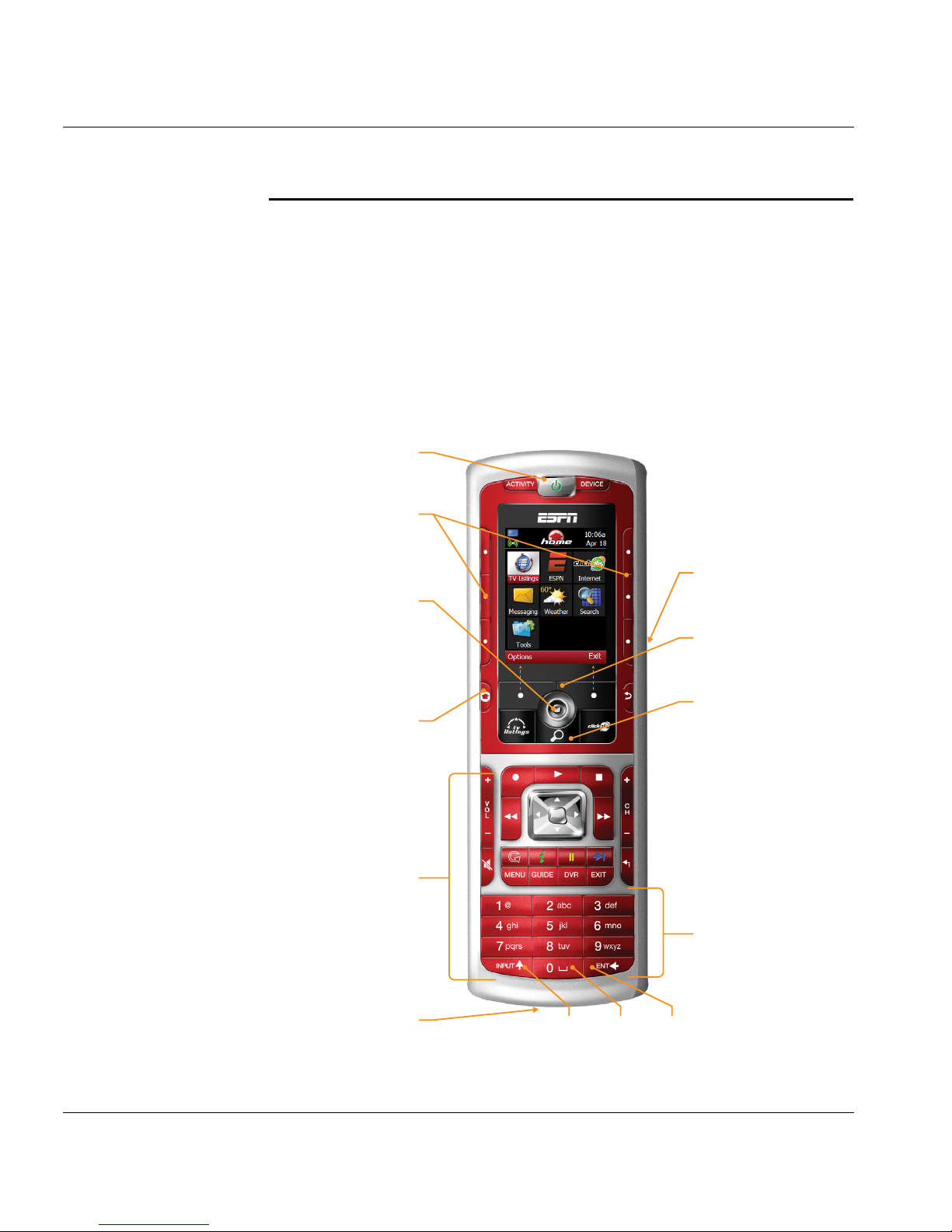
The smart remote is designed for easy use. The top portion contains the
display area and the system controls used to view and select channels and
programs, set up applications, and customize the smart remote.
The bottom portion contains the keys used to operate devices controlled by
the smart remote. The alphanumeric keypad is also used to customize the
smart remote and enter text.
Equipment On/Off
System Controls
Sends power IR command
Device & Activity
Soft Keys
Used to select devices
and start activities
Home Menu
Backlight/
Wake Up Remote Button
Application Shortcuts
Alphanumeric Keypad
Press up, down, left or
right to navigate menus
Press in Joystick for SEL
Left and Right
Soft Keys
5-Way Navigation
Joystick
Device Keys
Learn IR Window
Device Control Keys
Press to invoke the function
displayed above each key
Also used for text entry
Shift Space Delete
Page 11
ESPN THE ULTIMATE REMOTE User’s Guide 5
Chapter 1 | Smart Remote Tour Tour the Smart Remote
System Controls (Keys and Joystick)
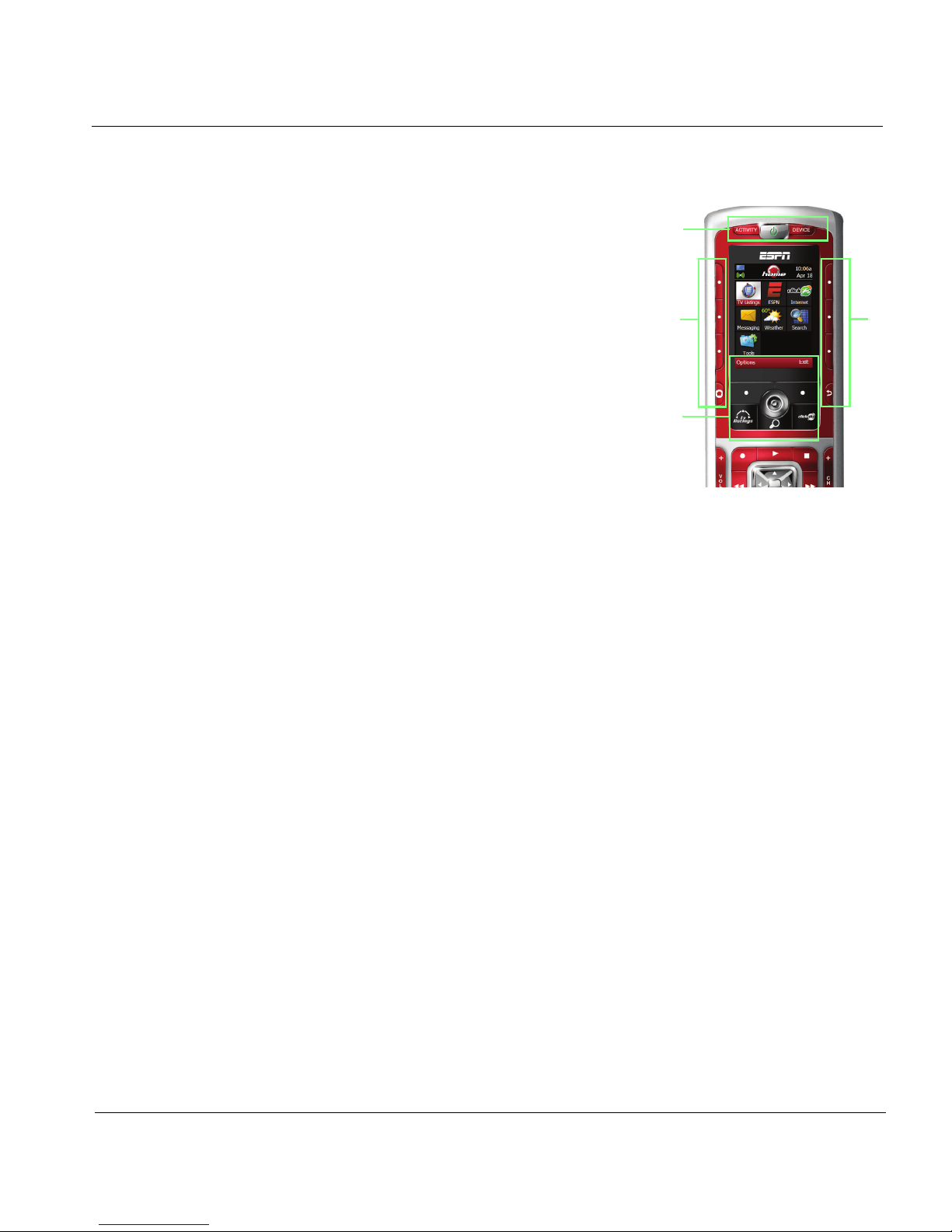
The top portion of the smart remote
provides the system keys and joystick used
to navigate through the display screens and
operate the smart remote.
1. Above the display (left to right):
•
ACTIVITY key
Press to display a list of activities
performed by the smart remote.
Press a soft key next to an activity to
select it.
• Power On/Off key
Press to turn devices operated by the smart remote on/off.
•
DEVICE key
Press to display a list of devices operated by the smart
remote. Press the soft key next to the device to select it.
2. Under the display:
• Display soft keys
Press to activate the options on the bottom line of the display
(Options, Select, Exit, etc.).
• Joystick
Move up/down to scroll vertically. Move left/right to scroll
horizontally. Press in to select (SEL) a highlighted item.
• TV Listings shortcut key
Press to display the TV Listings screen.
• click365 shortcut key
Press to open the mobile web browser.
• Search shortcut key
Press to start an Internet Search.
1
3
2
3
Page 12

Tour the Smart Remote Chapter 1 | Smart Remote Tour
6 ESPN THE ULTIMATE REMOTE User’s Guide
3. Right/left sides of the display:
•
Left/right soft keys (L1, L2, L3, R1, R2, R3)
Press the soft key next to a device or activity icon on a list to
select it. These keys are also used for Internet browsing. See
Chapter 5.
• Home key (under the left soft keys)
Press to display the Home screen.
• Top key (under the right soft keys)
Press to cancel the current task.
On the right side of the remote:
• Backlight / Wake-up button
Press to turn on the display and to remove the smart remote
from sleep mode.
Page 13
ESPN THE ULTIMATE REMOTE User’s Guide 7
Chapter 1 | Smart Remote Tour Tour the Smart Remote
Device Control Keys
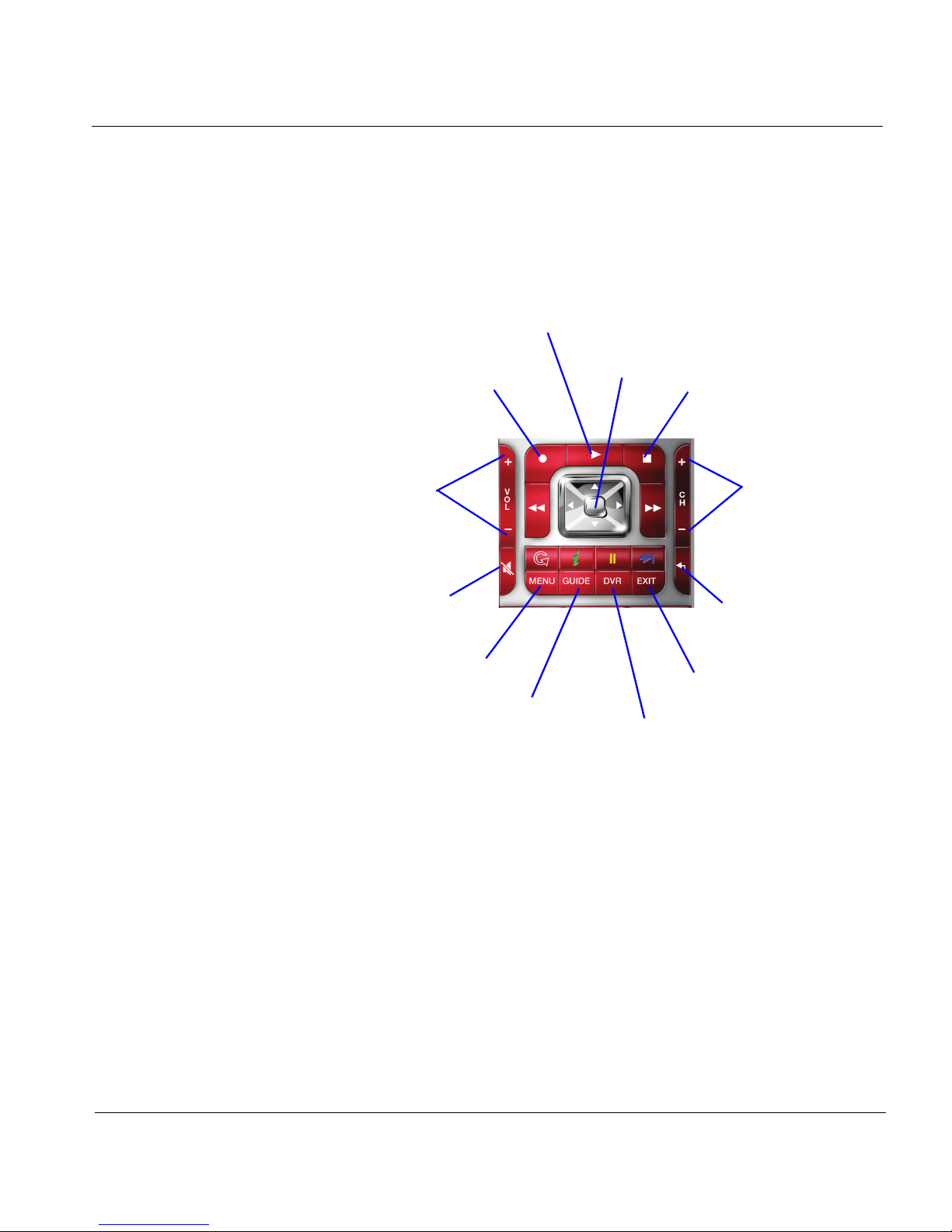
The Device Control keys, on the lower portion of the smart remote, allow
you to control many types of home entertainment devices.
Note: The device control keys may not work the same way with all of
your devices. For more information on how a device may react
to different remote commands, consult the owner’s manual for
that device.
Volume up/down Press to turn volume
up/down on active
device.
Mute - Press to turn off
sound on active device.
Channel up/down Press to move up/
down in channel list on
active device.
Guide - Press to view
on-screen guide for
active device.
Return - Press to return
to previous channel on
active device.
DVR - Press to access
features on your DVR.
Joystick - Press to move up/down & left/
right on a list. Press in to select.
Exit - Press to close/exit menu/
element on active device.
Play - Press to play active device.
Stop - Press to stop
active device.
Record - Press to record if
active device is a recorder.
Menu - Press to access menu
system on active device.
Fast forward / Fast reverse (on left & right sides of joystick) - Press to
activate fast forward/fast reverse functions on active device.
Page 14

Tour the Smart Remote Chapter 1 | Smart Remote Tour
8 ESPN THE ULTIMATE REMOTE User’s Guide
Alphanumeric Keypad
The alphanumeric keypad allows you to
enter text in the display area and to operate
equipment/devices. It includes:
• 1-9 (number) keys
Enter numbers and letters in the text
boxes. On entertainment devices,
enter numbers for the device you are
currently controlling.
•
INPUT key
Press to shift to upper/lower case letters.
• 0/space key
Press and hold briefly to enter the number 0. Press to enter a
space in a text string.
•
ENT key
Press to delete the last number or letter.
Page 15
ESPN THE ULTIMATE REMOTE User’s Guide 9
Chapter 1 | Smart Remote Tour Tour the Smart Remote
Display
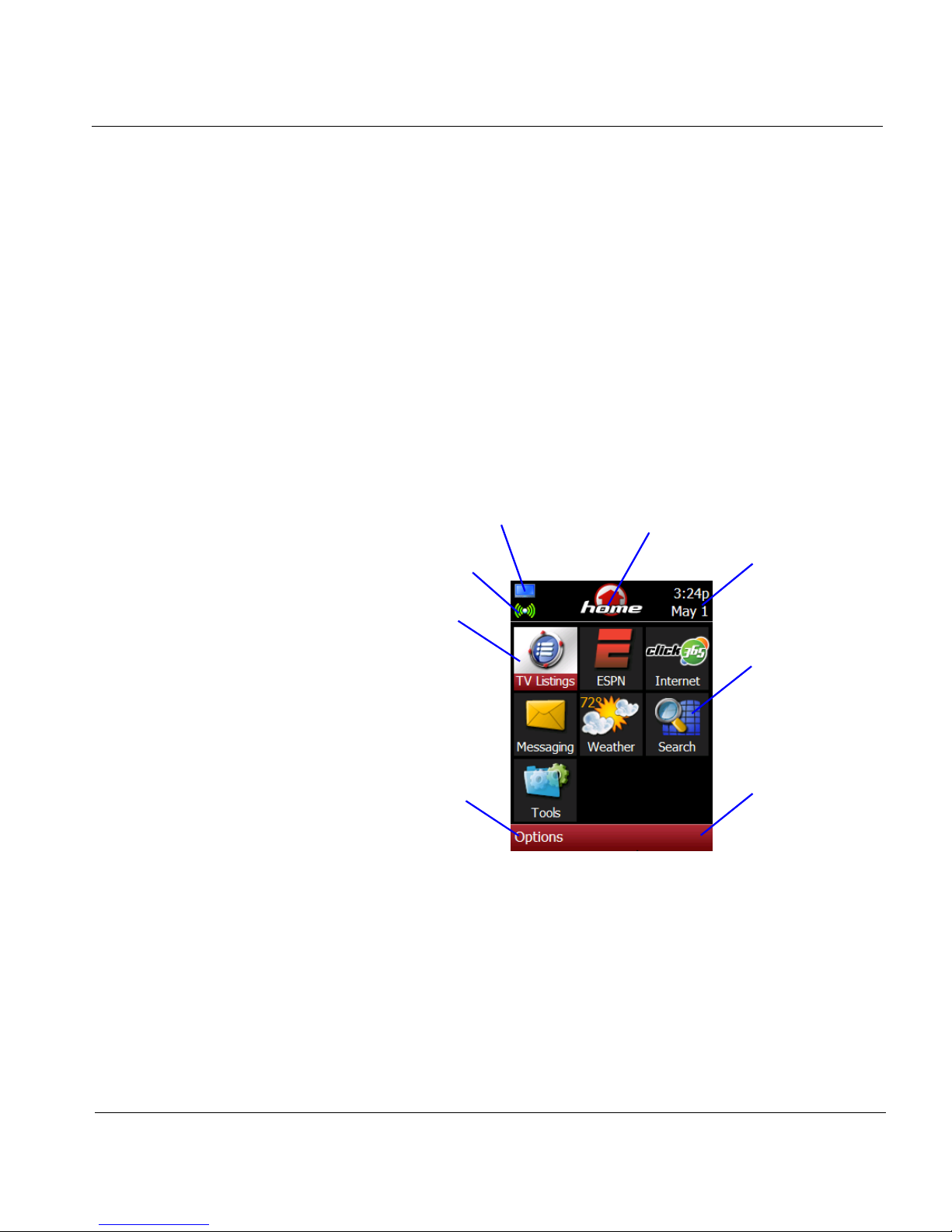
The menus and screens in the display area provide access to all of the
features of the smart remote, status and device indicators, and mobile web
sites.
Home Screen
The Home screen is the main menu screen. It provides current status
information and access to all of the interactive and programming features of
the smart remote.
Time/Date
Screen title
Active device indicator icon
WiFi Connect indicator icon
Application icon
and name
Options menu or
action item (press
soft key below to
activate)
Selected application
Action item, if
available (press
soft key below to
activate)
Page 16
Tour the Smart Remote Chapter 1 | Smart Remote Tour
10 ESPN THE ULTIMATE REMOTE User’s Guide
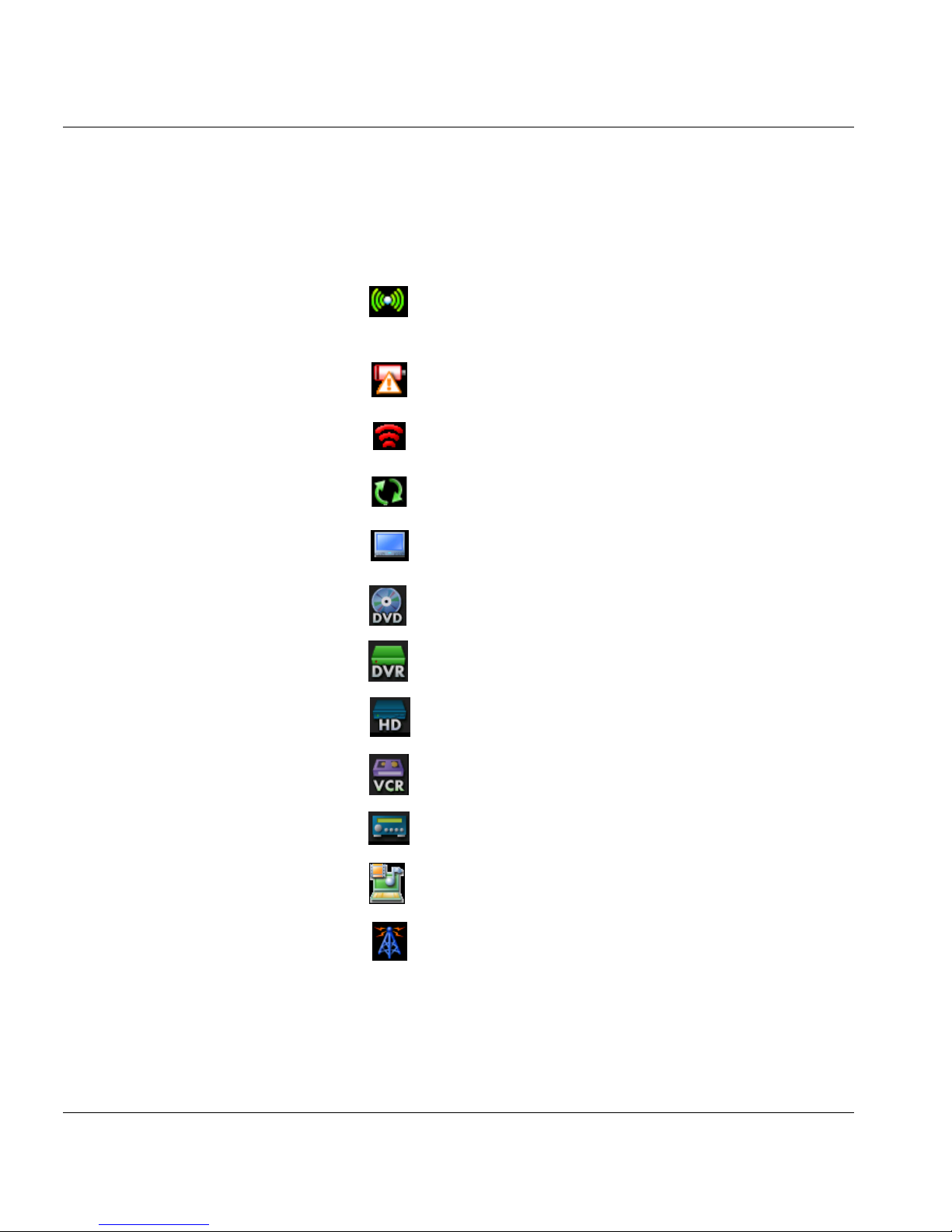
Indicator Icons
The status and device indicator icons include:
Indicator Function
WiFi network
Blue = connecting to WiFi network
Green = connected to WiFi network
Red = connection error
Battery low; time to recharge the smart remote
battery
Sending an IR signal
Updating
TV is active device
DVD is active device
DVR is active device
HDTV Tuner is active device
VCR is active device
Audio Receiver is active device
Media Center is active device
Broadcast provider
Page 17
ESPN THE ULTIMATE REMOTE User’s Guide 11
Chapter 1 | Smart Remote Tour Tour the Smart Remote
Application Icons
Each application on the smart remote is represented by an icon. Use the
joystick to scroll to an icon and highlight it. Then press in the joystick to
select (SEL) the application.
Note: The application icons may change if new applications are added
when the smart remote is updated over the WiFi network.
Cable provider
Satellite provider
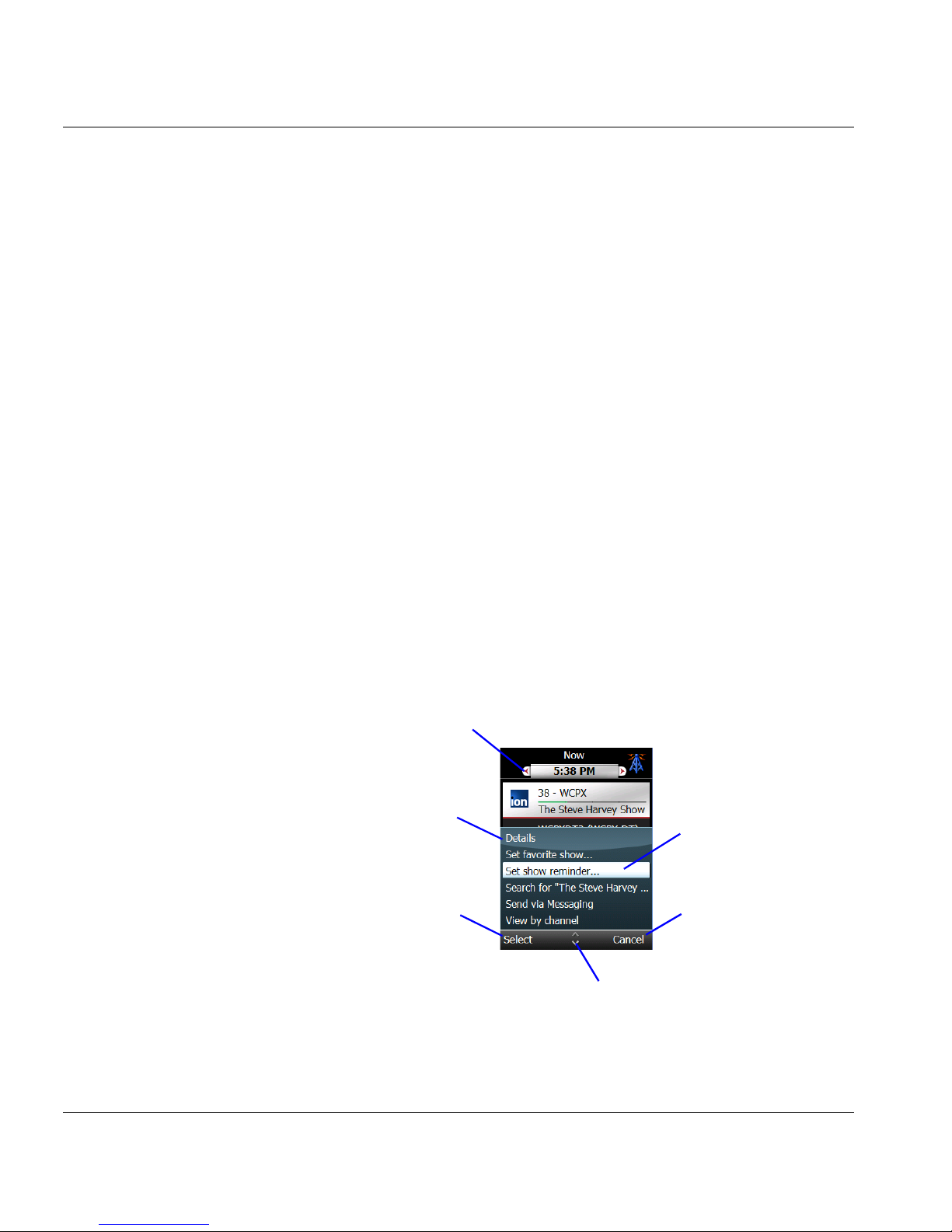
Icon Application
TV Listings
ESPN
click365 mobile Internet
Messaging
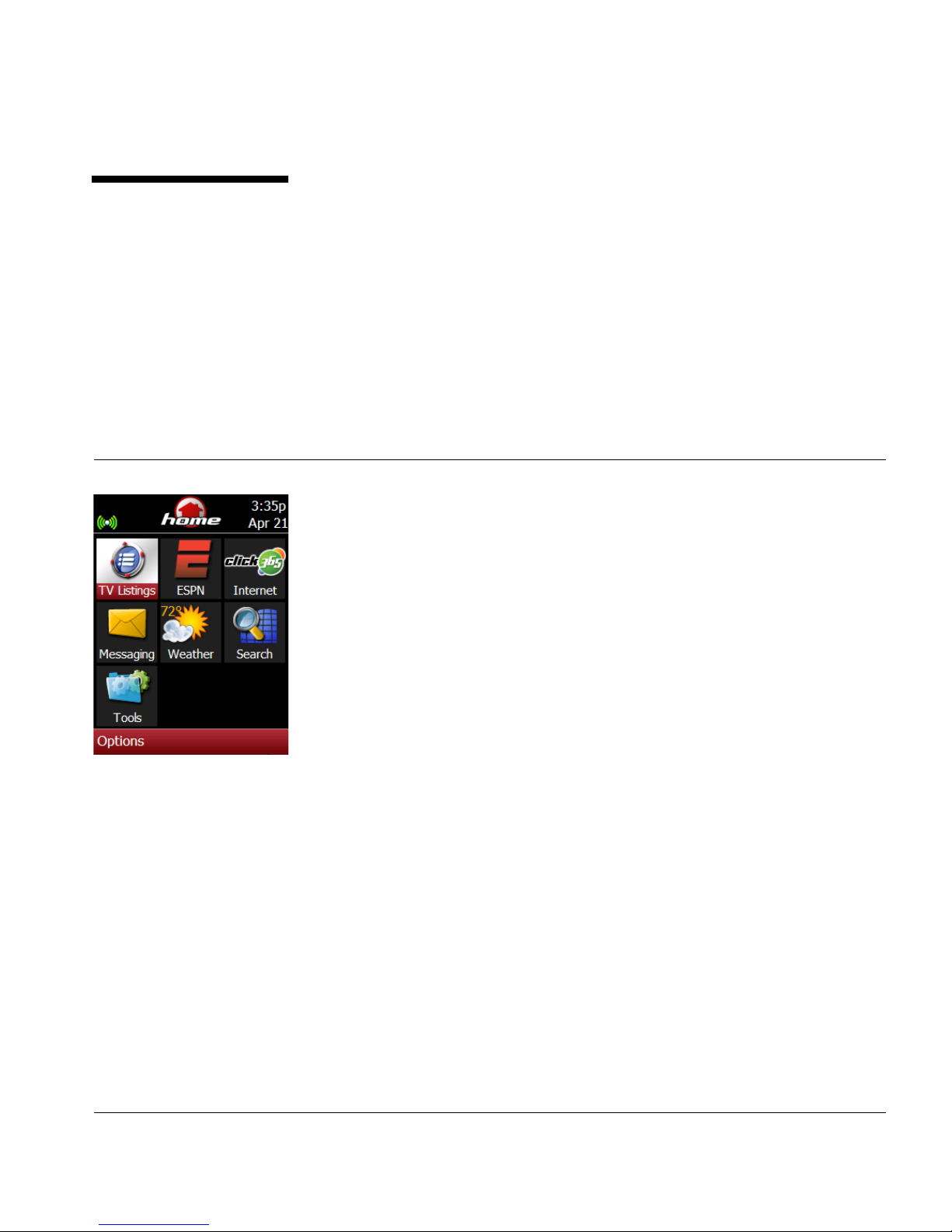
Weather
Search
To ol s
Indicator Function
Page 18
Tour the Smart Remote Chapter 1 | Smart Remote Tour
12 ESPN THE ULTIMATE REMOTE User’s Guide
Options Menu / Actions
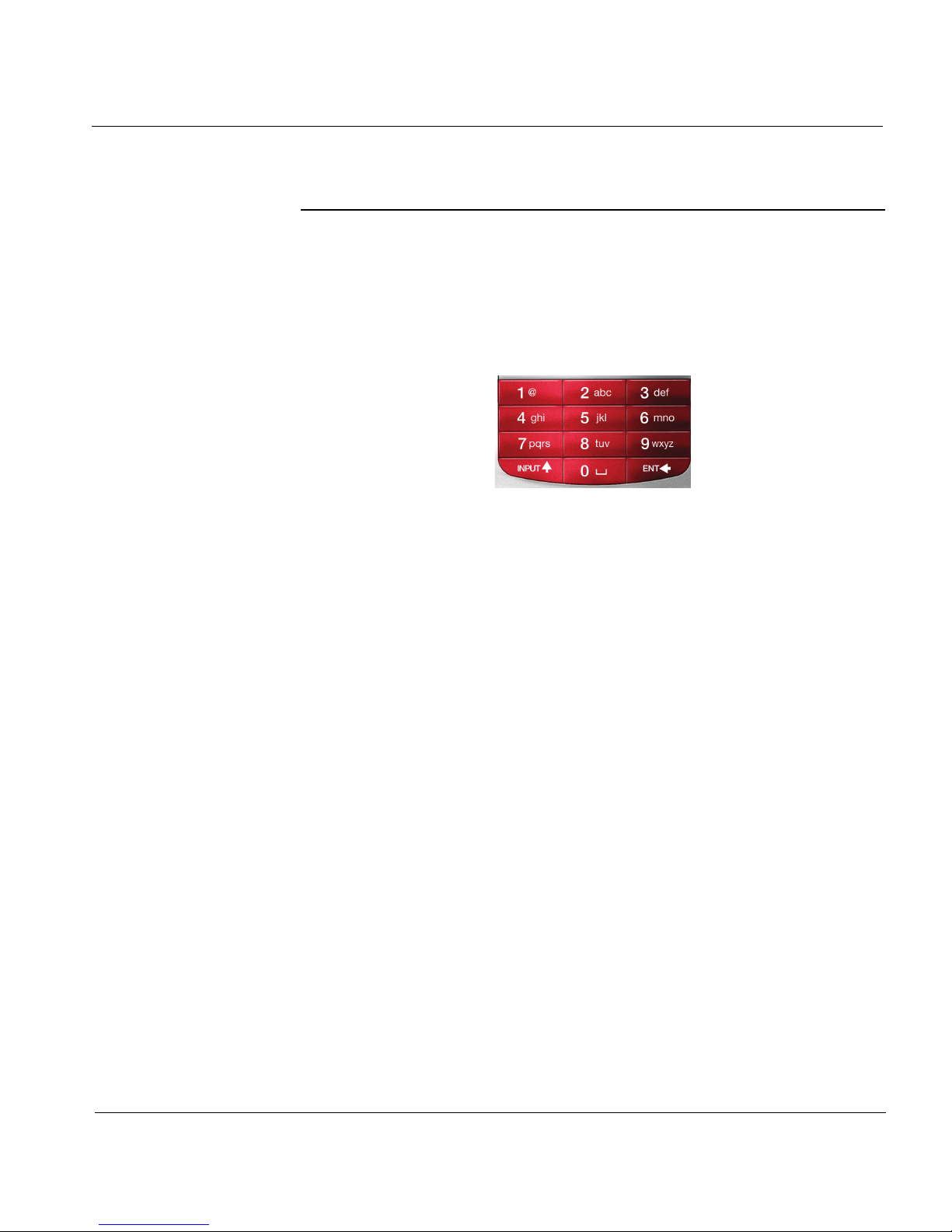
The bottom text lines on the display provide access to the Options menu
and specific actions (Yes, No, OK, Next, Back, Exit, etc.) when you press
the soft keys located directly under the display. The scroll arrows in the
center of the line indicate more choices/information available.
• Options menu
Press the soft key directly under “Option” to view the Menu
items available for a screen. The menu contents change
depending on the application (TV Listings, Tools, etc.) you
are using and what you are doing.
• Actions
Press the soft key that is directly under the action to execute
the action (Back, Next, Cancel, Exit) or make a selection
(Yes, No, OK).
• Scroll arrows
Move the joystick to scroll in a list or menu. The up/down
arrows indicate that the list extends beyond the current page
view. The left/right arrows indicate more options available.
Selected option
Action item (press
soft key below to
activate)
Action item (press
soft key below to
activate)
Options menu (move
joystick up/down to
scroll to option)
Up/down arrows (move joystick to
view more items in this list)
Left/right arrows (move
joystick left/right to view
more choices)
Page 19
ESPN THE ULTIMATE REMOTE User’s Guide 13
Chapter 1 | Smart Remote Tour Use the Alphanumeric Keypad
Use the Alphanumeric Keypad
Use the alphanumeric keypad to enter text and numbers in text boxes when
setting up the smart remote, using the Internet Search option, using
Messaging, or for any other activities that require it.
Enter Text
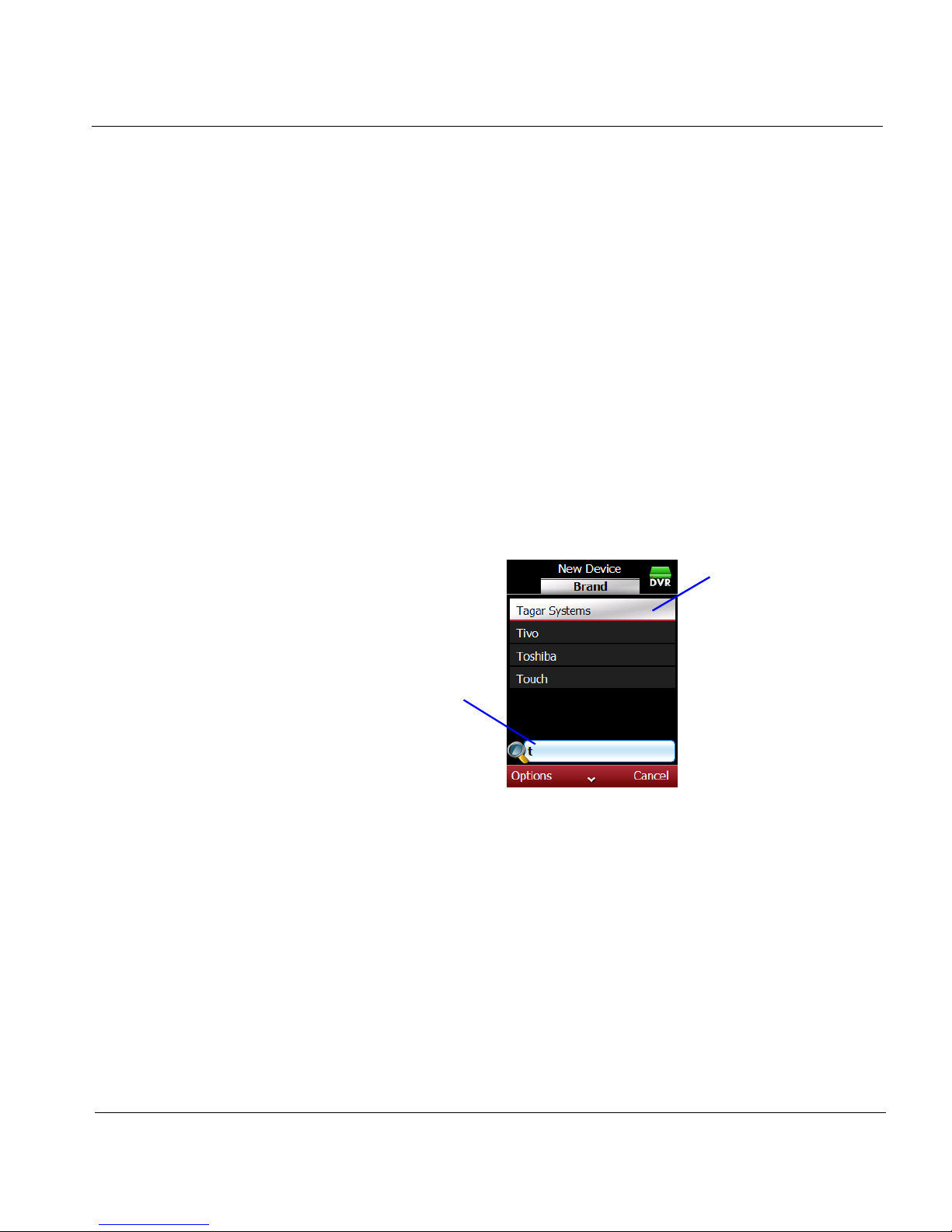
The smart remote uses a multitap (similar to a cell phone) or text search
input method for entering text.
Multitap Method
The multitap method does not require a full keyboard. Each number key
(0 to 9) is associated with a number and several letters or symbols.
Key Associated text and symbols
0 0, space
1 1, punctuation marks: . , ? ! @ ‘ “ _ - & ; % /
#+=<>$*~^ () [] {}
2 – 9 2 – 9, a – z
INPUT change case
ENT delete a character (backspace)
Page 20

Use the Alphanumeric Keypad Chapter 1 | Smart Remote Tour
14 ESPN THE ULTIMATE REMOTE User’s Guide
Use the alphanumeric keypad to enter letters and numbers:
• To enter a letter or number, tap a key as needed until the
letter or number displays in the text box. For example, tap 6
twice for the letter “n”.
• To capitalize a letter, press the INPUT key, then press a digit
key. For example, press INPUT then tap 6 twice for a capital
“N”.
• To delete the last letter, press the ENT key.
• To add a space, press the 0 key.
Example: To type the word “Power”:
• Press INPUT, then tap 7 once [P]
• Press INPUT, then tap 6 three times [o]
• Tap 9 once [w]
• Tap 3 twice [e]
• Tap 7 three times [r]
Page 21
ESPN THE ULTIMATE REMOTE User’s Guide 15
Chapter 1 | Smart Remote Tour Use the Alphanumeric Keypad
Text Search Method
The text search function reduces the amount of typing needed to enter text.
Using the alphanumeric keypad, enter the first few letters of a word and the
smart remote will search its databases or the Internet to find matching
entries. The text search function is available when setting up the remote
and when using the Internet Search application.
Note: A more advanced predictive text search method for entering text
is available when using the Messaging application. See
Chapter 5.
1.
Enter the first letter to begin to narrow the search. The smart remote will
display an alphabetized list of terms starting with the letter you entered.
2. Continue adding letters to narrow the search until you see the item
you want.
3. Scroll to the item and press in the joystick (SEL) or press the Options
soft key, scroll to Select, and press the Select soft key.
Enter text in Search
text box
View list of items
starting with the
letter(s)
Page 22

Navigation Tips Chapter 1 | Smart Remote Tour
16 ESPN THE ULTIMATE REMOTE User’s Guide
Navigation Tips
This section provides a few quick tips for using the controls on the smart
remote to move from screen to screen and within a screen in the display
area.
Navigate in a Screen
• Use the joystick to move up/down or left/right in a display or
press the soft keys located on either side of the display.
• Press in the joystick (SEL) to open or select an item.
• Press the Menu and Application short cut keys on the smart
remote to move to or open the item.
• Use the alphanumeric keypad to enter text.
Navigate in an Options Menu
1. Press the Options soft key to display the menu.
2. Scroll to an item on the menu using the joystick.
3. Press in the joystick (SEL) or press the Select soft key.
Page 23
ESPN THE ULTIMATE REMOTE User’s Guide 17
Chapter 1 | Smart Remote Tour Control Entertainment Devices
Control Entertainment Devices
This section provides basic instructions on how to use the smart remote to
select entertainment devices and play activities, including:
• Select a device
• Play an activity
• Use the All Power Off feature
Note: See Chapter 2 for instructions on how to set up and prepare the
smart remote for operation.
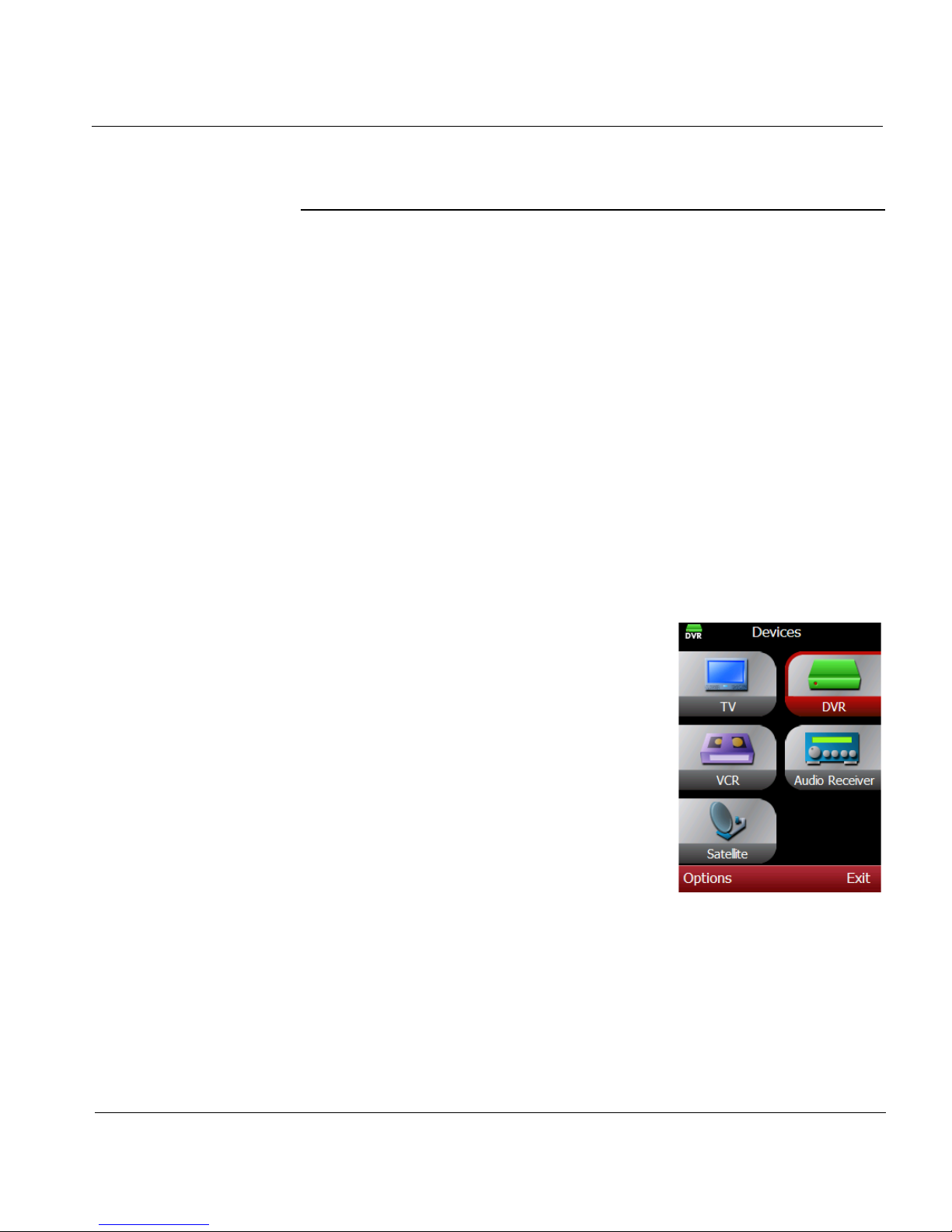
Select a Device
1. Press the DEVICE key at the top of the
smart remote.
Note: This procedure assumes that one or
more devices have been added to the
smart remote. If not, you will need to
add a device. See Chapter 4, Add a
New Device.
2.
Press the L1–L3 and R1–3 keys to
highlight a device or use the joystick to
scroll to the device.
3. Press in the joystick (SEL) to display the
command list for the selected device.
Note: If no commands are available for the
selected device, you will need to add a
command set. See Chapter 4, Modify/
Edit Devices.
Page 24
Control Entertainment Devices Chapter 1 | Smart Remote Tour
18 ESPN THE ULTIMATE REMOTE User’s Guide
4. Scroll to the desired command and press SEL to activate the command.
5. Press the device control keys to control the selected device.
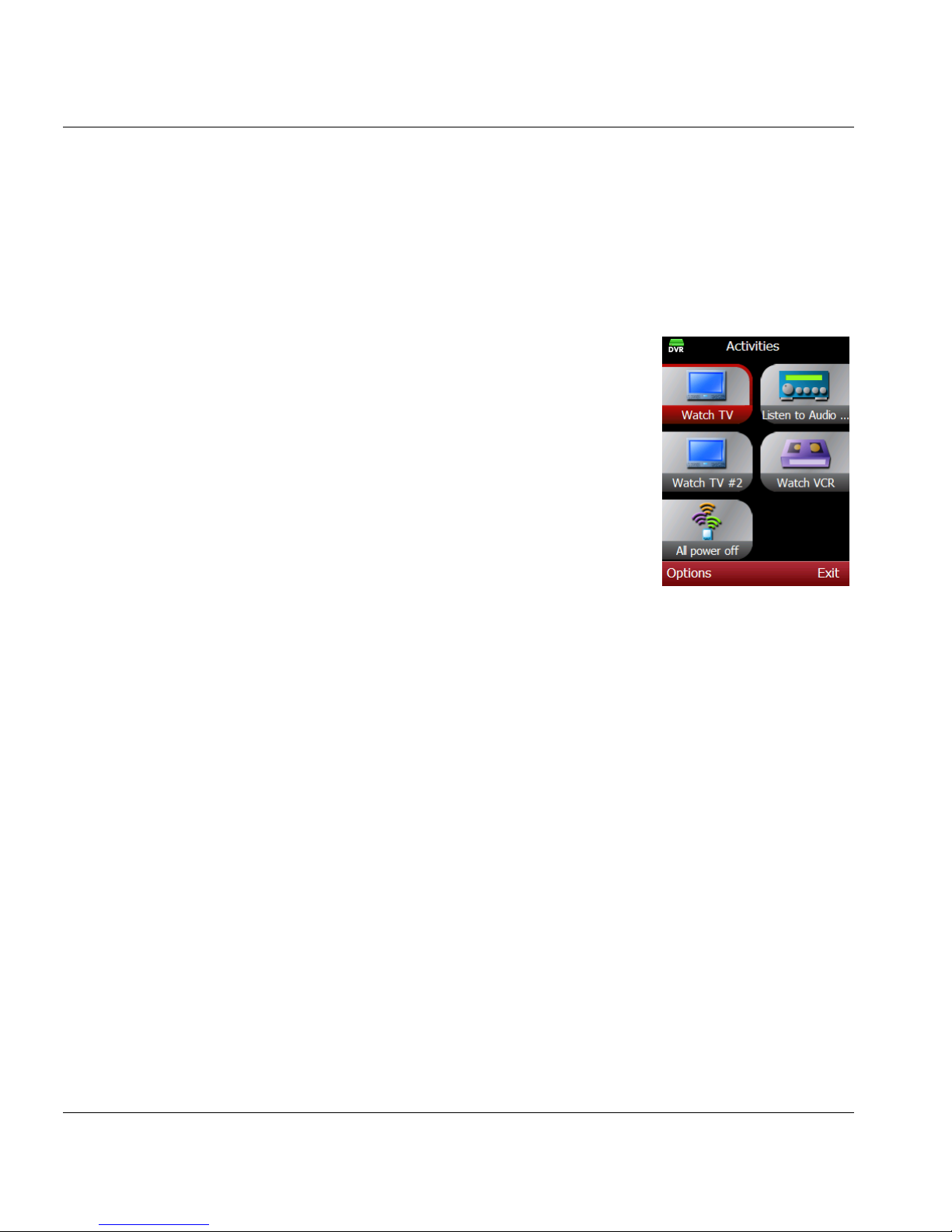
Play an Activity
1. Press the ACTIVITY key on the smart
remote.
Note: If there are no activities listed, see
Chapter 4, Create an Activity.
2. Press the L1–L3 and R1–3 keys on the left
and right sides of the display to select and
play an activity. You may also use the
joystick to scroll to an activity and press in
the joystick to start the activity.
Note: When you play the activity, you may be
prompted to confirm the activity is
working properly. If it is not, press Retry
to try again.
Turn All Power Off
Use this procedure to turn off the power to all of the devices currently
operated by the smart remote.
1. Press the ACTIVITY key at the top of the smart remote.
2. Scroll to Power off and press in the joystick.
a. Press the OK soft key if all the devices powered off
successfully.
b. Press the Retry soft key to try again if the devices did not
power off.
Page 25

ESPN THE ULTIMATE REMOTE User’s Guide 19
CHAPTER 2
Prepare for Operation
This chapter provides information and instructions for preparing the smart
remote for operation, and includes:
• Collect WiFi network and TV provider information
• Prepare the smart remote for operation
• Register the smart remote at click365.tv
Important Note!
The battery in the smart remote must be fully charged before
you begin these activities. Please see Chapter 1 for charging
instructions.
Page 26

Chapter 2 | Prepare for Operation Collect WiFi Network and TV Provider Information
20 ESPN THE ULTIMATE REMOTE User’s Guide
Collect WiFi Network and TV Provider Information
Gather the following information. You will need this information to set up the
smart remote for the first time.
• Name of your WiFi network
• WiFi network security (None, WEP, WPA, or WPA2)
• Passkey or Password (if there is one)
• Name of your satellite or cable provider(s) (if you have this service)
Important Note!
If you do not have this information, call your Internet service
provider or modem manufacturer (if you installed the WiFi
network yourself). You will need this information to complete the
setup process and activate the remote.
The smart remote uses 802.11b/g wireless protocols (WiFi), and supports
unsecured wireless networks, Wired Equivalency Privacy (WEP) secured
networks, WiFi Protected Access (WPA) secured networks, and WPA2. The
smart remote accesses the Internet to update applications, display local TV
listings, access Internet sites, perform text messaging operations, and other
interactive tasks.
• If you are using a WEP secured network you will be requested to
enter your network key, using the smart remote alphanumeric
keypad. A network key is either 10 or 26 hexadecimal digits (0–9
and A–F, for example, 2FAD9BE099). If you do not know your
network key, you may be able to access it through the
configuration software for your wireless router. If not, you may
need to contact your Internet service provider.
• If you are using a WPA and WPA2 secured network, you will be
requested to enter your network passphrase using the smart
remote alphanumeric keypad. A network passphrase can include
numbers, upper and lower case letters, and punctuation marks.
Page 27
ESPN THE ULTIMATE REMOTE User’s Guide 21
Chapter 2 | Prepare for Operation Prepare the Smart Remote for Operation
Prepare the Smart Remote for Operation
The set up procedure prepares the smart remote to communicate using
your WiFi network with click365.tv in order to obtain up-to-date program
information for your TV provider (cable, satellite, or broadcast) and to
operate your home entertainment devices (TVs, DVRs, VCR, audio
receivers, etc.). The set up procedure has three parts:
A: Connect to the WiFi network
B: Select a provider
C: Add a device
A: Connect to the WiFi Network
Note: This portion of the procedure runs automatically when the smart
remote is turned on. You can choose to connect to a WiFi
network at a later time using this procedure.
Before you begin, make sure your WiFi network is on and is working
properly.
During the WiFi set up, a Connect Wizard on the smart remote will walk you
through the connection process. Read and follow the instructions carefully.
The smart remote will search for and display a list of the wireless networks it
finds.
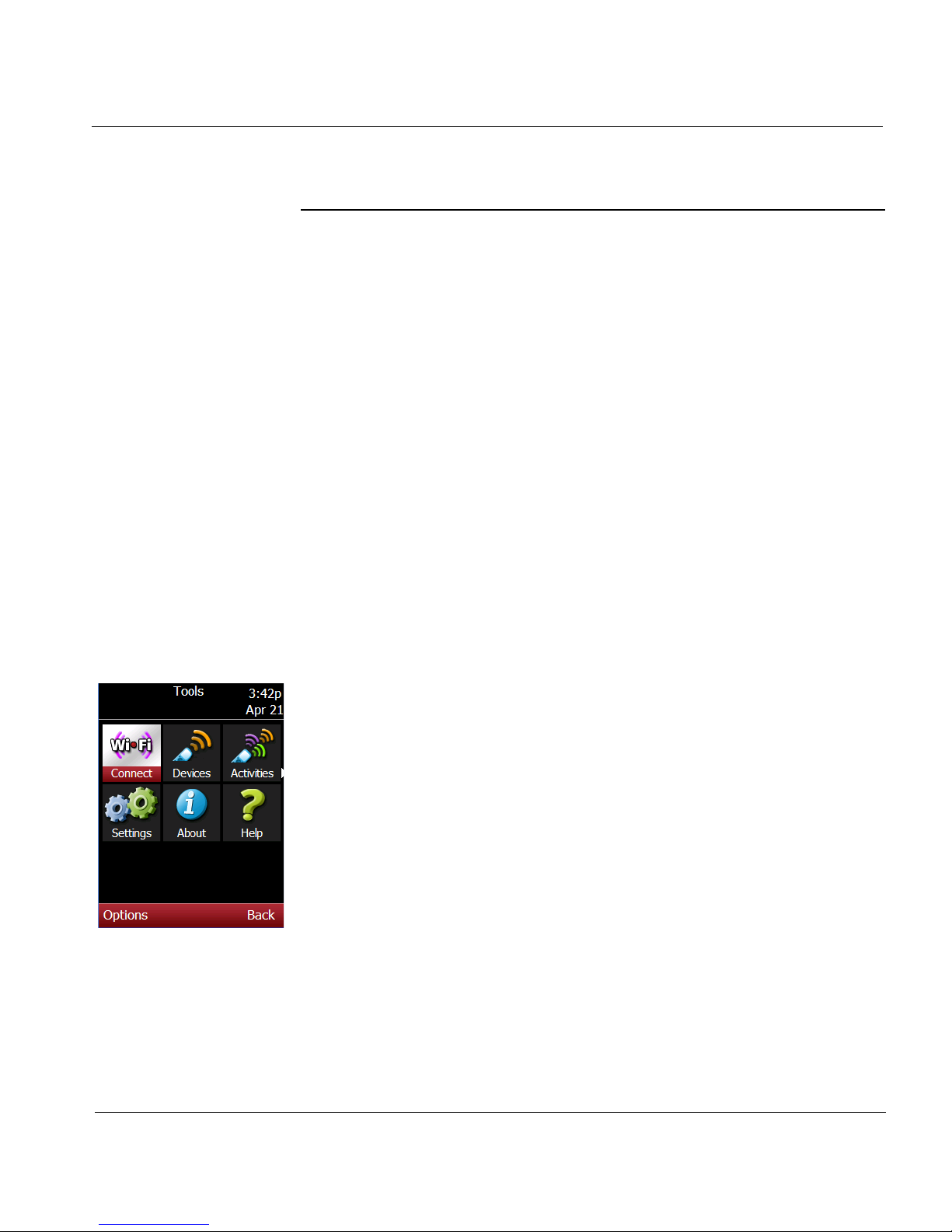
1. Press the Home button to go to the Home screen.
2. Scroll to Tools and press in the joystick (SEL).
3. Scroll to WiFi Connect and press SEL.
4. Read the instructions and press the Yes soft key to continue.
Page 28
Chapter 2 | Prepare for Operation Prepare the Smart Remote for Operation
22 ESPN THE ULTIMATE REMOTE User’s Guide
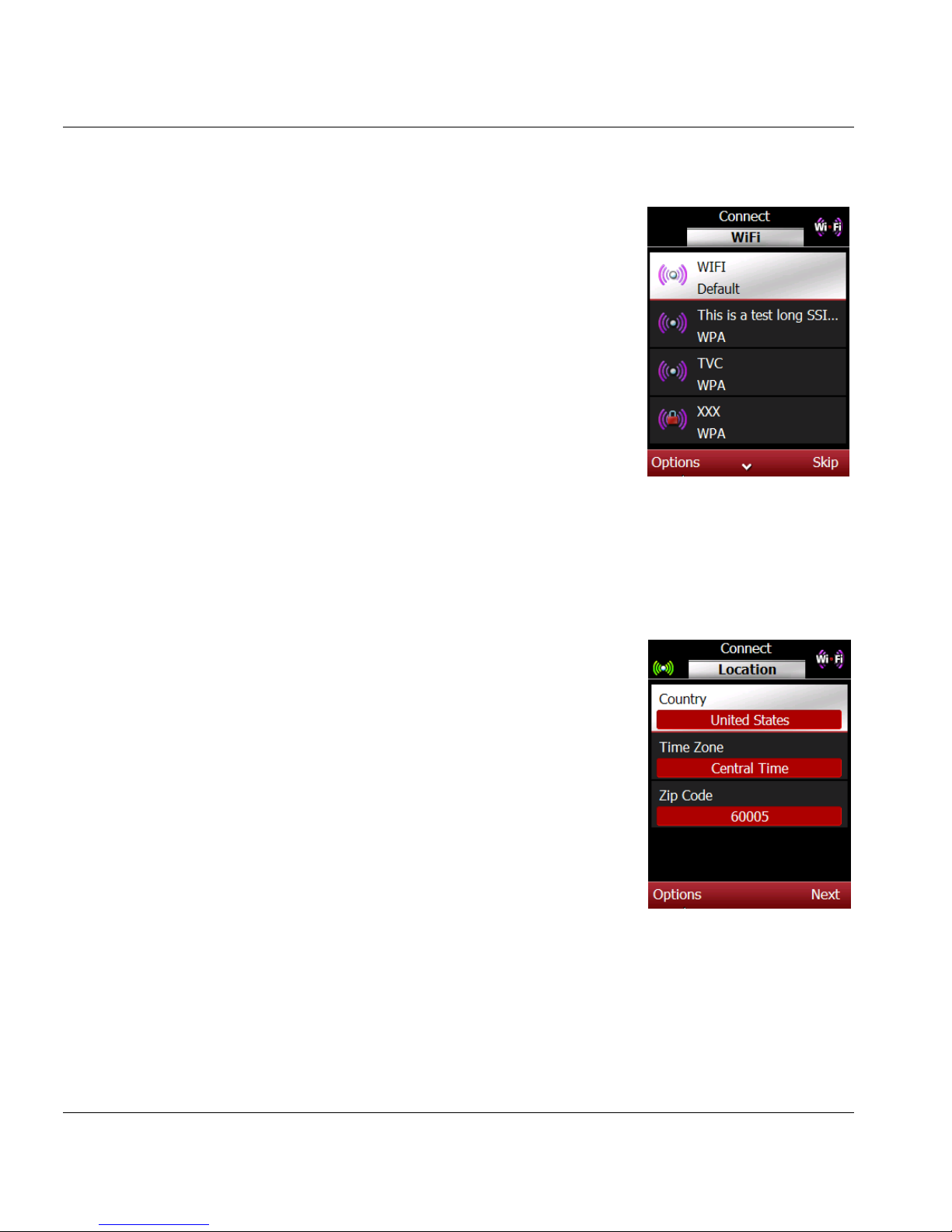
5. Press the Next soft key to display a list of
WiFi networks that the smart remote has
located.
6. Scroll to your WiFi network (if more than
one is listed) and press the Options soft
key.
7. Scroll to Connect and press the Select
soft key.
8. Enter your network passkey or
passphrase, if required, for a secured
network.
It may take a few minutes for the smart
remote to get an IP (Internet Protocol)
address and update the applications.
9. Read the Location instructions and press
the Next soft key to continue.
10. Enter/select your country, time zone and
zip code.
a. Scroll to Country and click the
Options soft key.
b. Scroll to Change and press Select.
Scroll to the correct setting or enter
the correct information using the
alphanumeric keypad.
c. Press the OK soft key.
d. Scroll to the next item on the list and
repeat steps 9b and 9c to the enter/
select your time zone and zip code.
11. Press the Next soft key to continue. It may take a few minutes for the
smart remote to access TV program guide information for your location.
Page 29
ESPN THE ULTIMATE REMOTE User’s Guide 23
Chapter 2 | Prepare for Operation Prepare the Smart Remote for Operation
B: Select a Provider
12. Read the instructions and press the Next soft key to continue.
13. Scroll to your TV provider type and press
the Select soft key.
Note: If your provider is a cable or satellite
service, you may be prompted to select
a specific operator. Scroll to the operator
and press the Select soft key to
download information. Read and follow
the instructions carefully.
14.
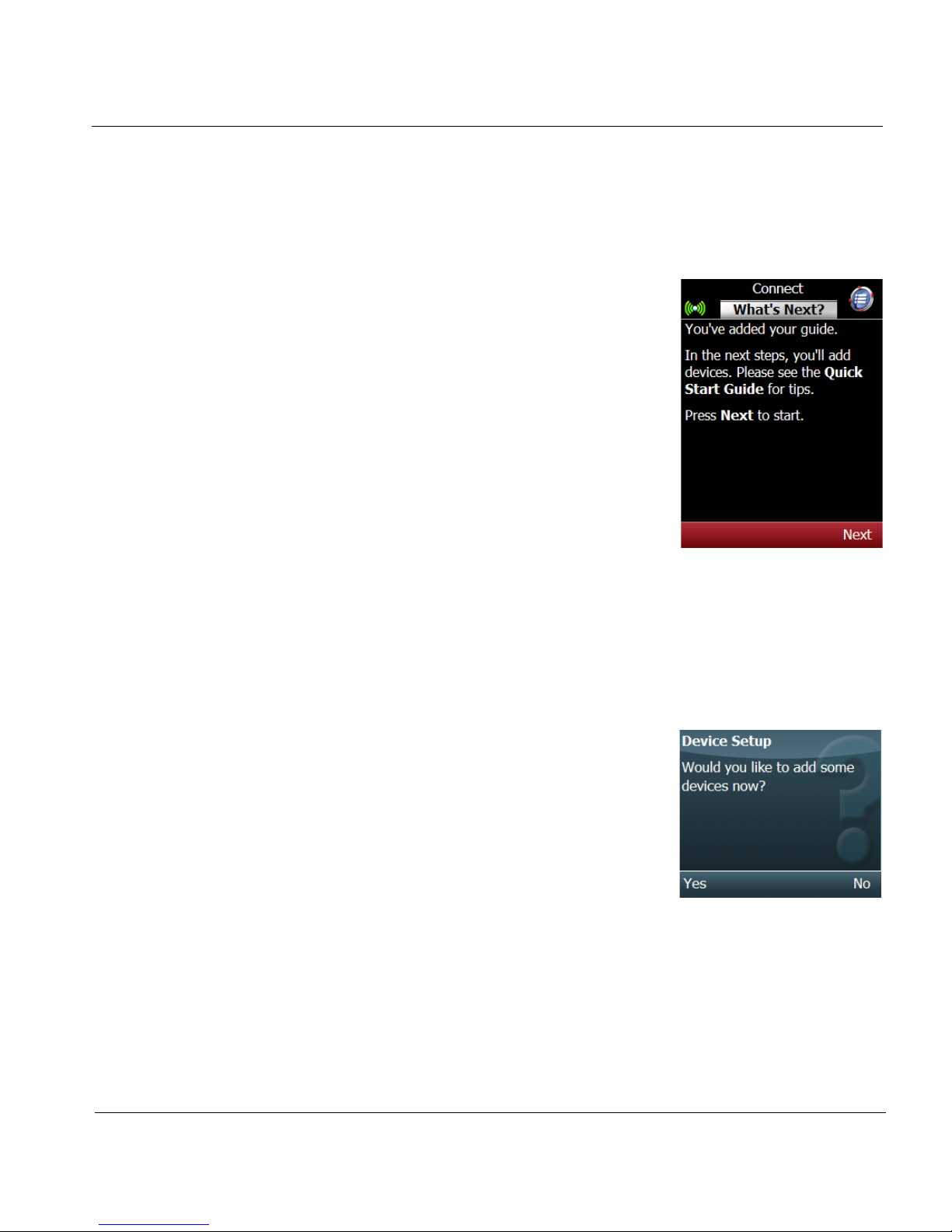
Read the What’s Next information and
press Next to continue.
C: Add a Device
Note: We recommend that you add at least
one device now, but it is not required.
You can always add devices at a later
time.
15.
Press the Yes soft key to begin adding a
device. Press the No soft key to add
devices at a later time.
Note: If you choose No, go to the last step of
this procedure. See Chapter 4 for
instructions on how to add a device at
a later time.
16.
Read the instructions and press the OK
soft key.
17. Scroll to the type of device you want
to add.
Page 30
Chapter 2 | Prepare for Operation Prepare the Smart Remote for Operation
24 ESPN THE ULTIMATE REMOTE User’s Guide
18. Press the Options soft key, scroll to
Select, and press the Select soft key.
19. Read the instructions and press the OK
soft key to continue.
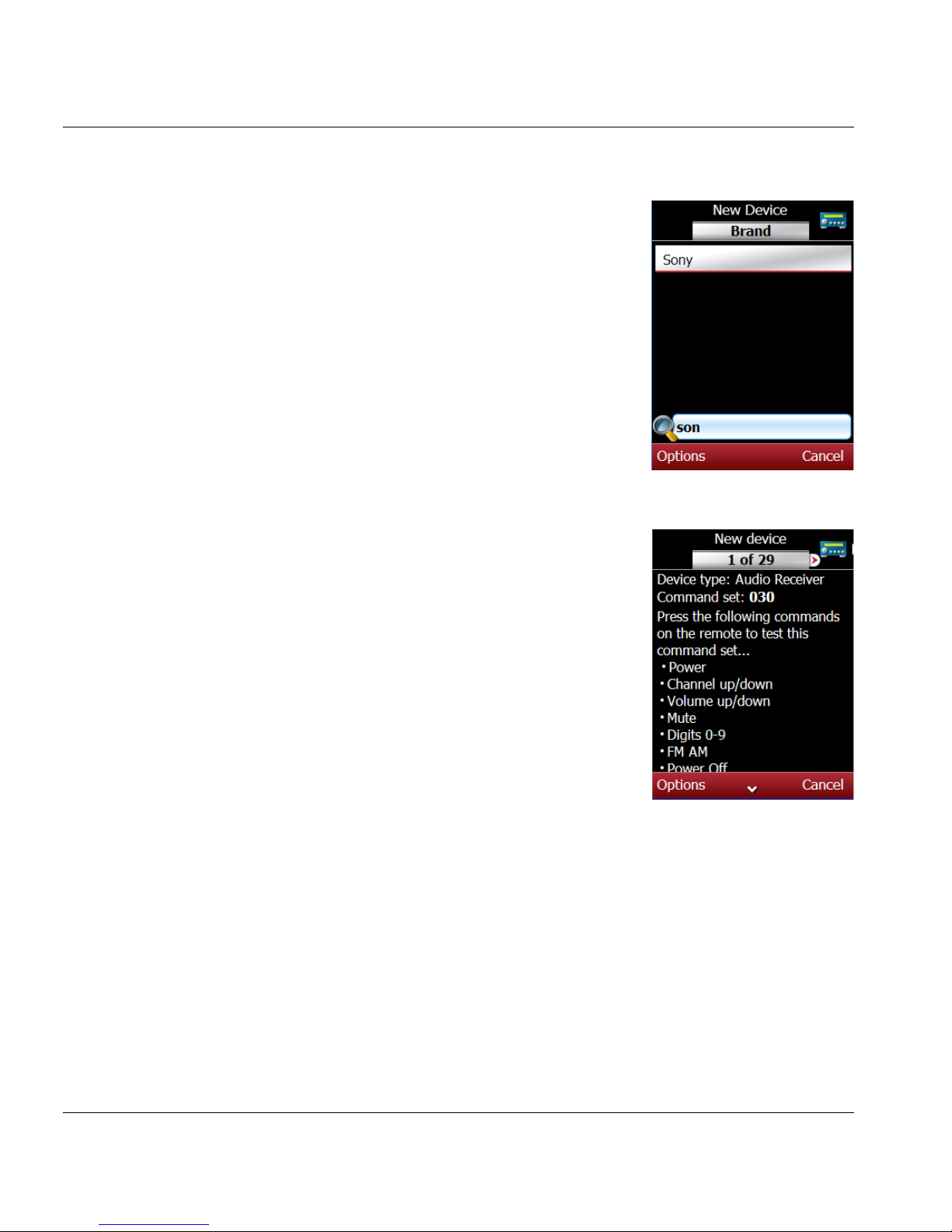
20. Scroll to the brand name or use the text
search function.
a. Use the alphanumeric keypad to enter
the first few letters of the brand until
you see the brand in the display.
b. Scroll to the brand.
21. Press the Options soft key, scroll to Select
and press the Select soft key.
22. Read the instructions for adding a device
using Manual Search or Auto Search.
Press the OK soft key to continue.
Note: We recommend you try the Auto Search
option first.
23. Press the Options soft key, scroll to Start
search, and press the Select soft key.
24. Read the instructions and press OK. The
smart remote will send the Power
command to the device. When the device
turns on, press the Stop soft key.
Page 31
ESPN THE ULTIMATE REMOTE User’s Guide 25
Chapter 2 | Prepare for Operation Prepare the Smart Remote for Operation
25. Read the instructions for testing more
commands and press the OK soft key.
26. Use the remote keys to test the
commands on the device.
27. Press the Options soft key, scroll to
Save, and press the Select soft key.
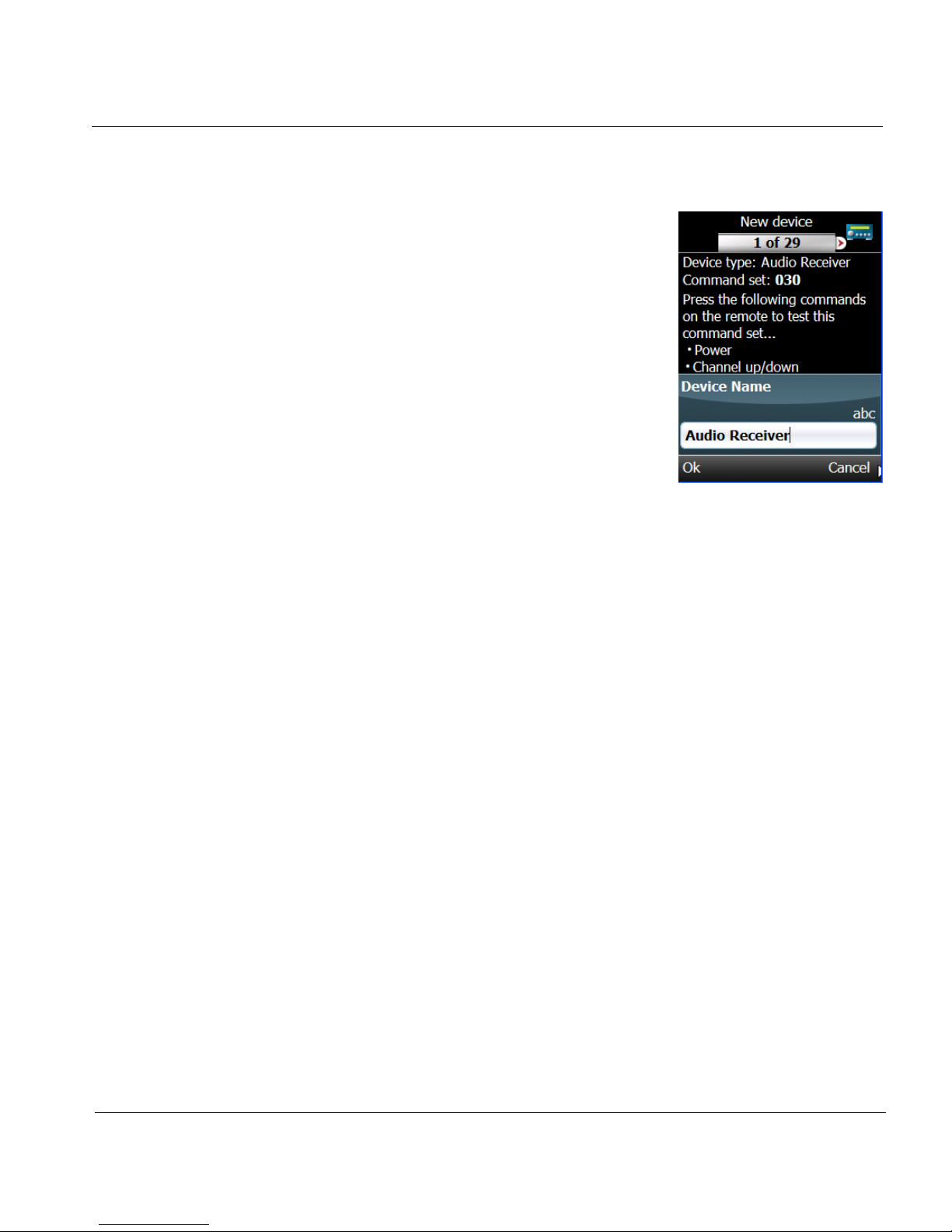
28. Enter the name of this device using the
alphanumeric keypad and press the OK
soft key.
Note: You will be prompted to add another
device now. To add another device
press the Yes soft key and repeat the
steps in part C. Press the No soft key
if you do not want to add another
device now.
29.
Read the instructions and press the OK soft key to end the setup
process and proceed to the Home screen.
Page 32
Chapter 2 | Prepare for Operation Register the Smart Remote
26 ESPN THE ULTIMATE REMOTE User’s Guide
Register the Smart Remote
It is important to register the smart remote to take advantage of special
features and applications, establish additional services such as messaging,
and facilitate customer service support and notifications.
In addition to your smart remote, you will also need an Internet-connected
computer to register the smart remote.
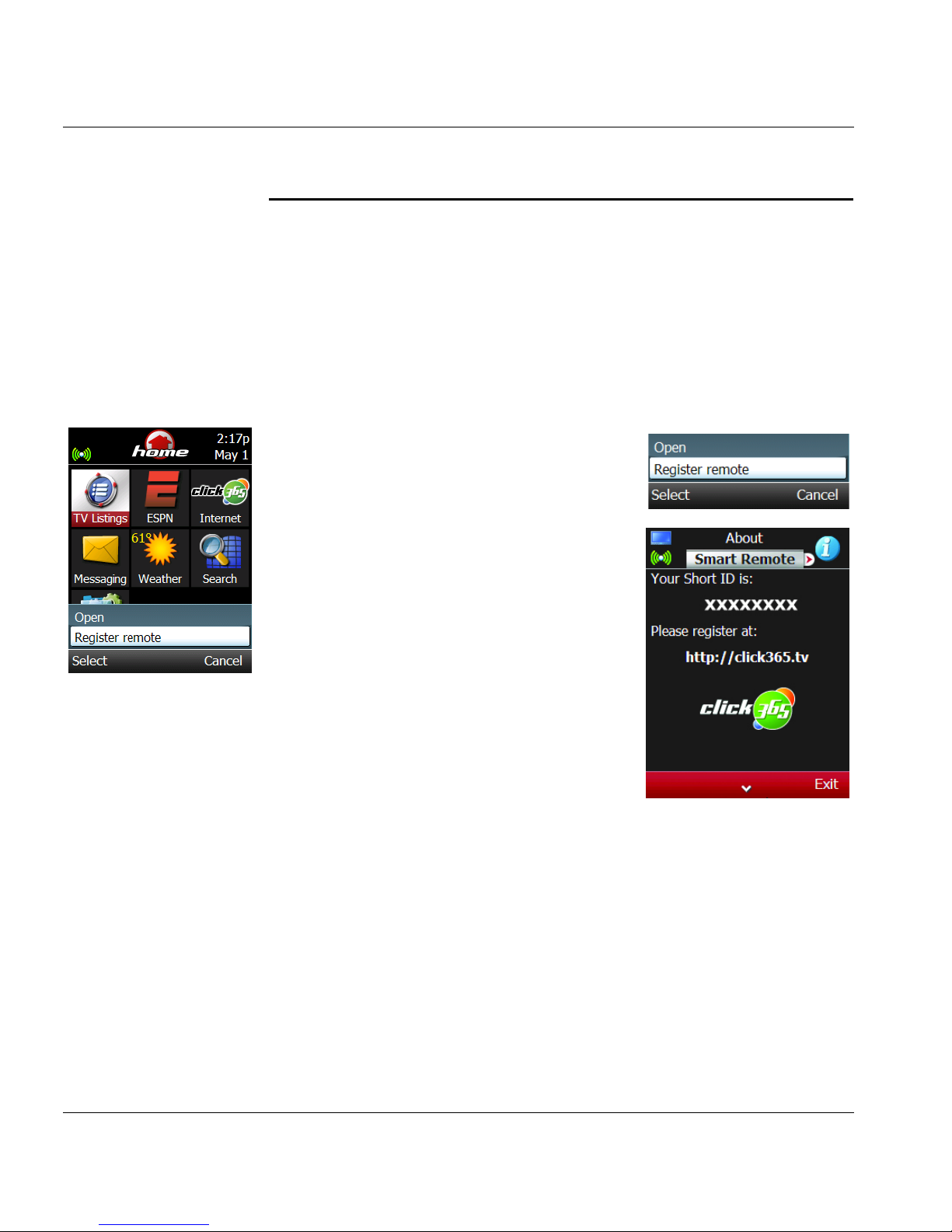
Get the Short ID for your smart remote:
1. Press the home key to access the Home
screen.
2. Press the Options soft key, scroll to
Register remote, and press the Select
soft key.
3. Read the instructions and copy down the
Short ID for your smart remote. You will
need the Short ID during the registration
process.
Page 33
ESPN THE ULTIMATE REMOTE User’s Guide 27
Chapter 2 | Prepare for Operation Register the Smart Remote
On your computer:
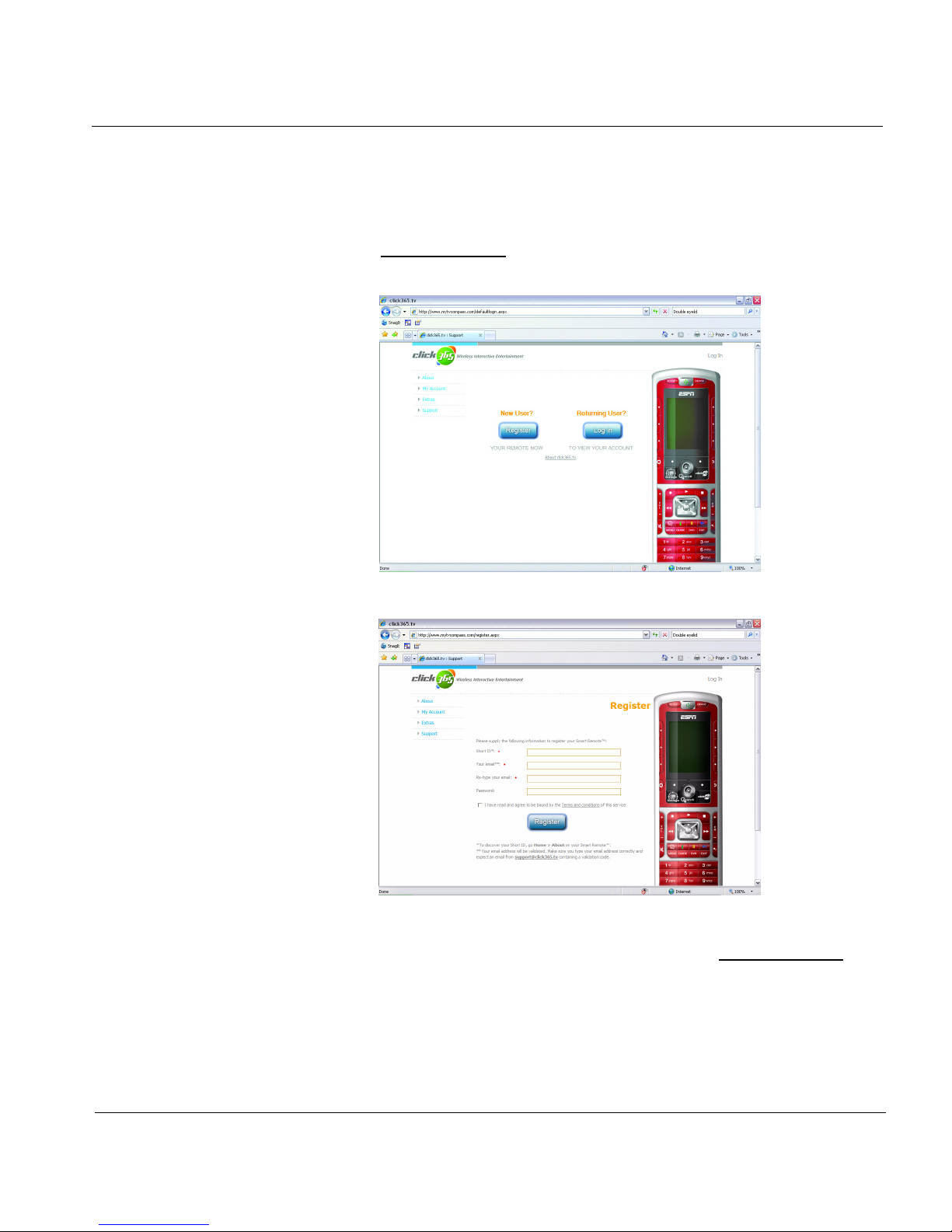
4. Go to: http://click365.tv and follow the registration instructions. After you
register, you will receive a validation code in an email.
5. Click on the link provided in the email or return to: http://click365.tv.
6. Enter the validation code listed in the email. You will be prompted when
your validation code is accepted.
Page 34
Chapter 2 | Prepare for Operation Register the Smart Remote
28 ESPN THE ULTIMATE REMOTE User’s Guide
On the smart remote:
7. Press the Home key to access the Home screen.
8. Press the Options soft key, scroll to Register Remote.
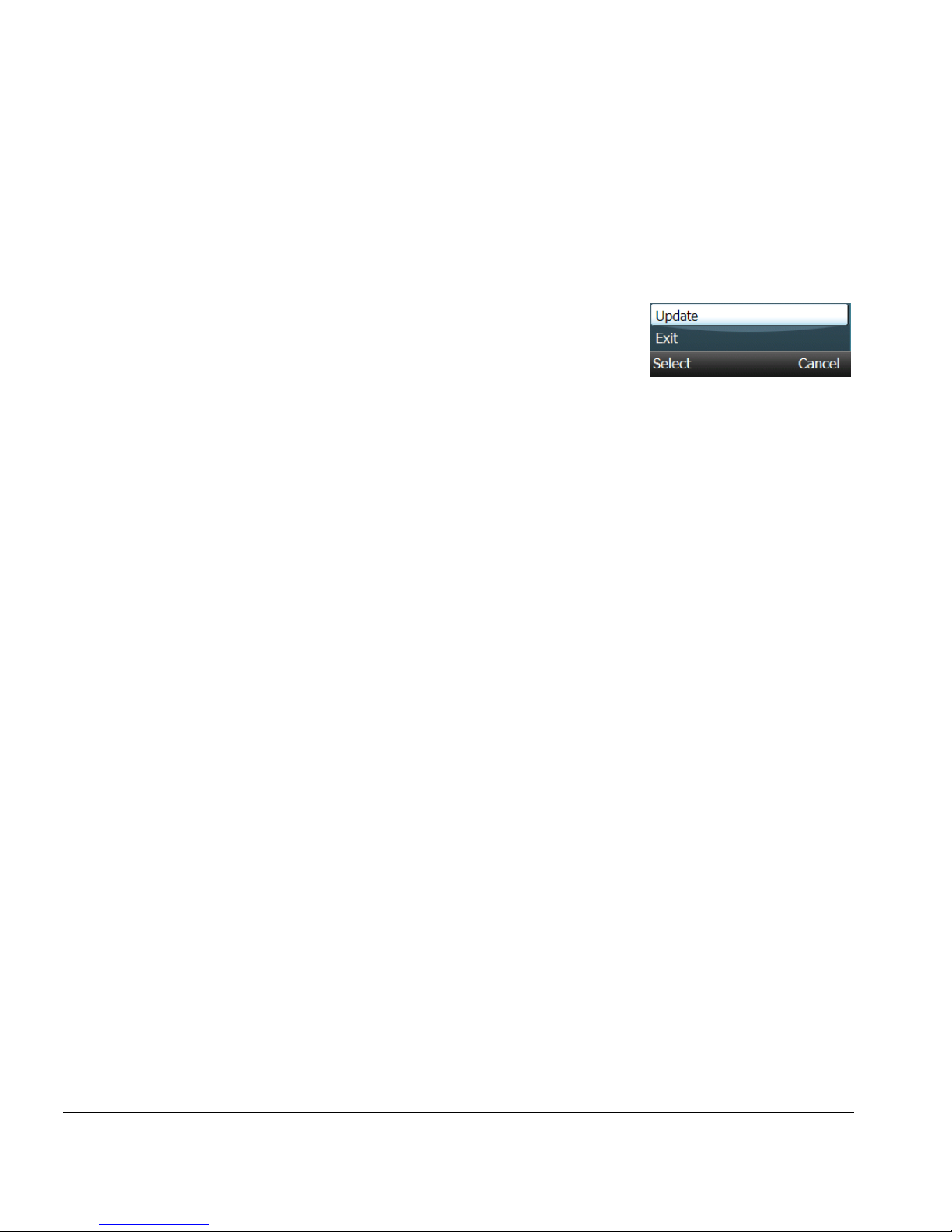
9. Press the Options soft key, scroll to
Update, and press the Select soft key. It
will take a few minutes for the smart
remote to contact click365, locate any
software/application upgrades and
download them to the smart remote.
Page 35
ESPN THE ULTIMATE REMOTE User’s Guide 29
CHAPTER 3
TV Listings
The TV Listings application is a customized, interactive guide of lineups and
programs. The lineups are based on the provider and location (country, time
zone, zip code) information you entered during the set up process. The
information in the guide is updated when the smart remote connects to your
WiFi network.
This chapter provides information and instructions on how to access and
use the lineup guide in the TV Listings application. It includes information
and instructions on how to:
• View lineups
• View show information
• Customize lineups
• Manage providers
Page 36
Chapter 3 | TV Listings View Lineups
30 ESPN THE ULTIMATE REMOTE User’s Guide
View Lineups
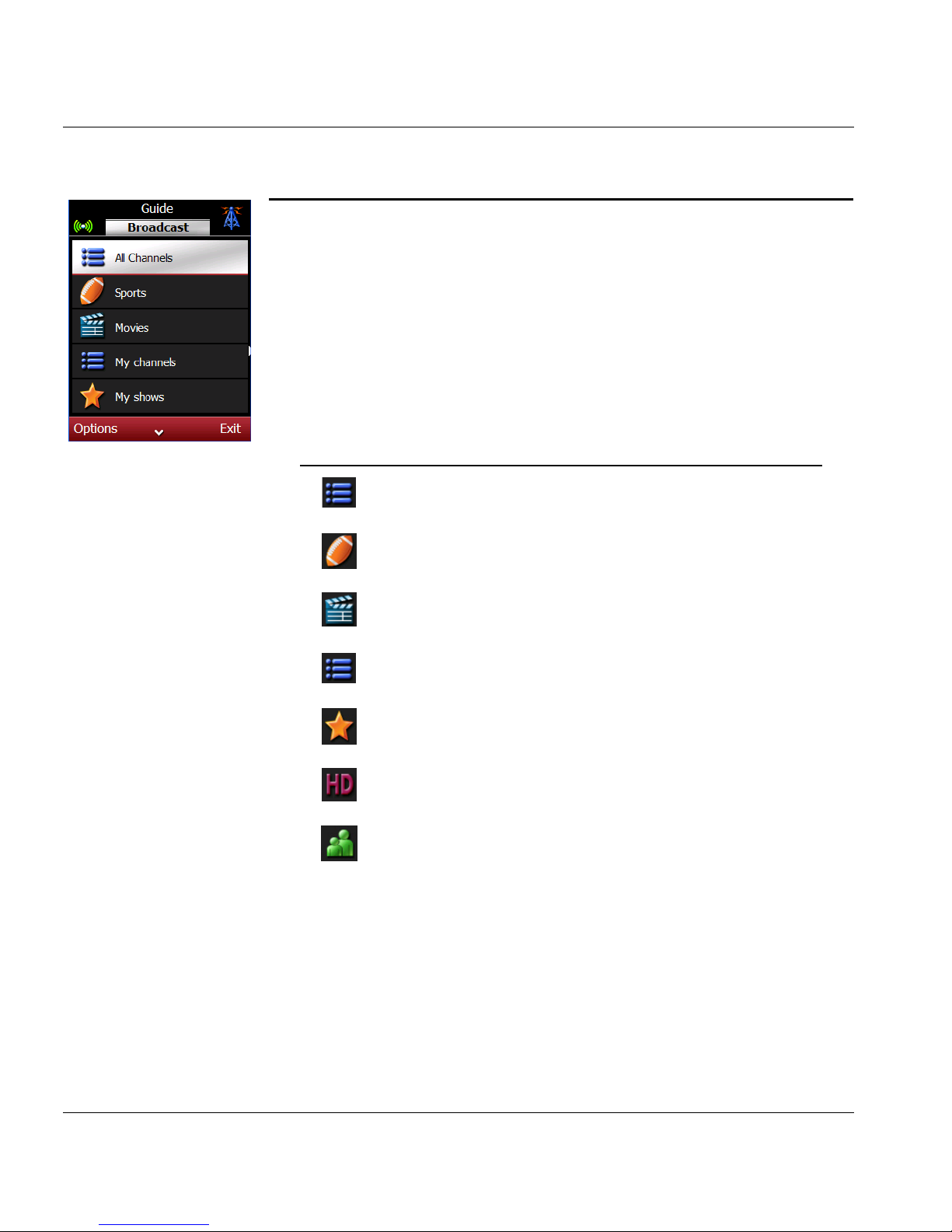
When you open TV Listings, the provider type (cable, satellite, broadcast)
displays at the top of the screen along with the corresponding icon. The first
lineup on the list is highlighted. Use the joystick to scroll through the lineups.
When you start to use the smart remote, the default lineups in the guide
may include:
Note: Instructions for creating new lineups and customizing existing
lineups for quick and easy access to the shows you want to see
are in Customize Lineups later in this chapter.
Icon Lineups Description
All channels View all channels available from your provider.
Sports
View a collection of all sports shows available on
any channel in your lineups.
Movies View a collection of all movies, on all channels.
My channels
View and create a custom list of channels (for
example, Mom’s channels, Kids channels, etc.).
My shows
View shows selected as favorites and/or with
reminders.
Shows in HD View shows broadcast in HD (high definition).
Family shows
View shows that are considered family
entertainment.
Page 37
ESPN THE ULTIMATE REMOTE User’s Guide 31
Chapter 3 | TV Listings View Show Information
View Show Information
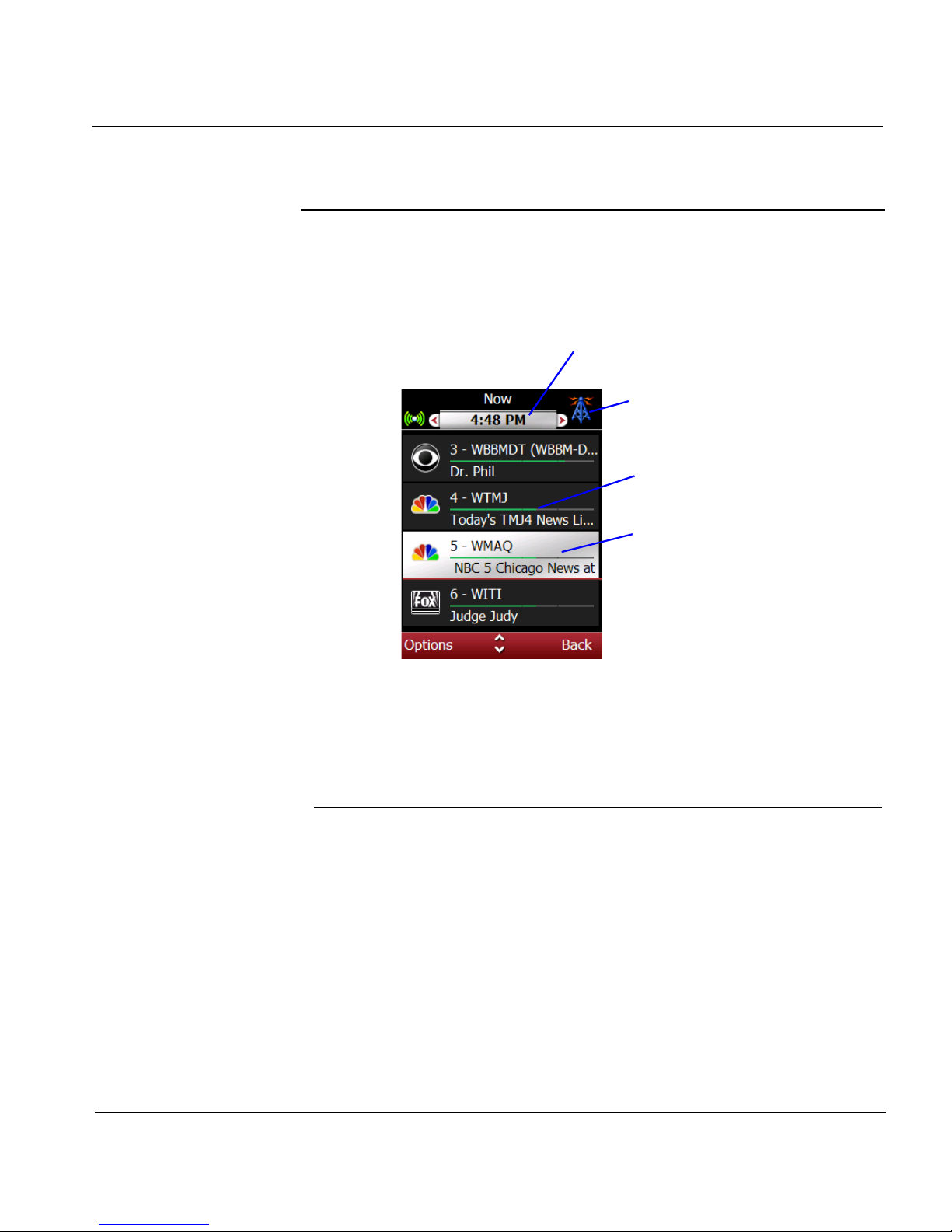
When you open a lineup, you will see a list of shows currently playing. This
list also provides channel information.
In addition to show details, these options are available when you press the
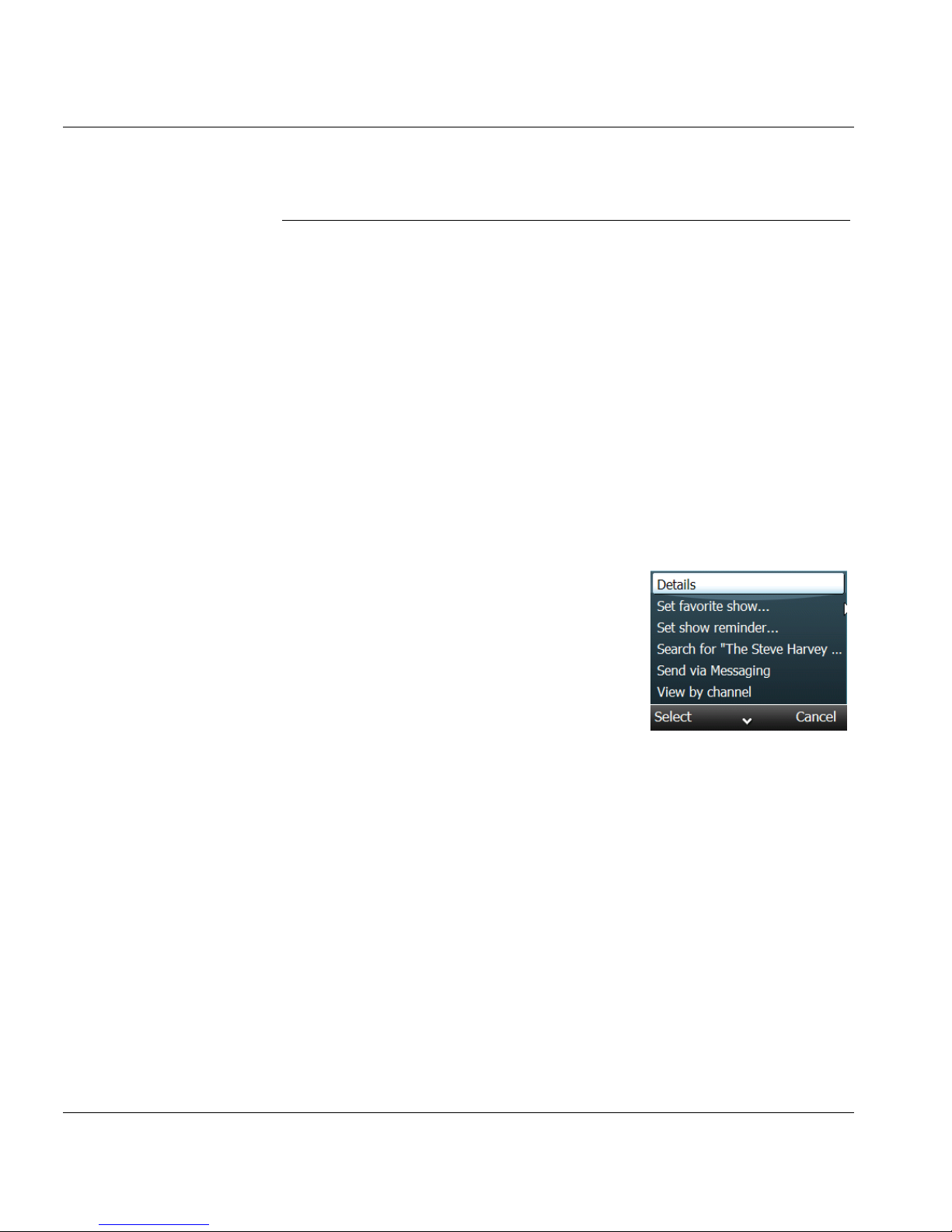
Options soft key while viewing a show list:
Show Options Description/Function
Tune Tune in the active device to selected show/channel.
Details View details about this show.
Set/cancel Favorite
Show
Add/remove this show to/from My Favorites. A special icon
displays next to each show listed as a favorite.
Choose one of these options:
All times - add/cancel all occurrences of this show.
For this channel - add/cancel all occurrences of this show
on this channel.
All times all channels - add/cancel all occurrences of this
show at all times and on all channels.
Provider icon (cable,
satellite, broadcast)
Line length indicates
elapsed time
Highlighted (selected)
program (time,
channel, and show)
Current time
Page 38
Chapter 3 | TV Listings View Show Information
32 ESPN THE ULTIMATE REMOTE User’s Guide
View Show Details
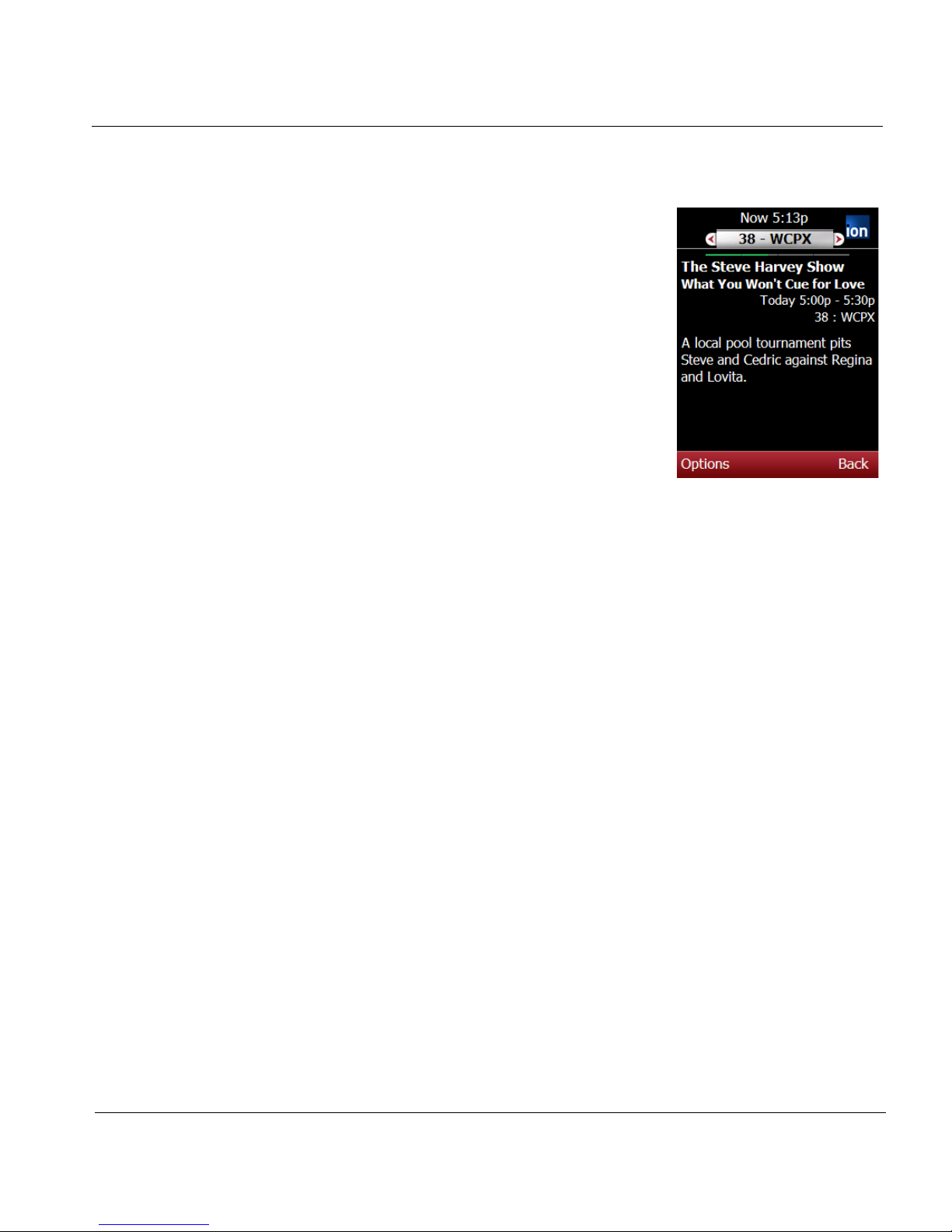
Show details include the name of the show,
time, channel number, and a brief
description.
1. Highlight TV Listings on the Home
screen and press in the joystick (SEL) to
view the lineups.
2. Scroll to a lineup and press SEL to see a
list of shows.
Set/Cancel Show
Reminder
Add/remove show to/from My shows search; cause an audible
alert to sound a few minutes before the program starts or
discontinue the audible alert.
Search for "[selected
show]”
Search for information about the selected show; scroll to an
option and press the Options soft key to view a brief
description. Press in the joystick, if prompted, to view
additional web content about this show.
Send via Messaging Send show details to yourself or to a friend using Messaging.
Both you and your friend must be in your address book before
a text message can be sent. See Chapter 5.
View by Channel View several hours of show listings for the selected channel.
View by Time /
Channel
Change the viewing mode for looking at a lineup or programs.
Time (default) - View shows by start time.
Channel - View shows by channel.
Show Options Description/Function
Page 39
ESPN THE ULTIMATE REMOTE User’s Guide 33
Chapter 3 | TV Listings View Show Information
3. Scroll to a show.
4. Press the Options soft key, scroll to
Details, and press the Select soft key.
Tip: Shortcut method: Highlight a show on
the list and press the TV LISTINGS
key on the smart remote to view the
details screen. Press TV Listings
again to close.
Search for More Details
Use this procedure to find more information about the selected show on the
Internet.
Note: See Chapter 5 for information on searching the Internet using
the smart remote.
1. Access a show list in one of the lineups on the smart remote.
2. Press the SEARCH shortcut key located under the joystick or press
Options soft key, scroll to Search for, and press the Select soft key. This
will begin an Internet search for information about this show.
3. Scroll to the article you want to read and press in the Joystick (SEL) to
display a summary screen.
4. Press the Options soft key, scroll to More, and press the Select soft key
to view additional information.
Page 40
Chapter 3 | TV Listings View Show Information
34 ESPN THE ULTIMATE REMOTE User’s Guide
Set and Cancel Reminders
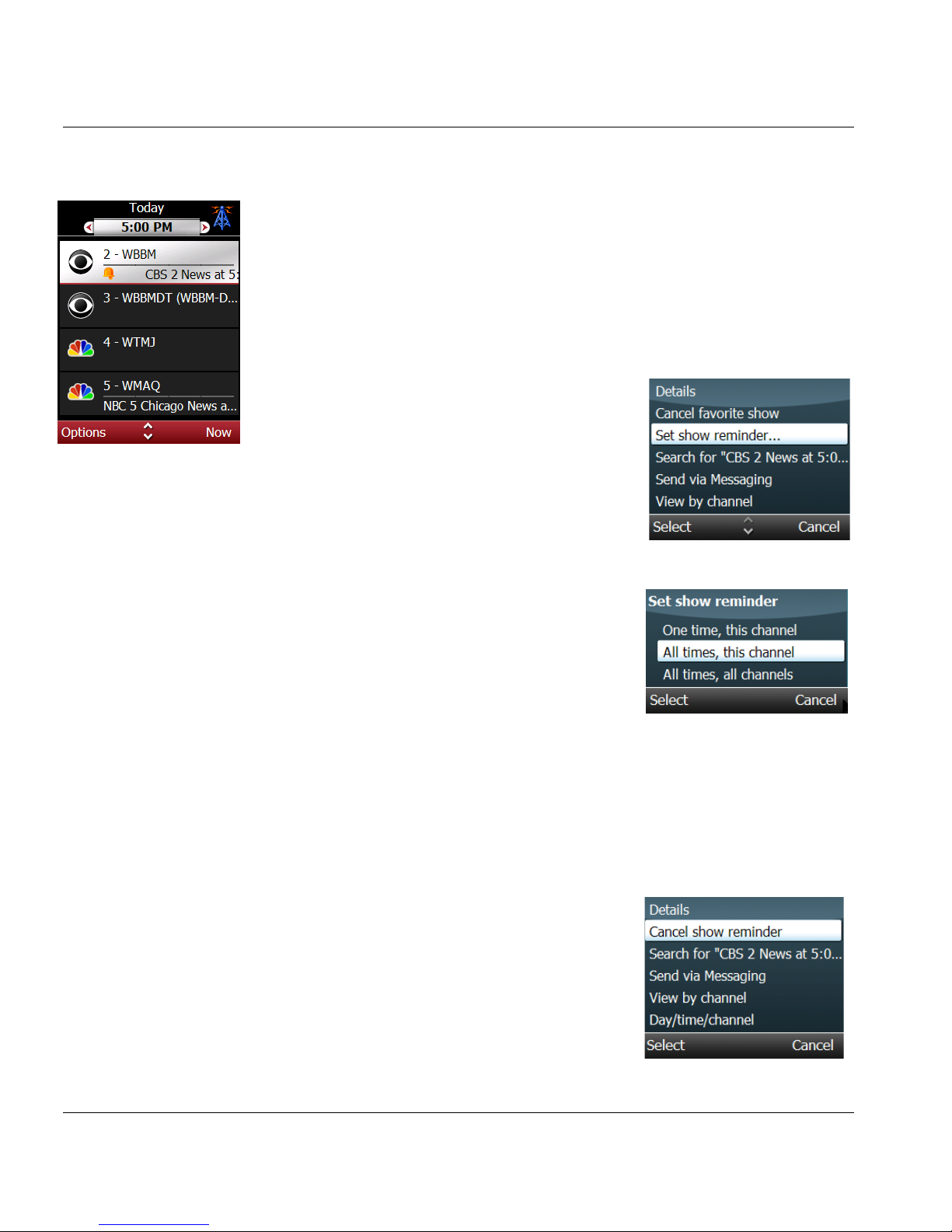
Reminders are audible and visible alerts that play a few minutes before the
start of a show. A reminder icon displays next to the show listing and the
remote issues a reminder a few minutes before the show/program is
scheduled to start.
Set a reminder
1. Open TV Listings.
2. Scroll to a lineup and press in the joystick
(SEL).
3. Scroll to a show.
4. Press the Options soft key, scroll to Set
Reminder, and press SEL.
5. Scroll to one of these options and press
SEL:
• One time, this channel - remind once
for this program.
• All times, this channel - remind any
time program is on.
• All times, any channel - remind each
time program occurs on any channel.
Cancel a reminder
1. Open TV Listings.
2. Scroll to the flagged “reminder” show and
press the Options soft key.
3. Scroll to Cancel Show Reminder and
press the Select soft key to remove the
reminder icon from this listing.
Page 41
ESPN THE ULTIMATE REMOTE User’s Guide 35
Chapter 3 | TV Listings View Show Information
Set and Cancel Favorite Shows
Any show or program in a lineup can be set as one of your favorites. When
you select a show as one of your favorites, an icon appears next to the
name of the show, and the show listing is also copied into the My shows
lineup.
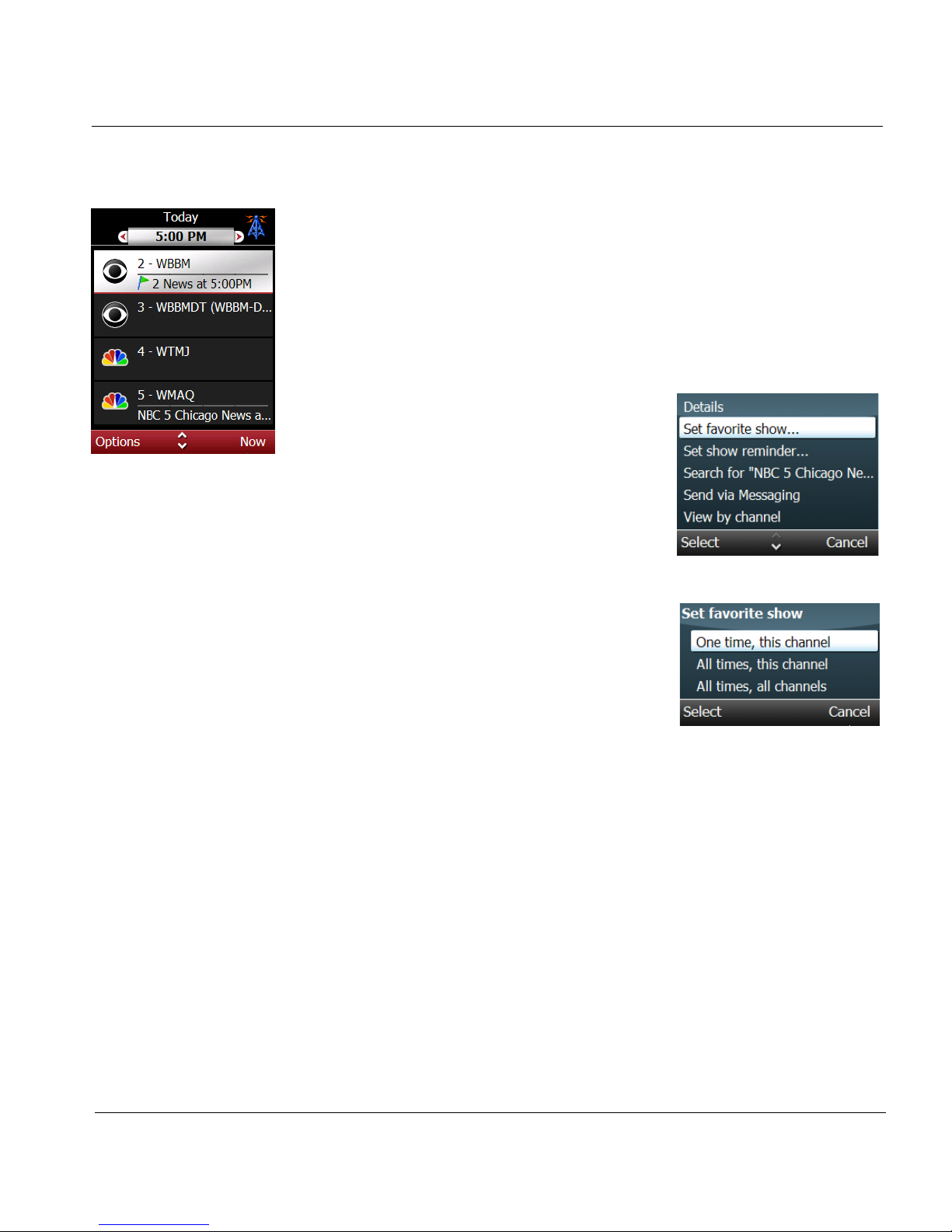
Add a Show to My Favorites
1. Open TV Listings.
2. Scroll to a lineup and press in the joystick
(SEL).
3. Scroll to a show.
4. Press the Options soft key, scroll to Set
Favorite Show, and press SEL.
5. Scroll to one of these options and press
SEL to set this show as one of your
favorites and place the flag icon next to it
on the show list.
• One time, this channel - once for this
program.
• All times, this channel - any time
program is on.
• All times, any channel - each time
program occurs on any channel.
Page 42
Chapter 3 | TV Listings View Show Information
36 ESPN THE ULTIMATE REMOTE User’s Guide
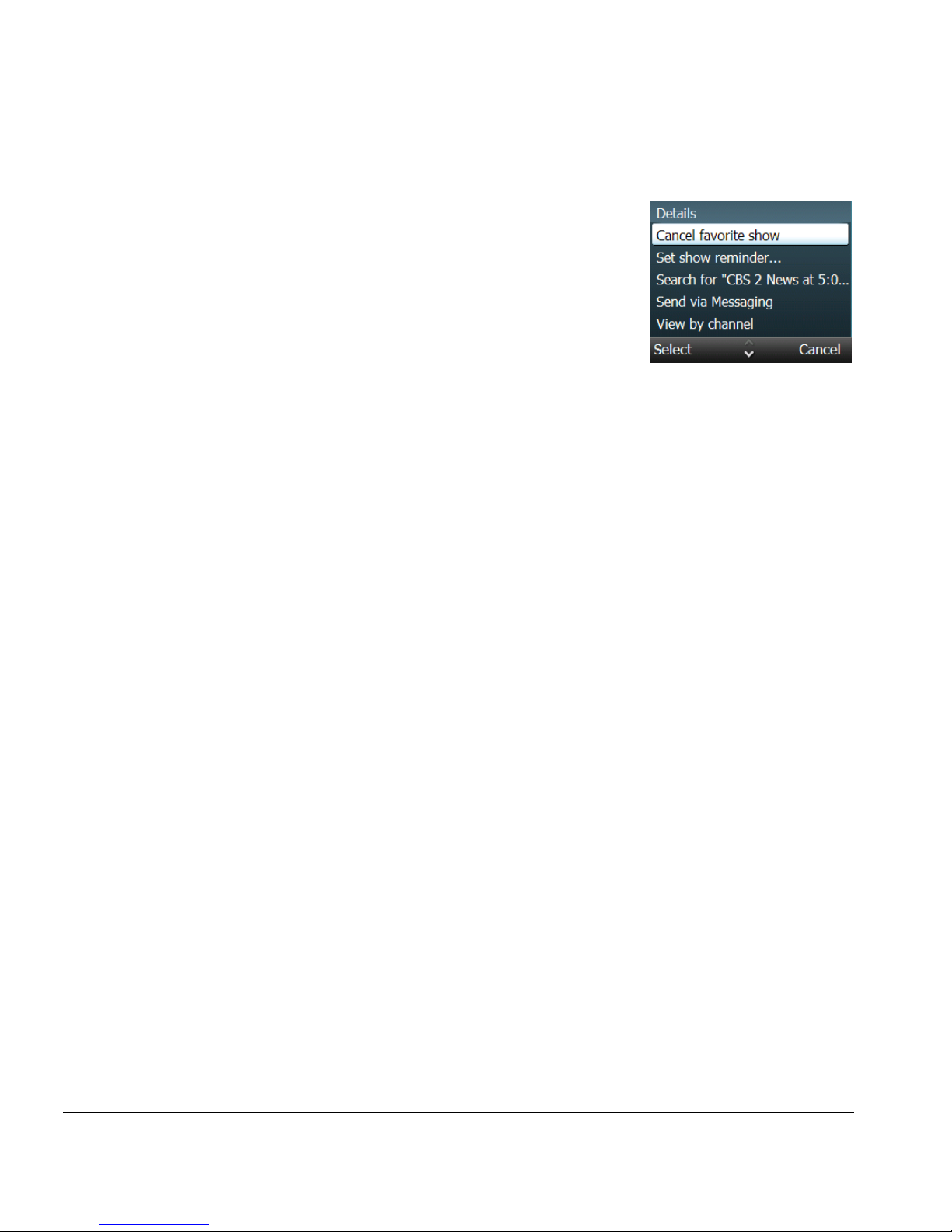
Cancel Favorite Show
1. Open TV Listings.
2. Scroll to the flagged “my favorites” show
and press the Options soft key.
3. Scroll to Cancel Favorite Show and press
in the joystick to remove the favorite icon
from this show.
Page 43
ESPN THE ULTIMATE REMOTE User’s Guide 37
Chapter 3 | TV Listings Customize Your TV Lineups
Customize Your TV Lineups
The Lineups in the TV Listings guide are based on the TV provider and
location (country, time zone, zip code) you entered during the setup
process. The channel and show information may vary.
• Customize the channel lineups using the Options menu to
select, move, copy, and delete.
• Create new lineups using the New Channel lineup option.
Then you can add, edit, and delete the content in the lineup.
Access Lineup Options
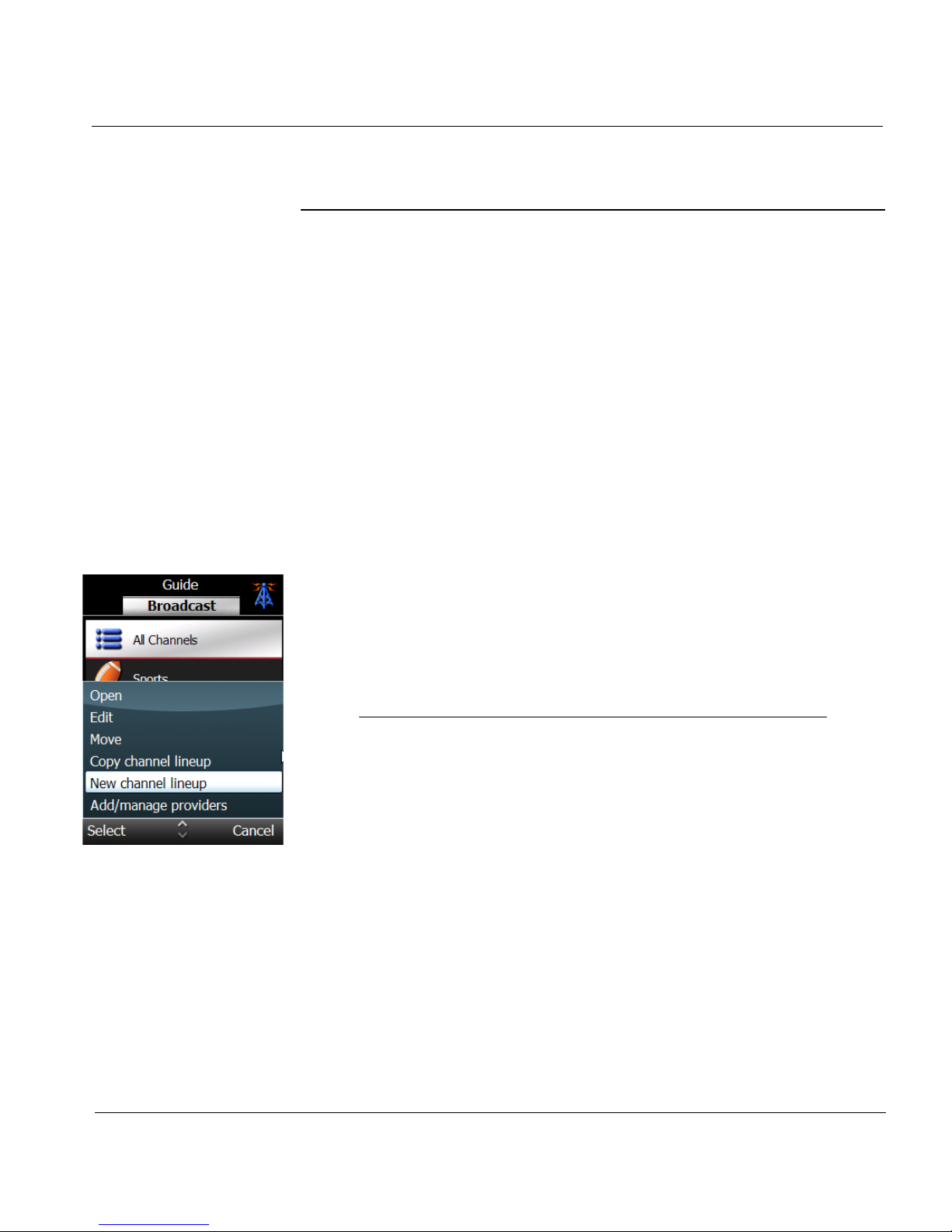
1. Open TV Listings.
2. Scroll to a lineup and press the Options soft key to view the options.
The default lineup options include:
Lineup Options Description/Function
Open Display listings for selected lineup.
Edit Edit/change the name of the selected
lineup.
Move Move the selected lineup up or down in
the list.
Copy channel lineup Copy the contents of a lineup and paste it
into a new lineup.
New channel lineup Create a new lineup; use the options to
customize the new lineup.
Add/manage providers
(edit, delete, new)
Display the Provider Setup screen; select
a new provider or edit or delete the
current provider.
About Display version/copyright information
about this guide.
Page 44
Chapter 3 | TV Listings Customize Your TV Lineups
38 ESPN THE ULTIMATE REMOTE User’s Guide
Create a New Channel Lineup
You can use the default lineups (all channels, sports, movies, etc.) or you
can create new lineups containing only the channels you want to view.
Lineups can also be deleted, however there must be at least one lineup for
each provider in the guide.
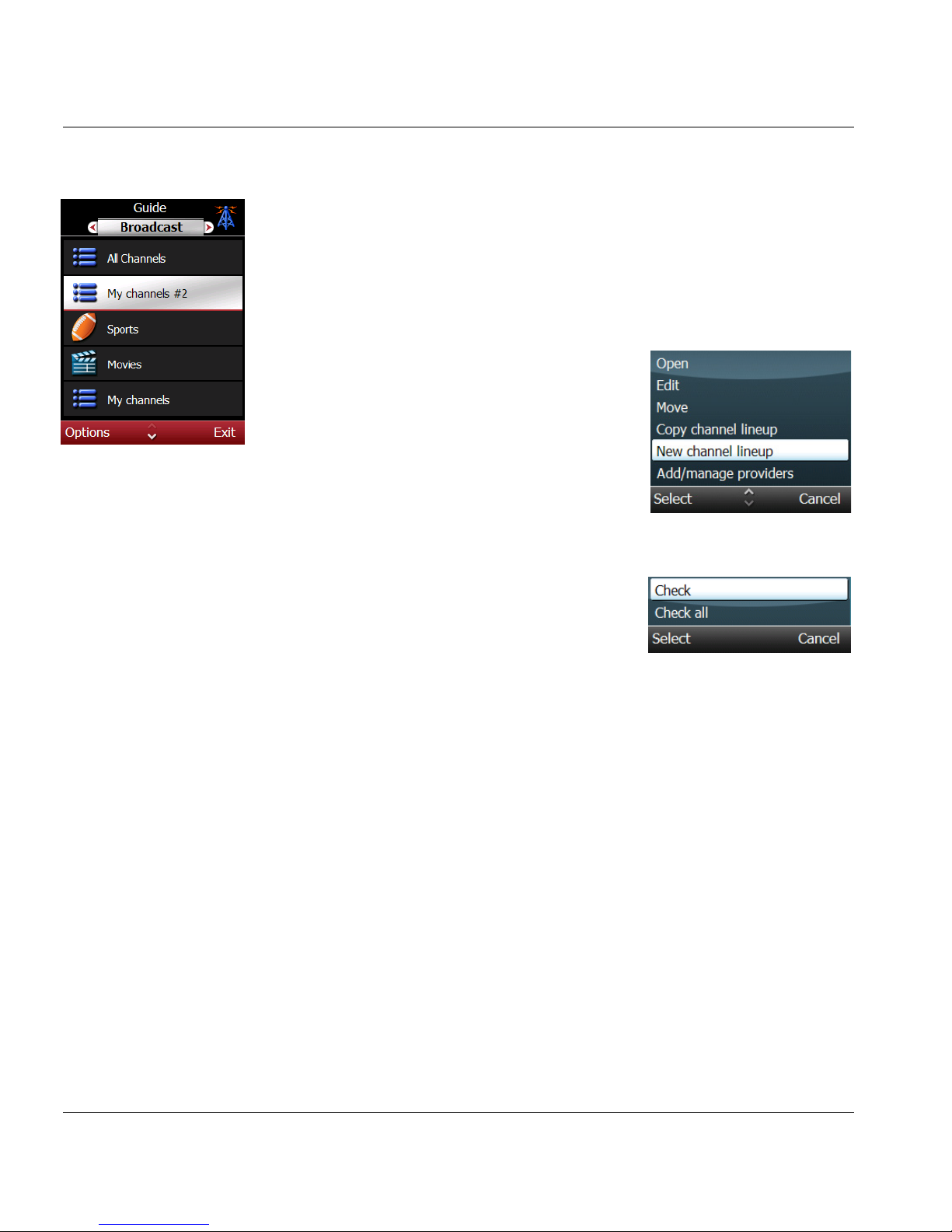
1. Open TV Listings.
2. Press the Options soft key and select
New lineup. This creates a new empty
lineup called My Channels #N.
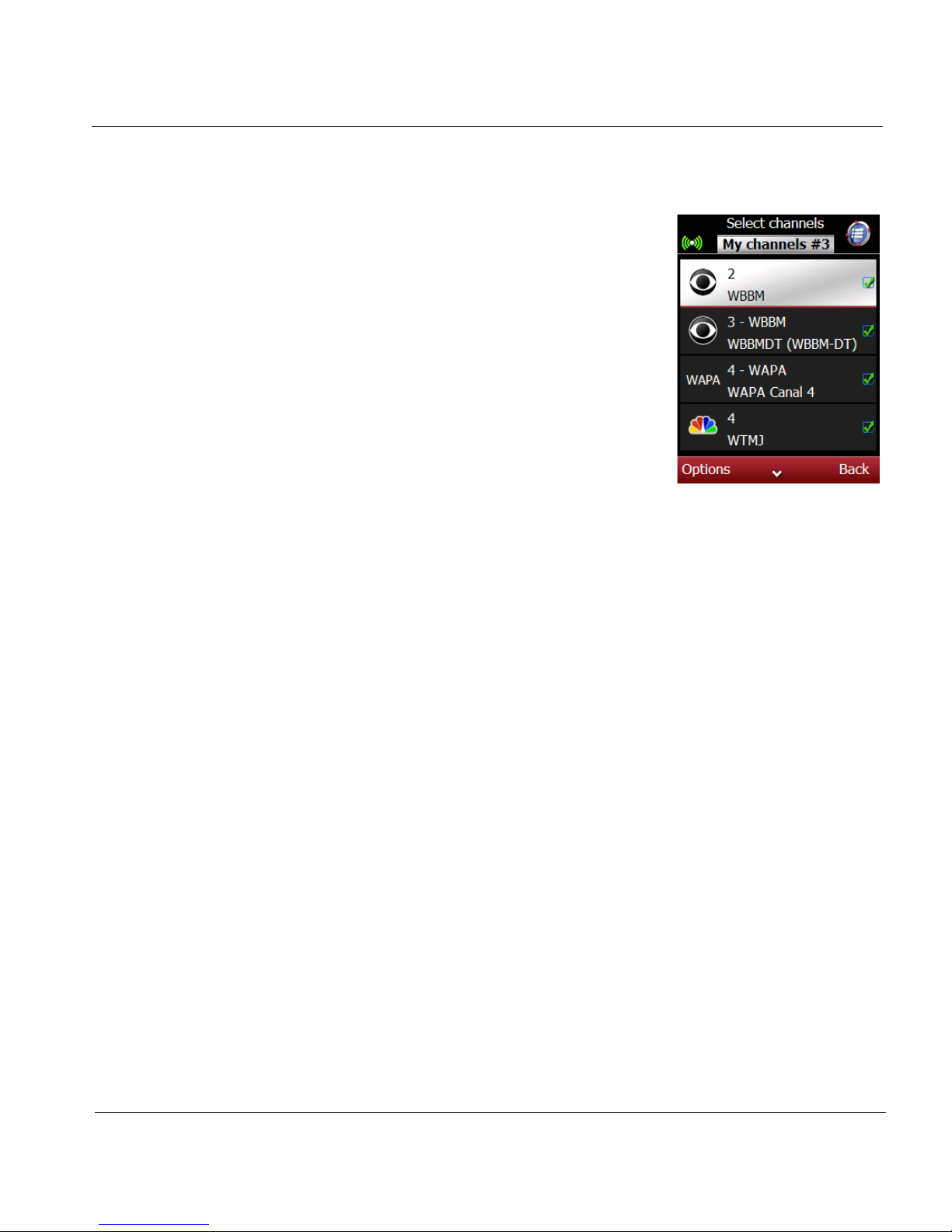
3. Select the new lineup and press in the
joystick (SEL).
4. Read the instructions and press the OK
soft key to view a list of available channels.
5. Select channels to add to your new
lineup.
• Scroll to a channel, press the Options
soft key, scroll to Check, and press the
Select soft key to place a check mark
next to this channel.
• Press the Options soft key, scroll to
Check all, and press the Select soft
key to place a check mark next to
every channel.
Page 45
ESPN THE ULTIMATE REMOTE User’s Guide 39
Chapter 3 | TV Listings Customize Your TV Lineups
6. Edit the select channels list.
• Scroll to a channel you do not want to
include, press the Options soft key,
scroll to Uncheck, and press the Select
soft key to remove the check mark.
• Press the Options soft key, scroll to
Uncheck All, and press the Select soft
key to remove the check marks from
every channel.
Tip: Scroll to a channel and press SEL to
check/uncheck the channel quickly.
7. Press the Back soft key to exit and return
to the Lineups screen.
Page 46
Chapter 3 | TV Listings Customize Your TV Lineups
40 ESPN THE ULTIMATE REMOTE User’s Guide
Edit a Channel Lineup
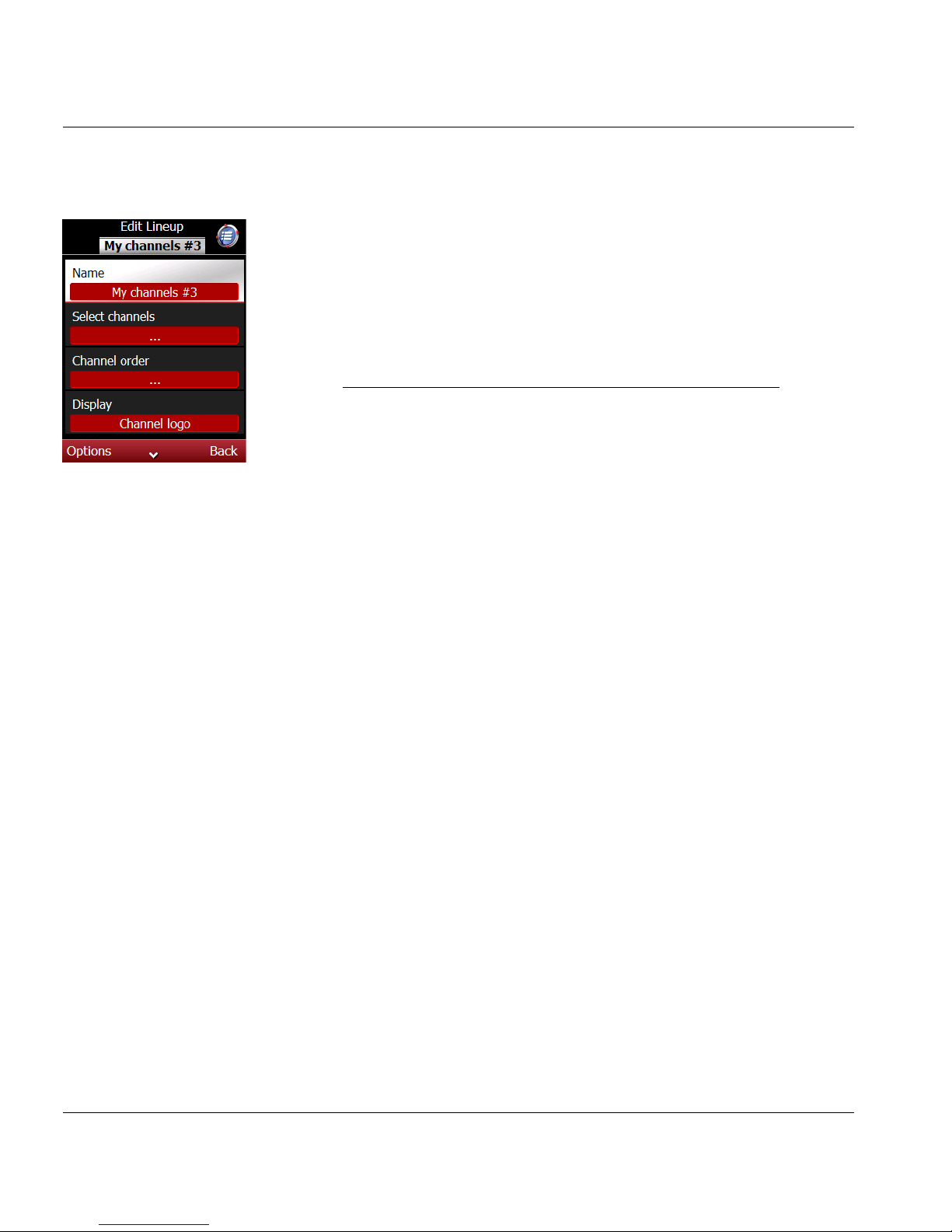
The channel lineups in your guide can be edited or customized using the
Edit Lineup screen. Choose the Edit Lineup option to display the Edit
Lineup screen. In this screen, you can edit/modify the following:
Edit Lineup
Options
Description/Function
Name Edit or change the current name of lineup.
Select Channel Choose the channels you want to add or
remove from to this lineup. A check mark next
to a channel means it is included. Options
include check all channels and uncheck all
channels.
Channel Order Change the order of the channel listing by
moving a channel up/down in the lineup.
Display Choose to display the channel logo, the
channel number, or the channel letters for
each channel in the lineup.
Guide Display Display the TV listings guide by channel or
by time by default.
Page 47

ESPN THE ULTIMATE REMOTE User’s Guide 41
Chapter 3 | TV Listings Customize Your TV Lineups
Change the order of channels in a lineup
1. Open TV Listings.
2. Scroll to the lineup you want to modify and press the Options soft key.
3. Scroll to Edit and press the Select soft key.
4. Scroll to Channel order, press the Select soft key, and press the SEL
key to display the lineup.
5. Press the Move soft key to display the up/down arrow icon.
6. Press the up/down keys to move the channel up or down on the list.
7. Press the OK soft key to put the channel in the new position.
8. Press Back soft key to return to the Edit lineup screen.
9. Press Back to return to the Guide.
Change the name of a lineup
1. Open TV Listings.
2. Scroll to the lineup you want to modify and press the Options soft key.
3. Scroll to Edit and press the Select soft key.
4. Scroll to Name, press Options soft key, and press the Change soft key.
5. Type a new name for this lineup using the alphanumeric keypad.
6. Press the Back soft key to return to the guide.
Page 48

Chapter 3 | TV Listings Customize Your TV Lineups
42 ESPN THE ULTIMATE REMOTE User’s Guide
Copy an existing lineup
Use this procedure to copy the channels in one lineup to another lineup.
1. Open TV Listings.
2. Scroll to the lineup you want to copy.
3. Press the Options soft key, select Copy channel lineup, and press the
Select soft key. This will create a new lineup that contains all of the
channels.
Delete a Lineup
1. Open TV Listings.
2. Scroll to the lineup you want to delete.
3. Press the Options soft key and select Delete.
Page 49

ESPN THE ULTIMATE REMOTE User’s Guide 43
Chapter 3 | TV Listings Manage Providers
Manage Providers
During the initial set up, you selected a TV provider (broadcast, cable, or
satellite) and a specific operator, if required, based on your location.
Additional providers can be added to the smart remote. For example, after
you add a cable provider, you may also want to add a broadcast provider.
Then, when you use the guide, you will be able to switch between these
providers and view their listings.
Add a Provider
1. Open TV Listings.
2. Press the Options soft key, scroll to Add/Manage Providers, and press
the Select soft key.
3. Press the Options soft key, scroll to New, and press the Select soft key.
Wait for the smart remote to locate providers.
4. Scroll to the type of provider you want to add and press in the joystick
(SEL). Wait for the smart remote to locate the type of providers you
selected.
5. Scroll to the desired Operator and press the Select soft key. If prompted,
scroll to the feed for this provider in your area, and press the Select soft
key. Wait for the smart remote to download the listings and add the
provider to your Provider list.
Change Providers
The provider name is listed at the top of the Guide screen. When you have
more than one provider, you can change the provider from the Guide screen
by moving the joystick to the left or right to scroll through the available
providers until you see the name of the provider guide you want.
Page 50

Chapter 3 | TV Listings Manage Providers
44 ESPN THE ULTIMATE REMOTE User’s Guide
Edit a Provider
1. Open TV Listings.
2. Press the Options soft key, scroll to Edit, and press the Select soft key
to display the Edit Provider screen.
3. Scroll to an item you want to edit and press the Options soft key.
4. Scroll to Change and press the Select soft key to change the item. If
more information is needed:
• Use the alphanumeric keypad to enter text, if required, and
press the OK soft key to accept your changes.
• Scroll to an item on a list and press the OK soft key to accept
your choice.
5. Review your edits in the Edit Provider screen and press the Back soft
key when you are satisfied.
Delete a Provider
1. Open TV Listings.
2. Press the Options soft key, scroll to Add/Manage Providers, and press
the Select soft key.
3. Scroll to the provider you want to delete from the list.
4. Press the Options soft key, scroll to Delete, and press the Select
soft key.
5. Press Yes to confirm the deletion. Press No if you do not want to delete
this provider from your guide.
Page 51
ESPN THE ULTIMATE REMOTE User’s Guide 45
CHAPTER 4
Configure Control of Devices
This chapter provides information and instructions for configuring devices
and creating and managing activities, including:
• Add and manage devices
• Learn remote command codes
• Create and manage activities
Page 52

Chapter 4 | Configure Control of Devices Add and Manage Devices
46 ESPN THE ULTIMATE REMOTE User’s Guide
Add and Manage Devices
This section provides information and instructions for managing the devices
controlled by the smart remote, including:
• Select device type
• Add a new device
• Modify/edit a device
Add a New Device
When adding a new device, you will be asked to operate the device using
the smart remote to make sure the device is responding. For example, if
you are adding a DVR, you might be asked to test these commands:
• Power
• Channel up/down
• Digits 0 – 9
• Enter
• Prev (previous)
• Input
•Play
•Stop
•Pause
•Reverse
•Forward
•Record
Page 53
ESPN THE ULTIMATE REMOTE User’s Guide 47
Chapter 4 | Configure Control of Devices Add and Manage Devices
During new device set up, you will be prompted to locate the command set
that operates the new device. There are two ways to do this:
• Auto Search
The smart remote will test each power command of the
command set. Try this method first. Then, if the smart remote
is not able to find the command set, use the Manual Search
method.
• Manual Search
Manually test each command set by pointing the smart
remote at the device and pressing the appropriate keys.
1. Open Tools.
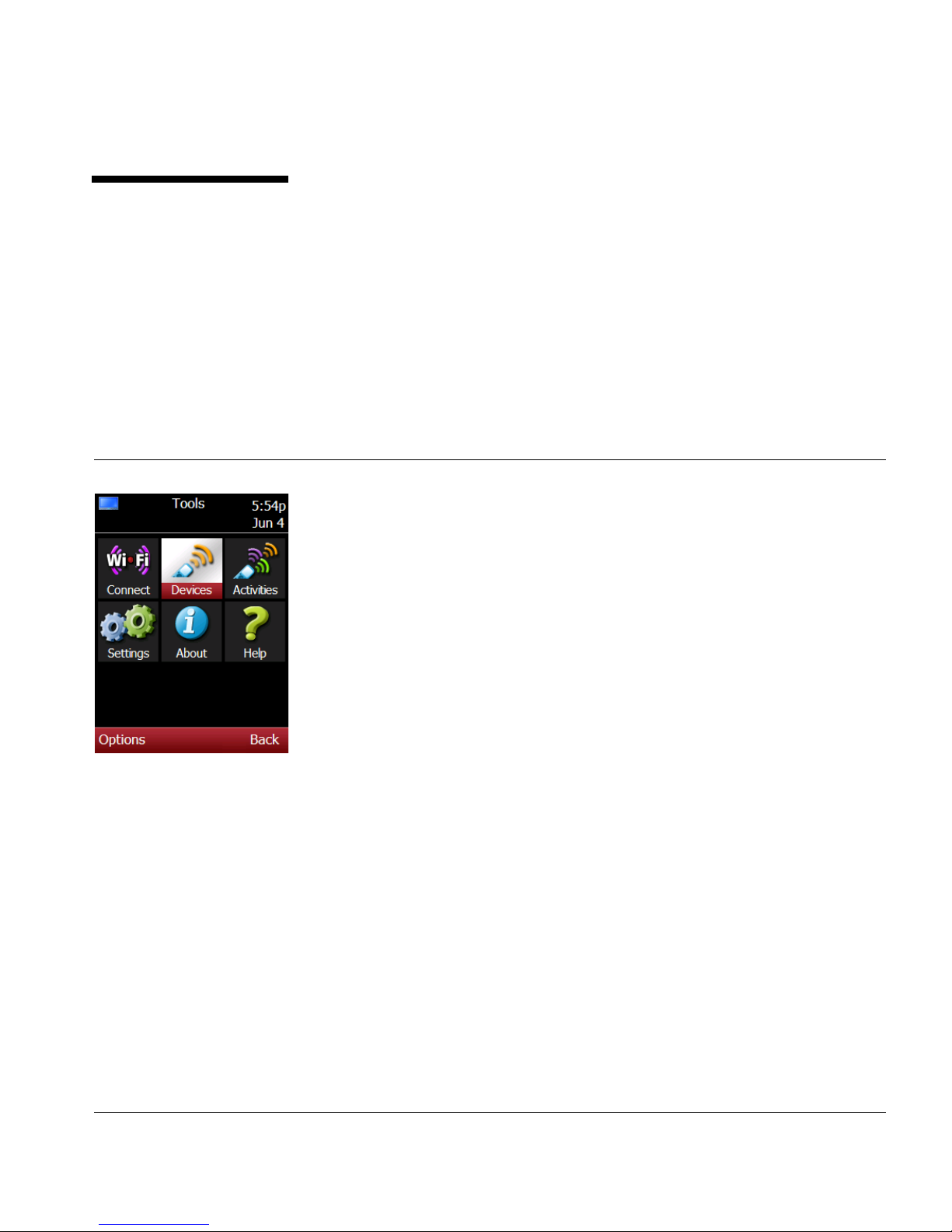
2. Scroll to Devices and press in the joystick
(SEL) to view the Devices Setup screen.
Alternate:
Press the
DEVICE key. Next, press the
Options soft key, scroll to Add/Manage
Devices, and press the Select soft key.
3.
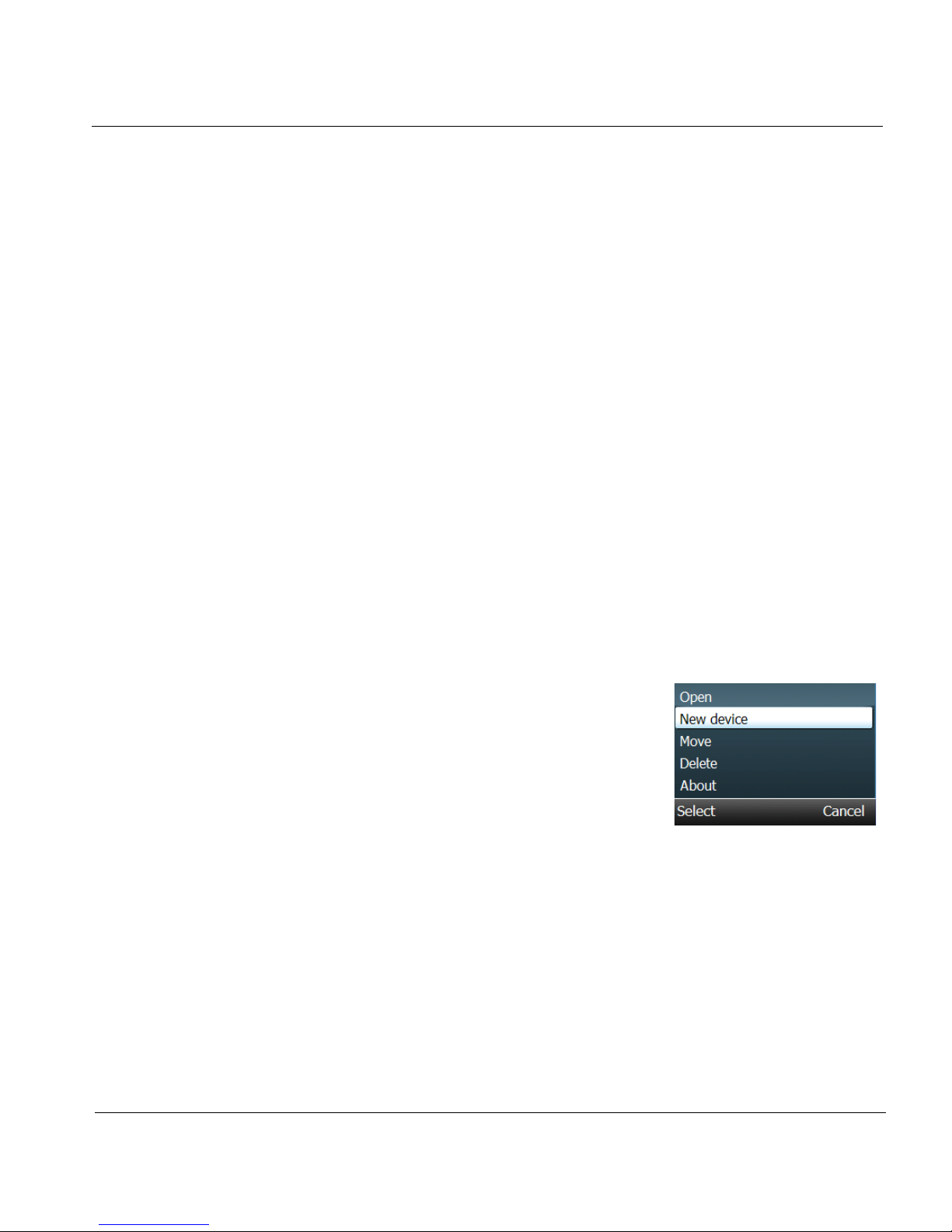
Press the Options soft key, scroll to New
device, and press the Select soft key.
4. Read the instructions and press the OK
soft key.
Page 54
Chapter 4 | Configure Control of Devices Add and Manage Devices
48 ESPN THE ULTIMATE REMOTE User’s Guide
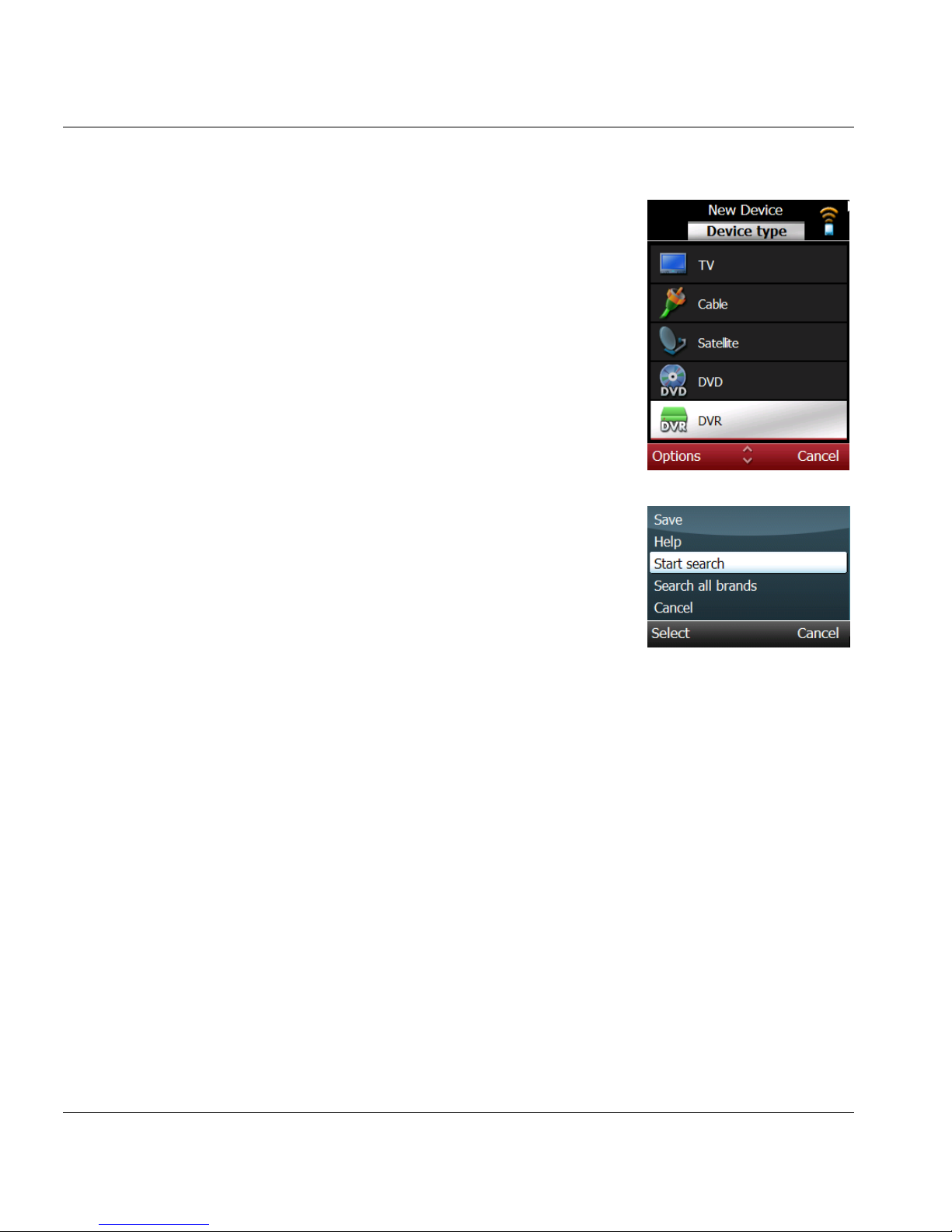
5. Scroll to the type of device you want to
add and press in the joystick (SEL).
6. Read the instructions and press the OK
soft key to continue.
7. Enter the first few letters of the brand
using the alphanumeric keypad.
8. Scroll to the brand for this device and
press SEL.
9. Read the instructions for locating the
command set and press the OK soft key
to continue.
10. Use the Auto Search method to locate the
device command set. (Skip and go to
step 11 if you want to use Manual Search.)
a. Press the Options soft key, scroll to
Start search, and press the Select
soft key.
b. Point the smart remote at the device.
The remote will send the power
command to the device.
c. Press the Stop soft key if the remote is able to activate
the device.
d. Press the remote keys to test other commands (volume,
channel, digits, etc.)
e. Press SEL to save.
f. Press the Left and Right soft keys to try other commands
sets or press the Options soft key, scroll to Search and
press the Select soft key to continue searching for the
correct command set.
g. Press Options, scroll to Save, and press the Select soft key.
h. Go to step 12.
Page 55
ESPN THE ULTIMATE REMOTE User’s Guide 49
Chapter 4 | Configure Control of Devices Add and Manage Devices
11. Use the Manual Search method to locate the device command set.
a. Press the remote keys to test other commands (volume,
channel, digits, etc.)
b. Press the Left and Right soft keys to try other commands
sets or press the Options soft key, scroll to Search and
press the Select soft key to continue searching for the
correct command set.
c. Press the Options soft key, scroll to Save, and press the
Select soft key to save this command set.
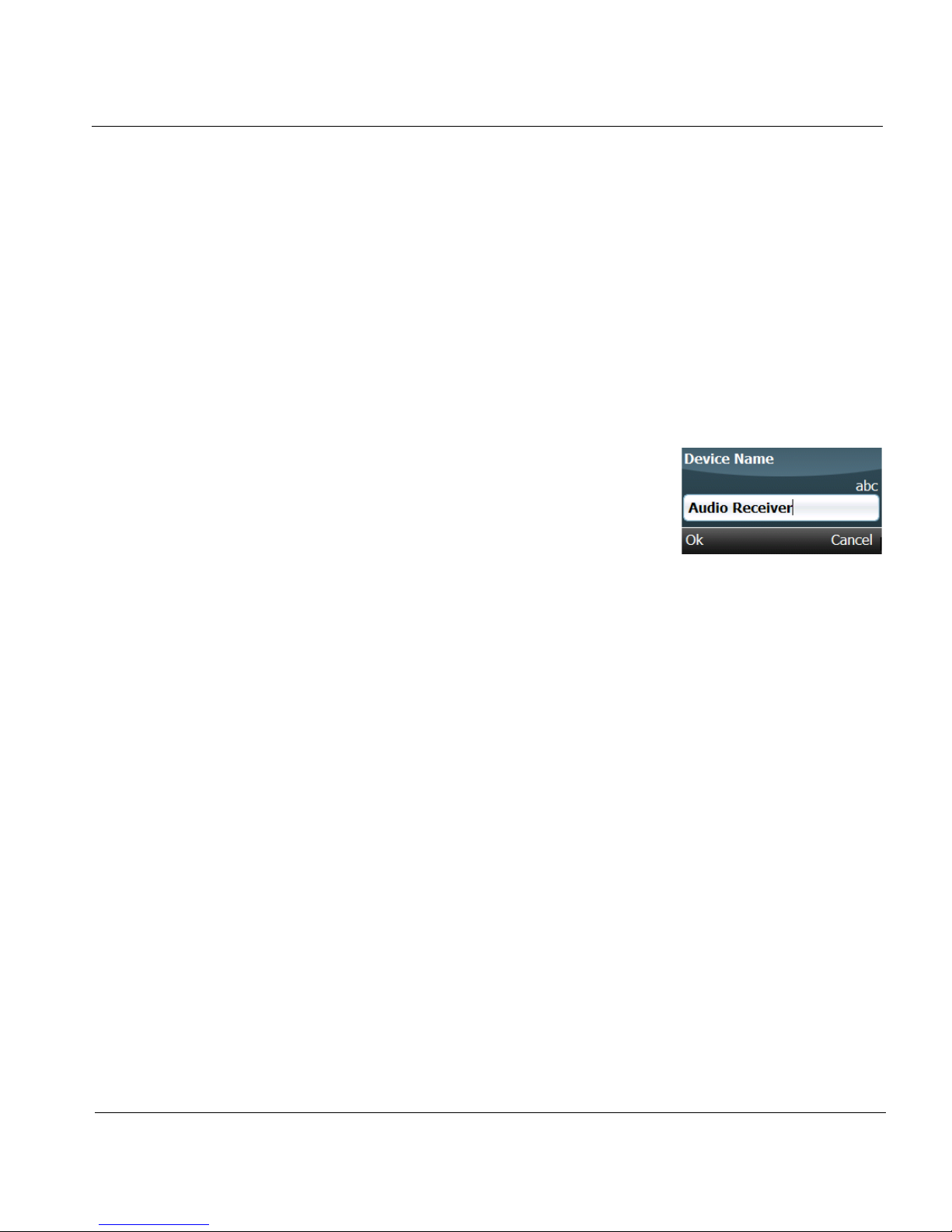
12. Press the OK soft key to accept the
name for this device or enter a name
using the alphanumeric keypad and
press the OK soft key. The new device
will be added to the list.
Page 56

Chapter 4 | Configure Control of Devices Add and Manage Devices
50 ESPN THE ULTIMATE REMOTE User’s Guide
Modify/Edit a Device
Devices can always be modified using these options:
• Move - Change the order of the devices in the Device list.
• Delete - Remove a device from the smart remote.
More advanced device editing options include:
• Edit device settings
• Add a missing command
• Set device locks
Move a Device on the List
1. Open Tools.
2. Scroll to Devices and press in the joystick (SEL).
3. Scroll to a device on the list and press the Options soft key.
4. Scroll to Move and press the Select soft key.
5. Press the up/down arrow keys to move the device up or down on
the list.
6. Press the OK soft key to save this setting.
Page 57

ESPN THE ULTIMATE REMOTE User’s Guide 51
Chapter 4 | Configure Control of Devices Add and Manage Devices
Edit Device Settings
Use this procedure to edit/modify these device settings.
Setting Description
Name Name of the device
Device details Show all information about the device
Learn/manage
commands
Learn new commands; re-learn existing commands; control
which commands are shown on the device’s Commands
screen
Order commands Order the commands shown on the device’s Commands
screen
Locks Lock certain device control keys to control other devices
when this device is active
Integrated tuner
activation
(Used in OneTouch activity playback) Method for switching
away from an external input and activating the device’s
internal tuner
Input switching
method
(Used in OneTouch activity playback) Method for switching
between inputs
Input cursor
commands
(Used in OneTouch activity playback) Commands used to
control on-screen menu
Input select
command
(Used in OneTouch activity playback) Command used to
select input
Input menu
timeout
(Used in OneTouch activity playback) Timeout of on-screen
menu
Number of inputs
(max)
(Used in OneTouch activity playback) Total number of
switchable inputs to device
Command time Length of time for which to transmit IR command code during
activity playback
Gap time Amount of time available between consecutive commands
during activity playback
Power delay (Used in activity playback) Amount of time required to power
on device
Input switch delay (Used in activity playback) Amount of time required to switch
between inputs
Page 58
Chapter 4 | Configure Control of Devices Add and Manage Devices
52 ESPN THE ULTIMATE REMOTE User’s Guide
1. Open Tools.
2. Scroll to Devices and press in the joystick
(SEL).
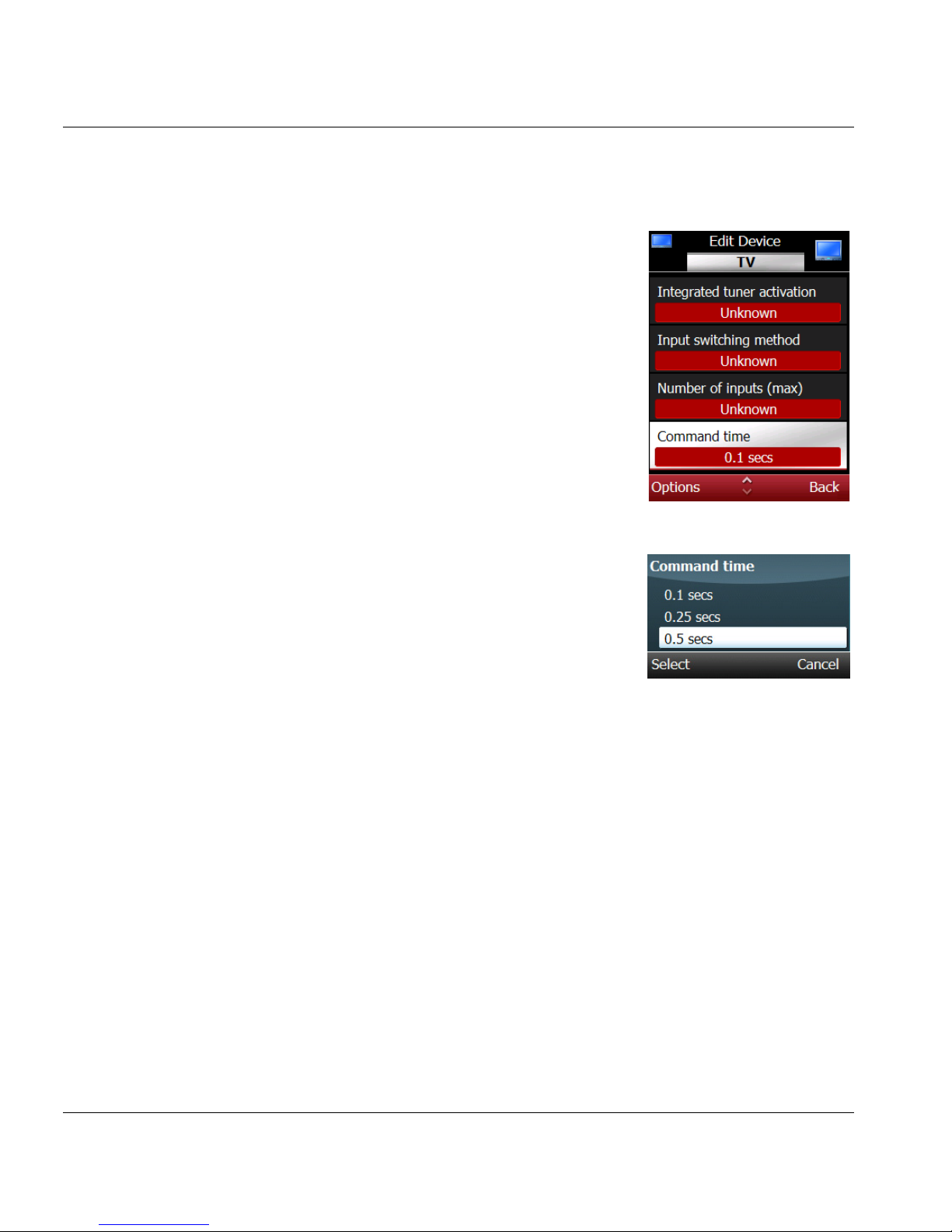
3. Scroll to the desired device and press the
Options soft key, scroll to Open, and
press the Select soft key to display the
Edit Device screen.
4. Scroll to item you want to change and
press the Options soft key, scroll to
Select, and press the Select soft key.
5. Scroll to the new setting or enter
information using the alphanumeric
keypad and press the Left soft key.
6. Repeat steps 3 and 4 for each item you
want to change for this device.
7. Review the settings on the Edit Device
screen and make changes if needed.
8. Press the Back soft key when satisfied
with the settings to return to the Devices
list screen.
Page 59
ESPN THE ULTIMATE REMOTE User’s Guide 53
Chapter 4 | Configure Control of Devices Add and Manage Devices
Set Device Locks
Device locks or key locks allow you to operate keys on one device when
another device is active. For example, using a TV and VCR devices, you
can set the transport keys (stop, play, etc.) to operate the VCR when TV is
the active device.
1. Open Tools.
2. Scroll to Devices and press in the joystick
(SEL).
3. Scroll to the active device and press the
Options soft key, scroll to Open, and
press the Select soft key to display the
Edit Device screen.
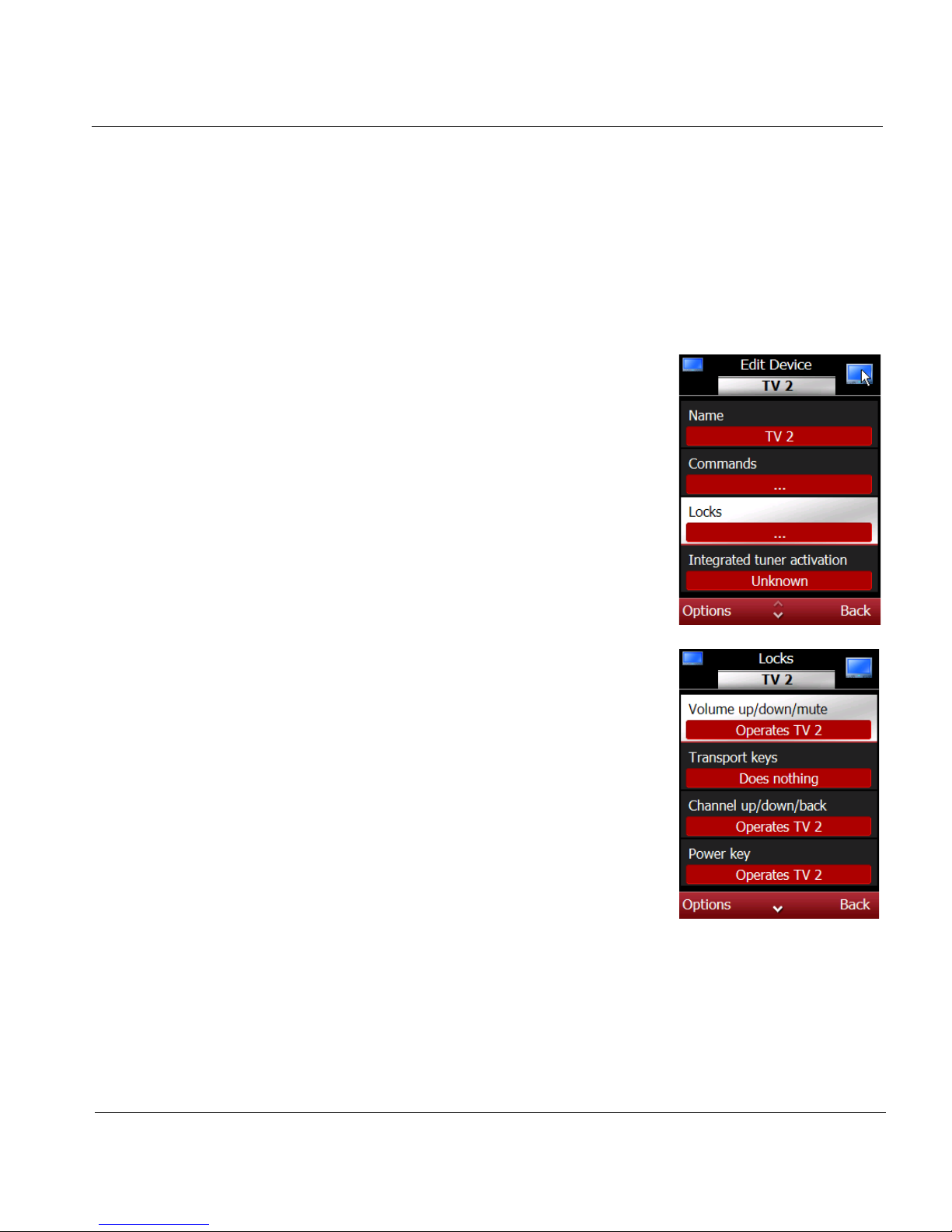
4. Scroll to Locks, press the Options soft
key, scroll to Select, and press the Select
soft key.
5. Read the instructions and press the OK
soft key to display the Locks screen.
6. Press the Options soft key, scroll to
Change, and select device you want this
key to operate.
7. Repeat step 6 for each key group you
want to lock.
8. Review your selections on the Locks
screen and press the Back soft key to
return to the Edit Device screen.
9. Press the Back soft key again to return to
the Device List.
Page 60

Chapter 4 | Configure Control of Devices Add and Manage Devices
54 ESPN THE ULTIMATE REMOTE User’s Guide
Delete a Device
1. Open Tools.
2. Scroll to Devices and press in the joystick (SEL).
3. Scroll to the device you want to delete and press the Options soft key.
4. Scroll to Delete and press the Select soft key. You will be prompted to
confirm the deletion.
5. Press the Yes soft key to delete this device.
Page 61
ESPN THE ULTIMATE REMOTE User’s Guide 55
Chapter 4 | Configure Control of Devices Learn Remote Command Codes
Learn Remote Command Codes
This section provides information and instructions for training the smart
remote by copying the command codes and hard keys on an existing
remote onto the smart remote.
The smart remote copies (learns) the commands from the existing remote.
Once the smart remote learns the commands, you can operate the device
using the smart remote.
Learn Command Codes
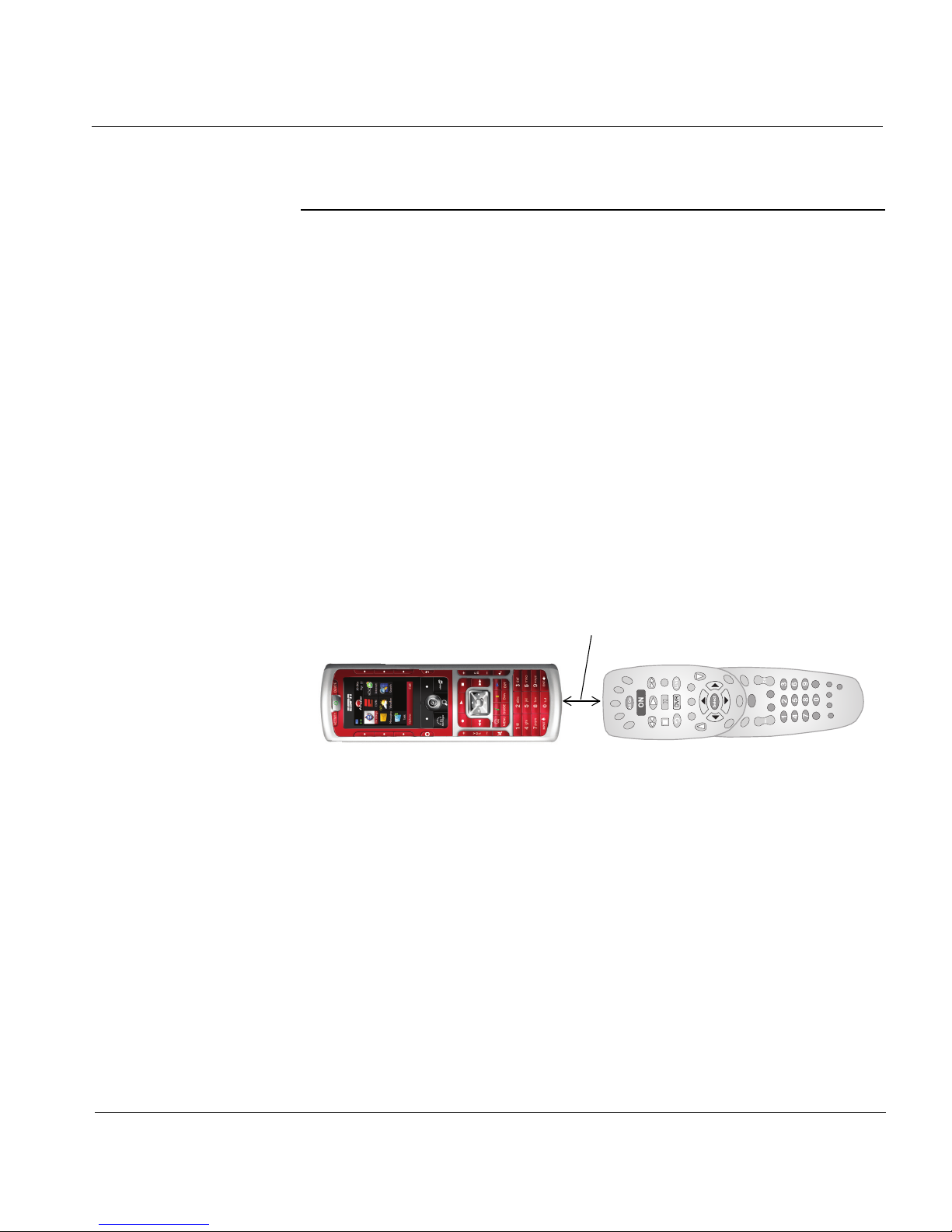
During a learning session, place the smart remote and existing device
remote on a flat surface and position them so that the Learn IR (infrared)
window on the smart remote faces the IR transmitter on the device remote.
The remotes should be between 1 to 2 inches apart and in a straight line.
Note: When training the smart remote, depress and hold the device
remote keys for at least 3 to 6 seconds.
1.
Open Tools.
2. Scroll to Devices and press in the joystick (SEL).
ESPN THE ULTIMATE SMART REMOTE
Generic device remote
1” to 2”
Page 62
Chapter 4 | Configure Control of Devices Learn Remote Command Codes
56 ESPN THE ULTIMATE REMOTE User’s Guide
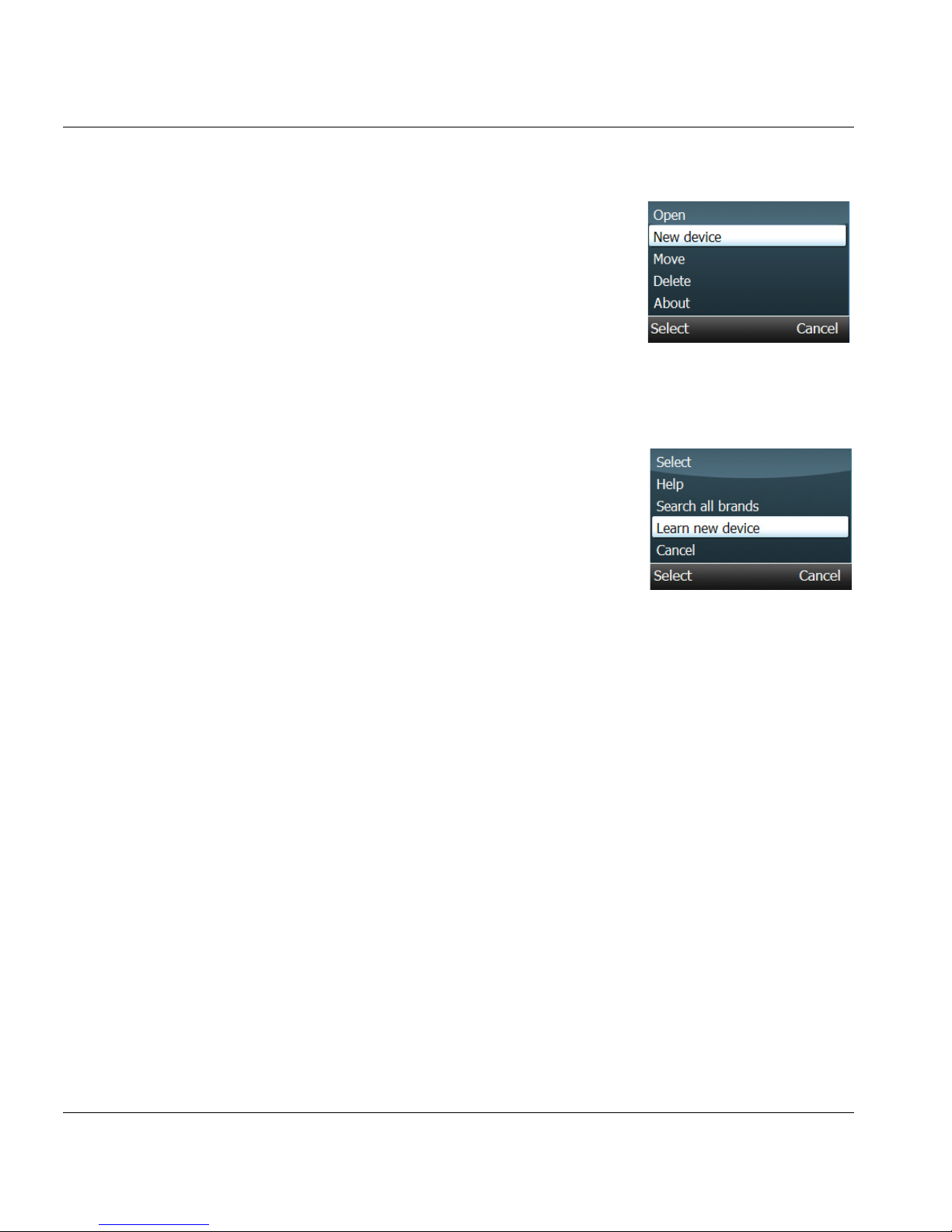
3. Scroll to New Device, and press the
Select soft key.
4. Read the instructions and press the OK
soft key.
5. Scroll to the device type and press the
Options soft key. Scroll to Select and
press the Select soft key.
6. Read the instructions and press the OK
soft key.
7. Scroll to Learn new device and press the
Select soft key.
8. Read the instructions and press the OK
soft key.
9. Press a hard key you would like to learn
on the smart remote and press the OK
soft key.
10. Position the smart remote the device remote for learning.
11. Press and hold the same hard key on the device remote.
Note: The smart remote will prompt you if learning was not successful.
Repeat the learning process, but this time change the distance
between remotes and the length of time you hold the device
hard key.
12.
Repeat steps 9 and 11 for each command you want the smart remote
to learn.
13. Press the Done soft key.
14. Press the Options soft key, scroll to Save, and press the Select soft key
to save the command set for this device.
Page 63
ESPN THE ULTIMATE REMOTE User’s Guide 57
Chapter 4 | Configure Control of Devices Learn Remote Command Codes
Learn Missing Commands
Use this procedure if:
• A command was missed during the original learning process
• A command is missing from a built-in command set
• A command does not work properly
1. Open Tools.
2. Scroll to Devices and press in the joystick
(SEL) to view the Devices Setup screen.
3. Scroll to the device with the missing
command.
4. Press the Options soft key, scroll to
Open, and press the Select soft key to
display the Edit Device screen.
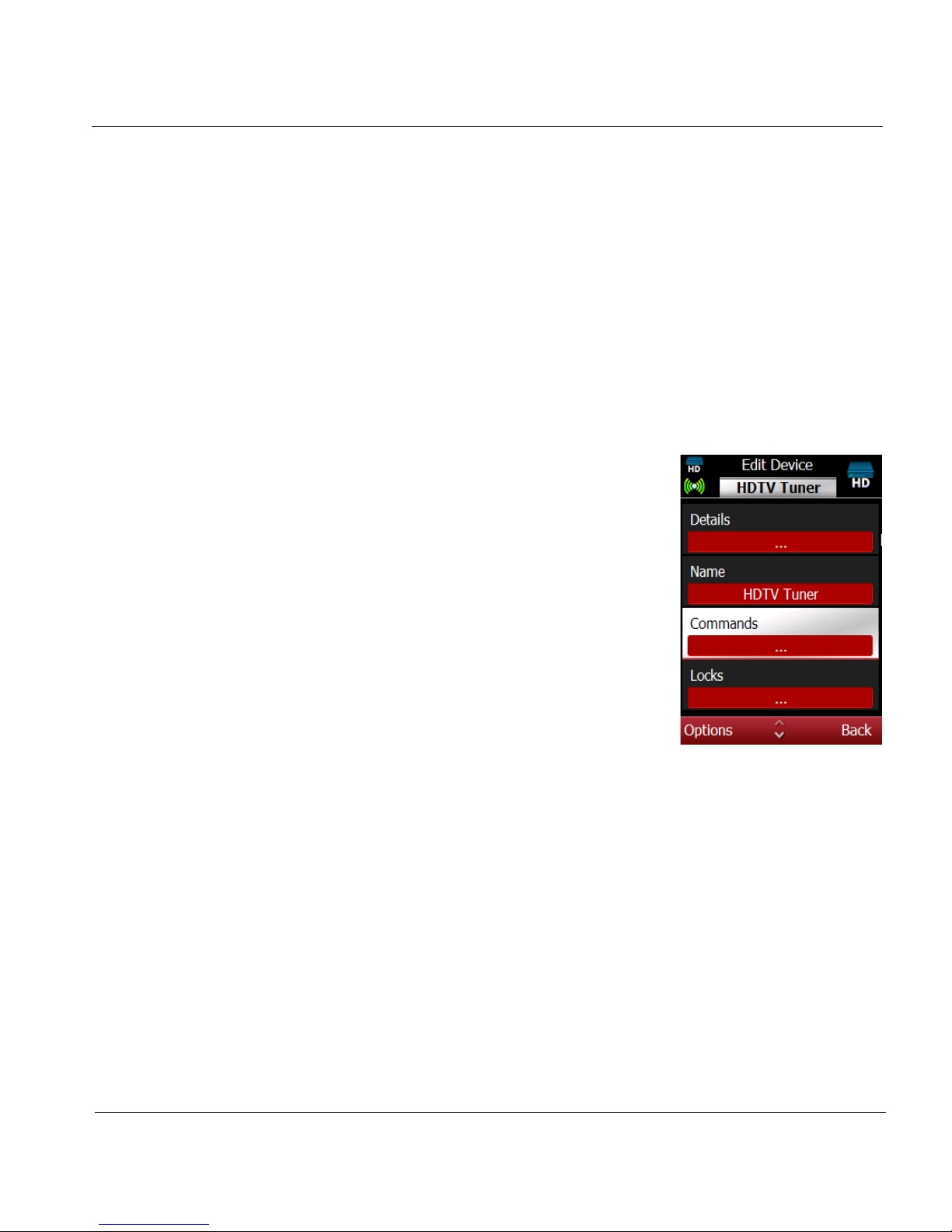
5. Scroll to Commands and press the
Options soft key, scroll to Select, and
press the Select soft key to display the
Command Setup screen.
Note: A message displays if no commands
are set up for this device.
Page 64
Chapter 4 | Configure Control of Devices Learn Remote Command Codes
58 ESPN THE ULTIMATE REMOTE User’s Guide
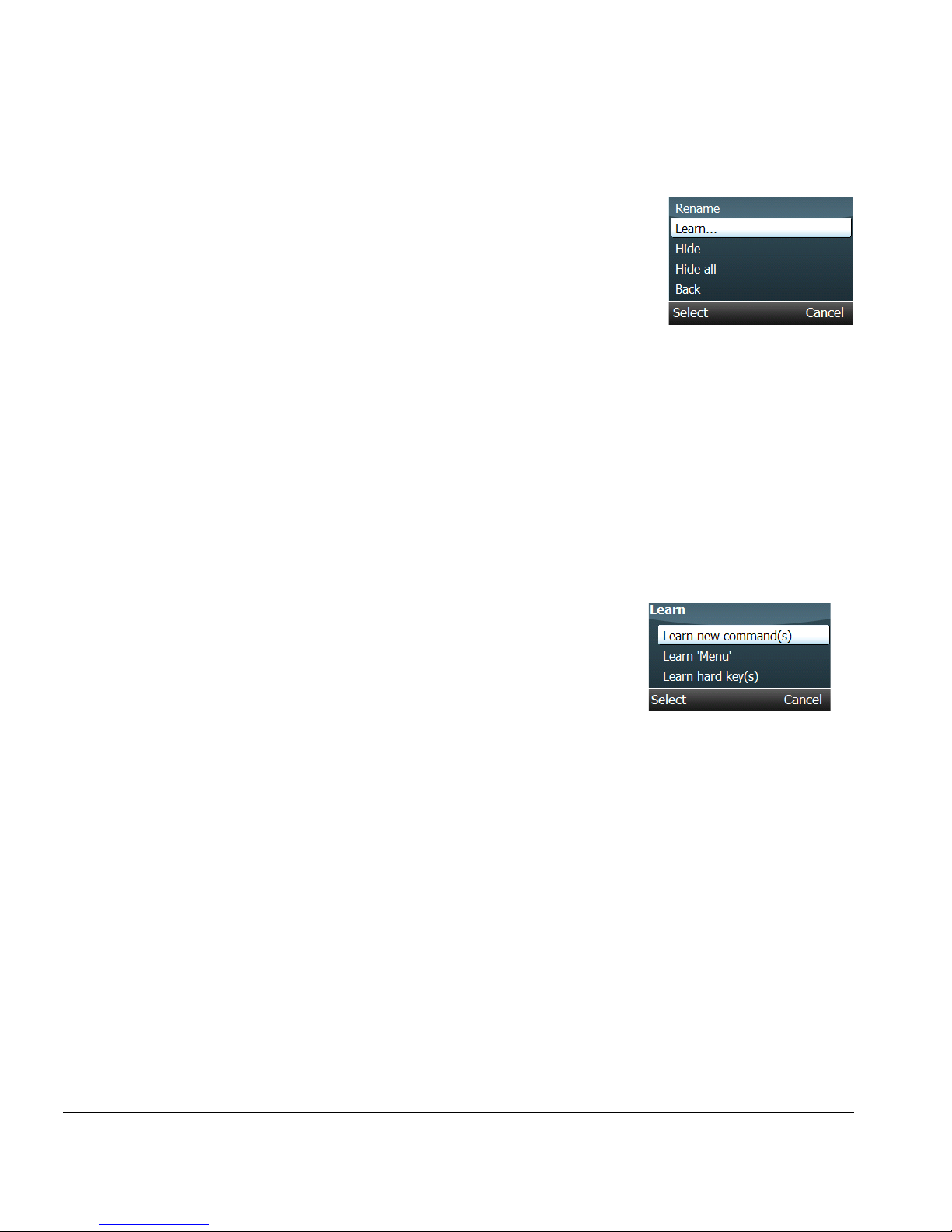
6. Press the options soft key, scroll to
Learn, and press the Select soft key.
There are three types of learning
options:
• Learn new commands – select a
specific command (i.e., PIP for a TV
device) to copy from the device remote
to the smart remote.
• Learn <command> – select a
command from the Command Setup
screen, then copy that command from
the device remote to the smart remote.
• Learn hard key(s) – copy the
commands set for a specific key on the
device remote to the smart remote.
7. Scroll to Learn hard key(s) and press the
Select soft key.
8. Position the smart remote and the device
remote for learning.
9. Press the hard key on the smart remote
you want to learn.
10. Press and hold the corresponding key
on the device remote for about 3 to
6 seconds.
Note: The smart remote will prompt you If
learning fails. Try changing the
distance between the two remotes.
11.
Press the Done soft key to save the new
command and add it to the command list.
Page 65
ESPN THE ULTIMATE REMOTE User’s Guide 59
Chapter 4 | Configure Control of Devices Create and Manage Activities
Create and Manage Activities
An activity is a multi-step series of events that you set up on the smart
remote. An activity can be simple, like watch TV, or more complex, like
record a cable show on a DVR.
For each activity, you will have to choose the devices and the sequence of
events that need to be performed. For example, to watch a DVD movie the
events might be:
• Turn on the TV
• Change the TV input
• Turn on the DVD player
• Press play
You will be prompted to set up a OneTouch key for the activity. Then, when
you want to play the activity, press the key and the smart remote will
perform all of the tasks associated with the activity.
Types of Activities
There are three types of activities you can create on the smart remote:
• Watch
A sequence of events that allows you to watch a particular
type of program. For example, one watch activity could turn
on and prepare the devices needed to watch a cable show.
Another watch activity could turn on and tune in the devices
needed to watch a broadcast show.
• Listen
A sequence of events that allows you to listen to a particular
type of program or listen to a CD. For example, a listen
activity could turn on and tune in the devices needed to listen
to satellite radio.
Page 66

Chapter 4 | Configure Control of Devices Create and Manage Activities
60 ESPN THE ULTIMATE REMOTE User’s Guide
• Custom
A sequence of events that allows you to watch/listen/record a
particular type of program. For example, you could create an
activity that turns on and sets up the devices needed to
record a particular program from your satellite provider.
Another custom activity might allow you to watch cable
television with surround sound.
Create an Activity
Before you create an activity, you will need to decide:
• Activity name
Use the name supplied by the remote or enter another name
using the alphanumeric keypad.
• Devices to turn on
Choose the devices that are needed to run this activity. The
devices must be on the smart remote list. If a device is not on
the list, you will have to add it to the remote before you can
create the activity.
• A/V source
Choose the device that will provide the A/V input.
• Display device
Choose the device that will display the A/V output, if
applicable.
• Audio device
Choose the device that will provide the audio output.
Note: The new activity will be listed on the Activities screen. When you
play the activity, you may be prompted to confirm the activity is
working properly. If it is not, press Retry to try again.
Page 67
ESPN THE ULTIMATE REMOTE User’s Guide 61
Chapter 4 | Configure Control of Devices Create and Manage Activities
Create a Watch or Listen Activity
1. Open Tools.
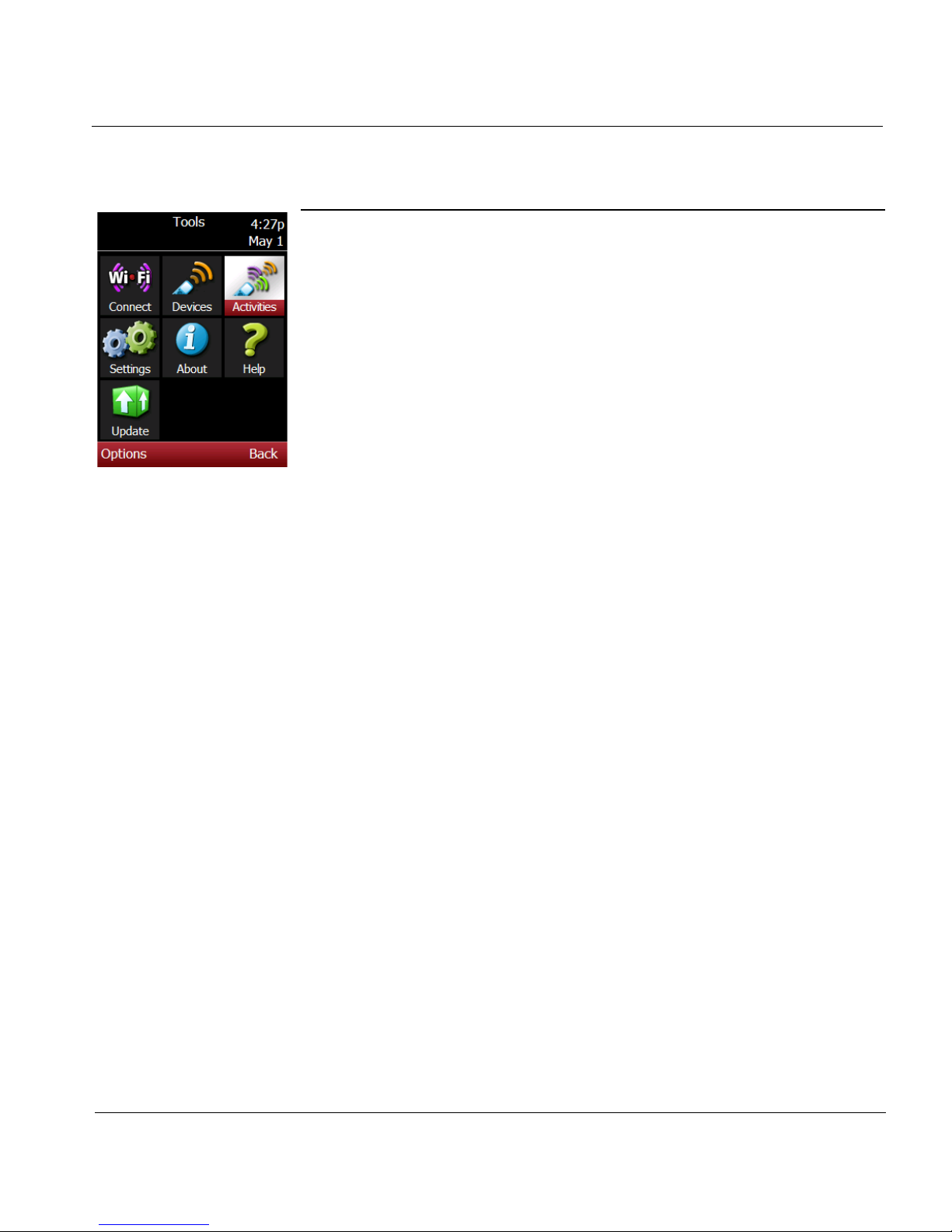
2. Scroll to Activities and press in the joystick
(SEL).
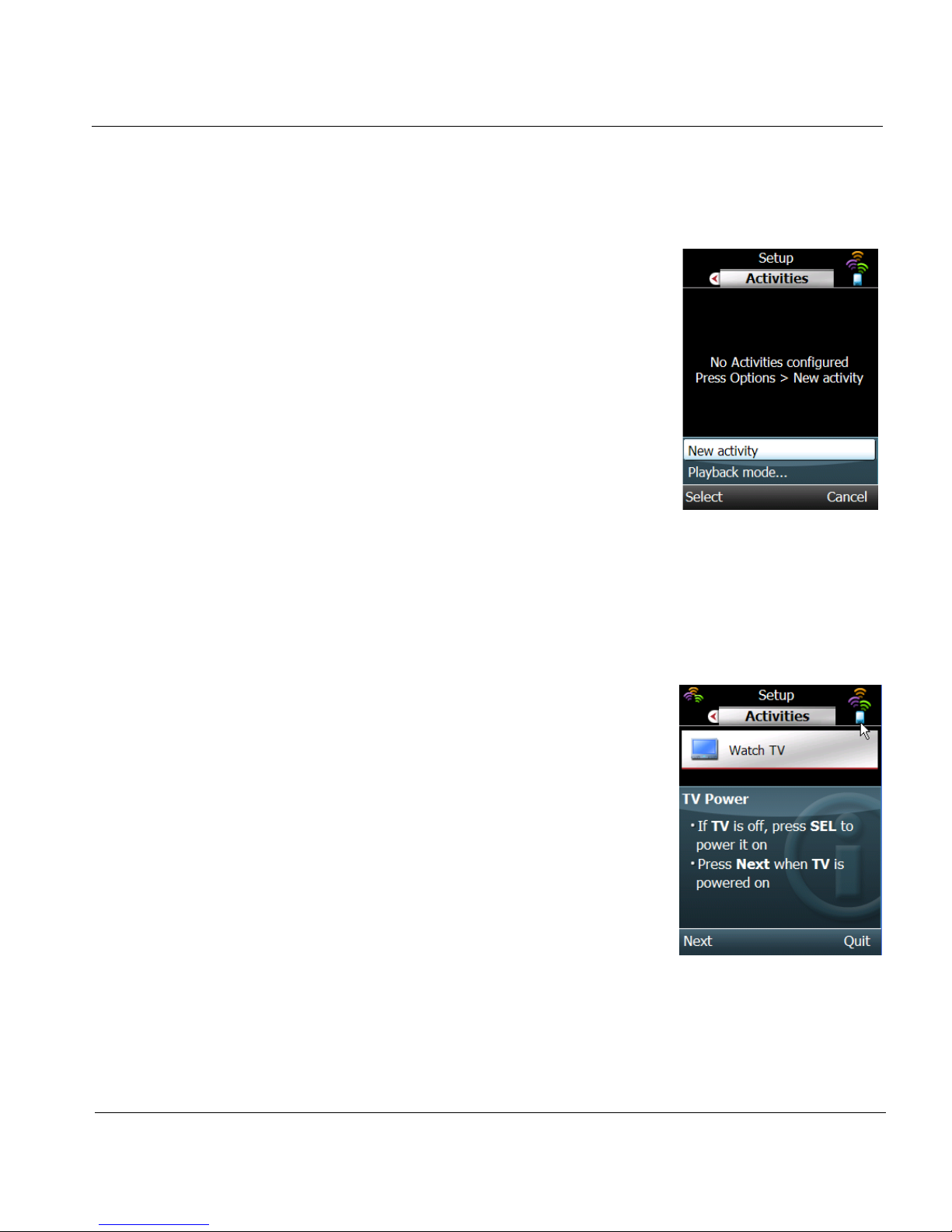
Note: If this is the first activity, the smart
remote will display this message: “No
Activities configured / Press Options >
New Activity”.
3.
Press the Select soft key, scroll to New
Activity, and press the Select soft key
again.
4. Scroll to Watch or Listen and press the
Select soft key.
5. Scroll to the audio and/or video source
device you want to use and press the
Select soft key. Repeat for the audio and/
or video output device.
6. Press the OK soft key to accept the name
provided by the smart remote or enter a
new name using the alphanumeric
keypad.
7. Press the Yes soft key to configure the
activity for OneTouch playback and
continue this procedure.
8. Read and follow the instructions carefully.
The choices you make will activate the
devices for this activity.
Page 68
Chapter 4 | Configure Control of Devices Create and Manage Activities
62 ESPN THE ULTIMATE REMOTE User’s Guide
Create a Custom Activity
A custom activity is typically more complex than a watch or listen activity,
and may involve more devices. Before programming a custom activity,
determine the devices that will be needed and the sequence of events
required to perform the activity.
Set Up the Activity
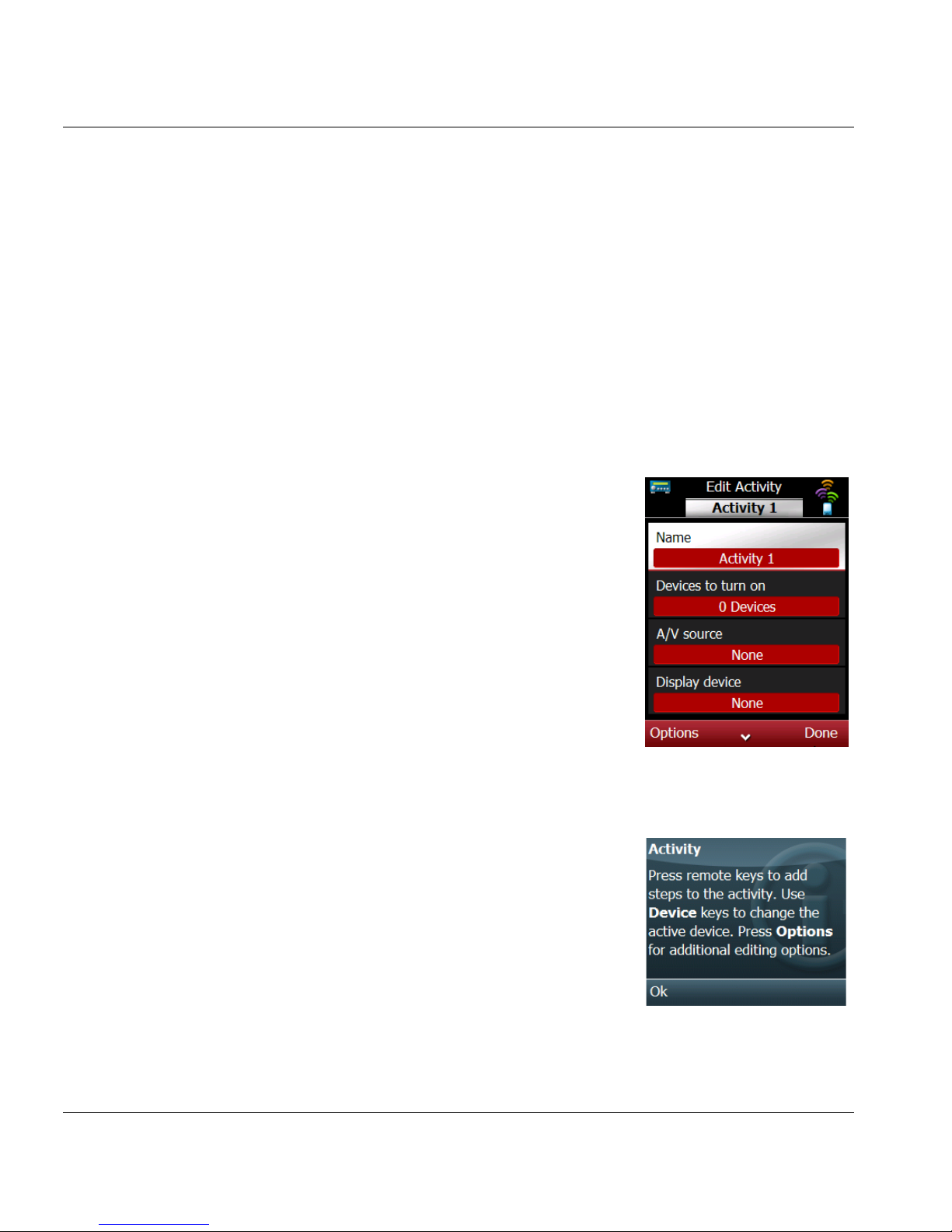
1. Press the ACTIVITY key at the top of the
smart remote, press the Options soft
key, scroll to Add/Manage Activities, and
press the Select soft key.
Tip: Use the joystick to access the Tools
screen, scroll to Activities, and press
in the joystick (SEL).
2.
Press the Options soft key, scroll to New
Activity, and press SEL.
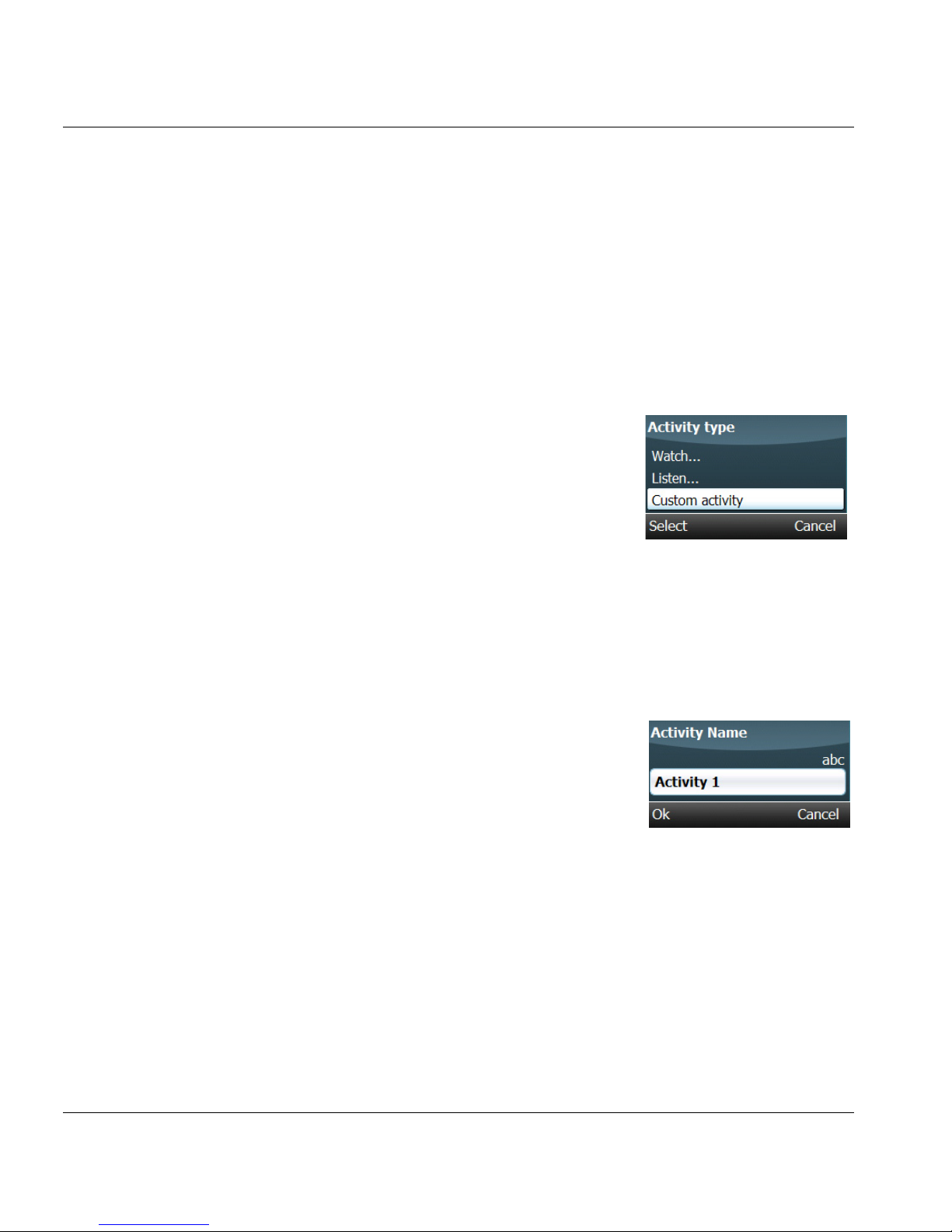
3. Scroll to Custom Activity and press the
Select soft key.
4. Enter a name for the new activity using
the alphanumeric keypad and press the
OK soft key to save the name.
5. Scroll to Devices to turn on and press the
Options soft key.
6. Press the Select soft key to view a list of
devices on the smart remote.
Note: If you don't see a device you need, you
must add the device before you can
create the activity. See Add Devices.
Page 69
ESPN THE ULTIMATE REMOTE User’s Guide 63
Chapter 4 | Configure Control of Devices Create and Manage Activities
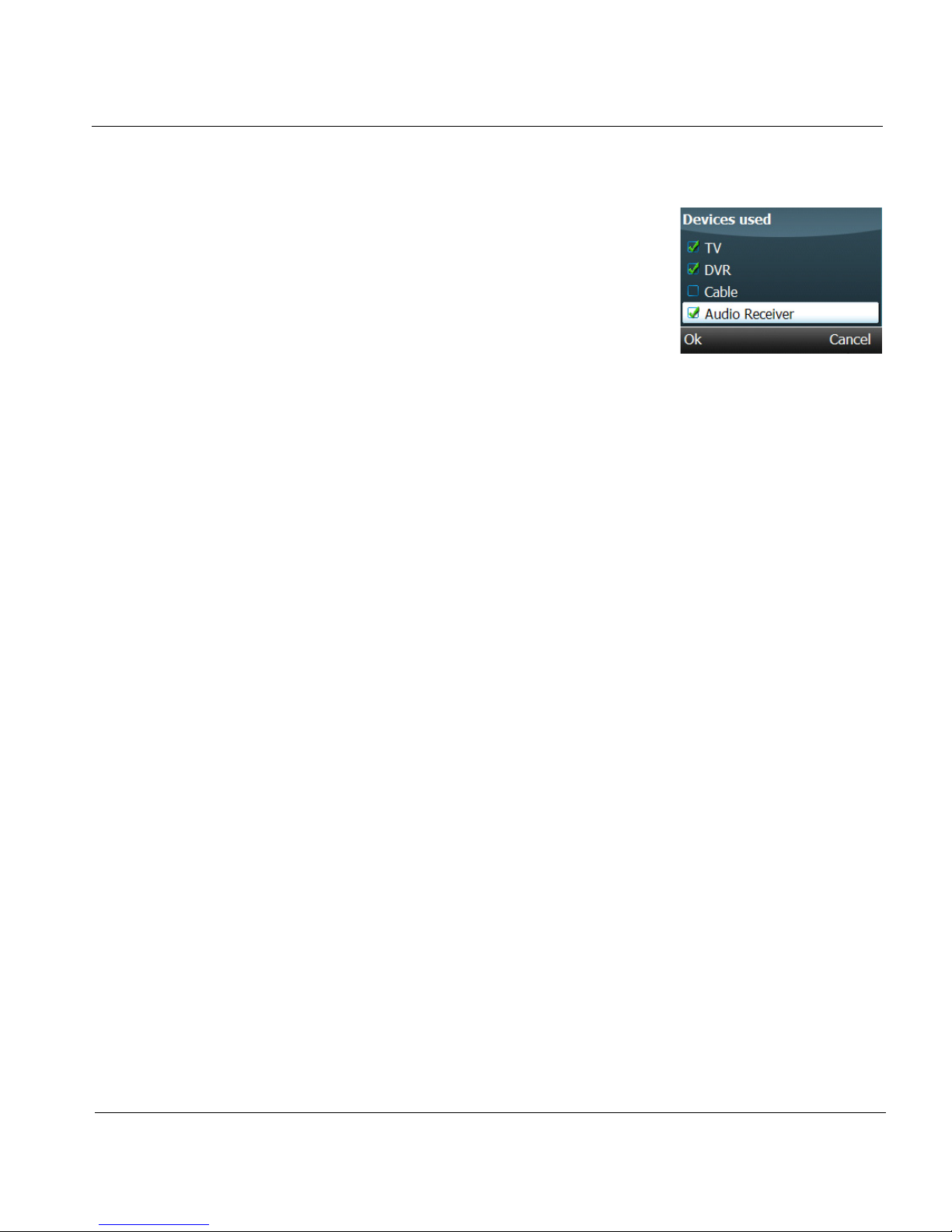
7. Scroll to each device you want to use
and press SEL. A check mark indicates a
device is selected.
8. Press the OK soft key to add the selected
devices to the activity.
9. Go to Program the steps.
Add Custom Steps to Activity
When setting up the steps (events) for an activity, the options include:
Insert command Enter a command, such as “power on”
Insert delay Add a delay to the sequence. The options are
0.25, 0.5, 0.75, 1, 1.5, and 2 seconds.
Move Move this step up or down in the step list.
Delete step Delete the selected step from this activity.
Done Save the steps for this activity and return to the
Activity List.
Page 70
Chapter 4 | Configure Control of Devices Create and Manage Activities
64 ESPN THE ULTIMATE REMOTE User’s Guide
Program the Steps
This procedure provides instructions for manually programming the
command sequence that will be executed when you play an activity. The
steps are similar to a macro. Follow the instructions carefully. When
entering information:
• Use the device control keys to add steps.
•Use the
DEVICE key on the remote to change the
active device.
1. Press the ACTIVITY key at the top of the
remote, press the Options soft key, scroll
to Add/Manage Activities, and press the
Select soft key.
Tip: Use the joystick to access the Tools
screen, scroll to Activities, and press
in the joystick (SEL).
2.
Scroll to the desired Activity and press
the Options soft key.
3. Scroll to Open and press the Select soft
key to display the Edit Activity screen.
4. Scroll to Steps and press the Options
soft key.
5. Scroll to Select and press the Select soft
key.
6. Read the instructions and press the OK
soft key to continue.
Page 71
ESPN THE ULTIMATE REMOTE User’s Guide 65
Chapter 4 | Configure Control of Devices Create and Manage Activities
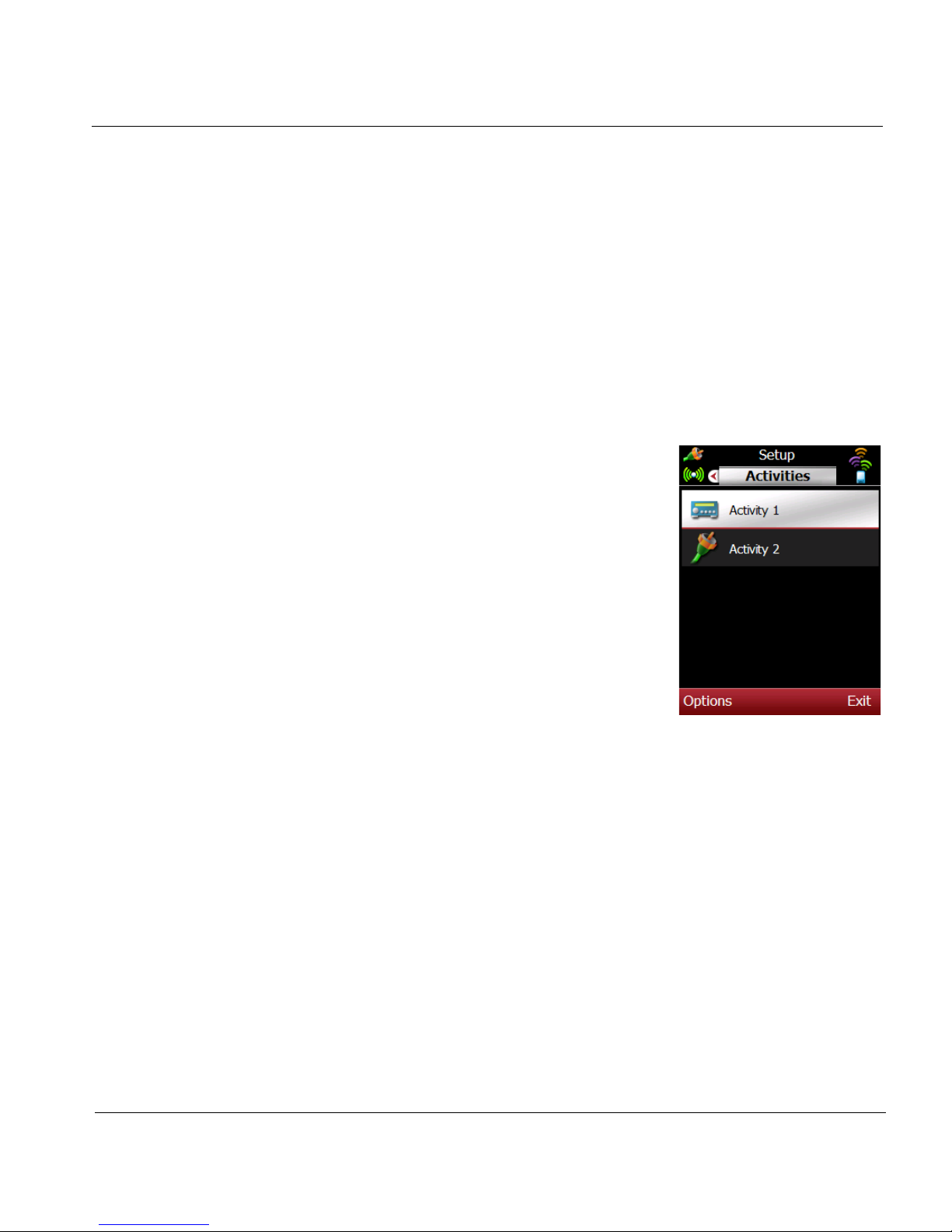
7. Use the remote and device keys to add the steps for this procedure.
a. Press the Options soft key and scroll to Device.
b. Scroll to the device and press the Select soft key.
c. Press the remote key that corresponds to this step (i.e., turn
on power to selected device).
d. Repeat steps 7a to 7c for each step in the activity.
e. Review the steps and adjust as needed. Press the Options
soft key to move or delete a step.
8. Press the Options soft key, scroll to
Done, and press the Select soft key to
save the steps and return to the Edit
Activity screen.
9. Scroll to the activity items and press the
Select soft key, scroll to Done, and press
the Select soft key to save the activity.
10. Press the Exit soft key to return to the
Tools screen.
Page 72

Chapter 4 | Configure Control of Devices Create and Manage Activities
66 ESPN THE ULTIMATE REMOTE User’s Guide
Modify/Edit an Activity
Existing activities can always be modified using these options:
• Move – change the order of the activities on the Activities
screen.
• Delete – remove an activity from the smart remote.
• Reset all – reset the OneTouch settings for all activities.
• Playback mode – choose OneTouch playback or Guided
playback for all activities.
Move an Activity
1. Press the ACTIVITY key at the top of the smart remote, press the
Options soft key, scroll to Add/Manage Activities, and press the
Select soft key.
Tip: Use the joystick to access the Tools screen, scroll to Activities,
and press in the joystick (SEL).
2. Scroll to an activity on the list and press the Options soft key.
3. Scroll to Move and press and press the Select soft key.
4. Press the up/down arrow keys to move the activity up or down on
the list.
5. Press the OK soft key to save this setting.
Page 73

ESPN THE ULTIMATE REMOTE User’s Guide 67
Chapter 4 | Configure Control of Devices Create and Manage Activities
Delete an Activity
1. Press the ACTIVITY key at the top of the smart remote, press the
Options soft key, scroll to Add/Manage Activities, and press the Select
soft key.
Tip: Use the joystick to access the Tools screen, scroll to Activities,
and press in the joystick (SEL).
2.
Scroll to the activity you want to delete and press the Options soft key.
3. Scroll to Delete and press the Select soft key. You will be prompted to
confirm the deletion.
4. Press the Yes soft key to delete this activity.
Reset All Activities
Use this Activity option to reset all of the OneTouch Activities stored on the
smart remote. This option will require you to re-configure each activity the
next time you play it.
Important Note!
Use this option carefully. Typically, you would select this option if
you added new cabling or devices to your home theater/
entertainment center.
1.
Press the ACTIVITY key at the top of the smart remote, press the
Options soft key, scroll to Add/Manage Activities, and press the Select
soft key.
Tip: Use the joystick to access the Tools screen, scroll to Activities,
and press in the joystick (SEL). Press the Options soft key.
2. Scroll to Reset All and press the Select soft. You will be prompted to
confirm this change.
3. Press the Yes soft key.
Page 74

Chapter 4 | Configure Control of Devices Create and Manage Activities
68 ESPN THE ULTIMATE REMOTE User’s Guide
Change the Playback Mode
Use this Activity option to change the playback mode for all activities. There
are two playback modes:
• OneTouch playback
The first time you play the activity, you will be prompted to
synchronize the power and input switch state. The next time
you want to play this activity, the smart remote will handle all
of the steps in the activity.
• Guided playback
Play an activity such that the smart remote prompts you to
verify the power and input state of each device each time you
play the activity.
1. Press the ACTIVITY key at the top of the smart remote, press the
Options soft key, scroll to Add/Manage Activities, and press the Select
soft key.
Tip: Use the joystick to access the Tools screen, scroll to Activities,
and press in the joystick (SEL). Press the Options soft key.
2. Scroll to an activity and press the Options soft key.
3. Scroll to Playback mode and scroll to OneTouch playback or
Guided playback.
4. Press the Select soft key to save the playback setting and return to
the Activities screen.
Page 75
ESPN THE ULTIMATE REMOTE User’s Guide 69
CHAPTER 5
Internet Applications
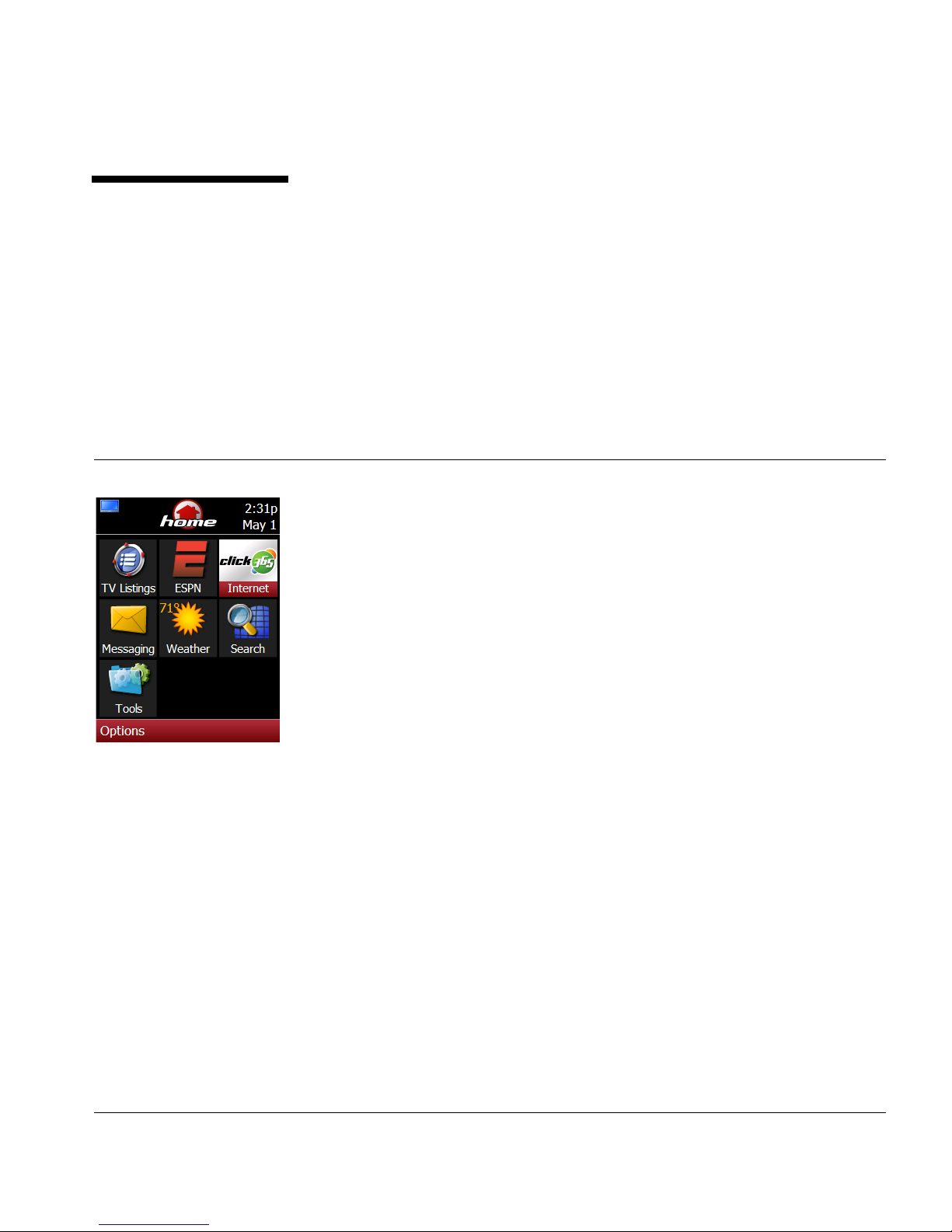
Several icons on the Home screen are links to mobile web sites or are tools
you can use to access, find, and view web content directly on the smart
remote.
This chapter provides information and instructions for accessing mobile web
sites and Internet applications using the click365 network, including:
• Mobile web sites
• ESPN
• Search
• Weather
• Messaging
Typical click365 Internet sites include:
• Headlines
•News
• Finance
• Amazon.com
Page 76

Chapter 5 | Internet Applications
70 ESPN THE ULTIMATE REMOTE User’s Guide
•e! news
• Yahoo Search
• Facebook
• Sweeper
• Favorites
Page 77

ESPN THE ULTIMATE REMOTE User’s Guide 71
Chapter 5 | Internet Applications Mobile Web Sites
Mobile Web Sites
Open a Mobile Web Site
1. Press the HOME MENU key to open the Home screen.
2. Scroll to ESPN or click365 and press in the joystick (SEL) to open the
ESPN web site or the click365 menu screen.
Shortcut:
To add a site you are viewing to your favorites, press the Options soft
key, scroll to Add to Favorites, and press the Select soft key.
Navigate a Mobile Web Site
When a web page is open:
• Move the joystick up/down to scroll through a page.
• Scroll to a link and press in the joystick (SEL) to open the link.
• Press the Back soft key to return the previous page.
• Press the L1 soft key to go to the top of a page.
• Press the R1 soft key to go to the bottom of a page.
• Press the L2 or R2 soft key to page up.
• Press the L3 or R3 soft key to page down.
• Press the corresponding number key on the alphanumeric
keypad if there is a number next to a link you want to open.
Enter Text
To enter text in a web site form control, scroll to the control and press in the
joystick (SEL) to open a popup that contains a selection or a text box. Enter
text using the alphanumeric keypad.
Page 78

Chapter 5 | Internet Applications Mobile Web Sites
72 ESPN THE ULTIMATE REMOTE User’s Guide
Browser Options
When using the click365 browser to view a web sites, press the Options soft
key to see a list of choices including:
• Top
Go to the top of the current page.
• Refresh
Repaint and update the information on this page.
• Add to favorites
Copy this site to your favorites folder.
• Go to location
Display an http:// address line. Enter a web address using the
alphanumeric keypad and press the Select soft key to visit
this site.
• History
View a list of sites visited from your smart remote. The
choices are: today, last week, last 30 days.
• Text size
Select the text display size. Choices are: tiny, small, normal,
large, huge. A check mark indicates the selected size.
• About
View browser version number.
• Exit
Exit the browser and return to the Home screen.
Page 79

ESPN THE ULTIMATE REMOTE User’s Guide 73
Chapter 5 | Internet Applications Mobile Web Sites
Use Favorites
Store addresses for your favorite web sites in the Favorites folder. When
you visit a web site that you might like return to, add the site to your
Favorites folder.
Add a Site to Favorites
1. Press the click365 key on the smart remote to open the click365 screen.
2. Press the Options soft key, scroll to Go To Location.
3. Enter the site address using the alphanumeric keypad and press the
OK soft key to open the site.
4. Press the Options soft key, scroll to Add to Favorites, and press the
Select soft key.
Visit a Favorite Site
1. Press the click365 key on the smart remote to open the click365 screen.
2. Scroll to Favorites and press in the joystick (SEL).
3. Scroll to a site you want to visit.
4. Press SEL or press the Options soft key, choose Navigate, and press
the Select soft key to go to that site.
Page 80
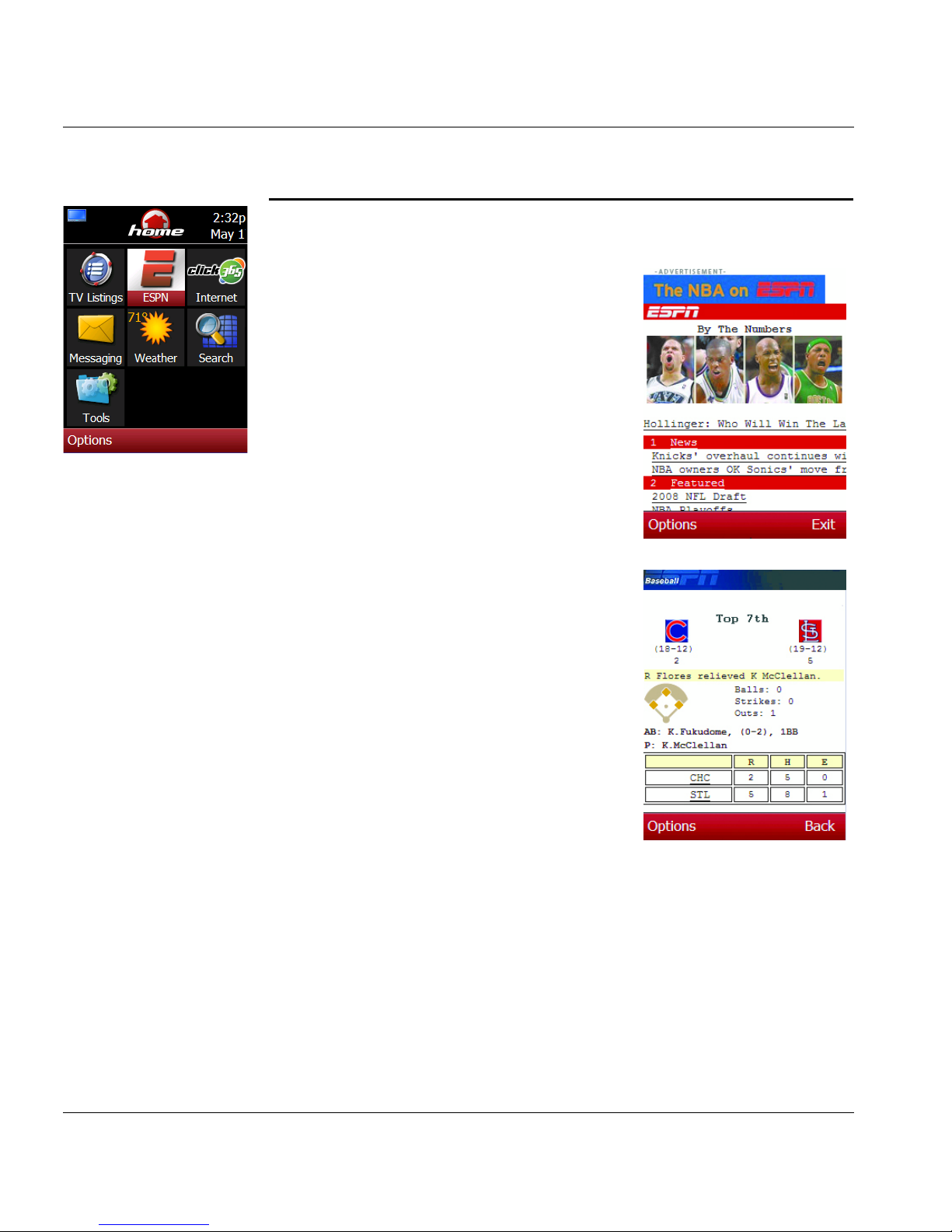
Chapter 5 | Internet Applications ESPN Mobile
74 ESPN THE ULTIMATE REMOTE User’s Guide
ESPN Mobile
The ESPN mobile web site provides quick
access to up-to-the minute sports news,
features, results, scores, schedules, games,
fantasy leagues, advertisements, and much
more.
Once at the ESPN site, use the joystick to
scroll through the pages and move the
cursor. Press in the joystick to open a
selected link.
Page 81
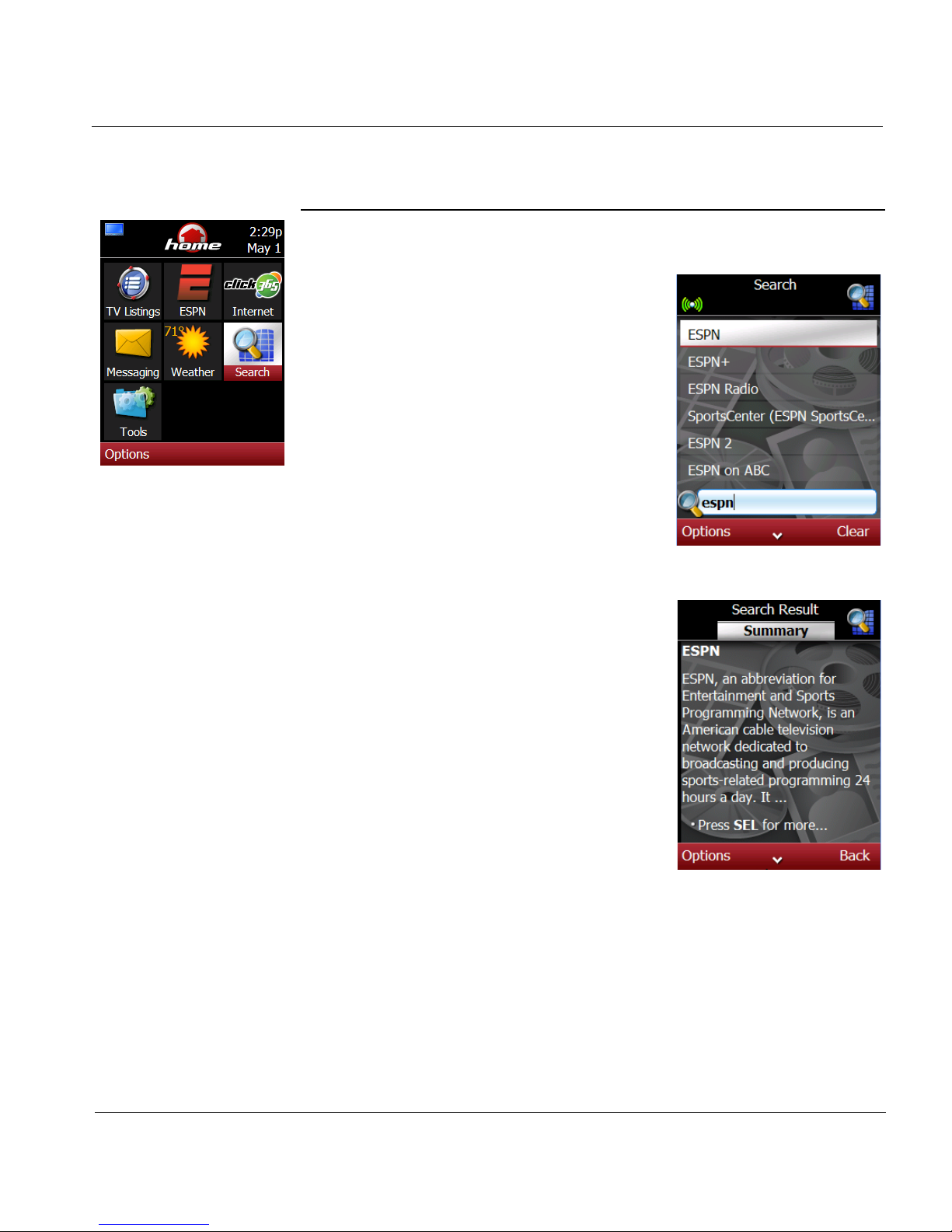
ESPN THE ULTIMATE REMOTE User’s Guide 75
Chapter 5 | Internet Applications Search
Search
Search is an easy way to find information on
the Internet.
Use Search
1. Press the SEARCH key on the smart
remote or scroll to Search on the Home
screen and press in the joystick (SEL).
2. Use the alphanumeric keypad to enter
(multitap method) the first few letters.
With each letter you type a list of
matching items appears above the text
box.
3. Continue entering text to refine your
search, then scroll to the desired item on
the list, and press SEL to read a brief
summary.
4. Press SEL to view more information
about your topic.
Page 82

Chapter 5 | Internet Applications Search
76 ESPN THE ULTIMATE REMOTE User’s Guide
View Search Results
To open a search result entry and view a summary screen:
• Use the joystick to move the cursor up or down in a list and
press in the joystick (SEL) to view a summary.
• Move the joystick left or right to view summaries of the
previous or next results.
• Press the Back soft key to return to the result screen.
• Press SEL to view the complete article.
• Move the joystick up or down to scroll to a link in the article
and press SEL to open the link.
• Press the Options soft key to view a list of options, such as
Add to favorites.
• Press the Exit soft key to close the Search and return to the
Home screen.
Search Options
Press the Options soft key from the Search screen to use these options:
• More
Access more information about the topic.
• Back to results
Close the options box.
• Exit
Close the Search tool.
Page 83
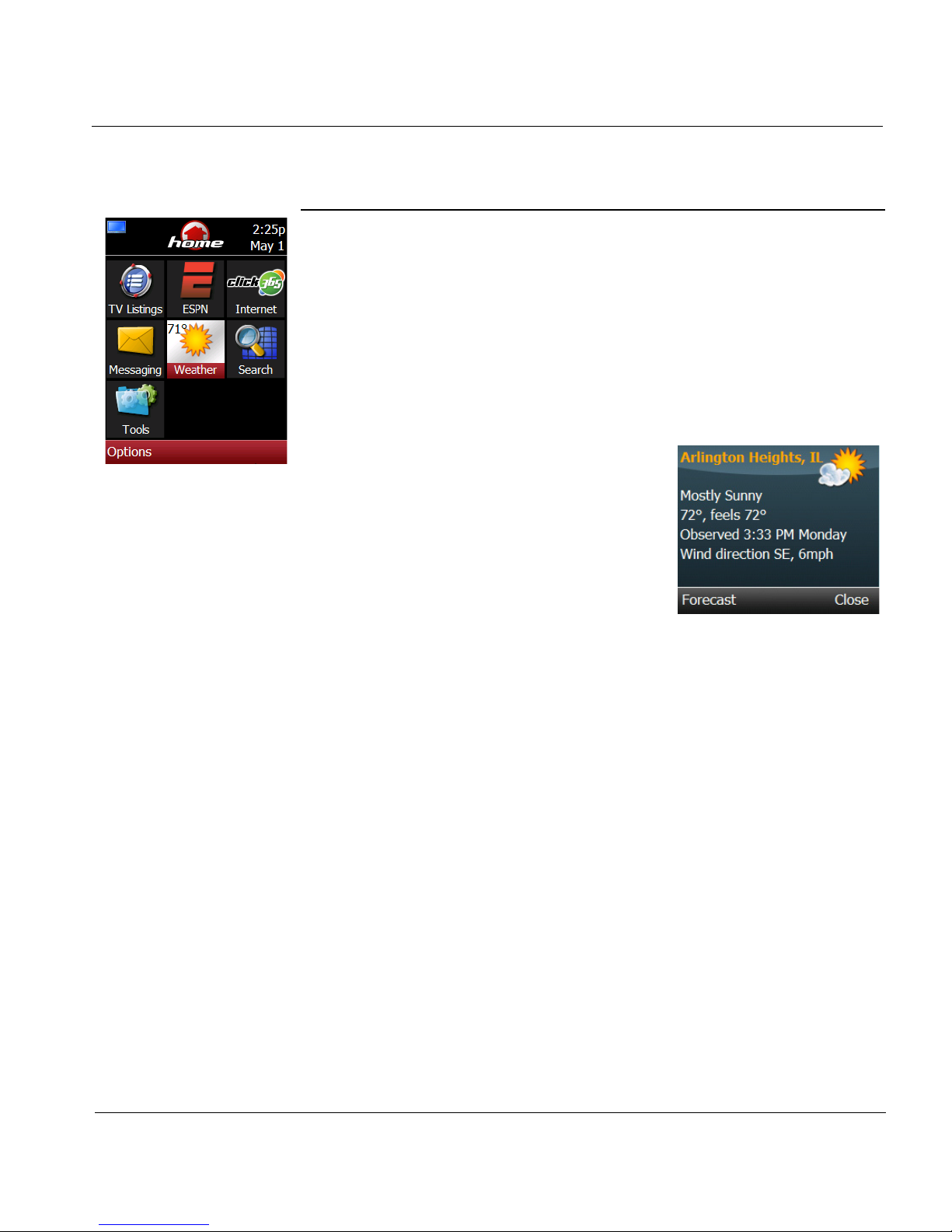
ESPN THE ULTIMATE REMOTE User’s Guide 77
Chapter 5 | Internet Applications Weather
Weather
The weather information is based on the country and zip code you provided
when you connected to your WiFi network and entered the location.
The current temperature and the weather condition is part of the Weather
icon on the Home screen. To view more weather information and a local
forecast:
1. Open the Home screen.
2. Scroll to the Weather icon and press in
the joystick (SEL).
3. Press the Forecast soft key to view
tomorrow’s forecast.
4. Press the Next soft key to view the next
day’s forecast.
5. Press the Close soft key to exit the
Weather and return to the Home screen.
Page 84
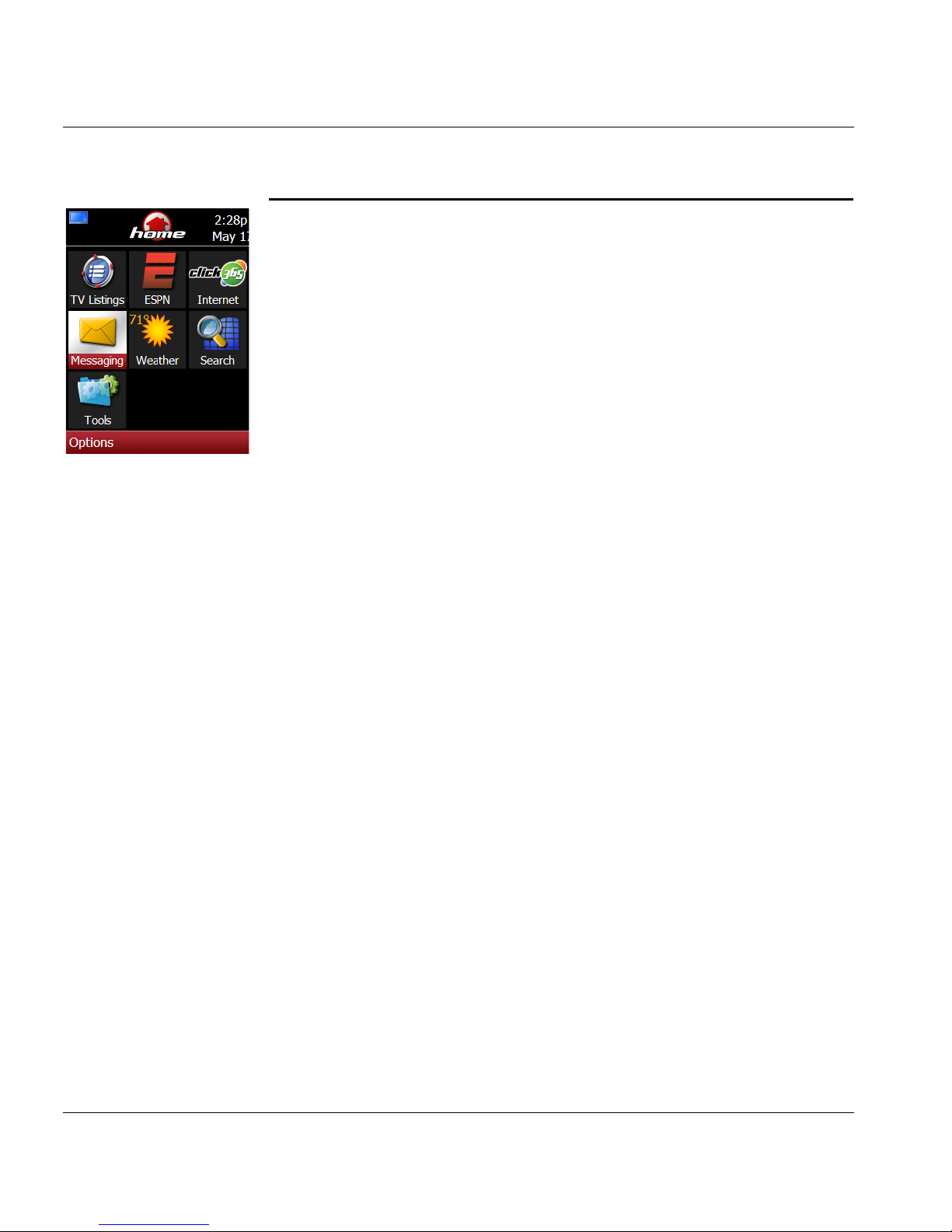
Chapter 5 | Internet Applications Messaging
78 ESPN THE ULTIMATE REMOTE User’s Guide
Messaging
The Messaging application lets you send and receive short text messages
to/from smart remotes, U.S. cell phones, and email accounts.
To use Messaging, register your smart remote at click365.tv and sign up for
Messaging service. See Chapter 2 for instructions on how to register your
smart remote.
Your email Address
The smart remote Short ID (used to register the smart remote at click365.tv)
becomes the default email address:
<ShortID>@click365.tv
Give this address to your friends and they will be able to send email directly
to your smart remote
Note: To find the Short ID for this remote, press the Options soft key,
scroll to Register Remote, and press the Select soft key or go to
the Tools screen and open the About folder.
If you want a more personalized email address, set up an alias using the
Messaging/Settings option. At the same time, you can change the display
name that your friends will see when you send them an email from the
smart remote.
Page 85

ESPN THE ULTIMATE REMOTE User’s Guide 79
Chapter 5 | Internet Applications Messaging
Manage Contacts
The Contacts list or address book contains the names and contact
information for your friends. For each contact, enter one of the following:
• email address
• 10 digit U.S. cell phone number
• Smart remote alias (use to send a message to a friend’s
smart remote)
Add a Contact
1. Press the HOME key, scroll to Messaging, and press in the joystick.
2. Press the Options soft key, scroll to Contacts, and press the Select
soft key.
3. Press the Options soft key, scroll to New Contact, and press the Select
soft key.
4. Enter the requested information (name, address) using the
alphanumeric keypad multitap method.
5. Press the Done soft key to save the contact to your list.
Edit a Contact
1. Press the HOME key, scroll to Messaging, and press in the joystick.
2. Press the Options soft key, scroll to Contacts, and press the Select
soft key.
3. Scroll to the contact you want to change.
4. Press the Options soft key, scroll to Edit, and press the Select soft key.
5. Review the information for this contact, and enter new information
(email, cell phone number, alias) using the alphanumeric keypad.
6. Press the Done soft key to save the contact information.
Page 86

Chapter 5 | Internet Applications Messaging
80 ESPN THE ULTIMATE REMOTE User’s Guide
Create and Send a Message
When preparing a message, use the alphanumeric keypad to enter text
using one of these methods:
• Multitap
Press the number keys on the alphanumeric keypad until the
letter/number/symbol you want displays in the text box.
Similar to entering text on a cell phone. See Chapter 1 Use
the Alphanumeric Keypad.
• Predictive text
Press the corresponding key for each letter only once and the
smart remote will use the dictionary to complete the word.
See Predictive Text at the end of this section.
1. Press the HOME key, scroll to Messaging, and press in the joystick.
2. Press the Options soft key, scroll to New Message, and press the Select
soft key to display the To: screen.
Note: If your contact list is empty, you will be prompted to create a
new contact.
3. Scroll through your list of contacts, choose the contact for this message,
and display the New Message screen.
Note: You may also add a new contact by selecting the New
Contact option.
4. Press the Options soft key, scroll to Set text entry mode, and press the
Select soft key.
5. Scroll to multitap or predictive text and press the Select soft key.
Note: You can change the text entry mode at any time. See Change
Text Entry Mode later in this section.
6.
Enter your message.
Page 87

ESPN THE ULTIMATE REMOTE User’s Guide 81
Chapter 5 | Internet Applications Messaging
7. Press the Options soft key, scroll to Set Subject, and press the Select
soft key.
8. Enter the subject for this message.
9. Press in the joystick (SEL) to send this message. The sent message will
be added to the Sent items list. Press the Cancel soft key to delete this
message without sending it.
Receive a Message
The Messaging application checks for new messages from time to time.
When a message arrives, the smart remote will play an audible chime, and
the Messaging icon on the Home screen will change to indicate a new
message is available.
1. Press the HOME key, scroll to Messaging, and press in the joystick.
2. Press the Options soft key, scroll to Inbox, and press the Select soft key
to display the new message list.
3. Scroll to the message you want to read and press in the joystick.
4. Press the Close soft key to return to the Message list.
Page 88

Chapter 5 | Internet Applications Messaging
82 ESPN THE ULTIMATE REMOTE User’s Guide
Manage Messages
When viewing a message on the message list screen, available messaging/
email options, include.
• Delete message
• Reply to or forward messages
• View message details
• Add the sender to the Contact list
1. Press the HOME key, scroll to Messaging, and press in the joystick.
2. Press the Options soft key, scroll to New Message, and press the Select
key to view the Message List.
3. Scroll to the desired option, and press the Select soft key.
4. Complete the requested information, respond to prompts as required.
Change Messaging Settings
In the Messaging application, you can change the following settings. The
settings you select will apply to all messages sent from your smart remote.
• Alias
Enter an alias, instead of the Short ID, to use as the email
address for this smart remote. The alias must be at least
9 characters.
• Display Name
Enter a name that you want to appear on messages sent
from the smart remote.
• Text Entry Mode
Select the default text entry mode (multitap or predictive).
Page 89

ESPN THE ULTIMATE REMOTE User’s Guide 83
Chapter 5 | Internet Applications Messaging
Enter an Alias
Important Note!
Do not change the alias frequently. Once you change an alias,
you will not be able to change back to the previous alias.
Incoming messages sent to your old default email address or
previous alias will not be delivered.
1.
Press the HOME key, scroll to Messaging, and press in the joystick.
2. Press the Options soft key, scroll to Settings, and press the Select key.
3. Scroll to Alias and press the Select soft key.
4. Use the alphanumeric keypad to enter the alias you want to use instead
of the Short ID. The alias must be at least 9 characters.
5. Press the Done soft key to save the alias.
Change the Display Name
1. Press the HOME key, scroll to Messaging, and press in the joystick.
2. Press the Options soft key, scroll to Settings, and press the Select key.
3. Scroll to Display name and press the Select soft key.
4. Use the alphanumeric keypad to enter a new display name that will
appear on all messages sent from your smart remote.
5. Press the Done soft key to save the new display name.
Page 90

Chapter 5 | Internet Applications Messaging
84 ESPN THE ULTIMATE REMOTE User’s Guide
Change Text Entry Mode
The text entry mode you select will be set as the default, and will be used
each time you enter text until you change the setting.
1. Press the HOME key, scroll to Messaging, and press in the joystick.
2. Press the Options soft key, scroll to Settings, and press the Select key.
3. Scroll to Text entry mode and press the Select soft key.
4. Scroll to Predictive or Multitap and press the Select soft key.
5. Press the Done soft key to make the selected text mode the default.
Use Predictive Text
The predictive text method typically requires fewer keystrokes than the
multitap method. When you tap a key on the alphanumeric keypad, the
smart remote searches a dictionary database and attempts to predict the
word you want to use.
• If more than one word matches your entry, the wrong word
may appear in the text area. If this happens, you will be able
to scroll through all the matching words until you see the word
you want.
• If the word you want is not in the dictionary, you will not be
able to match the word. Then, you will have to type the
desired word in a special pop-up box using the multitap
method.
Note: See Chapter 1 for instructions on how to use the multitap text
input method.
Page 91

ESPN THE ULTIMATE REMOTE User’s Guide 85
Chapter 5 | Internet Applications Messaging
Add Text to the Dictionary
Each time you use the predictive text method, the smart remote trains itself
to recognize new words that you type and adds them to the dictionary. This
includes made up words, shorthand text, and proper nouns. In addition,
each time you use a word, it moves to the top of the list of possible matches
for the key sequence.
Experiment with both text entry methods to determine which one you prefer,
then set it as the default method. You can switch between the settings at
any time.
Predictive Text Typing Rules
Follow these typing rules when using predictive text:
• Tap the corresponding key on the alphanumeric keypad only
once for each letter in the word. For example, to enter the
word “games”, tap 4 2 6 3 7. Games should appear in your
message.
• If the wrong word appears, press the
INPUT^ key to scroll
through all of the matching words. For example, to enter the
word “the”, tap 8 4 3. If the word “tie” displays, press the
INPUT^ key until it changes to “the”.
• If the word is not in the dictionary, press and hold the
INPUT^ key to display a popup. Use the multitap method to
type the word, then press the OK soft key to put this word in
your message and add it to the dictionary.
• Tap 0 for a space or 1 for a period.
• Tap 1 as needed to enter punctuation characters.
• Tap 0 three times to start a new line.
• Tap and hold the corresponding number key to type a
number.
Page 92

Chapter 5 | Internet Applications Messaging
86 ESPN THE ULTIMATE REMOTE User’s Guide
Predictive Text Quick Reference
To type: Do this
abc tap 2
def tap 3
ghi tap 4
jkl tap 5
mno tap 6
pqrs tap 7
tuv tap 8
wxyz tap 9
punctuation tap 0 until the correct punctuation displays
change case Press
INPUT^ then tap the letter key
1 – 9 tap and hold the number key
a new line tap 0 three times
a space tap 0
scroll to word press the
INPUT^ key until you see the word
if no matching
word
press and hold the
INPUT^ key to display a popup,
then type the word using multitap method
Page 93
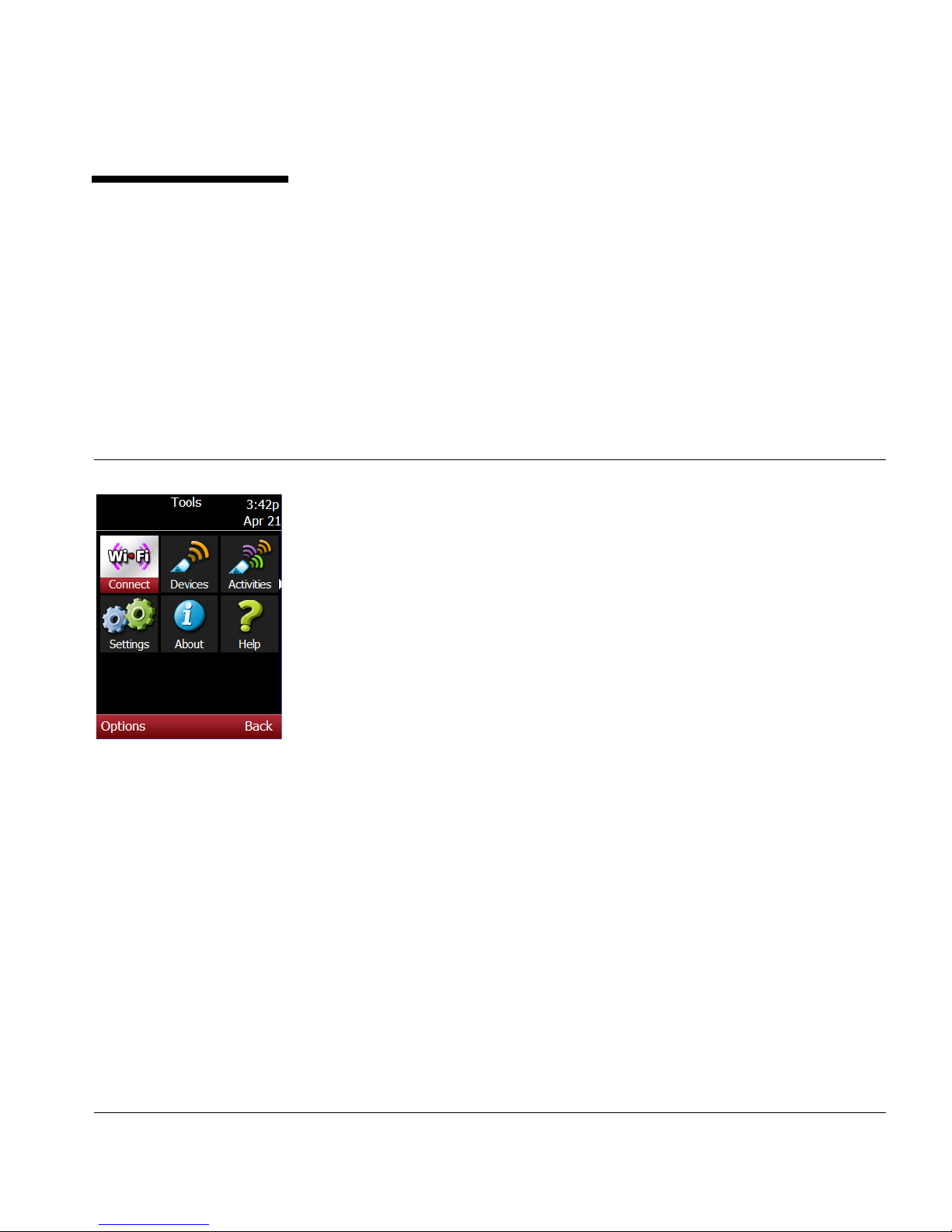
ESPN THE ULTIMATE REMOTE User’s Guide 87
CHAPTER 6
Tools
This chapter provides instructions for using the Tools, and includes
information and instructions that will help you:
• Manage the WiFi network connection
• Change smart remote settings
• Update software
• Access About
• Access Help
Page 94
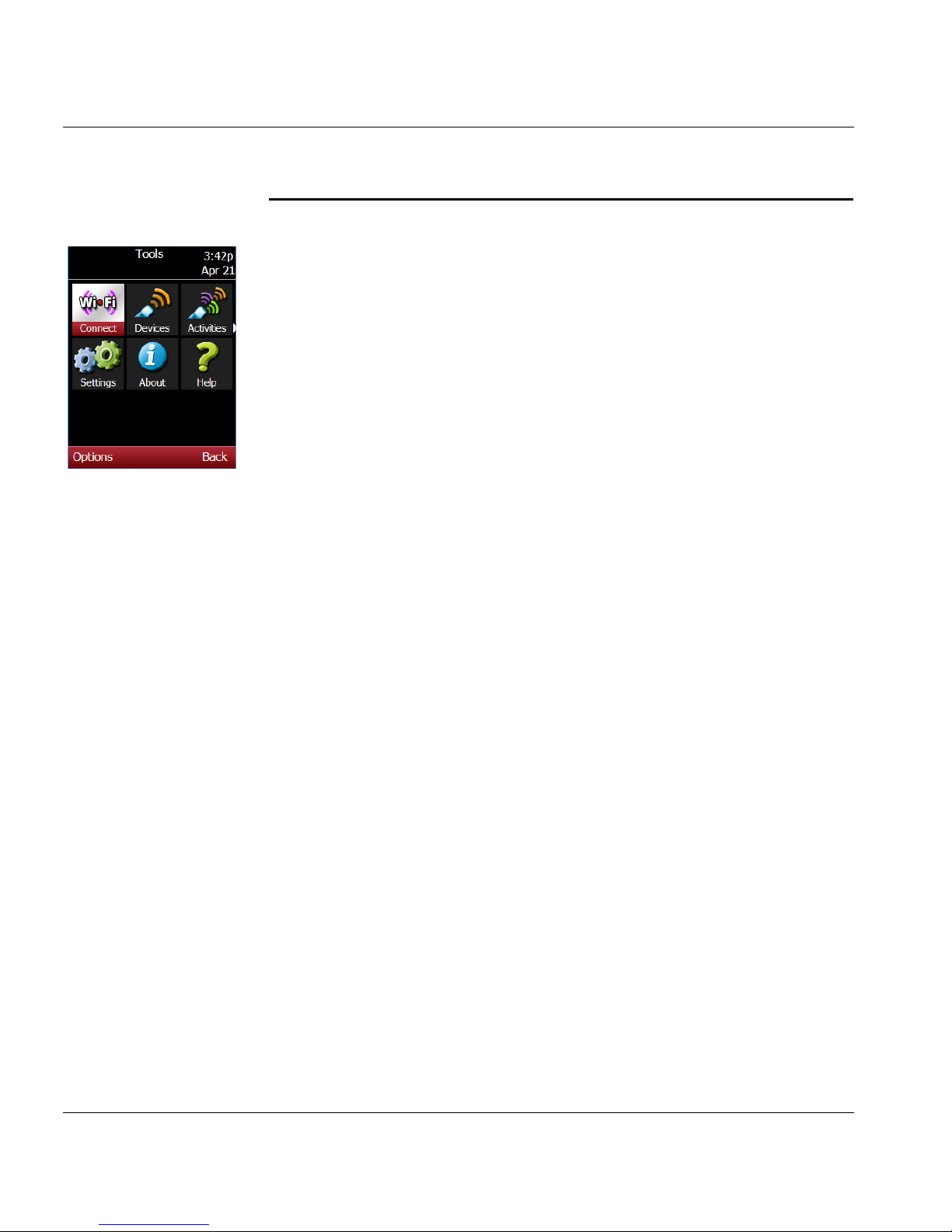
Chapter 6 | Tools Manage the WiFi Network Connection
88 ESPN THE ULTIMATE REMOTE User’s Guide
Manage the WiFi Network Connection
Connect to a WiFi Network
Connecting to your WiFi network is part of the set up process. The network
you connected to was set as the default network for future connections. If
you add more than one network to the smart remote, each of these
networks is labeled either default or configured.
During the connect process, the smart remote will check Click365.tv for
software updates.
Use this procedure to reconnect to the default network or to connect to
another WiFi network.
Note: If you attempt to connect to a secured network, you will be
prompted to enter your WEP passkey or a WPA passphrase.
1.
Open Tools.
2. Scroll to WiFi Connect and press SEL to begin the Connect Wizard.
3. Read the Connect message and press the Yes soft key to continue.
Note: This is the same WiFi connect wizard you used when you
initially set up the smart remote. See Chapter 2 for more
information.
4.
Continue to read and select options. During WiFi connect, you will be
prompted to select your WiFi network, enter location information
(country, time zone, zip code), and add devices. The wizard will update
your TV listings guide.
Page 95
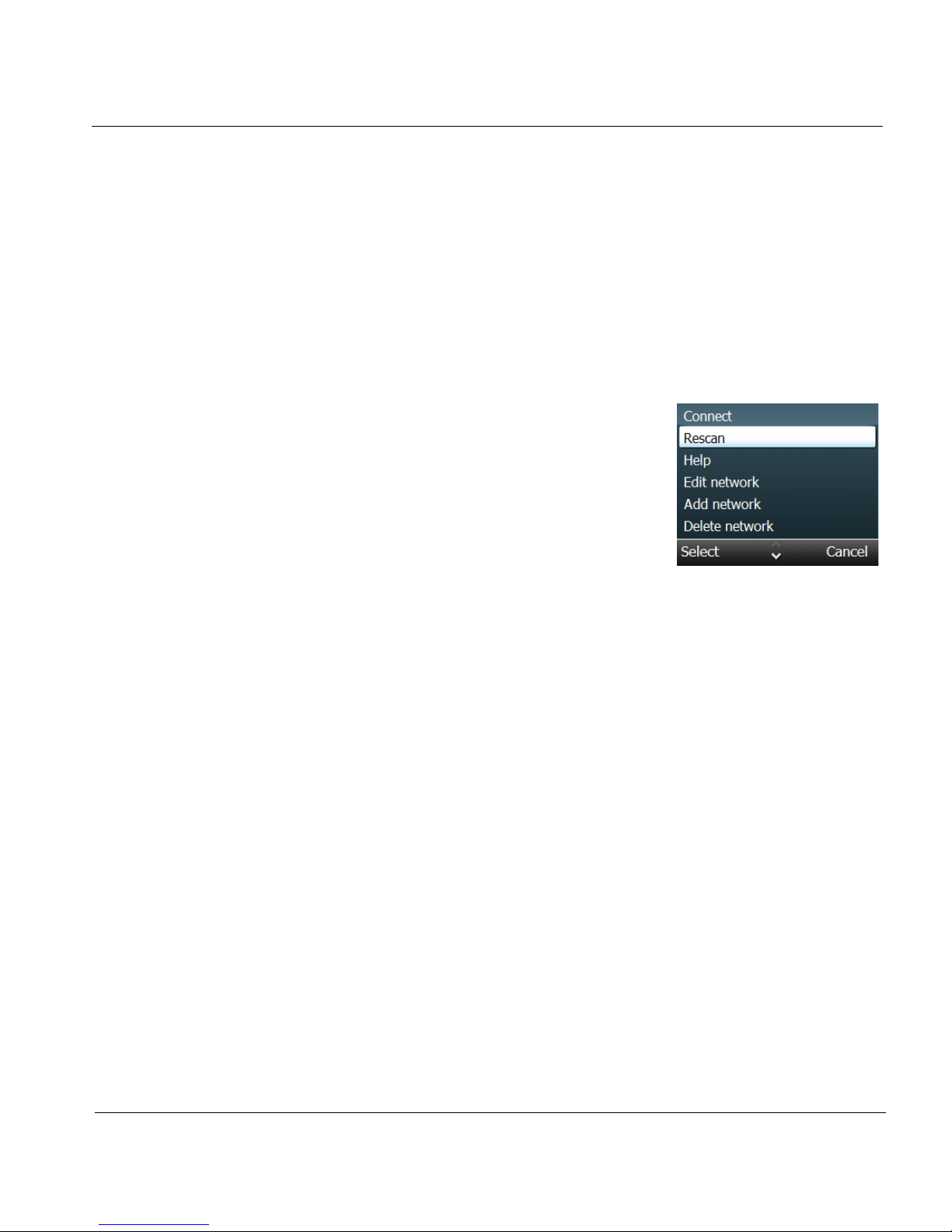
ESPN THE ULTIMATE REMOTE User’s Guide 89
Chapter 6 | Tools Manage the WiFi Network Connection
Rescan Networks
Use the Rescan option if the name (SSID) of your network does not appear
on the network list.
1. Access the Home screen.
2. Scroll to Tools and press in the joystick (SEL).
3. Scroll to WiFi Connect and press SEL to begin the Connect Wizard.
4. Read the Connect instructions and press
the Yes soft key.
5. Read the Welcome information and
press the Next soft key to display the list
of available WiFi networks.
6. Press the Options soft key, scroll to
Rescan, and press the Select soft key.
• If your network is on the list, continue
the connect process.
• If your network is not on the list, check your router to make
sure it is set to enable SSID broadcast. If not, you can
connect to this network by adding the network to the smart
router manually. See Add a Network.
Page 96
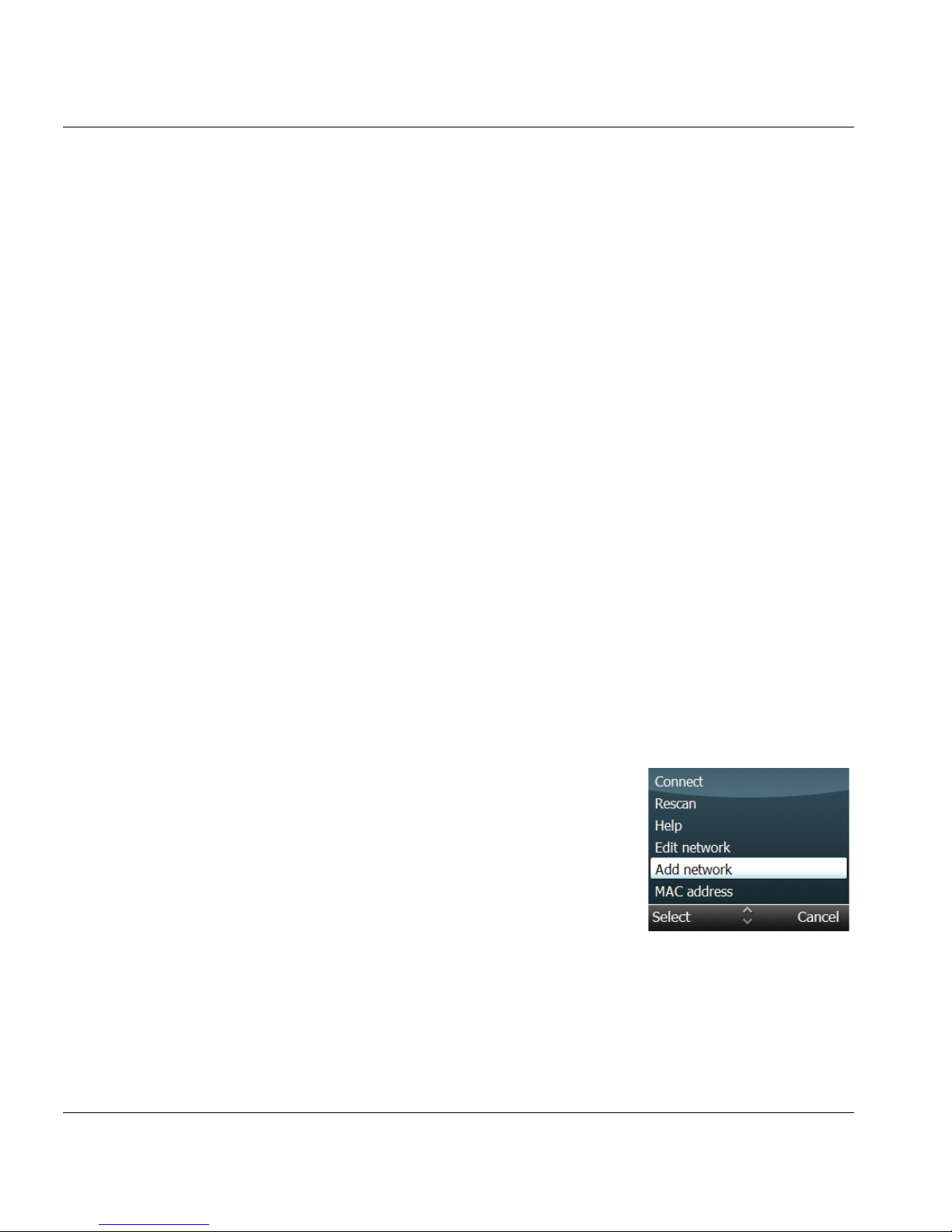
Chapter 6 | Tools Manage the WiFi Network Connection
90 ESPN THE ULTIMATE REMOTE User’s Guide
Add a Network
Note: This procedure applies only if your network SSID is not
broadcast and does not appear in the network list.
Use this procedure to add another network to the smart remote. You may
also use this procedure if your WiFi network is working properly but does
not appear on the list of networks during the WiFi Connect process.
During this procedure you will be asked to supply the following information
about the network.
1. Open Tools.
2. Scroll to WiFi Connect and press SEL to begin the Connect Wizard.
3. Read the Connect instructions and press
the Yes soft key.
4. Read the Welcome information and press
the Next soft key to display the list of
available WiFi networks.
5. Press the Options soft key, scroll to Add
Network, and press the Select soft key.
Note: If your network SSID is not broadcast,
your network will not be in the list.
Network SSID Enter the network SSID using the alphanumeric
keypad. Network names are case sensitive.
Network type Infrastructure or Ad Hoc.
Security None, WEP, WPA-PSK (AES + TKIP), WPA-PSK
(AES), WPA-PSK (TKIP), WPA2-PSK (AES +
TKIP), WPA2-PSK (AES), WPA-2PSK (TKIP)
Address
Settings
Choose the setting: Automatic (using DHCP) or
Manual (using static IP addressing).
IP Address Enter the address.
Page 97
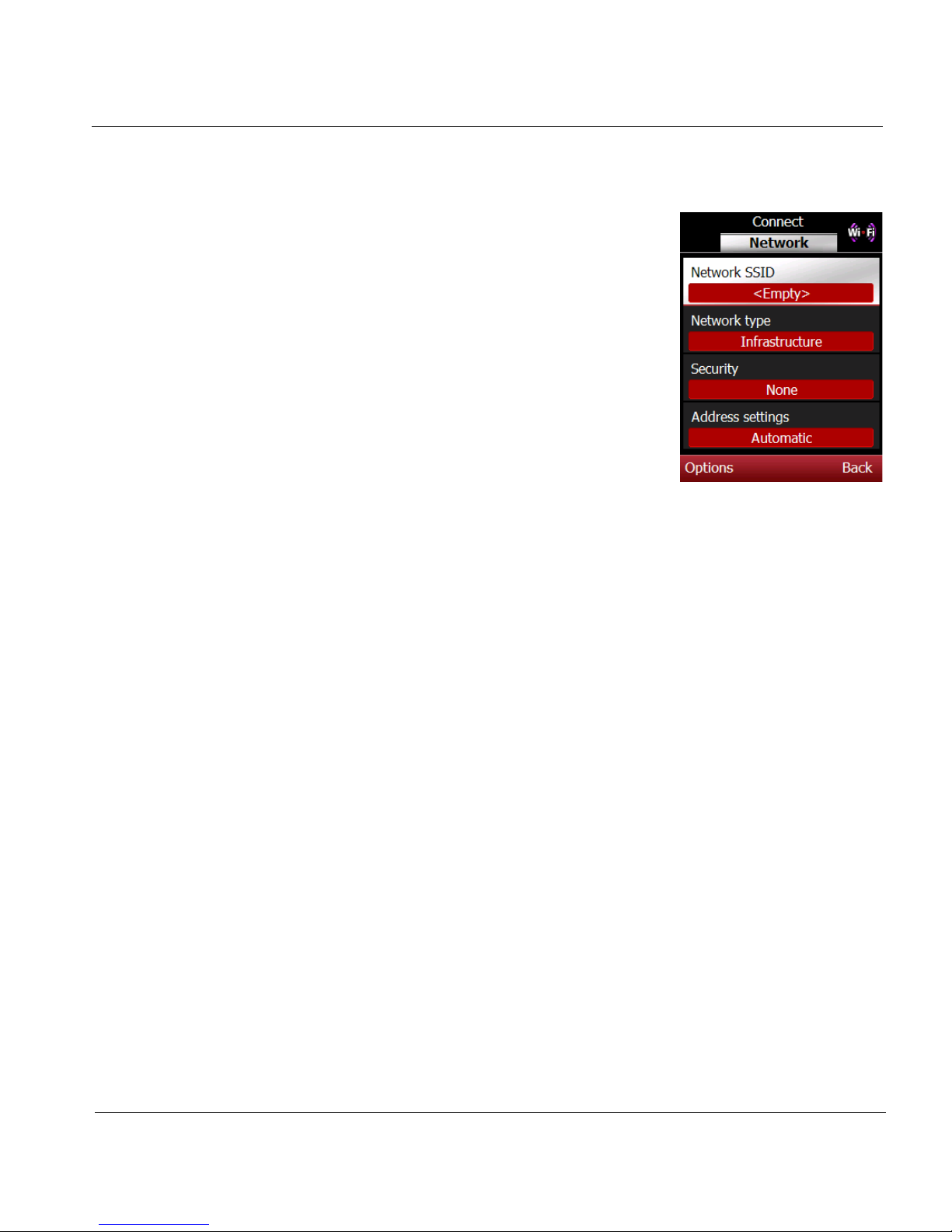
ESPN THE ULTIMATE REMOTE User’s Guide 91
Chapter 6 | Tools Manage the WiFi Network Connection
6. Select or enter the requested information
for this network:
a. Highlight Network SSID, press the
Options soft key, and select Change.
Enter the SSID number for this
network.
b. Scroll to Network type, press the
Options soft key, and select Change.
c. Scroll to Security, press the Options
soft key, and select Change. Scroll to
the security type and press the Select
soft key. Enter the network key or
pass key if required.
d. Scroll to Address settings, press the
Options soft key, and select Change
to switch the setting.
7. Review the network settings and correct if needed.
8. Press the Back soft key to return to the WiFi Connect screen.
9. Press the Options soft key, scroll to Connect to connect, and press the
Select soft key to add the new network.
Change Networks
To change networks, follow the WiFi connect instructions, but this time pick
another network. If the old network is not needed, it can be deleted. See
Delete a Network.
Page 98
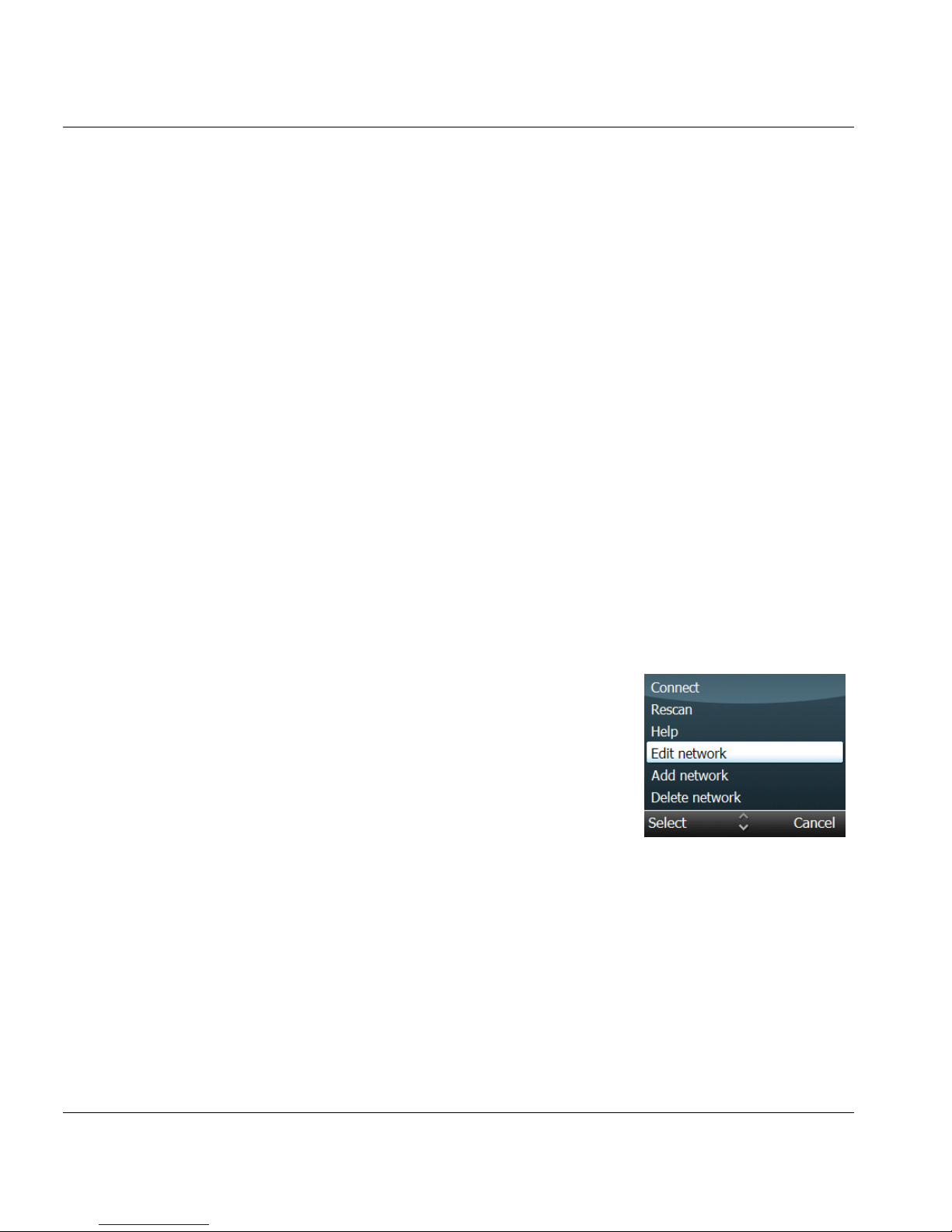
Chapter 6 | Tools Manage the WiFi Network Connection
92 ESPN THE ULTIMATE REMOTE User’s Guide
Edit Network Settings
The smart remote automatically connects to the WiFi network you specify
during startup. The settings selected during the initial set up can be
changed manually. In addition, you can view the MAC (Media Access
Control) address for each network by highlighting a network on the list and
selecting the MAC address option.
The smart remote will automatically connect to the WiFi network you specify
during set up. The following the network settings can be changed for each
wireless network listed as default or configured on your remote.
1. Open Tools.
2. Scroll to WiFi Connect and press in the
joystick (SEL).
3. Read the instructions and press the Yes
soft key.
4. Press the Next soft key.
5. Scroll to the network you would like to
configure.
Network SSID Type a new network SSID using the alphanumeric
keypad. Network names are case sensitive.
Network type Choose Infrastructure or Ad-hoc.
Security Choose the security type: None, WEP, or WPA
Address settings Choose the setting: Automatic (using DHCP) or Manual
(using static IP addressing).
Page 99
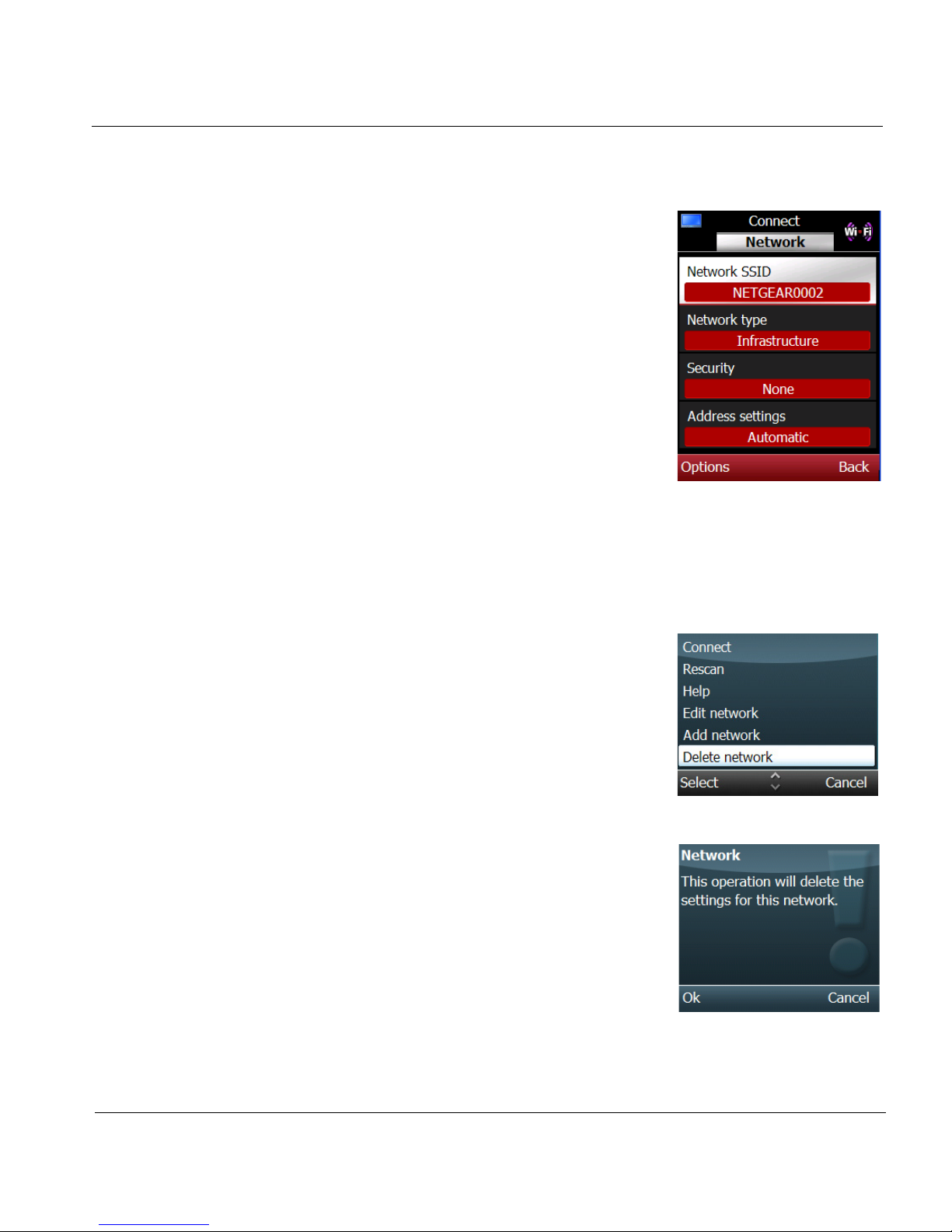
ESPN THE ULTIMATE REMOTE User’s Guide 93
Chapter 6 | Tools Manage the WiFi Network Connection
6. Press the Options soft key, scroll to Edit
network, and press the Select soft key.
7. Scroll to the item you want to change,
press the Options soft key, scroll to
Change, and press the Select soft key.
8. Press the Back soft key to return to the
Network list.
9. Press the Options soft key, scroll to Exit,
and press the Select soft key to return to
the Tools screen.
Delete a Network
If a network is listed on the smart remote, but is no longer needed, you can
delete it from the Network List.
1. Access the Home screen.
2. Scroll to Tools and press in the joystick
(SEL).
3. Scroll to WiFi Connect and press SEL to
begin the Connect Wizard.
4. Read the Connect instructions and press
the Yes soft key.
5. Press the Next soft key to display the list
of available WiFi networks.
6. Press the Options soft key, scroll to
Delete network, and press the Select
soft key.
7. Press the OK soft key when prompted to
confirm the deletion of the network
settings and return to the Network List
screen.
Page 100
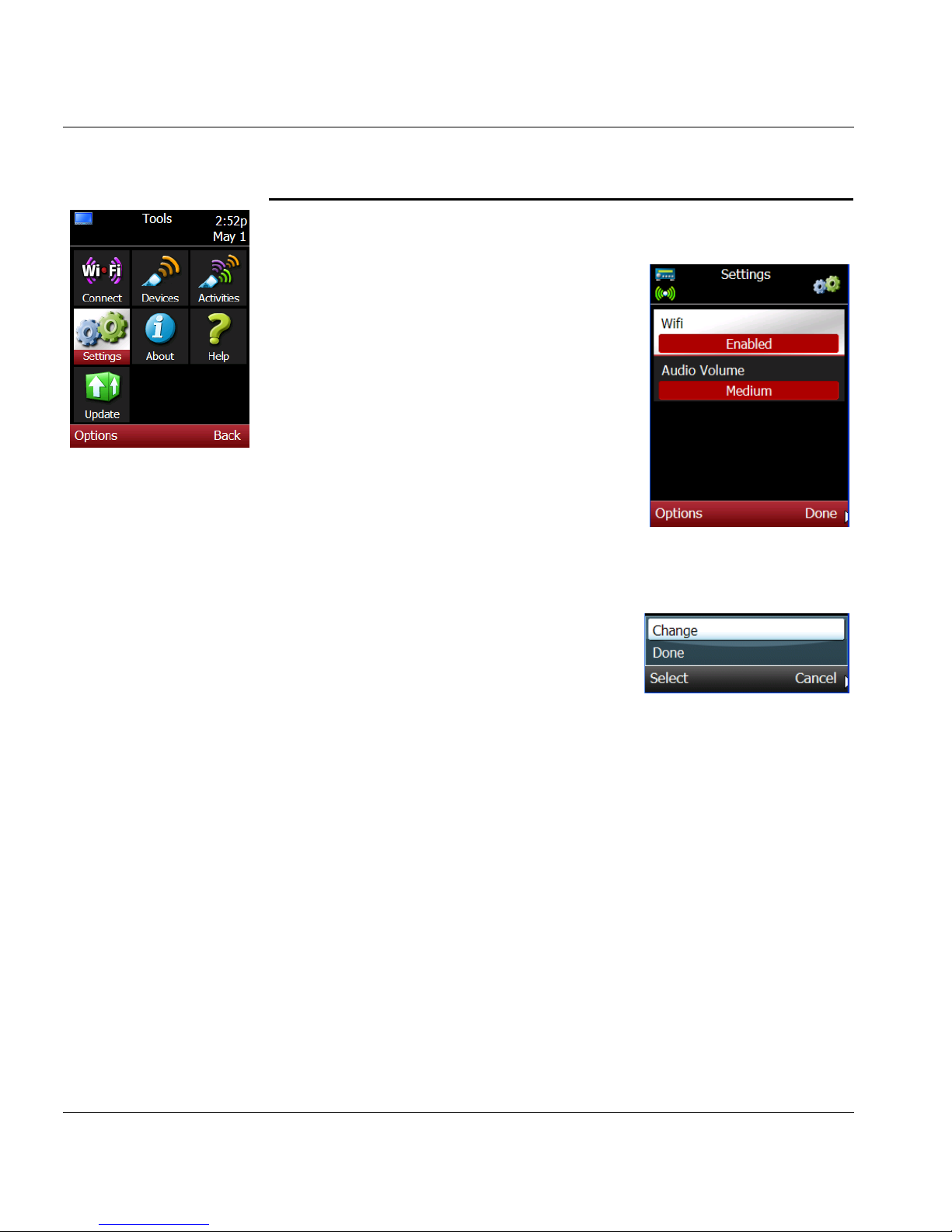
Chapter 6 | Tools Change Smart Remote Settings
94 ESPN THE ULTIMATE REMOTE User’s Guide
Change Smart Remote Settings
The available setting options include:
• WiFi (enabled, disabled)
• LCD backlight when charging (stays
on, switches off)
• Audio Volume (high, medium, low, off)
1. Open Tools.
2. Scroll to Settings and press in the joystick
(SEL).
3. Scroll to a setting you want to edit and
press the Options soft key.
4. Scroll to Change and press the Select
soft key. The new setting will be listed
on the screen.
Note: For audio volume, scroll to the desired
audio setting and press the Select soft
key. You will hear a tone at the setting
you selected.
5.
Press the Done soft key to save the new
settings and return the Tools screen.
 Loading...