

Page 1
BLOBbox User Manual V. std 0.6.105 - 1
BLOBbox User Manual
Version std 0.6.105
For any suggestions or questions,
please contact us at “[email protected]”.
Page 2

BLOBbox User Manual V. std 0.6.105 - 2
WHAT YOU CAN DO WITH YOUR BLOBBOX
USE THE REMOTE CONTROL ..................................................................................... 7
THE BUTTON FUNCTIONALITY ....................................................................................7
HOW TO INSERT TEXT USING THE REMOTE CONTROL ...............................................8
HOW TO INSERT TEXT USING A USB KEYBOARD .........................................................8
UNDERSTAND BLOBBOX INDICATORS .................................................................... 10
THE SIGNIFICANCE OF THE SCREEN ICONS ...............................................................10
WATCH DIGITAL TERRESTRIAL TV ........................................................................... 12
HOW TO TUNE THE DIGITAL TERRESTRIAL CHANNELS .............................................12
HOW TO WATCH TV AND LISTEN TO THE MUSIC ......................................................13
HOW TO DELETE A CHANNEL FROM THE LIST...........................................................14
-NEW- HOW TO SCHEDULE A RECORDING ...............................................................14
-NEW- HOW TO SEE THE RECORDINGS STATUS .......................................................15
-NEW- HOW TO EDIT A SCHEDULED RECORDING .....................................................15
-NEW- HOW TO DELETE A SCHEDULED RECORDING ................................................15
HOW TO WATCH A COMPLETED RECORDING ..........................................................16
ORGANIZE THE VIDEO ARCHIVE .............................................................................. 17
HOW TO CREATE A NEW FOLDER .............................................................................18
HOW TO DELETE A FILE OR A FOLDER .......................................................................19
HOW TO MOVE A FILE OR A FOLDER ........................................................................19
HOW TO RENAME A FILE OR A FOLDER ....................................................................20
HOW TO COPY A FILE OR A FOLDER ..........................................................................21
PLAY MULTIMEDIA FILES ........................................................................................ 23
HOW TO PLAY MULTIMEDIA FILES ...........................................................................23
COPY/WATCH MEDIA FILES STORED ON USB PERIPHERALS .................................... 24
HOW TO WATCH MEDIA FILES STORED ON A USB PERIPHERAL ...............................24
HOW TO COPY MEDIA FILES STORED ON A USB PERIPHERAL ...................................24
Page 3

BLOBbox User Manual V. std 0.6.105 - 3
PLAY MULTIMEDIA FILES ON YOUR HOME NETWORK ........................................... 25
HOW TO SHARE MULTIMEDIA FILES USING TVERSITY (WINDOWS) .........................25
HOW TO SHARE MULTIMEDIA FILES USING XBMC ...................................................26
HOW TO SHARE MULTIMEDIA FILES USING WINDOWS MEDIA PLAYER 11 ..............26
HOW TO SEARCH AND WATCH FOR THE SHARED CONTENTS ..................................29
TRANSFER CONTENT BETWEEN YOUR PC AND BLOBBOX (SAMBA) ........................ 30
HOW TO ACTIVATE SHARING BETWEEN PC AND BLOBBOX ......................................30
HOW TO ACCESS BLOBBOX USING A PC WITH WINDOWS XP OR VISTA ...................32
HOW TO ACCESS THE BLOBBOX USING A PC WITH MAC OS .....................................32
HOW TO ACCESS THE BLOBBOX USING A PC WITH LINUX ........................................32
WATCH WEB TV “ON DEMAND” ............................................................................. 33
HOW TO VIEW WEBTV CHANNELS ...........................................................................33
HOW TO SUBSCRIBE TO A CHANNEL (PODCAST) ......................................................34
-NEW- LISTENING TO THE SHOUTCAST WEB RADIO ............................................... 35
HOW TO FIND AND LISTEN TO WEB RADIO ..............................................................35
SUBSCRIBE TO PODCASTS USING MIRO .................................................................. 36
WHAT IS A PODCAST ................................................................................................36
WHAT IS MIRO ..........................................................................................................36
HOW TO SEARCH FOR AND SUBSCRIBE TO A PODCAST ............................................37
Category ...............................................................................................................37
Languages ............................................................................................................39
Titles .....................................................................................................................41
HOW TO INSTANTLY WATCH AND DOWNLOAD A SINGLE VIDEO IN A PODCAST .....43
HOW TO PLAY A DOWNLOADED PODCAST ..............................................................45
HOW TO UNSUBSCRIBE A PODCAST .........................................................................46
SUBSCRIBE TO A PODCAST WHEN THE RSS FEED URL IS KNOWN ........................... 47
HOW TO SUBSCRIBE TO A PODCAST USING THE RSS FEED URL ................................47
Page 4

BLOBbox User Manual V. std 0.6.105 - 4
WATCH YOUTUBE VIDEO ........................................................................................ 48
HOW TO LOGIN ........................................................................................................48
HOW TO SEARCH FOR A VIDEO AND PLAY IT ............................................................50
HOW TO ACCESS AND PLAY TOP RATED AND MOST VIEWED VIDEOS ......................51
HOW TO GET MORE INFO ON A SELECTED VIDEO ....................................................52
HOW TO VIEW A YOUTUBE USER’S PROFILE.............................................................52
VIEW PUBLIC PHOTO ALBUMS USING PICASA ........................................................ 53
HOW TO CREATE AN ACCOUNT ON PICASA (VIA PC) ................................................53
THE FIRST TIME YOU ACCESS PICASA FROM YOUR BLOBBOX ...................................54
HOW TO WATCH YOUR OWN PUBLIC ALBUMS ........................................................55
HOW TO ADD A FRIEND ............................................................................................56
HOW TO VIEW YOUR FRIENDS ALBUMS ...................................................................57
HOW TO REMOVE A FRIEND .....................................................................................58
HOW TO LOGOUT .....................................................................................................58
PROGRAM RADIO AND TV RECORDINGS USING VCAST .......................................... 59
HOW TO BEGIN USING VCAST ..................................................................................59
HOW TO SCHEDULE A RECORDING...........................................................................60
HOW TO PLAY A RECORDING ...................................................................................63
HOW TO ELIMINATE A RECORDING ..........................................................................63
HOW TO MANAGE RECORDINGS WITH A PC ............................................................64
VIEW VIDEOS SAVED USING REEPLAY ..................................................................... 65
HOW TO REGISTER IN REEPLAY.IT (WITH A PC) ........................................................65
HOW TO LOG-IN WITH YOUR BLOBBOX ...................................................................66
HOW TO WATCH REEPLAY.IT VIDEOS .......................................................................67
NAVIGATE AND ACCESS THE MANY WEB SERVICES ................................................ 69
HOW TO VIEW THE WEATHER FORECAST ................................................................70
HOW TO ACCESS YOUR FACEBOOK ACCOUNT .........................................................71
HOW TO USE WIKIPEDIA ..........................................................................................71
HOW TO VIEW BLOGS ..............................................................................................72
HOW TO ACCESS THE LIST OF ALL ACCESSIBLE WEB SERVICES .................................72
Page 5

BLOBbox User Manual V. std 0.6.105 - 5
HOW TO ACCESS GOOGLE SERVICES .......................................................................73
Gmail ....................................................................................................................74
Google Calendar ...................................................................................................74
Google Docs .........................................................................................................74
Google Reader ......................................................................................................74
BROWSE THE WEB .................................................................................................. 75
HOW TO ACCESS ANY INTERNET WEBSITE ...............................................................75
HOW TO CHECK IF THE WEBSITE YOU ARE IN IS SAFE ...............................................76
ACCESS TV PORTALS USING BLOBWORDS .............................................................. 77
HOW TO USE BLOBWORDS ......................................................................................77
HOW TO ORGANIZE YOUR FAVORITE SITES ............................................................ 78
HOW TO GET TO YOUR FAVORITE SITES ...................................................................78
HOW TO ACCESS A FAVORITE SITE ...........................................................................79
HOW TO ELIMINATE A SITE FROM YOUR FAVORITES ...............................................79
HOW TO RENAME A FAVORITE SITE .........................................................................79
DOWNLOAD MEDIA FILES USING BITTORRENT ...................................................... 80
HOW TO DOWNLOAD VIA URL .................................................................................80
HOW TO DOWNLOAD USING THE “ GO TO URL” APPLICATION ..........................80
HOW TO DOWNLOAD USING THE PC WEB BROWSER .........................................80
-NEW- HOW TO DOWNLOAD USING A .TORRENT FILE .............................................80
DOWNLOAD MEDIA FILES VIA HTTP AND FTP ......................................................... 81
HOW TO DOWNLOAD ..............................................................................................81
HOW TO PLAY DOWNLOADED MEDIA FILES .............................................................81
Page 6

BLOBbox User Manual V. std 0.6.105 - 6
HOW TO ACCESS THE BLOBBOX FROM THE PC ....................................................... 82
HOW TO ACTIVATE ACCESS TO THE BLOBBOX..........................................................82
HOW TO ACCESS THE BLOBBOX USING THE BROWSER ............................................83
HOW TO VIEW DOWNLOAD ACTIVITY STATUS .........................................................84
HOW TO ADD A DOWNLOAD ....................................................................................85
-NEW- HOW TO DOWNLOAD USING A .TORRENT FILE .............................................85
HOW TO ELIMINATE A DOWNLOAD IN PROGRESS ...................................................86
HOW TO COPY FILES FROM THE BLOBBOX TO THE PC ..............................................87
CONFIGURE YOUR BLOBBOX .................................................................................. 88
HOW TO CONFIGURE THE VIDEO OUTPUT OF THE BLOBBOX ...................................88
-NEW- HOW TO RE-SIZE THE VISIBLE AREA OF THE SCREEN .....................................90
HOW TO CHANGE THE INTERFACE LANGUAGE ........................................................91
HOW TO CHANGE THE PIN .......................................................................................92
HOW TO ENTER YOUR TVBLOB AND PIN NUMBERS .................................................93
HOW TO CHANGE THE TIME ZONE SETTING .............................................................93
HOW TO SET THE DISK SPACE ADVISORY ..................................................................94
-NEW- HOW TO CONFIGURE THE WIRELESS CONNECTION USING A
USB
WIRELESS
KEY ...........................................................................................................................95
HOW TO MANUALLY CONFIGURE THE IP ADDRESSES ..............................................96
HOW TO SET AVAILABLE BANDWIDTH RANGE .........................................................97
HOW TO CONFIGURE THE BLOBBOX IF CONNECTED TO A PROXY ............................98
-NEW- HOW TO CONFIGURE BITTORRENT PORTS ....................................................99
HOW TO RUN THE DIAGNOSTICS TESTS ................................................................ 100
HOW TO UPDATE BLOBBOX SOFTWARE ............................................................... 100
HOW TO RESET THE BLOBBOX TO FACTORY SETTINGS.......................................... 101
HOW TO PERFORM A SOFTWARE INSTALLATION OVERRIDE ................................ 102
Page 7
BLOBbox User Manual V. std 0.6.105 - 7
USE THE REMOTE CONTROL
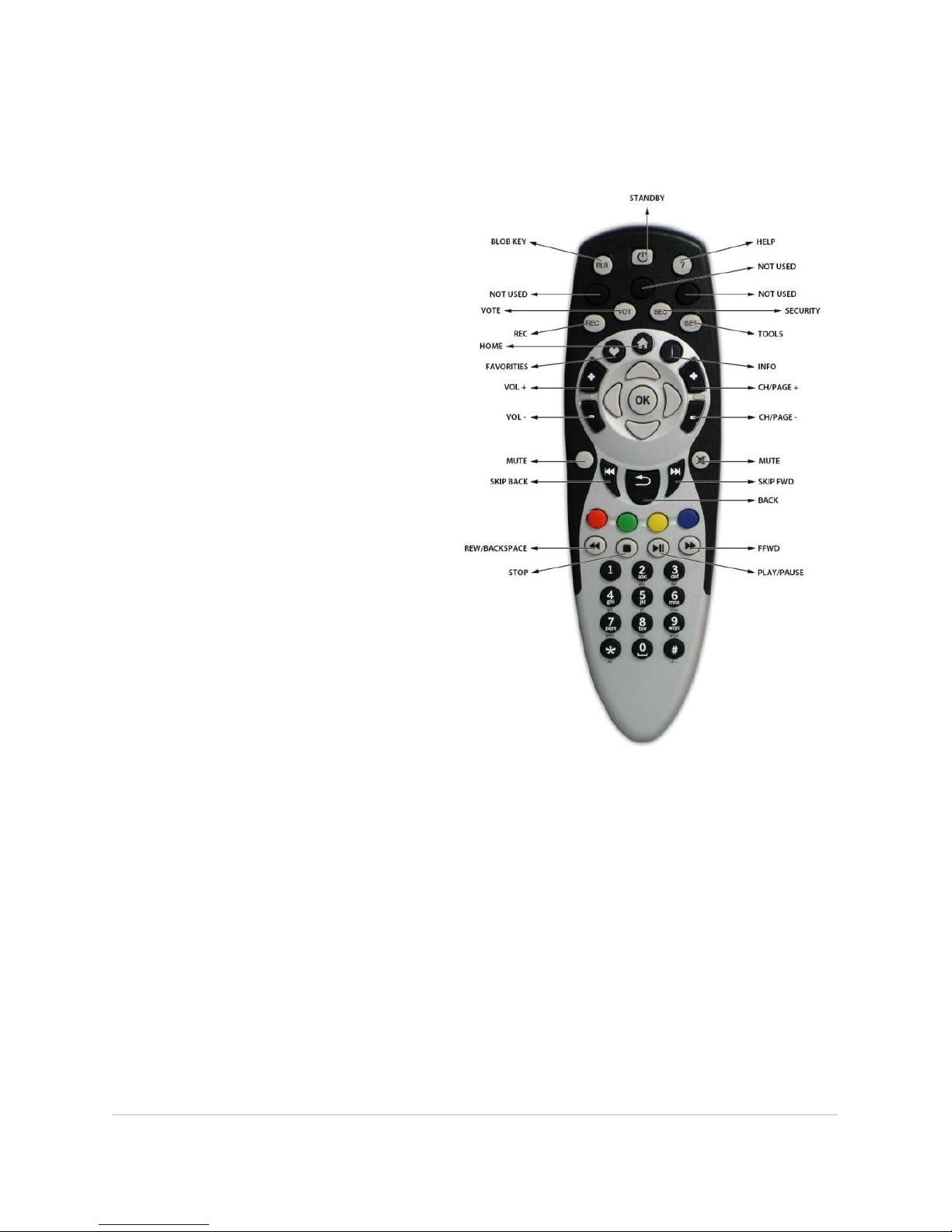
THE BUTTON FUNCTIONALITY
STANDBY: puts your BLOBbox on
standby.
BLOB: takes you directly to the
“BLOBword” page.
HELP: displays information (if available)
about the page you are viewing.
REC: records the channel that you
are watching.
VOTE: allows you to vote in the web
pages where requested/possible.
SECURITY: verifies if the web page you
are viewing is safe (i.e., identifiable).
TOOLS: takes you directly to the
BLOBbox’s “Settings” menu.
FAVORITIES: takes you directly to your
page of saved favorites.
HOME: takes you directly to the
BLOBbox Home Page.
INFO: displays information (if available)
about the selected item.
VOL +: increases the volume.*
VOL -: decreases the volume.*
CHANNEL/PAG +: advances to the next
channel.
CHANNEL/PAG -: returns to the
previous channel.
MUTE: turns off/restores the audio.
SKIP BACK: plays the previous media file that you were watching.*
SKIP FWD: plays the next media file that you are watching.*
BACK: takes you to the previous interface screen.
REW/BACKSPACE: rewinds a media file playback* and, in some cases, allows you delete
characters during text input.
FFWD: skips forward during playback of a media file.*
STOP: stops the playback of a media file.
PLAY/PAUSE: starts/pauses the playback of a media file playback.
4 ARROWS KEYS: moves the cursor around navigation options in the interface screens.
OK: confirms a menu/navigation choice and also initiates playback of a media file.
RED, GREEN, YELLOW, BLUE BUTTONS: indicates additional functionalities available in
individual screens (i.e., displayed at the bottom of the screen).
*Available shortly in BLOBbox updates
Page 8
BLOBbox User Manual V. std 0.6.105 - 8
HOW TO INSERT TEXT USING THE REMOTE CONTROL
You can insert text using the remote control just as you would text on a mobile
phone. For example, if you want to insert the letter “c”, simply press button number
“2” three times. To insert the number “2”, press button number “2” four times.
Repeatedly pressing the button number “1” allows you to insert the following
characters:
. , ? ! 1 @ ‘ - _ ( ) : ; & / % * # + < = > “ $
HOW TO INSERT TEXT USING A USB KEYBOARD
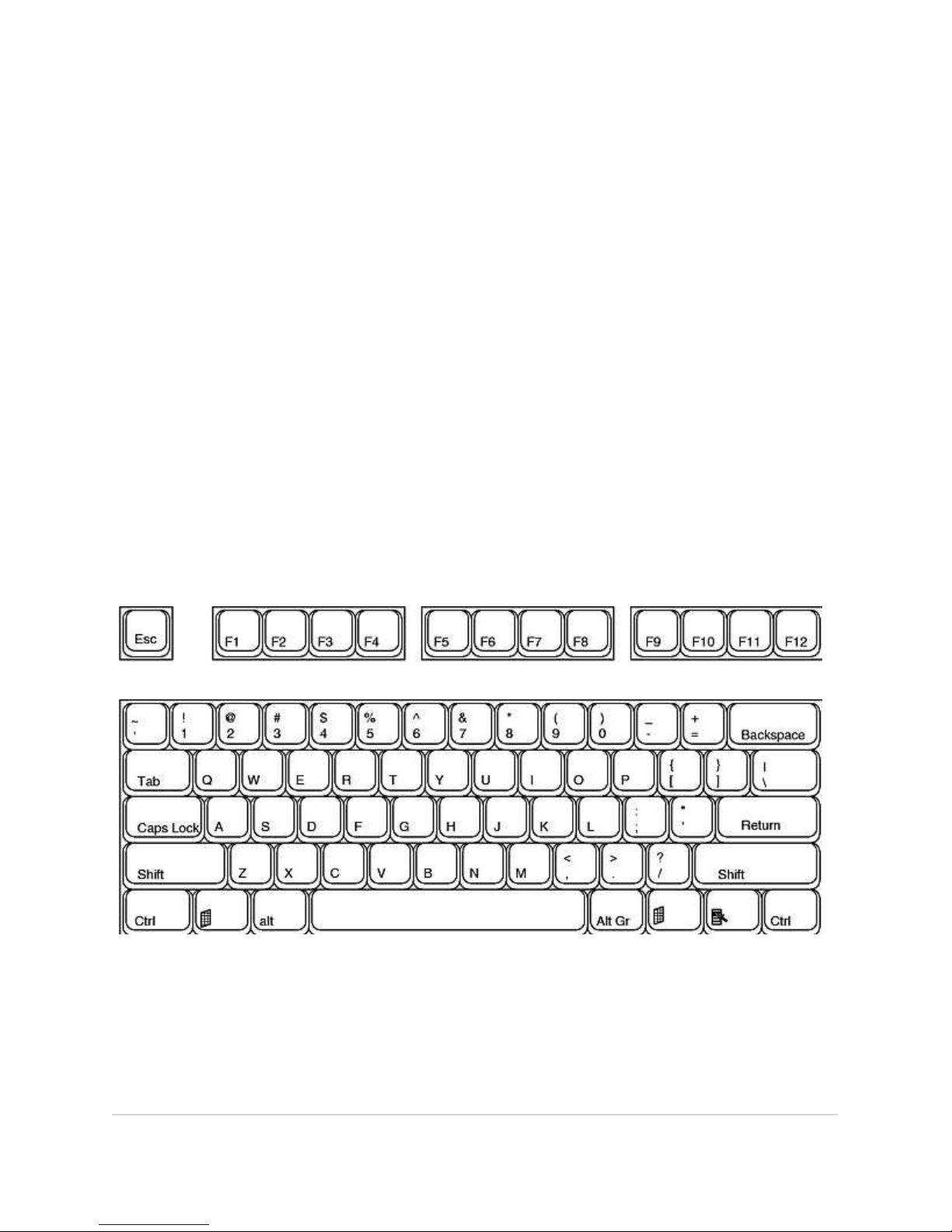
Connect a standard or wireless USB keyboard to the USB1.1port (i.e., the lower
port). Use the USB2.0 port (i.e., the upper port) to connect external devices such as
USB HDD or USB key.
Using the keyboard you can insert text more easily and quickly then you could do
with the remote. The BLOBbox does not distinguish between keyboard sets and
currently recognizes all kinds as American.
The American keyboard layout looks like this:
If you are not using an American keyboard, check the picture to quickly find the
characters that you need.
Note: The Italian keyboard will besupported in a future update.
Page 9

BLOBbox User Manual V. std 0.6.105 - 9
This is the list of some commands that match the keyboard buttons:
ESC BACK
F1 RED BUTTON
F2 GREEN BUTTON
F3 YELLOW BUTTON
F4 BLU BUTTON
F5 FAVORITES
F6 TOOLS
F7 VOTE
F8 INFO
F9 BLOB KEY
F10 HELP
F11 SECURITY
F12 HOME
PgUP CH/PAG
PgDN CH/PAG-
Page 10
BLOBbox User Manual V. std 0.
UNDERSTAND BLOBBOX INDICATORS
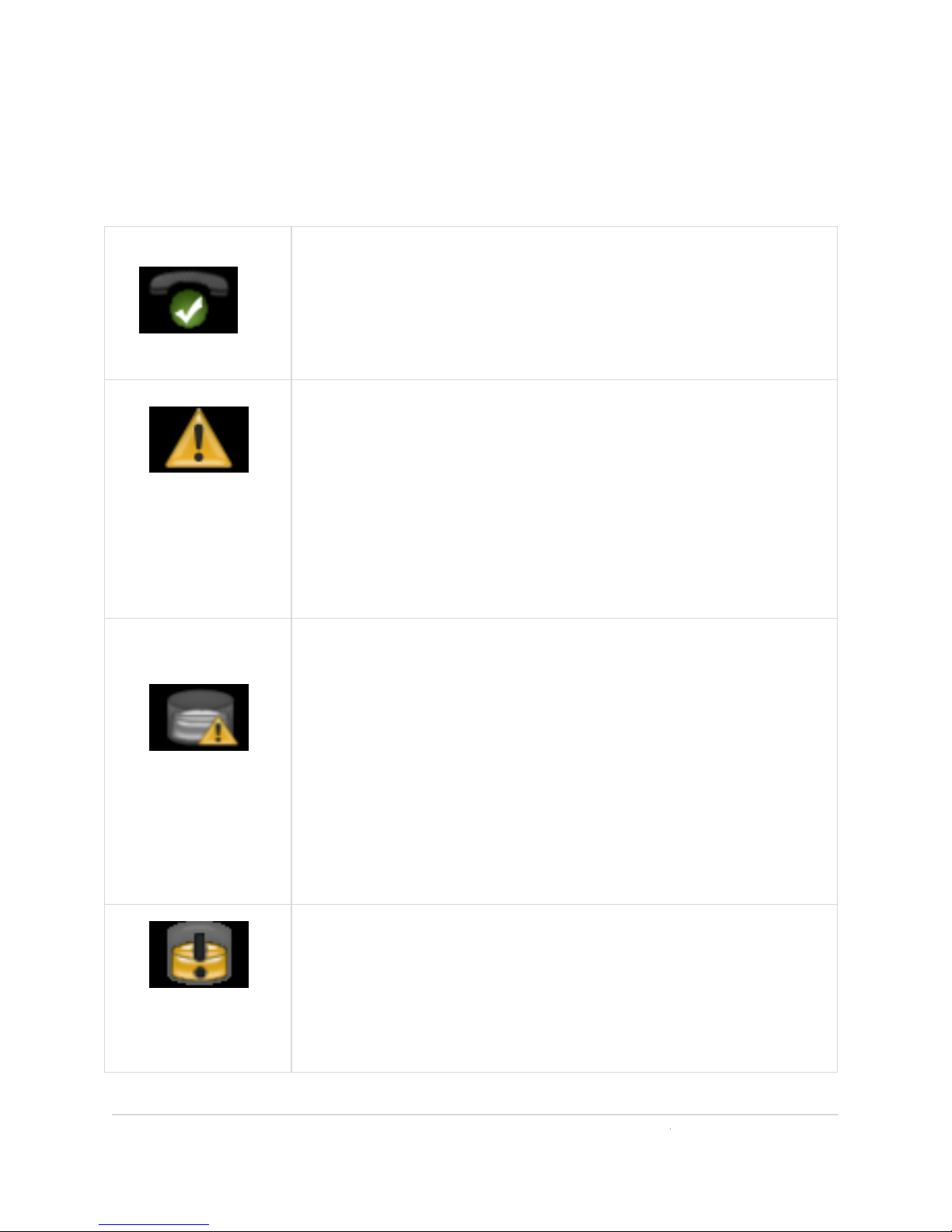
THE SIGNIFICANCE OF THE SCREEN ICONS
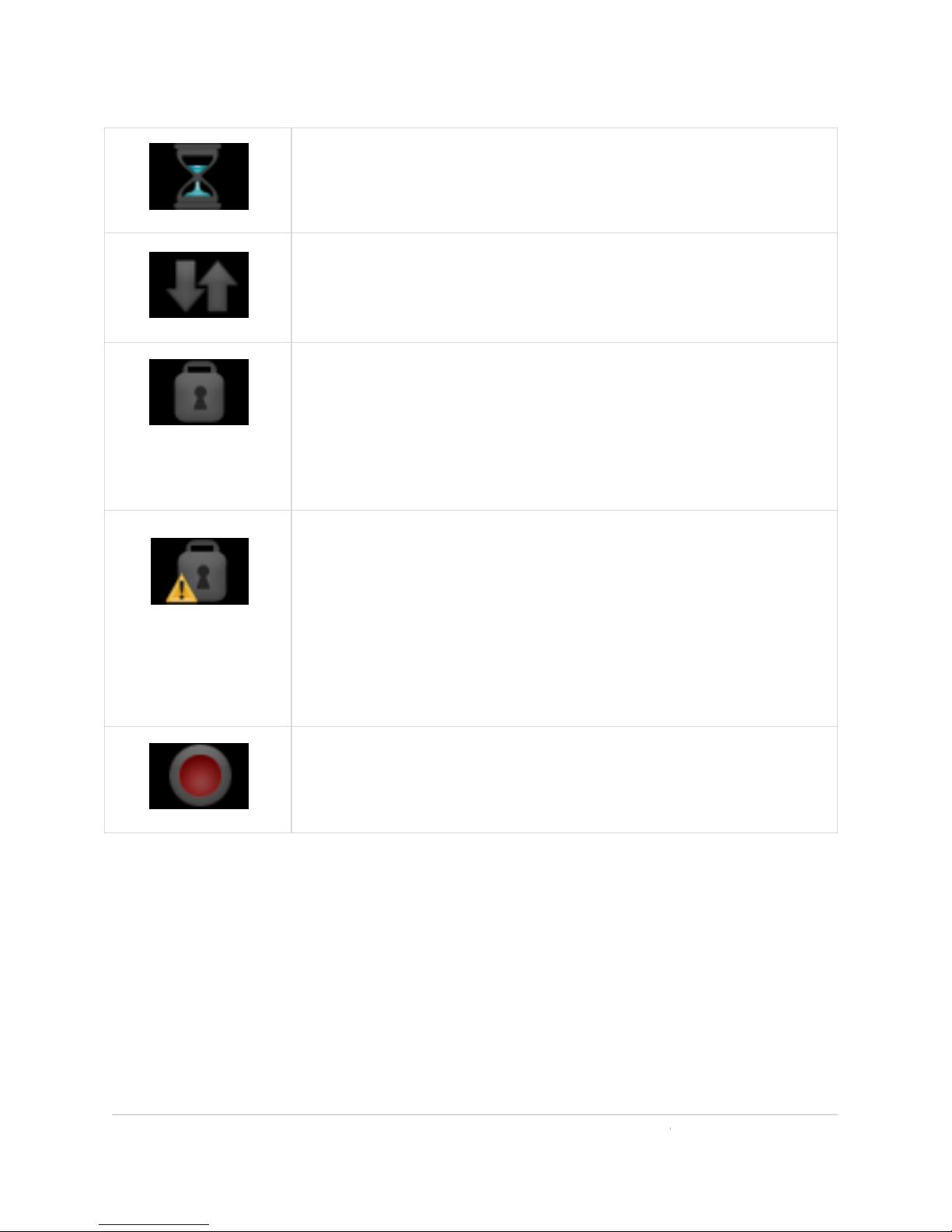
The internet connection is active and
the
services connection is functioning.
There are p
roblems with the internet or TVBLOB services
connection.
WHAT TO DO: Press SET (SETTINGS
) button and select
SUPPORT > DIAGNOTIC
S. Press TEST (red button) t
diagnostics tests (
Please refer to the section
THE DIAGNOSTIC S TESTS”).
The disk is not formatted -or- u
nrecognized file
system/partition -or- disk malfunction.
WHAT TO DO: Press SET (SETTINGS
) button on the remote
control and select MEDIA ARCHIVE > DISK INITIALIZATION.
Press the red button on the remote control to reset the disk.
This operation will take several minutes. If
the problem is not
resolved
after this operation, it indicates that th
damaged and must be replaced.
The disk space is full.
WHAT TO DO: Delete or transfer
several files from
media archive in order to free some disk
space.
6.105 - 10
TVBLOB
o run the
“HOW TO RUN
e disk is
your
Page 11
BLOBbox User Manual V. std 0.
Data is being copied.
Data is being transferred via the
internet.
You are viewing a secure site (SSL).
WHAT TO DO: Press the SEC (SECURITY)
button on the
remote control for further information on the
The
website currently displayed is not necessarily
secure; the i
dentification certification provided has
passed security controls.
WHAT TO DO: We recommen
d that you do
personal data
until you are certain that the site is secure
A recording is in progress.
6.105 - 11
displayed site.
not
not send
.
Page 12
BLOBbox User Manual V. std 0.6.105 - 12
WATCH DIGITAL TERRESTRIAL TV
With the BLOBbox you can watch digital terrestrial TV directly on your TV.
Note: your antenna installation must support the digital terrestrial signal.
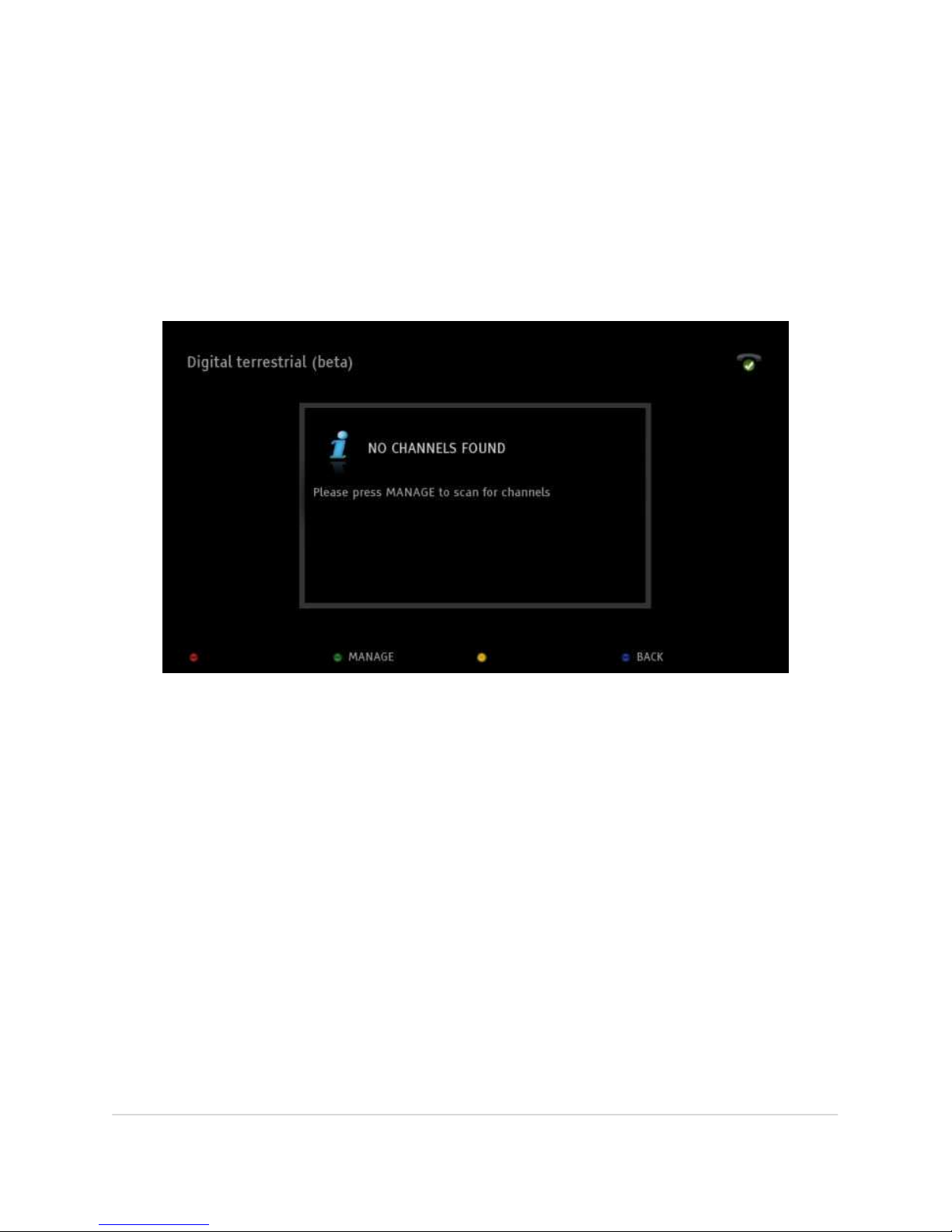
HOW TO TUNE THE DIGITAL TERRESTRIAL CHANNELS
Select TV > DIGITAL TERRESTRIAL from the Home Page.
Press MANAGE (green button) then press SCAN (red button) to start the channel
tuning.
Wait until the BLOBbox finishes scanning the channels.
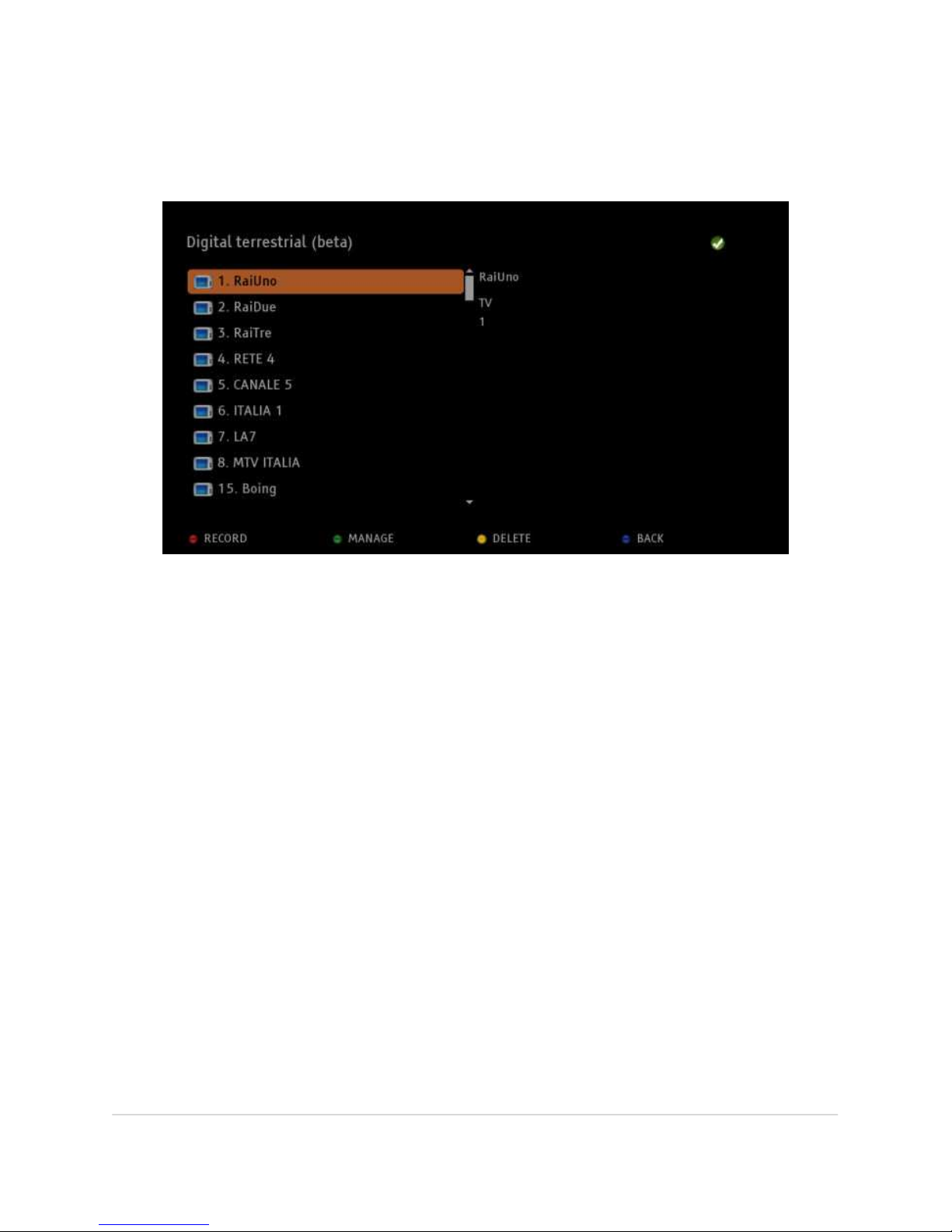
Once the tuning is done, the channel list will be displayed on the left side of the
screen.
As you navigate up and down the channel list, on the right of the screen you will
see information that indicates whether it is a TV or radio channel.
If you want to initiate another channel scanning at any time, press MANAGE (green
button) again and then press SCAN (red button).
Page 13
BLOBbox User Manual V. std 0.6.105 - 13
HOW TO WATCH TV AND LISTEN TO THE MUSIC
Select TV > DIGITAL TERRESTRIAL from the Home Page.
On the remote control, press the ID number of the channel desired and press OK to
watch it. You can also use the remote control arrows keys to navigate through the
channels listed.
Press the button CHAN/PAG+ to watch the next channel or the button
CHAN/PAGto
watch the previous channel. To switch directly to a channel, press the
corresponding channel number on the remote control (e.g., press the number 6 on
the remote to watch ‘‘Italia1’’).
To display the channel list without interrupt the viewing of the channel, press the
UP/DOWN arrow keys on the remote. Press the UP/DOWN arrow keys on the
remote to navigate through the channels and press OK to watch the selected one.
To display the progress bar, press OK on the remote while you are watching a
channel. Press the button INFO on the remote to view more information about the
program that you are watching.
Press BACK on the remote to go back to the channel list.
Page 14
BLOBbox User Manual V. std 0.6.105 - 14
HOW TO DELETE A CHANNEL FROM THE LIST
Select TV > DIGITAL TERRESTRIAL from the Home Page. Using the arrow keys on the
remote, highlight the channel you want to delete and press DELETE (yellow
button). The deletion is not permanent. When you rescan the channels, the
eliminated channels will reappear.
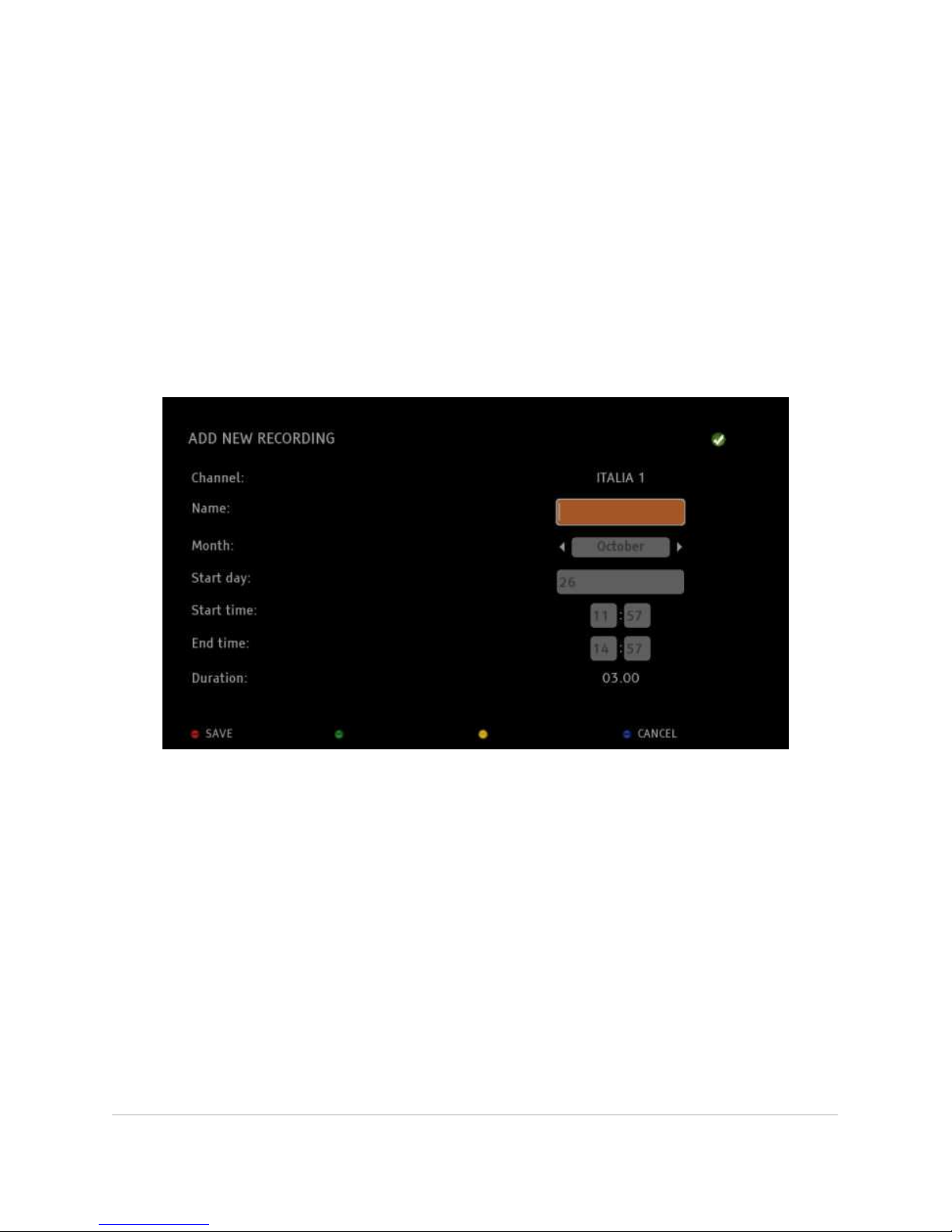
-NEW- HOW TO SCHEDULE A RECORDING
Select TV > DIGITAL TERRESTRIAL from the Home Page. Using the arrow keys on the
remote, highlight the channel you want to record and press REC (red button).
NAME: Insert the recording’s name.
MONTH: Select the month recording’s month.
START DAY: Insert the recording’s day.
START TIME: Insert the recording’s starting time.
END TIME: Insert the recording’s ending time.
DURATION: The total recording’s duration is shown.
Press SAVE (red button) to confirm and save the recording.
In this version is not possible to record two programs at the same time. You can
record a channel while you are watching another one.
Page 15
BLOBbox User Manual V. std 0.6.105 - 15
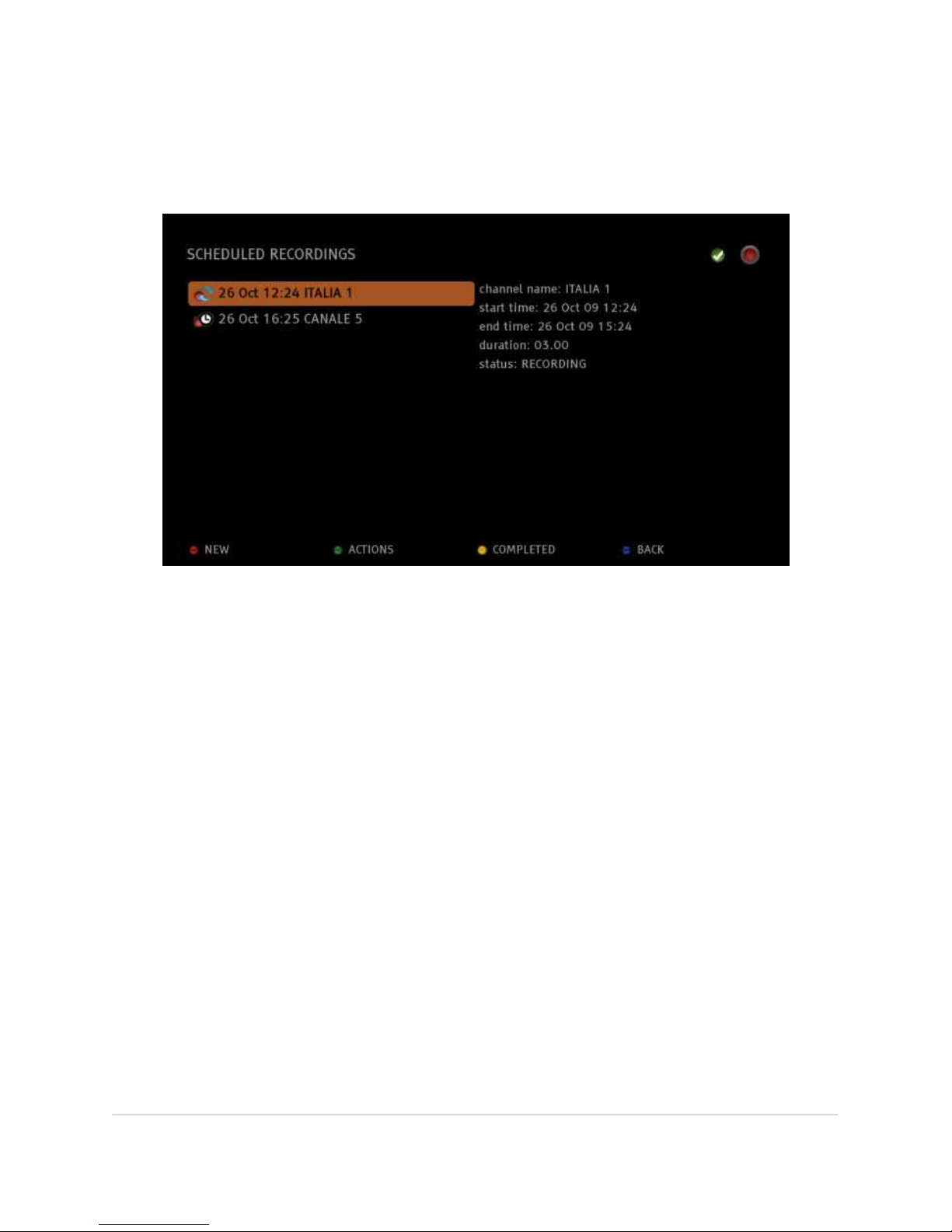
-NEW- HOW TO SEE THE RECORDINGS STATUS
Select TV > MY TV RECORDINGS from the Home Page.
When you highlight one programmed recording, on the right of the screen you will
see more information about it.
The icon representing a red ball with 2 blu arrows indicates that the recording is in
progress, the icon representing the red ball with a clock indicates that the
recording is waiting to start.
-NEW- HOW TO EDIT A SCHEDULED RECORDING
Select TV > MY TV RECORDINGS from the Home Page. Press ACTIONS (green
button) and select EDIT/RENAME. Edit the recording and press SAVE (red button).
-NEW- HOW TO DELETE A SCHEDULED RECORDING
Select TV > MY TV RECORDINGS from the Home Page. Press ACTIONS (green
button) and select CANCEL. Press YES (red button).
Page 16
BLOBbox User Manual V. std 0.6.105 - 16
HOW TO WATCH A COMPLETED RECORDING
Select TV > MY TV RECORDINGS from the Home Page. Press COMPLETED (yellow
button).
Highlight the desired recording and press OK on the remote to watch it.
While you are watching a recording, press the UP/DOWN arrow key on the remote
to view the complete recording’s list, highlight the desired one and press OK to
directly watch it.
Press BACK to go back to the recordings list.
Page 17
BLOBbox User Manual V. std 0.6.105 - 17
ORGANIZE THE VIDEO ARCHIVE
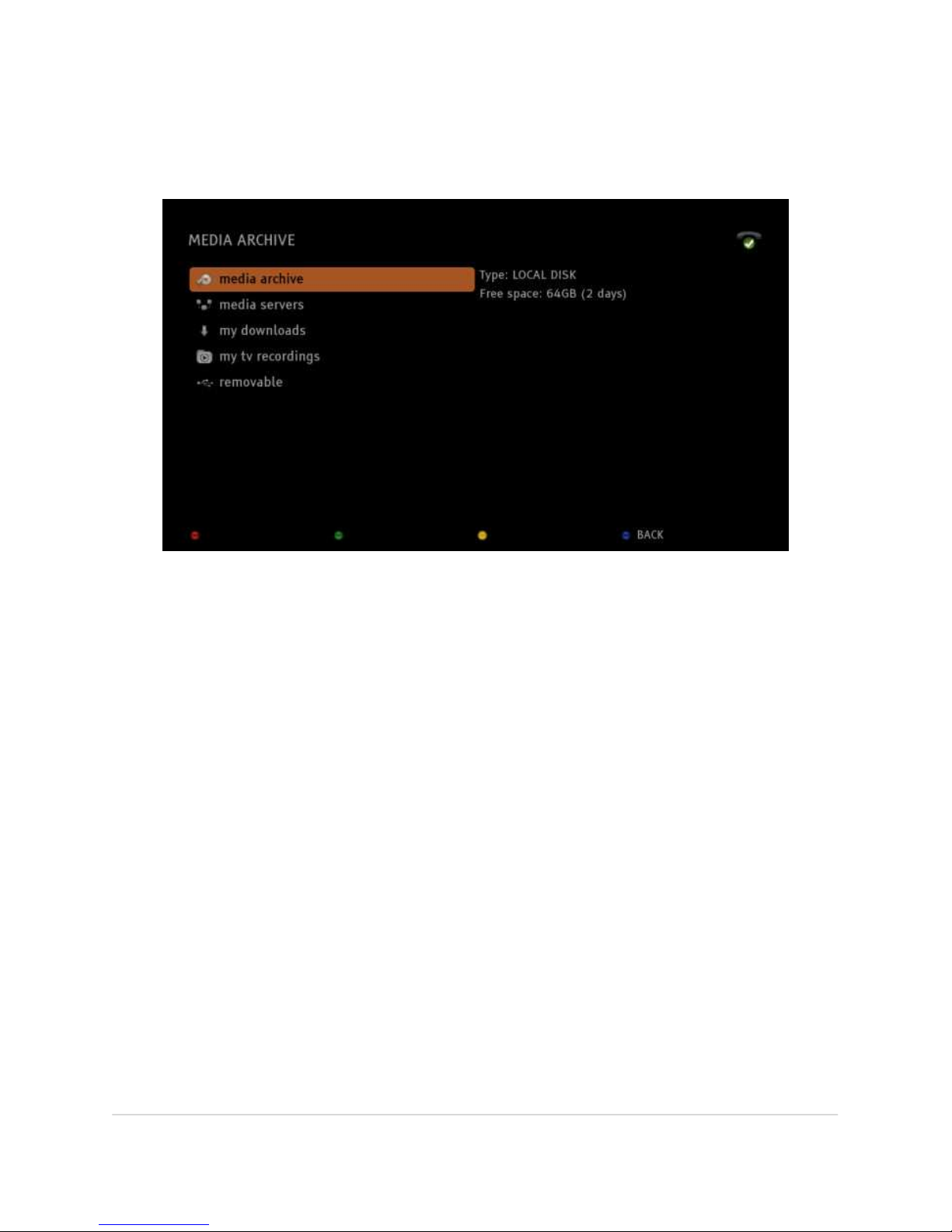
On the BLOBbox HOME PAGE, select ARCHIVE.
• MEDIA: lets you manage the BLOBbox internal HDD. You can create,
delete, move, copy, rename files and folders to organize your media
collection as you would like.
• MEDIASERVERS: lists of all of the UPnP (Universal Plug and Play) -enabled
devices available on your home network. You will be able to access and
play from your BLOBbox any content that you have shared from any UPnP
device.
• MY DOWNLOADS: accesses all media downloaded to your BLOBbox using
BitTorrent, HTTP e FTP.
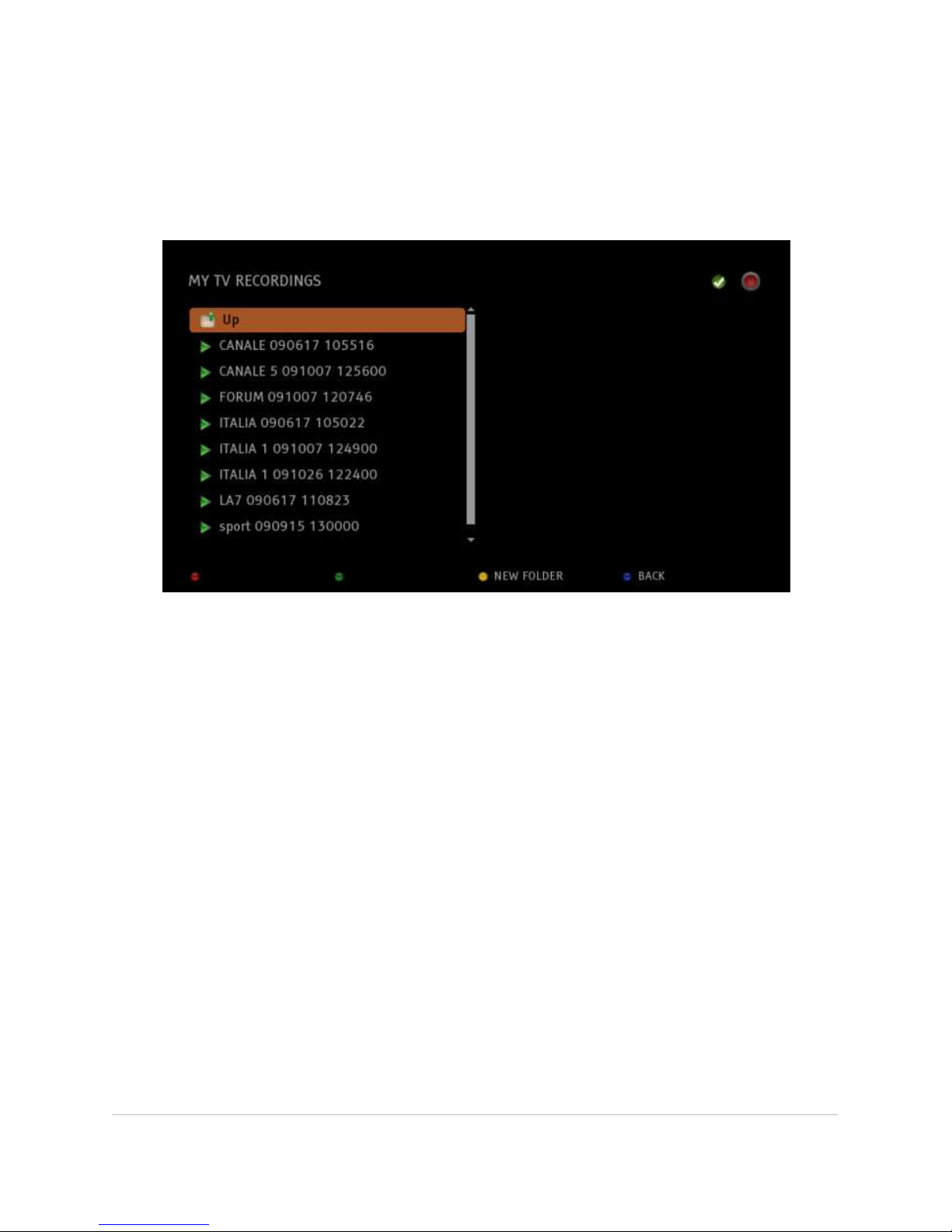
• MY TV RECORDINGS: lists all Digital Terrestrial TV recordings that you
have made.
• REMOVABLE: lets you access content on USB peripherals connected to the
USB port (e.g., HDD, USB keys).
Page 18

BLOBbox User Manual V. std 0.6.105 - 18
HOW TO CREATE A NEW FOLDER
From the BLOBbox Home Page, select ARCHIVE > MEDIA and press OK, then select
NEW FOLDER (yellow key).
Enter the name of the folder you want to create and press SAVE (red button).
Page 19
BLOBbox User Manual V. std 0.6.105 - 19
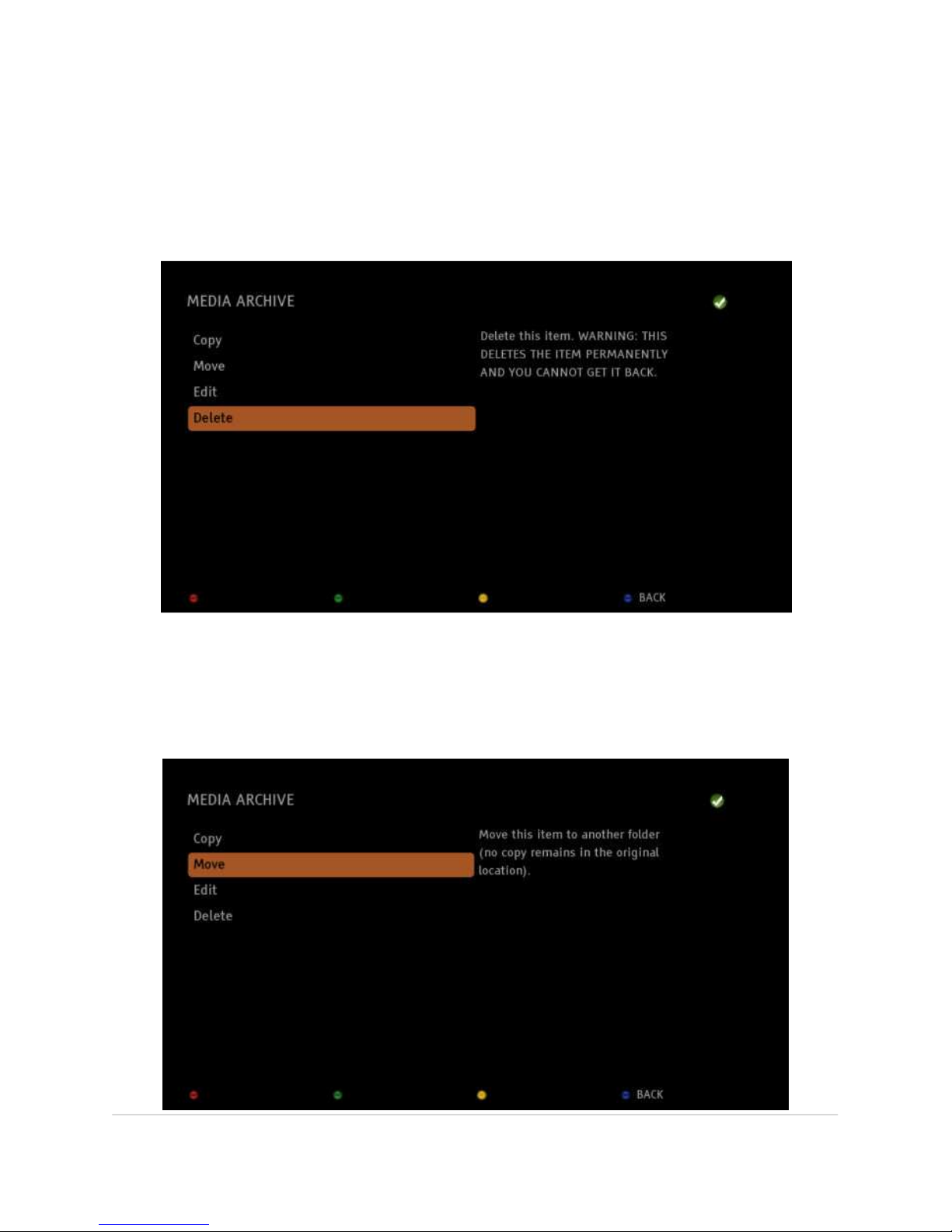
HOW TO DELETE A FILE OR A FOLDER
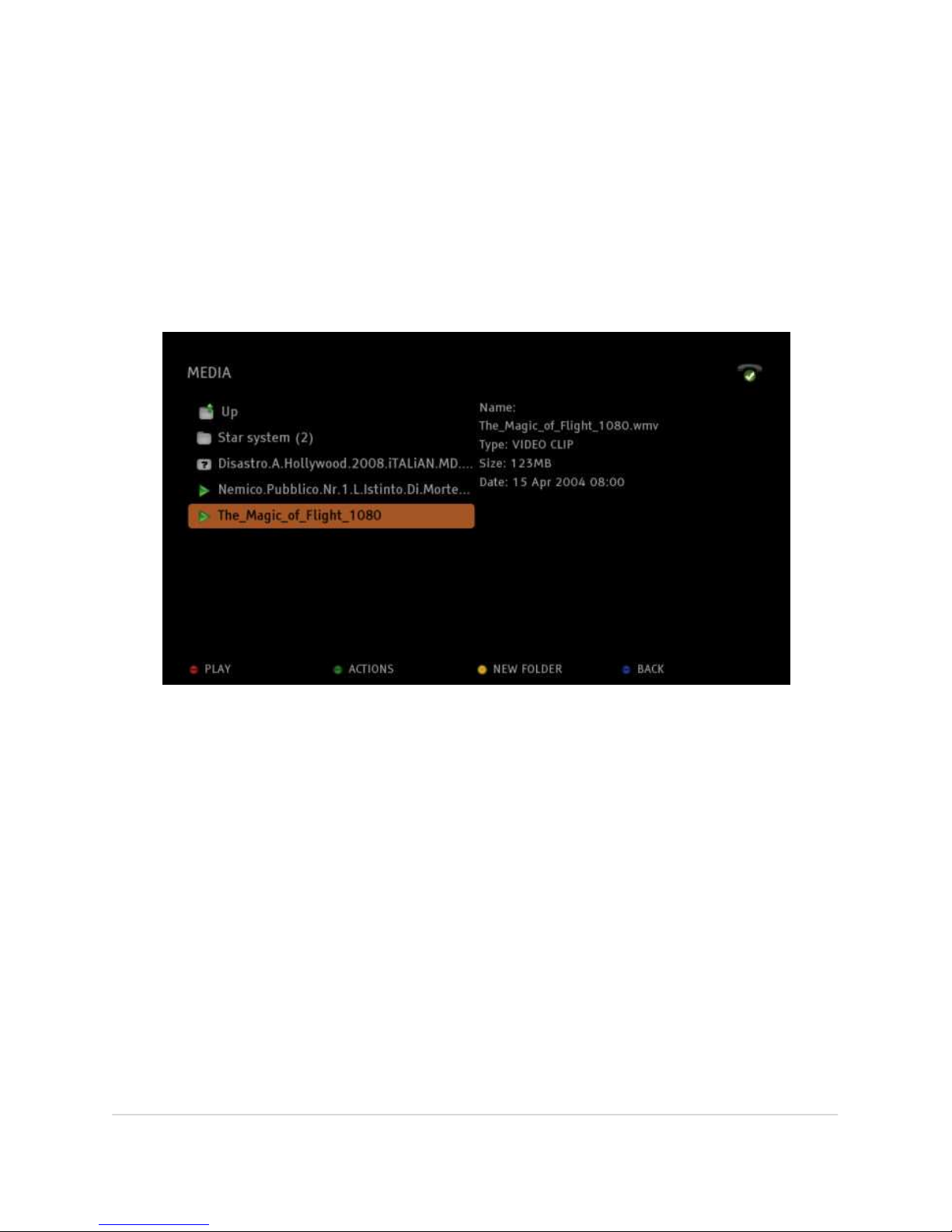
Select ARCHIVE> MEDIA, navigate to the file or the folder that you want to delete
and select ACTIONS (green button). Navigate to DELETE and press OK.
HOW TO MOVE A FILE OR A FOLDER
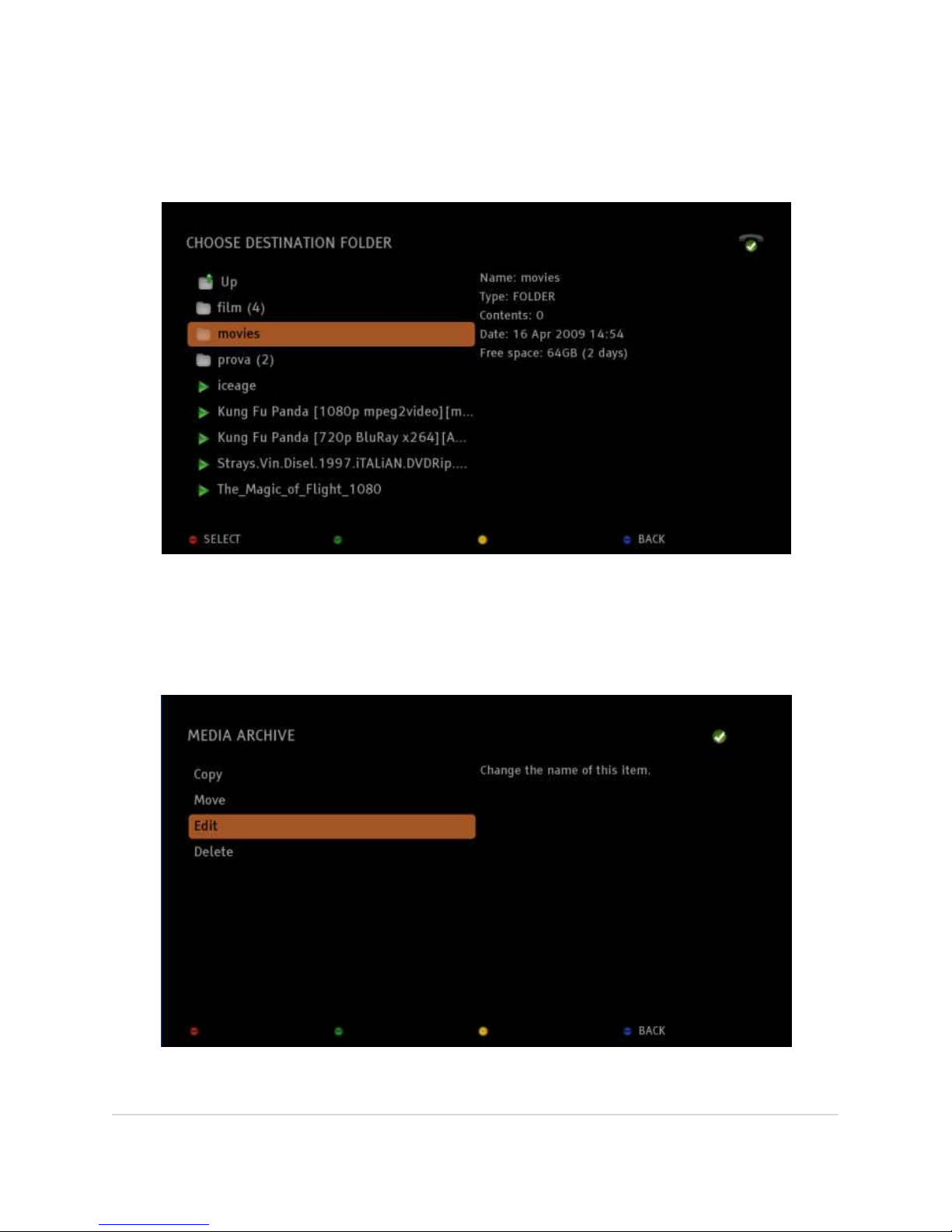
Select ARCHIVE > MEDIA, navigate to the file or the folder you want to move and
press ACTIONS (green button). Select MOVE and press OK.
Page 20
BLOBbox User Manual V. std 0.6.105 - 20
Navigate to the folder where you want to move the file or the folder and press
CHOOSE (red button).
HOW TO RENAME A FILE OR A FOLDER
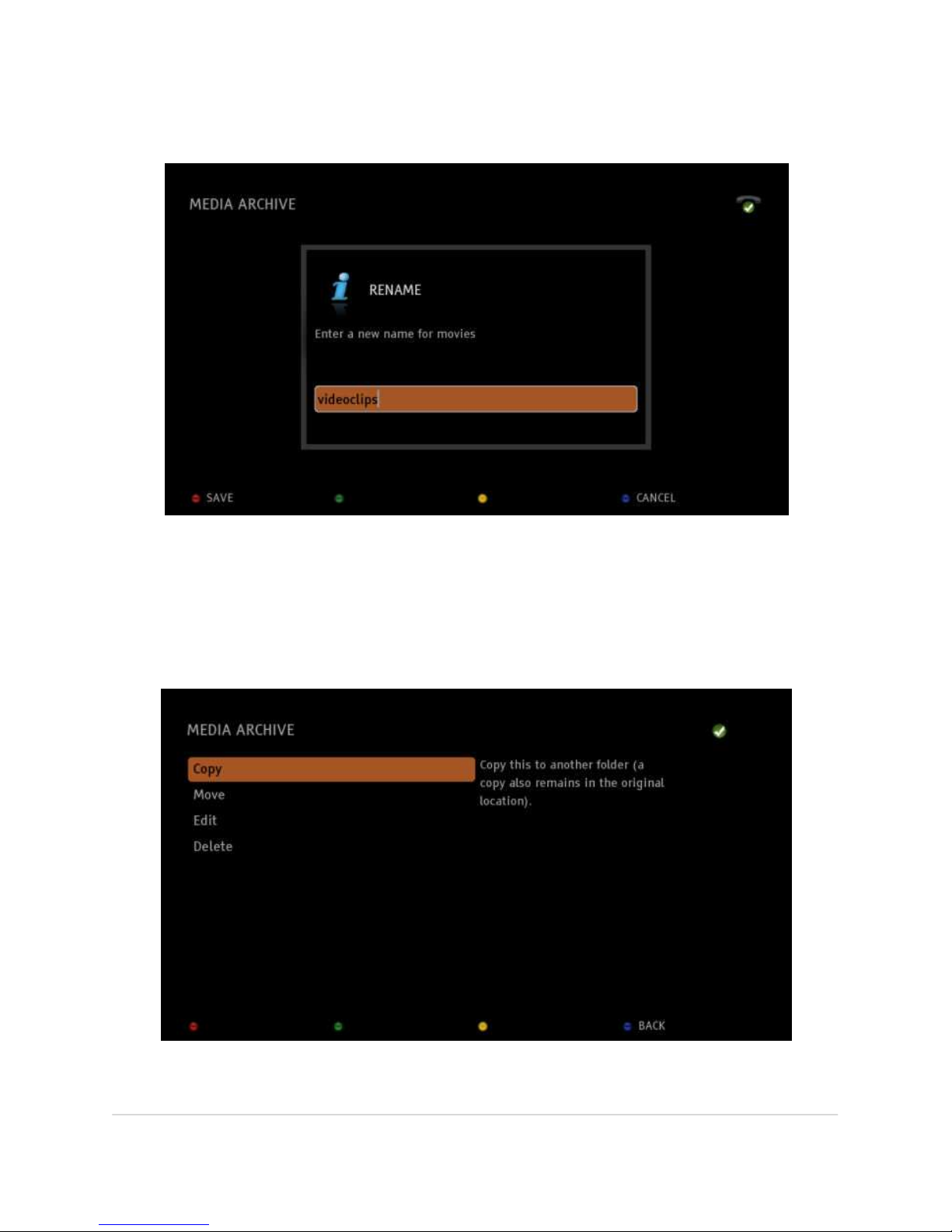
Select ARCHIVE > MEDIA, navigate to the file or folder that you want to rename and
select ACTIONS (green button).
Select EDIT and press OK.
Page 21
BLOBbox User Manual V. std 0.6.105 - 21
Enter the name of the folder you want to create.
Press SAVE (red button).
HOW TO COPY A FILE OR A FOLDER
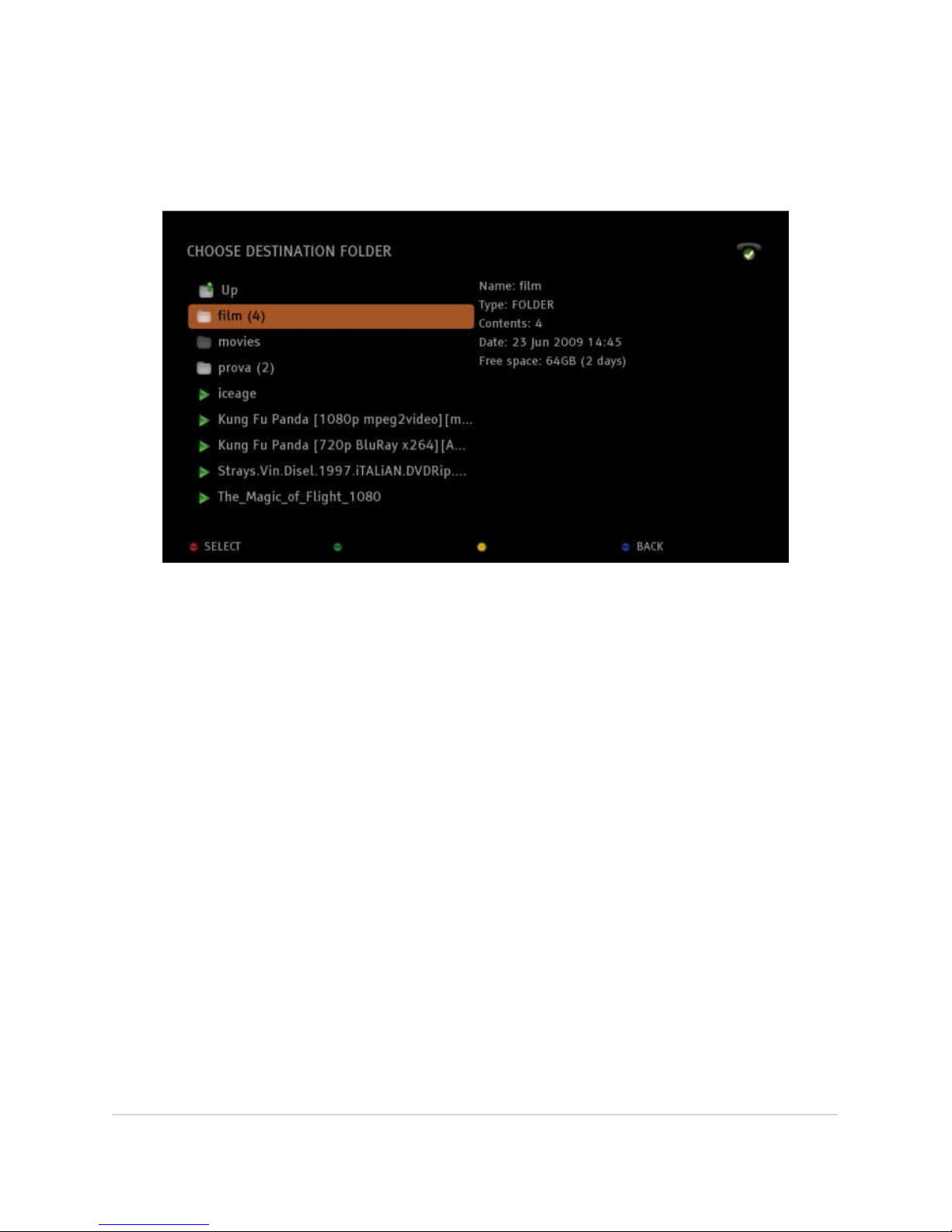
Select ARCHIVE, highlight the file or folder you want to copy and press ACTIONS
(green button).
Navigate to COPY and press OK.
Page 22
BLOBbox User Manual V. std 0.6.105 - 22
Move to the folder into which you want to copy the file or folder.
Press SELECT (red button).
Page 23
BLOBbox User Manual V. std 0.6.105 - 23
PLAY MULTIMEDIA FILES
BLOBbox is a useful multimedia player that can play or display audio, video and
image files.
HOW TO PLAY MULTIMEDIA FILES
From the BLOBbox Home Page, select ARCHIVE and navigate to the multimedia
item that you want to play.
Press OK and the playback will start.
To playback all media files that reside in a particular folder as a playlist, navigate to
the desired folder and press the PLAY button on the remote control.
Note: You can play or display video, audio and image files. The supported file formats
include:
• VIDEO FORMATS: MP4-MOV, AVI, ASF-WMV, MPEG-TS, MPEG-PS, MKV
• VIDEO CODEC: MPEG2, MPEG4, H264, VC-1, WM9, DIVX, XVID
• AUDIO CODEC: MP2, MP3, AAC, AC3, WMA
• IMAGE FORMATS: GIF, JPG, PNG
Page 24

BLOBbox User Manual V. std 0.6.105 - 24
COPY/WATCH MEDIA FILES STORED ON USB PERIPHERALS
You can easily connect a USB peripheral (e.g., USB key, HDD) to the USB port of the
BLOBbox and copy media files directly to the BLOBbox HDD, as well as move them
back and forth. You can also play files directly from the external device.
You can play video, audio and image files. The supported file formats include:
• VIDEO FORMATS: MP4-MOV, AVI, ASF-WMV, MPEG-TS, MPEG-PS, MKV
• VIDEO CODEC: MPEG2, MPEG4, H264, VC-1, WM9, DIVX, XVID
• AUDIO CODEC: MP2, MP3, AAC, AC3, WMA
• IMAGE FORMATS: GIF, JPG, PNG
HOW TO WATCH MEDIA FILES STORED ON A USB PERIPHERAL
Connect the USB peripheral to the USB connector in the back of the BLOBbox. You
should plug your device into the upper USB slot because it is faster than the lower
one. In the interface, select ARCHIVE >REMOVABLE. The content of the connected
peripheral will be displayed. Select the media file that you want to play and press
OK.
HOW TO COPY MEDIA FILES STORED ON A USB PERIPHERAL
Connect the USB peripheral to the USB connector in the back of the BLOBbox. You
should plug your device into the upper USB slot because it is faster than the lower
one. In the interface, select ARCHIVE >REMOVABLE. The content on the connected
peripheral will be displayed. Navigate to the file or folder that you want to copy and
press ACTIONS (green button). Navigate to COPY and press OK, then navigate to
the folder where you want the copied file to be saved and press CHOOSE (red
button).
Page 25

BLOBbox User Manual V. std 0.6.105 - 25
PLAY MULTIMEDIA FILES ON YOUR HOME NETWORK
From the BLOBBOX you can access and play directly on TV any multimedia content
stored and shared on the hard disk drive (HDD)of your PC without having to copy
any of it onto the BLOBbox.
There are several programs that allow you to share content stored on your PC HDD
with other peripherals on the home network.
HOW TO SHARE MULTIMEDIA FILES USING TVERSITY (WINDOWS)
Tversity is one example of a content storage application for the home network.
First, you must install Tversity on your PC by going to http://tversity.com/. After
installing it, you will be able to share multimedia files stored in any of your PC
folders.
To optimize the configuration of Tversity, please consult the Tversity Quick Start
Guide at
Note: Tversity makes it possible to play video formats not typically supported by the
BLOBbox because it can decode/encode video streams in real-time.
Page 26
BLOBbox User Manual V. std 0.6.105 - 26
HOW TO SHARE MULTIMEDIA FILES USING XBMC
XBMC is a free application that transforms your PC (Windows, Linux, or Mac) into a
complete multimedia entertainment center with a variety of useful and intuitive
features.
XBMC is an Open Source media center that lets you share photos, video, music and
many other things, using a well-designed management interface.
In your PC, open your browser (e.g., Firefox, Internet Explorer) and download the
version compatible with your Operating System. Install XMBC on your PC, then you
will be able to reproduce directly on your BLOBbox all of the multimedia content
available on your PC.
For more information regarding the installation and configuration of XMBC, visit
their support area: http://www.xbmc.org/support
HOW TO SHARE MULTIMEDIA FILES USING WINDOWS MEDIA PLAYER
11
It is possible to use Windows Media player to share content over the home
network. To do so, you must make sure you have Windows Media Player 11
installed. If you have an older version, first download an update from
(http://www.microsoft.com/windows/windowsmedia/player/11/default.aspx ) and
proceed with the installation. Once installed, launch Windows Media Player 11.
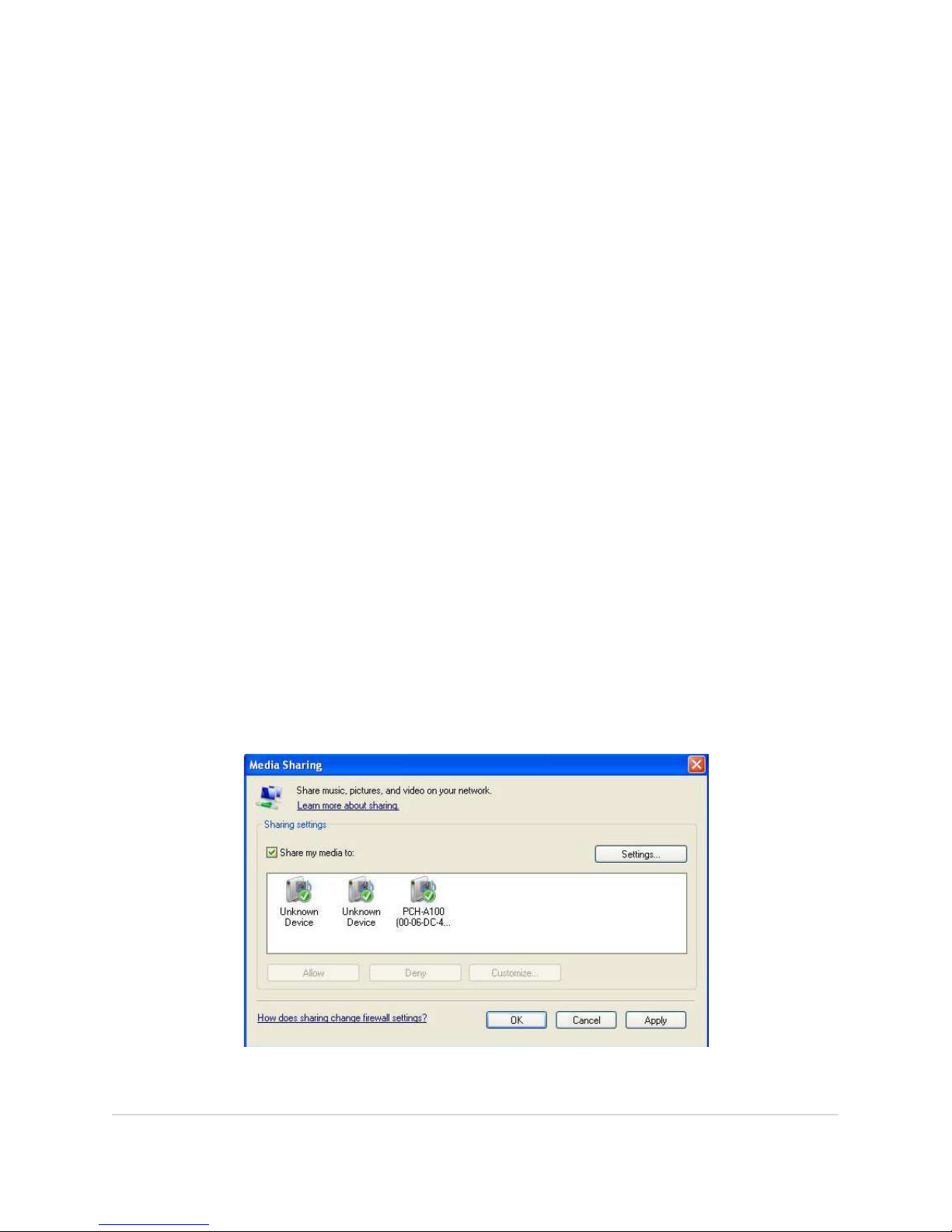
In the Menu, select LIBRARY > MEDIA SHARING, then activate the check box “Share
my media to:”.
Page 27
BLOBbox User Manual V. std 0.6.105 - 27
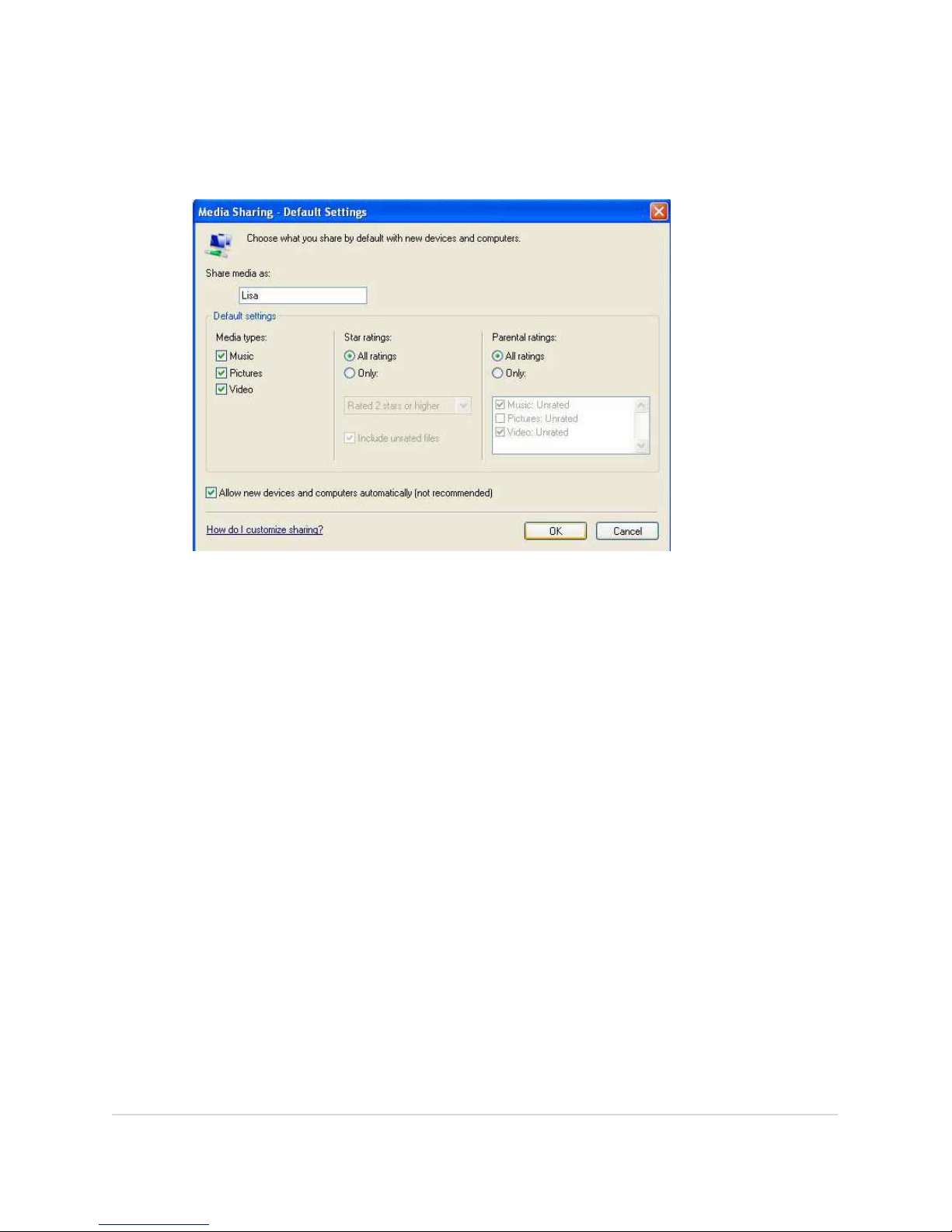
Click on “Settings”.
Enter the name in the field that you would like to appear when sharing files.
Activate checkboxes next to the multimedia file types to be shared: VIDEO and/or
MUSIC (Photos will be possible in an upcoming release).
Activate the checkbox affirming that you “Allow new device and computers
automatically” (we are assuming that you are in a secure, closed home network
environment). Click OK to save the changes and exit the window.
Page 28
BLOBbox User Manual V. std 0.6.105 - 28
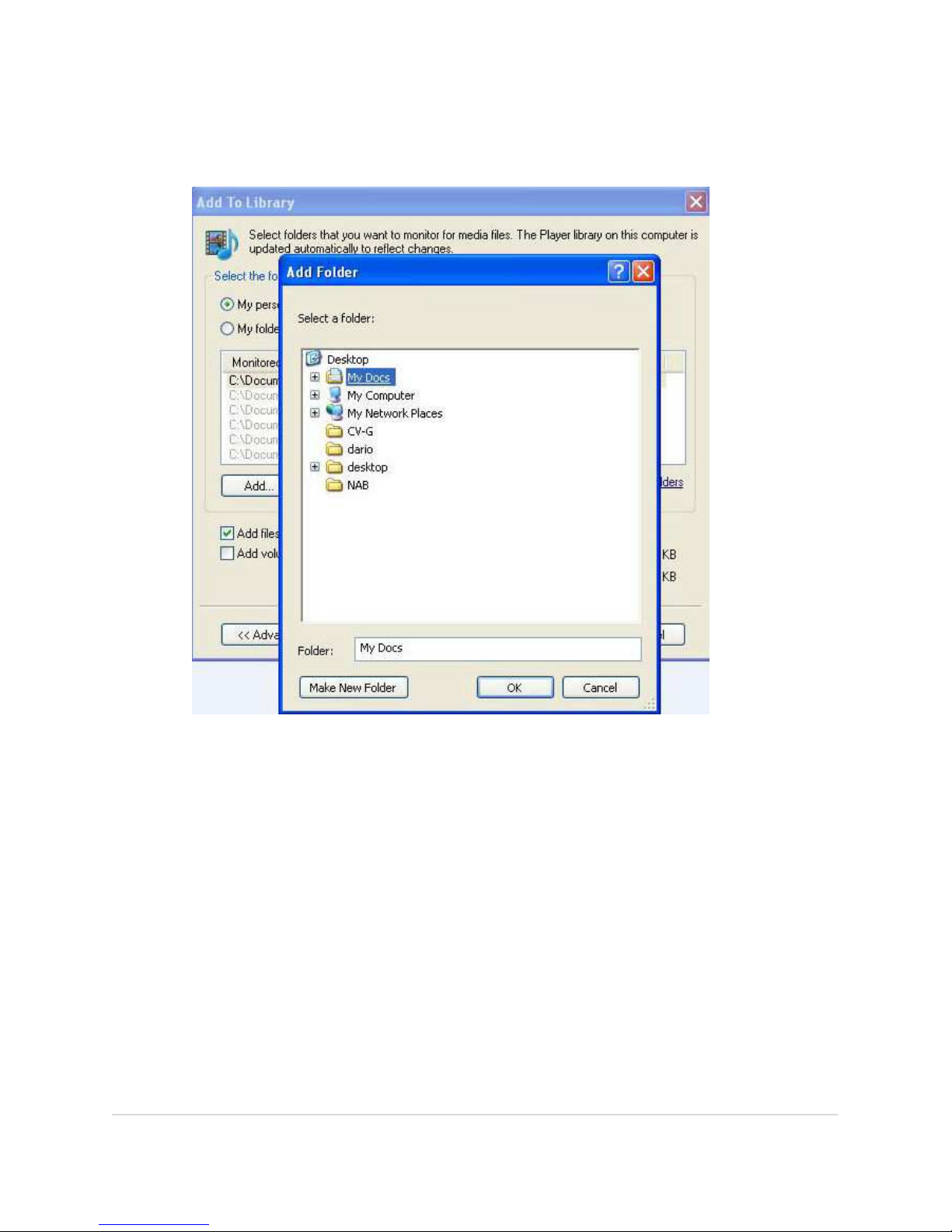
In the primary WMP11 menu, select LIBRARY > ADD TO LIBRARY > ADVANCED
OPTIONS.
In this window, navigate to the folder that you would like to have monitored (i.e., a
“hot folder”) and click ADD. In the ADD FOLDER window, navigate to the folder
where you store your video and audio (MP3) files that you would like to share on
your network and access on your BLOBbox. You can add as many hot folders as you
would like.
Page 29
BLOBbox User Manual V. std 0.6.105 - 29
HOW TO SEARCH AND WATCH FOR THE SHARED CONTENTS
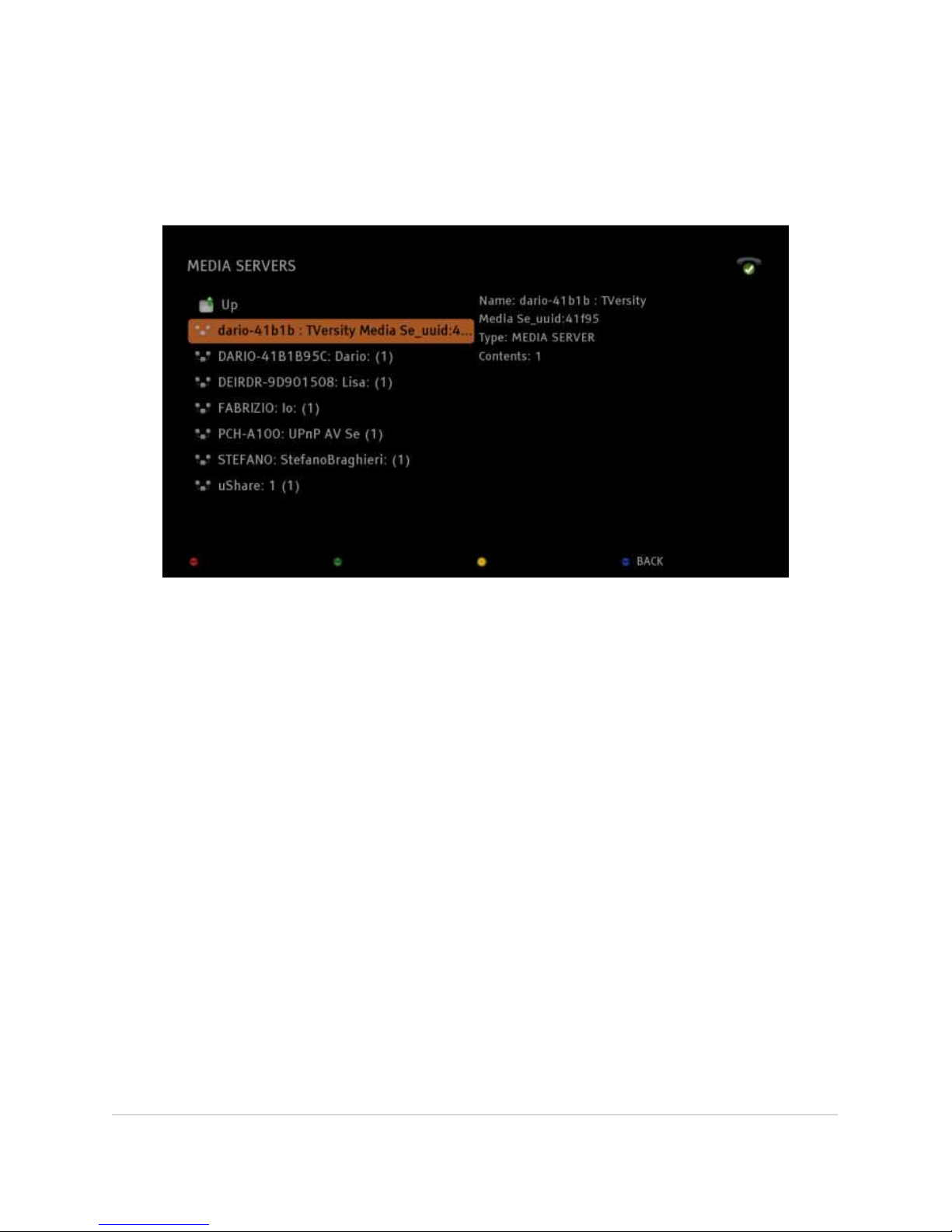
Select ARCHIVE > MEDIASERVER from the Home Page. The UPnP servers that are
running in your LAN will be displayed.
Looking at the screenshot, you can see that this person is using Tversity on his PC
(dario-41b1b :Tversity…) as an UPnP server to share content.
Navigate to the device that you are using to share media content and press OK to
access it. Here you will find all of the media content that you are sharing. Navigate
further to the specific file that you want to watch and press OK to initiate playback.
N.B. You can play video, audio and image files. The supported file formats include:
• VIDEO FORMATS: MP4-MOV, AVI, ASF-WMV, MP3, MPEG-TS, MPEG-PS,
MKV
• VIDEO CODEC: MPEG2, MPEG4, H264, VC-1, WM9, DIVX, XVID
• AUDIO CODEC: MP2, MP3, AAC, AC3, WMA
• IMAGE FORMATS: GIF, JPG, PNG
Page 30
BLOBbox User Manual V. std 0.6.105 - 30
TRANSFER CONTENT BETWEEN YOUR PC AND BLOBBOX
(SAMBA)
Using a LAN (local area network,) you can transfer your content from your BLOBbox
to your PC and vice versa. Also, you can view the content that is in your BLOBbox
directly from your PC, without having to copy it over.
HOW TO ACTIVATE SHARING BETWEEN PC AND BLOBBOX
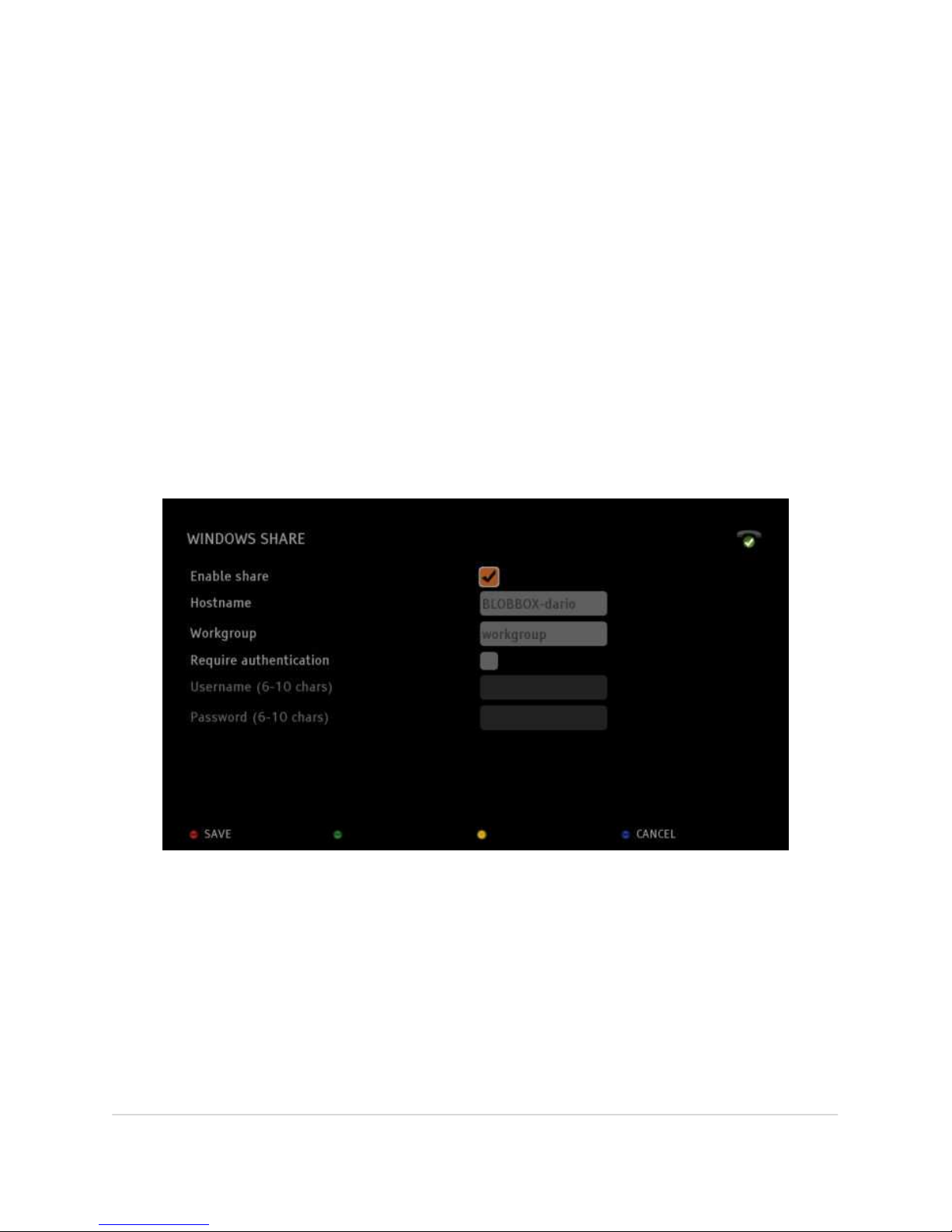
Press the SET (SETTINGS) button on the remote control and select MEDIA STORAGE
> WINDOWS SHARE.
Go to the ENABLE SHARE checkbox and press OK.
[x] Enabled
[ ] Disabled
HOST NAME is the name that will identify your BLOBBOX on your PC network; you
can enter a different name or keep the default name.
WORK GROUP indicates that the BLOBbox belongs to a workgroup within the
network; the default name is MSHOME, but you can change this also.
Page 31
BLOBbox User Manual V. std 0.6.105 - 31
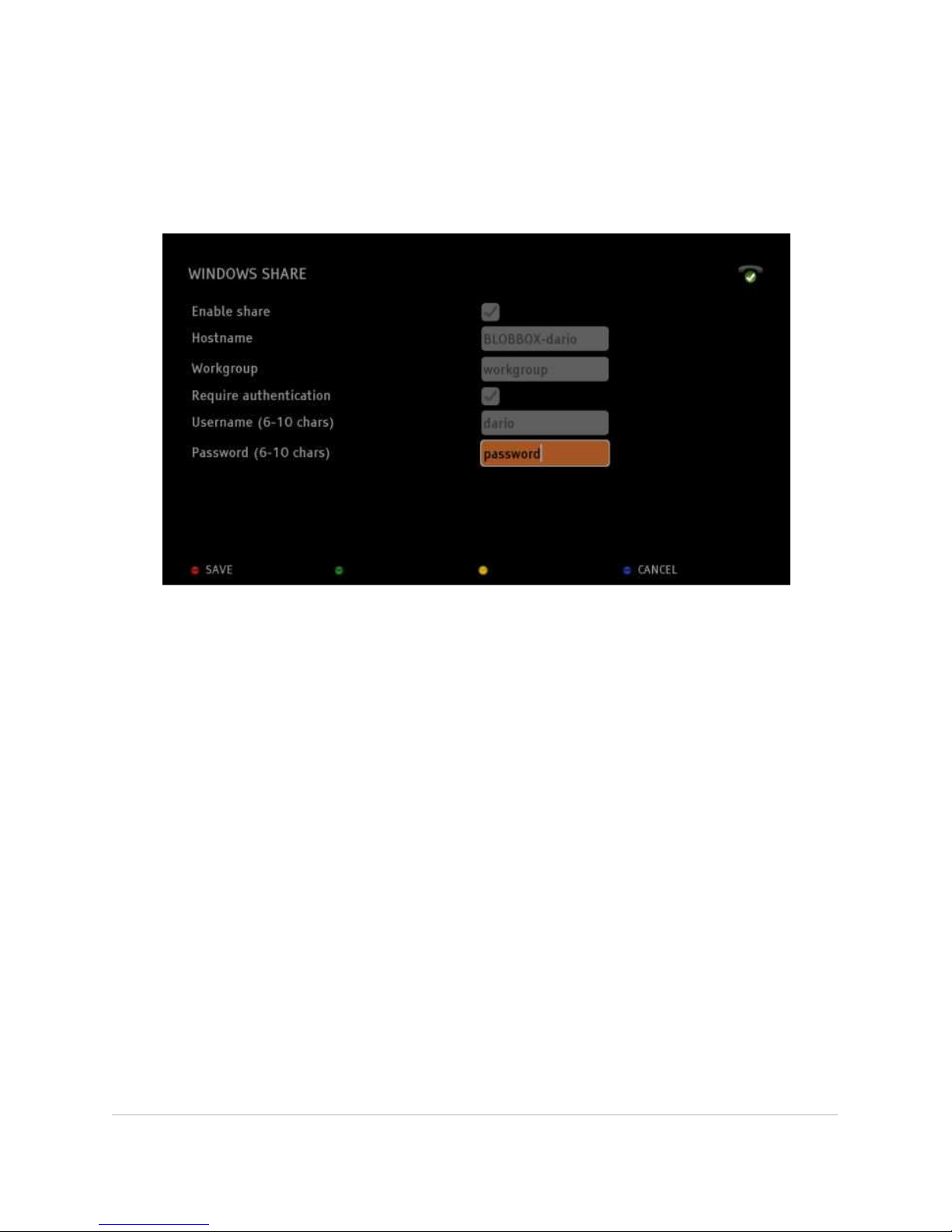
You can also protect access to your BLOBbox by means of a username and
password. To activate this function, go to REQUEST AUTHENTICATION and press
OK.
[x] Enabled
[ ] Disabled
Next, enter a USERNAME and PASSWORD (a minimum of 6 to a maximum of 10
alphanumeric characters) in the appropriate spaces.
Press SAVE (red button) to confirm your entries.
If you want to disable the user authentication option, simple uncheck the REQUEST
AUTHENTICATION box and press SAVE (red button).
Page 32

BLOBbox User Manual V. std 0.6.105 - 32
HOW TO ACCESS BLOBBOX USING A PC WITH WINDOWS XP OR VISTA
On the Windows XP desktop, select Network Neighborhood (or My Network
Places). Click on “View Work Group Computers” from the “Network Operations”
menu on the left-hand side of the window. If your BLOBbox and your PC belong to
the same workgroup (e.g,, MSHOME), you will find your BLOBbox here.
Instead, if your BLOBbox and your PC belong to different workgroups, open the
“OTHER RESOURCES” menu and click on “MICROSOFT WINDOWS NETWORK” to
access all of the workgroups present on your network. Click on the workgroup to
which your BLOBbox belongs to access it. If you have protected access by means of
a username and password, enter this information when prompted.
From here you can transfer content between your BLOBbox and PC. You can also
view files that are located in your BLOBbox directly on your PC.
HOW TO ACCESS THE BLOBBOX USING A PC WITH MAC OS
From the menu at the lower part of the desktop click on FINDER and then on
SHARING. A window will open in which you will see an icon with the name of your
BLOBbox; click on it to access it. If you have protected access by means of a
username and password, enter this information when prompted.
From here you can transfer content between your BLOBbox and PC. Also, files that
are located in your BLOBbox can be viewed directly on your PC.
HOW TO ACCESS THE BLOBBOX USING A PC WITH LINUX
From the menu at the upper part of the desktop click on “PLACES “ > “NETWORK”.
A window will open in which you will see an icon with the name of your BLOBbox;
click on it to access it. If you have protected access by means of a username and
password, enter this information when prompted.
From here you can transfer content between your BLOBbox and PC. You can also
view files that are located in your BLOBbox directly on your PC.
Page 33
BLOBbox User Manual V. std 0.6.105 - 33
WATCH WEB TV “ON DEMAND”
BLOBbox currently allows you to watch directly on your TV about 125 Web TV
channels “on demand”. Inside of every one of these channels you will find dozens
of videos, many of them in HD, that you can watch as VOD streams or as podcast
subscriptions.
When you find a particularly interesting channel, you can save it immediately to
your FAVORITES area, making it easy and fast to access it later. The videos available
within each channel are often frequently updated, so you should check
periodically.
When you watch WebTV channels, the videos are played according the order of the
channel list as defined by the publisher. When watching a video, you can go
directly to the next video simply by pressing the NEXT key on the remote control.
HOW TO VIEW WEBTV CHANNELS
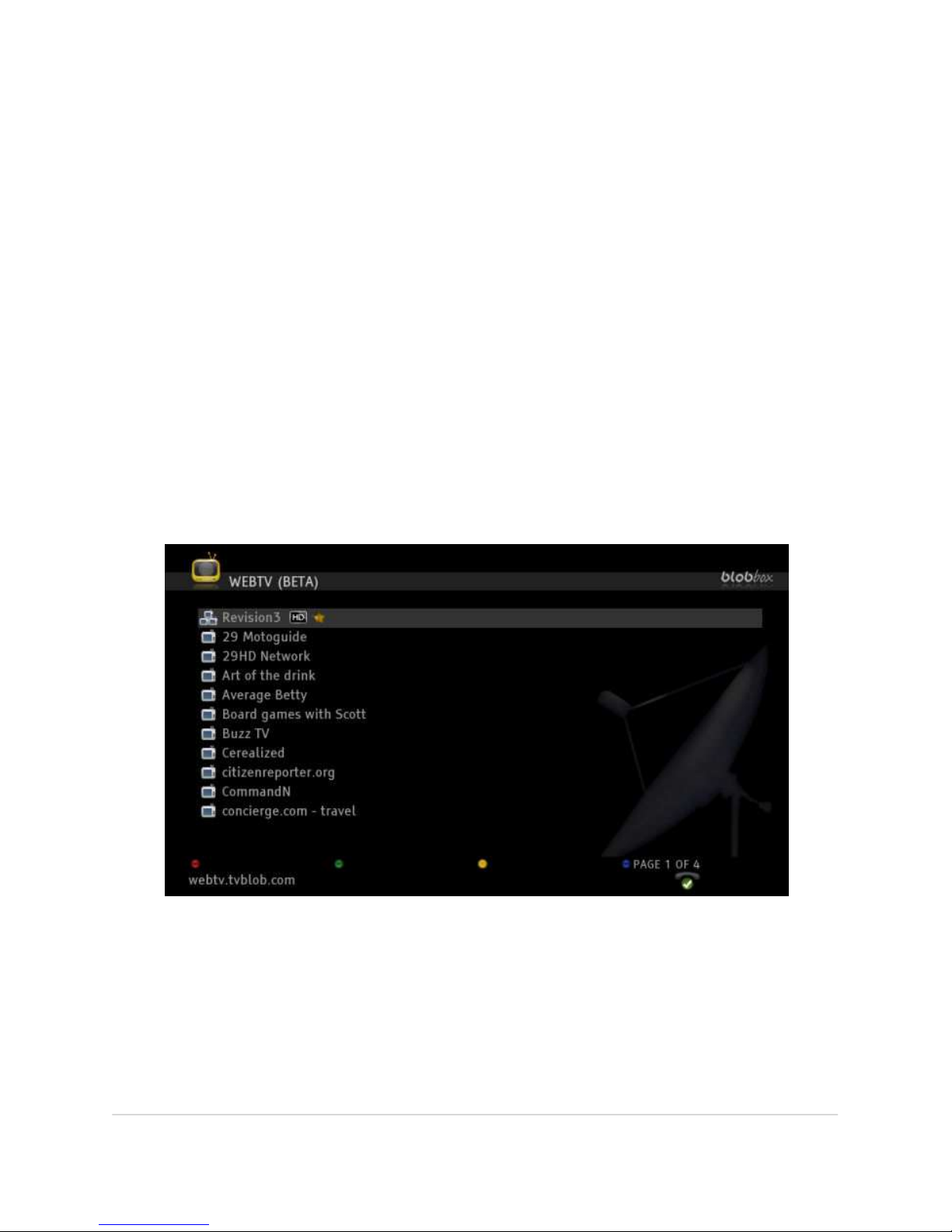
On the BLOBbox Home Page, select TV > WEB TV and press OK.
A list of the available On-Demand WebTV channels will appear. Press CAN/PAG+ or
CAN/PAG- to move forward and backwards between screens.
Page 34
BLOBbox User Manual V. std 0.6.105 - 34
You should note that each channel is preceded by an icon. A single-screen
(television) icon indicates that the channel displays video directly. A three-screen
icon signifies that the publisher streams multiple channels. Navigate to the channel
that you would like to view and press OK.
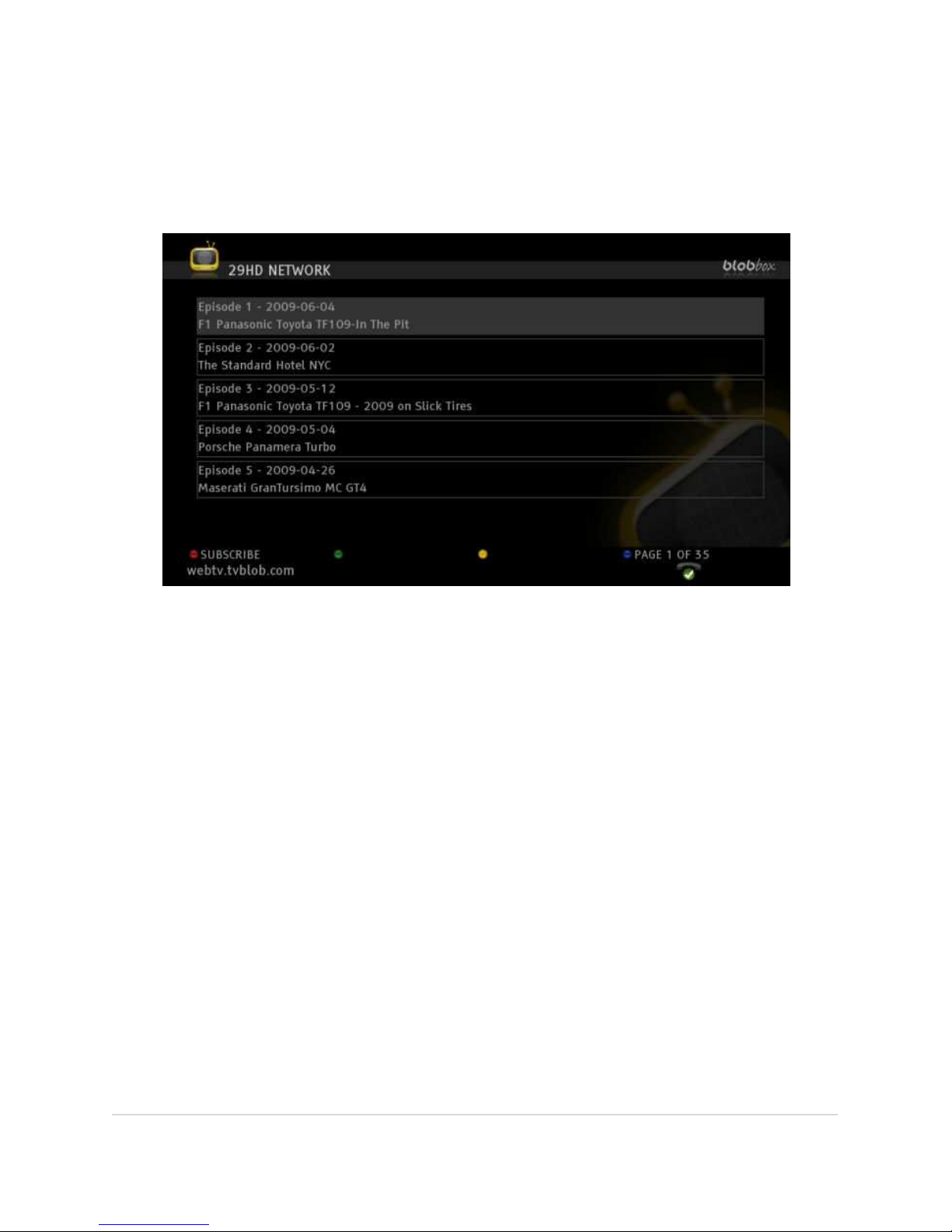
To see all of the content available on a particular channel, press CAN/PAG+ or
CAN/PAG- to move forward and backward between the screens. Press OK on any
episode name to initiate the playback.
HOW TO SUBSCRIBE TO A CHANNEL (PODCAST)
From the BLOBbox Home Page, select TV >WEB TV and press OK.
Navigate to the channel to which you would like to subscribe and press OK. Press
SUBSCRIBE (red button) to execute the podcast subscription. The 10 most recent
episodes will be downloaded in the order designated by the publisher. When the
eleventh episode is published (and consequently, automatically downloaded as
part of your subscription), the oldest episode will be automatically deleted. In the
near future it will be possible to individually select the video episodes that you
would like to download.
You will find the downloaded podcasts in the PODCAST section on the BLOBbox
Home Page.
Page 35
BLOBbox User Manual V. std 0.6.105 - 35
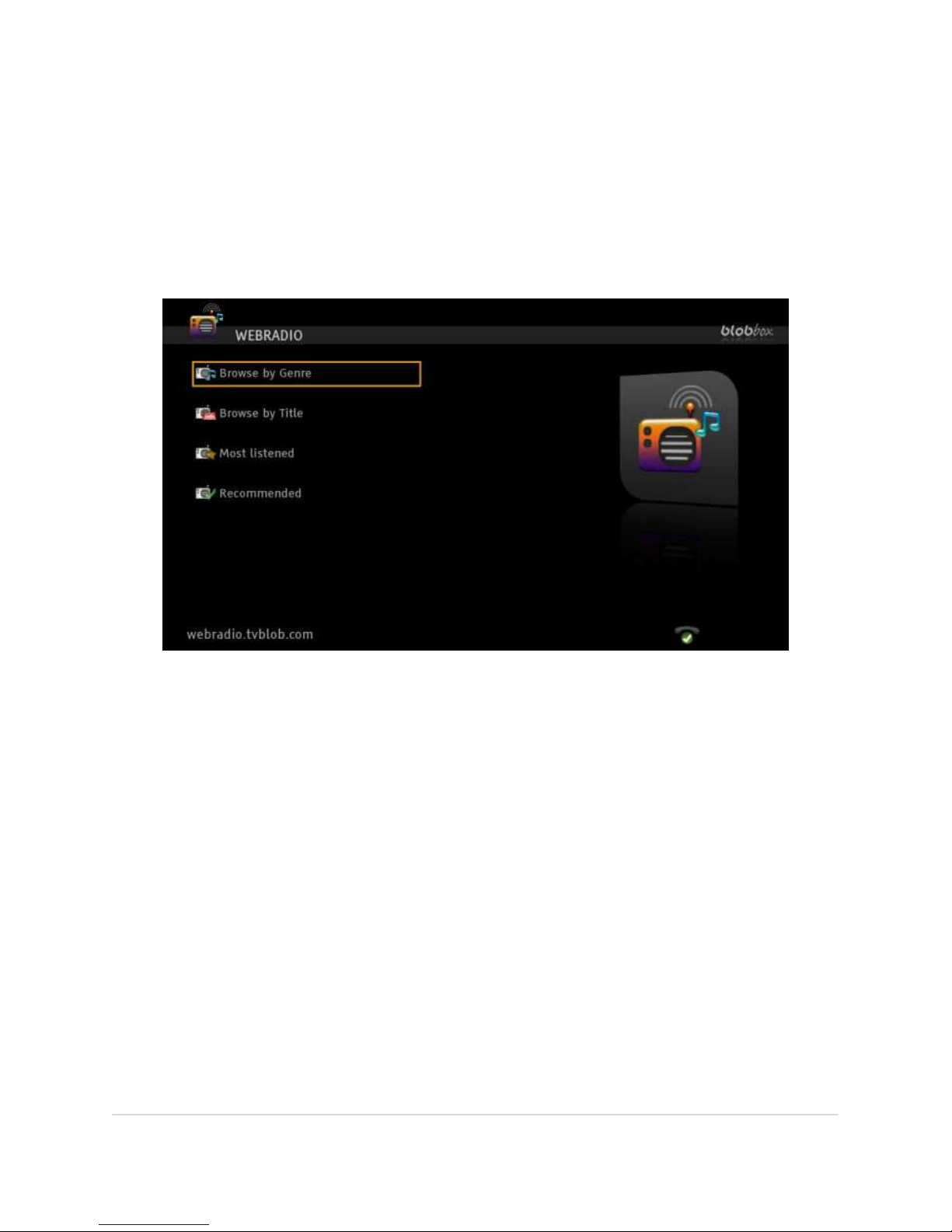
-NEW- LISTENING TO THE SHOUTCAST WEB RADIO
BLOBbox gives you access to approximately 20,000 web radio stations.
HOW TO FIND AND LISTEN TO WEB RADIO
On the BLOBbox Home Page select RADIO.
Navigate to the desired category and press OK to see all the available web radio
stations.Navigate to the web radio station desired and press OK on the remote to
listen to it.
Press BACK on the remote to get back to the station’s list.
Page 36

BLOBbox User Manual V. std 0.6.105 - 36
SUBSCRIBE TO PODCASTS USING MIRO
WHAT IS A PODCAST
A podcast is an audio or visual file that is distributed over the internet through web
feeds (i.e., a special type of RSS feed) to portable media players and/or personal
computers. Though the same content may also be made available by direct
download or streaming, a podcast is distinguished from most other digital media
formats by its ability to be syndicated, subscribed to, and downloaded
automatically as new content is added. It offers subscribers greater viewing
convenience and expands their High Definition (HD) content options because high
bandwidth is not required for delivery (e.g., as is the case for real-time Video-OnDemand (VOD) streaming).
Podcasts may include just audio or both audio and video. A video podcast is
sometimes called a vodcast. A podcast with sound and pictures (but not moving) is
called an enhanced podcast.
Like the term broadcast, podcast can refer either to the content itself or to the
method by which the content is syndicated; the latter is also called podcasting. A
podcaster is the person who creates the content.
WHAT IS MIRO
Miro is the largest podcast aggregator on the web. This online service allows you to
access more than 6,000 podcasts in over then 160 different languages from all over
the world. Anyone can contribute for free, so the content is always growing. Plus,
many of the podcasts available are in High Definition (HD).
For any podcast subscription, the ten most recent episodes will be downloaded to
the BLOBbox. When a new episode is available, it will download automatically for
viewing and the oldest one will be automatically deleted.
-NEW-
You can instantly watch in Video On-Demand (VOD) mode every single video
within a podcast. In this way you can view a podcast before deciding if you want to
subscribe to it. If you are not interested in all of the videos within a podcast series,
you can choose just the ones you want to download. The individually downloaded
video will be saved on the BLOBbox for you to decide if and when you want to
eliminate them.
Page 37
BLOBbox User Manual V. std 0.6.105 - 37
HOW TO SEARCH FOR AND SUBSCRIBE TO A PODCAST
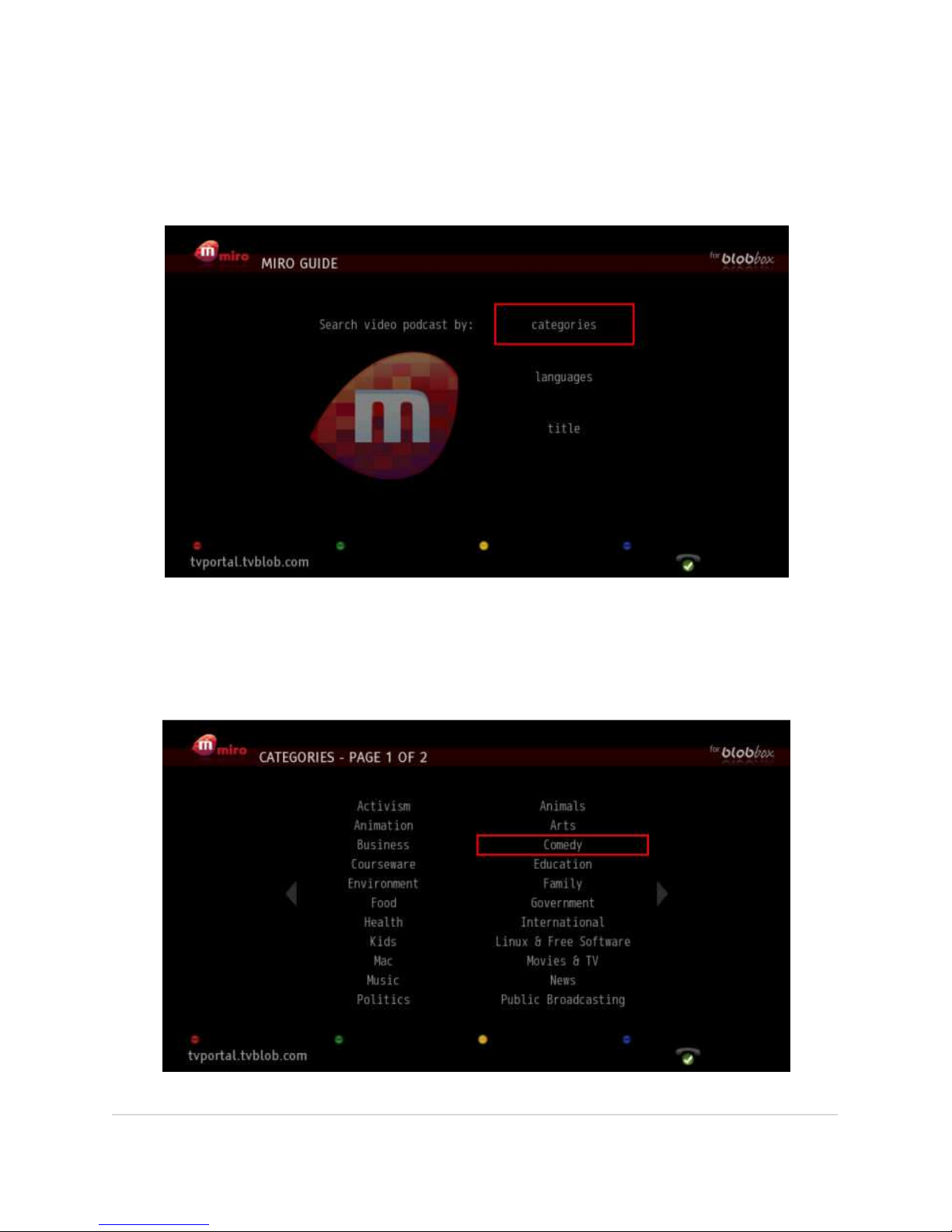
Select PODCAST from the Home Page and press MANAGE (green button). Navigate
to MIRO and press OK.
You can search for a podcast in three ways: by category, language, or title.
Category
Navigate to CATEGORIES and press OK.
Page 38
BLOBbox User Manual V. std 0.6.105 - 38
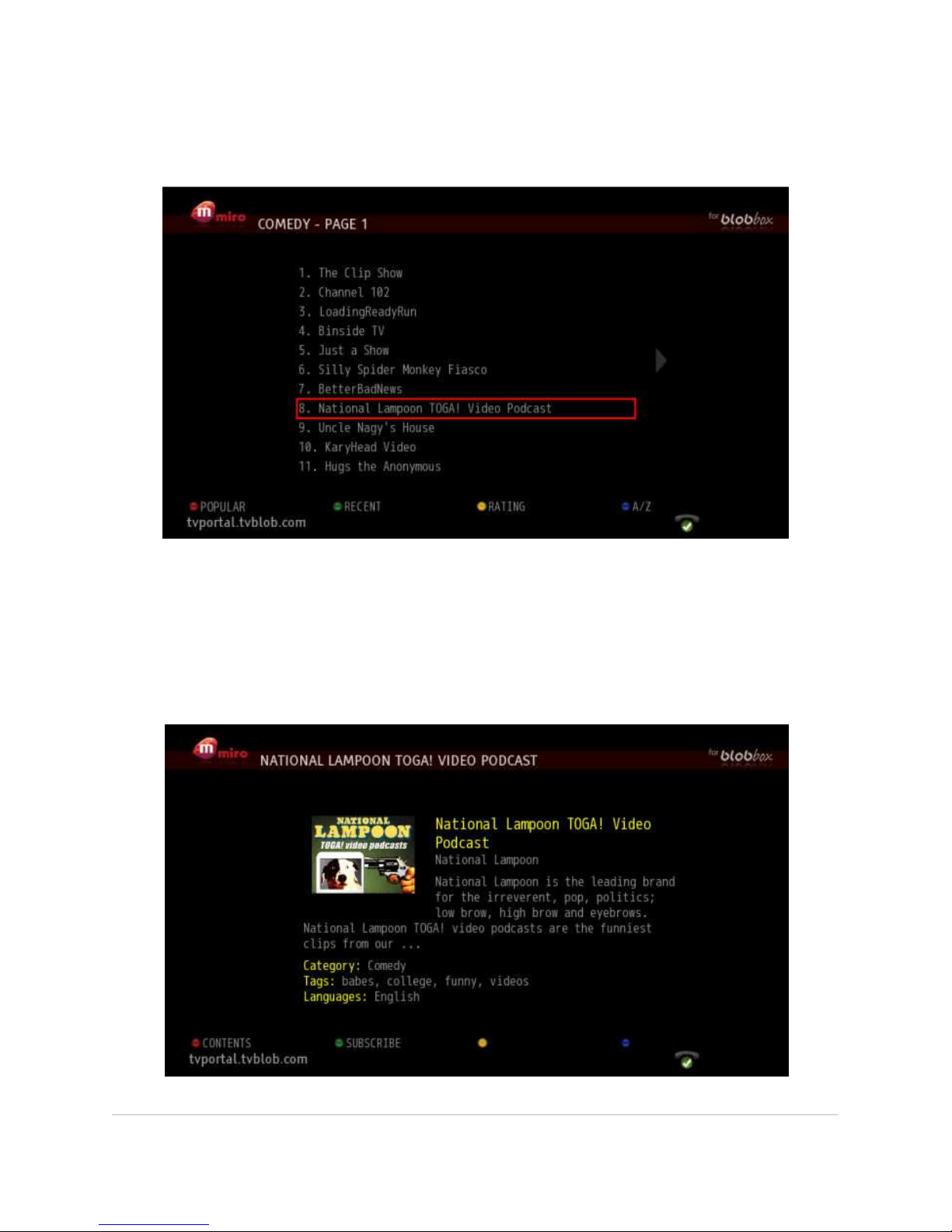
Podcasts are grouped by subject (e.g., music, family). Select a category and press
OK.
A list of podcasts related to the chosen category will be displayed. You can
rearrange them by popularity (POPULAR, red button), publication date (RECENT,
green button), most viewed (RATING, yellow button) or alphabetical order (A/Z,
blue button)by pressing the corresponding colored button. Highlight the podcast
to which you want to subscribe and press OK.
Page 39
BLOBbox User Manual V. std 0.6.105 - 39
An overview screen of the chosen podcast will be displayed. Press SUBSCRIBE
(green button) to initiative the subscription. A message will confirm that you have
successfully subscribed to the podcast.
Languages
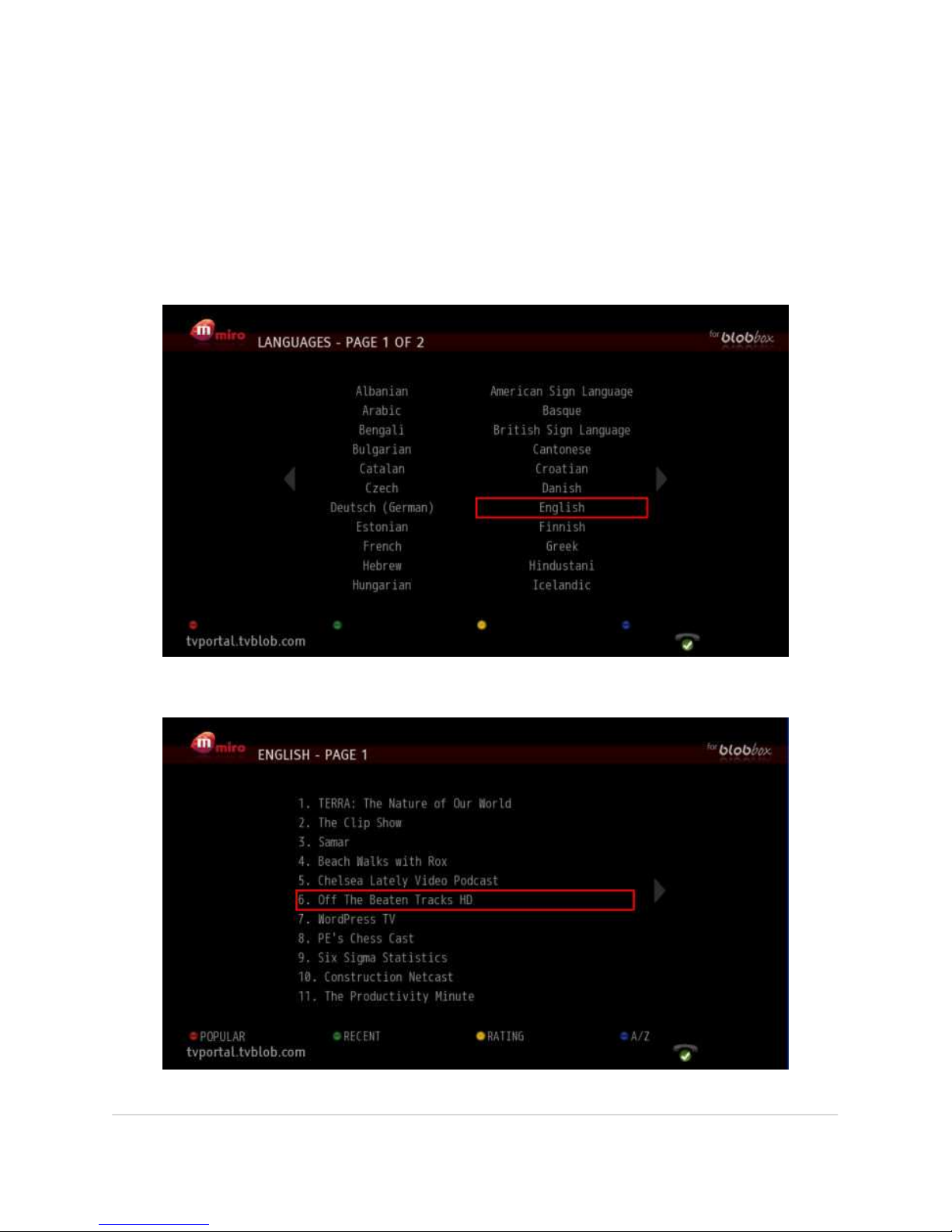
On the Miro Home Page, navigate to LANGUAGES and press OK.
Highlight your language of choice and press OK.
Page 40
BLOBbox User Manual V. std 0.6.105 - 40
All podcasts available in the selected language will be displayed. You can
rearrange them by popularity (POPULAR, red button), publication date (RECENT,
green button), most viewed (RATING, yellow button) or alphabetical order (A/Z,
blue button)by pressing the corresponding colored button. Highlight the podcast
to which you want to subscribe and press OK.
Navigate to the podcast of your choice and press OK.
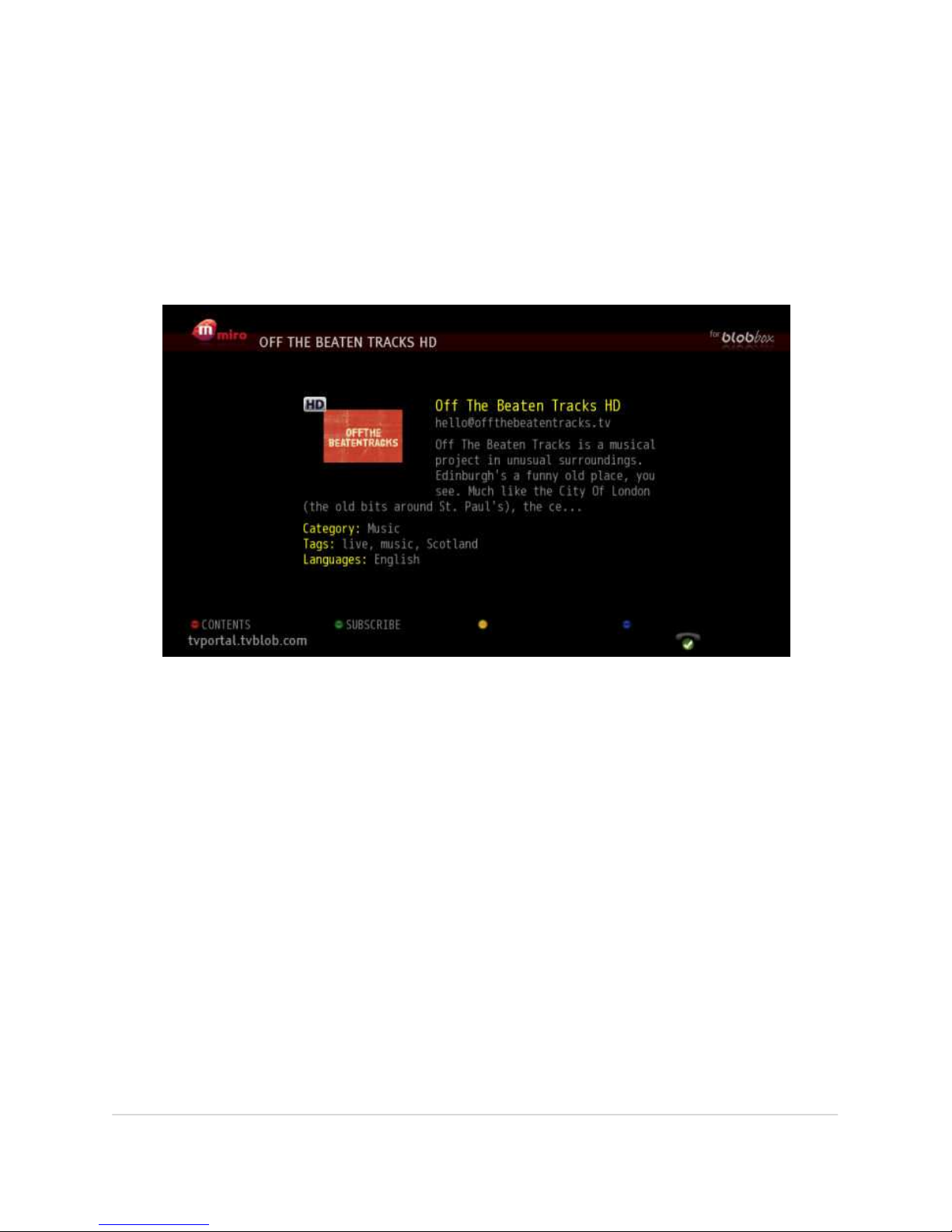
An overview screen of the chosen podcast will be displayed. Press SUBSCRIBE
(green button) to initiative the subscription. A message will confirm that you have
successfully subscribed to the podcast.
Page 41
BLOBbox User Manual V. std 0.6.105 - 41
Titles
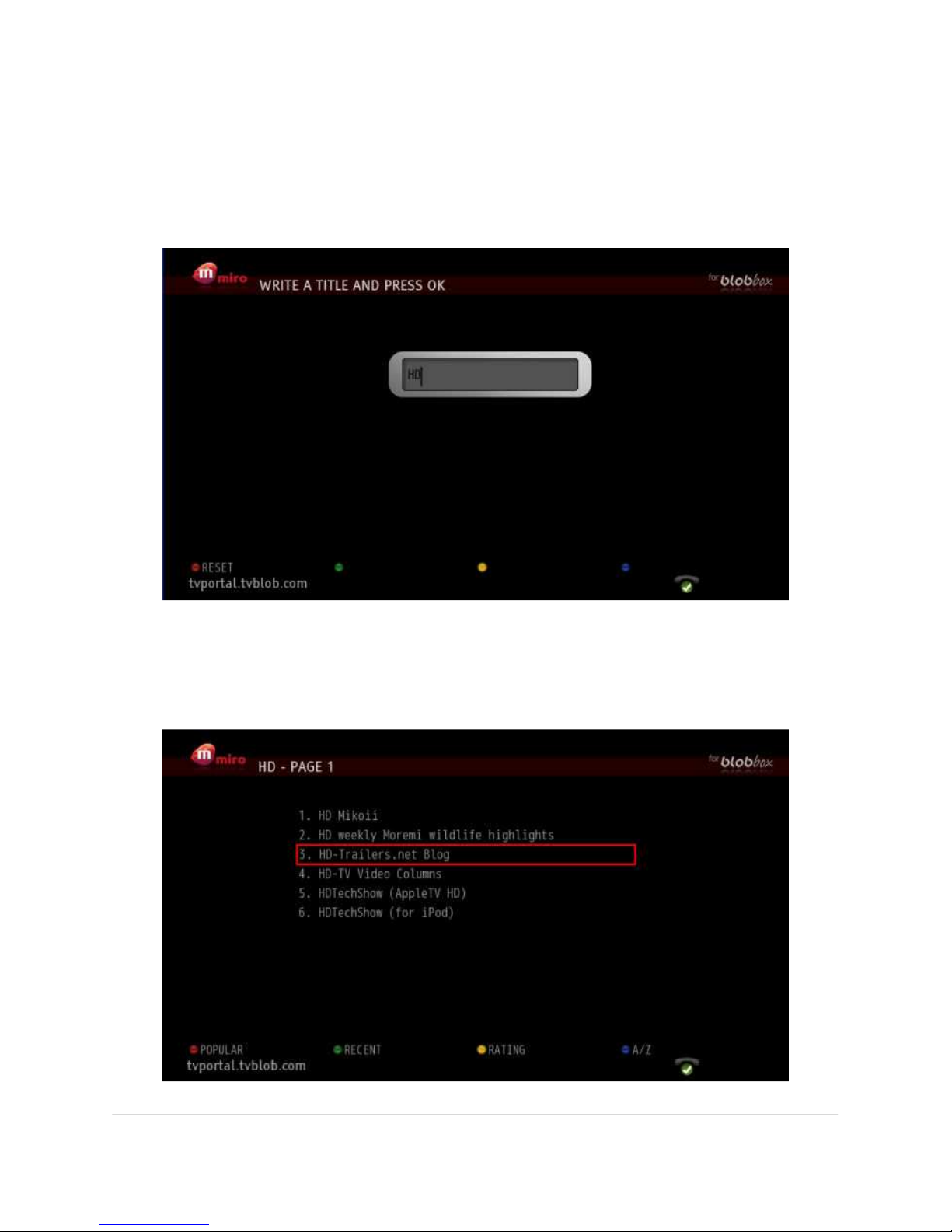
You can search for podcasts by a word contained in the title. For example, if you
use “HD” as search term you will get the list of all podcasts that have the word HD
in the title. On the Miro Home Page, navigate to TITLES and press OK.
Type the search term in the text input box and press OK. Use the alphanumeric keys
on the remote control in the same way as you do when texting on a mobile phone.
You can also connect a USB keyboard.
Page 42
BLOBbox User Manual V. std 0.6.105 - 42
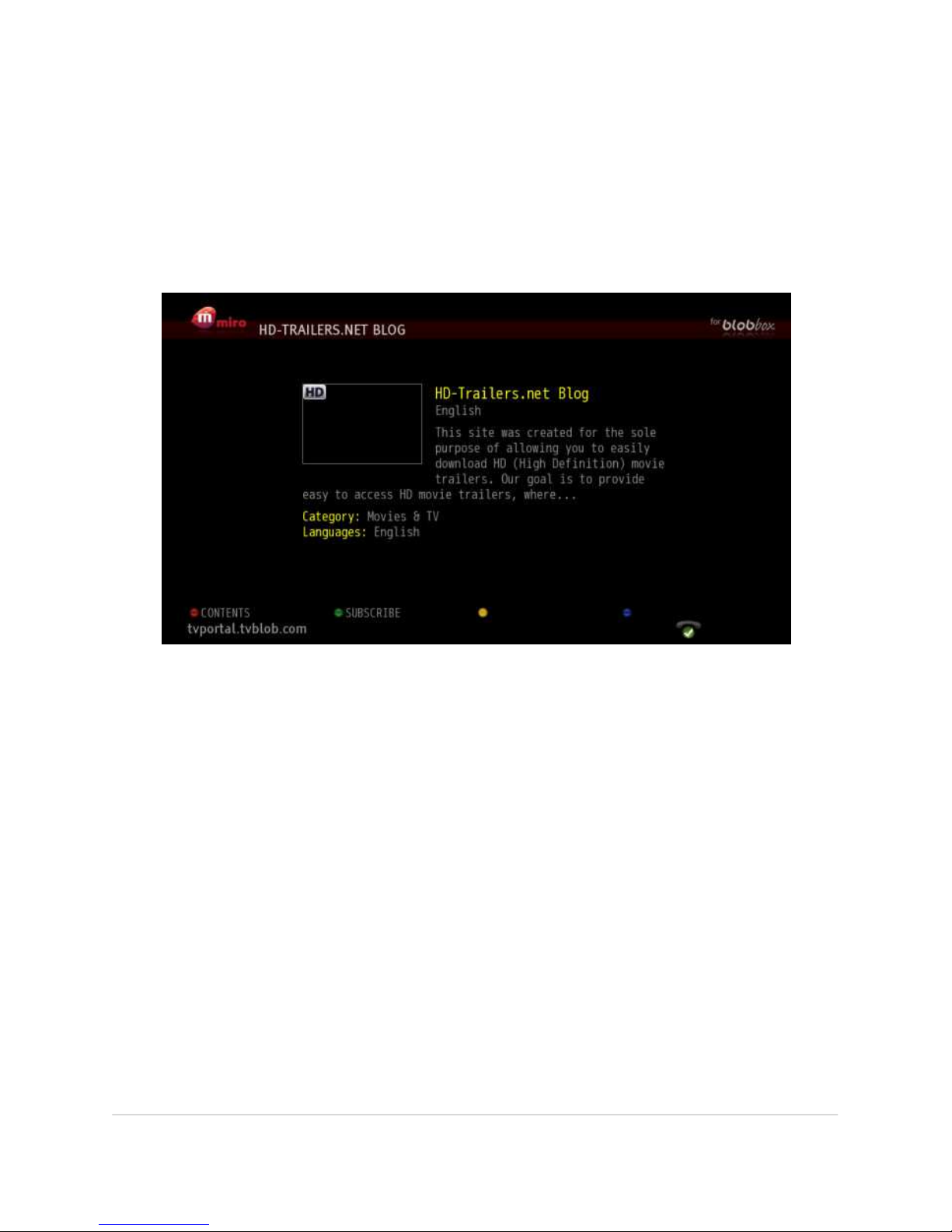
All podcasts containing the search term will be displayed. You can rearrange them
by popularity (POPULAR, red button), publication date (RECENT, green button),
most viewed (RATING, yellow button) or alphabetical order (A/Z, blue button)by
pressing the corresponding colored button. Highlight the podcast to which you
want to subscribe and press OK.
Navigate to the title of your choice and press OK.
An overview screen of the chosen podcast will be displayed. Press SUBSCRIBE
(green button) to initiative the subscription. A message will confirm that you have
successfully subscribed to the podcast.
Page 43
BLOBbox User Manual V. std 0.6.105 - 43
HOW TO INSTANTLY WATCH AND DOWNLOAD A SINGLE VIDEO IN A
PODCAST
From the Miro homepage, search for a podcast (see the chapter, “HOW TO SEARCH
FOR A PODCAST”).
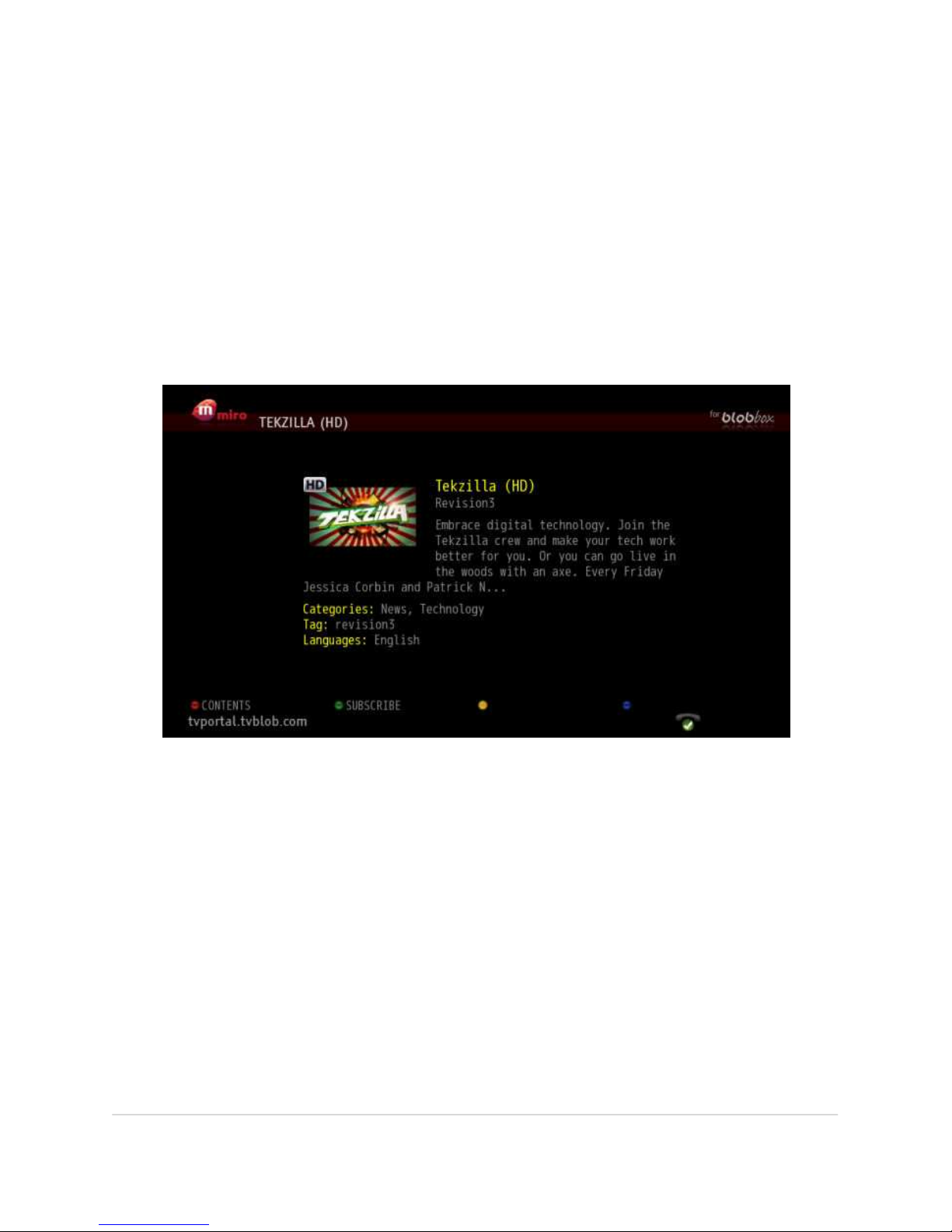
For example, search for the podcast named Tekzilla HD. Once you have selected the
podcast, the following screen will appear.
Page 44
BLOBbox User Manual V. std 0.6.105 - 44
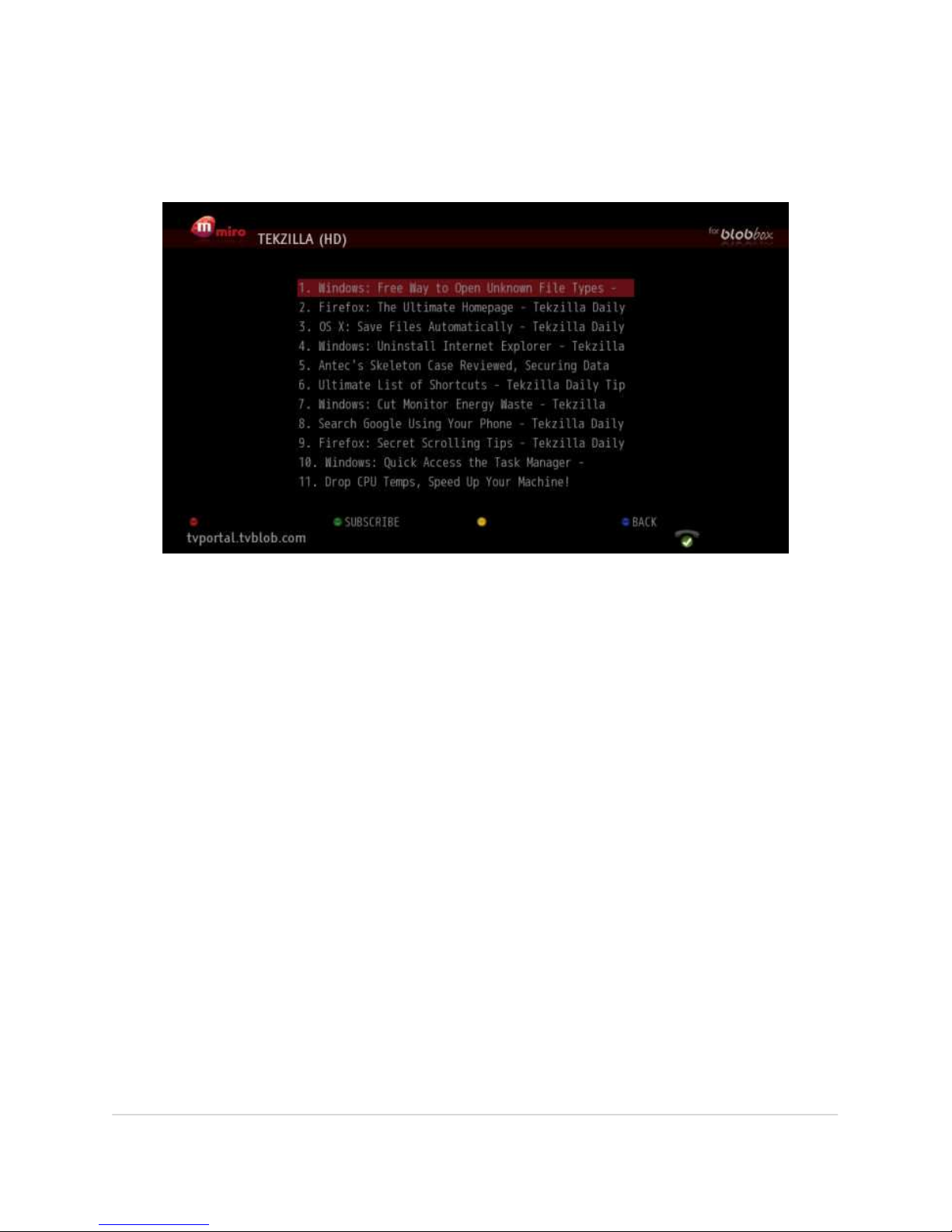
Press CONTENTS (red button) to see the list of all the videos available in the
selected podcast.
Navigate to the desired video and press OK on the remote to play it, or press
SUBSCRIBE (green button) to download it.
Downloaded videos will be found in MEDIA ARCHIVE DOWNLOAD
COMPLETED. Navigate to the desired video and press OK to watch it.
Page 45
BLOBbox User Manual V. std 0.6.105 - 45
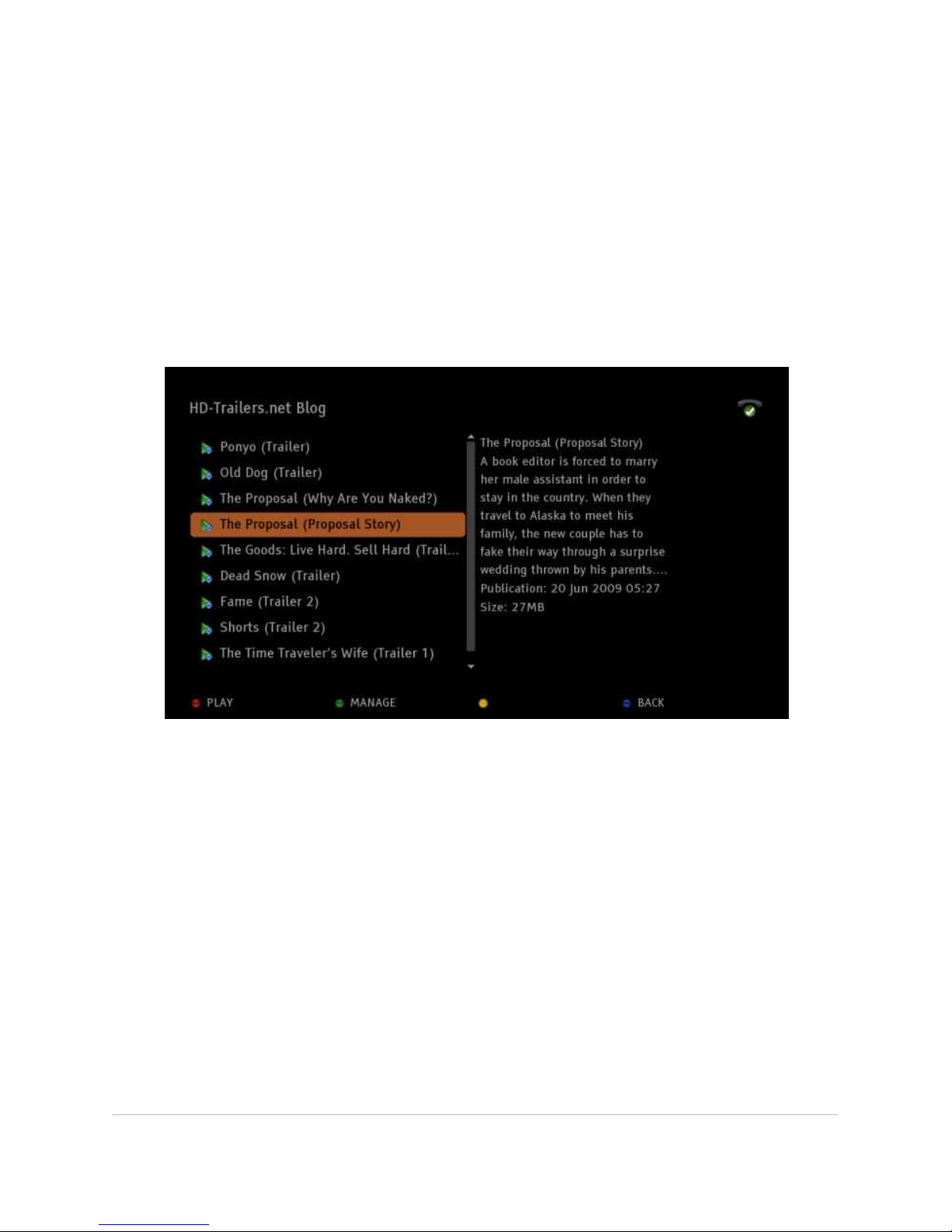
HOW TO PLAY A DOWNLOADED PODCAST
Select PODCAST from the Home Page and the list of podcast subscriptions will be
displayed. While navigating up and down the list of podcast subscription titles on
the left-hand side of the screen, a short description and the number of episodes
already downloaded will be displayed on the right.
Press OK on a podcast series title to display the page where the actual downloaded
episodes are listed.
Navigate to the podcast you want to watch and press OK.
Page 46
BLOBbox User Manual V. std 0.6.105 - 46
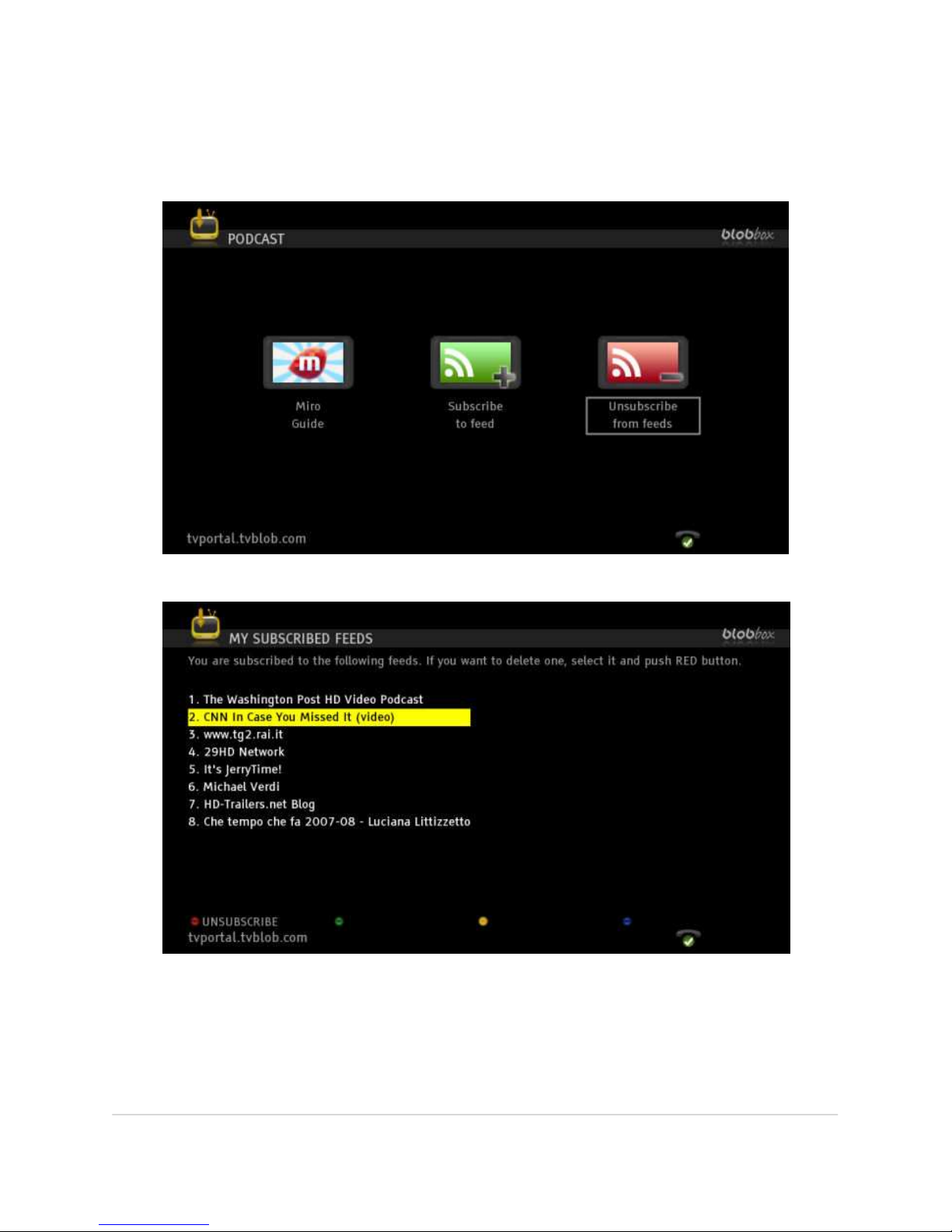
HOW TO UNSUBSCRIBE A PODCAST
Select PODCAST from the Home Page and press MANAGE (green button).
Highlight UNSUBSCRIBE FROM FEEDS and press OK.
Navigate to the Podcast Feed that you want to delete and press UNSUBSCRIBE (red
button).
Page 47
BLOBbox User Manual V. std 0.6.105 - 47
SUBSCRIBE TO A PODCAST WHEN THE RSS FEED URL IS
KNOWN
If you know the URL of a podcast RSS feed, you can subscribe more quickly and
easily to podcasts with your BLOBbox.
HOW TO SUBSCRIBE TO A PODCAST USING THE RSS FEED URL
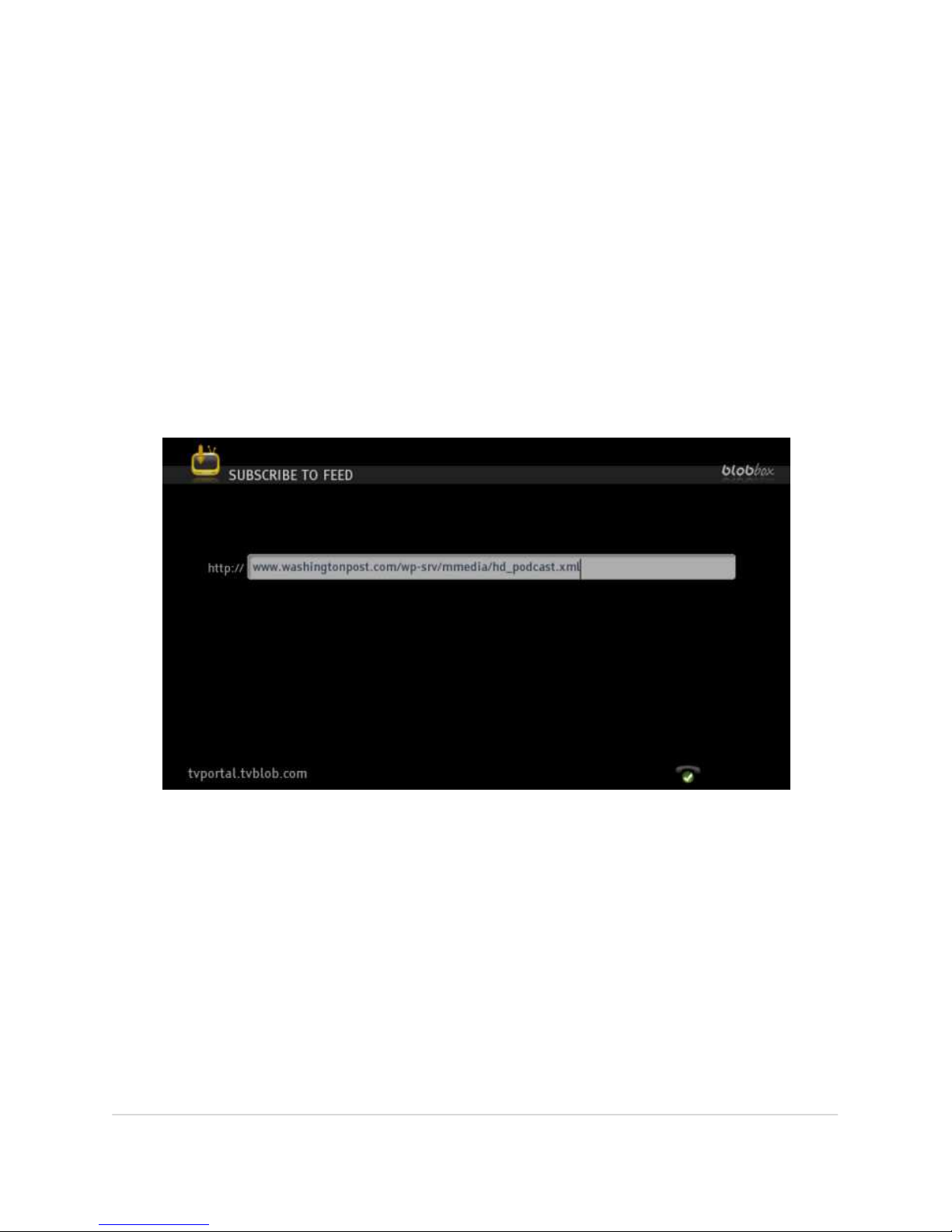
From the BLOBbox homepage, select PODCAST and press MANAGE (green button).
Navigate to SUBSCRIBE TO FEED and press OK.
Using the remote or a USB keyboard, enter the RSS FEED URL of the podcast.
Press OK on the remote.
You will receive confirmation that the subscription to the selected podcast has
been performed correctly.
Videos contained in the podcast series to which you subscribed can be found in the
PODCAST section of your BLOBbox Home Page.
Page 48
BLOBbox User Manual V. std 0.6.105 - 48
WATCH YOUTUBE VIDEO
YouTube is a famous video sharing website where users can upload, view and share
video clips.
HOW TO LOGIN
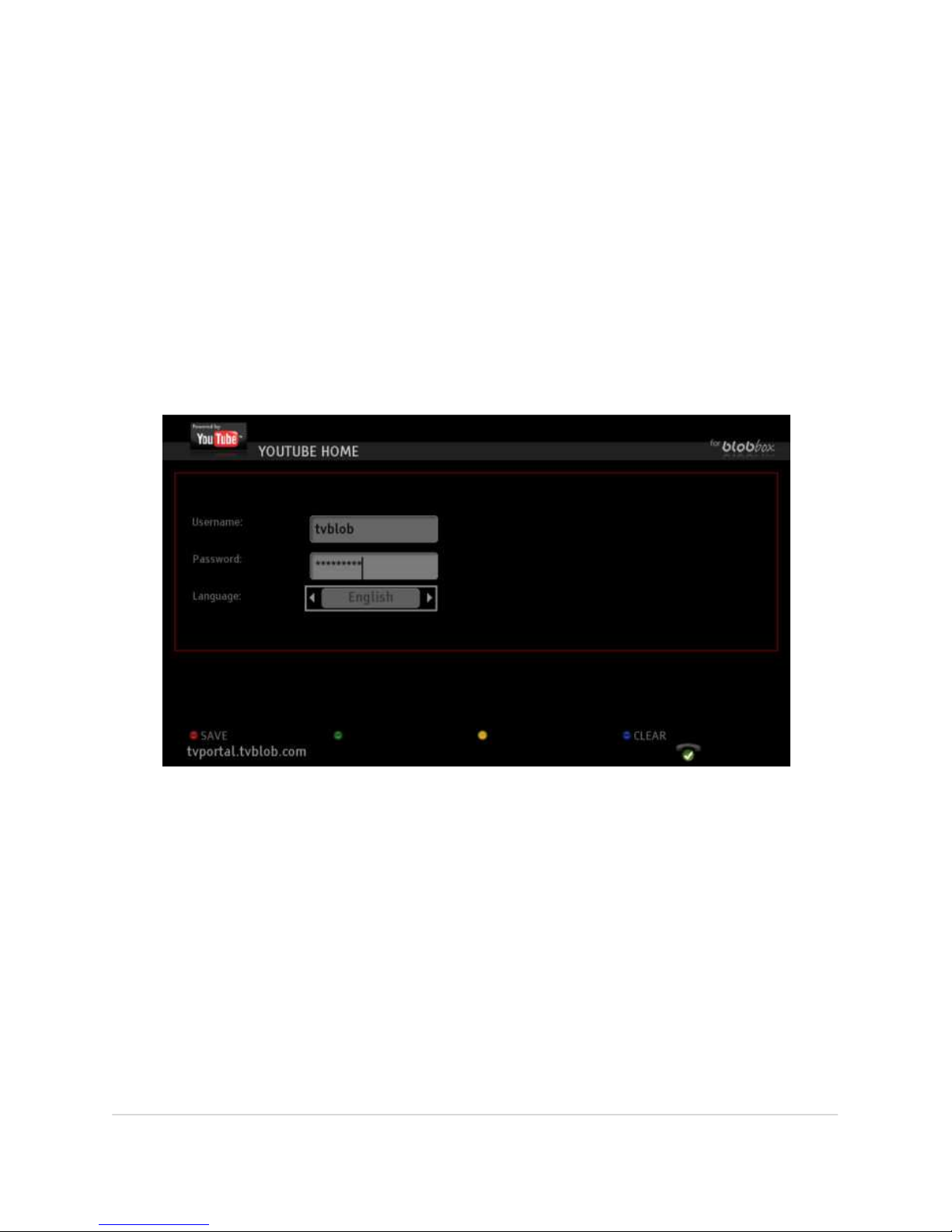
If you already have a YouTube account, you can Login also from your BLOBbox.
From the BLOBbox Home Page, select INTERNET > YOUTUBE.
Press OPTION (yellow button). Enter your YouTube username and password and
press SAVE (red button).
Page 49
BLOBbox User Manual V. std 0.6.105 - 49
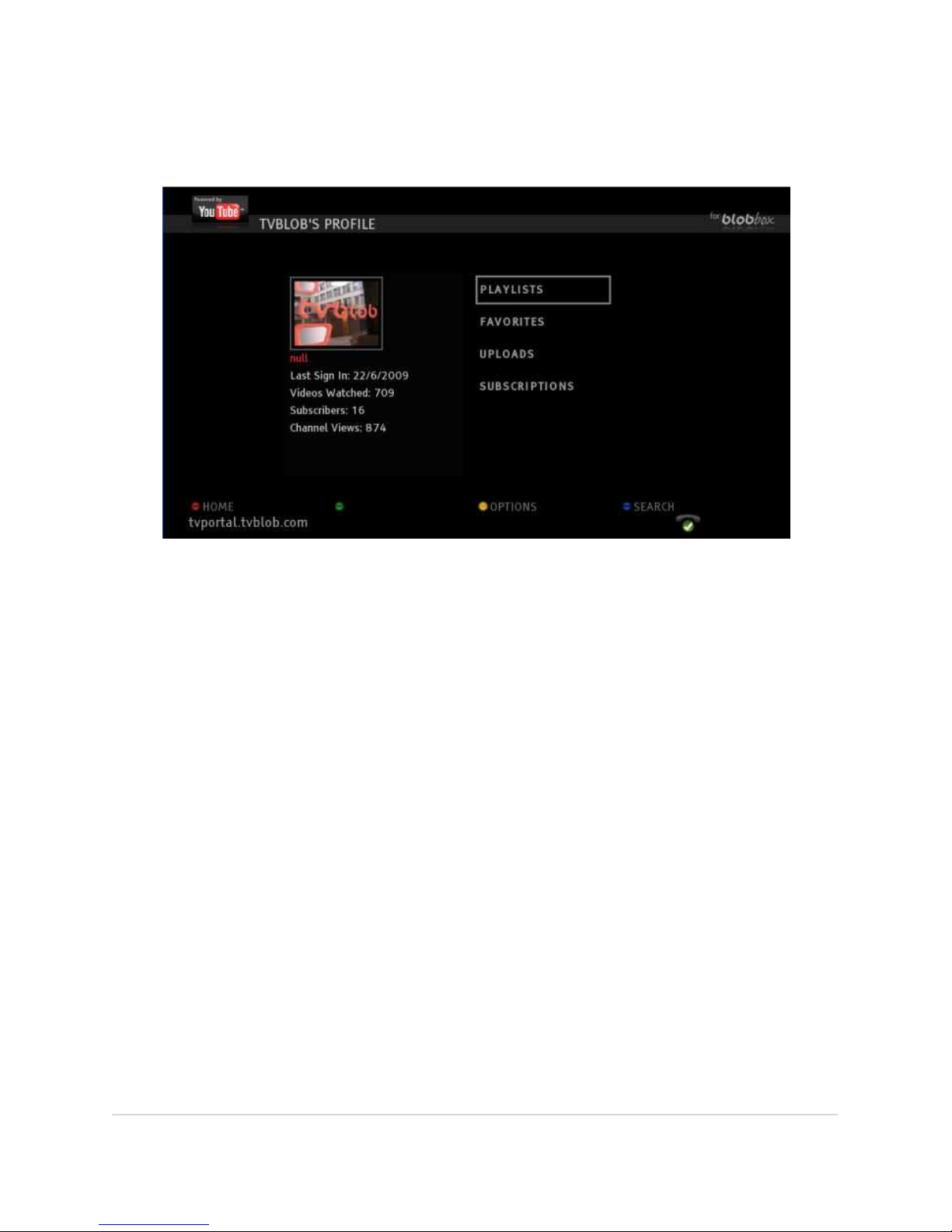
The menu page of your YouTube account is displayed. You will be able to access
features such as your Playlist and Favorites in a similar way as you do from your PC.
Using the arrow keys on the remote, navigate to one of the four options (i.e., My
Playlist, My Favorites, My Uploads, My Subscriptions) and press OK to access the
corresponding videos.
To access your YouTube account, you just need to login the first time that you use
the BLOBbox. Your user name and password will be remembered for future access.
If you want to login under a different account, press CLEAR (blue button), enter the
new username and password and press SAVE (red button).
Note: You do not need to have a YouTube account in order to watch YouTube content.
Page 50
BLOBbox User Manual V. std 0.6.105 - 50
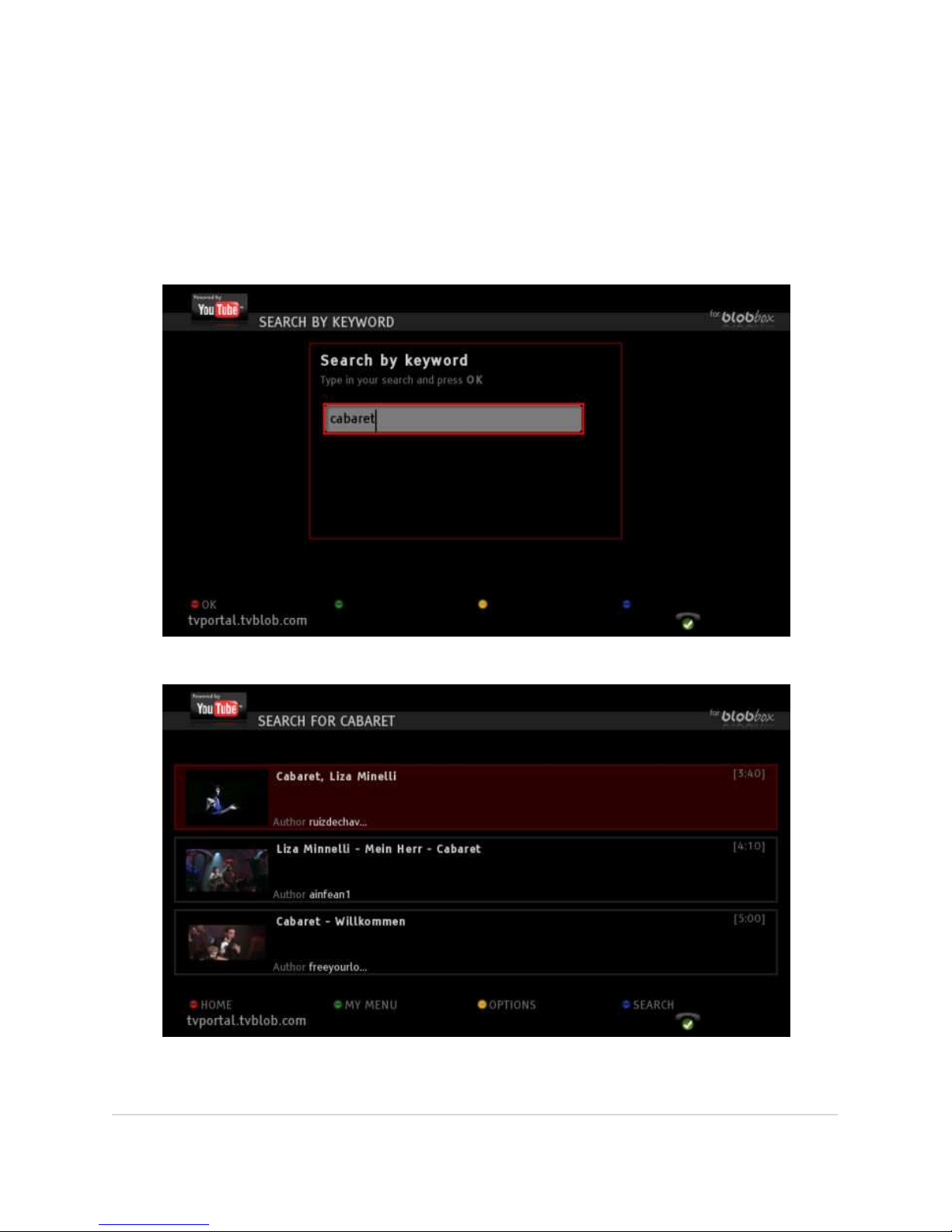
HOW TO SEARCH FOR A VIDEO AND PLAY IT
You can search for a video using keywords. From YouTube Home Page, press
SEARCH (blue button).
Enter the keyword(s) in the text box and press OK. All of the video whose
description contains the keyword(s) that you have entered will be displayed.
Browse them using the remote control arrow keys and press OK to play a video.
Page 51
BLOBbox User Manual V. std 0.6.105 - 51
HOW TO ACCESS AND PLAY TOP RATED AND MOST VIEWED VIDEOS
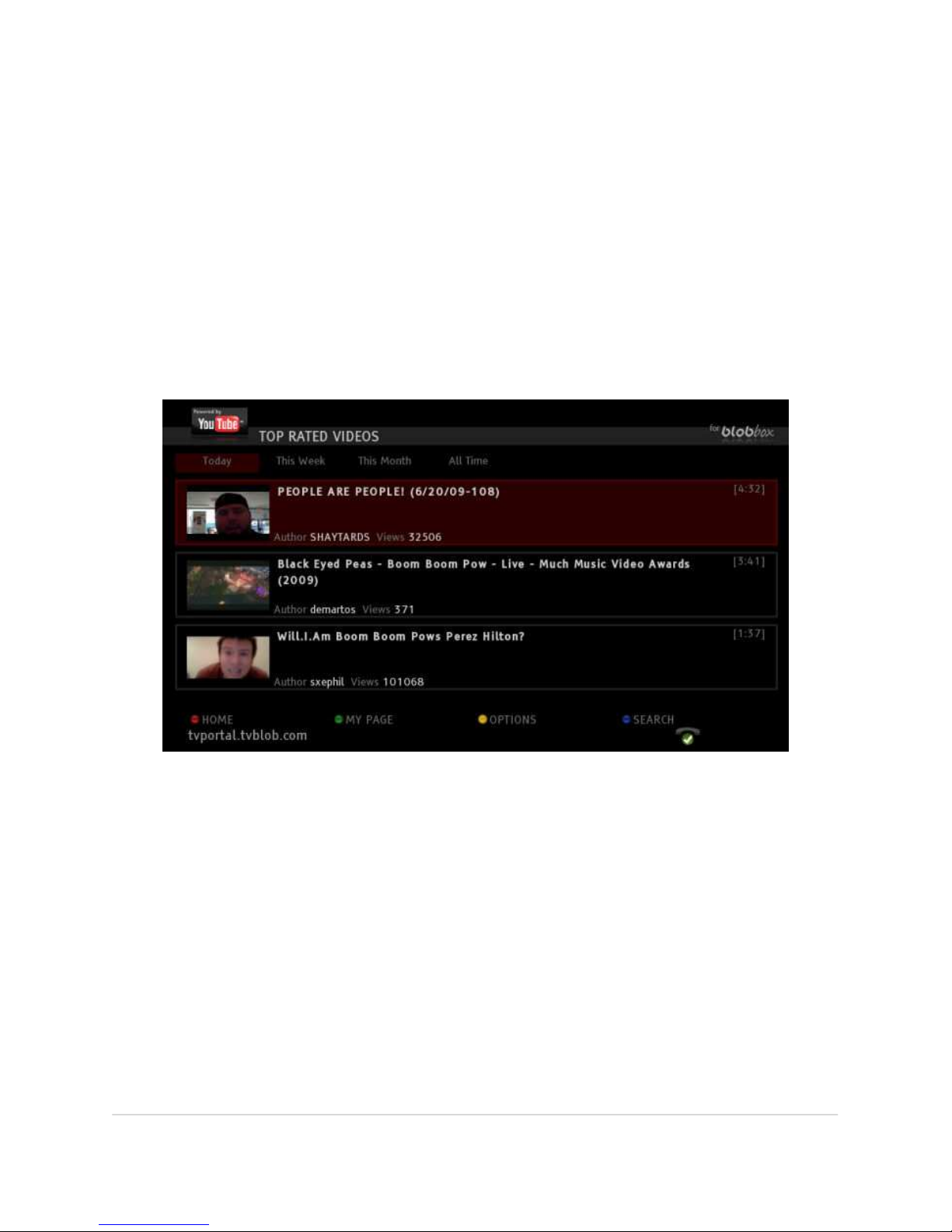
The YouTube Home Page separates the initial video options into three categories:
• Top Rated: ranked by user votes (top section)
• Most Viewed: ranked by user views (middle section)
• Fastest Rising: ranked by user views and timeliness (lower section)
Navigate to one of these sections (e.g., Top Rated) and press the right arrow key on
the remote three times and you will automatically enter that particular section. The
top videos of the day of that section will be displayed.
Using the right and left arrow key on the remote, you can see the top rated videos
of the day, week, month, and all-time. Navigate to the video clip that you want to
watch and press OK to watch it.
Note: These screens display only three video clips. Press the down arrow key on the
remote repeatedly in order to see more videos.
Page 52
BLOBbox User Manual V. std 0.6.105 - 52
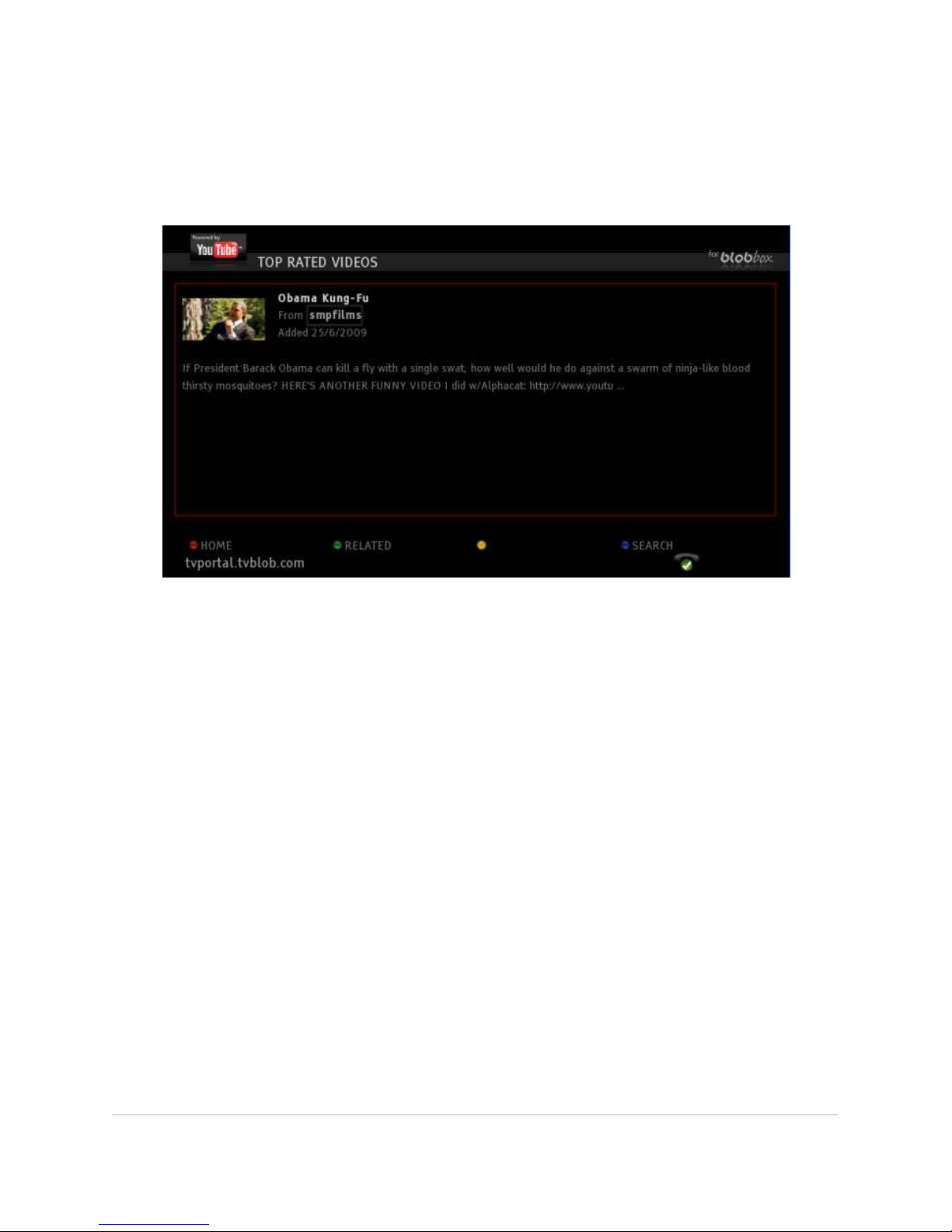
HOW TO GET MORE INFO ON A SELECTED VIDEO
By pressing the HELP button on the remote control, more information about the
selected video will be displayed.
From this page you can search for videos related to the selected one by pressing
RELATED (green button).
HOW TO VIEW A YOUTUBE USER’S PROFILE
You just watched a video published by a user that you really liked and probably the
user in question has published other videos you might enjoy. To see other videos
published by this user, navigate to the video that you liked and press the button
HELP on the remote. A page providing more information about the video will be
displayed. Press OK on the remote to access the profile of the user that published
that video. From this page you have full access to watch all of the user’s FAVORITES,
PLAYLIST, UPLOADS and SUBSCRIPTIONS. Highlight one of these categories and
press OK to see the list of the videos. Highlight the video you want to watch and
press OK to initiate the playback.
Page 53
BLOBbox User Manual V. std 0.6.105 - 53
VIEW PUBLIC PHOTO ALBUMS USING PICASA
Picasa is another free service offered by Google that is also available on your
BLOBbox.
Beside being a great photo management program on PC, Picasa allows you to
publish your photo albums so you and your selected friends can access and view
them remotely.
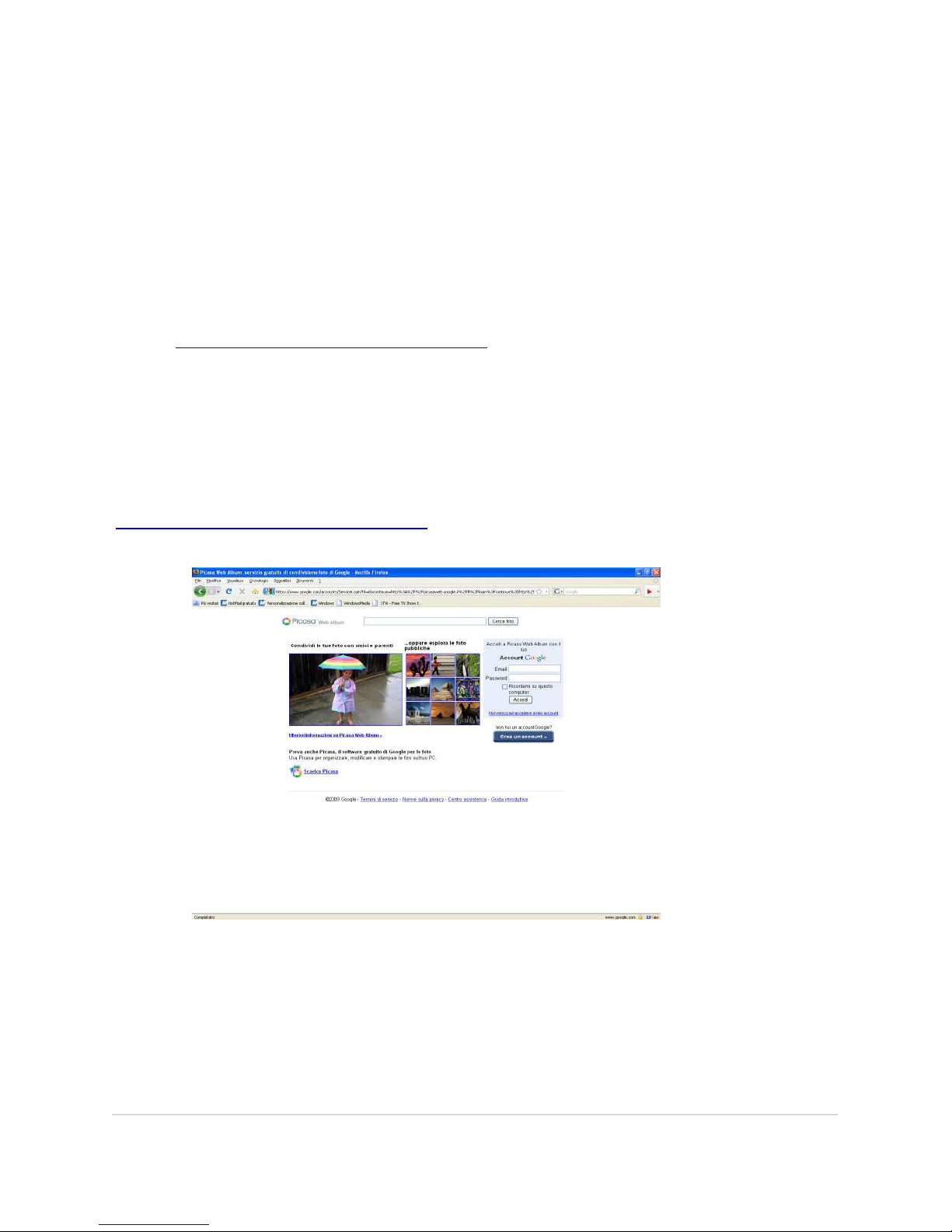
To load and share your photos, you must login to your user account (and/or create
one)at http://picasaweb.google.com/home and create a public album.
To access and watch the albums of your friends already registered on Picasa, you
do not need to have a Picasa account of your own. Simply enter their Picasa
usernames.
HOW TO CREATE AN ACCOUNT ON PICASA (VIA PC)
You need a PC with an internet connection. Open the browser and go to
http://picasaweb.google.com/home. Follow the instructions to finish your
registration.
Picasa is an extremely easy and useful photo management application. Once you
are registered you can create your own public photo albums and do a whole lot
more.
Page 54
BLOBbox User Manual V. std 0.6.105 - 54
THE FIRST TIME YOU ACCESS PICASA FROM YOUR BLOBBOX
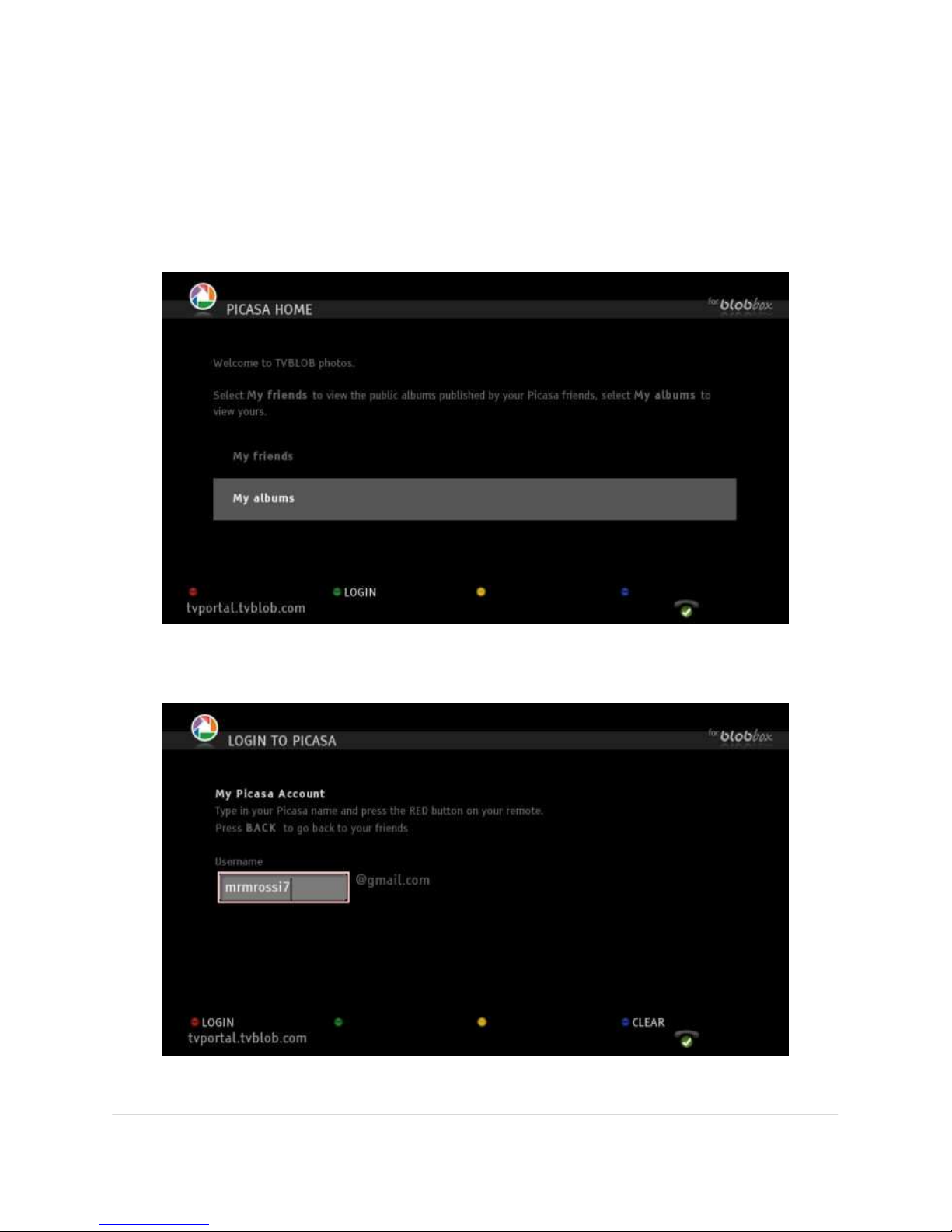
From the BLOBbox Home Page, select INTERNET > MY PHOTOS. If you already have
a Picasa account and have shared photo albums, highlight MY ALBUMS and press
OK (otherwise you can navigate directly to “MY FRIENDS” to access and view your
friends’ albums).
In the next screen, press LOGIN (green button). Enter your Picasa username and
press LOGIN (red button).
Page 55
BLOBbox User Manual V. std 0.6.105 - 55
HOW TO WATCH YOUR OWN PUBLIC ALBUMS
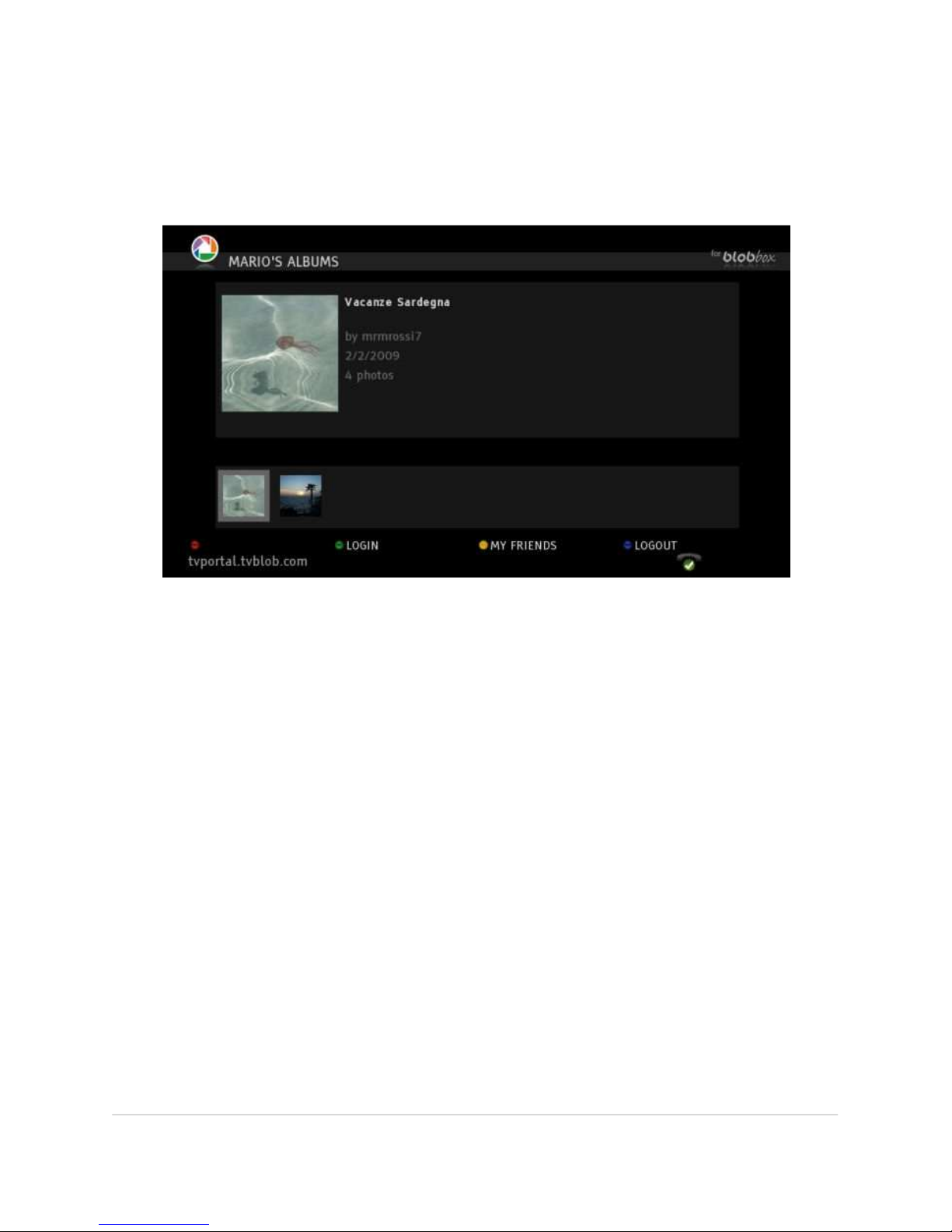
From Picasa Home Page, select MY ALBUMS and press OK. A page displaying all of
your public albums will appear.
Select the album you want to view and press OK. You can browse the thumbnails
of the album images and press OK to watch a single image or you can start a slide
show to view the entire album.
To start a slide show, use the remote control arrow keys to navigate to the album,
press OK, and then press the PLAY key on the remote. You can pause the slide show
at any time pressing the PAUSE key or return to the list of all of your albums by
pressing the STOP key.
Page 56
BLOBbox User Manual V. std 0.6.105 - 56
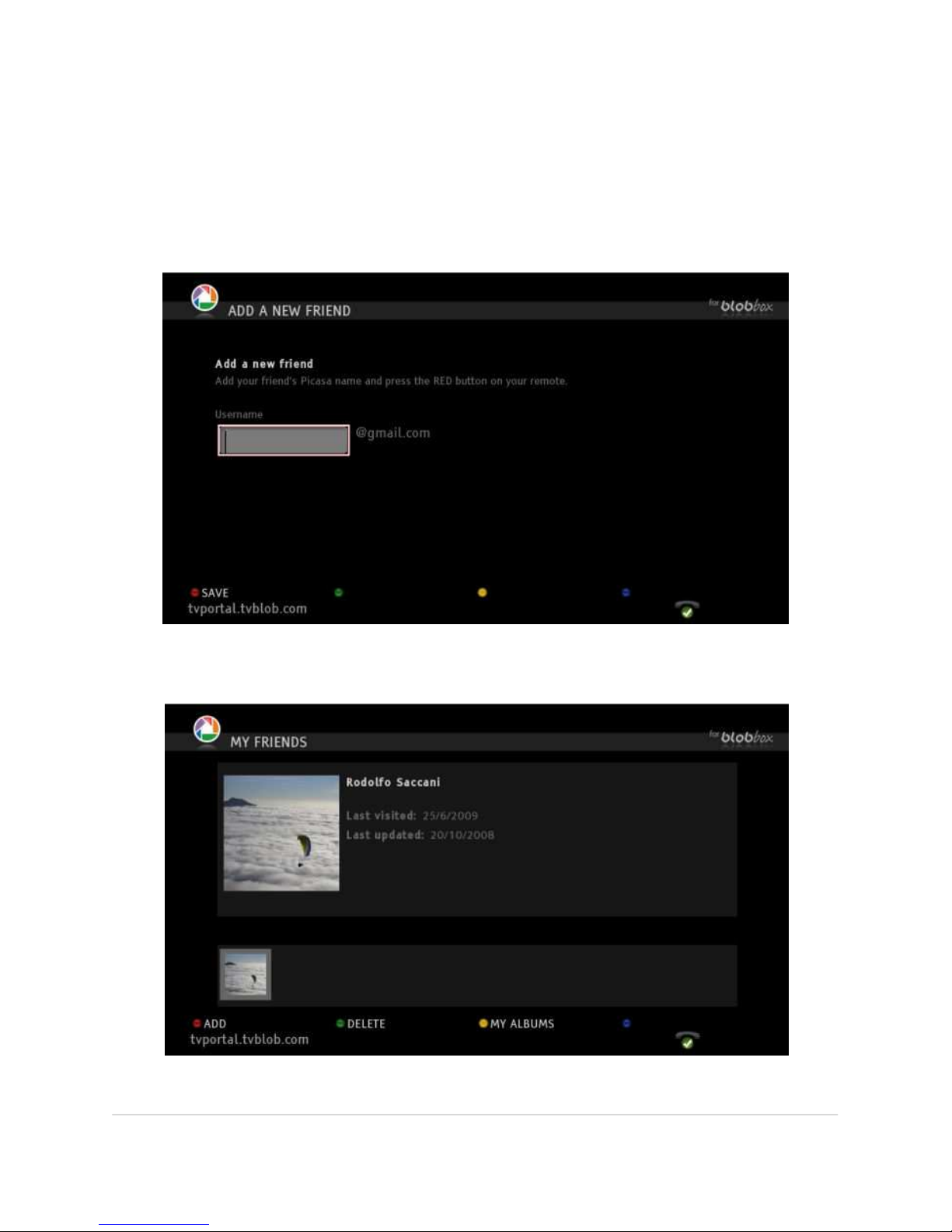
HOW TO ADD A FRIEND
From the Picasa Home Page, highlight MY FRIENDS and press OK. Press ADD (red
button) on your remote. In the ‘Add a new friend’ page, type in your friend’s Picasa
username and press SAVE (red button). A page listing all of your friend’s public
albums will be displayed.
To continue adding friends, repeat the procedure by pressing ADD (red button) and
entering their Picasa usernames.
Page 57
BLOBbox User Manual V. std 0.6.105 - 57
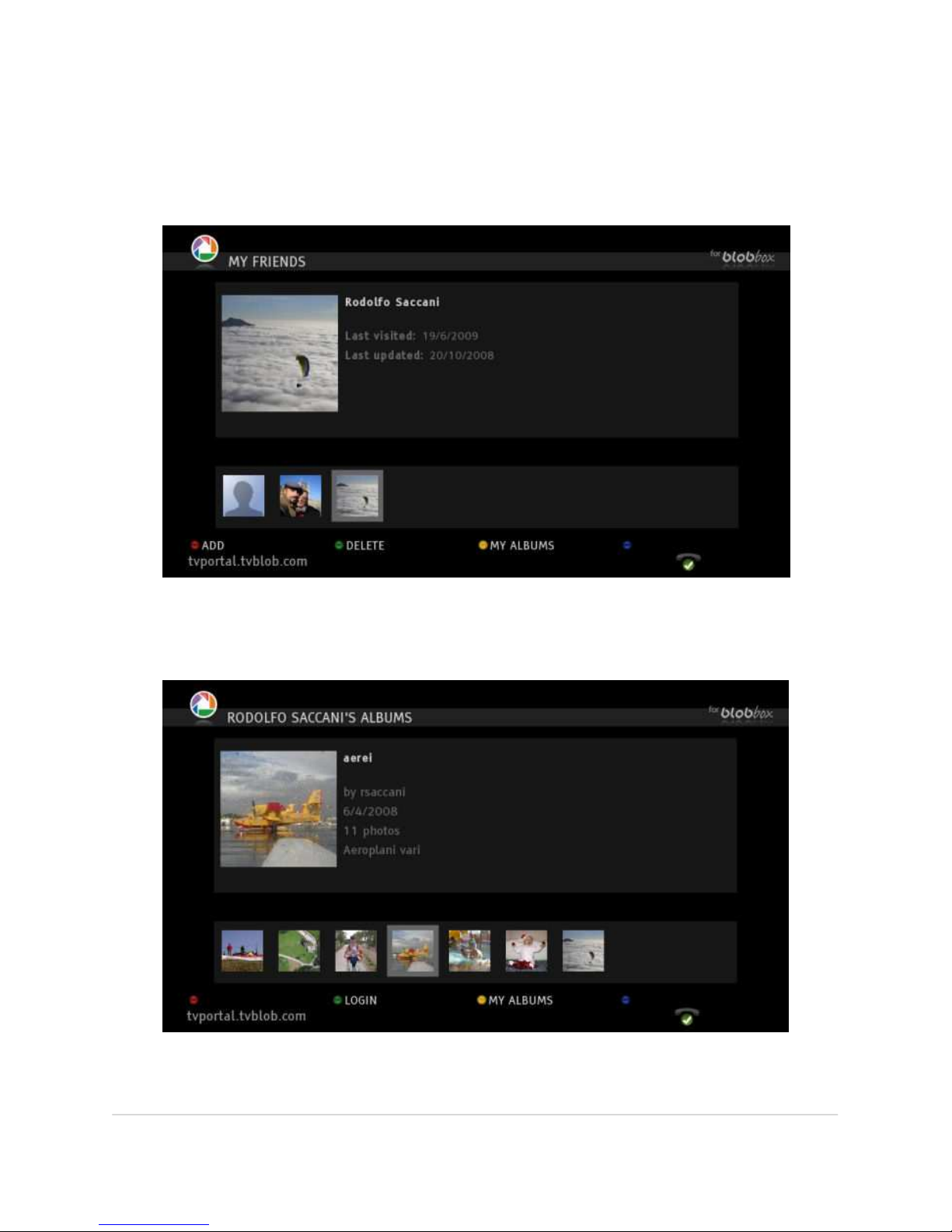
HOW TO VIEW YOUR FRIENDS ALBUMS
From the Picasa Home Page, highlight MY FRIENDS and press OK. A page listing the
albums of all of your friends will be displayed.
Use the remote arrow keys to move from left to right and select the friend whose
album you want to watch. Press OK and all of your selected friend’s public albums
will be displayed.
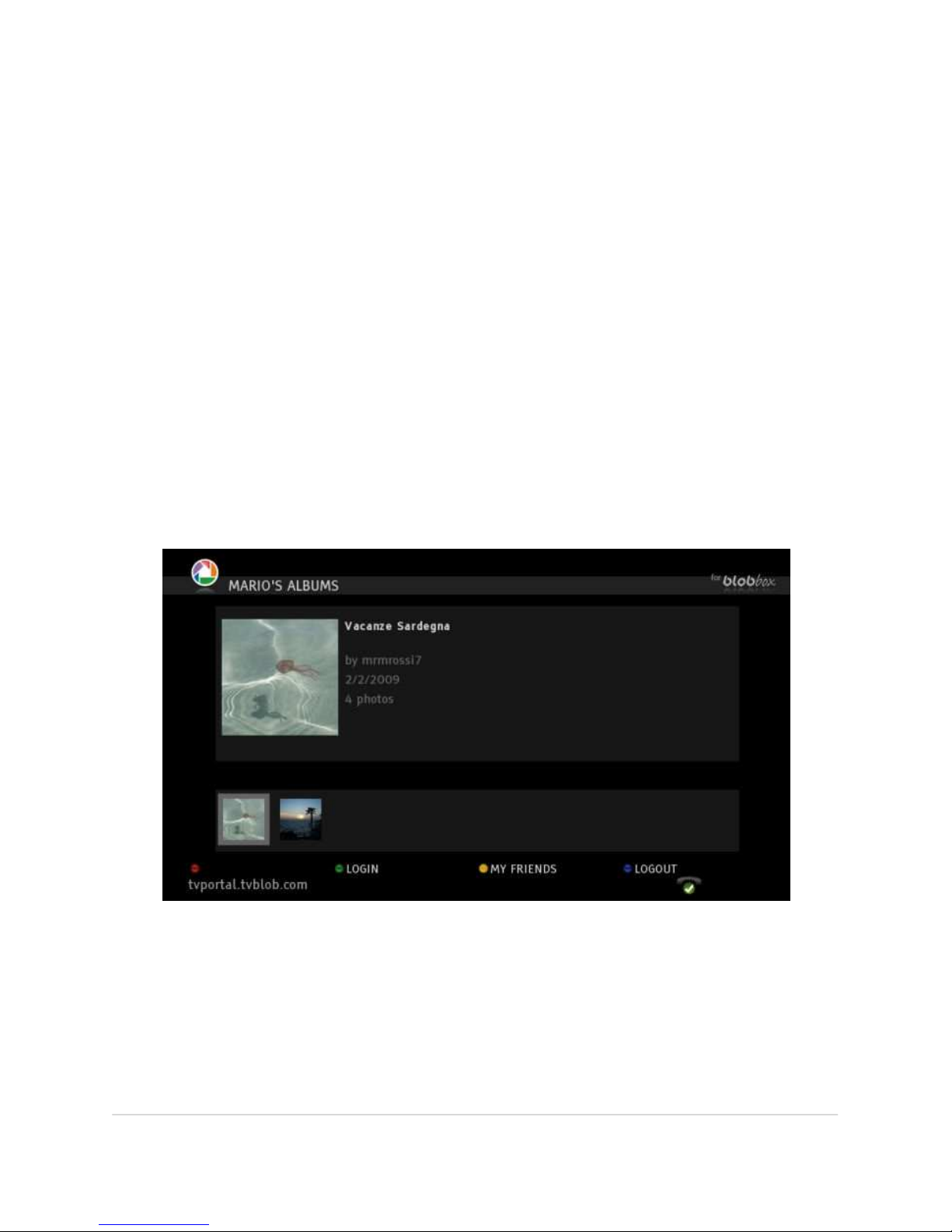
Select the album you want to watch and press OK.
Page 58
BLOBbox User Manual V. std 0.6.105 - 58
You can browse the thumbnails of the album images and press OK to watch a
single image or can start a slide show of the entire album.
To start a slide show, use the remote control arrow keys to navigate to the album,
press OK, and then press the PLAY key on the remote. You can pause the slide show
at any time pressing the PAUSE key or return to the list of all of your albums by
pressing the STOP key.
HOW TO REMOVE A FRIEND
From the Picasa Home Page, highlight MY FRIENDS and press OK.
Highlight the icon representing the friend you want to remove from the list and
press REMOVE (green button): to confirm press YES (red button) or to abort press
BACK.
HOW TO LOGOUT
From the Picasa Home Page, highlight MY ALBUMS and press OK.
Press LOGOUT (blue button).
Page 59
BLOBbox User Manual V. std 0.6.105 - 59
PROGRAM RADIO AND TV RECORDINGS USING VCAST
Please note that this is an Italian-oriented service, although some channels are
available in English.
Vcast is a free service offered by FAUCET, http://faucet.vcast.it, which allows you to
easily program television or radio recordings that are available as free digital
terrestrial channels (this service does not include pay-per-view channels or
Mediaset). You can watch and rewatch all of your favorite programs exactly as you
would with a traditional VCR. We call it “iPVR” as in, “Internet Personal Video
Recorder”. A big advantage is that you can schedule recordings at home on your
TV, or remotely from your PC.
NOTE: The recordings are automatically removed after 72 hours.
HOW TO BEGIN USING VCAST
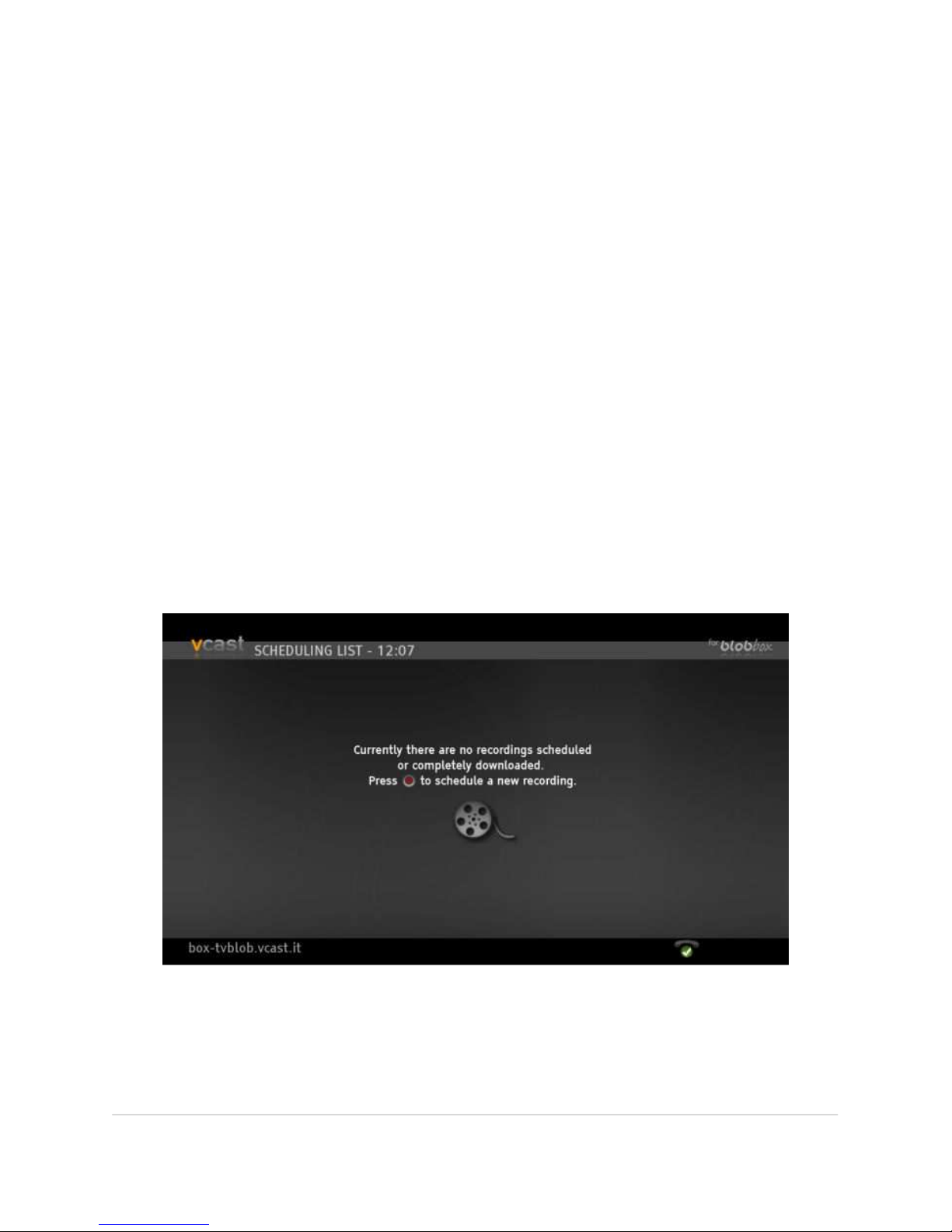
From the BLOBbox Home Page, select INTERNET > MY IVCR and press OK.
The first time that you enter Vcast, the screen below will appear (indicating that you
have no recordings ready for viewing).
Page 60
BLOBbox User Manual V. std 0.6.105 - 60
HOW TO SCHEDULE A RECORDING
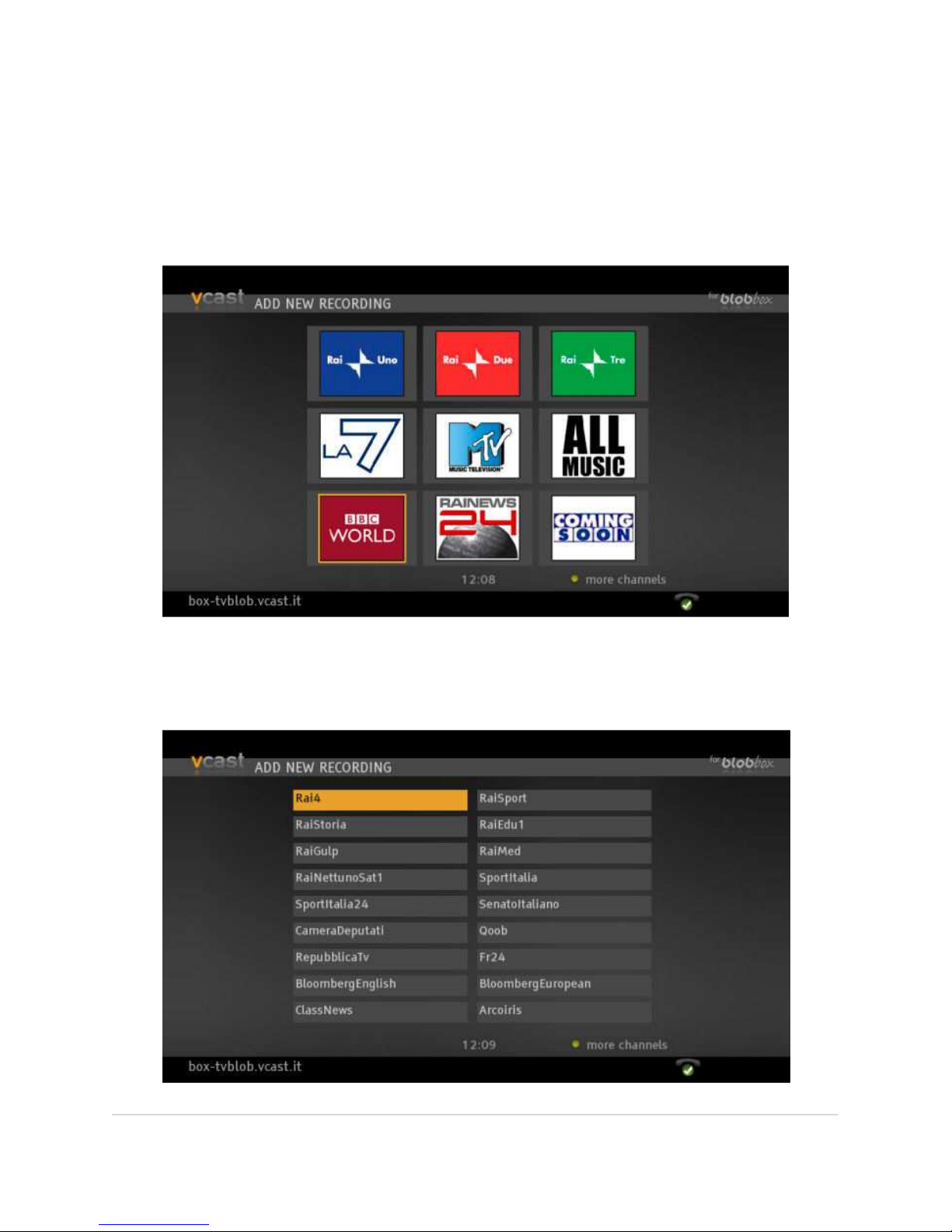
Press SELECT CHANNELS (red button) to access the following screen, which displays
some of the most popular channels. If the channel that you want is not in the list,
press MORE CHANNELS (yellow button) to see the others that are available.
Navigate to the channel where you would like to schedule a recording and press
OK.
Page 61
BLOBbox User Manual V. std 0.6.105 - 61
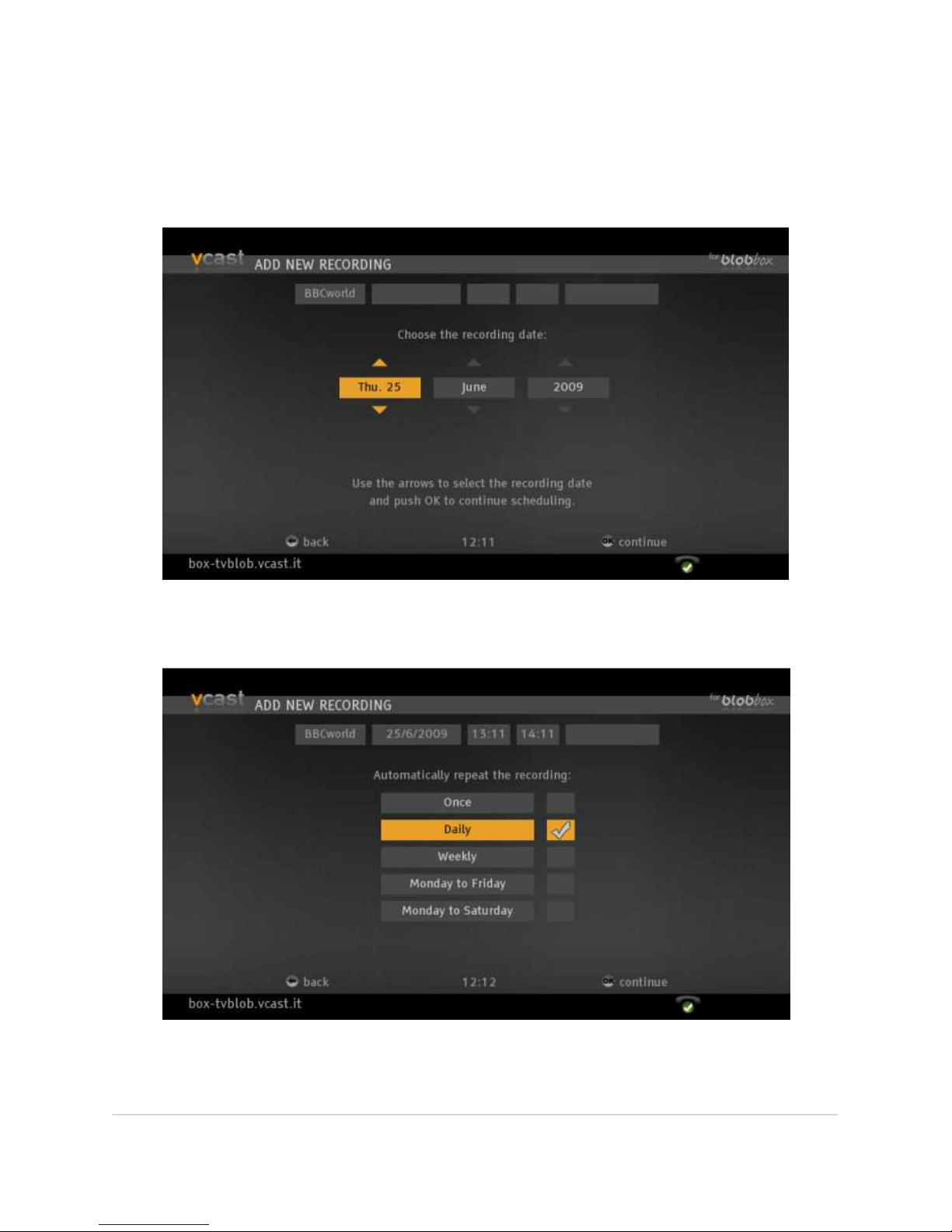
Now you must enter the parameters of your recording. Designate the date, month
and year and then press OK. Choose the precise time when the recording should
begin (press OK), then the precise time when it should end.
Finally, indicate whether or not the recording should be executed once, daily,
weekly, weekdays, or Monday to Saturday.
Page 62
BLOBbox User Manual V. std 0.6.105 - 62
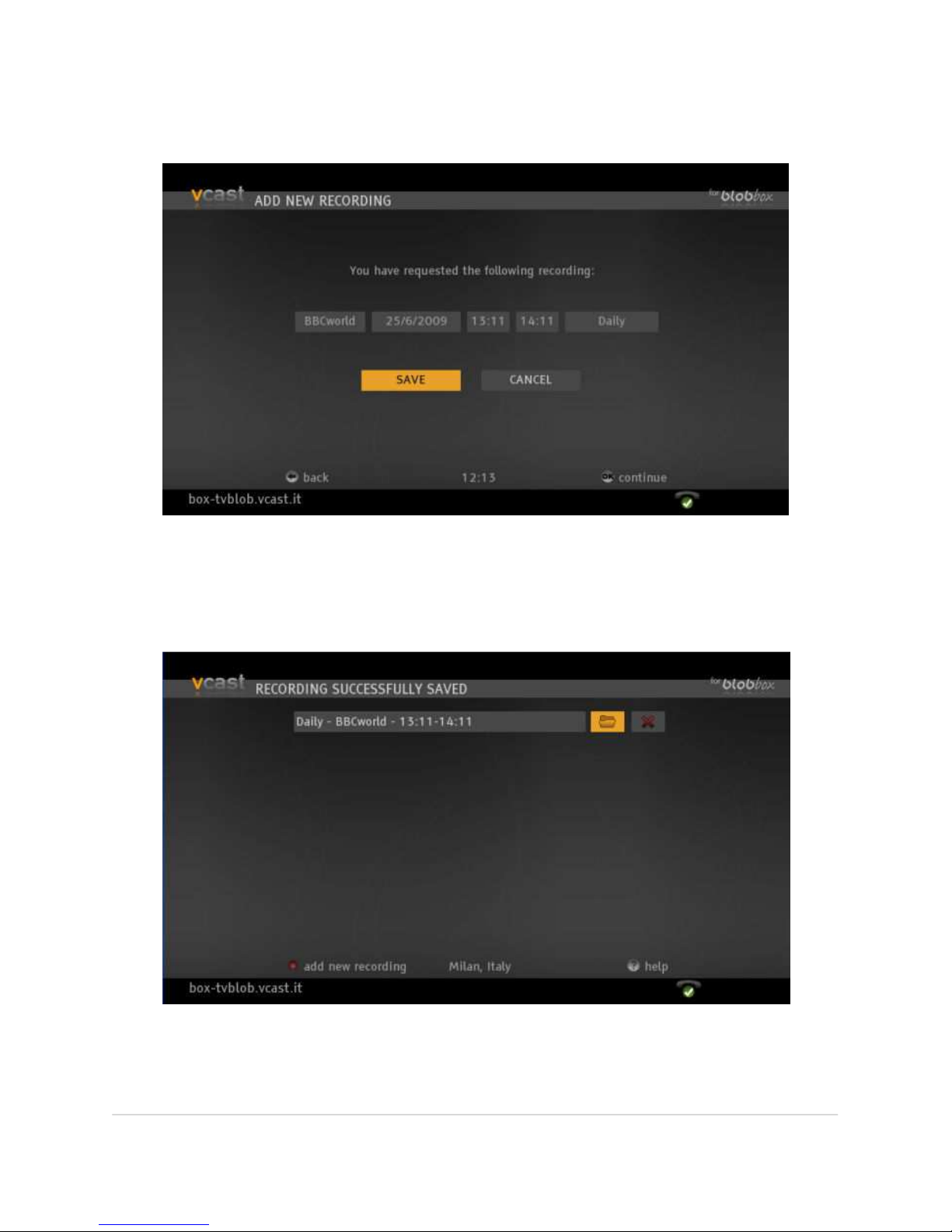
Last, review and confirm your selection. Navigate to SAVE or CANCEL and press OK.
A screen will appear that displays the list of programs scheduled for recording. Next
to every scheduled recording, you will find two icons: the first identifies the status
of the recording; the second allows you to eliminate the recording.
Page 63
BLOBbox User Manual V. std 0.6.105 - 63
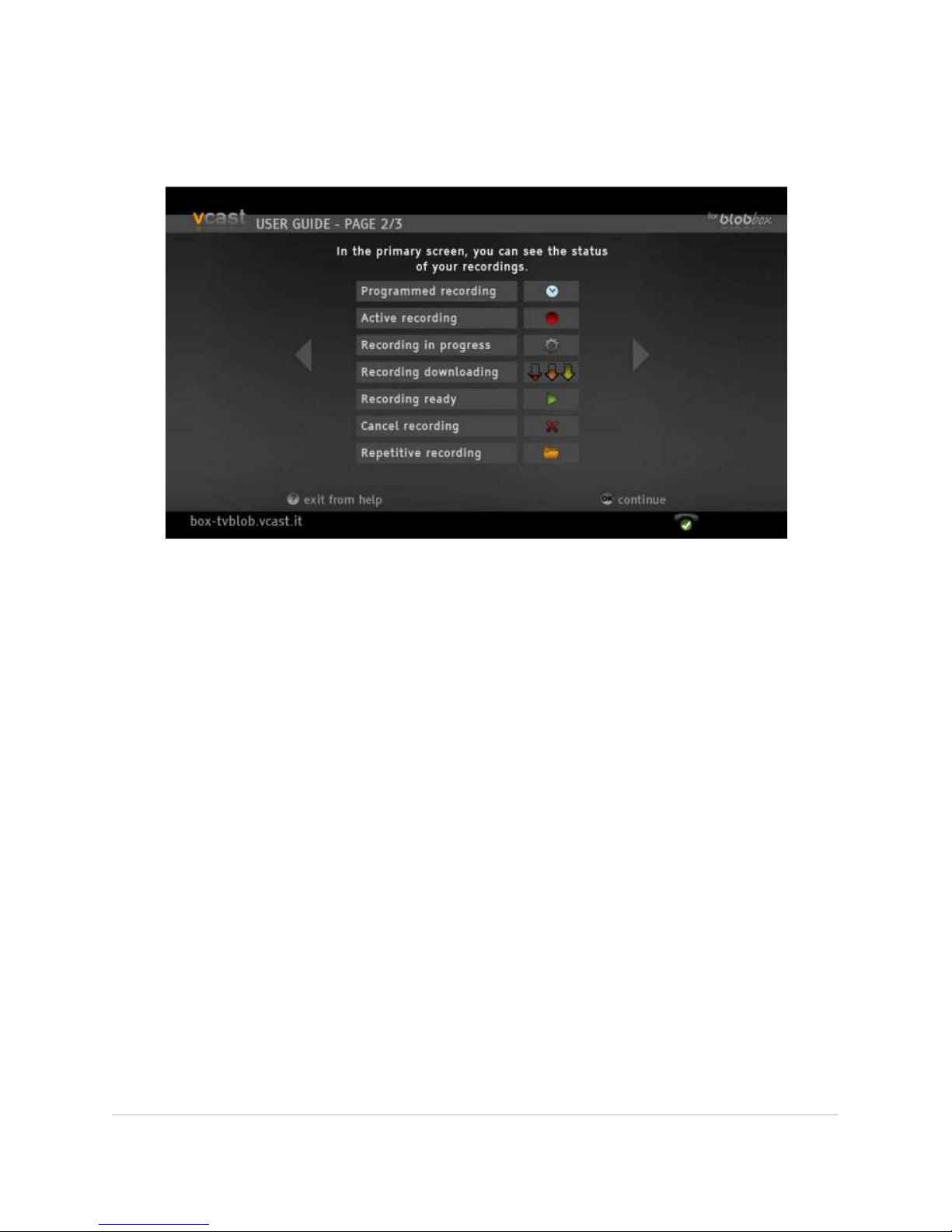
You can review a small guide that explains the various recording phases (i.e., the
icons) by pressing HELP on the remote control.
HOW TO PLAY A RECORDING
To play a recording on the screen, go to RECORDINGS, navigate to the file that you
would like to view and press OK.
HOW TO ELIMINATE A RECORDING
To eliminate a recording, go to the screen “RECORDINGS”, navigate to red “X” next
to the file that you want to eliminate and press OK.
In every case, recordings are automatically eliminated 72 hours after recorded.
Page 64
BLOBbox User Manual V. std 0.6.105 - 64
HOW TO MANAGE RECORDINGS WITH A PC
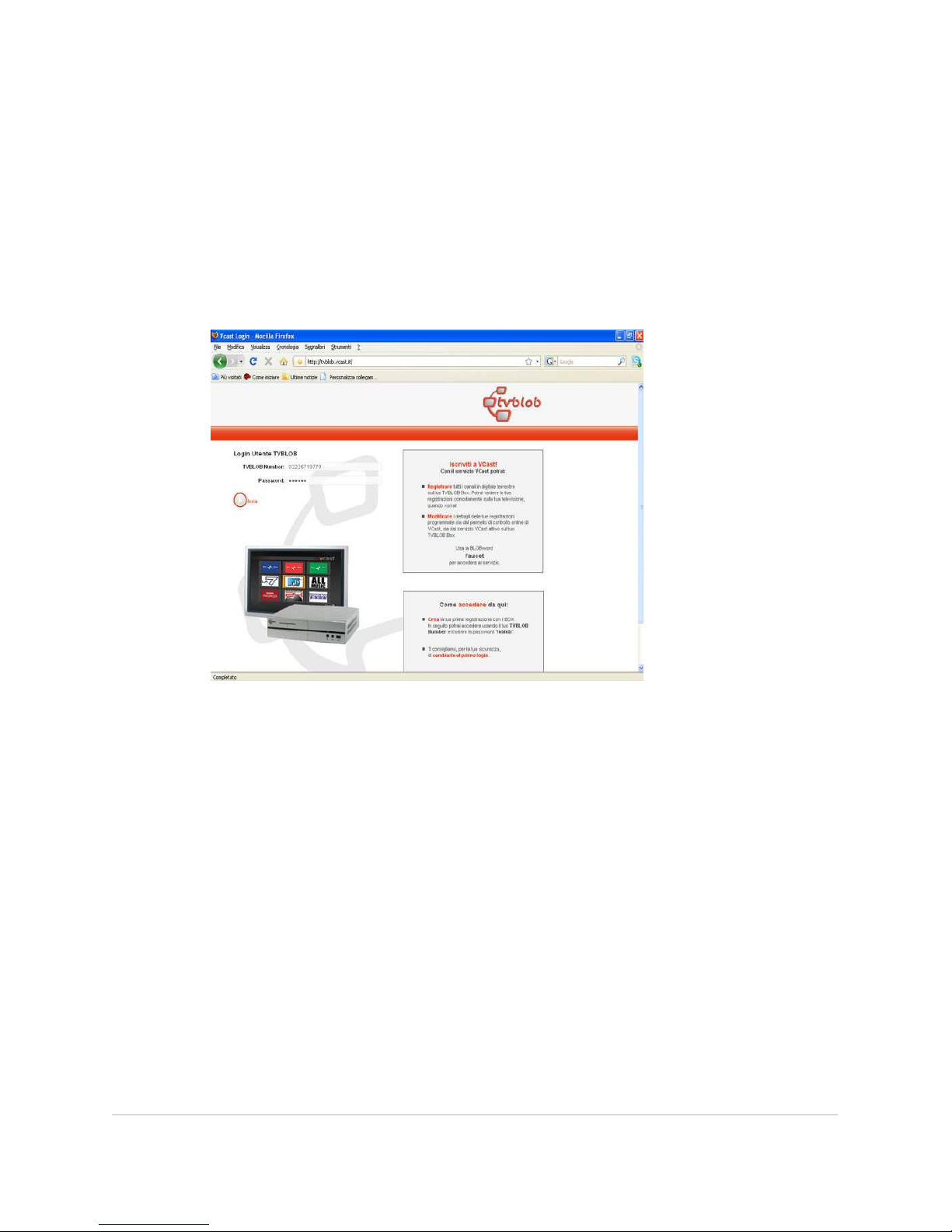
As well as scheduling and managing your Vcast recordings on a BLOBbox
connected to your television, you can also use the service on your Internetconnected PC. Using your browser, go to: tvblob.vcast.it
Insert your TVBLOB number and password (use “tvblob” as your password the first
time, then you can modify it as you like).
At this point, you will be directed to the Faucet Vcast website in which you can see
and modify all of your recordings.
The changes and new recordings initiated directly from the Vcast website will be
automatically and simultaneously available on your BLOBbox.
Page 65
BLOBbox User Manual V. std 0.6.105 - 65
VIEW VIDEOS SAVED USING REEPLAY
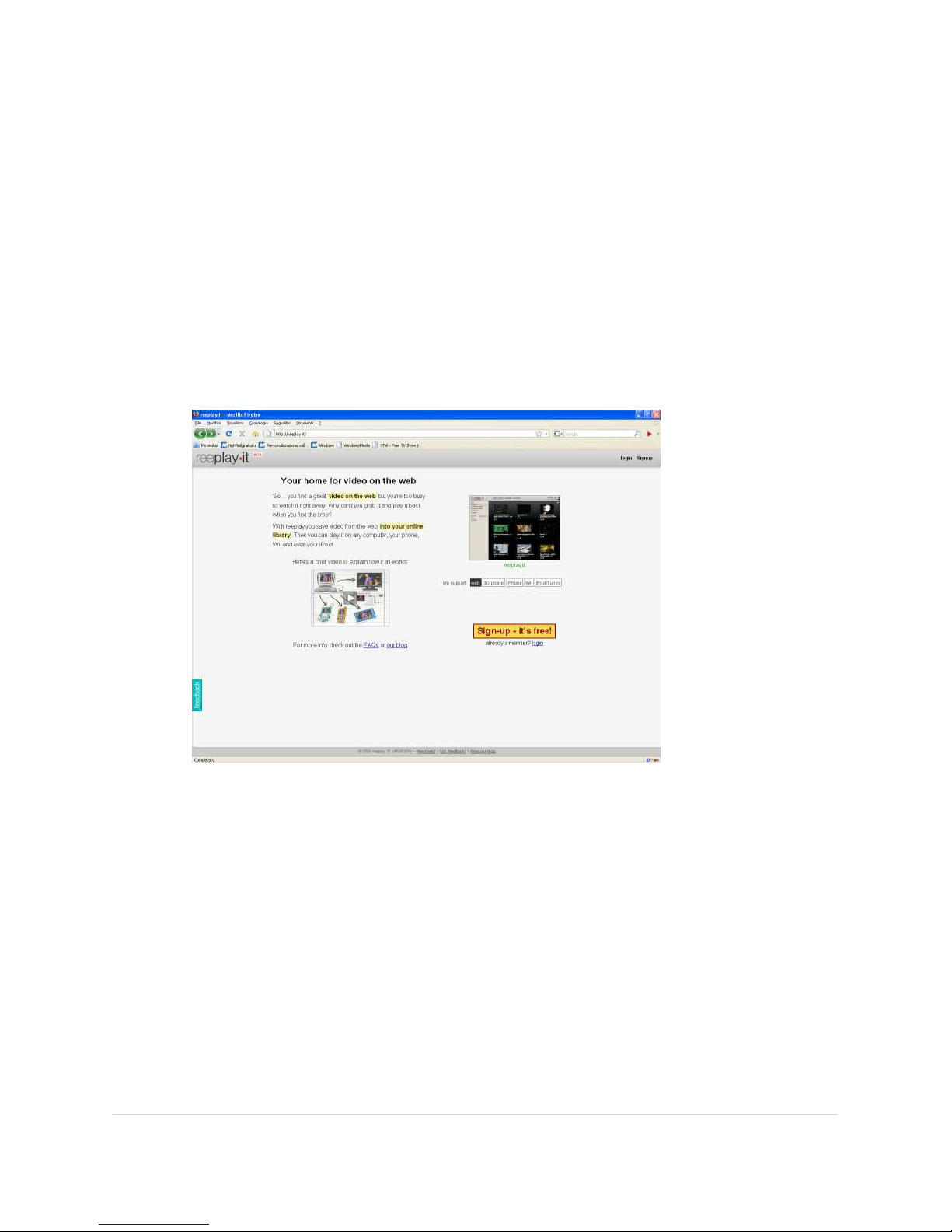
Reeplay.it is a useful tool that allows you to use a PC to bookmark video files that
you find on the web, which you can later watch at home on your TV without
turning on the computer. You can also watch friends’ bookmarked videos as well as
share with them the ones that you have bookmarked.
HOW TO REGISTER IN REEPLAY.IT (WITH A PC)
On your PC connected to the internet, open the browser (e.g., Internet Explorer,
Firefox) and type http://reeplay.it in the address bar.
Follow the instructions register and install the reeplay.it browser plug-in.
Page 66
BLOBbox User Manual V. std 0.6.105 - 66
HOW TO LOG-IN WITH YOUR BLOBBOX
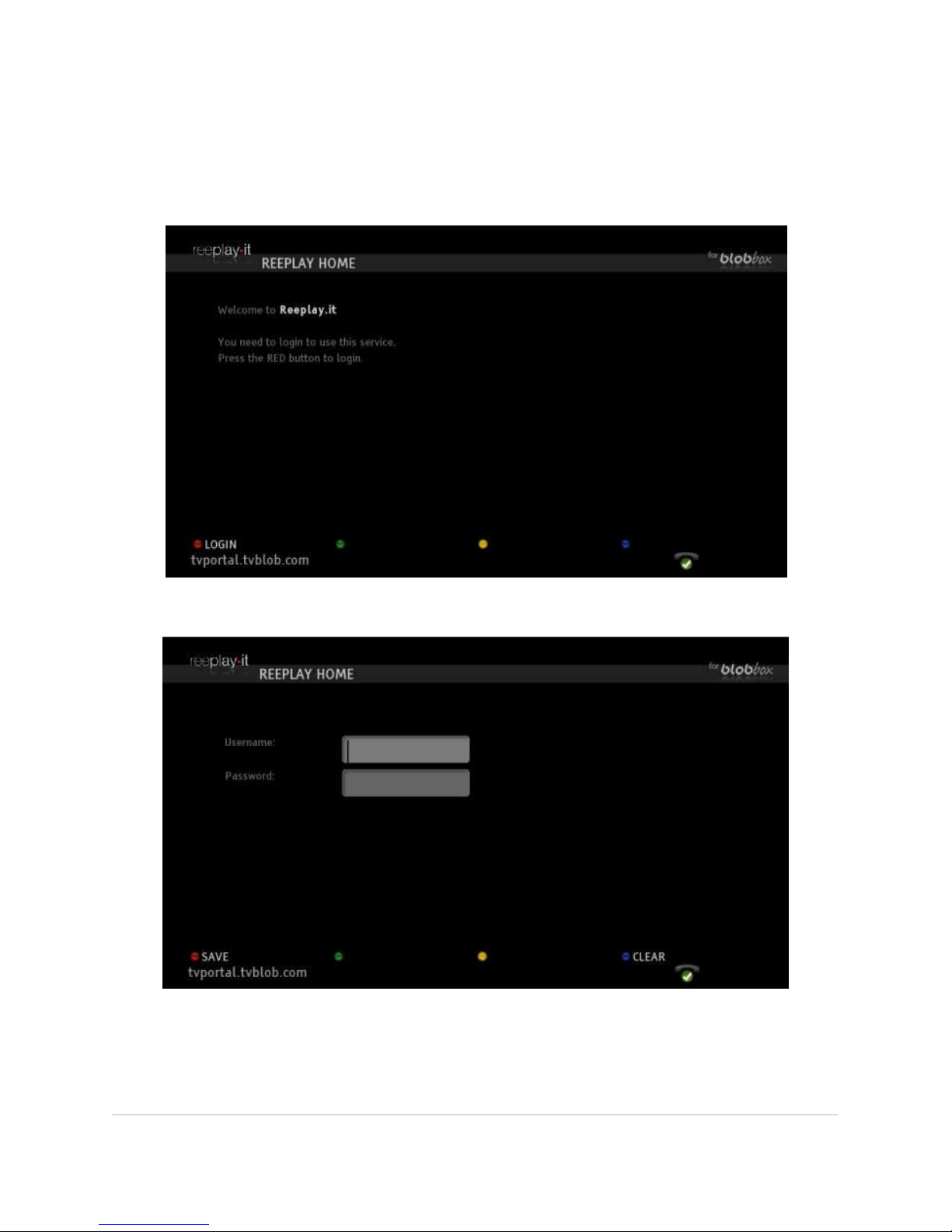
From the Home Page of your BLOBbox select INTERNET > REEPLAY.IT. You can also
use the BLOBword “reeplay” to access it directly when in the BLOBwords section.
Press LOGIN (red button).
Enter your reeplay.it account username and password and press SAVE (red button).
Once you have performed the login, your credentials will be automatically saved
for future access.
Page 67
BLOBbox User Manual V. std 0.6.105 - 67
HOW TO WATCH REEPLAY.IT VIDEOS
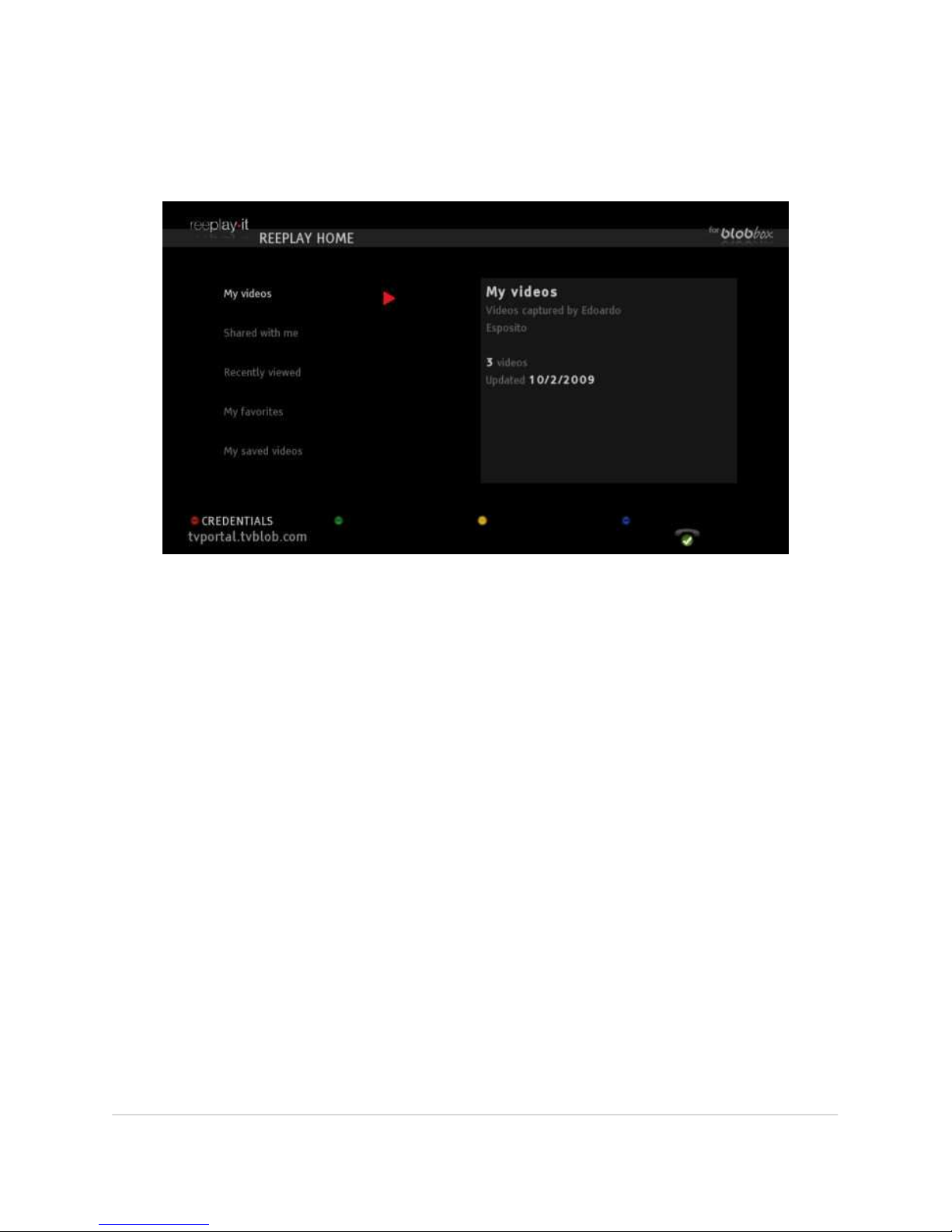
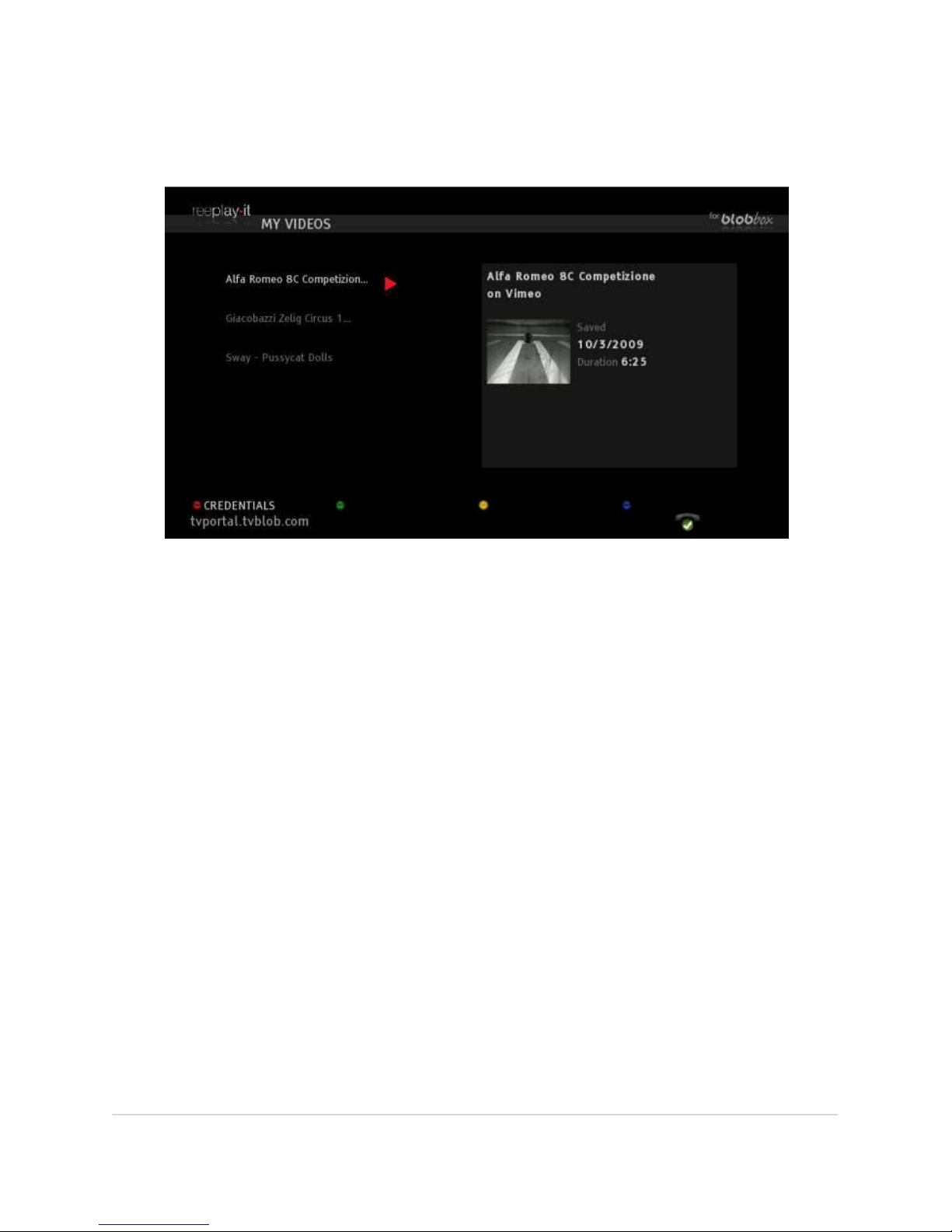
Once you have performed the login, your personal reeplay.it page will appear.
Videos are divided into 6 categories:
• My videos: all of your videos bookmarked with reeplay.it
• Shared with me: all of the videos your friends have shared with you
• Recently viewed: all of the videos you have watched most recently
• My favorites: all of your favorite videos
• My saved videos: not yet activated by reeplay.it
• My playlists: all of the playlists you have created with reeplay.it
Page 68
BLOBbox User Manual V. std 0.6.105 - 68
To scroll through the categories described above, use the directional arrow keys on
your remote control. Navigate to the desired category, then press OK.
To watch a video, use the directional arrow keys to navigate to the desired video
and press OK to start it.
Page 69
BLOBbox User Manual V. std 0.6.105 - 69
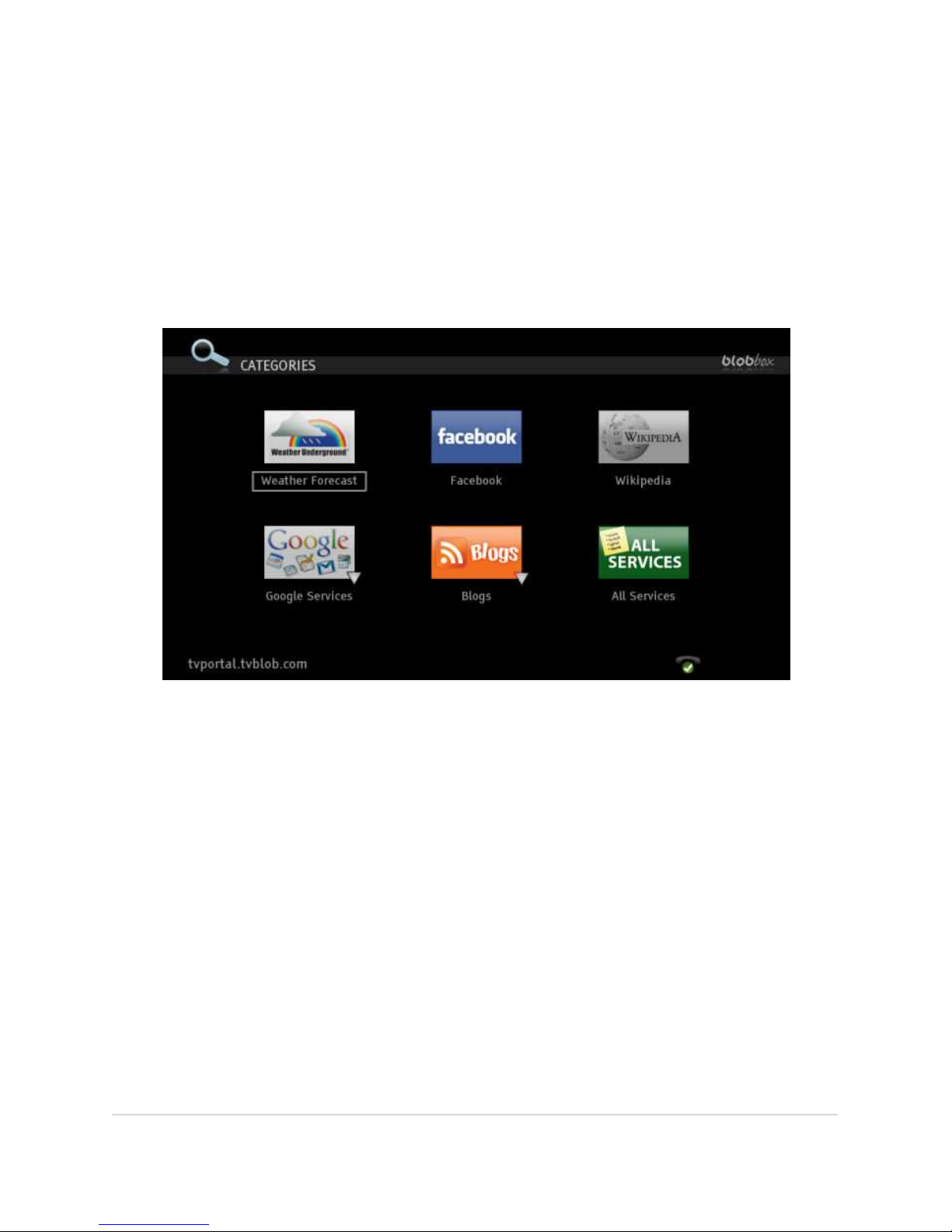
NAVIGATE AND ACCESS THE MANY WEB SERVICES
In this section you will find various web services offered by third parties, like Google
and Facebook. From the Home Page of your BLOBbox, select INTERNET >
CATEGORIES.
This section will constantly evolve as new services are continually added to the
BLOBbox and we study and experiment how to make search and discovery process
as easy as possible for you (your feedback is welcome!)
Page 70
BLOBbox User Manual V. std 0.6.105 - 70
HOW TO VIEW THE WEATHER FORECAST
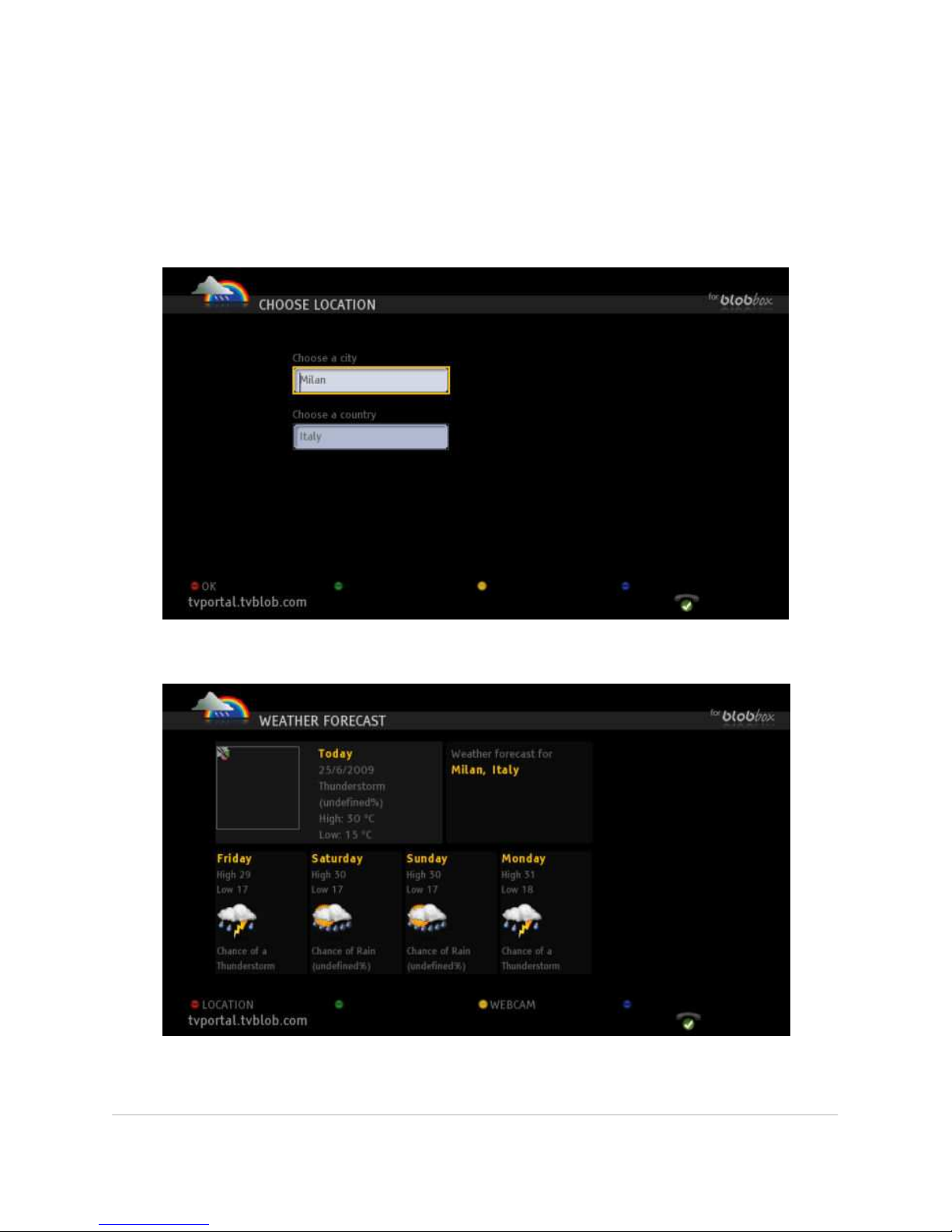
From the BLOBbox Home Page select INTERNET > CATEGORIES > WEATHER
FORECAST Enter your city ( “Choose a city”) and country (“Choose a country”), then
press OK (red button) to access the weather forecast you want.
Here is an example of a weather forecast in Milan.
Page 71
BLOBbox User Manual V. std 0.6.105 - 71
HOW TO ACCESS YOUR FACEBOOK ACCOUNT
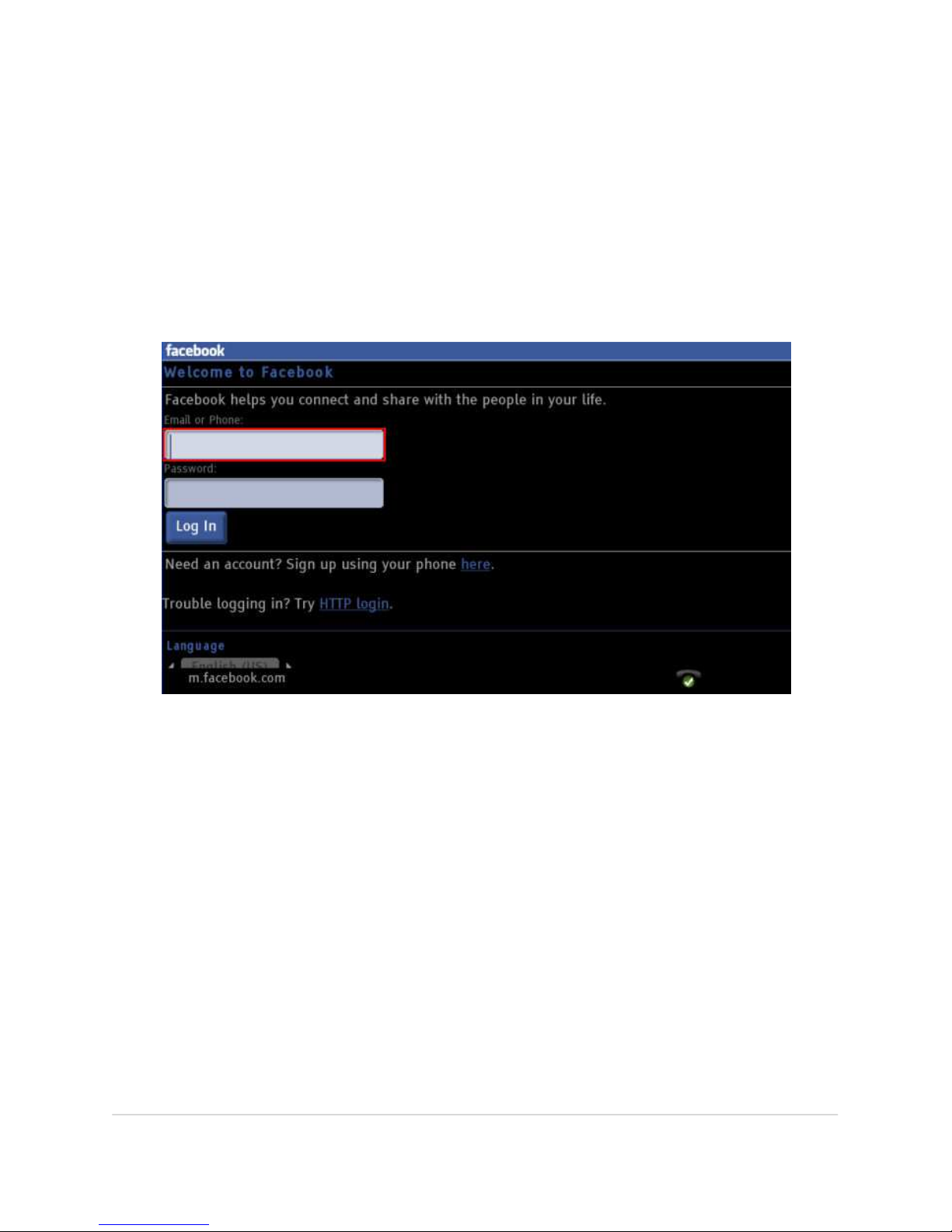
The BLOBbox allows you to access your Facebook account using Facebook’s mobile
website version.
From the BLOBbox Home Page, select INTERNET > CATEGORIES > FACEBOOK. Enter
the name and password that you have registered with Facebook, then navigate to
LOG IN using the arrow keys on you remote and press OK.
HOW TO USE WIKIPEDIA
The BLOBbox allows you to access Wikipedia, a famous, community-generated and
managed online encyclopedia.
From the BLOBbox Home Page, select INTERNET > CATEGORIES > WIKIPEDIA.
Just type in one or more key words and press OK to execute a search.
Page 72
BLOBbox User Manual V. std 0.6.105 - 72
HOW TO VIEW BLOGS
From the Home Page of your BLOBbox select INTERNET > CATEGORIES > BLOG.
In this section you can access and view various blogs. If you would like to add your
own blog, please visit our developer website, BLOBforge
(http://www.blobforge.com).
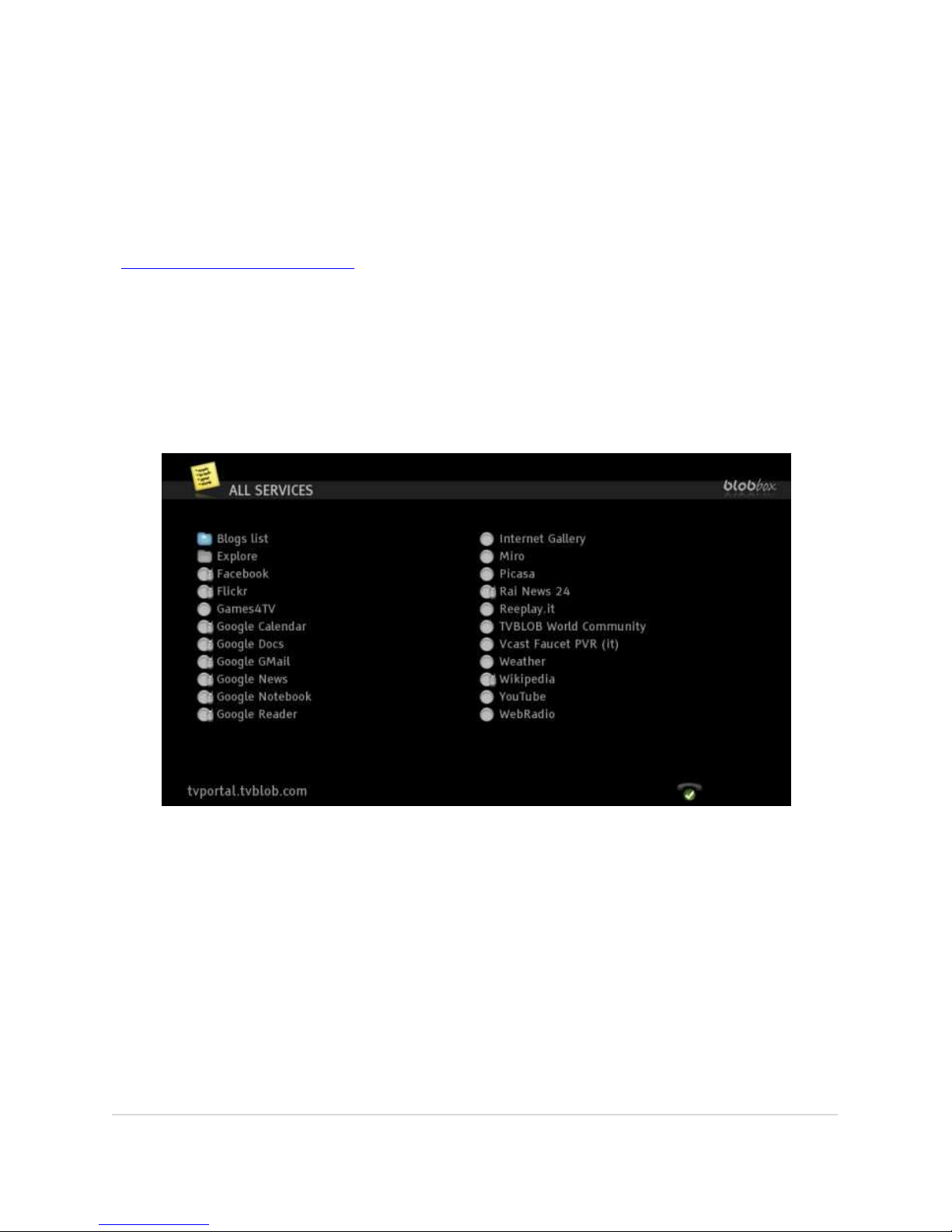
HOW TO ACCESS THE LIST OF ALL ACCESSIBLE WEB SERVICES
From the Home Page of your BLOBbox select INTERNET > CATEGORIES > ALL
SERVICES.
On this page you will find a master list of all “internet” services available on your
BLOBbox. Navigate to the desired service and press OK to access it.
Page 73
BLOBbox User Manual V. std 0.6.105 - 73
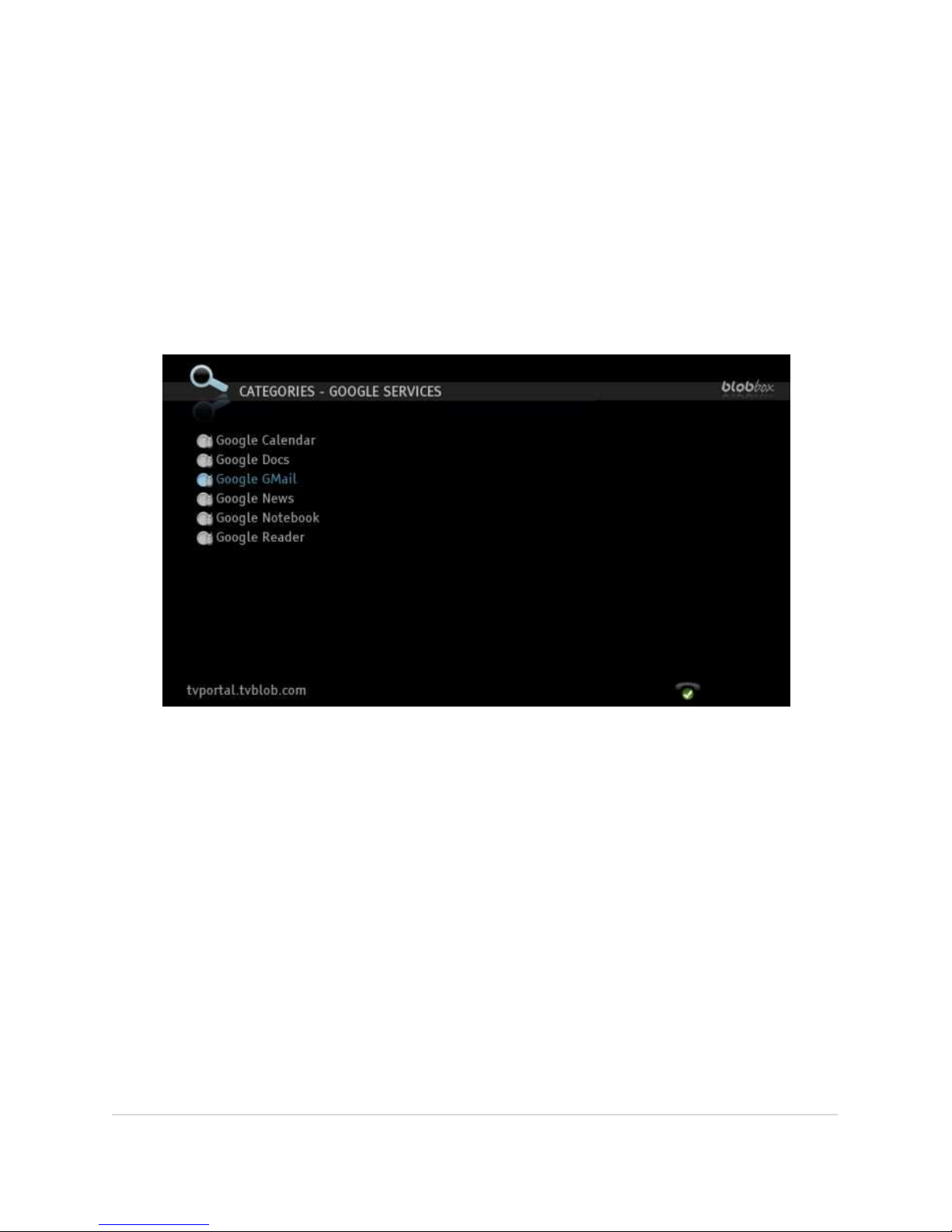
HOW TO ACCESS GOOGLE SERVICES
Your BLOBbox allows you to access many Google services directly on your TV.
Google services currently available through your BLOBbox are Gmail, Google
Calendar, Google Docs, and Google Reader. The format of the services displayed are
actually Google’s simplified website versions optimized for mobile devices, which
are must easier to navigate using a remote control.
From the Home Page of your BLOBbox select INTERNET > CATEGORIES > GOOGLE
SERVICES.
Note: Once you have performed the login for one of the services, other services can be
accessed without repeating the login procedure.
Page 74
BLOBbox User Manual V. std 0.6.105 - 74
Gmail
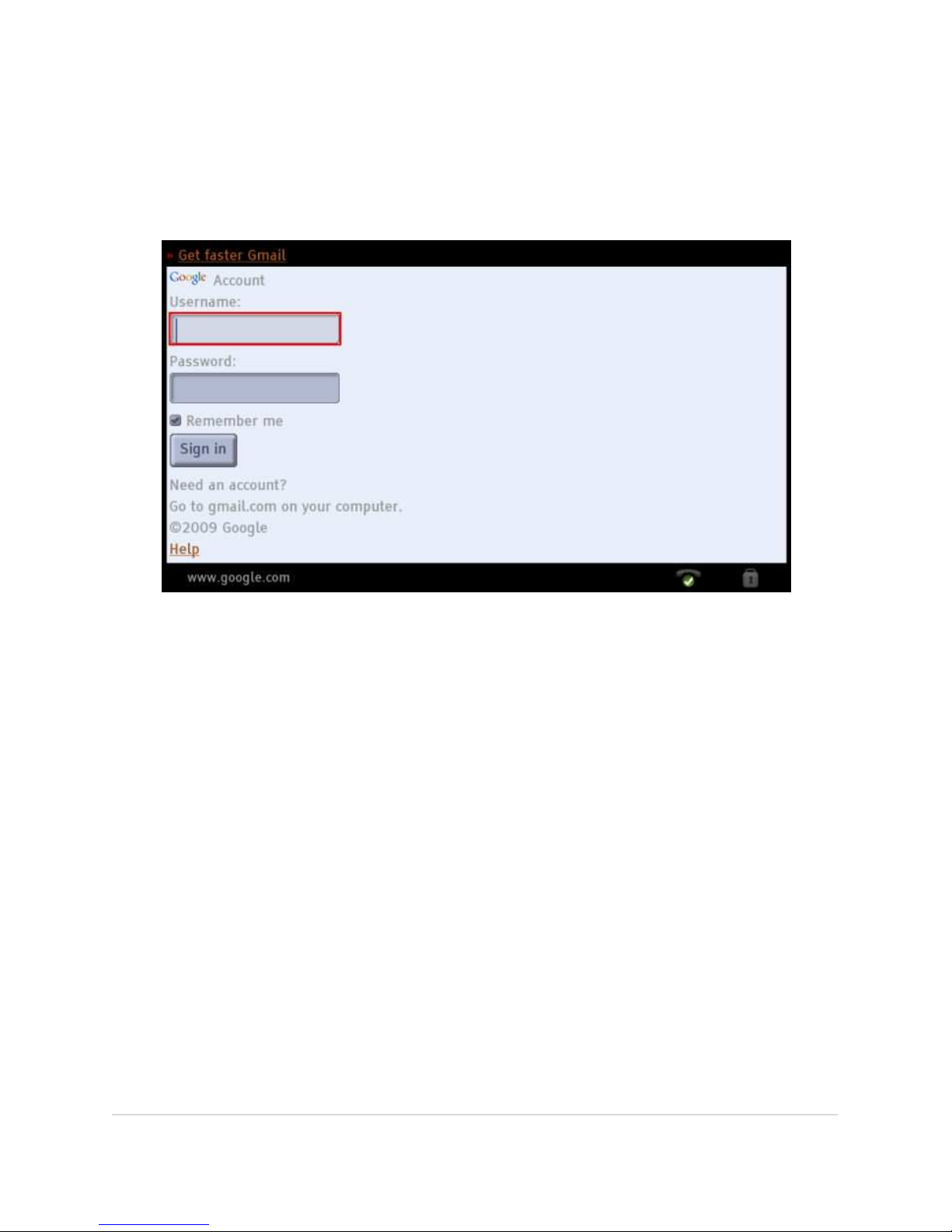
Gmail is an email service offered by Google. From here you can check your email
account directly on your TV. From the Home Page of your BLOBbox, select
INTERNET > CATEGORIES > GOOGLE SERVICES > GMAIL.
Enter your Google username and password in the appropriate boxes. If you wish
that your personal identification data is memorized for future access, go to the
REMEMBER ME box and press OK. Navigate to the ACCESS button and press OK to
access your Gmail account. To log out, go to the EXIT box and press OK.
Google Calendar
Google Calendar allows you to create, read, update and share a calendar with other
Google users.
Google Docs
Google Docs allows you to create and share work documents with other Google
users.
Google Reader
Google Reader allows you to stay updated with your favorite sites and share them
with other Google users.
Page 75
BLOBbox User Manual V. std 0.6.105 - 75
BROWSE THE WEB
With the BLOBbox you can browse any website, however, we want to stress that
the experience of viewing and navigating websites that have been optimized for
PC display may not be optimal for TV display. We have found that mobile website
versions, while not always the most attractive, often are better adapted for TV
navigation
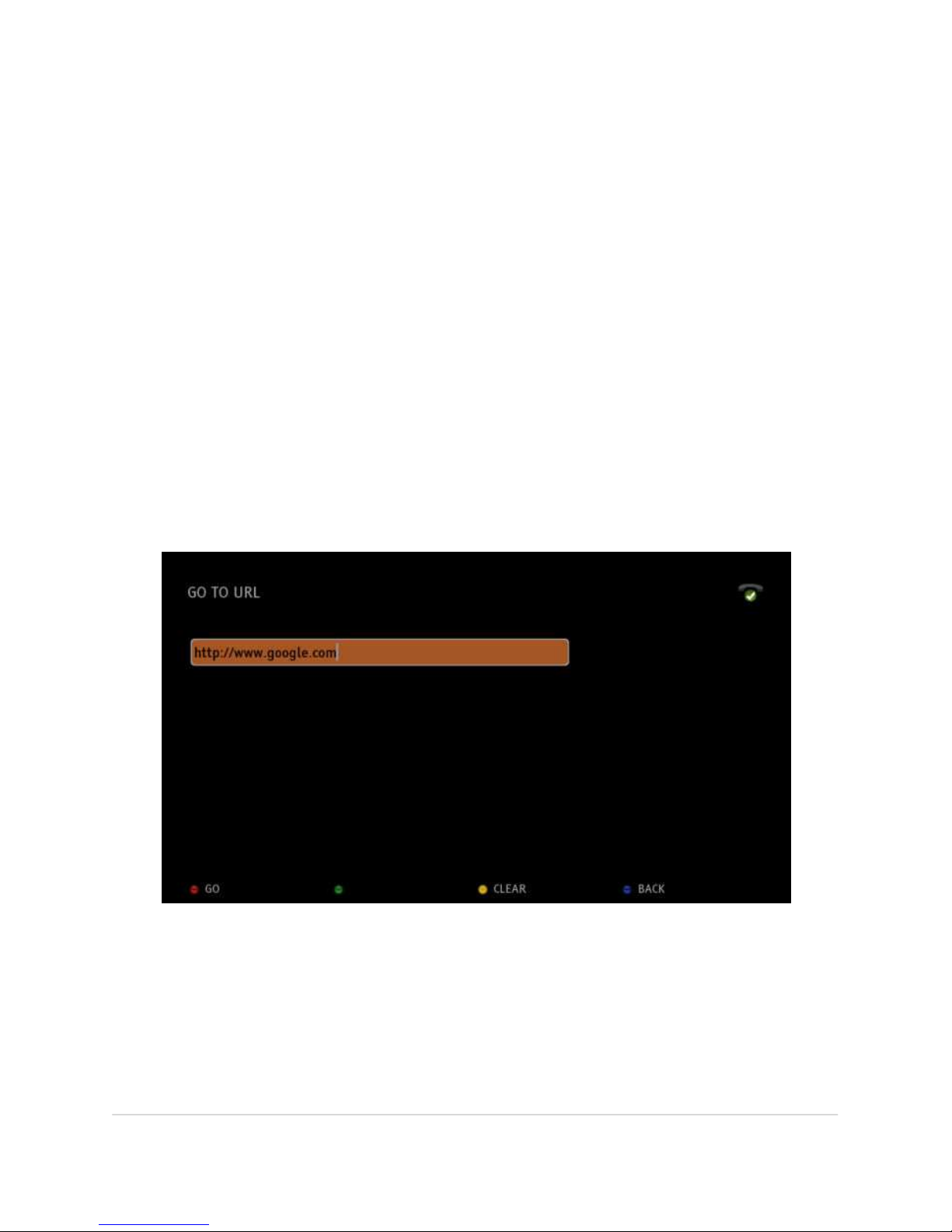
HOW TO ACCESS ANY INTERNET WEBSITE
From the BLOBbox Home Page, press GO TO URL (blue button).
Enter the URL of the website that you want to access and press GO (red button).
Insert the text using the remote control just as you would text on a mobile phone.
Alternatively, you can connect a USB keyboard to the USB port. To clear the text
input box press CLEAR (yellow button).
Note: Many websites may not display correctly as they have not been designed for use
on TV screens or navigation with remote controls (i.e., as opposed to mouse and
keyboard).
Page 76

BLOBbox User Manual V. std 0.6.105 - 76
HOW TO CHECK IF THE WEBSITE YOU ARE IN IS SAFE
To avoid phishing (i.e., the illegal attempt to obtain sensitive information), the
BLOBbox allows you to check if the URL you are visiting is safe. Press the SECURITY
button on the remote control to display information about the website displayed.
Page 77
BLOBbox User Manual V. std 0.6.105 - 77
ACCESS TV PORTALS USING BLOBWORDS
A BLOBword is a shortcut word that identifies in a unique way a TV portal. It can be
used to rapidly access websites without the need of typing long URL addresses or
even knowing them.
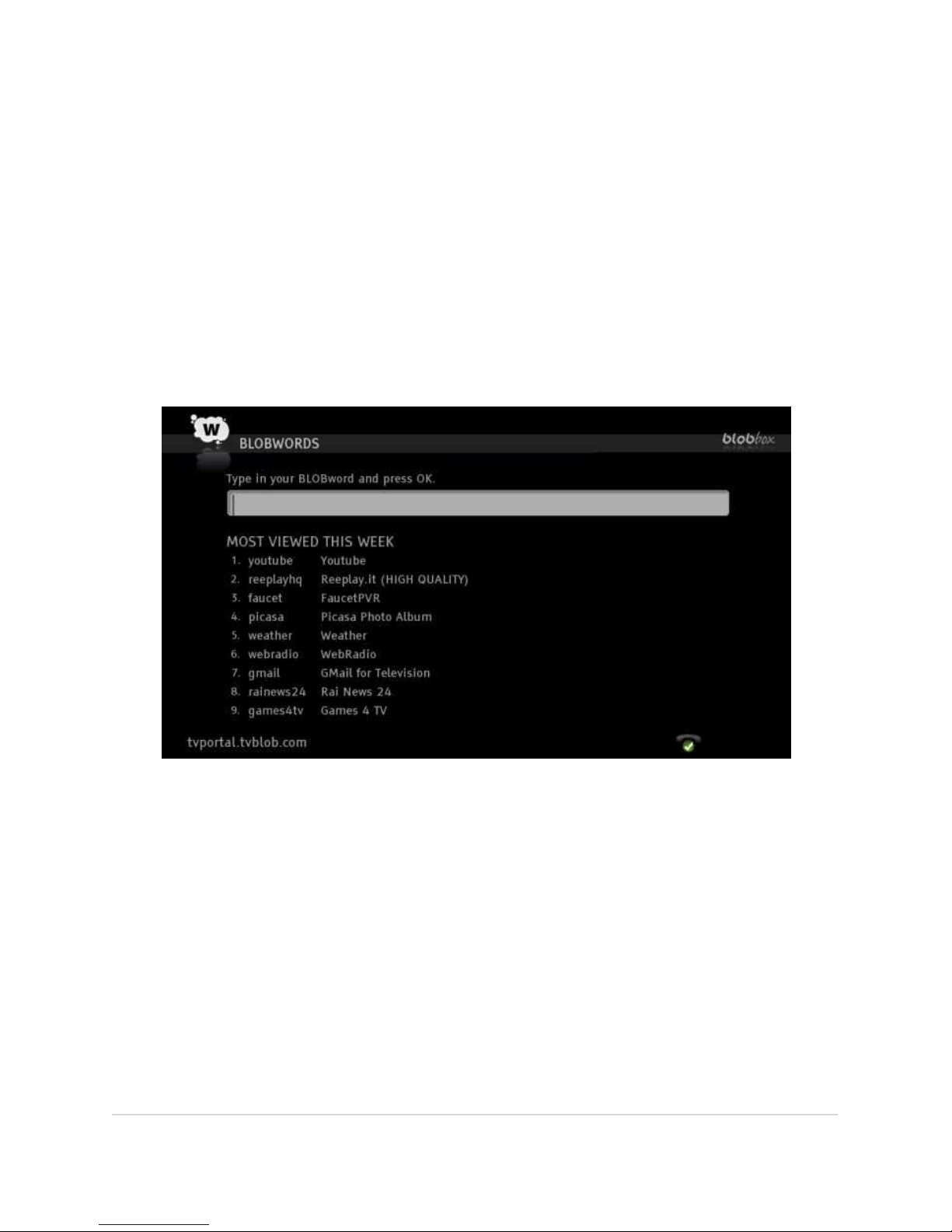
HOW TO USE BLOBWORDS
From the BLOBbox Home Page, select INTERNET > BLOBWORDS or press the BLOB
button on the remote.
A list of the week’s most popular BLOBwords will be displayed. You can navigate
up/down the list and press OK to go directly to a particular site or you can enter
letters in the text field, As soon as you start typing you will receive relevant
suggestions, making it easier and faster to find the BLOBword you want.
Page 78
BLOBbox User Manual V. std 0.6.105 - 78
HOW TO ORGANIZE YOUR FAVORITE SITES
Favorites is a very powerful function that allows you to save your favorite sites so
that you can get to them quickly and simply.
HOW TO GET TO YOUR FAVORITE SITES
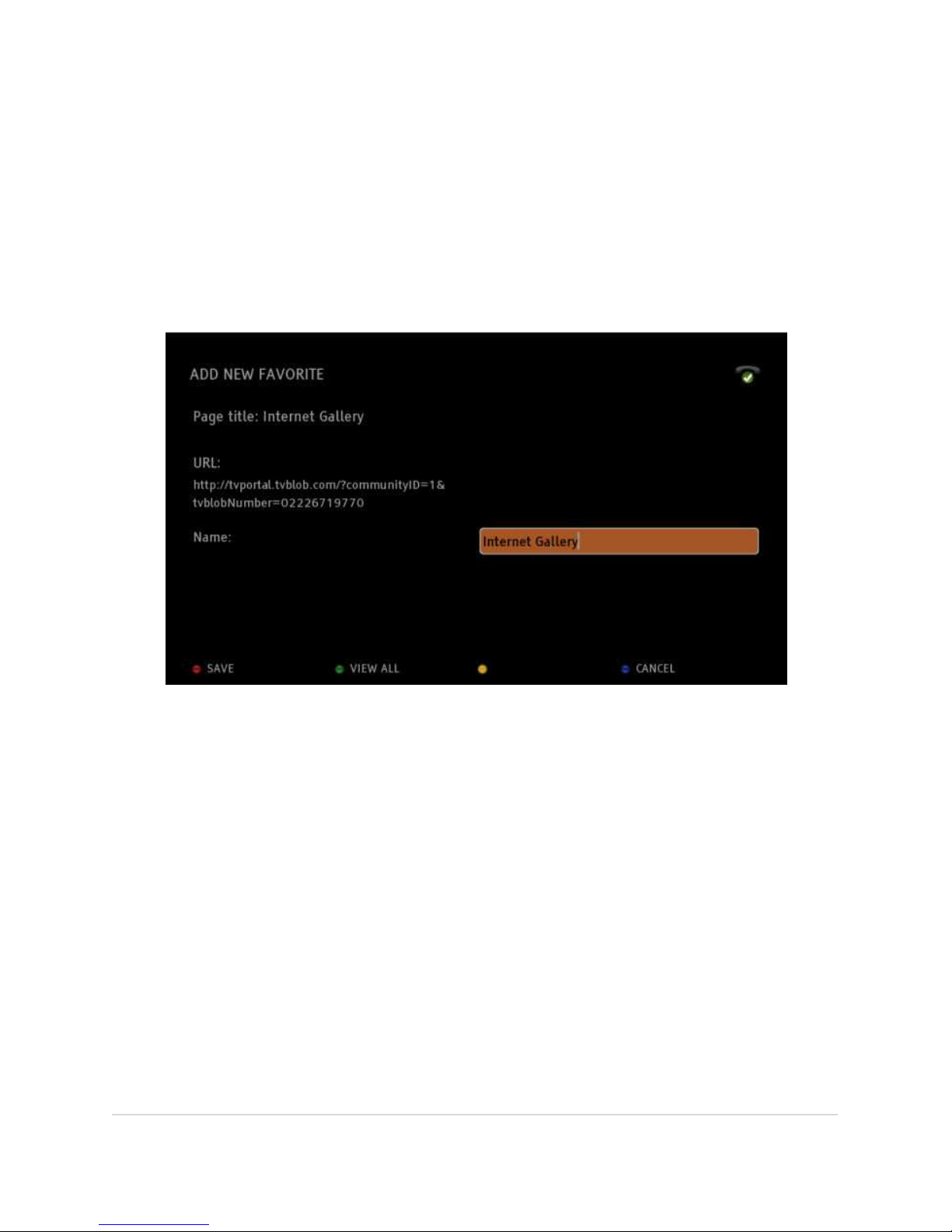
When you are on a new site that you wish to add to your favorites list (e.g., Internet
Gallery), press the FAVORITES button on the remote control.
In the text field, enter the name with which you want to save the site and press OK
or SAVE (red button).
Page 79
BLOBbox User Manual V. std 0.6.105 - 79
HOW TO ACCESS A FAVORITE SITE
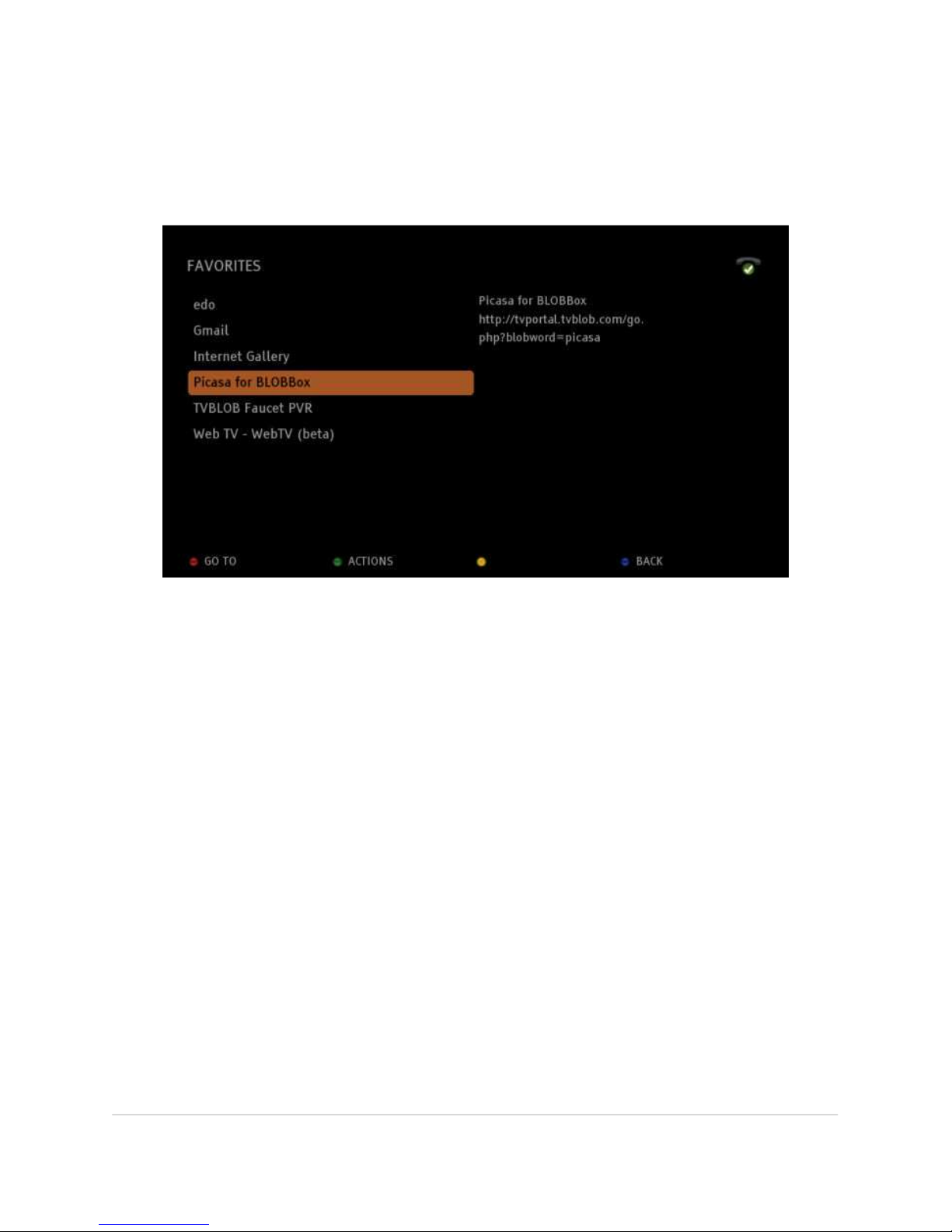
Press the FAVORITES button on your remote control. The page with your favorite
sites will appear.
Navigate to the site you wish to view and press OK or GO TO (red button) to access
it.
HOW TO ELIMINATE A SITE FROM YOUR FAVORITES
Navigate to the site you wish to eliminate from your favorites list and press
ACTIONS (green button). Navigate to the site that you want to eliminate, then press
OK.
HOW TO RENAME A FAVORITE SITE
Navigate to the favorite site you wish to rename and press ACTIONS (green button).
Navigate to RENAME, type in the new name you have chosen, and then press OK.
Page 80

BLOBbox User Manual V. std 0.6.105 - 80
DOWNLOAD MEDIA FILES USING BITTORRENT
The BLOBbox allows you to download content from the Internet using the
bittorrent client.
HOW TO DOWNLOAD VIA URL
There are two ways to download torrent files on your BLOBbox:
- Using the GO TO URL application
- Using a PC web browser
HOW TO DOWNLOAD USING THE “ GO TO URL” APPLICATION
Press GO TO URL (blu button) from the home page. Enter the torrent’s URL and
press OK.
A message will be displayed asking you to confirm the request. Press YES (red
button) to initiate the download or NO (blue button) to abort.
A new message will inform you that the selected file has been added to the
download queue. Press VIEW (red button) to go to the “DOWNLOAD IN PROGRESS”
page or press BACK (blue button) to return to the Home Page.
HOW TO DOWNLOAD USING THE PC WEB BROWSER
Go to chapter “HOW TO ACCESS THE BLOBBOX FROM THE PC” from page 78 to 83.
-NEW- HOW TO DOWNLOAD USING A .TORRENT FILE
Select ARCHIVE from the home page. Highlight the torrent file that you want to
download and press DOWNLOAD (red button).
A message will be displayed asking you to confirm the request. Press YES (red
button) to initiate the download or NO (blue button) to abort.
Page 81

BLOBbox User Manual V. std 0.6.105 - 81
DOWNLOAD MEDIA FILES VIA HTTP AND FTP
The BLOBbox allows you to download content from the Internet in a variety of
ways.
HOW TO DOWNLOAD
From the BLOBbox Home Page, press OPEN URL (blue button). Enter the URL
address of the file that you want to download and press OK .example:
- http://releases.ubuntu.fastbull.org/ubuntu-releases/jaunty/ubuntu-9.04-
desktop-i386.iso
- ftp://ftp.kernel.org/pub/linux/kernel/v2.6/linux-2.6.29.tar.gz
In this version you can only access to anonimous FTP server.
A message will be displayed asking you to confirm the request. Press YES (red
button) to initiate the download or NO (blue button) to abort.
A new message will inform you that the selected file has been added to the
download queue. Press VIEW (red button) to go to the “DOWNLOAD IN PROGRESS”
page or press BACK (blue button) to return to the Home Page.
It is possible to add new downloas using the PC web browser. Please, find the
instructions from page 78 to 83.
HOW TO PLAY DOWNLOADED MEDIA FILES
From the BLOBbox Home Page, select ARCHIVE > MY DOWNLOADS.
The list of downloads in progress will be shown, if any. Press COMPLETED (yellow
button) to access the list of those already fully downloaded. Select the one you
want to play and press OK.
You can play video, audio and image files. The files supported include:
• VIDEO FORMATS: MP4-MOV, AVI, ASF-WMV, MPEG-TS, MPEG-PS, MKV
• VIDEO CODEC: MPEG2, H264, VC-1, WM9, DIVX, XVID
• AUDIO CODEC: MP2, MP3, AAC, AC3, WMA
• IMAGE FORMATS: GIF, JPG, PNG
Page 82
BLOBbox User Manual V. std 0.6.105 - 82
HOW TO ACCESS THE BLOBBOX FROM THE PC
The use of a LAN (local area network) allows you to access the BLOBbox using your
PC’s browser. From here you can manage downloads, as well as copy and view files
that are in your BLOBbox, directly from your PC.
HOW TO ACTIVATE ACCESS TO THE BLOBBOX
Press the SET (SETTINGS) button on the remote control and select MEDIA ARCHIVE
> REMOTE ACCESS THROUGH PC.
Position the cursor on ENABLE ACCESS FROM PC and then press OK.
[x] Enabled
[ ] Disabled
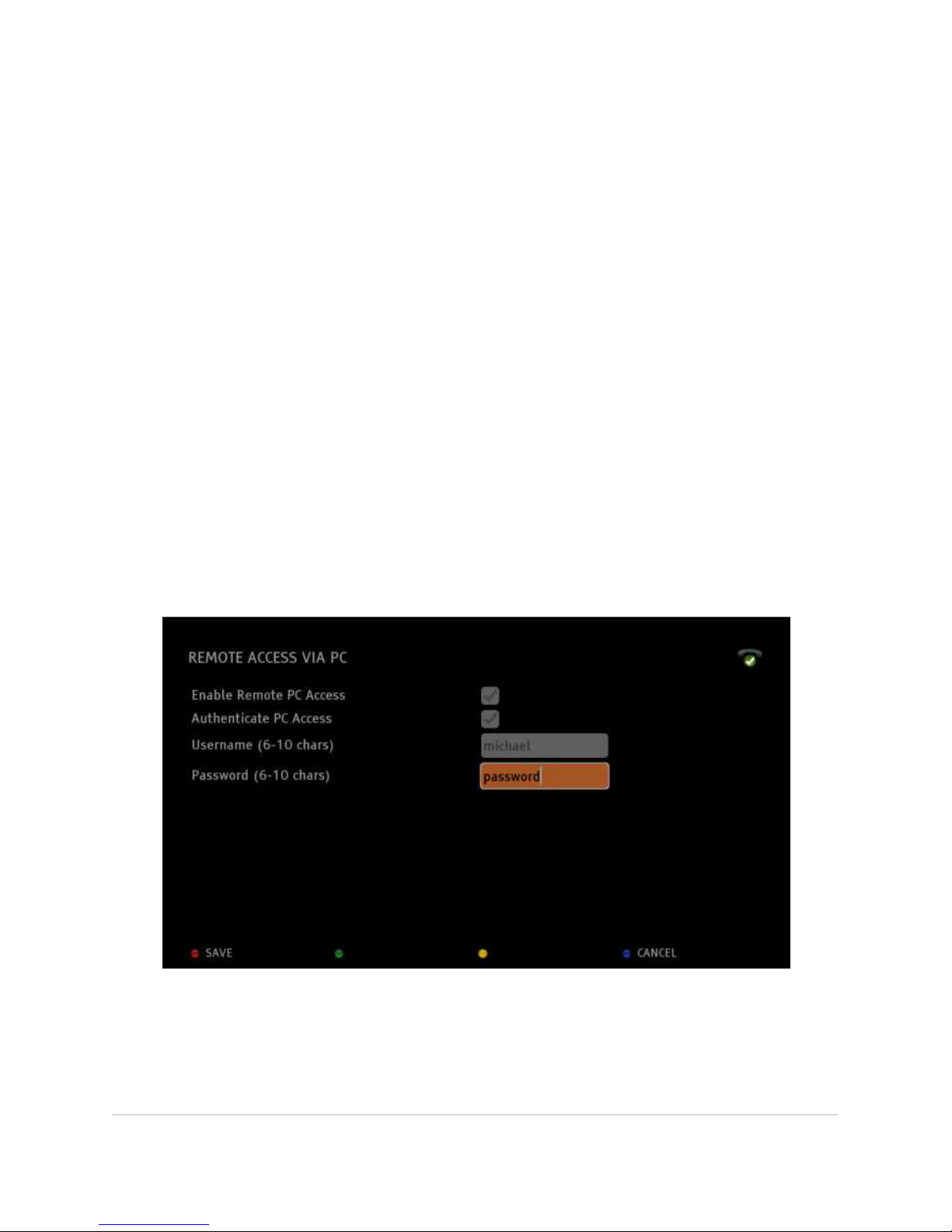
For requests of access to your BLOBbox through a PC, you can protect access to
your BLOBbox by means of a username and password. To enable this function,
position the cursor on REQUEST AUTHENTICATION FROM PC and press OK. Enter a
USER NAME and a PASSWORD (minimum of 6, maximum of 10 alphanumeric
characters) in the appropriate boxes.
Press SAVE (red button) to confirm.
If you do not intend to protect access by means of a username and password, do
not enable REQUEST AUTHENTICATION FROM PC or press SAVE (red button).
Page 83
BLOBbox User Manual V. std 0.6.105 - 83
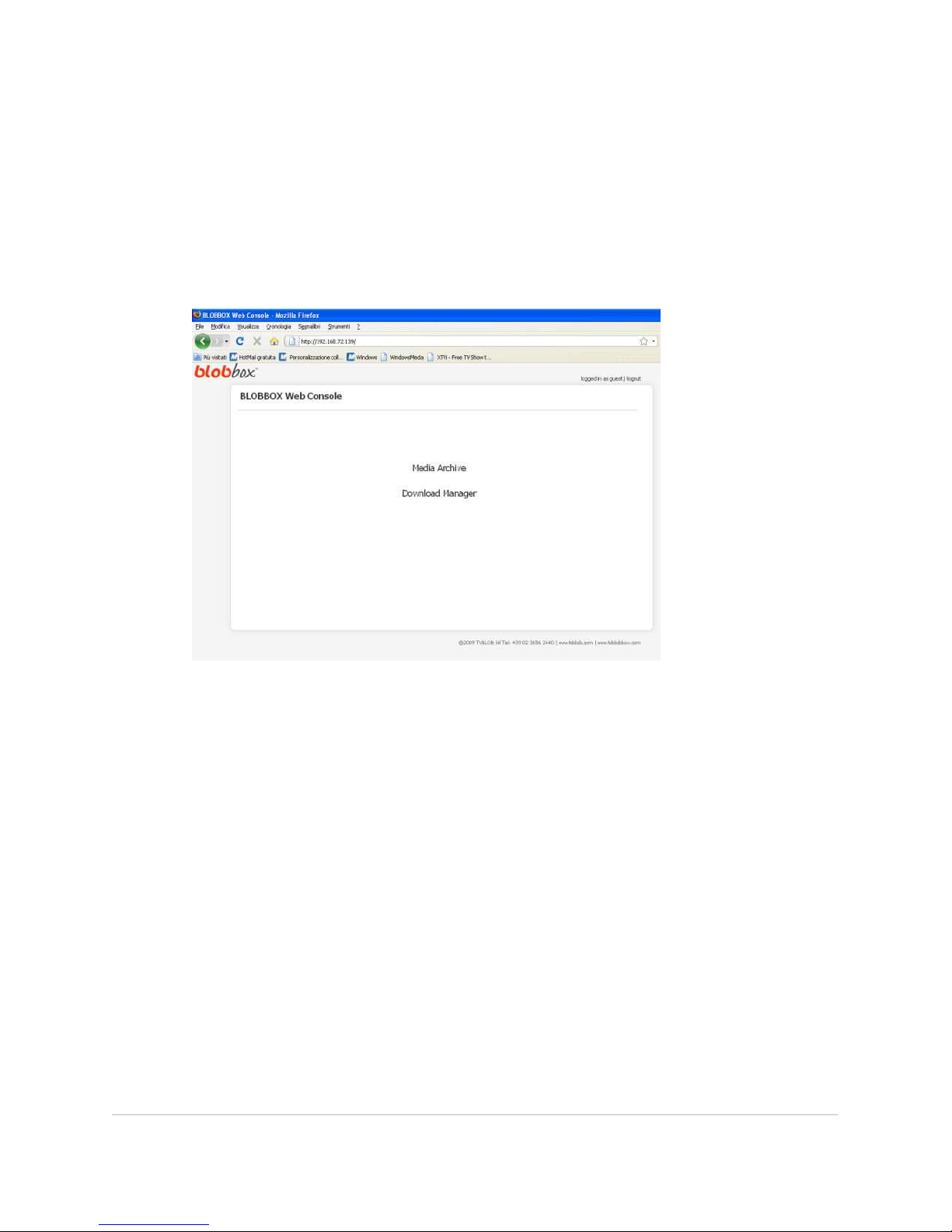
HOW TO ACCESS THE BLOBBOX USING THE BROWSER
Open your PC’s browser and enter the IP address of your BLOBbox in the address
bar. The IP address of your BLOBbox can be found by pressing the SET (SETTINGS)
button of the remote control and selecting SUPPORT > DIAGNOSTICS.
If you have protected access by means of a username and password, you will be
prompted to type them in, otherwise you will have immediate access.
In this screen, currently you can access the “Media Archive” to play and copy the
files that are on your BLOBbox directly on your PC. You also can access the
“Download Manager” to manage downloads occurring on the BLOBbox.
Page 84
BLOBbox User Manual V. std 0.6.105 - 84
HOW TO VIEW DOWNLOAD ACTIVITY STATUS
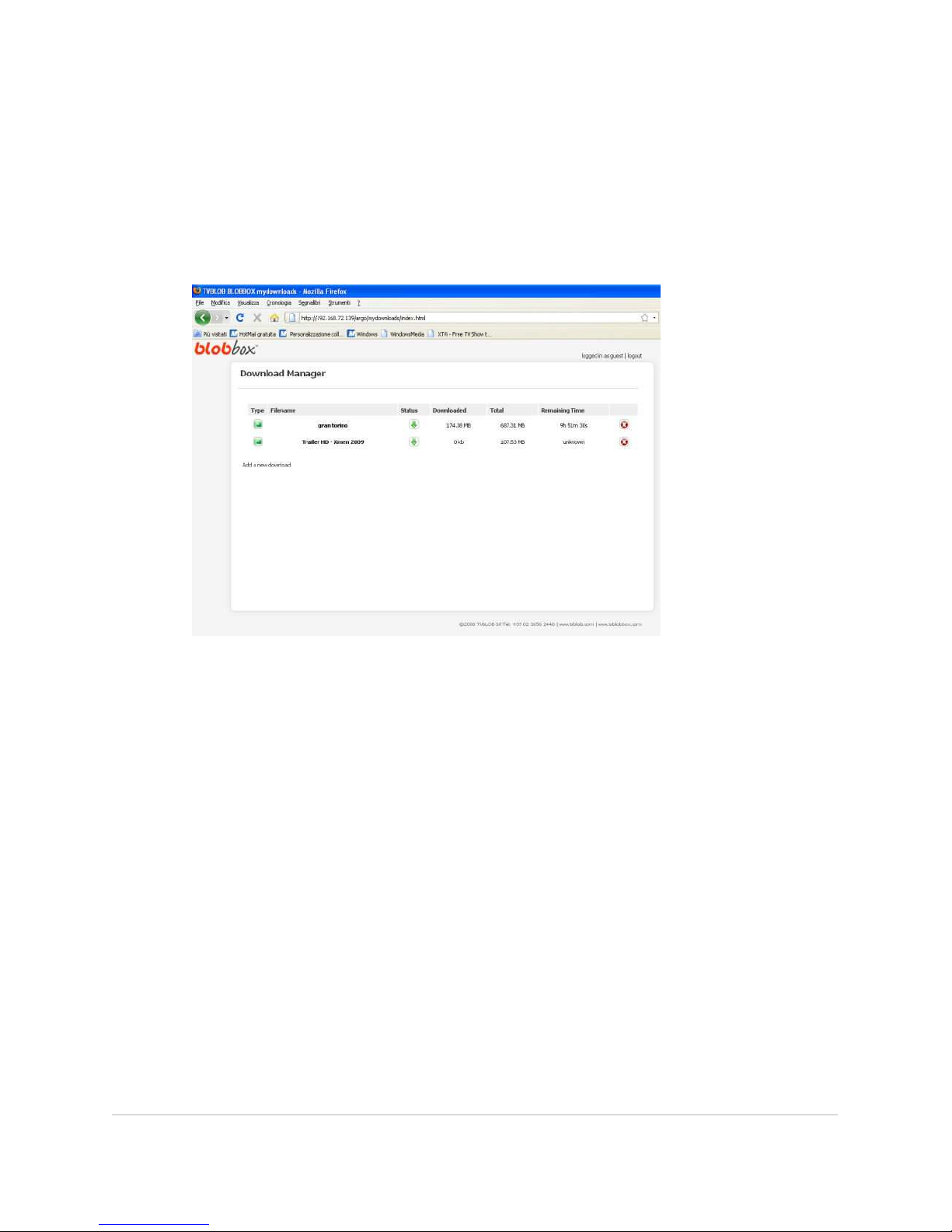
Once you have gained access to the BLOBbox via a web browser, click on
DOWNLOAD MANAGER. All download activity to the BLOBbox can be seen in this
screen.
• TYPE: indicates that the file type being downloaded is BitTorrent (green
icon) or binary (white icon).
• FILENAME: indicates the name you have chosen for the file that you are
downloading.
• STATUS: indicates that downloading is in progress (green arrow icon) or
paused (red icon).
• DOWNLOADED: progressively displays the amount of the file already
downloaded.
• TOTAL: shows the total size of the file.
• REMAINING TIME: shows the estimated time needed to complete the
download.
Page 85
BLOBbox User Manual V. std 0.6.105 - 85
HOW TO ADD A DOWNLOAD
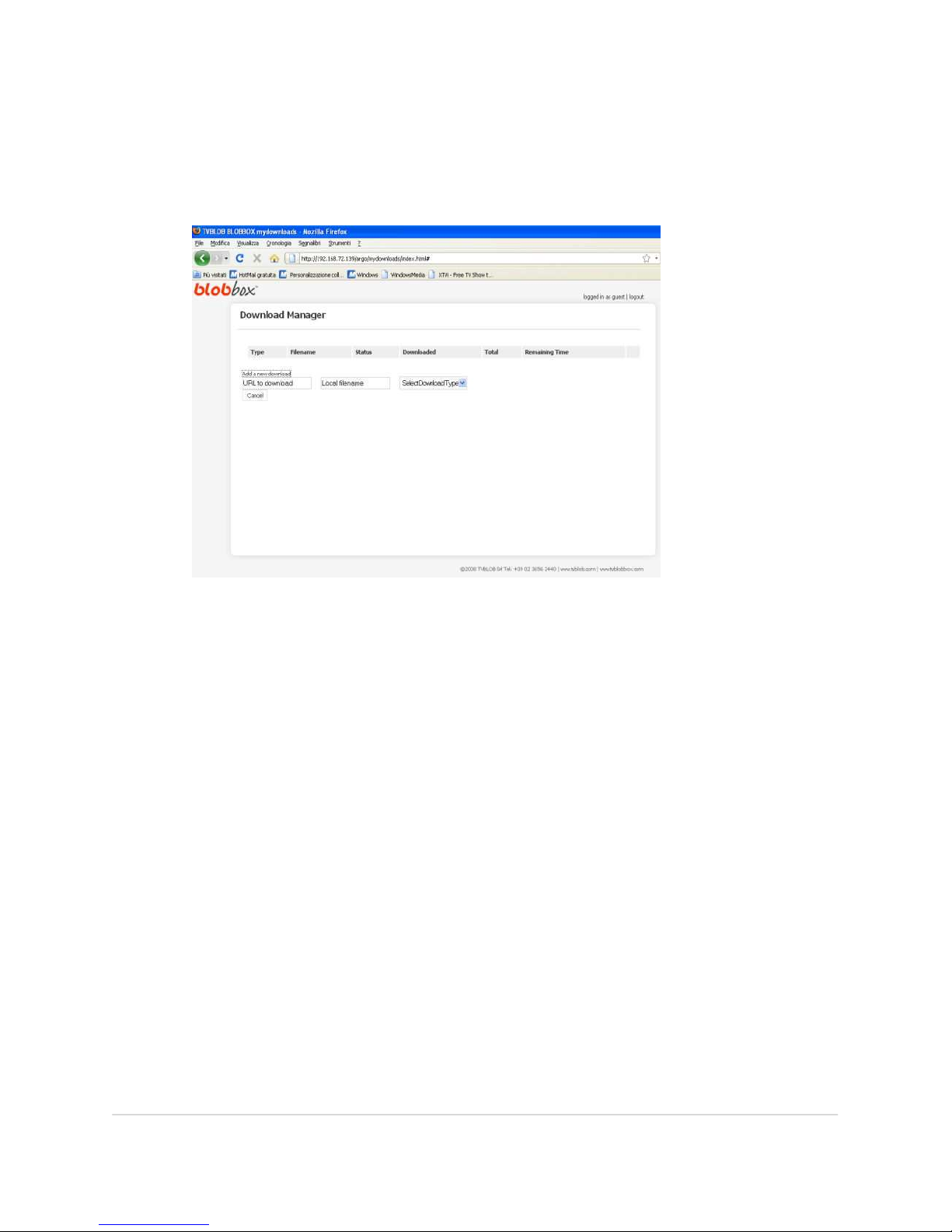
Once web browser access has been established with the BLOBbox, click on
DOWNLOAD MANAGER, then click on ADD A NEW DOWNLOAD.
Enter the URL of the file you wish to download in the URL TO DOWNLOAD box.
Enter the name you wish to give the file in the LOCAL FILENAME box.
Open the pull-down menu SELECT DOWNLOAD TYPE and choose the type of file to
be downloaded, either BitTorrent or HTTP/FTP.
Click OK to confirm and add the download.
-NEW- HOW TO DOWNLOAD USING A .TORRENT FILE
Open your PC’s browser and enter the IP address of your BLOBbox in the address
bar. Click on DOWNLOAD MANAGER. Click on UPLOAD A TORRENT.
Click on BROWSE, select the desired torrent file and click on UPLOAD TORRENT to
download it.
You can find all the downloads in ARCHIVE > DOWNLOAD on your BLOBbox.
Page 86

BLOBbox User Manual V. std 0.6.105 - 86
HOW TO ELIMINATE A DOWNLOAD IN PROGRESS
Once web browser access has been established with the BLOBbox, click on
DOWNLOAD MANAGER. All downloads in progress will be displayed in this screen.
Click on the red “X” icon which corresponds to the download you wish to eliminate
and click on OK when the request for confirmation appears.
Page 87
BLOBbox User Manual V. std 0.6.105 - 87
HOW TO COPY FILES FROM THE BLOBBOX TO THE PC
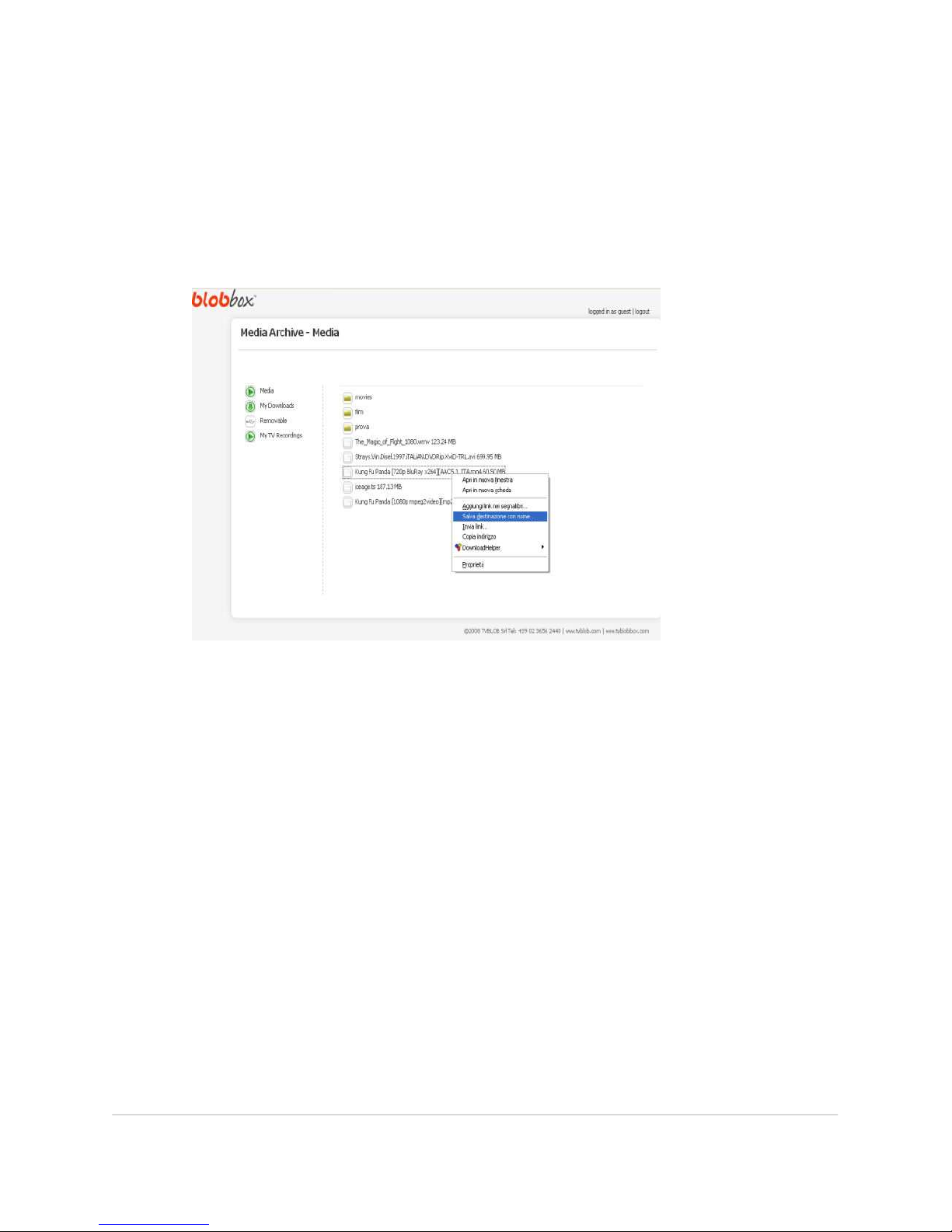
Open your PC’s web browser and type the IP address of your BLOBbox in the
address bar. Click on MEDIA ARCHIVE.
Navigate to the file you want to copy and right-click on it.
Left-click on “Save file as…”. Choose the pathway by which you want to save the
file and click on SAVE.
Page 88
BLOBbox User Manual V. std 0.6.105 - 88
CONFIGURE YOUR BLOBBOX
Press the SET (SETTINGS) button on the remote control to access the configuration
menu of your BLOBbox.
HOW TO CONFIGURE THE VIDEO OUTPUT OF THE BLOBBOX
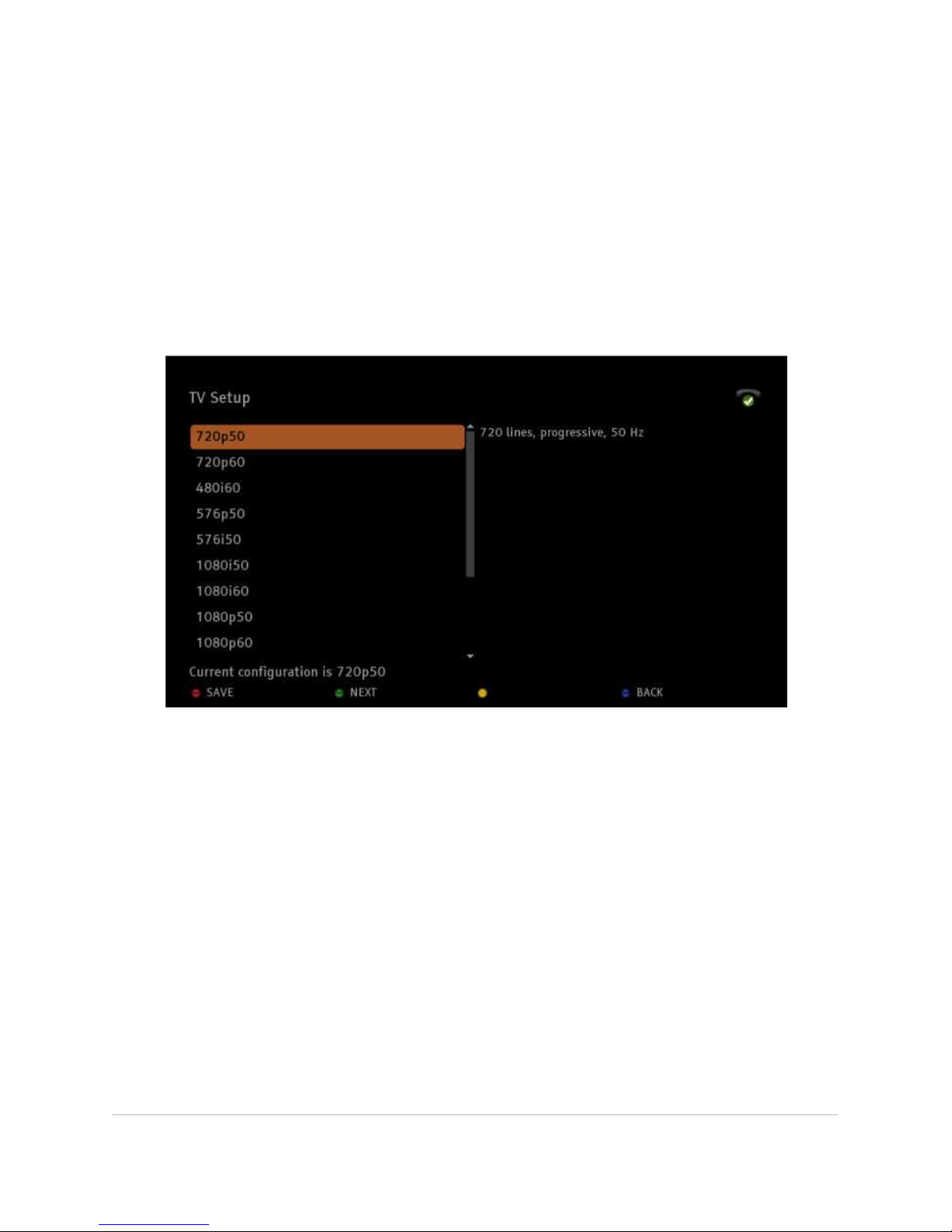
Press the SET (SETTINGS) button on the remote control, then press TV SETUP (green
button).
A list of BLOBbox video output settings will appear.
To best view the graphic interface of your BLOBbox, you must match the video
output to the TV you are using.
If you have connected your BLOBbox to the TV using an HDMI cable, you must
choose one of the following settings that corresponds to the video formats
supported by your TV:
720p50, 720p60, 480i60, 576p50,576i50, 1080i50, 1080i60, 1080p50,
1080p60, 1600x1200@60, 1440x900@60
If you have connected your BLOBbox to the TV using a SCART cable, you must
choose one of the following settings that corresponds to the video formats
supported by your TV:
PAL 4:3, NTSC 4:3, PAL 16:9, NTSC 16:9
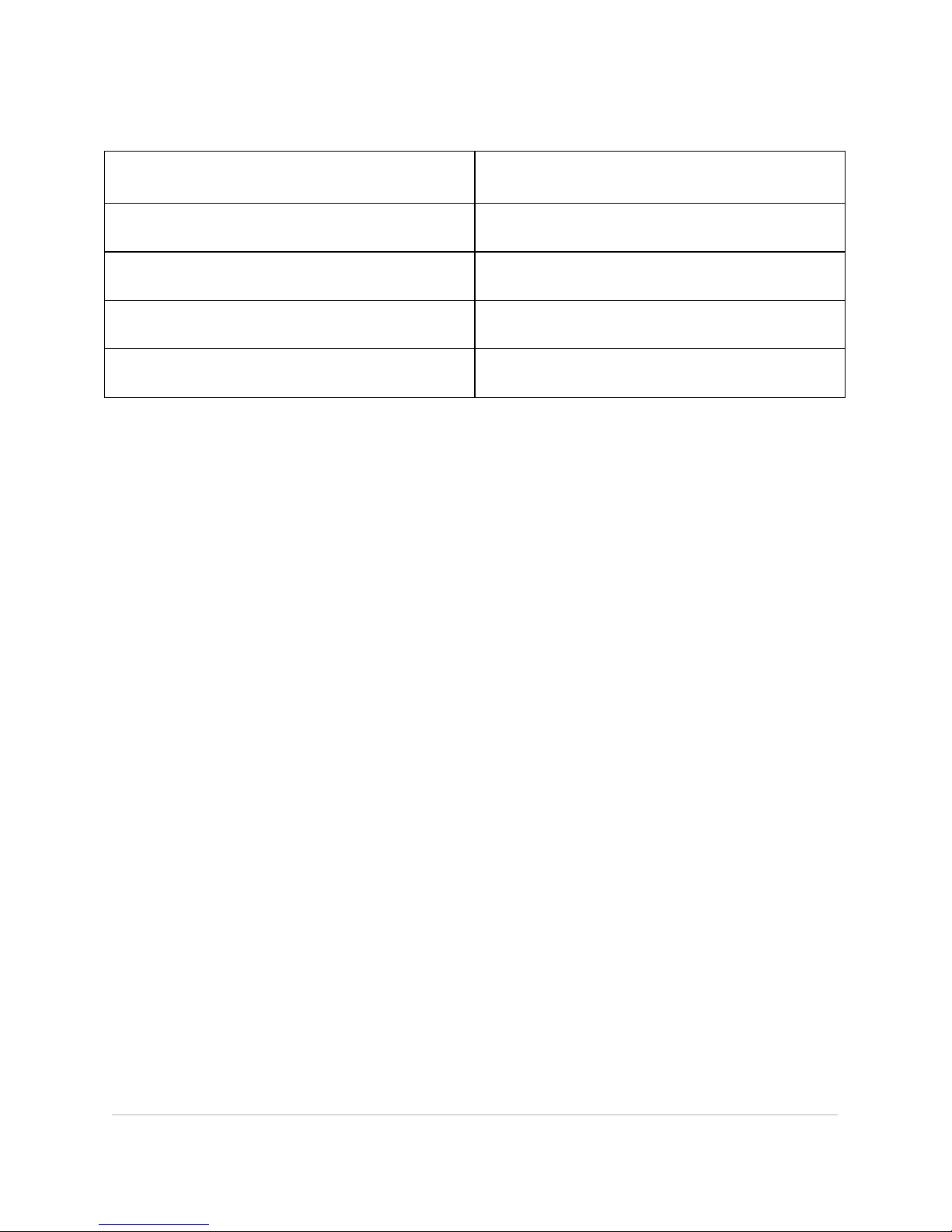
Below is a table of typical European televisions and their recommended settings:
Page 89
BLOBbox User Manual V. std 0.6.105 - 89
TYPE OF TELEVISION
VIDEO OUTPUT SETTING BLOBbox
TV HD ready 720p 720p50
TV full HD 1080p 1080p50
Analogue TV (SCART) with 4:3 screen
PAL 4:3
Analogue TV (SCART) with 16:9 screen
PAL 16:9
Navigate to the desired setting and press OK to apply the new setting. If the
graphic interface is viewed correctly, press SAVE (red button) to save the new
setting.
If the screen goes black, it means the BLOBbox is using a setting that is not
supported by your TV. Therefore, you must press repeatedly the FORWARD (green)
button until the BLOBbox graphic interface appears once again on your TV.
Page 90
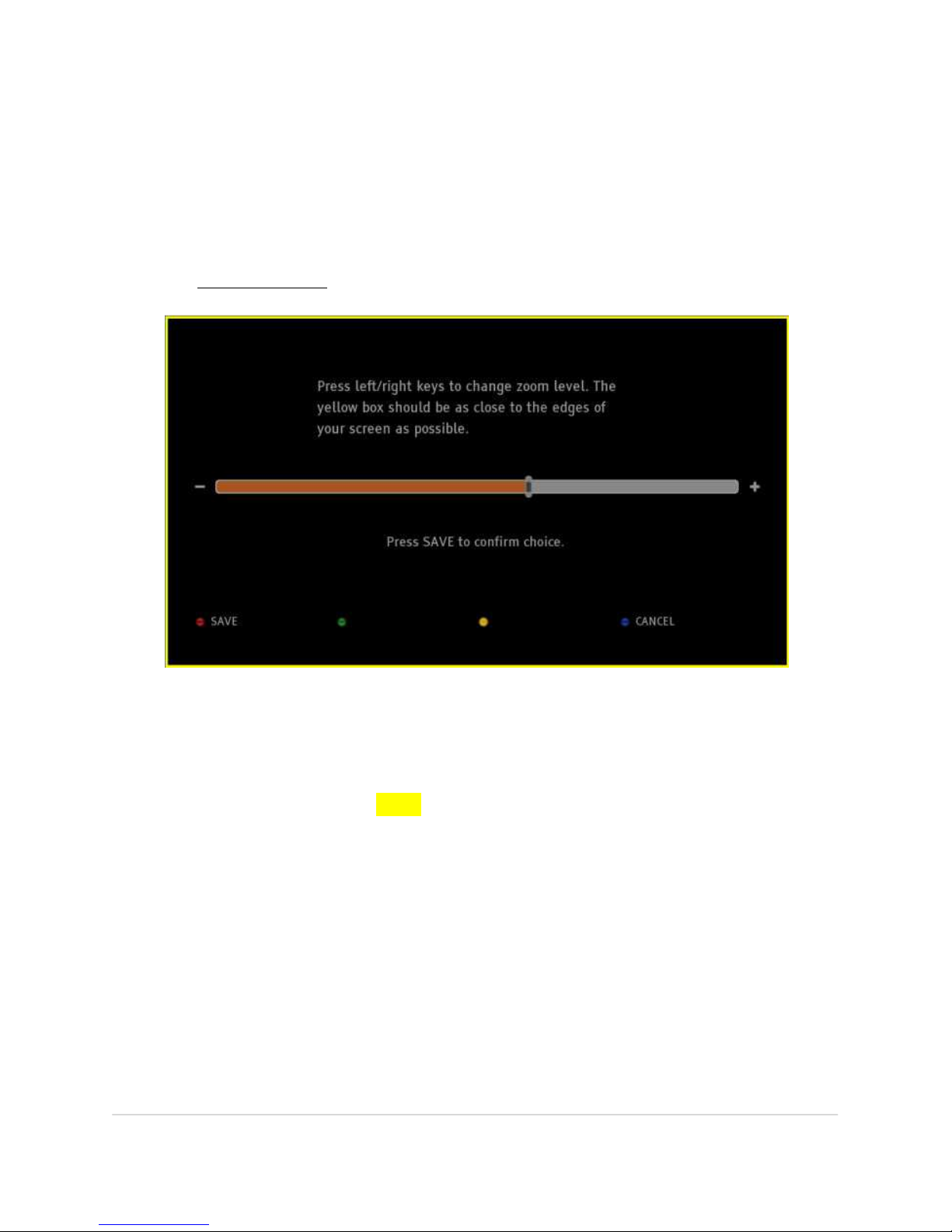
BLOBbox User Manual V. std 0.6.105 - 90
-NEW- HOW TO RE-SIZE THE VISIBLE AREA OF THE SCREEN
After correctly setting up the video output of the BLOBbox, we suggest that you
follow this set-up at the end for the best viewing of the BLOBbox video interface on
your TV set.
Press the SET (SETTINGS) button on the remote and select VIDEO SCREEN SIZE.
The area within the yellow frame corresponds to the visible area on your TV set. Use
the left/right arrow keys to adjust the visible area.
We suggest you adjust it as seen in the figure above in order to view the entire area
within the yellow frame. Press SAVE (red button) to apply the modification.
Page 91
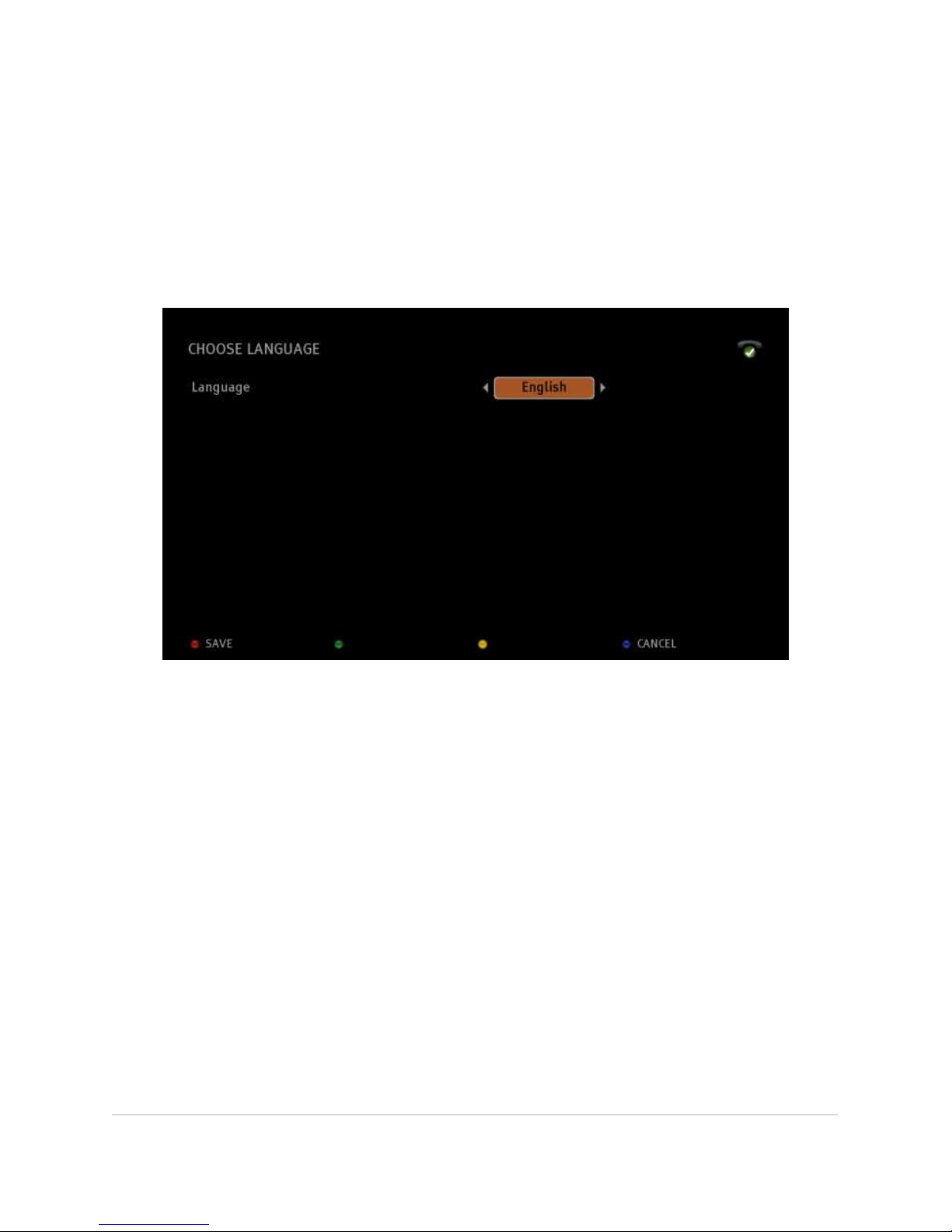
BLOBbox User Manual V. std 0.6.105 - 91
HOW T
O CHANGE THE INTERFACE LANGUAGE
Press the SET (SETTINGS) button on the remote control and select MY DATA >
LANGUAGE.
In this screen you can change the interface language of your BLOBbox. Use the left
and right directional arrow keys to select the desired language. Currently, the
available languages are English and Italian.
Once the desired language is selected, press SAVE (red button) to confirm your
choice or CANCEL (blue button) to cancel the operation. If you have changed the
language, the box will restart automatically.
Page 92
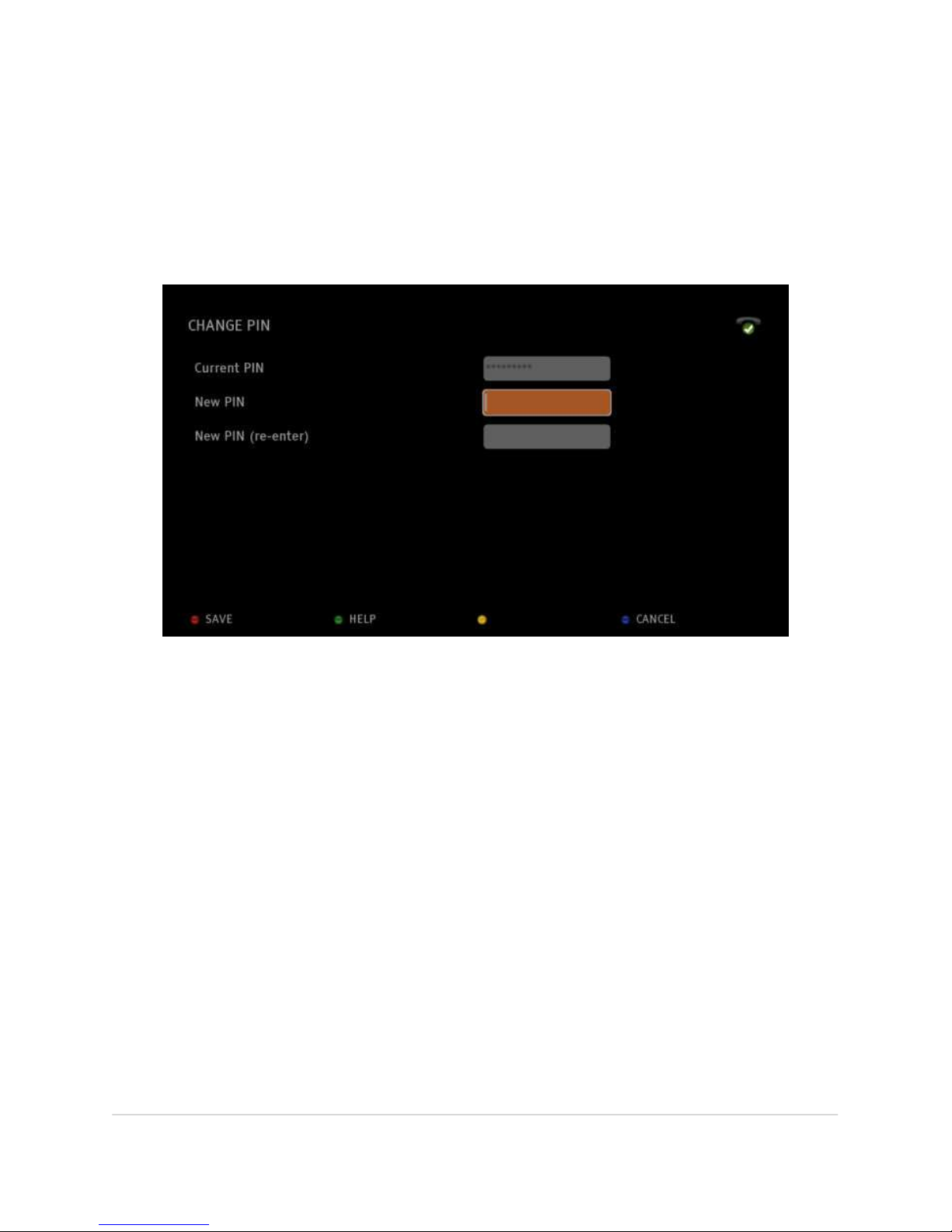
BLOBbox User Manual V. std 0.6.105 - 92
HOW TO CHANGE THE PIN
Your Personal Identification Number (PIN) is uniquely associated with your
BLOBbox and you may change it at any time.
Press the SET (SETTINGS) button on the remote control and select MY DATA >
CHANGE PIN.
In the “Current PIN” field, enter the PIN that was supplied by TVBLOB, and then
enter in the new PIN you have chosen in the two fields below; press SAVE (red
button) to confirm or CANCEL (blue button) to cancel the operation. Press HELP
(green button) to view the Help menu.
Note: The PIN must have a minimum of 5 and a maximum of 10 numbers.
Page 93
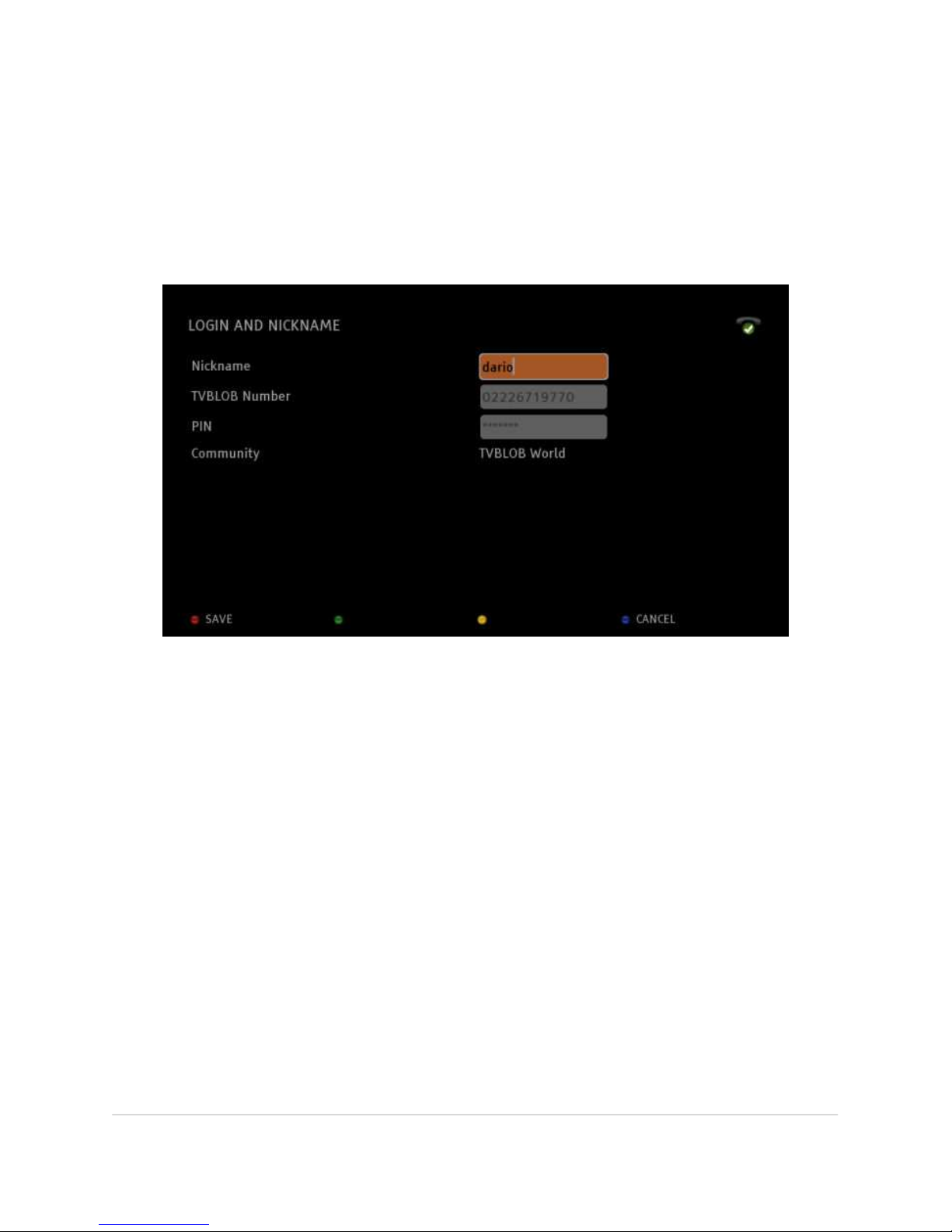
BLOBbox User Manual V. std 0.6.105 - 93
HOW TO ENTER YOUR TVBLOB AND PIN NUMBERS
Press the SET (SETTINGS) button on the remote control and select MY DATA >
LOGIN AND NICKNAME.
In this screen you must enter a nickname of your choice to identify you as a TVBLOB
user, the TVBLOB Number and the PIN that was supplied to you by TVBLOB.
Use the directional arrow buttons to navigate to the various text fields, enter the
required information and press SAVE (red button) to confirm or CANCEL (blue
button) to cancel the operation.
HOW TO CHANGE THE TIME ZONE SETTING
Press the SET (SETTINGS) button on the remote control and select MY DATA > TIME
ZONE.
Use the directional arrow buttons to select the correct time in your time zone. The
time setting will be used when, for example, you record things with your BLOBbox.
Press SAVE (red button) to confirm or CANCEL (blue button) to cancel the
operation.
Page 94
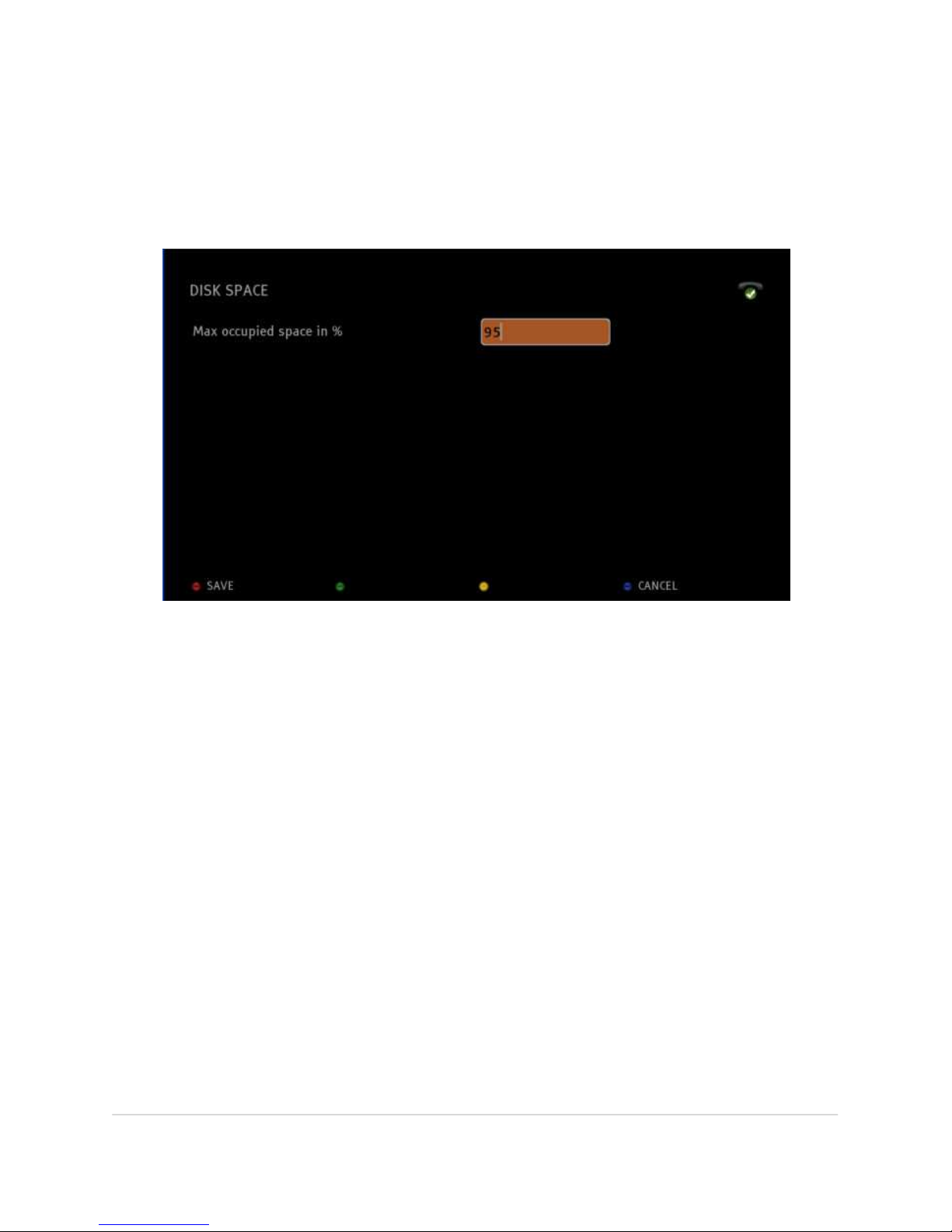
BLOBbox User Manual V. std 0.6.105 - 94
HOW TO SET THE DISK SPACE ADVISORY
This function will send you a message that your hard disk is becoming full. Press the
SET (SETTINGS) button of the remote control and select MEDIA ARCHIVE > DISK
SPACE.
Enter a maximum percentage of disk space occupation at which you wish to be
advised.
Press SAVE (red button) to confirm or CANCEL (blue button) to cancel the
operation.
When the percentage of disk space occupation exceeds the figure you have
entered, a message icon will appear in the upper right side of the Home Page of
your BLOBbox. To free up hard disk space you must eliminate some of the files on
your hard disk.
Page 95
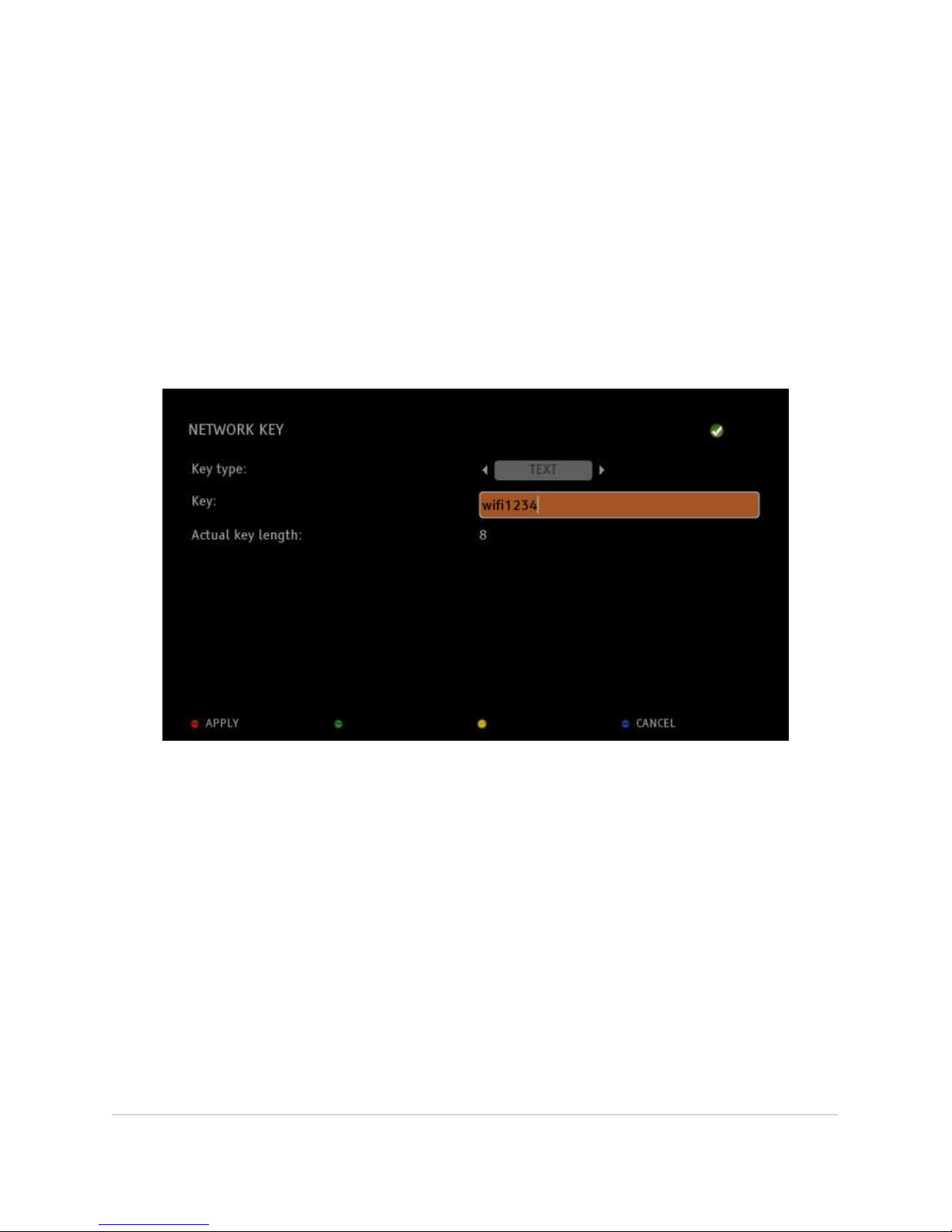
BLOBbox User Manual V. std 0.6.105 - 95
-NEW- HOW TO CONFIGURE THE WIRELESS CONNECTION USING A USB
WIRELESS KEY
Connect the USB wireless key (we recommend to use the TP-LINK TL-WN821N USB
wireless key) to the USB connector in the back of the BLOBbox.
Press SET on the remote and select NETWORK > CHOOSE NETWORK. Press REFRESH
(green button) to detect all the wireless connections available.
Highlight the network you want to connect to and press USE (red button).
KEY TYPE: Select TEXT if your wireless network requires a text password or select
HEX if your network requires an hexadecimal password.
KEY: insert the wireless network password.
Press APPLY to connect to the wireless network.
Page 96

BLOBbox User Manual V. std 0.6.105 - 96
HOW TO MANUALLY CONFIGURE THE IP ADDRESSES
Press the SET (SETTINGS) button on the remote control and select NETWORK >
NETWORK.
To connect to the TVBLOB services correctly, your BLOXbox must have a valid IP
address.
The first time you access your BLOXbox, DHCP service is enabled by default. This
means that the BLOXbox searches the network for a DHCP server that automatically
assigns an IP address (on most home and professional networks a DHCP server is
present).
If a DHCP server is not found, your BLOXbox will be assigned an IP address (for
example 169.254.x.x). This will not enable you to access the internet so you must
check your internet connection or manually enter an IP address.
To manually assign a valid IP address to the BLOBbox, deselect the DHCP and
manually enter the IP address, netmask, gateway and DNS codes supplied by the
network administrator. Once the four boxes are completed, press SAVE (red button)
to confirm or CANCEL (blue button) to cancel the operation. If confirmed, the
BLOBbox will restart automatically in order to the implement the modifications.
To check if you have entered a valid IP address, press the SET (SETTINGS) button on
the remote control and select SUPPORT > DIAGNOSTICS, and press TEST (red
button).
Page 97
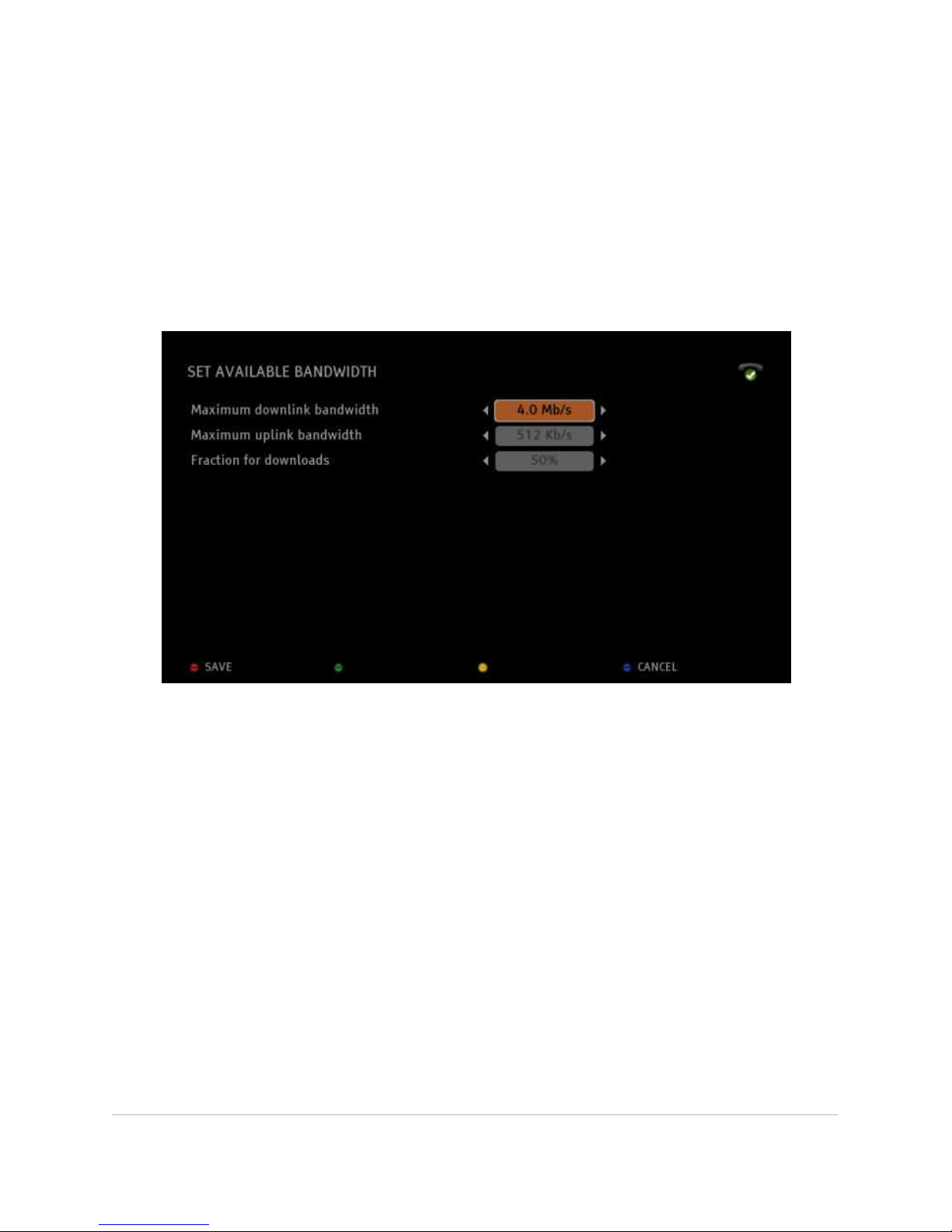
BLOBbox User Manual V. std 0.6.105 - 97
HOW TO SET AVAILABLE BANDWIDTH RANGE
Press the SET (SETTINGS) button on the remote control and select NETWORK >
BANDWIDTH.
In this page you must enter the maximum bandwidth of your Internet connection
for both receiving (DOWNLOAD) and transmitting (UPLOAD). The MAXIMUM
TORRENT BANDWIDTH is the percentage of the total bandwidth that the BLOXbox
will use to download files via Torrent.
Using the up-down arrow buttons, navigate to the desired field, then use the leftright arrow buttons to modify the settings. When you have modified the values,
press SAVE (red button) to apply the new settings; otherwise press CANCEL (blue
button) to return to the previous settings.
Page 98
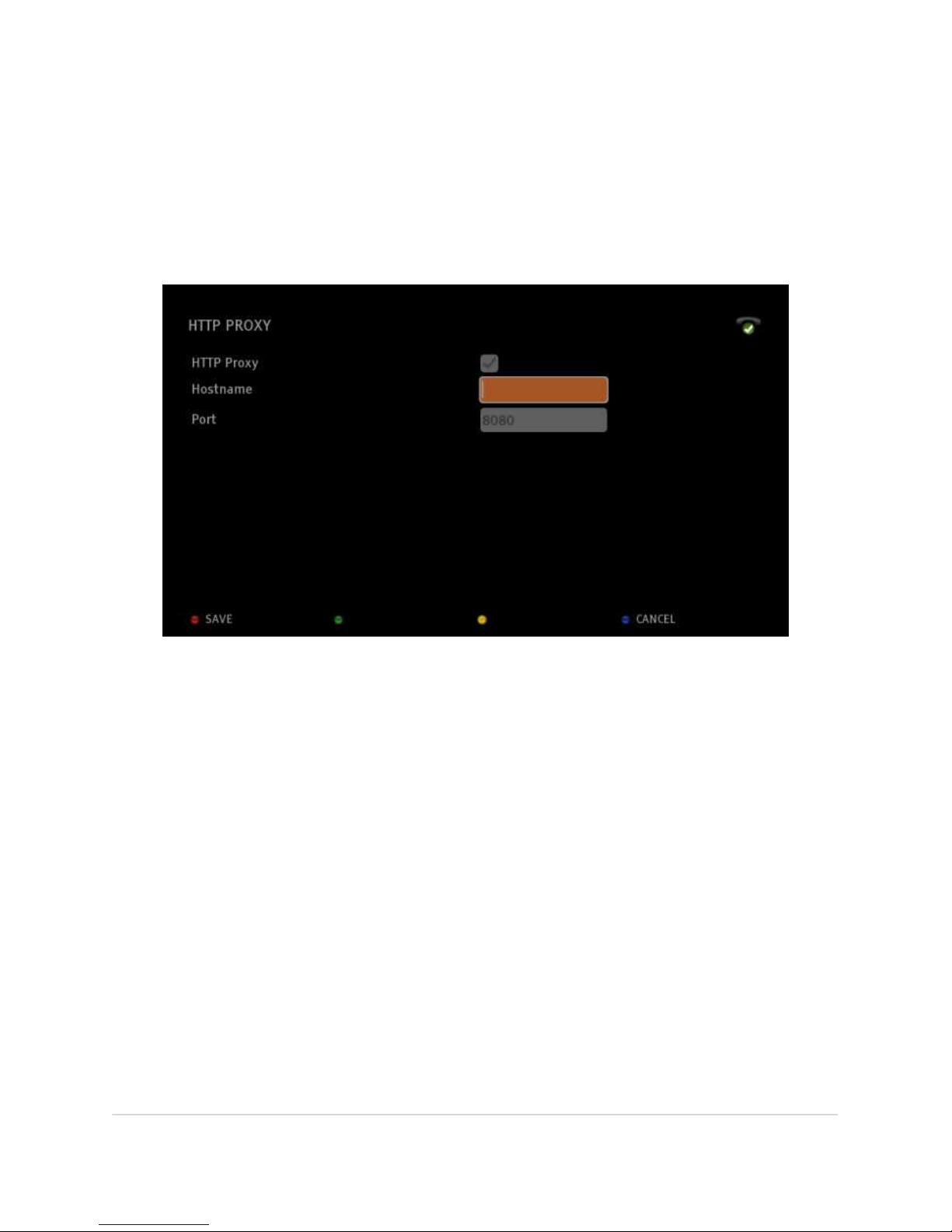
BLOBbox User Manual V. std 0.6.105 - 98
HOW TO CONFIGURE THE BLOBBOX IF CONNECTED TO A PROXY
Press the SET (SETTINGS) button on the remote control and select NETWORK >
HTTP PROXY.
If your BLOBbox has to pass through a Proxy to access the Internet, you must
enable this configuration option.
Navigate to HTTP Proxy and press OK (the check mark must appear). Navigate to
Hostname and enter the IP address or the Proxy name. Navigate to Port and enter
the Proxy port. Press SAVE (red button) to confirm or CANCEL (blue button) to
cancel the modifications.
Page 99
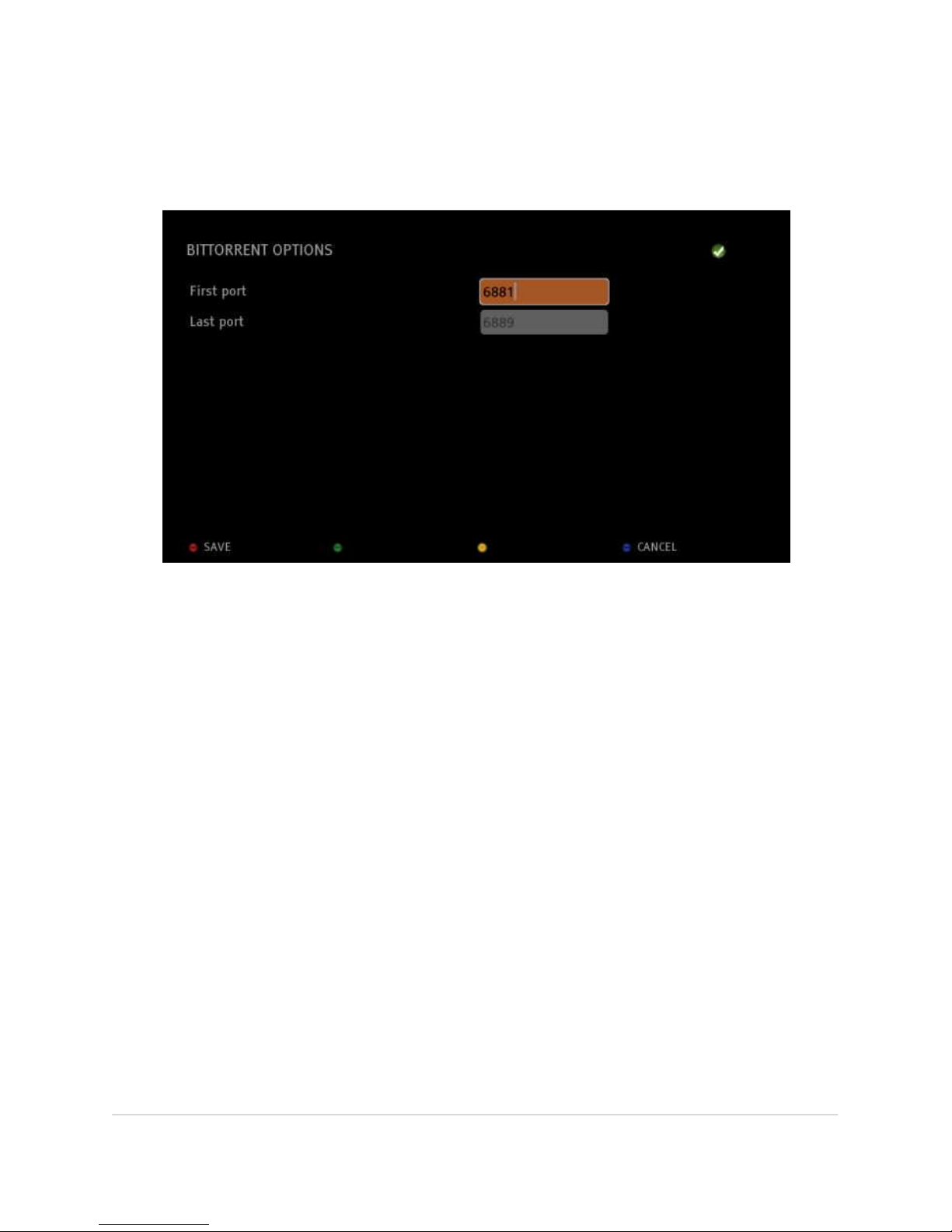
BLOBbox User Manual V. std 0.6.105 - 99
-NEW- HOW TO CONFIGURE BITTORRENT PORTS
Press SET on your remote and select NETWORK > BITTORRENT.
Insert the port range you want to use and press SAVE (red button).
Page 100

BLOBbox User Manual V. std 0.6.105 - 100
HOW TO RUN THE DIAGNOSTICS TESTS
The diagnostic tools help you to quickly isolate potential problems with your
BLOBbox service access.
Press the SET (SETTINGS) button on the remote control and select SUPPORT >
DIAGNOSTICS.
Press TEST (red button) to launch the tests and verify if there are any problems.
Currently, the BLOBbox runs three tests:
• NETWORK: checks the BLOBbox connection to the network.
• INTERNET ACCESS: checks the BLOBbox connection to the internet.
• TVBLOB SERVICES: checks for BLOBbox access to the TVBLOB servers.
After running the diagnostics test, the displayed results will indicate the
connections are OK or if there is a problem. If a problem is detected, press EXPLAIN
(red button) and an explanation of the type of problem will be displayed.
If you continue to experience a problem, please check the support options for your
BLOBbox.
HOW TO UPDATE BLOBBOX SOFTWARE
Press the SET (SETTINGS) button on the remote control and select SUPPORT >
SOFTWARE UPDATE.
TVBLOB offers periodic updates that add functionality to your BLOBbox. To see if
there are new updates, press VERIFY (red button). If new updates are found, press
UPDATE (red button) and your BLOBbox software will be updated. If no updates are
found, a message will appear informing you that no updates are available at the
moment.
NOTE: While updates are being made, do not disconnect the network cable or the power
cable. Once updates are completely downloaded, your BLOBbox will restart
automatically.
 Loading...