

Page 1

Turcom TS-459 – Wireless Bluetooth Speakers
User Manual
Accessories:
1. Micro USB Cable (for charging )
2. 3.5mm Audio cable (AUX-in cable )
3. User Manual
Bluetooth Connection:
Turn on both of the speakers at the same time by pressing and holding the power button.
The two speakers will connect to each other. Blue LED lights will flash to indicate the
speakers are in Bluetooth pairing mode.
Connect to mobile phones/tablet PCs/computers:
1. Turn on the speaker
2. Activate Bluetooth function on your device
3. Go to Bluetooth settings on your device and scan for new Bluetooth devices
4. Turcom TS-459 should appear on the list of available Bluetooth devices. Click on
TS-459 to pair.
5. If your device requires a pairing code, enter “0000” and confirm.
6. After successful pairing, your speaker will sound a prompt tone and the flashing LED
light will stop flashing.
Note: Pairing time is varies between different devices. Once the speaker successfully
pairs with a device, it will auto connect to those devices that were already paired before.
The speaker only can only store in memory the last 8 paired devices.
Hands-Free Phone Function:
If the speakers are paired with a phone, when a voice call is received, the speaker will ring
to notify the incoming call. Press the power button on either of the speakers to answer the
call and talk to the speaker directly. Press the power button again on either of the
speakers to end the call. When the call ends, the speaker will return to playback mode.
Press the power button twice to reject the incoming call.
AUX-IN Connection:
TS-459 comes with one Aux-In port to connect it to non-Bluetooth devices, such as,
mobile phones, MP3 players, PCs and laptops with a 3.5mm jack audio cable. Connect
the 3.5 mm Aux-In cable (included) to the speaker and to the audio device. The LED light
will turn green in Aux-In mode.
Page 2
Under Bluetooth mode when the 3.5mm Aux-In cable is inserted, the speaker will switch
to wired mode automatically and will exit Bluetooth mode.
Low power indication: When the charge level drops to 10% of total capacity the speaker
will prompt low power level audio warning.
Charging the Speakers:
Connect the micro USB charging cable to a computer or a USB charger. LED light
will be red during charging. Red LED goes off upon completed charge. A full
charge takes approximately 5-6 hours.
Speaker Interfaces:
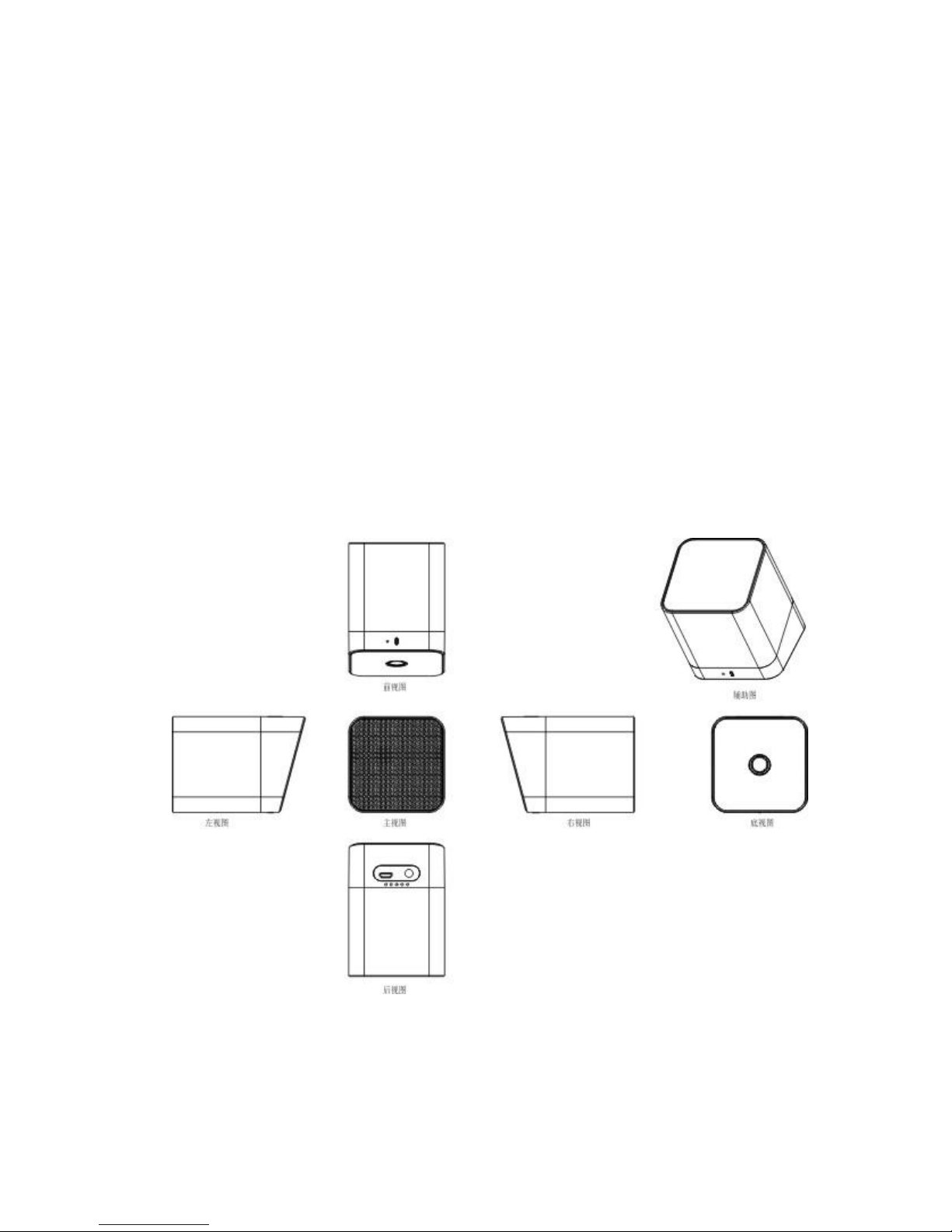
Aux-In Port: 3.5 mm wired audio input connector
Charging interface: Micro USB; Input 5V
Specifications:
- Dimensions: 2.4 inch x 2.4 inch x 3.4 inch
- Weight: 9 oz.
Page 3

- Bluetooth Compatibility: Bluetooth 3.0 Class II and supports A2DP V1.2, AVRCP V1.4
profiles.
- Transmission distance: up to 10 m
- Maximum Output: 2 x 3 Watt
- Signal to noise ratio S / N: ≥ 80dB
- Frequency Range: 180Hz-20KHz
- Distortion THD: ≤ 1%
- Speaker unit: Outer diameter 50mm, inner magnet, 4Ω, 3W
- Rated Voltage: 3.7V DC
- Battery: Built-in Lithium battery, 3.7V/800mA
- Charging Voltage/Current: 5V ± 0.25V / 5A
- Charging time: 2.5 ± 0.5 hours
Quick Reference
Function
Operation
Answer a call
Press the power button on either of the
speakers.
End or refuse a call
Press the power button to end a call.
Press the power button twice to decline a call.
Power ON / OFF
Press and hold the power button on both
speakers simultaneously to power on.
Press and hold either of the buttons to power
off.
Magnet Function
The bases of the speakers are magnetized to
allow connecting the speakers to use as one
single body. The magnet bases also allow the
speakers to be mounted on metal surfaces.
Operational Mode
LED Light Indicator Status / Color
Bluetooth Mode
Flashing blue light indicates ready for Bluetooth
pairing. Steady blue light indicates Bluetooth
pairing complete and the speaker is in Bluetooth
mode.
Aux-In Wired Connection
Steady green light
Charging
Steady red light
Page 4

Charge Complete
Red light turns off
Troubleshooting:
1. My mobile phone can't find any new Bluetooth devices?
a) Make sure the Bluetooth speaker has entered pairing mode;
b) Ensure the speaker is within the effective connection range;
2.Bluetooth devices can't pair
a) Make sure your mobile phone allows new connection. Previously connected Bluetooth
devices may have reached the limit of connected devices allowed by your device. Please
unpair unused devices from the connection list to be able to add additional devices.
b) Make sure the pairing password entered is “0000’. If you are using a Bluetooth
transmitter device, please ensure the responding password of your Bluetooth transmitter
supports “0000” code.
3. My mini speaker does not play music / answer call when it is connected to a Bluetooth
mobile phone?
a) Make sure your Bluetooth mobile phone supports A2DP and HSF (hands-free) profile;
b) Ensure your Bluetooth cell phone is within effective connection range.
4. When paired with my computer, Windows ask for new driver? Can you supply?
a) The speaker does not come with drivers. Bluetooth A2DP/HSF drivers may be required
to play stereo sound via Bluetooth connection. Those drivers are needed for the Bluetooth
module on your PC and not required by the speaker. Different Bluetooth modules may
require different drivers. Please contact your PC or Bluetooth module manufacturer for
driver update.
5. Why can’t I remotely control the pause, play, previous song and skip track functions
with the speaker when playing music?
a) When you are using 3.5mm AUX audio in connection, you can’t pause, change volume
or skip tracks with the buttons on the speaker;
b) This feature needs the Bluetooth devices paired with the speaker to support AVRCP
(Audio/Video Remote Control Profile). Please make sure your cell phone or other
Bluetooth device supports AVRCP.
Safety Notices:
Please read the following recommendations before using the Bluetooth speaker.
- Keep the speakers dry to prevent damage to internal circuits.
- Do not drop on hard surfaces.
- Keep the product away from direct sunlight or hot places. High temperatures will shorten
the life of electronic devices, destroy the battery or distort certain plastic parts.
- Do not expose the product to extremely cold temperatures. Cold temperatures may
Page 5

damage the internal circuit board.
- Do not try to disassemble the product.
- Do not use abrasive chemical products or detergent to clean the product.
Contact us at turcomusa.com for Customer Support, warranty issues or to
purchase accessories.
 Loading...