

Page 1

3www.ttfone.com
Thank you for choosing our mobile phone!
Please read this manual before use.
Check out our website for video
guides of how to use your phone
www.ttfone.com
We reserve the right to upgrade the software
and product and/or to make changes to this
user manual without prior notice. The icons
in this user manual may slightly dier from
your phone, depending on the phone you
purchased. All rights reserved.
Page 2

4 www.ttfone.com
Contents
1. Safety Instructions ................................................... 6
2. Getting Started ......................................................... 9
Install the SIM card and battery ........................ 9
Charging the Battery ............................................11
Battery Level Indication ......................................11
3. Using the Menu ......................................................12
How to set Date and Time .................................12
4. Making and Receiving Phone Calls ...............14
To Make Calls............................................................14
To Answer Calls .......................................................14
Accessing the Menu during a Call ..................14
To End a Call .............................................................14
To Reject a Call .........................................................14
To Redial a Number ...............................................15
Making International Calls .................................15
Changing the Volume during a Call ..............15
5. Phone Book ..............................................................16
6. SOS Emergency Button ......................................20
To Add the Emergency Contact Numbers to
the Phone Book ......................................................21
Edit the SOS Message ..........................................22
7. Text Messaging (SMS) ..........................................22
8. Accessing Your Voicemail ...................................26
9. Multimedia ...............................................................26
Camera ........................................................................26
Page 3

5www.ttfone.com
This user manual includes important safety
information. Please read below instructions
carefully. It may be dangerous or illegal if you do not
follow these instructions. Remember to follow any
special regulations in force in any area and always
switch o your device when its use is prohibited or
when it may cause interference or danger.
Attention!
The factory default password: 1122
This password can be used to change the
settings, however it is advised that you change
this to your own personal password.
Image Viewer ...........................................................27
Video Recorder ........................................................27
Video Player ..............................................................28
Audio Player .............................................................29
Sound Recorder ......................................................30
FM Radio ....................................................................30
10. Settings Other Functions .................................31
11. Customizing Your Settings ..............................35
12. Troubleshooting ..................................................40
13. Radio Frequency (RF) Exposure and SAR .43
Page 4

6 www.ttfone.com
1. Safety Instructions
Pay attention to Trac Safety
Obey local trac laws and do not use the
phone while driving. Using a cell phone
while driving is dangerous and it is illegal in
some areas. Radio frequency (RF) signals may
aect improperly installed or inadequately
shielded electronic systems in motor vehicles
such as electronic fuel injection systems,
electronic antiskid (antilock) braking systems,
electronic speed control systems, air bag
systems. For more information, check with
the manufacturer of your vehicle for any
equipment that has been added. Do not
place objects, including installed or portable
wireless equipment in the area over the air
bag or in the air bag deployment area.
Pacemaker Interference
Pacemaker manufacturers recommend that
a minimum separation of 15.3 centimeters
(6 inches) be maintained between a wireless
phone and a pacemaker in order to avoid
potential interference with the pacemaker.
Page 5

7www.ttfone.com
Turn O Your Cell Phone in Medical and
Health Care Facilities.
Switch o your device in health care facilities
when any regulations posted in these areas
instruct you to do so. Hospitals or health care
facilities may be using equipment that could
be sensitive to external RF energy.
Switch O on Airplanes
Using your device while ying in aircraft is
prohibited. Switch o your device before
boarding an aircraft. The use of wireless
devices in an aircraft may be dangerous to the
operation of the aircraft, disrupt the wireless
telephone network, and may be illegal.
Accessories and Batteries
Use only the approved accessories and
batteries. Please do not try to use with any
product that was not manufactured for use
with this phone. Please be sure the phone has
been switched o before taking out battery.
Please dispose of scrap batteries properly
according to the local regulations.
Page 6

8 www.ttfone.com
Cell Phone Should Be Turned O Near
Sites of Explosion.
Potentially explosive atmospheres include
areas where you would normally be advised
to turn o your vehicle engine. Sparks in such
areas could cause an explosion or re resulting
in bodily injury or even death. Switch o the
device at refueling points such as near gas
pumps at service stations and in any area with
a potentially explosive atmosphere and obey
all signs and instructions. Observe restrictions
on the use of radio equipment in fuel depots,
storage, chemical plants or where blasting
operations are in progress.
Using the Phone Correctly
Please use this phone in its normal intended
position. Do not let children use the phone
without supervision.Your phone contains
small parts such as SIM card, which can be
accidentally swallowed by a child.
Your Phone is Not Waterproof
This phone is not waterproof. Please do not
expose your phone to wet weather or environment (such as rain, snow, seawater, etc.).
Page 7
9www.ttfone.com
2. Getting Started
Install the SIM card and battery
Always switch the device o and disconnect
the charger before removing the battery.
Keep all SIM cards out of the reach of small
children. For availability and information
about using SIM card services, contact your
SIM card vendor. This may be
the service provider, network
operator, or other vendor. The
SIM card and its contacts are
easily damaged by scratches or
bending, so please be careful
when handling, inserting, or
removing the card.
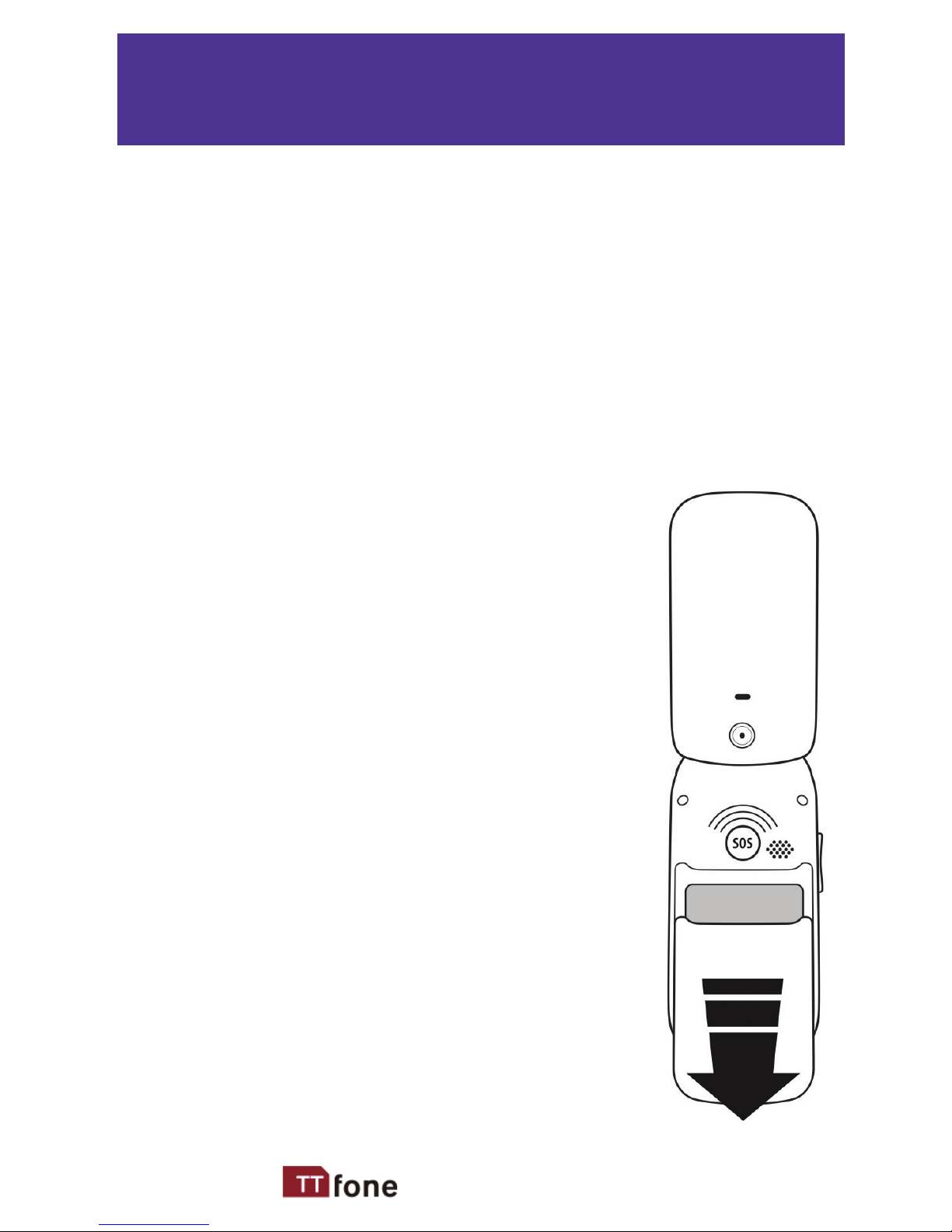
1. Open the battery cover by
lightly pressing on the back of
the phone and sliding the cover
panel down.
Page 8
10 www.ttfone.com
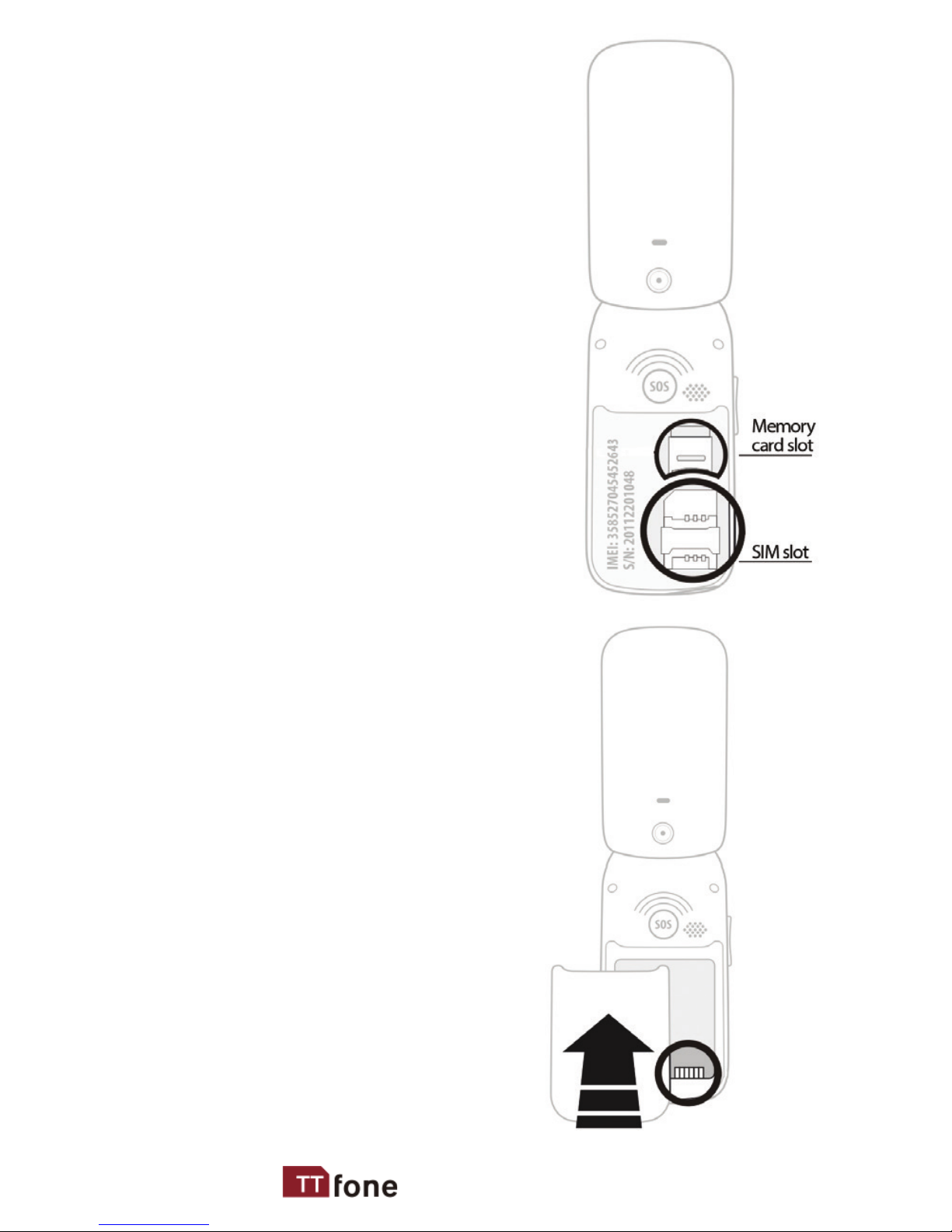
2. Install SIM card by
sliding it into its nest and
under the metal holding
plate. (To remove the SIM
card, gently press on it and
slide it out of its nest.)
3. Install the battery into
the battery slot, making
sure that the three metallic
stripes on the battery align
with the three metallic
prongs in the battery slot.
4. Put on the battery cover.
Make sure the cover is
completely matched and
a click sound can be heard.
5. To turn the phone on
press and hold the red
key until the screen lights
up. To turn it o press and
hold the same key until
the phone powers o.
Page 9
11www.ttfone.com
Charging the Battery
Battery can be charged when the phone is
either on or o. Please make sure that the
battery is inserted into the phone before
charging.
Connect the charger to its port on the bottom
panel of the phone, and then plug it into the
240V electrical outlet. To disconnect, rst
unplug the charger from the electrical outlet
and then disconnect it from the phone.
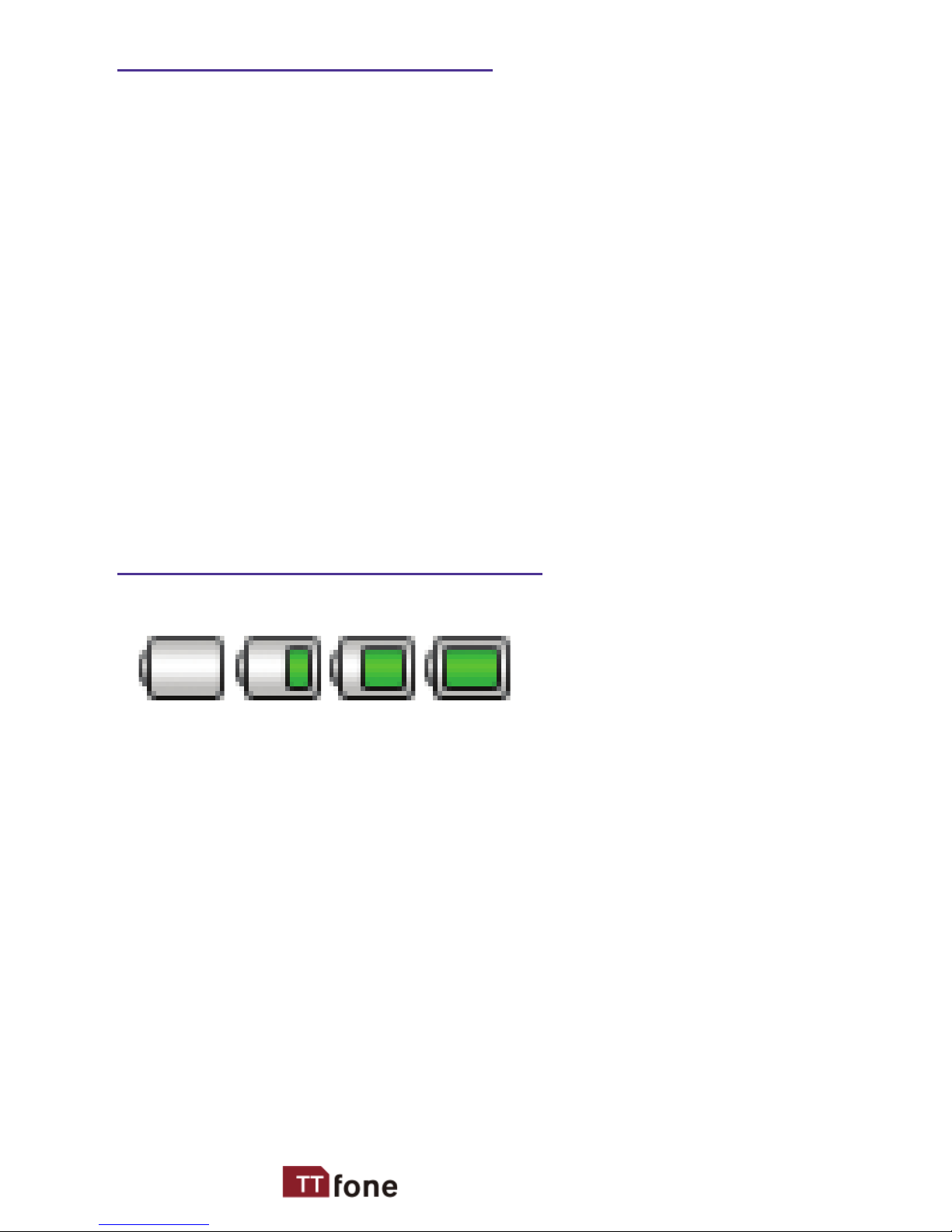
Battery Level Indication
Charging Charged
The phone will sound an alert when the battery is
low and display a message of low battery on the
screen.
Page 10

12 www.ttfone.com
In the standby state press the left soft key
to access the main menu.
Exit a menu: press the right soft key to
return to the previous menu.
Enter the standby state: press the red key.
How to set Date and Time
As soon as your phone is charged, we
recommend you set the date and time so you
can retrieve voice messages and texts more
easily.
1. Press the left soft key to acces the menu.
2. Press the up or down key until
“Settings” appears.
3. Press the left soft key.
4. Press the down key until “Phone
Settings” appears.
5. Press the left soft key.
6. Press the down key until “Time and
date” appears. Press the Left soft key.
3. Using the Menu
Page 11
13www.ttfone.com
7. Press the down key until “Set time/
date” appears. Press the left soft key.
8. Enter the time using the 24 hour clock.
9. Use the down key to set the date.
10. Enter the date starting with the day rst,
month then year.
11. Use the down key to choose daylight
saving option here you can use the
star and hash keys to change your
selection.
12. Press the Left soft key to save.
13. To exit the settings, press the right soft
key 4 times.
Page 12
14 www.ttfone.com
To Make Calls
1. Enter a number and Press the green key.
The screen will show a moving picture when
you are dialing the number.
• To delete a digit, press the right soft key.
• To clear the screen, press the red key.
To Answer Calls
When your phone rings or vibrates, open the
ip and press the green key once or the
left soft key to answer the call.
If you have chosen “Any key” in the answer
mode menu, you can press any key to answer
the call
Accessing the Menu during a Call
To access the menu, press the left soft key.
Scroll up or down to the desired command by
using the up or down key and press the
left soft key again.
To End a Call
To end a call, press the red key.
To Reject a Call
4. Making and Receiving Phone Calls
Page 13

15www.ttfone.com
To reject a call without answering, press the
red key when your phone rings.
To Redial a Number
1. Press the green call key, this will take
you to all your recently dialed call list.
2. Press the green call button again to call
the number highlighted.
Making International Calls
1. Press the * key twice until a “+”
character appears on the screen.
2. Enter the country code, area code and
phone number as instructed by your long
distance network service carrier.
3. Press the left soft key to complete the
call.
To display the “P” symbol for international
calling, press the * key three times. “P”
appears and you can enter the number.
Changing the Volume during a Call
To change the volume during a call:
• Press the volume key on the right side of
the phone. Up to put the volume higher and
down to make the volume lower.
Page 14
16 www.ttfone.com
Storing, Searching and Deleting
Numbers in the Phone Book
Phone numbers can be stored on the phone
or the SIM card.
The phone symbol indicates that the contact is
saved in the phone. The sim card symbol indicates
that the contact is saved on the SIM card.
You can store up to 1000 entries in the phone
memory.
To Add a New Contact to the Phone Book
1. Press the left soft key to access the menu.
2. Press up or down key until “Phone
Book” appears.
3. Select the option “Phone Book” by
pressing the left soft key.
4. Press the up or down key until the
“Add New Contact” option displays.
5. Press the left soft key twice.
6. Here you can select where you would like
to save the number. You can choose
5. Phone Book
Page 15
17www.ttfone.com
either on the Sim card or to the phone. To
select Press the left soft key.
7. Enter the name of the new contact by
using the number keypad. Press a key 1 to
4 times to enter the correct letter. Press “0”
for a space.
8. Once the name is set, press the down
key to enter the number
9. Enter the number by using the number
key pad.
10. Press the left soft key twice to save.
To Search for an Existing Contact
1. Press the left soft key to access the menu.
2. Press the up or down key until “Phone
Book” appears.
3. Select the option “Phone Book’” by
pressing the left soft key.
4. Scroll up or down to search for the
contact.
5. Press the green call button to place the
call.
Page 16
18 www.ttfone.com
To Delete an Existing Contact
1. Press the left soft key to access the menu.
2. Press the up or down key until “Phone
Book” appears.
3. Select the option “Phone Book” by
pressing the left soft key.
4. Press the up or down key to nd the
contact that you want to delete.
5. Select the contact by pressing the left
soft key.
6. Press up or down key until the “Delete”
option displays
7. Press the left soft key twice until the
contact list displays.
To Edit Phone Numbers for Your Speed Dial
You can set up to 8 numbers for the speed dial
using the number keys from 2 to 9. And the
star and hash keys.
1. Press the left soft key to access the menu.
2. Press the up or down key “Organiser”
appears.
Page 17
19www.ttfone.com
3. Select option “Organiser” by pressing the
left soft key.
4. Press up or down key until “Speed dial”
appears.
5. Press the left soft key. “Set number”
appears.
6. Press the left soft key
7. Scroll up and down to choose the
correct key and press the left soft key
to edit.
8. Choose a contact from the phone book.
9. Press the left soft key to save.
10. Press the right soft key four times to
exit.
To call a Speed Dial Number
Select the speed dial number you want to call
by pressing and holding the desired speed
dial number - 2 through 9. And the star and
hash keys.
Page 18

20 www.ttfone.com
Important Notice: Wireless phones, including
this device, operate using radio signals,
wireless networks, landline networks, and
user-programmed functions. Because of this,
connections in all conditions and/or locations
cannot be guaranteed. You should never
rely solely on any wireless device for medical
emergency communication.
You can set the emergency numbers in the
phone book according to your requirements;
you can set a total of up to four emergency
numbers.
In case of an emergency, when the SOS
button is pushed down the phone will
automatically send a text message to the
emergency numbers set up on the phone. The
mobile phone will then make the emergency
call. If the rst call fails, the phone will proceed
to dialling the second emergency number.
In this manner the phone will circulate the
emergency contact numbers three times in
order to receive an answer.
The phone will also sound an alarm when an
emergency call or message is sent.
6. SOS Emergency Button
Page 19
21www.ttfone.com
Attention!
The Emergency SOS button will only make
calls if:
• A SIM card is in the mobile.
• There is at least one SOS numbers programmed.
• There is a SOS text message saved.
To Add the Emergency Contact
Numbers to the Phone Book
1. Press the left soft key to access the menu.
2. Press the up or down key until
“Organiser” appears.
3. Press the left soft key.
4. Select the option “SOS Setting”.
5. Press the left soft key.
6. Press the up or down key to select
“SOS Number”.
7. Press the left soft key.
8. Select the number by pressing the left
soft key and scroll through your phonebook
using the up or down key press the
left soft key to select a contact.
9. Press the left soft key to save.
Page 20
22 www.ttfone.com
Edit the SOS Message
1. Press the left soft key to access the menu.
2. Press the up or down key until
“Organiser” appears.
3. Press the left soft key.
4. Select the option “SOS Settings”.
5. Press the left soft key.
6. Press the up or down key to select “SOS
Message”.
7. Press the left soft key.
8. Edit the text of the message.
9. Press the left so
ft key to save.
Writing and Sending a Message
1. Press the left soft key to access the menu.
2. Press the up or down key until
“Messaging” appear.
3. Select the option “Messaging” by pressing
the left soft key.
7. Text Messaging (SMS)
Page 21
23www.ttfone.com
4. Press the up or down key until “Write
Message” option displays.
5. Press the left soft key and start typing
your text.
6. When done typing enter a phone number
by:
• Pressing the left soft key twice select Enter
number and typing a phone number.
Or
• Select Add from Phonebook press the up or
down key to search for a number in your phone
book.
7. Press the left soft key twice to send your
message. Other options include: Other
options include: Edit recipient, Remove
recipie
nt, Save to drafts
You can also access a stored message in
your inbox and reply to it by selecting the
option “Inbox” instead of “New Message” and
following the same commands.
Also, once you type your message, before
sending it, you can scroll up or down and
select other commands such as “Save”, “Insert
Number”, “Insert Template”, etc.
Page 22
24 www.ttfone.com
Receiving/Reply to a Message
When you receive a new text message, your
phone will display an envelope icon and “New
Message” notication.
1. Press the left sof
t key twice to read the
message.
2. Press the left soft key again to see a list of
available comman
ds such as “Reply”,
“Delete”, etc.
Texting Actions Description
View To view the message
Reply To reply the message
Delete To delete the message
Call sender To call the sender of the message
Forward To forward the message
Delete all Delete all messages
Save to
Phonebook
To save the contact to
phonebook
Details To view more details of the
message
Letters and Numbers Input
Text Message Letters
English letters are set on number keys from “2”
to “9”. You can input numbers, upper or lower
case letters and punctuation symbols. Pressing
Page 23
25www.ttfone.com
the key while typing lets you switch
between the dierent types of input modes.
Each number key is set for three or four letters.
Press the number key one time to display the
rst letter, two times to display the second
letter, etc.
Text Message Punctuation
The punctuation available includes: \ / ~ < > £
$ ¥ § Ø @ ¤ { } ? and more
To enter punctuation:
1. Press the key to display the list of
punctuation symbols
2. Use the and and keys to scroll
through the list.
3. Press the left soft key to select.
Text Message Numbers
To enter a number instead of a letter:
1. Press the hash key to switch input
mode from letter to numerical and then
use number keys from 1 to 0 to enter
numbers.
2. Press the hash key again to switch back
to letter input mode.
To enter a space, press the “0” key when in
letter mode.
Page 24
26 www.ttfone.com
EZIabc is also known as predictive text
messaging, you can select this by pressing the
hash key till the EZI symbol appears.
Your voice mail access number has to be
provided by your network carrier using your
SIM card
To dial your voice mailbox, press and hold “1”
on the key pad.
If pressing the “1” button on your phone will
not take you to your voicemail, we suggest
you call your carrier and ask for your voicemail
number which you can store as a fast dial on
your keypad afterwards.
Camera
1. Press the left soft key to access the menu.
2. Press the up or down key until
“Multimedia” appears.
3. Press the left soft key.
4. Press the up or down key until
“Camera” appears.
5. Press the left soft key.
8. Accessing Your Voicemail
9. Multimedia
Page 25
27www.ttfone.com
6. Take a photo by pressing the silver key
between the up and down navigation keys
7. Use the star or hash keys to adjust
the exposure.
8. Use the up or down key to adjust the
Zoom setting.
Image Viewer
1. Press the left soft key to access the menu.
2. Press the up or down key until
“Multimedia” appears.
3. Press the left soft key.
4. Press the up or down key until “Image
Viewer” appears.
5. Press the left soft key.
6. Use the star or hash keys to select
the picture you wish to view.
7. Press the left soft key to choose “Options”.
These include: View, Use as, Rename, Delete,
Sort by, Delete all les, Image information.
Video Recorder
1. Press the left soft key to access the menu.
2. Press the up or down key until
“Multimedia” appears.
Page 26
28 www.ttfone.com
3. Press the left soft key.
4. Press the up or down key until “Video
Recorder” appears.
5. Press the left soft key.
6. Select the silver key between the up and
down navigation keys to start recording.
7. Press the silver key again to pause and
right soft key to stop and save
Video Player
1. Press the left soft key to access the menu.
2. Press the up or down key until
“Multimedia” appears.
3. Press the left soft key.
4. Press the up or down key until “Video
Player” appears.
5. Press the up or down key to select the
video you wish to view.
6. Press the left soft key to choose
Options. These include: Play, Rename,
Delete, Sort by, delete all Files, and Storage.
In the playing interface, use the
•
up or down key
to play or pause.
• */# key t
o change the volume.
Page 27
29www.ttfone.com
Audio Player
1. Press the left soft key to access the menu.
2. Press the up or down key until
“Multimedia” appears.
3. Press the left soft key.
4. Press the up or down key until “Audio
Player” appears
5. Press the left soft key.
6. Press the left soft key to select “List” to
see your downloads.
7. Press the up or down key to select a
song.
8. Press the left soft key.
9. Select: Play, Details, or Add to ringtone.
Controls:
•
To play or pause: up key
•
To stop: down key
•
Skip to next song: Press 6
•
Skip to previous song: Press 4
Volume: Press the volume key on the right
side of the phone. Up to put the volume
higher and down to make the volume lower.
Page 28
30 www.ttfone.com
Sound Recorder
1. Press the left soft key to access the menu
2. Press
the up or down key
until
''Multimedia'' appears.
3. Press
the left soft key
.
4. Press
the up or down key
until ''Sound
Recorder'' appears
5. Press
the left soft key
.
6. Press
the up key
to start recording.
7. Press the right soft key to stop recording.
FM Radio
Listen to the radio on the speaker phone or
connect the headset into the headset jack.
Turning on the FM Radio
Hold down the FM button on the side of the
phone for 2 seconds
Scanning for a Station
To scan for stations, press the “4” and “6” keys.
Entering a Radio Channel
1. Exit the scan
mode rst (by pressing the
right soft key).
2. Input the frequency by pressing the keypad
of the phone.
Adjusting the Volume
Volume: Press the volume key on the right
Page 29
31www.ttfone.com
side of the phone. Up to put the volume
higher and down to make the volume lower.
Turing the Radio O
To turn the radio o, either press the down
key once OR Hold down the FM button on the
side of the phone for 2 seconds.
*The quality of radio sound depends on signal
quality at your location.
The headphones act as an aerial so you will get
better reception when they are plugged in.
Setting an Alarm
You can set up to ve alarms. Alarm options
include: Alarm tone / Snooze duration (o, 1,
3, 5, 10 minutes) / Alarm repeat settings (o,
yearly, monthly, weekly, daily).
1. Press the left soft key to access the menu.
2. Press the up or down key until
“Organiser” appears.
3. Press the left soft key.
4. Press down key until “Alarm” appears.
5. Press the left soft key. The Alarm time
00:00 appears
6. Press the left soft key. “Edit” appears.
10. Settings Other Functions
Page 30
32 www.ttfone.com
7. Press the star or hash keys to turn
on the alarm.
8. Press the down key.
9. Enter the time in 24 hour clock format.
10. Press the left soft key to save.
Set another alarm or press the right soft
key four times to exit all the menus.
Turning o the Alarm
When the alarm sounds:
•
Press the left soft key to shut o the alarm
•
Press the right soft key to snooze.
Calendar
To view the calendar:
1. Press the left soft key to access the menu
.
2. Press the up or down key until
“Organiser” appears.
3. Press the left soft key.
4. Press down key until “Calendar” appears.
5. Press the left soft key.
Tasks
To set reminders for tasks:
1. Press the left soft key to access the menu
.
Page 31
33www.ttfone.com
2. Press the up or down key until
“Organiser” appears.
3. Press the left soft key.
4. Press down key until “Tasks” appears.
5. Press the left soft key to add a new task.
Phone Lock
The phone lock can prevent your mobile phone
from illegal use. You can set the phone lock as On
or O and change the phone password. Phone
lock can be found in the menu Settings / Security
settings / Phone security / Phone Lock. Press the
left soft key to access the Phone lock and
input the password again to disable phone lock.
Note: The default phone lock password is
1122 or 0000. Please change into your own
private password as soon as possible.
Restore to factory Settings
Press password 1122 to restore the default
setting.
Call Logs
This option stores recently dialled calls,
received calls and missed calls. Your phone
can store up to 20 records for each function.
Page 32
34 www.ttfone.com
1. Press the left soft key to access the menu
.
2. Press the up or down arrows to nd “Call
Center”.
3. Select the option “Call History” by pressing
the left soft key.
4. Press the down key until “Call history”
appears then press the left soft key.
5. Press the up or down key to scroll through
available functions (missed calls, dialled calls,
received calls, all calls, delete call logs).
6. Press the left soft key to select the
desired function.
7. Press
the green key twice to call the
number.
Flashlight
Use the switch indicated by the light bulb
icons on the right side of the phone to turn
the ashlight on or o. Hold down for 2
seconds to switch on and press and hold
again for 2 seconds to switch it o.
Calculator
Your phone can provide basic calculator
functions: addition, subtraction, multiplication
and division.
Page 33
35www.ttfone.com
1. Press the left soft key to access the menu
.
2. Press the up or down arrows to nd
“Organizer
3. Select the option “Calculator” by pressing
the left soft key.
Enter number keys to enter values. Press the
key for decimals. Use the up or down keys
to select the math operation: +, -, X, and ÷.
Press the right soft key to clear the last
digit or to exit the calculation operation.
Press the left soft key to complete the
calculation.
Proles
You can use proles to set and customize the
ring tones, message alert tones, and other
tones for dierent events.
1. Press the left soft key to access the menu
.
2. Press the up or down key until
“Settings” appears.
3. Press the left soft key.
4. Press the up or down key to nd
“Proles”.
11. Customizing Your Settings
Page 34
36 www.ttfone.com
5. Press the left soft key.
6. Press the up or down key to select
from the following proles
•
General
•
Silent
•
Meeting
•
Outdoor
•
My Style
7. Press the left soft key to enter the
editing mode. Here you can activate or
customise each prole according to the
items in the table “Customise Menu”.
8. Press the left soft key to save.
Here you can activate or customise each prole.
Customise Menu
(Note: Use the star or hash keys to
scroll up or down to change the settings.)
Setting Description
Alert type Choose either Ring or Silent
Ring type Repeat, ascending or Single
ringtone
Ringtone You can choose a new ringtone
Ring volume The volume level for incoming
calls
Message Choose a new message tone
Page 35
37www.ttfone.com
Message
Volume
The volume level for incoming
messages
Keypad Human voice, Silent, Click or Tone
Keytone volume The volume level for the keypad
Power on Adjust sound when switching on
Power o Adjust sound when switching o
Cover open Sound made when ip is opened
Cover close Sound made when ip is closed
System Alert Tone for battery low and other
alerts
Turning O Talking Buttons (Keypad Tone)
1. Press the left soft key to access the menu
.
2. Press the up or down key until
“Settings” appears.
3. Press the left soft key.
4. Choose option “Proles”.
5. Press the left soft key to enter the
editing mode.
6. Select the “General” Prole and press the
left soft key. “Activate” appears.
7. Press the down key to select “Customise”.
8. Press the left soft key.
9. Use the up or down key to navigate to
“Keypad”.
Page 36

38 www.ttfone.com
10. Use the star or hash keys to select
the tone you desire (voice, click, tone or
silent).
11. Press the left soft key twice to save.
12. To exit the settings, press the right soft
key 4 times.
Call Settings
These features require the support of your
network provider based on the calling
package you select when you purchase your
phone.
• Caller ID
• Call waiting
• Call diversion: There are ve options:
- Divert all voice calls
- Divert if unreachable
- Divert if no answer
- Divert if busy
- Divert all data calls.
- Select Cancel all diverts to deactivate all
diversions.
• Call barring: Restrict numbers you will call or
accept calls from.
To access:
1. Press the left soft key to access the menu
.
Page 37
39www.ttfone.com
2. Press the up or down key until “Call
Center” appears.
3. Press the left soft key.
4. Press the up or down key to select “Call
Settings”.
5. Press the left soft key.
6. Then use this menu to update your
desired settings
File Manager
The default le manager is your phone
MicroSD memory card (not included).
1. Press the left soft key to access the menu
.
2. Press the up or down key until
“Organiser” Press the left soft key.
3. Press the up or down key until “File
Manager” appears.
4. Press the left soft key.
5. Choose the either “Phone” or “Memory”.
6. Press the left soft key. To access
submenus to view or play multimedia
les.
Page 38
40 www.ttfone.com
12. Troubleshooting
Problems Solutions
Phone
does not
turn on
1. Ensure you have held the power button
down for more than 5 seconds.
2. Re-insert the battery and retry phone
boot.
3. Plug charger into the phone and make
sure the battery is charged.
Cannot
connect
to a
network
1. Signal strength may be weak, try move
location and try again.
2. It may be possible that you are using
the phone beyond the network service
coverage area.
3. Check to make sure your SIM card is
inserted correctly and is valid. (contact
network provider)
No information
displayed
when
phone is
on
1. Check SIM card is correctly installed.
2. You may need to unlock your key-pad
using the button on the side of the phone
or your keypad (password maybe required).
3. You may have permanently locked your
phone by entering the pin code incorrectly
3 times, obtain your PUK code from your
network provider.
4. Increase the screen brightness in settings.
Page 39
41www.ttfone.com
Phone call
quality
poor
1. Increase the call volume use (+ -) key on
the side of the phone.
2. It may be that the network reception is
poor in your location. Try moving to anoth-
er area to achieve a better connection.
Shorter
Standby
Time
1. Standby time is related to system set-
tings, in poor areas of reception the phone
will use more battery to try and nd a base
station, in this event the standby time will
be reduced to save battery power.
2. It could also be the case that the battery
of the phone has become exhausted, you
may need to consider changing the battery.
SIM card
Error
1. Reinstall the SIM card into the phone,
ensure the metal contact is clean, wipe
gently with a clean cloth before inserting
into the phone.
2. SIM card may not be correctly installed.
3. If the SIM card is damaged contact your
service provider.
Some
feature
do not
operate or
cannot be
set
1. This could be due to an operation error
on the phone, switch mobile phone o and
restart after 30 seconds.
2. The network provider may not support
the feature you are trying to use and this
may prevent its use.
Page 40
42 www.ttfone.com
Cannot
receive
incoming
calls
1. Ensure your mobile phone is switched on
and connected to a network.
2. Make sure your SIM card is correctly
installed.
3. Call restrictions may be prohibiting incoming phone calls, so these settings must
be checked.
4. Poor areas of network coverage can prevent incoming calls so check the network
status of your phone
Phone not
charging
1. Bad connections can hinder the phone
charging; make sure all contacts are correct-
ly connected.
2. Check to see whether the phone charg-
ing slot or the charge itself is damaged. If so
discontinue use. Replace battery or charger.
3. The phone cannot be charged in temper-
ature below 10˚C or above 55˚C.
Does
not dial
numbers
1. Conrm that once the number is
inputted using the keypad the green call
button must be pressed to dial the phone
number.
2. Check the phone number entered is
correct.
3. Check reception coverage status of your
mobile phone.
4. Make sure the call restriction settings are
correct in order for you to dial outgoing
calls.
Page 41

43www.ttfone.com
This device meets international guidelines for exposure to
radio waves your mobile device is a radio transmitter and
receiver. It is designed and manufactured not to exceed the
limits for exposure to radio frequency (rf) recommended
by international guidelines (icnirp). These limits are part of
comprehensive guidelines and establish permitted levels
of rf energy for the general population. The guidelines were
developed by independent scientic organizations through
periodic and thorough evaluation of scientic studies. The
exposure standard for mobile devices employs a unit of
measurement known as the specic absorption rate, or
sar. Although the sar is determined at the highest certied
power level, the actual sar of the device while operating
can be well below the maximum value. This is because the
device is designed to operate at multiple power levels so
as to use only the power required to reach the network.
In general, the closer you are to a base station, the lower
is the power output of the device. Sar values may vary
depending on national reporting and testing requirements
and the network band. Use of device accessories and
enhancements may result in dierent sar values.
The sar limit for mobile devices used by the public is 2.0 W/
kg (watts per kilogram) averaged over 10 grams of body
tissue. The guidelines incorporate a substantial margin of
safety to give additional protection for the public and to
account for any variations in measurements. The highest sar
value this model phone tested for while in use is:
Gsm 900:0.622W/kg(10g) / Dcs 1800: 0.42W/kg(10g)
Check out our other fantastic range
of products at www.Ttfone.Com
13. Radio Frequency (RF) Exposure and SAR
 Loading...