

Page 1
USER GUIDE
NOTE
Page 2
Thanks for purchasing the NOTE Digital Mini Scale! This
User Guide is designed to get you up and running quickly
with your scale. Scales are precision instruments and
require proper care and skill to get the best results. If you
have questions or need support, visit us at http://www.
truweigh.com/support or scan the QR Code on the back of
this manual using your smartphone.
What’s In The Box
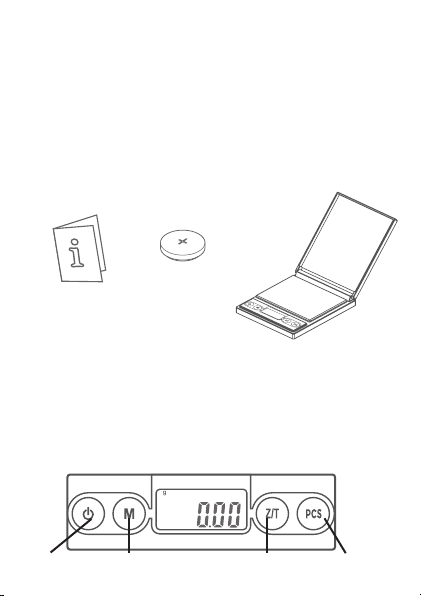
User Guide
One CR2032
Battery
NOTE Digital
Mini Scale
Key Descriptions
ON/OFF - Turns the scale ON or OFF.
MODE - Changes the weighing unit.
TARE - Zero’s the scale. Also subtracts the weight of an
empty container (see Tare Function).
PCS - Enters Counting Mode (see Counting Function)
ON/OFF
ZERO/TARE
PCSMODE
Page 3
Weighing Your First Item
Radio Frequency
Interference
Unlevel Surfaces High Humidity
Radio Frequency
Interference
1. Press the ON/OFF key to
turn the scale on.
2. Place the item on the center
of the weighing platform.
3. Take your reading from
the display. You can press
the MODE key to convert
between weighing units.
4. The scale’s auto-o function
will turn the scale o after 3 minutes of inactivity or
you can press the ON/OFF key to turn the scale o.
Counting Function
1. Place a sample quantity of 25, 50, 75 or 100 pcs of
the item you want to count on the platform.
1. Press and hold the PCS key to enter counting
setup.
2. Tap the MODE key to select your sample quantity.
3. Press the PCS key to conrm the sample qty and
set the average piece weight (APW) in memory.
4. You may now place any quantity on the scale and
view the piece count. (‘pcs’ will show on the display)
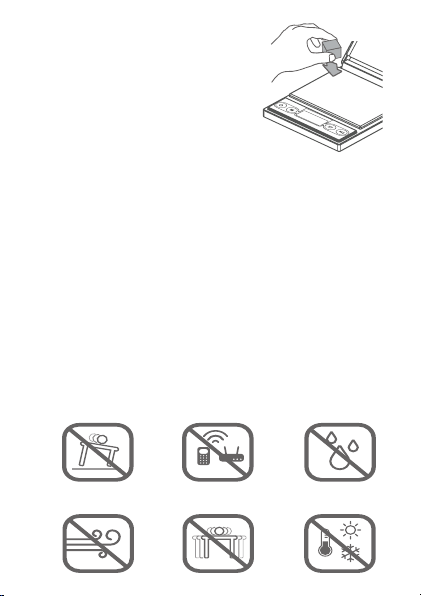
Things To Avoid
Unlevel Surfaces
Air Currents
Radio Frequency
Interference
Vibration
High Humidity
Extreme Temps
Page 4
Tare Function
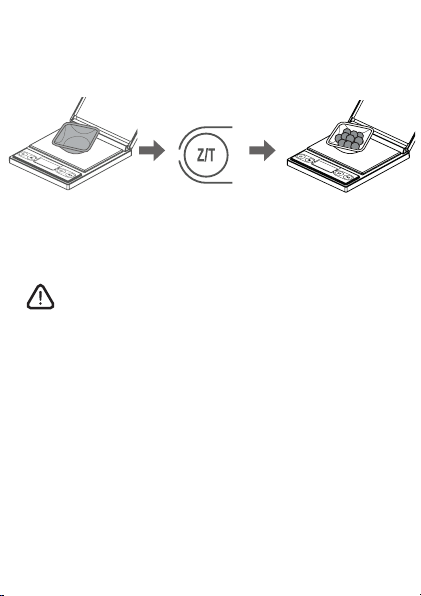
The Tare function allows you to subtract the weight of a
container so that the display only shows the weight of the
contents.
Place an empty tray
or container on the
platform.
Press the TARE
key to subtract the
container’s weight.
Add items to the
container to see their
weight on the display.
NOTE: The weight of the container will subtract from
the available capacity and will leave a negative value
on the display once the weight is removed. Press
TARE again to return the display to zero.
Auto-Off
By default, the scale will auto-o after 180 seconds of
inactivity. To change or disable the auto-o timer:
1. Turn the scale on and wait for the display to zero.
2. Press and hold the TARE key until the display shows
the current auto-o setting (ie 180), then release.
3. Press the MODE key to change the auto-o setting
between 180 sec,120 sec, 60 sec, or 0 sec (auto-o
disabled).
4. Press ON/OFF to turn the scale o when nished.
Page 5
Accuracy
Your scale comes calibrated from the factory and most
users wont need to calibrate their scale for a long time.
You should check your scale’s accuracy periodically
using calibration weights and perform calibration if
necessary. NOTE: Only use trusted calibration weights.
Calibration
Calibration is permanent and should only be
performed using accurate calibration weights
that match the requirements for your scale.
Do not use coins or other household items to
calibrate.
1. Prepare the required weight for your scale.
(see chart on back)
2. Find a at and level surface to perform calibration
and let the scale adjust to room temperature.
3. Press ON/OFF to turn the scale on and wait for the
scale to stabilize.
4. Press and hold the MODE key until the display
shows ‘CAL’.
5. Make sure nothing is on the platform then press
MODE to conrm the zero point.
6. The display will then ash the required calibration
weight.
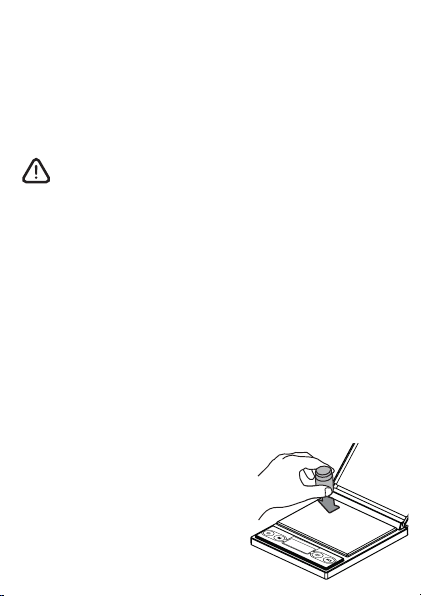
7. Place the required
calibration weight on the
center of the platform.
8. The display will show ‘PASS’
then return to normal
weighing mode. You may
now turn the scale o or
continue weighing.
Page 6
Specications
NO-100-01
Max Capacity
Readability
Weighing
Units
Dimensions
Calibration
Weight
Power 1 x CR2032 Batteries
Warranty 10 Year Limited Warranty
For more information, including
weighing tips and support, scan
this code with your smartphone
Or visit us online at
truweigh.com/support/
100 g / 3.527 oz / 3.215 ozt/ 64.30 dwt / 500.00
ct / 1543.2 gn
0.01 g / 0.001 oz / 0.001 ozt / 0.01 dwt / 0.05 ct
/ 0.2 gn
g, oz, ozt, dwt, ct, gn
Overall: 3.0 in x 3.3 in 0.6 in
Platform: 1.9 in x 2.7 in
Display: 0.4 in x 0.9 in
100g
 Loading...