

Page 1
www.trust.com/18034/faq
Quick Installation Guide
18034Wireless Headset
Installation
1
2
3
A
D E
C
B2B1
F
Page 2
Configuration Configuration
4
5
6
8
9
10 11
7
2×
Microphone
2- Wireless Audio
Default Device
2- Wireless Audio
2- Wireless Audio
Windows XPWindows 7/ Vista
Speakers
2- Wireless Audio
Default Device
Page 3

Eewave Wireless Headset - USER’S MANUAL
T
Index
Language page
Englisch 2
Deutsch 4
Français 6
Italiano 8
Español 10
Português 12
Nederlands 14
Dansk 16
Suomi 18
Norsk 20
Svenska 22
Polski 24
Česky 26
Slovenčina 28
Magyar 30
Română 32
Бъга 34
Ру 36
Εηνά 38
Hrvatski 42
ürkçe 40
1
Page 4
Eewave Wireless Headset - USER’S MANUAL
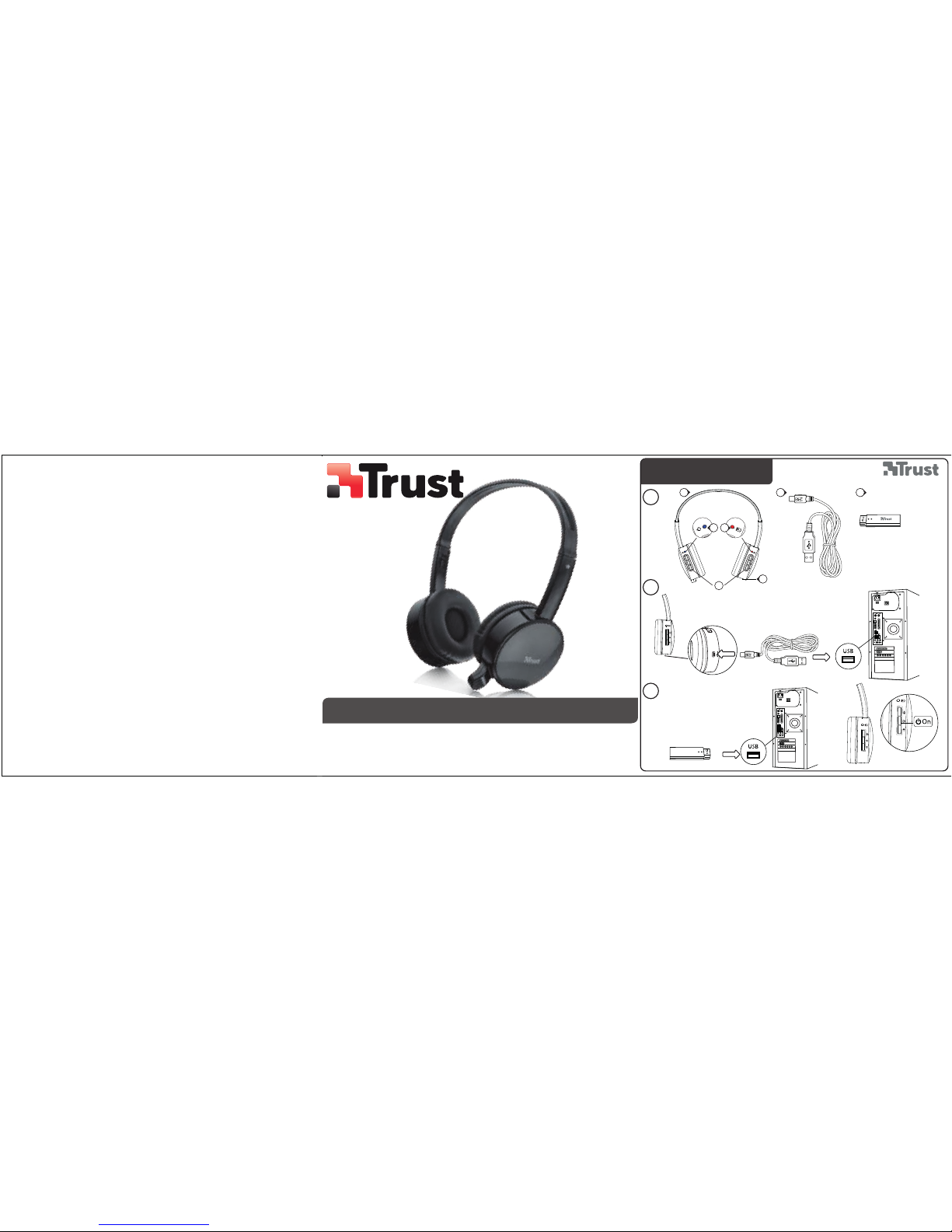
Installation
A. Headset
1
B. LED light (B1/B2)
C. USB connection
D. USB charge cable
E. USB receiver
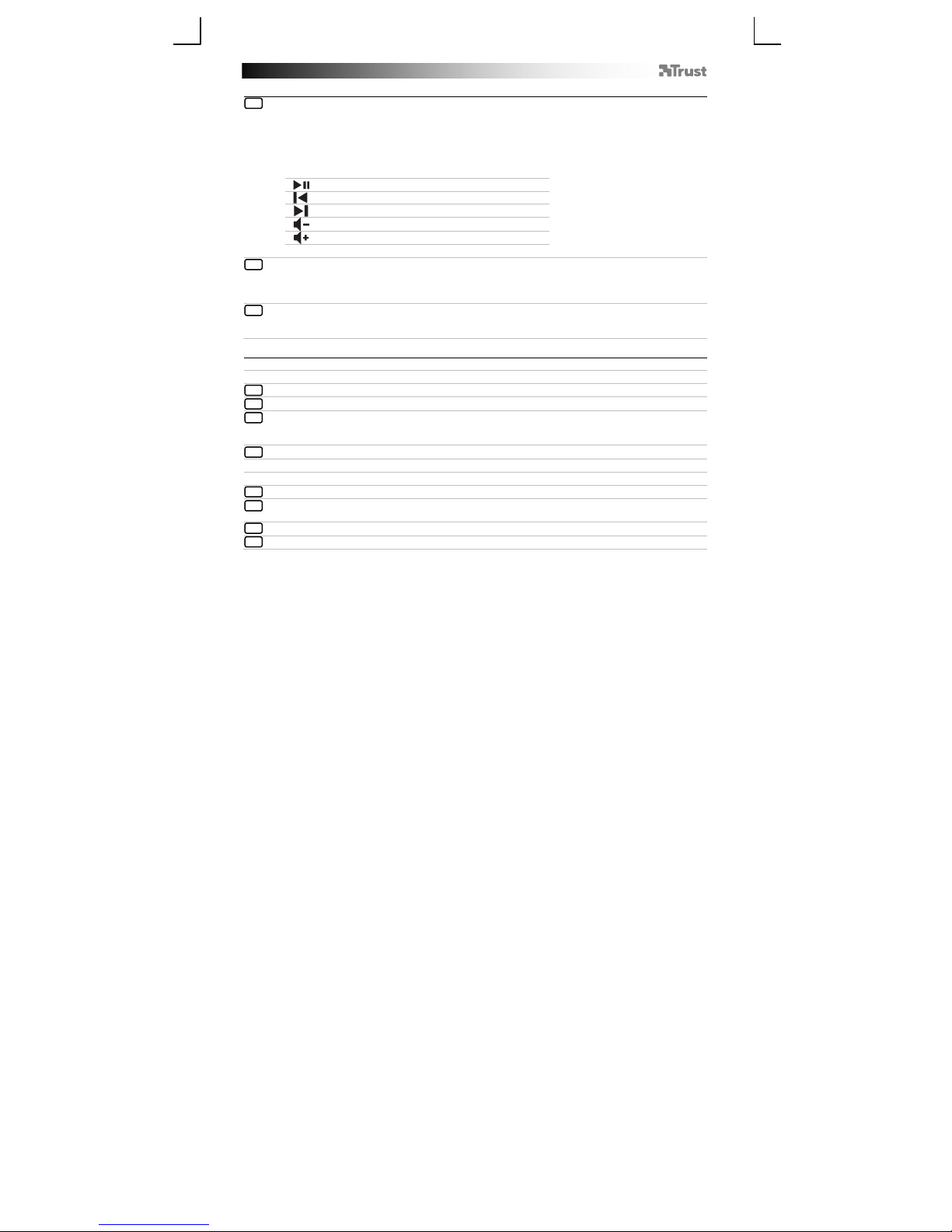
F. Media Buttons
Play/ Pauze
Previous
Next
Volume Volume +
- Before using the headset needs to be fully charged.
2
- Connect the USB charge cable to the headset and your computer to charge the headset.
- When connected the (B2) LED light will turn red when charging.
- The (B2) LED light will go off when the headset is completely charged.
- Connect the USB receiver to your computer
3
- Turn on the headset
- The (B1) LED light will turn blue when it’s connected.
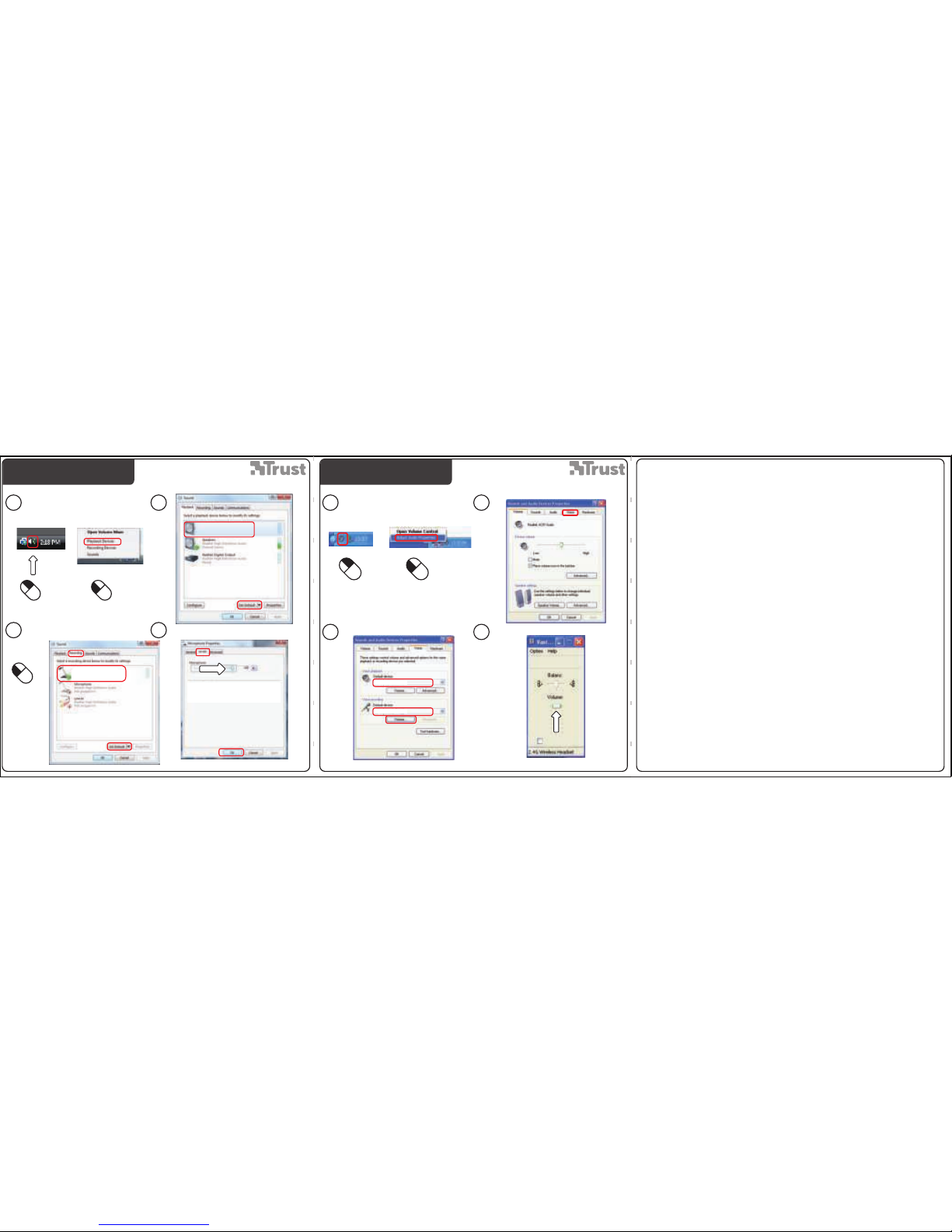
Configuration
Windows 7/ Vista
Go to ‘Playback Devices’ to configure the headset.
4
Set the ‘Wireless Audio’ as your default device
5
- Select the ‘Recording’ tab
6
- Set the ‘Wireless Audio’ as your default device
- Double click the ‘Microphone’
Set the level to 100%
7
Windows XP
8
Go to ‘Adjust Audio Properties’ to configure the microphone
- Set the default device to ‘Wireless Audio’ (voice and recording)
9
- Go to the ‘Voice’ tab.
10
Click the ‘Volume’ of the Voice recording.
11
Set the level to 100%
2
Page 5

Eewave Wireless Headset - USER’S MANUAL
Trouble shooting
Problem Solution
The headsets beeps - The battery is almost empty. Charge the headset.
Bad sound quality
No sound at all
My friend on msn/skype does not
hear what I’m saying
If your problem is not solved, please contact the helpdesk at www.trust.com/18034/faq
- Charge the headset.
- Connect the USB receiver to another USB port.
- Maximum wireless range is 10m, but walls or big objects may
reduce the range.
- Make sure you have charged the headset.
- Make the headset your default audio device. See step ‘4’ or ‘8’
- Connect the USB receiver to another USB port.
- Increase the microphone volume and check if wireless headset is
set as default device. Follow steps from ‘4’ or ‘8’
3
 Loading...