

Page 1

ACR-B040/ACR-B080
Telephone Recording System
User’s Manual
Volume
Page 2

ACR- B040/ACR- B080 TELEPHONE RECORDING SYSTEM
User’s Manual
© TrueVoice Communications
Victoria street Plumstead Cape Town
Phone +0861 67 67 67
Email [email protected]
Developed for TrueVoice Communications
20120516
Page 3

Table of Contents
Chapter 1
Overview ......................................................................................... 1
Front Panel .................................................................................... 1
Rear Panel ........................................................................................ 2
Before You Start ....................................................................... 3
Chapter 2
Operating Instructions ....................................................... 4
Login ..................................................................................................... 4
Channel Status ........................................................................... 5
Download Software ............................................................. 7
Query by Time ................................................................................ 8
Query by Channel .................................................................. 10
Advanced Query ....................................................................... 11
Recording Parameters Settings .............................. 12
System Time Setting .............................................................. 13
User Accounts ........................................................................... 14
Appendix 1
XZDC Network Inquiry ..................................................... 15
Introduction ............................................................................. 15
Installation ................................................................................. 16
Download Software ........................................................... 19
Add Device ..................................................................................... 20
Recording Path ....................................................................... 21
Advanced Query ....................................................................... 22
Account Management ....................................................... 23
Page 4
ACR- B040/ACR- B080 USER’ S MANUAL
1
Overview
Front Panel
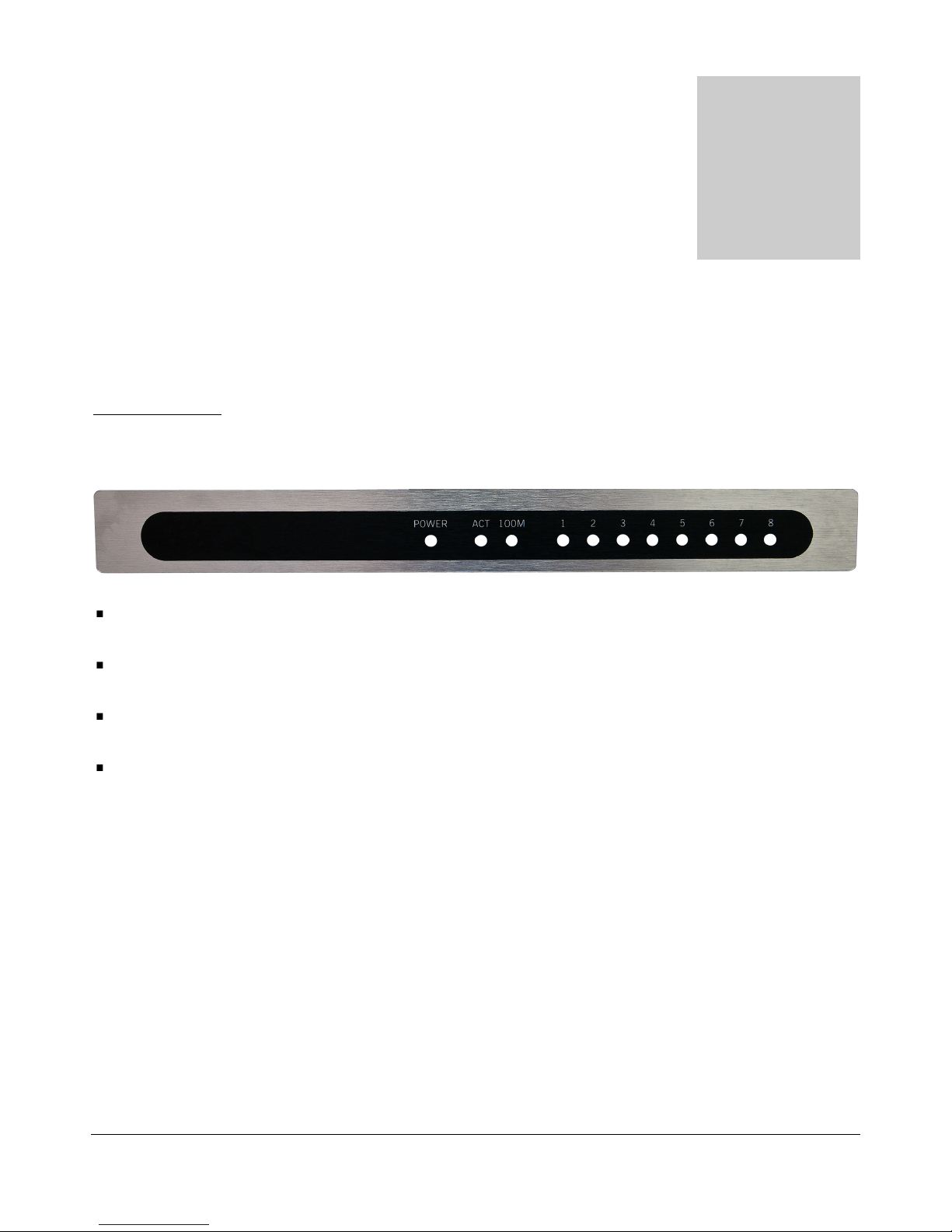
The front panel contains various status LEDs that indicates system activities / faults.
POWER
Power LED.
ACT
Solid Bright – LAN connected / Dark – LAN not connected / Blink – Transferring Data
100M
Solid Bright – 100Mbps LAN connected / Dark – 10Mbps or No LAN connected
LED 1-4(ACR- B040) / LED 1-8(ACR-B080)
Solid Bright – The channel is occupied / Blink - The channel is un-occupied
Chapter
1
Page 5
ACR- B040/ACR- B080 USER’ S MANUAL
2
Rear Panel
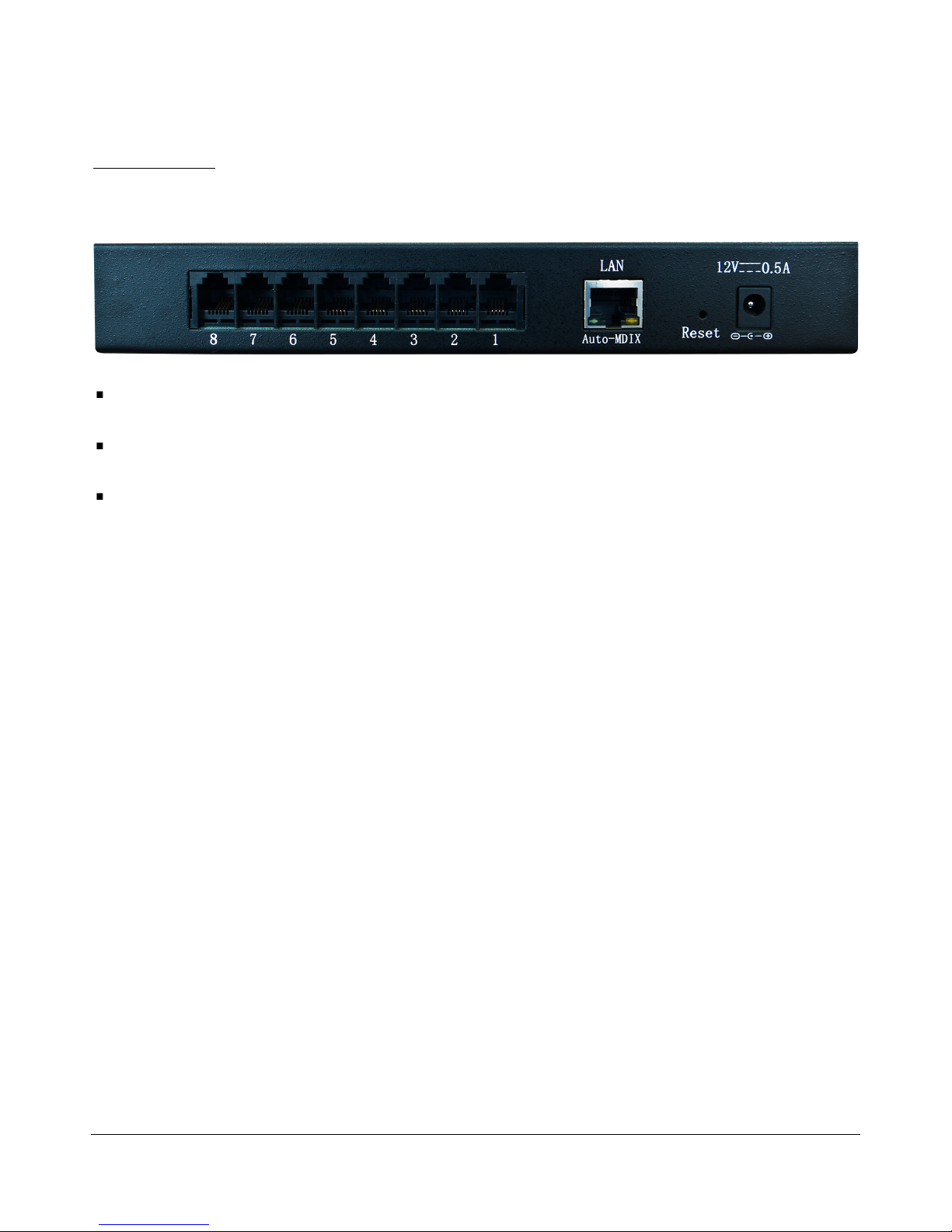
The rear panel contains registered jacks as telephone / LAN interfaces.
DC12V
Power jack for connecting bundled adaptor.
Jack 1-4(ACR- B 040) / Jack 1-8(ACR-B080)
RJ-11 jacks for analog telephone line connections.
LAN
RJ-45 jack for LAN / PC connection.
Page 6

ACR- B040/ACR- B080 USER’ S MANUAL
3
Before You Start
The factory default IP of ACR-B040/ACR-B080 is “192.168.0.190”. If your LAN was on a different
network segment (e.g. 192.168.1.XX), you have to change the IP first. Please connect ACR-B040/ACRB080 to a PC on the same network segment, and log in to it by Internet Explorer to change the default IP.
Page 7

ACR- B040/ACR- B080 USER’ S MANUAL
4
Operating Instructions
Login
Run Internet Explorer, type in system IP to access the telephone recording system. The default Username is
admin, and the default Password is admin. Please set your desktop resolution as 1280 * 768 for the best
result.
Chapter
2
Page 8
ACR- B040/ACR- B080 USER’ S MANUAL
5
Channel Status
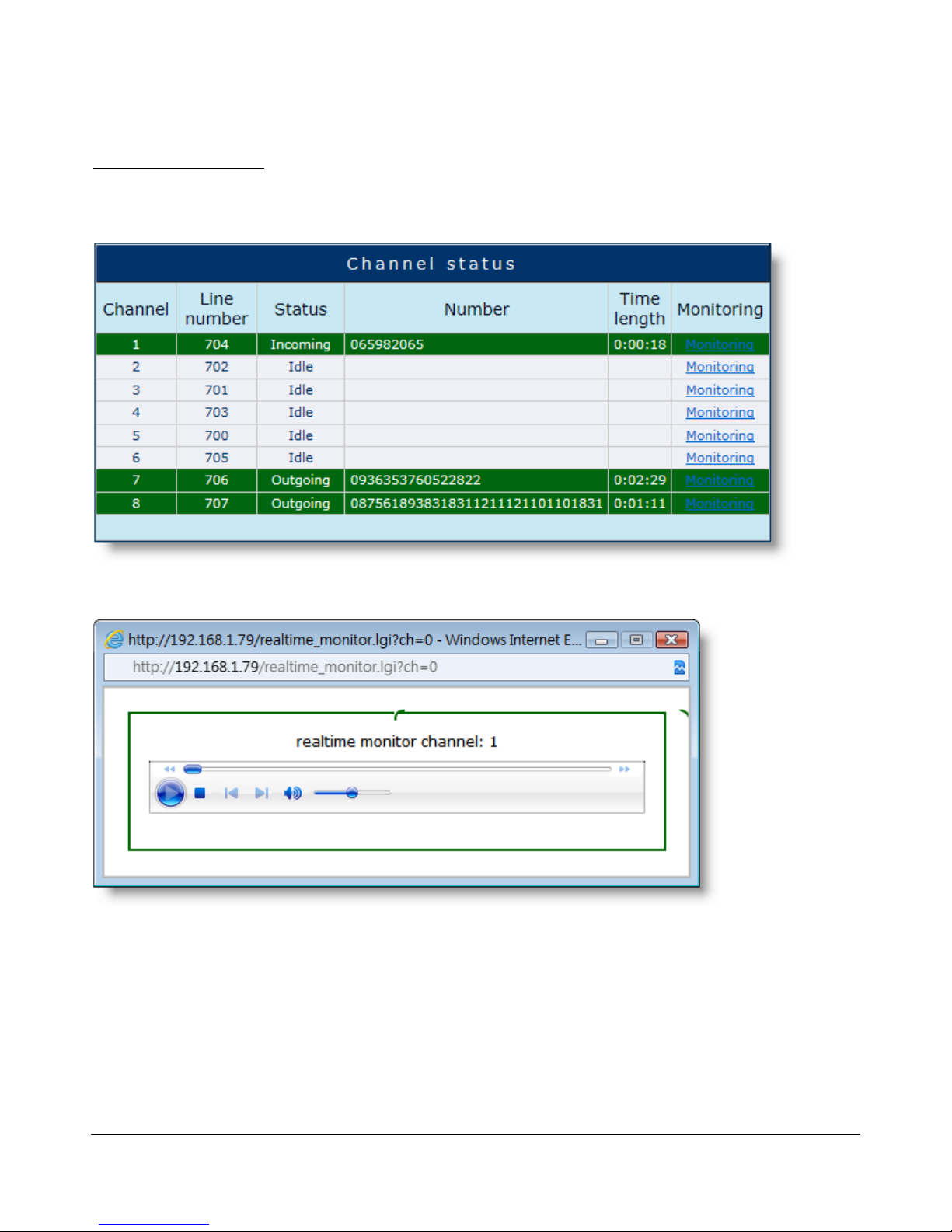
The system will show current channel status after you log in successfully.
Click “Monitoring” to start real-time monitoring the call.
Page 9
ACR- B040/ACR- B080 USER’ S MANUAL
6
IP Address Setting
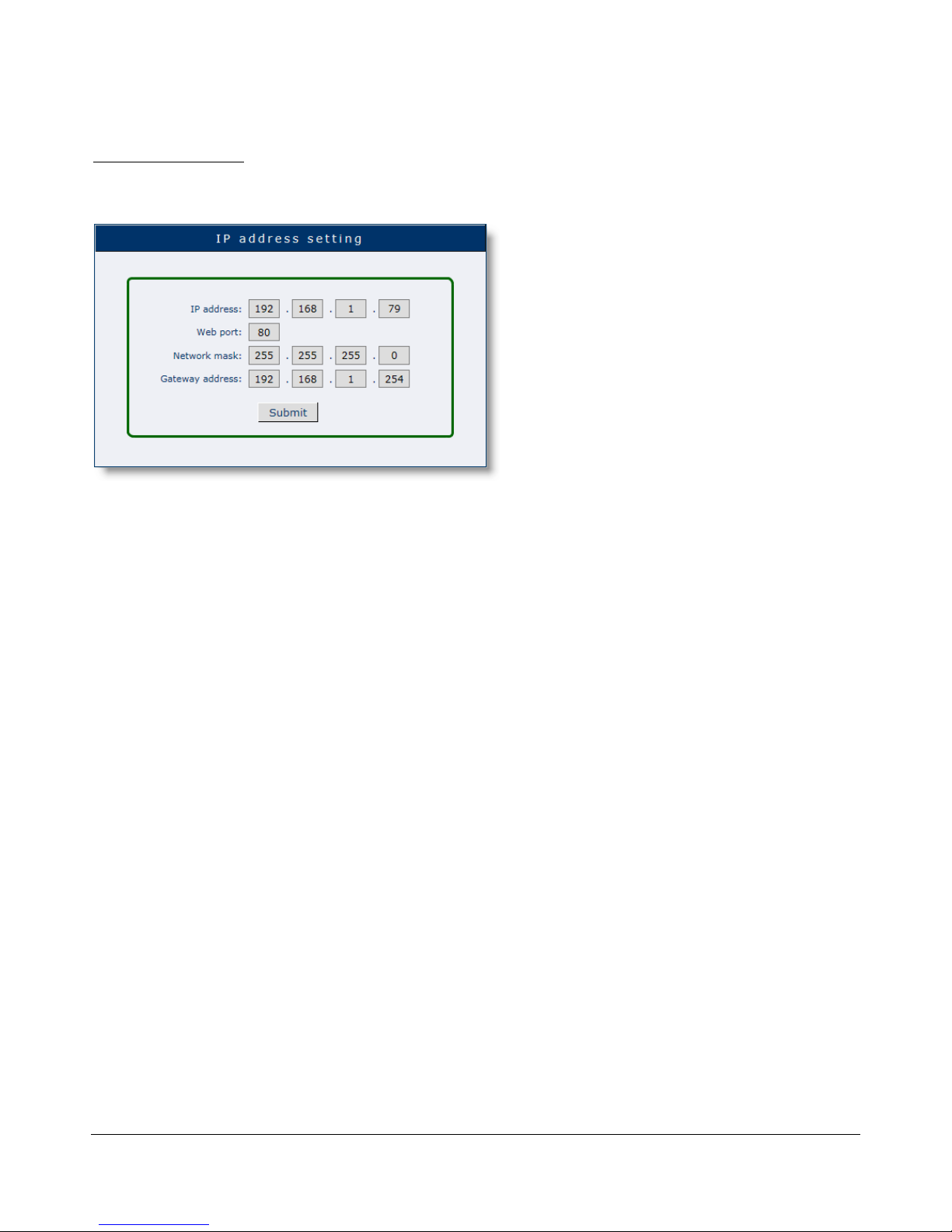
Here you can change IP address related settings. Please contact your IT staff if you need more help.
Page 10
ACR- B040/ACR- B080 USER’ S MANUAL
7
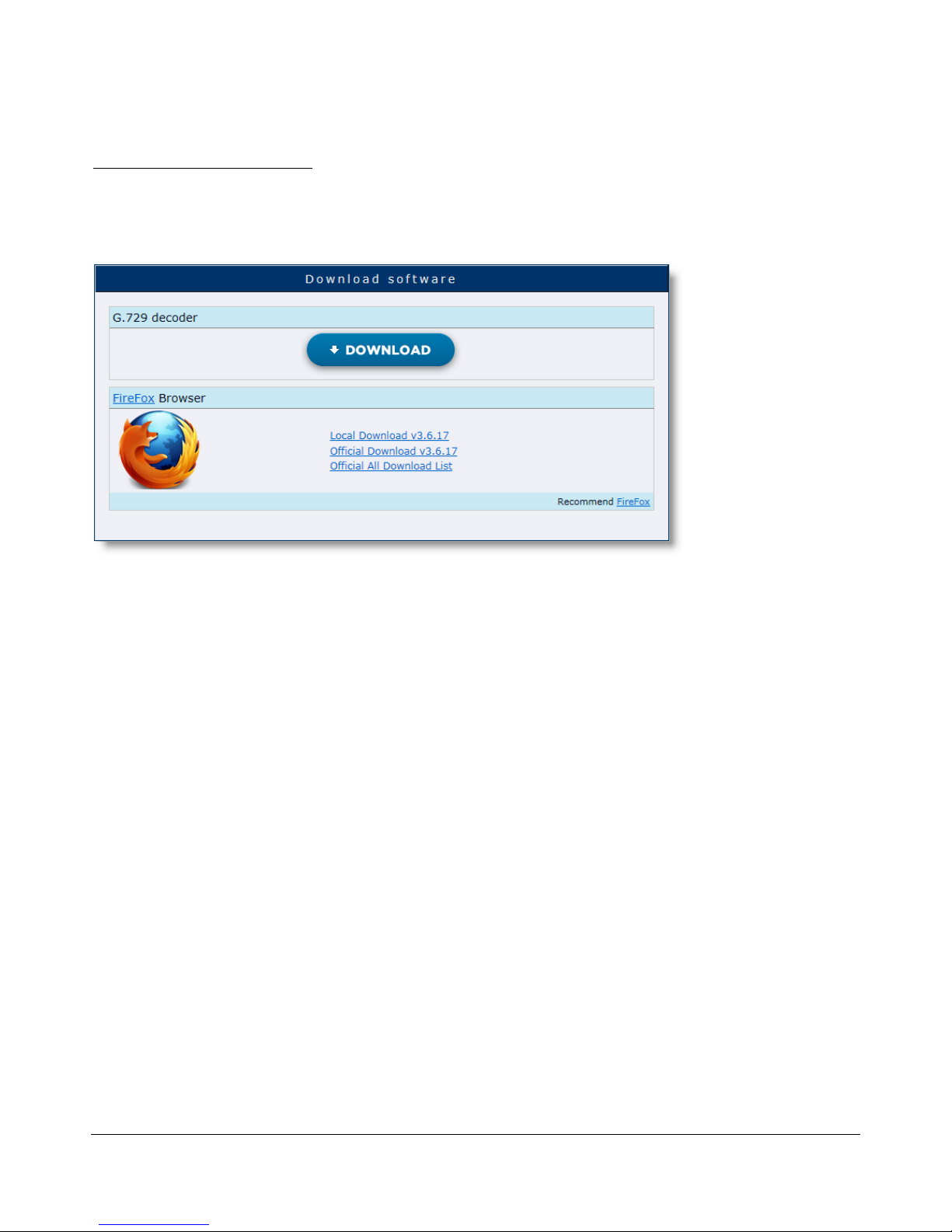
Download Software
You can download G.729 decoder and Firefox browser here. Your PC has to have G.729 decoder installed
in order to play recordings thru the web.
Page 11
ACR- B040/ACR- B080 USER’ S MANUAL
8
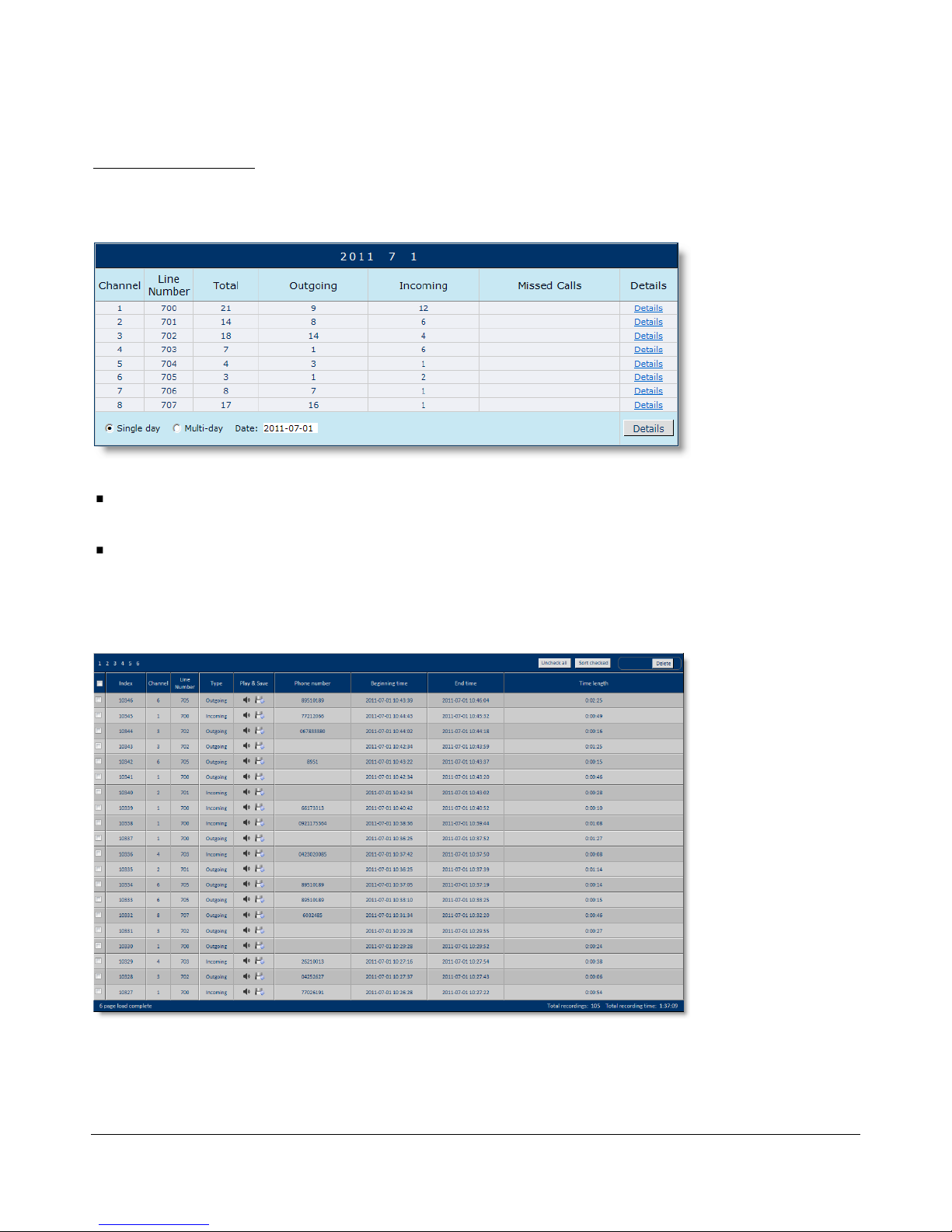
Query by Time
Here you can query the recordings by designating the time.
Single day
Querying recordings of a specific day.
ACT
Querying recordings of a specific range of days.
Click “Details” to see the result.
Page 12
ACR- B040/ACR- B080 USER’ S MANUAL
9
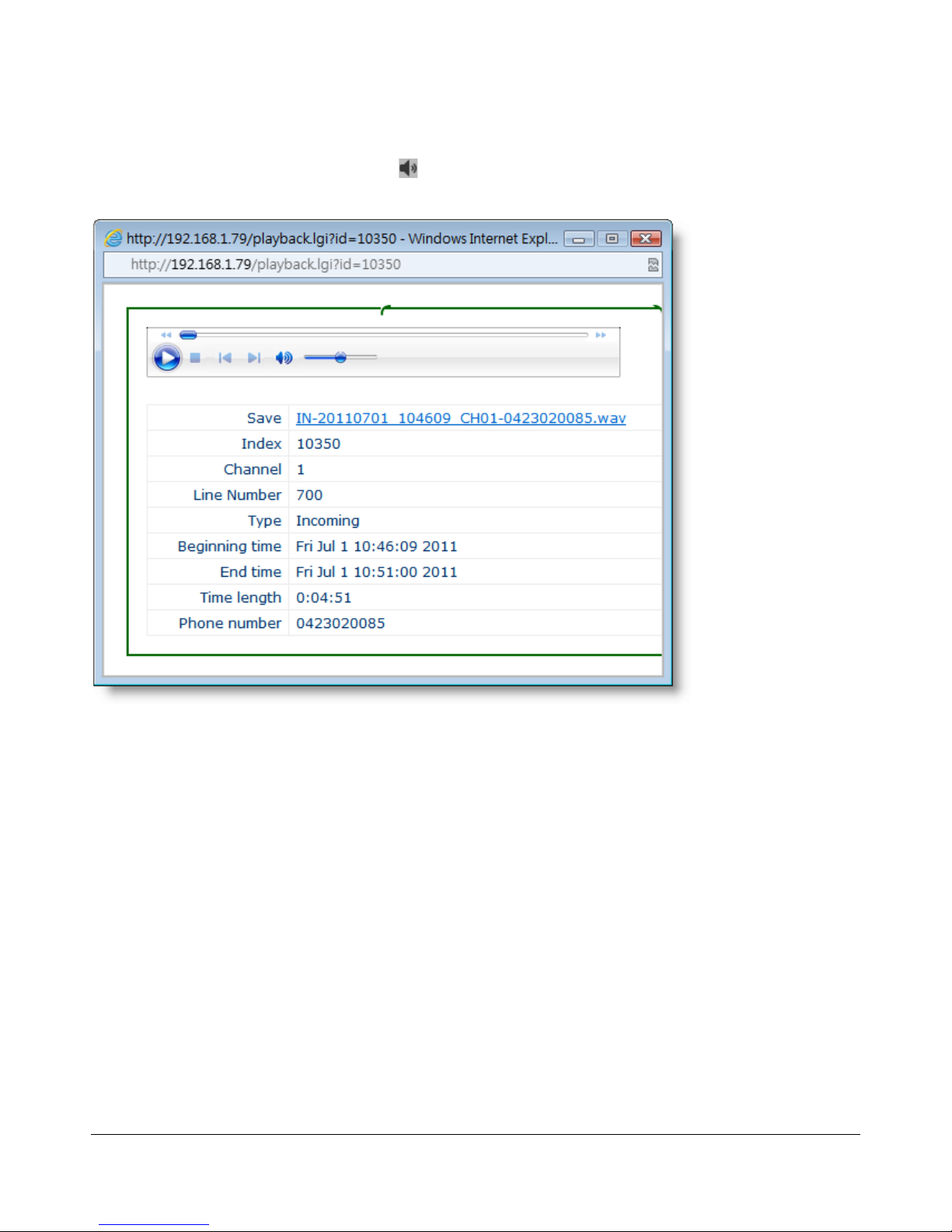
Move the cursor to the recording and click to play.
Page 13
ACR- B040/ACR- B080 USER’ S MANUAL
10
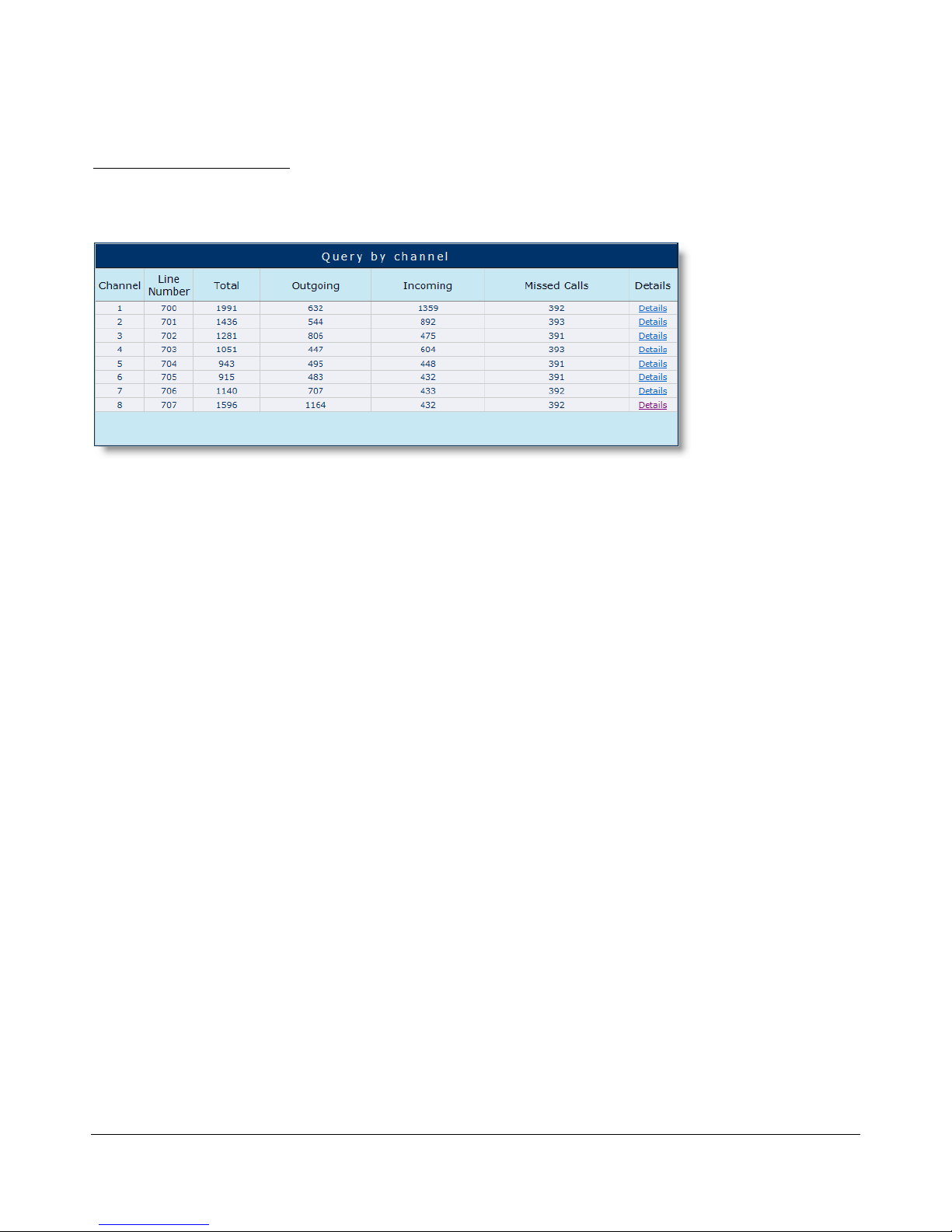
Query by Channel
Here you can query the recordings by designating the channel.
Click “Details” to see the result.
Page 14
ACR- B040/ACR- B080 USER’ S MANUAL
11
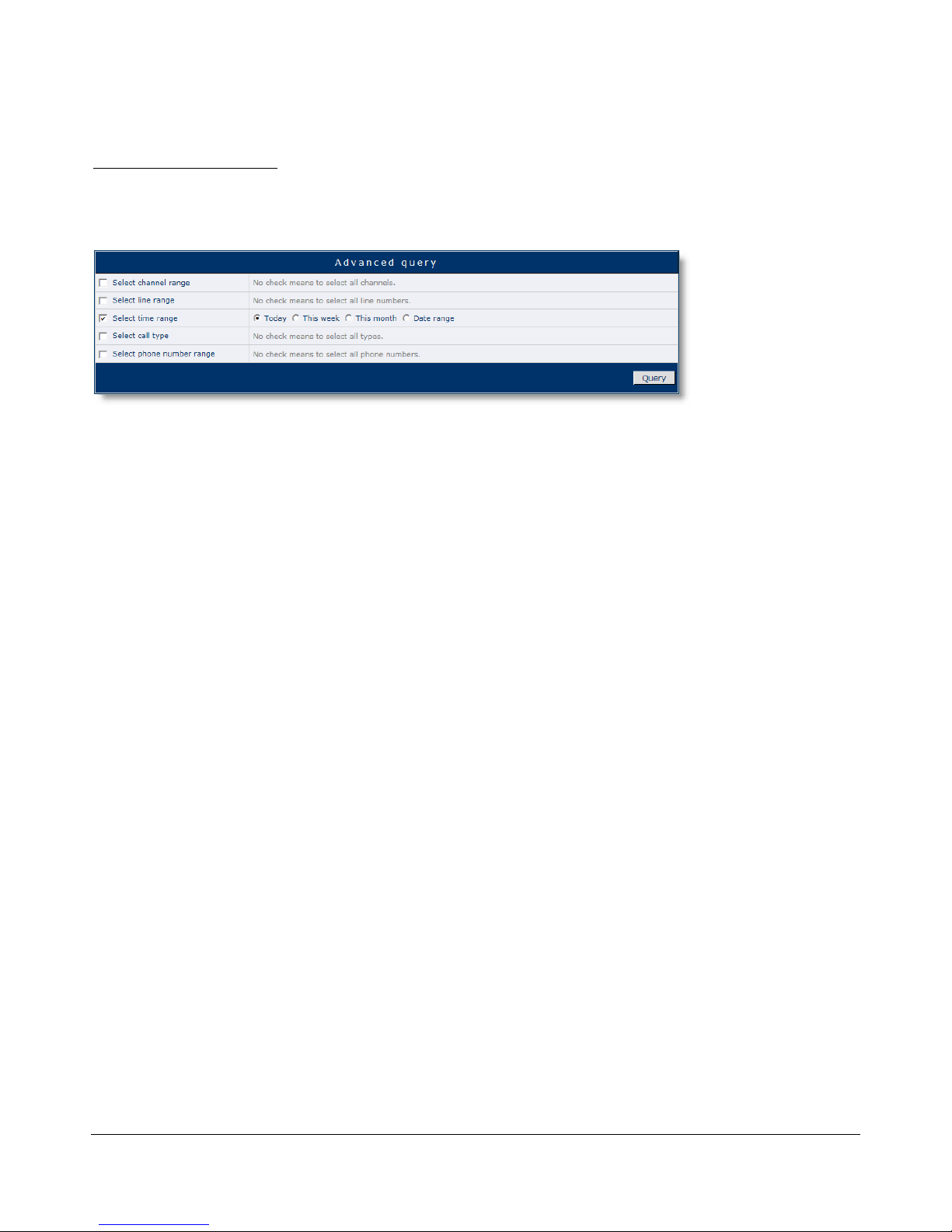
Advanced Query
Advanced Query provides more advanced options for querying recordings.
Click “Query” to see the result.
Page 15
ACR- B040/ACR- B080 USER’ S MANUAL
12
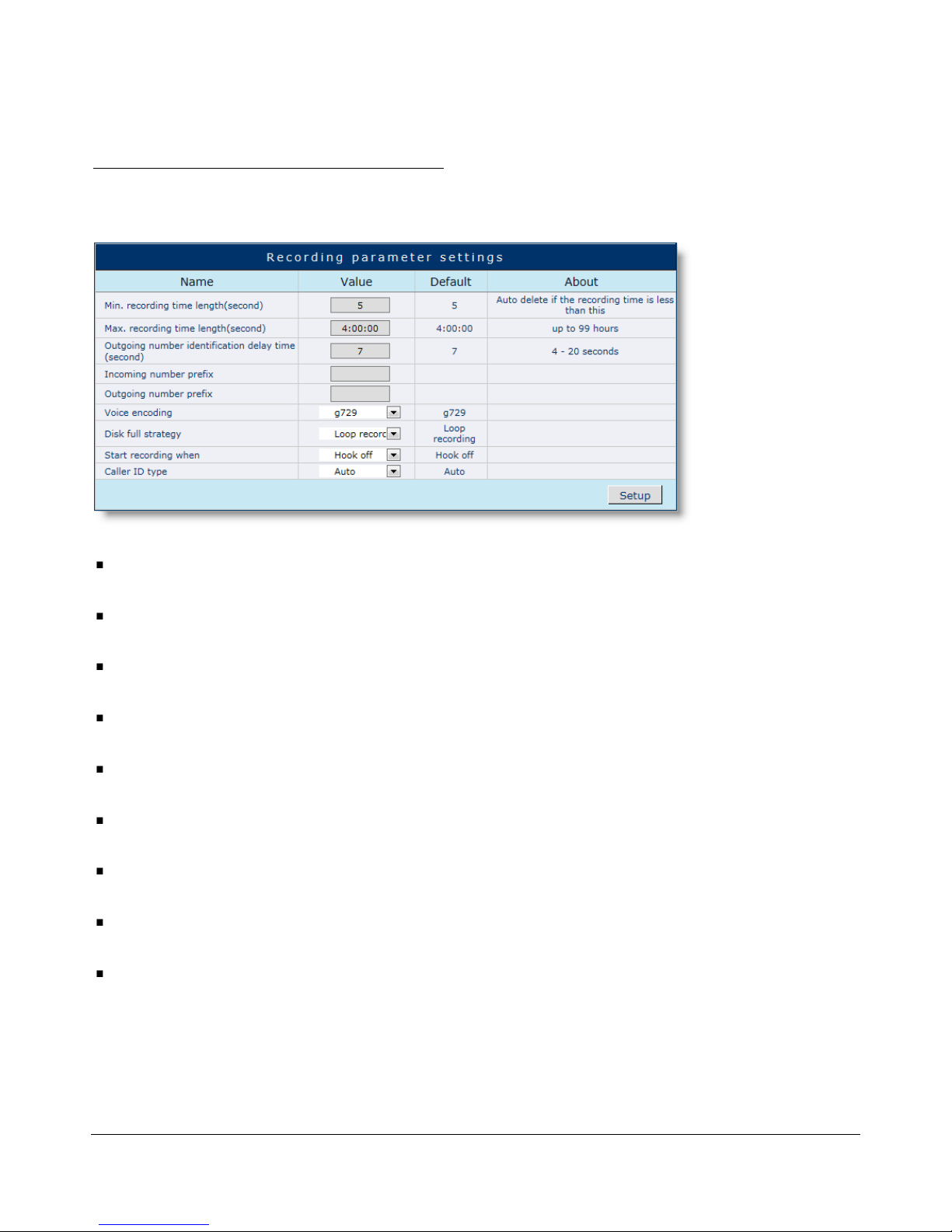
Recording Parameters Settings
You can configure the recording parameters here.
Min. recording time length
Only record calls that exceeds the designated length.
Max. recording time length
The max. length of the recordings.
Outgoing number identification delay time
The delay time for identifying outgoing numbers.
Incoming number prefix
Country/Area code filter for incoming numbers.
Outgoing number prefix
Country/Area code filter for outgoing numbers.
Voice encoding
Select G.729 (recommended) or MP3 encoding.
Disk full strategy
Select Loop (recommended) or Stop when disk is full.
Start recording when
Select to start recording by Ring or Hook off.
Call ID type
Auto/FSK/DTMF
Click “Setup” to save the configuration.
Page 16

ACR- B040/ACR- B080 USER’ S MANUAL
13
System Time Setting
You can configure the system time here.
Last sync. Time
The last sync. time. with your desktop.
Manual
Setup current time manually.
Page 17
ACR- B040/ACR- B080 USER’ S MANUAL
14
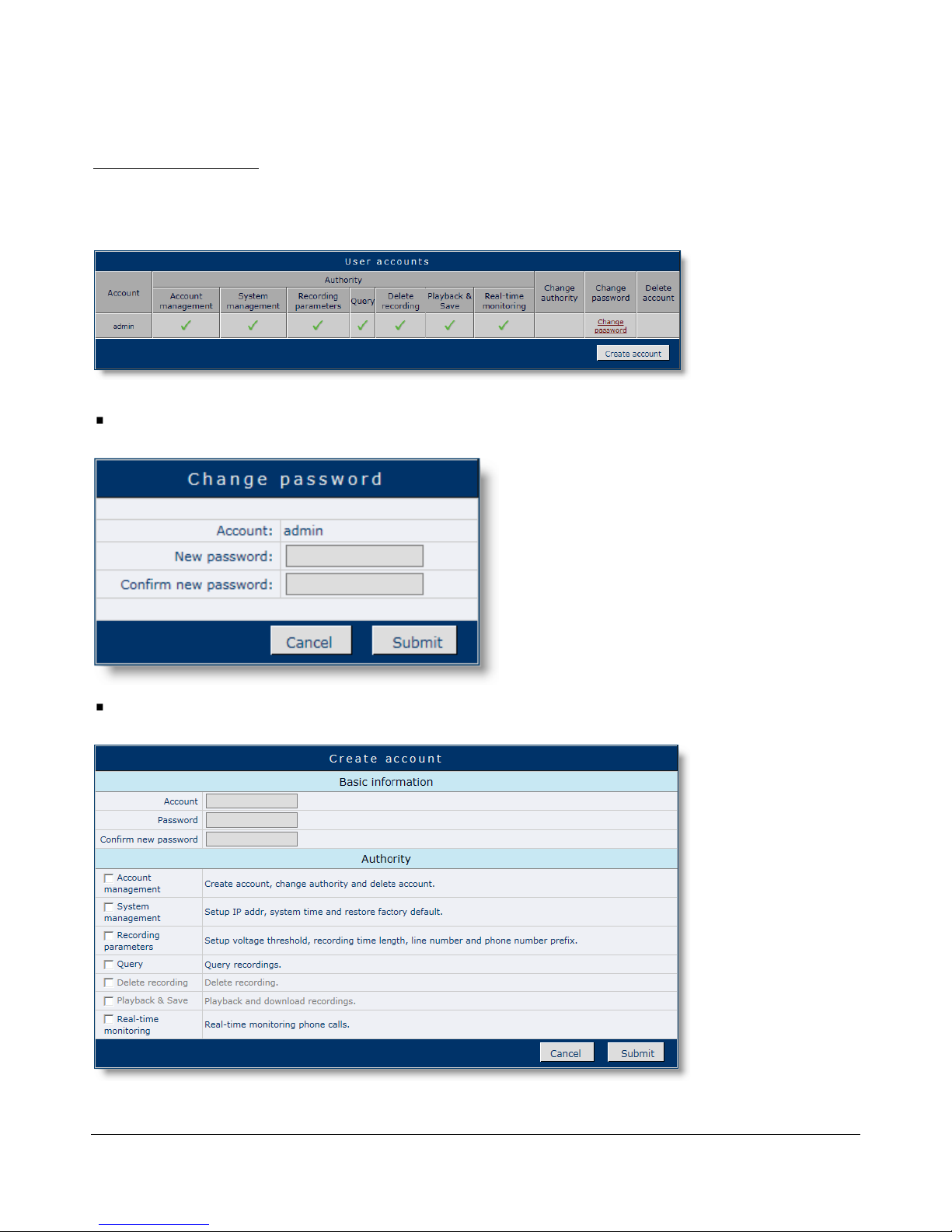
User Accounts
You modify user authority/password in this page.
Change Password
Change user password.
Create Account
Create new user account.
Page 18

ACR- B040/ACR- B080 USER’ S MANUAL
15
XZDC Network Inquiry
Introduction
XZDC is a standalone client of ACR-B040/ACR-B080, which enables users to
control the unit or inquiry recordings over LAN. It can also backup the recordings
on ACR-B040/ACR-B080 automatically. With Loop Recording feature enabled,
you’ll almost have unlimited space for recording.
Appendix
1
Page 19
ACR- B040/ACR- B080 USER’ S MANUAL
16
Installation
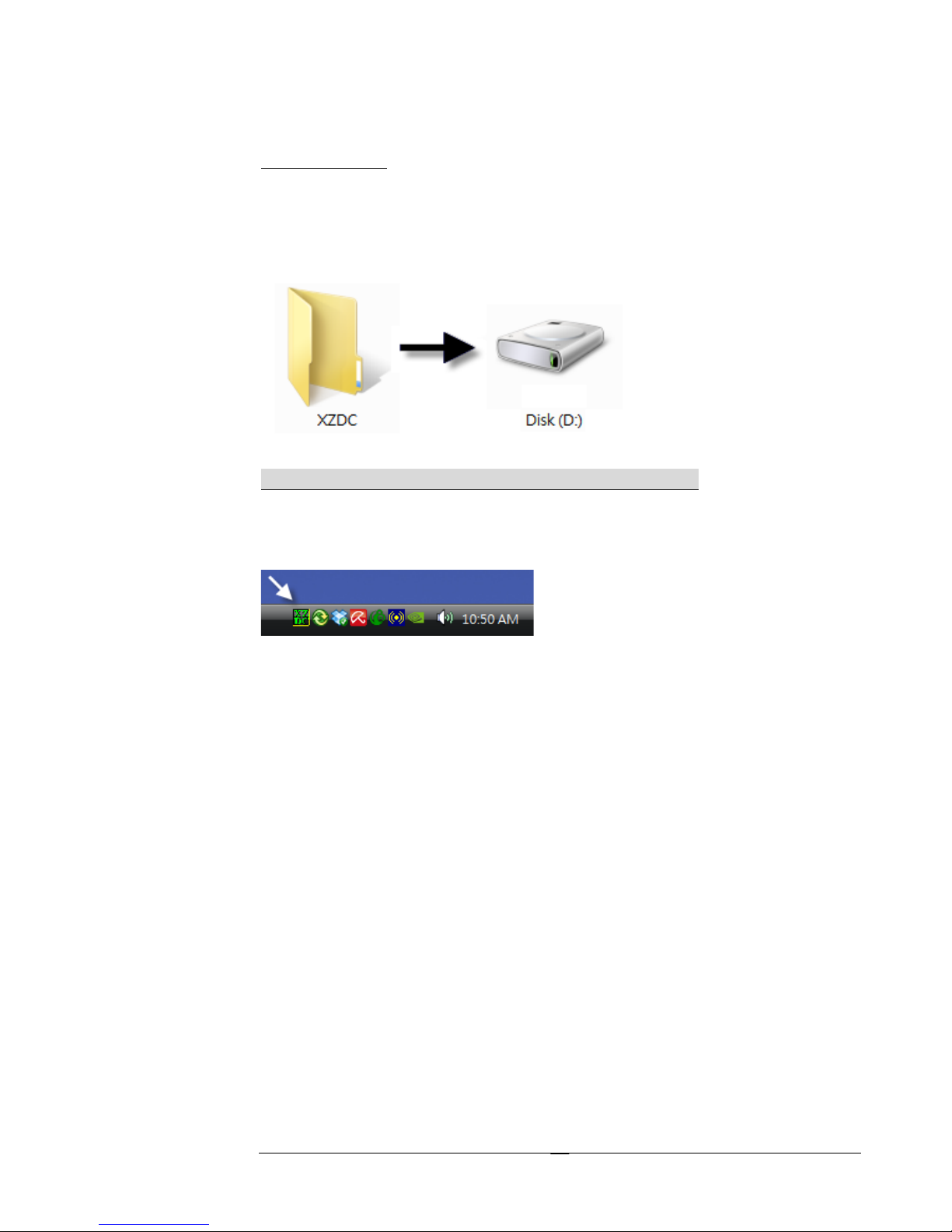
To install XZDC, please simply copy XZDC folder from the bundled CD to “D:\”
first.
* Please exit/shut down Skype service before you run XZDC.
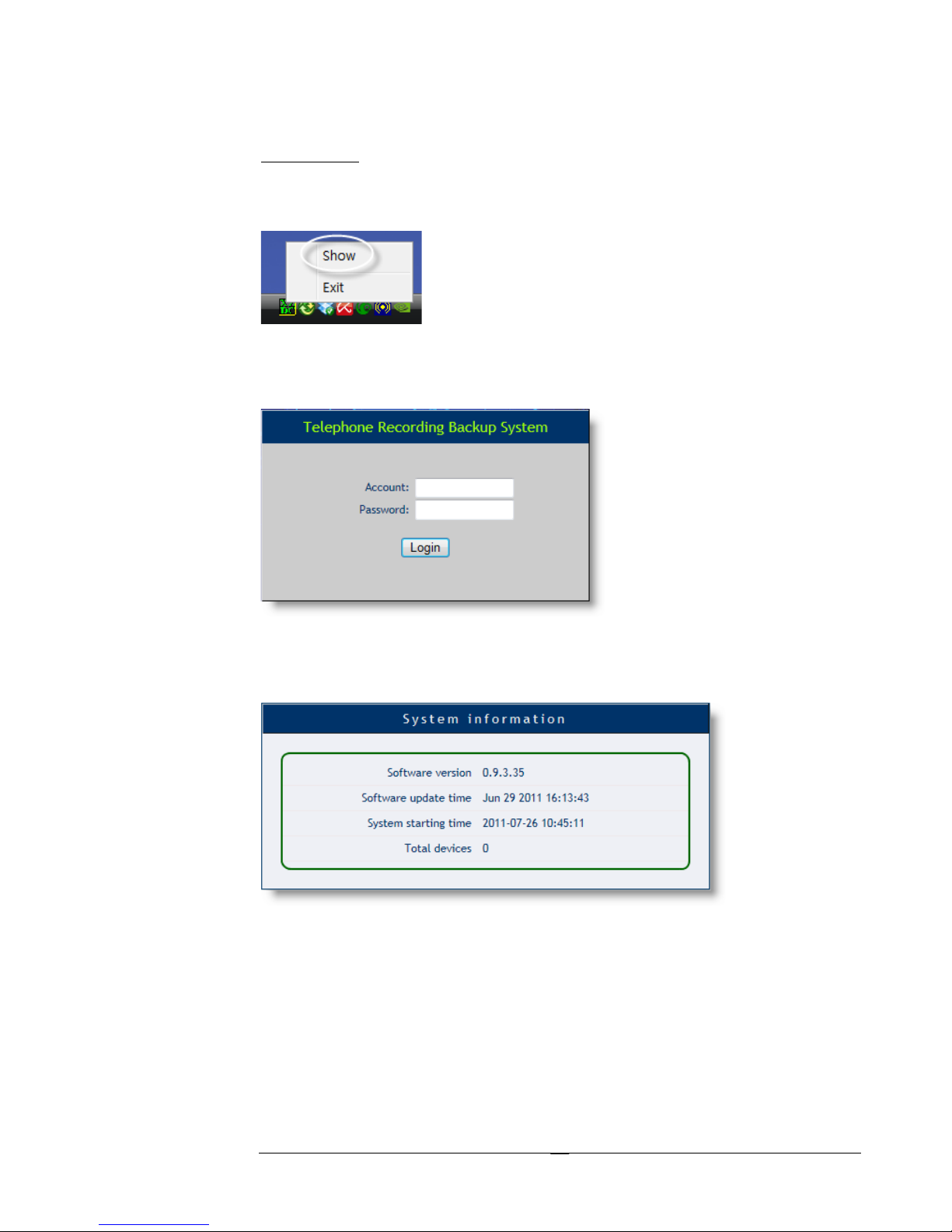
Run D:\XZDC\XZDC.exe and the XZDC icon will be shown on the System Tray.
XZDC will start automatically with your Windows.
Page 20
ACR- B040/ACR- B080 USER’ S MANUAL
17
Run XZDC
Right-click on XZDC icon, select “Show” to visit the login page.
Enter Account name and Password to login. Default: admin / admin.
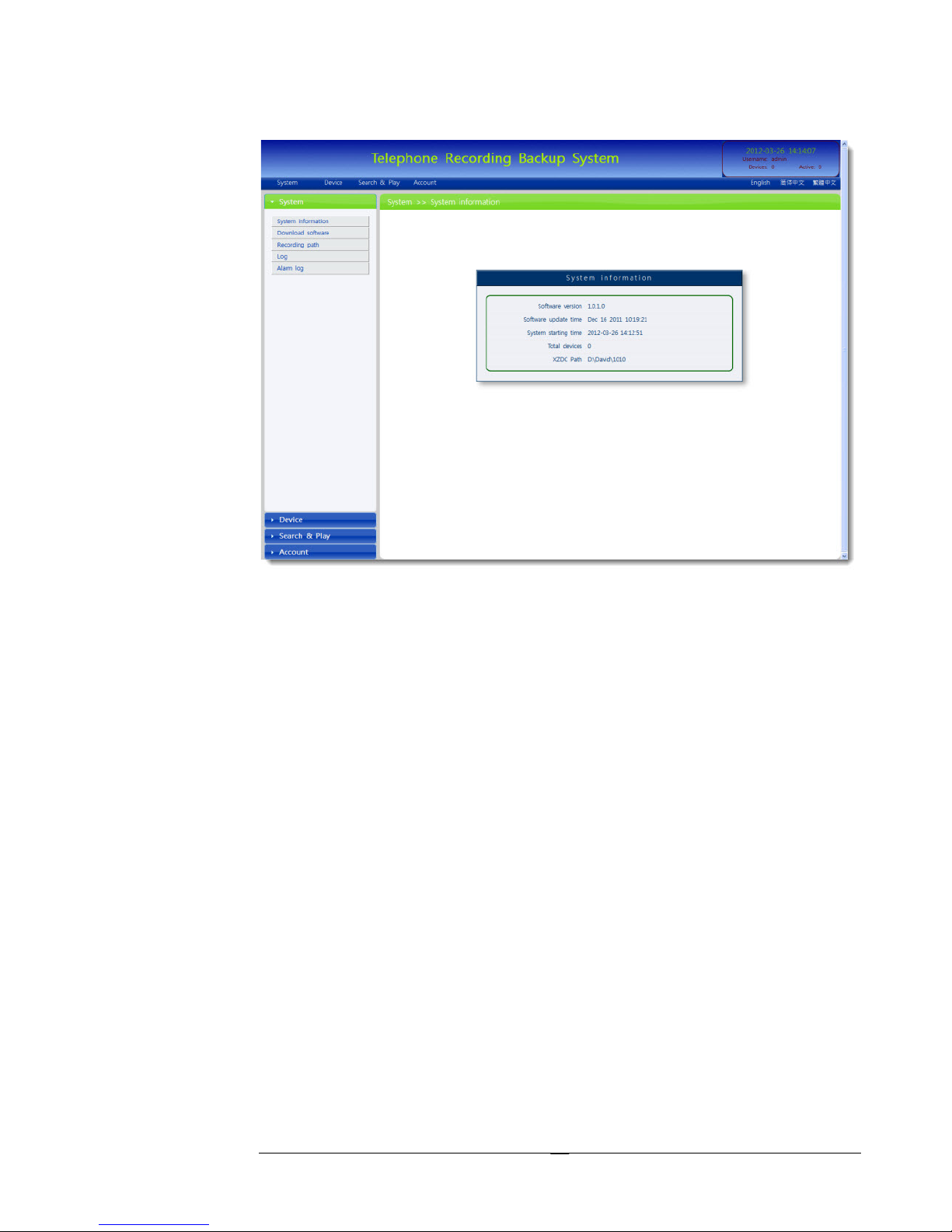
You can see the current version info after you login successfully.
Page 21
ACR- B040/ACR- B080 USER’ S MANUAL
18
Page 22
ACR- B040/ACR- B080 USER’ S MANUAL
19
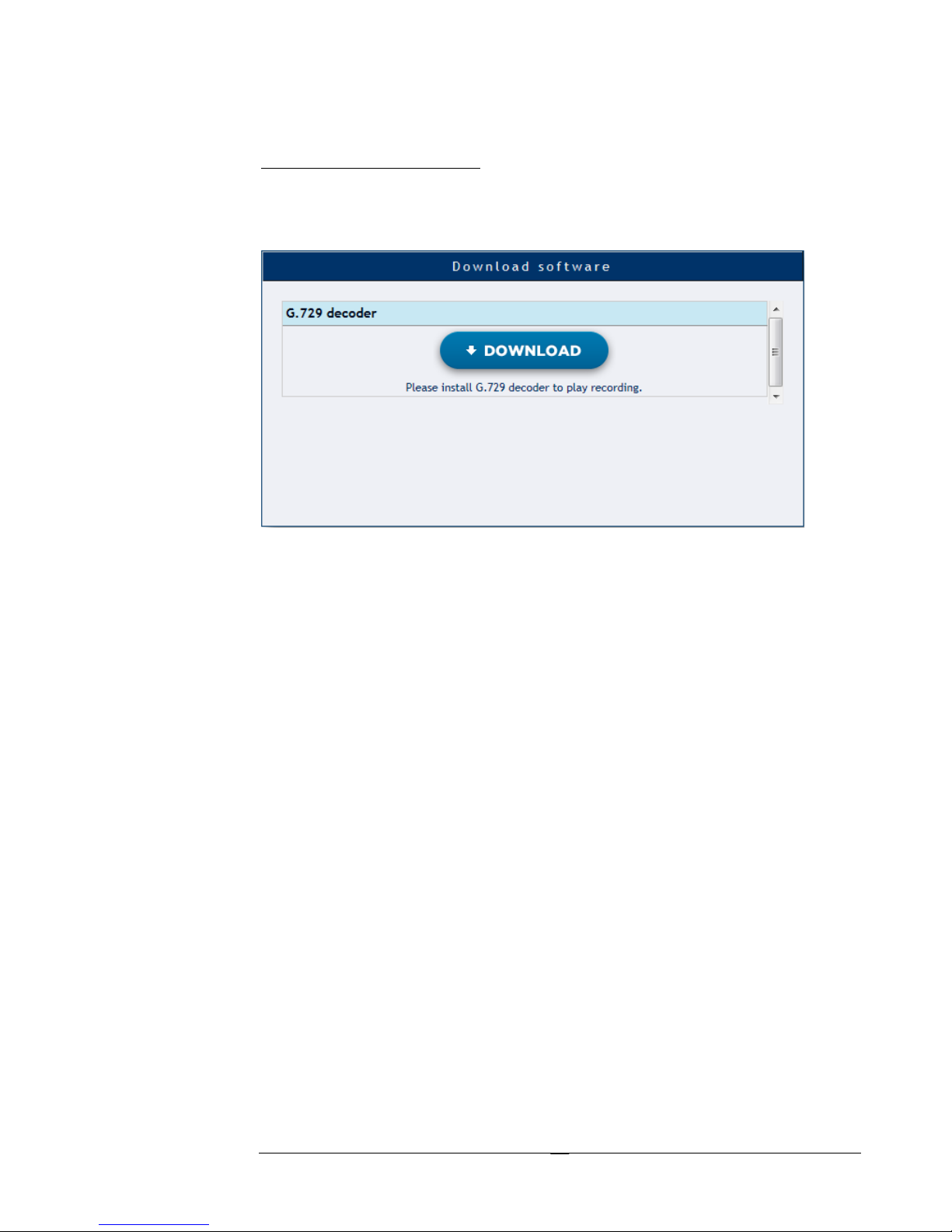
Download Software
You can download the required G.729 decoder here.
Page 23
ACR- B040/ACR- B080 USER’ S MANUAL
20
Add Device
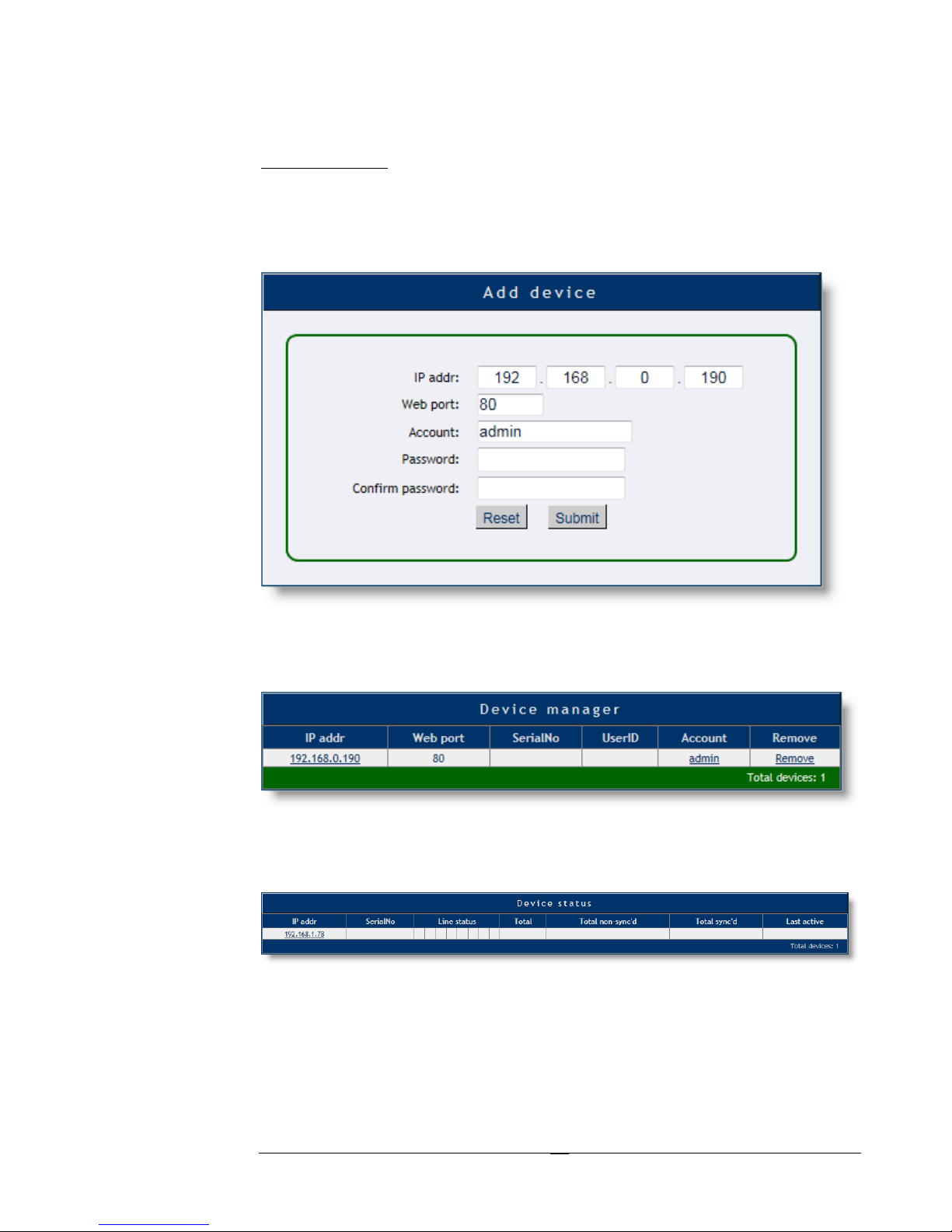
You can add device by entering required IP Address, Port, Account name and
Password here. Click “Submit” to add the device to the device list.
Click “Device Manager” to see the device list.
Click “Device Status” or IP address to see the status of the selected device.
Page 24
ACR- B040/ACR- B080 USER’ S MANUAL
21
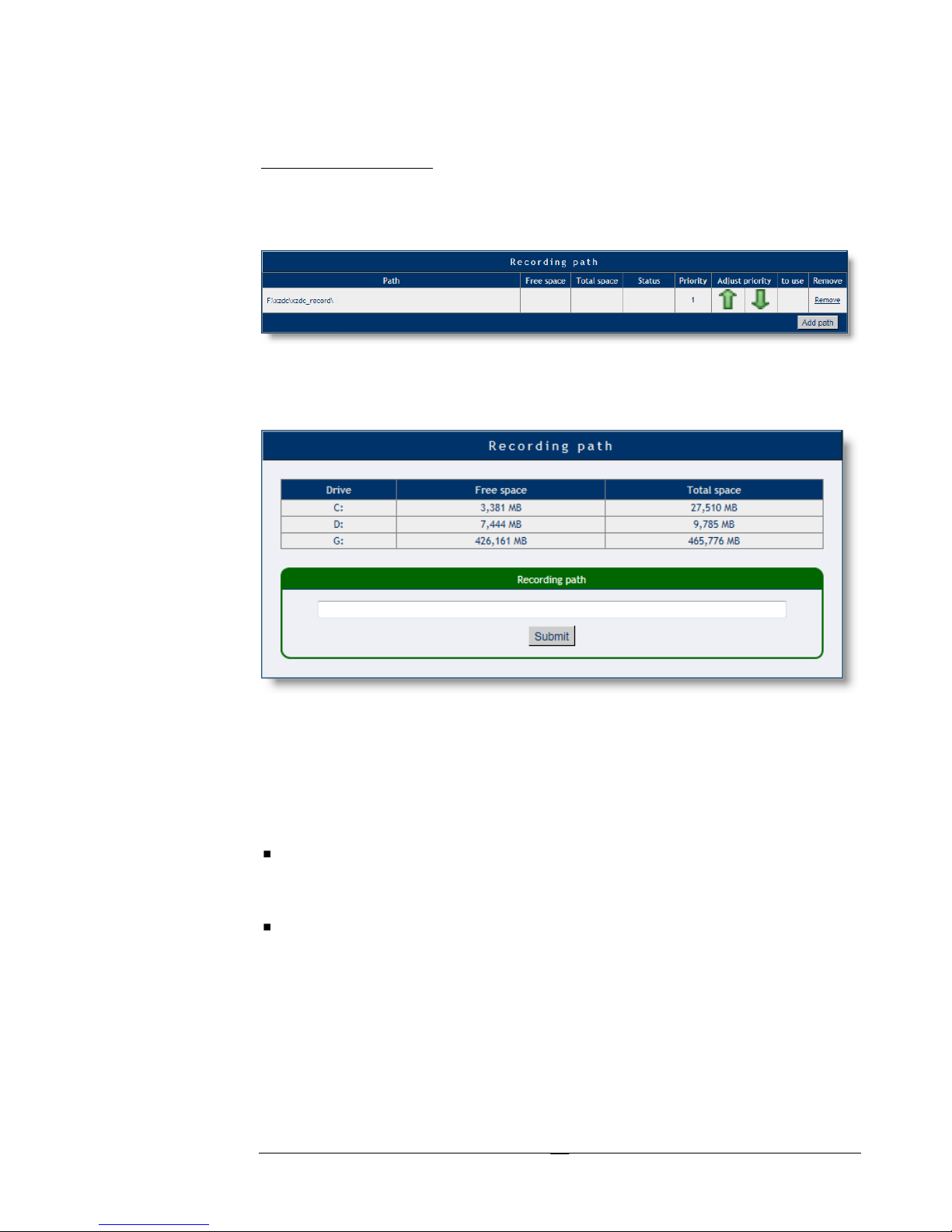
Recording Path
Click “Recording Path” to see the current recording path.
Click “Add Path” to add new recording path.
The system will download un-backed up recordings to the assigned path every time
when system starts after you submit the recording path.
The system naming rules are as below:
Folder Name
[/XZDC_Record/N/YYYY/MM/DD] - N=Device ID, YYYY=Year,
MM=Month, DD=Day.
File Name
[OUT-YYYYMMDD_HHNNSS_DEVX_CHXX-NNNN.wav] –
OUT=Outgoing, YYYYMMDD=Year/Month/Day, DEVX=Device ID,
CHXX=Channel ID, NNNN=Outgoing or Incoming No..
Page 25
ACR- B040/ACR- B080 USER’ S MANUAL
22
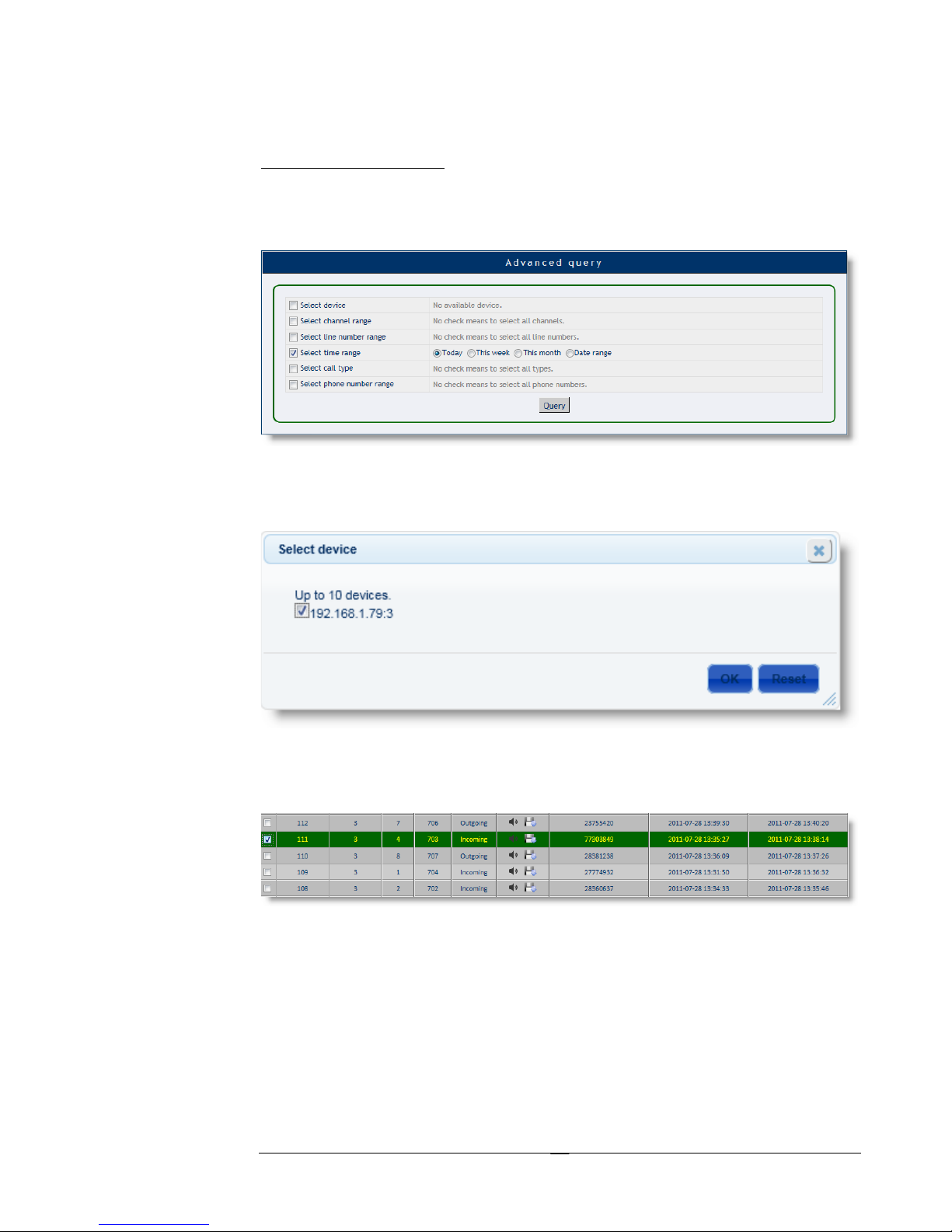
Advanced Query
Click “Advanced Query” to search recordings by conditions.
Select your device.
Click “Query” to query the recordings by conditions.
If you select “Today” as the time range but there is no data shown on the screen,
you may have to wait until the system finish the backup.
Page 26
ACR- B040/ACR- B080 USER’ S MANUAL
23
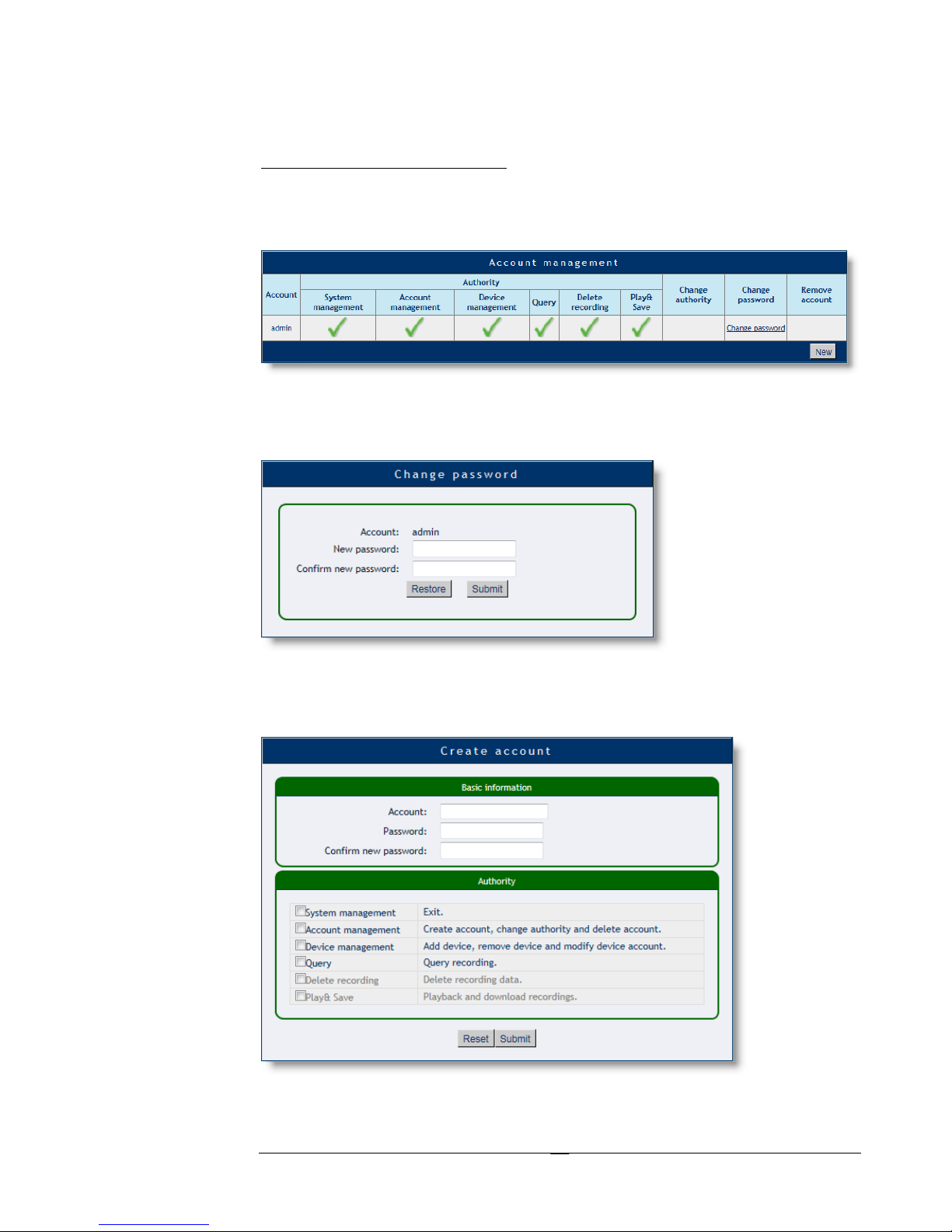
Account Management
Click “Account Management” to manage the accounts.
The “Change Password” screen.
Click “New” to create a new account. You can assign the authority here.
 Loading...