

Page 1
1
LID573
LID575
RFID
Reader
Document version: 1.0
Quick Start Guide.
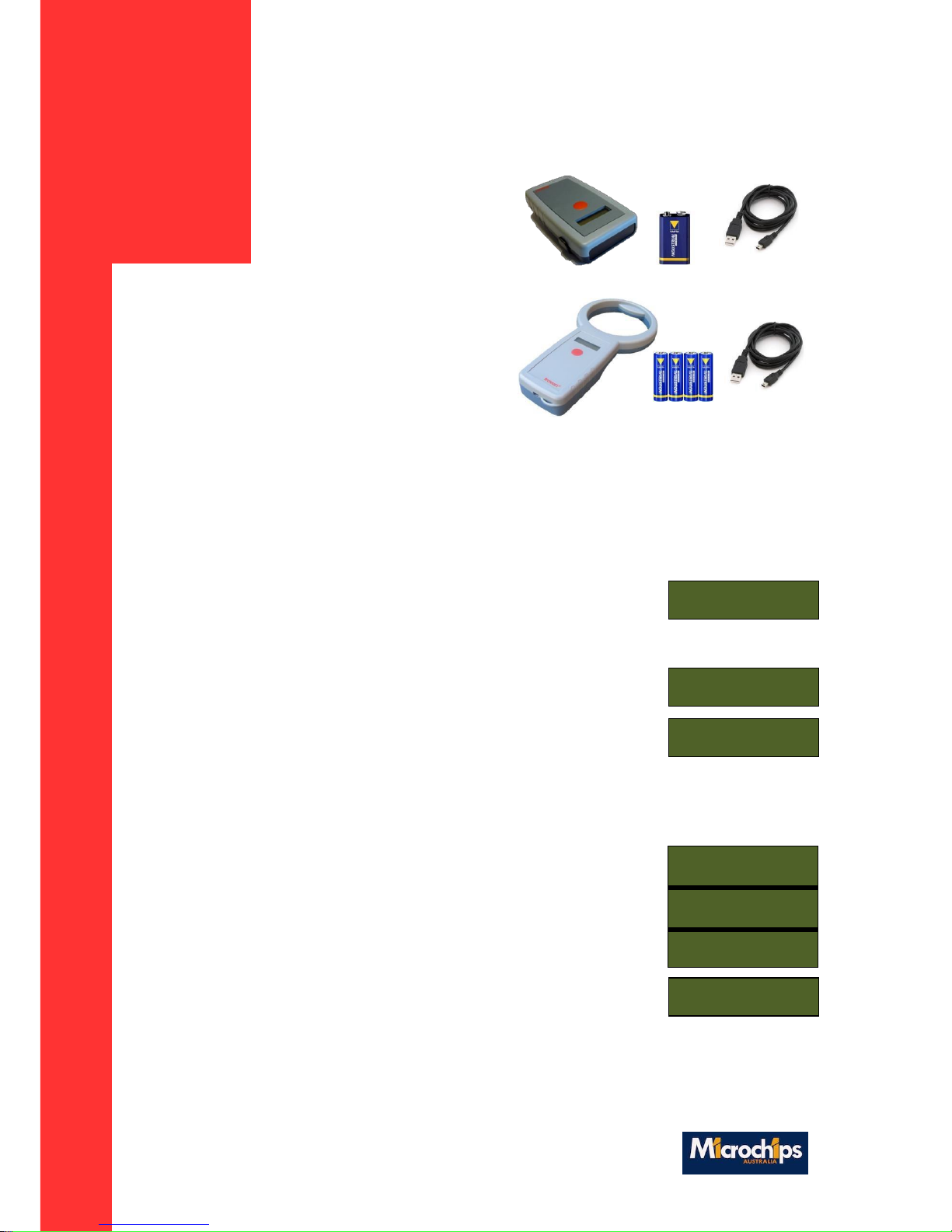
LID573 package contents:
1x LID573 RFID reader
1x 9V battery
1x Detachable clip
1x USB cable mini B-A 1,8m.
LID575 package contents:
1x LID575 RFID reader
4x AA battery
1x USB cable mini B-A 1,8m.
Inserting batteries:
Open battery compartment at the backside of the reader.
Insert the battery and check for polarity.
Close battery compartment.
Scanning a transponder:
Press the scan button to start scanning a transponder. The reader will
beep at the start of the scanning procedure. The message
“SCANNING” appears on the LCD, together with date and time (when
selected)
When a transponder is read the reader will give a high beep and show
the code on the LCD.
When no transponder code is read the “NO TAG FOUND” message
appears and the firmware version is displayed
The read sequence will automatically stop after a short time (default 5 sec).
Changing reader settings without PC:
Press the button 5 times in a row shortly, dots will appear on the LCD.
Now hold the button and a progress bar will appear on the second
LCD line. When it completes “Release button to enter menu” will
appear on the LCD.
Now you have 4 seconds for every option to enable/disable it. Press
the button within 4 seconds to enable the displayed type.
At the end, the reader will turn off, and apply the new settings.
Reducing the number of enabled transponder types will increase reading speed.
SCANNING 9.2V
31/01 12:45
TROVAN UNIQUE
000041C7FA
NO TAG FOUND
L573V606t 20
BUZZER OFF
Push to enable:4
.....
.....
................
Release button
To enter menu
Page 2

2
Connect to a PC:
Make sure “Soft57x” and the “RFID comport driver” are installed, these are included in the LID57x
toolbox which you can find on https://www.microchips.com.au/support/lid57x-support
Soft57x: used for changing settings of the RFID reader
RFID comport driver: USB driver to connect the RFID reader to the PC
LID57x Toolbox: Collection of tools used for LID57x readers
important: The LID573/LID575 is capable of storing the codes that are read with or without a
timestamp. This function is enabled by default. Use the software to disable the “save codes”
function if you do not wish to save scanned data.
Connect by USB:
Connect the reader to the PC using the USB cable. The display will now
show “Connecting USB”.
When the “RFID comport driver” is already installed the RFID reader
will connect automatically and create a comport on the pc. The LCD will
show “USB mode”.
If the “RFID comport driver” isn’t installed a window appears to help installing the driver.
When the “LID57x toolbox” is already installed the driver can be found automatically.
Otherwise download the “LID57x driver installation manual” from our website and follow the
instructions.
Start the Soft57x PC software, the software will connect automatically.
Connect by Bluetooth (optional):
If your LID57x is equipped with a Bluetooth module it can communicate by Bluetooth. Therefor
the reader and the PC have to be paired. Download the “LID572/LID575 Bluetooth manual” from
https://www.microchips.com.au/support/lid57x-support for more information.
Batteries:
Non-Rechargeable Alkaline batteries:
Make sure the battery used specifically says "Alkaline" on the case of the battery. Batteries that
are "Heavy Duty" or "General Purpose" should not be used!
Rechargeable NiMH batteries:
NiMH (Nickel Metal Hydride) rechargeable batteries of 9.6 volts can be used. NiMH Batteries of
8.4V are not recommended.
Connecting USB
USB mode
 Loading...