

Page 1

USER'S MANUAL
First Edition
Tronix PortaSing User's Manual | Innovatronix © 2016 | www.innovatronix.com | Revision Date: February 14, 2017
Page 2
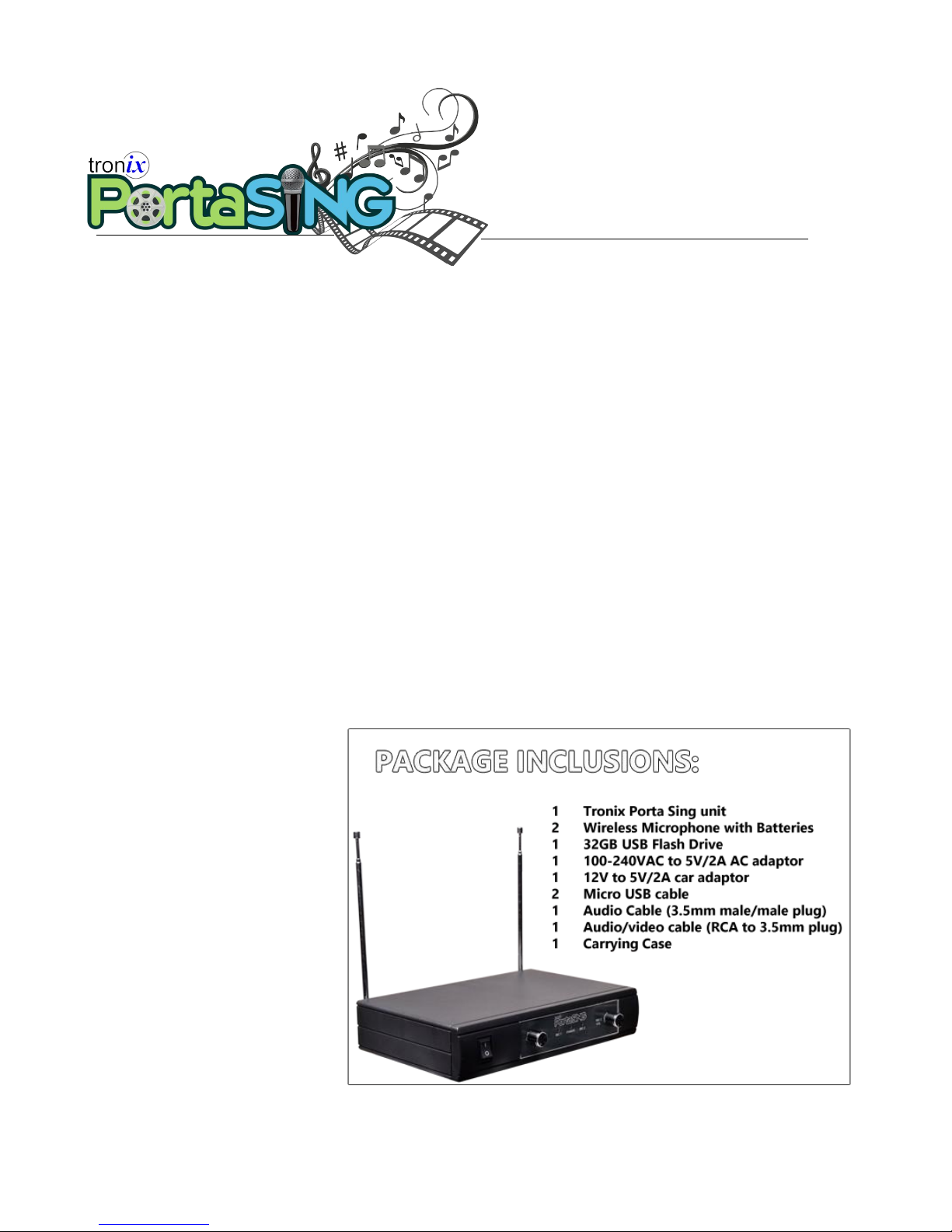
Set up your own concert inside the car while stuck in the traffic or unleash your inner diva during long
trips. Ease your boredom and belt your heart out to your favorite songs while enjoying with family and
friends.
PORTASING is the first karaoke designed for cars and all of its passengers. Using smartphones as
display screen and controls, PORTASING offers distribution of movies, mp3, and karaoke!
• Now everyone in the car, from the front row up to the back can enjoy the same movie
displayed through smartphones, in sync – or choose your own movie to watch!
• Sing as you travel. Everyone can select their song that'll be up for que! It feels like bringing that
bulky, loud, karaoke but less the weight and hassle.
• Listen to good music on the road. No need to worry about lack of mobile data to stream, or
songs that are not downloaded to your phones.
With its wireless technology, PORTASING guarantees a fun trip for the whole squad!
Tronix PortaSing User's Manual | Innovatronix © 2016 | www.innovatronix.com | Revision Date: February 14, 2017
Page 3

CONTENTS
Section Page No.
Safety Notices
Accessories
Ports & Controls
Connections
• Connection Diagram
• Car Set-Up
• Home Set-Up (w/ TV display / traditional wired set-up)
• Outdoor Set-Up
Operation
• Mobile Operation
• FM Set-Up (Wireless Audio)
Screen Guide
• Karaoke Page
• Movie Page
• Music Page
1
2
3
4
9
10
11
12
11
13
14
• Conf Page
▪ Settings
▪ Upload
Specifications
Troubleshooting
Warranty Card
Disclaimer and Copyright
Manufacturer Information
Tronix PortaSing User's Manual | Innovatronix © 2016 | www.innovatronix.com | Revision Date: February 14, 2017
15
16
17
18
20
20
21
Page 4

SAFETY NOTICES
CAUTION!
Use only provided 12V car lighter plug when using PORTASING inside vehicle.
Use only recommended 5V power supply when using PORTASING in homes.
Immediately replace stripped off cords.
User dry cloth and wax when cleaning the PORTASING box and microphones. Do not clean interior of
PORTASING.
Do not use / Discontinue use if liquid such as water, beer, soft drinks, etc. gets inside PORTASING.
Allow authorized technicians to diagnose.
Do not use replacement brands for accessories. Compatibility issues may arise.
Do not disassemble or modify unit. Warranty will be void.
Manufacturer shall not be held liable for any damage due to unauthorized alteration of the unit.
No serviceable parts. Notify manufacturer for repairs.
Tronix PortaSing User's Manual | Innovatronix © 2016 | www.innovatronix.com | Revision Date: February 14, 2017
Page 5
ACCESSORIES
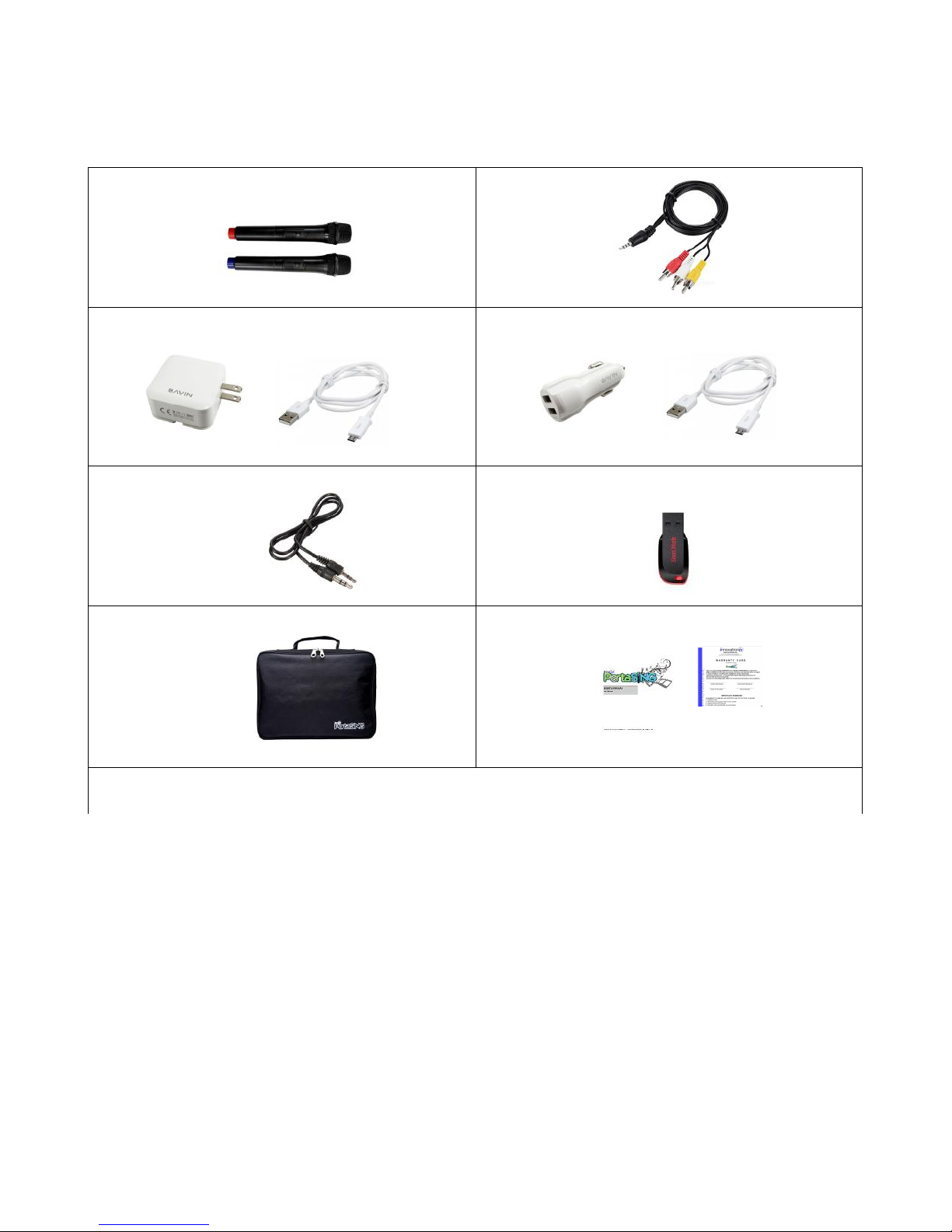
Wireless Microphones (With Batteries) RCA Cable
Wall/AC Adapter w/ Micro USB Cable Car Adapter w/ Micro USB Cable
Audio Cable (3.5mm male to male) 32GB Flash (Pen) Drive
Carrying Case User's Manual & Warranty Card
Upon purchase of PortaSing, check completeness and quality of received accessories.
Other than the unit and microphones, PortaSing accessories are not included in the 1 year warranty.*
Contact Tronix customer care service (or seller) if package is deemed incomplete.
Tronix PortaSing User's Manual | Innovatronix © 2016 | www.innovatronix.com | Revision Date: February 14, 2017
2
Page 6
PORTS AND CONTROLS
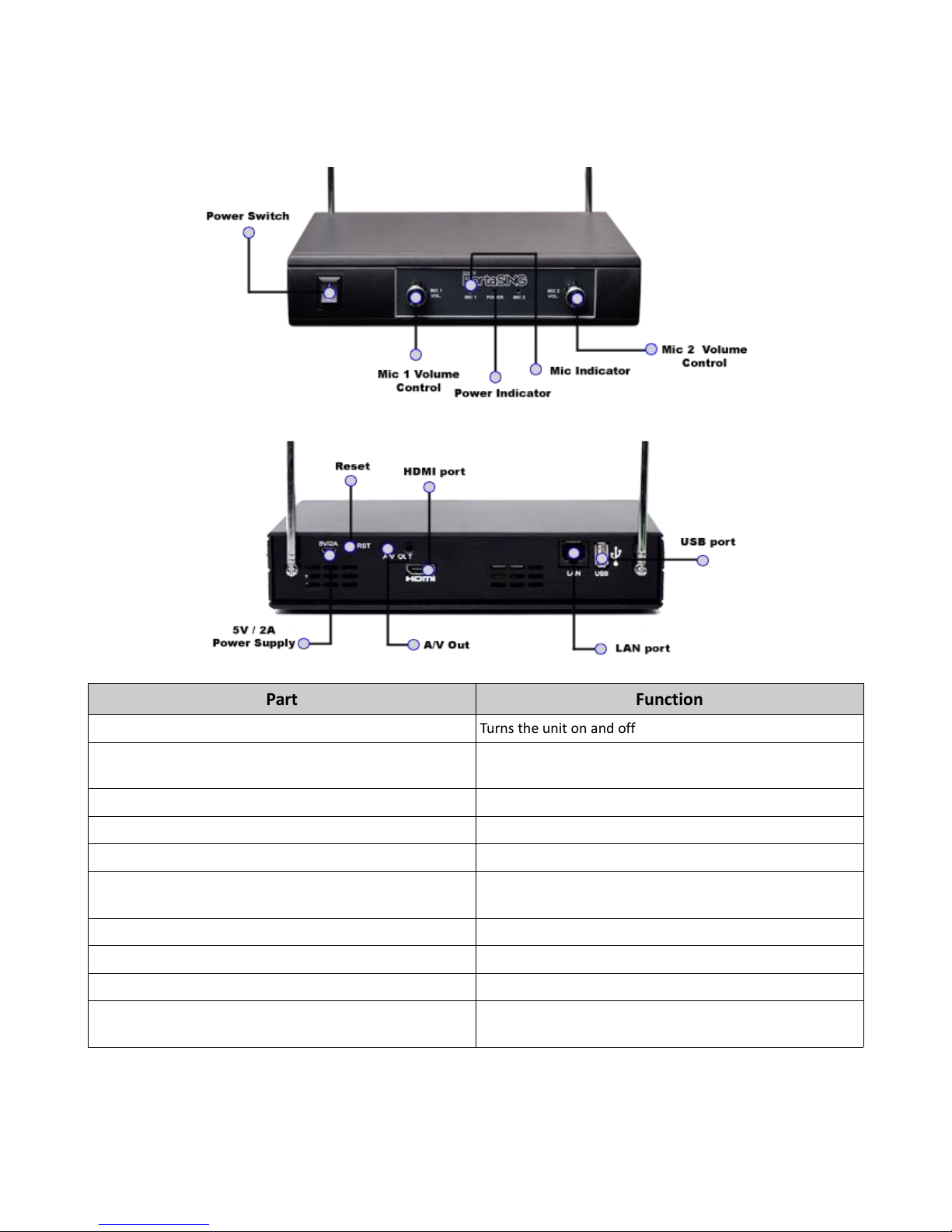
Part Function
Power Switch Turns the unit on and off
Mic 1 & 2 Volume Increases volume in right turn
Decreases volume in left turn
Power Indicator Red Led signals Portasing is ON
Mic Indicator Green led signals microphones are detected
HDMI Port For TV display connection
USB Port External drive for user's preferred content
(e.g may contain movies in mp4 and music in mp3)
5V/2A Power Supply For power cable connection
AV Out Audio Video output using RCA cable
RST Resets unit to factory settings.
LAN Port Enables PortaSing to act as a router, with internet
connection.
Tronix PortaSing User's Manual | Innovatronix © 2016 | www.innovatronix.com | Revision Date: February 14, 2017
3
Page 7
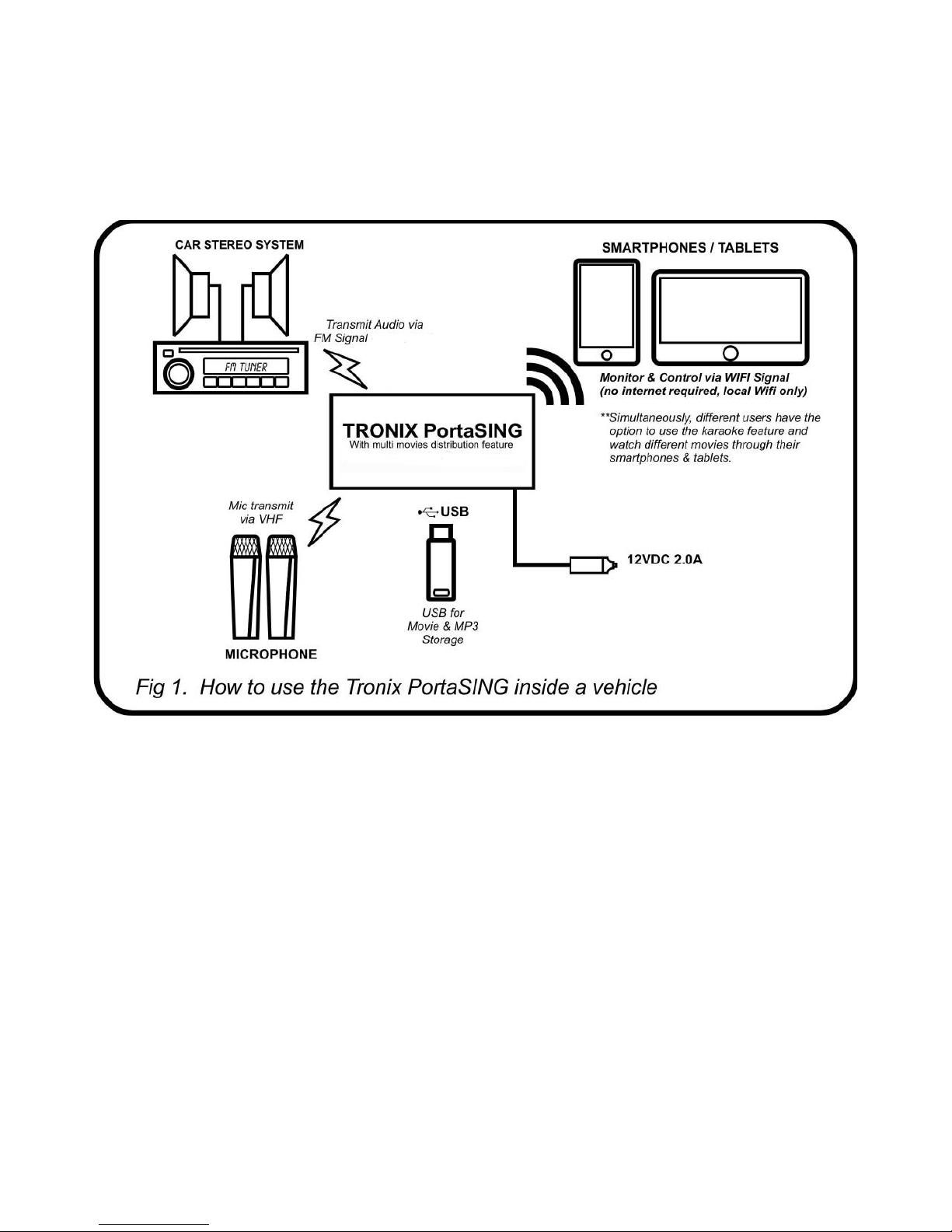
CONNECTIONS
CONNECTION DIAGRAM
Tronix PortaSing User's Manual | Innovatronix © 2016 | www.innovatronix.com | Revision Date: February 14, 2017
4
Page 8
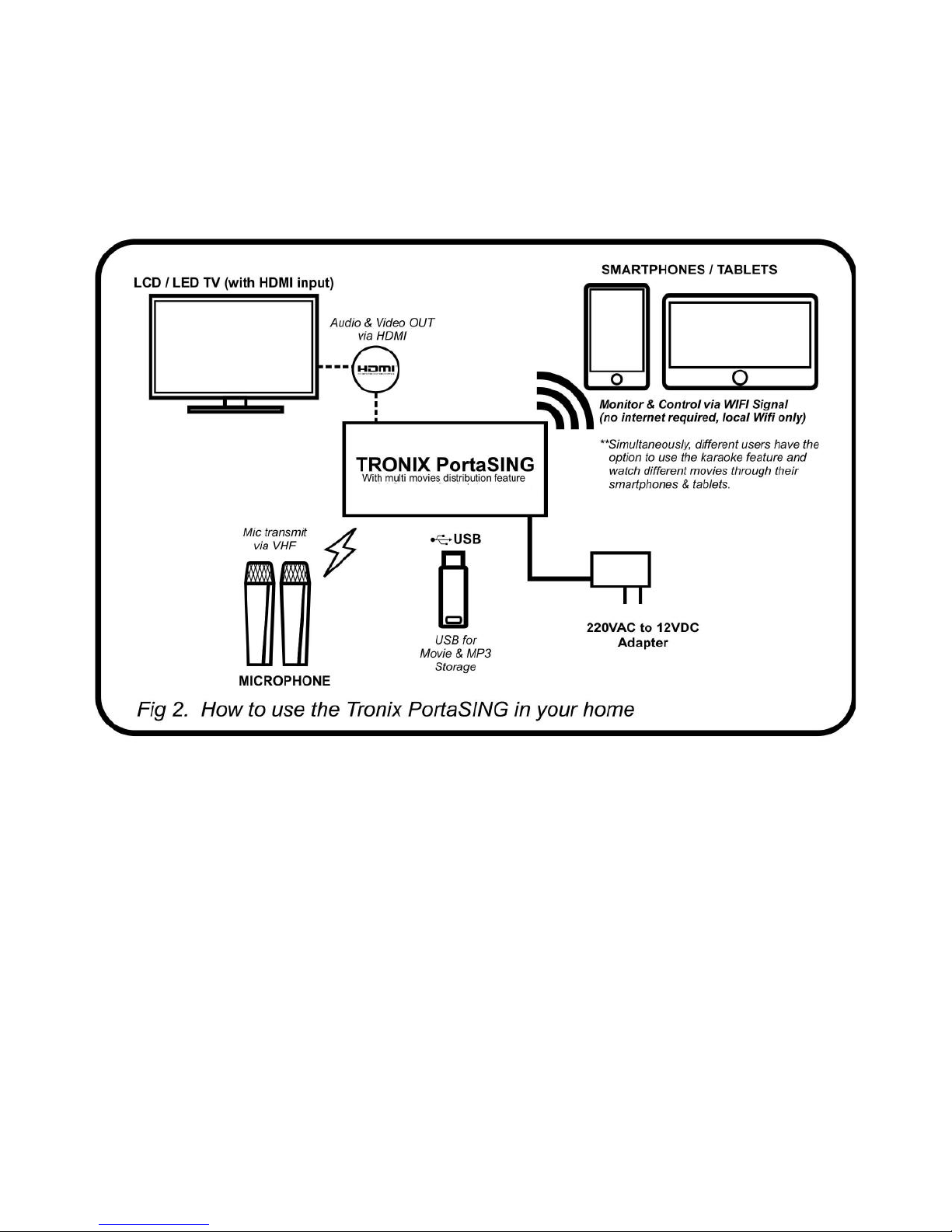
CONNECTIONS
CONNECTION DIAGRAM
Tronix PortaSing User's Manual | Innovatronix © 2016 | www.innovatronix.com | Revision Date: February 14, 2017
5
Page 9
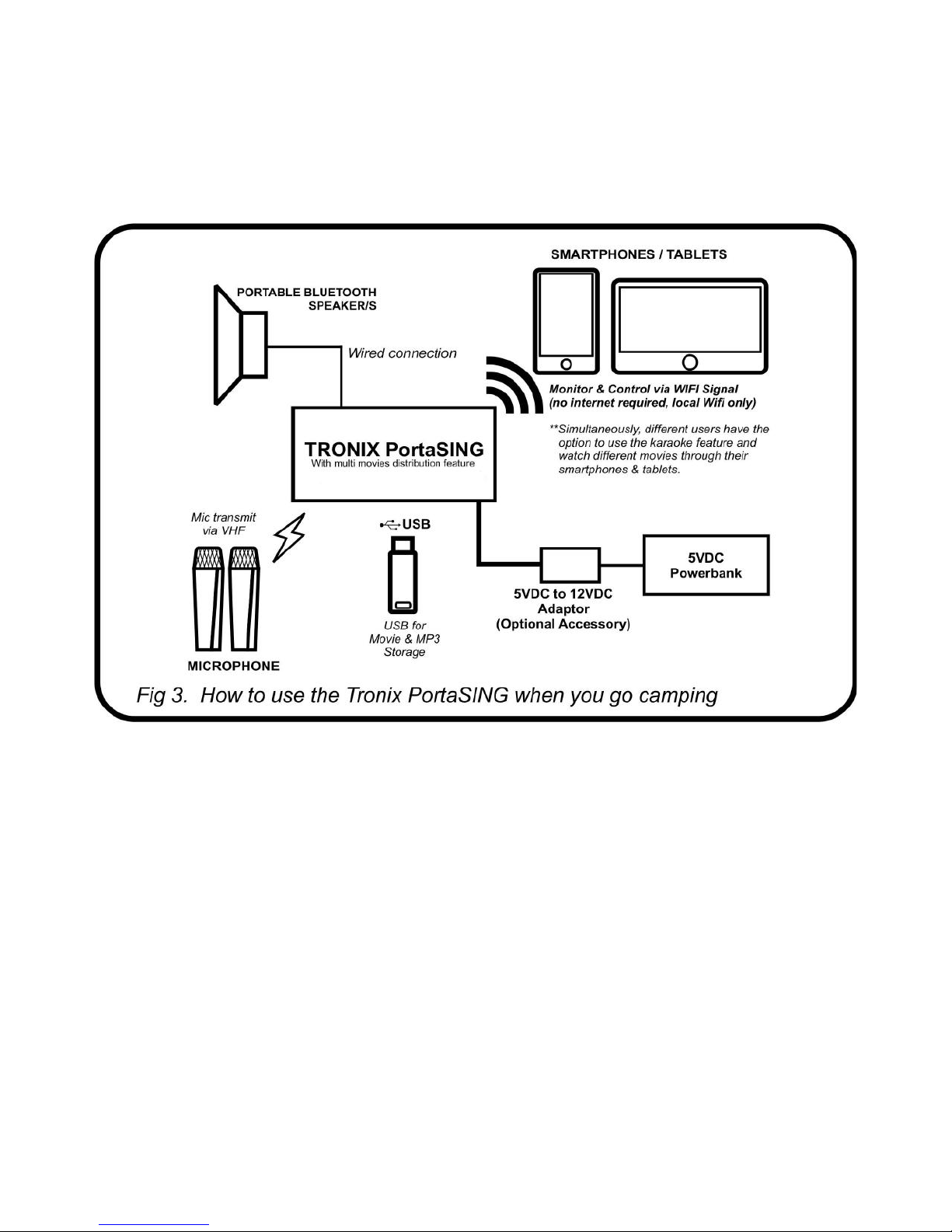
CONNECTIONS
CONNECTION DIAGRAM
Tronix PortaSing User's Manual | Innovatronix © 2016 | www.innovatronix.com | Revision Date: February 14, 2017
6
Page 10
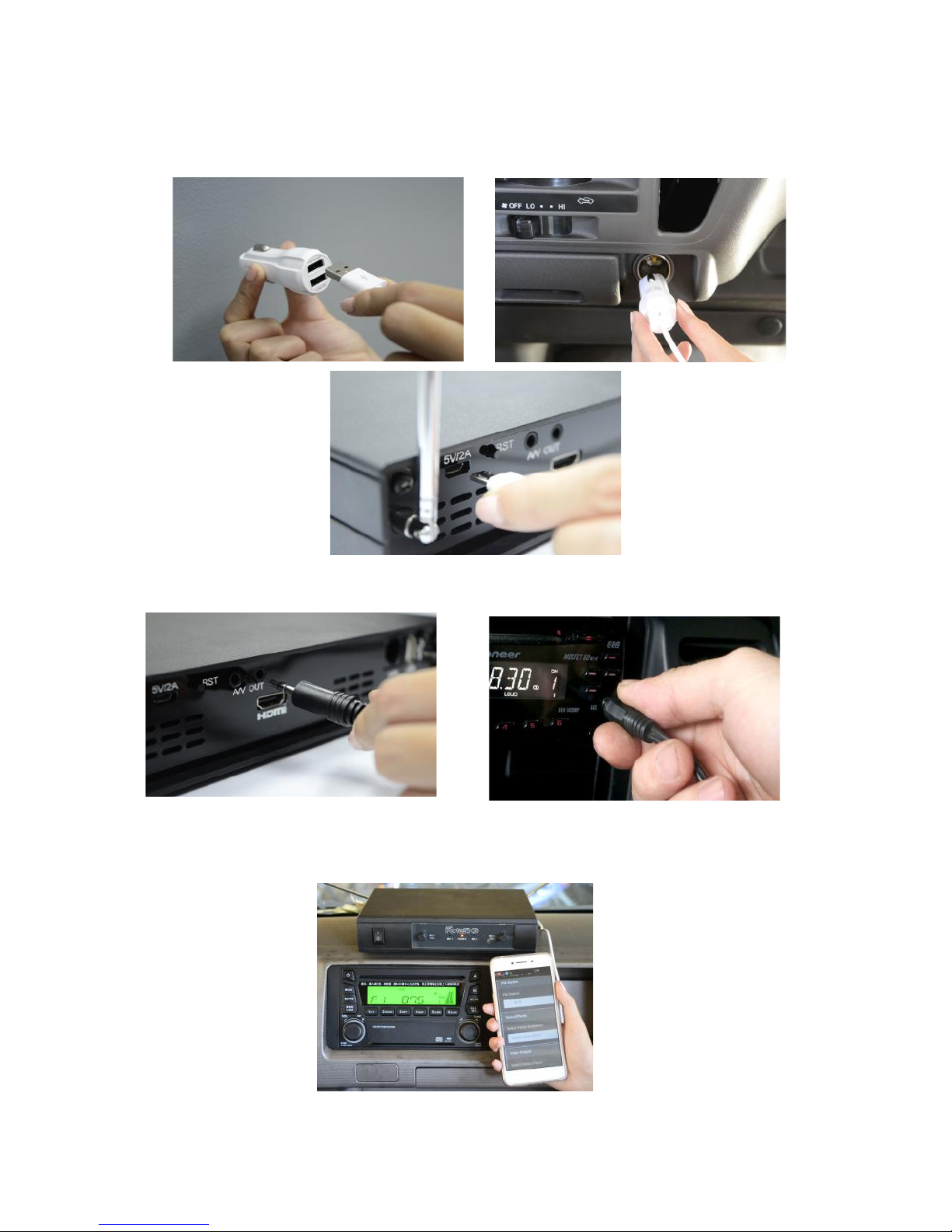
CONNECTIONS: CAR SET UP
1. Plug in PortaSing to a cigarette lighter plug (12V to 5V / 2A) for power source.
2. For wired options, use audio cable to connect PortaSing to car radio system
3. For wireless audio option, open FM radio system and set PortaSing's FM channel.
Tronix PortaSing User's Manual | Innovatronix © 2016 | www.innovatronix.com | Revision Date: February 14, 2017
7
Page 11
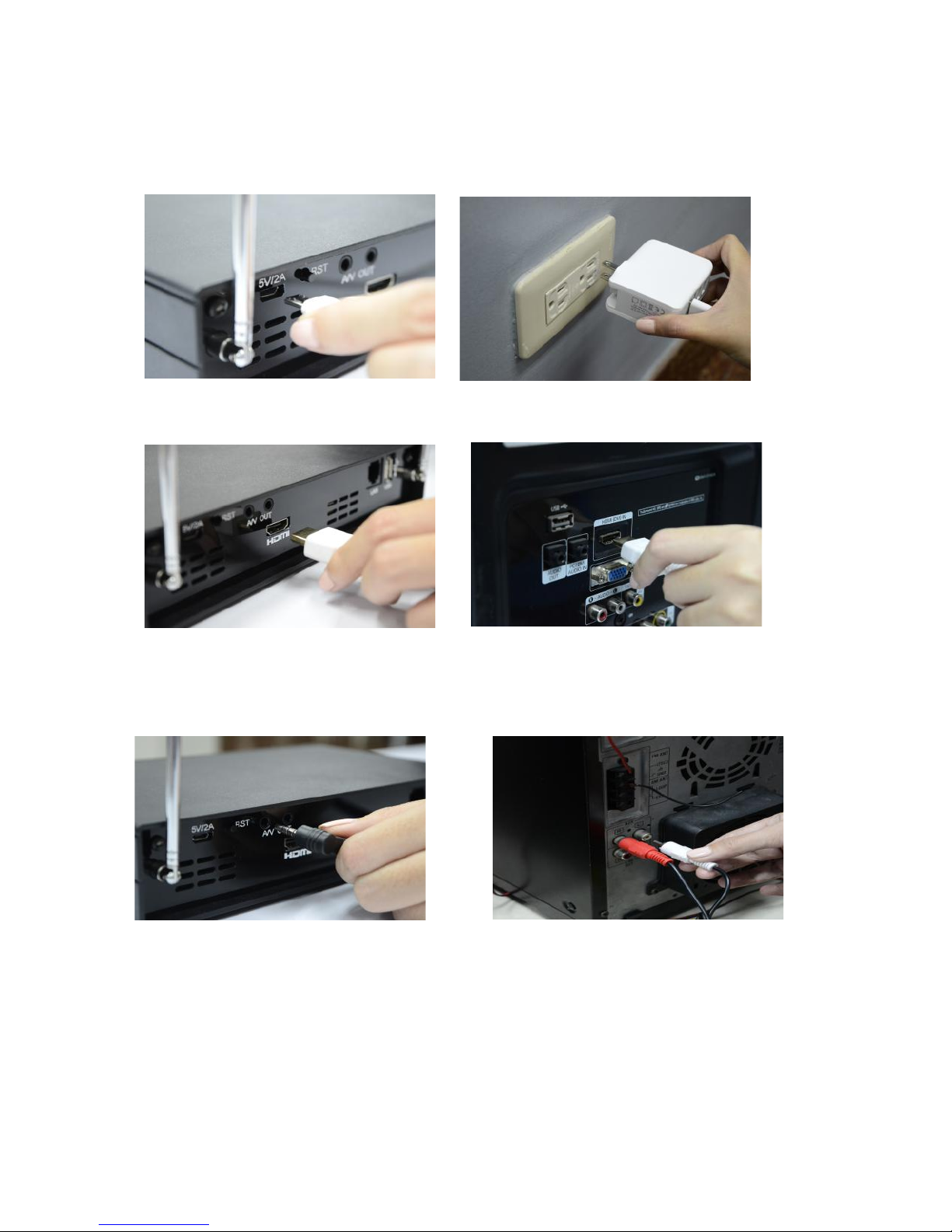
CONNECTIONS: HOME SET UP (WITH TELEVISION DISPLAY/TRADITIONAL WIRED SET UP)
1. Plug in PortaSing using indoor wall socket (100 – 240 VAC to 5V / 2A) for power source.
2. Connect HDMI cable from PortaSing to TV.
3. For wired options for audio output, use audio cable and connect PortaSing to home audio
system.
Tronix PortaSing User's Manual | Innovatronix © 2016 | www.innovatronix.com | Revision Date: February 14, 2017
8
Page 12
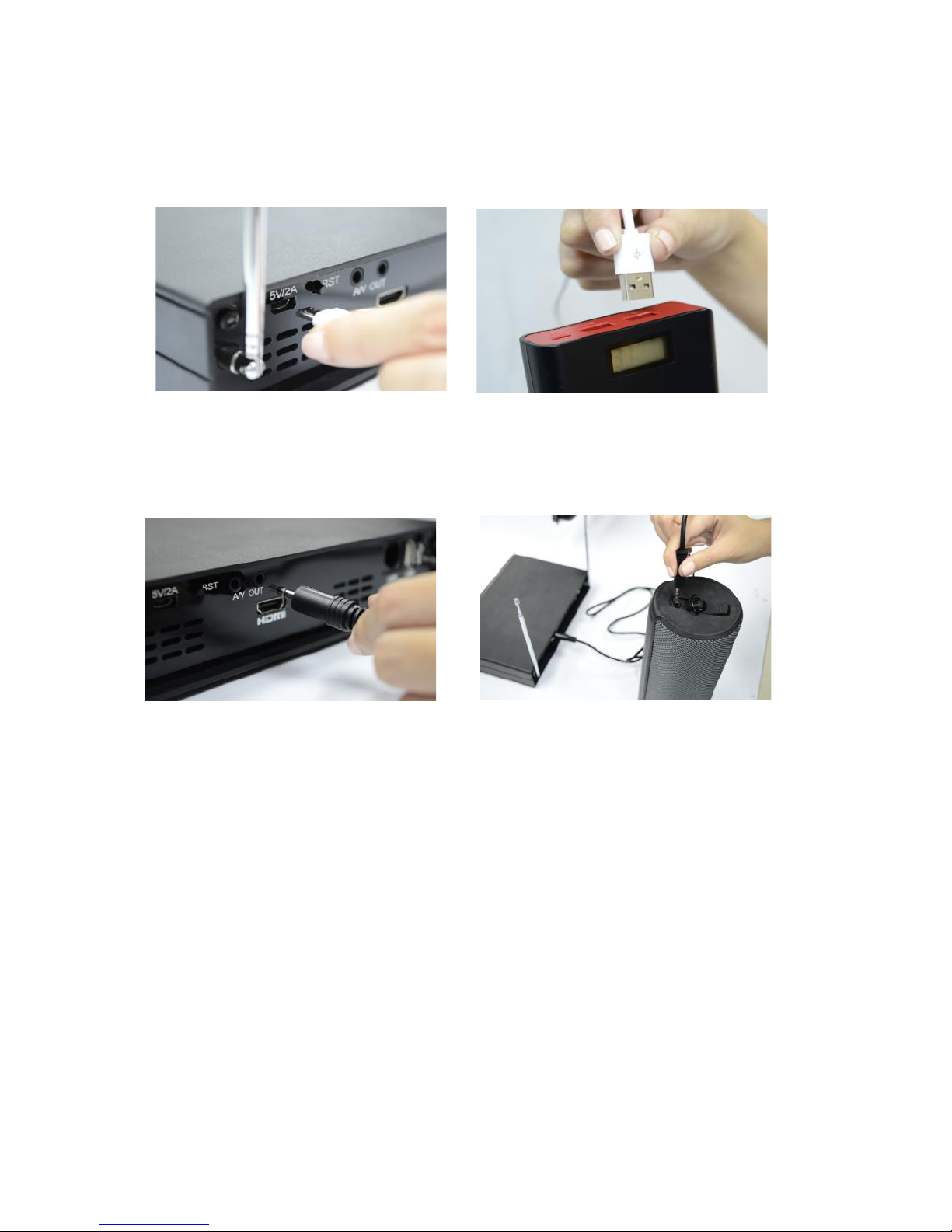
CONNECTIONS: OUTDOOR SET UP
1. Powerbank can be used as a power supply of PortaSing. Plug in the USB cable to use PortaSing.
2. For wired options, use audio cable to connect PortaSing to a fully charged, portable speaker.
Tronix PortaSing User's Manual | Innovatronix © 2016 | www.innovatronix.com | Revision Date: February 14, 2017
9
Page 13

OPERATION
PORTASING MOBILE OPERATION
1. Turn on the PortaSing unit.
2. Open your phone's wifi. Connect to [###] PortaSing Media Center
3. Enter wifi password. Default password: portasing (note that passwords are case sensitive)
4. Open browser compatible with your phone: Safari, Google Chrome, Firefox, etc.
5. Enter address in the address bar: portasing.com. Wait 30 seconds* for PortaSing to boot.
6. The Tronix PortaSing interface is now ready to operate.
7. Select media preference from the Menu: Movie, Mp3 or Karaoke.
8. Scroll and navigate through PortaSing's media collection and play.
*waiting time for boot up depends on PortaSing's number of files to load
PORTASING FM SET UP (WIRELESS AUDIO)
1. For wireless audio system, Tune the FM Channel of your radio/component.
2. Select frequency with no assigned station and with no static (distorted sound).
3. In PortaSing's homepage, navigate to the settings page by pressing Menu > Conf > Settings
4. Enter password to change settings. Default password is portasing. (in lowercase)
5. Under the FM Station tab, change the station that is match with the audio system FM's radio
channel.
(e.g radio is on 87.5, thus PortaSing FM station must also be 87.5 MHz)
6. PortaSing is now ready to transmit sound via FM.
Tronix PortaSing User's Manual | Innovatronix © 2016 | www.innovatronix.com | Revision Date: February 14, 2017
10
Page 14
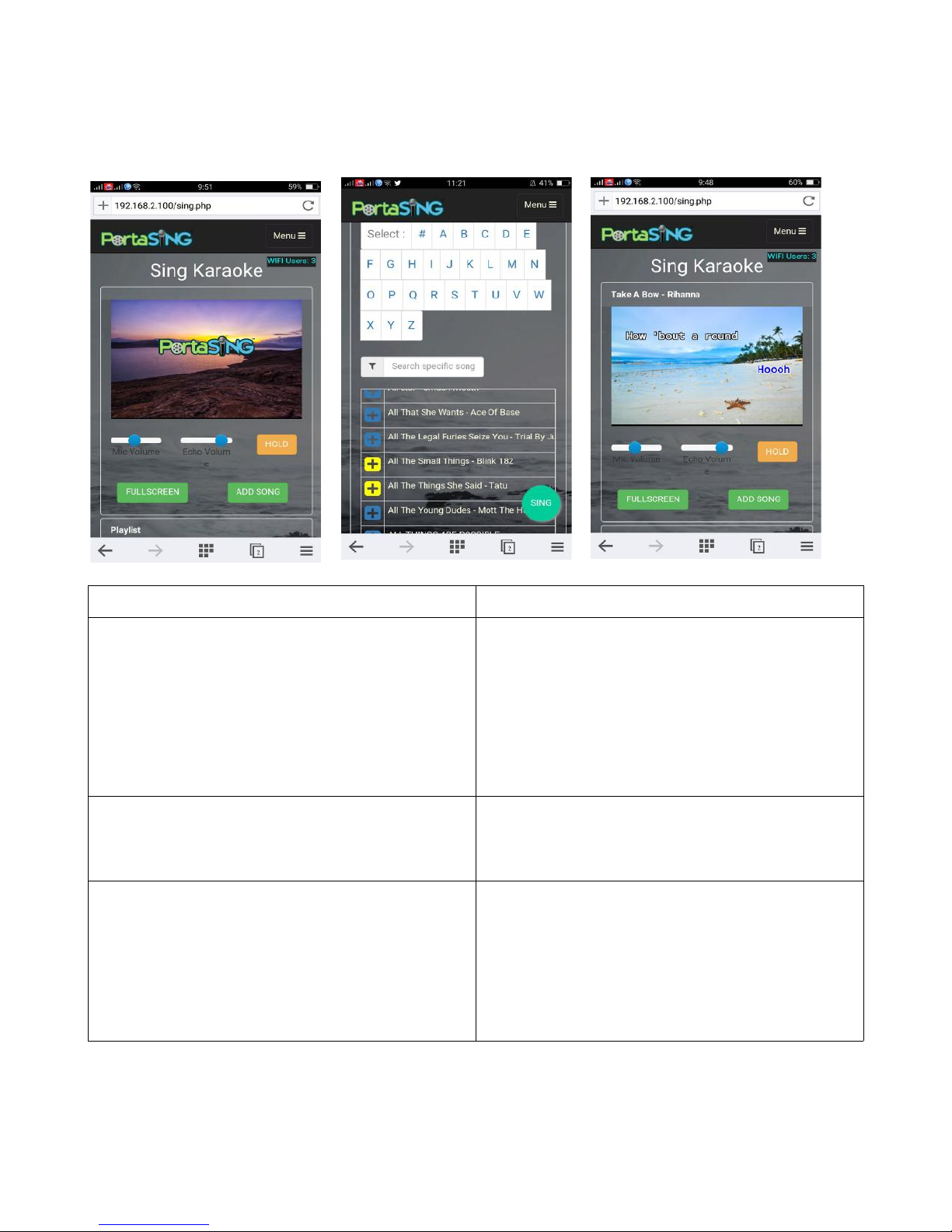
SCREEN GUIDE : KARAOKE PAGE
Navigation: PortaSing.Com > MENU > Karaoke
PortaSing Karaoke Operation Directions
How to select/add songs?
How to remove songs?
How to search songs?
Note: You can add songs in real time while videoke song is playing.
1. Tap the green “ADD SONG” button.
2. The page will redirect to the song list.
3. Select songs by choosing from the alphabetically
arranged list or
4. Use the search bar and type the artist/song.
5. Tap the [+] button to select songs. Selected songs
are highlighted in yellow.
6. Press “SING” button to return to the karaoke page.
1. Scroll down to the song table.
2. Each song has corresponding “Play” and “Remove”
options.
3. Choose “Remove” to delete the song in que.
1. Use the alphabet selection to filter songs
2. Press the (+) button to add selected songs.
3. Another way to search for a song is using the
search bar.
4. Manually type the preferred song and wait for
predictive texts.
5. Predicted songs are listed below. Tap (+) to add
song.
Tronix PortaSing User's Manual | Innovatronix © 2016 | www.innovatronix.com | Revision Date: February 14, 2017
11
Page 15
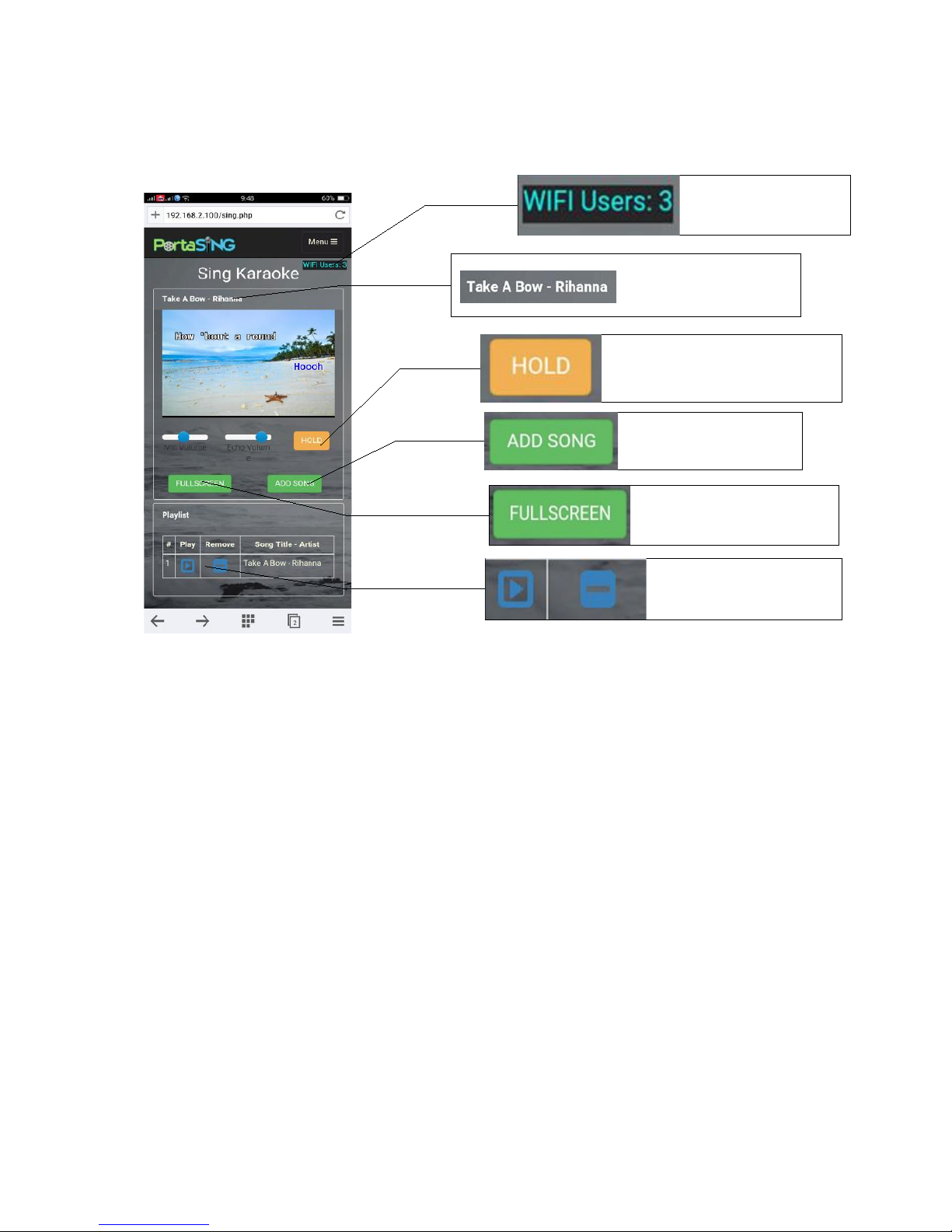
SCREEN GUIDE : KARAOKE PAGE
Navigation: PortaSing.Com > MENU > Karaoke
Wifi users indicator.
A tool to verify available
connections to PortaSing
Song information.
Shows the title and singer
while karaoke file is playing.
Functions as “PAUSE” button
for karaoke. [HOLD] will be displayed
when activated.
Allows user to add
karaoke songs.
Project lyrics in full
screen for better karaoke
experience.
[►] Plays song
[- ] Removes song from
playlist
Tronix PortaSing User's Manual | Innovatronix © 2016 | www.innovatronix.com | Revision Date: February 14, 2017
12
Page 16
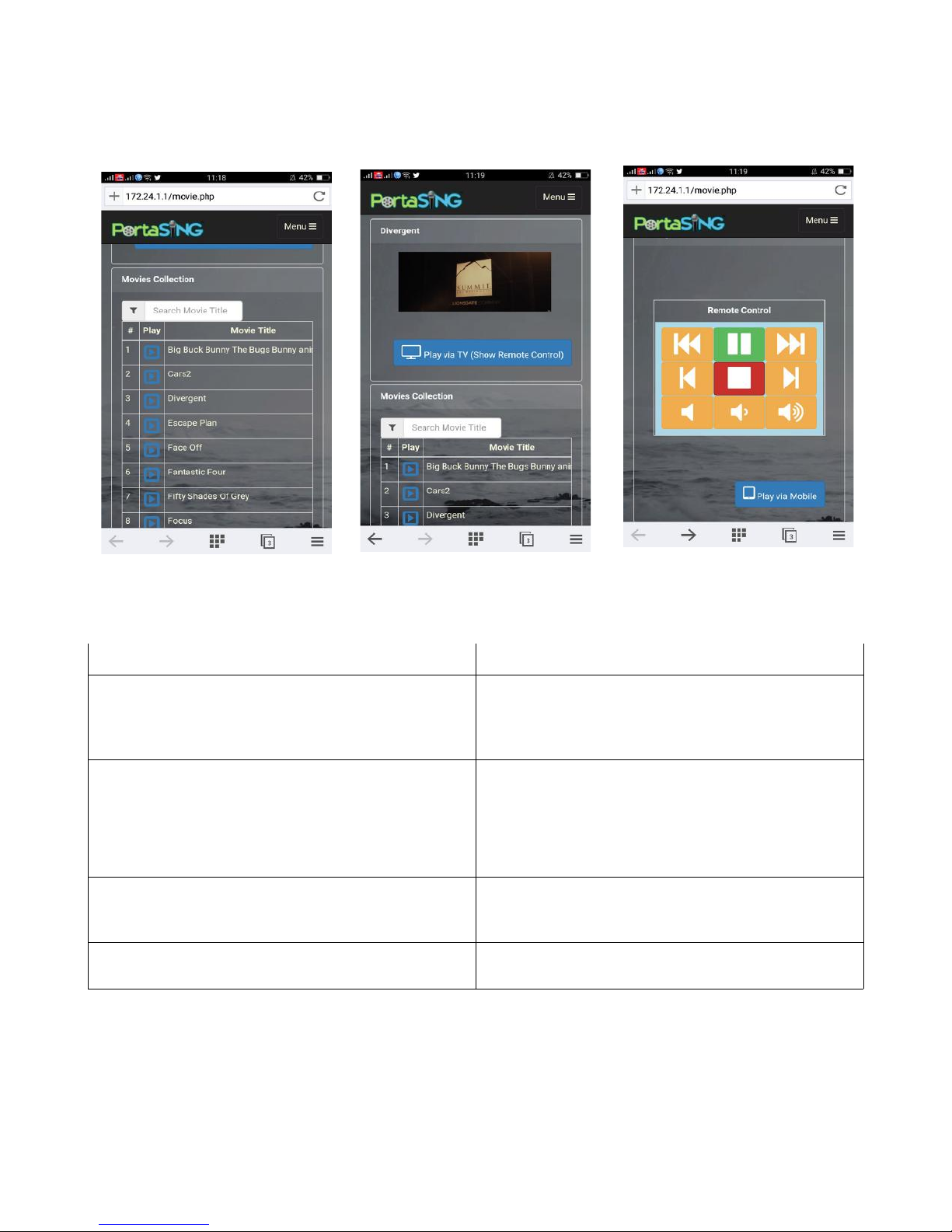
SCREEN GUIDE: MOVIE PAGE
Navigation: PortaSing.Com > MENU > Movie
Allow screen rotation on your phone for better viewing experience.
PortaSing Movie Operation Directions
How to play movies?
How to search movies?
How to play movie via TV display?
How to control movie in TV display?
1. To play movie, add a movie in the que using the
list.
2. Tap the play button found beside the movie title
to play movie.
1. Search for movie using the search bar.
2. Manually type the preferred movie and wait for
predictive titles to load.
Predicted movie s are listed below. Tap (►) to play
movie you want to watch.
1. When not in the full screen mode, the “Play via
TV” button is visible. Toggle this button to play the
movie through TV display.
1. When viewing movie through TV, the
phone/tablet displays the remote control.
Tronix PortaSing User's Manual | Innovatronix © 2016 | www.innovatronix.com | Revision Date: February 14, 2017
13
Page 17
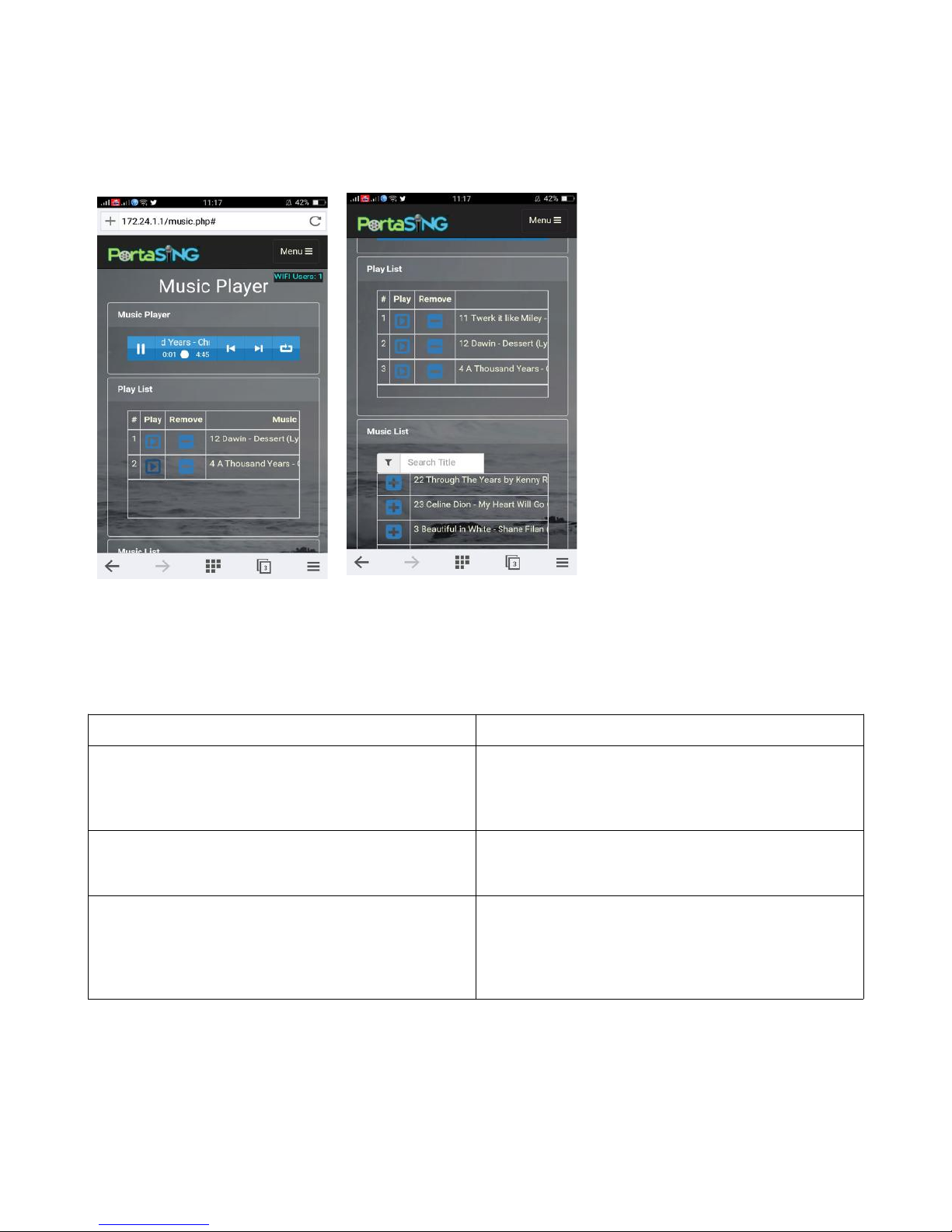
SCREEN GUIDE: MUSIC PAGE
Navigation: PortaSing.Com > MENU > Music
Users can now listen to new songs that is not downloaded in mobile phones and stream for music
even without internet connection. An absolute music streaming, less the lag, for your daily music fix.
PortaSing Music Operation Directions
How to add and play music?
How to remove music?
How to search music?
1. To play music, add a song in the playlist using the
song collection.
2. Tap the (+) found beside the song title to add to
playlist.
1. On the playlist, there are corresponding buttons of
“Play” and “Remove”
2. Tap “Remove” to stop and delete the song.
1. Search for music using the search bar.
2. Manually type the preferred song title and wait for
the songs to load.
3. Press the (+) button to select songs.
4. Selected songs will be added to the playlist.
14
Tronix PortaSing User's Manual | Innovatronix © 2016 | www.innovatronix.com | Revision Date: February 14, 2017
Page 18
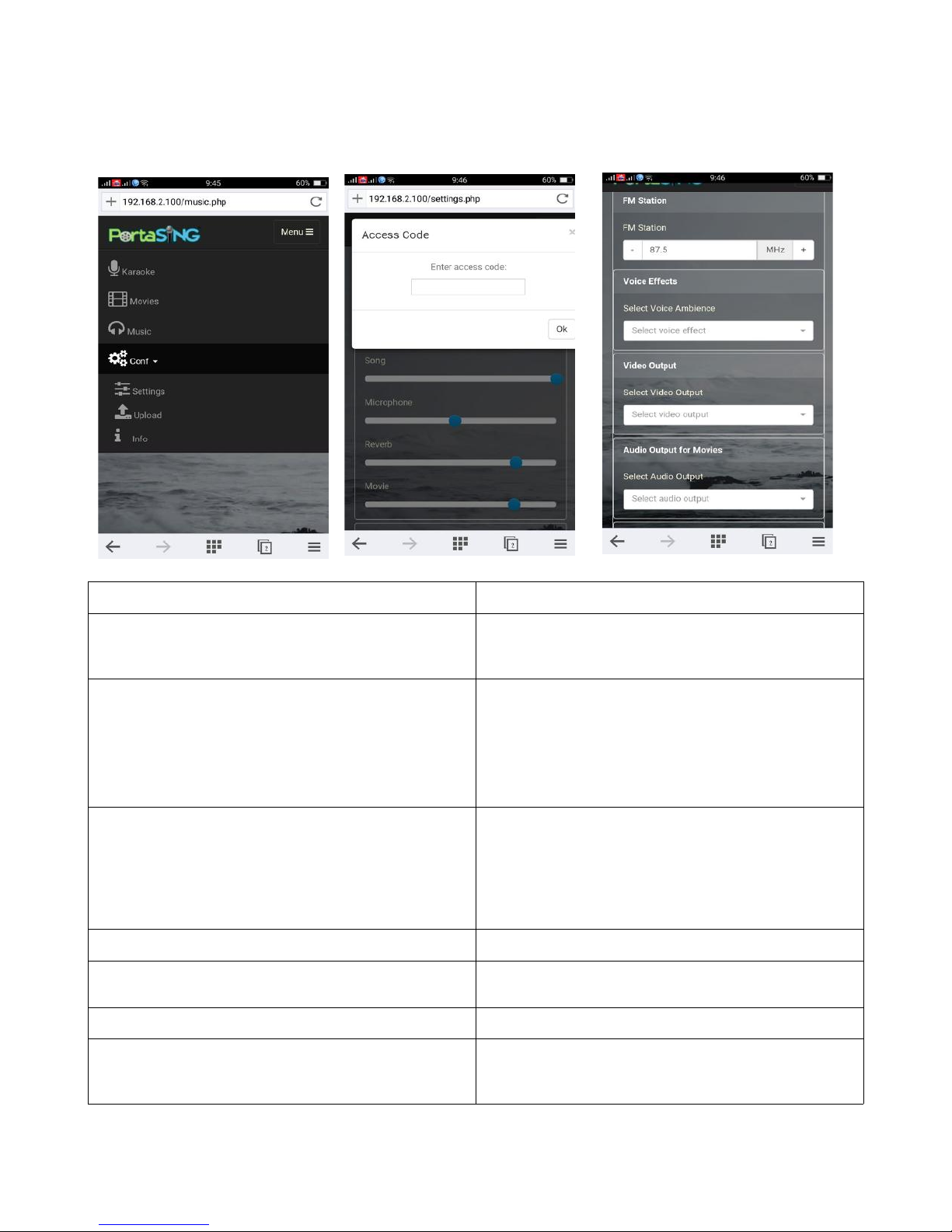
SCREEN GUIDE: SETTINGS PAGE
Navigation: PortaSing.com > Menu > Conf > Settings
Settings Function
Password
Volume
FM Station
Voice Effects
Video Output
Audio Ouput for Movies
A password shall be entered to prevent continuous change
in the settings by all connected users.
Default password is portasing (all in lowercase)
• Master - Adjusts overall volume
• Song – Adjusts volume of Karaoke song.
• Microphone – increases or decreases microphone
loudness.
• Reverb – Adjusts echo according to preference
• Movie – Adjusts volume in movies
Increment and decrement station channels for wireless
audio broadcasting. FM station must be in match with
portasing.com (via phone/tablet) and with the radio
channel.
(e.g radio is on 87.5, thus PortaSing FM station must also be
87.5 MHz)
Choose from preset voice effects
Options for video output: HDMI or A/V out, whichever is
compatible with the set up.
Selection for HDMI only, or via FM Radio and A/V out
Update Password
Tronix PortaSing User's Manual | Innovatronix © 2016 | www.innovatronix.com | Revision Date: February 14, 2017
Default password (portasing) may be changed by user. Input
old and new password in the space provided. Click “Submit”
button to officially change access code.
Page 19
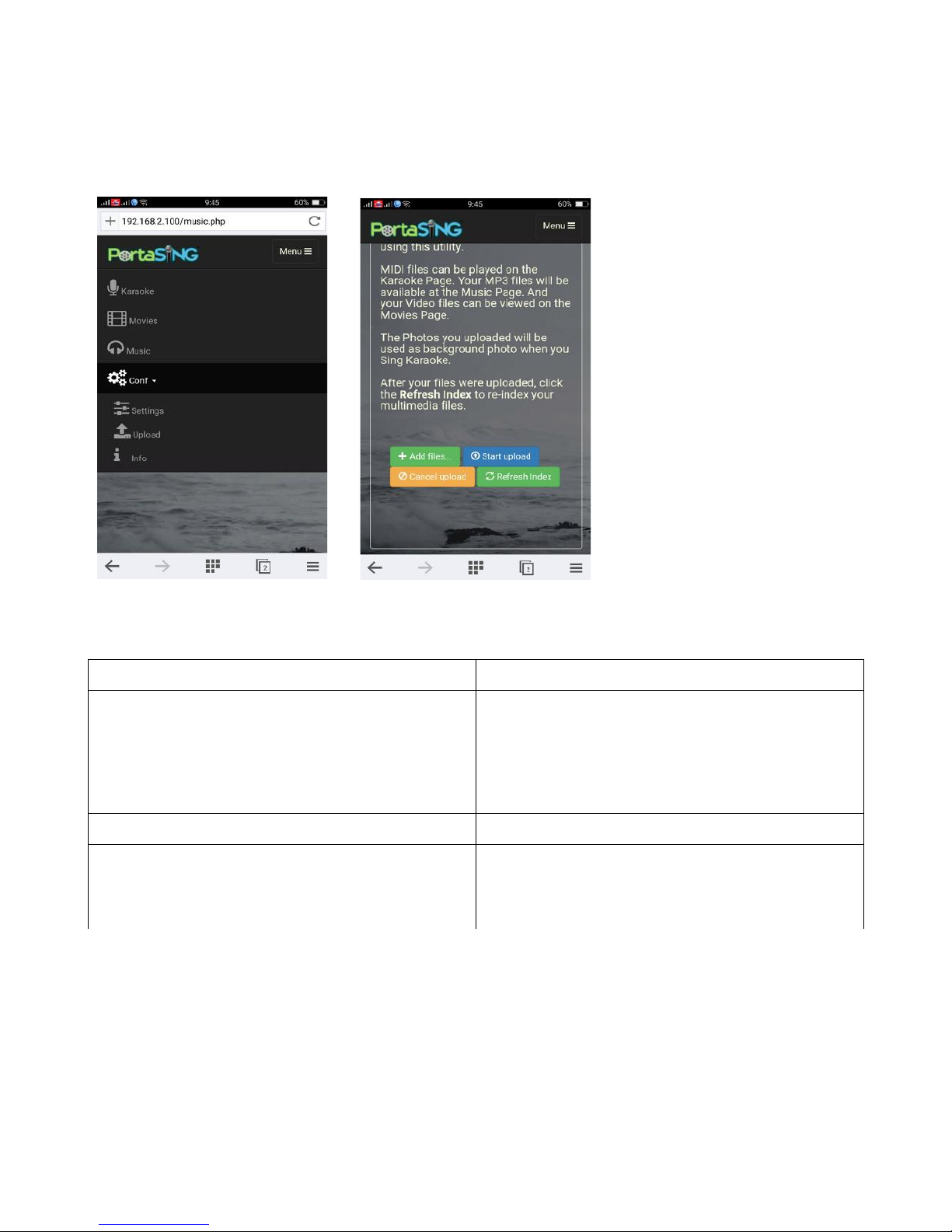
UPLOADING FILES
Navigation: PortaSing.com > Menu > Conf > Upload
PortaSing Upload Operation Directions
How to upload files?
How to cancel upload?
What are the compatible files to upload?
Press “add files” button. The phone/tablet will open a
window allowing user to select files to be uploaded.
Click “start upload” and wait for PortaSing to complete the
transfer of files.
When done, toggle “Refresh Index” for newly uploaded
files to appear.
Press “cancel upload” button to stop uploading.
For karaoke: .mid
For movies: .mp4 / .mkv
For music: .mp3
For photos (as background): .jpg / .png
16
Tronix PortaSing User's Manual | Innovatronix © 2016 | www.innovatronix.com | Revision Date: February 14, 2017
Page 20

SPECIFICATIONS
PORTASING SPECIFICATIONS
Interface:
Built In Storage:
Microphones:
Transmit Frequency:
Receive Frequency:
Expandable Memory Slot:
(USB Flash Drive/ SD Card / External
Hard Drive)
Power Supply:
• Power Indicator
• Mic Indicator
• Mic Volume Knob x 2
• USB Port 2.0 x 1
• HDMI Video Out x 1
• A/V Out x 2
• LAN Port x 1
• Power Switch
• Power Supply
• 4gb internal memory stick
• Wireless Microphones x 2
• Carrier Frequency Range: 229.7 MHz to 257.8 MHz,VHF HIGH Band
• Frequency Stability: +/-0.0005% with quartz controlled
• Frequency Response 40 Hz to 15KHz; S/N Ratio Better than 100dB.(A)
• 87.5 - 108Hz (to FM radio)
• 229.7MHz/257.8MHz (wireless microphones)
• Supports up to 3TB* external memory from USB flash drives, External
hard drives and SD card with USB adapter.
• 1x 12V to 5V/2A car adaptor
• 1x 100-240Vac to 5V/2A AC adaptor
Size:
Weight:
Color
Supported Multimedia Formats:
Tronix PortaSing User's Manual | Innovatronix © 2016 | www.innovatronix.com | Revision Date: February 14, 2017
• 210mm x 145mm x 45mm
• Portasing Unit: .45 kg
• Microphones: .20 kg (per unit)
• Portasing enclosed in the bag: 1.35 kg
• Portasing enclosed in the box: 1.60 kg
• Black
• Video: MP4 / MKV
• Music: MP3
• Karaoke: MID / KAR
• Photo: JPG / PNG
17
Page 21

TROUBLESHOOTING
Case Proposed Remedy
Portasing does not play sound - Check connections.
For TV display use, check audio cable.
For phone use, check audio of cellphone by adjusting
volume and settings.
- Check FM station if in sync (same). PortaSing and FM radio
station must be on the same channel.
No microphone sound - Microphone's battery may be low. Replace batteries.
- Check audio system for volume controls.
Phone unable to detect PortaSing Wifi - Turn off, and turn on PortaSing.
- Check phone/tablet if wifi is on,
low power mode and airplane mode must be inactive.
Phone cannot connect to Portasing Wifi - Ensure that the correct password is entered.
Phone unable to open Portasing's webpage - Not connected to PortaSing wifi.
- Try other browsers available.
Portasing does not turn on - Check cables if properly plugged in.
- Replace faulty and stripped off cables.
No display in phones - Incomplete loading. Press refresh/reload.
No display in screen via HDMI - Ensure that the source of television is on “HDMI”.
Other TVs might have more than one HDMI slot – in this
case, navigate all the HDMI source of the TV.
Portasing does not play movie /karaoke/music via phone - Phone not connected to wifi.
Portasing does not play movie via Screen/TV - Check video cable connection.
PortaSing cannot add karaoke song to the que - Note that there's a 100 songs limit for que. Que must be
full. Delete or wait for the 100 to be reduced before adding
more songs.
Bluetooth speaker delays karaoke sound - Manufacturer does not recommend using bluetooth
function of speakers due to intermittent signal with
PortaSing. Use portable speakers with male to male audio
cable only, or FM station, if capable.
Sound is distorted - For wired set up, check cables if properly connected.
- For wireless set-up, change current FM station.
Display on phone is distorted - Browser problem; reload or change browser
Lyrics on the karaoke does not move - Reboot PortaSing.
Lyrics of the karaoke does not show - Defective file; Remove or replace song.
Tronix PortaSing User's Manual | Innovatronix © 2016 | www.innovatronix.com | Revision Date: February 14, 2017
Turn off the unit, wait for a few seconds and turn back on.
Page 22

Microphones are not detected - Not in range; microphones must be in close proximity
enough for portasing to clearly detect.
-Remove obstructions that cause signal distortion.
No internet connection - PortaSing's wifi is a Local Area connection only. This
means that wifi signal is only used for device connections
and not capable of mobile data connection for internet
browsing. (Assuming that LAN port is not in use)
- When connected to a network with internet connection
thru the LAN port, reboot PortaSing.
- Contact your ISP (internet service provider)
For other PortaSing cases not stated above, seek assistance via dealer, thru our online customer service chat:
innovatronix.com, or email us at: [email protected]
Tronix PortaSing User's Manual | Innovatronix © 2016 | www.innovatronix.com | Revision Date: February 14, 2017
19
Page 23
Individuals receiving this information shall exercise judgement in determining appropriate actions in using PortaSing™.
Innovatronix Inc. shall not be held liable in any damages resulting from reliance on information stated herein.
All rights reserved. No part of this publication may be copied, duplicated, or transmitted in any forms, or by any means, or
otherwise without written permission from Innovatronix Inc. The information contained herein is designed for the use of
Tronix PortaSing™. Innovatronix is not responsible for any use of this information as applied to other similar documents
and related products.
Copyright 2017 by Innovatronix Inc.
Tronix PortaSing User's Manual | Innovatronix © 2016 | www.innovatronix.com | Revision Date: February 14, 2017
**END OF MANUAL**
DISCLAIMER
Page 24

Manufactured & Developed in the Philippines by:
Telephone Number: (+632) 661-4108
Email: [email protected]
Website: www.innovatronix.com
Tronix PortaSing User's Manual | Innovatronix © 2016 | www.innovatronix.com | Revision Date: February 14, 2017
 Loading...