

Page 1

RTU-1
4G Data Station
Overview
Thank you for purchasing the TrolMaster’s RTU-1 4G Data
Station. Using a cellular SIM card, RTU-1 will provide a resilient,
high speed 4G connection to Internet for your devices through
the Ethernet cables or WiFi signal within range if your location
does not have network connectivity. Currently only AT&T SIM
cards are supported.
Once the SIM card is inserted correctly and the 4G signal is
available, any device with a network port such as Hydro-X Control
System can access to the Internet with a standard Ethernet cable
through one of the 5 Ethernet ports on the back panel. The
Ethernet LED indicators on the front panel will indicate the working
status accordingly. With the application of WiFi antenna (accessory
included), any device with a wireless Internet module can also get
access to the Internet directly.
With the use of 4G cellular antenna (accessory included), you
can enhance the 4G signal and network stability. The 4G signal
LED indicator will indicate the 4G signal strength (1 light indicates
signal week, 2 lights indicates signal medium, 3 lights indicates
signal strong).
Using a cellular SIM card to connect devices to the Internet
(currently only AT&T SIM cards are supported)
Page 2
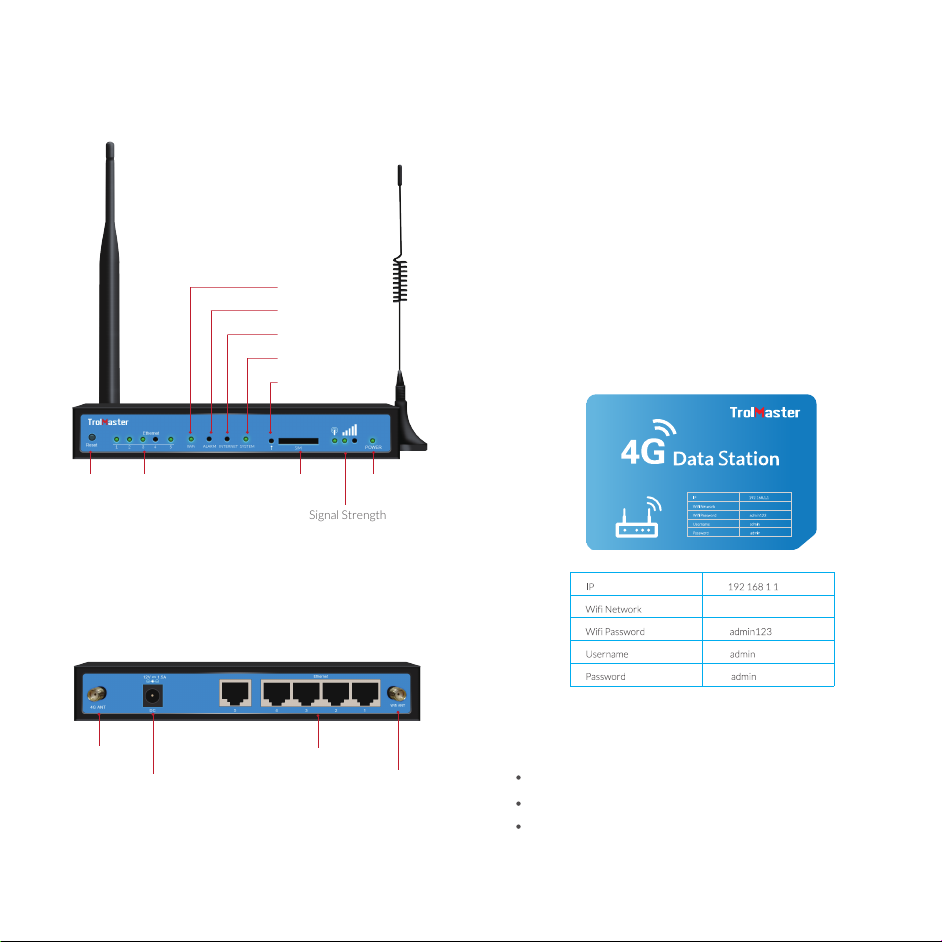
Front Panel
WiFi
ALARM
INTERNET
SYSTEM
SIM Card Button
Configuration
You can read the network connectivity information on the top
panel. When the AT&T SIM card is inserted to the 4G Data
Station correctly, you can find the WiFi hotspot “top-iot” in your
laptop or mobile phone. Select the WiFi Network “Top-Iot” and
enter the WiFi Password (admin123) to access to Internet.
You can also open the browser in your computer or laptop, type
the network IP 192.168.1.1 to enter the login interface. Enter
the Username (admin) and Password (admin) to complete the
configuration.
Top Panel - Network Connectivity Information
RESET Ethernet SIM Card Slot
Signal Strength
Back Panel
4G Antenna
12VDC Power
5 Ethernet Ports
POWER
WiFi Antenna
TrolMaster
TrolMaster
Features
Wired and Wireless Connectivity
Heartbeat Link Detection, Offline Automatic Reconnection
LED Indicators Reflecting the Working Status
Page 3
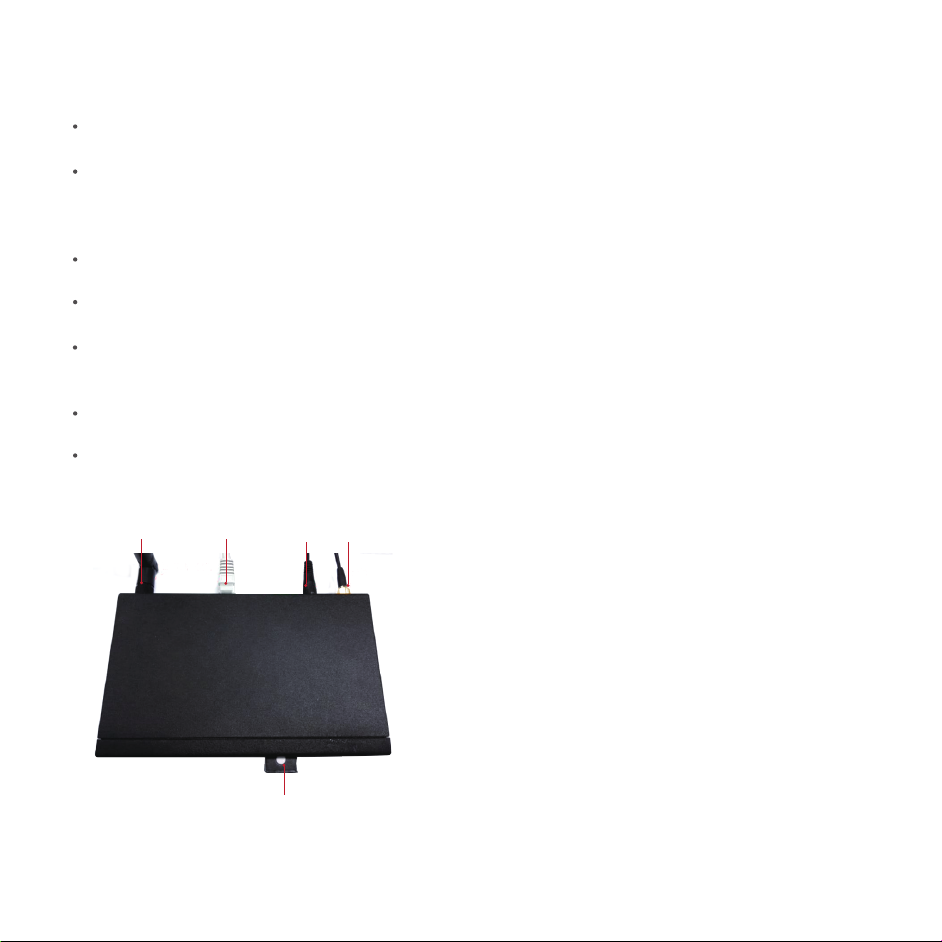
Installation Power Supply
Place the 4G Data Station near the devices to be accessed to
the network.
Use a needle object (such as a ballpen) to press the small
embedded button near the SIM card slot to pop out the SIM
card holder. Then place the AT&T SIM card onto the card holder
correctly. Insert the card holder back into the slot facedown.
Mount the 4G antenna to the 4G antenna port on the left side
of the back pannel.
Mount the WiFi antenna to the WiFi antenna port on the right
side of the back pannel.
Use a Ethernet cable to connect a device with a network port
(such as Hydro-X) to the 4G Data Station through one of the
five Ethernet ports on the back panel.
Connect the 12VDC power adapter to the power port on the
back panel and then power on.
Read the network connectivity information on the top panel
to complete the configuration correctly.
Wifi Antenna
Ethernet
Cable
Power
Adapter
Cellular
Antenna
We suggest you use TrolMaster standard power adapter
(1.5A/12VDC). If you have to use your own power supply, make
sure the power range is 5-35VDC and it is stable enough (ripple
shall be less than 300mV, and Instantaneous voltage shall not
be larger than 35V).
Cellular Antenna
Screw the SMA male cellular antenna to 4G Data Station (SMA
female port), make sure it is screwed tightly to ensure the strength
of signal.
WiFi Antenna
Screw the SMA femaleWIFIantenna to 4G Data Station (SMA
male port), make sure it is screwed tightly to ensure the strength
of signal.
SIM Card Holder Facedown
Warning: Never install SIM card when the router is powered on.
Page 4
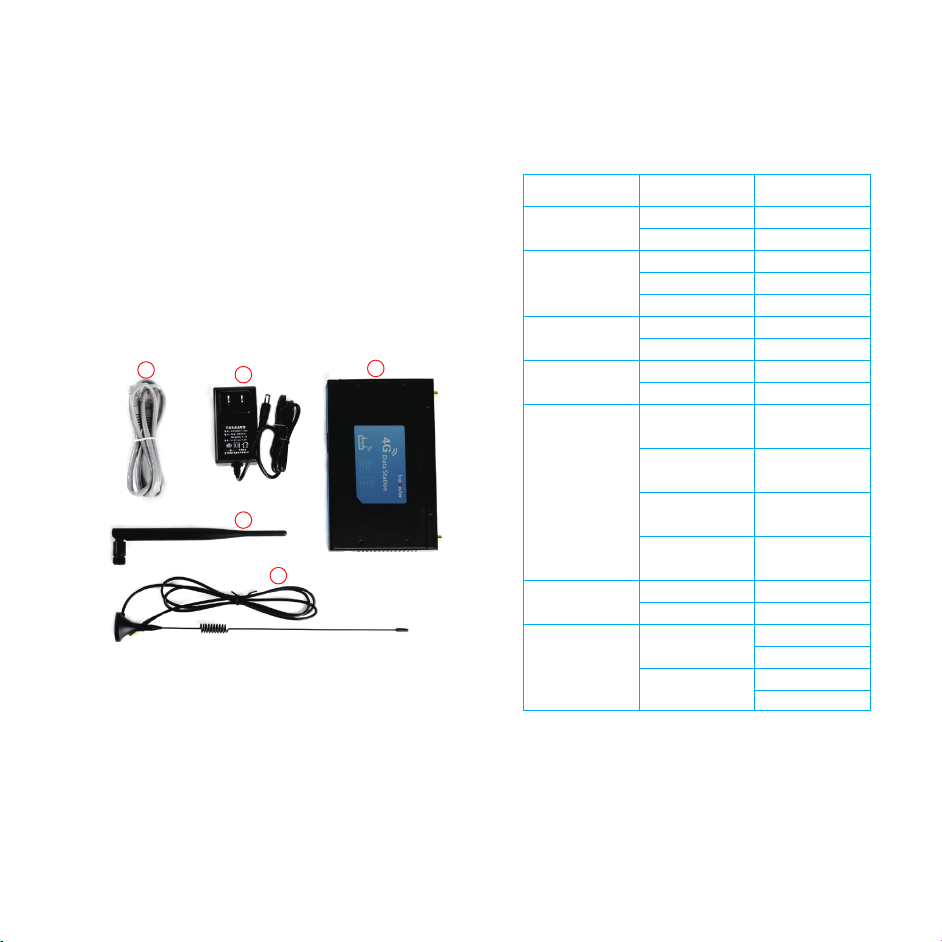
Package Checkist
The following components are included in your 4G Data Station
package. Check the list before installation. If you find anything
missing, please feel free to contact TrolMaster.
RTU-1 4G Data Station:
1 x 4G Data Station
1 x Power Adapter (DC 12V/1.5A)
1 x WIFI Antenna (Female SMA)
1 x Cellular Antenna (Male SMA)
1 x Ethernet Cable (1 meter)
1
Ethernet Cable
1.
Power Adapter
2.
4G Data Station
3.
4.
Wifi Antenna
Cellular Antenna
5.
2
4
5
3
LED Indicators
The 4G Data Station comes with total 13 LED indicators on the
front panel with the indications as following.
LED Indicator Status Content
Power
(1 LED indicator)
Signal Strength
(3 LED indicator)
System
(1 LED indicator)
Internet
(1 LED indicator)
Alarm
(1 LED indicator)
WIFI
(1 LED indicator)
Ethernet
(5 LED indicators)
On
Off
1 Light On
2 Lights On
3 Lights On
Blinks
Off
On
Off
On
1 Blink Per Second
2 Blinks Per Second
Off
On
Off
On
Off
Power On
Power Off
Signal Week
Signal Meddium
Signal Strong
System works perfectly
System doesn’t work
Internet Enabled
Internet Disabled
SIM/UIM Card is not
inserted correctly or broken
Cellular module was not
registered to router
Router can’t access to
Internet
Router works correctly,
no alarm
WIFI Enabled
WIFI Disabled
Corresponding port is
connected to a device
No device connected to the
corresponding port
Page 5
Reset
You can click RESET button to reset settings to defaults to solve the problem of
incorrect configuration that makes you couldn’t access to the Internet, login and
management, etc.
Use a needle object (such as ballpen) and press the leftmost embedded button marked
as “Reset”. Press and hold this small button until all the LED indicators turn off. Then
the 4G Data Station will be reset to factory default settings.
Physical Characteristics
Item Content
Housing
Product Dimensions
Gross Weights
Metal, IP30
168mm(L) x 104mm(W) x 27mm(H),
Antennas and other accessories
not included
790g (1.74lbs)
 Loading...