

Page 1
Further documentation and troubleshooting
To nd helpful log les in support cases:
– Open the MusicCenter WebCong.
– Click Logs & Warnings.
Please visit also our website for the latest documentation,
videos and information:
http://www.trivum.com
http://service.trivum.com
If support is needed
Please contact your local trivum dealer or write to:
Download links:
trivum ServerAdmin Tool (Windows):
http://service.trivum.com/win-admintool
How to update your trivum v8 to v9?
http://service.trivum.com/v9-update
i Note: The remote maintenance of all trivum devices is
activated by default. For disabling remote maintenance:
– Open the MusicCenter WebCong
– Click Basic Setup.
– Uncheck Enable trivum remote support.
V201704 - Errors and specications subject to change without notice.
Quick Installation Guide for SC044
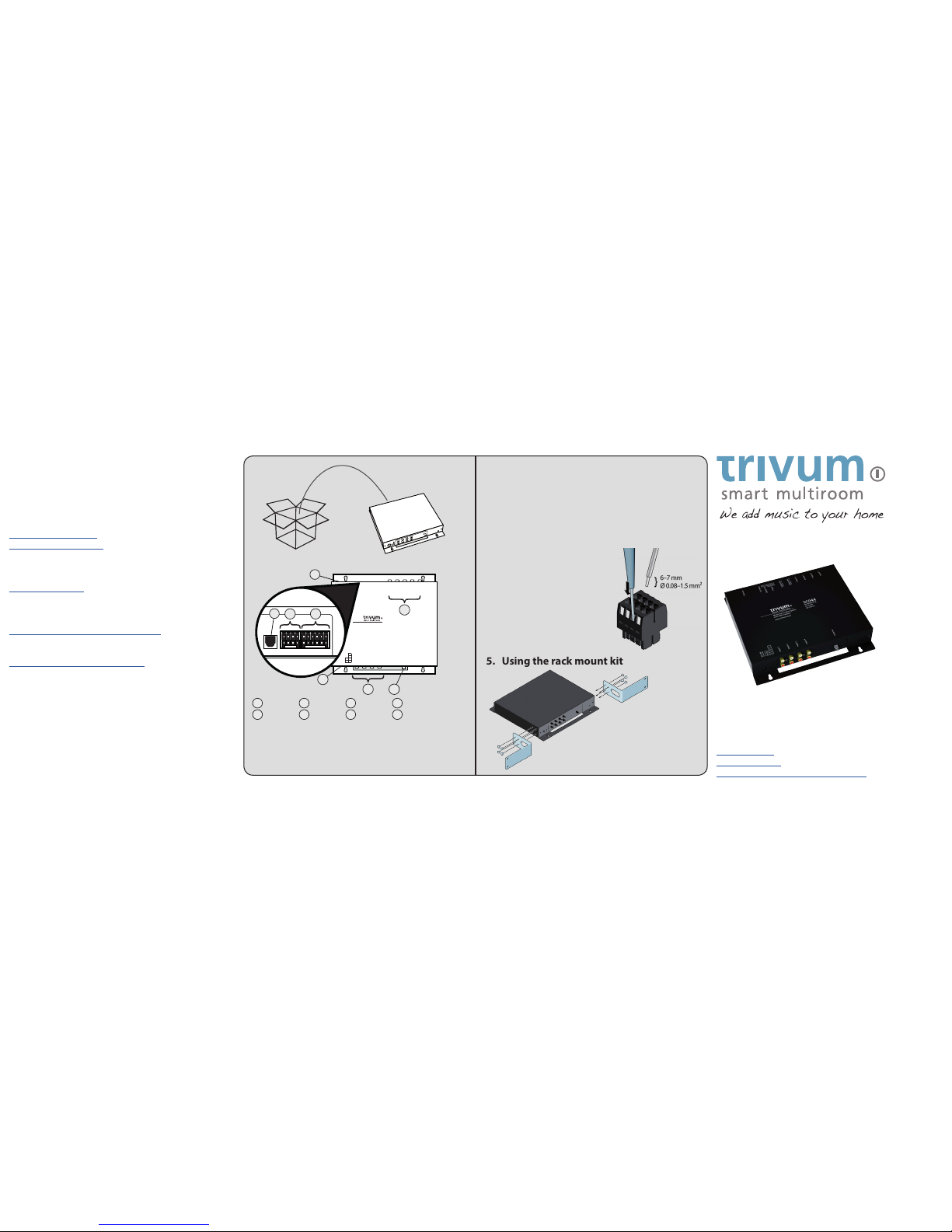
1. Unpacking
2. Mounting
3. Conguration
– Open trivum ServerAdmin Tool
– Double-click on the SC044
– Click Music Library -> Setup music library ->
Add network share
– Enter the Network share URL (smb://)
4. Using the Trigger
Connector
– Push a screwdriver into the
connector, as seen in the image
to open the spring contact.
– Insert the trigger cable.
– Pull out the screwdriver to
release the spring contact.
5. Using the rack mount kit
Input 1
Input 2
Input 3
Input 4
1
2
On 3
Err 4
Antenna
DC 12V
Ethernet
6x Digital I/O
4x Output Trigger
Audio Link
Subwoofer
(Output 4)
Output 4
Output 3
Output 2
Output 1
4x Streaming
4x Tuner
4x Line In
Multiroom Audio System
with KNX support
www.trivum.com
SC044
1
6
2
3
5
87
4
1
Ethernet
2
Power4Antenna
3
Input (4x)
5
Output (4x)
+ Sub
6
Audio Link
7
Output Trigger (4x)
8
Digital I/O (6x)
v
9
Now with:
trivum technologies GmbH
Eierstraße 48
70199 Stuttgart
[email protected]
www.trivum.com
www.facebook.com/trivumtechnologies
! The 19" rack brackets must be xed with
the eight supplied DIN965 M4x6 screws.
Longer screws will damage the electronics
of the SC044!
Page 2

Quick Installation Guide for SC044
Required components for installation:
– 4 screws (type depends on the surface or server rack
screws)
– ethernet cable
– network with DHCP capable router
– RCA connectors for Line In / Line Out
– power amps
– music archive (network share, NAS)
Optional components:
– trivum TouchPad for high comfort music selection
– wireless access point (if a mobile device is to be used)
– internet connection (required for software updates, music
streaming services and remote support)
1. Mounting and connection
1.1 Mount the SC044 using 4 screws depending on the
surface.
1.2 Using the rackmount kit for mounting within a 19"
server rack.
1.3 Connect cables to Line In / Line Out, ethernet network
and power supply.
2. Conguration
The trivum SC044 has to be congured via web browser.
We recommend you to use the trivum ServerAdmin Tool.
The ServerAdmin Tool lists all trivum devices and their
IPaddresses in your network.
2.1 Please download and install the ServerAdmin Tool.
http://service.trivum.com/win-admintool
i Note: If you don‘t want to use the ServerAdmin Tool, you
have to identify the IPaddress of the SC044, than open your
browser and enter: IPaddress/setup
2.2 Start the ServerAdmin Tool.
2.3 Double-click on the device (SC044) to open the
MusicCenter WebCong (main cong site).
i Note: If you are not sure about the assignment of the
listed devices, you can compare the serial number in the list
with the serial number on your device.
2.4 Static IP instead of DHCP? click Network.
2.5 Select Use static IPaddress.
2.6 Enter your IP settings and Restart to apply changes.
3. Adding a network share
The trivum SC044 can play sound les which are stored on
network shares. If you want to use a shared directory, make
sure that it supports the media sharing service Samba service
(smb). To add a network share (e.g. NAS):
3.1 Open the MusicCenter WebCong.
3.2 Click: Music Library -> Setup music library
-> Add network share.
3.3 Set the network path and user/password if required.
3.4 Click Save as new share.
3.5 Click Refresh your music index now.
4. Adding your online streaming service
account
4.1 Open the MusicCenter WebCong.
4.2 Click Add service.
4.3 Select your favorite service and enter your user account.
4.4 Click Create the streaming service given account.
i Note: trivum supports only paid accounts.
l Tip: The SC044 is AirPlay ready, so it’s easy to stream
every kind of music to the specic zone (with Apple devices)
Backup your conguration
Once you have completed the setup, we recommend you to
make a backup of your conguration:
– Open the MusicCenter WebCong.
– Click Backup/Restore -> Export/import conguration.
– Follow the instructions.
For easy operation of your SC044, we recommend our
trivum TouchPad.
How to use a trivum TouchPad?
– Connect your trivum TouchPad as described in the
TouchPad Quick Installation Guide
– Wait a few seconds until the TouchPad has booted.
– Make sure your TouchPad is running software v2.35 or
above (simply update it with your ServerAdminTool).
– On the starting screen press
Pair TouchPad with Audio System.
– Press Select... and select your preferred trivum MusicCenter
from the pop-up menu.
How to use KNX?
The KNX programming of SC044 is done via the web
browser. No need for extra KNX software.
– Open the MusicCenter WebCong.
– Click KNX and enable use KNX.
– Follow the instructions.
You nd further informations for KNX on:
http://service.trivum.com/knx
 Loading...