

Page 1
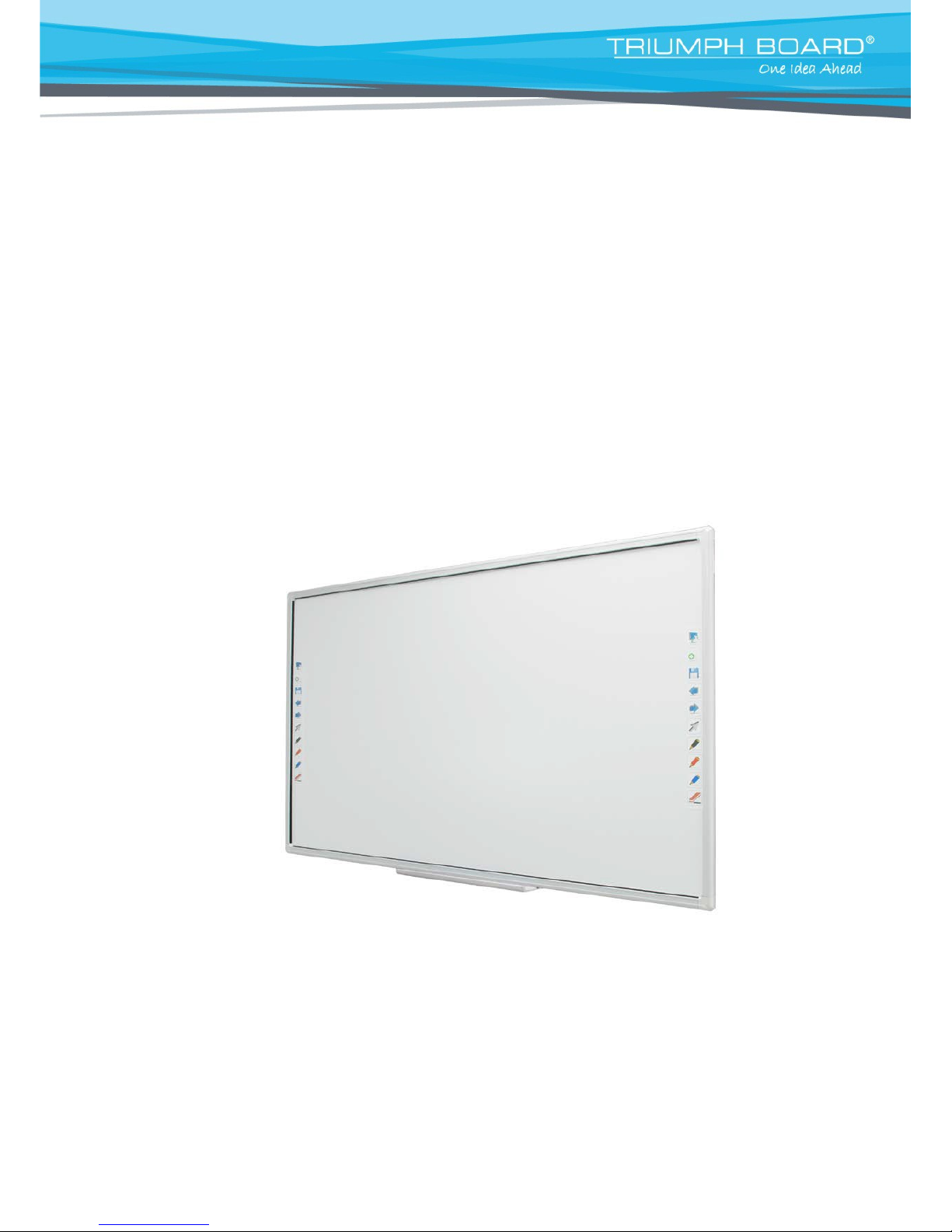
User Manual
MULTI Touch Series
78” /
89”
June
2017
Page 2

TRIUMPH
BOARD
a.s.
Content
1) Safety Information ................................................................................................................... 3
2) Product Description ................................................................................................................. 7
3) Technical Specifications .......................................................................................................... 8
4) Package contents.................................................................................................................. 10
5) Wall mount Installation .......................................................................................................... 11
6) Driver Installation .................................................................................................................. 14
7) HW Installation ...................................................................................................................... 16
8) MULTI Touch Driver Configuration ........................................................................................ 17
9) Hotkey Setting....................................................................................................................... 19
10) IWB calibration under Windows 8.1 and Windows 10…………………………………………21
11) Repair Service and Contacts .............................................................................................. 22
Page 3
TRIUMPH
BOARD
a.s.
1) Safety Information
Please read, understand and follow the information contained in this User Guide before
installation and use of this product.
Safety Information
This product was designed, and intended for use indoors via a USB cable or wireless U SB receiver connected to a
desktop or laptop computer. Use of this product in an outdoor and/or wet environment could damage this product
and create potentially unsafe operating conditions
Meaning of Signal Words
Indicates a potential hazard that could result in serious injury or death and/or
property damage.
Indicates hazards that could result in minor or moderate injury and/or property
Damage.
o Please read, understand and follow all safety information contained in this User Manual before
installation and use of this product.
o Do not use this product in an outdoor and/or wet environment.
o Do not use this product near water. Electric shock may result.
o This product is not intended for use by unsupervised children. Always provide proper adult
supervision when using this product around children.
o At least two qualified service technicians should perform the installation and removal procedure.
Failure to do so could result in serious personal injury and/or damage from dropping this product.
o Before installation, take the wall material and wall strength into consideration.
o Always place this product on a stable and level surface.
o Use only the designated wall mount and mobile stand hardware.
o Follow all installation instructions carefully.
o Make sure the mounting screws are properly sized to handle the weight of this product.
o Make sure the mounting hardware is securely anchored to a solid structure.
o Only plug the power cord, power plug or power adaptor into an AC power outlet with the proper and
Page 4

TRIUMPH
BOARD
a.s.
Safety Information (Continued….)
indicated power supply voltage and which is effectively grounded through the normal wiring. If this
product is used at a voltage other than the one indicated, it will malfunction and may result in fire or
electric shock.
o If the power cord or power plug or power adaptor cannot be plugged into the AC power outlet,
contact a licensed electrician to replace the AC power outlet with a properly grounded (grounded)
one.
o When you operate this product, the AC power outlet should be near this product and easily
accessible.
o The fact that this product operates satisfactorily does not imply that the AC power outlet is grounded
and that the installation is completely safe. For your safety, if in any doubt about the effective
grounding of the AC power point, consult a qualified electrician.
o Do not circumvent the grounding plug (for example, do not use a conversion plug).
o Always plug the power cord, power plug or power adaptor securely and firmly into an AC power
outlet. Otherwise, overheating will occur, possibly resulting in electric shock or fire.
o Do not pull, bend, rest objects on, or chafe the power cord or power plug or power adaptor. Damage
to the power cord or power plug or power adaptor can cause fire or electric shock.
o Do not attempt to repair the power cord, power plug or power adaptor. If the power cord or power
plug or power adaptor is damaged or frayed, contact an authorized service representative for a
replacement.
o Periodically clean the power cord or power plug or power adaptor to ensure the connection is free of
dust. In a damp environment, a contaminated connector can draw a significant amount of current
that can generate heat and eventually cause fire if left unattended over an extended period of time.
o Never move the power cord or power plug or power adaptor with wet hands. Electric shock will
result.
o Stop operation immediately if your product emits smoke, excessive heat, abnormal smell or unusual
noise. These conditions can cause fire or electric shock. Immediately turn your product off and
unplug the power cord or power plug or power adaptor, and contact an authorized service
representative for service.
o When disconnecting this product, hold the power plug or the power adaptor instead of the power
cord. Pulling on a power cord forcibly can damage it and cause fire or electric shock.
o To prevent fire or shock hazard, do not expose this product to rain or any type of moisture.
o If metal objects or liquids get into this product, turn this product off and unplug this product
immediately. Contact an authorized service representative for service. Operating the contaminated
product can cause fire or electric shock.
o Never open or remove unit covers that are screwed with screws. A high-voltage component can
cause electric shock.
o Do not alter this product or modify any parts. Alternation or modification can cause fire or electric
shock
o Before cleaning this product, unplug the power cord or power plug or power adaptor as electric
shock may result.
Page 5
TRIUMPH
BOARD
a.s.
Safety Information (Continued….)
o Do not open or alter the casing of this product. Electric shock or injury may result.
o Be careful r eg ar d i ng the location of the power cord, power plug or power adaptor to avoid that
it trips someone or causes this product to fall, etc. It may cause injury or product failure.
o Do not leave this product or any of its accessories on the floor to avoid someone breaking it by
stepping on it or being injured by tripping on it.
o Use only the included power cord or power plug or power adaptor. If another power cord or power plug
or power adaptor is used, fire or electric shock might result.
o Do not operate this product in a location with high temperature or high humidity. This product is suitable
to work at: Temperature: 10℃ to 40℃; Humidity: 10% to 80%; NO condensation.
o Unplug the power cord, power plug or power adaptor from the AC power outlet when:
- The power cord or power supply plug is damaged.
- A liquid is spilled onto this product.
- This product is exposed to rain or water.
- This product malfunctions and/or needs repairing.
- This product falls or after its casing is damaged.
This product must be disposed of in accordance with the relevant federal, state, and local laws
and regulations.
This product is to be installed only by qualified service personnel.
Avoid fire and heat sources above 100℃.
When this product is not used over an extended period of time, switch it off and unplug the power plug
or power adaptor. If it is unused and is left connected to a power source for a long period, degraded
insulation may cause electronic shock, current leakage or fire.
Do not position this product in a location where it is unstable.
Do not place this product in a hot humid or dusty environment. Prolonged exposure to these adverse
conditions may cause fire or electric shock.
When moving this product, be sure to unplug the power cord, plug or power adaptor from the AC power
outlet. If this product is moved with the power cord or plug or power attached, it can cause damage to
After installing or moving this product, lock the casters when it is hanging on a mobile stand.
If this product falls down or gets damaged, turn this product off and unplug the power cord or power
plug or power adaptor. Otherwise, it may cause fire or electric shock.
Do not put drinks, other liquids or heavy items on the tray or screen. Accidental spillage of liquid into
this product may cause severe damage. If this occurs, turn this product off, unplug the power cord or
power plug or power adaptor and contact an authorized service representative for service.
the power cord, plug or power adaptor, which could result in fire or electric shock.
Page 6

TRIUMPH BOARD a.s.
Do not lean against this product even when this product is mounted on the wall.
Do not install this product where it may be exposed to direct sunlight, near heating equipment, or near
air-conditioning vents.
Do not install this product in strong sunlight or strong lighting.
Do not install this product in locations where the temperature may change suddenly.
Do not allow writing to remain on the screen for an extended period of time as it will become harder to
erase.
Do not erase with an overly dirty eraser.
Use commercially available white board cleaner for hard-to-erase stains.
based markers) may damage the screen or result in hard-to-erase markings.
damage.
Before installation, take the wall material and wall strength into consideration. For details, please
consult your dealer.
Use only designated markers and erasers. Use of accessories other than those authorized (such as oil-
Fasten the screws tightly to avoid that the stand or this product falls, which may cause injury or
Page 7
TRIUMPH BOARD a.s.
2) Product Description
TRIUMPH BOARD MULTI Touch is an interactive whiteboard that allows 10 users to write, draw, and move
objects or 5 users to resize objects with two fingers and rotate two objects simultaneously.
Truly multi-touch -
requiring no separate multiuser mode settings. Users can write, draw and move objects with a finger, stylus or
even a pointer.
TRIUMPH BOARD MULTI Touch connects to a computer through a fast USB 2.0 interface, makes the lecture more
interactive and enhances the efficiency of the class.
TRIUMPH BOARD MULTI Touch supports Linux, Mac, all Microsoft Windows & multiuser writing and common
multi touch gestures currently recognized in Microsoft Win-7, 8, 10. Use simple intuitive finger or hand gestures to
toss, rotate or zoom in/out on objects
and phototransistors that are aligned in pairs around the active surface. These pairs of LEDs and phototransistors
cast a grid over the surface. When the surface is touched, the beam of infrared light between the LEDs and the
phototransistors is interrupted at the point of touch. This position is converted into an ‘X’ and a ‘Y’ coordinates,
which the computer then converts into a mouse position.
TRIUMPH BOARD MULTI Touch interactive whiteboards are used in classrooms at all levels of education, in
corporate board rooms and training rooms, in professional sports coaching, etc. Interactive whiteboards replace
traditional whiteboards, flipcharts and other traditional systems
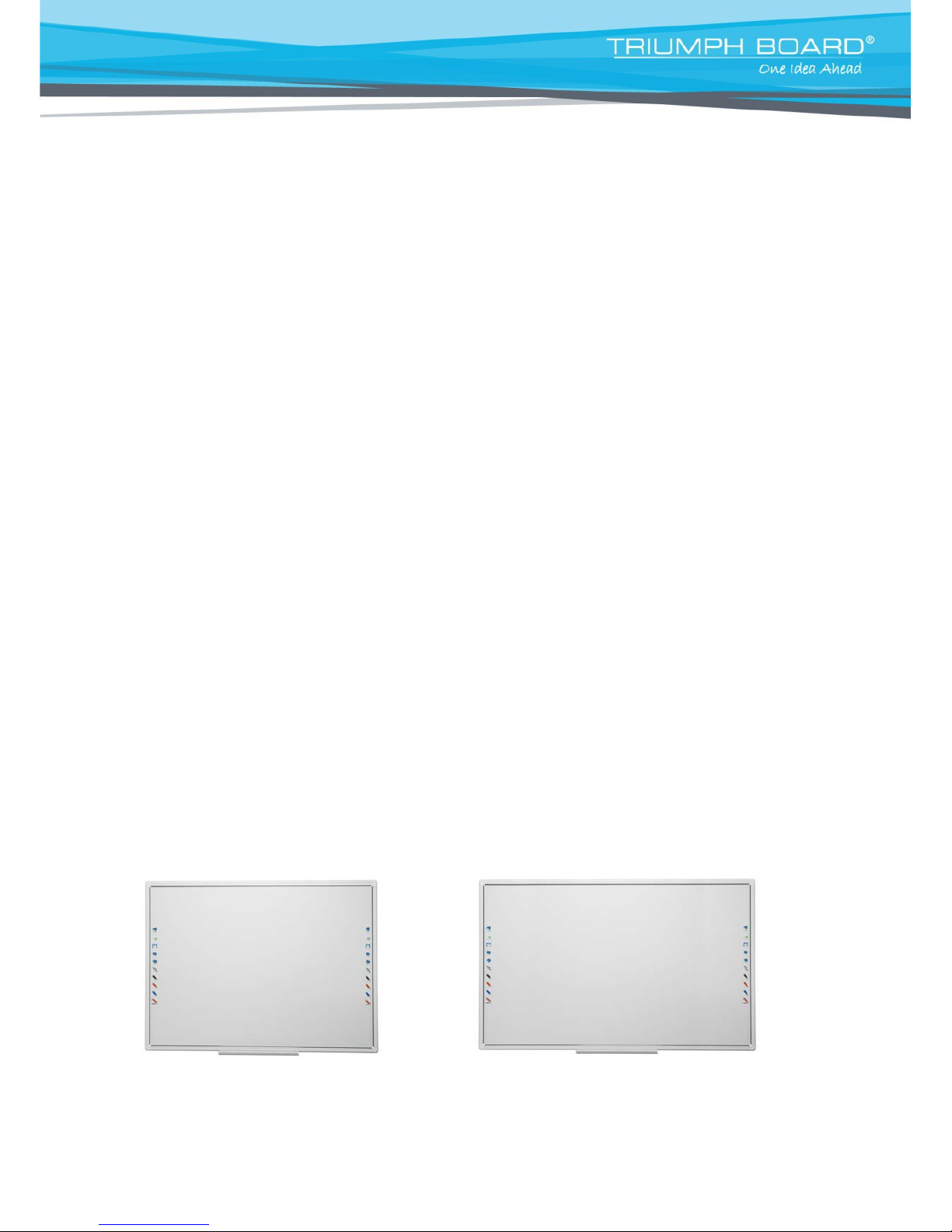
MULTI Touch 78” MULTI Touch 89”
TRIUMPH BOARD MULTI Touch is based on IR Cell LED Optical technology, which uses a combination of IR LEDs
For proper functioning with 10 users simul taneously writing on the whiteboard, it is recommended to write
at least 10 to 15 cm apart from each other and at different heights.
Page 8
TRIUMPH BOARD a.s.
3) Technical Specifications
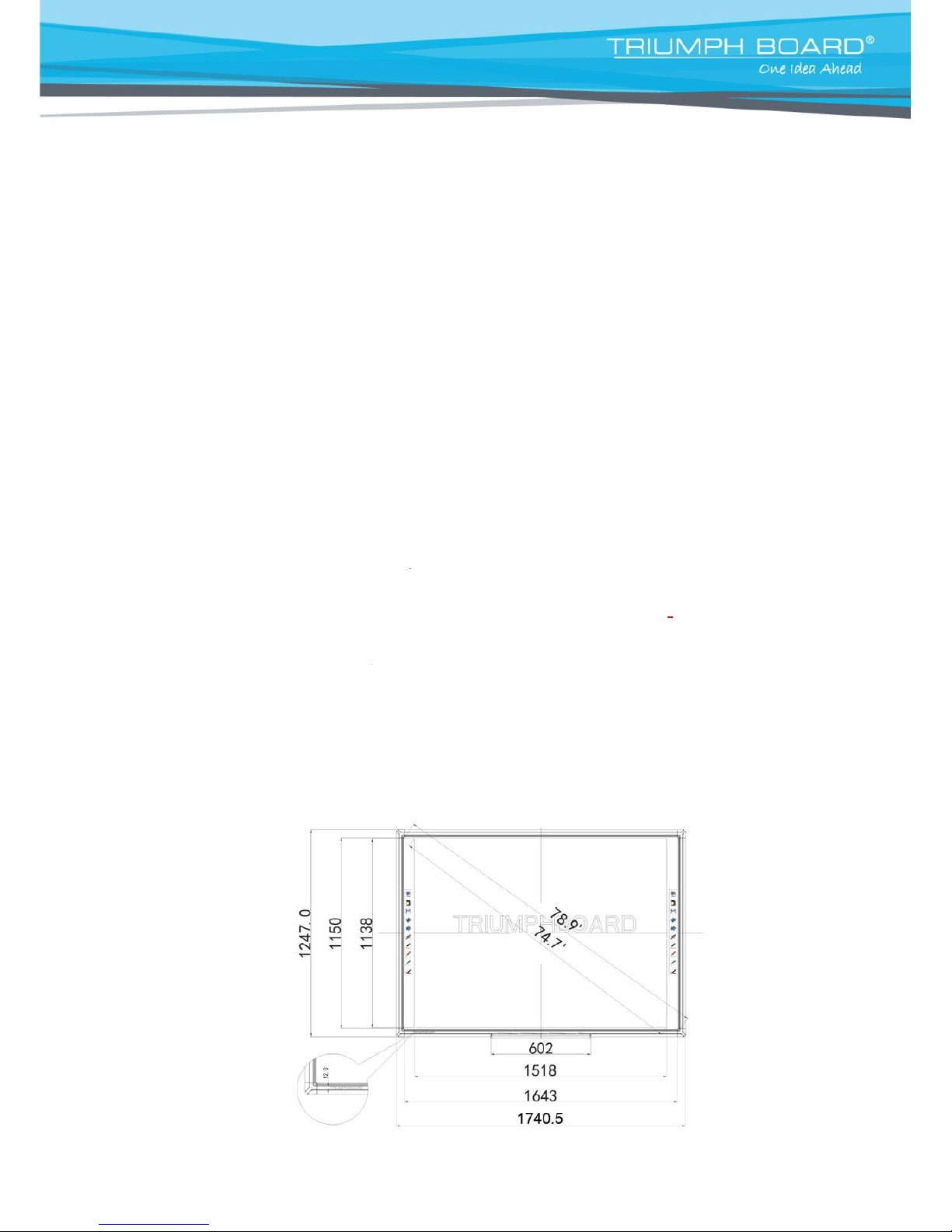
TRIUMPH BOARD 78” MULTI Touch
EAN: 8592580120008
Active screen area size: 1643 x 1150mm, 78.9” diagonal
Aspect ratio: 4:3
Technology: IR (Infrared) cell LED optical
Resolution: 32768 x 32768
Projection screen area: 1518 x 1138mm (with hotkeys)
Interface Type: USB 2.0
Cable Length: 5 m (optional 10m cable)
Working Environment -15 to +50°C
Response time: 6ms
Power supply: USB DC 5V from PC
Power consumption:
Storage temperature: - 40 to
Operating humidity 20-90% non-condensing, storage 10-95%, non-condensing
Platform: Windows 10, 8, 7, Linux, MAC
Board size without packing: 1740.5 x 1247 x 32mm (width x height x depth without plastic pen tray)
Board size with packing: 1820 x 1330 x 100mm (width x height x depth without plastic pen tray)
Board weight (net): 16 kg
Weight incl. packing: 29 kg
Optional: Speakers
< 0.5W
+50°C
Page 9
TRIUMPH BOARD a.s.
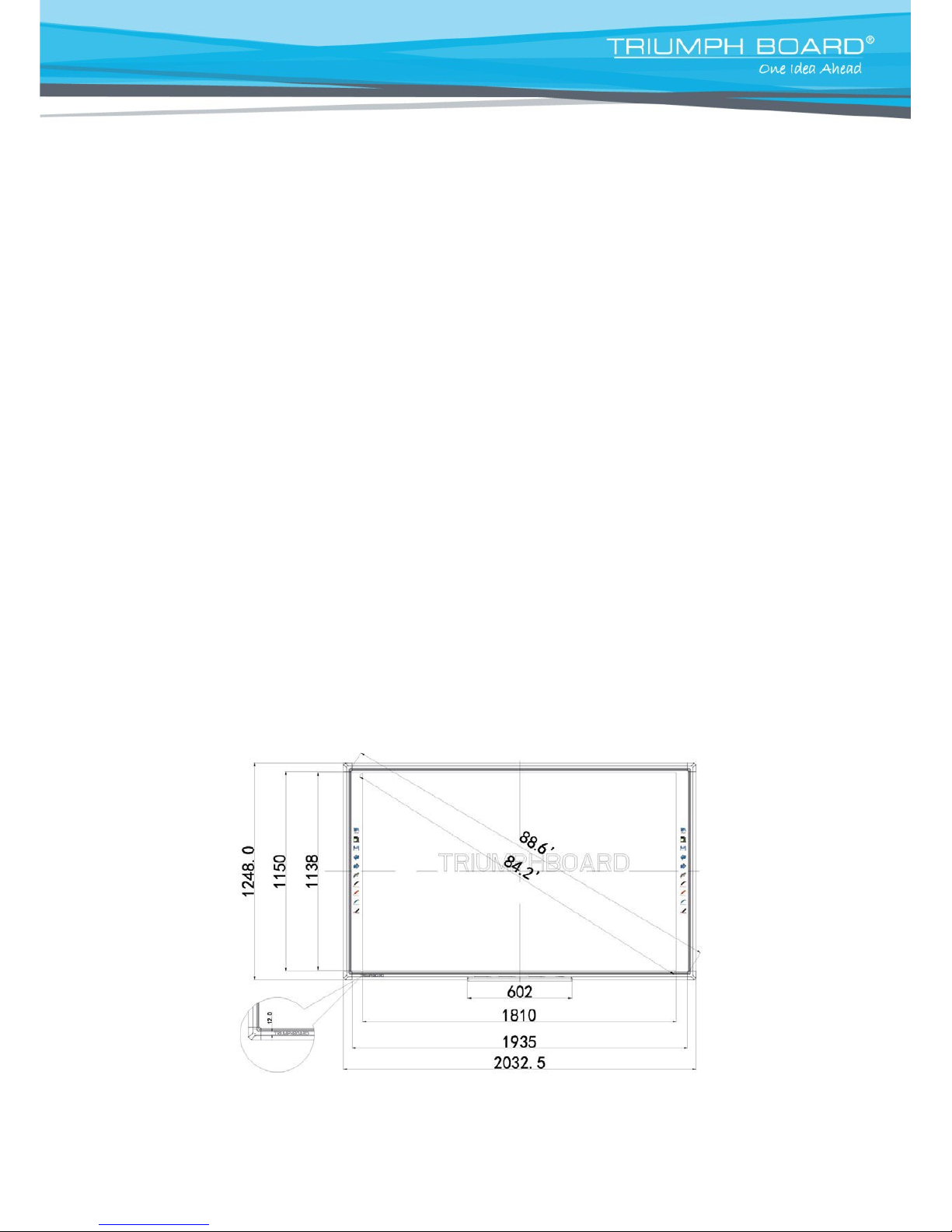
TRIUMPH BOARD 89” MULTI Touch
EAN: 8592580120138
Active screen area size: 1935 x 1150mm, 88,6” diagonal
Aspect ratio: 16:10
Technology: IR (Infrared) cell LED optical
Resolution: 32768 x 32768
Projection screen area: 1810 x 1138mm (with the hotkeys)
Interface Type USB 2.0
Cable Length 5 m
Working Environment -15 to 50°C
Response time: 6ms
Power supply: USB DC 5V from PC
Power consumption: < 0.5W
Storage temperature: - 40 to 50°C
Humidity Operating: 20-90% non-condensing, storage 10-95%, non-condensing
Platform: Windows 10, 8, 7, Linux, MAC
Board size without packing: 2032.5 x 1248 x 32mm (width x height x depth without plastic pen tray)
Board size with packing: 2110 x 1330 x 100mm (width x height x depth without plastic pen tray)
Board weight (net): 18 kg
Weight incl. packing: 31 kg
Optional: Speakers
Page 10

TRIUMPH BOARD a.s.
4) Package contents
After unpacking, please make sure all of the following parts (subject to your purchase) are present.
MULTI Touch – USB ready
Item
1
Description
Whiteboard with built-in IR Sensor
Quantity
1
2
USB Cable 5m
1
3
Pen tray
1
4
TRIUMPH CLOUD Hotkey strips (50*50 mm attached to the board)
2
5
RM Easiteach Hotkey strip (50*50 mm)
2
6
Stylus (plastic pen)
2
7
Hard copy of mounting instructions
1
8
USB Flash stick with TRIUMPH CLOUD USB offline version
1
+ License Confirmation
1
9
USB Flash stick with installation files of SW (RM Easiteach, Display Note)
1
+ License Confirmations
1
10
Installation components set
1
11
Quick Start User Guide
1
Page 11
TRIUMPH BOARD a.s.
5) Wall mount Installation
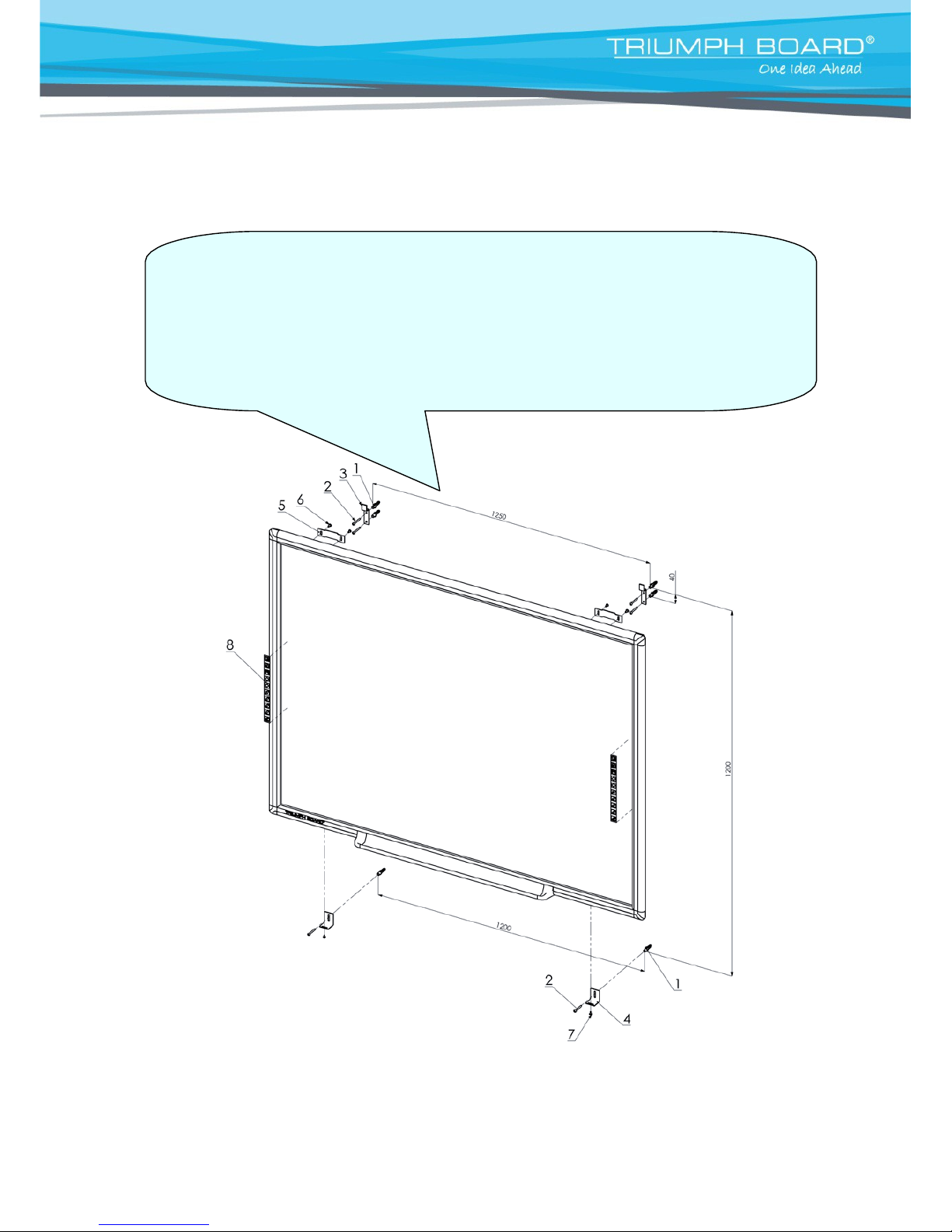
MULTI Touch 78”
1) attach bracket (5) by screwing (6) to board
2) measure the position of top wall mounts for hanging (3)
3) install wall anchors (1) and hangers (3)
4) install pen tray on board
5) measure and install wall plugs (1), screws (2) and square (4)
6) hang board
Page 12
TRIUMPH BOARD a.s.
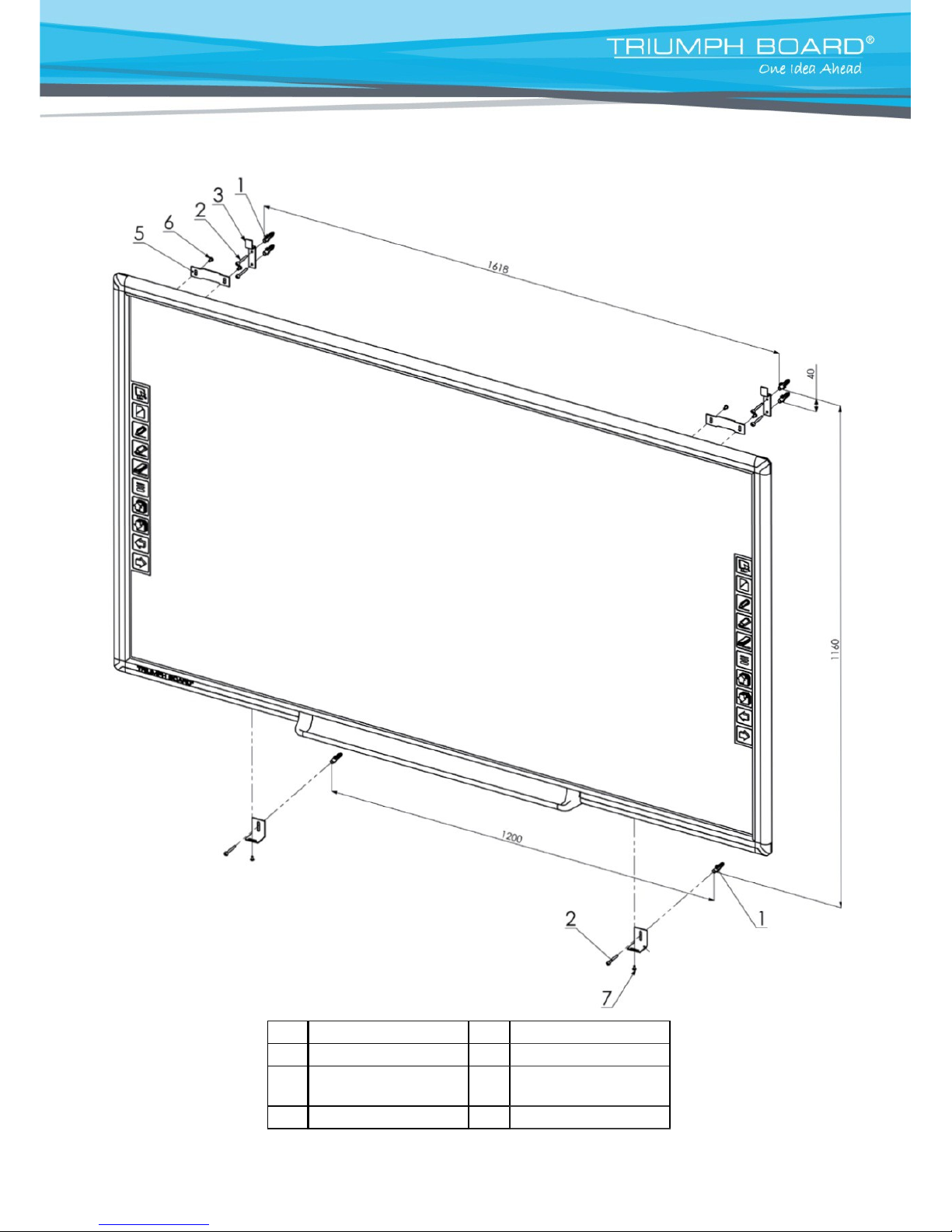
MULTI Touch
89"
4
1
Wall
anchor 10
5 Bracket
2
Screw SxSO
6
Screw
M5x12
3
TB MULTI Touch
wall
mount
7
Screw
M4x10
4
Bracket
8
Hotkeys
Page 13
TRIUMPH BOARD a.s.
o At least two qualified service technicians should perform the installation procedure. Serious personal injury
and / or damage can result from dropping this product.
o BEFORE the installation, please make sure both wall material and wall strength are suitable, otherwise,
the board might fall which may cause injury and/or damage. Please consult your dealer for details.
o Use only the designated wall mount.
o Follow all installation instructions carefully.
o Make sure the mounting screws are properly sized to handle the weight of the board.
o Make sure the wall mount is firmly and securely anchored to a solid structure.
o Make sure the board is fastened firmly and securely to the wall mount before using it.
Do not install this product in a location where it may be exposed to direct sunlight, near heating
equipment, or near air-conditioning vents.
Do not install this product in strong sunlight or strong lighting location.
Do not install this product in a location where the temperature may change suddenly.
Avoid installing two or more of these products in the same room or adjacent to each other. Please
consult your dealer for details.
Page 14
TRIUMPH BOARD a.s.
6) Driver Installation
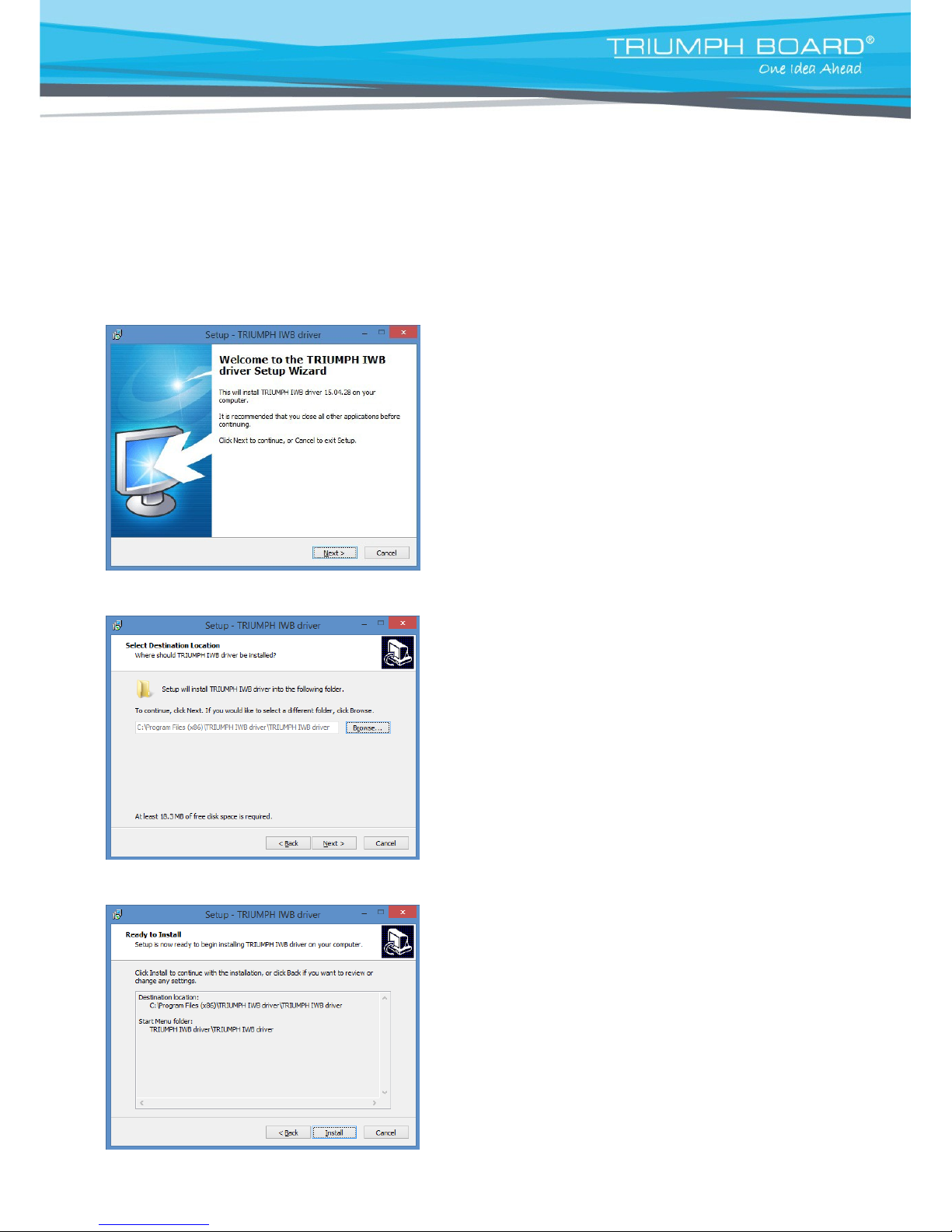
Install TRIUMPH IWB driver
a) To run the driver Installation, double-click the file
“TRIUMPH IWB Driver.exe”.
Then click “Next” to install the software.
b) Choose destination location and click “Next” to continue.
c) Click Install
Page 15
TRIUMPH BOARD a.s.
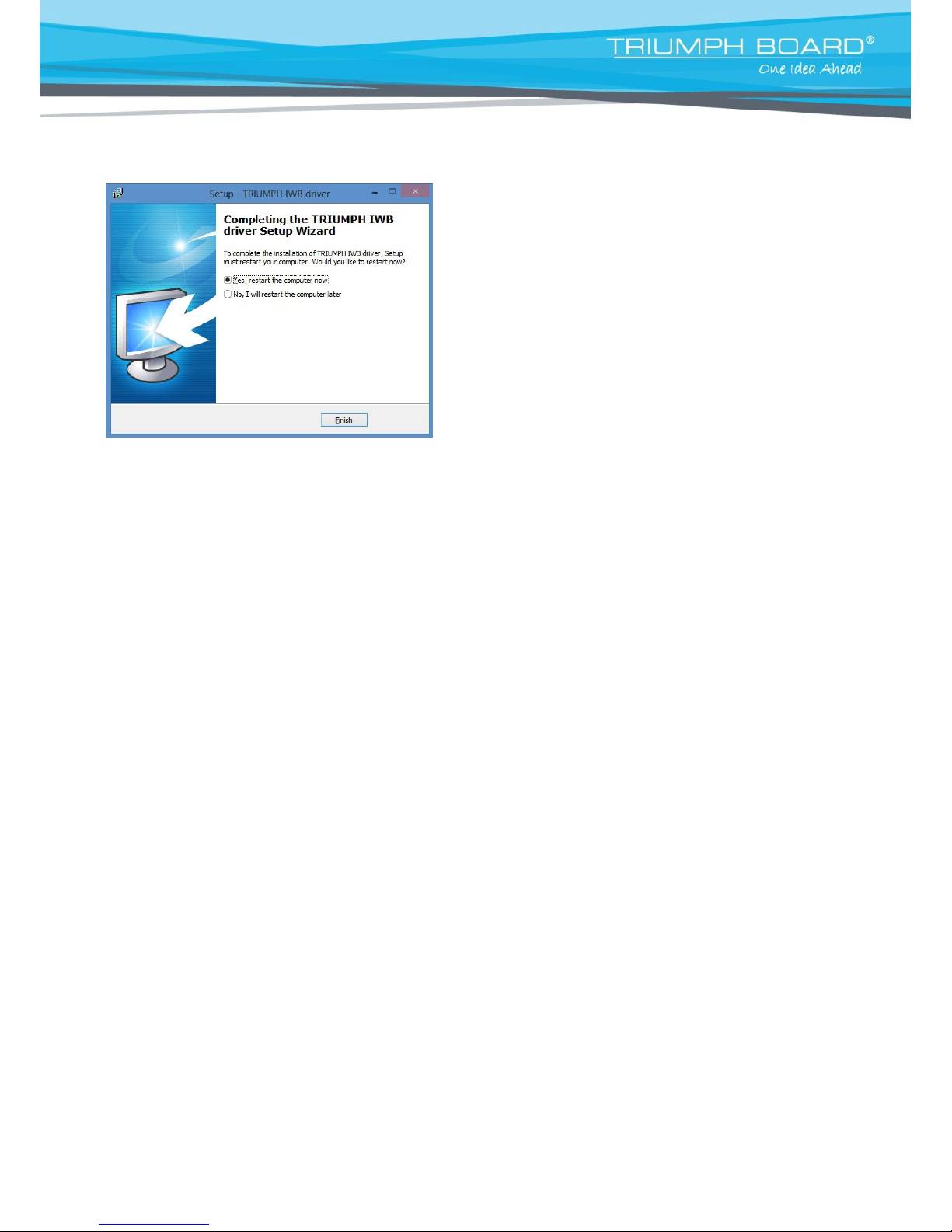
d) Click “Finish” to exit upon the TRIUMPH IWB driver
has been successfully installed.
e) Connect your PC / laptop with the MULTI Touch by using USB cable (provided).
Page 16
TRIUMPH BOARD a.s.
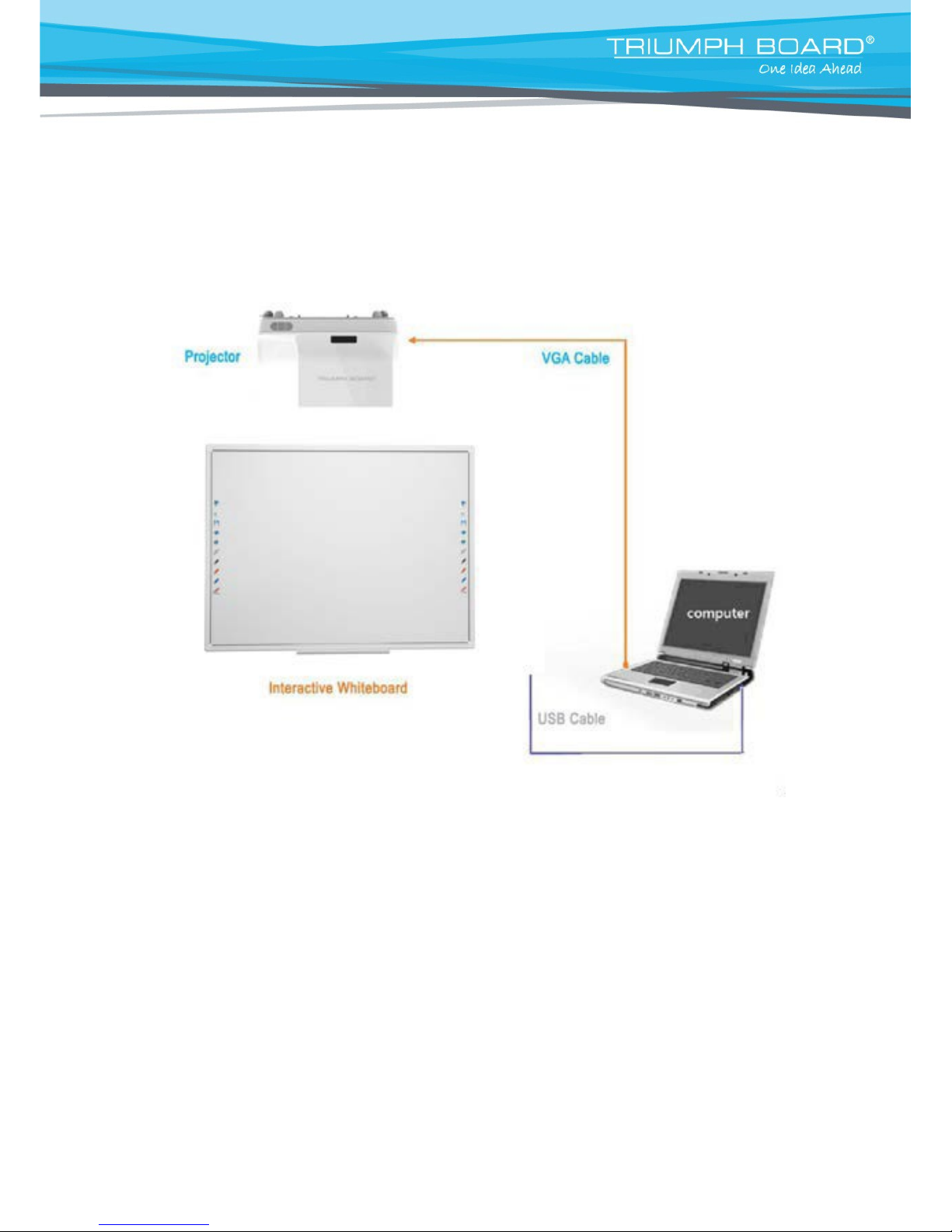
7) HW Installation
Connection
User must have PC, projector, MULTI Touch - USB connect them as shown in the figure below.
MULTI Touch – USB cable – Computer
Page 17
TRIUMPH BOARD a.s.
8) MULTI Touch Driver Configuration
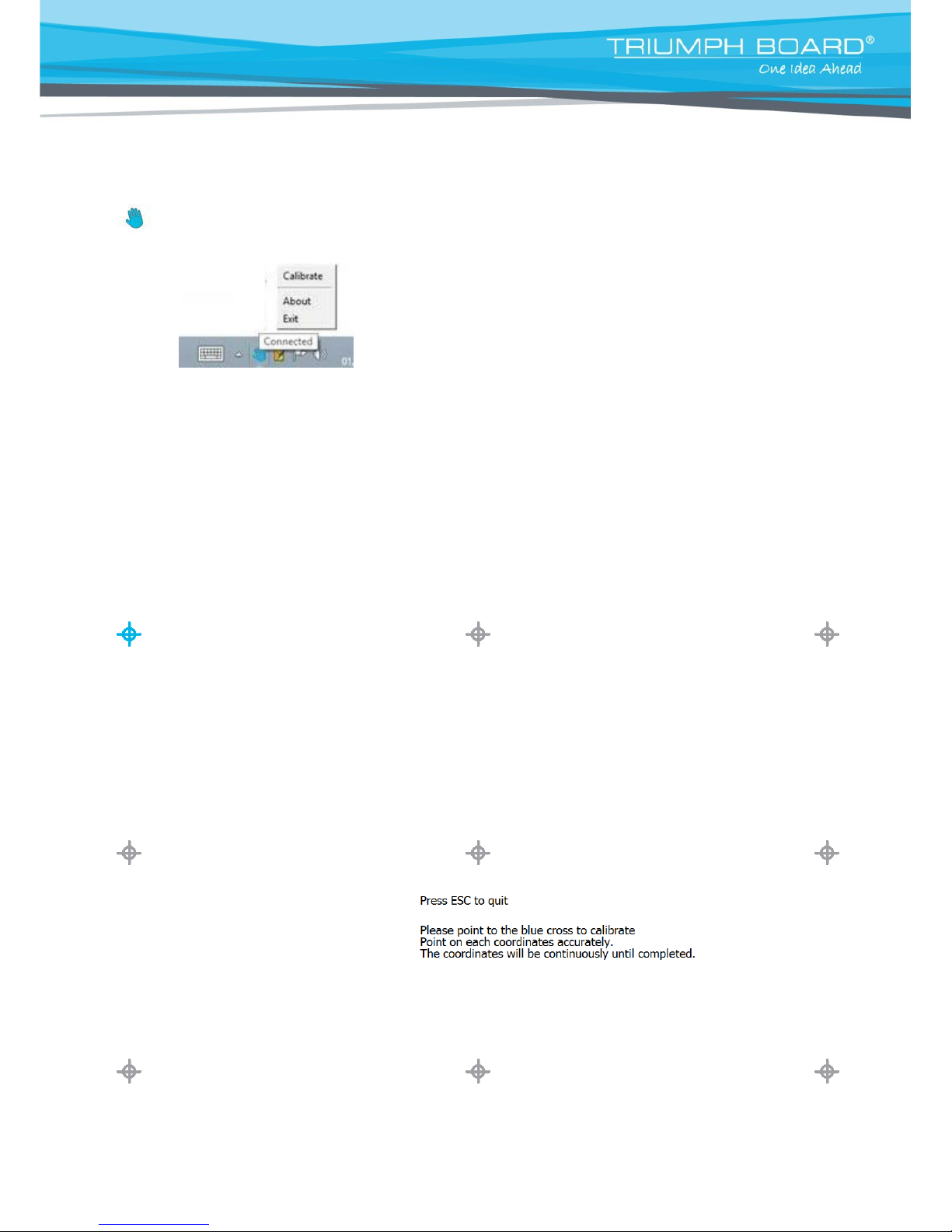
MULTI Touch configuration Main Manual
Right click the icon to show the Main Menu of MULTI Touch configuration.
a) Calibration
Calibration for MULTI Touch board after first time installation or if the projector size and projector’s position has
changed.
Click the flashing cross to calibrate, press ESC to exit. Touch each coordinate accurately. The coordinates will
be moved continually until the calibration is completed.
Page 18
TRIUMPH BOARD a.s.
b) Settings
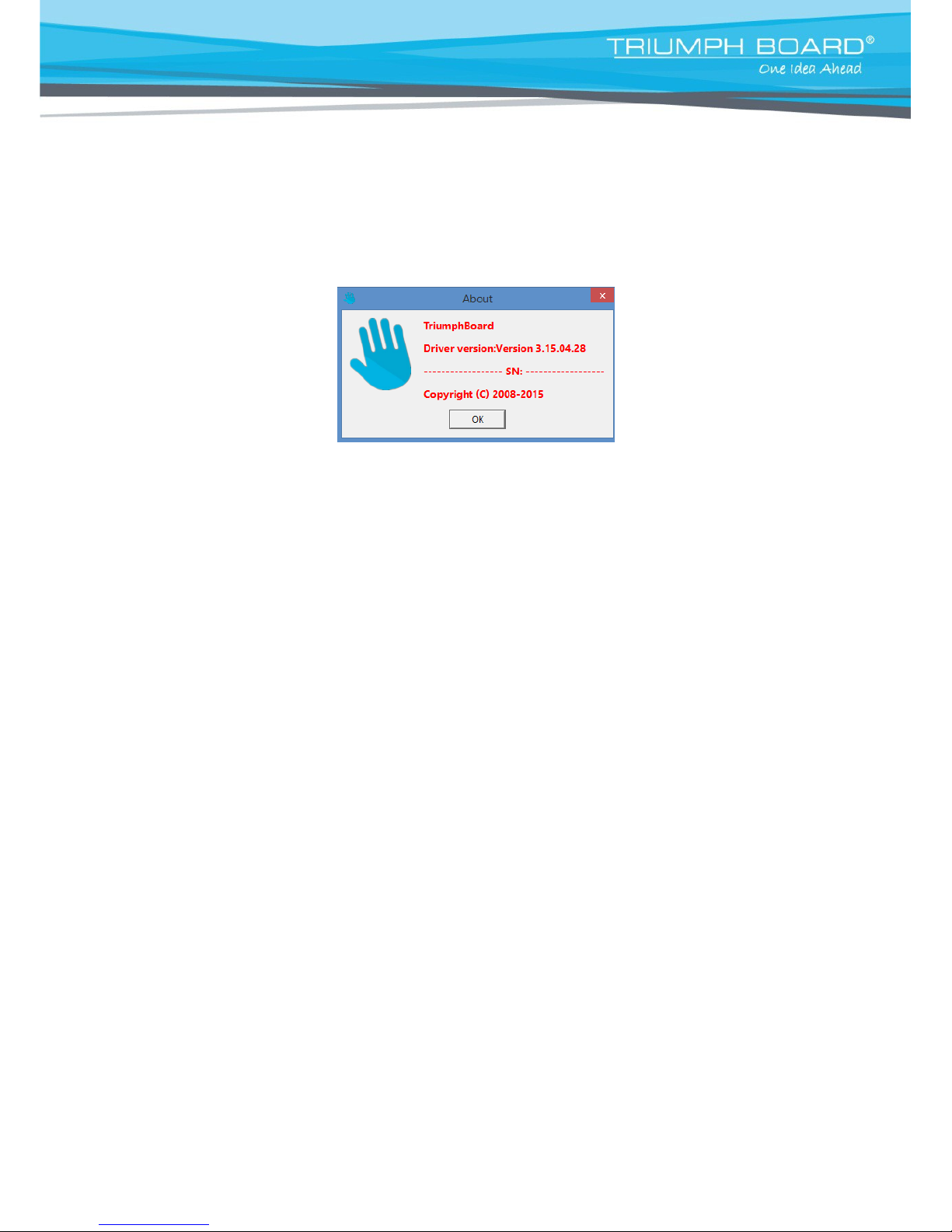
Device Information
After successfully connecting the computer with the whiteboard, device information such USB driver version and
firmware version info will be shown.
Auto Run
If user enables auto run, the MULTI Touch board driver will automatically start with each restart of windows.
If the MULTI Touch board is not used every day you can choose to disable auto run.
Page 19
TRIUMPH BOARD a.s.
9) Hotkey Setting
2 x 10 hotkey features are available in TRIUMPH CLOUD and RM Easiteach software for the user to set
up. For the hotkeys to function properly only one Hotkeys Driver should run at a time, not both
simultaneously. If both of the drivers (TRIUMPH IWB Driver and TRIUMPH for RM Driver) are installed
and running, then before starting one of the programs please exit the Hotkeys Driver of the other
program.
NOTE: TRIUMPH IWB Driver and TRIUMPH RM driver can’t be used at the same time.
TRIUMPH IWB Driver
Steps are as following:
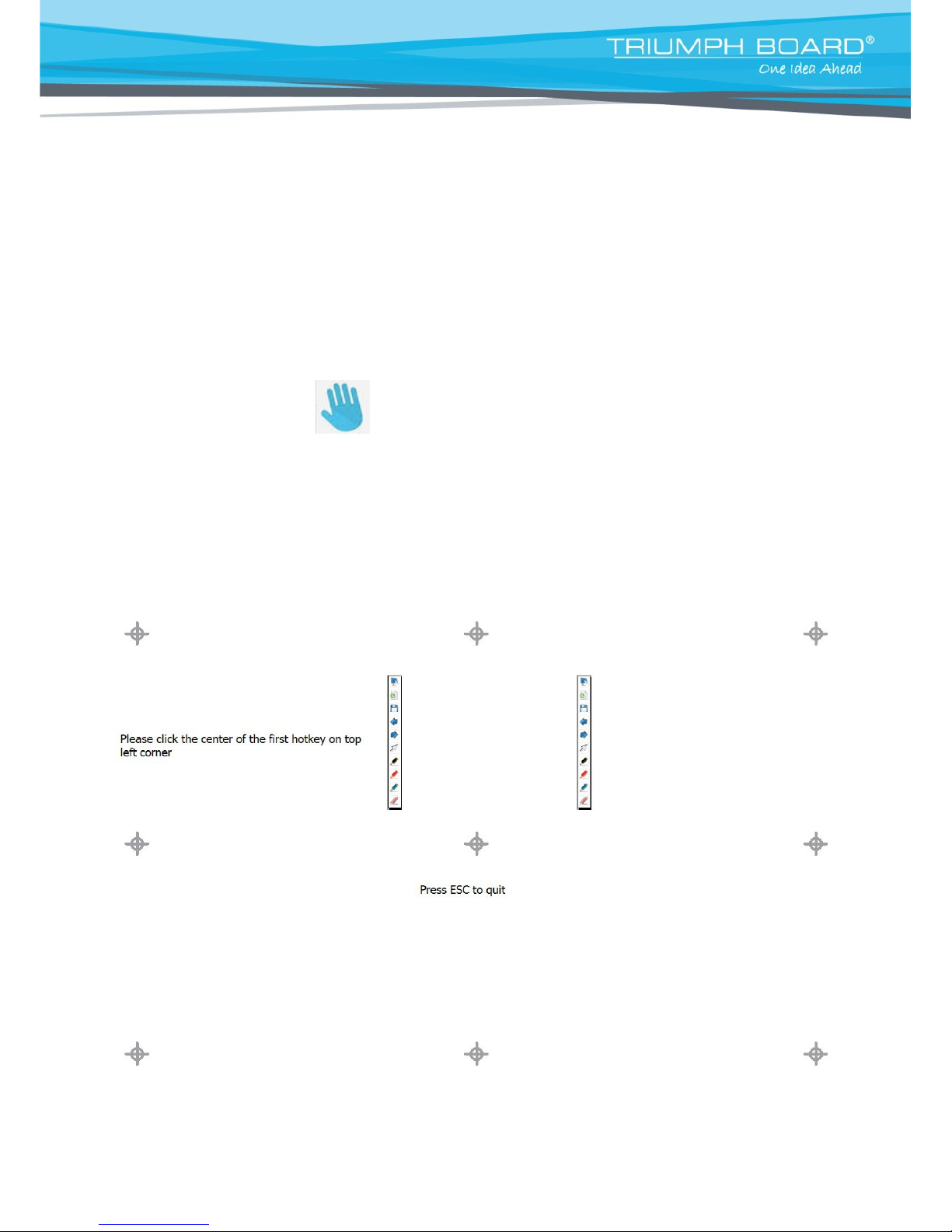
Make sure that Triumph IWB Driver is running (Triumph IWB Driver icon is displayed in the system tray).
If not, run it by double clicking on Triumph IWB Driver icon on your Desktop.
If TRIUMPH for RM Driver is running (TRIUMPH for RM Driver icon is displayed in system tray), click the
right mouse button and select Exit to cancel it.
1) Click on Tools in main Triumph IWB Driver Program menu and choose “Calibration Hotkeys”.
2) Use stylus of MULTI to point to Hotkey cross icons according to where the blue cross is.
Page 20
TRIUMPH BOARD a.s.
RM Easiteach
Installation of TRIUMPH for RM Driver
Install the TRIUMPH for RM Driver by
double-clicking
on TRIUMPH for RM Driver.exe
After installation run RM Hotkeys Driver by
double-clicking
on TRIUMPH for RM Driver
icon on the desktop.
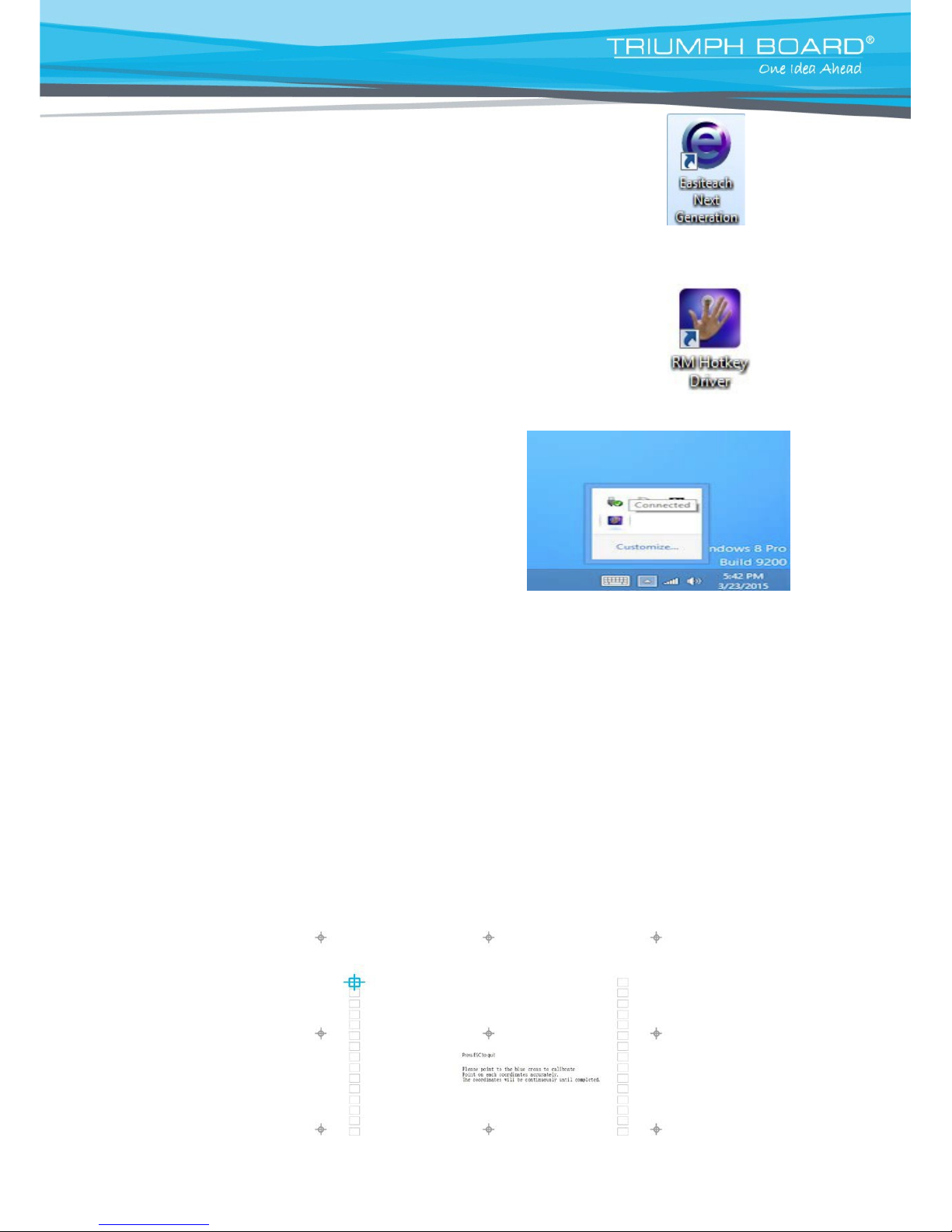
The TRIUMPH for RM Driver icon displays in Windows system tray.
Click the right mouse button in the toolbar to display a context menu.
Calibration steps are as follows:
Make sure that TRIUMPH for RM Driver is running (TRIUMPH for RM Driver icon is displayed in the
system tray). If Triumph IWB Driver is running (Triumph IWB Driver icon is displayed in system tray),
click the right mouse button or hold electronic stylus on driver icon and select Exit to cancel it.
1) Put the Hotkey strip on both sides of the IWB according to the position indication on the board.
2) Click the right mouse button or hold stylus longer on TRIUMPH for RM Driver icon in the Windows
system tray and select calibration.
3) Use stylus to point the
corresponding
blue cross to calibrate the Hotkey.
Page 21
TRIUMPH BOARD a.s.
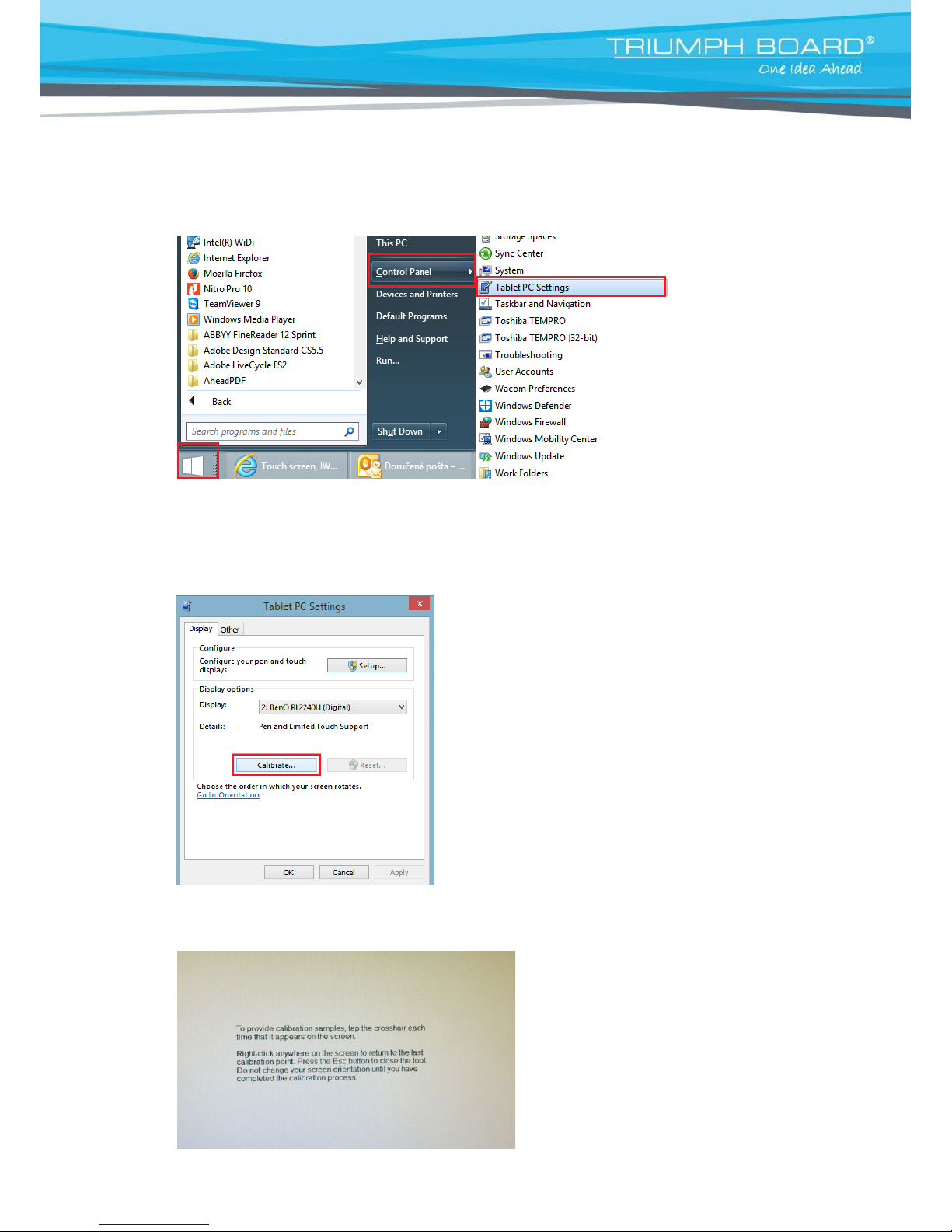
10) IWB calibration under Windows 8.1 and Windows 10 (no IWB driver required)
1) Go to START then to CONTROL PANEL choose TABLET PC Settings
NOTE: this IWB is HID device which can work without driver, however we recommend using IWB driver for
the correct function of IWB (Hotkeys etc.)
2) Press CALIBRATE button
3) Calibrate and save settings (follow instructions on the screen)
Page 22
TRIUMPH BOARD a.s.
11) Repair Service and Contacts
Please contact your local supplier for the warranty and technical service or alternatively find all warranty
conditions and service partners on our website www.triumphboard.com
. For any questions please
email us at [email protected]
TRIUMPH BOARD a.s.
Neklanova 122/15
128 00 Praha 2
Czech Republic
EU
Phone: +420 224910221
Fax: +420 224910218
E-mail: [email protected]
www.triumphboard.com
© TRIUMPH BOARD
Notices
Every effort has been made to ensure all information contained in this user guide is correct, but
the accuracy or completeness is not guaranteed. Before using this product, you must evaluate
it and determine if it is suitable for your intended application. You assume all risks and liability
associated with such use. Any statements related to this product, which are not contained in
this manual or any contrary statements contained on your purchase order shall have no force
of effect unless expressly agreed upon, in writing, by this company.
Reproduction or reprinting of this user guide or any part is prohibited without prior permission in
writing from TRIUMPH BOARD.
The contents of this user guide are subject to change without prior notice.
PLEASE see our website www.triumphboard.com for updates and fresh product
information in the product and support sections.
 Loading...