

Page 1
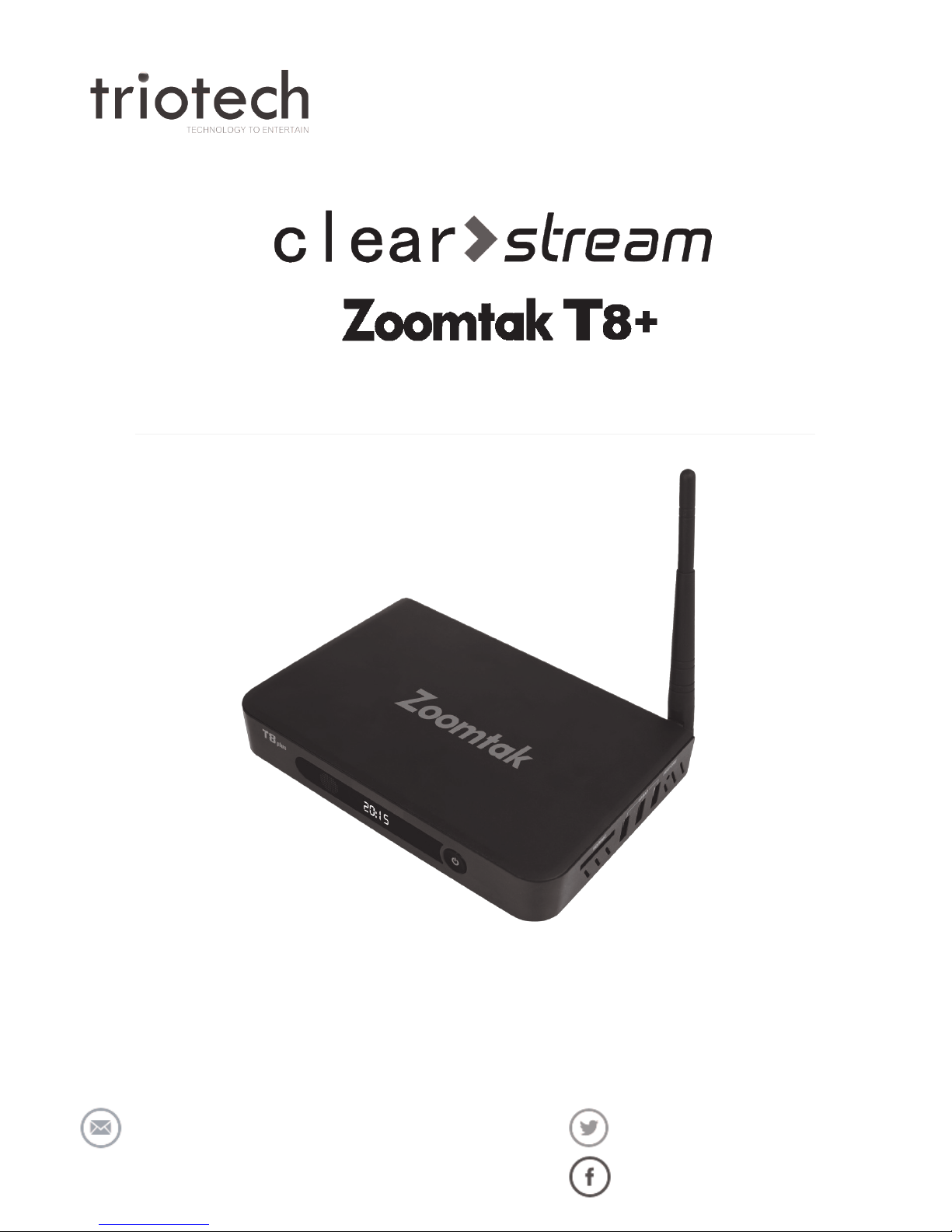
Quick Start Guide
Version 1.10
www.triotechgroup.com/
www.triotechgroup.com/contact-sales
www.triotechgroup.com/contact-support
@clearstream2013
/clearstream.freeTV
Page 2

2
Statements
This manual is provided “as is” without warranty of any kind, either expressed
or implied, including but not limited to the implied warranties or conditions of
merchantability or fitness for a particular purpose. In no event shall we, its directors, officers, employees or agents be liable for any indirect, special, incidental, or consequential damages (including damages for loss of profits, loss of
business, loss of use or data, interruption of business), even if we have been
advised of the possibility of such damages arising from any defect or error in
this manual or product. Specifications and information contained in this manual
are furnished for information use only, and are subject to change at any time
without notice, and should not be construed as a commitment by us. We assume no responsibility or liability for any errors or inaccuracies that may appear
in this manual, including the products and software described in it. No part of
this manual, including the products and software described in it, may be
reproduced, transmitted, transcribed, stored in a retrieval system, or translated
into any language in any form or by any means, except documentation kept by
the purchaser for backup purposes, without the express written permission of
us. Product warranty or service will not be extended if: (1) the product is repaired, modified or altered, unless such repair, modification of alteration is authorized in writing by us; or (2) the serial number of the product is defaced or
missing.
Products and corporate names appearing in this manual may or may not be
registered trademarks or copyrights of their respective companies, and are
used only for identification or explanation and to the owners’ benefit, without
intent to infringe.
Preface
Thank you for purchasing a Triotech Media product. This quick start guide
will help you get the most out of your new media unit. Please read it carefully
before using and keep it for future reference.
Product specifications, size, and shape are subject to change without notice, and actual product appearance may differ from that depicted herein. All trademarks and brand
names are the properties of their respective holders. © 2013-15 Triotech Media. All rights
reserved.
Page 3

3
Contents
Chapter 1 System Introduction 4
1.1 Key Features 4
1.2 System Environment 4
1.3 Package Contents 4
Chapter 2 Connecting Your System 5
2.1 Cabling Your System 5
2.2 Powering On/Off 6
2.3 Check Your Network Connection 6
2.4 Enable Smart DNS for UK Services 6
2.5 Configure Your Network 7
2.6 Calibrating Your System 8
3 0 Using Your Remote Controller 8
Chapter 4 System Overview & Using Video Addons 9
4.1 Video Addons 9
4.2 Main Playback Screen 11
4.3 Using Live TV Addons 12
4.4 Movie & Recorded TV Addons 12
Chapter 5 Clearstream Maintenance 13
5.1 Help & Support For Your Clearstream 14
5.2 Troubleshooting 15
Page 4

4
Chapter 1 System Introduction
1.1 Key Features
OpenELEC embedded Linux, or Android operating system with
ARM Multicore Processing
Multiple format support including VC-1, H.264, MPEG-2, MPEG-1,
MPEG-4, DIVX
Video formats include avi, mpg, vob, mkv
Audio Formats include MP3, WMA, AC3, DTS and AAC
Support for SD/SDHC/MMC cards
3 x USB 2.0 host connectors
Gigabit Ethernet and Dual band wireless network connections
Infrared remote controller
1.2 Environment for System
Operation: Temperature limitation: 0-40˚C; Humidity: 20-80%
Storage: Temperature limitation: -20-50˚C; Humidity: 10-90%
It is recommended to not operate the unit in an enclosed space or to stack
the unit directly on top of another heat producing device.
1.3 Package Contents
Accessories
Power Adaptor 3Pin UK 1
HDMI Cable 1
Ethernet Cable 1
User Manual 1
Remote Controller 1
Page 5
5
Time Display
On/Off Button
Rear View
Chapter 2 Connecting Your System
Power
Adapter
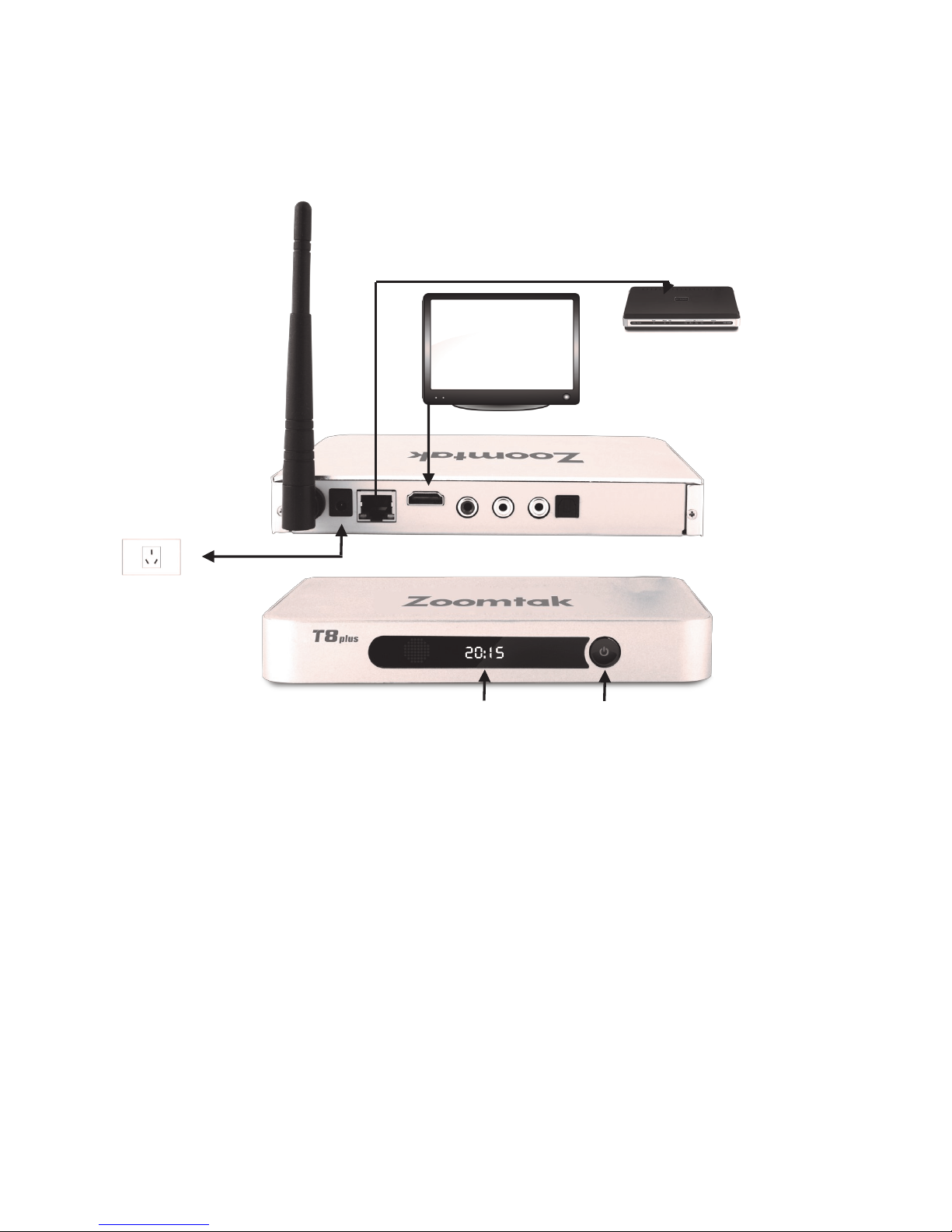
2.1 Cabling Your System
1. Connect the HDMI cable supplied into the interface marked HDMI on
your media unit and the other end into a HDMI socket on your TV.
2. Connect your Ethernet cable from the T8+ unit to a free port on your
router/modem.*
3. It is highly recommended that you plug the power supply into the unit
last of all.
It is strongly recommended that you use an Ethernet connection rather than a
wireless connection to your router. If the cable will not reach the location of your
router, then a longer cable can be purchased, or a powerline Ethernet adapter
that will use your household electrical wiring to establish the connection can be
purchased via our website www.triotechgroup.com.
If you do decide to use a wireless connection, configuration details are give in section 2.5
The ports on your unit may differ in terms of location/order on the unit.
Wi-fi
Antenna
Ethernet
Network Cable
HDMI TV Connection
Router/
Modem
Page 6
6
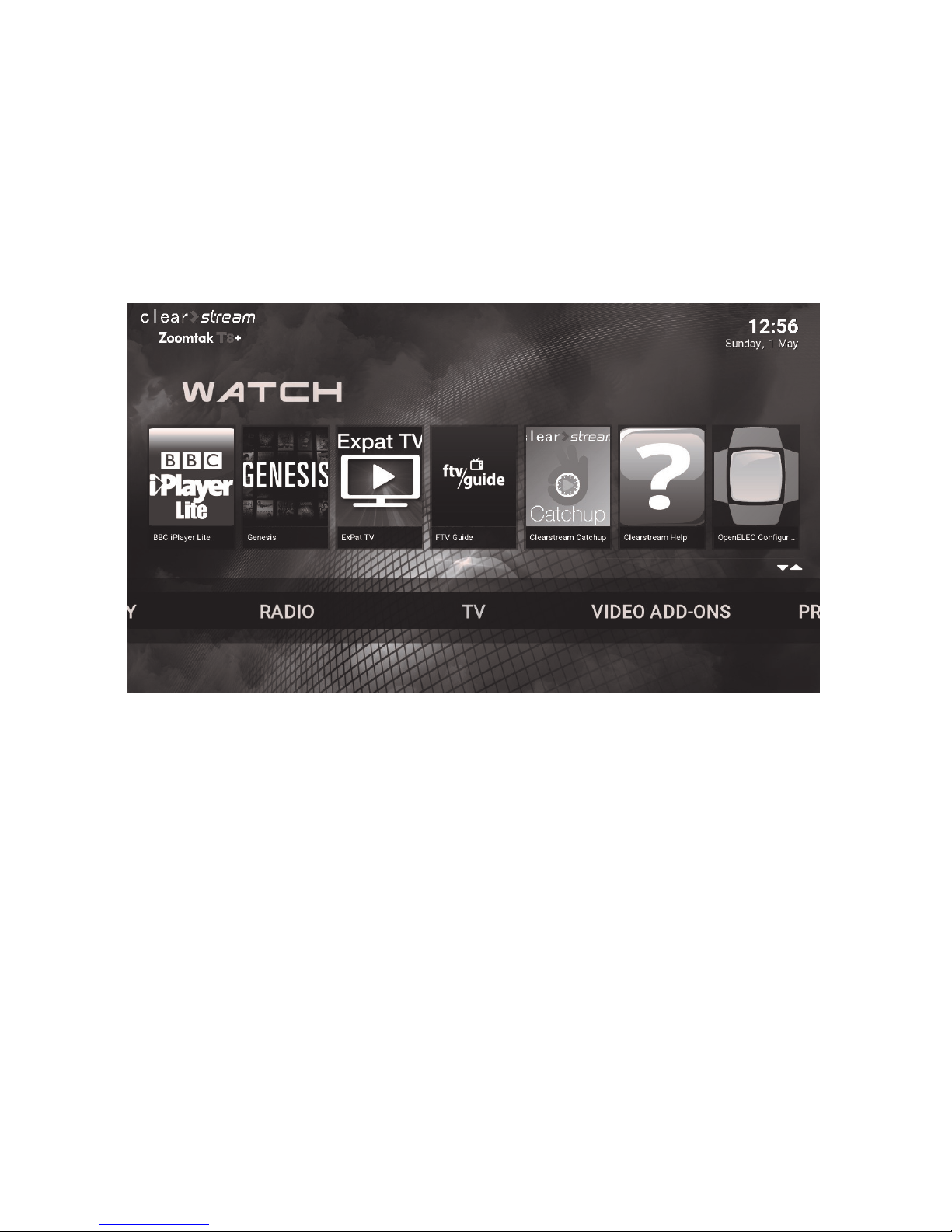
After a minute or so, you will see the Home Screen appear.
2.2 Powering on/Off
Once your unit is plugged in, the on/off button on the front of the unit will turn red.
You can switch the unit on and off by either pressing the button or using the
power button on your remote. By selecting the appropriate HDMI source on your
television remote, you should see Clearstream Home Screen as below.
2.3 Check Your Network Connection
If you are using a wired Ethernet connection, your network should be automatically
configured. To check you are online, check the system time in the top right of the
Home Screen. If it is correct then you are already connected and able to watch
some TV.
Should your time be incorrect, please follow the procedure in the next section to
connect your Ethernet or Wi-fi network.
2.4 Enabling SMART DNS for access to UK Only Services
Most UK content can be viewed via Addons that do not require a SMART DNS
service. However, If you do require access to ITV player catch-up services, go to
the ONDEMAND section on our website at www.triotechgroup.com/ondemand, or
go to the HELP icon from the Video Addons tab on your Home screen and look at
the FAQ section for instructions on how to set the service up.
Page 7
7
2.5 Configure your Network
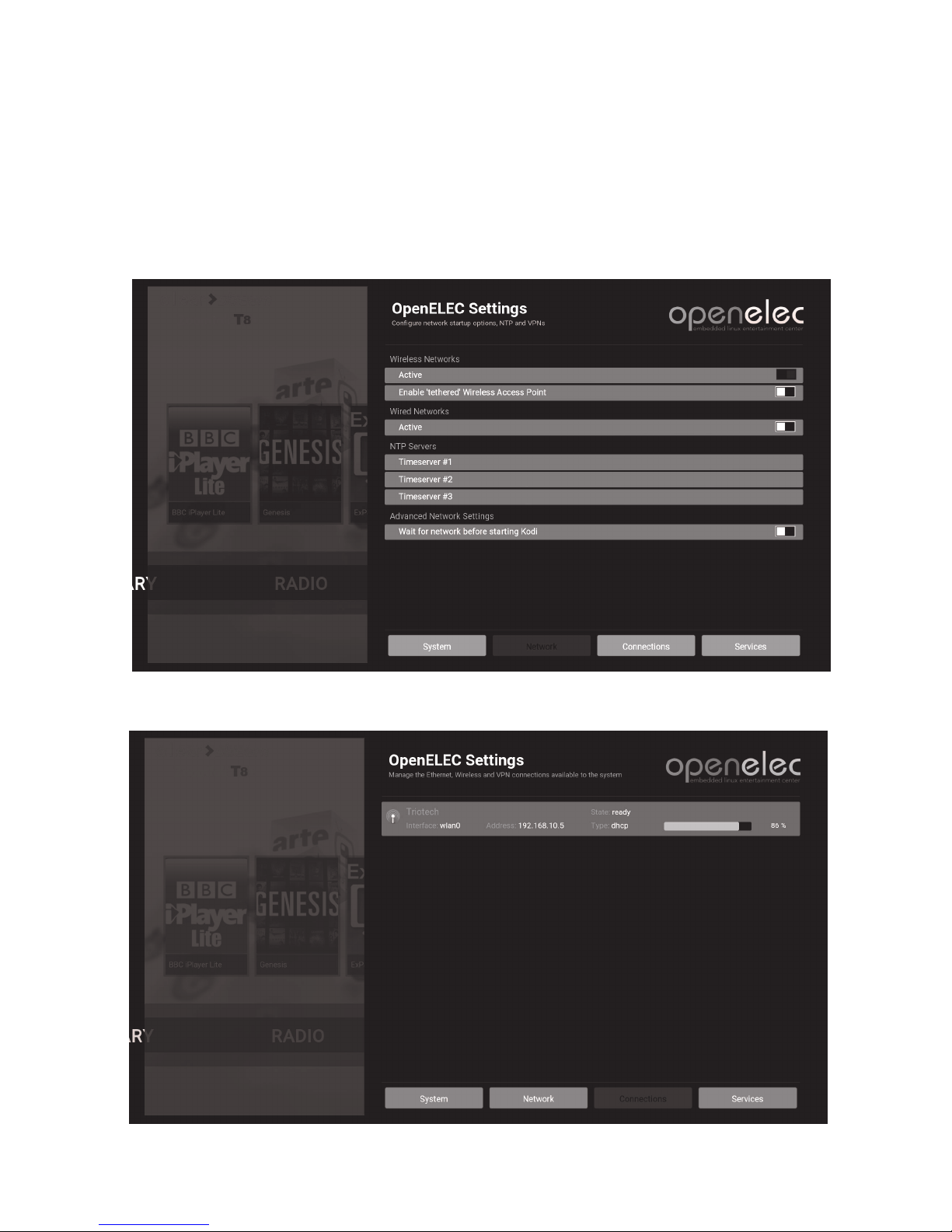
You can access the network settings by choosing the Home Screen OpenELEC
Configuration Icon. Select the NETWORK section as below and ensure the blue
radio button is showing next to either WIRED or WIRELESS options depending
on how you intend to connect your system. The Icon is also available from the
PROGRAMS heading on the Home Screen.
If you are connecting via Wi-fi, choose the CONNECTIONS option and then
select your Wi-fi network and press OK on the remote to enter your pass key.
Page 8
8
3. Using your Remote Controller
2.6 Calibrating Your Screen
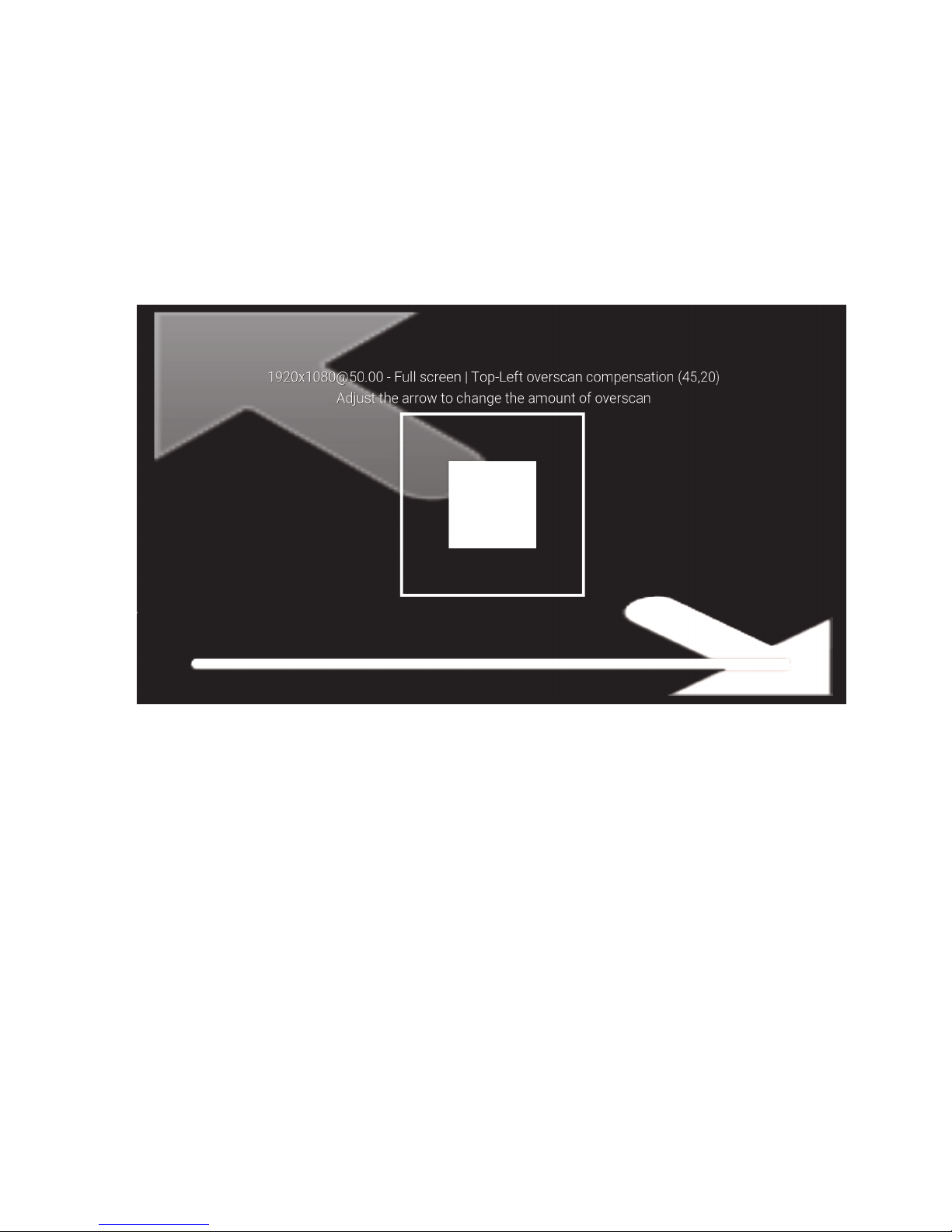
If you find that some of the text is missing in the corners of your Home screen, your
system needs to be calibrated to your TV. To do this, from the Home screen, go
RIGHT to the SETTINGS heading and press OK. Then choose the SYSTEM
heading, then VIDEO OUTPUT, then the VIDEO CALIBRATION option on the right.
This will go to the screen as shown below.
After a minute or so, you will see the Home Screen appear.
Please refer to the REMOTE KEYCARD sheet that came with your unit for
details on how your particular remote functions. All remote guides can also be
found online by going to www.triotechgroup.com/remotes.
You will then go through a process of moving the arrow to the top left corner of your
TV screen until it’s fits top and left, and press the OK button. The same process is
carried out in the bottom right of the screen, followed by selecting where the subtitles
should appear. Finally you will see a square in the centre of the screen. Use the
LEFT/RIGHT buttons on your remote to make it a perfect square and press return.
You can exit the menu back to the home screen using your BACK or RETURN
button on your remote Your screen is now calibrated.
Page 9
9
Your Clearstream model is based upon an award-winning free and open
source (GPL) software media player and entertainment hub for digital media.
It was designed for network playback, so you can stream your multimedia
from anywhere in the house or directly from the internet using practically any
protocol available. This software is provided pre-configured and at no charge
with your system.
In addition to this, we have also provided our unique Clearstream management software that provides automatic updates when required, directly to
your unit each time you switch on. It also provides several tools to check
Internet speed, maintain your system and includes a RECOVERY option
which will download and install a default image to your unit to bring it back to
the state when purchased.
4. System Overview
4.1 Video Addons
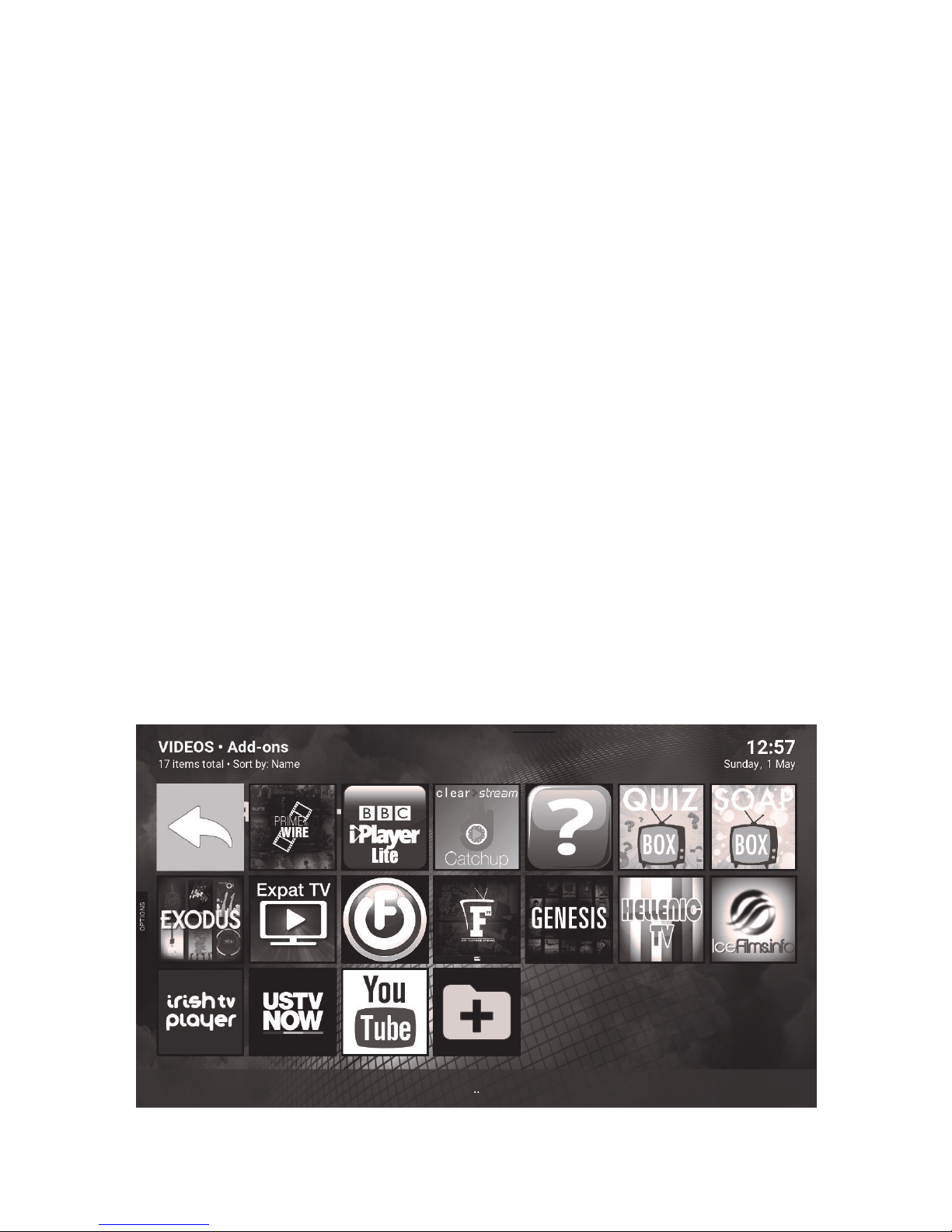
Some popular Addons have been pre-installed on your unit. The shortcuts to
some of these can be found on the main Home Screen above the TV
heading.
All of the Addons can also be accessed from the VIDEO Addons heading on
the Home Screen menu bar.
Page 10
10
4.1 Video Addons Cont..
There are literally hundreds of video addons available that provide Live TV,
Movies, TV Catchup , Radio and much more.
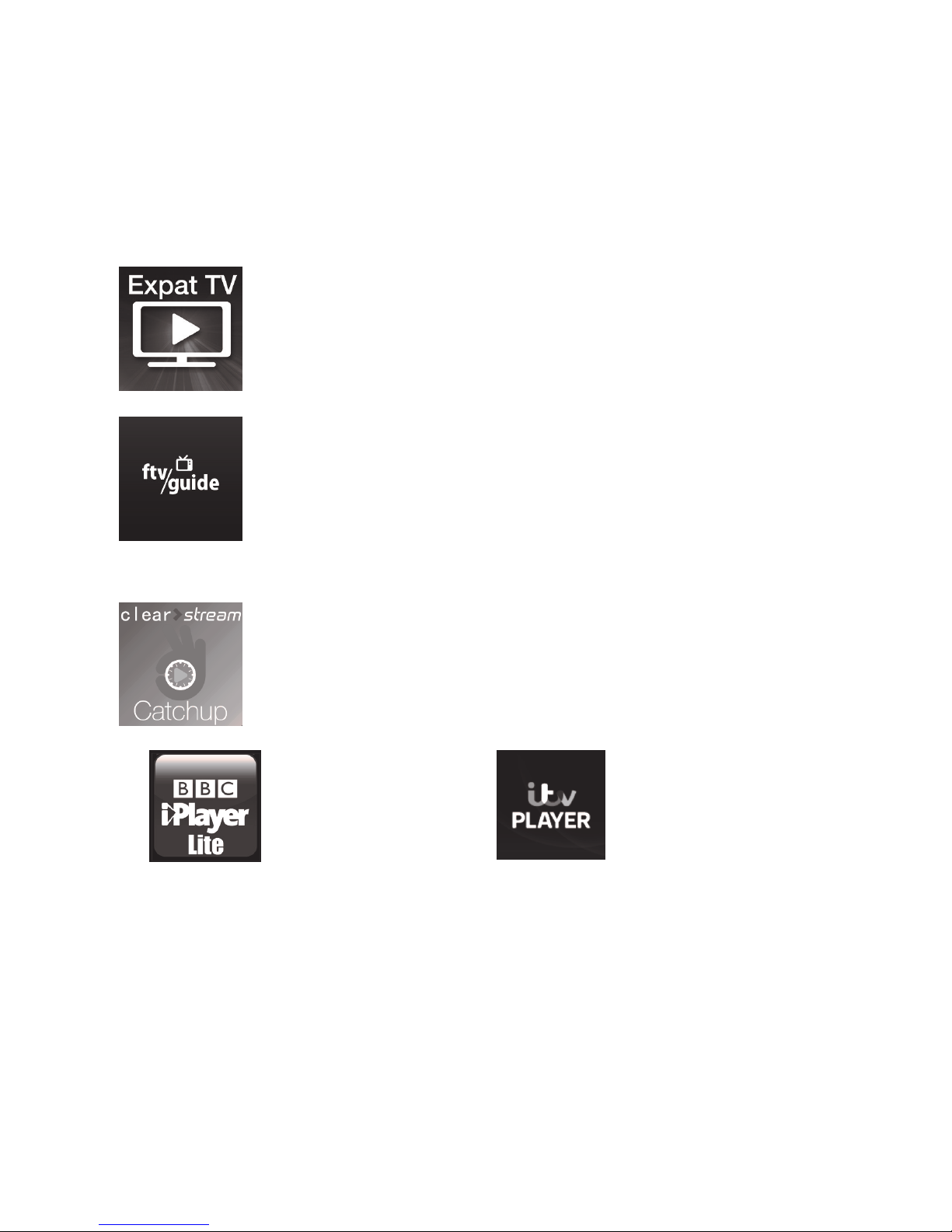
Live UK TV. Usually in higher resolution than Filmon. Our first
choice for live TV and written in house. You will find the Expat
TV icon on your Home screen, and in the Video Addon’s section.
14 Day Catchup for UK Soaps and Quiz shows is available
within the Expat addon via the Soapbox and Quizbox icons.
The FTV Guide offers a familiar and easy way to view and plan
your live TV schedule. As well as showing what is currently
being broadcast, it offers program detail on each channel
programming for the next three days. Once you have selected a
channel, simply use the menu button on your remote to toggle
between full screen and picture-in-picture to change channel.
Catch up on BBC channel
broadcasting, showing the
last 7 days programming
plus more
Free content from your
favourite ITV channels,
available anytime.
Lots of Addons that provide literally thousand of Movies and TV shows, available on
demand. Classic Movies and shows from yesteryear to the latest episodes from yesterday.
Many in High Definition. For tips and details on how to use Addons, please go to:
www.triotechgroup.com/quick-tips or go to the HELP icon from the Home screen.
For UK Live TV
A traditional TV 7 Day Catchup solution. Watch programming
you have missed from the last 7 days across 24 TV Channels.
TV and Movies On Demand Addons
UK Catchup Services
Currently, a Smart DNS service is required for the ITV Player Addon to work. Please see
page 6 of this guide or go to www.triotechgroup.com/ondemand for details.
Page 11
11
4.2 Main Playback Screen
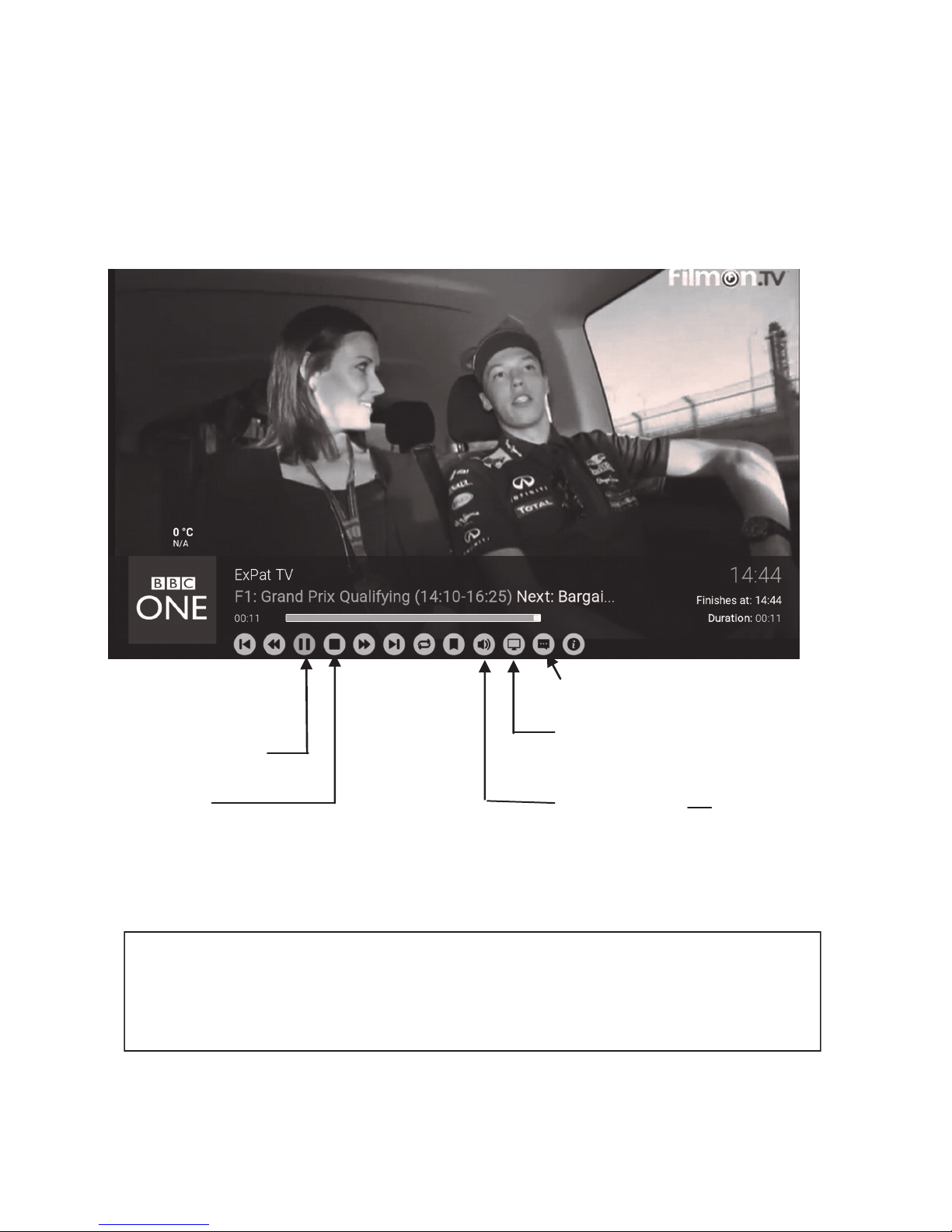
The main video playback screen is the same regardless of which addon you are
using. This can be accessed by pressing the MENU button on your remote.
Here you can adjust settings such as audio offset, aspect ratio and subtitles.
Note: This is not available whilst using the FTV TV Guide.
PLAY/PAUSE
STOP
VIDEO OPTIONS
Aspect Ratio, Filters
AUDIO OPTIONS
Audio Offset, Boost
SUBTITLES
FFWD/REWIND are currently not supported for streaming. Instead, use the
LEFT/RIGHT arrows on your remote to skip forward/backwards 30 sec, and the
UP/DOWN arrows to skip forward/backwards by 10 Mins. This is not supported
with live TV streams.
Page 12

12
It is important to note that with the volume of content available through these Addons,
Triotech Media cannot be held responsible for either the reliability, suitability or legality of
some content in terms of copyright. Some content may be unsuitable for young children.
Viewer discretion is advised.
4.3 Using Live TV Addons
When using Live TV Addons, navigate to a channel thumbnail or list with the remote
arrows and press OK/SELECT on your remote to select your channel. Please be aware
that Internet streams will take up to a few seconds to start, so repeated pressing of the
OK button before the stream starts may cause the unit to fail to play the stream
correctly.
To go back to your channel list, press the STOP/RETURN buttons, and then
RETURN to go back to the main menu screen.
Alternatively you can use the pre-installed FTV guide from the home screen to access
your Live TV schedule.
4.4 Using Movies/Recorded TV
When watching Movies or pre recorded TV, you can use the PLAY/PAUSE and skip
functions during playback. The PAUSE function is very useful if for example you are
experiencing stuttering or buffering on your connection. Simply press the PAUSE button
and give the movie or show 30 seconds-1 minute before pressing PLAY again. This
allows the units to download data in the background to give smooth playback. You can
use the UP/DOWN/LEFT & RIGHT remote buttons to skip forward & backward though
the program as detailed on page 11 of this guide.
Important: The PLAY, PAUSE & SKIP functions are unavailable whilst watching
LIVE TV and may result in an error on your system.
Page 13
13
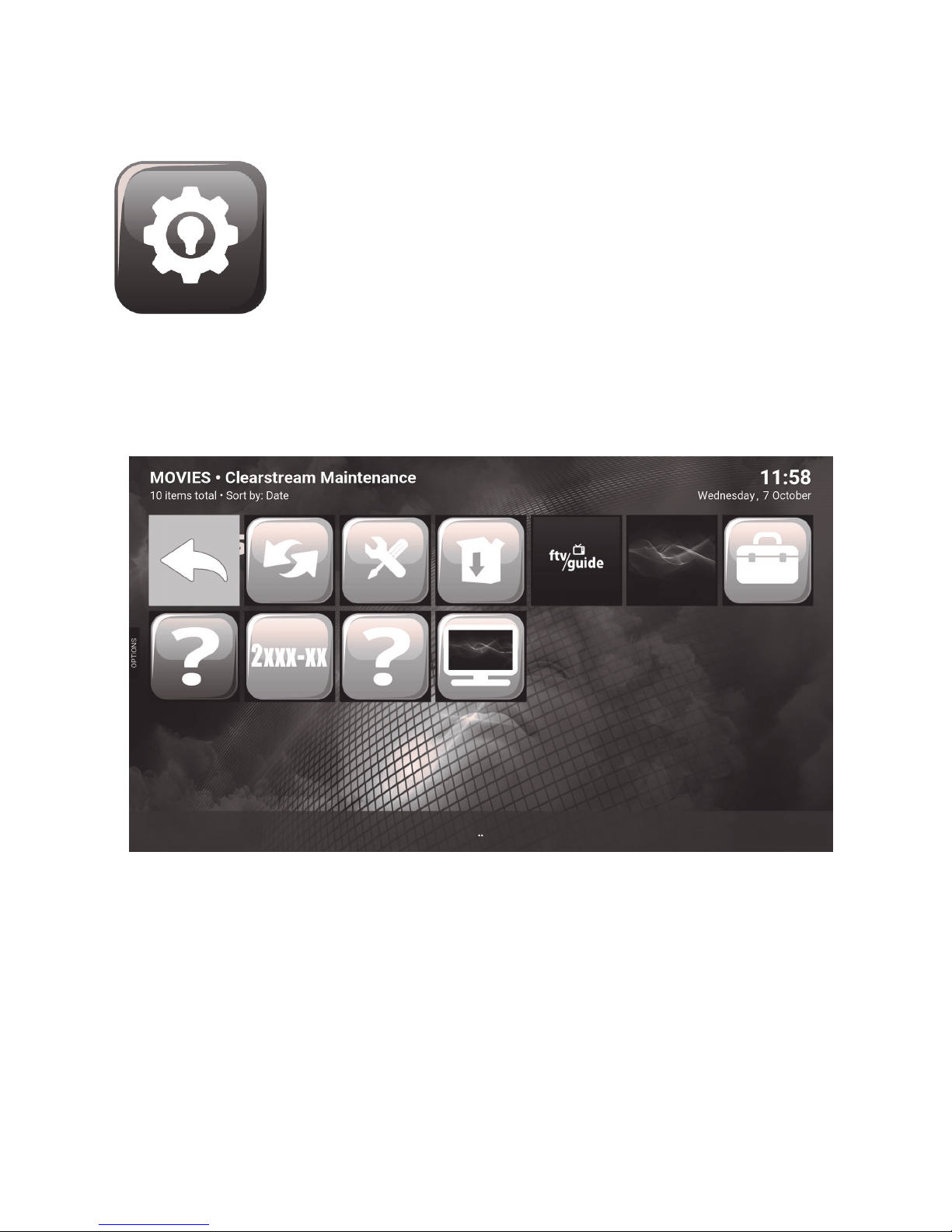
5.0 Clearstream Maintenance Addon
The Clearstream maintenance tool is designed to give you all the
tools and support you need to keep your unit up to date and
Functioning optimally. Here you will find all of the fixes, updates,
and version upgrades as well as diagnostic tools such as checking
your Internet connection. The Auto Update feature means that
critical updates will be applied automatically when you switch the
unit on.
You will find the Clearstream maintenance Addon by using the
RIGHT button on the remote from the main screen. You will find the
Icon by going to the PROGRAMS heading on the home screen and
selecting OK on your remote.
You can also install new Addons on your system using the ADDON Installer icon which
is also available by selecting the PROGRAMS heading from the main screen.
If an Addon is not functioning correctly, you can RE-INSTALL it easily by going to the
RE-INSTALL section within Clearstream Maintenance.
Page 14
14
5.1 Help and Support For Your Clearstream
One of the key differences between our system and many others
is that we understand how important customer service is.
In addition to the standard hardware warranty, we provide lifetime
technical support for your unit with online help, videos, & FAQ
sections etc.
For direct support, you can use the contact-us link to raise a
support ticket or ask a question at:
www.triotechgroup.com/contact-us
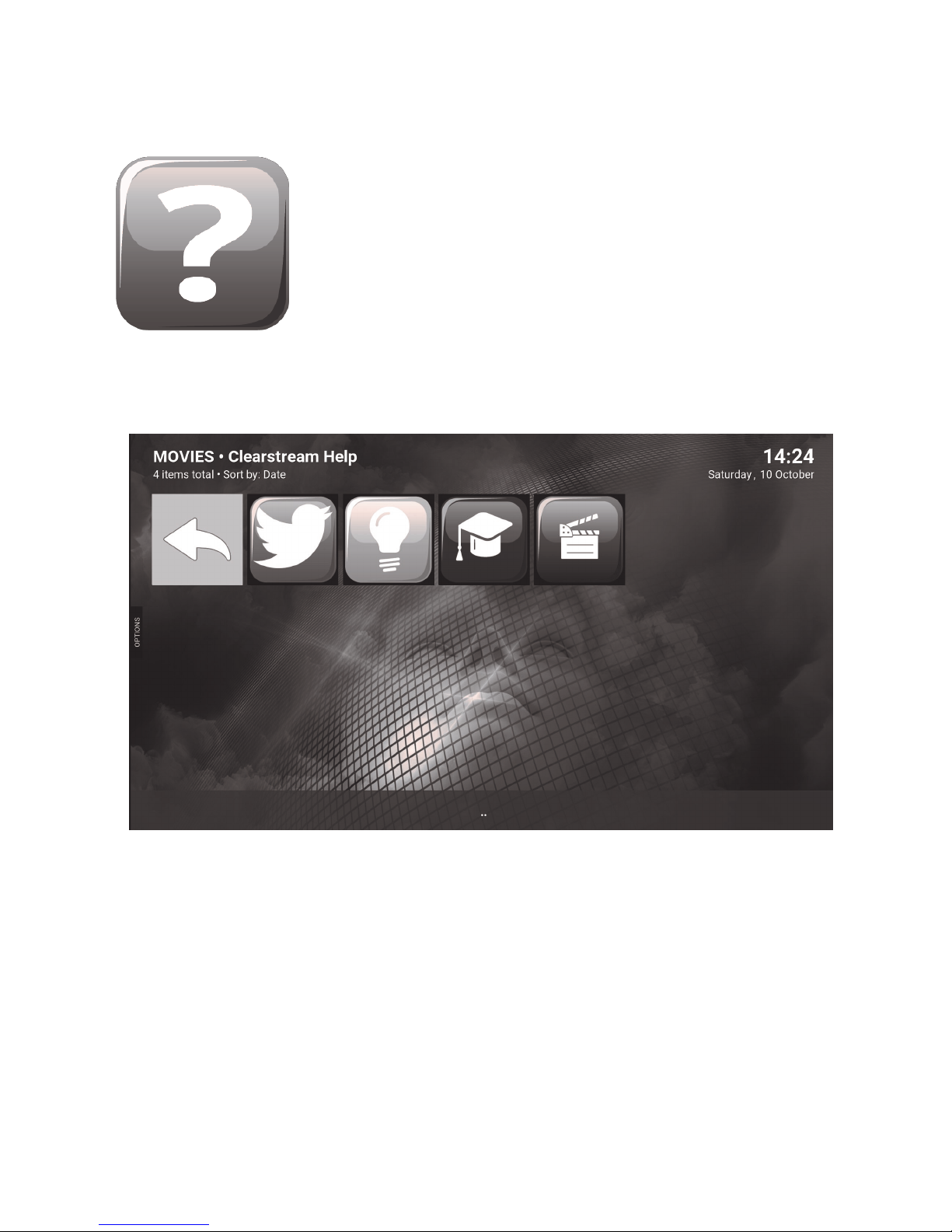
HELP
A series of Help Videos, latest news and quick tips are available directly from your
unit by accessing the HELP Icon . You can find this in the Video Addon section
from your menu.
You can also follow us on:
Twitter @clearstream2013
Facebook /Clearstream.freeTV
Website www.triotechgroup.com
Page 15

15
5.2 Troubleshooting
Q. I have an error‘ saying script failure’ on my screen.
A. If all Addons are failing, it is likely you are not connected to the internet. Check
connectivity using the Clearstream maintenance NET TESTER tool and
reboot the media unit.
Q. My video stream keeps pausing and saying ‘Buffering’
A. Some sources can be busy due to demand. Many issues can be fixed by
pausing the stream for 30 seconds or so before resuming to allow the stream
to buffer. (Not LIVE TV). If you still experience buffering then press the STOP
key and choose another source as they will vary in speed. Many videos are
available across different Addons as well, so give a different one a try.
Q. I cannot connect to the Internet
A. If you are wired then check whether the Ethernet port is flashing and check
the router configuration is correct. If the problem persists, then switch off the
router and the Clearstream unit. Switch on the router first and wait until it is
fully active before switching on the Clearstream unit and try connecting again.
Q. UK On Demand services are not working with script failure or URL not found
A. Please go to www.triotechgroup.com/ondemand to fix your Smart DNS.
Q. One of my Addons is not working but the rest are fine
A. Try going to the re-install section of the Clearstream Maintenance Addon and
select the Addon to re-install it. Reboot the Clearstream and try again.
Q. My media unit is not responding when using an Addon.
A. If it does not respond within a couple of minutes, then reboot with the power
button on the remote.
Q. I cannot enter my serial number into the Clearstream Maintenance Addon
A. The serial number is printed on the underside of the media unit, starting 201..
The number can be entered without spaces or dashes. There is no need to
use the S/N prefix when entering the number.
With the exception of Triotech Media authored Addon’s, all of the Addons are free
public domain software and as such we do not offer direct support should an individual
Addon stop working or malfunction. We will of course offer advice and fixes where we
can, which you can get via our website at www.triotechgroup.com/support .
All available fixes are available via the Clearstream Maintenance Addon.
Support for Addons
Page 16

16
Earn Rewards & Cash by Referring a Friend!
It’s great to recommend a good product to friends and family for them to enjoy.
Hundreds of our customers have already referred us, so why not get a discount
for your friend and receive a free gift for yourself?
Just go to www.triotechgroup.com/refer for details on how to get something extra
for you and your friend.
If you are looking for a great business opportunity, you can become an official
reseller or affiliate with no risk.
Check out our reseller and affiliate options at www.triotechgroup.com/partner.
 Loading...