

Page 1
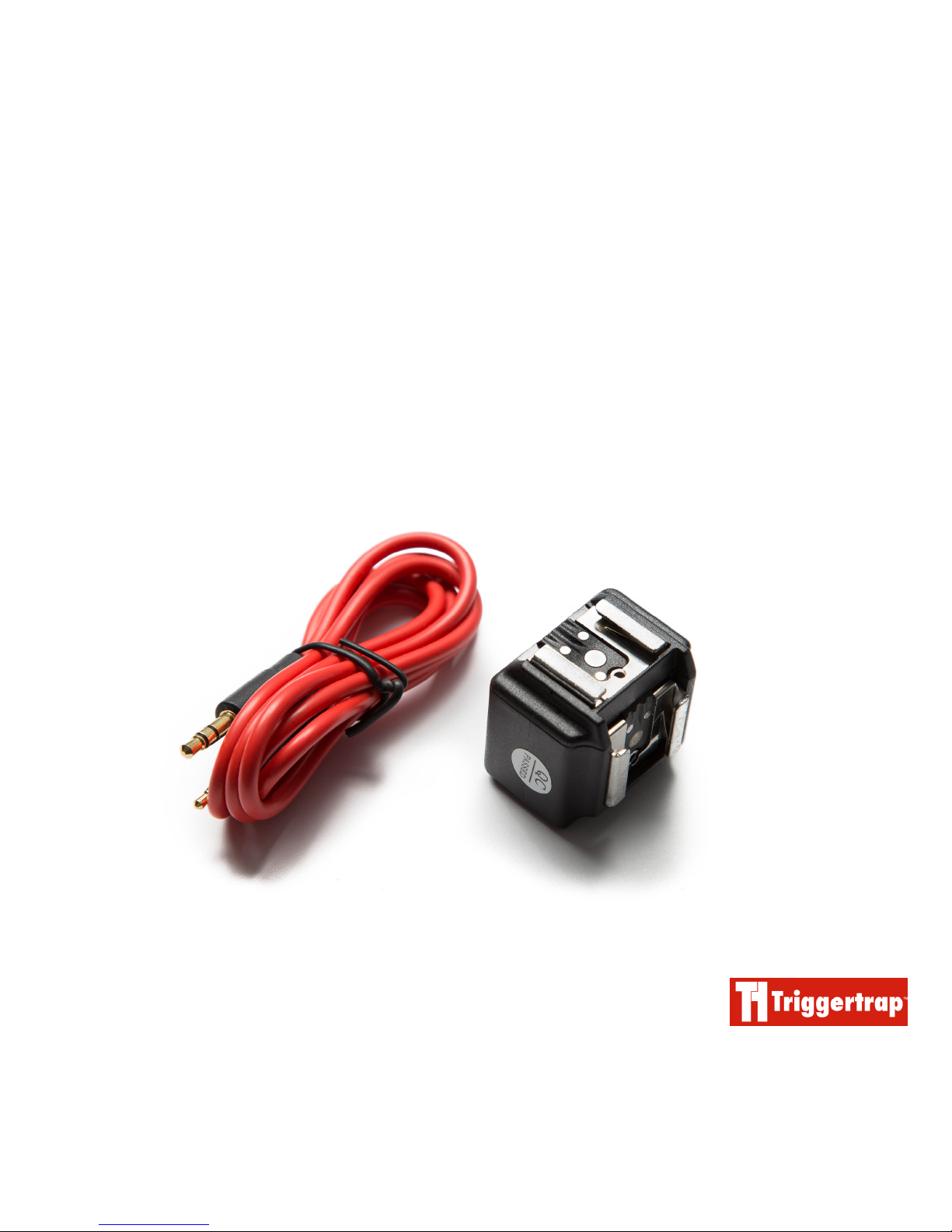
Triggertrap Flash Adapter
User Manual
TT-FA1
Updated: 27 November 2013
Page 2

Triggertrap Flash Adapter Manual | Page 2
Table of Contents
Table of Contents ................................................................2
Introduction ..........................................................................3
Compatible ash units ..............................................................3
iOS only ............................................................................................3
Why would I need to use Triggertrap ash Adapter? 4
Setting up a ash with Triggertrap FLash Adapter .5
Manual mode .................................................................................5
Lowest power output ............................................................... 5
Dual hotshoe ................................................................................. 5
How to set up Triggertrap Mobile to work with
Triggertrap Flash Adapter ................................................6
Pulse Length ................................................................................... 6
Sensor Reset Delay ....................................................................6
Example: Capturing a water balloon popping .........7
Environment .................................................................................7
Flash ....................................................................................................7
Camera .............................................................................................7
Triggertrap Mobile ....................................................................7
Water Balloons ............................................................................. 7
Troubleshooting with Triggertrap Flash Adapter ....8
The ash is taking forever to re, what’s up?!..............8
The ash is ring too early ....................................................8
The ash keeps ring in quick succession and
ruining my photos ....................................................................... 9
The ash won’t re at all! .......................................................9
Do you still have questions? ......................................... 10
The small print ................................................................... 10
Page 3
Triggertrap Flash Adapter Manual | Page 3
Introduction
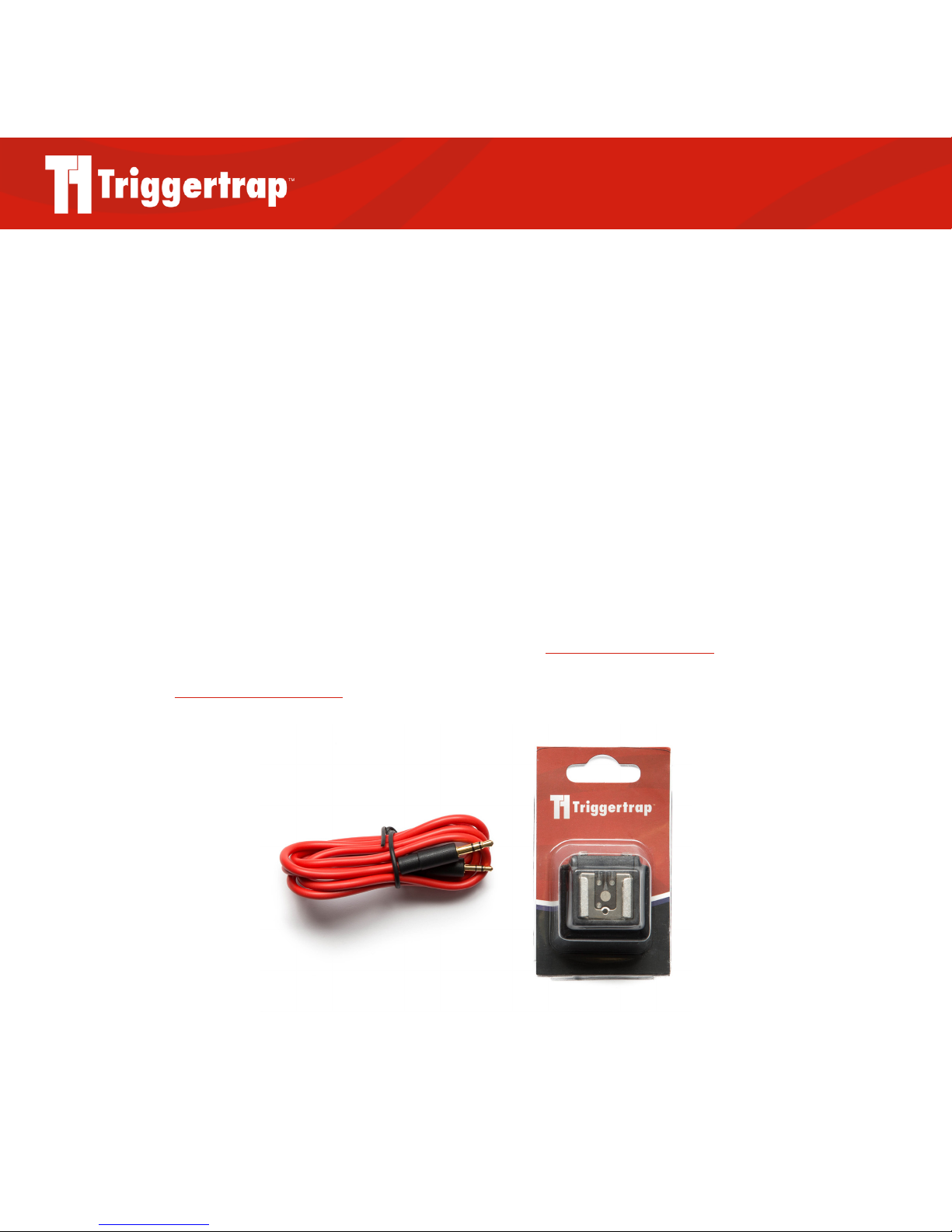
Triggertrap Flash Adapter is a dual hotshoe mount
and cable that enables you to trigger your ash using a
range of triggering modes when used with the
Triggertrap Mobile Dongle and Triggertrap Mobile
app on an iOS device or with a Triggertrap hardware
product.
Please note: this manual does not cover the triggering
modes available in the Triggertrap Mobile app. For
information on how to use the app please see the
Triggertrap Mobile manual for your Android or iOS device.
Compatible ash units
All modern ash units that connect to a standard
hotshoe should be compatible with Trigger trap Flash
Adapter. This means that unfortunately Sony/Minolta
ashes are not supported, unless you use a standard
hotshoe adapter for them.
iOS only
Although Triggertrap Mobile is compatible with both
iOS and Android devices, the audio latency on Android
devices is generally too large to achieve the high speed
photography that Triggertrap Flash Adapter is capable
of. We therefore suggest that for best results
Triggertrap Flash Adapter should only be used with
iOS devices. Triggertrap Mobile is available on any iOS
device running iOS 6.1 or newer including iPhones,
iPads and iPod touches.
To read more about audio latency and Triggertrap
Mobile check out our blog article here: https://trigger-
trap.com/ttm-high-speed-triggering-android/.
DID YOU KNOW?
You can always get the most recent version of Triggertrap
Mobile manual from our website – point your browser at
http://tri.gg/manual
WARNING
Never attempt to use the ash adapter with studio
equipment or with high-voltage ashguns as this may
damage your smartphone.
Page 4

Triggertrap Flash Adapter Manual | Page 4
Why would I need to use Triggertrap ash Adapter?
There are a few reasons why you may want to use a
ash with Triggertrap Mobile, but it all comes down to
one key point, and that’s speed!
Triggering a camera takes time. Before the camera res,
there’s a load of mechanical stuff that has to happen
rst. This delay (known as shutter lag) can make a huge
difference, especially when you’re doing high speed
photography. Firing a ash on the other hand is mighty
fast - there’s nothing mechanical to slow it down!
The maximum shutter speed on a camera is typically
1/4000 or, if you’re lucky, 1/8000 of a second. Now, this
is pretty fast for most photography, but often not fast
enough for high speed shoots.
Using a ash is MUCH faster. For example, at its
lowest power, a Nikon SB-800 has a ash duration of
1/41600 of a second, which is substantially faster than
the fastest shutter speed.
This may sound confusing because we are talking
about the ash speed and not the shutter itself but you
can still use this ash speed as your exposure time. If
you set up your high speed photo shoot in a totally
darkened room, with the camera on bulb and your
ash set to the lowest power, the only light exposure
you’ll record is the short burst of light from the ash,
making your exposure duration extremely short!
WARNING
Always ensure you use the Triggertrap Mobile Dongle,
and never attempt to connect your ash directly to your
iOS device. Connecting the iOS device and the ash without
a dongle could harm your ash, your iOS device, or both.
Page 5
Triggertrap Flash Adapter Manual | Page 5
Setting up a ash with Triggertrap FLash Adapter
Manual mode
Most ash units will have a manual mode you can set
them to. This mode best enables Triggertrap to control
how and when the ash is triggered. If your ash unit
does not have a manual mode, please refer to the manual to nd the mode that best enables external trigger
control.
Lowest power output
Using the lowest power output setting on your ash
means that the ash duration is much shorter and your
ash unit can work at its fastest, meaning that you will be
able to achieve the highest speed possible.
Dual hotshoe
Triggertrap Flash Adapter’s dual hotshoe mount allows
you to control two ash units at the same time, giving
you double the amount of light and a much more even
and controllable spread of light.
Even though the ash adapter only has two hotshoes,
there are still options for using multiple ashes for more
intricate lighting setups . You could plug a radio trigger,
like a Pocket Wizard or Radio Popper on one of the
hotshoes, or you could set up other ashes with optical
slaves. One thing to consider is that using radio triggers
may slow things down slightly.
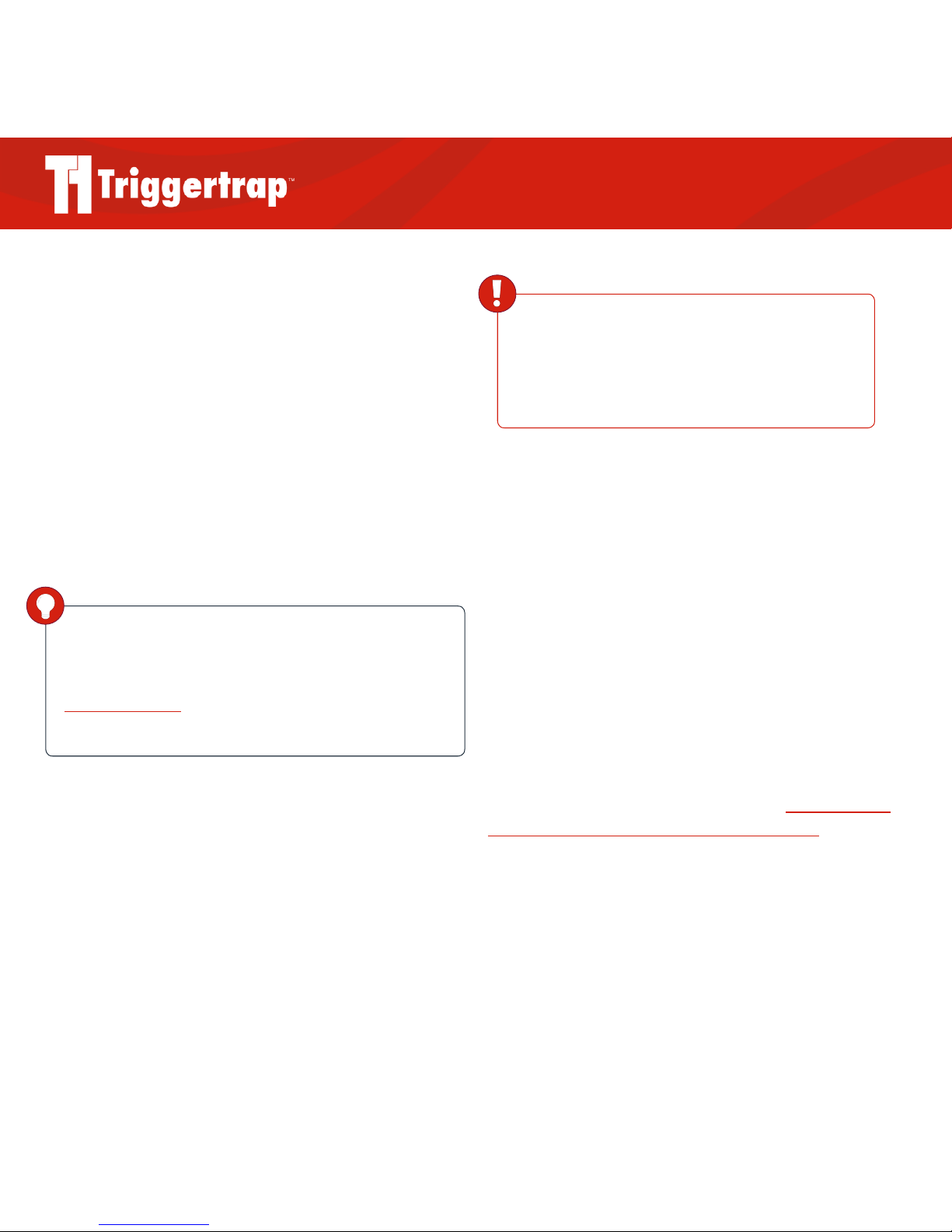
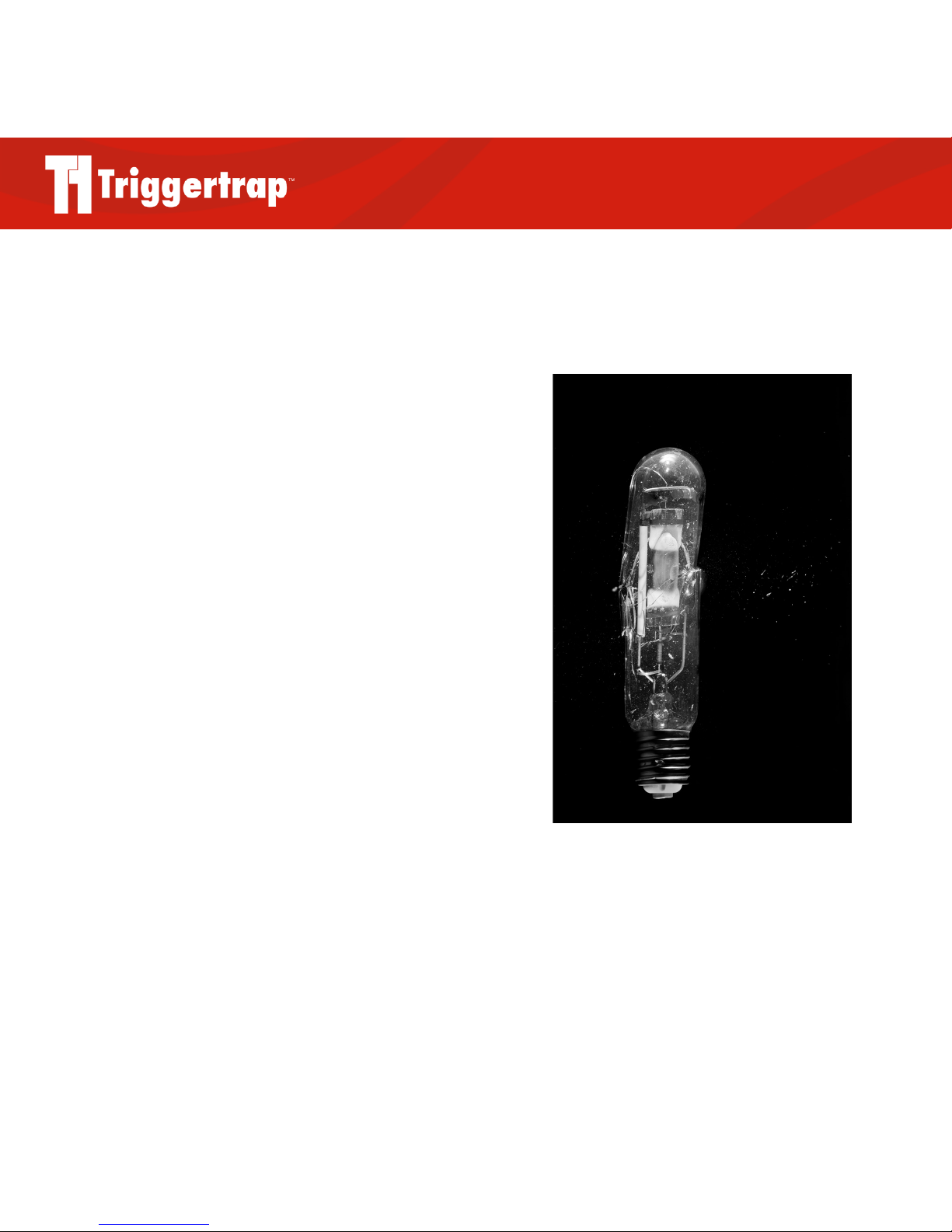
Photo: Bulb Smash by Paul Traviss
Page 6
Triggertrap Flash Adapter Manual | Page 6
How to set up Triggertrap Mobile to work with
Triggertrap Flash Adapter
Pulse Length
The Pulse Length is the duration Triggertrap Mobile sends
a signal to your ash. When you rst launch the app, you
will be greeted with a welcome screen. You will then be
taken to the Menu.
From the Menu, select Settings. On this page you will see
a box called Pulse Length. Set this to 30ms - Fast.
Sensor Reset Delay
The sensor reset delay controls how quickly you want
your sensor to reset before taking another photograph.
You may want to consider setting a sensor reset delay
in order to minimise any accidental multiple exposures
or a strobe effect. Setting a delay of 5 seconds will cause
Triggertrap Mobile to wait 5 seconds before ring the
ash again.
Once this is done, plug the Flash Adapter into your Mobile Dongle, then plug the dongle into your smart device.
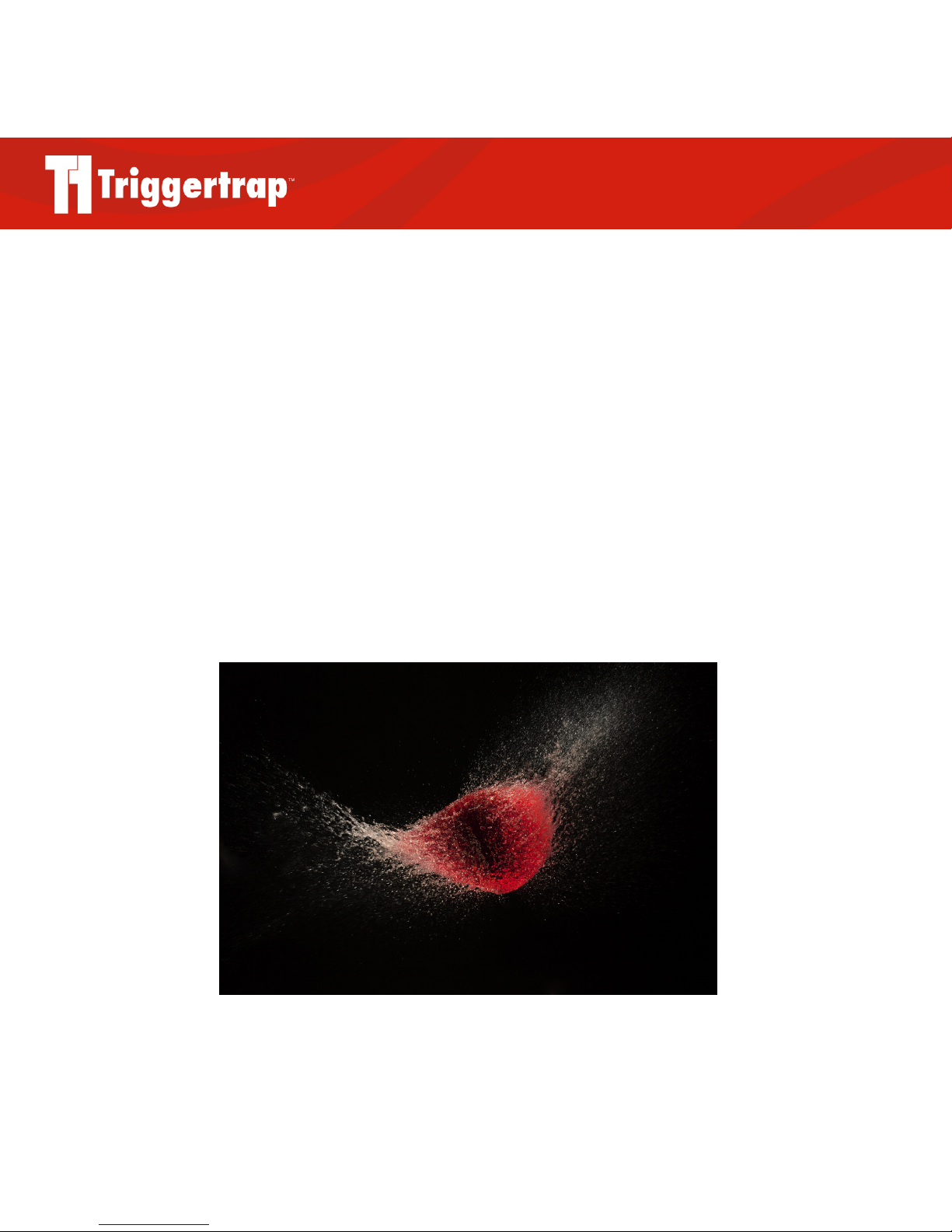
Photo: Balloon Splash by Gabe Toth
Page 7

Triggertrap Flash Adapter Manual | Page 7
Example: Capturing a water balloon popping
One easy (yet seriously fun) way of experimenting with
the ash adapter is to capture a water balloon popping!
Here is our guide to setting up your photo shoot.
Environment
You’ll need to either set up for these photos in a
darkened room (with something to catch the water from
the balloon) or outside when it is dark, away from any
sort of lights. In other words, the darker the better!
Flash
As mentioned above, set your ash to the lowest power
possible. Point the ash at where you intend to pop the
balloon, make sure the ash is far enough away so that
you do not drown the image in light and overexpose it,
but not too far away.
Camera
Set the camera on a tripod, put it in manual focus and
manual exposure. Set the shutter speed to bulb, the
aperture to a moderate value (e.g. f/8), and set the ISO.
You’ll want to take a series of test images as the ISO will
need to be set so that the exposure is correct for the
ash power. Manual focus the camera on the position
you will be popping the balloon. To do this easily, place
something (or someone!) where you are going to pop
the balloon and focus on it (them).
Triggertrap Mobile
Open up the app, go into Settings and make sure you
have the Pulse Length set to 30ms. Also set a Sensor
Reset Delay of 5s.
Once this is done, go into the Sound Sensor Mode, set
the threshold to a level at which the ash wont be red
by any ambient noise. Place the iOS device at a safe
distance from where you are going to pop the balloon.
Water Balloons
In order to set Triggertrap Mobile off, you’ll need a pop!
If you have no luck getting a pop with a balloon full of
water, blow some air into the balloon once you’ve part
lled it with water.
When you’re ready, star t the sound sensor mode and
clap to ensure the ash res. Once you know the ash
is ready to re, open the shutter on the camera. Then it’s
time to pop the water balloon! One popped, close the
shutter and you should have one extremely cool photo.
Page 8

Triggertrap Flash Adapter Manual | Page 8
Troubleshooting with Triggertrap Flash Adapter
The ash is taking forever to re, what’s up?!
One key thing to consider when using the sound trigger
is how far away you place the smart device from the
action. The closer to the source of the sound, the faster
the ash will re. This is simply because the further away
the device is from the source of the sound, the further
the sound has to travel.
For optimum results, place the iOS device as close as
possible to the source of the sound. The closer to the
source of the sound the device is, the quicker the device
will react to the sound (as the sound has less distance to
travel) and therefore the faster the ash is able to re.
The ash is ring too early
If your ash is ring before the action you want to
capture has happened, you have two options.
You can move your iOS device further from the sound
and/or from the scene you are trying to capture. This will
give your device the necessary time to send the signal to
your ash before the explosion happens! One metre is
usually a good rule of thumb. Getting this right really does
mean experimenting in order to get all relative distances
correct for the perfect shot.
The other option is to go into the Triggertrap Mobile app
settings and add a Sensor Delay, creating a set delay
length before the ash is red.
Page 9
Triggertrap Flash Adapter Manual | Page 9
The ash keeps ring in quick succession and
ruining my photos
1. First of all, check the settings on your ash unit.
Are you in manual mode? Make sure you have
turned off any presets that might allow your ash
unit to strobe like this.
2. Check the threshold in the sensor mode you are
using in Triggertrap Mobile. Is the threshold set too
low, meaning that the sound level remains over the
threshold for too long?
3. Go into Settings in Triggertrap Mobile and select a
Sensor Reset Delay of about ve seconds.
4. If none of the above seem to have helped, send us
an email on [email protected]
The ash won’t re at all!
1. Turn on your ash and press the ‘test’ button -
does the ash go off?
2. Do NOT use the Triggertrap Mobile Dongle
for this test: Connect your ash to the
Triggertrap Flash Adapter, and connect the cable
to the Flash Adapter. Now, please short-circuit
the side of the cable that you usually plug into
the Triggertrap Flash Adapter, using some
aluminium foil. Does that trigger the ash?
3. Presuming step 1 and 2 resulted in your ash
triggering correctly - have you tried your dongle
with your camera? Does that work?
Page 10

Triggertrap Flash Adapter Manual | Page 10
Do you still have questions?
We’ve done everything we can to make this manual as
thorough as possible, but if you’re still stuck, we’d love to
help you out!
We have an extremely lively and helpful support forum
on http://tri.gg/forum. If you’ve got a problem, search
here rst – chances are that someone has already asked
your question, and you’ll be able to nd your problem
here.
We also have an FAQ Knowledge Base that lives at
http://tri.gg/faq that will provide you with some clearer
and more in depth explanations for some of our more
commonly asked product questions.
If you’re still stuck, you can email our super friendly
support team at [email protected]
The small print
We have taken all care to ensure that this manual is as
complete and as accurate as possible, but there may be
mistakes here and there. If you spot any errors, please
contact us on [email protected] so we can x it in
the next version of our manual!
Page 11

We have taken all care to ensure that this manual is as complete and as accurate as
possible, but there may be mistakes here and there. If you spot any errors, please contact
us at [email protected] so we can x it in the next version of our manual.
We are Triggertrap.
We love photography.
For more information,
visit us on the web at:
triggertrap.com
 Loading...