

Page 1

Tridium Professional Services
ASD Network Serial Tunneling
User Guide v1.1
Page 2

Contents
Introduction ................................................................................................................. 3
Jace Tunneling Server Setup......................................................................................... 3
Jace Server Software Requirements ......................................................................... 3
Jace Licensing Requirements .................................................................................... 4
Jace Server Configuration ......................................................................................... 4
Verify HTTPS support ........................................................................................... 4
Install and Configure the Tunnel Service .............................................................. 4
Install and Configure the ASD Network PSI Tunnel ............................................... 5
Tunneling Client Installation......................................................................................... 6
Starting the Tunneling Client ........................................................................................ 7
Configuring the Tunneling Client .............................................................................. 8
Making the Connection .......................................................................................... 10
Confirm the Server TLS Certificate ...................................................................... 10
After the Connection .......................................................................................... 10
Virtual COM Port Verification ............................................................................. 11
Closing the Tunnel Connection................................................................................... 12
Troubleshooting ......................................................................................................... 12
Page 3
Introduction
The Tridium Professional Services ASD Serial Tunneling features are created to allow
remotely connecting XPSI serial terminal software to a Jace8000, which allows the
XPSI application functionality to be used without physically connecting to the ASD
Network trunk.
The Tridium Professional Services ASD Serial Tunnel Client application is built to
support remote connectivity via ethernet network connection to the ASD Network
connected to a Niagara Framework embedded device, specifically a Jace8000. The
Tunnel Client allows a locally running serial application (XPSI) to connect to a local
virtual COM port created by the Tunnel Client to send and receive messages. The
Tunnel Client makes an ethernet connection to the Jace8000, which routes those
messages to the ASD serial network.
This configuration allows ASD Network commands to be implemented remotely,
without having to connect directly to the serial field bus.
Note: Only one PSI application can use the tunnel per session. To use a different PSI application, you
must close and restart/reconnect the tunneling client, then start the other PSI application.
This document describes the configuration and usage of the Serial Tunnel Client as
well as the prerequisite configuration required on the Jace8000 for the serial tunnel
architecture to work properly.
Jace Tunneling Server Setup
The Serial Tunnel Client application must make a connection to Jace8000 which has
been properly configured to listen for the connection request.
Jace Server Software Requirements
The Serial Tunnel Client application will only connect to properly configured
Jace8000’s that are running Niagara with the appropriate versions of the tacASD
modules installed. The module versions are as follows:
Module Name
Version
Page 4
tacAsd-rt.jar
4.4.94.14.14, 4.8.0.110.12, or 4.9.0.198.6
tacAsd-wb.jar
4.4.94.14.14, 4.8.0.110.12, or 4.9.0.198.6
Jace Licensing Requirements
The Jace license must include the “asdTunneling” and “pstunnel” features for the
psiTunnel to enable. Without these license features, the component can be added to
the station, but it will not operate and will remain in the “fault” status.
Jace Server Configuration
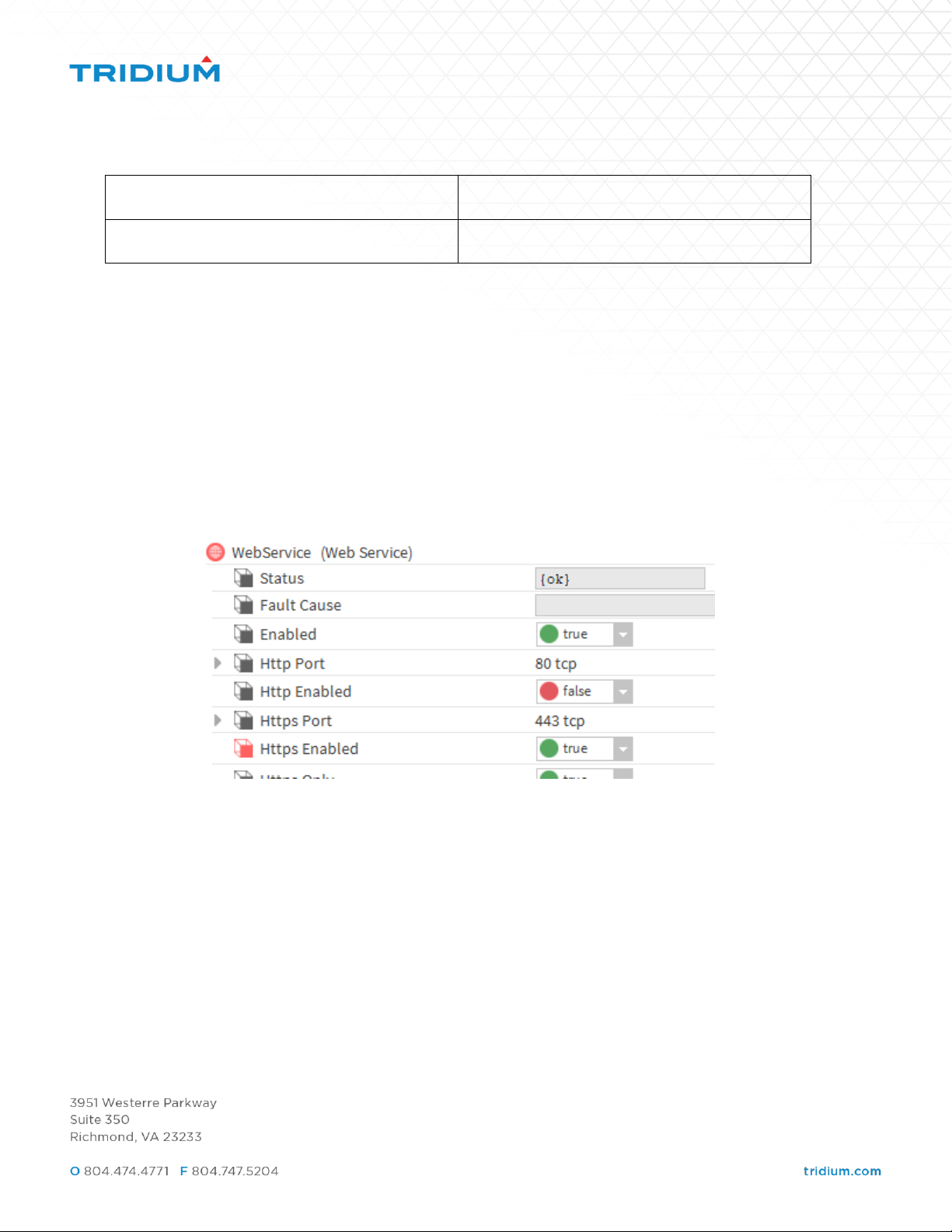
Verify HTTPS support
In the Jace8000 station, HTTPS must be enabled in the station’s Web Service.
Install and Configure the Tunnel Service
In the Jace8000 station, the Tunnel Service must be present in the Services container
in the station. The Tunnel Service can be found in the tunnel palette. Drag and Drop
the Tunnel Service from the Niagara Workbench Palette onto the Services container
in the station. The Tunnel Service has properties that must be correctly configured.
Page 5
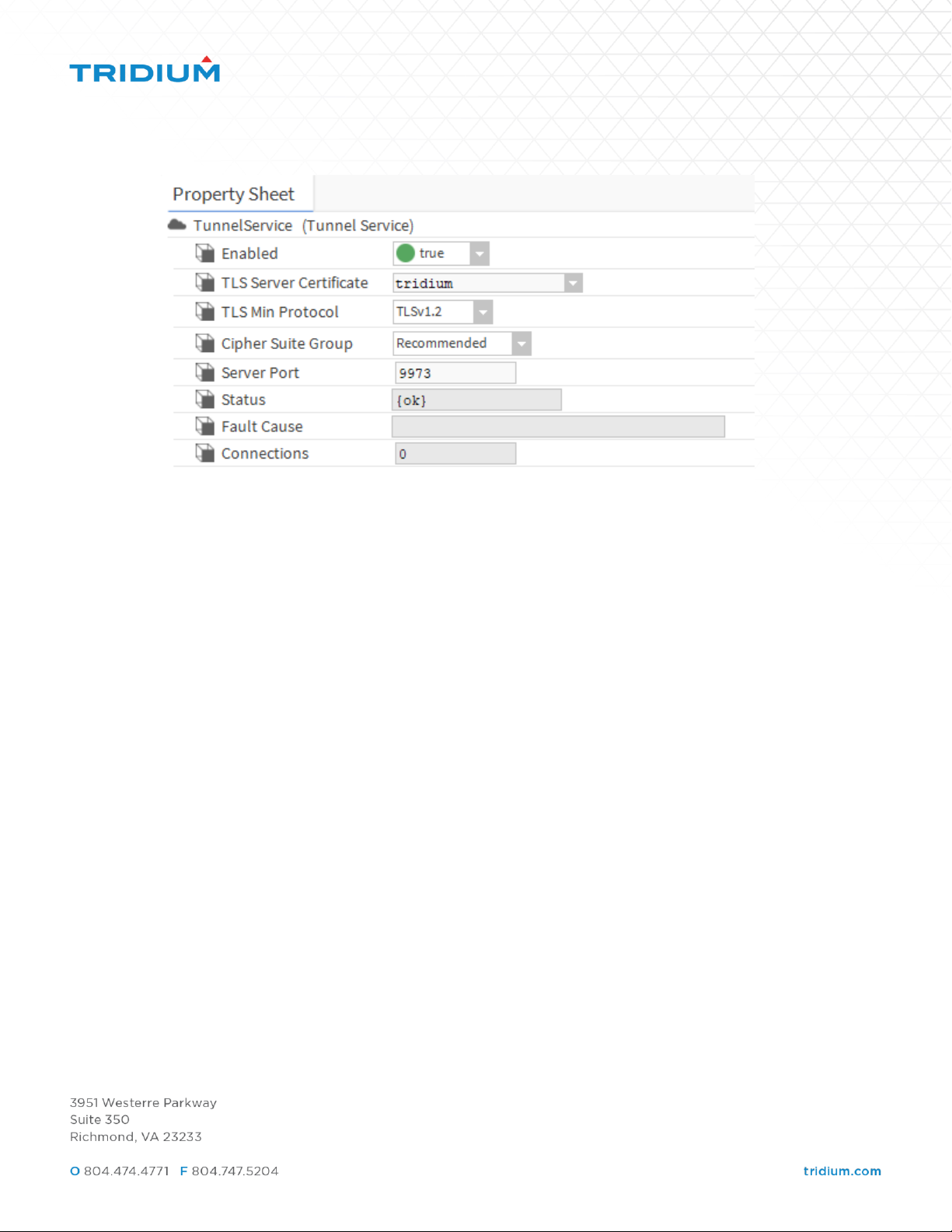
As a best practice, it is recommended to specify the highest version of the TLS
Protocol using the TLS Min Protocol property. The Server Port number represents the
Tunnel Service’s listening TCP port. Any client would be required to specify this port
number in their connection request in order to connect to the Tunnel Service.
Appropriate firewall exceptions may be required for inbound connections to the Jace
over this TCP port.
The TLS Server Certificate that is selected by default is the self-signed certificate
created and signed by the Jace itself. It is recommended that a certificate that is
signed by a trusted certificate authority be used here.
If configured correctly, this message will be printed in the Jace’s Application Director
platform view on startup:
FINE [13:11:18 09-Jun-20 EDT][tunnel] Tunnel server started on port <nnnn>
Install and Configure the ASD Network PSI Tunnel
The PSI Tunnel component can be found in the tacAsd palette. It should be dropped
into the ASD Network on the Jace8000.
Configuration of the PSI Tunnel involves configuring the tunneling Identifier property.
This property should be set to a valid COM port name, beginning with “COM”. It
should be a unique COM port name, not used elsewhere in the Niagara station. It is
Page 6
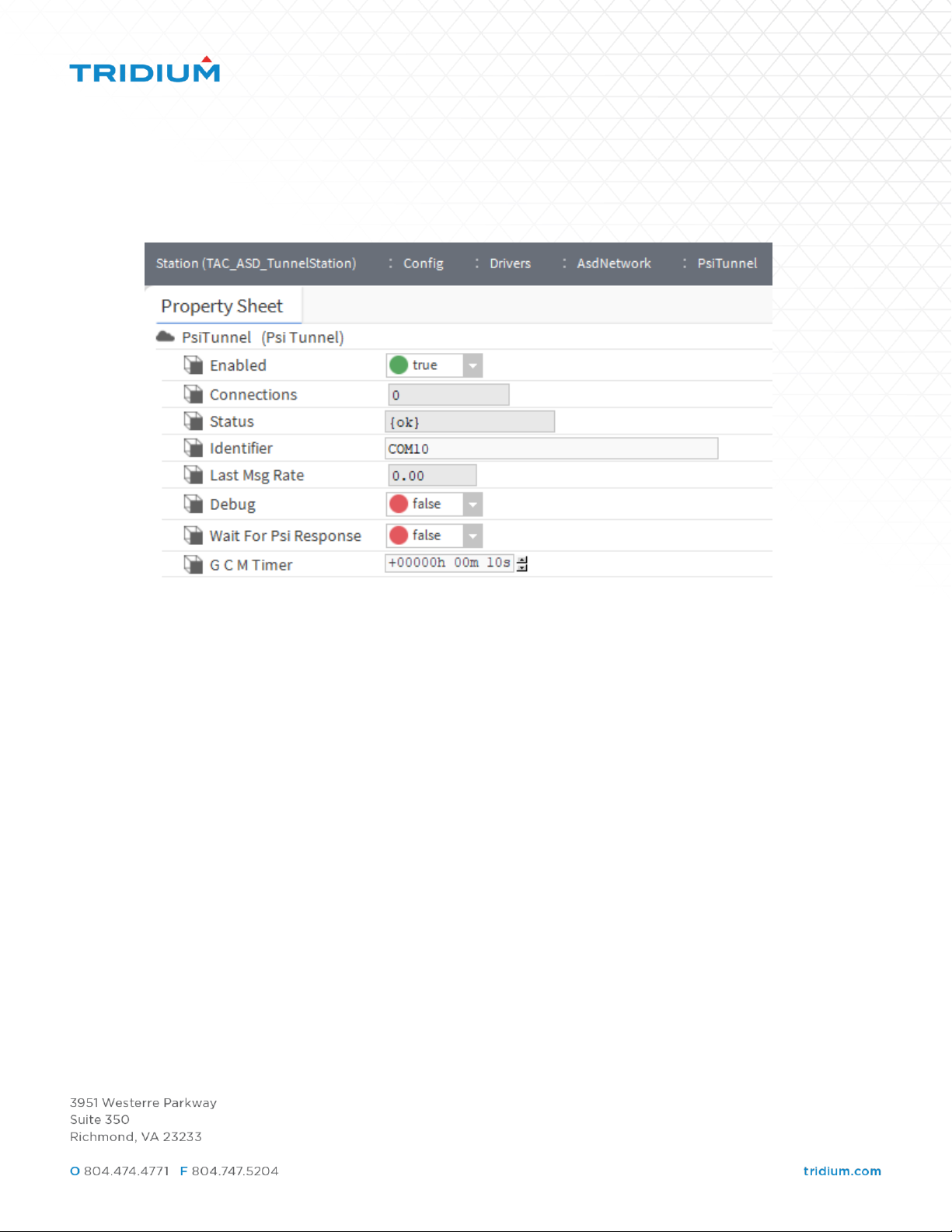
not an actual, physical COM port and shouldn’t be set to the same name as a real
COM port. It is also not the COM port used by the ASD Network.
Tunneling Client Installation
The Tridium Professional Services ASD Tunneling Client software is distributed via
compressed folder, for extraction on the Windows host where it will be used.
Supported Windows OS versions are Windows Server 2016 and Windows 10.
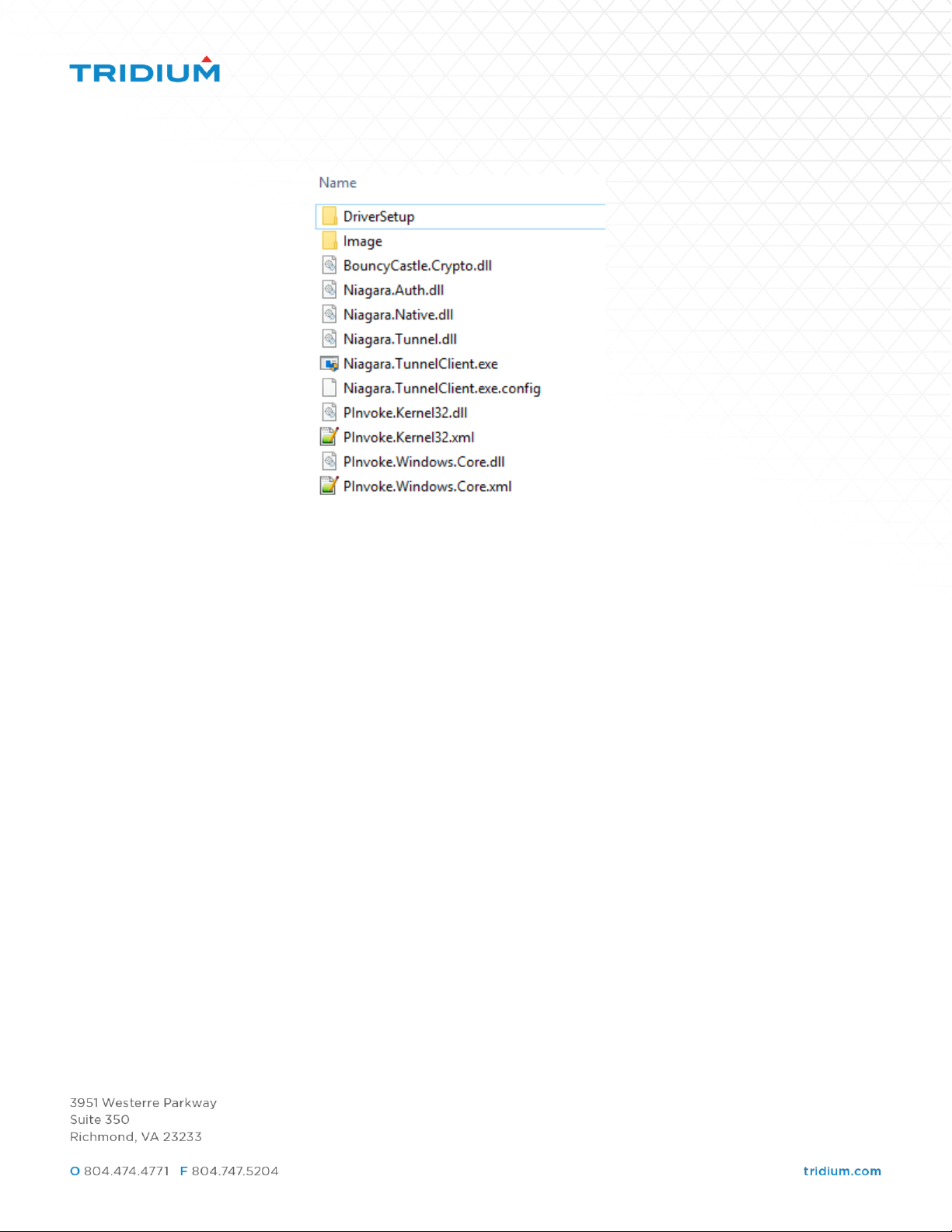
The compressed folder, when decompressed, contains these files and folders:
Page 7
Starting the Tunneling Client
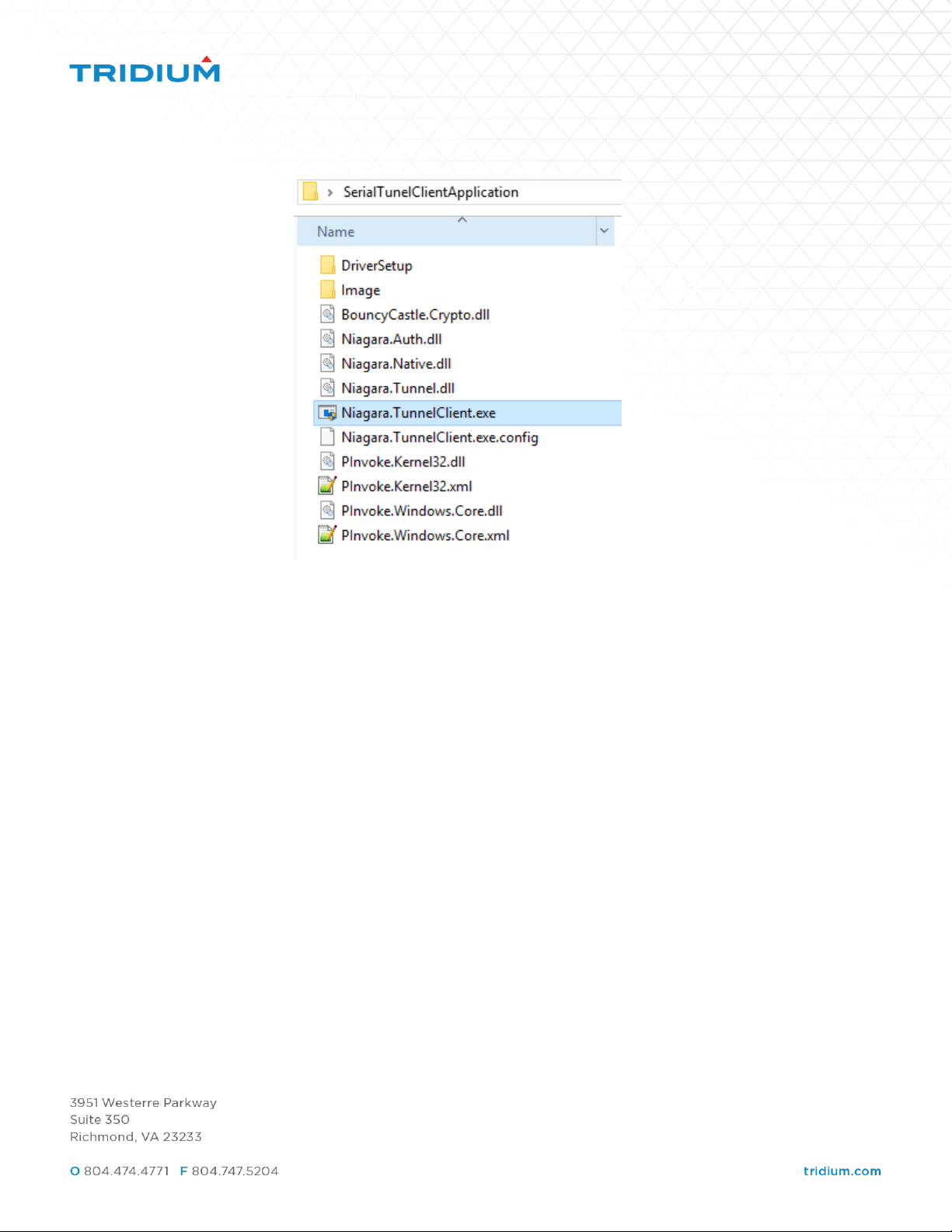
In order to run the executable, right click on the Niagara.TunnelClient.exe file and
select “Run As Administrator”. This will ensure that the client application is able to
create a virtual serial COM port on the host machine. If you do not have
Administrator privileges on the machine, the COM port may not be created, Windows
user permission dependent.
Page 8
Configuring the Tunneling Client
After running the executable, the application’s user interface dialog will open. The
dialog allows you to configure the Serial Tunnel client for connection to the Serial
Tunnel server Jace over ethernet, and to configure the local serial port name.
Page 9
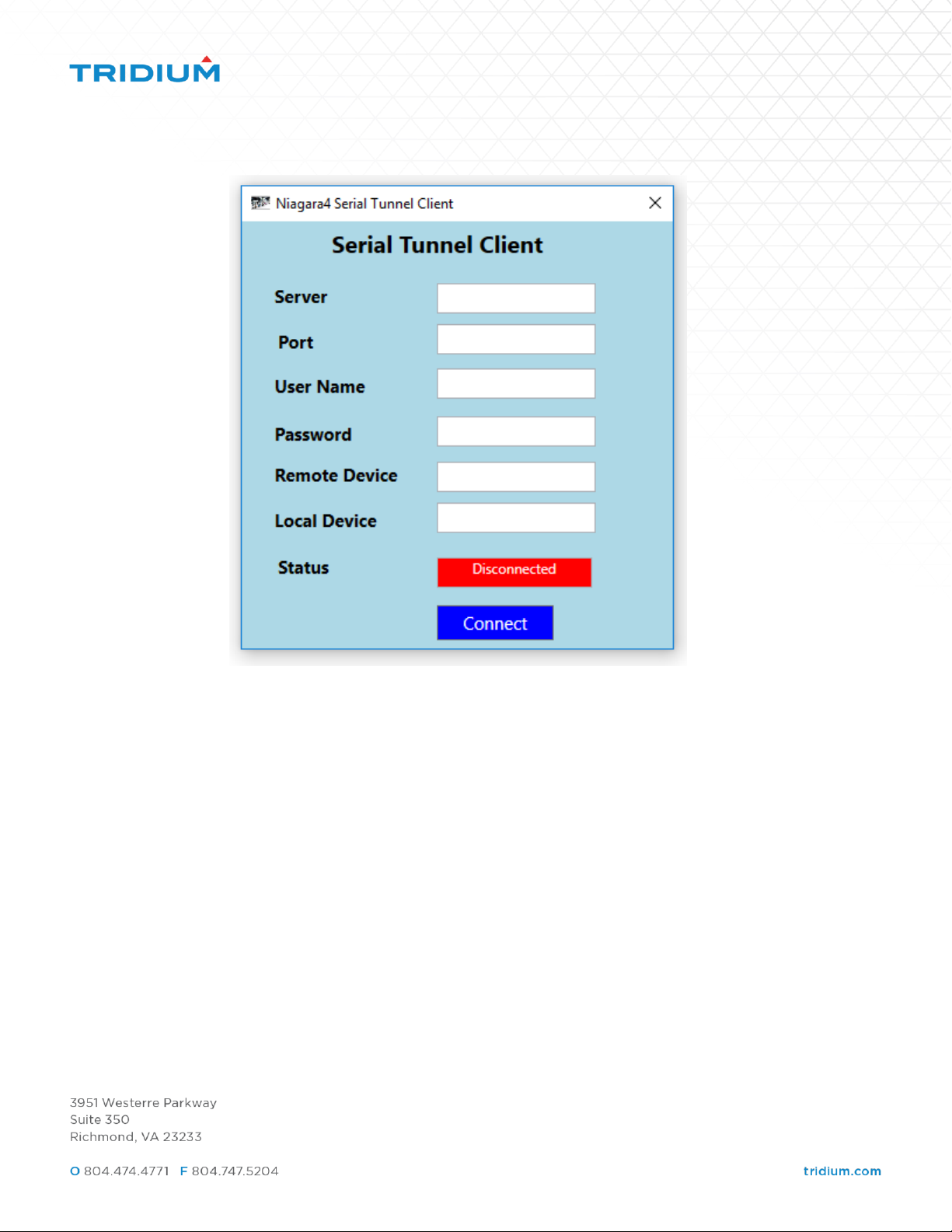
The following fields must be populated correctly for the Tunneling Client to work
properly:
• Server – The ip address of the Jace8000 ASD Serial Tunnel Server, example:
192.168.1.2
• Port – The TCP port number configured as the listening port number for the
Tunnel Service in the Jace8000 Tunneling Server station (by default, 9973)
• User Name – The Niagara user that will be used to tunnel through the Niagara
Jace. This user must have permissions on both the tunnel service and the
serial driver that will be tunneled.
• Password – The password for the user.
• Remote Device – The COM port that the PSI Tunnel component’s Identifier
property is set to on the Jace. This is a String field that must begin with ‘COM’.
• Local Device – The name of the virtual COM port that will be created on the
local machine for the serial application to connect to. This is a String field that
must begin with ‘COM’ followed by a number between 3 and 255. It must not
match a COM port name that already exists on the local server. COM ports 1
Page 10
and 2 (COM1, COM2) are usually used by the local OS and should not be used
either.
Making the Connection
To set up the tunnel between the local machine and the Jace tunneling server, click
the “Connect” button. This generates a request over ethernet to the specified server.
The server responds with a TLS certificate as configured in the server.
Confirm the Server TLS Certificate
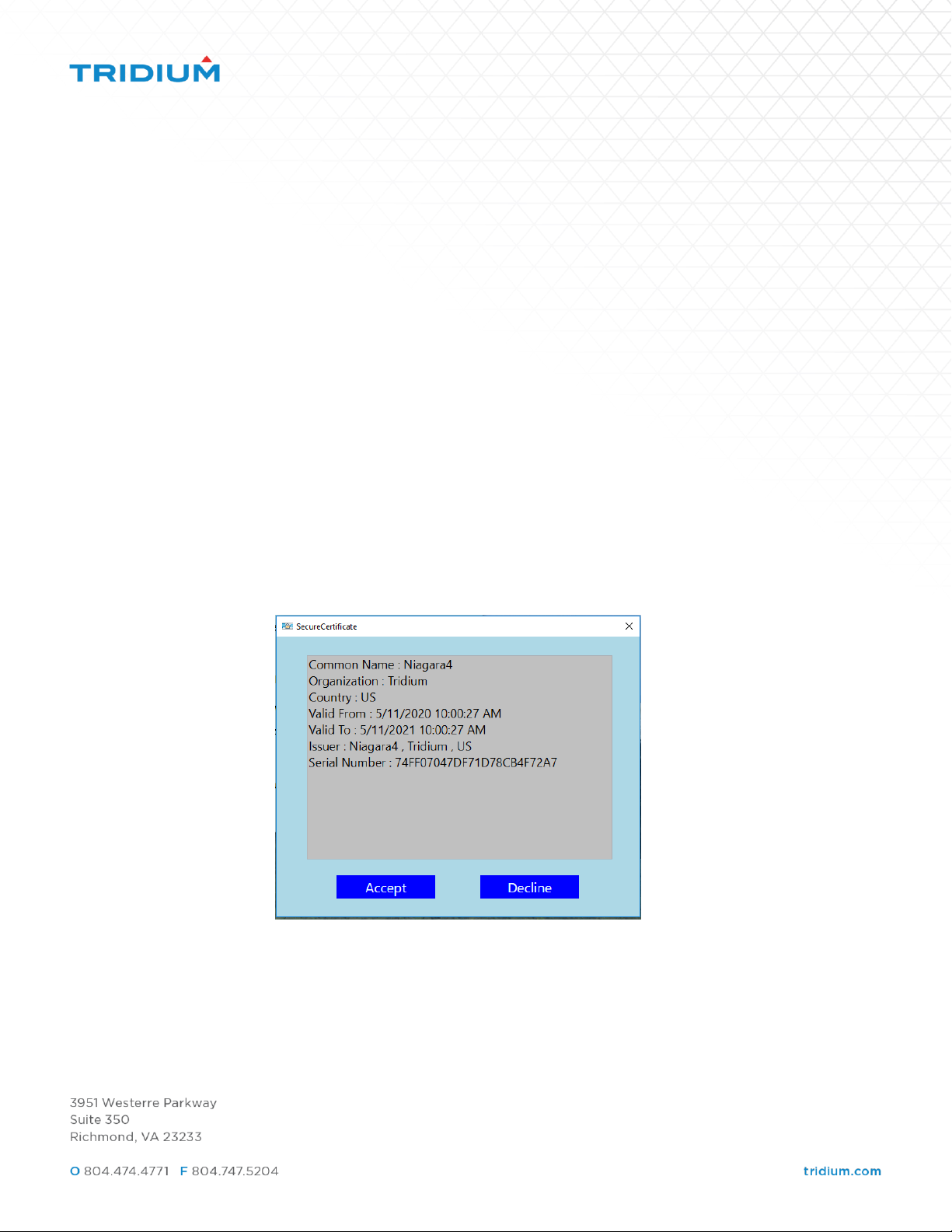
The certificate that is sent by the Jace tunnel service will be displayed in a popup. It is
important to verify that the certificate is appropriate for the Jace8000 that is the
tunneling server. The certificate can be a self-signed certificate from the Jace, or a
certificate that is signed by a trusted certificate authority. Either way, the certificate
is displayed to the user for acceptance. If the certificate is deemed valid by the user,
click the Accept button. If it is an invalid certificate, click the Decline button. If the
certificate is rejected, the properties are cleared, and the main window is displayed.
After the Connection
After the Accept button is clicked on the certificate approval window, the client will
create a virtual COM port on the local machine using the Local Device name specified
in the application window. This is also when the user authentication for the tunneling
client is handled, as well as the initial connection handshaking messages for the
Page 11
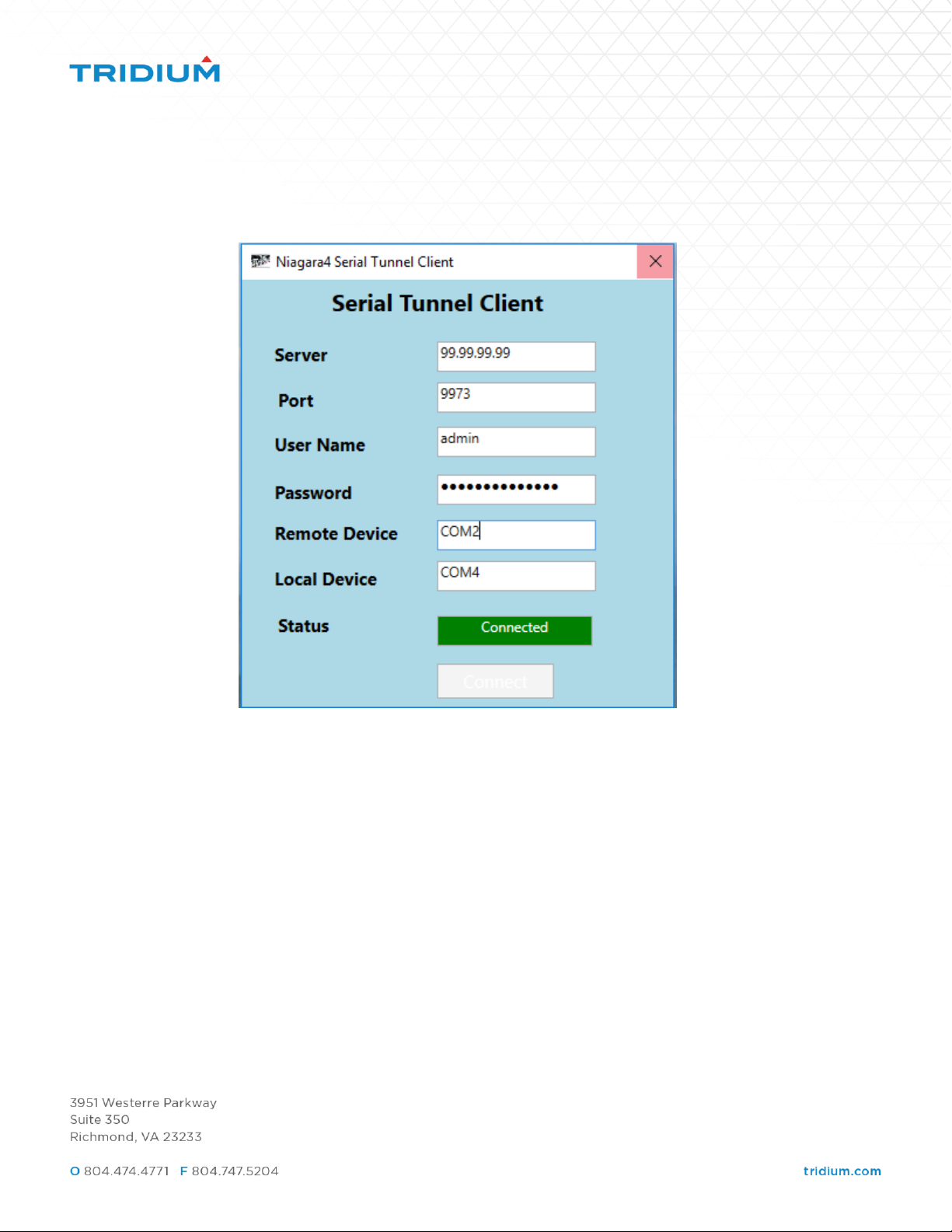
tunnel service. When the connection is successful, the Status property will show the
Connected status in green.
Virtual COM Port Verification
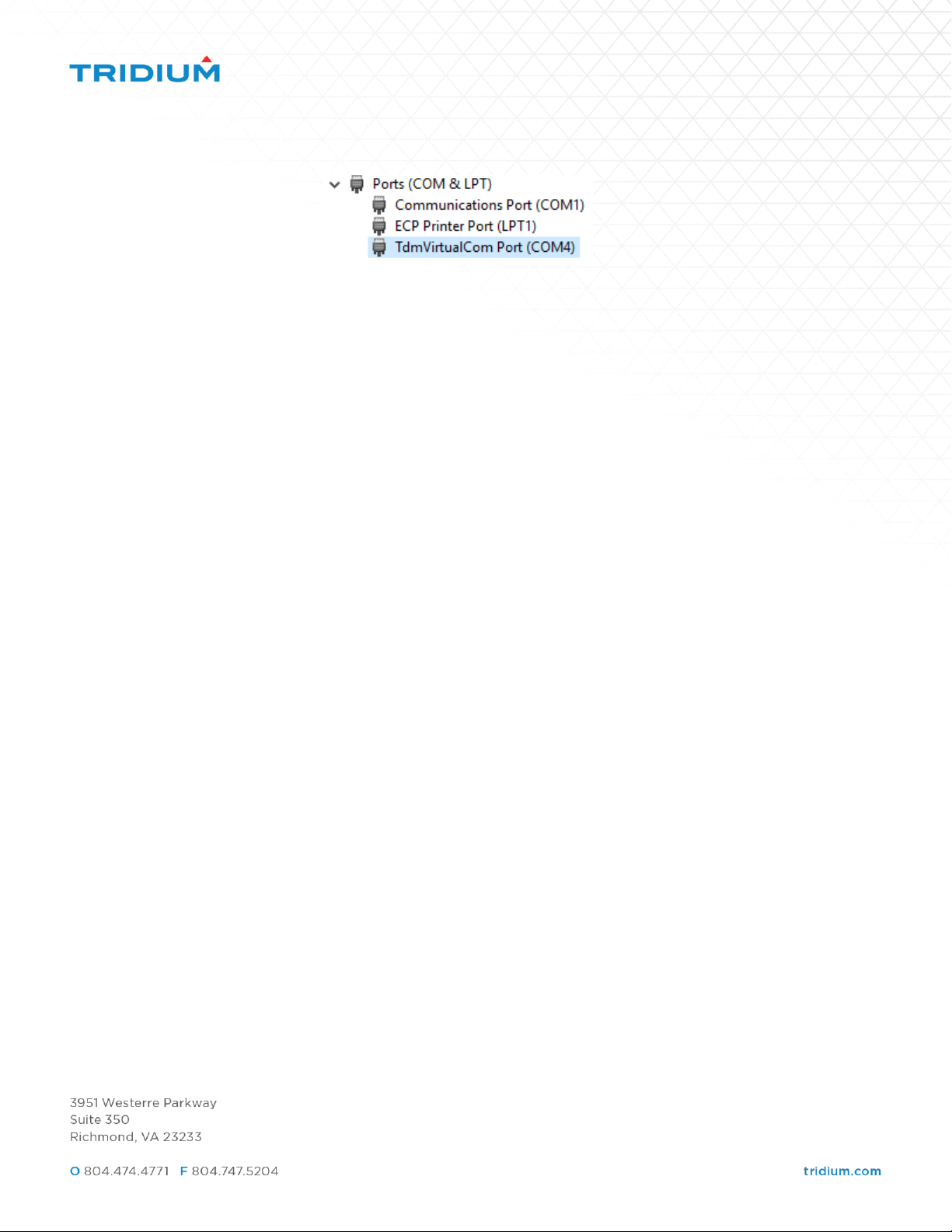
After the connection is successful, the user can verify the virtual COM port’s creation
and properties by viewing the Windows device manager.
On Windows 10 machines:
• Click the Windows button on the taskbar
• Type “Device Manager” and click the Device Manager icon that appears
• Scroll down to the “Ports (COM & LPT) section and expand it to show the listed
devices
The virtual COM port created by the Tunneling Client application is named
“TdmVirtualCom Port” and will have a COM port identifier that matches the Local
Device property from the application’s configuration window.
Page 12
Once the Serial Tunneling Client shows the “Connected” status, XPSI can be used on
the local host. XPSI should be configured to connect to the “Local Device” COM
port on the Serial Tunneling Client user interface.
Closing the Tunnel Connection
To close the tunnel connection, simply click the configuration window’s X icon in the
upper right corner of the window. After the icon is clicked, the application will
communicate with the Jace server and close the connection. After the connection is
closed, the virtual COM port will be removed from the local machine and the
application’s configuration window will close.
Troubleshooting
• Given Port Is In Use
o This error is shown when the application is trying to create a virtual
COM port on the local machine that already exists. Because of a delay
in the request to remove the port after the application closes and the
OS execution of that request, this message is sometimes shown when
the application has closed and the COM port doesn’t appear in the
Device Manager. Generally, the issue can be cleared by restarting the
application and choosing a different COM port name.
• Invalid IP Address/Server Not Available
o The IP address entered in the Server Name field is not reachable from
the tunneling client machine. Verify that a route exists using PING.
Verify that firewall ports are open between the two hosts, using the
port number specified in the Tunneling Service on the Jace8000.
o The Jace8000’s Web Service is not configured to support HTTPS. Set the
“HTTPS Enabled” property to True.
• Invalid auth response from server
Page 13

o The user specified in the application doesn’t exist on the Jace8000
station, or doesn’t have required permissions on the server to set up
the tunnel
• Tunnel Disconnects
o The tunnel can be disconnected if the route is broken, i.e. a network
event occurs that interrupts communication. This issue can also occur if
the tunnel client, or the tunneling server, doesn’t receive a message for
one minute. There is a timed PING message sent every 15 seconds from
both the client and the server. If either doesn’t receive the PING or a
data message for one minute, the tunnel will be disconnected.
 Loading...