

Page 1

Important Steps that Make Your Printer
Work with Your System
To make your new Model 3321 Invoice Printer work with your Hardlines & Lumber system, you need
to make two adjustments: one to your terminals, and one to the printer.
Adjust Your Terminals:
Do this with each terminal you’ll be using with the Model 3321.
1. From the main menu, type
2. Press the
Type S, then press
3. Press
<Tab>
<End>
key, then the
to return to the main menu.
Adjust Your Printer:
The printer must have paper loaded before you can make this adjustment.
1. Make sure the printer is turned off. Check the switch located on the right side of the printer,
toward the back.
2. Hold down the
The word Menu lights up on the front panel.
3. Press the
Font Print Mode HSD
Font Pitch 10 CPI
MODE
ITEM button two times. The following lines print:
Modify Terminal Record
MTR
<Change>
and press
<Enter>
.
<Enter>
key, so that the cursor lands on the Printer Type field.
.
Change to 17 characters per inch
button located on the front panel of the printer and turn the printer on.
4. Press the SET button two times. The following lines print:
Font Pitch 12 CPI
Font Pitch 17.1 CPI
5. Press the MODE button to enable the printer.
1075248 © 1991, 1997 Triad Systems Corporation All Rights Reserved
Page 2
What This Covers
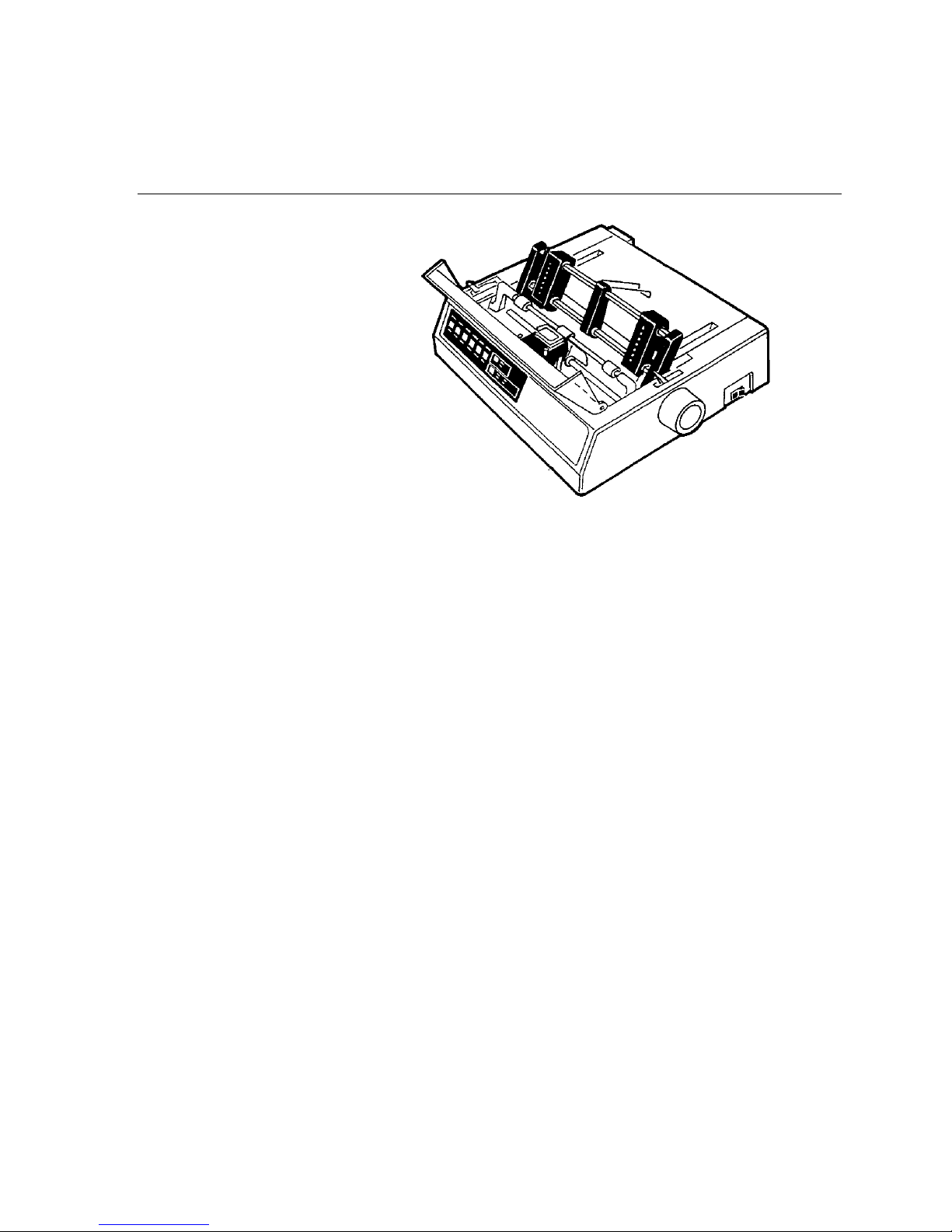
Model 3321 Printer
Changing Paper
•
when you want to print different kinds of forms and reports,
and when the printer runs out of paper.
Changing a Ribbon
•
necessary when your current ribbon is used up.
About Your Printer
•
interested in details about their printers. This section talks
about how to use the printer’s hidden advanced features, and
the most pages you can print each day and month.
Important Buttons and Lights
•
become familiar with your printer’s buttons and lights.
What the Levers Do
•
external levers. Read this section to find out what they do.
If You Have Problems
•
you are having other kinds of problems, you may find help
here.
: You will probably replace paper often,
: Changing ribbon cartridges is
: Some Triad system owners are
: Read this section to
: The Model 3321 printer has two
: If you can’t seem to print, or if
© 1990 Triad Systems Corporation. All Rights Reserved.
Page 3
Changing Paper
If you’re printing labels or multi-part forms, you should always use the pull tractor. There is another
way to put paper into the printer, but it won’t work with labels or multi-part forms. This section tells
how to use the pull tractor.
1.
Remove the paper you have been
using.
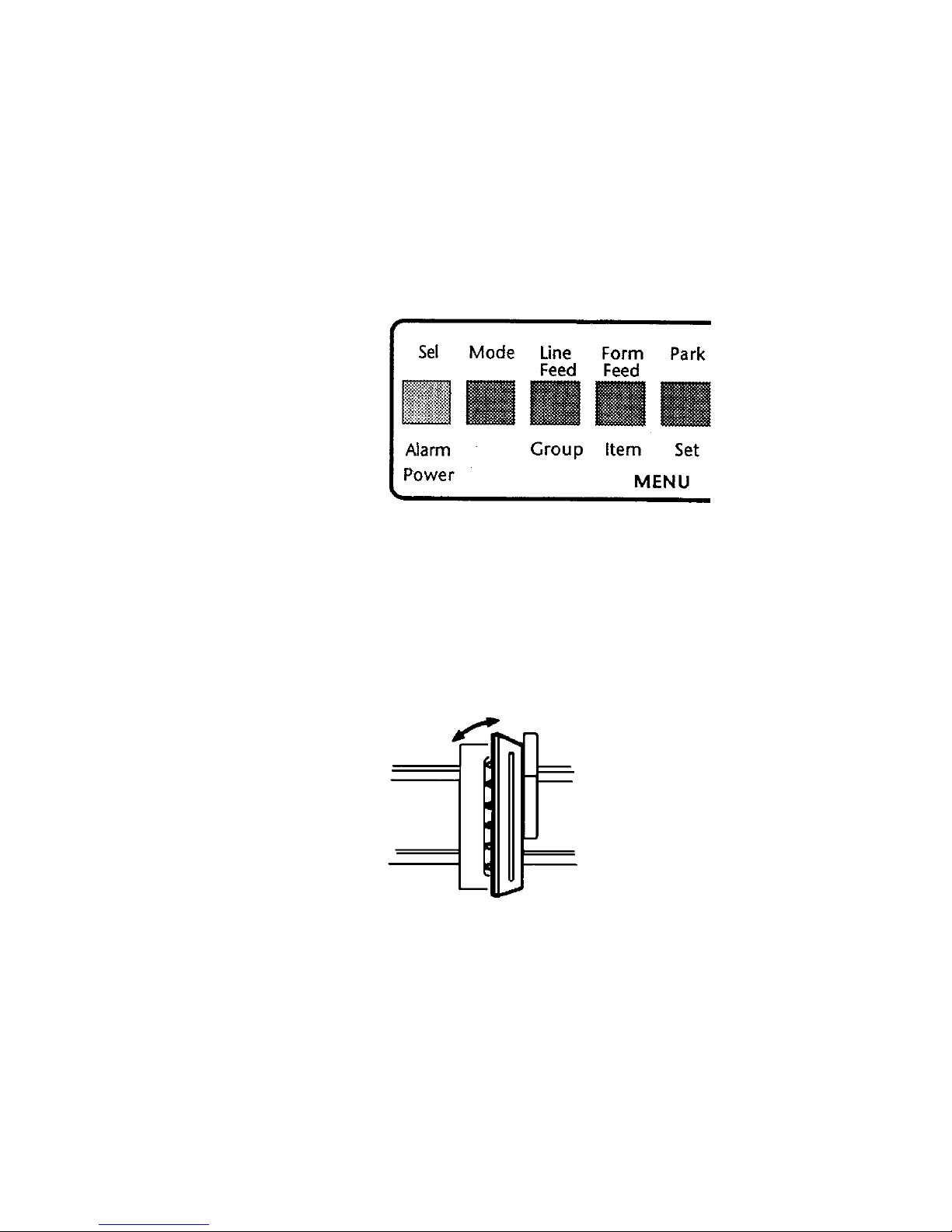
Press the Sel button to turn off the Sel light. The Sel button
and Sel light are on the left side of the printer’s front.
Look at the top of the printer: you will find a lever on the left
side. Pull this lever towards you to move the paper bar
forward.
Open the plastic cover on the top of the printer. Grab its sides
and pull it toward you.
Open the tractor feed’s hinges. These hinges hold the paper to
the printer. You’ll find hinges at the paper’s edges.
Grasp the paper from beneath the printer and tug the paper
down and out.
3321-2 Model 3321 Printer
Page 4
2.
Put in the paper you want to use. Find the paper slot underneath the printer. Feed your paper up
into this slot.
If you’re using a different size paper than before, you will
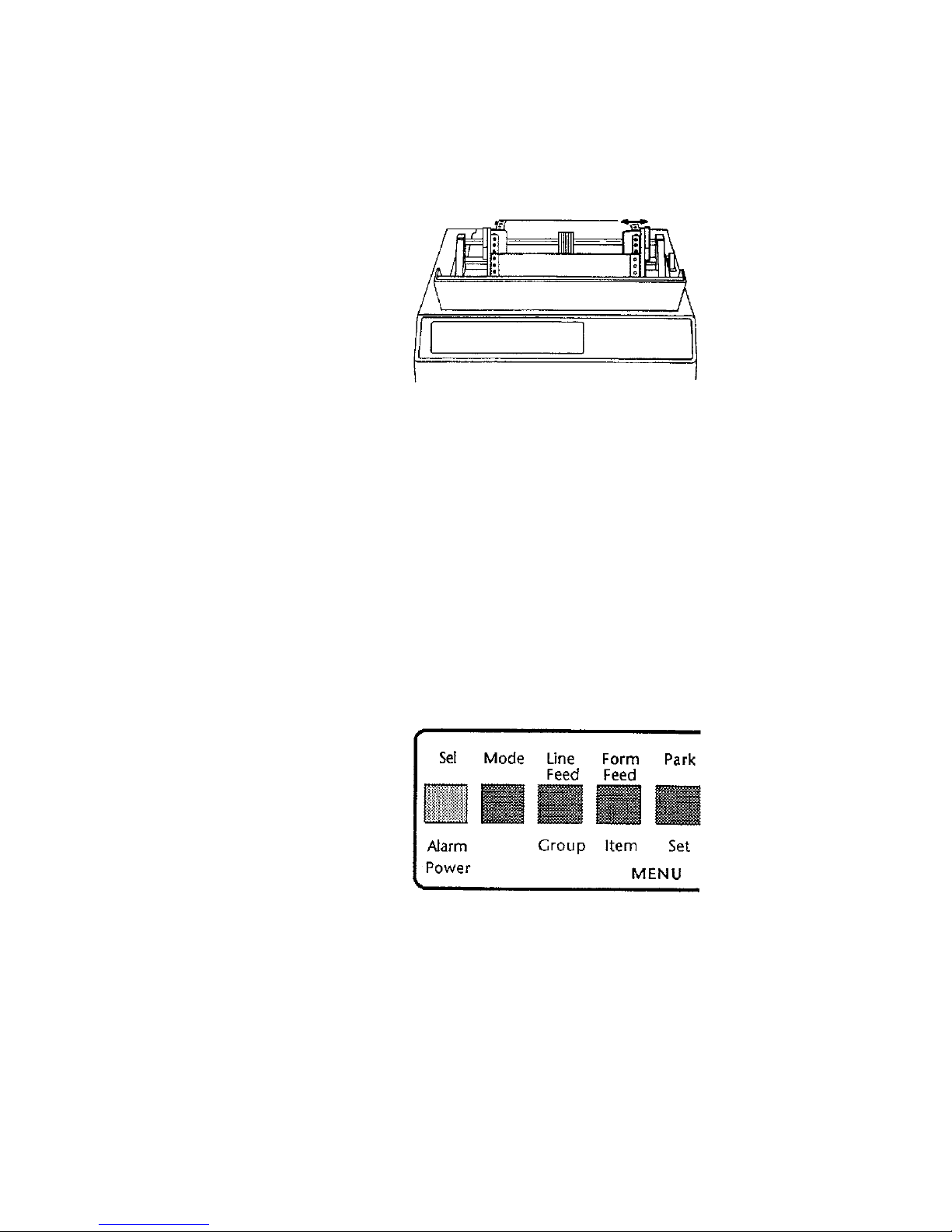
need to adjust the right-hand paper guide. Pull the release on
the front of the right-hand paper guide. Now you can adjust
the guide to fit your paper. Push the release back when you are
through adjusting.
Pull up a whole page of paper. Make sure the holes in each
side of the paper fit over the bumps in the paper guides.
Close the paper guides’ hinges. Use the left-hand lever to
move the paper bar forward.
Use the large knob on the right side of the printer to move the
paper up. You can use this knob to adjust where the printer
begins printing. You may need to adjust the paper a few times
before it is lined up correctly.
Push the Sel button to turn on the Sel light.
Model 3321 Printer 3321-3
Page 5
3.
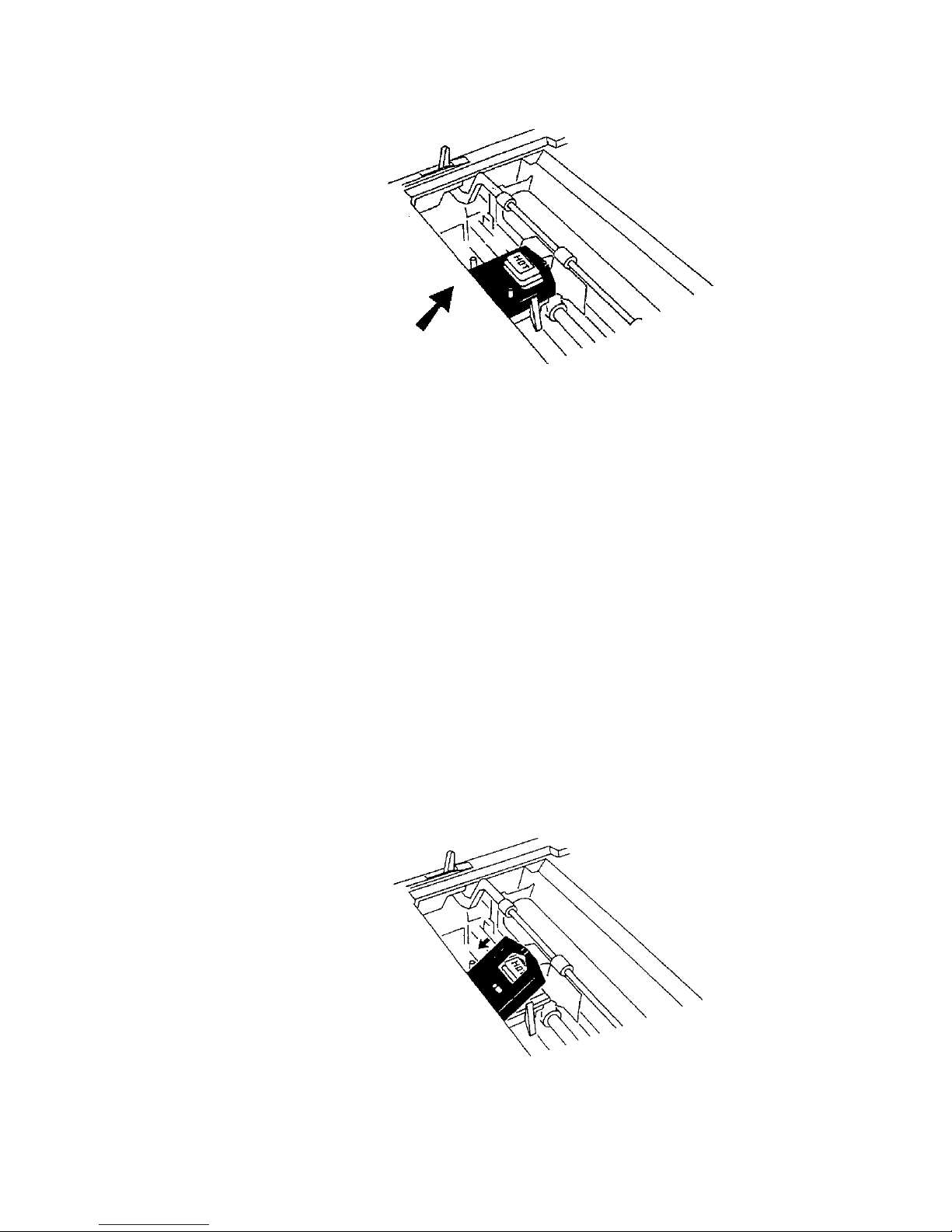
Set the paper thickness switch.
Look inside the top of the printer, beneath the plastic cover.
The switch is left of the word “Hot.”
How you set the switch depends on how many sheets thick
your paper is.
Set the switch to
Set the switch to
Set the switch to
1:
2:
3:
for paper that’s one sheet thick
for two or three sheet paper
if you’re using four-sheet paper
Changing a Ribbon
After you use your printer for some time, you will notice the type on your printouts has become light.
This often means your ribbon cartridge has worn out.
1.
Take the old ribbon out of your
printer.
Start by opening the plastic cover on the top of the printer —
grab it by both sides and pull it towards you. You will find the
ribbon cartridge inside the top of the printer, beneath the
plastic cover.
3321-4 Model 3321 Printer
Grasp the black ribbon cartridge by its sides and pull. It should
come up with almost no effort.
Page 6
2.
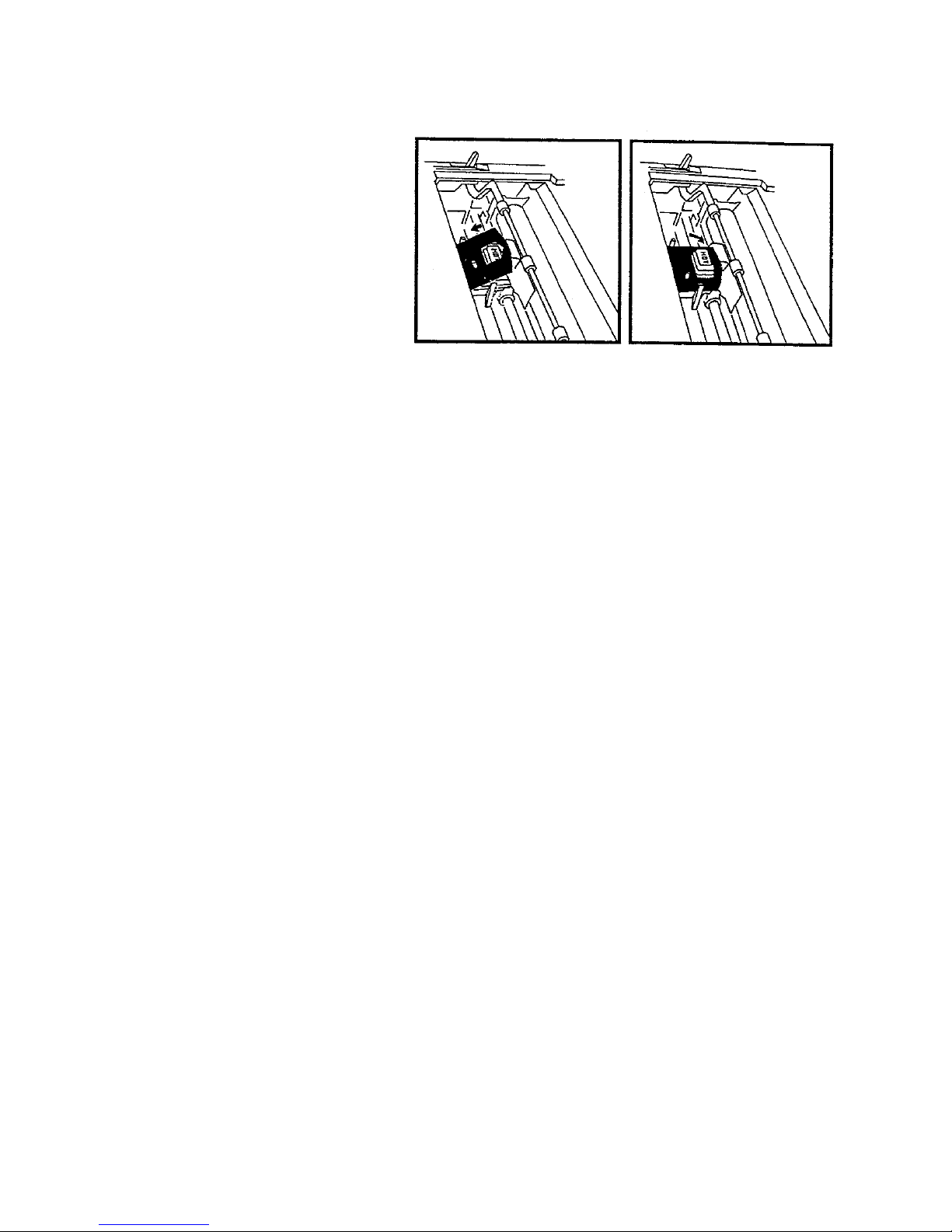
Put in a new ribbon cartridge.
About Your Printer
Put the square back end of the ribbon cartridge in first. Then
push down on its front to snap it into place.
Using Advanced Features
special advanced features turned off. The advanced features give
your options: for instance, you can change how wide the printed
characters are, and whether your printer prints darker and slower
or lighter and faster. You, as a Hardgoods System owner, may
want to print the pages you’ve created with your system’s text
editing feature -you should change the character width to 10 to
do this. The Texas Instruments Operator’s Manual that came
with your printer explains how to change these options.
But before you can change any advanced settings, you must first
turn off your printer, then hold down the
you turn it back on.
Printing Capacity
than 150 pages per day, or 3,000 pages per month with your
Model 3321 printer. It’s unlikely you will ever have a need to
print so many forms at once.
Your Model 3321 was not meant to print on multi-part forms
that are more than four parts thick. It would be difficult to fit a
form thicker than four sheets into the printer, and the sheets on
the bottom would not print very clearly. The paper would also be
more likely to jam.
: Triad recommends that you print no more
: Your 3321 printer comes with its
<Mode>
button while
Model 3321 Printer 3321-5
Page 7
Important Buttons and Lights
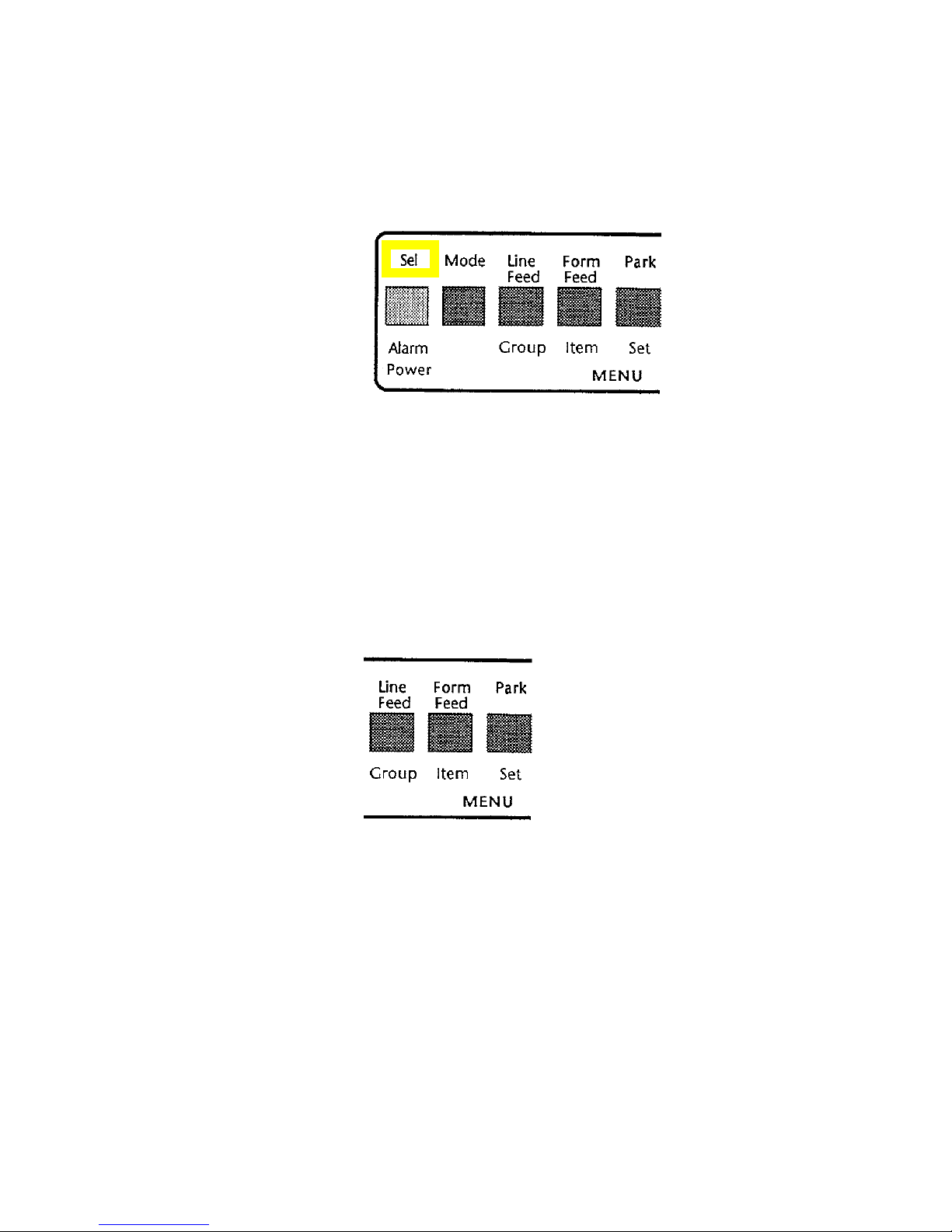
The Sel Button and Light
•
computer can talk to the printer. If the light is off, the
computer cannot talk to the printer.
The Sel light should almost always be on. You would want it
off when you don’t want the printer to be able to print — for
instance, while you are changing paper.
Sel is short for Select. Other printers you may have used call
this same button “On/Off-line.” Pushing the Sel button turns
the Sel light on and off.
: If the Sel light is on, your
3321-6 Model 3321 Printer
The Form Feed Button
•
button, the printer will advance the paper by one page —
about 11 inches. Since your Triad system normally takes
care of feeding the printer paper, you won’t need to use this
button often.
: When you push the Form Feed
Page 8
What the Levers Do
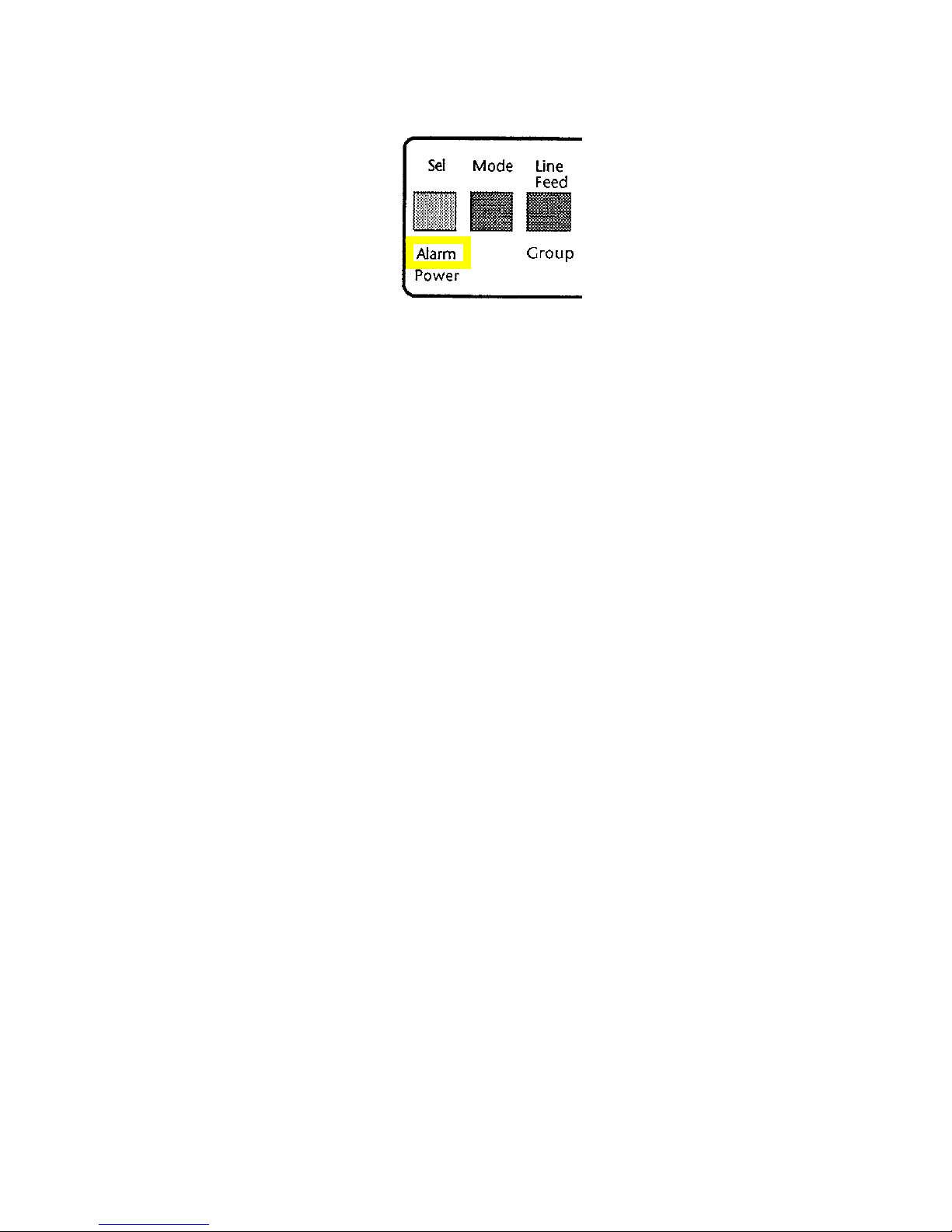
The Alarm Light
•
printer thinks it is out of paper. If there is paper in the
printer, make sure it has been put in properly. You may want
to look at the topic “Changing Paper.”
The alarm light could also mean that something is wrong
with your printer. If you think this may be so, call the Triad
Service Center.
Other Buttons and Lights
•
the other parts of the control panel do, look at the Texas
Instruments Operator’s Manual that came with your printer.
The Left-hand Lever
•
The paper bar helps hold the paper to the main roller {called
the platen).
Keep this lever aimed toward the back of the printer. This
keeps the paper bar against the main roller. Usually, the only
reason to move it forward is to change paper.
: If this light is on, it usually means your
: If you are interested in what
: This moves the paper bar forward.
The Right-hand Lever
•
are using single-sheet paper or continuous-form paper. Triad
systems always use continuous-form paper.
Keep this lever aimed toward the front of the printer.
: This tells the printer whether you
Model 3321 Printer 3321-7
Page 9
If You Have Problems
The problems covered here are basic ones you may have while
you are using your printer. If you can’t seem to find an answer
here, or in the rest of this printer section, you should call the
Triad Service Center for help.
•
The printer doesn’t print when it should
is because the Sel light is not on. If the Sel light is off, the
computer cannot send messages to the printer.
Push the Sel button to turn on the Sel light.
. Usually, this
You may also want to make sure that the cord between your
computer and the printer is connected at both ends. Check
the power cord as well, and make sure your printer is on.
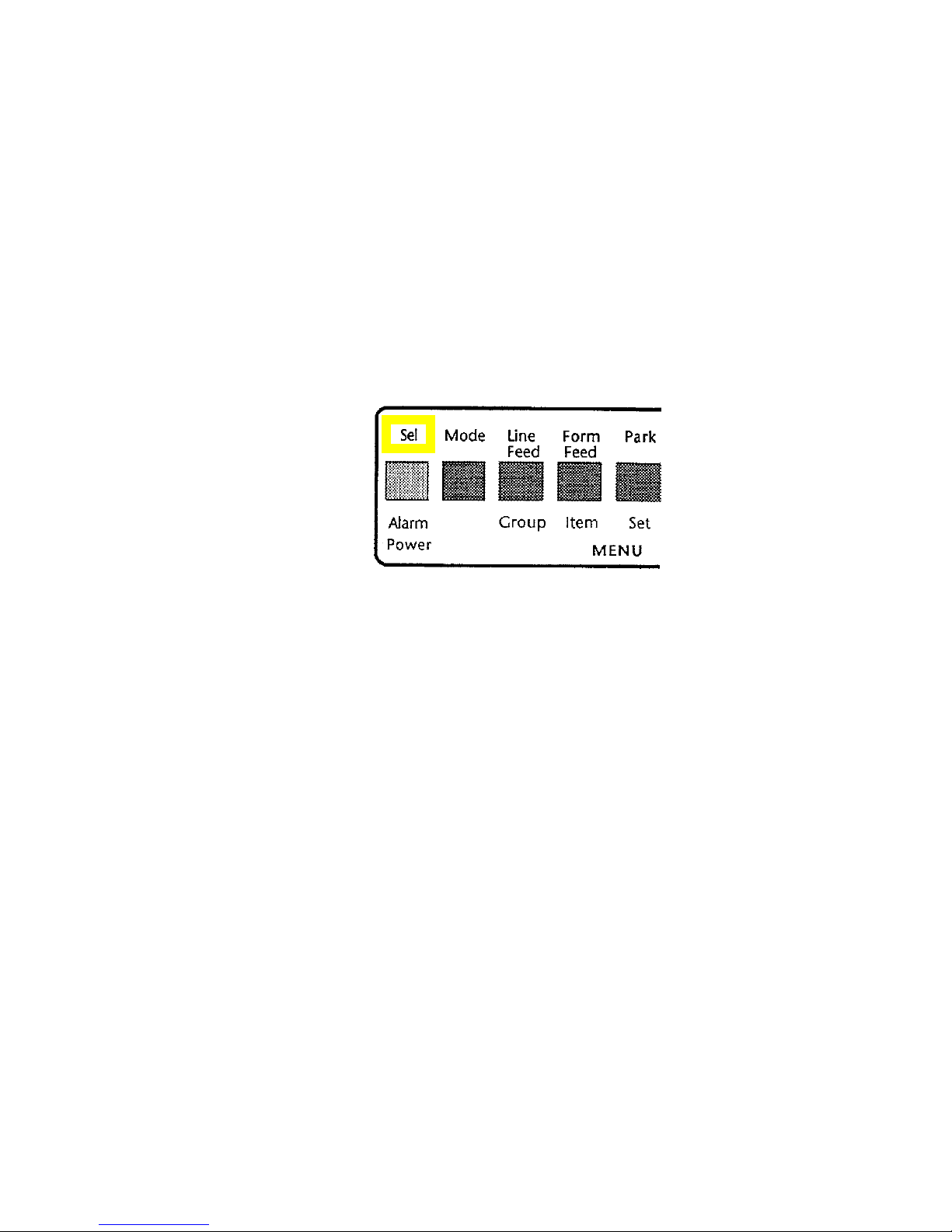
The Alarm light is on
•
new paper, see “Changing Paper” in this section.
If the printer has paper, it may be jammed. See “The Paper
Keeps Jamming” below.
The paper keeps jamming
•
to fix jammed paper. Most often, fixing it is similar to
changing paper. You may want to look at “Changing Paper”
in this section.
Make sure the holes at the edges of the paper fit over the
bumps in the guides.
. You may be out of paper. To put in
. There isn’t one simple way
3321-8 Model 3321 Printer
Page 10
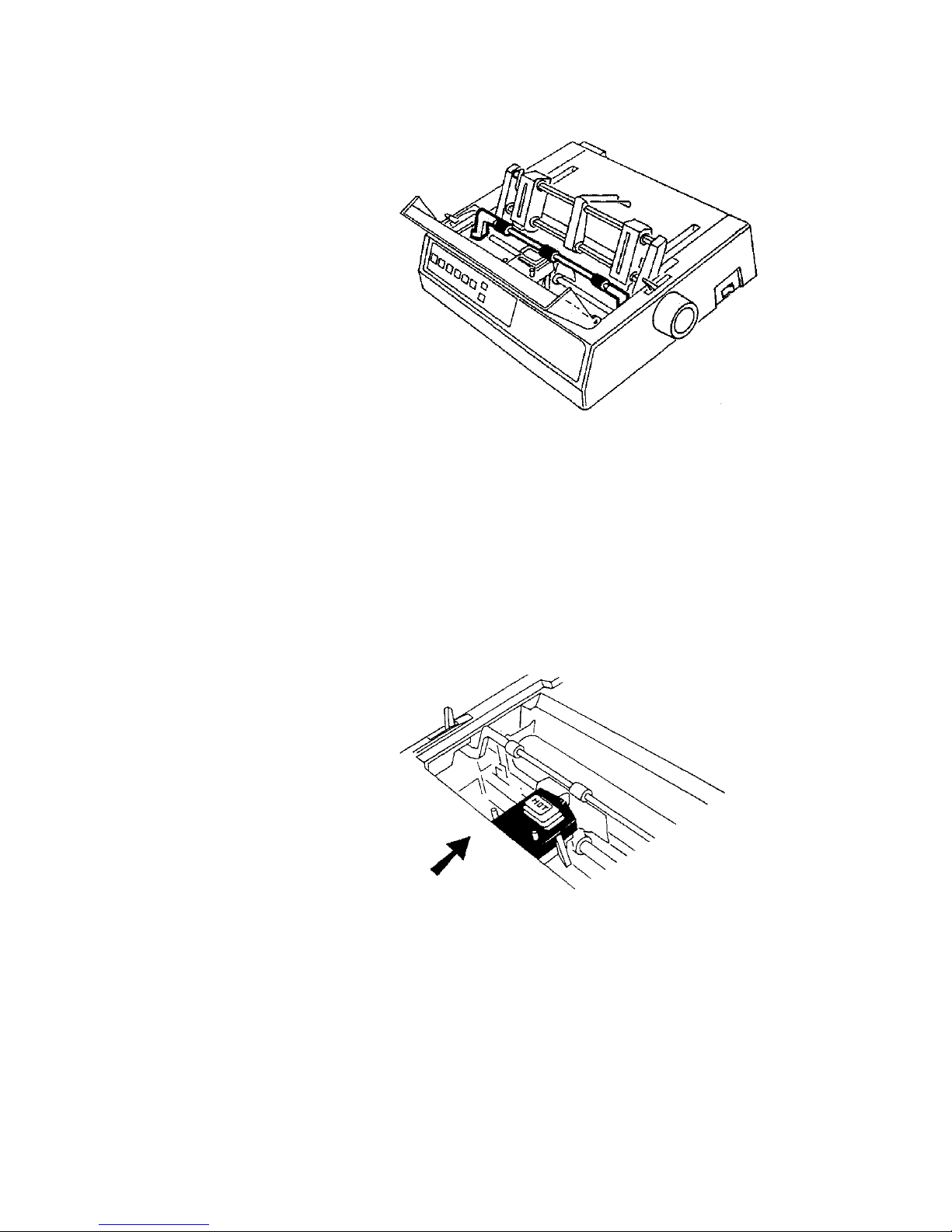
You should also be sure that there is paper under the paper bar. If
there isn’t, the paper bar can cause paper to jam.
Your printouts are too light
•
be worn out. If it has been some time since you changed
your ribbon cartridge, see “Changing a Ribbon,” earlier in
this part.
Another possibility: if you are using forms that are one or
two sheets thick, the paper thickness switch may be at the
wrong setting.
. Your ribbon cartridge may
Look inside the top of the printer, beneath the plastic cover.
The lever is left of the word “Hot.”
Set the switch to
Set the switch to
Set the switch to
1:
2:
3:
for paper that’s one sheet thick
for two or three sheet paper
if you’re using four-sheet paper
Model 3321 Printer 3321-9
 Loading...