

Page 1
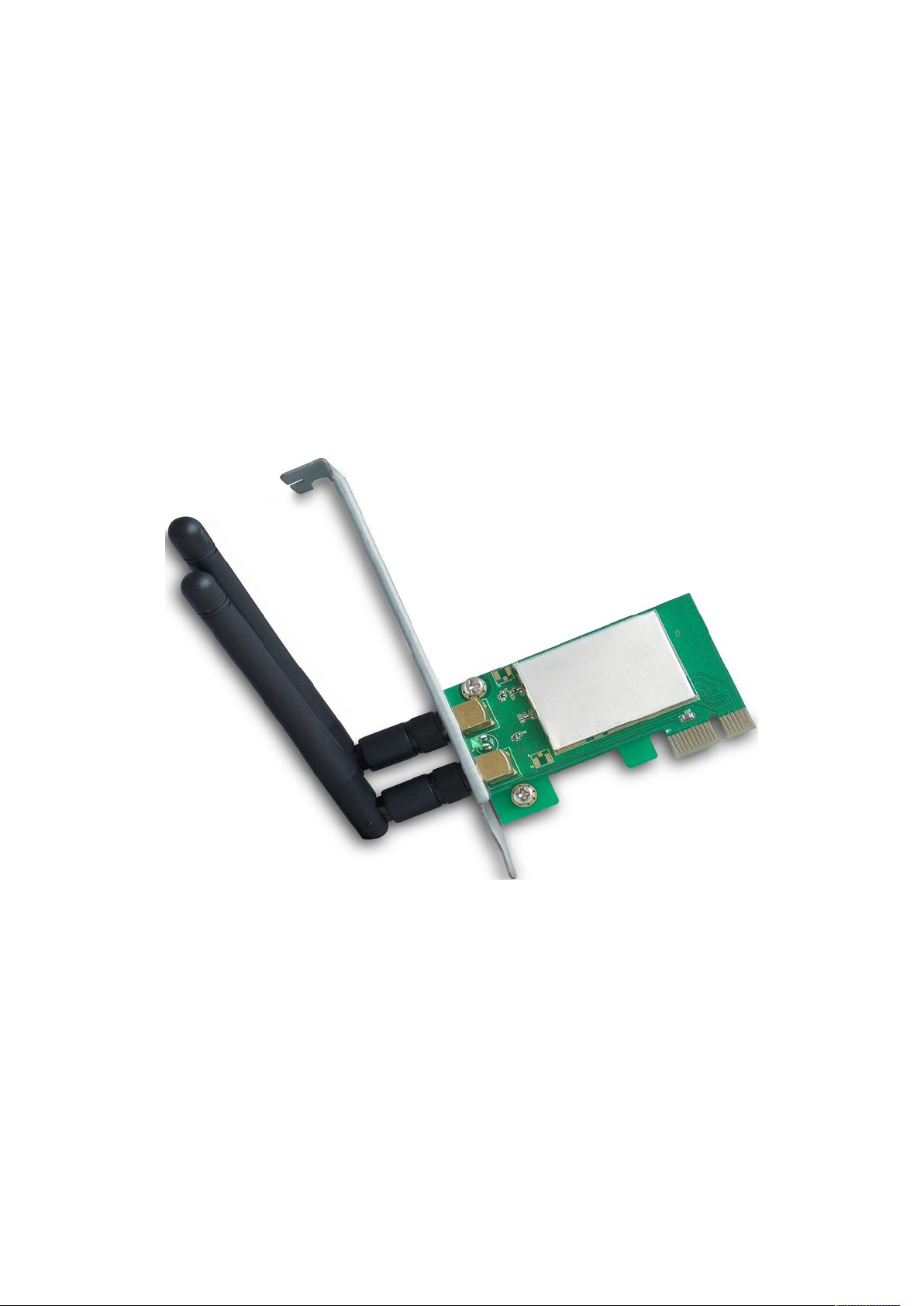
2T2R 2.4GHz 300Mbps
Wireless PCI-E Adapter
User Manual
Version 1.0 | 12/28/2013
Page 2

Wireless PCI-E Adapter
1
Table of contents
Notices...............................................................................................................................................2
1 Product Introduction.................................................................................................................. 3
1.1 Product Features............................................................................................................... 3
1.2 LED’s Description.............................................................................................................. 3
1.3 Product Application............................................................................................................ 3
1.4 Security Warning................................................................................................................4
1.5 Package Contents............................................................................................................. 4
2 Installation Guide........................................................................................................................ 5
2.1 Hardware Connection....................................................................................................... 5
2.2 Software Installation.......................................................................................................... 6
3 Connect to Network..................................................................................................................10
Page 3

Wireless PCI-E Adapter
2
WARNING: Any changes or modifications not expressly approved by the
party responsible for compliance could void the user’s authority to operate
the equipment.
Notices
Federal Communications Commission
This device complies with FCC Rules Part 15. Operation is subject to the following two
conditions:
• This device may not cause harmful interference.
• This device must accept any interference received, including interference that may
cause undesired operation.
This equipment has been tested and found to comply with the limits for a class B digital
device pursuant to part 15 of the FCC Rules. These limits are designed to provide
reasonable protection against harmful interference in a residential installation. This
equipment generates, uses and can radiate radio frequency energy and, if not installed
and used in accordance with the instructions, may cause harmful interference to radio
communications. However, there is no guarantee that interference will not occur in a
particular installation. If this equipment does cause harmful interference to radio or
television reception, which can be determined by turning the equipment off and on, the
user is encouraged to try to correct the interference by one or more of the following
measures:
• Reorient or relocate the receiving antenna.
• Increase the separation between the equipment and receiver.
• Connect the equipment into an outlet on a circuit different from that to which the
receiver is connected.
• Consult the dealer or an experienced radio/TV technician for help.
Prohibition of Co-location
This device and its antenna(s) must not be co-located or operating in conjunction with any
other antenna or transmitter.
FCC Radiation Exposure Statement
This equipment complies with RFCC radiation exposure limits set forth for an
uncontrolled environment.
This equipment should be installed and operated with minimum 20cm between the
radiator and your body.
Page 4

Wireless PCI-E Adapter
3
1.1 Product Features
Complies with IEEE 802.11n, IEEE 802.11b/g standards
Supports PCI-E 1.0 x 1 bus
Supports IEEE802.11n 2.0 standard, 300Mbps TX/RX rates
Supports WEP 64/128, WPA, WPA2, TKIP, AES, WAPI
Supports 20MHz/40MHz bandwidth
Supports Cisco CCS
Supports multiple BSSID
Supports drivers for Windows XP 32/64, Windows 2000, Vista 32/64, Windows 7
1.2 LED’s Description
In the front of the Wireless PCI-E Adapter, there is a status indicator. It will flash while a
normal data communication.
1.3 Product Application
Requiring more mobility of staff, they want to access the wireless network anywhere
Due to construction or budget constraints, someplace are not suitable for LAN wiring,
Avoiding expensive cable, leased lines or right-of-way of the companies, individuals.
1 Product Introduction
The 2T2R 2.4GHz 300Mbps Wireless PCI-E Adapter is a highly integrated and
cost-effective Wireless Adapter that provides PCI Express interface, and full compliance
with IEEE802.11n and IEEE802.11b/g standards. Connect your desktop computer to a
high-speed Wi-Fi network using the 300Mbps Wireless PCI-E Adapter to experience
faster file transfers and browse the Internet from greater distances across your home than
pervious-generation Wireless G technology. Upgrading your computer with the 300Mbps
Wireless PCI-E Adapter delivers better wireless performance and faster connection to a
high-speed wireless network.
32/64, Windows 8 32/64
The 300Mbps Wireless PCI-E Adapter provides fast, reliable, low-cost solution for
wireless access. The concrete application is as follows:
in a company.
such as history, ancient buildings, the lease of land or temporary location.
Page 5

4
1.4 Security Warning
Please install and use this product until you complete to read this user manual;
In order to guarantee the product to work correctly, please pay attention to the
waterproofing and damp proofing;
Prevent some harmful substances (such as acid, alkali, etc.);
Please do not use this product placed directly in the sun or other sources of heat;
If a failure occurs, please contact our customer service dept, do not open this product
1.5 Package Contents
Check your Wireless PCI-E Adapter package for the following items.
by yourself.
• Wireless PCI-E Adapter
Wireless PCI-E Adapter
• Use CD-ROM
• Warranty card
Page 6
Wireless PCI-E Adapter
5
This section will teach you how to use the CD-ROM software for the installation of your
Wireless PCI-E Adapter package, the package has been the driver, configuration software,
which installs its configuration software will automatically install the driver.
2.1 Hardware Connection
1. Turn off your computer and unplug the power cord from the computer.
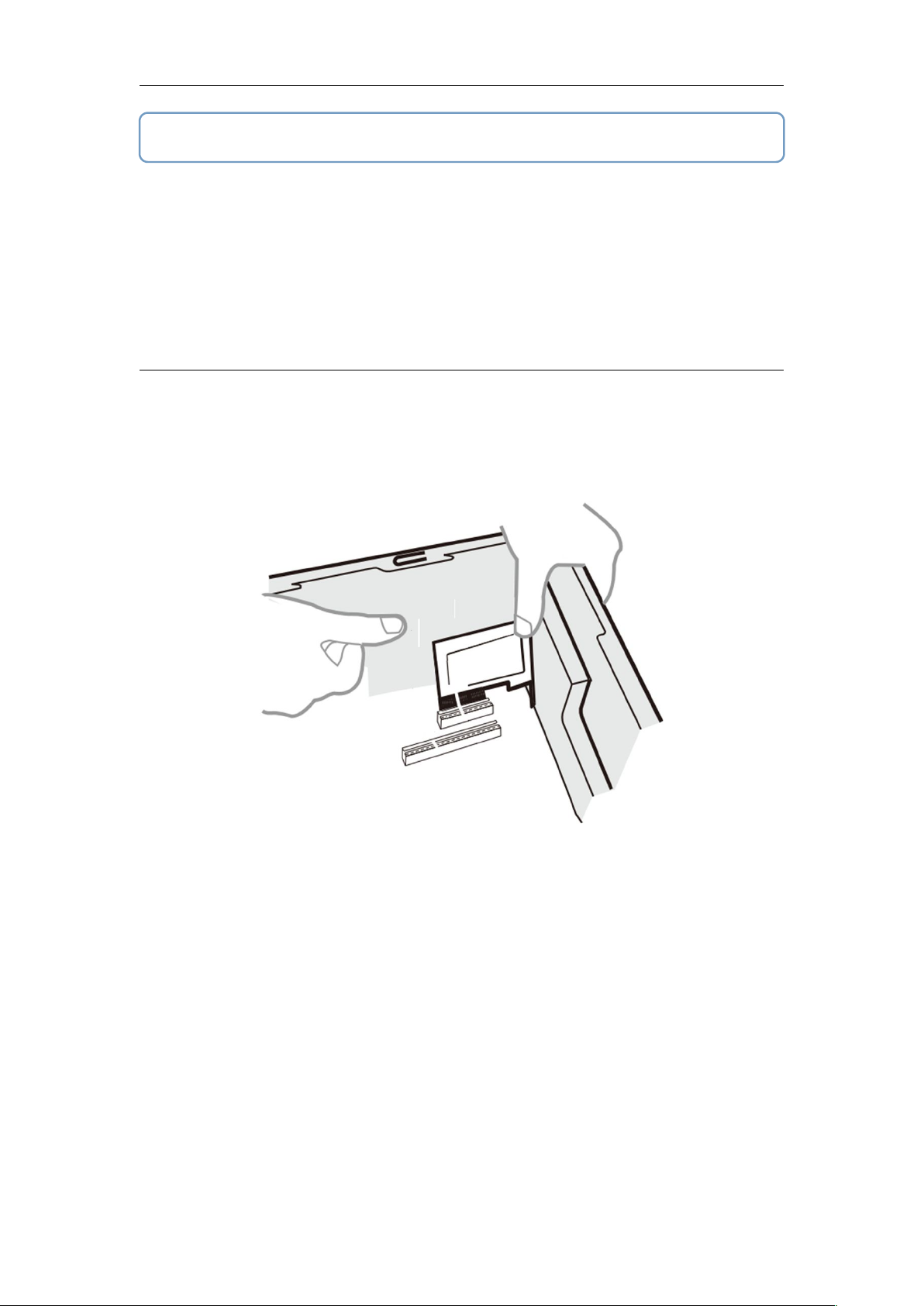
2. Open the case. Locate an available PCI Express slot and remove its slot cover.
3. Insert the adapter into the PCI Express slot as shown below.
4. Secure the adapter with the screw removed in Step2.
5. Close the case and insert the power cord back into the computer.
6. Turn on your computer.
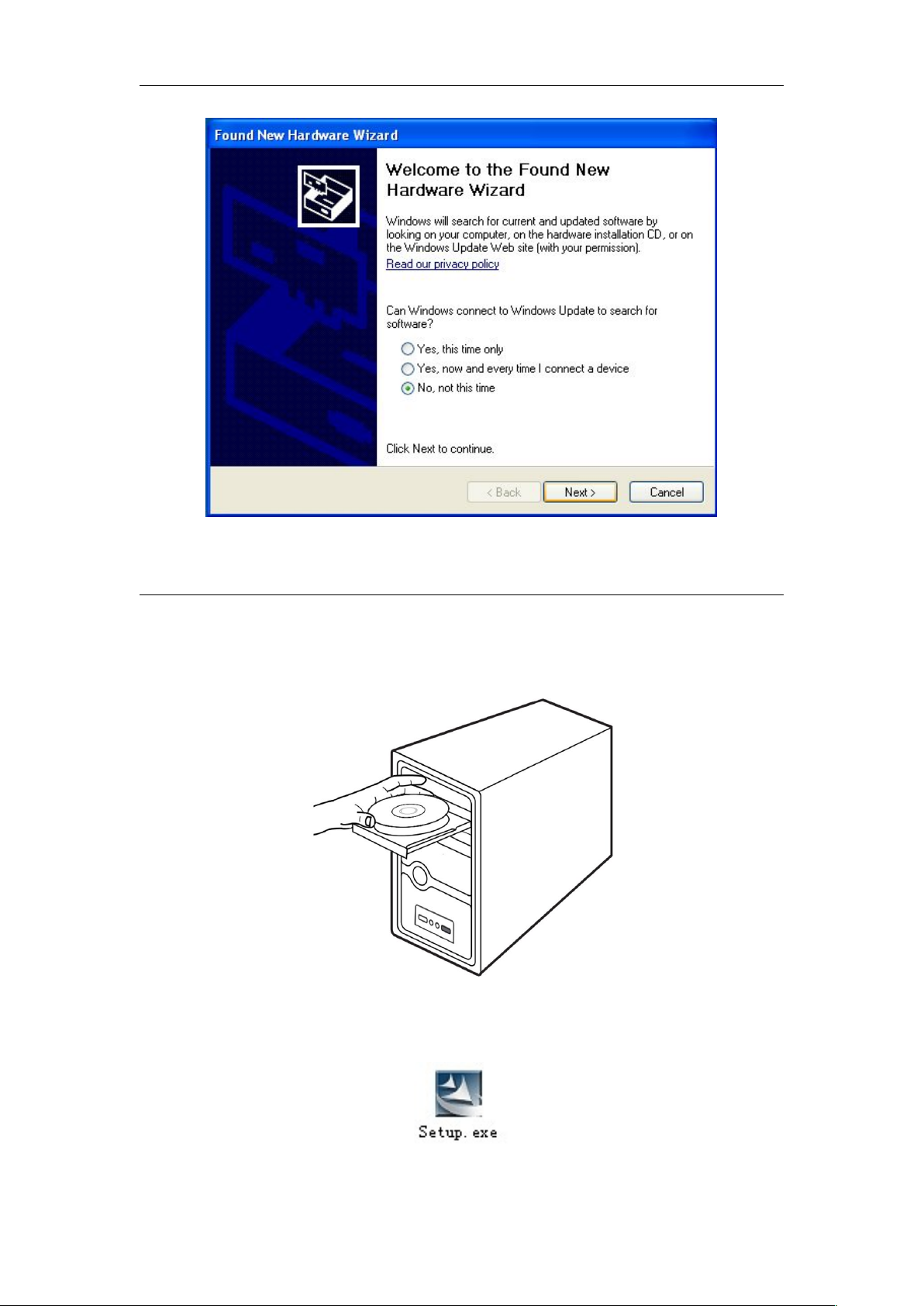
You may see the Found New Hardware Wizard after the adapter has been inserted.
Please click “Cancel”.
2 Installation Guide
Take Windows XP Operating system as an example, installation steps for other operating
systems are similar.
(Figure 1)
Page 7
Wireless PCI-E Adapter
6
2.2 Software Installation
1. Insert the Resource CD into the CD-ROM driver.
2. Please double-click the “Setup” file in the CD-ROM.
(Figure 2)
(Figure 3)
(Figure 4)
Page 8
Wireless PCI-E Adapter
7
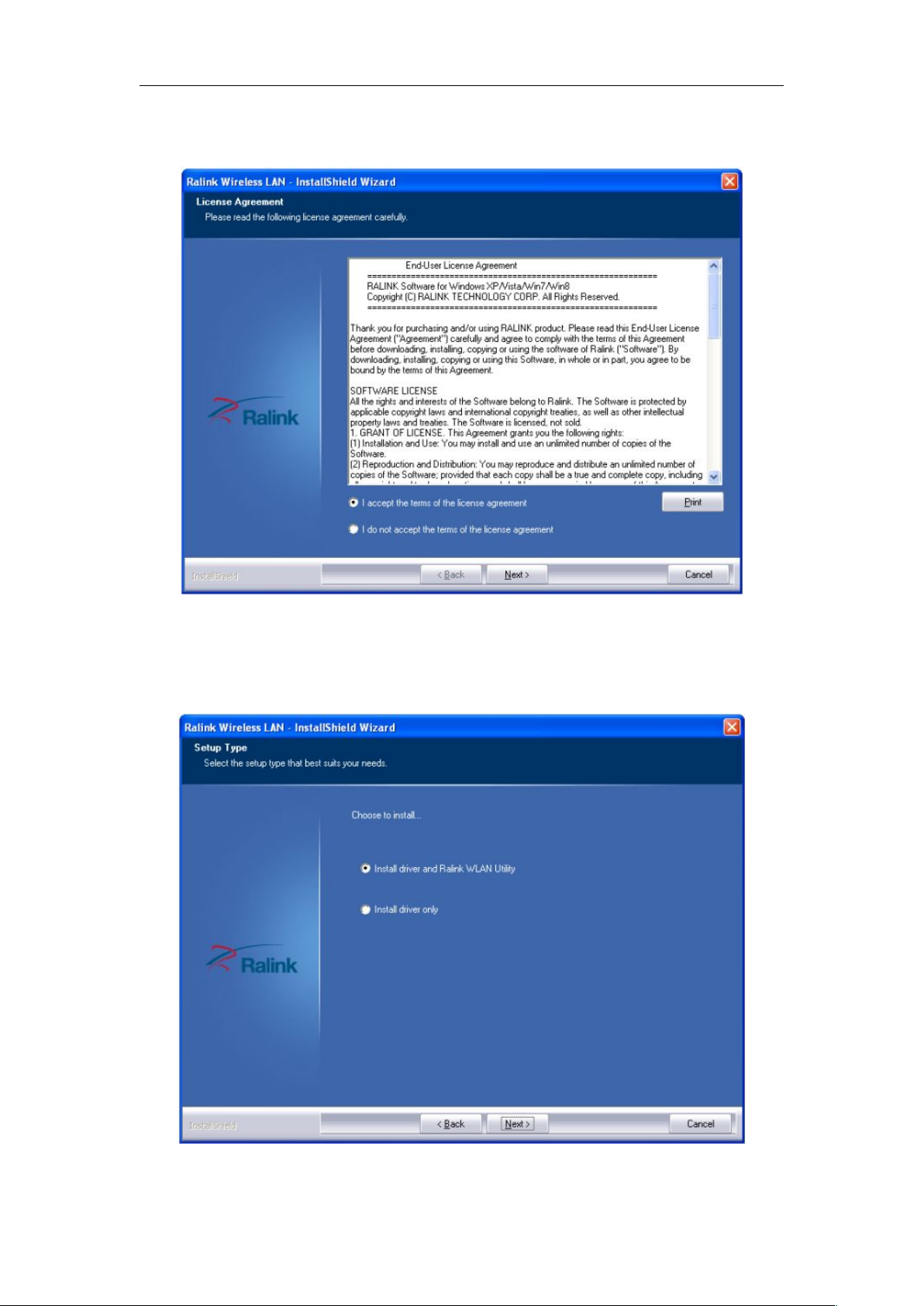
3. Select “I accept the terms of the license agreement” in the installation interface
which appeared as following, click “Next” to continue installation.
4. Select the type of installation, it is recommended select the to the client utility
program and driver of installation Client, as shown, click “Next” to continue the
installation.
(Figure 5)
(Figure 6)
Page 9
Wireless PCI-E Adapter
8
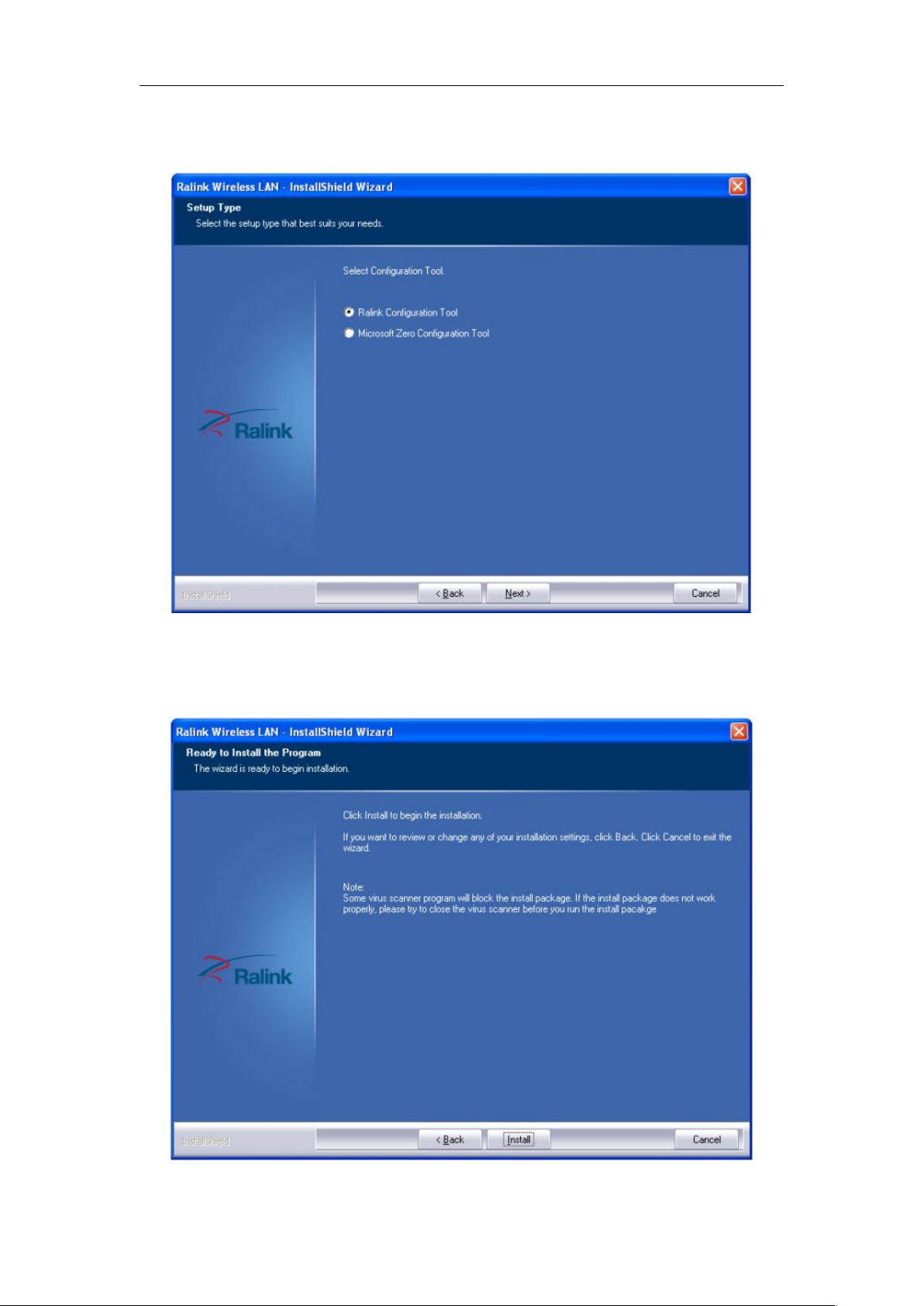
5. Select the configuration tool, if you are not sure, leave the default settings, click
“Next” to continue the installation.
6. Click “Install” to continue installation.
(Figure 7)
(Figure 8)
Page 10
Wireless PCI-E Adapter
9
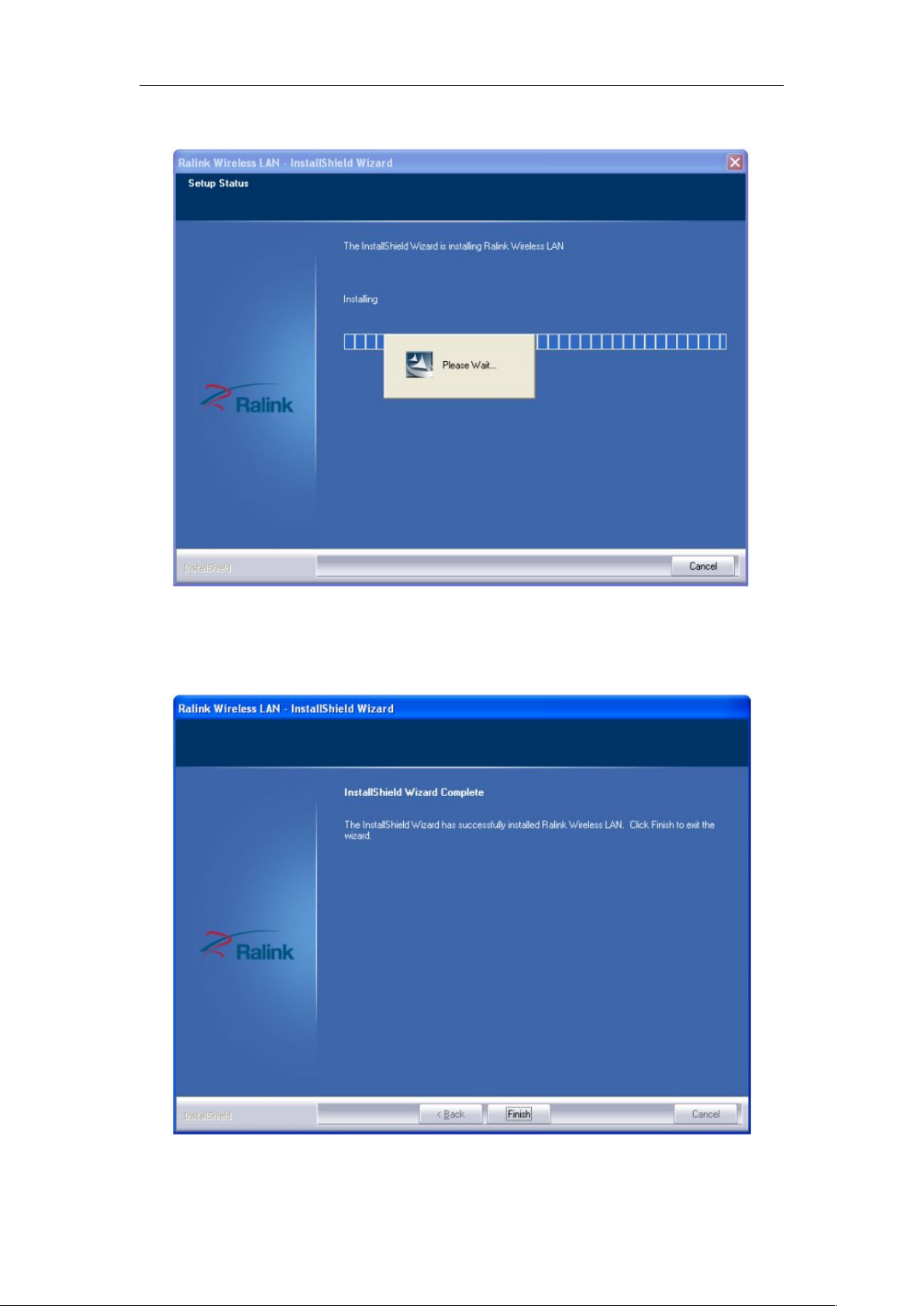
7. Next, the installation process will take about a minute, please wait for a second.
8. It will appear the interface as below picture after finishing all of the above operations,
Click “Finish” to complete the installation.
(Figure 9)
(Figure 10)
Page 11
Wireless PCI-E Adapter
10
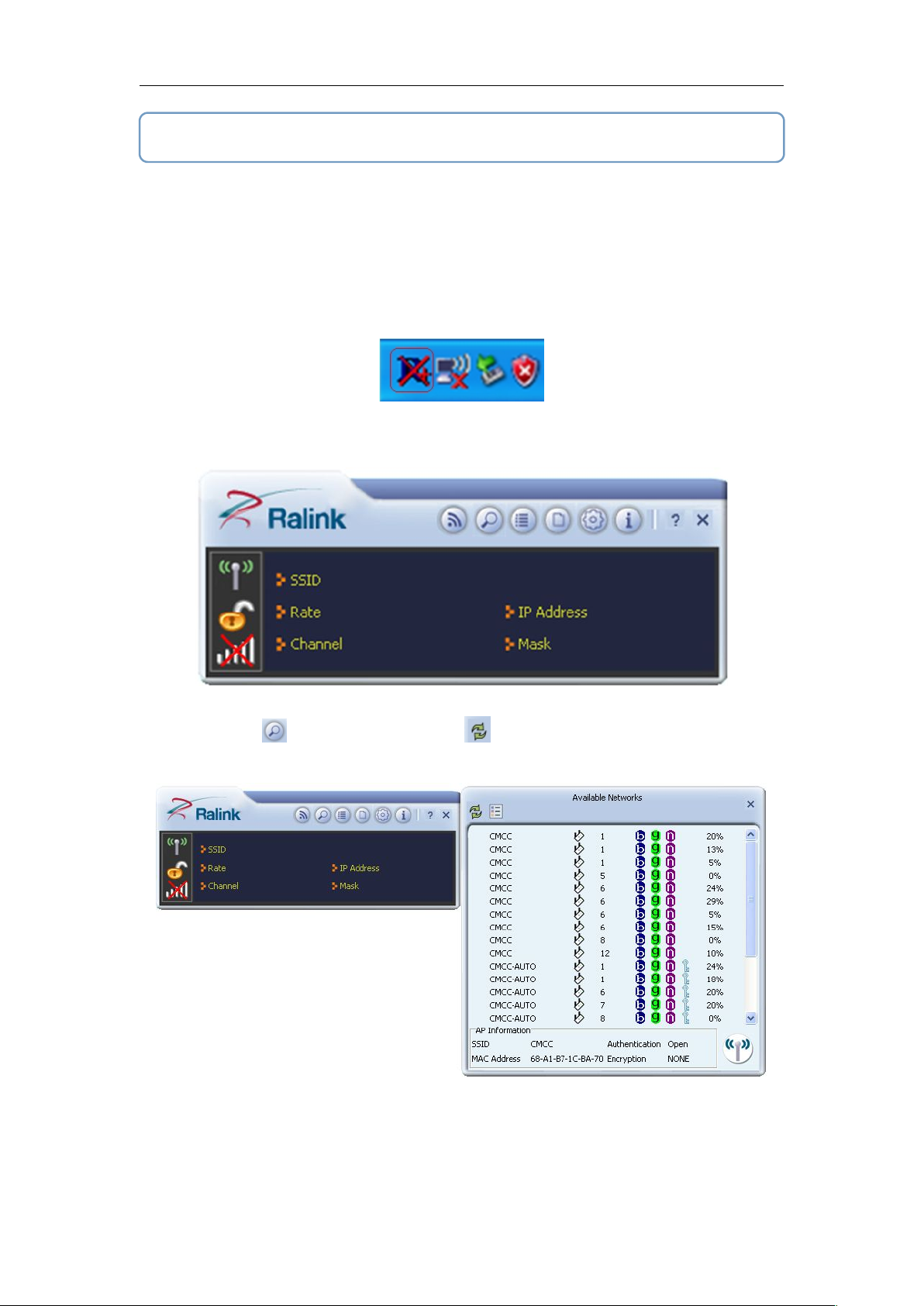
1. When the Wireless PCI-E Adapter drives allocation completion, this icon right the
table's bottom in computer is appear as follows a diagram mark.
2. Please double-click that diagram mark will be appear as follows interface.
3. Click the “ ” icon, then click the “ ” icon, the Wireless PCI-E Adapter will
search and can use a network and as follows the diagram show:
3 Connect to Network
This section will teach you how to use Windows Built-in Wireless Configuration to connect
to the wireless network.
Please refer to the following steps:
(Figure 11)
(Figure 12)
(Figure 13)
Page 12
11
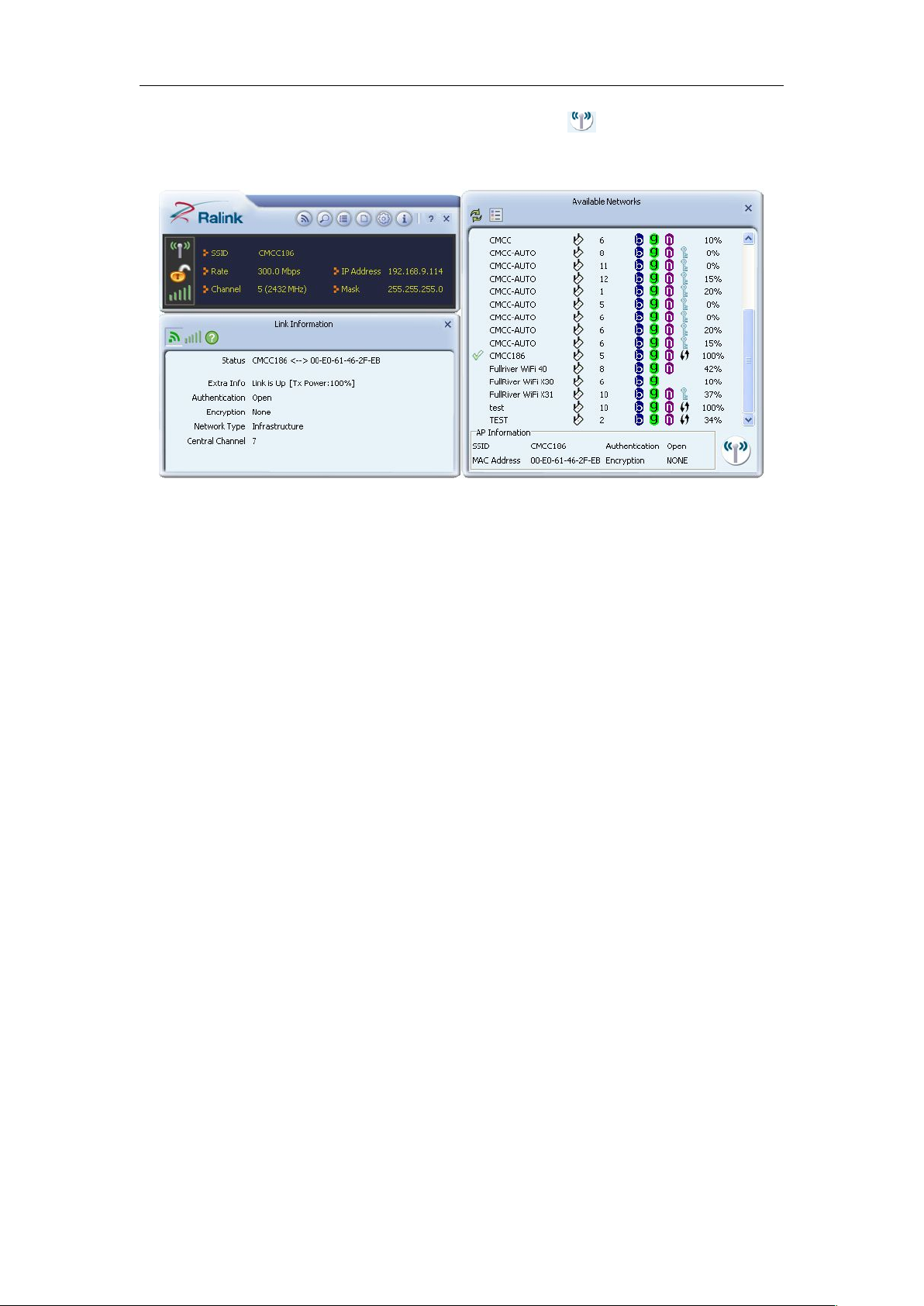
4. Then select an “Available Networks”, click the “ ” icon to connecting the
wireless network, the wireless network connects a chain success, and will be appear
as follows interface.
(Figure 14)
Wireless PCI-E Adapter
The whole allocation process has been already complete.
 Loading...