

Page 1
TREKBIT T303 QUICK START GUIDE
Tip: Your activity tracker is a touch screen device and will respond best to a firm touch on the left side of the screen
using a large surface area, such as your thumb (instead of a fingertip) or 2 fingers at once.
1) Turn on activity tracker
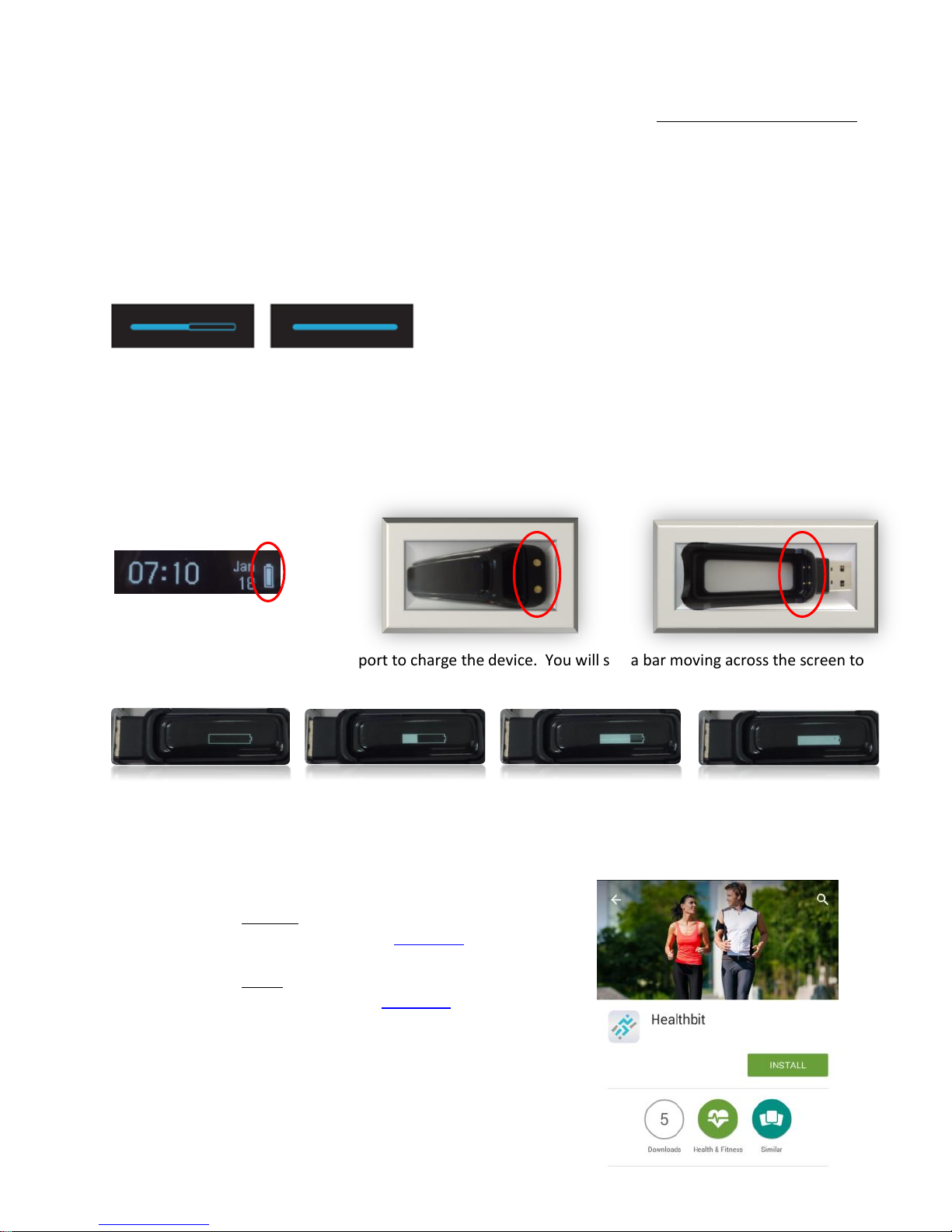
To save the battery, the activity tracker is set to hibernation mode at the factory. Before first use, press and
hold your finger or thumb on the screen of the device for 10 seconds. The progress bar will change from empty
to full to indicate full activation.
2) Charge activity tracker if needed
The main screen of your activity tracker shows the battery status. If the battery is low, place activity tracker in
the USB charging cradle, making sure the two metal prongs of the charging cradle line up with the two metal
parts on the activity tracker.
Plug the charging cradle into a USB port to charge the device. You will see a bar moving across the screen to
indicate the battery is charging. The battery will fully charge in 1 to 2 hours.
3) Install our Healthbit APP on your compatible Smartphone or tablet (Android 4.3+; iPhone 4s, 5, 5c, 6
and 6 plus; iPod Touch 4th Gen and newer, iPad 2 and newer, iPad Mini)
If you have an Android phone/tablet: Download
the Healthbit APP from Google Play Click Here
If you have an Apple phone/tablet: Download the
Healthbit APP from the App Store Click Here
v022515
Page 2
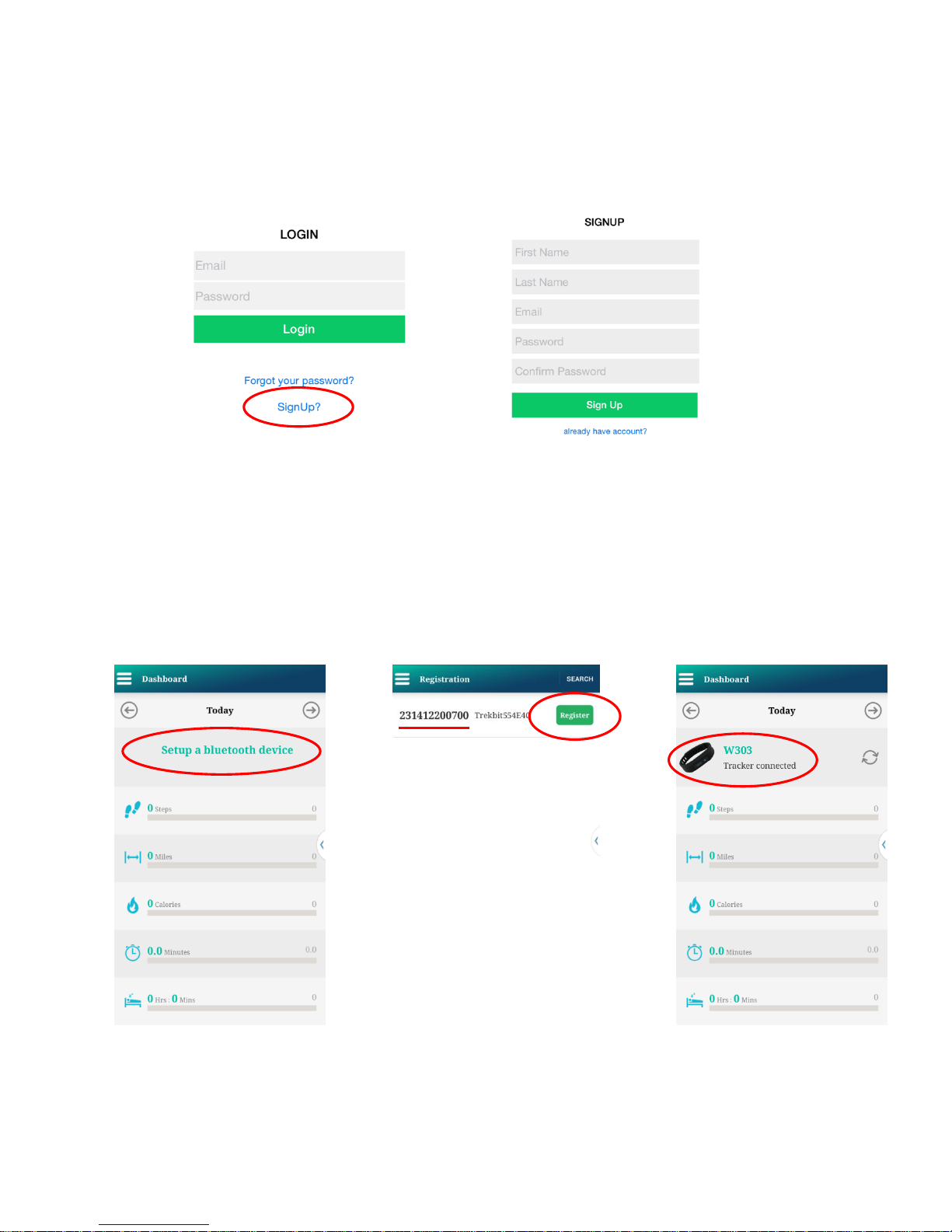
4) Create account in the APP you just installed
Open the APP on your phone or tablet
Click on "Sign Up"
Fill in First Name, Last Name, Email, Password, and Confirm Password. Then click "Sign Up" button.
5) Register (connect) activity tracker to APP
Click on "Setup a Bluetooth device" (Bluetooth must be enabled on your phone/tablet prior to clicking on this
button). Your phone or tablet should automatically search for the activity tracker. If the search doesn't happen
automatically, click on SEARCH in the upper right hand corner. When you see the serial number that matches
your activity tracker, click the Register button. The Dashboard will then show that your tracker is connected.
v022515
Page 3
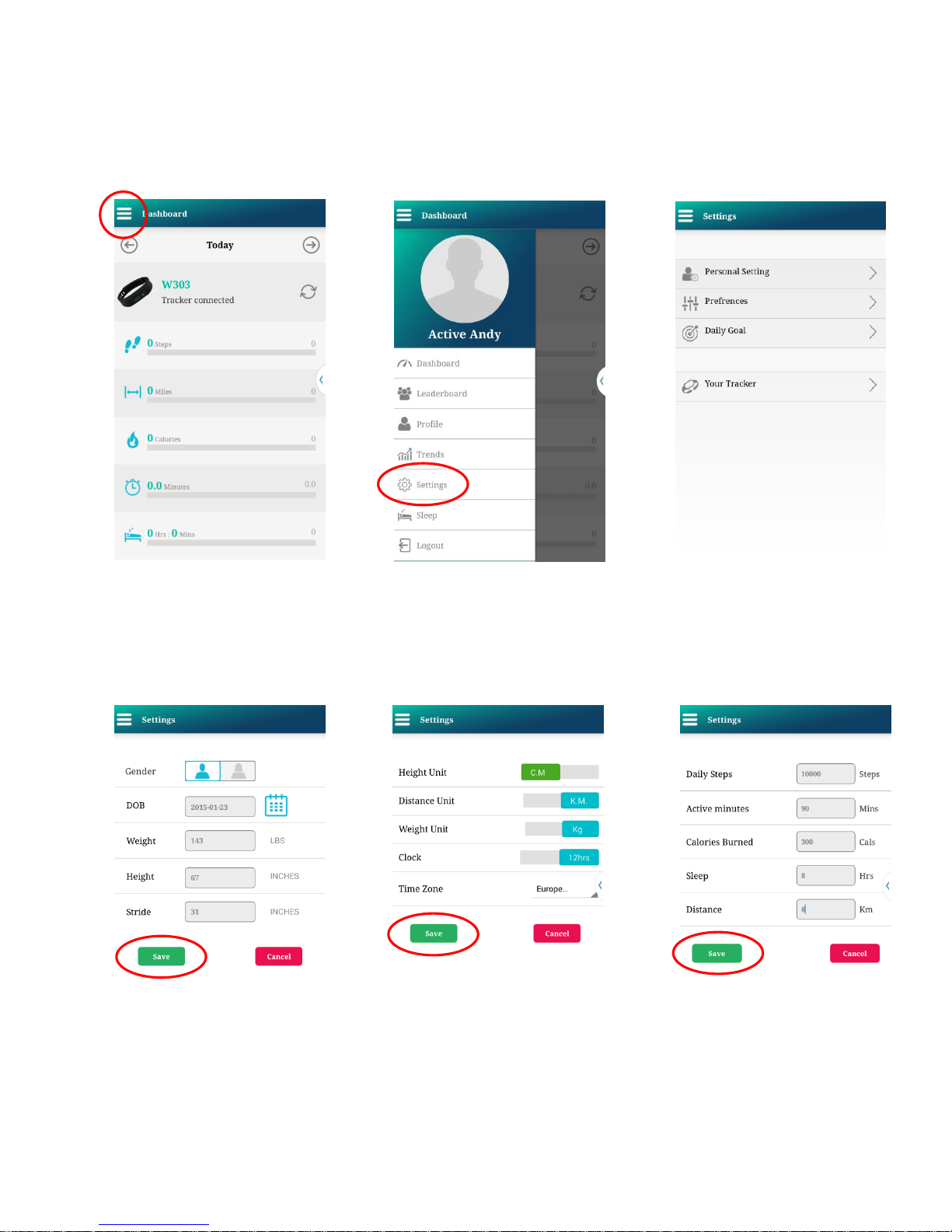
6) Setup your profile
Click the icon next to Dashboard, then Settings. Complete each Section (Personal Settings, Preference, and Daily
Goal), being sure to click Save on each screen (see examples on next page).
Personal Setting Screen Preferences Screen Daily Goal Screen
v022515
Page 4
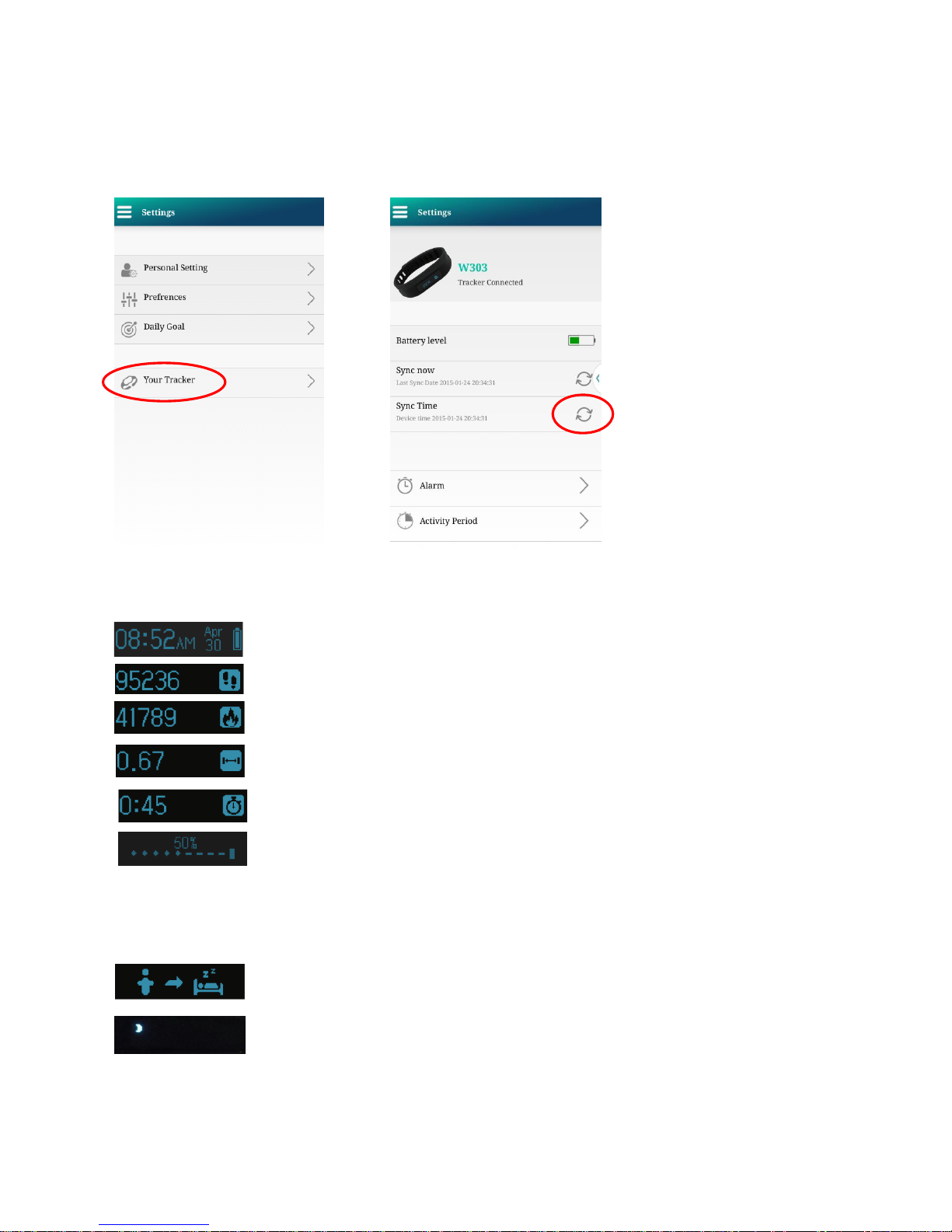
7) Sync time of day if needed
If the date and time are not showing accurately on your activity tracker, sync the time with that of your
phone/tablet by going to settings (see steps in #6 above), click on Your Tracker, then click the icon for Sync Time.
8) Each touch of the activity tracker screen within 8 seconds will rotate through the below:
Date, Time, Battery Level
Treks
Calories Burned
Distance
Hours and Minutes of Activity
Percent of Goal Achieved (Steps)
9) Activate Sleep Mode
Long press the screen until the image to the left appears. Then press screen again for 1
second to activate sleep mode.
A small moon will appear in upper left hand corner to indicate sleep mode.
v022515
Page 5

10) Return to Activity Mode
Long press the screen until the image to the left appears. Then press screen again for 1
second to activate sleep mode. The main screen (date, time, and battery level) will
appear when in Activity Mode.
11) Login to the free online Trekbit portal (optional)
Login to the free Trekbit online portal to access additional features not available on the phone/tablet APP by
going to https://cloud.trekbit.com/login.htm. Login using the credentials you created on your APP.
12) Access premium online portal (optional)
If you have subscribed to the premium 3Fitt online portal, link your activity tracker to your 3Fitt premium
account by following the User Manual instructions on the 3Fitt support page at https://www.3fitt.com/support.
v022515
 Loading...