

Page 1
TMS, Vx520 Card Sale & Refund Quick Guide, 0113, v1
Card Sales & Refunds Quick Guide
VeriFone Vx520
1. Chip & PIN Sales
2. Contactless (Where active)
3. Card Not Present (CNP) Sales
4. Refund Process
5. Receipts
For full details, also refer to your main
Vx520 User Guide
IMPORTANT: To be paid for your card transactions you must submit
them at the end of every working day with the ‘End of day procedure’.
See Section 1.13 (page 39) of your main Vx520 User Guide.
©TRANSAX Merchant Services. All rights reserved. TRANSAX is a registered trademark of Certegy Ltd.
Page 2
TMS, Vx520 Card Sale & Refund Quick Guide, 0113, v1
TOTAL 10.76
Present, Swipe, key
or insert card
SALE
1. Chip & PIN Sale Process (Cardholder Present)
When accepting payment by credit or debit card when the cardholder is present at the time of
the transaction. For additional information also see your main Vx520 User Guide (Section 1.3,
page 12). If your machine is set up in ‘Hotel Mode’ also see Section 1.11, page 32.
For ‘Restaurant Mode’ see section 1.12, page 35.
Chip & PIN Sale Section
If cash back is enabled for your machine and the card also supports cash back (e.g. most
debit cards), you will be prompted to enter a cash back amount.
MAIN MENU
Sale
Refund
Batch
Sale
MASTERCARD
10.76
ENTER PIN
Connecting
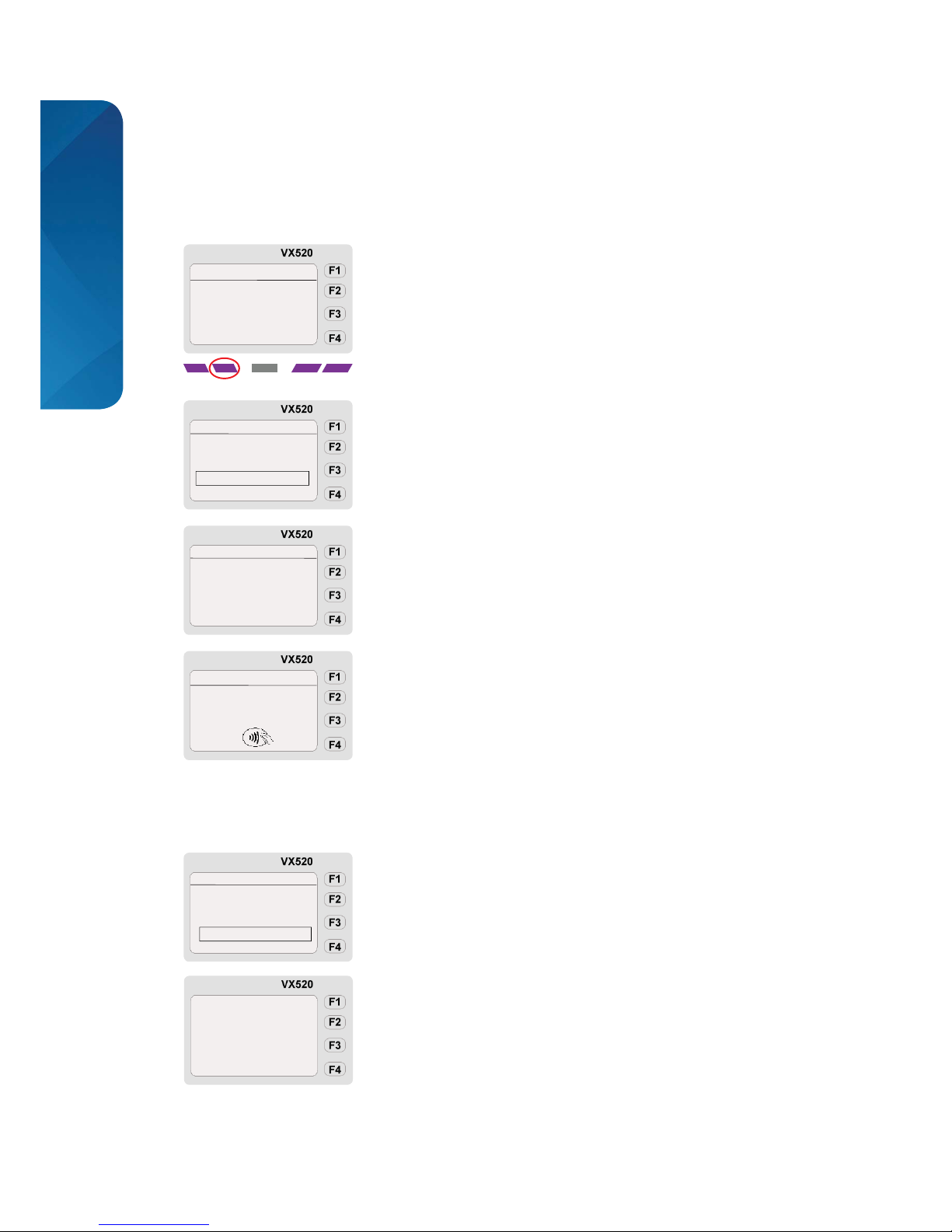
Select the Sale option.
You may need to scroll down through the menu by pressing the
second from left purple function key to fi nd this option.
Enter the sale value (e.g. for 10.76 key 1076) and press the green
ENTER key.
Confirm the sale amount is correct. Press F2 for YES or F4 for NO
and re-enter the sale amount.
Insert the credit or debit card into the front of the terminal with the
chip first, facing up.
The customer must enter their 4 digit PIN (Personal Identification
Number) - ask them to do this discreetly.
Ensure the green ENTER key is pressed after the PIN has been
entered.
The terminal will connect to Elavon to obtain an authorisation.
Step
1
Step
2
Step
3
Step
4
Step
5
Step
6
XXXX
Confirm
Sale Amount
10.76
Correct?
YES F2
NO F4
SALE
Enter sale amount
SALE
10.76
For information about Sales Receipts, please see part 5 of this guide.
Page 3
TMS, Vx520 Card Sale & Refund Quick Guide, 0113, v1
2. Contactless (Cardholder Present)
Contactless is a feature on some debit and credit cards that makes purchases quicker and more
convenient for both retailers and consumers. When making a total payment below a certain limit, a
card featuring Contactless technology can simply be held to the screen of the Vx520 terminal to pay
- rather than inserting the card and entering a PIN.
Although a Contactless transaction does not require a PIN to be entered, from time to time the
terminal will randomly ask that the cardholder undertake a full chip and PIN transaction. This is
designed to limit fraudulent use if it is found that the card has been lost or stolen.
Cards that have the Contactless capability will be denoted by any of the following logos:
Please note that Mastercard Paypass & Maestro Paypass cards may not always use the Contactless
symbol. For additional information also see your main Vx520 User Guide (Section 1.2, page 11).
Contactless Section
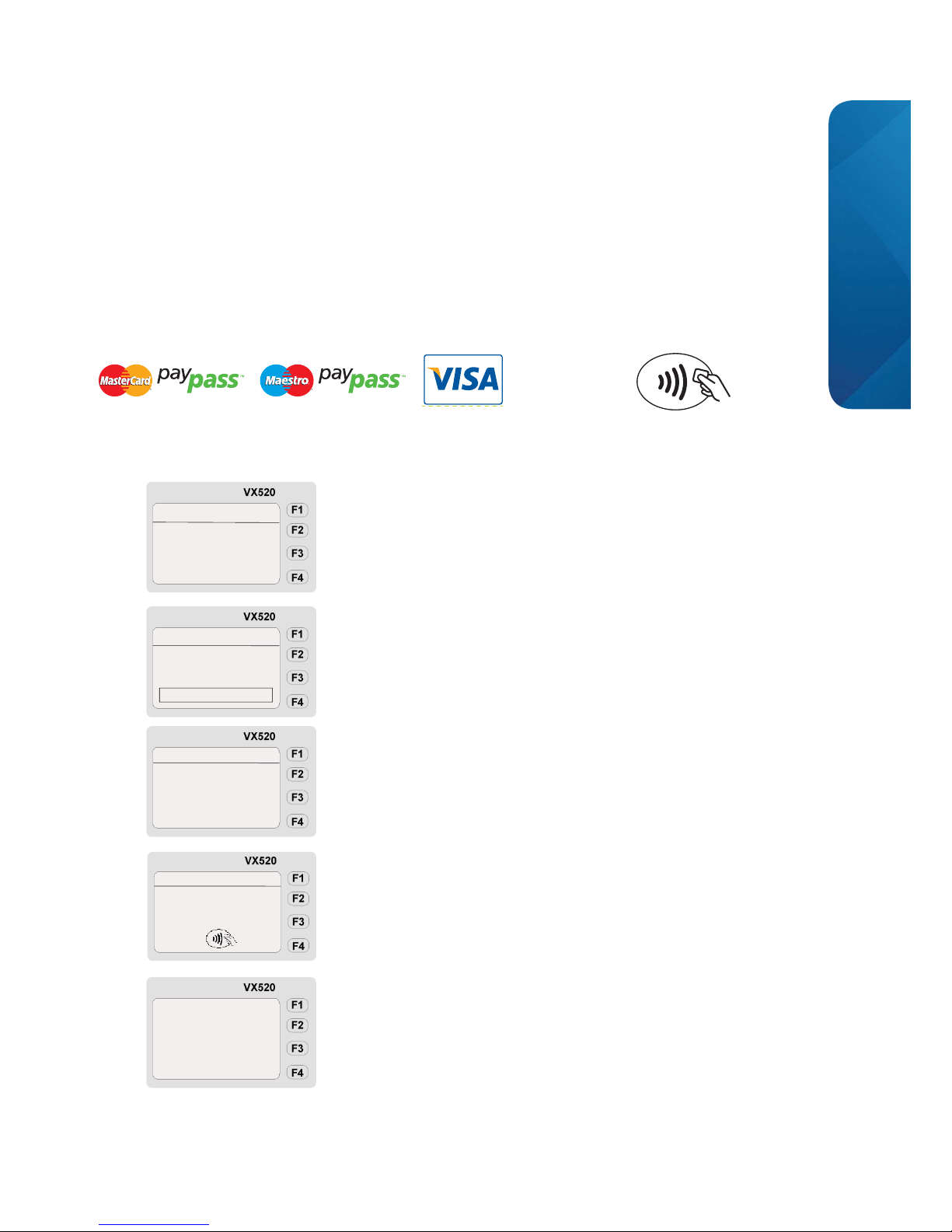
Do not insert the card.
Select the Sale option.
Enter the sale value (e.g. for 10.76 key 1076) and press the green
ENTER key.
Confirm the sale amount is correct. Press F2 for YES or F4 for NO
and re-enter the sale amount.
Ask the Cardholder to tap their Contactless card on the screen
of the terminal. All of the green LED lights above the screen will
illuminate to confirm the card’s data has been captured.
The terminal will connect to Elavon to obtain an authorisation.
MAIN MENU
Sale
Refund
Batch
Step
1
Step
2
Step
3
Step
5
Step
4
Connecting
Confirm
Sale Amount
10.76
Correct?
YES F2
NO F4
SALE
Enter sale amount
SALE
10.76
TOTAL 10.76
Present, Swipe, key
or insert card
SALE
and the
Contactless
symbol:
For information about Sales Receipts, please see part 5 of this guide.
Page 4
TMS, Vx520 Card Sale & Refund Quick Guide, 0113, v1
3. Card Not Present (CNP) Sale Process
When accepting payment by credit or debit card when the cardholder is not present at the time
of the transaction e.g. telephone order / mail order. For additional information also see your main
Vx520 User Guide (Section 1.6b, page 24).
CNP Sale Section
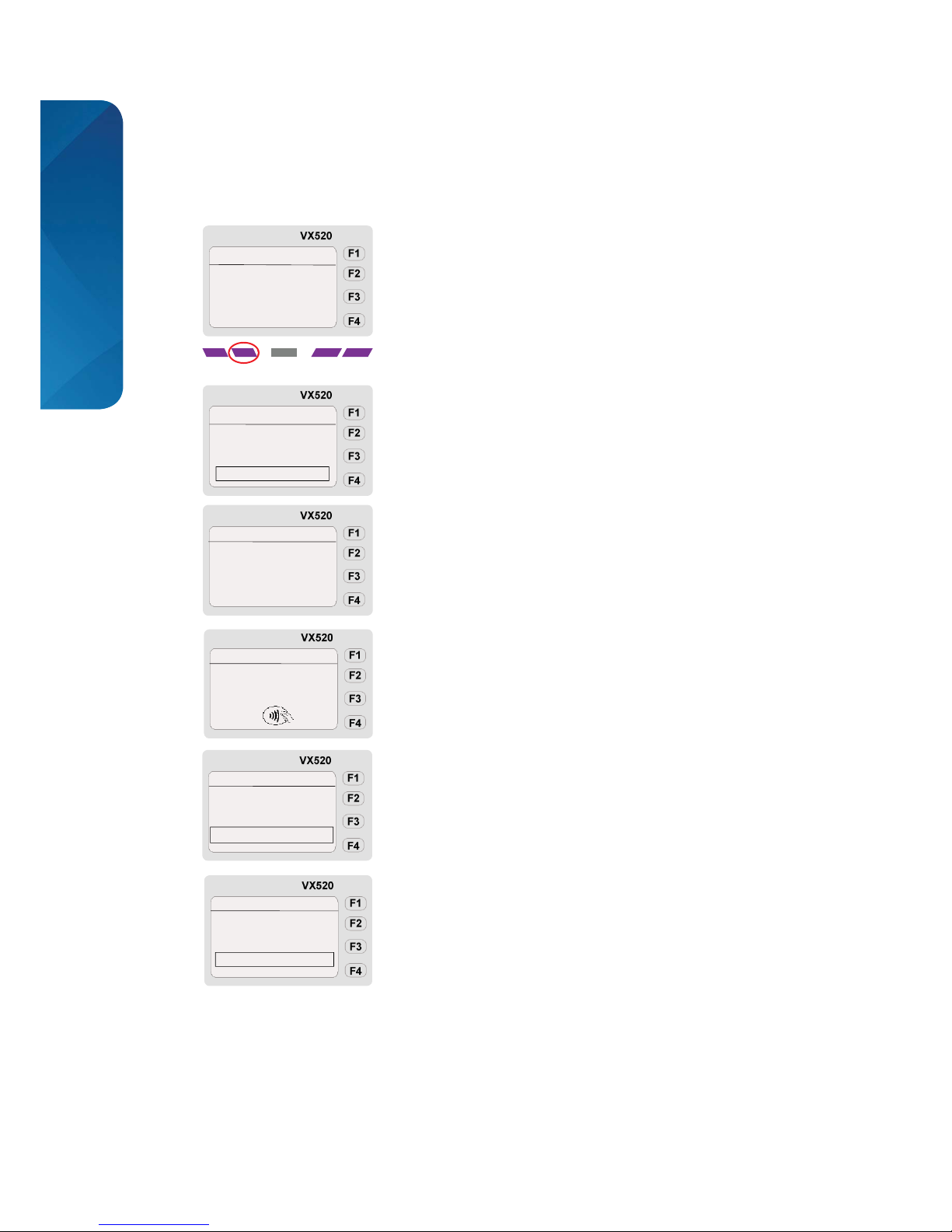
Select the Sale option.
You may need to scroll down through the menu by pressing the
second from left purple function key to fi nd this option.
Enter the sale value (e.g. for 10.76 key 1076) and press the green
ENTER key.
Confirm the sale amount is correct. Press F2 for YES or F4 for NO
and re-enter the sale amount.
Key in the full card number from the front of the card.
Use the yellow CLEAR key to correct any mistakes.
press the green ENTER key to confirm the card number.
Enter the expiry date MMYY and press the green ENTER key
Note: The terminal may also ask for an Issue Number printed
on certain types of debit cards
MAIN MENU
Sale
Refund
Batch
Step
1
Step
2
Step
3
Step
5
Step
6
Step
4
DATE ENTRY
Enter expiration date
(MMYY)
1214
SALE
Enter card number
XXXXXXXXXXXXX
Confirm
Sale amount
10.76
Correct?
YES F2
NO F4
SALE
Enter sale amount
SALE
10.76
TOTAL 10.76
Present, Swipe, key
or insert card
SALE
Card Not Present Section
Page 5
TMS, Vx520 Card Sale & Refund Quick Guide, 0113, v1
Step
7
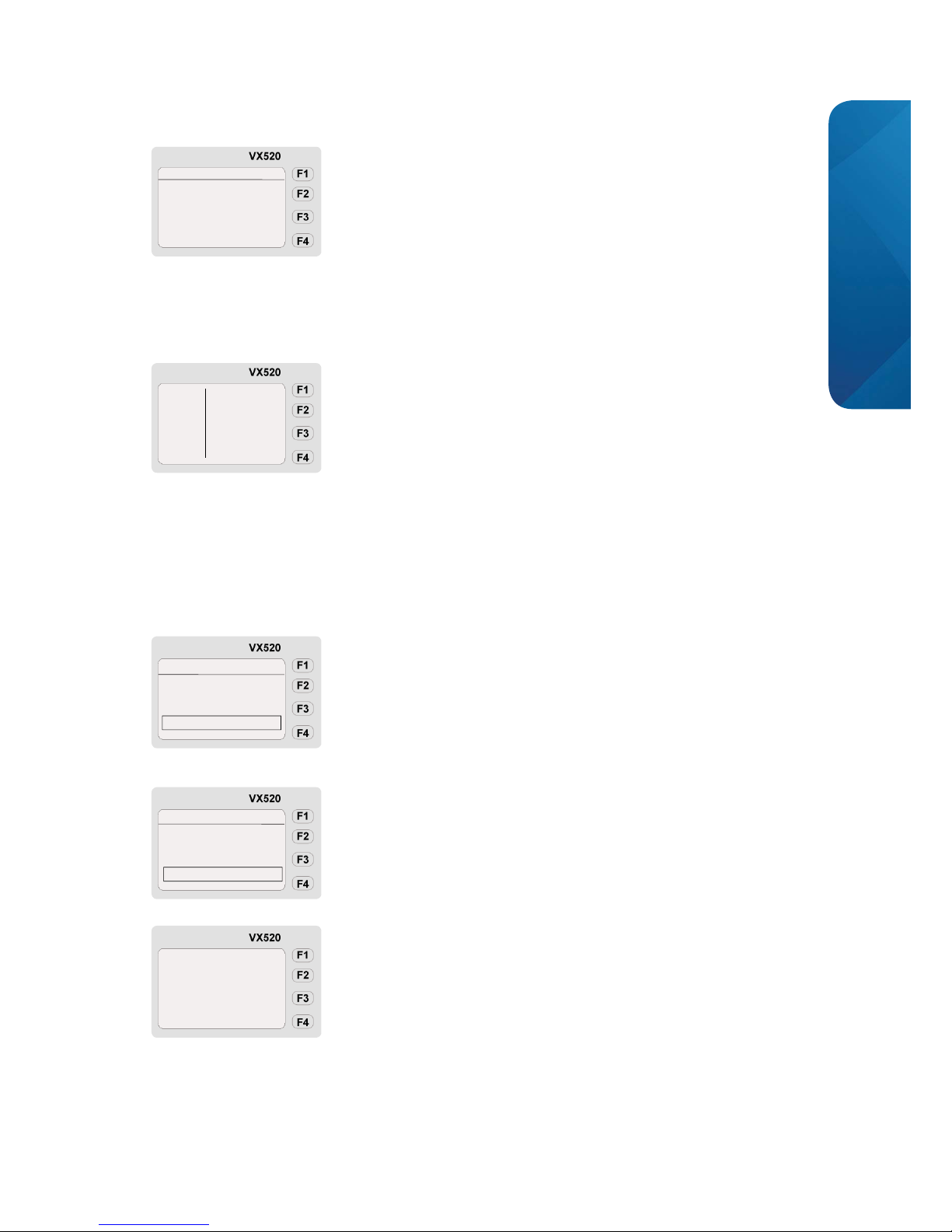
Note: If there is no CVV2 number press F1 to select NOT PRESENT or if your customer cannot
read the CVV2 number press F3 to select ILLEGIBLE. In either case continue to Step 9. You
will be charged an Exception Fee if the CVV2 number is not provided on CNP transactions refer to your Schedule of Fees.
Step
8
Not present
Present
Illegible
Absent
CVV2
NUMBER
IS...
Step
9
Address Verification
Enter customer
address
912
The screen will ask whether the customer is present. For all
Cardholder Not Present (CNP) transactions press F4 to select NO
If the customer can provide the CVV2 number press F2 to
select PRESENT, key in the CVV2 number and press the
green ENTER Key
This step refers to AVS (Address Verification Service). Enter the
customer’s house number and press the green ENTER key. If a
house name, leave blank and press the green ENTER key.
Note: This service is not available to merchants in the Republic
of Ireland, who should press the green ENTER key to continue.
You will then be asked for the customer’s postcode. Only enter the
numbers from the customer’s postcode. e.g. for B91 2AA, key 912
and press the green ENTER key.
The terminal will connect to Elavon to obtain an authorisation.
CUSTOMER PRESENCE
Is customer
present?
YES (F2)
NO (F4)
For every CNP transaction you will be asked to key in the CVV2 number (Card Security Code)
- the last 3 digits (4 digits on American Express) found on the signature stripe on the reverse of
the card.
3. Card Not Present (CNP) Sale Process, continued
Step
10
Address Verification
Enter customer
postal code
912
Step
11
Connecting
Card Not Present Section
For information about Sales Receipts, please see part 5 of this guide.
Page 6
TMS, Vx520 Card Sale & Refund Quick Guide, 0113, v1
Refund Process Section
4. Refund Process
A ‘Refund’ is when the value of a transaction is credited back to a card for a sale that may have
been processed earlier in the day or on a previous date, for example, when goods are returned.
For further information regarding Refunds, see Section 1.8 (page 27) of your main Vx520
User Guide.
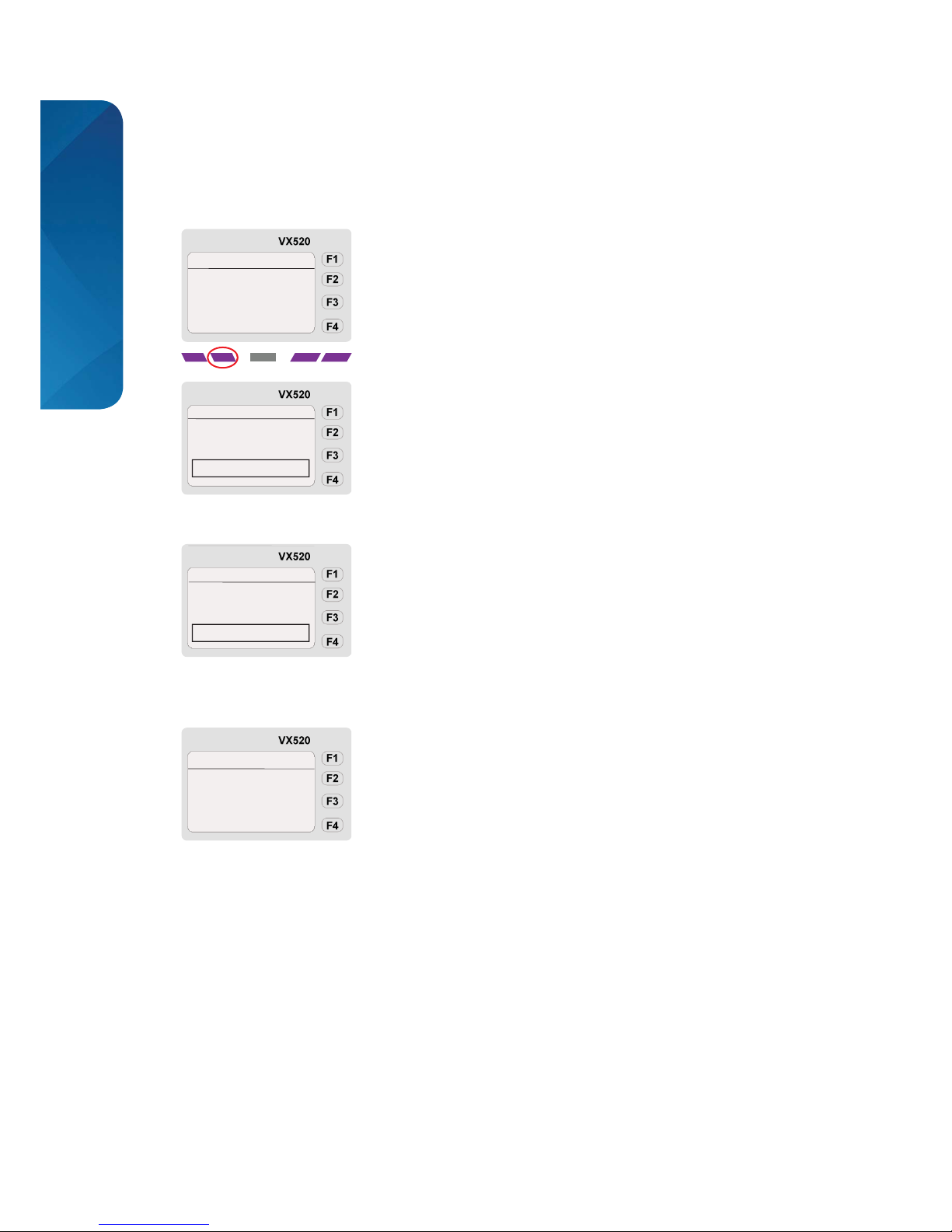
Select the Refund option.
You may need to scroll down through the menu by pressing the
second from left purple function key to fi nd this option.
Insert the credit or debit card into the terminal with the chip first,
facing upwards OR swipe the card or key the card number.
Note: Refunds cannot be processed as a Contactless type
transaction.
The screen will display the card type (e.g. Mastercard or VISA) and
the card number. Enter the refund value (e.g. for 10.76 key 1076)
and press the green ENTER key
As soon as the refund has been processed the terminal will print the
Merchant Copy of the receipt which the customer must sign.
The terminal will ask you to verify that the signature is valid and
matches that on the card. If it does, press F2 to select YES.
MAIN MENU
Sale
Refund
Batch
Step
1
REFUND
Swipe, key or
insert card
Step
2
CHECK SIGNATURE
YES (F2)
NO (F4)
Is the
signature
valid?
Step
4
Step
3
REFUND
MASTERCARD
4251 XXXX XXXX XXXX
Enter amount
For information about Refund Receipts, please see part 5 of this guide.
10.76
Page 7

TMS, Vx520 Card Sale & Refund Quick Guide, 0113, v1
5. Receipts
Sales Receipts
When the transaction has been authorised the terminal will print the ‘Merchant Copy’
sales receipt. Keep the receipt safe and secure for 18 months as you may be asked to
provide it in the event of a ‘Chargeback’ (i.e. any query raised by the cardholder or the
card issuer).
Secondly, the terminal will print the ‘Customer Copy’ sales receipt, this must be given to
your customer in addition to any other invoice receipt that you may provide.
For manually keyed transactions (see section 1.6a, page 22 in your main Vx520 User
Guide) please hand the Merchant Copy of the receipt to the customer to sign. Compare
the signature on the back of the card with the signature on the receipt.
Note: You will be charged an ‘Exception Fee’ if the customer’s PIN is not used to
verify the transaction (e.g. for a swiped or keyed card transaction) - refer to your
Schedule of Fees
Refund Receipts
When a refund is processed, the terminal will print the Merchant Copy of the receipt.
You
must hand the Merchant Copy of the receipt to the customer to sign. Compare the signature on
the back of the card with the signature on the receipt.
If you are satisfied that it is correct, select F2, and retain the signed receipt for your records. The
Customer Copy is printed next.
Tear off the Customer Copy and hand this and the card to the cardholder. The terminal
will go back to the Main Menu.
Referral Transactions
Occasionally you will receive a referral response message through your card machine,
advising you to contact the Elavon Authorisation Centre (‘Call Auth Centre’), to obtain a
manual authorisation. Please call immediately in order to proceed with the transaction.
Telephone: 0845 850 0197 (UK) or 1 850 30 31 30 (ROI). You may be asked for some
further information and you will be given an Authorisation Code. Follow the instructions in
your main Vx520 User Guide (Section 1.7, page 26).
Receipts Section
Page 8

TMS, Vx520 Card Sale & Refund Quick Guide, 0113, v1
FIS is a trading name of Certegy Ltd, Registered in England, No.4215488 and Certegy (Ireland) Ltd, Registered in the Republic of Ireland, No. 126879.
Services are covered by the Financial Ombudsman Services (in the UK).
Calls to and from the company may be recorded for quality purposes. Part of FIS (Fidelity National Information Services Inc.)
If undelivered please return to:
TRANSAX Merchant Services
Certegy Ltd
Tricorn House
51– 53 Hagley Road
Birmingham
B16 8TU
 Loading...