

Page 1
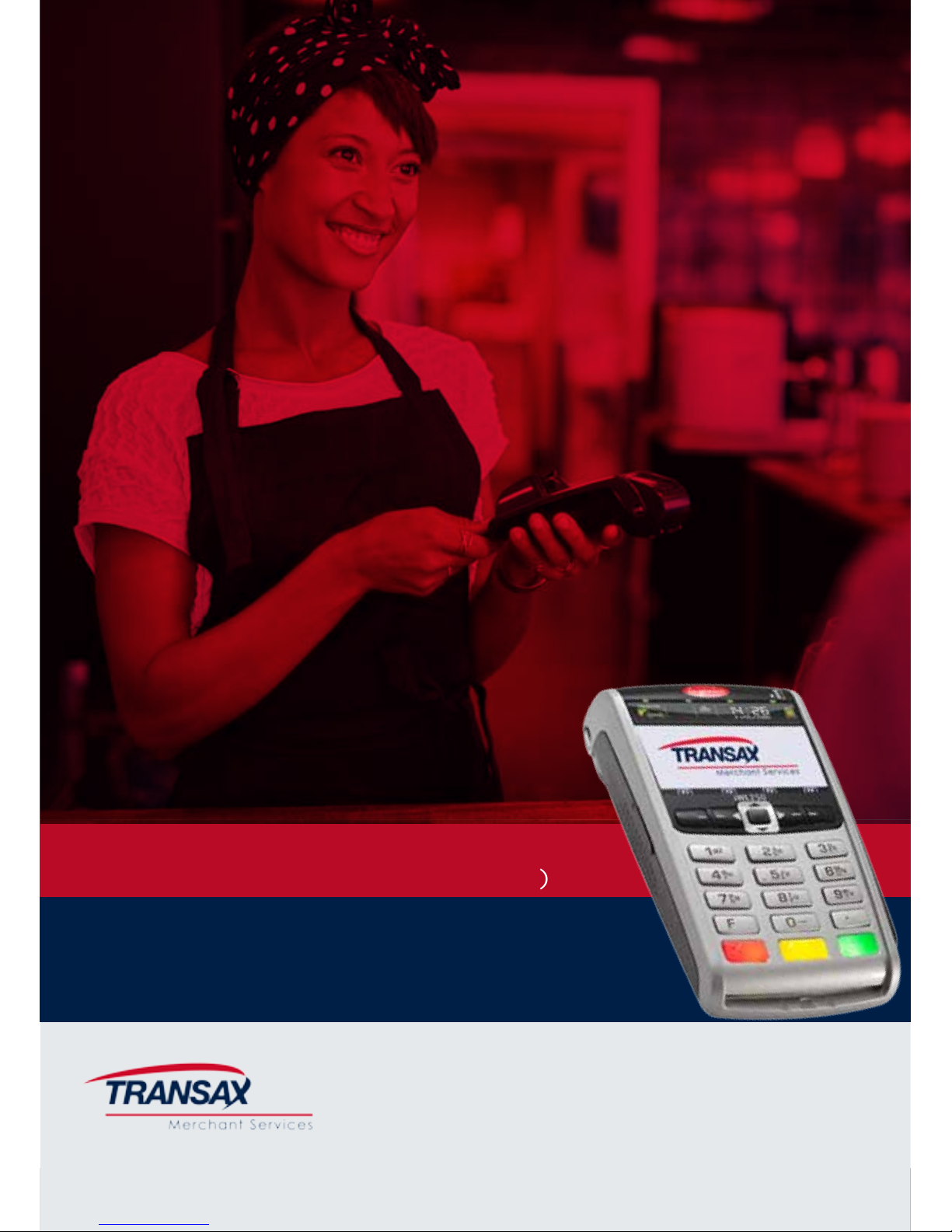
TMS, iWL252 Bluetooth (PSTN/IP), Card Sales & Refunds Quick Guide, 1215 v2
Ingenico iWL252 Bluetooth (PSTN/IP)
©TRANSAX Merchant Services. All rights reserved. TRANSAX is a registered trademark of FIS Payments (UK) Ltd.
Card Sales & Refund
Quick Guide
Page 2

TMS, iWL252 Bluetooth (PSTN/IP), Card Sales & Refunds Quick Guide, 1215 v2
Index
1. Chip & PIN Sales (Customer Present)
2. Contactless Sales (Customer Present)
3. Card Not Present (CNP) Sales Process
4. Refund Process
5. Referrals Process
6. End of Day Reports
Online Resources
For full details, also refer to the iWL200 Series Terminal User Guide, this
can be found in the Merchant Zone at www.transaxmerchantservices.co.uk
Page 3
TMS, iWL252 Bluetooth (PSTN/IP), Card Sales & Refunds Quick Guide, 1215 v2
1. Chip & PIN Sales Process (Customer Present)
When accepting payment by credit or debit card when the customer is present
at the time of the transaction. For additional information also see the iWL200
Series Terminal User Guide (starting from Section 14, page 13) this can be
found in the Merchant Zone at www.transaxmerchantservices.co.uk
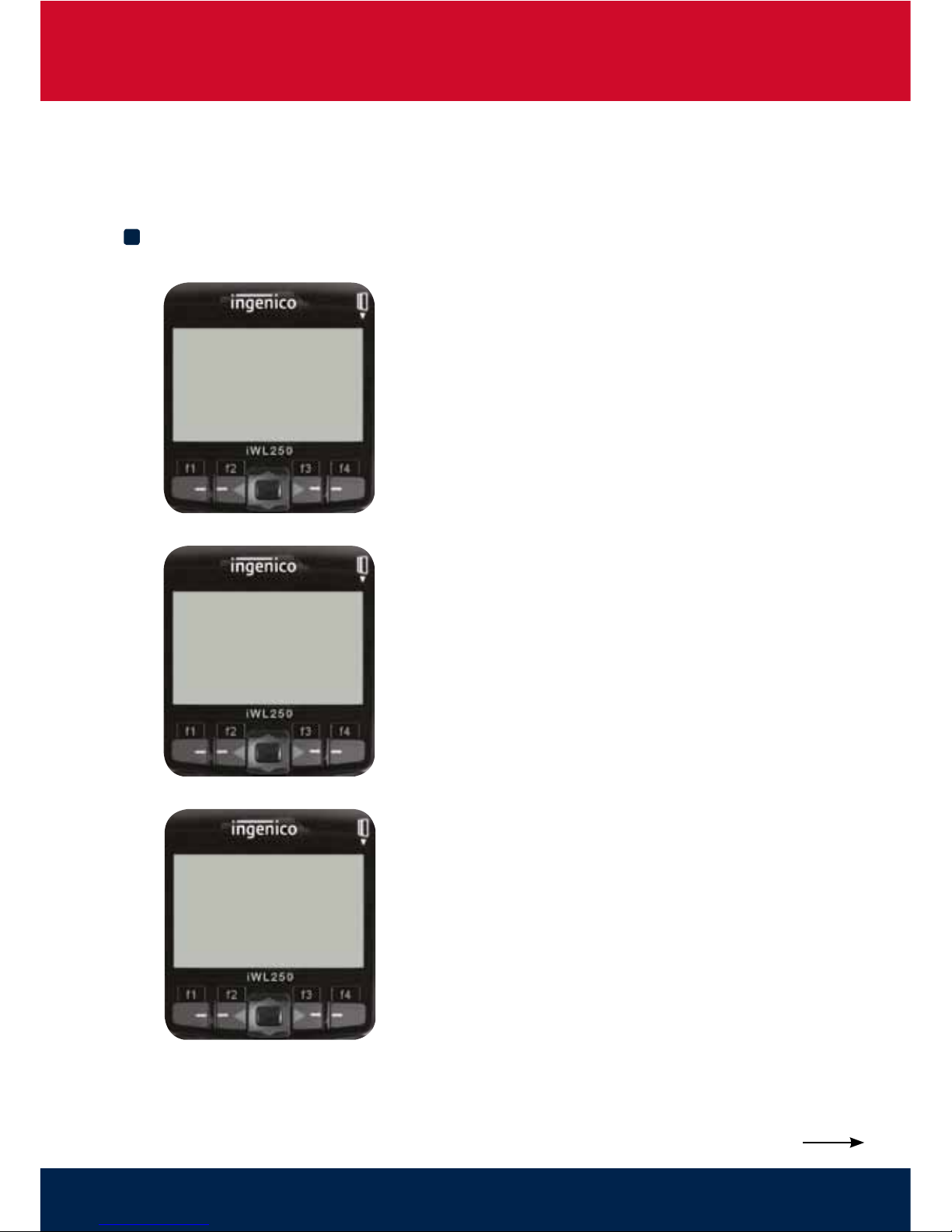
Ensure that you have a Bluetooth signal by checking for the signal ‘prompt’
( ) on the READY screen.
You can enter the value of the transaction with
the keypad from the READY screen to initiate
a sale or press the MENU key on the terminal,
select ‘Sale’ and then the green ENTER key.
Note: You may need to scroll to select
‘Sale’ depending on how your terminal is
configured, by using the f2 and f3 keys.
Insert the card, chip first, facing up.
Enter the sale value (e.g. for 10.76 key 1076) and
press the green ENTER key.
The terminal will now check the card that has
been inserted.
If cashback has been enabled on your terminal
you will be prompted to key the value.
The terminal will briey display a processing message.
The customer must enter their 4 digit PIN
(Personal Identification Number) - ask them to do
this discreetly.
To correct any keying errors, press the yellow
CLEAR key.
Ensure the green ENTER key is pressed after the
PIN has been entered.
The terminal will connect to Elavon and authorise
the transaction, during this time a number of
messages will appear on the screen.
Step
1
SALE
Key in Amount:
10.76
and then press ENTER
Step
2
SALE
Checking card
Please wait...
Amount 10.76
PIN: ****
Cardholder to key PIN
Enter=OK Clear=REKEY
Step
3
B
Continued Overleaf
Page 4
TMS, iWL252 Bluetooth (PSTN/IP), Card Sales & Refunds Quick Guide, 1215 v2
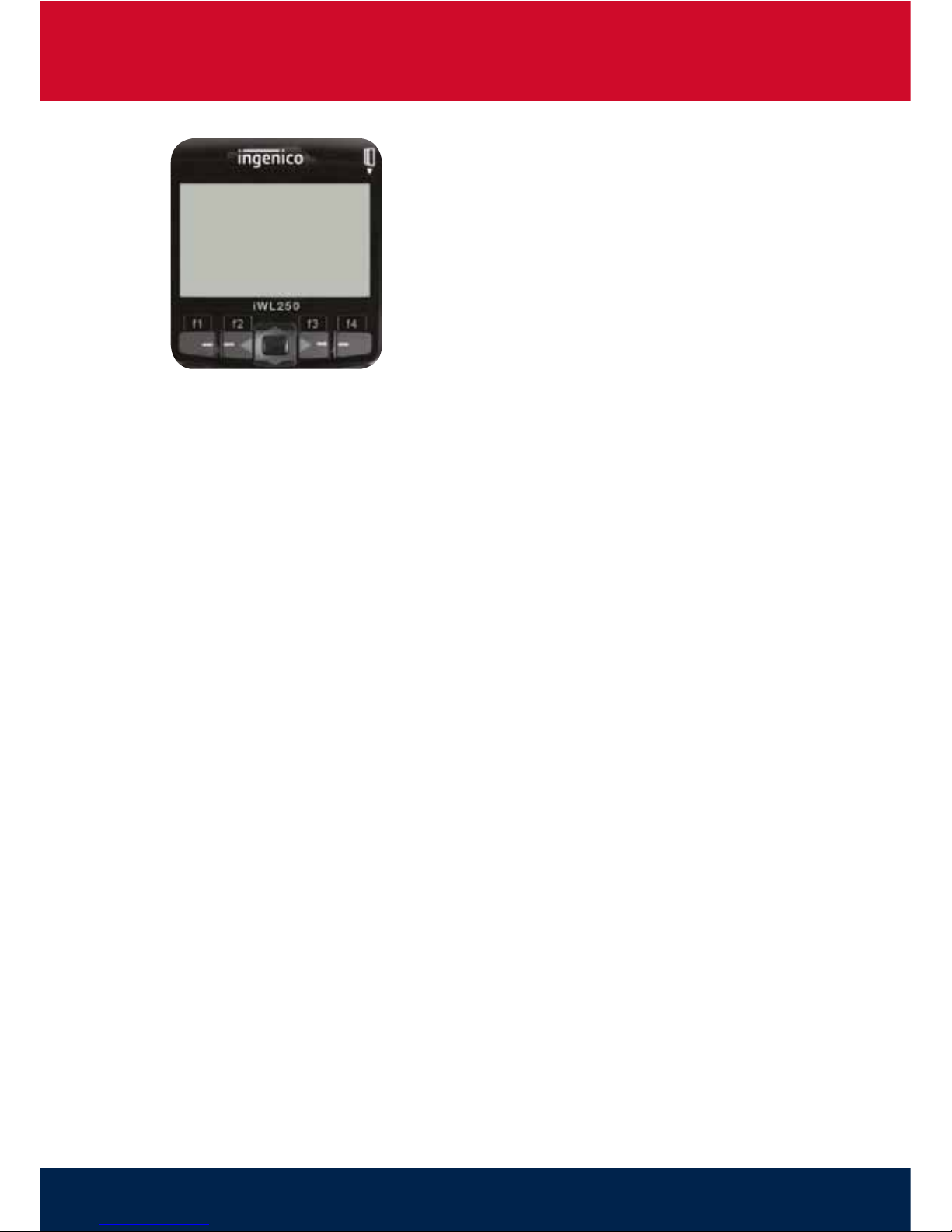
When the transaction has been authorised the
terminal will print the ‘Customer Copy’ sales
receipt: this must be given to your customer in
addition to any other invoice receipt that you
may provide.
You will be prompted to tear off the customer
receipt and press ENTER. Should you require
a second ‘Customer Copy’ receipt, press the
MENU key to reprint.
Your ‘Merchant Copy’ sales receipt will now
be printed and you will be prompted to tear
this off. Keep the receipt safe and secure for 18
months as you may be asked to provide it in the
event of a ‘Chargeback’.
Note: You will be charged an ‘Exception Fee’ if the customer’s PIN is not used
to verify the transaction (e.g. for a swiped or keyed card transaction) - refer to
your Schedule of Fees.
To prolong the life of your paper roll please ensure that when tearing receipt copies
from the terminal, that the paper is torn from left to right, across the screen.
The SALE transaction is now complete and the terminal will return to the
READY prompt.
If for any reason you are not able to process a Sale transaction using Chip & PIN, follow
the instructions in the iWL200 Series Terminal User Guide (Section 15, page 13).
SALE
AUTH CODE: nnnnn
Elavon
Step
4
Page 5
TMS, iWL252 Bluetooth (PSTN/IP), Card Sales & Refunds Quick Guide, 1215 v2
2. Contactless Sales (Customer Present)
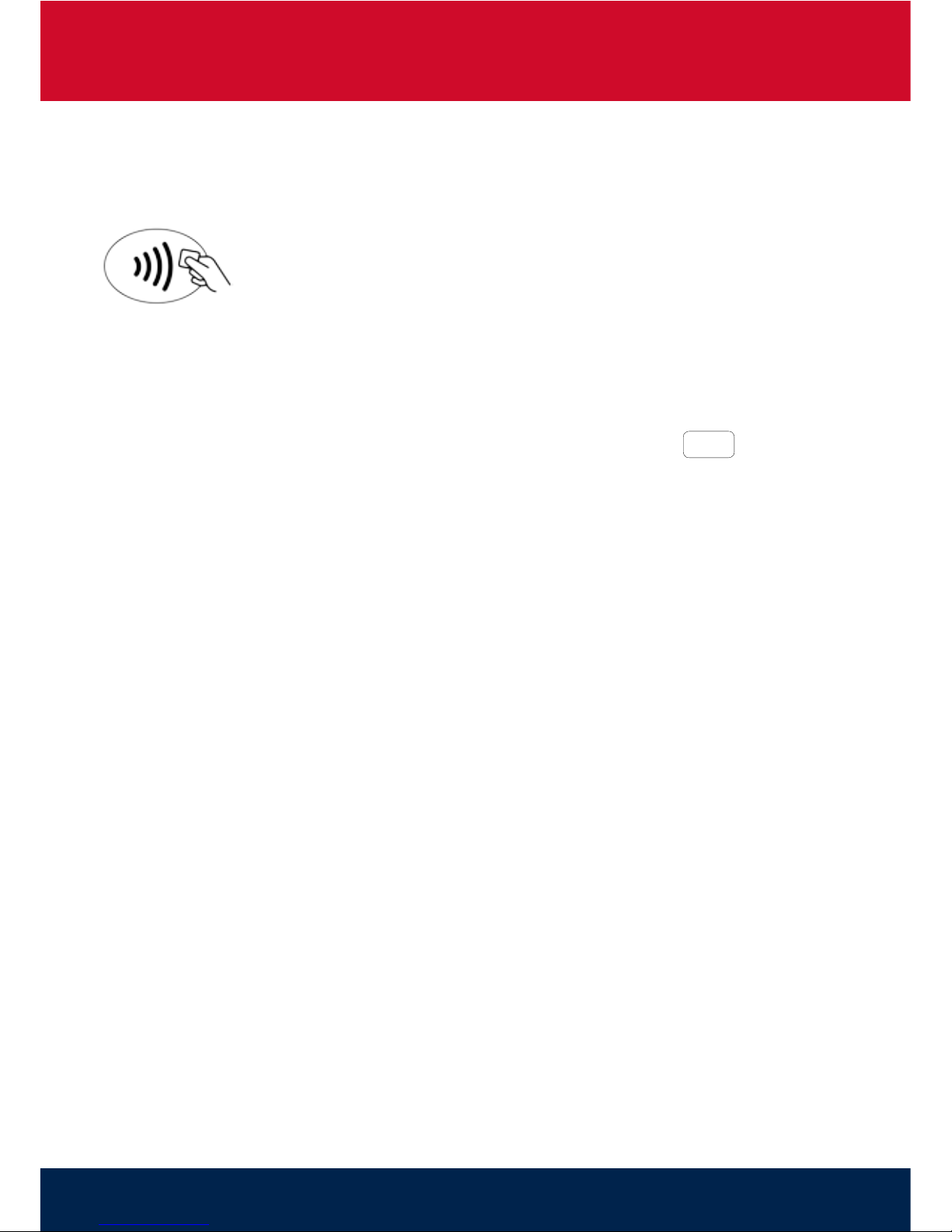
From the ready prompt enter the sale amount of the transaction and press
ENTER. A Contactless symbol will be displayed if the amount entered is below
the maximum Contactless limit. The cardholder should present their card over
the Contactless symbol on the terminal display.
The terminal will now print the ‘Merchant Copy’ receipt
and you will be prompted
to tear this off. Keep the receipt safe and secure for 18 months as you may be asked
to provide it in the event of a ‘Chargeback’.
If the customer requests a receipt this must be done before the next transaction
takes place. From the idle screen press the decimal point key ( ) to print a
customer receipt.
.
‘
‘
Page 6
TMS, iWL252 Bluetooth (PSTN/IP), Card Sales & Refunds Quick Guide, 1215 v2
3. Card Not Present (CNP) Sales Process
When accepting payment by credit or debit card when the customer is not
present at the time of the transaction e.g. telephone order / mail order.
Press the MENU key on the terminal, select
‘Sale’ and then the green ENTER key.
Note: You may need to scroll to select
‘Sale’ depending on how your terminal is
congured, by using the f2 and f3 keys.
Enter the sale value (e.g. for 10.76 key 1076) and
press the green ENTER key.
When you see this screen, key the card number
(the longer number in the middle of the card) and
press the green ENTER key.
Enter the expiry date MMYY and press the green
ENTER key.
Note: The terminal may also ask for an Issue
Number, printed on certain types of debit cards.
The screen will ask whether the customer
is present. For all Card Not Present (CNP)
transactions press Clear to select NO.
The screen will now ask for the card security code.
This 3 digit number can typically be found on the
reverse of the customer’s card (4 digits for Amex
on the front of the card). Press ENTER to continue.
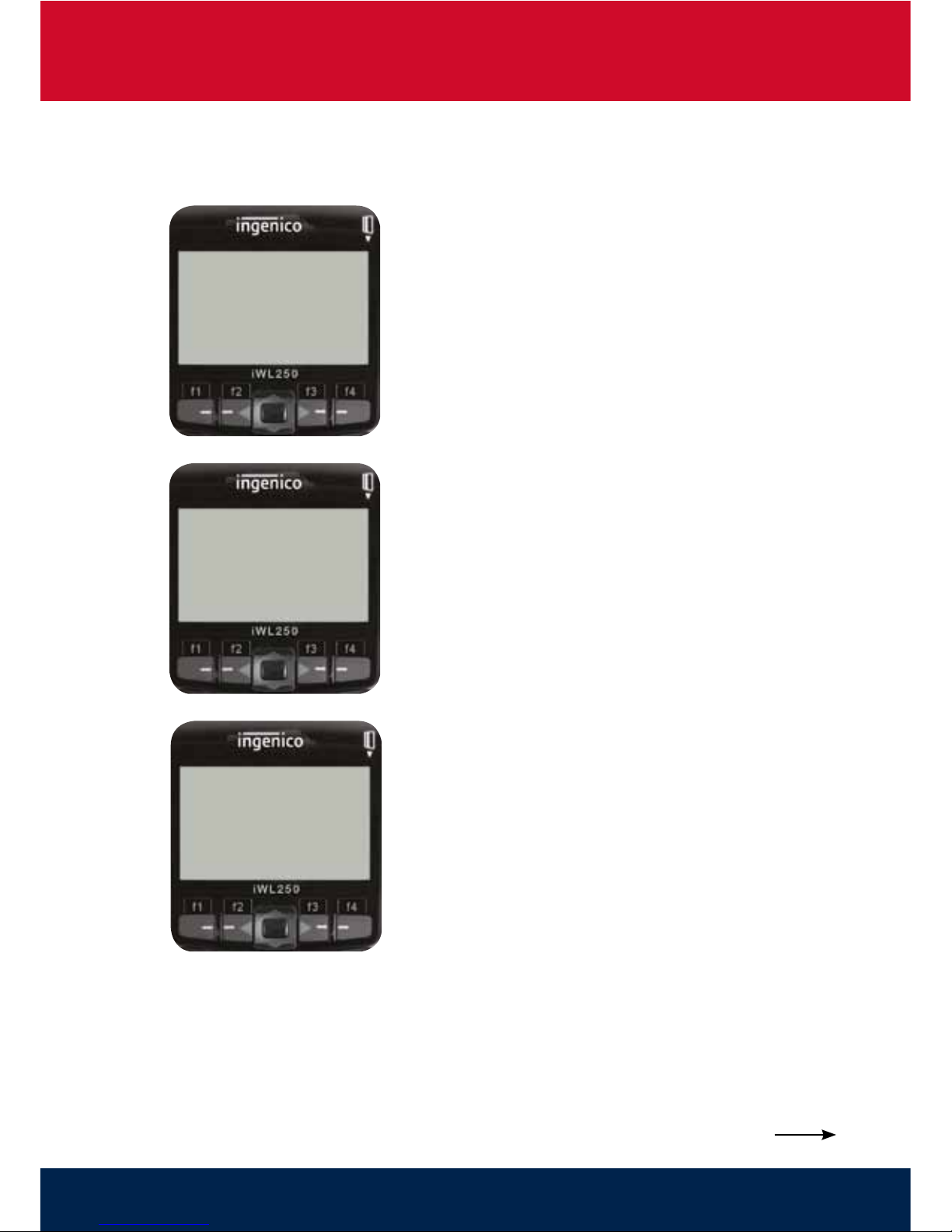
SALE
Key in Amount:
10.76
and then press ENTER
Step
1
SALE
Insert or Swipe Card
to continue
< or press Cancel key>
Step
2
SALE
Key expiry date MMYY
0115
and then press ENTER
Step
3
Continued Overleaf
Page 7
TMS, iWL252 Bluetooth (PSTN/IP), Card Sales & Refunds Quick Guide, 1215 v2
This step refers to AVS (Address Verification
Service). Enter the numbers from the customer’s
post code and press the green ENTER key.
e.g. for B91 2AA, key 912 and press the green
ENTER key.
Key in the house number (up to 5 digits) of the
registered customer address - this will need to
match the address at which the customer has
registered their card and typically will be the
postal address for bank statements.
The terminal will connect to Elavon to obtain
an authorisation, during this time a number of
messages will appear on the screen.
When the transaction has been authorised, the
terminal will print the ‘Customer Copy’ sales receipt;
this must be given to your customer in addition to
any other invoice receipt that you may provide.
You will be prompted to tear off the customer
receipt and press ENTER. Should you require
a second ‘Customer Copy’ receipt, press the
MENU key to reprint.
Your ‘Merchant Copy’ sales receipt will now
be printed and you will be prompted to tear
this off. Keep the receipt safe and secure for 18
months as you may be asked to provide it in the
event of a ‘Chargeback’.
To prolong the life of your paper roll please ensure that when tearing receipt copies
from the terminal, that the paper is torn from left to right, across the screen.
The SALE transaction is now complete and the terminal will return to the READY prompt.
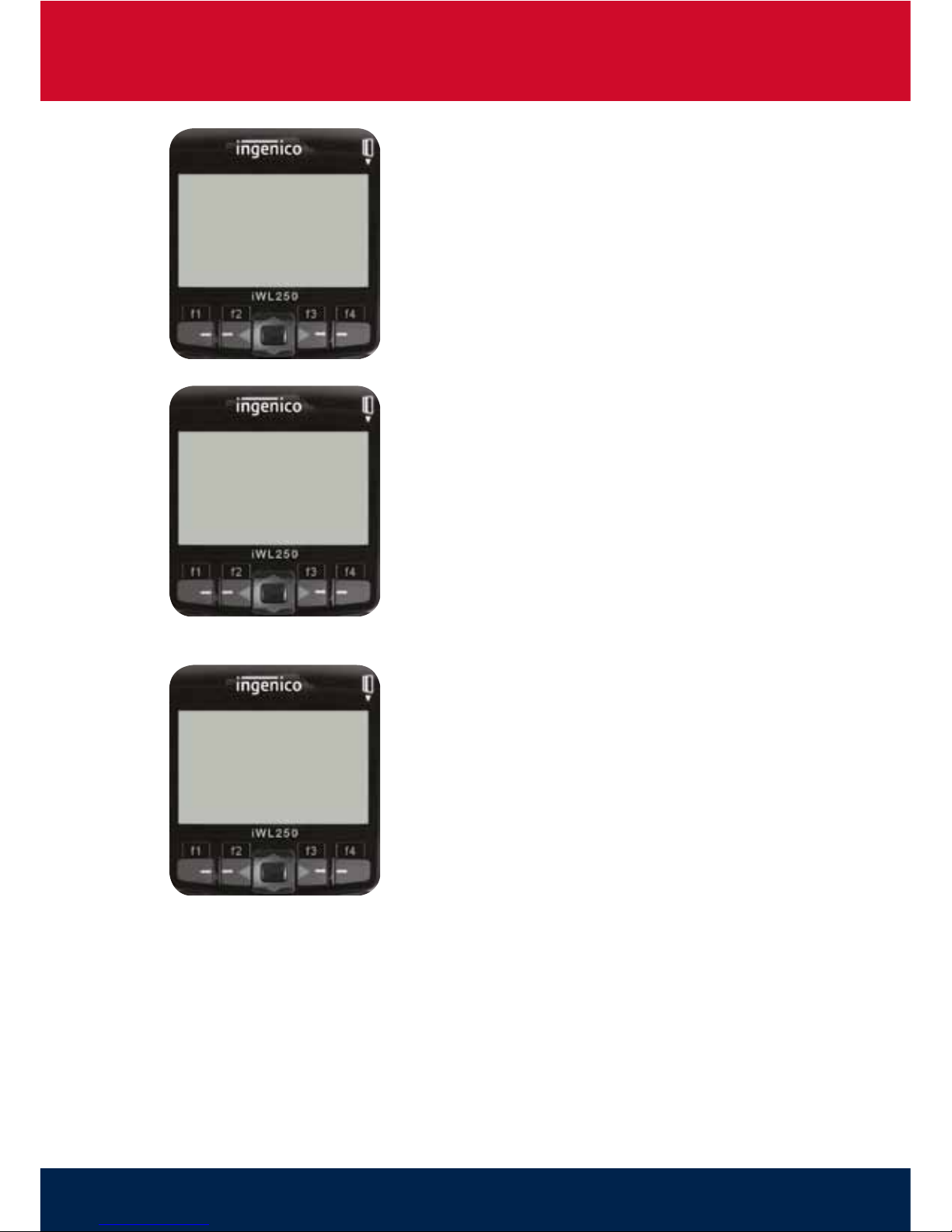
SALE
AUTH CODE: nnnnn
Elavon
Step
6
Key in Numerics From
The Postcode:
and then press ENTER
Step
4
Key in First Five Digits
Of The Address:
and then press ENTER
Step
5
Page 8
TMS, iWL252 Bluetooth (PSTN/IP), Card Sales & Refunds Quick Guide, 1215 v2
4. Refund Process
A ‘Refund’ is when the value of a transaction is credited back to a card for a Sale that
may have been processed earlier in the day or on a previous date, e.g., when goods
are returned. The process should be used therefore when a Sale transaction has
already occurred on the same card, for the same value. For additional information also
see the iWL200 Series Terminal User Guide (Section 18, page 18).
Press the MENU key
on the terminal, select
‘Refund’ and then the green ENTER key.
Note: You may need to scroll to select ‘Refund’
depending on how your terminal is congured
by using f2 and f3 keys.
Enter the refund value (e.g. for 10.76 key 1076)
and press the green ENTER key.
The terminal will prompt you to insert or swipe
the customer’s card to continue. For Chip & PIN
transactions, insert the customer’s card with the
chip facing up.
Note: Card details can also be keyed into the
terminal if Chip & PIN / Swipe are not possible.
The terminal will now check the card that has
been inserted or swiped.
Note: Depending on how your service is
configured, you may be required to swipe a
Supervisor Card before proceeding.
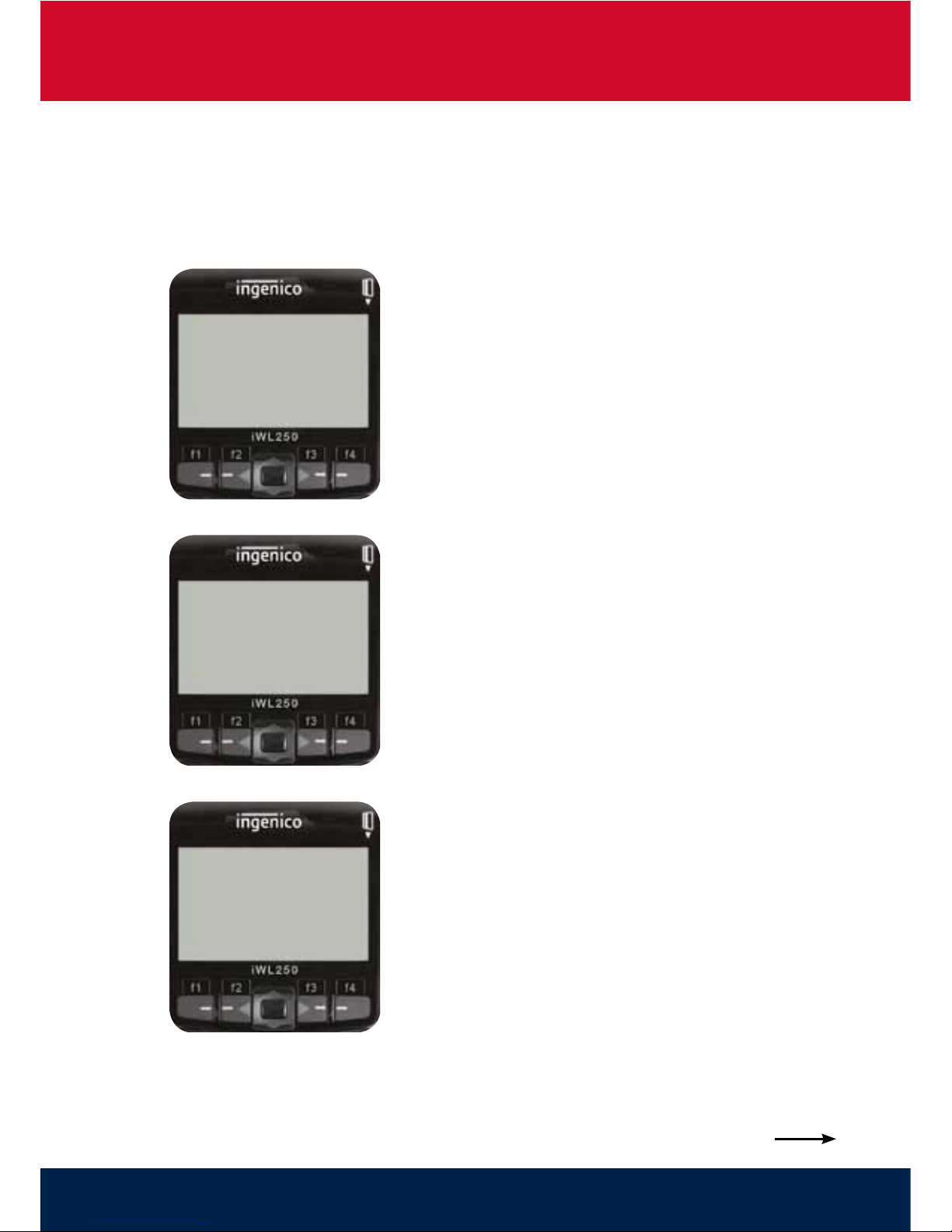
REFUND
Key in Amount:
10.76
and then press ENTER
REFUND
Insert or Swipe Card
to continue
< or press Cancel key>
REFUND
Checking card
Please wait...
Step
1
Step
2
Step
3
Continued Overleaf
Page 9
TMS, iWL252 Bluetooth (PSTN/IP), Card Sales & Refunds Quick Guide, 1215 v2
The terminal will connect to Elavon and authorise
the transaction, during this time a number of
messages will appear on the screen.
Your ‘Merchant Copy’ refund receipt will now
be printed and you will be prompted to tear this
off. Please ask your customer to sign the receipt
in the area provided.
Check the customer signature against the
signature on the reverse of their card. If the two
match, press ENTER to continue otherwise press
CLEAR to cancel.
Keep the receipt safe and secure for 18 months
as you may be asked to provide it in the event
of a ‘Chargeback’.
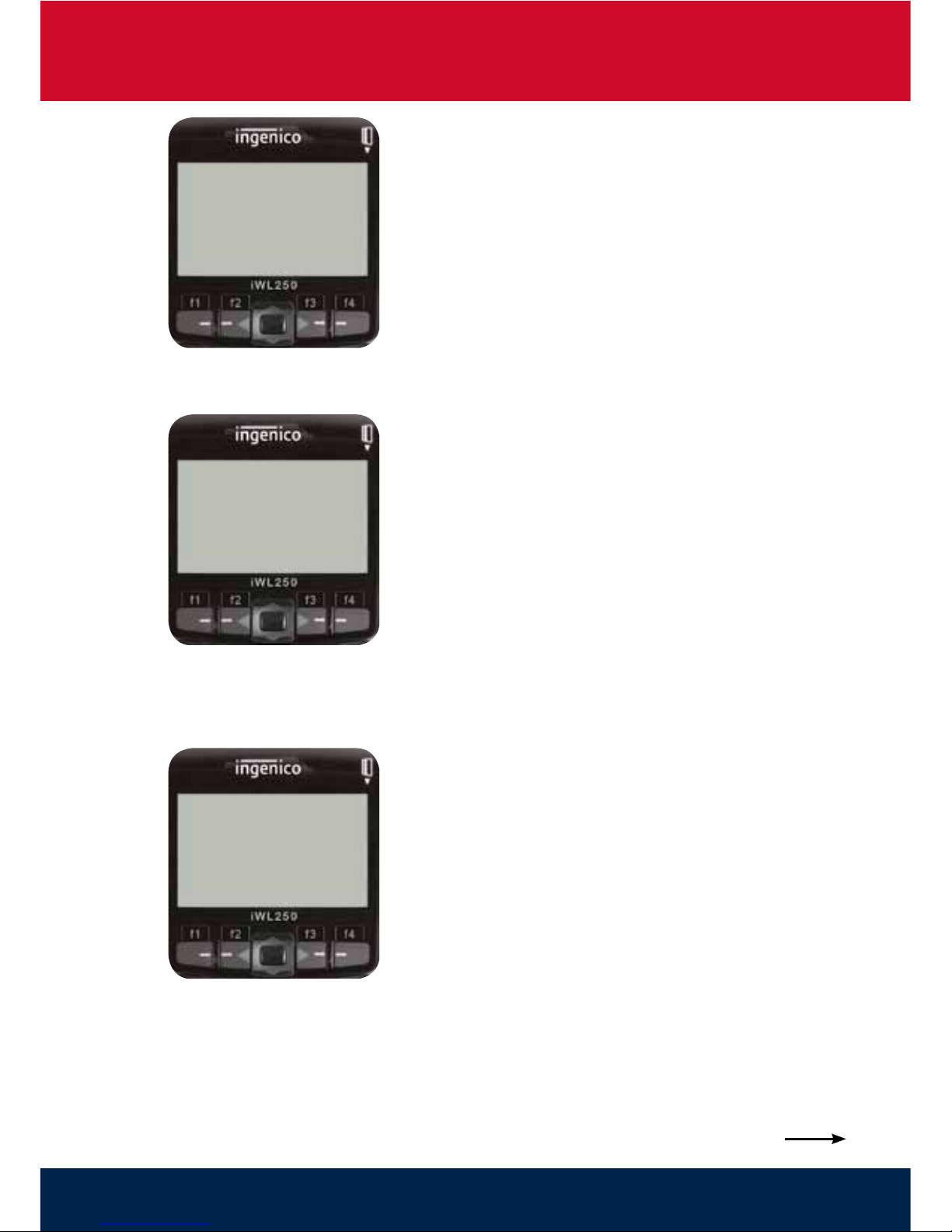
REFUND
AUTH CODE: nnnnn
Elavon
Step
4
Tear Off
MERCHANT RECEIPT
Press ENTER if OK
Press MENU to Reprint
Step
5
REFUND
Signature OK?
Enter=YES Clear=NO
Step
6
For further information regarding Refunds, see Section 18, (page 18) of the
iWL200 Series Terminal User Guide this can be found in the Merchant Zone at
www.transaxmerchantservices.co.uk
Continued Overleaf
Page 10
TMS, iWL252 Bluetooth (PSTN/IP), Card Sales & Refunds Quick Guide, 1215 v2
To prolong the life of your paper roll please ensure that when tearing receipt copies
from the terminal, that the paper is torn from left to right, across the screen.
The REFUND transaction is now complete and the terminal will return to the
READY prompt.
When the transaction has been authorised the
terminal will print the ‘Customer Copy’ sales
receipt; this must be given to your customer in
addition to any other refund receipt that you
may provide.
Printing
CUSTOMER RECEIPT
Please Wait...
Step
7
Tear Off
CUSTOMER RECEIPT
Press ENTER if OK
Press MENU to Reprint
Step
8
5. Referrals Process
Occasionally you will receive a referral response message. Follow the ‘Miscellaneous
Prompts’ table in the iWL200 Series Terminal User Guide (Section 51, page 40).
Page 11

TMS, iWL252 Bluetooth (PSTN/IP), Card Sales & Refunds Quick Guide, 1215 v2
6. End of Day Reports
End of Day Banking should be performed every day as this is your conrmation of
the transaction totals that have been sent to the acquirer.
To access the reports menu press the MENU key twice, to access the System Menu.
Press ENTER to select Totals. End-of-Day-Banking will be highlighted; press ENTER
to select. Swipe your Supervisor Card (follow the display prompts or refer to the
User Guide). The terminal will either go online to the acquirer to conrm the totals
before printing the report or will print out a report showing the totals.
Z-Totals: Select the TOTALS menu as above. Press (F2) to highlight Z-Report and
then ENTER to select. Swipe your Supervisor Card and press ENTER. The terminal
will print out a report showing the totals taken by the terminal since the last
Z-Report and will print ‘Totals Reset’ at the bottom of the printout. Please refer to
the User Guide for a description of the content of the report.
X-Totals: Select TOTALS menu as above. Press (F2) to highlight X-Report and
then ENTER to select. This report is an exact copy of the Z-Report except that
the report will show ‘Totals Not Reset’ at the the bottom of the printout. This will
continue to accumulate until a Z-Report is run.
Online Resources
To download a detailed User Guide for the iWL200 Series visit the Merchant Zone
at www.transaxmerchantservices.co.uk.
Page 12

TMS, iWL252 Bluetooth (PSTN/IP), Card Sales & Refunds Quick Guide, 1215 v2
TRANSAX Merchant Services is a trading name of FIS Payments (UK) Ltd and FIS Payments (Ireland) Ltd. Telephone: 0345 602 2444
(UK). Calls charged at no more than national rate). 01 667 5152 (Rep. of Ireland). Calls to and from the company may be recorded.
Part of FIS (Fidelity National Information Services Inc.) Services are covered by the Financial Ombudsman Service (in the UK).
PO Box 8 85
Birmingham B16 9DH
United Kingdom
T 0345 601 4486
E transax.uk@sglobal.com
W transaxmerchantservices.co.uk
Carmichael House
60 Lower Baggot
Street
Dublin 2
Ireland
T 01 667 5152
 Loading...