

Page 1
DRAFT
PS4100
Installation Guide
Page 2
DRAFT
PS4100 INSTALLATION GUIDE
Blackboard Inc. PS4100
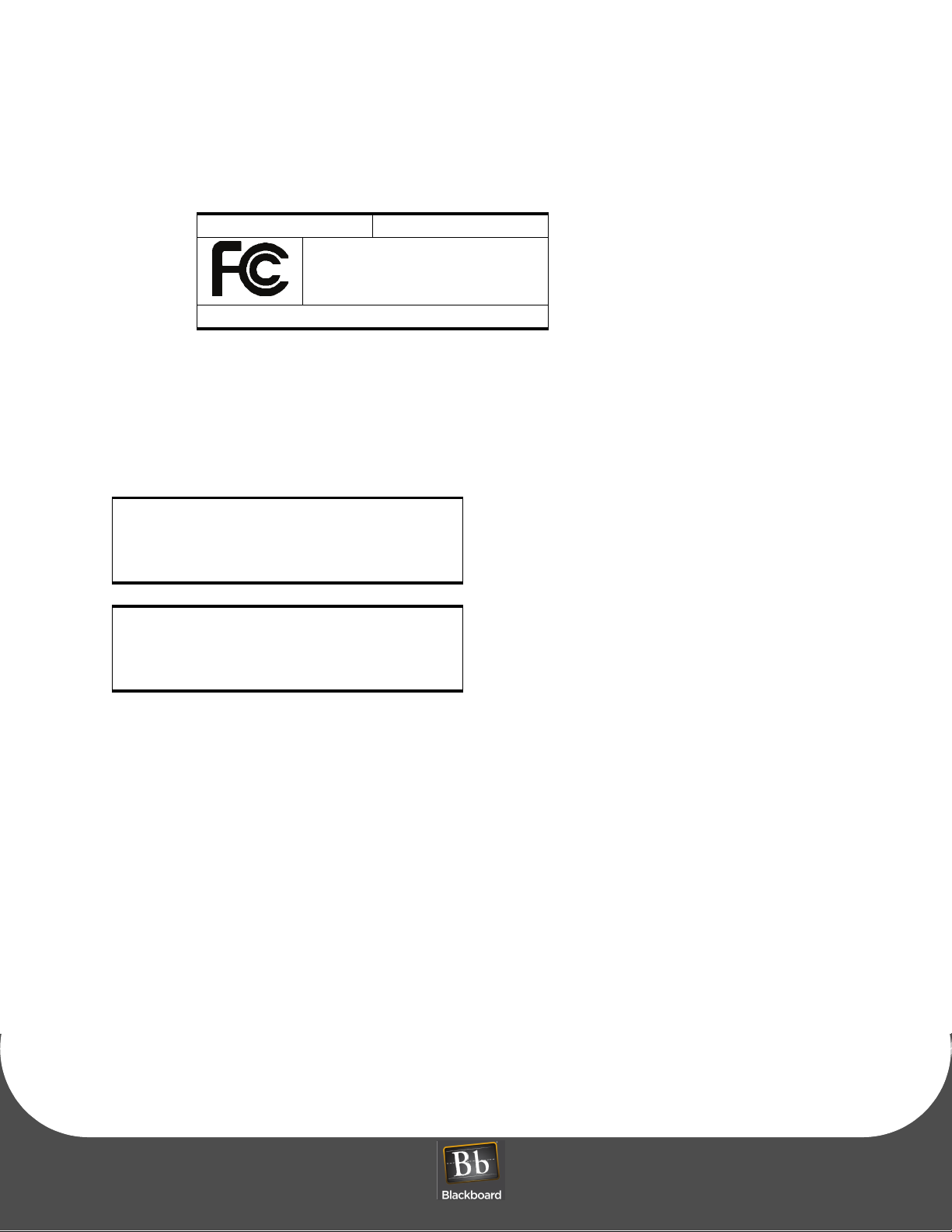
Tes te d To Co mp ly
With FCC Standards
FOR HOME OR OFFICE USE
D OCUMENT 1290 REV 01
This Class B digital apparatus complies with
Canadian ICES-003
Cet appareill numérique de la classes B est conform
à la norme NMB-003 du Canada
This device complies with Part 15 of the FCC Rules. Operation is subject to the following two conditions: (1) This device
may not cause harmful interference, and (2) this device must accept any interference received, including interference that
may cause undesired operation.
Part 15.21: Changes or modifications not expressly approved by the party responsible for compliance could void the user’s authority
to operate the equipment.
NOTE: The manufacturer is not responsible for any radio or TV interference caused by unauthorized modifications to this equipment.
Such modifications could void the user’s authority to operate the equipment.
This equipment complies with the FCC radiation exposure limits set forth for an uncontrolled environment. End users must follow the
specific operating instructions for satisfying RF exposure compliance. The antenna(s) used for this transmitter must be installed to
provide a separation distance of at least 20 cm from all persons and must not be co-located or operating in conjunction with any other
antenna or transmitter.
PRINTED N OVEMBER 24, 2009 1-1
Page 3
DRAFT
PS4100 INSTALLATION GUIDE
PS4100 INSTALLATION GUIDE
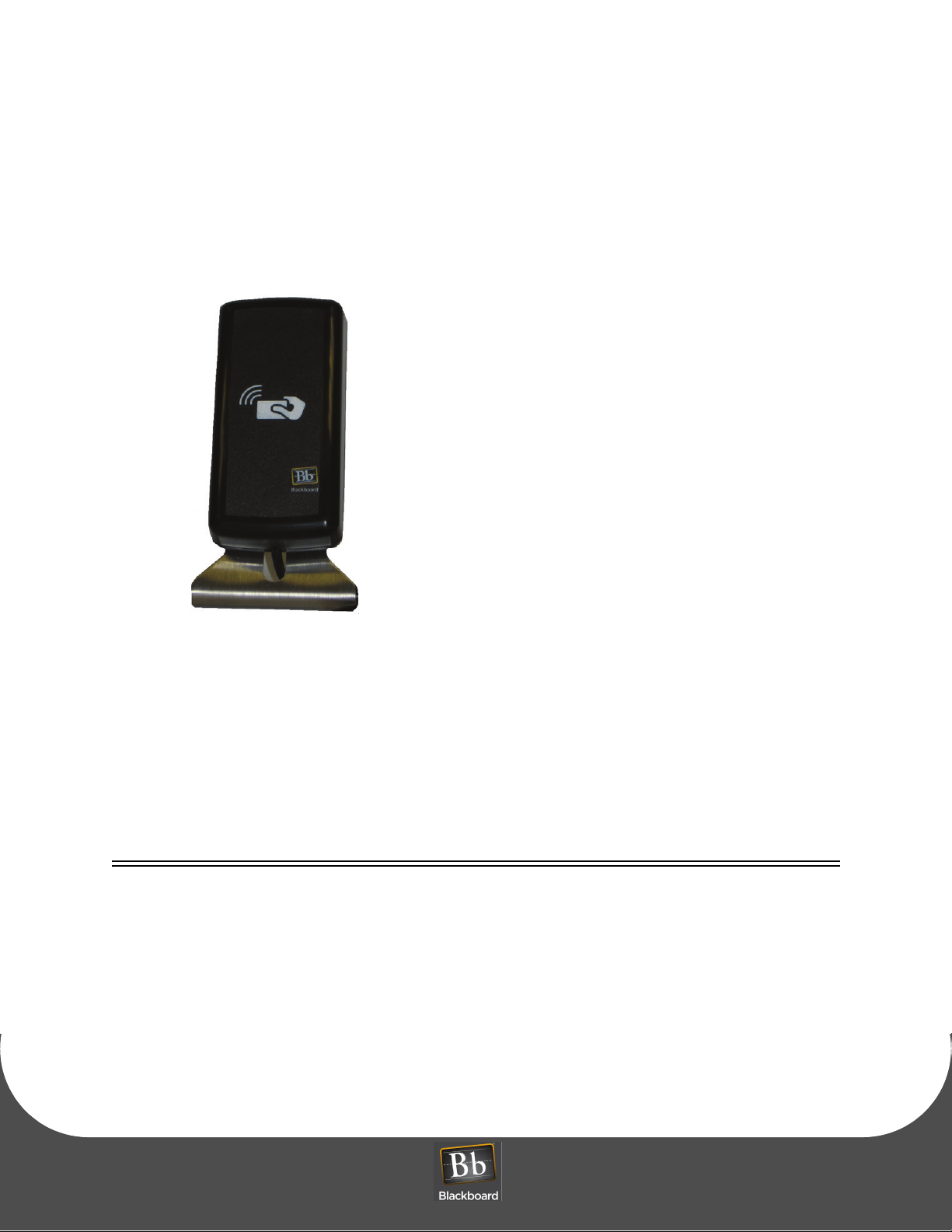
Figure 1-1 PS4100 Card Reader
Prerequisites:
• POS terminal (BbTS 3.6 image)
• Available USB port on the POS terminal
OBJECTIVES
After reading this guide you can:
• Install the PS4100 Reader Stand • Install the PS4100 Reader
PRINTED N OVEMBER 24, 2009
1-2
Page 4
DRAFT
PS4100 INSTALLATION GUIDE
D OCUMENT 1290 REV 01
INSTALL THE PS4100 STAND
To Install the PS4100 stand
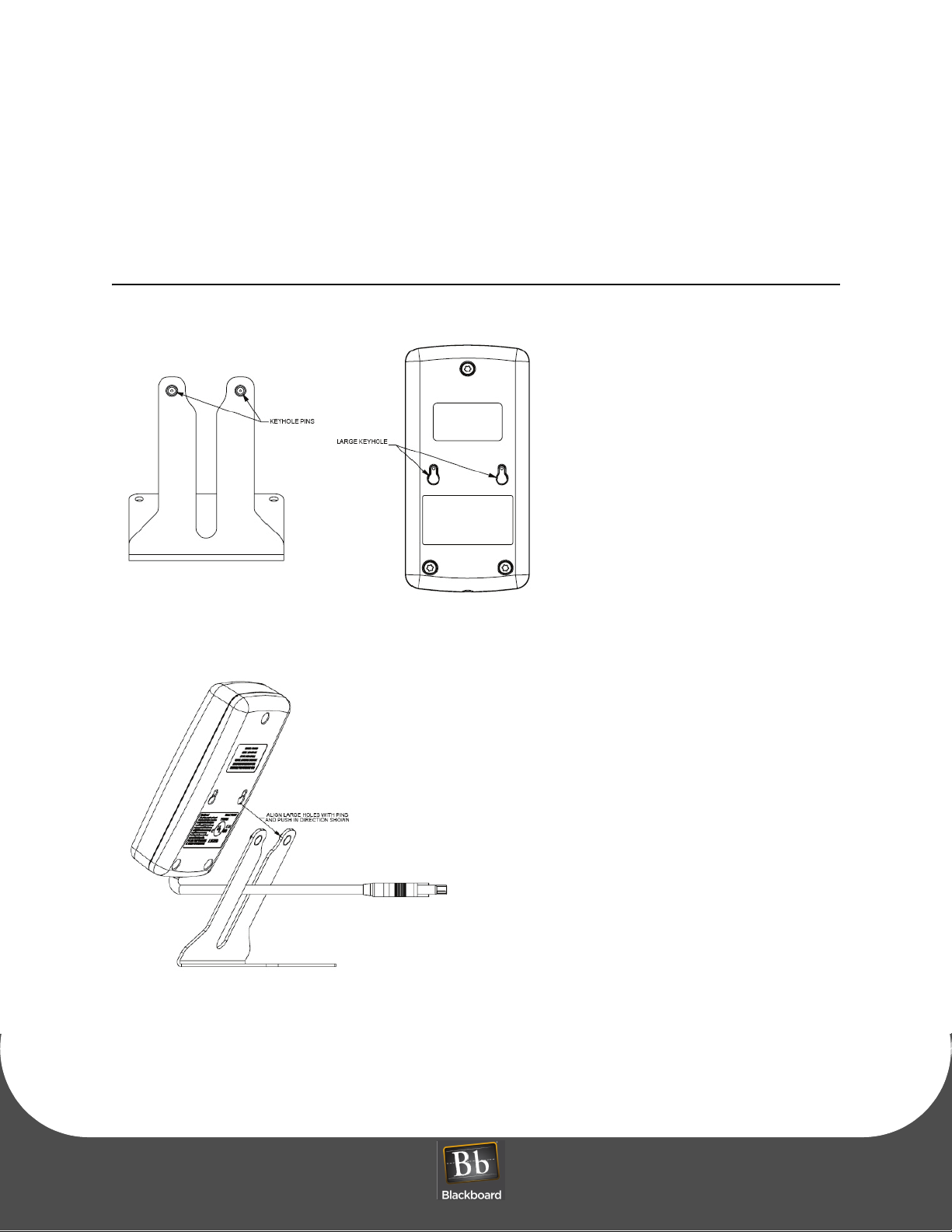
1 Locate the Key Hole Pins on the stand, and the Keyholes on the back of the reader.
Figure 1-2 Key Hole Pins and Keyholes
2 Align the reader Keyholes with the stand Key Pins, and then push in the direction shown.
Figure 1-3 Reader and Stand Alignment
3 Push down to lock.
PRINTED N OVEMBER 24, 2009 1-3
Page 5
DRAFT
I NSTALL THE PS4100 READER
INSTALL THE PS4100 READER
The PS4100 reader driver is pre-configured in the POS image, configuration is not required.
The PS4100 reader uses a modulated magnetic field for reading contactless cards.
Avoid operating the PS4100 within 2 feet of sensitive electrical equipment.
To install the PS4100 reader
1 Connect the PS4100 USB cable into an available USB port on the POS terminal.
Allow the POS terminal to recognize the new hardware.
2 To start using the reader, tap a Blackboard FeliCa card on the reader.
Table 1-1: PS4100 LED Reference
LED Color Description
Green Valid card, the valid tone sounds.
Red Denied, the invalid tone sounds.
White
(Blackboard logo)
Power is present to the reader.
PRINTED N OVEMBER 24, 2009
1-4
Page 6

DRAFT
SPECIFICATIONS
Physical Size: Dimensions: 2.25” W x 4.5” H x 1.2” D
Weight: 0.25 lbs
Input Power: 5VDC 150mA, 1.8 Watts Maximum
Operating: Temperature: 0 to 60+ degrees Celsius
Relative Humidity: 0 to 95 percent, non-condensing
Altitude: 0 - 10,000 feet
Non-Operating: Temperature: -20 to +70 degrees Celsius
Relative Humidity: 0 to 95 percent, non-condensing
S PECIFICATIONS
Altitude: 0 - 35,000 feet
This device contains an integrated lithium battery (BR2032). There is a risk of fire if the battery
is replaced with an incorrect type. Proper disposal of a used battery is essential.
PRINTED N OVEMBER 24, 2009
1-5
 Loading...