

Page 1

T22 User Manual
© Tramigo Ltd. All rights reserved. Under the copyright laws, this manual cannot be reproduced in
Page 1
Tramigo T22
User Manual
V1.62
Firmware Build 1.62
any form without the prior written permission of Tramigo.
Page 2

T22 User Manual
© Tramigo Ltd. All rights reserved. Under the copyright laws, this manual cannot be reproduced in
Page 2
Contents
1 Product Overview .......................................................................... 4
1.1 T22 Top Uses ................................................................................... 6
2 Copyright and Disclaimer .............................................................. 7
3 For Your Safety ............................................................................. 8
4 Getting Started ............................................................................. 8
4.1 Hardware Features .......................................................................... 8
4.2 Light and Button Functionality ........................................................ 9
4.3 First Use ........................................................................................ 10
4.4 Authorization ................................................................................ 11
5 Features ...................................................................................... 12
5.1 Location Directory ......................................................................... 12
5.2 Tracking Features.......................................................................... 12
5.3 Phone Features ............................................................................. 13
5.4 Miscellaneous Features ................................................................. 14
5.5 SMS Handling ................................................................................ 15
5.6 Power Management ...................................................................... 15
6 Commands .................................................................................. 17
6.1 Command Summary ...................................................................... 17
6.2 Command Detail ............................................................................ 19
6.2.1 AddPlace ...................................................................................... 20
6.2.2 AddUser ....................................................................................... 21
6.2.3 Alarm ........................................................................................... 22
6.2.4 Boot ............................................................................................ 23
6.2.5 Coord ........................................................................................... 24
6.2.6 Debug .......................................................................................... 25
6.2.7 DelPlace ....................................................................................... 26
6.2.8 DelUser ........................................................................................ 27
6.2.9 Disable ......................................................................................... 28
6.2.10 Find ............................................................................................. 29
6.2.11 Get .............................................................................................. 31
6.2.12 Help ............................................................................................. 32
6.2.13 Ignition ........................................................................................ 33
6.2.14 Language ..................................................................................... 34
6.2.15 Listen ........................................................................................... 35
6.2.16 ListUser ........................................................................................ 36
6.2.17 LowBalance .................................................................................. 37
6.2.18 Metric .......................................................................................... 38
6.2.19 Name ........................................................................................... 39
6.2.20 Owner .......................................................................................... 40
any form without the prior written permission of Tramigo.
Page 3

T22 User Manual
© Tramigo Ltd. All rights reserved. Under the copyright laws, this manual cannot be reproduced in
Page 3
6.2.21 Password ...................................................................................... 41
6.2.22 Personal Assistance ....................................................................... 42
6.2.23 Power .......................................................................................... 43
6.2.24 Report.......................................................................................... 44
6.2.25 Sensor ......................................................................................... 45
6.2.26 Set .............................................................................................. 46
6.2.27 Settings........................................................................................ 47
6.2.28 SMS ............................................................................................. 48
6.2.29 Speed .......................................................................................... 49
6.2.30 SpeedDial ..................................................................................... 50
6.2.31 Status .......................................................................................... 51
6.2.32 Time ............................................................................................ 52
6.2.33 Trip .............................................................................................. 53
6.2.34 Version ......................................................................................... 54
6.2.35 WhereIs ....................................................................................... 55
6.2.36 Zone ............................................................................................ 56
7 Troubleshooting .......................................................................... 57
8 T22 Parameters ........................................................................... 60
9 Warranty ..................................................................................... 64
9.1 Return Materials Authorization (RMA) Procedure ......................... 67
any form without the prior written permission of Tramigo.
Page 4

T22 User Manual
© Tramigo Ltd. All rights reserved. Under the copyright laws, this manual cannot be reproduced in
Page 4
1 Product Over v iew
Tramigo™ is a new and easy way to be connected with your vehicle. Tramigo™ adds
security and provides peace of mind by showing you with your mobile phone the real-time
location of your vehicl es.
Tramigo™ provides the most advanced tracking, safety and security feature s available in the
market. Tramigo™ combines the features of both a car alarm and a tracking device into one
easy to use product.
Tramigo™ is the first GSM/GPS tracking product that works world wide. The geographical
data is built in so the user’s privacy is guaranteed. Information flows directly between the
owner’s phone and the car instead of a 3
with any pre or post paid SIM card and with any GSM phone.
Users can be notified of events such as trips, break-ins, towing, ignition on, speeding, and
even know if the passengers need assistance. Tramigo™ can also be used with trucks, boats,
buses, trailers, and motorcycles.
All Tramigo™ tracking products have the following features:
• Vehicle Tracking and Management
• Accurate GPS Satellite Positioning
• Personal Assistance Button
• SMS Support on any GSM network
• In-built Geographical Data
• Customizable Locations
• M1 Move and Fleet software
Only Tramigo™ offers:
Convenience – All of the features are available from a normal mobile phone the most
common device our customers already own and carry with them. – A PC, web site or PDA is
not required to use the system.
Low Operating Costs – The only truly stand-alone product; no monthly fees or multi-year
contracts paid for service providers. Tramigo™ user s pay only the SMS they use.
Advanced Features – Our safety and security, tracking, and performance features exceed
all of our competitors products combined.
Security - There is widespre ad concern about internet security and many firms don't want
the location of their assets available on a public or 3
the information at their location where they can ensure their data is secure. Due to the fact
that the geographic d ata is built into the unit our produ ct runs without a 3
rd
party geographic data server. Tramigo™ works
rd
party web server. They want control of
rd
party server.
any form without the prior written permission of Tramigo.
Page 5
T22 User Manual
© Tramigo Ltd. All rights reserved. Under the copyright laws, this manual cannot be reproduced in
Page 5
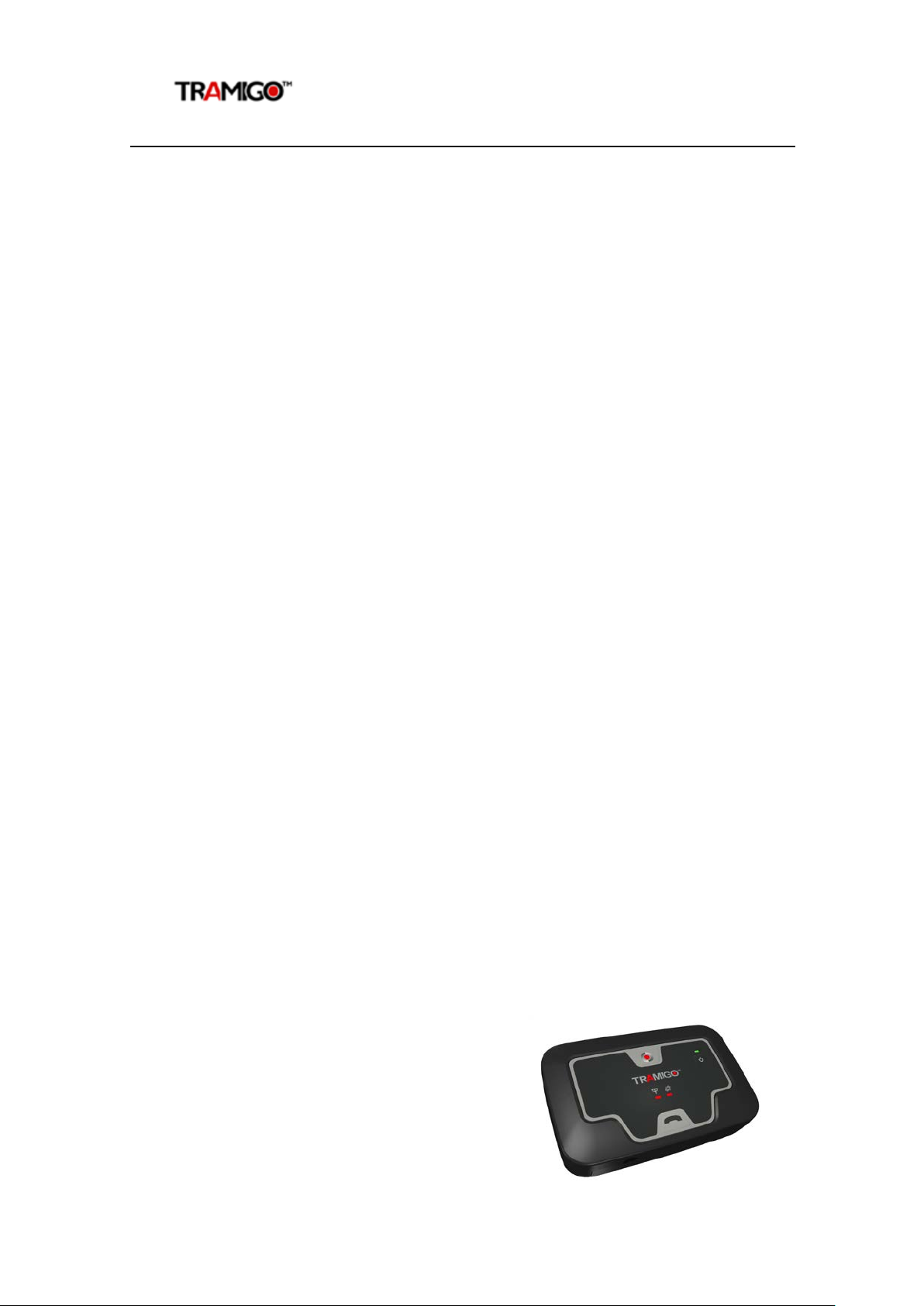
Your T22 tracking unit has been simplified
for rapid installation and can be installed
using only the cigar lighter. T22 has the basic
Tramigo™ features plus:
• Simplified installation
• Enhanced GPS
• Low Power Consumption
• Motion Detector
• Battery backup
• Voice calls
any form without the prior written permission of Tramigo.
Page 6

T22 User Manual
© Tramigo Ltd. All rights reserved. Under the copyright laws, this manual cannot be reproduced in
Page 6
1.1 T22 Top Uses
• Kid tracker – Put a T22 in their backpack so can keep track of them. Be notified
when they travel a specified distance from home or school
• Silent Car Alarm – Turn on the Alarm and be notified when someone is in your car,
truck or boat. Motorcycle owners can be notified if someone knocks over their bike.
• Towing Alert – Be notified that your vehicle is being towed and find the location of
the vehicle
• Excess Speeding – Set the speed limit and be notified when it’s exceeded. Perfect
for checking on new drivers.
• Unauthorized use of vehicle – Turn on Ignition reporti ng and be notified when
someone is using your vehicle. Good when on holidays or when you take your car in
for repairs.
• Covert voice monitor – Leave your T22 anywhere you want to remotely listen in.
Good for checking on babysitters, car repairs, hotel room s. Listen in when y our car
alarm goes off to hear what’s happening. Requires optional microphone .
• Emergency calls – T22 can receive calls a nd can make outgoing calls only to the
numbers you specify. Now you can gi ve someone a phone without worrying about
large phone bills.
• Personal Assistance – Anytime you need help press the Tramigo logo and your
friends are automatically notified of your location. Leave a T22 with your
grandparents so they can get help without having to dial a phone. You can also
listen in to hear what the problem is.
• Luggage Minder – Leave your T22 in your bag when it’s out of your sight and be
notified if someone opens it or picks it up. Good for laptop bags in airport lounges.
• Door Alarm – Put a T22 in a bag and hang in on your doorknob for an instant door
alarm. You will receive a text when someone enters the room. Also good for cottages
or any place you leave unattended since you can also plug the unit into a wall plug
• Arrival Notification – Notify your fa mi ly aut om at ica lly when you are almost home.
Good for boat owners as well.
• Expense reporting – Use Trip reports to automatically keep track of your mileage
for expense reports
• Power monitor – Plug a T22 into the wall power and be notified that the power has
been turned off. Good for vacation homes and boats.
For more information about Tramigo™ products and accessories for your T22 visit our
website at
www.tramigo.com. Questions? send ema il to support@tramigo.com.
any form without the prior written permission of Tramigo.
Page 7

T22 User Manual
© Tramigo Ltd. All rights reserved. Under the copyright laws, this manual cannot be reproduced in
Page 7
2 Copyright and Disclaimer
This document and the software described in it are copyrighted with all rights reserved.
Under copyright laws, neither the documentation nor the software may be copied,
photocopied, reproduced, translated, or reduced to any electronic medium or machine
readable form, in whole or in part, without the prior written consent of Tramigo.
Although Tramigo has tested the Tramigo product and reviewed the documentation,
Tramigo makes no warranty, representation or condition, express or implied, statutory or
otherwise, with respect to this product or documentation, their performance, satisfactory
quality, or fitness for a particular purpose, except as required by applicable law. This product
and documentation are supplied / licensed 'as is', and the customer / licensee, assumes the
entire risk as to their quality and performance by making use thereof.
In no event shall Tramigo be liable for direct, indirect, special, incidental, or consequential
damages (including but not limited to economic loss, such as loss of profits, loss of use of
profits, loss of business or business interrupti on, loss of revenue, loss of goodwill or loss of
anticipated savings) arising out of the use or inability to use the product or documentation,
even if advised of the possibility of such damages. In particular, and without prejudice to the
generality of the foregoing, Tramigo has no liability for any programs or data stored or used
with Tramigo products, including the costs of recovering such programs or data.
Nothing in this notice shall exclude or limit Tramigo's liability for fraud, death or personal
injury arising out of Tramigo's wilful default or negligence.
Tramigo's policy is one of constant development and improvement. We reserve the right to
alter, modify, correct and update our products and publications without notice and without
incurring liability.
Copyright: © 2009 Tramigo Ltd.
Tekniikantie 14
02150, Espoo
Finland
All Worldwide Rights Reserved.
Issue date: March 2009
Trademark: Tramigo™ is a registered trademark of Tramigo Ltd.
any form without the prior written permission of Tramigo.
Page 8

T22 User Manual
© Tramigo Ltd. All rights reserved. Under the copyright laws, this manual cannot be reproduced in
Page 8
3 For Your Safety
Read these simple guidelines. Not following them may be dangerous or illegal. Read the full
user manual for more information.
Switch on Safely - Do not switch on the unit when w ir eless phone use is prohibited or
when it may cause interference or danger.
Switch off in Hospitals – Follow any restrictions. Switch the unit off near medical
equipment.
Switch off in Aircraft – Follow any restrictions. Wireless devices can cause interference in
aircraft.
Switch off when refuelling – Do not use the unit when at a refuelling point. Do not use
near fuels or chemicals.
Switch off near blasting – Follow any restrictions. Do not use the unit when blasting is in
progress.
Qualified Service – Only qualified personnel can install or repair this unit.
Water Resistance – Your unit is not water resistant. Keep it dry.
4 Getting Started
This section will describe how to setup your T22 after installation. For more information on
the installation of T22 into a vehicle, please consult th e “T22 Installation Guide”. This manual
will detail the use of T22 after installation has taken place.
4.1 Hardware Features
T22 includes:
• T22 Unit with battery
• USB Power Cable
• CLA Adaptor to power from Cigar Lighter Plug
• Wall Plug
• Quick Start Guide, User Guide
• CD including:
o User Manual and Product Release Notes
o Installation Manual
o Quick Start Guide
o M1 Software (Fleet for PC and Love for SmartPhone)
any form without the prior written permission of Tramigo.
Page 9
T22 User Manual
© Tramigo Ltd. All rights reserved. Under the copyright laws, this manual cannot be reproduced in
Page 9
4.2 Light and Button Functionality
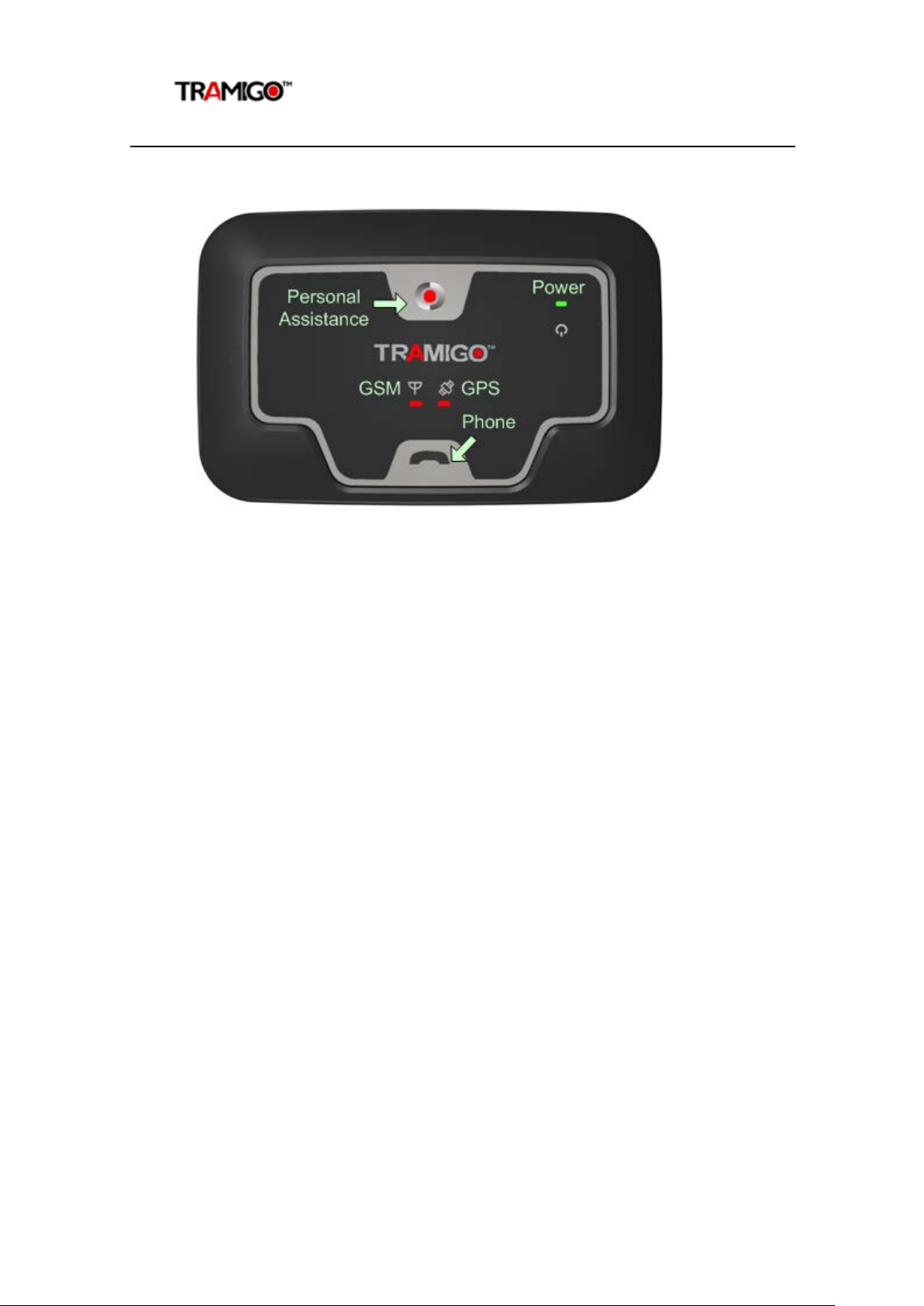
Figure 1 - T22 Unit Controls
Your T22 has 3 lights to indicate the status of the unit. Green means ok and re d means
that you have a problem. T22 buttons require you to pre ss for 2 seconds to prevent
accidental triggering.
Power LED - Green:
Flashing (5 seconds) Power is on
On Charging
Off Power is off or T22 is sleeping
GSM LED – Red:
On T22 is not connected to the GSM network
Off T22 is connected to the GSM network
Flashing T22 can’t send a SMS
GPS LED - Red:
On T22 does not have a GPS fix
Off T22 has a GPS fix
Power Button Press for 2 seconds to activate. Turning off power will
clear any outgoing SMS.
Personal Assistance Button Press for 2 seconds to activate. Pressing turns on all the
lights.
Phone Button Press once to answer incoming call. Pressing turns on all
the lights.
Press for 2 seconds or more to initiate an outgoing call
to User 1, press a second time for User 2, etc. Second
and third press does not have to be 2 seconds.
Incoming call is indicated by the GSM and GPS lights
flashing together.
any form without the prior written permission of Tramigo.
Page 10

T22 User Manual
© Tramigo Ltd. All rights reserved. Under the copyright laws, this manual cannot be reproduced in
Page 10
4.3 First Use
• Please read the Quick Start Guide before proceeding.
• After your T22 has been installed into the vehicle you are ready to become the
‘Owner’. Owner authority has access to all the T22 commands and features.
• Ensure that your T22 has a working SIM installed.
o Check that the SIM has no t run out of credit (test the SIM in a phone to
make sure it can send and receive SMS)
o Check that the SIM Lock code is turned off
• Charge the battery for 3.5 hours using the wall charger or the CLA
adaptor for your car electrical socket. Power light is on solid during
charging but may take several minutes to turn on if the unit has been
stored for several weeks.
• Check that the Power LED on T22 is emi tting a short flash every 5 sec onds.
• Check that the GSM LED is off.
• Send the following SMS to your T22 in upper or lower case:
OWNER,0000
4 zeros is the default password
• T22 will respond with a text message stating:
Tramigo: Owner, +635551234 registered, 09:25 Jan 14
This means that you are now the Owner o f T22 and it will accept any
commands that you issue to it, providing they come from the same mobile phone
number as you used for this setup.
• If you plan to use your T22 as a portable device send the command:
set,sleep1repeats,6
• At this point you should change your T22 password to ensure a high level of
security. You can do this by sending a command via text message to T22 – old
password is 0000 by default:
PASSWORD,<old_password>,<new_password>
PASSWORD,0000,903WOOD
• The new password that you specify can be up to 20 digits long using letters
and numbers. If your command is successful, T22 will reply with:
Tramigo: Password, changed to 903WOOD, 09:25 Jan 14
• You may now wish to personalise your T22 by specifying a name. The na me
shows in the start of all SMS the unit sends to you. To do so, send a command
via text message to T22:
NAME,Julie’s Car
• The new name that you specify can have a maximum of 15 characters. If
your command is successful, T22 will reply with:
Julie’s Car: Name, OK, 09:25 Jan 14
• Take your T22 outside to where you have a clear view of the sky. After a
minute or two the red GPS light will turn off indicating that your T22 now know s
it’s location
T22 is now ready for use. Try sending a
message describing the position of your vehicle. See how to add other users in the
Authorization section. See the Features section to explore the capabilities of your T22.
FIND command via text message to receive a
any form without the prior written permission of Tramigo.
Page 11

T22 User Manual
© Tramigo Ltd. All rights reserved. Under the copyright laws, this manual cannot be reproduced in
Page 11
4.4 Authorization
Your T22 has a PASSWORD to prevent unauthorized users from accessing the unit. You can
also use this PASSWO RD to add your new phone numbe r to the User List if you lose your
phone.
If you want to provide other users with access to your T22 you need to add their mobile
phone numbers using the ADDUSER command.
Remember that OWNER authority gives access t o all the commands, so most times you will
only grant FRIEND or GUEST access to other users.
If a user is not authorised to issue a command they will receive no response from the T22.
To add users:
• You can also use the short form of the
AU,<phone number>,<security level>
• There are 3 authority levels:
o OWNER – can send all commands and receive all reports – highest
authority
o FRIEND – can get reports but doesn’t get access to configuration
commands such as ADDUSER, DELUSER, DISABLE, ENABLE, NAME,
PASSWORD, LANGUAGE, SET commands
o GUEST – only allows FIND and HELP – lowest authority
• To add another user with FRIEND authority send:
AU,+5551234567,FRIEND
• You will receive a response
Tramigo: AddUser, +5551234567 has been added with
authority FRIEND, 09:25 Jan 14
• You can display users with the
with the
• If you lose your phone you send the Owner command with your pa ssword –
example:
• Once your new number is added you can delete your old number from the
User list
DELUSER (DU) command.
OWNER,0000
LISTUSER (LU) command and delete users
ADDUSER command:
any form without the prior written permission of Tramigo.
Page 12

T22 User Manual
© Tramigo Ltd. All rights reserved. Under the copyright laws, this manual cannot be reproduced in
Page 12
5 Features
5.1 Location Directory
Built In Location Directory
T22 has an internal location directory, which can hold up to 10,000 place names. Users can
add hundreds of their own places using the
referenced in all reports that include the unit’s location. You can also show geographic
coordinates in your reports by using the
5.2 Tracking Features
Each user with OWNER or FRIEND aut ho rity has the option of turning on different types of
automatic reports that will notify them of events that occur to the T22. See the commands
section for a detailed explanation of all T22 commands.
Owners can turn on some of the reports for users using the REPORT command.
FIND
T22 will respond to a
will state the location directory referenced location and whether T22 is parked or moving
along with its curre nt speed and heading. You can also send F or a blank SMS to receive a
FIND report. You can also find out how far you are fro m a specific place using the WHEREIS
command.
Automatic FIND
You can also have your T22 send automatic FIND reports triggered by time or distance
travelled.
Nearest Locations
Using the NEAR parameter you can display the 3 nearest locations in case you don’t
recognize the closest one.
WHEREIS
You can find out how far you are from any system or user lo cation by using the WHEREIS
command.
ALARM
The T22 has a built-in motion detector that you can activate using the
When motion is detected you will receive an ALARM report. As a security backup your T22
will also notify you if your vehicle has moved 100m and the motion detector wa s not
triggered.
FIND command by stating its current position and status. The message
ADDPLACE command. These place names will be
COORD command.
ALARM command.
any form without the prior written permission of Tramigo.
Page 13

T22 User Manual
© Tramigo Ltd. All rights reserved. Under the copyright laws, this manual cannot be reproduced in
Page 13
TRIP
T22 can be configur ed to send a report at the start and end of every trip. This is done using
TRIP command. A trip is started when the unit has moved more than 300m and faster
the
than 3 km/h. The trip ends after the unit has not moved for 15 minutes (confi gurable).
The TRIP end will include the following information:
Start position
End position
Time of trip and idle time
Distance travelled
Average and maximum speed
Interim trip reports are available using the NOW parameter. If no trip is in progress you can
see the last trip travelled.
Speed
T22 can report when it’s exceeded a speed limit you have set. Use the
SPEED command to
turn on this report.
Zone
T22 can report when it’s within a specific distance from a location. The
ZONE command can
be used to notify you when your T22 leaves an area, or is approaching a place.
Ignition Report
For full installations T22 can be configured to send an Ignition report every time the ignition
is switched on or off. You can turn this report on and off b y using the
IGNITION command.
Navigation Support
T22 outputs standard NMEA strings to the serial port, to be used with 3
rd
party navigat ion
systems on PC’s and other devices that run Windows. The availability of navigation varies in
each country. NMEA will be outputted at a Baud rate of 115200.
5.3 Phone Features
All phone features r equire the hands free kit headset (accessory). Voice quality is dependent
on the condition of the GSM network that the user is connected to. For best results call the
unit with a land line.
Listen
Users with OWNER authority can find out what’s occurring in their vehicle with the
command. This command will have the T22 call your phone then you can hear the activity in
your vehicle. This option requires a special high gain microphone accessory (T22-MIC) to be
able to hear voices within 5M. The standard hands free kit can detect noises, but is designed
to filter out background noise to improve voice calls.
LISTEN
any form without the prior written permission of Tramigo.
Page 14

T22 User Manual
© Tramigo Ltd. All rights reserved. Under the copyright laws, this manual cannot be reproduced in
Page 14
Voice Calls
The Phone button o n your T22 can be used to call pre-programmed numbers. Simple press
the button to call up to 3 SPEEDIAL numbers you have set up. To call the first SPEEDIAL
number press the phone button once, to call the second number press the button twice, etc.
You can also receive calls by pressing the Phone button. Incoming calls are indicated with a
ring tone on the speaker and flashi ng of the GSM and GPS lights.
T22 will accept incoming calls from any phone number.
Besides the speaker volume dial located on the hands free two settings can be used to
modify the volume levels; LoudSpeakerVolume and MicrophoneGain described in the T22
Parameters section.
The hands free headset accessory can be ordered from Tramigo, but any standard 2.5mm
headset should work.
5.4 Miscellaneous Features
Name Unit
You can personalise the name of T22 so that it will appear in the summary reports. This is
done by using the
Status
With the
battery power left. It also displays which reports you have turned on.
STATUS command you can see the status of the GSM network, GPS satellites, and
NAME command.
Settings
With the
and system wide settings.
Power
You can be notified when the battery power drops below 20% with the
Personal Assistance Button
Pressing the Personal Assistance Button for 2 seconds or more will send a SMS report to all
Users with Owner authority indicating your location. To also include users with Friend
authority use the SET,SosReportToFriend,1 command.
Language
Your T22 can operate in English or one o ther language. To see if another language is loaded
use the VERSION command. All commands and reports can be translated to the other
language. To turn on the alternate language see the LANGUAGE command.
SETTINGS command you can see which reports you have turned on for all users,
POWER command.
any form without the prior written permission of Tramigo.
Page 15

T22 User Manual
© Tramigo Ltd. All rights reserved. Under the copyright laws, this manual cannot be reproduced in
Page 15
When using a Unicode language (double byte) for either the Language File or Location
Directory then there are restrictions on field length s. Please contact support if you plan to
make a custom Language File.
5.5 SMS Handling
T22 will receive SMS when connected to the GSM network and when awake or in the first
sleep mode. SMS sent to the unit when not connected are stored by the GSM operator for a
time specified in your phone settings (1 hour to unlimited) and will send the SMS when the
T22 connects to the network. Note that some operators will delete the SMS sooner depending
on system volume.
T22 will store up to 20 outgoing SMS when not connected to the network and wi ll send them
at the first opportunity. When the unit has problems sending a SMS the GSM light will flash
and will attempt to send the SMS several times. If this occurs frequently see the
troubleshooting section.
5.6 Power Management
T22 conserves power by automatically going into sleep mode when the unit is idle. When in
sleep mode all the unit lights are turned off. There are 4 sleep modes that progressively
lower the power consumption. These modes are configurable using
The default parameters for portable use are show below.
1st mode shuts off GPS after 1 hour after a Trip ended or 10 minutes of inactivity
• Wakes up on incoming SMS, Trip Start, Charging
• Every hour, 5 minutes awake for 6 cycles (6 hours)
2nd mode shuts off GSM modem
• Wakes up on Trip Star t, Charging
• Every hour, 5 minutes awake for 120 cycles (5 da ys)
3rd mode is same as 2nd
• Every day (1435 minutes) sleep, 5 minutes awake until 4th mode
4th mode shuts down when battery power is below 3.6v
• Wakes up only when charging
Notes:
• Motion detection wakes unit for 5 minutes then resumes current sleep mode
• Unit will not sleep when in a Trip or charging
• Unit will sleep if there are outgoing SMS that can’t be sent due to network issues
• Automatic reports do not impact sleep mode
• If Power reporting is turned on a Low Power report is sent when the battery is below
3.65V (20%)
To turn off sleep mode send the command:
SET,Sleep,0
Note that this will drain your battery very quickly and is not recommended for
normal use
To turn sleep mode back on send the command:
SET,Sleep,1
SET parameters.
any form without the prior written permission of Tramigo.
Page 16

T22 User Manual
© Tramigo Ltd. All rights reserved. Under the copyright laws, this manual cannot be reproduced in
Page 16
Battery Charging an d H a ndli n g
Your T22 has a 1300mAh Li-Polymer rechargeable battery that provides power when your
unit is not connected to the vehicle power. Charging time takes 3.5 hours and the unit will
charge even when turned off. You should always fully cha rge your unit before your first use
because the battery will be drained from storage. When in storage the battery may drain too
low to power the uni t lights, but after charging for 15-30 min the power light will come on.
To charge the unit, connect the USB cable to the T22 and plug into the wall charger or the
Cigar Lighter Adaptor for use inside your vehicle. Only use approved Tramigo products for
charging the batt ery.
You can also use a USB port on a W i ndows XP computer to charge the unit if you install the
USB Drivers first using the T22 USB Driver Setup.exe on the Tramigo CD ( or download from
www.tramigo.com).
Battery performance is impacted by temperature so when possible, keep the unit at normal
room temperature. At temperatures below 0˚C the battery will not recharge.
Do not dispose of batteries in a fire as they may explode. Dispose of batteries according to
local regulations. Do not dispose as household waste.
CAUTION: RISK OF EXPLOSION IF BATTERY IS REPLACED BY AN INCORRECT
TYPE. DISPOSE OF USED BATTERIES ACCORDING TO THE INSTRUCTIONS.
any form without the prior written permission of Tramigo.
Page 17

T22 User Manual
© Tramigo Ltd. All rights reserved. Under the copyright laws, this manual cannot be reproduced in
Page 17
Command
Parameters
Alias
Security
Avail
Alarm
On/off
A 2 A /F/O
DelUser
userNumber
DU 1 A
Find
near/interval/off,distance/off
F 3 A
Get
parameter id
1 A
Ignition
on/off
I 2 F/O
ListUser
userNumber/all
LU 1 A
Metric
on/off
2 A
Personal
none
A
Settings
2
A
6 Commands
T22 will only accep t commands from a user with the correct authority. Unauthorized
commands are ignored.
Commands are not case sensitive unless they are Unicode characters. Common commands
have a short form to save typing. Example for FIND you can send find, F, f, or a blank SMS.
Each user must turn on the reports they require. To see what reports you have turned on
use the STATUS command. To see which r eports have be en turned on by al l users use the
SETTINGS command.
Reports can be formatted for large screen phones by using the SET,LFAfterComma,1
command. This will insert a line feed after every comma in the report to make it easier to
read.
6.1 Command Summary
Italicized
Security levels: 1 – Owner, 2 – Friend, 3 – Guest. Owner can also send all Friend and Guest
commands, Friend can send all Guest commands
Avail – A – All versions, F – Install version only, O – Optional accessory needed
User Commands
parameters are optional
AddPlace placename,
AddUser phoneNum,
DelPlace placeName DP 2 A
Disable
Help
Listen
LowBalance
Name unitName N 1 A
Owner
Password oldPassword,newPassword 1 A
Power
Assistance
Report userNumber,reportName,on/off R 1 A
Sensor
Sms phoneNum
On/off
command
phoneNumber
number
password
on/off
on/off
latitude,longitude
security
,message
AP 2 A
AU 1 A
1 F/O
H 3 A
L 1 A/O
LB 1 A
11 A
P 2 A
SE 2 A/O
1 A
1
For first time use when no Owner is defined then unit will accept command from any
phone number. Ow ner,password can also be issued from any phone.
any form without the prior written permission of Tramigo.
Page 18

T22 User Manual
© Tramigo Ltd. All rights reserved. Under the copyright laws, this manual cannot be reproduced in
Page 18
SpeedDial
slot,phoneNum
SD 1 A/O
Time
gmtOffset
2 A
Boot
2
A
Language
on/off
1 A
Speed
Status ST 2 A
speedLimit/on/off
S 2 A
Trip
Version V 2 A
WhereIs placeName
Zone
Support Commands
These commands are used primarily by installation and support personnel.
Command Parameters Alias Security Avail
Coord
Debug
Set parameter id,value 1 A
on/off/now
distance,placeName
on/off/dec/dms/0-4
on/off
T 2 A
W 2 A
Z 2 A
2 A
none A
Notes
1. Commands are not case sensitive, but parameters such as placeName can be.
2. Extra b lanks should be ignored that occur before and after the command, and in
placeName.
3. Up to 5 commands can be sent in one message using > symbol. Example
TRIP>ALARM,OFF>STATUS can be sent in one SMS. The system response may exceed 1
SMS.
4. Incoming commands can be up to 80 characters in length.
any form without the prior written permission of Tramigo.
Page 19

T22 User Manual
© Tramigo Ltd. All rights reserved. Under the copyright laws, this manual cannot be reproduced in
Page 19
6.2 Command Detail
Each Tramigo command is defined with the following:
Command: command name. Tramigo is not case sensitive
Alias: alternate commands that can be used
Parameters: command options. If
Description: brief description of t he command
Related Cmds: commands that are related
Security: security leve l
Message Format: format of the response to the user
Notes: special behaviour of the command
Errors: error patterns
Examples: samples of command usage and responses
italicized
then optional
any form without the prior written permission of Tramigo.
Page 20

T22 User Manual
© Tramigo Ltd. All rights reserved. Under the copyright laws, this manual cannot be reproduced in
Page 20
6.2.1 AddPlace
Command: AddPlace,placename,
Alias: AP
Parameters: placeName – required. 40 characters maximum
Latitiude – optional.
Longitude – optional.
Description: Adds a place to the user loc ation directory.
Related Cmds: DelPlace
Security: Friend
Message Format: Command Response
Notes:
1. The current coordinate s of the unit are used, so its best if the unit is parked.
2. Place names must be unique. Adding a place with an existing name overwrites the
existing coordinates. Only the first part of the locat ion name is used.
3. Place names are not case sensitive for lookup purposes but will display in the case
entered by the user.
4. Special place name all is reserved
5. Commas and other invalid characters are substituted with blanks. Extra blanks are
removed.
6. Once a place is added it will appear in location messages when it’s the closest point
to the vehicle.
7. The user locations are separate from the system locations that were pre-loaded to
the unit. This allows reset of only the User added locations.
8. Latitude and longitude are in decimal degree format up to 5 decimal places.
9. You can add up to 200 of your own locations to the T22. If you need to add more
then contact Tramigo Support.
Errors:
1. Parameter Error
2. List Full Error
Examples:
ADDPLACE,Home
Tramigo: AddPlace, place Home added to the user locations, 09:25 Jan 14
ADDPLACE,Office,14.55952,120.99168
Tramigo: AddPlace, place Office added to the user locations, 09:25 Jan 14
latitude,longitude
,
no commas
any form without the prior written permission of Tramigo.
Page 21

T22 User Manual
© Tramigo Ltd. All rights reserved. Under the copyright laws, this manual cannot be reproduced in
Page 21
6.2.2 AddUser
Command: AddUser,phoneNum,
Alias: AU
Parameters: phoneNum – required. Phone number in international format
Example +63………
Security –
assumed.
optional. owner, friend, or guest. If omitted then guest is
security
Description: Adds a user to the system
Related Cmds: DelUser, ListUser, Settings
Security: Owner
Message Format: Command Response
Notes:
1. Up to 10 users can be added to the system
2. When added each user is assigned a user number from 1 to 10. This num ber is
referenced in the
3. Be careful adding other users with OWNER authority – they have access to all
commands and can even delete you from the list.
4. Full inte rnational format numbers should be used example +852…
5. Adding the same phoneNumber will only replace the existing one and keep the
current report settings. This can be done to change the user’s authority.
6. To reset a user’s reporting just delete and re-add the user.
Errors:
1. Parameter Error
2. List Full Error
Examples:
To add a user with FRIEND authority:
AddUser,+63025551234,friend
Tramigo: AddUser, +63025551234 has been added with authority FRIEND, 09:25
Jan 14
NOTE: Adding user number without authority le vel will automatically be added as GUEST
SETTINGS report, and in the LISTUSER report
any form without the prior written permission of Tramigo.
Page 22

T22 User Manual
© Tramigo Ltd. All rights reserved. Under the copyright laws, this manual cannot be reproduced in
Page 22
6.2.3 Alarm
Command: Alarm,
Alias: A
Parameters:
Description: Turns on and off alarm reporting for the user.
Related Cmds: none
Security: Friend
Message Format: Command Response
Notes:
1. Alarm will ignore motion inputs when the ignition is turned on, and when a trip is in
progress.
2. When an alarm event is detected a Location message is sent to all users that have
ALARM turned on
3. Alarm uses the shock sensor to sense motion.
4. Alarm also enables the security shield (a special system ZONE with a distance of 0.1
km). This is a backup in case the shock sensor is not triggered.
5. Alarm reporting is shut off after 1 report. User must turn on Alarm reporting to
reactivate. Setting the auto parameters below can be used to automatically re-arm
the alarm
6. To set the T22 to rearm the alarm after it triggers send command: *requires Owner*
Set,alarmauto,10
Set,autorearmtime,5
7. The SOS button can also be co nfigured to set the Alarm on with a dela y of 30
seconds with one press. *requires Owner* Set,alarmauto,10>set,alarmbutton,1 to
turn on. Set, ReArmDelay,30 to change the delay.
8. When using the set command to change parameters, if one user turns off the auto
then all users have auto turned off.
Errors:
1. Parameter Error
Examples:
ALARM
Tramigo: Alarm, reporting is turned on, 09:25 Jan 14
STATUS
Tramigo: Status, GPS: 100%, GSM: 100%, battery: 100%, reports: Alarm, 09:26 Jan 14
Tramigo: Status, GPS: 100%, GSM: 100%, battery: 100%, reports: Alarm (auto/on), 09:26 Jan 14
Note: Once the Alarm is triggered the status will show (auto/off)
ALARM,OFF
Tramigo: Alarm, reporting is turned off, 09:25 Jan 14
When the shield is detected:
Tramigo: Shield alarm detected, moving, 0.33 km NE of Big Splash, Marine Parade, SG,
SW with speed 24 km/h, 09:25 Jan 14
When the shock sensor is detected:
Tramigo: Motion alarm detected, parked, 0.23 km NE of West Coast Ferry Terminal,
Clementi, SG, 09:25 Jan 14
on/off
on/off
– optional - Sets alarm reporting on or off.
any form without the prior written permission of Tramigo.
Page 23

T22 User Manual
© Tramigo Ltd. All rights reserved. Under the copyright laws, this manual cannot be reproduced in
Page 23
6.2.4 Boot
Command: Boot
Alias: none
Parameters: none
Description: Restarts the Tramigo application code in the unit
Related Cmds: none
Security: none
Message Format: Command Response
Notes:
1. The GSM modem and GPS receiver are reset. Useful if there are GSM connection
problems.
2. Used primarily by support but can be used when the unit is not responding.
3. Note that the date and time are reset to 00:00 Jan 1. Time will be restored the next
time the unit has a GPS fix and the time zone set the next time a SMS is received.
Errors: none
Examples:
BOOT
Tramigo: Boot, OK, 09:25 Jan 14
NOTE: Sending any command after boot will give you details on the GSM/manufacturer
any form without the prior written permission of Tramigo.
Page 24

T22 User Manual
© Tramigo Ltd. All rights reserved. Under the copyright laws, this manual cannot be reproduced in
Page 24
6.2.5 Coord
Command: Coord,on/off/dec/dms/0-4
Alias: none
Parameters: on/off/dec/dms – optional, dms for degrees, minutes, seconds
(default) or dec for decimal degrees
0 - No override (use format defined by CoordFormat parameter)
1 - OpenStreetMap format 1 (URL)
2 - OpenStreetMap format 2 (URL)
3 - Google Maps format (URL)
4 - Numberic format (DMS/DEC)
Description: Sets on and off coordinate display in Location messages or changes
the formatting on user level. Default is off.
Related Cmds: URL format is not recognized by M1 Move and M1 Fleet for mapping
Security: Friend
Message Format: Command Response
Notes:
1. Coordinate formats are divided into two - Numeric and URL.
2. Coordinates in numeric format are displayed in signed decimal degrees (-14.23354)
or degrees minutes seconds format (14 33’12”S).
3. Decimal degrees have 5 digits of precision.
4. Either of numeric format can be cut and pasted into Google Earth.
5. Coordinates in URL format are displayed using OpenStreetMap, StaticOpenStreetMap,
and GoogleMap links.
6. URL format coordinates are used to directly plot the location on a map thru web
browsers or built-in smartphone map applicatio ns, especially on iPhone.
7. Format setting is retained until changed.
8. COORD on is needed to view locations using M1 Fleet and Google Earth.
9. Coord format will not take place when coord reporting is turned off.
Errors: Link format is not recognized by M1 Move and M1 Fleet in mapping.
Examples:
Coord,ON
Tramigo: Coord, reporting turned on, 09:25 Jan 14
Coord,dms
Tramigo: Coord, DMS reporting turned on, 09:25 Jan 14
Coord,3
Tramigo: Coord, format 3 will be used, 19:44 May 4
Find when Coord,3 is activated
Tramigo: Parked, 0.14 km E of Makati Medical Center, Makati, NCR, PH,
http://maps.google.com/maps?q=loc:14.5593%2C121.0162, 13:43 Aug 31
any form without the prior written permission of Tramigo.
Page 25

T22 User Manual
© Tramigo Ltd. All rights reserved. Under the copyright laws, this manual cannot be reproduced in
Page 25
6.2.6 Debug
Command: Debug,on/off
Alias: none
Parameters: on/off
Description: Sets on and off debug output to the USB port
Related Cmds: none
Security: none
Message Format: Command Response
Notes:
1. Debug output defined under diagnostics section.
2. Used by support personnel
Errors: none
Examples:
Debug,ON
Tramigo: Debug, reporting turned on, 09:25 Jan 14
any form without the prior written permission of Tramigo.
Page 26

T22 User Manual
© Tramigo Ltd. All rights reserved. Under the copyright laws, this manual cannot be reproduced in
Page 26
6.2.7 DelPlace
Command: DelPlace,placeName
Alias: DP
Parameters: placeName – required. Must be a valid place name. Parameter all
be used to delete all the entries in the user location directory.
Description: Deletes a place from the user location directory.
Related Cmds: AddPlace
Security: Friend
Message Format: Command Response
Errors:
1. Parameter Error
2. Lookup Error
Notes:
1. To delete all the user locations the special placeName all can b e used.
2. DelPlace will delete from either the system or user location directory.
3. If there are multiple records with the same placeName, then delete the closest place
to the current position.
Examples:
DELPLACE,Glorietta Mall
Tramigo: DelPlace, Glorietta Mall deleted, 09:25 Jan 14
DELPLACE,all
Tramigo: DelPlace, All user locations deleted, 09:25 Jan 14
can
any form without the prior written permission of Tramigo.
Page 27

T22 User Manual
© Tramigo Ltd. All rights reserved. Under the copyright laws, this manual cannot be reproduced in
Page 27
6.2.8 DelUser
Command: DelUser,
Alias: DU
Parameters:
userNumber
added. all
userNumber
. Each user is assigned a number from 1 to 10 when
removes all non-owners.
Description: Deletes a user from the system
Related Cmds: AddUser,ListUser
Security: Owner
Message Format: Command Response
Notes:
1. You find the user number with the ListUser command
2. ALL is used to remove all of the non-owners from the user list
Errors:
1. Parameter Error
2. Lookup Error
Examples:
DELUSER,2
Tramigo: DelUser, Deleted user 2 +635552345900, 09:25 Jan 14
To remove all non-owners:
DELUSER,all
Tramigo: DelUser, all non-owners deleted, 09:25 Jan 14
any form without the prior written permission of Tramigo.
Page 28

T22 User Manual
© Tramigo Ltd. All rights reserved. Under the copyright laws, this manual cannot be reproduced in
Page 28
6.2.9 Disable
Command: Disable,on/off,
Alias: (none)
Parameters: on/off
password
password
– optional and only needed when disabling the vehicle
Description: Toggles the vehicle immobilization (disables/enables the ignition
from starting)
Related Cmds: none
Security: Owner
Message Format: Command Response
Notes:
1. When disab ling, if the ignition is currently on then the command will not take effect
for 45 seconds after the ignition is turned off and the user should be notified after
the delay. If the ignition is off the command is executed immediately.
2. Ignition detection must be connected.
3. The output line to the immobilizer relay is only powered when starting the car and
DISABLE has not been set.
4. To reset this the owner would send the DISABLE,off command to allow the vehicle to
be started.
5. Ignitiona disabled/enabled gives location details.
Errors:
1. Parameter Error
Examples:
DISABLE,On
When enabled and the ignition is off
Tramigo: Disable, Vehicle ignition will be disabled 45 seconds after the ignition is
turned off, 09:10 Jan 14
DISABLE,On
When enabled and ignition is on
Tramigo: Disable, Vehicle ignition will be disabled 45 seconds after the ignition is
turned off, 19:02 Jan 14
Later when the command is executed
Tramigo: Ignition disabled, Stopped, 0.12 km W of Bala g tas Roy a l e Ma nsion,
Pasay, NCR, PH, 14.55959, 120.99133, 19:10 Jun 1
DISABLE,Off
Tramigo: Ignition enabled, Stopped, 0.08 km W of Balagtas Royale Mansion,
Pasay, NCR, PH, 14.55959, 120.99133, 19:54 Jun 1
any form without the prior written permission of Tramigo.
Page 29

T22 User Manual
© Tramigo Ltd. All rights reserved. Under the copyright laws, this manual cannot be reproduced in
Page 29
6.2.10 Find
Command: Find,
Alias: F, where, location, blank
Parameters:
off
distance
off
Description: Returns the state and location of the vehicle.
Related Cmds: COORD, METRIC
Security: Guest
Message Format: Location
Notes:
1. A blank SMS will also issue the find command.
2. Once the first GP S fix is received by the unit the FIND will always return a valid
position. Until then the string no GP S lock
Jan 1.
3. If the location un known position is displa yed then there is a problem with the location
directory. Contact support.
4. Old GPS position is displayed when the last GPS fix is over 3 minutes old.
5. Date and time on location messages is the time of the last valid GPS position
6. Location will not change when IGNITION is off unless a TRIP is started or the vehicle
has moved more than 300m
7. To determine presence:
a. Parked – vehicle is not in a Trip and not moving
b. Moving – vehicle is in a Trip
c. Stopped – vehicle is in a Trip and not moving
8. Automatic timed reports can be from 1 to 10080 m inutes or daily or weekly. When
in sleep mode the report will be sent when the unit wakes up next.
9. Automatic distance reports can be from 0.5 km to 20,000km. Due to GPS availability
the actual distance can vary from report to report – this is normal.
10. When in sleep mode all automatic reports will be sent only when the unit wakes up
next.
11. Automatic reports are only sent to user who requested the report. Each user can set
their own interval. Automatic reports should only be used by a few users otherwise
the SMS may start to queue (GSM light flashing ).
12. Advanced command F,near,4 will return nearest 4 places. Max is 5
Errors:
1. Parameter Error
Examples:
Car is moving:
FIND
Tramigo: moving, 0.23 km NE of Glorietta Mall, Makati, PH, SW with speed 24
km/h, 09:25 Jan 14
Tramigo: parked, at Park Mall, Downtown, SG, 01 17'52"N, 103 50'44"E, old
position, 09:35 Oct 7
NEAR/time/off,distance/off
near
– optional. Also returns the next 3 nearest places (First part of
the location name only)
time
– optional. Creates automatic FIND reports
– optional. Turns off automatic time FIND reports
– optional. Creates automatic FI ND reports
– optional. Turns off automatic distance FIND reports
is returned and the time is set to 00:00
any form without the prior written permission of Tramigo.
Page 30

T22 User Manual
© Tramigo Ltd. All rights reserved. Under the copyright laws, this manual cannot be reproduced in
Page 30
Unit has never had a GPS fix:
Tramigo: parked, no GPS lock, 00:00 Jan 01
The time is corrected when the first fix is received.
FIND,near
Tramigo: nearest locations: 0.05 km SW of Tramigo Office, 0.08 km N of Ayala
Avenue-Rufino Street, 0.24 km E of Makati Sports Club, 09:43 Oct 7
Automatic reports
FIND,1,2.5
Tramigo: periodic find activated, report interval 1 minutes, 2.50 km, 16:35 Oct 9
FIND,,5
Tramigo: periodic find activated, report interval 5.00 km, 16:34 Oct 9
To turn off automa tic reports
FIND,off
Tramigo: periodic find deactivated, 17:06 Oct 9
any form without the prior written permission of Tramigo.
Page 31

T22 User Manual
© Tramigo Ltd. All rights reserved. Under the copyright laws, this manual cannot be reproduced in
Page 31
6.2.11 Get
Command: Get,parameter id
Alias: none
Parameters: parameter id
Description: Reports the setting of a parameter
Related Cmds: Set
Security: Owner
Message Format: Command Response
Notes:
1. Used by support personnel and advanced users
Errors:
1. Lookup Error
Examples:
GET,P_SMODE_ENABLE
Tramigo: Get, parameter P_SMODE_ENABLE, value 1 (0x00000000), 09:25 Jan 14
any form without the prior written permission of Tramigo.
Page 32

T22 User Manual
© Tramigo Ltd. All rights reserved. Under the copyright laws, this manual cannot be reproduced in
Page 32
6.2.12 Help
Command: Help,
Alias: H, ?
Parameters:
Description: Provides information on how to use a command.
Related Cmds: none
Security: Guest
Message Format: Command Response
Notes:
1. No parameter will return a list of the most common commands
2. Short forms for the commands will be used to save space
Errors:
1. Parameter Error
Examples:
HELP
Tramigo: Help, F - Find, S – Speed, T – Trip, ST – Status, AU – Add User, LU, Lis t
User, DU – Delete User, AP – Add Place, DP – Delete Place, A – Alarm, Z – Zone,
email: support@tramigo.com, 09:25 Jan 14
HELP,Z
Tramigo: Help, Zone: Z,distance/off,placeName, 09:25 Jan 14
command
command
any form without the prior written permission of Tramigo.
Page 33

T22 User Manual
© Tramigo Ltd. All rights reserved. Under the copyright laws, this manual cannot be reproduced in
Page 33
6.2.13 Ignition
Command: Ignition,
Alias: I
Parameters:
Description: Turns ignition reporting on or off for the user.
Related Cmds: none
Security: Friend
Message Format: Command Response
Notes:
1. The unit must be connected to the ignition circuit to detect w hen the ignition is
turned on or off. Thi s report is not recommended for portable use as you will receive
false ignition reports.
2. When using a connection to the ignition circuit set the following parameters:
a. SET,IgnitionInputShock,0
b. SET,IgitionInputGPIO,1
3. You can customize the reporting to include ignition on/off or both. Default is both.
a. SET,IgnitionOn,1 turns on reporting for ignition on
b. SET,IgnitionOff,1 turns on reporting for ignition off
Errors:
1. Parameter Error
Examples:
IGNITION,on
Tramigo: Ignition, reporting turned on, 09:25 Jan 14
IGNITION,OFF
Tramigo: Ignition, reporting turned off, 09:25 Jan 14
When ignition is turned on:
Tramigo: Ignition on detected, parked, 0.15 km NE of Kemaman
Hospital,Chukai,Terengganu,MY, 09:25 Jan 14
When ignition is turned off:
Tramigo: Ignition off detected, parked, 0.30 km S of Kelab Darul
Ehsan,Setapak,KL,MY, 09:25 Jan 14
on/off
on/off
- optional - Sets ignition reporting on or off
any form without the prior written permission of Tramigo.
Page 34

T22 User Manual
© Tramigo Ltd. All rights reserved. Under the copyright laws, this manual cannot be reproduced in
Page 34
6.2.14 Language
Command: Language,
Alias: none
Parameters:
Description: Sets the language for the unit.
Related Cmds: none
Security: Owner
Message Format: Command Response
Notes:
1. Unit can have an alternate language loaded. VERSION command shows which
language file (LF) is loaded.
2. Unit comm ands and reports will switch to the alternate language when turned on
3. System commands such as BOOT remain in English
Errors:
1. Parameter Error
Examples:
LANGUAGE,on
Tramigo: Language, turned on, 09:25 Jan 14
on/off
on/off
- optional – Turns on or off the alterna te language
any form without the prior written permission of Tramigo.
Page 35

T22 User Manual
© Tramigo Ltd. All rights reserved. Under the copyright laws, this manual cannot be reproduced in
Page 35
6.2.15 Listen
Command: Listen,
Alias: none
Parameters:
Description: Allows a user to listen to the vehicle cabin
Related Cmds: none
Security: Owner
Message Format: Command Response
Notes:
1. Command initiates an outgoing call to the User. The User can then answer the call
and listen to vehicle cabin.
2. There is no indication in the vehicle that the call is in progress
3. Calls from unauthorized users are ignored and not answe red
4. The owner(s) receives a message that the event occurred
5. Use the phoneNumber option to have the T22 call a land line for better voice quality.
Errors: none
Examples:
When the call is initiated by user 3:
LISTEN
Tramigo: Vehicle voice monitor activated by User 3, 09:25 Jan 14
phoneNumber
phoneNumber
– optional – T22 will call this number if e ntered
any form without the prior written permission of Tramigo.
Page 36

T22 User Manual
© Tramigo Ltd. All rights reserved. Under the copyright laws, this manual cannot be reproduced in
Page 36
6.2.16 ListUser
Command: ListUser,
Alias: LU
Parameters:
userNumber
all
blank - provides a summary.
userNumber/all
– optional - Lists the full details for a specific user
– optional - Lists details for all users
Description: Lists the users and their reporting status in the system
Related Cmds: none
Security: Owner
Message Format: Command Response
Notes:
1. If no parameters are used then a list of all users is provided. Only the last 4 digits of
the phone number are displayed. LU,number can be used to get a detailed list for
one user.
2. Parameter ALL reports a detailed list for all users. May be a multi-part SMS.
3. Users can be in a different country than the T2 2 i f roaming is enabled on the T22
SIM and the user’s SIM
4. User PC is used when connected to a computer where you can send commands from
the Tramigo Manager application
5. A User with authority of unknown appears when an owner is being registered but has
not replied OWNER,YES.
Errors:
1. Parameter Error
2. Lookup Error
Examples:
LISTUSER
Tramigo: ListUser,1-2345 2-4556 3-8992, 09:25 Jan 14
LISTUSER,3
Tramigo: ListUser, #3 +35855558992 Guest, 09:25 Jan 14
LISTUSER,ALL
Tramigo: ListUser, #1 +63906433333 Friend, #2 +15552221234 Owner, 19:31
Feb 16
any form without the prior written permission of Tramigo.
Page 37

T22 User Manual
© Tramigo Ltd. All rights reserved. Under the copyright laws, this manual cannot be reproduced in
Page 37
6.2.17 LowBalance
Command: LowBalance,
Alias: LB
Parameters:
Description: Sets phone number that the GSM operator sends low balance
Related Cmds: none
Security: Owner
Message Format: Command Response
Notes:
1. Any SMS coming from the specified phone number (find phone number from GSM
operator) will be sent to all users with Owner authority. Used when GSM o perator
has low balance notification SMS.
2. Do not ent er your phone number – enter the number that low balance messages
come from.
3. Number only has to be set the first time. System wide command.
Errors:
1. Parameter Error
Examples:
LowBalance,220
Tramigo: LowBalance, SMS from 220 will be forwarded to Owner, 09:25 Jan 14
LowBalance,off
Tramigo: LowBalance, reporting turned off, 09:25 Jan 14
number
off
– optional – turns off
notification from. Default is off.
number/off
– optional – phone number
any form without the prior written permission of Tramigo.
Page 38

T22 User Manual
© Tramigo Ltd. All rights reserved. Under the copyright laws, this manual cannot be reproduced in
Page 38
6.2.18 Metric
Command: Metric,
Alias: none
Parameters:
Description: Selects metric or imperial measurement. Default is metric
Related Cmds: none
Security: Friend
Message Format: Command Response
Notes:
1. km or kmh are used for metric. mi or mp h ar e used for imperial in all distances
2. If changed then Zone distance is displayed in new measurement unit
3. Used to control how altitude metric should be shown; m when ON, ft when OFF
Errors: none
Examples:
Metric,ON
Tramigo: Metric, turned on – Km will be used, 09:25 Jan 14
Metric,OFF
Tramigo: Metric, tur ne d of f – Miles will be used, 09:25 Jan 14
Find with ALTITUDE reporting when Metric is turned OFF
FIND
Tramigo: stopped, 7581.3 km of Bandar e Mahshahr, altitude 80 ft, 19:59 Apr 4
on/off
on/off
– optional - on = metric units used, off = imperial units used.
any form without the prior written permission of Tramigo.
Page 39

T22 User Manual
© Tramigo Ltd. All rights reserved. Under the copyright laws, this manual cannot be reproduced in
Page 39
6.2.19 Name
Command: Name,
Alias: N
Parameters: unitName – name that will be used for the unit. Default is Tramigo.
unitName
Description: Changes the vehicle name
Related Cmds: none
Security: Owner
Message Format: Command Response
Notes:
1. Maximum length is 15 characters, extra characters are automatically truncated
2. Limited characters allowed, letters, numbers, blank, hyphen, single quote Other
characters are converted to blanks.
3. unitName is used on all Location and Command Response message formats
Errors:
1. Parameter Error
Examples:
NAME,Julie’s Car
Julie’s Car: Name, OK, 09:25 Jan 14
any form without the prior written permission of Tramigo.
Page 40

T22 User Manual
© Tramigo Ltd. All rights reserved. Under the copyright laws, this manual cannot be reproduced in
Page 40
6.2.20 Owner
Command: Owner,
Alias: none
Parameters:
Description: Registers the owner of a un it
Related Cmds: none
Security: none
Message Format: Command Response
Notes:
1. The password is needed only when there is an existing Owner defined i n the user list
2. User will receive a confirmation SMS that the mobile number was successfully
registered as owner.
3. There can be more than one Owner defined in the user list if needed as backup
4. All current Owners are notified when a new Owner is added for security reasons
Errors:
1. Parameter Error
Example/s:
OWNER,0000
Tramigo: Owner, +635551234 registered, 09:25 Jan 14
password
password
– optional, system password
any form without the prior written permission of Tramigo.
Page 41

T22 User Manual
© Tramigo Ltd. All rights reserved. Under the copyright laws, this manual cannot be reproduced in
Page 41
6.2.21 Password
Command: Password,oldPassword,newPassword
Alias: none
Parameters: oldPassword
newPassword – new system password
Description: Changes the system password
Related Cmds: Disable,Owner
Security: none
Message Format: Command Response
Notes:
1. The password ca n be 20 characters in length, 10 characters if using unicode. Letters
and numbers only. Not case sensitive
2. Default password is 0000
Errors:
1. Parameter Error
Examples:
PASSWORD,0000,903WOOD
Tramigo: Password, changed to 903WOOD, 09:25 Jan 14
– system password
any form without the prior written permission of Tramigo.
Page 42

T22 User Manual
© Tramigo Ltd. All rights reserved. Under the copyright laws, this manual cannot be reproduced in
Page 42
6.2.22 Personal Assistance
Command: press panic button
Alias: none
Parameters: none
Description: Generates a panic report that is sent to all users with Owner
authority.
Related Cmds: none
Security: none
Message Format: Location
Notes:
1. Button must be pressed for 2 or more seconds to activate. All lights on the T22 turn
on when the button is pressed.
2. All Users with Friend authority can also receive the report with the
SET,SOSReportToFr ie nd ,1 c omm and
Errors: none
Examples:
Press alarm button on T22 unit
Tramigo: Alarm detected, panic button activated, parked, 0.15 km SW of
Wesleyan University of the Philippines, Pasay, NCR, RP, 14.55911, 120.99218,
12:28 Jan 22
any form without the prior written permission of Tramigo.
Page 43

T22 User Manual
© Tramigo Ltd. All rights reserved. Under the copyright laws, this manual cannot be reproduced in
Page 43
6.2.23 Power
Command: Power,
Alias: P
Parameters:
Description: Turns on and off power reporting for the user. Default is on
Related Cmds: none
Security: Friend
Message Format: Command Response
Notes:
1. Power reporting will notify the user when the battery is capacity is below 20%
Errors: none
Examples:
POWER,ON
Tramigo: Power, reporting turned on, 09:25 Jan 14
When the internal battery is low:
Tramigo: Low power, parked, 0.25 km NE of Keming Primary School,Bukit
Batok,SG, 09:25 Jan 14
on/off
on/off
– optional - Turns pow er reporting on or off.
any form without the prior written permission of Tramigo.
Page 44

T22 User Manual
© Tramigo Ltd. All rights reserved. Under the copyright laws, this manual cannot be reproduced in
Page 44
6.2.24 Report
Command: Report,userNumber,reportName,on/off
Alias: R
Parameters: userNumber – required. User number from 1 to 10
reportName – required. Name of the report to be activated
on/off – required. Turns the report off or on
Description: Allows owners to set the reporting for users.
Related Cmds: none
Security: Owner
Message Format: Command Response
Notes:
1. The following reports can be controlled: Alarm, Find, Ignition, Trip, Power, Speed,
Zone
2. Parameters can be used for the reports.
3. Use the ListUser command to determine the user number.
4. Short forms can be used for the reportName
Errors:
1. Lookup Error – report name was incorrect
2. User not found Error
Examples:
To turn on the Alarm report for user 2.
Report,2,A,on
Tramigo: Alarm reporting is turned on for user 2, 23:40 Sep 12
To turn on the Peri odic reporting for user 5.
Report,5,F,1
Tramigo: Find reporting is turned on for user 5 (report interval 1.00 km), 04:44
Jun 11
any form without the prior written permission of Tramigo.
Page 45

T22 User Manual
© Tramigo Ltd. All rights reserved. Under the copyright laws, this manual cannot be reproduced in
Page 45
6.2.25 Sensor
Command: Sensor,on/off
Alias: SE
Parameters: on/off - optional - Sets sensor reporting on or off
Description: Turns sensor reporting on or off for the user.
Related Cmds: none
Security: Friend
Message Format: Command Response
Notes:
1. The T22 must be connected to an external sensor circuit to detect when the sensor is
turned on or off.
2. Sensor can report when activa ted, deactivated, or both
a. SET,SensorOn,1 – s ensor report w hen activated or turned on
b. SET;SensorOff,1 – sensor report when deactivated or turned off
2. When using a the sensor input set the following parameters:
a. SET,SensorInputGPIO,1
Errors:
1. Parameter Error
Examples:
Sensor,on
Tramigo: Sensor, reporting turned on, 09:25 Jan 14
Sensor,off
Tramigo: Sensor, reporting turned off, 09:25 Jan 14
When Sensor is turne d on:
Tramigo: Sensor on detected, parked, 0.15 km NE of Kemaman Hospital, Chukai,
Terengganu, MY, 09:25 Jan 14
When Sensor is turne d off:
Tramigo: Sensor off detected, parked, 0.30 km S of Kelab Darul Ehsan, Setapak,
KL, MY, 09:25 Jan 14
any form without the prior written permission of Tramigo.
Page 46

T22 User Manual
© Tramigo Ltd. All rights reserved. Under the copyright laws, this manual cannot be reproduced in
Page 46
6.2.26 Set
Command: Set,
Alias: none
Parameters:
Description: Sets a parameter with a value
Related Cmds: Get
Security: Owner
Message Format: Command Response
Notes:
1. Used for paramete r s that can be set when unit is configured prior to insta llation.
These parameters are not frequently changed by the typical user
2. Parameter ID or value is not case sensitive
3. To reset all parameters back to factory settings use SET,DEFAULTS
4. See
5. The SET,DEFAULTS command can be used to set all the parameters back to the
Errors:
1. Lookup Error
2. Parameter Error
Examples:
To turn off start of trip reports
SET,TripStart,0
Tramigo: Set, parameter TripStart, value 0, 09:25 Jan 14
T22 Parameters for a complete list of parameters
factory settings
parameter id,value
parameter id,value
any form without the prior written permission of Tramigo.
Page 47

T22 User Manual
© Tramigo Ltd. All rights reserved. Under the copyright laws, this manual cannot be reproduced in
Page 47
6.2.27 Settings
Command: Settings
Alias: none
Parameters: none
Description: Displays the unit settings
Related Cmds: none
Security: Friend
Message Format: Command Response
Notes:
1. When a rep ort setting is shown the numbers show the user numbers who have
requested the report
2. Only report settings that are set ON will display. Example Ala r m=1/2/6 means Alarm
reporting is turned on for Users 1,2, and 6
3. Used primarily for support. Users will use Status command.
4. RESETSETTINGS command is used to restore all factory defaults
5. Shows
Errors: none
Examples:
SETTINGS
Tramigo: Settings, Alarm:1/2/6, Find:-, Ignition:-, Power:-, Trip:2, Speed:1,
Zone:-, user locations:0, Metric:on, Coord:on, Language:off, LowBalance:off,
Time:automatic (GMT+3), 18:23 Apr 20
any form without the prior written permission of Tramigo.
Page 48

T22 User Manual
© Tramigo Ltd. All rights reserved. Under the copyright laws, this manual cannot be reproduced in
Page 48
6.2.28 SMS
Command: SMS,phoneNum,
Alias: none
Parameters: number – phone number
message
Description: Sends a SMS text message.
Related Cmds: none
Security: Owner
Message Format: Command Response
Notes:
1. If message parameter is omitted then a blank message is sent.
2. Commas are allowed in the message text
3. Can be used to request a balance report for pre-paid GSM accounts that is forwarded
to the Owner with the LowBalance command
4. Can also be used to activate operator specific programs such as unlimited text plans,
etc.
5. Special > prefix can be used if your message needs to contains the > symb ol.
Example >SMS,+1234,Set>5
Errors:
1. Parameter Error
Examples:
SMS,222
Tramigo: SMS sent to 222, 09:25 Jan 14
SMS,+358400200,yes
Tramigo: SMS yes sent to +358400200, 09:25 Jan 14
– optional - text message up to 62 characters
message
any form without the prior written permission of Tramigo.
Page 49

T22 User Manual
© Tramigo Ltd. All rights reserved. Under the copyright laws, this manual cannot be reproduced in
Page 49
6.2.29 Speed
Command: Speed,
Alias: S
Parameters:
Description: Turns on and off speed reporting for the user.
Related Cmds: none
Security: Friend
Message Format: Command Response
Notes:
1. Speed report occurs immediately when exceeding the speed limit set. Maximum
speed is not reported but can be found in the Trip report.
2. Report will not occur again until the speed limit is exceeded after the speed has
decreased by 50 km to prevent excessive reports – This default is set with
Set,SpeedLimitFilter,xx – where xx is km/mi. To set the speed limit below 50 then
set this parameter otherwise only 1 speed report will be sent. Minimum is 10
3. MaxSpeed system parameter is set at 200, so if you want to set the speed limit over
200 then you must Set,MaxSpeed,xxx to the value you want – maximum is 360.
4. Speed limit is set per user
Errors:
1. Parameter Error
Examples:
SPEED,110
Tramigo: Speed, speed limit 110 km/h, reporting is turned on, 09:25 Jan 14
When the vehicle exceeds 110 kmh:
Tramigo: Speed limit detected, moving, 0.22 km NE of Bangkok City Hall,
Phranakhon, Bangkok, TH, SW with speed 115 km/h, 09:25 Jan 14
speedLimit/on/off
speedLimit
Default is 120
– optional – Value from 50 to 200 kmh
any form without the prior written permission of Tramigo.
Page 50

T22 User Manual
© Tramigo Ltd. All rights reserved. Under the copyright laws, this manual cannot be reproduced in
Page 50
6.2.30 SpeedDial
Command:
Alias: SD
Parameters:
Description: Configures speed dial numbers
Related Cmds: none
Security: Owner
Message Format: Command Response
Notes:
1. Requires optional hands free kit
2. Up to 3 pre-defined numbers can be defined to initiate outgoing calls from T22
3. Pressing the phone button o nce for 1 second will call the phone number in slot 1,
pressing twice will call phone number 2, etc.
4. To hang up press the phone b utton.
5. SD with no parameters displays the defined phone numbers
6. To erase a number omit the phone number
Errors:
1. Parameter Error
Examples:
To add an entry to slot 1
SPEEDDIAL,1,+5512345678
Tramigo: SpeedDial, +5512345678 added as speed dial 1, 09:25 Jan 14
To display all numbers using the short form of the command
SD
Tramigo: SpeedDial, 1 - +5512345678, 2 - +555456789, 09:25 Jan 14
To delete a entry
SPEEDDIAL,1
Tramigo: SpeedDial, speed dial 1 deleted, 09:25 Sep 18
slot,phoneNum
slot
– optional – Value from 1 to 3
phoneNum - optional
any form without the prior written permission of Tramigo.
Page 51

T22 User Manual
© Tramigo Ltd. All rights reserved. Under the copyright laws, this manual cannot be reproduced in
Page 51
6.2.31 Status
Command: Status
Alias: ST
Parameters: none
Description: Displays the unit status and user’s settings
Related Cmds: none
Security: Friend
Message Format: Command Response
Notes:
1. Only settings that are se t ON for the user will display
2. For each report turned on the parameters a re also shown in brackets
3. TripEndTime in minutes is show in brackets after the Trip report indicator – example
Trip (15).
Errors: none
Examples:
STATUS
Tramigo: Status, GSM: 80%, GPS: 60%, Battery: 100%, Reports: Alarm, Trip,
Speed (120), 09:25 Jan 14
any form without the prior written permission of Tramigo.
Page 52

T22 User Manual
© Tramigo Ltd. All rights reserved. Under the copyright laws, this manual cannot be reproduced in
Page 52
6.2.32 Time
Command: Time,gmtOffset
Alias: none
Parameters: gmtOffset – number of hour’s adjustment from GMT
Description: Adjusts the timestamp in messages to local time
Related Cmds: none
Security: Friend
Message Format: Command Response
Notes:
1. Normally GMT offset from the SMS is used. This command overrides the SMS value.
Time,off rev erts back to SMS GMT offset.
2. Used when GSM operator time is not correct
3. Valid values are 12.0 to -12.0 and off
Errors:
1. Parameter Error
Examples:
TIME,8
Tramigo: Time, adjusted to GMT + 8 hours, 09:25 Jan 14
any form without the prior written permission of Tramigo.
Page 53

T22 User Manual
© Tramigo Ltd. All rights reserved. Under the copyright laws, this manual cannot be reproduced in
Page 53
6.2.33 Trip
Command: Trip,
Alias: T
Parameters:
now – optional – Shows a trip in progress or last trip report
Description: Controls Trip reporting
Related Cmds: none
Security: Friend
Message Format: Command Response, Trip
Notes:
1. Reports when a trip has started and ended.
2. Trip starts when ignition on is detected and when the speed is > 6 kmh and unit has
moved more than 300m
3. If ignition detection is not a va ilable then the trip start is determined when the speed
is > 3 kmh or the unit has moved more than 300m.
4. Trip en ds when ignition off is detected and the vehicle is idle longer than the
TripEndTime (default 15 min). This is to prevent a false trip break when stopping for
gas or traffic. TripEndTime is shown in the
5. Trips less than 300m are ignored
6. Idle time is the total time the vehicle has spent as stopped (speed < 3 km/h) during
this trip
7. Trip reports can exceed 1 SMS (160 characters). Only the first part of the location
name is used when the message length exceeds 1 SMS
8. Trip start reports can be turned on/off with the TripStart parameter. SET,TripStart,1
to turn on, SET,TripStart,0 to turn off.
Errors:
1. Parameter Error
Examples:
To turn on reporting
TRIP,ON
Tramigo: Trip, reporting turned on, 09:25 Jan 14
When a trip is started the following message is sent:
Tramigo: Trip started, 3.23 km NE of Glorietta Mall Manila PH, 09:25 Jan 14
When a trip is completed the following message is sent:
T22: trip report, start 19:20 at Arnaiz Avenue-Pasong Tamo, end 19:40 at Tramigo
Office, trip time 0:20, distance 2.06 km, max speed 64 km/h, avg speed 5.9 km/h,
idle time 0:03, 20:32 Sep 25
To see the last trip or a trip in progress send TRIP,NOW:
T22: trip report, start 19:20 at Arnaiz Avenue-Pasong Tamo, end 19:40 at Tramigo
Office, trip time 0:20, distance 2.06 km, max speed 64 km/h, avg speed 5.9 km/h,
idle time 0:03, 20:32 Sep 25
on/off/now
on/off
– optional - Turns Trip reporting on or off
STATUS report.
any form without the prior written permission of Tramigo.
Page 54

T22 User Manual
© Tramigo Ltd. All rights reserved. Under the copyright laws, this manual cannot be reproduced in
Page 54
6.2.34 Version
Command: Version
Alias: none
Parameters: none
Description: Displays the software and hardware versions
Related Cmds: none
Security: Friend
Message Format: Command Response
Notes:
1. Used for support purposes
2. IMSI is only available when the GSM modem is connected to the network
3. IMEI is needed for warranty claims
Errors: none
Examples:
STATUS
Tramigo: Firmware version: 1.30, LD: T22 RP Philippines,Version=01.02, LF:
Tagalog,Version=1.0, GSM: TC63 REVISION 02.000, IMEI: 355633000377753,
IMSI: 515022400620398, 16:03 Mar 7
any form without the prior written permission of Tramigo.
Page 55

T22 User Manual
© Tramigo Ltd. All rights reserved. Under the copyright laws, this manual cannot be reproduced in
Page 55
6.2.35 WhereIs
Command: WhereIs,placeName
Alias: W
Parameters: placeName – name of the place
Description: Displays location of the T22 rela tive to a specific place.
Related Cmds: none
Security: Friend
Message Format: Command Response
Notes:
1. The user can enter a partial string for the pla ceName, and if a unique name is not
found then the system will select the closest placeName. Lookup is only done on the
first name field of the location. User locations are also searched.
2. Format is same as FIND report.
Errors:
1. Lookup Error
Examples:
WHERIS,Glor
Tramigo: parked, 4.56 km N of Glorietta Mall, Makati City, PH, N14'33"31,
E121'01"09, 09:35 Oct 7
any form without the prior written permission of Tramigo.
Page 56

T22 User Manual
© Tramigo Ltd. All rights reserved. Under the copyright laws, this manual cannot be reproduced in
Page 56
6.2.36 Zone
Command: Zone,
Alias: Z
Parameters:
Description: Turns Zone rep orting on and off. Notifies user when the vehicle is
Related Cmds: None
Security: Friend
Message Format: Command Response
Errors:
1. Parameter Error
2. Lookup Error
Notes:
1.
Zone crossing is reported whenever the unit crosses a circle with radius of
from the
2. Zone reports will be only b e issued when the uni t has a GPS fix and the unit is in a
Moving or Stopped state. If the unit crosses the zone without a fix, then the report
will be delayed.
3. Once a crossing is detected there is a 10 minute delay between reports to avoid
excessive reporting.
4. Adding a ne w Zone will replace the current active Zone
5. The user can enter a partial string for the placeName, and if a unique name is not
found then the system will select the closest placeName. Lookup is only done on the
first name field of the location. User locations are also searched.
6. Zone reporting works best in fully installed units that have ignition sensing
connected.
Examples:
ZONE
Tramigo: Zone, Vehicle will report when 1 km from current Location, 1.1 km W of
Glorietta Mall, 09:25 Jan 14
ZONE,5,home
Tramigo: Zone, Vehicle will report when 5 km from, Home, 09:25 Jan 14
When the Zone crossing is detected the following report is sent to the user:
Tramigo: Zone crossing detected, moving, 0.11 km NE of Berjaya Times
Square,Kuala Lumpur,KL,MY, SW with speed 33 km/h, 09:25 Jan 14
ZONE,off
Tramigo: Zone, reporting is turned off, 18:23 Jan 9
placename
distance/on/off,placeName
distance –
Default is 1. Minimum is 0.1 maximum is 999.
placeName
location of the vehicle.
entering or leaving an area. The area is defined by a circle with a
radius defined by the distance from the place name.
optional. Distance is in the units used by the system.
– optional. Name o f the location. Default is the current
distance
any form without the prior written permission of Tramigo.
Page 57

© Tramigo Ltd. All rights reserved. Under the copyright laws, this manual cannot be reproduced in
Page 57
Problem: Unit will not turn on when pressing the power switch
Possible Cause:
Resolution:
Battery needs charging (sometimes lights will
Recharge battery. If battery is completely
Problem: Unit will not respond to SMS
Problem: GSM light is on solid
No SIM card
Insert working SI M card. Check in phone that
SIM is warped or damaged
Inspect SIM, clean the contacts. If reBattery is low
Recharge the unit for 5-15 minutes and the
7 Troubleshooting
T22 User Manual
Power switch was not pressed for 2 seconds
or more
Battery is not installed Check that battery is installed and close
be very dim)
Power switch disabled Remove and re-insert the battery
Possible Cause: Resolution:
GSM light is on or flashing Refer to GSM problem resolution
GSM Network is slow Wait for SMS. Some GSM networks slow
Unit is sleeping Wait for unit to wake up or activate motion
User is not authorized Check that user’s phone number is added to
User is does not have a high enough
authority for the command
Press power switch longer.
battery cover. Battery is needed to power
the unit even when co nnected to a power
source
discharged then the Lights will not turn on for
1.5 hours
down during peak times or when they have
equipment problems.
detector.
the user list.
Check the user’s authority with the LISTUSER
command. T22 will not respond to any
unauthorised commands.
Possible Cause: Resolution:
No GSM signal Check with a mobile phone to see if there is a
signal in the area or try to call the unit to see
if you receive a ring tone.
the SIM can send SMS messages.
SIM card has expired Check in phone that the SIM can send SMS
messages. Replace SIM card if needed.
SIM has PIN code set Remove PIN code by inserting SIM in you
phone and deleting the code.
inserting does not help try another to see if it
will work.
Roaming not enabled If you are in a different country your SIM
account must have roaming enabled.
Using 3G SIM Make sure your SIM can use the 2G netw ork.
Some SIM cards are made for 3G access and
won’t connect to 2G network.
GSM will start working.
Unknown problem Remove and re-insert the battery after 1
minute.
any form without the prior written permission of Tramigo.
Page 58

T22 User Manual
© Tramigo Ltd. All rights reserved. Under the copyright laws, this manual cannot be reproduced in
Page 58
Problem: GSM light is flashing (T22 is trying to send a SMS but having a
Possible Cause:
Resolution:
No GSM signal
Check with a mobile phone to see if there is a
Phone number in user list is incorrect
If you have just added a new user check that
Problem: GPS light is on (T22 does not have a current location)
Possible Cause:
Resolution:
reception.
Unit has been moved a large distance
Remove and re-insert the battery to reset the
Problem: Owner has lost their phone
Possible Cause:
Resolution:
Problem: Owner has forgotten their password
Possible Cause:
Resolution:
Problem: Time stamp in the SMS reports is wrong
Possible Cause:
Resolution:
GSM Operator time is incorrect
Use the TIME command to override the GSM
problem)
signal in the area or try to call the unit to see
if your receive a ring tone.
Network busy Wait a few minutes to see if the message
gets through.
Zero balance on pre-paid account Add credit to the account. Unit will recover
on its own or send
reset the unit.
the phone number is correct.
Unit does not have clear view of the sky Move the unit to a location where the sky is
visible. Tall buildings, trees, heavy rain, car
tinting, can cause problems with the GPS
BOOT command to quickly
Car tinting is blocking the GPS signal Move the unit outside the vehi cle – if the light
goes off then the tinting is blocking the
signal. Either chang e the tinting in the
windshield or install the optional external GPS
antenna outside the vehicle.
without a location fix. Example: on a flight or
train trip.
If a backup owner has been defined then use
The owner can send the RESETSETTINGS
location.
their phone to add your new number in.
Use OWNER,password to add you new
number in then delete the old number with
DELUSER command
the
command to set the password back to 0000.
All other settings are also reset as if the unit
was new, so the Owner will have to register
themselves again.
T22 requires a GPS fix to determine the time
zone and connection to the GSM network to
determine the time. Time will show 00:00
Jan 01 when first used.
any form without the prior written permission of Tramigo.
Wait for the GPS and GSM lights to go off
then send the unit a SMS to check the time.
time. Some GSM operators have problems
Page 59

T22 User Manual
© Tramigo Ltd. All rights reserved. Under the copyright laws, this manual cannot be reproduced in
Page 59
Problem: Time stamp in the SMS reports is missing
Possible Cause:
Resolution:
Problem: Trip reports are received when vehicle is parked
Possible Cause:
Resolution:
Problem: Vehicle shows as parked, but its moving
with DST and roaming phones.
T22 v1.0.0 and later has time stamps turned
off by default
Vehicle is parked with a limited view of the
sky so the GPS signals are weak and bounce
off of buildings. This can generate short trip
reports.
Possible Cause: Resolution:
You T22 will report a state of Parked when a
Trip has not been sta rted which take s 300m,
so if a FIND or any other report is received
during this time it will show as Parked.
Issue SET,SHOWTIME,1 command
Turn off trip reporting when in these
locations.
If you are not interested in short trip reports
Increase the minimum trip distance to 1 km
or higher
Set,MinTripDistance,1000
None. Once a Trip is detected the vehicle
state will change to moving or stopped
any form without the prior written permission of Tramigo.
Page 60

T22 User Manual
© Tramigo Ltd. All rights reserved. Under the copyright laws, this manual cannot be reproduced in
Page 60
Name
Default
Min Val
Max
Units
Comment
AccelSpeedReset
5500
optimum
mm/s
After an acceleration limit, the
AlarmAuto
0 6 10 6 Alarm button as input. 10 rearms
AlarmButton
0 0 1 Enable gpio input as alarmbutton
CoordFormat
0 0 4 Change coordinate format to
DisablePowerButton
0 0 1
boolean
Disable power button
HFMaxTimeBetweenPress
1000
1
9999
ms
Maximum break between two HF
IgnitionInputGPIO
0 0 1
boolean
Use GPIO input as the ignition
IgnitionOff
1 0 1
boolean
Enables Ignition off reporting
8 T22 Parameters
T22 parameter defaults are changed with the
command.
Boolean units are 1 for on and 0 for off.
Important: Changing the paramete rs can greatly impact the behaviour of the unit, so only
advanced users should change the de fault values. Use the SET,DEFAULTS command to
return all the parameters back to the factory defaults.
AccelInvalidateTime 15 optimum
value set
SET command and displayed with the GET
Val
s Time for invalidating fixes after the
acceleration limit is exceeded
value set
AutoRearmTime 0 5 30 s Delay before arming again
AllowPublicGuest 0 0 1 boolean Allow guest access for all phone
DisableDelay 45 1 60 s Immobilization delay
DisableShockSensor 0 0 1 boolean Disable shock sensor
GsmTimeout 1 1 999 h Automatic gsm reset / unit reboot
GpsFixTimeout 2 2 999 h Automatic reboot on gps fix
HFMinPressTime 200 1 9999 ms Minimum time to recognize a HF
HFMinTimeBetweenPress 200 1 9999 ms Minimum break between two HF
speed must drop this much for
fixes to be accepted
automatically
numbers to FIND so that the user
list is not checked
numeric or URL
if GSM is not conne cting
timeout
button presses (for GPIO input)
button press (for GPIO input)
button presses (for GPIO input)
IgnitionInputShock 1 0 1 boolean Use shock sensor as the ignition
IgnitionOn 1 0 1 boolean Enables Ignition on reporting
IgnitionOnAvgSpeed 30 1 999 km/h Minimum average speed to prevent
any form without the prior written permission of Tramigo.
input
input
ignition off (applies only to
shock/ignition detection)
Page 61

T22 User Manual
© Tramigo Ltd. All rights reserved. Under the copyright laws, this manual cannot be reproduced in
Page 61
INPUT1
0 0 6 0 Legacy, 1 SOS , 2 Alarm, 3
LoudSpeakerVolume
3 1 9 Loud speaker volume
MaxSpeed
200 1 999
km/h
Maximum accepted speed
MinTripDistance
300 999 m Minimum trip distance
NavLogStopLimit
30000
optimum
Limit of file space used for
NoSleepGSM
0 0 1
boolean
Don't go to sleep if GSM not
PowerButtonHoldTime
2 1 3600
s
Required duration of power button
SensorInputGPIO
0 0 1
boolean
Enables external sensor input
ShowAltitude
0 0 1
boolean
Enables altitude information on
IgnitionOnMaxSpeed 30 30 999 km/h Maximum speed max-min
INPUT2 6 1 3 1 SOS, 2 Alarm, 3 Sensor, 6
IOFlags 0 0 1 boolean Fix reversed IO function (reversed
MaxAccel 15000 1 99999 mm/s^2 Maximum accepted acceleration
MaxDistanceAtLocation 50 1 999 m Maximum distance from a
MaxFixAge 3 1 60 minutes Time delay to show old position in
MicrophoneGain 7 1 9 Low is 0 highest is 7
difference to prevent ignition off
(applies only to shock/ignition
detection)
Sensor, 4 Ignition, 5 Powercut, 6
disabled. USES PIN 4 & 5
disabled. USES PIN 3 & 5
immob response)
landmark to report "at location"
SMS reports
(otherwise the fix is interpreted as
invalid)
MovingSpeed 6 999 km/h Speed threshold to decide if the
vehicle is moving or stopped
value set
NoSleepCharge 1 optimum
value set
NoSleepDisabled 1 1 600 boolean Don't go to sleep if the vehicle is
NoSleepInTrip 1 0 1 boolean Don't go to s leep if a trip in
PanicButtonHoldTime 2 1 3600 s Required duration of panic button
ReArmDelay 30 1 900 seconds Time interval before Alarm is re-
RequireOwnerConfirmation 0 0 1 boolean If set on then new owner is
SensorOff 1 0 1 boolean Enables sensor off reporting
boolean Don't go to sleep if the battery is
navigation logs
being charged
immobilized
registered to network
progress
press
press
armed after pressing SOS button.
requested to confirm but sending
owner,yes command.
SensorOn 1 0 1 boolean Enables sensor on reporting
ShowTime 1 0 1 boolean Enable time stamps at end of
any form without the prior written permission of Tramigo.
every reports
reports
Page 62

T22 User Manual
© Tramigo Ltd. All rights reserved. Under the copyright laws, this manual cannot be reproduced in
Page 62
Sleep1OffTime
55 1 9999
min
Off time in sleep mode 1
Sleep2GsmOff
1 0 1
boolean
GSM turned off in sleep mode 2
Sleep2Repeats
120 1 9999
Number of repeats in sleep mode 2
Sleep3OnTime
5 1 9999
min
On time in sleep mode 3
SleepTimeoutIgnition
60 1 9999
min
Sleep timeout from ignition
SMSErrorLimit
10 0 99 Automatic reboot when SMS error
SOSMinPressTime
0 0 999
ms
HF button hold time for SOS
Friend authority to SOS reports.
TripEndTime
15 1 999
min
Trip end time
TripStartDelay
60 1 999
seconds
Minimum time for a trip report.
VoltageShutdown
3500
3500
5000
mV
Low voltage shutdown limit
Sleep 1 0 1 boolean Enable sleep mode
Sleep1GsmOff 0 0 1 boolean GSM turned off in sleep mode 1
Sleep1OnTime 5 1 9999 min On time in sleep mode 1
Sleep1Repeats 6 1 9999 Number of repeats in sleep mode 1
Sleep2OffTime 55 1 9999 min Off time in sleep mode 2
Sleep2OnTime 5 1 9999 min On time in sleep mode 2
Sleep3GsmOff 1 0 1 boolean GSM turned off in sleep mode 3
Sleep3OffTime 1435 1 9999 min Off time in sleep mode 3
Sleep3Repeats 0 1 9999 Number of repeats in sleep mode 3
switched off
SleepTimeoutWake 10 1 9999 min Sleep timeout from the last wake
trigger
reaches the set limit.
SMSRetriesTotal 15 1 99 number Number of times the T22 will
attempt to resend a SMS.
SOSGPIO 0 0 1 boolean External GPIO input used as a
combined SOS/HF button instead
of ignition input
detection (for GPIO input)
SOSReportToFriend 0 0 1 boolean Turn on to include users with
SpeedLimitFilter 50 1 999 km/h After a speed limit report, the
speed must drop this much below
the limit until more reports are
sent
TripStart 1 0 1 boolean Trip start reports enabled/disabled
Trip reports shorter than this time
are ignored
TripStartLockDistance 500 1 9999 m Distance limit to use previous trip
end location as the new start
location
UseIgnition 1 0 1 boolean Use i gnition input (GPIO wired or
shock) in vehicle state handling
VoltageWarning 3650 3501 5000 mV Low voltage warning limit
any form without the prior written permission of Tramigo.
Page 63

T22 User Manual
© Tramigo Ltd. All rights reserved. Under the copyright laws, this manual cannot be reproduced in
Page 63
WakeOnIgnition
1 0 1
boolean
Wake up from sleep on ignition
ZoneDistanceLimit
0 0 100 m Distance limit for filtering zone
VoltageWarningFilter 100 optimum
value set
WakeOnShock 1 0 1 boolean Wake up from sleep on shock
ZoneArmTimeout 10 1 60 min Minimum time interval between
mV After a low voltage report, the
voltage must rise this much above
the limit until more reports are
sent
input
sensor input
two consecutive zone reports
reports from a vehicle parked close
to the zone boundary
any form without the prior written permission of Tramigo.
Page 64

T22 User Manual
© Tramigo Ltd. All rights reserved. Under the copyright laws, this manual cannot be reproduced in
Page 64
9 Warranty
Should your T22 fail in normal use within the first 24 months from the date of invoice,
TRAMIGO will guarantee to repair the unit. For claims under this option, Tramigo req uire s
that failure follows reasonable and normal use of the e q uipment. Where product is used for
purposes or in environments for which it was not designed, Tramigo reserves the right to levy
our standard repair charge. Tramigo’s decision on whether to accept product under warranty
will be final.
The Customer covers the cost of shipment to Tramigo. Tramigo covers the cost of the
return.
Where any other party has attempted a repair, the repair warranty will be invalidated.
Tramigo reserves the right to either return the product to the Customer without further work
or to levy the standard repair charge after acceptance from the Customer.
The Return Material Authorisation (RMA) procedure must be used to return all goods.
Prior to returning the product to Tramigo under this option, please give full details of the
reasons for returning the equipment.
Tramigo products are intended for legal usage o nly under all applicable international and local
laws. Tramigo shall not be responsible for any harmful interference o r unlawful conduct
associated with the operation of Tramigo products.
You assume all risk and liability caused by using the product with peripheral equipment or
accessories not supplied or approved by Tramigo, or caused by repairs or modifications
carried out by parties not authorised by Tramigo. No potentially harmful external equipment
or other objects should be connected to Tramigo products.
You assume all liability relating to the usage of Tramigo products. Tramigo shall under no
circumstances be responsible for any loss of data or income or any special, incidental,
consequential or indirect damages howsoever caused.
Please note:
The device is an aid and should never be relied upon as an only emergency device. Its
functionality is dependent on wireless networks and GPS satellites which may not be available
all the time, and connections cannot be guaranteed under all conditions. To make emergency
communications, the device must be turned on and located in an area with adequate wireless
network signal strength.
any form without the prior written permission of Tramigo.
Page 65

T22 User Manual
© Tramigo Ltd. All rights reserved. Under the copyright laws, this manual cannot be reproduced in
Page 65
Tramigo T22 Two-Y ear Limited Warr ant y
Tramigo Ltd. ("Tramigo") warrants that this T22 tracking device ("Product") is free from
defects in materials, design and workmanship under normal use in accordance with the
operating instructions and pursuant to the following terms and conditions:
1. The limited warranty for the Product extends for TWO (2) years beginning on the date
of the original purchase of the Product by the first end-user (“Consumer”)*. This two
year period is extended by each whole da y that the Produc t is out of your posses s ion
for repair under this warranty.
stock of the distributor/reseller for 3 months. Warranty period cannot be extended over 27
months of the original sale by Tramigo to the distributor/resell er.)
2. Warranty period for T22 Battery and other accessories is SIX (6) months*.
3. The limited warranty exte nds only to the original purchaser ( the Consumer) of the
Product and is not assignable or transferable to any subsequent purchaser/ end-user.
4. During the limited warra nty period, Tramigo will repair, or replace, at Tramigo' s sole
option, any defective parts, or any parts that will not properly operate for their
intended use with new or refurbished replacement items if such repair or
replacement is needed because of product malfunction or failure during normal
usage. No charge will be made to the Consumer for any such parts. Tramigo will also
pay for the labor charges incurred by Tramigo in repairing or replacing the defective
parts. The limited warranty does not cover defects in appearance, cosmetic,
decorative or structural items, including framing, and any non-operative parts.
Tramigo's limit of liability under the limited warranty shall be the actual cash value of
the Product at the time the Consumer returns the Product for repair, determined by
the price paid by the Consumer for the Product less a reasonable amount for usage.
Tramigo shall not be liable for any other losses or damages (unless otherwise
required by law). These remedies are the Consumer's exclusive remedies for breach
of warranty.
5. Upon request from Tramigo, the Consumer must prove the date of the original
purchase of the Product by a dated bill of sale or dated itemized receipt.
6. The Consumer shall bear the cost of shipping the Product to Tramigo. Tram ig o shall
bear the cost of shipping the Product back to the Consumer after the completion of
service under this limited warranty.
7. The Consumer shall have no coverage or benefits under this limited warranty if any
of the following conditions are applicable:
a. The Product has been subj ected to abnormal use , abnormal conditions,
improper storage, exposure to moisture or dampness, unauthorized
modifications, unaut hori ze d connections, unauthorized repa ir, misuse,
neglect, abuse, accident, alteration, improper installation, or other acts which
are not the fault of Tramigo, including damage cause d by shipping
b. The Product has been damaged from external causes such as collision with
an object, or from fire, flooding, sand, dirt, windstorm, lightning, earthquake
or damage from exposure to weather conditions, an Act of God, or battery
leakage, theft, blown fuse, or improper use of any electrical source, damage
caused by computer or internet viruses, bugs, worms, Trojan Horses,
cancelbots or damage cause d by the connection to other products not
recommended for interconnection by Tramigo.
c. Tramigo was not advised in writing by the Consumer of the alleged defect or
malfunction of the Product within fourteen (14) days after the expiration of
the applicable limited warranty period.
d. The Product serial number plate or the enhancement data code has been
removed, defaced or altered.
(*The two year period is given based on products being in
any form without the prior written permission of Tramigo.
Page 66

T22 User Manual
© Tramigo Ltd. All rights reserved. Under the copyright laws, this manual cannot be reproduced in
Page 66
e. The defect or damage was caused by the defective function of the cellular
system or by inadequate signal reception by the external antenna, or viruses
or other software problems introduced into the Product.
8. Tramigo does not warrant uninterrupted or error-free operation of the Product. If a
problem develops during the limite d warranty period, the Consumer shall take the
following step-by-step procedure:
a. The Consumer shall return the Product to the place of purchase for repair or
replacement processing.
b. If "a" is not convenient because of distance (more than 30 kilometers) or for
other good cause, the Consumer shall ship the Product p repaid and insured
to Tramigo. See
nearest you.
c. The Consumer shall include a return address, daytime phone number and/or
fax number, complete description of the problem, proof of purchase and
service agreement (if applicable). Expenses related to removing the Product
from an installation are not covered under this limited warranty.
d. The Consumer will be billed for any parts or labor charges not c overed by
this limited warranty. The Consumer will be responsib le for any expenses
related to reinstallation of the Product.
e. Tramigo will repair the Product under the limited warranty within 30 days
after receipt of the Product. If Tramigo cannot perform repairs covered under
this limited warranty within 30 days, or after a reasonable number of
attempts to repair the same defect, Tramigo at its option, will provide a
replacement Product or refund the purchase price of the Product less a
reasonable amount for usag e.
f. If the Product is returned during the limited warranty period, but the problem
with the Product is not covered under the terms and conditions of this limited
warranty, the Cons umer will be notified and given an estimate of the charges
the Consumer must pay to have the Product repaired, with all shipping
charges billed to the Consumer. If the estimate is refused, the Product will be
returned freight collect. If the Product is returned after the expiration of the
limited warranty period, Tramigo's normal service policies shall apply and the
Consumer will be responsible for all shipping charges.
9. You (the Consumer) unders tand that the product may consist of refurbished
equipment that contains used components, some of which have been reprocessed.
The used components comply with Product performance and reliability specifications.
10. ANY IMPLIED WARRANTY OF MERCHANTABILITY, OR FITNESS FOR A PARTICULAR
PURPOSE OR USE, SHALL BE LIMITED TO THE DURATION OF THE FOREGOING
LIMITED WRITTEN WARRANTY. OTHERWISE, THE FOREGOING LIMITED
WARRANTY IS THE CONSUMER'S SOLE AND EXCLUSIVE R EMEDY AND IS IN LIEU OF
ALL OTHER WARRANTIES, EXPRESS OR IMPLIED. TRAMIGO SHALL NOT BE LIABLE
FOR SPECIAL, INCIDENTAL, PUNITIVE OR CONSEQUENTIAL DAMAGES, INCLUDING
BUT NOT LIMITED TO LOSS OF ANTICIPATED BENEFITS OR PROFITS, LOSS OF
SAVINGS OR REVENUE, LOSS OF DATA, PUNITIVE DAMAGES, LOSS OF USE OF T HE
PRODUCT OR ANY ASSOCIATED EQUIPMENT, COST OF CAPITAL, COST OF ANY
SUBSTITUTE EQUIPMENT OR FACILITIES, DOWNTIME, THE CLAIMS OF ANY THIRD
PARTIES, INCLUDING CUSTOMERS, AND INJURY TO PROPERTY, RESULTING FROM
THE PURCHASE OR USE OF THE PRODUCT OR ARISING FROM BREACH OF THE
WARRANTY, BREACH OF CONTRACT, NEGLIGENCE, STRICT TORT, OR ANY OTHER
LEGAL OR EQUITABLE THEORY, EVEN IF TRAMIGO KNEW OF THE LIKELIHOOD OF
SUCH DAMAGES. TR AM I GO SHALL NOT BE LIABLE FOR DELAY IN RENDERING
SERVICE UNDER THE LIMITED WARRANTY, OR LOSS OF USE DURING THE PERIOD
THAT THE PRODUCT IS BEING REPAIRED.
www.tramigo.com for the address of the repair center
any form without the prior written permission of Tramigo.
Page 67

T22 User Manual
© Tramigo Ltd. All rights reserved. Under the copyright laws, this manual cannot be reproduced in
Page 67
11. Tramigo neither assumes nor authorizes any authorized service center or any other
person or entity to assume for it any other obligat ion or liability beyond that which is
expressly provided for in this limited warranty including the provider or seller of any
extended warranty or service agreement.
12. This is the entire warranty between Tramigo and the Consumer, and supersedes all
prior and contemporaneous agreements or understandings, oral or written, relating
to the Product, and no representation, promise or condition not contained herein
shall modify these terms.
13. This limited warranty allocates the risk of failure of t he Product between the
Consumer and Tramigo. The allocation is recognized by the Consumer and is
reflected in the purchase price.
14. Any action or lawsuit for breach of warranty must be commenced within eighteen
(18) months following purchase of the Product.
Questions concerning this limited warranty may be directed to:
Tramigo Ltd.
support@tramigo.com
9.1 Return Materials Authorization (RMA) Procedure
If you can’t return goods to your dealer then this procedure must be used when returning
any goods to TRAMIGO. Simply email
information ready.
support@tramigo.com and have the following
Your name
Description of product being returned including:
– Product name
– IMEI number (located under the battery)
– Description of fault
– Reason for return
On receipt of this information you will be issued an RMA number.
This number should be entered on a label attached to the unit and the goods
returned:
Contact
Please quote this number in all future correspondence.
Note:
Any goods returned to TRAMIGO without an R.M.A. number will be automatically
returned to the customer at their expense.
support@tramigo.com for current address
any form without the prior written permission of Tramigo.
 Loading...