

Page 1
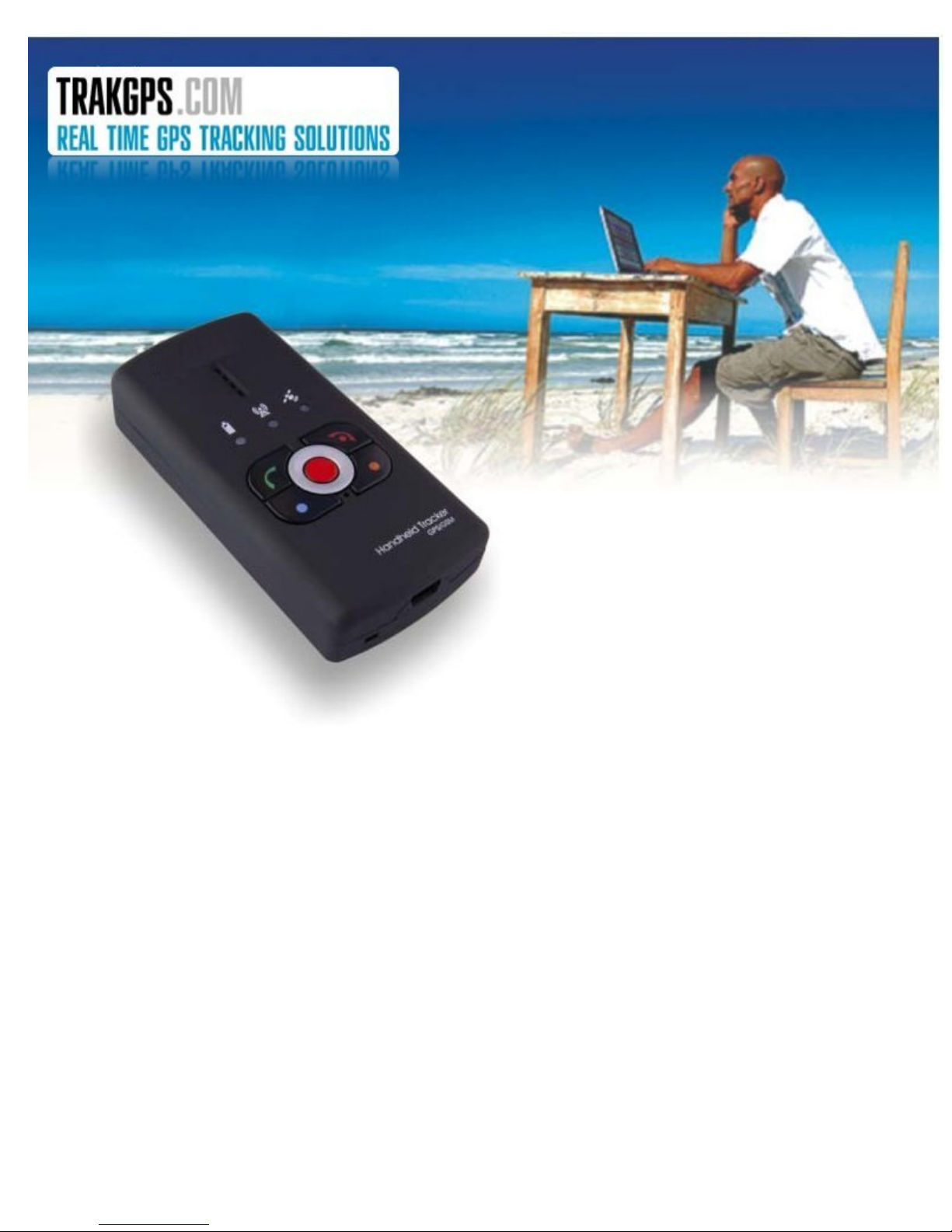
GMAX1201 Handheld Tracker
Quick Start Guide v1_1.03
Page 2
features. Please, find few minutes to read the Quick Start Guide before beginning to work with GH1200.
Thank you for purchasing our device! We hope it will satisfy your expectations and you will enjoy its particular
INTRODUCTION
cargo and other things. GPS receiver allows tracking the coordinate of the device and forwarding them to authoritative
person or Monitoring Center. The device has a voice transferring possibility, therefore, it can be used as ordinary mobile
phone.
GH1200 is a mobile phone with integrated GPS receiver. The device is designed for tracking and protecting people,
CONTENTS of PACKAGE
GH1200 device.
• „USB – mini USB“ cable.
• CD with User’s Manual and software.
• Description of the device “Quick Start Guide”.
connection to GSM network! You can obtain a SIM card from your local GSM service provider!
If any of the components are missing, please contact the manufacturer or your local distributor.
NOTE:
the producer does not provide a SIM card among other items of the package, which is necessary for
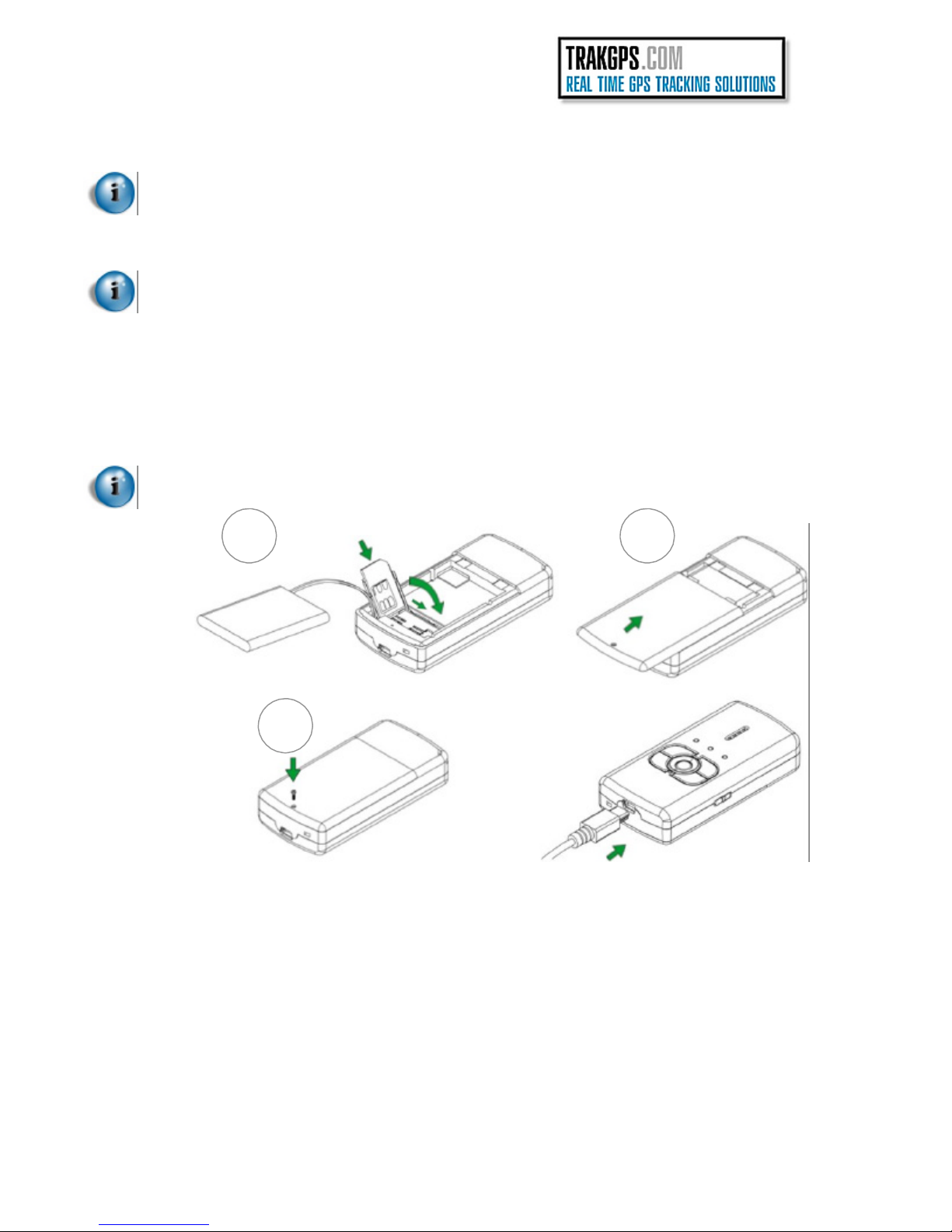
DEVICE ASSEMBLING
1
3
2
DEVICE CHARACTERISTICS
GH1200 housing is made of plastic.
GPS Antenna: Internal.
GSM Frequency: GSM 900/1800 MHz and 850/1900 MHz.
Voice Call: YES.
Data Transferring: SMS.
Connecting to PC: USB.
Configuration: SMS or USB.
Internal Memory: 1MB.
Buttons: 4 (ALARM, CALL1, CALL2, SMS).
Accumulator: Li-Ion or Li-Pol
LED Indicator: 3 (Power, GPS, GSM).
Dimensions [mm]: 111 x 57 x 21. Indication
Standby time GPS module switched OFF: 336 h.
Working time on „Track“ mode: 6 h.
Working time / periodical GPS module / switching (Period: 1 h.): 120 h
Page 3
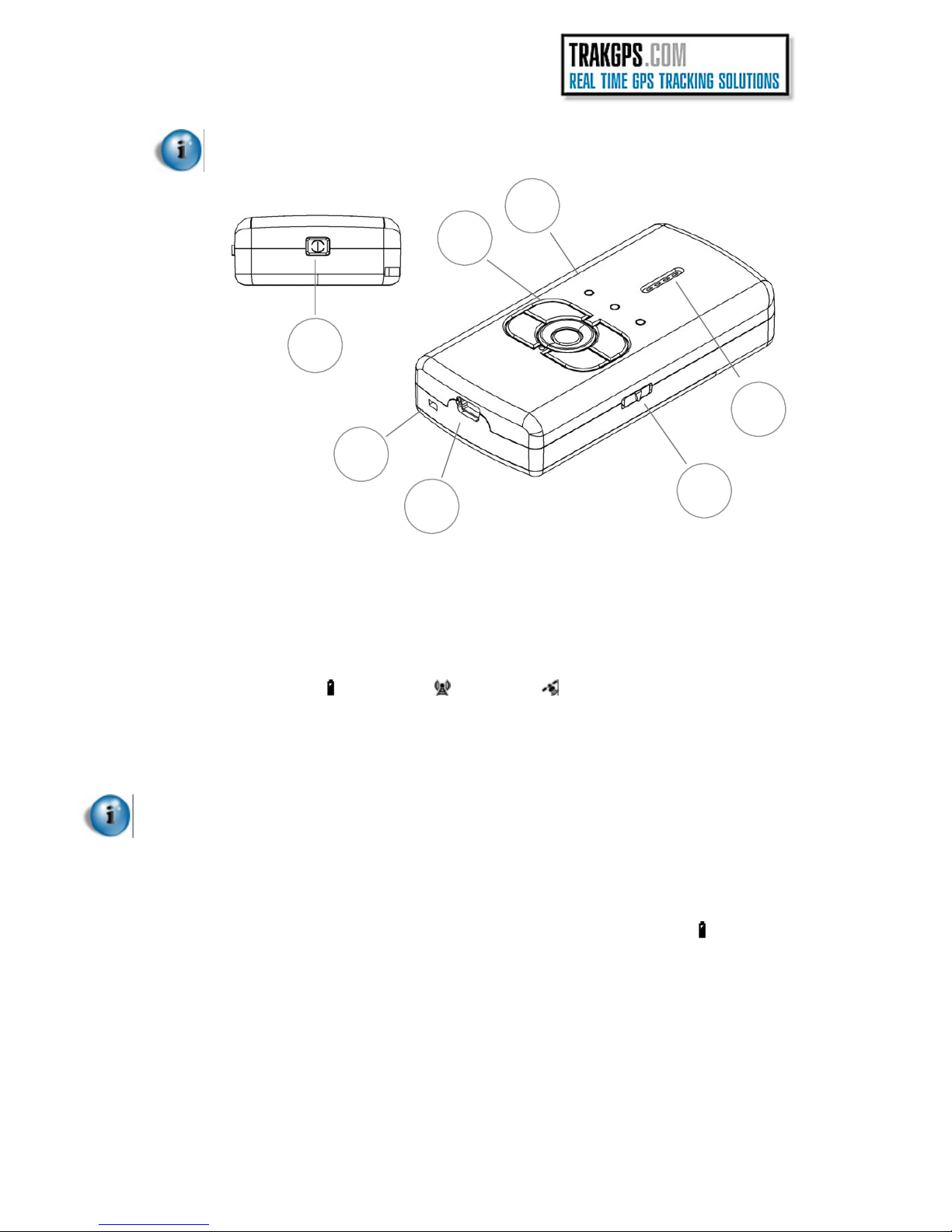
FUNCTION PARTS of DEVICE
5
7
1
2
6
4
3
1 – Microphone
2 – USB port
3 – Key lock
4 – Speaker
5 – Keyboard
6 – LED indicators LED indicators will let you know in what mode the device is operating.
7 – ON button
You can change voice volume by pressing buttons on device keyboard. That buttons are
voice volume will down.
Microphone is used for voice conversations.
Connect mini USB cable to the device and the PC to configuration Handheld GPS and charge
the battery.
To lock the keyboard, move the arrow to±, to unlock move the arrow to².
Speaker is used for active voice conversation – to be able to hear the talker and for
incoming call signal.
You will enable or disable the set functions by pressing the buttons.
- Power indicator,
To turn the device on, press and hold the button until Power LED indicator turns green.
marked with color circles. Button with orange circle voice volume will up and with blue circle
GETTING STARTED
For more detail instruction please read User’s Manual.
£
Insert a SIM card.
£
Install the required drivers and software on your PC. (Chapter Software installation)
£
The internal battery of the device has to be fully charged. (Usually it can be charged by connecting the device to the PC
through the USB port, but you also can charge it using other accessories).
£
Switching ON the device: In order to do this connect device to USB port and it will switch ON automatically.
Another way is to push and hold the button located on top of the device until green
when LED glows. (The first time before you turn ON the device is recommended to press restart button.
It is located in the hole behind alarm button.)
£
Set device parameters with the “GPS Assistant“ Software.
NOTE: (Recommended) SIM card is used with deactivated PIN code request. The PIN code request can be
disabled with the help of another mobile phone
-
GSM indicator,
-
GPS indicator.
LED turns on, release the button
.
Page 4
MINIMAL REQUIREMENT
Operation system
http://www.microsoft.com
Hard Disc Space:
Screen Resolution
Windows Installer v.
http://www.download3k.com/DownloadLink1-UWin-Installer.html
Component
http://213.226.139.30/Downloads/tavl/Tavl%5FClient/Net%5F2.0%5Fframework/dotnetfx.zip
Driver
http://www.silabs.com/tgwWebApp/public/web_content/products/Microcontrollers/USB/en/mcu_vcp.htm
REQUEST SMS LIST
Sending SMS to device with text written in the list below you can activate special function of device.
NOTE:
Geo?
Inf?
Spy
Alarm:on
Alarm:off
Track?
Track:on,x,y
Track:on
Track:off
Off
The text for activating special function is not case sensitive. So you can type the message either in
uppercase or lowercase.
To get location of your device
To get battery level, Firmware version of device
To make Silent Call. The device will call you.
Activate the Alarm
Deactivate Alarm function
To send data to the server via GPRS.
To turn on the track function x – track update interval (sec.), y – track logging duration (min)
To turn on the track function with timing that was set in device before.
To turn off the track function
To turn off device
MS Windows 2000 SP3 or MS Windows XP SP1
20 MB
1024 x 768 (Full Screen)
3.0
MS .NET framework 2.0
Silicon Laboratories CP210x USB
IMPORTANT
This sign on the package means that it is necessary to read the User’s Manual, which is on the CD, before you start
using the device.
This sign on the package means that all used electronic and electric equipment should be stored separately.
FINAL NOTES
encounter any problems using the device and you are no able to solve them yourself, please contact our technical support
department by e-mail [email protected] We will be glad to help you.
For more detailed information about the device, please read the documentation which is found on the CD. If you
Page 5
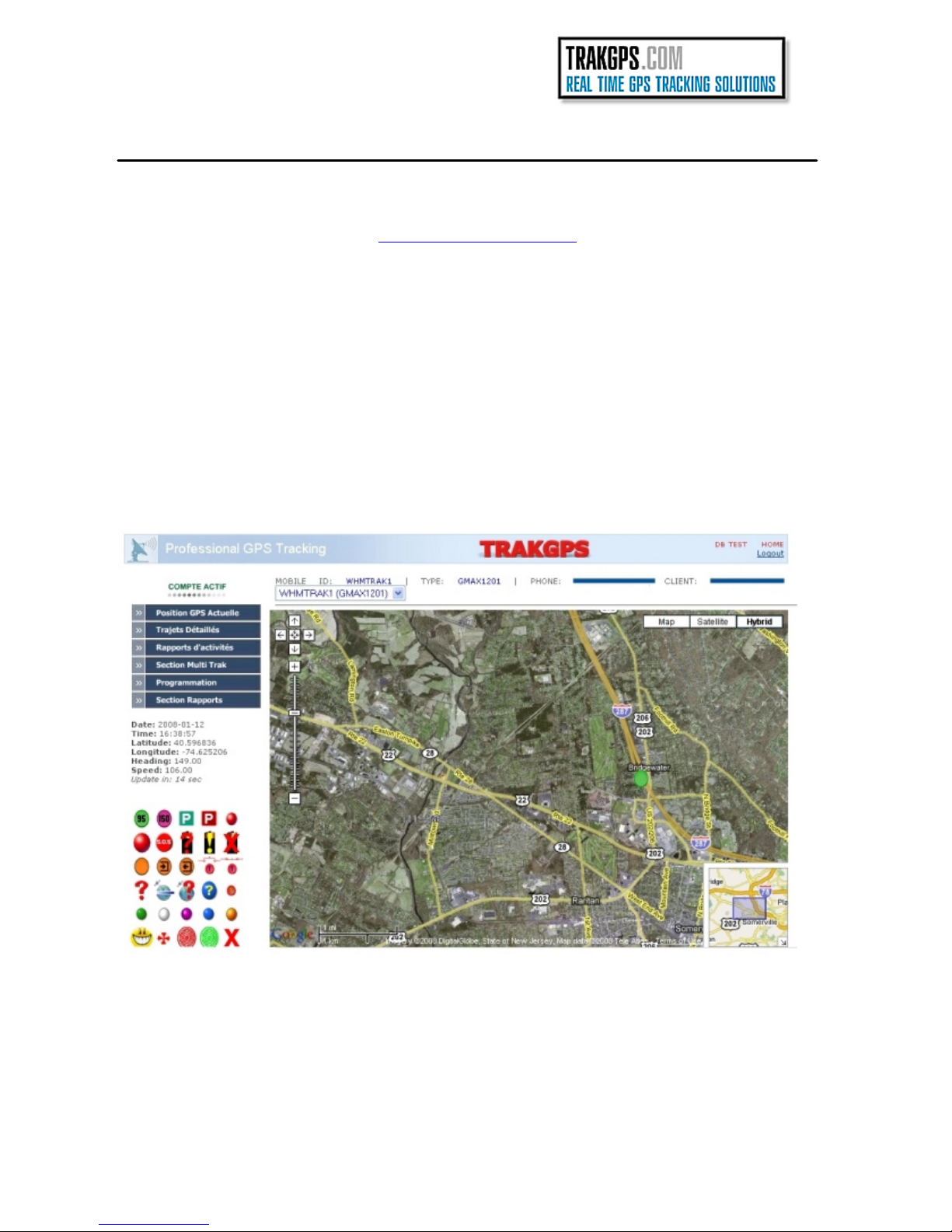
TRACKING SOLUTION
We can provide you FREE solution to start Real Time GPS Tracking with our Web-Based interface.
Take a look to our demo right here : www.trakgps.com/member
username : demo
password : demo
You will have access to Actual GPS Position features section. You can use your own model of tracker and
trak for free also with our interface. For more information please call us at +14504396403
Page 6

TECHNICAL SUPPORT
in
If you encounter any problems when using our products, please contact our technical support by writing an e-mail to
[email protected] . We will be pleased to help you.
If you are interested in other products from TrakGPS, please visit our website
www.trakgps.com/shop, where you will find our newest products.
If you are interested in product pricing or want to order our products with different antennas, connectors or builtprograms, please contact our sales department by writing an e-mail to [email protected]
The supervision of the device is undemanding.
You can also visit our Technical Support Forum at : www.trakgps.com/phpbb
 Loading...