

Page 1
QUICK GUIDE
Trainesense
Page 2
1 – INTRODUCTION
2 – CHARGING
Your Smart Paddle is
delivered pre-charged
but it is good to make
sure it is in full capacity.
QUICK GUIDE
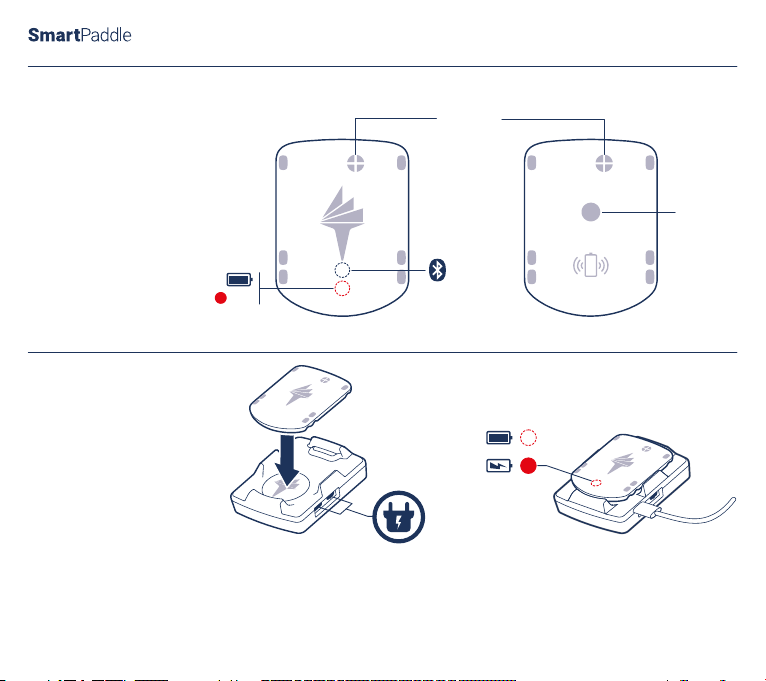
SENSORS
REC
USB-B/C
2.1 Connect the charger of your
smartphone or pad to the charging
dock using either of the two USB
connectors (”micro B” or “C”). Place
the paddle onto the dock.
Trainesense
RESET
2.2 The red LED is lit when the paddle is
correctly placed onto the dock and the
paddle battery is charging. The LED is
turned off when the battery is fully
charged. Charging time is 0...90 min.
Page 3
3 – WEARING
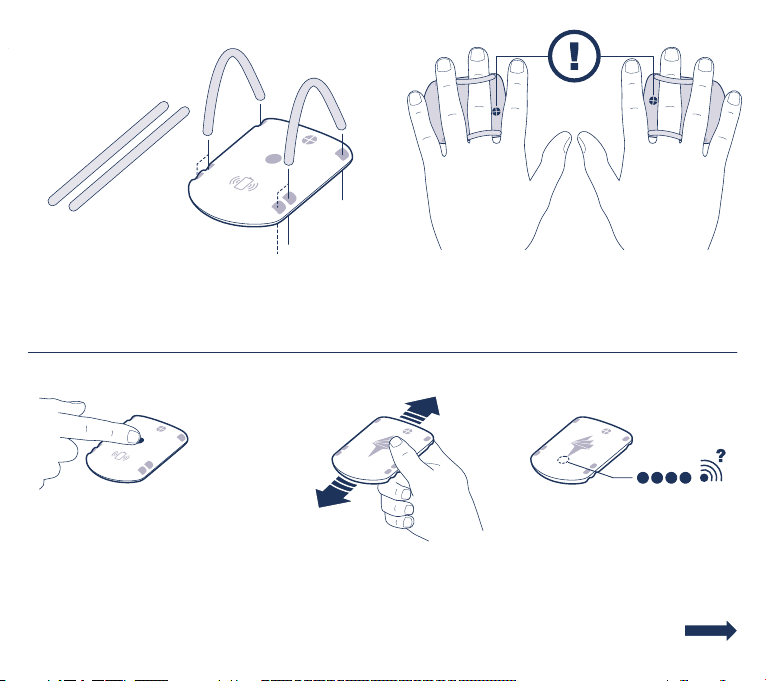
3.1 Bend the silicone straps and route them through
the holes on the backside of the paddle. If needed, use
the wider position to make a better fit for your finger(s).
When charging the paddle, remove the straps.
4 – ACTIVATING
4.1 When the paddle is used for the
first time, push the RESET button
once shortly to activate the paddle.
4.2 After the first use, you can
activate the paddle just by shaking
it lightly.
3.2 Wear the paddle on either of your hands, as
illustrated above. Make sure that the sensor is between
your index and middle fingers. Use different colour
straps to identify the right and left hand paddles.
4.3 The paddle is active and
searching for Bluetooth connection
when the blue LED is flashing
rapidly (2 times per second).
Page 4
5 – CONNECTING
https://login.trainesense.com
http://www..
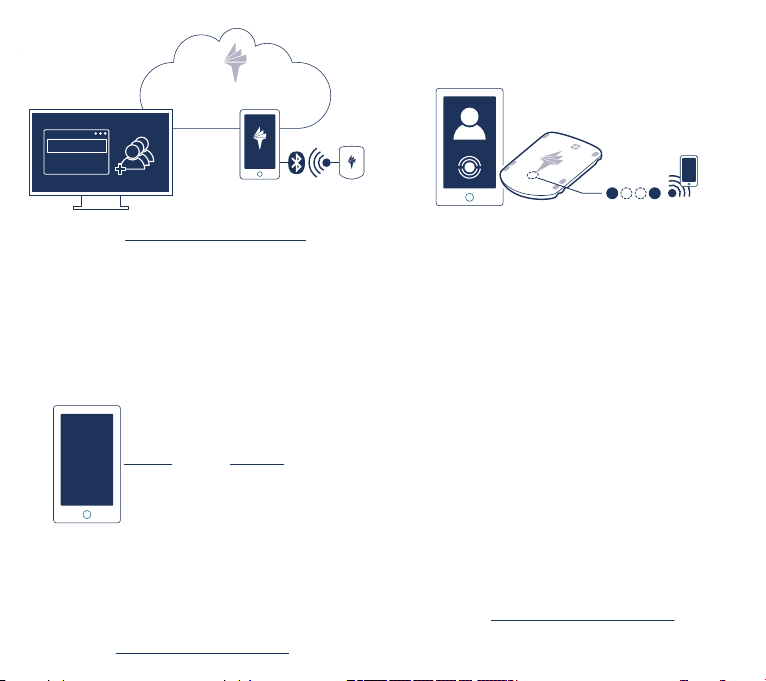
5.1 Log in to https://login.trainesense.com. You will
receive your Coach account details in an email. Create
at least one Athlete and allocate a licence to the Athlete.
Download the Trainesense application to your
smartphone or pad from your application store.
STA RT
SESSION
5.3 Fill in the session details and then select START
SESSION in the application to start a new training
session. Select START TRACKING - the red LED is lit on
the paddle. The paddle activity is now recorded. Select
STOP TRACKING to end the tracking.
Visit https://www.trainesense.com for support and a full SmartPaddle user guide. © Trainesense Ltd.
STA R T
TRACKING
STOP
TRACKING
5.2
account, then select an Athlete with either left or right
hand paddle (or both), then click ADD SELECTED to
make a pair. Then select DONE.
If you do not see your paddle listed, press SCAN.
Make sure that your Bluetooth connection is set
active and that the paddle LED flashes rapidly (see
Section 4.3).
The paddle Bluetooth activity LED flashes less
frequently (1 time per two seconds) when the
connection is succesful between the paddle and the
mobile device.
5.4 After each tracking event you have the option to
delete the tracking data or to upload it to the cloud. You
can have several tracking events in one session. You
can view the data with a browser in your PC, pad, or
smartphone at https://login.trainesense.com
+
Launch the application, log in with your Coach
 Loading...