

Page 1

User manual
Page 2

Page 3

1EN
Contents
1 Important safety instructions 2
General information 2
Hearing Safety 2
2 Trainer sports headphones
TH100 3
Box content 3
Other devices 3
Overview of your Bluetooth
wireless headphones 4
3 Charge and pair your headphones 5
Charge your headphones 5
Pair the headphones with your
mobile phone 5
4 Use your headphones 7
Connect the headphones to a
Bluetooth device 7
Manage your calls and music 7
Wear your headphones 9
5 Technical data 10
6 Notice 11
Declaration of conformity 11
Disposal of your old product and
battery 11
Compliance with EMF 11
Trademarks 12
7 Frequently asked questions 13
Page 4
2 EN
1 Important
safety
instructions
General information
To avoid damage or malfunction:
Caution
•
Do not expose headphones to excessive heat.
• Do not drop your headphones.
• Headphones shall not be exposed to dripping or
splashing.
• Do not allow your headphones to be submerged
in water.
• Do not use any cleaning agents containing alcohol,
ammonia, benzene, or abrasives.
• If cleaning is required use a soft cloth, if necessary
dampened with a minimum amount of water or
diluted mild soap, to clean the product.
• The integrated battery shall not be exposed to
excessive heat such as sunshine, re or the like.
• Danger of explosion if battery is incorrectly
replaced. Resplace only with the same or
equivalent type.
About operating and storage
temperatures and humidity
• Operate or store in a place where
temperature is between -15ºC (5ºF)
and 55ºC (131ºF) (up to 90% relative
humidity.
• Battery life may be shorter in high or
low temperature conditions.
Hearing Safety
Danger
•
To avoid hearing damage, limit the time you use
headphones at high volume and set the volume to
a safe level. The louder the volume, the shorter the
safe listening time is.
Be sure to observe the following
guidelines when using your headset.
• Listen at reasonable volumes for
reasonable periods of time.
• Be careful not to adjust the volume
continuously upwards as your hearing
adapts.
• Do not turn up the volume so high that
you can’t hear what’s around you.
• You should use caution or temporarily
discontinue use in potentially
hazardous situations.
• Excessive sound pressure from
earphones and headphones can cause
hearing loss.
• Using headphones with both
ears covered while driving is not
recommended and may be illegal in
some areas while driving.
• For your safety, avoid distractions
from music or phone calls while in
trafc or other potentially dangerous
environments.
Page 5
3EN
2 Trainer sports
headphones
TH100
With the Trainer sports headphones, you
can converse with friends and enjoy music
during exercises.
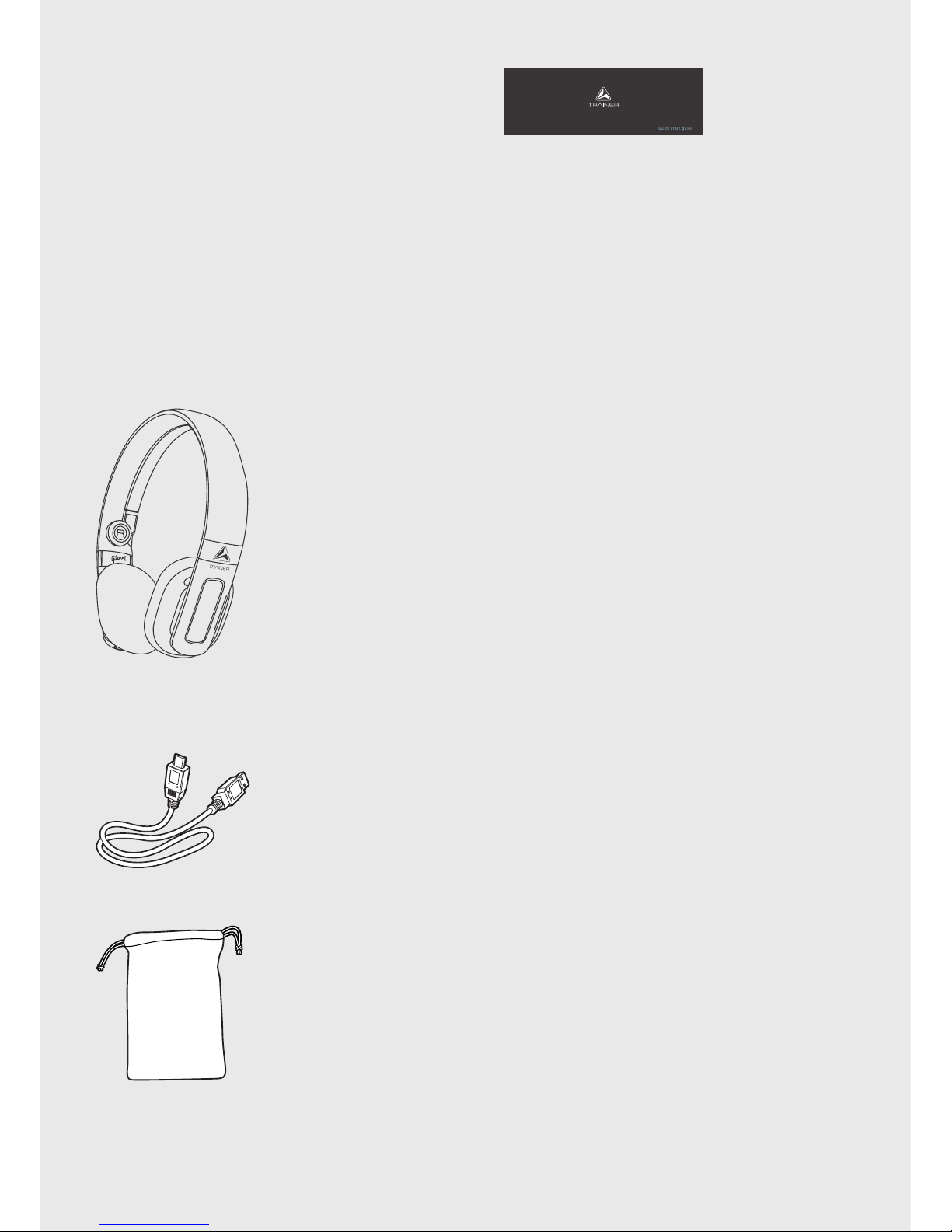
Box content
Trainer Bluetooth sports headphones
TH100
USB charging cable
Pouch
Quick start guide
Other devices
A mobile phone or device (e.g. notebook,
PDA, Bluetooth adapters, MP3 players etc)
which supports Bluetooth and is compatible
to the headphones.
Page 6
4 EN
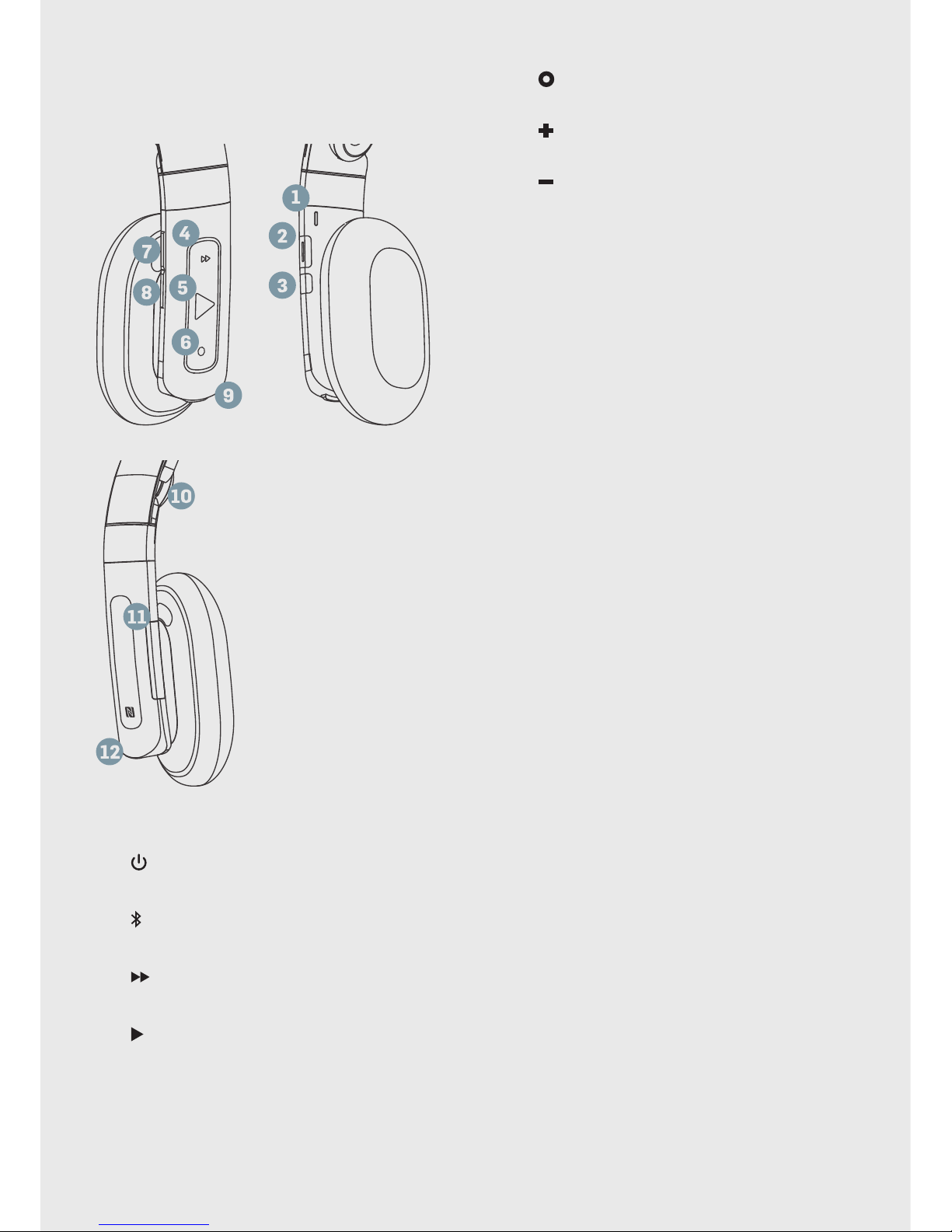
Overview of your Bluetooth
wireless headphones
1. LED indicator
2.
Power on/off button
3.
Pairing
4.
Track control
5.
Music/call control
6.
SafeSound/mute (call)
7.
Volume up
8.
Volume down
9. Micro USB charging slot
10. Stabilizer button
11. NightNav light
12. NFC pairing area
Page 7
5EN
3 Charge and
pair your
headphones
Charge your headphones
Note
•
Before you use your headphones for the rst time,
charge the battery for 5 hours for optimum battery
capacity and lifetime.
• Use only the original USB charging cable to avoid
any damage.
• Finish your call before charging the headphones,
as connecting the headphones for charging will
power the headphones off.
Connect the supplied USB charging cable
to:
• the charger or USB port of a
computer and;
• micro USB charging slot on the
headphones (lift up the rubber
cover).
→ LED turns white during charging
and turns off when the headphones
are fully charged.
Tip
•
Normally, a full charge takes 2 hours.
Pair the headphones with
your mobile phone
Before you use the headphones with your
mobile phone for the rst time, pair it
with a mobile phone. A successful pairing
establishes a unique encrypted link
between the headphones and mobile phone.
The headphones store the last 4 devices
in the memory. If you try to pair more than
4 devices, the earliest paired device is
replaced by the new one.
There are two ways to pair your
headphones with your mobile phone:
• Manual pairing
• NFC pairing
Manual pairing
1. Make sure that the headphones are
fully charged.
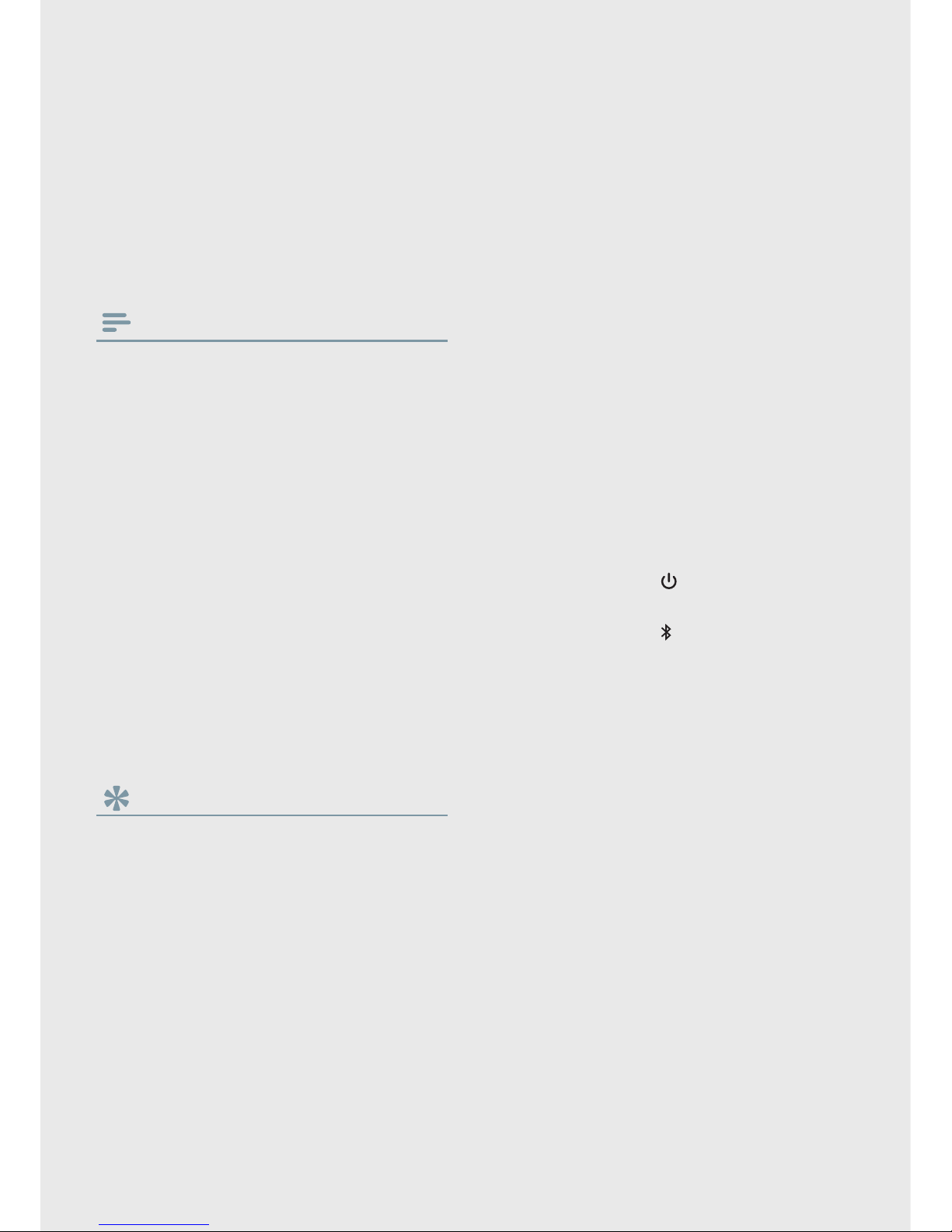
2. Press and hold
to turn the
headphones on.
3. Press and hold
until the LED ashes
blue and white alternately.
4. Turn on the Bluetooth function of your
mobile phone.
→ The headphones are in pairing
mode for 2 minutes.
5. Pair the headphones with the mobile
phone. For detailed information, refer to
the user manual of your mobile phone.
Page 8
6 EN
NFC pairing
1. Make sure you turn on the NFC function
on your phone and your phone’s screen
remains active.
2. Place your phone over the headset so
that the NFC detection area of each
device can touch each other.
3. Pair the headphones with the mobile
phone. For detailed information, refer to
the user manual of your mobile phone.
Note
•
Make sure your mobile phone has the NFC feature
available and switched on.
• Make sure your mobile phone is not in standby
mode.
• Pairing with NFC is only suitable for Android
mobile operating system 4.2 or above.
• Refer to the user manual of your mobile phone to
identify its NFC detection area.
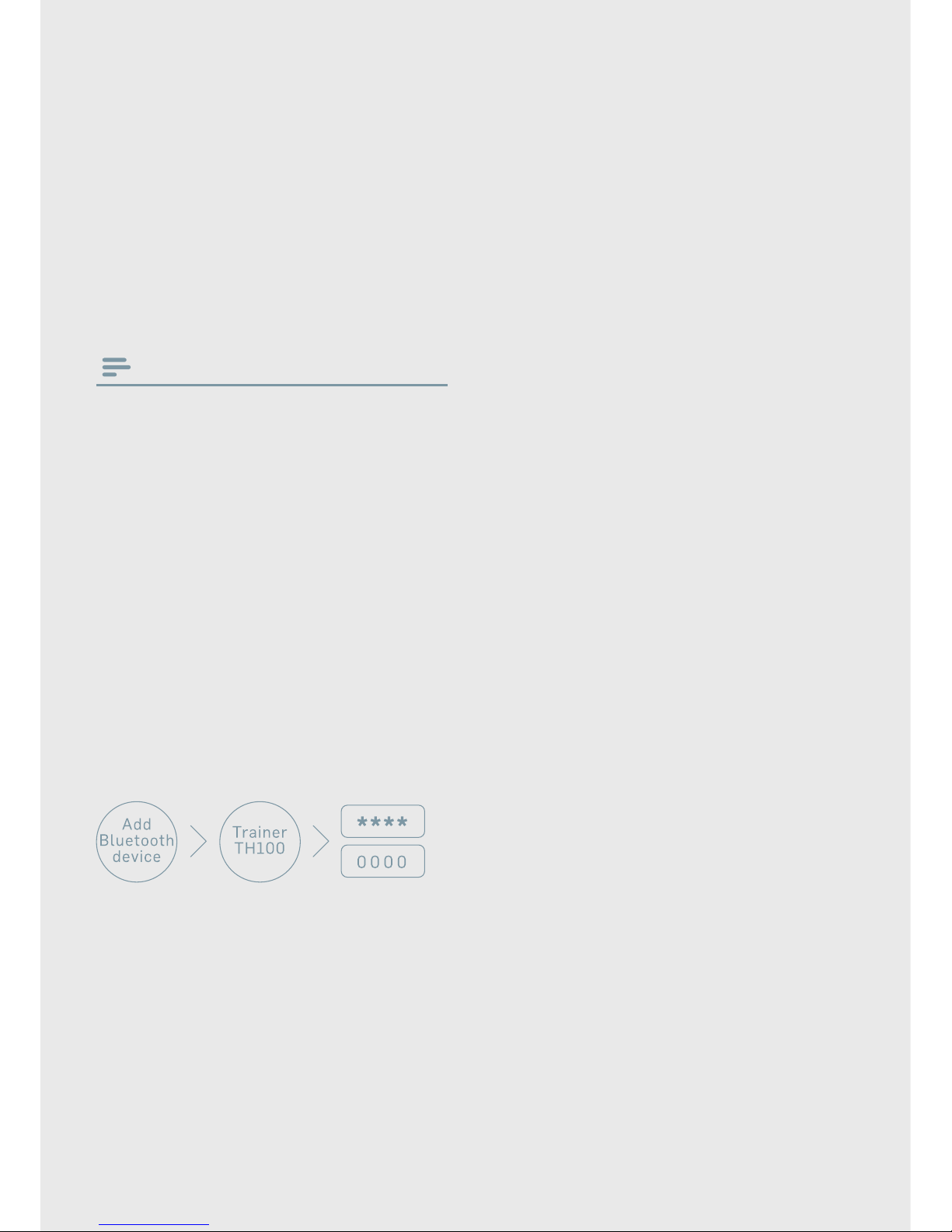
The following example shows you how
to pair the headphones with your mobile
phone.
1. Activate the Bluetooth feature of your
mobile phone, select Trainer TH100.
2. Enter the headset password "0000" (4
zeros) if prompted. For those mobile
phones featuring Bluetooth 3.0 or
higher, no need to enter a password.
Page 9
7EN
4 Use your
headphones
Connect the headphones
to a Bluetooth device
1. Turn on your mobile phone/Bluetooth
device.
2. Press and hold
to turn the headset
on.
→ The blue LED ashes.
→ The headset is reconnected to
the last connected mobile phone/
Bluetooth device automatically.
Tip
•
If you turn on the mobile phone/Bluetooth device
or activate the Bluetooth feature after turning on
the headset, you have to reconnect the headset
and mobile phone/Bluetooth device manually.
• If your mobile phone/Bluetooth device cannot
reconnect automatically, try to reconnect manually
by clicking the headphones’ name again under the
Bluetooth setting manual on your mobile phone/
Bluetooth device.
Note
•
If the headset fails to connect to any Bluetooth
device within range in 5 minutes, it will switch off
automatically to save the battery life.
Manage your calls and
music
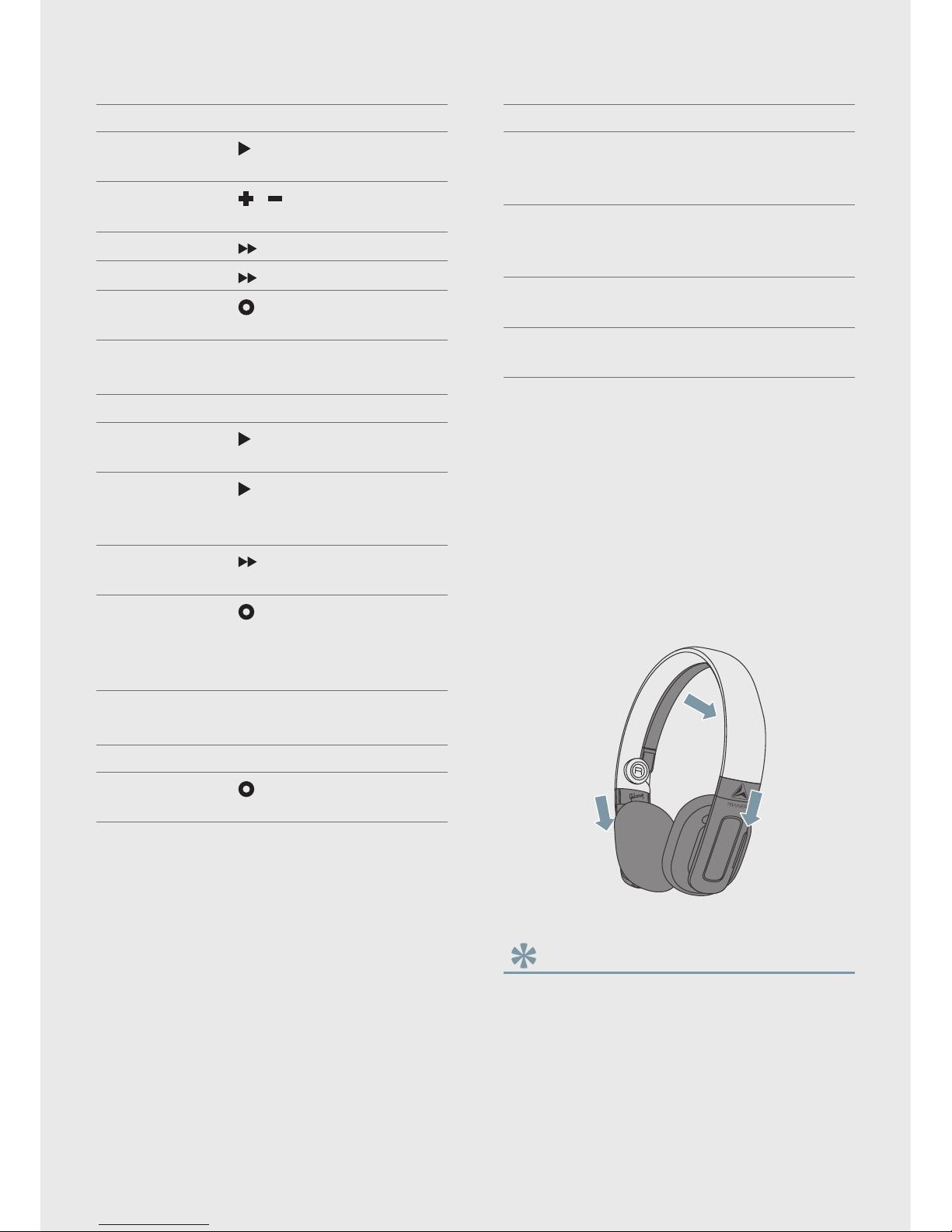
Device control
Task Button Operation
Turn the
headphones
on.
Press and hold for
2 seconds.
Turn the
headphones
off.
Press and hold for
4 seconds.
→ The white
LED is on
and fades
out.
Check the
battery
level.
Press once.
→ If the white
LED is on for
2seconds,
it means the
battery level
is over 20%
and is ready
for use.
→ If the battery
level is low, a
voice prompt
in English
will occur
for every 3
minutes.
Turn
NightNav
light on/off.
Press twice.
Page 10
8 EN
Music control
Task Button Operation
Play or pause
music.
Press once.
Volume up/
down.
/
Press once or
press and hold.
Skip forward.
Press once.
Skip backward.
Press twice.
Enable/disable
SafeSound.
Press once.
Call control
Task Button Operation
Pick up/hang
up a call.
Press once.
Reject an
incoming call.
Press and hold
for 2 seconds.
→ 1 beep.
Switch caller
during a call.
Press twice.
Mute/
unmute the
microphone in
a call.
Press once.
Voice control
Task Button Operation
Siri/Google
Now.
Press and hold
for 2 seconds.
Other headphones indicator status
Headphones status Indicator
The headphones are
ready for pairing.
The LED ashes
blue and white
alternately.
The headphones are
on but not connected
to a Bluetooth device.
The blue LED
ashes quickly.
Low battery level. The white LED
ashes slowly.
Battery is fully
charged.
White LED is off.
Wear your headphones
Adjust the headband to t the washable
cushions on your ears. The stabilizer helps
your headphones stay in place. Press the
stabilizer button to release the stabilizer
from the headband (see 'Overview of your
Bluetooth wireless headphones' on page 4).
Tip
•
For instruction of how to wash the ear cushions,
see the chapter ‘Frequently asked questions’.
Page 11

9EN
5 Technical data
• 11 hours of music time or talk time
• 190 hours of standby time
• Normal time for a full charge: 2 hours
• Rechargeable Lithium-Polymer battery
(190 mAh)
• Bluetooth 4.0, Bluetooth mono
support (Headphones Prole - HSP,
Hands-Free Prole - HFP), Bluetooth
stereo supported (Advanced Audio
Distribution Prole - A2DP; Audio Video
Remote Control Prole - AVRCP)
• Operating range: Up to 10 meters (33
feet)
• Digital echo & noise reduction
• Auto power off
Note
•
Specications are subject to change without
notice.
Page 12
10 EN
6 Notice
Declaration of conformity
Hereby, Gibson Innovations declares that
this product is in compliance with the
essential requirements and other relevant
provisions of Directive 1999/5/EC. You
can nd the Declaration of Conformity on
www.thisistrainer.com.
Disposal of your old
product and battery
Your product is designed and manufactured
with high quality materials and
components, which can be recycled and
reused.
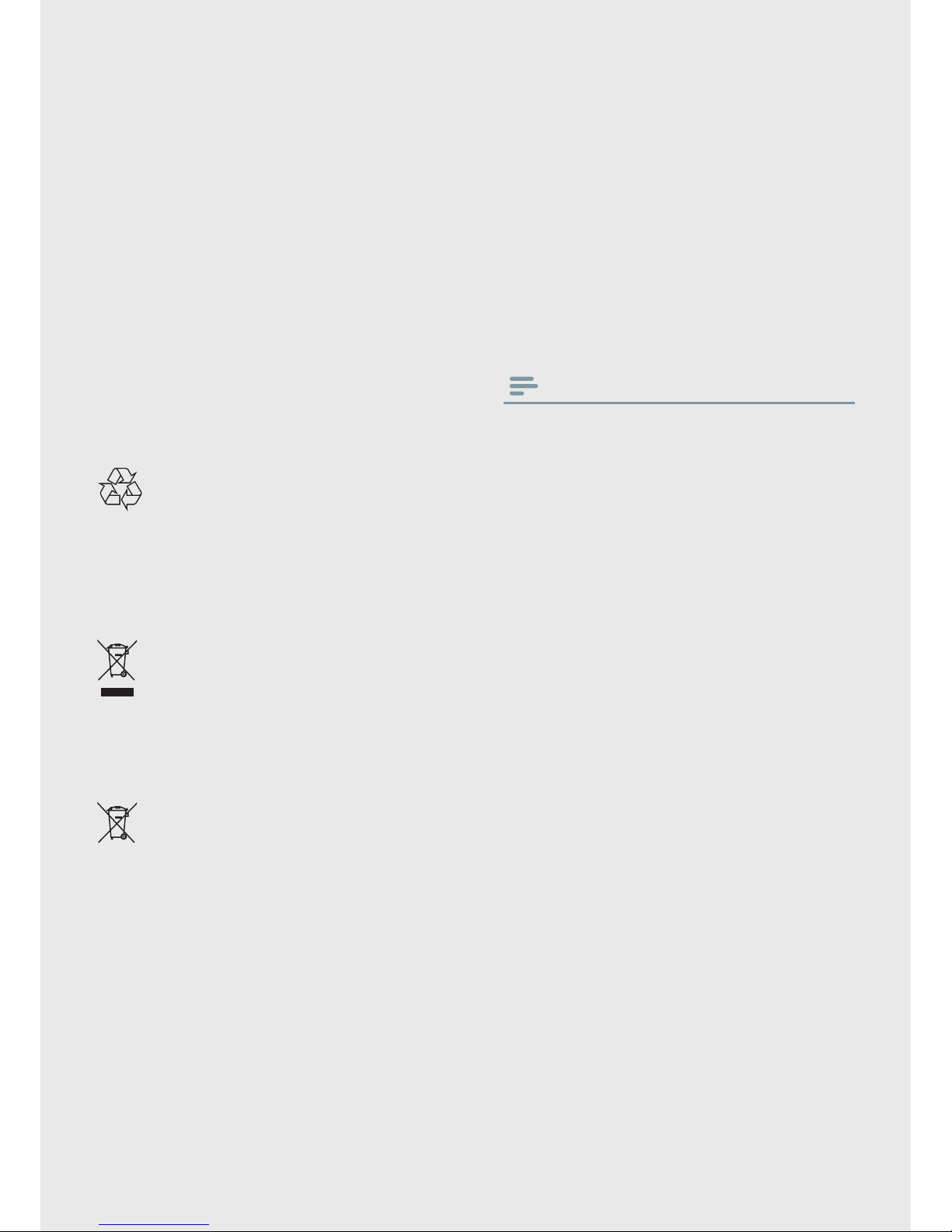
This symbol on a product means that the
product is covered by European Directive
2012/19/EU.
This symbol means that the product
contains a built-in rechargeable battery
covered by European Directive 2013/56/EU
which cannot be disposed of with normal
household waste. We strongly advise you
to take your product to an ofcial collection
point.
Inform yourself about the local separate
collection system for electrical and
electronic products and rechargeable
batteries. Follow local rules and never
dispose of the product and rechargeable
batteries with normal household waste.
Correct disposal of old products and
rechargeable batteries helps prevent
negative consequences for the environment
and human health.
Remove the integrated battery
Note
•
Make sure the headset is disconnected from the
USB charging cable before removing the battery.
If there is no collection/recycling system for
electronic products in your country, you can
protect the environment by removing and
recycling the battery before disposing the
headset.
Compliance with EMF
This product complies with all applicable
standards and regulations regarding
exposure to electromagnetic elds.
Environmental information
All unnecessary packaging has been
omitted. We have tried to make the
packaging easy to separate into three
materials: cardboard (box), polystyrene
foam (buffer) and polyethylene (bags,
protective foam sheet.)
Your system consists of materials which
can be recycled and reused if disassembled
by a specialized company. Please observe
the local regulations regarding the disposal
of packaging materials, exhausted batteries
and old equipment.
Page 13

11EN
Trademarks
Bluetooth
The Bluetooth word mark and logos are
owned by the Bluetooth SIG, Inc. and any
use of such marks by Gibson Innovations
Limited is under license.
Siri is a trademark of Apple Inc., registered
in the U.S. and other countries.
Google
Google and the Google Logo are registered
trademarks of Google Inc.
Page 14

12 EN
7 Frequently
asked
questions
My Bluetooth headphones do not switch
on.
The battery level is low. Charge the
headphones.
I cannot pair my Bluetooth headphones
with a mobile phone.
The Bluetooth is disabled. Enable the
Bluetooth feature on your mobile phone
and turn on the mobile phone before you
turn on the headphones.
Pairing does not work.
Make sure the headphones are in pairing
mode.
• Follow the steps described in this user
manual (see 'Charge and pair your
headphones' on page 5).
• Make sure that the LED light ashes
blue and white alternately before you
release
. Do not stop holding the
button if you see the blue LED only.
The mobile phone cannot nd the
headphones.
• The headphones may be connected
to a previously paired device. Turn off
the connected device or move it out
of range.
• Pairing may have been reset or the
headphones have been previously
paired with another device. Pair
the headphones with the mobile
phone again as described in the user
manual (see 'Charge and pair your
headphones' on page 5).
The other side cannot hear me on the
mobile phone.
The microphone is muted. Press
once
to enable the microphone.
My Bluetooth headphones are connected
to a Bluetooth stereo enabled mobile
phone, but music only plays on the mobile
phone speaker.
Refer to the user manual of your mobile
phone. Select to listen to music through
the headphones.
The audio quality is poor and crackling
noise can be heard.
The Bluetooth device is out of range.
Reduce the distance between your
headphones and Bluetooth device, or
remove obstacles between them.
The audio quality is poor when streaming
from the mobile phone is very slow, or
audio streaming does not work at all.
Make sure your mobile phone not only
supports (mono) HSP/HFP but also
supports A2DP (see 'Technical data' on
page 9).
I hear but cannot control music on my
Bluetooth device (e.g. play/pause/skip
forward/backward).
Make sure the Bluetooth audio source
supports AVRCP (see 'Technical data' on
page 9).
After using "Google Now", music starts
playing through the mobile phone
speaker instead of headphones, but
Bluetooth is still connected, what can I
do?
Press the Siri/Google now button again,
music will resume playing from the
headphones.
Page 15

13EN
How to clean the ear cushions?
• Hand wash the ear cushions in a
water mixed with laundry powder. Do
not twist or pull the cushions to avoid
damage. Squish the cushions inside
the soap water for around 10-15
minutes.
• Rinse the cushions in a clean bowl
of water. Continue to keep the water
running and squish the headphones
until there are no more soap and
bubbles coming from the cushions.
• Place the cushions on a hard surface
and allow them to be completely dry.
Note
•
Do not wash the ear cushions in a washing
machine to avoid damages.
How can I restore all original headphones
settings?
When the headphones are powered on
and is not connected to the USB cable,
press and hold
and at the same time
for 5 seconds until you see the white LED
ashes 5 times.
For further support, visit
www.thisistrainer.com
Page 16

2015 © Gibson Innovations Limited. All rights
reserved.
This product has been manufactured by, and is
sold under the responsibility of Gibson Innovations
Ltd., and Gibson Innovations Ltd. is the warrantor in
relation to this product.
UM_TH100_00_EN_V3.0
WK16353
 Loading...