

Page 1

Trailer Vision Ltd
01733 246473
support@trailervision.co.uk
www.trailervision.co.uk
USER MANUAL
E
qui-Vue
Live Video Straight to Your Smart-Phone
Product Features
•
The camera uses a Wi-Fi module to transmit (wireless) video images
•
The video can be viewed via any Wi-Fi enabled smartphone, or tablet (with a FOC
App)
•
Compatible with Android (non-Apple devices) version 2.2 or above, and iOS (Apple
devices) version 4.3 or above
Version 1.0
•
Please read this User Manual carefully before use. Failure to understand installation/operation
procedures may result in damage.
•
Please note that the video images may be delayed/buffered before display.
1
TM
Page 2

Specifications
iMC GmbH
Phone : +49 (0) 4154 7093202-0
Email : info@imc-multimedia.com
http://www.imc-multimedia.com/
Specifications
ITEM Specifications
Operating Voltage 12V DC
Consumption Current Max. 90mA
ITEM Specifications
Operating Voltage 12V DC
Operating Current Max. 150mA
Camera
Wi-Fi Transmitter
Video Output
0.9~1.3Vp-p, 75Ω
Night Vision Range > 3 m
Image Sensor 1/3inch CMOS
Effective Pixels
628x586pixels(PAL)
510x496pixels(NTSC)
Video Format PAL/NTSC
Operation Frequency 2400~2483.5MHz
Wireless Protocol
IEEE 802.11b, 802.11g,
802.11n(1T1R Modes)
Encryption Mode WPA2
Modulation Mode
802.11b:DSSS(CCK,
DQPSK,DBPSK)
Video Format PAL/NTSC
Electronic Exposure
Time
1/50s~12.5ns(PAL) sec
1/60s~12ns(NTSC) sec
Minimum illumination < 0.5 Lux
Horizontal View Angle
80°
Operation Temperature
-10°C ~ +50°C
Modulation Mode
802.11g/n:OFDM(BPSK
,QPSK,16QAM,64QAM)
Transmission Distance
With No Obstacle
> 20 m
Operation Temperature
-10°C ~ +50°C
Storage Temperature
-20°C ~ +60°C
OtiHidit 20% 90% RH
Storage Temperature
-20°C ~ +60°C
Operation Humidity 15% ~ 85% RH
Dimensions 36 x 47 x 33 mm
Weight 60g
Operation Humidity 20% ~ 90% RH
Dimensions 48 x 86 x 24 mm
Weight
70g
*
Specifications are subject to change without prior notice.
2
Trailer Vision Ltd
01733 246473
support@trailervision.co.uk
www.trailervision.co.uk
Specifications
Installation
The camera can be roof or wall mounted, utilising the supplied velcro fixings. Locate the
camera in a suitable location, ideally behind the horse(s) and near to the light/light switch
(power source). Connect the supplied cables to the light/light switch (power side) and fix
the power socket* to roof/wall (the flush mounted socket can be screwed to a piece of
plastic etc, rather than to the trailer/horsebox wall, if preferred). Connect the camera plug
into the socket.
*Two power sockets are supplied, a flush mounted and 'hole' mounted; the hole mounted
socket requires a 14mm hole. If the flush mounted socket is utilised, the red cable should
be connected to the central/RH terminal and the black cable to the LH terminal.
Please Note:
- the camera will only operate when the light/power source is 'live' (for a trailer installation this
may require the tow vehicle to be connected and the side-lights switched on)
- please remove the camera when not in use
- 12V ONLY (Battery Pack available for 24V Lorries etc)
Page 3

Operating with an Android (non-Apple) Device (See Page 5 for Apple Devices)
Installation of App/software:
1.
Turn on the 'smart' mobile device and enter/open the GOOGLE PLAY store.
2.
Search "Sight WiF
i" software, and download.
3.
Install the APP/software, as per the following icon:
Wi-Fi Connection:
1. Click the “
settings icon in the main menu of the smart mobile device.
2.
Click "Wi-Fi", select 'WIFICAMERA', and connect to the smart mobile device
The initial SSID (name) of the device is "WIFICAMERA" (this can be changed).
Then enter the password (Default password:88888888). As shown below:
Viewing the video:
Open the
App, once connected to the 'Wi-Fi Camera", as detailed above.
If successful, the
icon will be highlighted and the video displayed.
Press the
icon to reverse the image, if required.
3
Trailer Vision Ltd
01733 246473
support@trailervision.co.uk
www.trailervision.co.uk
Page 4

Notice
•
If the mobile device fails to connect to the 'Wi-Fi Camera', please close any other Wi-Fi connections.
•
Video display 'speed'/delay is dependent on the device CPU/memory, software version & other open Apps/software.
•
If the display is black, or the video is frozen, please exit the App and check whether the Wi-Fi connection is
ok. Re-open the Sight Wi-Fi App.
Settings:
Press the icon icon to enter the settings menu, to change the default factory
SSID (name) and password see the
box below. Clicking
will show whether the change
is successful, and clicking will cancel the new SSID settings.
Notice
•
When the SSID and password are changed, the user will need to 'forget' the network in the "Settings" and then
reconnect to the new (SSID name) network. Otherwise a login error will be displayed.
The specific steps to clear network memory are as follows, then follow the above Wi-Fi
connection method to reconnect to the 'new' network.
4
Trailer Vision Ltd
01733 246473
support@trailervision.co.uk
www.trailervision.co.uk
Page 5
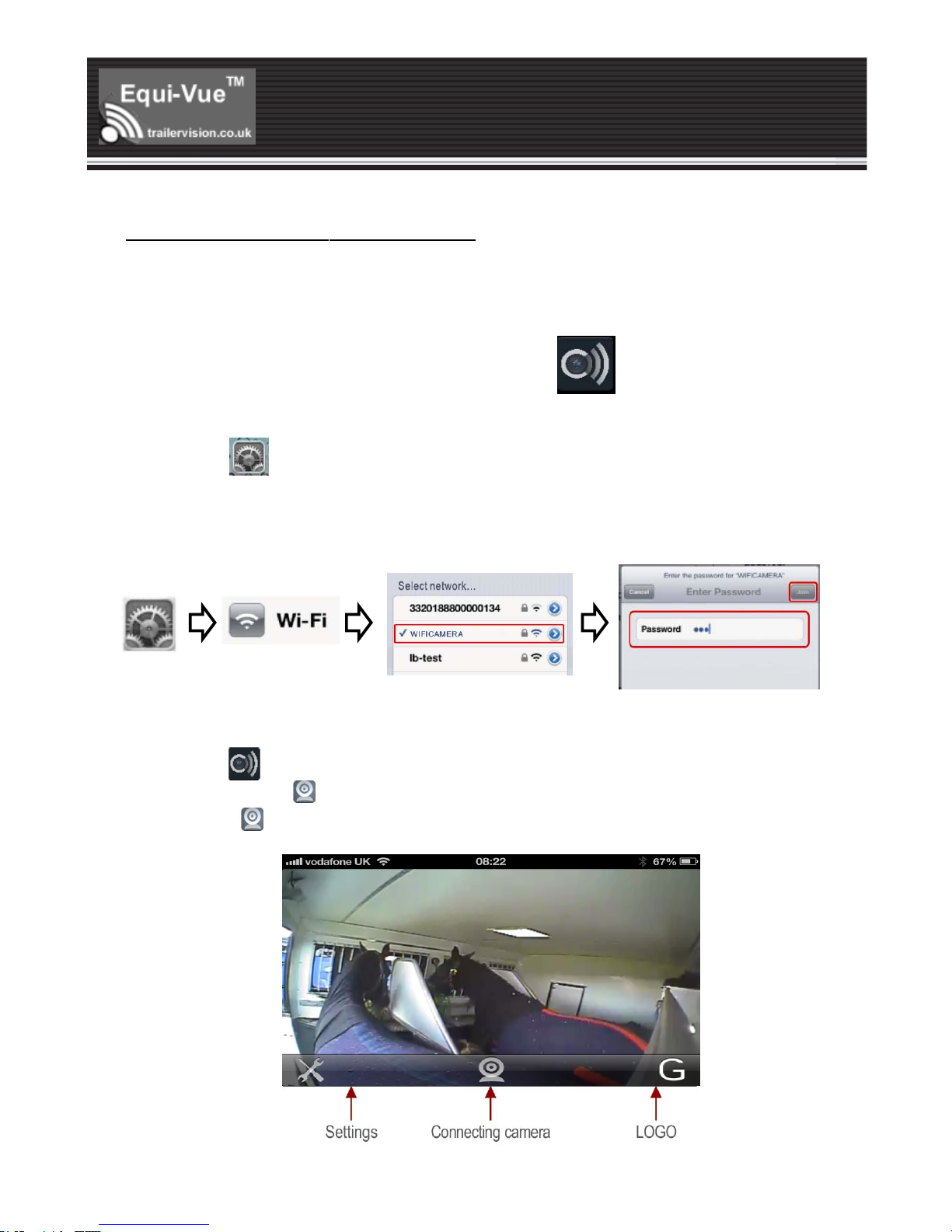
Operating with an Apple Device
Installation of App/software:
1.
Turn on the smart mobile device and enter/open the App Store.
2.
Search for the "Sight WiFi" App and download.
3.
Install the App/software as per the following icon:
Wi-Fi Connection:
1. Click the “
" settings icon in the main menu of the smart mobile device.
2.
Click "Wi-Fi " and select 'WIFICAMERA', and 'connect' to the smart mobile device.
The initial SSID (name) of the device is "WIFICAMERA", then enter the password of
the device (Default password: 88888888). As shown below:
Viewing the video:
5
Trailer Vision Ltd
01733 246473
support@trailervision.co.uk
www.trailervision.co.uk
Open the
App, once connected to the 'Wi-Fi Camera", as detailed above.
If successful, the
icon will be highlighted and the video displayed.
Press the
icon to reverse the image, if required.
Page 6

Settings:
Press the icon to enter the settings menu. To change the default factory
SSID (name) and
password see the box below, clicking
will show whether the
change is successful and clicking
will cancel the new SSID (name).
The specific steps to clear network memory are as follows, then follow the above Wi-Fi
connection method to reconnect to the 'new' network.
6
Trailer Vision Ltd
01733 246473
support@trailervision.co.uk
www.trailervision.co.uk
NoNttiice
•
If the mobile device fails to connect to the 'Wi-Fi Camera', please close any other Wi-Fi connections.
•
Video display 'speed'/delay is dependent on the device CPU/memory, software version & other open Apps/software.
•
If the display is black, or the video is frozen, please exit the App and check whether the Wi-Fi connection is
ok. Re-open the Sight Wi-Fi App.
Notice
•
When the SSID and password are changed, the user will need to 'forget' the network in the "Settings" and then
reconnect to the new (SSID name) network. Otherwi
se a login error will be displayed.
 Loading...