

Page 1
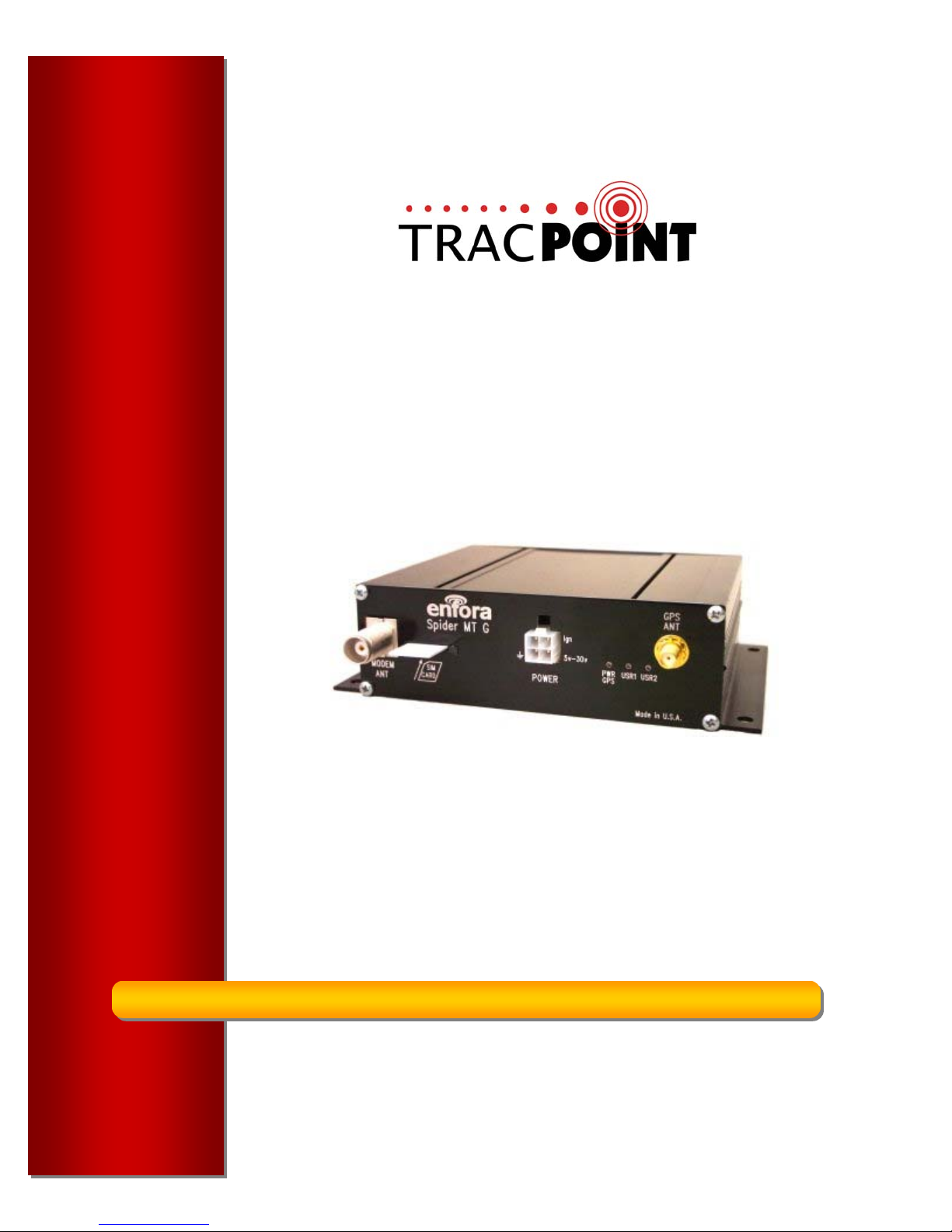
TracPoint MTG Installation Manual
Rev 1.0 April 2005
TracPoint Systems, LP
8930 Fourwinds Drive, Suite 219 San Antonio, TX 78233
www.tracpointsystems.com
Page 2

Warranty Information
TRACPOINT SYSTEMS, LP 12-MONTH LIMITED WARRANTY
Hardware Warranty
TracPoint warrants that the hardware products (the “Products”) shall be free from defects in materials and workmanship for a
period of 12 months from the date of shipment from TracPoint. This warranty is limited to you, the original purchaser of the
product and is not transferable. The warranty set forth in this paragraph shall not apply to software/firmware products.
Software and Firmware License, Limited Warranty
TracPoint software and/or firmware products (the “Software”) are licensed and not sold. Its use is governed by the provisions of
the applicable End User License Agreement (“EULA”), if any, included with the Software. In the absence of a separate EULA
included with the Software providing different limited warranty terms, exclusions, and limitations, the following terms and
conditions shall apply. TracPoint warrants that this Software product will substantially conform to TracPoint’s applicable
published specifications for the Software for a period of ninety (90) days, starting from the date of delivery.
Warranty Remedies
During the 12-month warranty period, TracPoint will repair or replace, at our option, any defective products or parts at no
additional charge provided that the product is returned, shipping prepaid, to TracPoint in accordance with TracPoint’s standard
return material authorization procedures. You are responsible for insuring any product so returned and assume the risk of loss
during shipping. All replaced parts become the property of TracPoint.
During the 12-month warranty period, TracPoint will also provide any software updates, at its option, at no additional charge. Any
additional hardware that may be required to support the upgrade will be quoted as an option at your request.
Equipment add-ons, software modules, or software upgrades purchased or provided at no charge for existing equipment are
warranted for the length of the existing equipment warranty, extended warranty or 90 days (whichever is less).
Warranty Exclusions and Disclaimer
THESE WARRANTIES SHALL BE APPLIED ONLY IN THE EVENT AND TO THE EXTENT THAT: (I)
THE PRODUCTS AND SOFTWARE ARE PROPERLY AND CORRECTLY INSTALLED, CONFIGURED,
INTERFACED, MAINTAINED, STORED, AND OPERATED IN ACCORDANCE WITH THE
MANUFACTURER’S RELEVANT OPERATOR'S MANUAL AND SPECIFICATIONS, AND; (II) THE
PRODUCTS AND SOFTWARE ARE NOT MODIFIED OR MISUSED. THE PRECEDING WARRANTIES
SHALL NOT APPLY TO, AND TRACPOINT SHALL NOT BE RESPONSIBLE FOR DEFECTS OR
PERFORMANCE PROBLEMS RESULTING FROM (I) THE COMBINATION OR UTILIZATION OF THE
PRODUCT OR SOFTWARE WITH PRODUCTS, INFORMATION, DATA, SYSTEMS OR DEVICES NOT
MADE, SUPPLIED OR SPECIFIED BY TRACPOINT; (II) THE OPERATION OF THE PRODUCT OR
SOFTWARE UNDER ANY SPECIFICATION OTHER THAN, OR IN ADDITION TO, TRACPOINT’S
STANDARD SPECIFICATIONS FOR ITS PRODUCTS; (III) THE UNAUTHORIZED MODIFICATION OR
USE OF THE PRODUCT OR SOFTWARE; (IV) DAMAGE CAUSED BY ACCIDENT, LIGHTNING OR
OTHER ELECTRICAL DISCHARGE, FRESH OR SALT WATER IMMERSION OR SPRAY; OR (V)
NORMAL WEAR AND TEAR ON CONSUMABLE PARTS (E.G., BATTERIES, ANTENNA, CABLES).
THIS LIMITED WARRANTY DOES NOT EXTEND TO ANY PRODUCTS AND SOFTWARE WHICH
HAVE BEEN DAMAGED AS A RESULT OF ACCIDENT, MISUSE, ABUSE, OR AS A RESULT OF
SERVICE OR MODIFICATION BY ANYONE OTHER THAN TRACPOINT. EXCEPT AS EXPRESSLY
SET FORTH ABOVE, NO OTHER WARRANTIES ARE EXPRESSED OR IMPLIED, INCLUDING BUT
NOT LIMITED TO, ANY WARRRANTIES OF MERCHANTABILITY AND FITNESS FOR A PARTICULAR
PURPOSE, AND TRACPOINT EXPRESSLY DISCLAIMS ALL WARRANTIES NOT STATED HEREIN.
AS WARRANTED ABOVE, YOUR SOLE REMEDY SHALL BE REPAIR OR REPLACEMENT AS
PROVIDED ABOVE. UNDER NO CIRCUMSTANCES WILL TRACPOINT OR ITS SUPPLIERS BE
LIABLE TO YOU OR ANY OTHER USER FOR ANY DAMAGES, INCLUDING ANY INCIDENTAL OR
CONSEQUENTIAL DAMAGES, EXPENSES, LOST PROFITS, LOST SAVINGS, OR OTHER DAMAGES
ARISING OUT OF THE USE OF OR INABILITY TO USE THE PRODUCTS. TRACPOINT SYSTEMS,
LP IS NOT RESPONSIBLE FOR THE OPERATION OR FAILURE OF OPERATION OF GPS
SATELLITES OR THE AVAILABILITY OF GPS SATELLITE SIGNALS. TRACPOINT SYSTEMS, LP IS
NOT RESPONSIBLE FOR THE OPERATION OR FAILURE OF OPERATION OF RADIO FREQUENCY
CARRIER NETWORKS OR THE AVAILABILITY OF RADIO FREQUENCY CARRIER SIGNALS.
Page 3

Regulatory Compliance FCC
The Spider MT-G has been tested and found to comply with the limits for a Class B digital device,
pursuant to part 15 of the FCC rules. These limits are designed to provide reasonable protection against
harmful interference in a residential installation. This equipment generates, uses and can radiate radio
frequency energy and, if not installed and used in accordance with the instructions, may cause harmful
interference to radio communications. However, there is no guarantee that interference will not occur in a
particular installation. If this equipment does cause harmful interference to radio or television reception,
which can be determined by turning the equipment off and on, the user is encouraged to try to correct the
interference by one or more of the following measures:
- Reorient or relocate the receiving antenna
- Increase the separation between the equipment and receiver
- Connect the equipment into an outlet on a circuit different from that to which the receiver is connected
- Consult the dealer or an experienced radio/TV technician for help.
Disclaimer
The information and instructions contained within this publication comply with all FCC, GCF, PTCRB,
RTTE, IMEI and other applicable codes that are in effect at the time of publication.
TracPoint Systems, LP disclaims all responsibility for any act or omissions, or for breach of law, code or
regulation, including local or state codes, performed by a third party.
TracPoint Systems, LP strongly recommends that all installations, hookups, transmissions, etc., be
performed by persons who are experienced in the fields of radio frequency technologies. TracPoint
Systems, LP acknowledges that the installation, setup and transmission guidelines contained within this
publication are guidelines, and that each installation may have variables outside of the guidelines
contained herein. Said variables must be taken into consideration when installing or using the product,
and TracPoint Systems, LP shall not be responsible for installations or transmissions that fall outside of
the parameters set forth in this publication.
TracPoint Systems, LP shall not be liable for consequential or incidental damages, injury to any person or
property, anticipated or lost profits, loss of time, or other losses incurred by Customer or any third party in
connection with the installation of the Products or Customer's failure to comply with the information and
instructions contained herein.
Page 4

1. Introduction
1.1 About the GSM/GPRS Spider MT-G
The GSM/GPRS Spider MT-G is an Automated Vehicle Locating (AVL) device that utilizes a
GSM/GPRS modem and a Global Positioning Satellite (GPS) module. Working together, these
technologies allow the Spider MT-G to simultaneously act as a stand alone GPS reporting device and
wireless data retrieval unit. The Spider MT-G provides a flexible AVL solution with user definable
Input/Output (I/O), six selectable National Maritime Electronics Association (NMEA) GPS data format,
Trimble ASCII Interface Protocol (TAIP) GPS data format, and Enfora’s own proprietary Binary GPS data
format. The Spider MT-G is designed to work in a stand-alone mode as well as with computing device
operating Windows 98 SE, NT 4.0 (service pack 6), 2000 Professional, ME, and XP Professional
operating system. Enfora’s Spider MT-G provides maximum AVL versatility in a single affordable device.
1.2 About This Manual
Contained in this manual are instructions on how to install and configure the GSM/GPRS Spider MTG.
Please follow the instructions herein closely to avoid damaging the GSM/GPRS Spider MT-G.
1.3 Contents of Basic Package
• MTG mobile unit
•
3-wire power cable
• User installation guide
1.4 Spider MT-G Front and Back View
Figure 1 - Spider MT-G Front View
Figure 2 - Spider MT-G Back View
Page 5

2. Product Specifications
Page 6

3. Installation
Instructions provided in this section describe the hardware installation of the Spider MT-G device. To
install the Spider MT-G in a vehicle, follow these steps:
3.1 Prior to Installing the Unit
• Read this manual in its entirety and become familiar with the size and dimensions. To avoid personal injury or
damage to the unit, ensure that all steps are followed carefully.
• Before installing the unit, check all electrical functions of the vehicle to include A/C, gauges, AM/FM stereo, etc.
• Become familiar with the physical dimensions of the unit, the power cable coding, and the antenna cables.
• Become familiar with the vehicle’s electrical power system, dashboard construction and paneling, and the vehicle’s
interior. You are looking for a place to mount the unit and checking to see how the cables will be routed and to what
power source
• Place the unit on a test bench and power on the modem by connecting the supplied power cable to the unit
with 12VDC. Make sure you receive a power light and USR1 light turns green. This will ensure that the modem is
programmed and ready for installation and that the unit is operating prior to install.
3.2 Selecting a suitable location
Power
The MTG unit supports a power source that ranges from 6V-30V. Determine the power source for the main power,
preferably to the electrical distribution center on the vehicle or a battery pick-off point. Also determine what source of
power will be used to supply an ignition sense voltage to the unit. Preferably, this will come from a fuse tap in the
fuse panel of the vehicle that supplies a clean 6-30V when the vehicle engine is on and no voltage when the engine is
off. Use a manufacturer specified vehicle ground point for the ground input to the modem.
• Do not tap into vehicle manufacturer cable lines or harnesses that supply vehicle equipment
• Do not surpass the declared fuse rating of 3A
• Install the fuse as close to the power source as possible
Modem Unit
Determine the location of the modem unit. Most units can be conveniently mounted under the steering column or in
the dash for most passenger vehicles, vans, and trucks. For heavy trucks and equipment, choose a location that is
interior to the vehicle and has a solid surface.
• Avoid locations that might expose the device to excessive heat or moisture
• Do not mount the modem unit within 12 inches of the vehicle or ABS computer
• The location chosen should not require the unit to be modified
• Ensure the location is not subject to extreme vibration
Antenna
Antenna location is critical for optimum performance and location accuracy. Inspect the vehicle body and choose a
location that has an unobstructed view from the sky. GPS signals can penetrate through plastic, glass, and
fiberglass. GPS signals do not penetrate through metal or dense materials.
• Mount the antenna horizontally so it is facing the sky
• Mount the antenna at least 18” from any other antennas
• Avoid location that are shielded from satellite signals such as overhead racks
• Choose a location that allows for access both above and below the mounting surface
• Choose a location that is within the cable length of the modem unit
3.3 Equipment Installation
Upon determining the location for power, the antenna, and the modem unit, proceed to install the equipment.
Modem
Proceed to install the modem unit in the pre-determined location in a manner that the antenna and power cable can
be easily installed.
• Hold the Spider MT-G in place and mark the location for mounting screw holes
• Using the markings as a guide, drill mounting holes in those positions
• Align the Spider MT-G in the drilled holes and secure it with mounting screws
OR
• Affix the modem to a dashboard support brace using wire tires or double sided tape
Page 7

The Spider MT-G is NOT a waterproof or sealed
device. Care must be taken to ensure the device
kept away from water or any other liquids.
Figure 3 - Mounting dimension of a Spider MT-G
Antenna
Proceed to install the antenna in the pre-determined location. Disconnect power to the modem unit if already
connected before connecting the antenna. Route all antenna cables through vehicle channels, in the headliner,
underneath the carpet, and behind the vehicle panels. The antenna should be mounted horizontally without
obstruction to the sky.
Care needs to be taken when connecting the antenna since the right type of antenna will be required for proper
operation of the modem. The antenna connector on the GSM/GPRS Spider MT-G model is a TNC female connector.
The antenna has to be connected to the connector labeled “MODEM ANT”. See Figure 8 – GSM
Page 8

Figure 8 - GSM Antenna Connection
The GPS receiver inside the Spider MT-G powers the preamplifier in the GPS antenna (Active-style) by applying a
power of 3.3 Volts to the center conductor of the RF input to the GPS receiver. If a passive-style GPS antenna must
be used, please verify that it has a DC block installed in order to prevent shortening to ground. GPS antenna
connector on the Spider MT-G model is a SMA female connector. The GPS antenna must be placed in an area
where it can have direct view of the sky.
The GPS antenna must be connected to the connector labeled “GPS ANT”. See Figure 9 - GPS
Antenna Connection.
• All cables should be installed in such a way that reduces cable stress
• Do not cut, modify, tightly bend or fold the cables
• Do not tightly roll the excess antenna cable
• Do not connect the antenna cables with power supplied to the modem, damage may occur
Power
Proceed to install the power cable in the pre-determined location. Main power (red cable) should be routed to the
vehicle battery distribution point. Ignition sense power (white cable) should be routed to the vehicle ignition-switched
battery pickoff point in the vehicle fuse box. The ground wire (black cable) should be connected to a manufacturer
specified ground point.
Red - 6-30V DC current (Fuse at 3A)
Black - Common/Ground
White - Vehicle Ignition Sense (Fuse at 3A)
Figure 9 - GPS Antenna Connection
Page 9

Figure 10 - Power Connection
• Install a 3A fuse in-line to both main power and ignition lines
• Route the power cable from the modem unit to the power point, remove excess power cable
• Connect the main power, ignition power and ground before connecting to the modem unit
3.4 LED Operation
Upon completing the installation of the modem unit, antenna cables, and connecting power, ensure the
following LED’S are all lit. The power light will be on once power is applied. The USR1 light will blink for
a few seconds after power is applied and then should stay lit indicating the modem has powered up and
is registered on the GSM network. The USR2 LED indicates when a GPS fix has occurred and will stay
lit. It will be necessary to move the vehicle outside with line-of-sight to the sky to obtain a GPS fix. This
may take up to 3 minutes to obtain a fix if the modem has never been used or if the unit does not have a
valid last known GPS position. If the unit does have a last known position, the acquisition process should
take less than 1 minute.
PWR: Indicates power to the modem. LED is on when power is turned on and the
modem is operational. LED is off when power is removed or when the modem
enters low power mode.
User LED 1: This LED can be configured to display registration, GPS fix status, or other user
functions. By default, this LED indicates GSM/GPRS registration status. LED
state of OFF indicates that the device is not attempting to register to the network.
Blinking LED indicates that the device is trying to connect to the network. LED
always ON indicates that the device is attached to the network.
User LED 2: This LED can be configured to display registration, GPS fix status, or other user
functions. By default, this LED indicates GPS fix status. The LED remains in OFF
state when invalid GPS data is received. The LED remains ON when valid GPS
data is received.
3.5 Complete Installation
Upon completing installation of the modem, antenna, and power cables, ensure that all mounts and
connections are properly secured and that all cables are secured with wire ties or loom. Ensure that all
vehicle systems are tested and functioning properly. Vehicle should be outside and allowed to obtain a
GPS fix for at least 5 minutes. It may be convenient to complete the vehicle installation worksheet during
this time.
Contact a technical support representative from TracPoint at (800)578-3085 to confirm the unit is on-theair and reporting its current position once a GSM network registration AND GPS fix have occurred as
indicated by the USR1 and USR2 LEDs.
Page 10

4. Technical Support
If you have a problem and cannot find the information you need in this manual, please contact your local
dealer or TracPoint technical support for assistance.
Website: http://www.tracpointsystems.com
Phone: (800)578-3085
Email: support@tracpointsystems.com
Before contacting technical Support, please have your modem’s International Mobile station
Equipment Identity (IMEI) number and vehicle installation worksheet ready for the Technical Support
representative. If you did not record the IMEI number, you can find this on a label on the TracPoint MTG
unit.
 Loading...