

Page 1
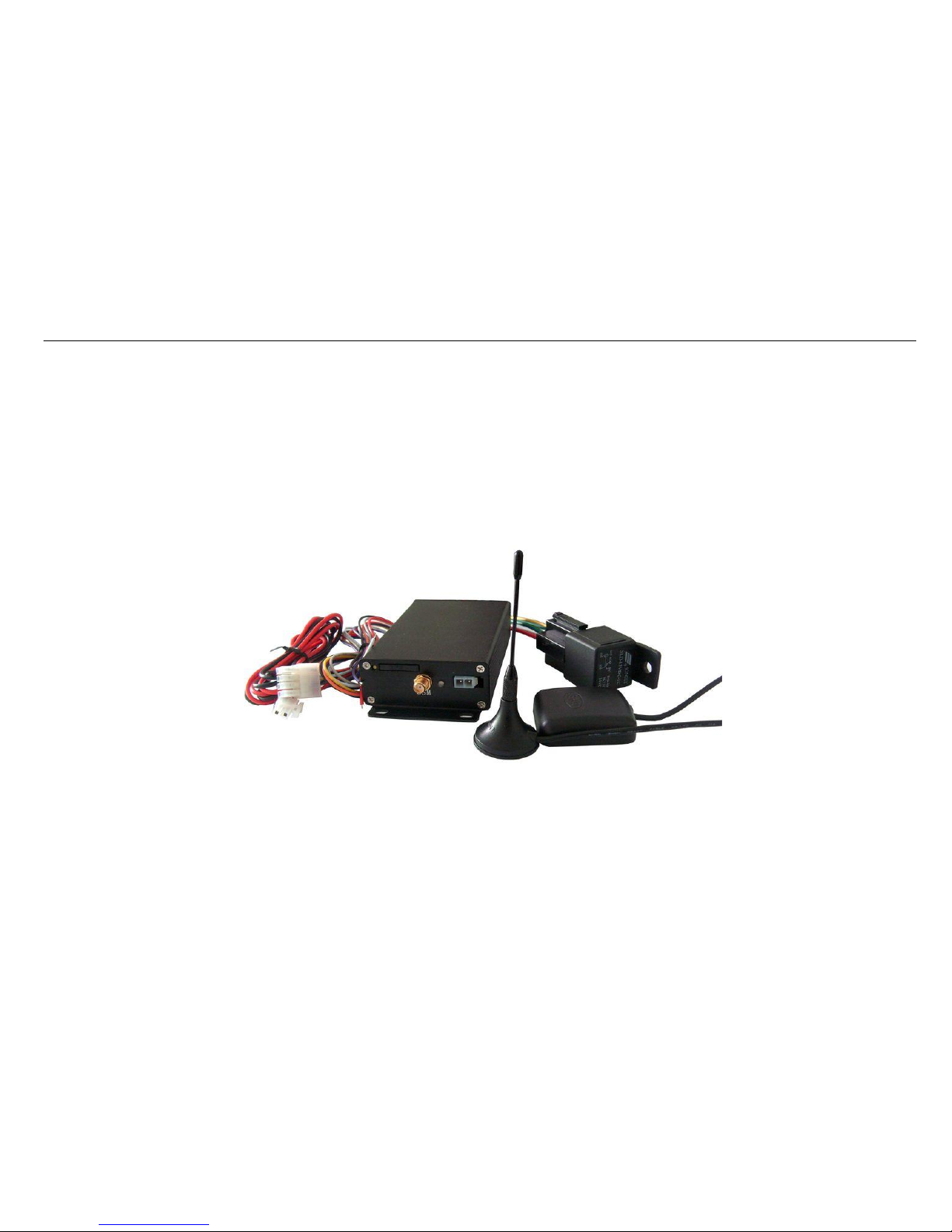
GPS/GPRS/GSM vehicle tracking system
- 1 -
EV601 USER GUIDE
GPS/GPRS/GSM VEHICLE TRACKING SYSTEM
Page 2

GPS/GPRS/GSM vehicle tracking system
- 2 -
1, Product Overview
Thank you for using GPS/GPRS/GSM Vehicle Tracking system. EV-601 is a vehicle tracking device with built-in GPS and GSM modules with compact size. It is
based on the existing GSM/GPRS network and GPS satellites. Not only does the GPS tracker transmit the longitude and latitude coordinates to your cell phone
via SMS, it can also transmit the longitude and latitude coordinates to a designed web tracking server by GPRS and then di splay the location on specific map
software through Google earth.
Hardware Features:
◆ Real time tracking by SMS or GPRS.
◆ GSM/GPRS simultaneously.
◆ Auto Tracking by time interval (via SMS).
◆ Reply map link of current position.
◆ Reply SMS with street name.
◆ Unit password setting.
◆ External power lost alarm.
◆ Back-up battery low alarm.
◆ Geo-fencing alarm.
◆ Firmware upgrade over the air.
◆ Over speed alarm.
◆ Coordinate saving.
◆ Movement alarm.
◆ Voice wiretapping.
◆ Stop Engine/Oil.
◆ User defined by SMS.
◆ I/O ports trigger alarm.
◆ SOS emergency alarm.
◆ Build in 8MB flash memory, save 60000 points.
◆ GPRS blind area data re-upload to server.
Page 3
GPS/GPRS/GSM vehicle tracking system
- 3 -
2, Getting Start, Please follow me!
2.1 Hardware and Accessories:
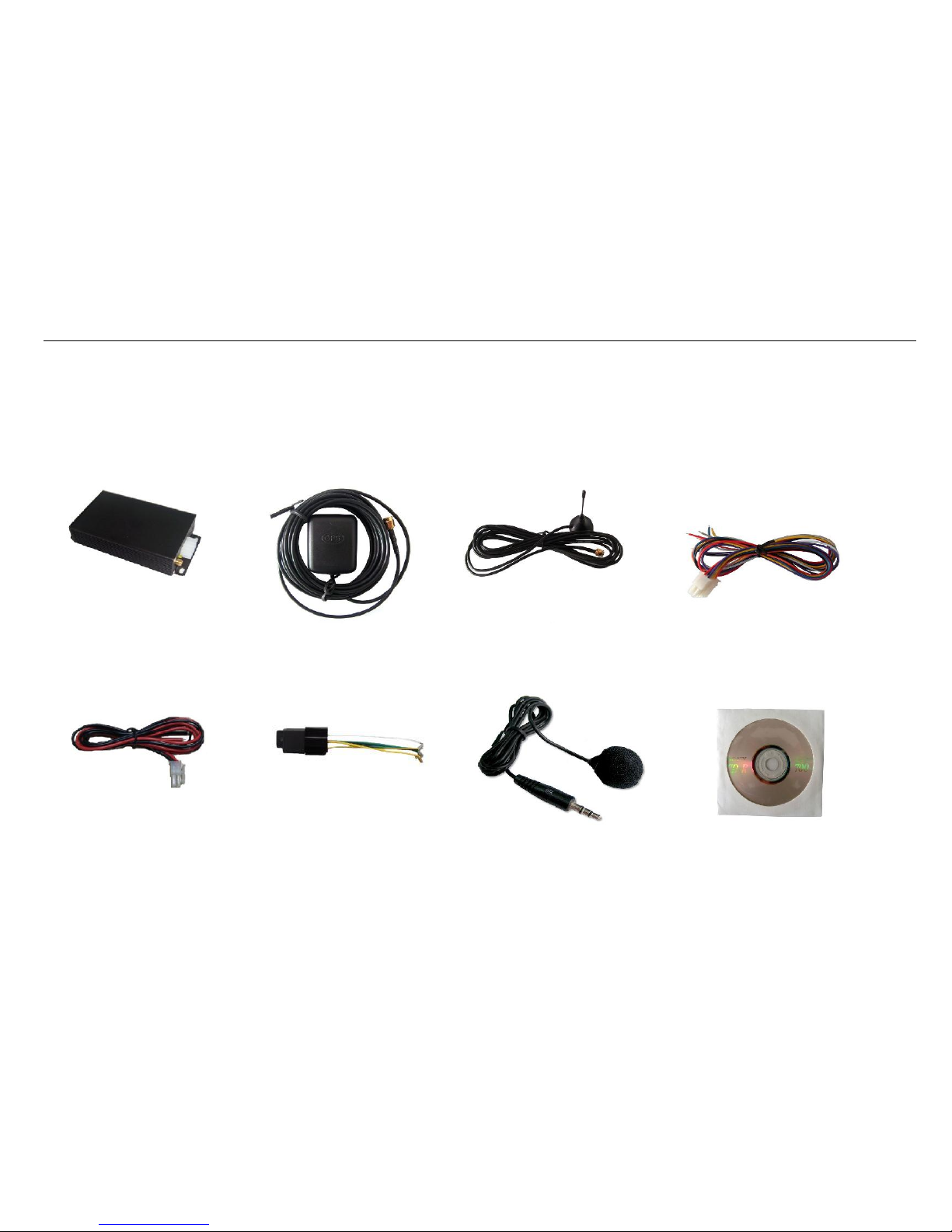
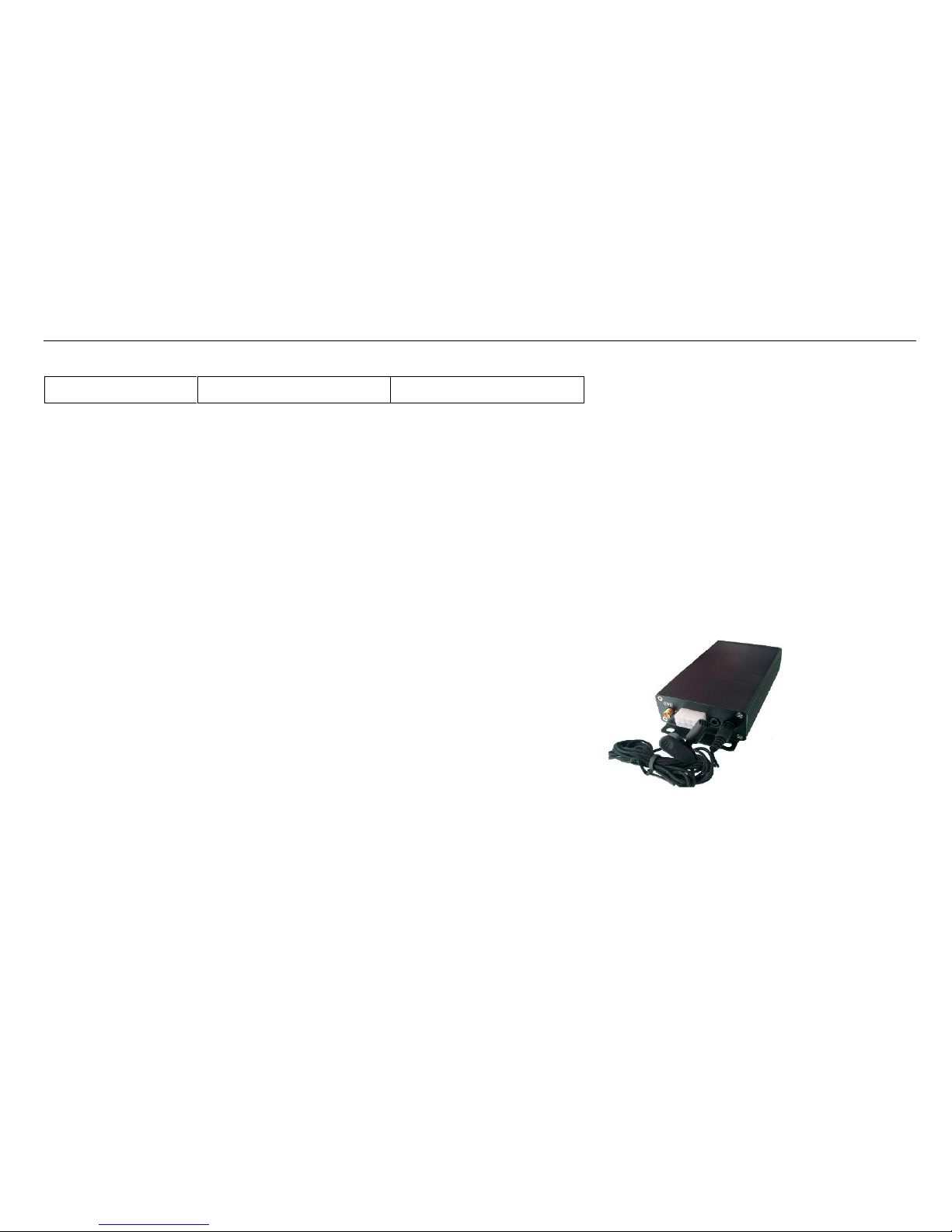
EV-601 is supplied in a box which includes:
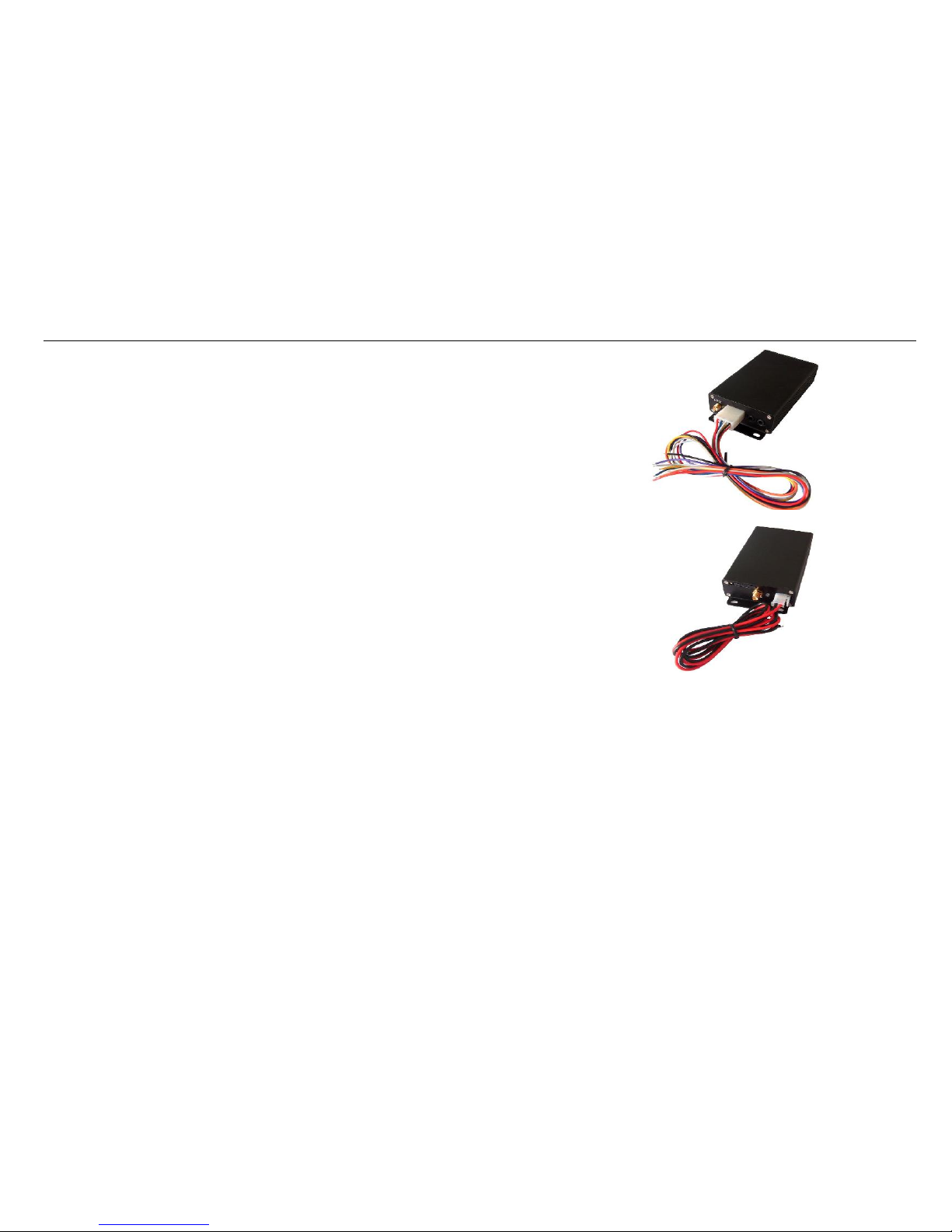
EV601 with back-up battery GPS Antenna GSM Antenna 8pin cable
Power cable Relay Microphone CD
Page 4
GPS/GPRS/GSM vehicle tracking system
- 4 -
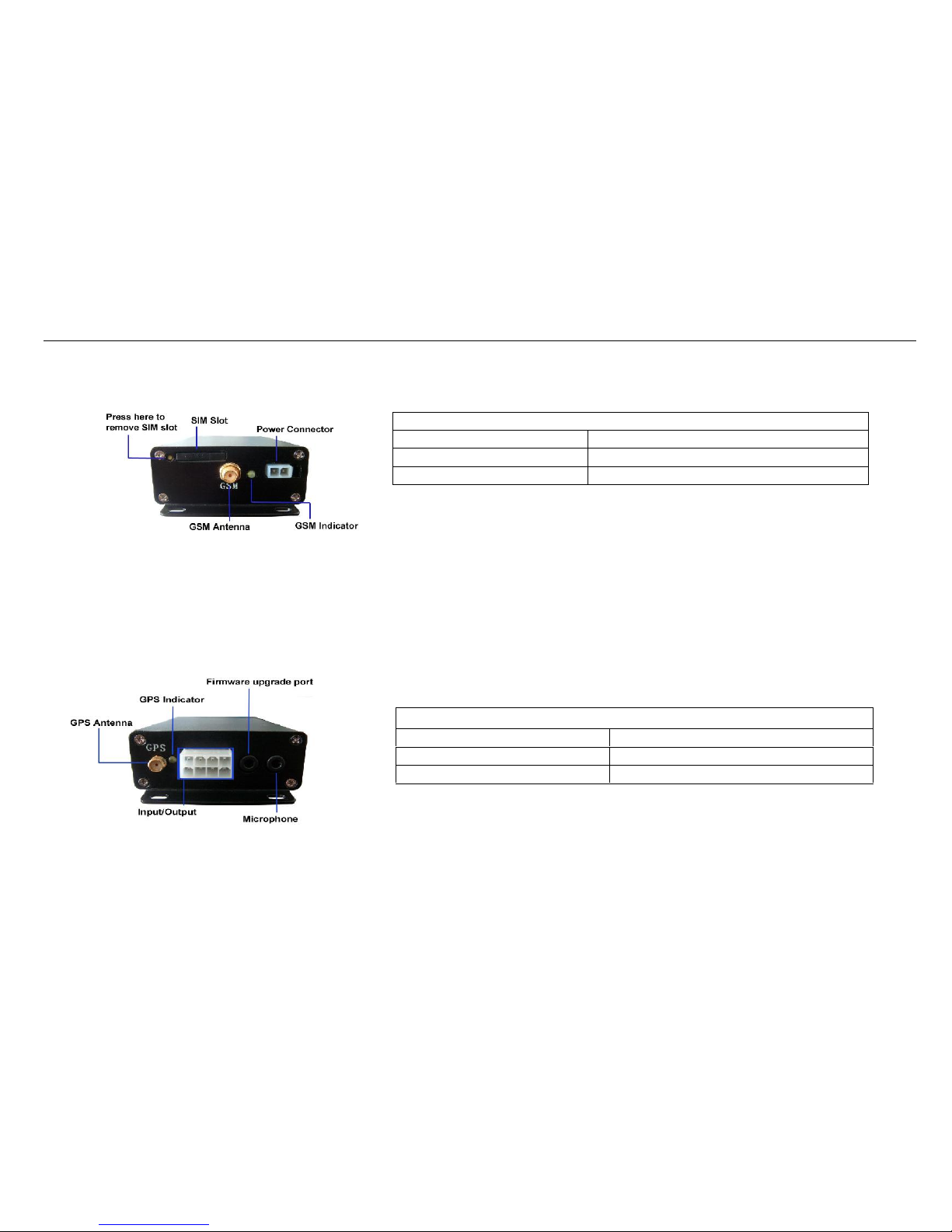
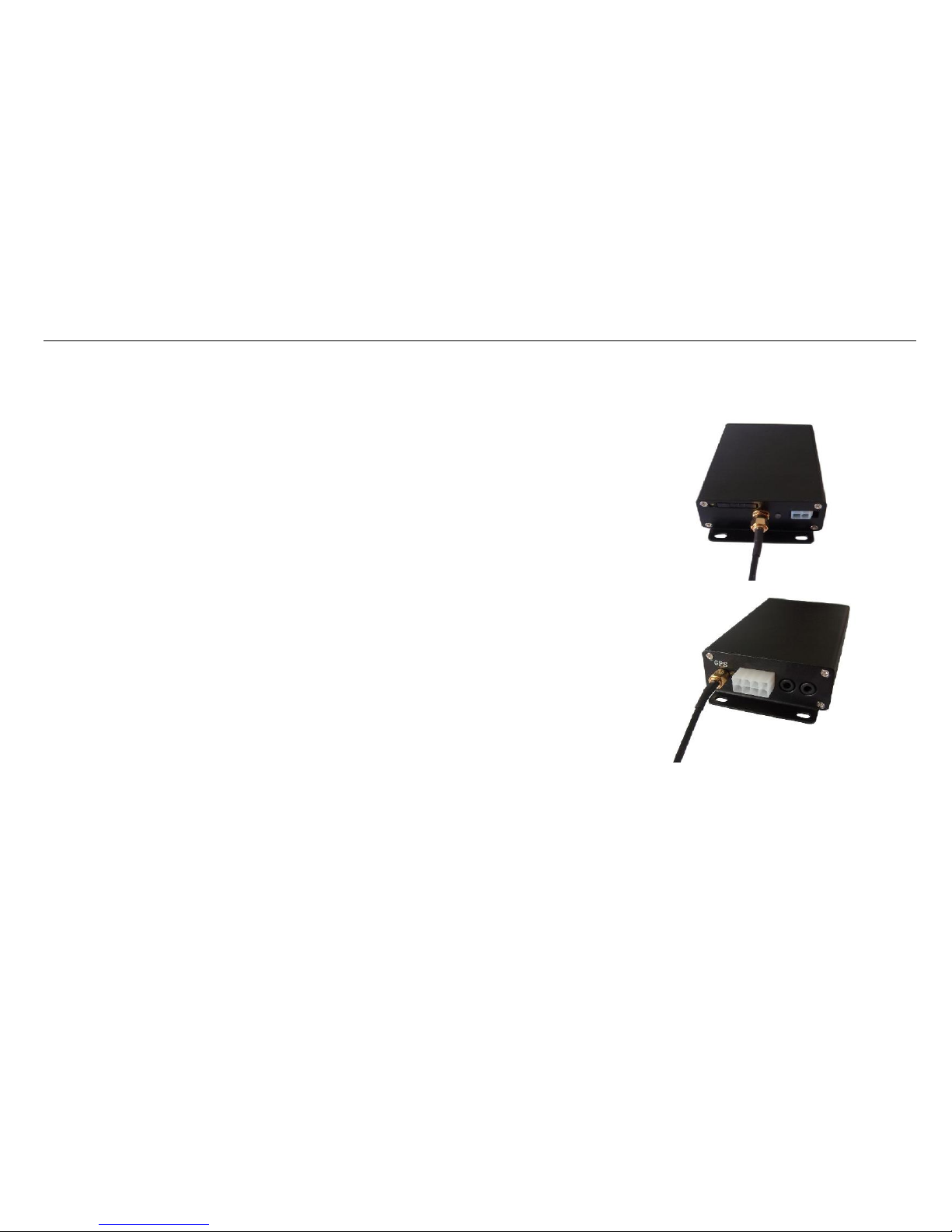
2.2 View
GSM LED (Green)
Dim for 5 times
The unit is being initialized
Flashing(every 3 seconds)
EV601 is connected to the GSM network
Flashing(every 0.1 second)
EV601 is not connected to the GSM network
GPS LED (Yellow)
Dim for 5 times
The unit is being initialized
Flashing(every 3 seconds)
EV601 has a GPS fix
No flashing
EV601 has no GPS fix
Page 5
GPS/GPRS/GSM vehicle tracking system
- 5 -
2.3 Connection and Installation:
※ Your GPS Tracking Device can be installed quickly and easily by a qualified Auto Electrician.
2.3.1 Ensure that your EV-601 has a working SIM installed.
※ Test before replacing all paneling.
※ Check the SIM card has not run out of credit.
※ please ensure pin number on SIM card is disabled.
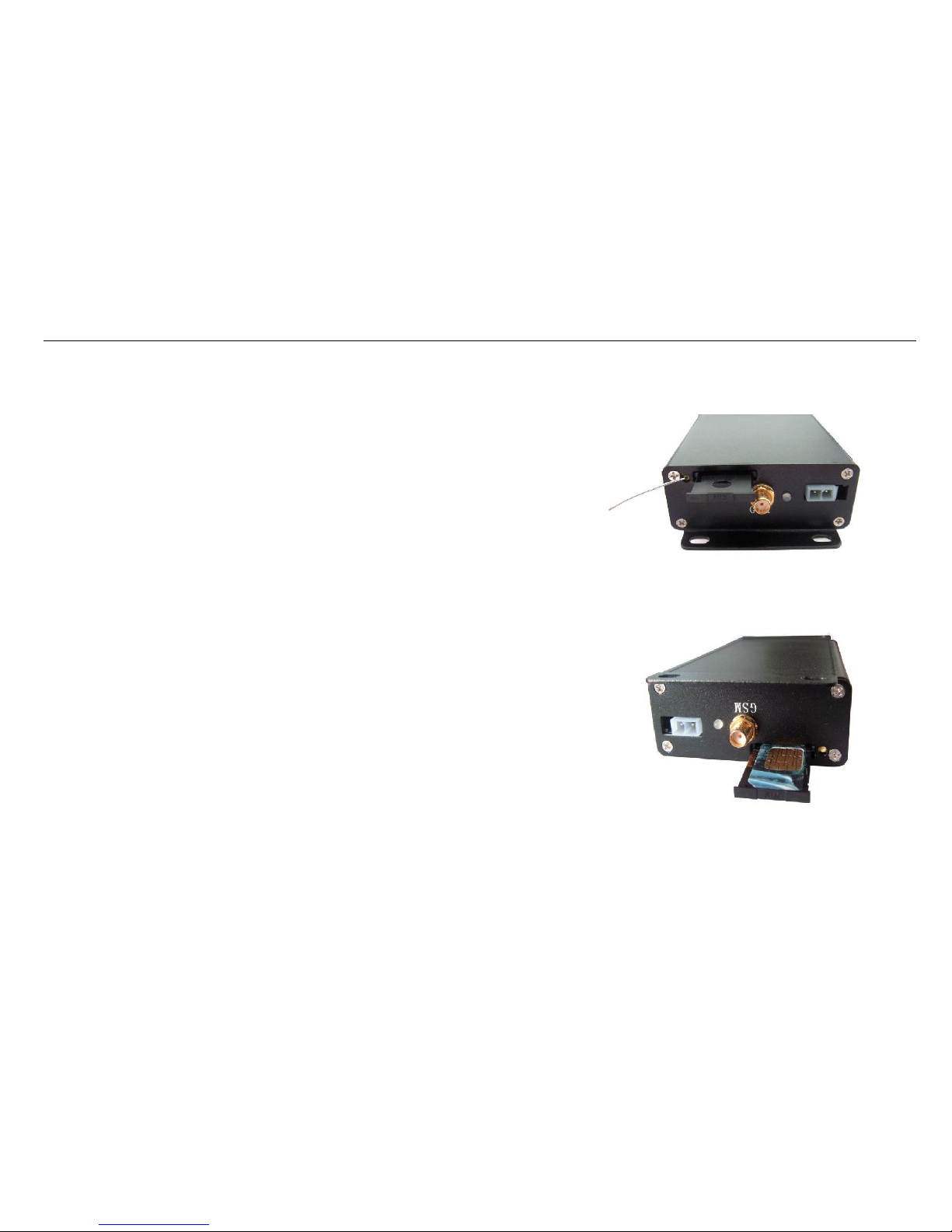
Install the SIM card.
※ Press yellow button to eject the SIM card holder and put SIM card on SIM card holder.
※ Insert the SIM card holder to the device correctly.
Page 6
GPS/GPRS/GSM vehicle tracking system
- 6 -
2.3.2 Connect GSM&GPS antenna.
Connect the GSM antenna to EV601.
※ The GSM antenna comes in two parts. They must be firmly screwed together to receive a strong
signal. This antenna is not all weather but it can receive a signal through metal. A good position for
this antenna is to run the wiring behind the corner post of the vehicle and locate the antenna in
the hood lining behind the sun visor. Once again only screw wiring to device by hand as damage
could be caused by the use of a spanner.
Connect the GPS antenna to EV601.
※ The GPS antenna is an all weather unit and is magnetized for easy attachment.
※ The signal for the GPS cannot penetrate steel, only plastic so the GPS antenna must be located in
an open position. The best location is under the plastic panel near the windscreen wipers or on the
inner panel near the hinge of the hood. The lead from this antenna needs to go through the fire
wall and screw to the device firmly by hand only (Do NOT use a spanner or similar device).
Page 7
GPS/GPRS/GSM vehicle tracking system
- 7 -
2.3.3 Inputs and outputs cable connections must be firm and reliable. The unused electrical wire
should be probably insulated.
2.3.4 Connect the power cable to EV601.
※ Input power: 6-30VDC (With polarity protection – The system won’t be damaged by wrong
polarity input but it won’t work)
2.3.5 The device should be installed in a position where it cannot be detected. A suitable position is
to mount the device around the steering column under the dashboard secured by two cable ties.
Wherever you locate the device it should be kept dry, away from excess heat and subject to
minimum vibration.
3 Usage
3.1 GPS information.
The “GPS INFO” means: DATE: 08-09-26(YY/MM/DD); TIME: 15:33:26(HH/MM/SS); LAT: 22.21326446N; LOT: 113.45199584E; Speed: 000.0
3.2 To set the Authorized Number
※ It is not mandatory for all three of the authorized numbers to be set, however a minimum of one must always be set.
Page 8

GPS/GPRS/GSM vehicle tracking system
- 8 -
3.2.1 Set up the 3 authorized mobile phone numbers to track the device.
(Default Password: 123456)
① Command: Password +A +1
Example: 123456A1
※ Using your mobile phone, send the following text message to the SIM card phone number: The letter “A” in caps lock followed by 1 (1 is the code used to
register the phone number of the SIM card used to send the SMS), with no spaces in the text, After sending SMS command to the device, it will reply you a
message with following informations:
·1 TEL. OK! +GPS INFO
※ To delete this number from stored memory, you can send password+A+0 to the tracker.
②Command: Password +B+1
Note: B must be in capital form.
Example: 123456B1
The device will reply you a message with following information: ·2 TEL. OK! +GPS INFO
※ To delete this number from stored memory, you can send password+B+0 to the tracker..
③Command: Password +C+1
Note: C must be in capital form
Example: 123456C1
The device will reply you a message with following information: ·3 TEL. OK! +GPS INFO
※ To delete this number from stored memory, you can send password+C+0 to the tracker.
※ Only Number A can delete all the three numbers. Number B and C can delete themselves but cannot delete Number A.
Page 9

GPS/GPRS/GSM vehicle tracking system
- 9 -
3.3 Change password:
Command: Old password + H + new password
Example: 123456H666666
Note: H must be in capital form, send it to EV601 to change your password.
The password now is changed to 666666
※ The pre-set password won’t be erased by changing a new sim card.
※ Be sure keep the new password in mind, otherwise you have to ask your distributor to restore the original setting in case of losing the new password.
※ Make sure the new password is in 6 digits, or else the tracker can not recognize the password.
4. Modify the Time zone:
Command: Password+L+ +00/-00
Note: the time must amounts be in 2 digits and at maximum 23 hours in value. “+” in the “time zone” portion of the text indicates east. The symbol “-“ in the
“time zone” indicates west.
Example: 123456L+02, the system will add 2 hours based on the UTC time.
123456L-02, the system will minus 2 hours based on the UTC time.
※ Default time of the tracker is UTC time.
5. Add user name in SMS content:
Command: Password+U+1, user name
Note: U must be in capital form, send it to EV601 to add user name in SMS content.
Example: 123456U1,Mazad, the tracker will reply “Mazad+GPS info!xxxxxxxx”
Page 10
GPS/GPRS/GSM vehicle tracking system
- 10 -
6. Locate the car position:
6.1 Track on Demand- Reply with Latitude, Longitude.
Command: Password +F
Note: F must be in capital form, send it to EV601 to acquire GPS information.
Example: 123456F
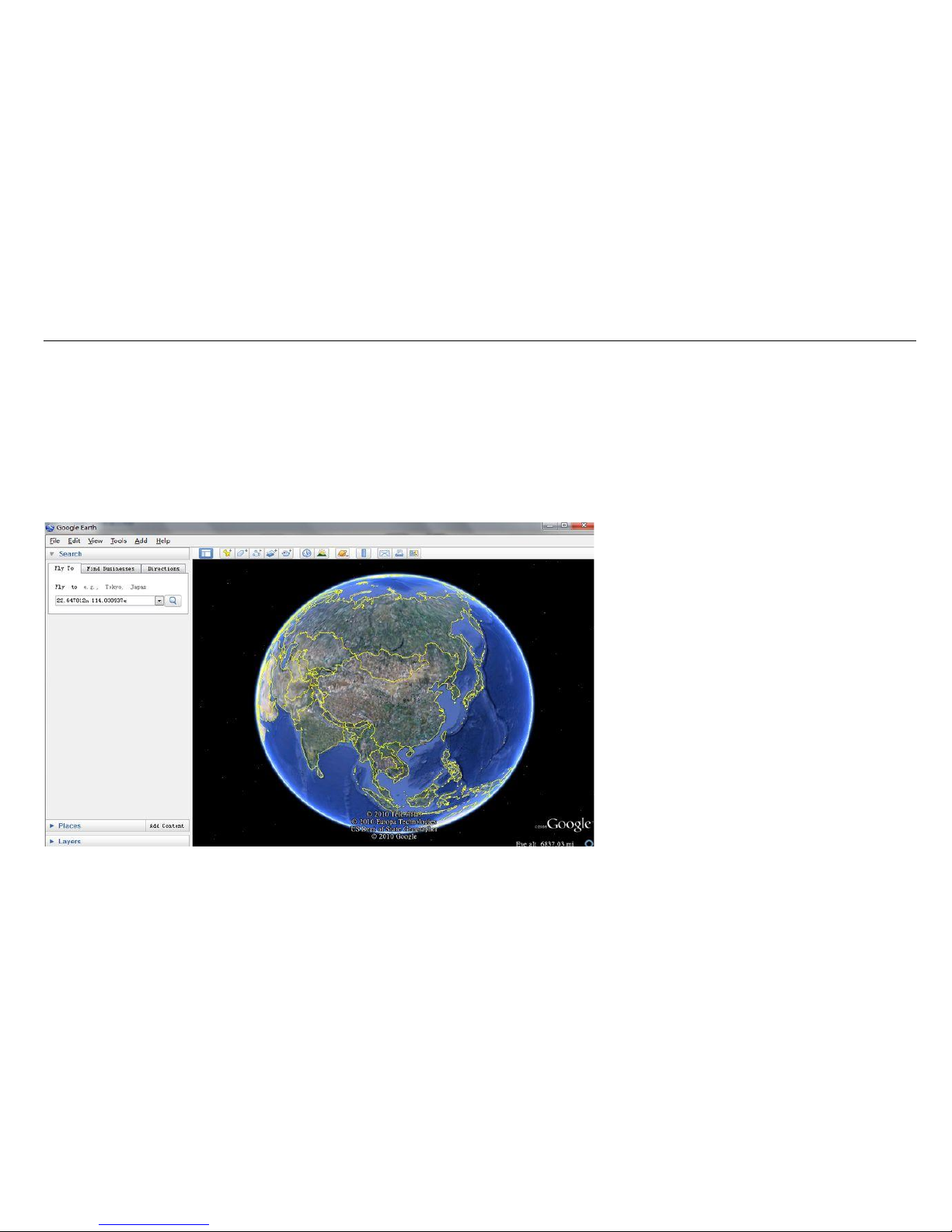
The device will reply “GPS Info! Date: xxxxxxx; Time: xxxxxxxxx; LAT: xxxxxxxxxx; LOT: xxxxxxxxxx; Speed: xxxxxx
Put position latitude and longitude to Google earth or Google maps. Click on search button, then you will find the position fixed.
Page 11
GPS/GPRS/GSM vehicle tracking system
- 11 -
6.2 Track on Demand- Reply with Coordinates and Web Link.
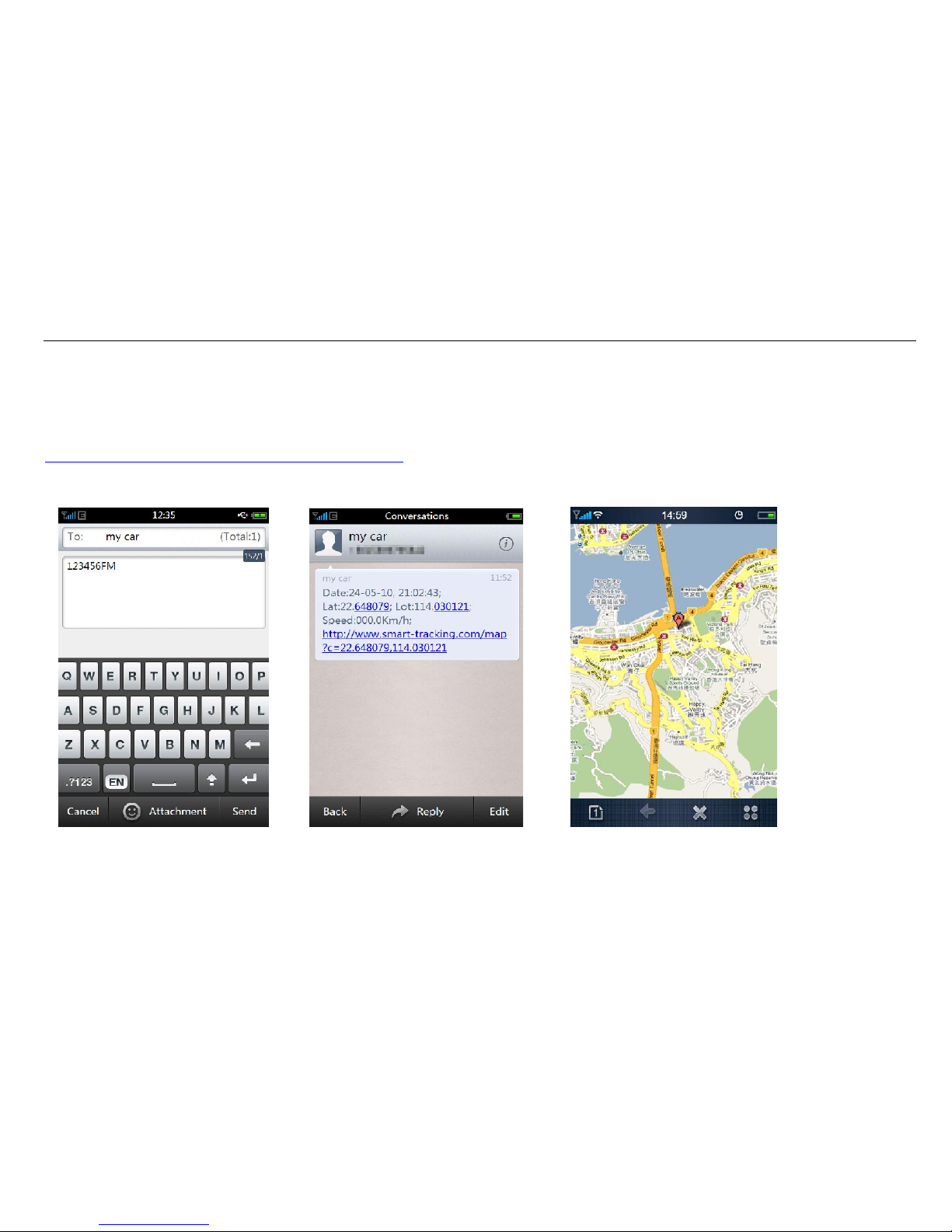
Command: Password +FM
Note: FM must be in capital form, send it to EV601 to acquire Location Link.
Example: 123456FM
The device will reply “Date: xxxxxxx; Time: xxxxxxxxx; LAT: xxxxxxxxxx; LOT: xxxxxxxxxx; Speed: xxxxxxkm/h;
http://www.smart-tracking.com/map?c=22.648079,114.030121
Click on the link then the location can be shown directly on Google Map on your mobile phone.
Page 12
GPS/GPRS/GSM vehicle tracking system
- 12 -
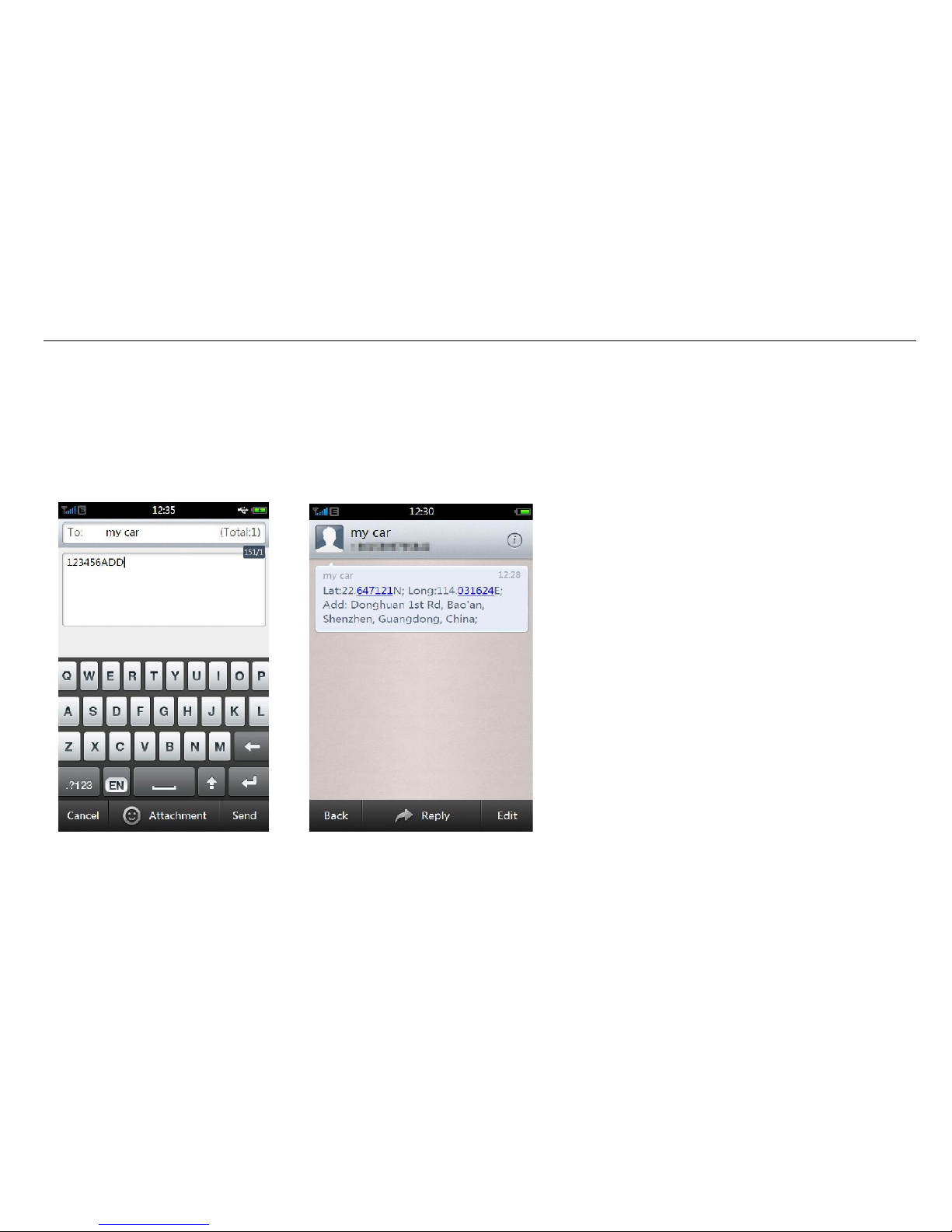
6.3 Track on Demand- Reply with Coordinates and Real Address.
Command: Password +ADD
Notes: ADD must be in capital form, send it to EV601 to acquire real address. This Function needs GPRS function support!
Example: 123456ADD
The device will reply “LAT: xxxxxxxxxx; LOT: xxxxxxxxxx; Add: Donghuan 1stroad, Bao’an, Shenzhen,Guangdong,China;
Page 13
GPS/GPRS/GSM vehicle tracking system
- 13 -
7. Low battery alarm:
Note: When the tracker’s voltage is lower than 30%, it will send a SMS alarm “BAT: LOW! + GPS INFO” to all preset numbers.
8. Check preset mobile phone numbers & status:
Command: Password +G
Note: G must be in capital form, send it to EV601 to check the preset mobile numbers & status.
Example: 123456G
The device will reply E.g. Telephones: A+8613812345678 B13912345678 C13712345678; Speed: 095,1; GEO-F: 0; Coord-Sv: 1; Auto Track: 0; Ext-Power: 1;
Listen-in: 0; GPRS: 1; Bat: 100
To recognize the meaning of “0”& “1”
The number “0” implies that the function is turned off; whilst “1” indicates that the function is turned on.
9. GEO-FENCE Alarm:
Command: Password +I+1,+latitude,+longitude, +latitude,+longitude
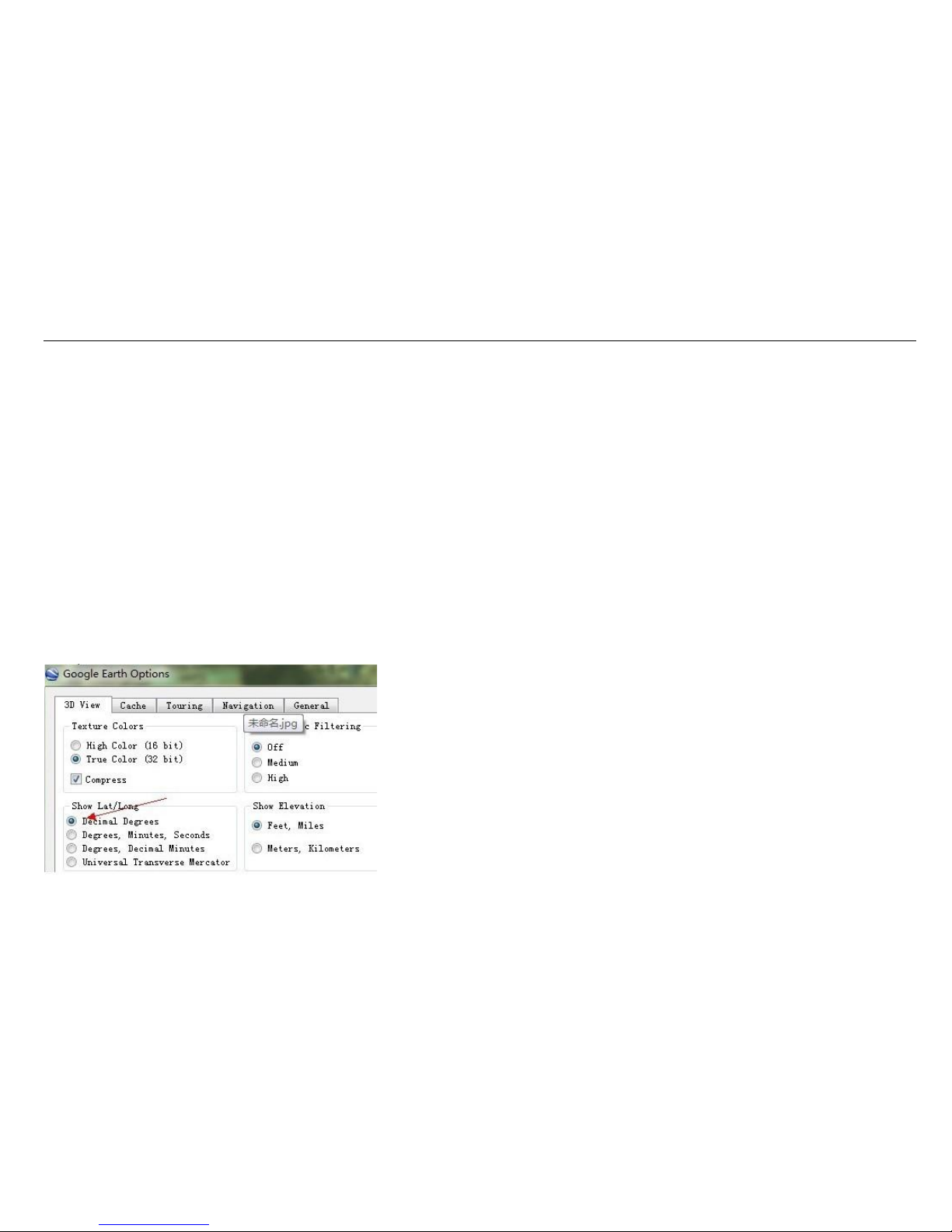
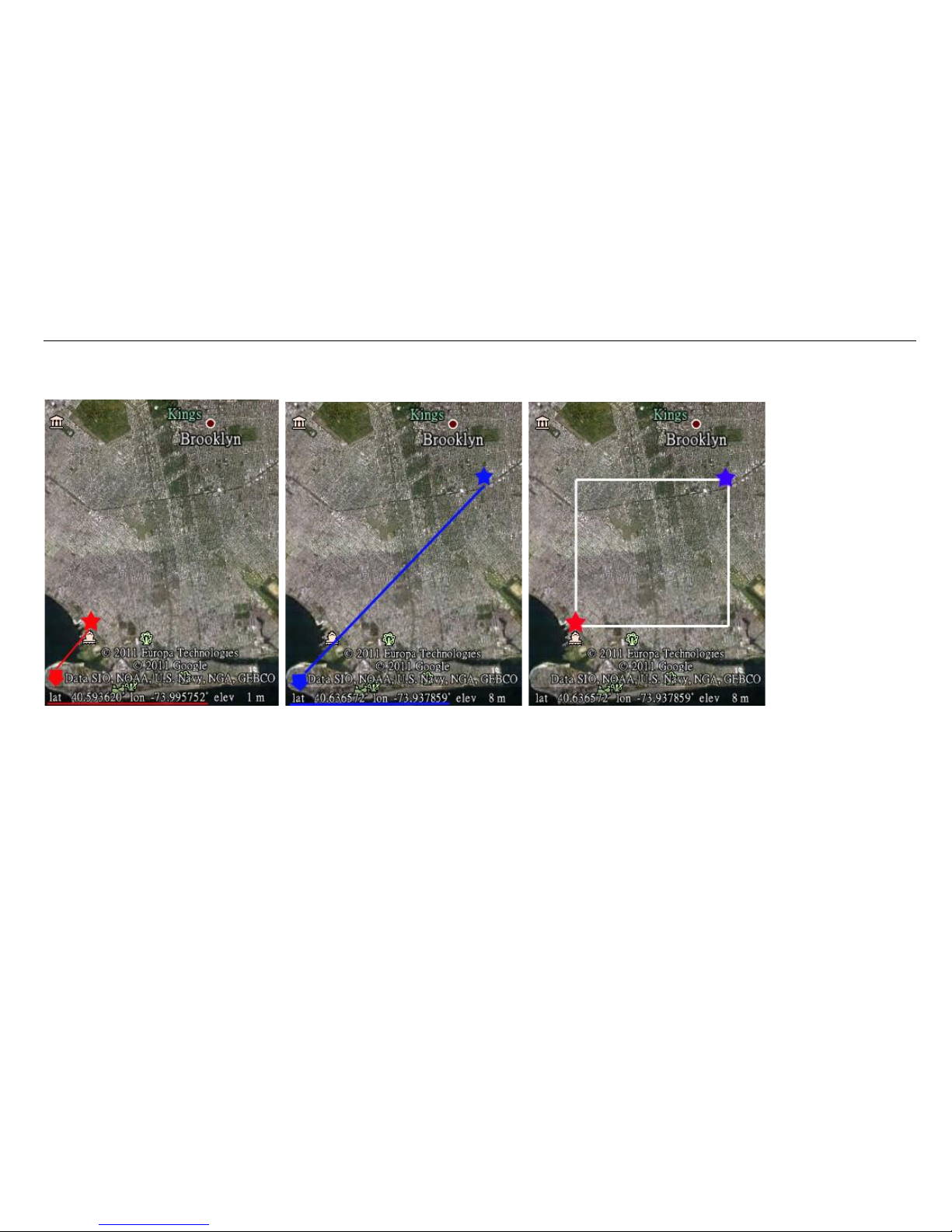
Notes: “I” must be in capital form. The co-ordinates format of Google Earth has to be changed to Decimal Degrees. The first latitude & longitude is coordinate
of the left-bottom corner of the GEO-FENCE, while the second latitude & longitude is the coordinate of the right-top corner.
Page 14
GPS/GPRS/GSM vehicle tracking system
- 14 -
Example: 123456I1,40.593620,-73.995752,40.636572,-73.937859
Set up a geo-fence for the device to restrict its movement within a district. The device will send the message to the authorized numbers as “Geo Alarm!+geo
info” when it breaches the district.
To turn off this function, please send Password+I+0 to the EV601.
10. Over-speed alarm
Command: Password +J+1,+ Speed
Notes: J must be in capital form. The speed must be in value of speed and in 3 digitals. Default setting of over-speed alarm is 95km/h.
Example: 123456J1,090
Suppose the over-speed alert that we want to set is 90km/h, when the vehicle moves exceeds 90km/h, the device will send message “Over-speed! +GPS INFO”
to all preset numbers.
To turn off this function, please send Password+J+0 to the device.
Page 15

GPS/GPRS/GSM vehicle tracking system
- 15 -
11. GPS signal lost and recovery alert:
Command: Password+K+1
Note: K must be in capital form.
Example: 123456K1
The device will automatically send the latest available GPS informations to the preset numbers when it enters into the area without GPS signal. The device will
send “Before +GPS info”.
With any location inquiry SMS sent during the period without GPS signal, the device will resend GPS informations to preset numbers soonest as the GPS signal
is covered.
To turn off this function, please send Password+K+0 to the device.
12. Auto Tracking:
Command: Password+M+1, xxx(M)
Notes: M must be in capital form. The numbers where “xxx” are situated displays the time interval in which the position message will be replayed.
The letter “M” means minute, The setting must be in 3 digits and at maximum 999 in value, which means 001~999
Example: 123456M1,002
The tracker will in turn reply with one position message at 2 minutes.
To turn off this function, please send 123456M0 to the device.
13. Movement Alert:
Command: Password+R+1, xx
Notes: R must be in capital form. XX is the preset distance to the tracker’s original place.
Example: 123456R1,01
Page 16
GPS/GPRS/GSM vehicle tracking system
- 16 -
When the tracker moves out of 100meters, it will send SMS alarm to the preset numbers.
The meaning of “xx”, The setting must be in 2 digitals and maximum 99 in value, which means 01~99.
01 means 100 meters
10 means 1000 meters
99 means 9900 meters
To turn off this function, please send 123456R0 to the device.
14. External power lost Alarm:
Command: Password+N+1
Notes: N must be in capital form.
Examples: 123456N1
The device will send “external power lost +Geo-info” to all preset numbers, once the external power cut off.
To turn off this function, please send Password+N+0 to the device.
15. Listen-in (Voice wiretapping):
Command: Password+P+1
Note: P must be in capital form.
Example: 123456P1
The device will reply “Monitor OK+ GPS INFO”. Authorizes a phone number to
make a silence call to the tracker, the track answers the call automatically
and allows the caller to listen to what happens around the tracker. There is no
voice indication that the call is in progress.
To turn off this function, please send 123456P0 to the device.
Page 17
GPS/GPRS/GSM vehicle tracking system
- 17 -
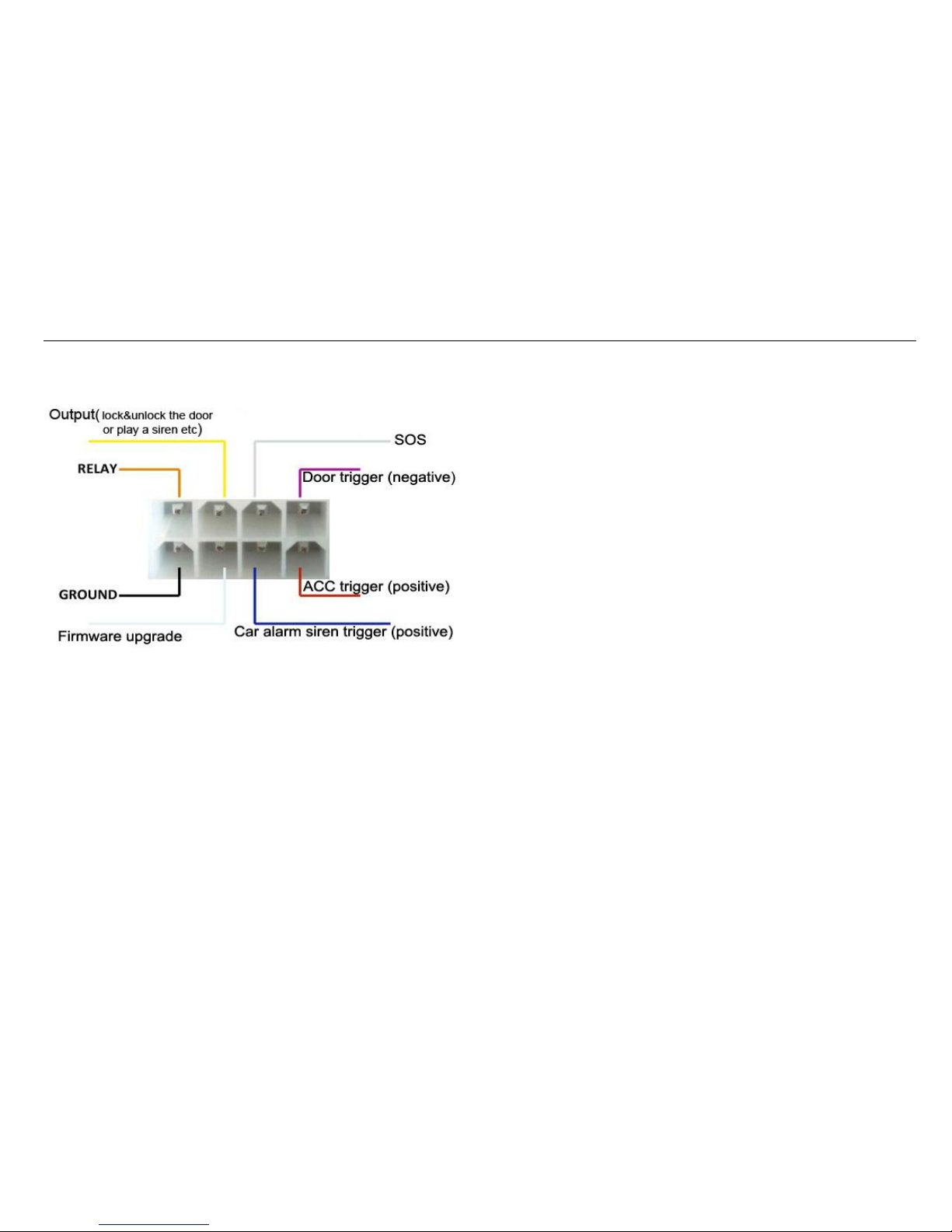
16. Input/Output ports Control:
Note: The connections of these ports are restricted to these alarms/alerts. Please don’t use the white wire.
Page 18
GPS/GPRS/GSM vehicle tracking system
- 18 -
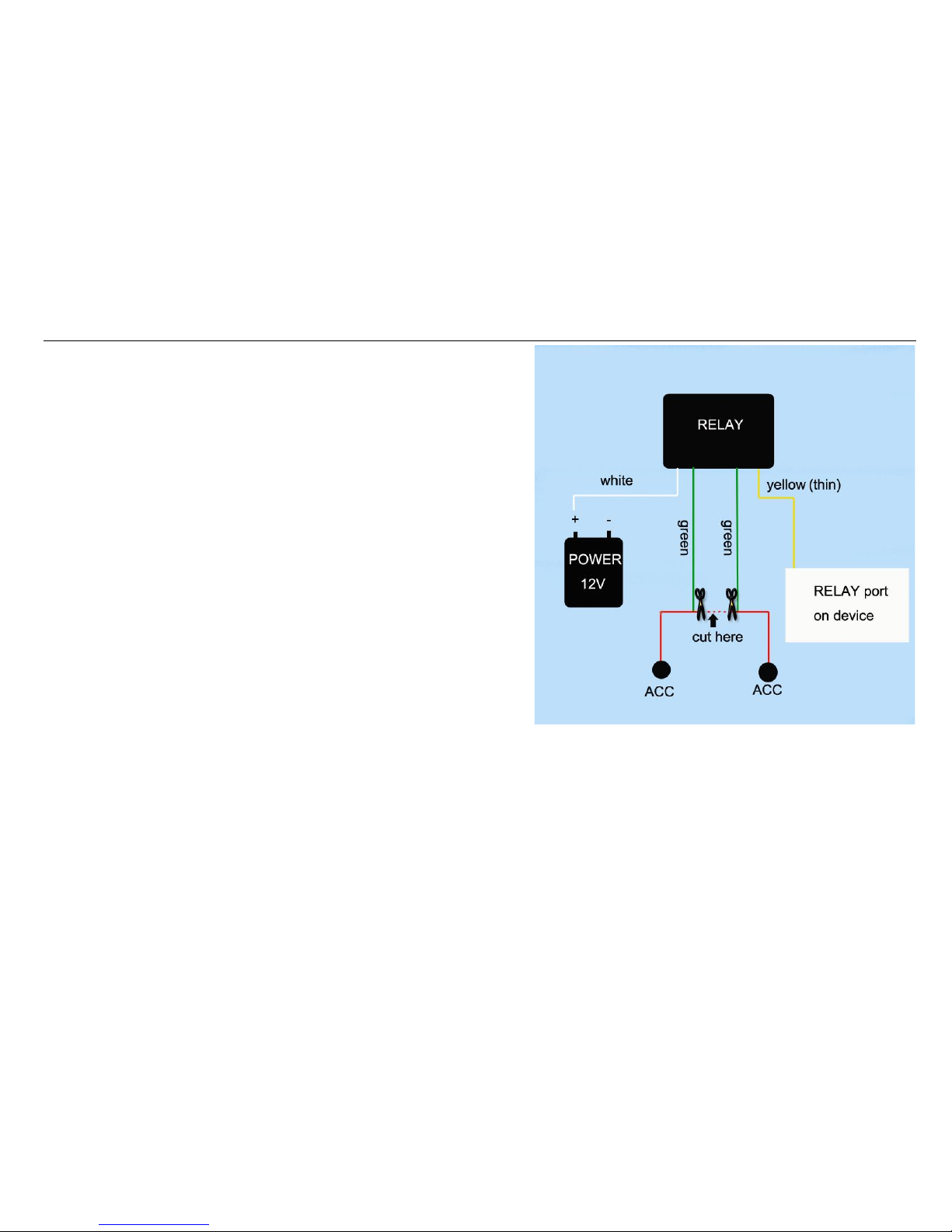
16.1 Stop Car Engine/Oil Control.
Please use Orange wire from 8pin to connect with Relay’s yellow wire.
Command: Password +D
Notes: D must be in capital form, send it to EV601 Phone number to cut off the
engine/oil to immobilize the car.
There is another yellow wire but it’s unnecessary for us. We just need connect the thin
yellow wire with the wire which is from RELAY port on the device.
Example: 123456D
The device will reply "Relay Cut! +GPS INFO" to confirm the command has been
successfully processed.
Cancel the Engine/Oil Control.
Command: Password +E
Note: E must be in capital form, send it to EV601 to cancel the engine/oil control.
Example: 123456E
The device will reply "Cut Canceled! +GPS INFO" to confirm the command has been
successfully processed.
16.2 Output control
Yellow wire: we don’t fix the function of this output; this is an output +12V. You can use it to connect with car door or siren etc to control them.
Command: Password+X+1
Note: X must be in capital form, send it to EV601 Phone number to control the Door or Siren etc.
Example: 123456X1
The device will reply "On! +GPS INFO" to confirm the command has been successfully processed.
Page 19
GPS/GPRS/GSM vehicle tracking system
- 19 -
Turn off the output control:
Command: Password+X+0
Note: X must be in capital form, send it to EV601 Phone number to control the Door or Siren etc.
Example: 123456X0
The device will reply "Off! +GPS INFO" to confirm the command has been successfully processed.
16.3 SOS Alarm.
Connect Gray& Black wires to SOS button: Once the SOS button is pressed, an “SOS Alarm” will be sent to the preauthorized phone number and Website.
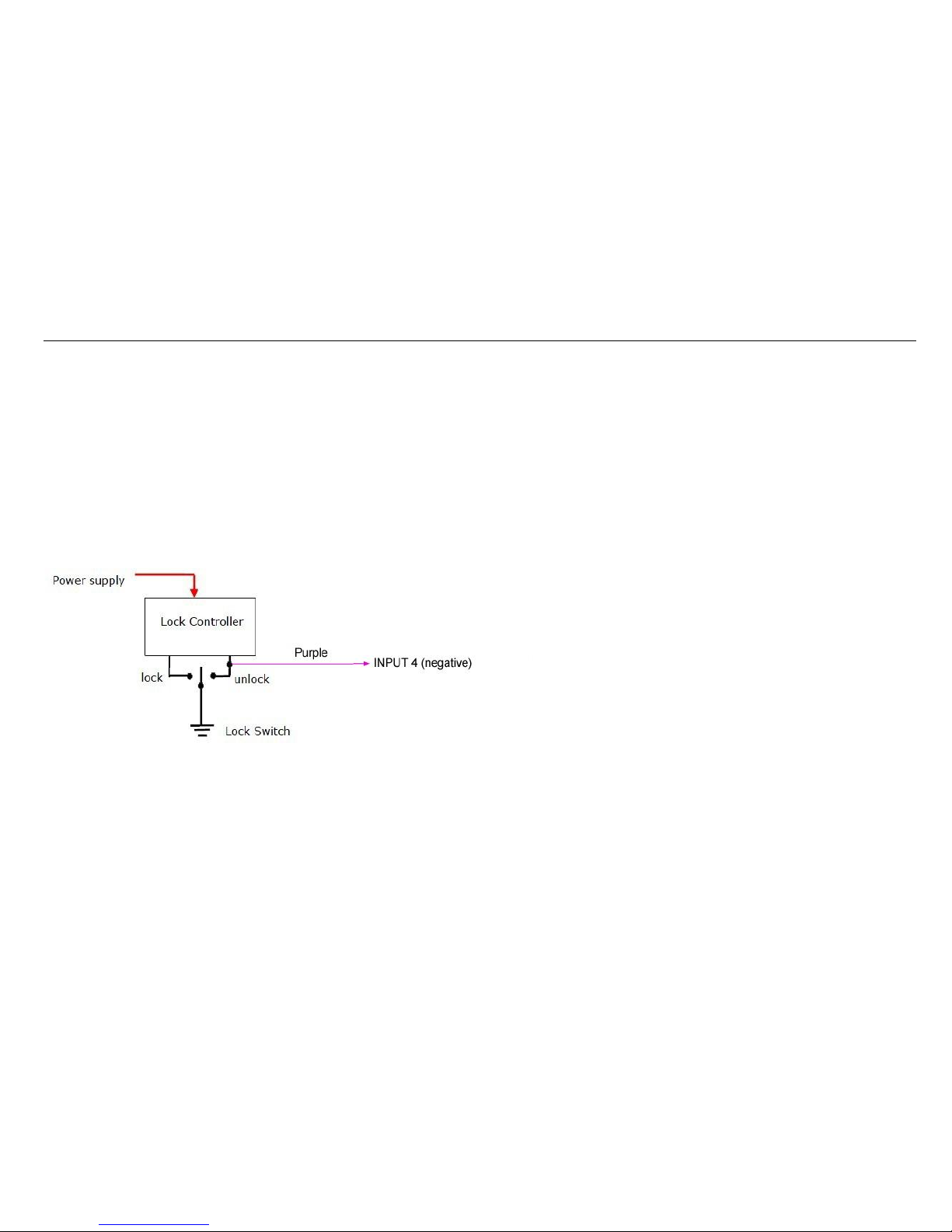
16.4 Detecting Lock Status of Car’s Door
When the door is opened, there will be negative triggering to Input 4, and then a detection alarm “Door opened!” will be sent to the server via GPRS
The alert will be sent to WEB only.
Page 20
GPS/GPRS/GSM vehicle tracking system
- 20 -
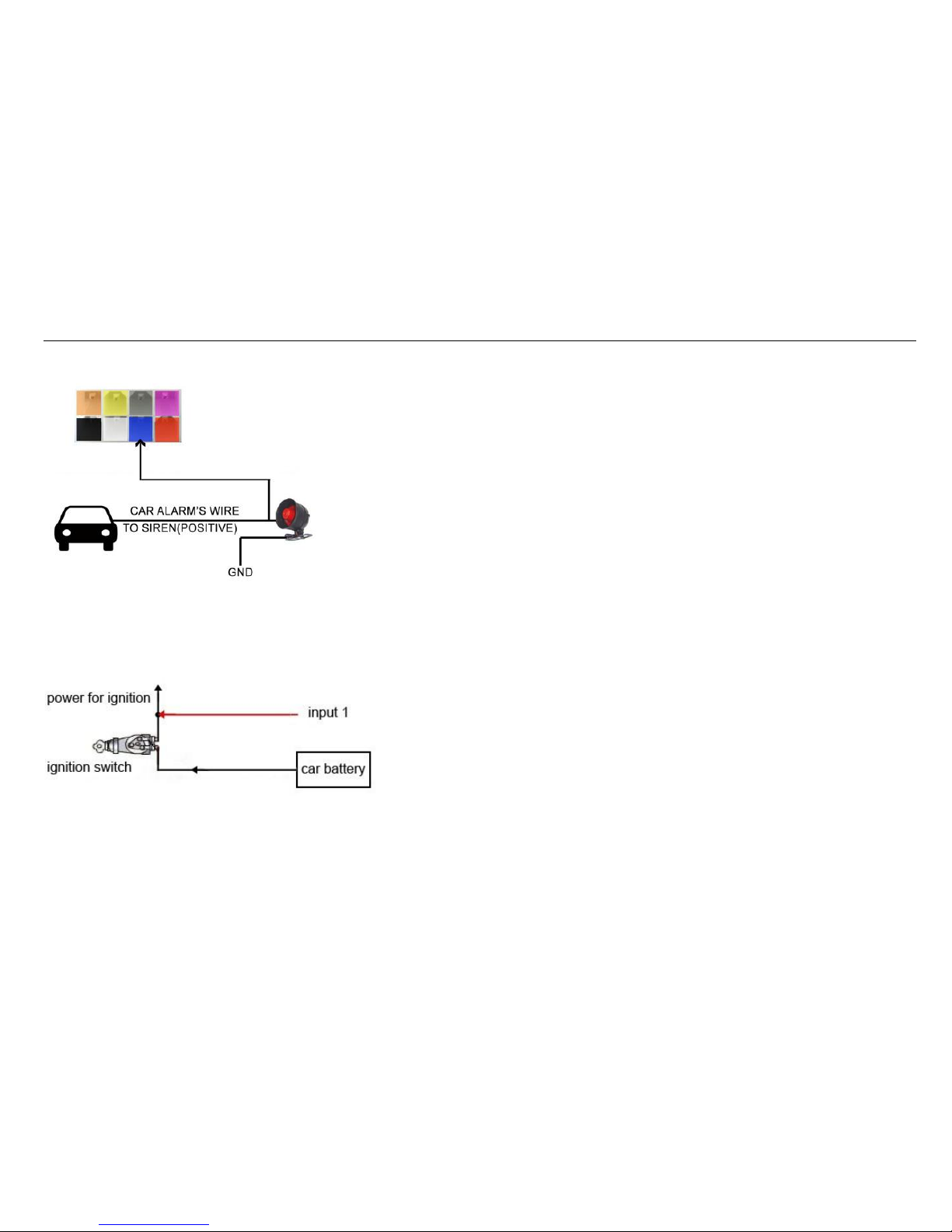
16.5 Connect with car alarm siren.
The blue wire(positive) has been fixed to be connected with the siren of car alarm. Once the siren was triggered and screamed for more than 4 seconds, the
device will send message “Siren Alarm!” to the preauthorized phone number and Website.
16.6 ACC Detection
Connect red wire (input1+) with car ACC. Once the ACC is on, a detection alarm “ACC On!” will be sent to the server via GPRS. This alert will be sent to WEB
only.
Page 21
GPS/GPRS/GSM vehicle tracking system
- 21 -
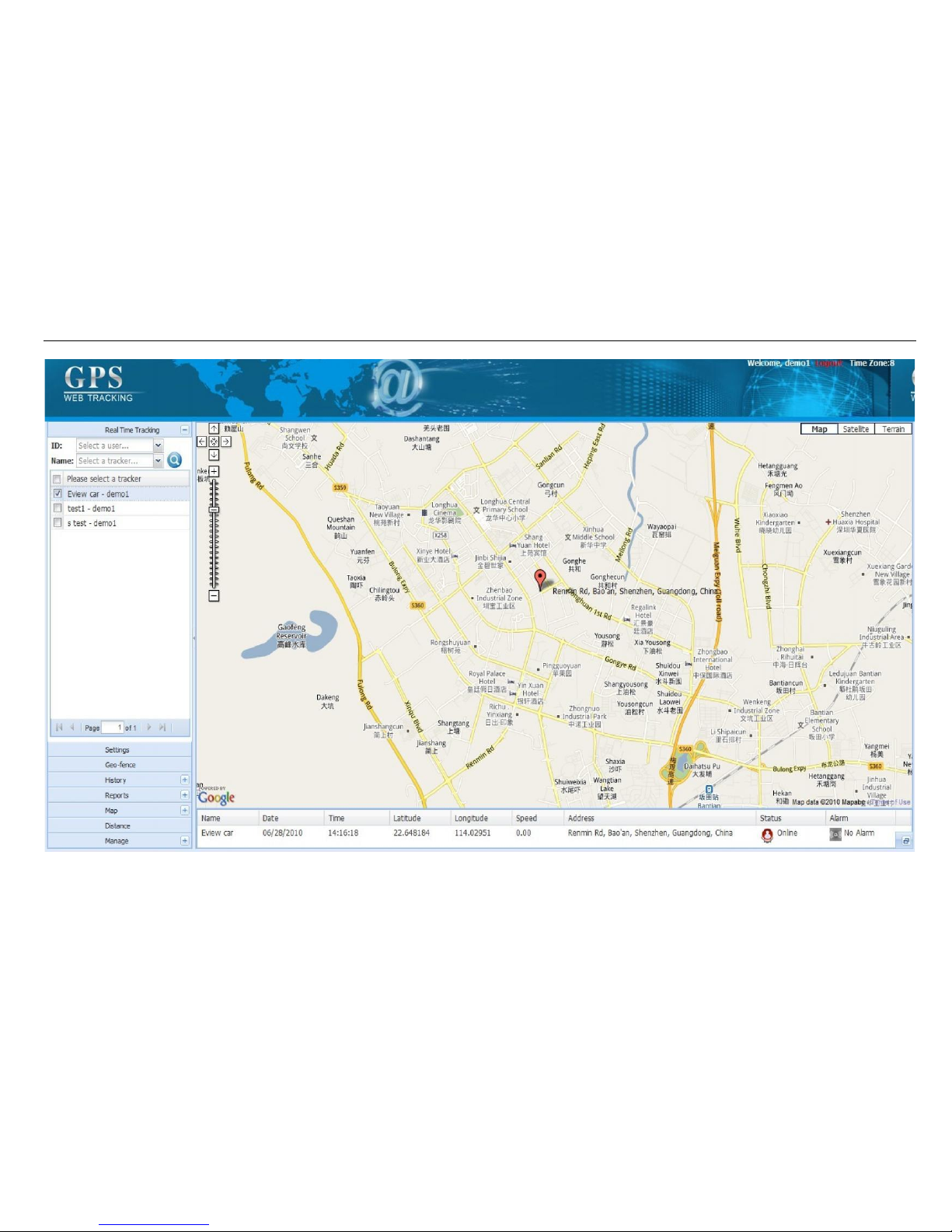
17 Track by web based server: www.smart-tracking.com
Our web based tracking system incorporates the TCP/IP protocol and allows users to monitor it in real time over the internet or sends an e-mail to the predefined e-mail address.
Page 22

GPS/GPRS/GSM vehicle tracking system
- 22 -
17.1 Main Features of web based tracking software:
1. Real-Time tracking.
2. Playback history.
3. Multi-user management.
4. over speed report.
5. Set unlimited Geo-Fence.
6. Trigger alarms.
7. Enable/Disable stop engine.
8. Enable/Disable external power lost alarm, Listen in etc.
9. Send email when alarm occurred.
10, GPS locations re-upload to server.
11. Used Map: Google Map, Google Earth
The Tracking System is 100% Web-based, so there is no software to install. It will allow you to track your vehicles no matter where you are and generate
reports
17.2 GPRS Settings:
In order to use the GPRS function, the user needs to setup the APN by sending SMS command.
--What is APN? Access point name (APN) is the name used to identify a general packet radio service (GPRS) bearer service in the GSM mobile network. The
APN defines the type of service that is provided in the packet data connection.
※ Make sure that the SIM card in the tracker supports the GPRS function.
※ The APN can be acquired from your local GSM operators.
Command: 123456S1, APN, user name, password
Notes: All letters in this formula are case sensitive. Some access point name without user name and password, so please just leave it blank.
Example: 123456S1, CMNET
“CMNET” is the APN for China Mobile; therefore the user must set their particular APN for their own country which the unit resides.
After sending the command, the device will reply “GPRS On!+GPS INFO!”
Page 23

GPS/GPRS/GSM vehicle tracking system
- 23 -
17.3 Check SIM card’s APN & VPN or IP
Command: Password+G+1
Note: G must be in Capital form.
Example: 123456G1
The device will reply “GPRS info: APN:cmnet; Name:xxx; Password:xxxx; Port:5050; VPN or IP:www.smart-tracking.com”
18 Disable GPRS tracking:
Command: Password+S+0
Note: S must be in Capital form.
Example: 123456S0
The device will reply “GPRS OFF+GPS INFO!”, and in the mean time the tracker will back to SMS mode.
19 Read IMEI&Version number
Command: Password+V
Example: 123456V
20. Built-in Memory
The device built in 8MB flash memory inside. It will store the GPS information when do not have GSM network coverage (i.e., very low population density
areas, some mountainous terrain, underground areas etc). The device will transmit GPS locations to the WEB server automatically when the GSM network is
recovered.
21. Initialization:
Command: RESET!
Note: All letters must be in capital form. This is to make all settings back to the factory default.
Page 24

GPS/GPRS/GSM vehicle tracking system
- 24 -
How to add trackers to the website:
1, Send SMS command 123456A1 to the tracker.
2, Send 123456V to get the tracker's IMEI.
3, visit web site www.smart-tracking.com and login with your account.
4, on the left side, click "Manage". Then click "Tracker Info", and click "Add new tracker" on the left top of opened window.
5, Line 1 - Name: give the tracker a name.
Line 2 - Tracker Type: any one will be OK.
Line 3 - Hardware Version: Please choose EV02 here.
Line 4 - IMEI: enter the IMEI that you have received by SMS command 123456V.
Line 5 - User ID: This is to choose an account to manage this tracker, you can use your own account. the rest information are not necessary. Click "Add".
6, Send SMS command 123456S1,APN to the tracker.
Note: APN means Access Point Name, which provided by your Mobile Service provider. If this mobile service provider requires user name and password, then
the SMS command should be 123456S1,APN,USERNAME,PASSWORD
If no user name and password, should be 123456S1,APN
7, Now back to the website left options. Click "Real time tracking" and click the tracker's name. You will see it online soon.
Page 25

GPS/GPRS/GSM vehicle tracking system
- 25 -
Cautions:
Please comply with the instructions to extend the unit life:
1. Keep the unit dry. Any liquid, i.e. rain, moisture, may destroy or damage the inside circuitry.
2. Don’t use & store the unit in dusty places.
3. Don’t put the unit in overheated or overcooled places.
4. Clear the unit with a piece of dry cloth. Don’t clean in chemicals, detergent.
5. Don’t disassemble or refit the unit.
6. Using other batteries will cause unwanted situation.
7. Don’t dismount the antenna randomly, or use other antennas. This may interfere the transmission, and increase the radiation as well.
Hardware Specification:
Content
Specs.
Mainframe Dimension
106mm X 22mm X 63mm
Weight
200g
Micro Processor Brand
STMicroelectronics
GSM Module&Frequencies
SIM900B Quad-band 850/900/1800/1900Mhz
GPS Module
U-blox NEO 6M
GPS sensitivity
Cold start: -148dBm Hot start: -157dBm
GPS accuracy
5-10m
Time to First Fix
Cold start 26s,Warm start 26s, Hot start 1s
Working Voltage
6-30V DC
Battery
Chargeable 3.7V 1200mAh
Static Current
≤50mAh
Storage Temperature
-40°C to +85°C
Operation Temperature
-20°C to +80°C
Humidity
5%-95% non-condensing
 Loading...