

Page 1
Quick Guide
Mobile Locator
Page 2
3
Thank you
Contents
for choosing Tracker.com! In the following pages you
will nd key information about how to operate your
Mobile Locator.
The Mobile Locator is precongured and equipped
with a SIM card. It works only with the SIM card ins-
talled by Tracker.com. Any other use of the SIM card
or swapping it out with another is not permitted.
Mobile Locator buttons and components
First steps
Switching on/off
Volume control
Keypad lock
SOS button, call buttons
Placing a call
Accepting an incoming call
Ending a call, refusing a call
GSM reception status display
Battery display
GPS reception status display
Dashboard admin.tracker.com
Finding a position
Programming numbers
Loading call credits
4–6
7
8
8
8
9
10
10
10
11
11
11
12
12
12
12
Page 3
54
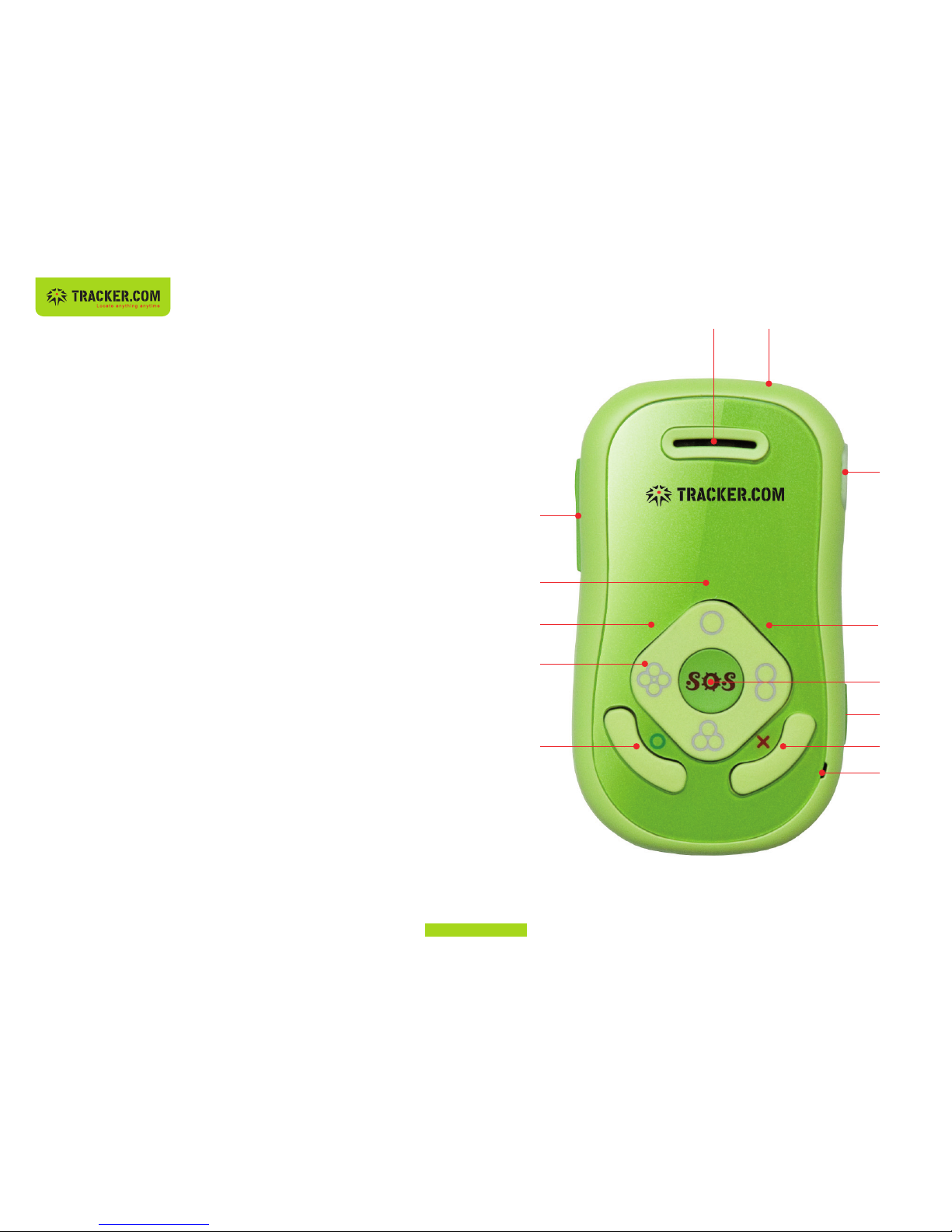
Mobile Locator buttons and components
(1) On/Off
(2) Volume control
(3) Keypad lock
(4) Mini USB socket
(5) GSM status display
(6) Battery display
(7) GPS status display
(8) SOS button
(9) Calling buttons 1–4
(10) Accept an incoming call
(11) End/refuse a call
(12) Loudspeaker
(13) Microphone
(1)(12)
(4)
(3)
(8)
(7)
(11)
(13)
(10)
(9)
(6)
(5)
(2)
Page 4
76
(4)
(3)
(1)
(2)
First steps
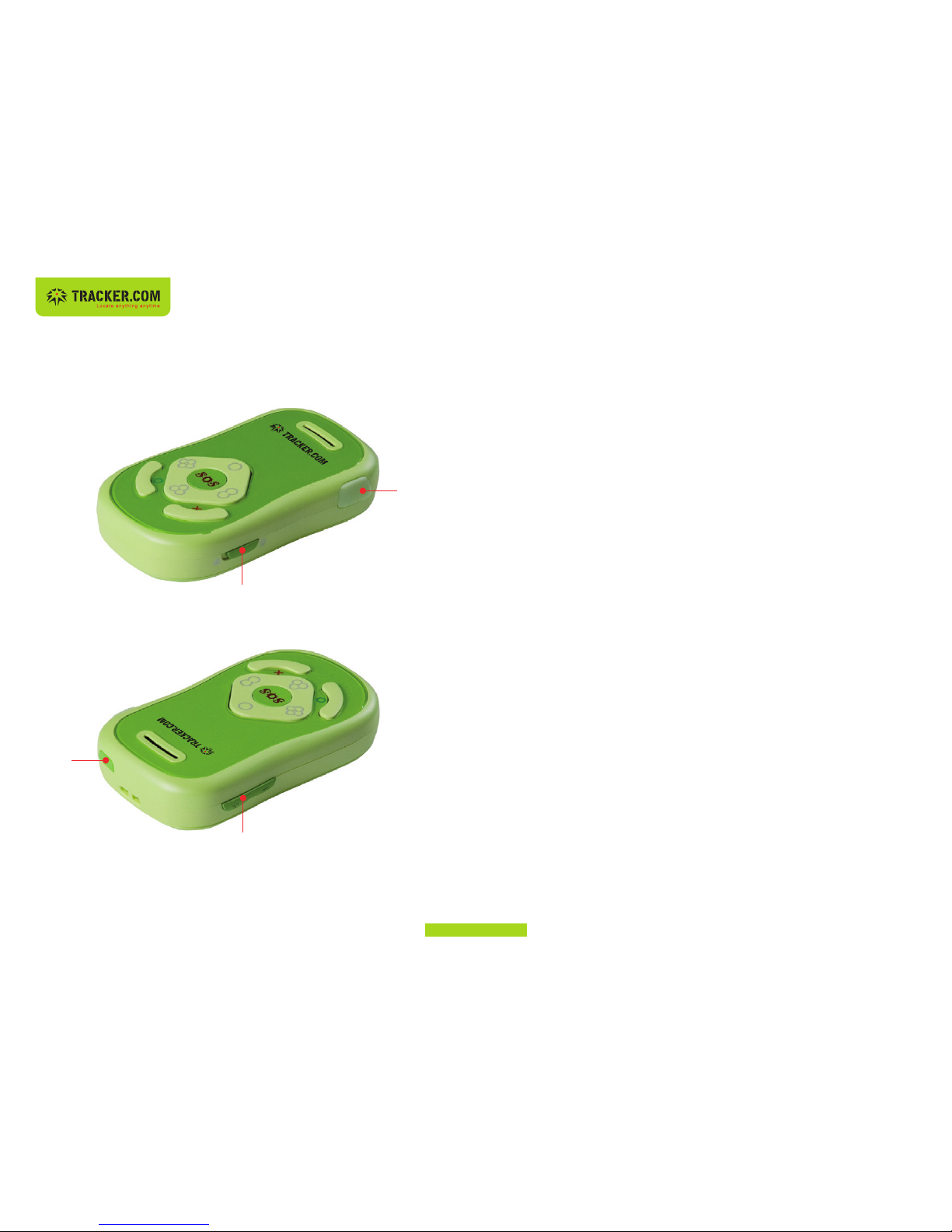
1. Plug the supplied power adapter into the mini
USB socket (4) and charge the battery until the
battery display (6) is constantly lit.
2. Hold the Mobile Locator outdoors, turn the unit
on and wait approximately 2 minutes until the
GPS position has been determined (also see
page 11).
3. Check the position in the Dashboard at
(https://admin.tracker.com) and also congure
the call buttons 1–4 (at least one number must
be entered).
4. While in the Dashboard, make sure that sufcient
call credits are available.
The Mobile Locator is now ready and fully functional.
Page 5

98
Switching on/off (1 or symbol)
Volume control (2)
Set the desired audio level with the volume control.
Pressing the Quiet button for at least 3 seconds
turns the Mute function on or off.
Switching on
Push the On/Off button for a short time. The battery
display (6) lights up for a short time and the GSM
display (5) begins to ash.
Switching off
Push the On/Off button for 3 seconds.
Keypad lock (3)
In order to avoid unintentional calls, the keypad lock
(3) should be activated; to do so, slide it into the
proper position (locked).
Triggering the alarm with the SOS button (8) func-
tions even if the keypad is locked.
SOS button (8), call buttons 1–4 (9)
Conguring the buttons with the desired numbers to
call must be done ahead of time in the Dashboard
(https://admin.tracker.com).
It is mandatory that the SOS button and/or call
button #1 be congured with a number.
To initiate a call with the SOS button (8), push the
button for at least 5 seconds.
The SOS button (8) functions even if the keypad is
locked.
If the 7x24 Help Line option is activated, the SOS
button is programmed to contact the emergency
desk of the euro help line. If the 7x24 Help Line
option is not activated, the SOS button is congured
identical to call button (1).
The buttons can be reprogrammed at any time in the
Dashboard (https://admin.tracker.com).
Page 6

1110
Placing a call
Accepting an incoming call
To accept an incoming call, press the Call button (10).
To call the preprogrammed number, even if the
keyboard lock (3) is activated, press the SOS button
(8) at least 5 seconds. The connection is automati-
cally made.
To call one of the additional preprogrammed num-
bers on call buttons 1–4, once the keypad lock (3) is
released, rst press button 1–4 and afterwards press
the Call button (10).
Ending a call, refusing a call
To end a call or refuse an incoming call, press the
Call Complete button (11).
GSM reception status display (5)
Flashes quickly
Connection with the GSM network and tracker.com
is being established.
Flashes slowly
The unit is connected with the GSM network and
tracker.com.
Battery display (6)
Status display for GPS reception (7)
Flashes slowly
Charging in progress.
Constantly lit
Battery fully charged.
Flashes quickly, beeps every 30 seconds
Charging capacity at 5% - battery must be recharged as soon as possible.
Flashes quickly
Search for satellites in progress.
Lights up constantly for 2 seconds
The GPS position is valid.
Page 7
12
Dashboard admin.tracker.com
Finding a position
Recall the unit’s last known position or retrieve the
current position.
Log on to the web site https://admin.tracker.com with
your personal login information.
Programming telephone numbers
Loading call credits
Manage your account and congure your numbers to
be called when the SOS button and call buttons 1–4
are pressed.
Load call credits in the Dashboard at
https://admin.tracker.com.
Further information at https://admin.tracker.com.
tracker.ch AG
Zürcherstrasse 41
CH-8400 Winterthur
T: +
41 43 543 43 00
F: +41 43 543 43 01
Hotline: +
41 43 543 43 00
This equipment complies with the European
R&TTE directive. Conformity at:
http://www.tracker.com/
CE
Page 8
Free APP available in the AppStore and Android market
Page 9

Version 2011-02
 Loading...