

Page 1
1
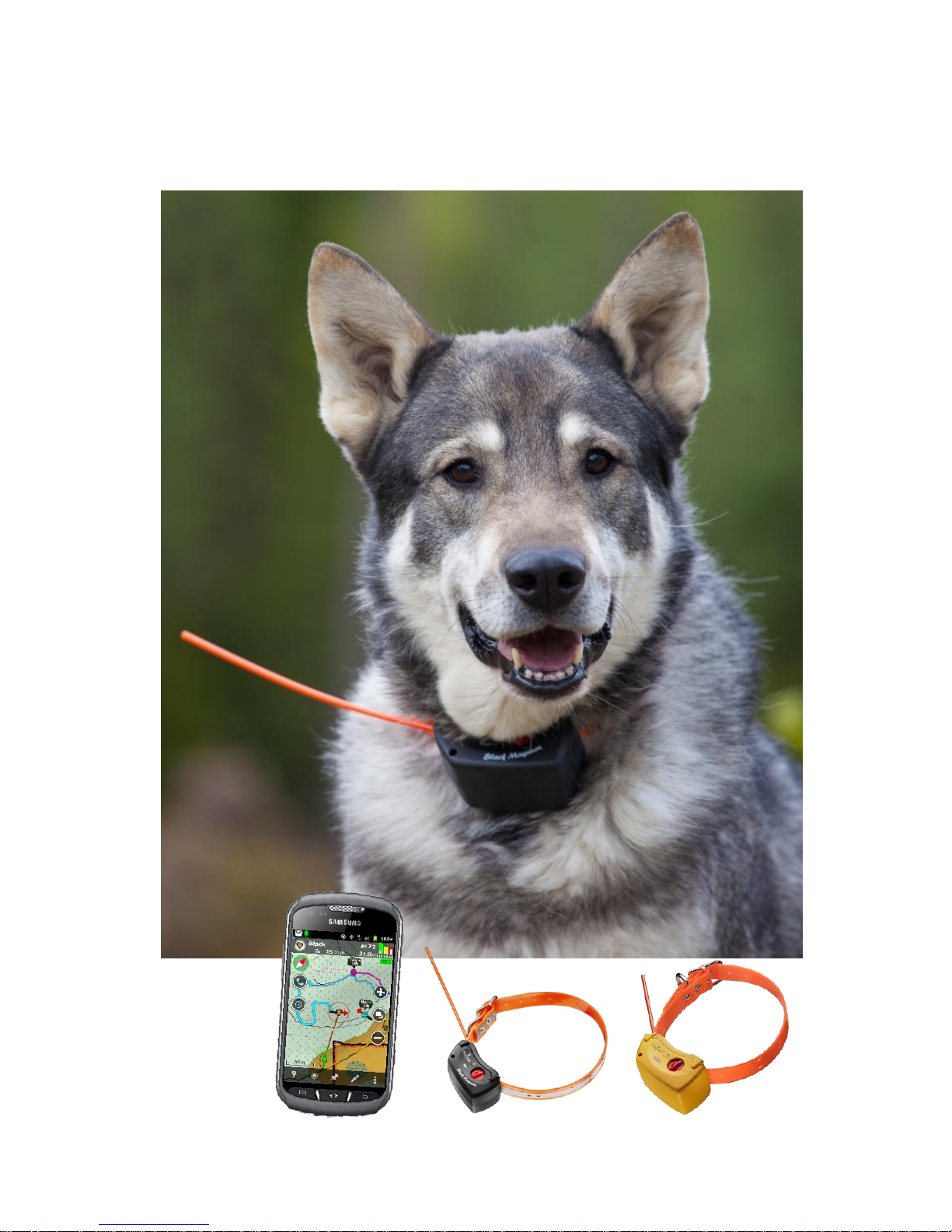
Tracker for Android
Tracker G500 Black Magnum
Tracker G400
User manual
English
Ver 1.1 05.07.2013
Page 2

2
Information about software / phone
Registration code:
IMEI Phone number
Sharename
Viewer’s password
Collar’s info 1
Collar type
G400 , G500
Phone number
Operator
Sharename
Owner’s password
Viewer’s password
Collar’s info 2
Collar type
G400 , G500
Phone number
Operator
Share name
Owner’s password
Viewer’s password
Page 3

3
Table of content
English ................................................................................................................................................. 4
TRACKER G400™ AND G500™ SERIES .............................................................................................. 4
Charging.............................................................................................................................................................................................................................................................. 4
Led lights ............................................................................................................................................................................................................................................................ 4
Switching ON .................................................................................................................................................................................................................................................... 4
Changing the reflex collar to G500 .............................................................................................................................................................................................................. 5
How to update the G500 ............................................................................................................................................................................................................................... 5
Technical data .................................................................................................................................................................................................................................................... 5
TRACKER FOR ANDROID™ ................................................................................................................. 7
Getting started with Tracker for Android™ .............................................................................................................................................................................................. 8
Compatibility ................................................................................................................................................................................................................................................ 8
Step 1: Downloading and installing the application .............................................................................................................................................................................. 8
Downloading the software from Google Play ................................................................................................................................................................................................................................. 8
Downloading the software without Google Play account ............................................................................................................................................................................................................ 8
Step 2: Registering the software .................................................................................................................................................................................................................... 9
Main features in Tracker for Android™ .................................................................................................................................................................................................... 10
Starting the App ......................................................................................................................................................................................................................................... 10
Adding a G400™, G500™ or some other tracking device .............................................................................................................................................................. 10
Add a new GPS device ....................................................................................................................................................................................................................................................................... 10
Search from Tracker Live .................................................................................................................................................................................................................................................................. 11
List of all GPS devices ............................................................................................................................................................................................................................... 12
Map view – Tracker display .......................................................................................................................................................................................................................... 13
Compass ........................................................................................................................................................................................................................................................... 14
Target menu .................................................................................................................................................................................................................................................... 14
Dog’s menu ................................................................................................................................................................................................................................................. 15
Tracking settings ........................................................................................................................................................................................................................................ 15
Background Tracking (BGT) ............................................................................................................................................................................................................................................................. 15
Real Time Tracking (RTT) ................................................................................................................................................................................................................................................................. 15
Group function ................................................................................................................................................................................................................................................ 15
Smart menu – Add a waypoint .................................................................................................................................................................................................................... 16
Main menu ........................................................................................................................................................................................................................................................ 16
Replay – function ............................................................................................................................................................................................................................................ 17
Draw and measure ......................................................................................................................................................................................................................................... 18
Other functions ............................................................................................................................................................................................................................................... 18
Maps and map levels ................................................................................................................................................................................................................................. 18
Changing the application to another phone ......................................................................................................................................................................................... 18
Tracker for Android™ vocabulary ............................................................................................................................................................................................................. 19
Copyrights ........................................................................................................................................................................................................................................................ 19
END USER LICENSE AGREEMENT ........................................................................................................................................................................................................... 20
Page 4
4
English
Tracker G400™ and G500™ series
Tracker G400™ or Tracker G500™ is a GPS (Global Positioning System) device that positions itself with
the help of satellites and sends the information to a mobile phone that is running Tracker Hunter® or
Tracker for Android™ software.
When you start using Tracker G400™ or G500™, you should first charge the battery.
Charging
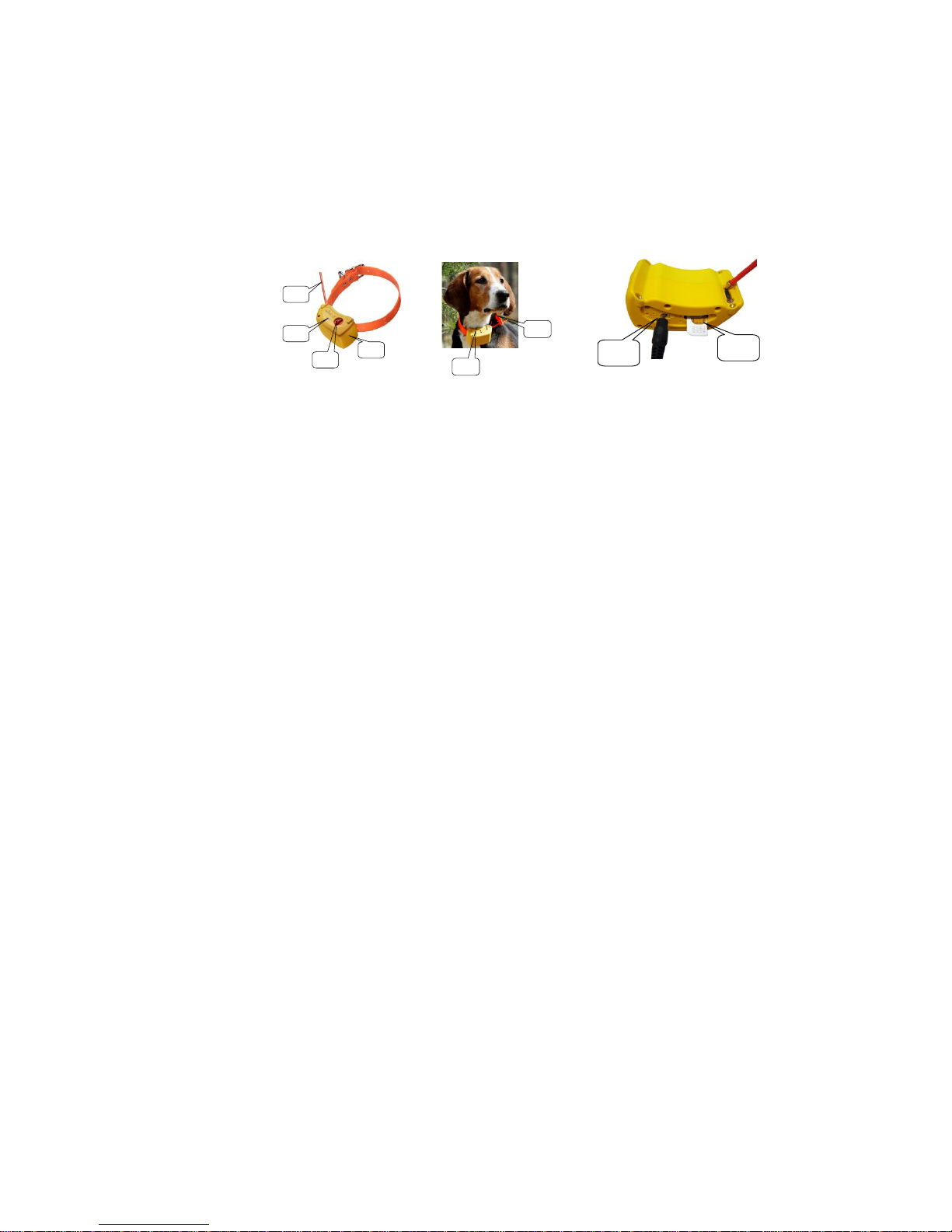
Place the charger connector in the socket. 3.1
The red light 1.2 is lit to show the device is charging. The charging may take up to seven hours if the battery
is empty at the beginning.
When the charging is complete, the green light 1.2 goes on.
NOTE!
Use only the original charger. A wrong charger may damage the device.
Charging is permitted in the temperature range of +10C - +30C.
Charge the battery fully before using device for the first time. This will help ensure the maximum capacity
and lifecycle of the battery.
Led lights
constant red
device is charging
constant green
battery fully charged
green light on for a few seconds
device starting up
red light on for a few seconds
device switching off
red and green flashing in turns every 3 sec-
onds
device searching for GPS satellites
green light flashes every 3 seconds
satellites located and device ready to use
red light flashes with 1 second frequency
battery low
red light flashes three times per second
battery almost empty or SIM faulty, missing SIM,
or locked with PIN code
NOTE! When the device is on, the LED lights indicate the GPS operations. If the GPS is set to “Off”, the
LED lights flash only when the device needs GPS information from satellites, e.g. when the position is requested.
Switching ON
1. Place the device where GPS antenna 1.4 has unobstructed access/view to the sky.
2. Switch power ON.
3. The green light 1.2 will turn on for a few seconds.
4. When the green and red lights flash at three-second intervals, the device is searching for GPS satel-
lites.
5. The device is operational when the green light alone is blinking.
6. Please verify the device functionality with a test call.
7. The device will let it ring three times until the call is answered.
2.1
2.2
1.2
1.4
1.3
1.1
3.2
3.1
1.1 GSM antenna
1.2 Led lights
1.3 Switch button
1.4 GPS antenna
Page 5
5
8. When tapping the collar close to the microphone can be heard on the phone, the line is open and
functioning.
9. Add the device to the Tracker Hunter®/Tracker for Android software in your mobile phone and
test position it on the map.
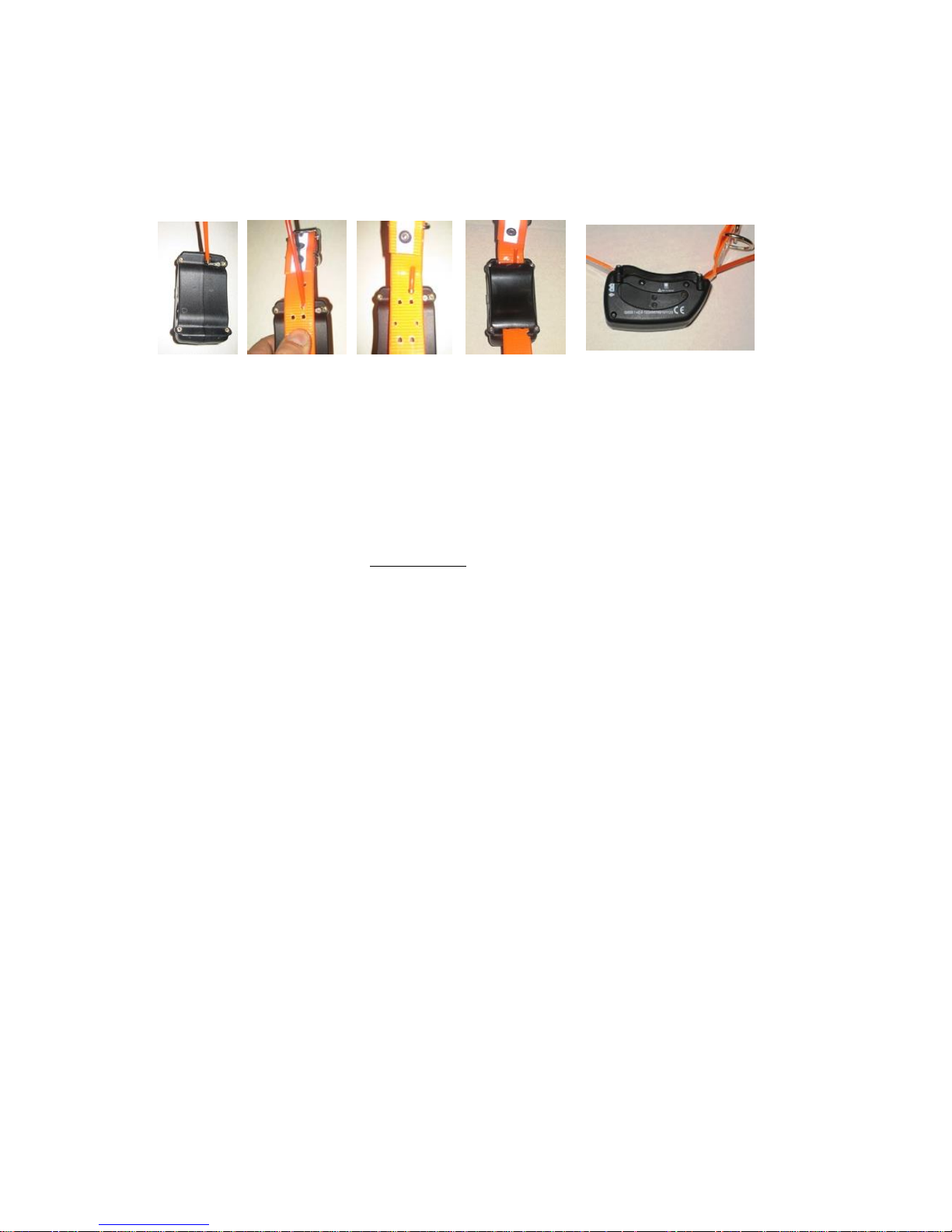
Changing the reflex collar to G500
1. 2. 3.
1. Placing the collar
Place the collar on the device and slip the antenna wire without the cover tube through the collar’s
elongated hole. Lower edge of the hole should meet the slot on the device.
2. Placing the cover tube and attaching the collar holder
Place the cover tube over the antenna wire. Slip the antenna with its cover through the hole above the
elongated one on the collar. Please watch carefully the pictures 2 to 4.
Squeeze the lid and the device tightly together while carefully screwing in the four torx screws. Start
with your fingers and then tighten the screws with sufficient power (max moment 25 cNm).
Do not use the collar with the reflex collar or without the support for the antenna. The metal
ring of the tube may cause higher usage of the cover material and can make to a hole into the
cover. Inpropriate use like this is not covered by the warranty of the device!
NOTE! Do not screw too tight, because the screw inserts may come loose or damage the collar holder.
How to update the G500
If you have the latest app version or not older 1.14, you can update the firmware in the transmitter.
To check the version, go to the dog menu> configuration> check for updates. When you receive a notifica-
tion that updates are available, follow the exact instructions in the programme.
Technical data
G400: The battery lasts a few days in economy mode. In full mode it lasts more than one day, and with GSM
set off, the battery lasts more than a week. The duration of the battery may be changed depending on the
GPS and GSM conditions, temperature, and the number of positioning requests. All functionalities work in all
GPS modes.
G500: The battery lasts a few days in economy mode. In full mode it lasts approximately two days and with
GSM set off, the battery lasts more than a week. The duration of the battery may be changed depending on
the GPS and GSM conditions, temperature, and the number of positioning requests. All functionalities work
in all GPS modes.
Operating temperature -25°C - +55°C
Water proof, protection class IP-67
G400: GSM network 900/1800 MHz
G500: GSM network 900 MHz, optimized powerful antenna
Maximum charging time 7 hours
Built-in microphone
Weight 225 g with collar, ready to use.
Cover strengthened with fiberglass, shock protected
Battery 1950 mAh
G400: GPS U-Blox Super Sense, A-GPS -160 dBm, 25 mm ceramic Patch antenna
G400i: GPS Fastrax Ultra High Sensivity, A-GPS -165 dBm,25 mm ceramic Patch antenna
Page 6
6
G400FI: GPS Fastrax/U-Blox IT530M, A-GPS -165 dBm,25 mm ceramic Patch antenna
G500: GPS Fastrax Ultra High Sensivity, A-GPS -165 dBm, 25 mm ceramic Patch antenna
G500FI: GPS Fastrax/u-Blox IT530M A-GPS -165 dBm, 25 mm ceramic Patch antenna
Hereby, Tracker Inc. declares that this Tracker G500 and Tracker G400 GPS/GSM are in compli-
ance with the essential requirements and other relevant provisions of Directive 1999/5/EC.
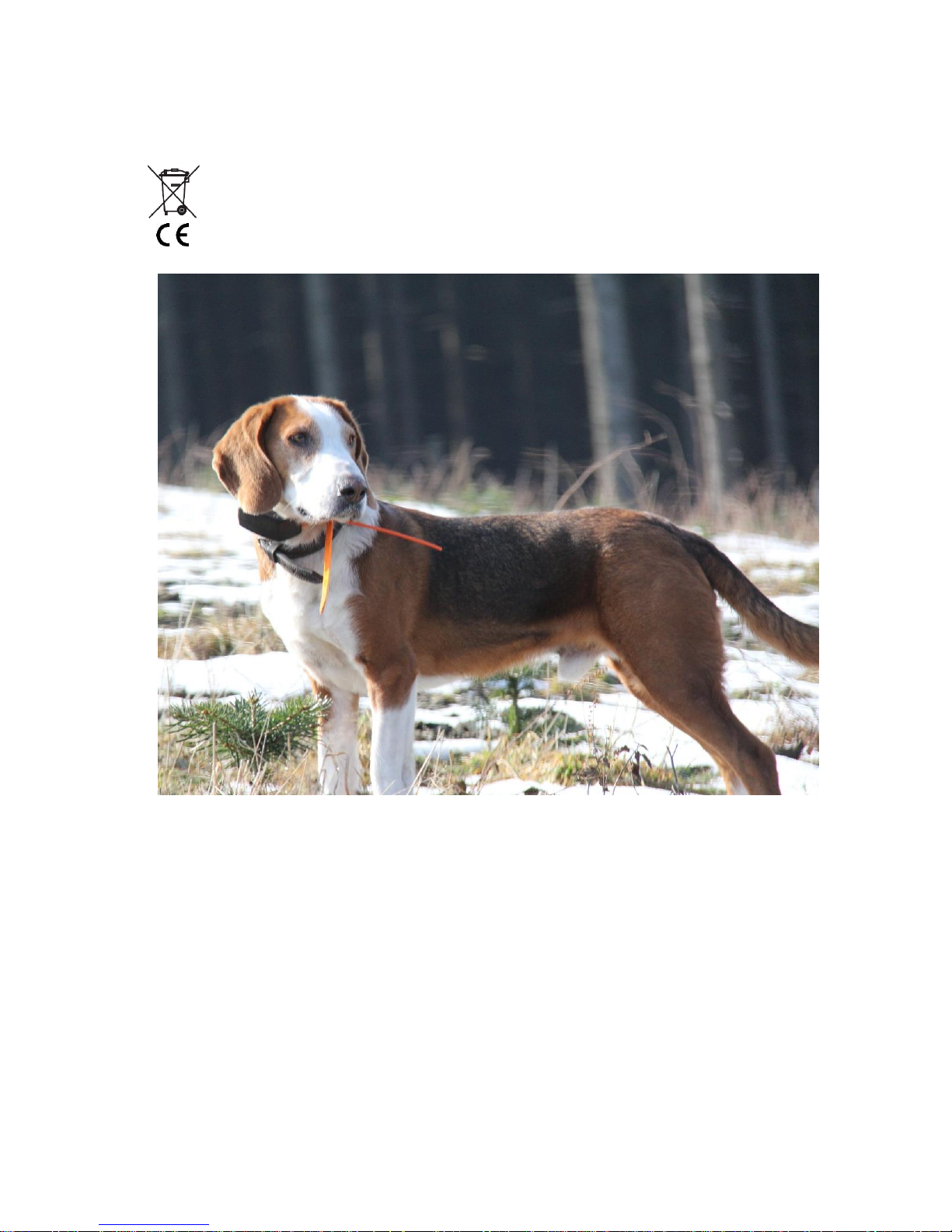
Please deliver the device into a specific recycling point after use. This request concerns this device
and other labelled extra devices. Please do not recycle these in the normal waste. In the lack of a specific recycling point, please return the device to the seller or manufacturer after use.
Page 7

7
Tracker for Android™
Tracking dogs, friends, and a lot more with the Tracker for Android software
Tracker for Android™ has many features and functions that are not described in this Getting Started Guide.
For more information, please visit our www.tracker.fi homepage.
Tracker for Android™ is a hunting management application that runs on your mobile phone. It combines
detailed topographical maps with various GPS functions enabling you to see and manage the location of your
dogs, friends, routes, tracks, and hunting areas.
Reading this guide is essential for effective start-up of the software
My Licence code (write down):________________________
My Registration code (write down):________________________
This code is the key to the application
The registration code for installing the software is marked on the sticker on the package. In electronic deliv-
eries, you will find it in the delivery mail or on the website. PLEASE NOTE: It is important that you REMEMBER TO SAVE THIS CODE. It will be required every time you 1) want to transfer the software to another
mobile phone or 2) install/update the application.
Page 8
8
Getting started with Tracker for Android™
Please follow the instructions carefully when installing your new application. A GPRS connection is required to install this application and download maps. Ensure that you have a suitable GPRS data plan from
your operator.
Compatibility
Tracker for Android™ runs in certain Android based mobile phones.
You can check the up-to-date list of compatible phones from www.trackerhunter.com/android Choose Prod-
ucts > Tracker for Android, scroll down and check Compatible mobile phones.
Check that your mobile is connected to Internet and that it can connect to GPS satellites. You can use ei-
ther the GPS built in the mobile phone or an external GPS device that connects to your mobile phone with
Bluetooth connection.
Check that the date and time on the phone are correct. We recommend that you switch your
phone to use automatic Network operator time.
Important settings before downloading Tracker for Android from other sources then Google Play
Store:
allow downloading from unknown sources => Applications > Unknown sources
In case the app is not available in Google Play Store in your country and you have troubles by
installing Tracker for Android with Android 4.x, please download an app called “Apk installer”
from Google Play Store
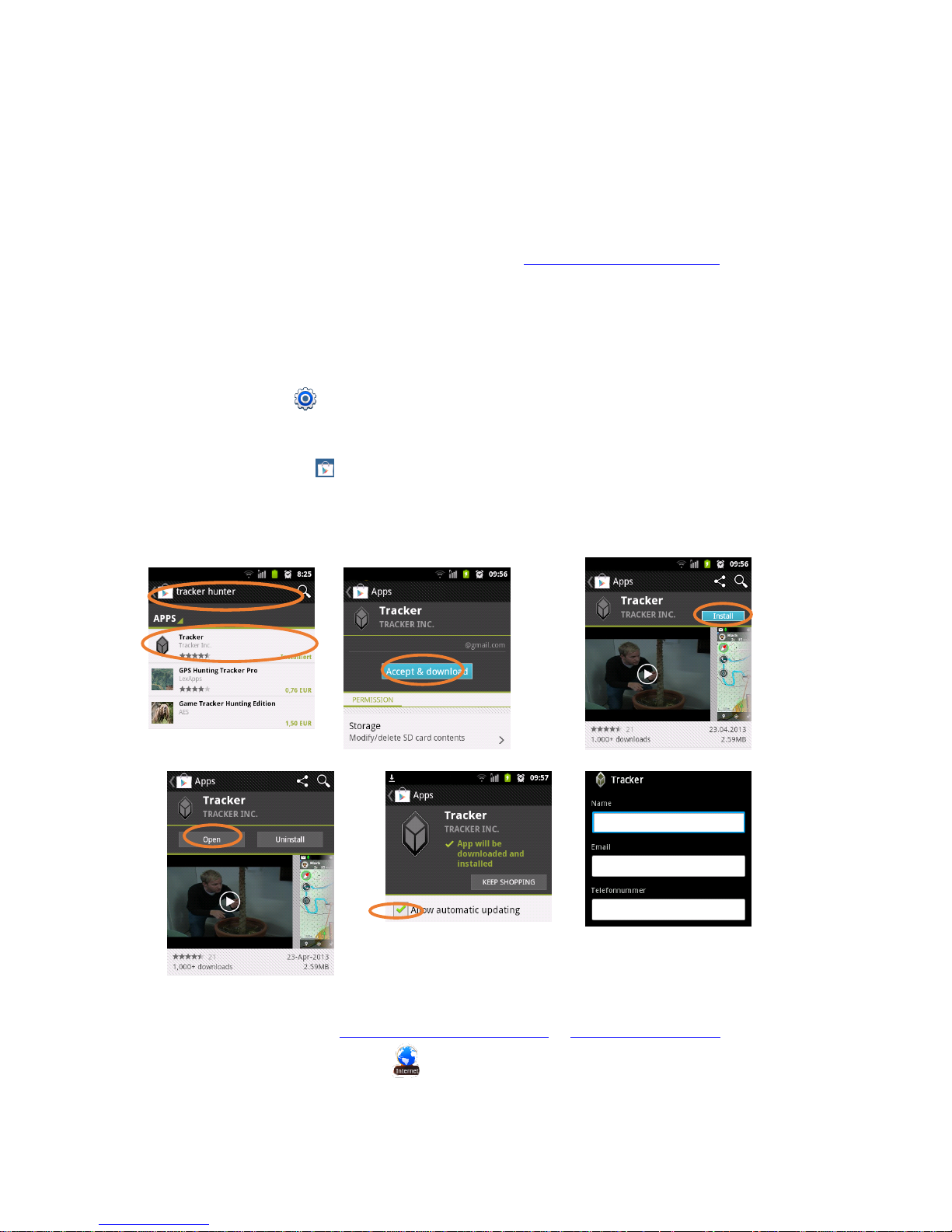
Step 1: Downloading and installing the application
Downloading the software from Google Play
Downloading the software without Google Play account
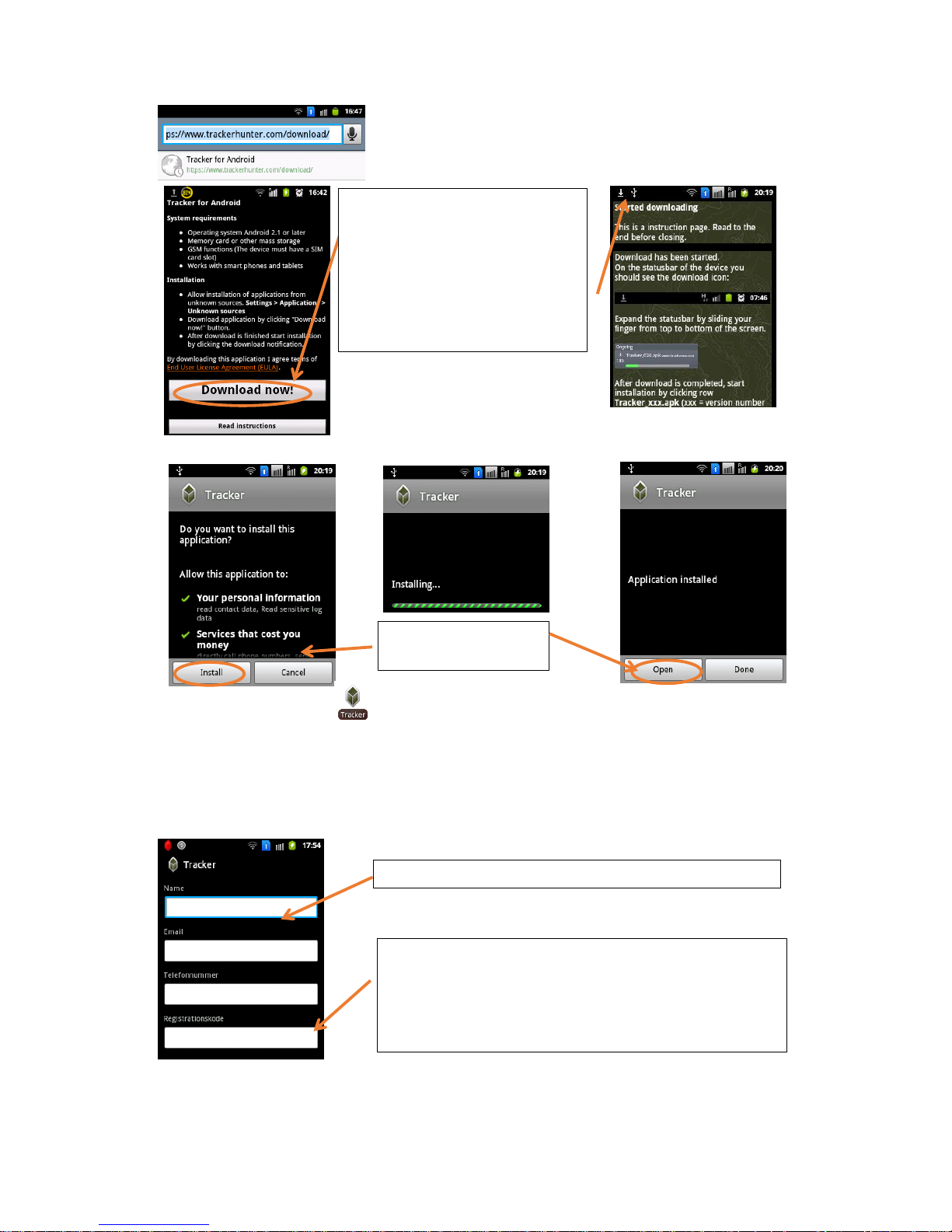
Access the installation page at www.trackerhunter.com/download or www.tracker.fi/download by using the
mobile phone’s Internet browser, OR send an SMS to +358400112236 with a text: HUNTER
Page 9
9
Tracker for Android™ icon was created into your mobile phone menu during the installation.
The location of the icon varies depending on your phone model. Find the icon and start the software by
clicking on the Tracker for Android™ icon.
Step 2: Registering the software
You can active a Try & Buy license if you haven’t purchased the license so far. If you already purchased the
license, insert the license code.
1. Click on download
2. Expand then the status bar by sliding your finger from the top to bottom.
3. Click on the App after appears
“download completed”
4. If you have trouble please click on
“read instructions”
Fill in your name and contact data, which are required.
Registration code: The registration code for installing the software is marked on the sticker for the package. In electronic deliveries, it is in the delivery mail or on the webpage. Send the
registration code by selecting the left soft key (left selection key).
NOTE! The code is case-sensitive. You may install the Try
& Buy version, which is valid for two weeks.
Confirm the installation
and open the application
Page 10
10
Main features in Tracker for Android™
Starting the App
Tracker for Android™ icon was created into your mobile phone menu during
installation.
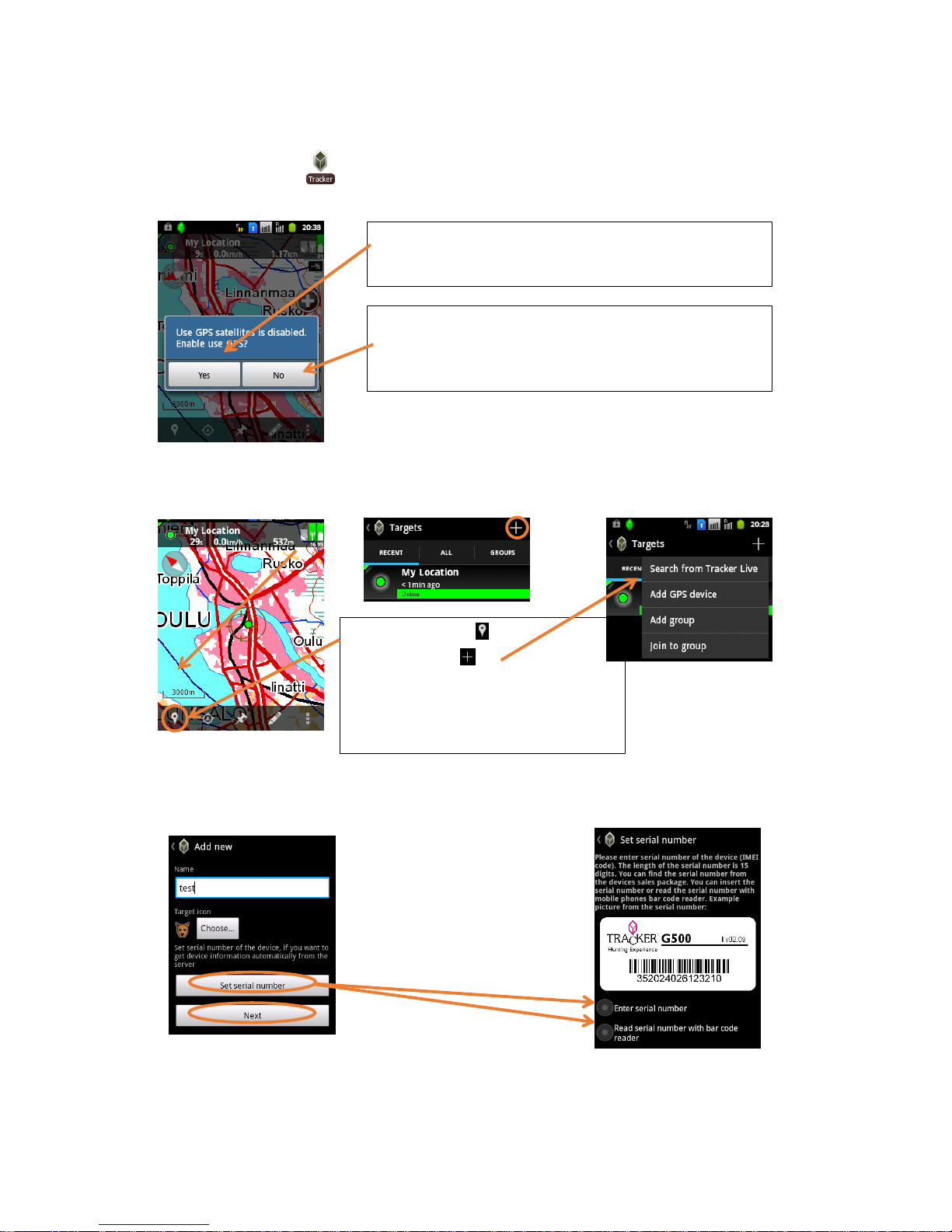
Adding a G400™, G500™ or some other tracking device
If a collar is registered to Tracker Live for the first time, or you want to add a registered collar, please
follow these steps:
Add a new GPS device
Write the name of your dog and continue with one of the two options:
1. enter or scan the IMEI bar code
2. select next and continue with manual registration
1. Click on „Targets“
2. Click on „Add“
3. Add new GPS device
OR
Search from Tracker Live if the collar you
wish to add has already been registered.
When you select „No“, you get to the map view. If you allow
your positioning by default (via Wireless Networks), you get
your approximate position. Be aware of possible inaccuracy of
positioning via Wireless Networks!
If you select „Yes“ you will be redirected to „Location and secu-
rity“ where you can set the determination of your position either by use of Wireless Networks or by GPS Satellites or both.
1.
2.
Page 11
11
When registering the collar, APN commands will be sent to the collar and the background tracking will be
started. It takes about 1-5 minutes until the collar comes online and, depending on availability of satellites,
starts to send the positions. If the collar is not online after 5 minutes run a test tracking: Go to the Map and
choose Targets > (Name of the dog) > or All > (Name of the dog) > Tracking and Alarms > Start tracking
>Background > Start BGT. Wait a moment, and you will receive notification of receipt of the location information. You will also see that the time of the location information is refreshed every 60 seconds (by default).
The owner password gives you the right for setting tracking commands, commands related to alarms,
changing settings, and making configuration settings. We do not recommend giving out the owner password
or setting equal viewer and owner password.
Through viewer password and share name of the targets you can search for these targets. Viewers can
view the dog on their mobile phone but they cannot set commands, call the collar, or make changes in their
settings. This way you do not need to give your dog collar’s phone number to everyone who wants to see
the dog’s motion.
Search from Tracker Live
If the collar has already been registered to Tracker Live™ or you want to add a friend, you can just request
it from Tracker Live™ server.
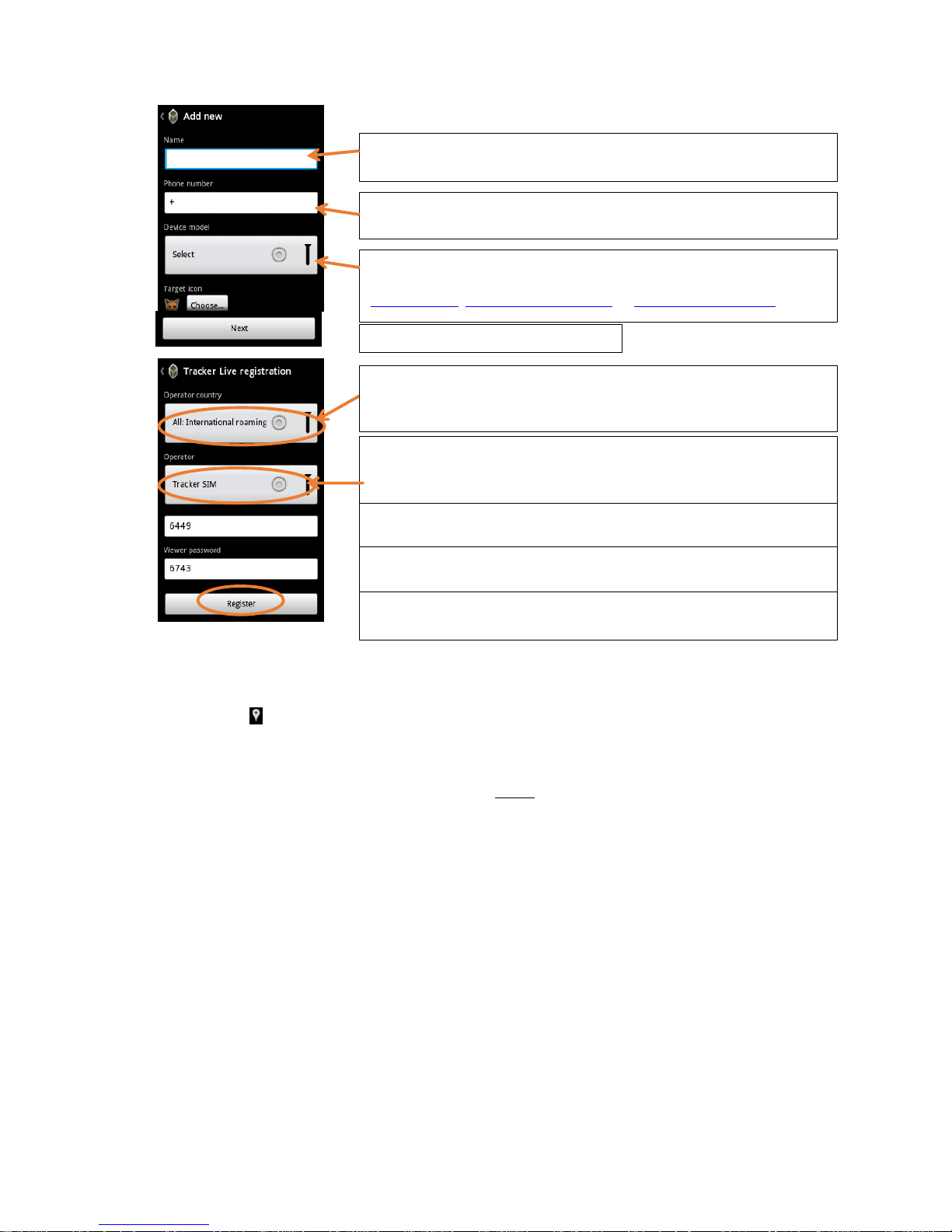
Fill in the name of your dog how you want to see it on the display. You can
anytime change this in dog’s settings.
Fill in the phone number in international form: +…
Tracker SIM number starts with +37.….
Choose the correct model for your target.
If you are not sure about the model, please visit our homepage:
www.tracker.fi; www.trackerhunter.com or www.trackerboazu.com
Select the country of the provider of the SIM card you use for the target.
If you use our Tracker SIM, the country is automatically set to: All: Interna-
tional.
Choose the operator of the SIM card.
If you use Tracker SIM choose it from the drop down menu if it is not al-
ready set.
The share name is the unique ID of the collar. You will not be able to
change it in the future.
Choose the owner password, if you want to change the one automatically
given. You can change it any time later on.
Choose the viewer password, if you want to change the one automatically
given. You can change it any time later on.
And confirm with „Next“
Page 12
12
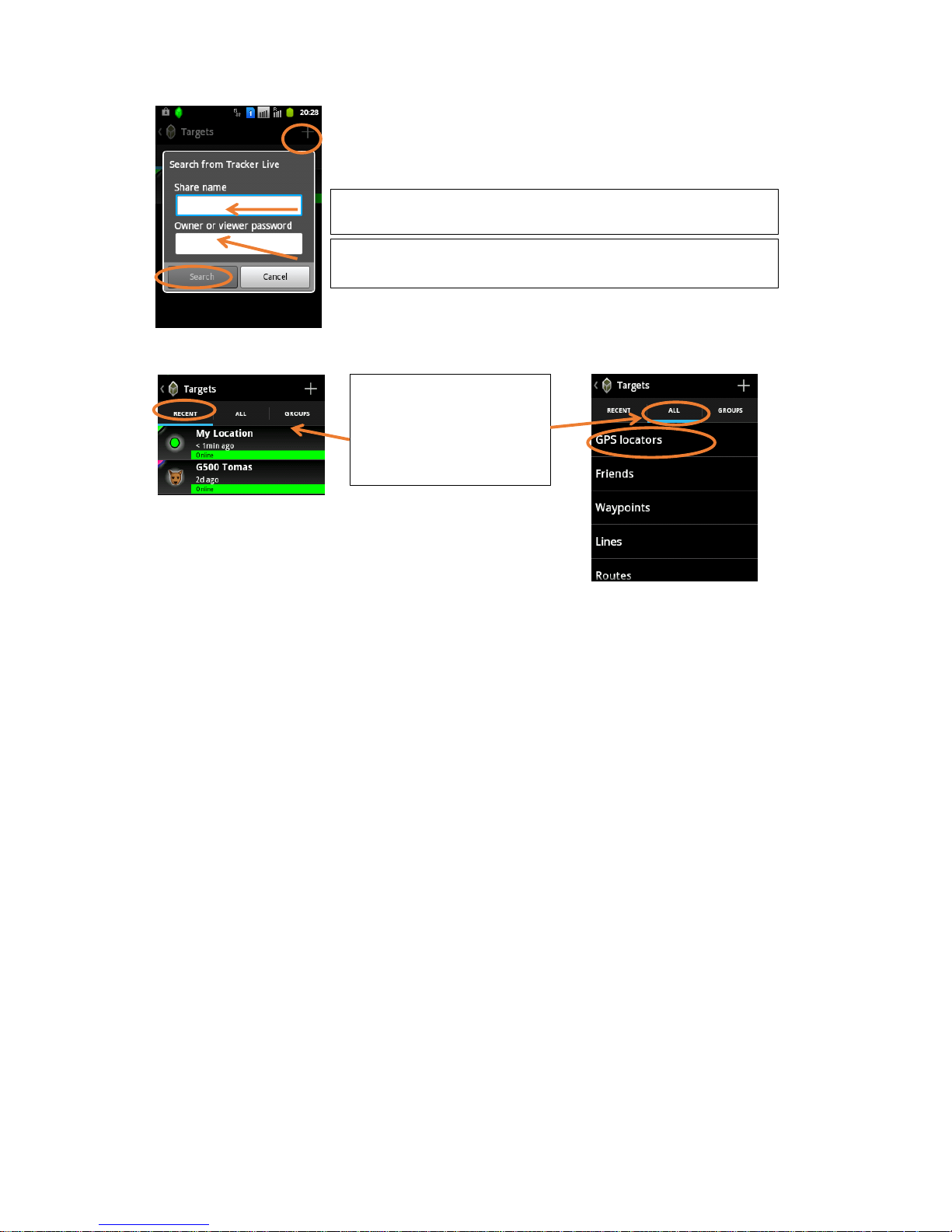
Follow these steps:
1. Add
2. „Search from Tracker Live“
List of all GPS devices
Either is the target shown already under „Recent“
or
under: „All“ > „GPS Locators“
Insert the share name of the target. The share name can be found under [Name of the dog or a friend] > settings.
Insert the owner or viewer password. Please, find the different rights
for owner and viewer password in the previous section.
Page 13
13
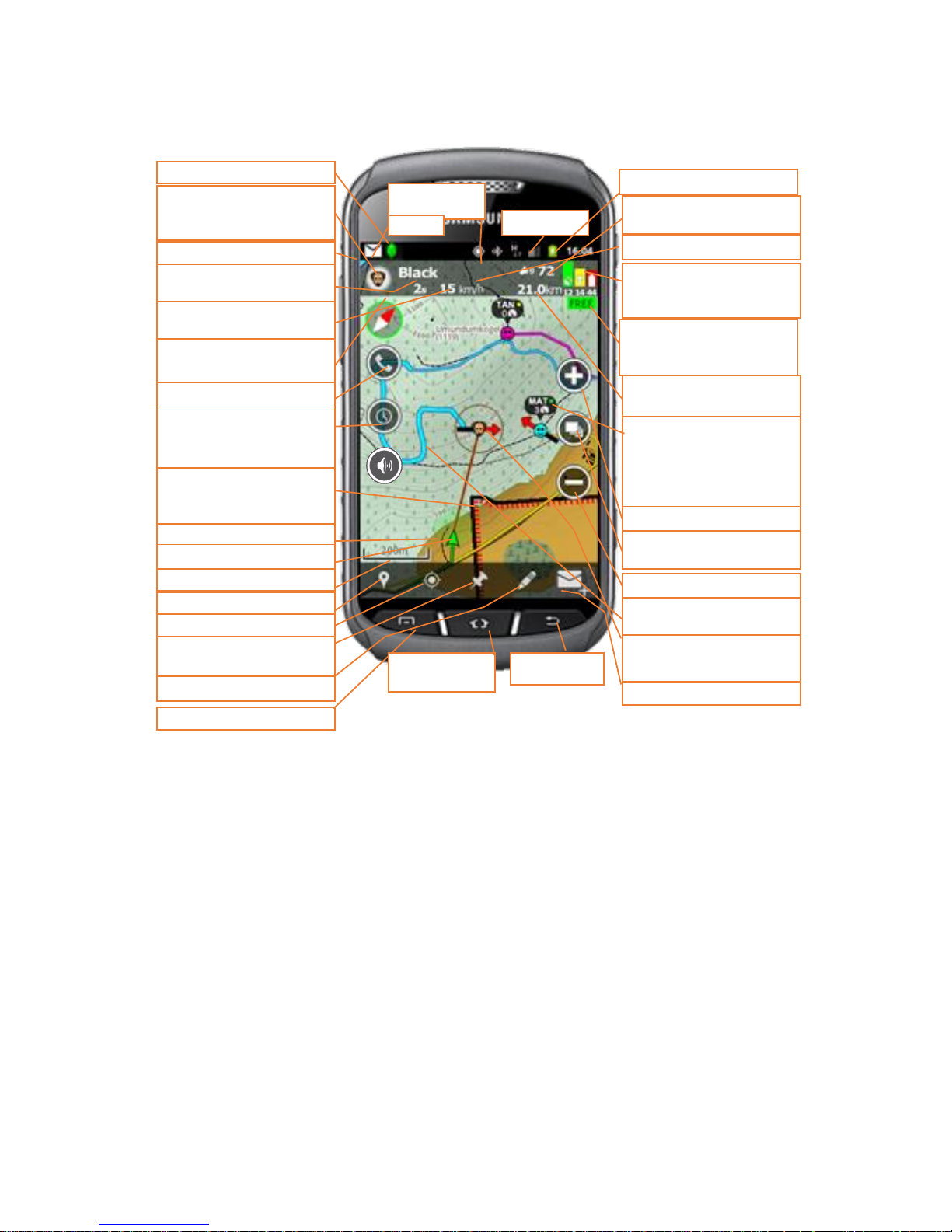
Map view – Tracker display
Tracker Live™ status icon
GPS status of
the phone
Strength of
Phone's battery status
Barking frequency of the displayed target
Position details: GPS status,
GSM-status and battery.
target’s information
Indicator of map loading %
=downloading, 99 = free
maps
Target’s distance to my own
position
Zoom-in (change layer),
Speed of the displayed target
Select the map style – terrain, road, nautical
Other target + basic info:
Name abbrev, position age
(green<1min, yellow1-5min,
red:>5min), speed, barking
frequency
Zoom out (change layer),
Tracks of the dog and the
barking places
Main menu or Android
Message
Icon of the displayed target
centre to the target
** Ask for single SMS position
Colour of the track
Targets name
Go to target’s menu
Position age of displayed target
Compass and compass calibration mode
Call the target
Set "real time tracking" OR if
tracking a friend send an instant message
My position and direction
Accuracy of the position
Scale
Range boarders which you
can share with friends or
groups
Targets menu
Centre to my position
Set your own position or add
and a waypoint
Drawing and measuring tool
Displayed target and its direction
Red italic = command/function. ** = long press
Use in background - home
App schließen
Write a chat message
Page 14
14
Compass
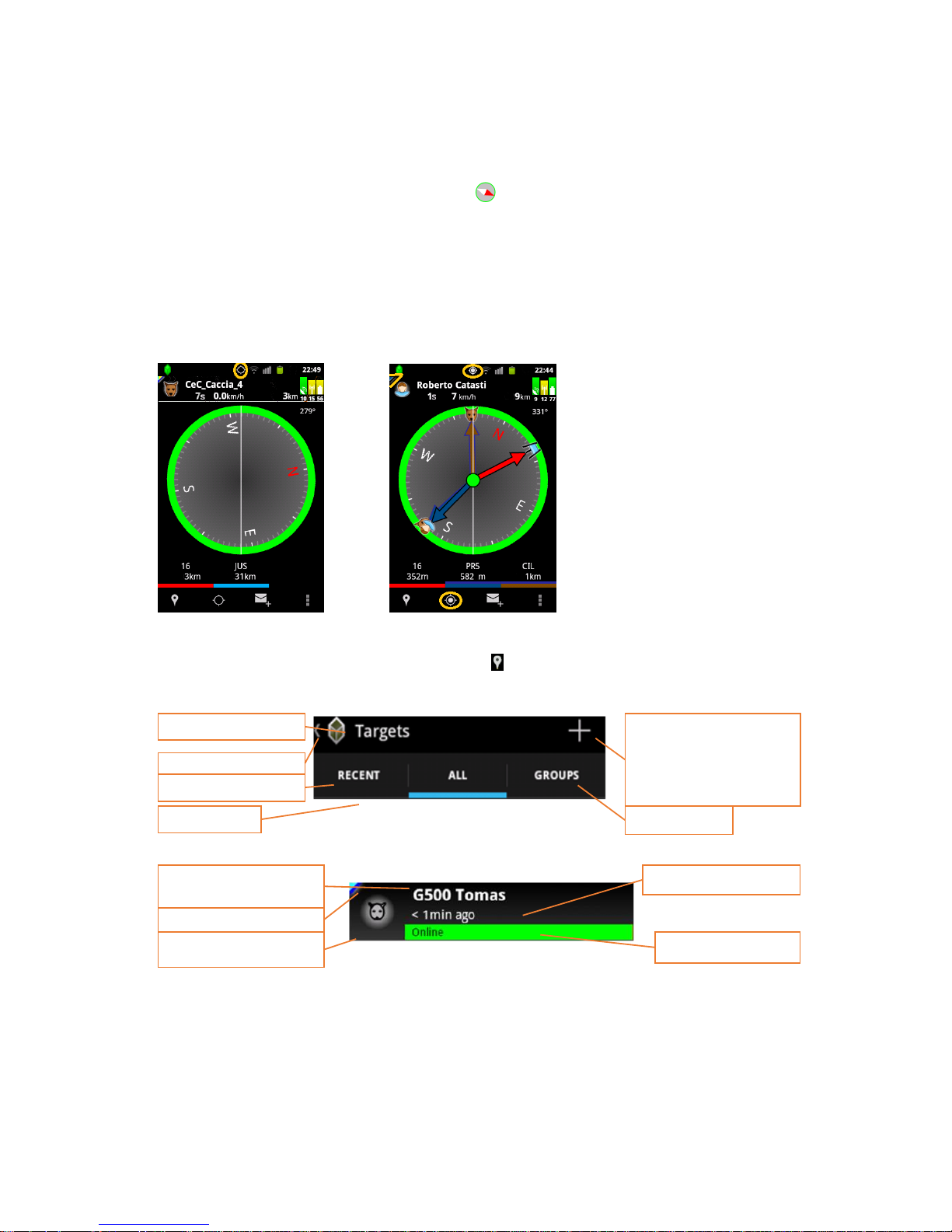
Besides the map view, Tracker for Android™ provides you a compass view. The same information of the
display ed target, as on the map view, is shown on the compass.
You can see the small compass in the top left corner , it gives you orientation on the map. After clicking
in the compass icon, you get to the compass view where you see all relevant information.
The compass shows your correct directions only if the circle around the compass is green. Otherwise
you have to move away from metal or any other element that could distract magnetic fields.
1. Make sure that you have activated GPS. Compass doesn’t work without GPS!
2. If the GPS is not activated or your current position is unknown, the compass remains blank as on
the picture Nr. 2
3. After the correct position is found, the compass shows the current selected target –the colour of
the arrow is the same as the colour of the track
Target menu
You will find the dog menu when you click on „Targets“ and then the name of the dog, if your desired
target isamong the last 10 recent targets, or otherweise: ”All” > GPS Locators > click on the name of the dog.
The menu of the target can vary depending on ownership or viewing rights.
Name of the menu
Back to the mainmenu
Recently viewed targets
All targets
Groups
Add targets
It opens the menu where
you can register a dog (GPS
device), create or enter a
group.
Icon of the target
Show the target on the map
Colour of the track
Target’s name
open target’s menu
Age of the position
Target’s live status
Page 15
15
Dog’s menu
Tracking settings
Background Tracking (BGT) is always on, when the collar is On. To start or quit Background Tracking
and to set th e interval, go to Targets > ”All” or (Name of the dog)> GPS Locators > (Name of the dog) >
Tracking and alarms. Select ”Start tracking” and then Background Tracking. You don’t need to switch off the
BGT before you turn off the collar.
Real Time Tracking (RTT) has always a certain period and length. To initiate Real Time Tracking, go to
Targets > ”All” or (Name of the dog)> GPS Locators > (Name of the dog) > Tracking and alarms. Select ”Start
tracking” and then Real Time Tracking, set duration and interval. Wait a moment, and the dog starts “running”
on your screen. The short button for the real time tracking appears on the left side after touching the
screen .
In SMS tracking the position data is sent periodically to the hunter. Choose Targets > ”All” or (Name of
the dog)> GPS Locators > (Name of the dog) > Tracking and alarms. Select ”Start tracking” and then “SMS track-
ing”. Set the amount and the interval of the wanted tracking responses.
Group function
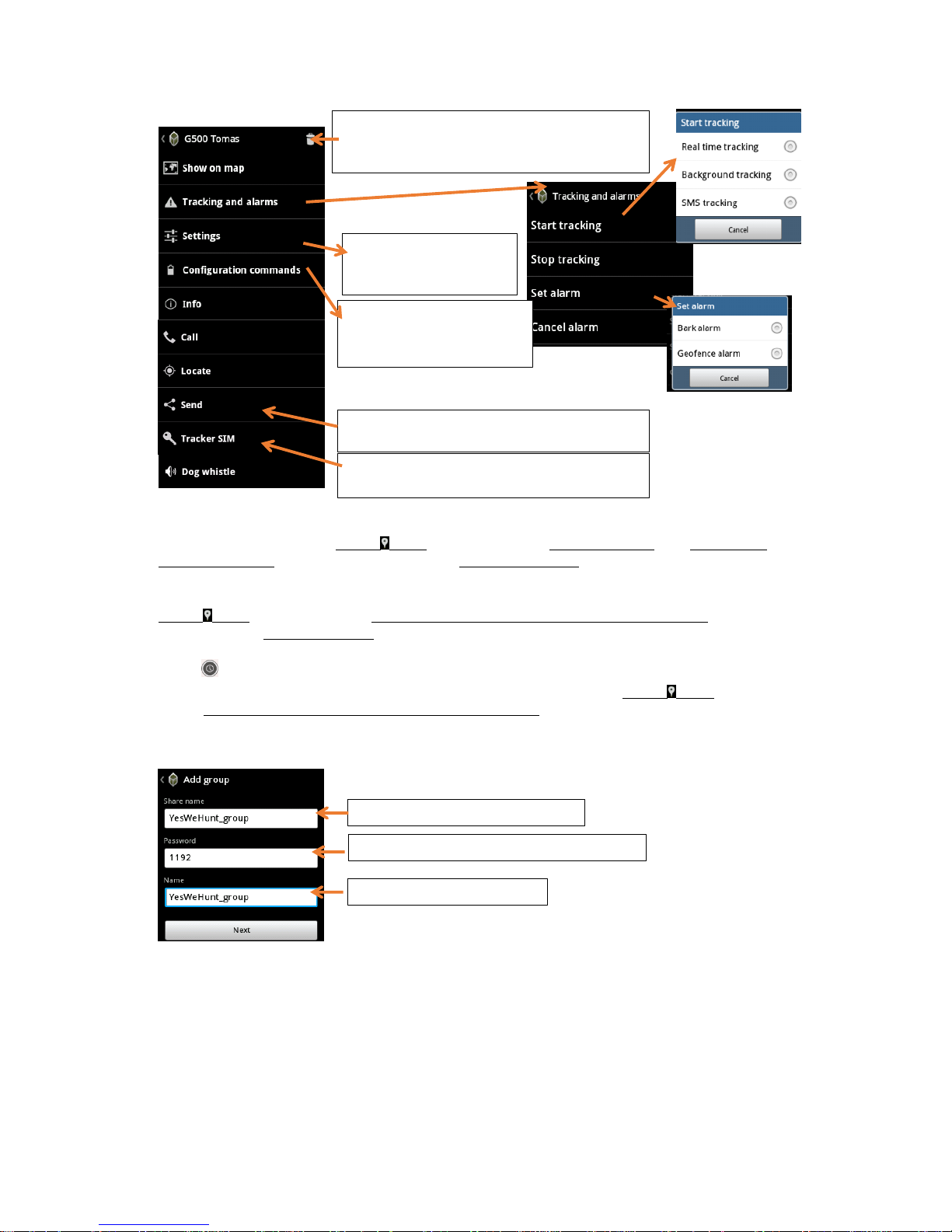
Delete the target. You will be asked in the next
step, if you want to unregister the target from
Tracker Live or just delete from your local targets.
Changing the displayed
name, icon, SIM card number, and passwords
Restart the device, set A-GPS
(update if expiring), GPS/ GSM
power and barking volume
Send to a friend. He/she receives the dog without
any further adding processes.
Write share name of the group
Change password for the group if you want
Displayed name of the group
Check the Tracker SIM balance and possibility to
insert the activation code from Tracker Voucher.
Page 16
16
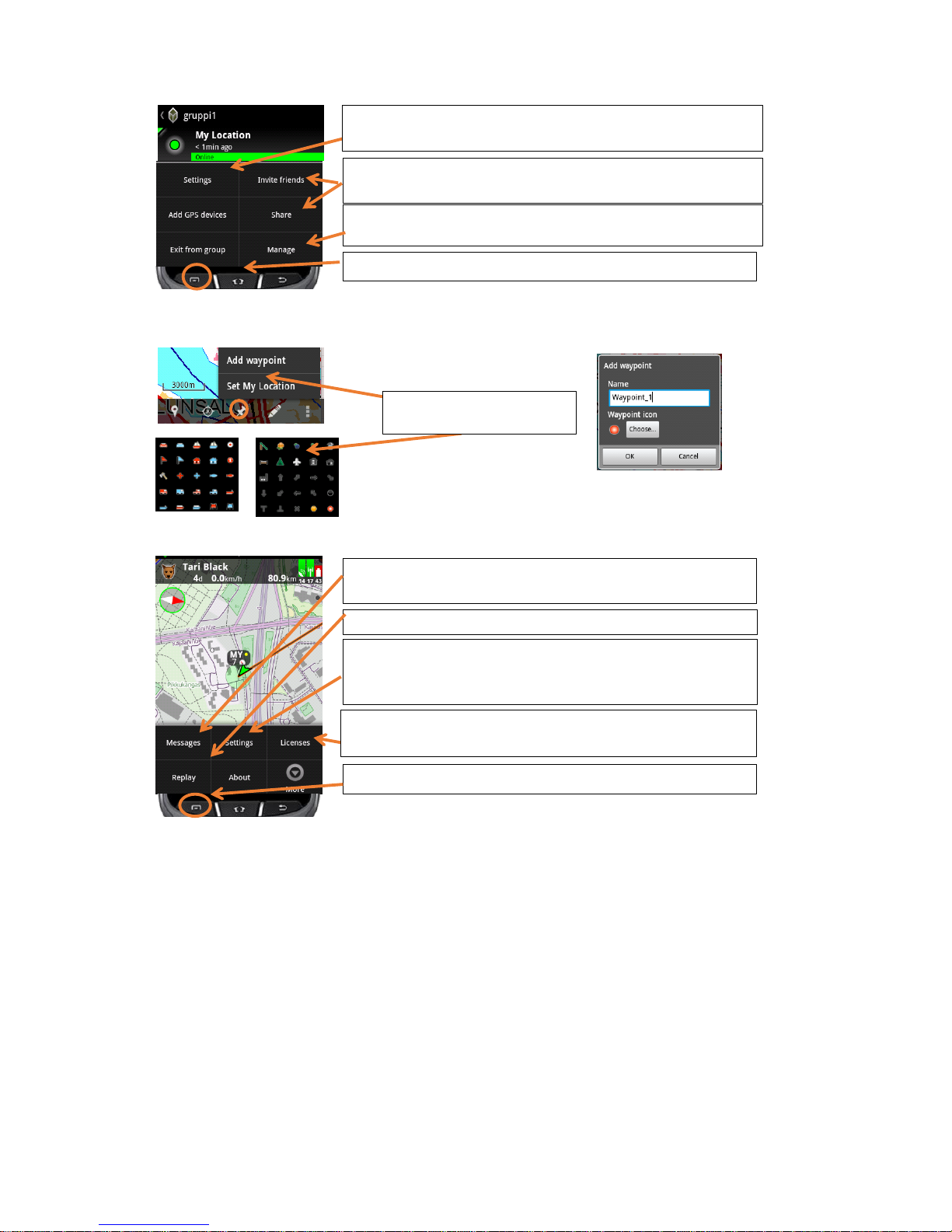
Smart menu – Add a waypoint
Main menu
You can read instant messages and them to your friends and to
groups with Tracker for Android™ or Tracker Hunter®.
Settings for GPS modus, Length of the track, set Tracker Live
online/offline, Tracker SIM Balance alert limit and further useful
adjustments.
Menu. For Android 4.x please use the menu button of the phone.
Menu button for the group or press the Android menu button
You can also invite friends and add your local targets to the group or
exit the group
If you have admin rights, you can manage the group – give and take
admin rights, block or delete members from the group.
Insert the name of the waypoint and select an icon.
Activate or buy a license code, unregister the app from the phone
or view the license details.
Replay modus
Here you can change the name and password of the group if you
have admin rights, and your subscription
Page 17
17
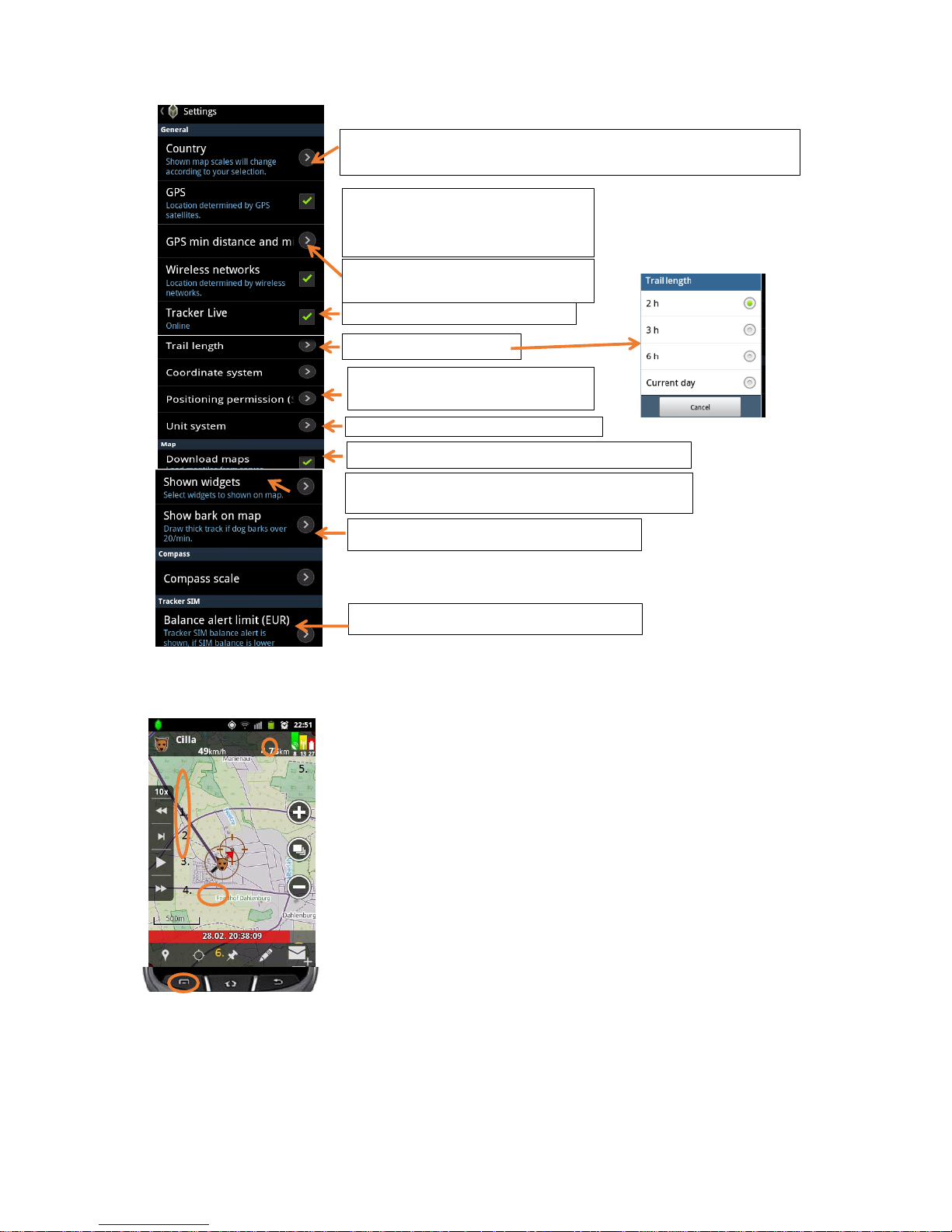
Replay – function
The sophisticated development of Tracker for Android allows you replay your hunt on any day again. Just
click on the function “Replay” in the Main menu, select time & date and desired
targets and you can experience your hunt again.
You can directly replay and show your friends any hunt you have done.
1. Moves 1hour backwards
2. Moves 1 Minute forwards (by pressing for 2 seconds it changes to 1 min
backwards
3. Play (by pressing 2 seconds you can select replay speed)
4. Moves 1 hour forwards
5. Replay statistics
6. Add a reset point (statistics starts to count from 0)
Tracker Live™ - active / deactivate
Location via
1. A-GPS wireless networks
2. GPS-satellites
Updating frequency of your position to
Tracker Live™
Trail lenght of the track
Allow or deny SMS position replies to
requests from other users
Show compass, coordinates, or scale bar on the main
display
Make barking visible on the track (thick line)
Set the Tracker SIM balance alert
Allow or deny downloading of maps
Changing the country will enable different map layers (from local providers
like IGN, BKG…)
Change the metric systems to e.g. mph
Page 18
18
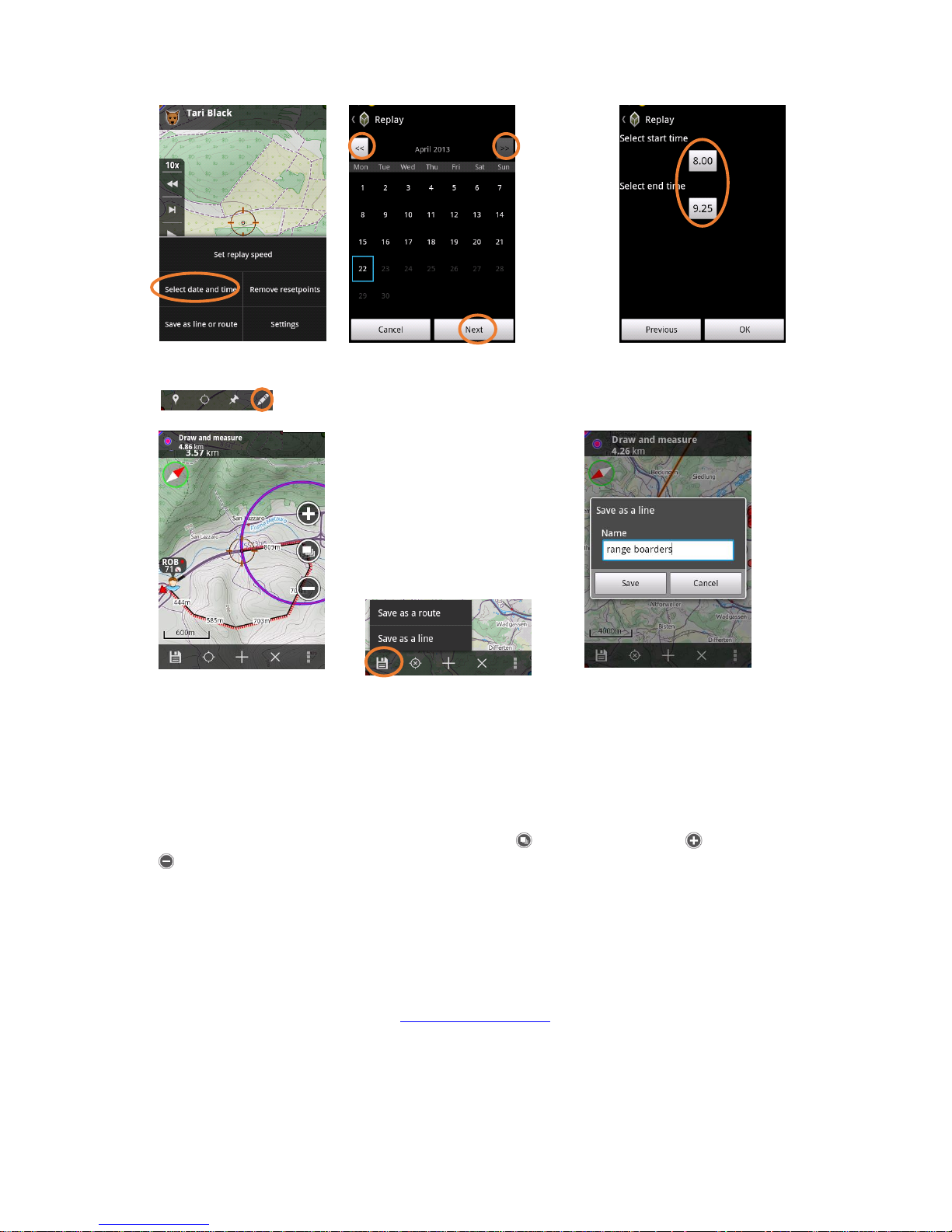
Draw and measure
Draw your hunting area borders and share with your friends.
1. Save as a Line or Route
2. Add a point
3. Delete last point or all points
4. Settings for style of the line
Other functions
Maps and map levels
You can change between different map layers by clicking on and different zoom levels for zoom in and
for zoom out. If you wish to zoom deeper on the same level, you can use the standard zooming process
like in android phone by stretching the picture on the screen with your fingers
Changing the application to another phone
You can freely change the app to another phone without loosing your targets, waypoints or any other targets.
1. ”menu > licenses > write down the ”registration code”
2. Menu > licenses > unregister
3. Download the application from www.tracker.fi/download
4. Do NOT activate a ”Try & Buy” license, but press ”No” and continue with the registration
5. Insert the registration code
1. 2. 3. 4
Page 19

19
6. If you download the app from Google Play, please unregister the test version (continue with steps
2-5).
Tracker for Android™ vocabulary
The activation code or one-year Tracker license code is a sequence of characters, which is activated
for additional functions, such as year usage. The activation code can be inserted to the "Licenses"> "Activate
License Code". Code is a single use license code and is added to the original registration code. When you
install the application for the first time, the license code is the registration code. If you enter the license
code to an already running programme, it just activates additional year. Please note that the activation code
is case-sensitive (uppercase and lowercase letters are differentiated). Activation codes can be purchased either online by www.tracker.fi or dealer www.tracker.fi/trackerstore.
Displayed name is the public name of yourself or your device on the Tracker Live™ server.
Displayed target is the target you have chosen to be shown on the map and that you are managing – that
is where the commands and requests are sent. The icon of Displayed target is emphasized on the map with a
rectangle selection and a line is drawn between the target and My Position.
Owner password together with the share name are needed when controlling your targets, e.g. setting
tracking commands, commands related to alarms, changing settings, and making configuration settings. We
do not recommend giving out the owner password or set viewer and owner passwords equal.
The registration code is a series of characters. The registration code is a unique key in your programme.
The registration code is given only once while first installation of the programme either hand by recording
(you enter a license code) or automatically (for example, when you activate the Try & Buy version). Please
note that the registration code is case-sensitive (uppercase and lowercase letters are differentiated).
Share name is like a user name for the Tracker for Android™. Every device must have a unique share
name.
The activation code or one-year Tracker license code is a sequence of characters, which is activated
for additional functions, such as year usage. The activation code can be inserted to the "Licenses"> "Activate
License Code". Code is a single use license code and is added to the original registration code. When you
install the application for the first time, the license code is the registration code. If you enter the license
code to an already running programme, it just activates additional year. Please note that the activation code
is case-sensitive (uppercase and lowercase letters are differentiated). Activation codes can be purchased either online by www.tracker.fi or dealer www.tracker.fi/trackerstore.
Tracker Live™ is a service that works via GPRS that enables tracking in real time. You can share your
or your dog’s position data with others. The collar needs to send its position only once and the server
shares it to the receivers who have the owner or viewer rights. Furthermore Tracker Live™ enables you to
send and receive positions of your friends, if enabled.
Viewer password. Owners can share their targets in Tracker for Android™/Tracker Live™. With the
viewer password and the share name of a target you can search for this target. Viewers can view the dog on
their mobile phone but they cannot set commands, call the collar or make changes in settings. This way you
do not need to give your dog collar’s phone number to everyone who wants to see the dog’s motion.
Copyrights
© MML, 2011, 2012
© Liikennevirasto
Karttatiedot © OpenStreetMapin tekijät, CC BY-SA
© Lantmäteriet
© Bundesamt für Kartographie und Geodäsie
© Nordeca
© Cnig
© USGS
© Miljöministerietet
© IGN
Page 20

20
END USER LICENSE AGREEMENT
LICENSE TERMS AND CONDITIONS
By taking in use the Tracker Hunter® product you agree to be bound by the below End-user License Agree-
ment (“Agreement”). If you do not agree to the terms of the Agreement, do not charge, switch power on or
try any other way using or taking in use the Tracker Hunter®.
“Agreement” shall mean this End-user License Agreement.
“Product” refers to the Tracker Hunter® product, mobile phone software, including the Tracker Live™ ser-
vice, communication protocols between software, devices and servers, www.trackerhunter.com website and
all related items including Documentation.
”Licensor” shall mean Tracker Oy.
”You” and “Your” refers to the person or entity that has purchased the product
“Documentation” refers to any installation instructions, user manuals and other documents related to the
Product and provided You by the Licensor.
1. Grant of license
Subject to You approving the terms of this Agreement the Licensor hereby grants You a non-transferable
and non-exclusive right to use the Product and Documentation for Your own personal use or, in case of entity, for personal use of the employees of the entity, pursuant to the terms of this Agreement and the Documentation.
Unless expressly otherwise agreed, all updates and new versions of the Product received by You from the
Licensor in order to upgrade the Product shall be subject to separate license agreements and license fees
unless expressly otherwise informed in written by the Licensor to You.
You may:
1) Use the Product by communicating with it using the Product via Licensor’s tracking software’s such as
Tracker Hunter®;
2) Let other users use the Product by communicating Licensor’s tracking software or hardware such as
Tracker Hunter®;
3) Use the Documentation to the extent necessary to exercise the rights granted in this agreement.
For avoidance of doubt, You may not:
1) Use the Product to offer service bureau or facilities or management services to third parties;
2) Make copies of the Product except backup for your own use;
3) Distribute, rent, lease, loan, or resell the Product or any copy of it;
4) Reverse, engineer, decompile, disassemble, analyse or otherwise examine or attempt to expose the code
of the Product;
5) Modify, adapt, translate or create derivative works based on the Product or any part thereof;
6) Remove, obliterate, deface or in way alter the notice of Licensor’s or third parties’ proprietary rights re-
lated to the Product or Documentation;
7) Grant neither sublicenses to the Product nor assign any rights or obligations under this Agreement to a
third party or otherwise dispose of or deal with those rights or obligations.
2. Intellectual Property Rights
All rights, title, and interest including any and all intellectual property rights in and to the Product or Documentation are and shall at all times remain the sole and exclusive property of the Licensor, and its licensors
as applicable. You shall have no other rights to the Product than the limited rights expressly granted to You
in this Agreement. The license granted herein to You is of non-exclusive nature and do not in any manner
restrict or limit Licensor’s, or its licensors as applicable, right to exploit the Product or any parts thereof as
they deem fit.
Licensor is liable for all the claims for damages and for compensation (cause of action) claimed by a third
party due to possible violations of Product concerning the copyright, patent, trademark and other IPR rights
including the juridical expenses and compensation for damage and for all expenses granted to a third party
by law regarding the claim in question.
When such violation occurs, Licensor has the right (a) to revise the Product in order to excise the violation
or (b) to annul the licence given here.
Page 21

21
The Licensor uses the maps provided by third parties. All copyrights related to the maps are managed by the
map providers. The map providers are e.g.:
Maanmittauslaitos, Merenkulkulaitos, Karttakeskus, Lantmeteriet, Nordeca, Navionics, Navteq, C-Map,
CNIG, IGN-France, BKG-Germany, USGS, OpenStreetMap.
3. Entire Agreement and Assignment
You agree that this Agreement sets forth the entire agreement for the use of the Product and supersedes
any prior proposals and representations, whether written or oral. If any term of this Agreement is found to
be invalid or unenforceable, the remaining provisions will remain effective. The Product may not be re-sold,
rented, leased, borrowed or otherwise handed over to a third party without prior written consent of the
Licensor. You may not assign this Agreement to a third party without the prior written consent of the Licensor.
4. Term of the Agreement
This Agreement shall be in force for an indefinite period of time. The Licensor shall have the right to terminate this Agreement and license granted herein if You materially breach or infringe the provisions of this
Agreement and fail to remedy such breach within seven (7) days after receiving a written notice thereof
from the Licensor. Further the Licensor may demand the compensation of damages as have been incurred by
such default or breach. If and when this Agreement is terminated due to any reason or cause whatsoever,
any rights and obligations of the parties hereto under this Agreement which have accrued prior to termination of this Agreement shall not be affected by the termination.
5. Warranty and exemption of liability
Warranty applies only to products liable to charge.
During the warranty period Tracker or its authorised support company will within a reasonable period of
time either repair the Product due to faulty design or quality or, if so desired, change the Product to a new
one in accordance with these warranty terms. This limited warranty is only valid in the country where the
Product was purchased, unless otherwise agreed.
The warranty period starts when the Product is sold for the first time to an End User. The warranty period
is 90 day for the software.
Any resale, repair or replacement of the Product do not extend, renew or change the warranty period of
the Product in any way. However, the parts repaired and the Product replaced during the warranty period
remain under the warranty until the end of the original warranty period, yet always at least for sixty (60)
days from the repair date or the delivery of the replacement Product.
When you wish to make a claim under the warranty, return the Product to Tracker or to a maintenance
company. In order to claim under the warranty, you must inform Tracker or a maintenance company authorised by Tracker of the fault you have detected within a reasonable period of time after discovering the
fault, and in any event, before the end of the warranty period.
When claiming under the warranty, you must be able to present :
1) the Product (or its faulty part),
2) an original certificate of purchase stating the name and address of dealer, time and place of purchase and
the serial number of the Product.
This warranty will not cover the user’s manual of the Product, Tracker will not guarantee that any software
of the Product
1) will fulfil all your demands,
2) will work or be compatible with any device or software of a third party,
3) will work uninterrupted or error-free.
This warranty will not cover
1) normal wear and tear
2) any defects caused by the handling of the Product
3) defects or damages caused by misuse of the Product or
4) defects or damages caused by other acts beyond the reasonable control of Tracker.
This warranty will not cover defects or alleged defects caused by the fact the Product was used with, or con-
nected to, a product, accessories, software and/or service not manufactured or supplied by Tracker, or was
used otherwise than for its intended use.
Page 22

22
You cannot make a claim under this warranty, if the Product has been altered or it has been opened or repaired by someone else other than the authorised maintenance company, if it has been repaired using other
than official spare parts, or if the serial number of the Product, the date of the accessory or the IMEI number
have been removed, rubbed off, altered or is according to Tracker’s view otherwise unclear.
This warranty becomes void, if the Product has been exposed to extreme thermal or environmental conditions or to rapid changes in such conditions, or to chemical products.
A third party, independent from Tracker, provides the mobile phone, SIM card, GSM network and GPS network on which the Product operates. Therefore, Tracker will not accept responsibility under this warranty
for their operation, availability, coverage, services or range.
When Tracker replaces any parts of the Product or other devices, the original parts or devices become the
property of Tracker. If it turns out that the Product returned to Tracker or Tracker’s authorised mainte-
nance company is not covered by this warranty, Tracker reserves the right, on behalf of itself and its authorised maintenance companies, to charge a handling fee for the returned Product. When repairing or replacing
the Product, Tracker may use new, equivalent to new or repaired products or parts.
Tracker or a third party will not guarantee that any software of the Product will come up to all your expectations, will work completely uninterrupted or error-free or that possible errors can or will be corrected.
This limited warranty is your sole and exclusive remedy against Tracker and Tracker’s sole and exclusive lia-
bility in respect of defects in your Product. Tracker does not assume any liability for indirect damage and
Tracker’s liability shall be limited to the purchase value of the Product.
6. Governing Law and Dispute Resolution
This Agreement shall be governed by the laws of Finland. Any dispute or controversy or claim arising out of
or relating to this Agreement involving the parties, which is not settled after the parties' attempt at amicable
negotiation shall be resolved by District Court of Helsinki.
Tracker Oy
Kauppiaantie 30
Fin-90460 Oulunsalo
Finland
Tel: +358 8 521 9000 Fax: +358 8521 9100
All rights reserved © Tracker O
Page 23
23
 Loading...